1
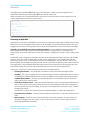
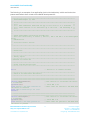
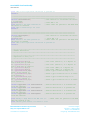
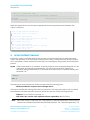
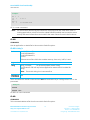
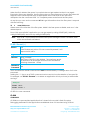
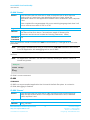
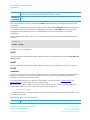
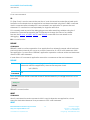
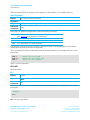
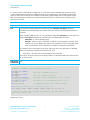
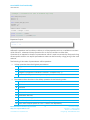
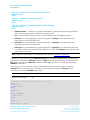
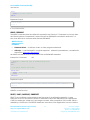
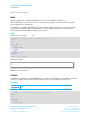
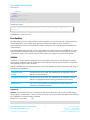
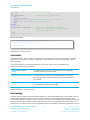
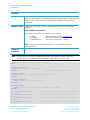
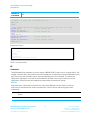
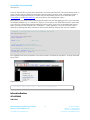
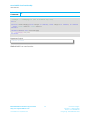
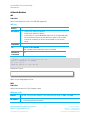
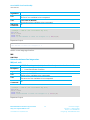
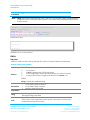
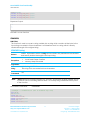
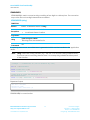
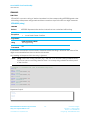
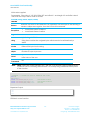
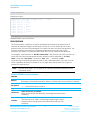
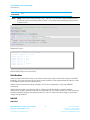
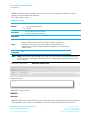
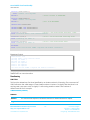
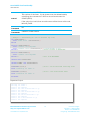
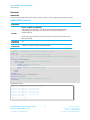
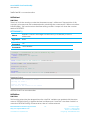
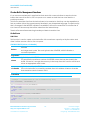
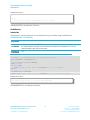
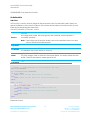
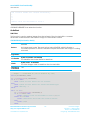
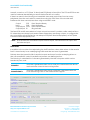
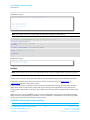
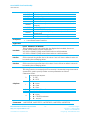
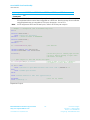
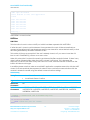
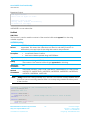
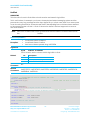
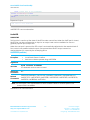
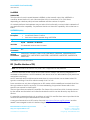
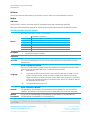
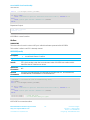
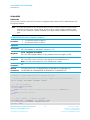
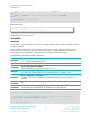
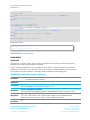
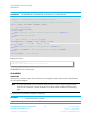
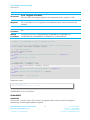
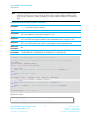
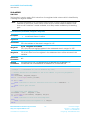
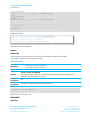
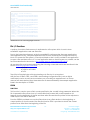
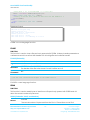
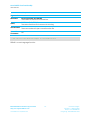
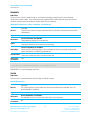
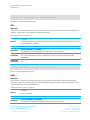
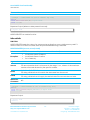
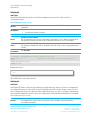
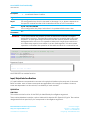
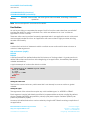
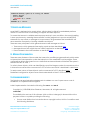
smart BASIC Core Functionality User Manual comment. If you have C++ language experience, you can also use the // token to indicate that the rest of the line is a comment. The second item of interest is the line feed character ‘\n’ which we’ve added after Hello World in the print statement. This tells the print command to start a new line. If left out, the ten Hello World’s would have been concatenated together on the screen. You can try removing it to see what would happen. Compile and download the file HelloWorld.sb to the module (using XCompile+Load in UwTerminal) and then run the application in the usual way: AT+RUN “helloworld” The following output displays: Hello Hello Hello Hello Hello Hello Hello Hello Hello Hello World World World World World World World World World World If you now change the print statement in the application to print "Hello World ";i;"\n" //The \n forces a new line each time … the following output displays: Hello Hello Hello Hello Hello Hello Hello Hello Hello Hello World World World World World World World World World World 1 2 3 4 5 6 7 8 9 10 If you run AT+DIR, you will see that both of these programs are now loaded in memory. They remain there until you remove them with AT+DEL. 06 06 00 test1 HelloWorld Embedded Wireless Solutions Support Center: http://ews-support.lairdtech.com www.lairdtech.com/bluetooth 26 Laird Technologies Americas: +1-800-492-2320 Europe: +44-1628-858-940 Hong Kong: +852-2268-6567 x026