1
Alignment & Adjustments
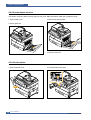
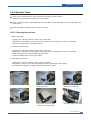
4.2 Clearing Paper Jams
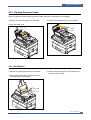
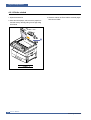
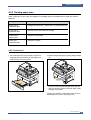
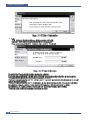
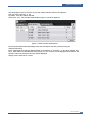
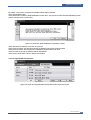
If a paper jam occurs an error message appears in the LCD display.
Find and remove the jammed paper.
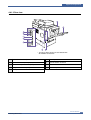
If you don't see the paper, open the covers.
Do not use a tweezers, pincers or other metal tools when clearing a paper jam.
This could damage the internal mechanism causing print quality problems or possibly electrical shock.
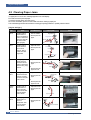
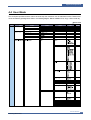
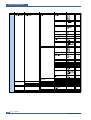
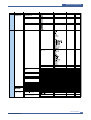
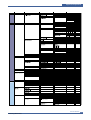
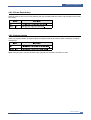
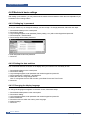
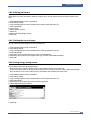
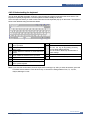
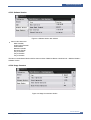
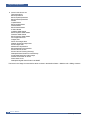
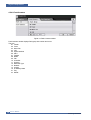
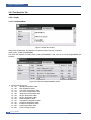
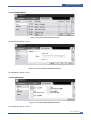
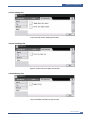
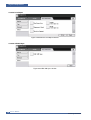
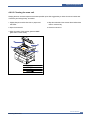
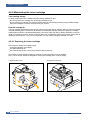
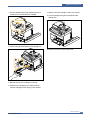
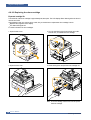
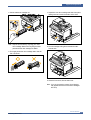
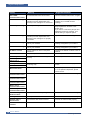
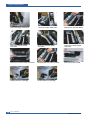
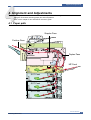
[ Engine Jam Type ]
Type
Case
Jam 0
Jam 1
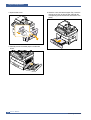
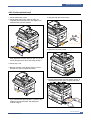
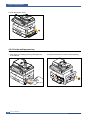
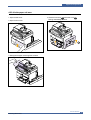
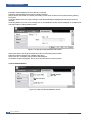
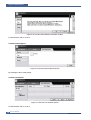
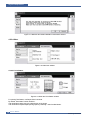
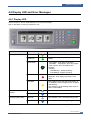
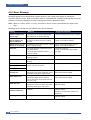
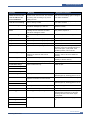
Jam Removal
Jam Layout
Leading edge of
media does not
arrive at registration
within a certain time
after pick-Up(If fails
at a time, it tries
pick-up again)
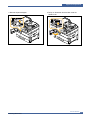
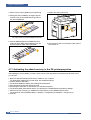
1. Pull out cassette
Registration
Leading edge of
media does not
arrive at Exit
Sensor within a
certain time after
registration
1. Open side cover
2. Remove jammed
paper
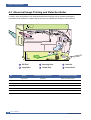
Regi Sensor
Pick-Up
Exit Sensor
2. Remove jammed
paper
Fuser
OPC
Registration
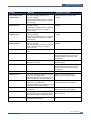
Jam 2
Duplex
Jam 1
Photo
Trailing edge of
media does not
leave Exit Sensor
within a certain time
after touching Regi
Sensor
1. Open side cover
Trailing edge of
media leaves Exit
Sensor, and does
not arrive at Duplex
Jam1 Sensor
1. Open side cover
Regi Sensor
2. Remove jammed
paper
Exit Sensor
Fuser
Or
1. Remove jammed
paper from exit
Duplex Jam1
Sensor
2. Remove jammed
paper
Or
Fuser
1. Remove jammed
paper from exit
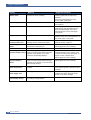
Duplex
Jam 2
Duplex
Jam 0
4-2
Leading edge of
media does not
arrive at Duplex
Jam2 Sensor after
touching Duplex
Jam1 Sensor
1. Open Side Cover
Leading edge of
media does not
arrive at
Registration after
touching Duplex
Jam2 Sensor
1. Open Side Cover
Duplex Jam1 Sensor
2. Remove jammed
paper
Duplex Jam2 Sensor
Registration
2. Remove jammed
paper
Duplex Jam2 Sensor
Service Manual
Samsung Electronics