1
INSTALLATION INSTRUCTIONS
R
UNLEASH.
THE SMARTEST PERFORMANCE TUNING TECHNOLOGY
FUEL + QUICKSHIFT + TRACTION CONTROL
A86BT | BLUETOOTH MODULE
1>READ
WARNINGS > INSTALLING
•
•
•
•
•
We strongly suggest that an experienced technician install this product.
Read through all instructions before beginning installation.
This document is intended for use by qualified technicians.
This is not a replacement for the Engine Control Unit (ECU).
Refer to a factory service manual for more specific stock component
identification/location information and removal/assembly procedures.
WARNINGS > USING
• Use only in race or other closed-course applications and never on public roads.
• Z-Fi products are not certified by the California Air Resource Board (CARB) for
use on CA highways.
GETTING HELP
• Factory support is available in the US at 909-597-8300.
• For fastest support outside of the US, find your local importer at bazzaz.net.
2>IDENTIFY
INCLUDED PARTS
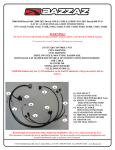
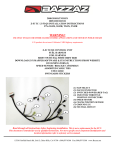
1. Z-Fi/Z-Fi TC control unit
FUEL HARNESS
3>REMOVE
1. Seat
2.
4>SECURE
1. Mount the control unit in the tail section of the motorcycle.
5>CONNECT
5.1
1. Basically, the App should work the same as the standard software. As much as possible the app should never save maps, trims, or adjustments to the phone. It should all
be stored on the Z-Fi and the app is just displaying what the Z-Fi is set at and allowing
the user to adjust or change the settings.
2. Status Bar in the bottom above the Bazzaz logo, displays status, eg. Once connected the app shows “connected (designated name of the module)”
3. Upon opening the App it should immediately starts searching for a Bazzaz Bluetooth
Module. Once it finds one or multiples the user can select which one to connect to.
A. While searching for a Bazzaz Bluetooth module a spinning wheel icon appears. After 60 seconds if nothing found it gives up and displays “not connected” in the
blue status bar at the bottom
B. If NOT connected, user is able to see all functions of the App but for obvious
reasons can not make any changes. 4. User must be able to name & password protect each Bluetooth module they are
working with e.g. (Josef Ducati A Bike).
Would be ideal if this could be stored on
the RN-42 module using the Roving Networks tools/API
5. Top Left has a back arrow. Clicking this arrow will take back to Home Screen.
6. Top Center, in blue, capital font, is label for type of page currently being viewed
7. Anytime a given command is not successful, report back a “Communication Error”
message, with CANCEL or TRY AGAIN
8. Clicking on the BAZZAZ logo at the bottom, opens the web browser to www.Bazzaz.
net
9. When selecting the “i” icon in the bottom left hand of the app, the instructions for using the app will appear.
**Instructions are attached, and open to suggestions based on your experience
and how the app turns out.
10. When selecting the Menu icon in the bottom right hand of the app:
A. Displayed will be the same TPS, RPM, & ZAFM messages from standard
software
B. Displayed will be the YEAR, MAKE, MODEL, SERIAL #, FIRMWARE information from standard software
C. Button for “LOAD OEM FUEL MAP”
1. This button will clear the or set to “0” all the cells in the Fuel Map, including any gear and cylinder trims
11. HOME SCREEN - App needs to be able to detect what type of product and configure the presentation for that product:
A. IF a Z-Fi grey out the QuickShift & Traction Control buttons
B. IF a Z-Fi QS grey out the Traction Control buttons
C. IF a Z-Fi MX grey out the Quickshift & Traction Control buttons
D. IF a QS4 USB grey out the Fuel Self Mapping & Traction Control buttons
1. Once Quick Shift selected user gets SHIFT LIGHT button in addition to
CUT TIME
E. App detects if a Z AFM is present.
1. YES - everything functions appropriately
2. NO - then when user selects the SELF FUEL MAPPING button the
received a dialog box stating” No Z AFM Self Mapping Module detected. Click OK for
more info or CANCEL
a. Cancel - just closes the dialog box
b. OK - Opens their web browser to http://bazzaz.net/index.php/emsaccessories/z-afm-air-fuel-mapper
12. FUEL
A. User is able to adjust fuel adjustments in the table or by trim %
1. User given 2 button option FUEL MAP & FUEL TRIM
2. FUEL MAP
1. User presented with options of Increment Map By, Smooth Map, &
Clear Map.
a. Increment Map By - when selected, user enters a value of -63 up
to +63. After pressing “Apply” this value is applied to the entire Fuel Map.
b. Smooth Map - when selected, user then presses “Apply” and
the entire Fuel Map is “Smoothed” like butter.
c. Clear Map - when selected, user then presses “Apply”
and the entire Fuel Map is cleared or set to “0”.
3. FUEL TRIM
1. FUEL TRIM % by GEAR. a. Using the up/down arrow increases/decreases in increments
of 1 from -63 up to +63
b. When pressing the number a wheel dial appears and user can scroll
from -63 up to +63
2. FUEL GLOBAL ADJUST
a. FUEL can be adjusted globally. This is where user can increase/decrease in
increments of 1. These adjustments apply to the FUEL TRIM by GEAR% by adding or
subtracting from what is displayed in the FUEL TRIM by GEAR
3. FUEL TRIM % by CYLINDER
a. Using the up/down arrow increases/decreases in increments of 1 from -63 up
to +63
b. When pressing the number a wheel dial appears and user can scroll from -63
up to +63
13. FUEL SELF MAPPING
A. User is able to select the TARGET AFR (only one value).
1. When user press on the value in the square box, one of those wheel dials appears and user can scroll from 11.0 up to 17.0 in increments of .1
2. Only the START button is illuminated
3. Status message should read “ready to start” (providing they
are connected) - if not connected the status should always read “not connected”
B. START button
1. Pressing START not only begins data collection but also clears any previously
collected data. 2. At this point they may stay connected or not, then reconnect at later time (typically when done riding)
a. Status message changes to “recording”
b. Now only the STOP button is illuminated
3. STOP button 1. Ends data collection
a. Status message changes to “stopped recording”
b. Now only the APPLY button is illuminated
4. APPLY button 1. Data is first analyzed to determine if valid or not
a. IF valid - 1. Dialog box appears “You are about to modify your Fuel Map. Do you
want to apply these changes?” with a CANCEL or OK button
a. IF CANCEL - no changes are applied and returns START mode of
Z AFM (12.A.2. /Image 5)
b. IF OK - 1. Status message changes to “applied to fuel map”
2. Changes are made to Fuel Map
3. Status message reads “fuel map applied”
b. IF not valid
1. Dialog box appears “Z AFM Data Invalid! No changes made to the Fuel Map. Press
OK to diagnose problem.”
a. Status message changes to “data collection invalid”
a. IF CANCEL - no changes are applied and returns START mode of
Z AFM (12.A.2. /Image 5)
b. IF OK - directs to Z AFM troubleshooting on bazzaz website 14. QUICK SHIFT A. IF Z-Fi QS or Z-Fi TC
1. CUT TIME
a. CUT TIME by GEAR is displayed
b. Pressing up or down arrow increases or decreases number in increments of 1
c. Pressing the number opens a wheel dial and user can scroll from 15 up
to 125
B. IF QS4 USB
1. User given 2 button option CUT TIME & SHIFT LIGHT
2. QS CUT TIME
a. CUT TIME by GEAR is displayed
b. Pressing up or down arrow increases or decreases number in increments of 1
c. Pressing the number opens a wheel dial and user can scroll from
15 up to 125
3. QS SHIFT LIGHT
a. SHIFT LIGHT RPM by GEAR is displayed
b. Pressing up or down arrow increases or decreases number in increments of 100
c. Pressing the number opens a wheel dial and user can scroll from
3,500 up to 18,500
15. TRACTION CONTROL
A. TC can be turned ON or OFF using slide switch at top. 1. When OFF it changes all TC TRIM BY GEAR to changes to OFF in each
Gear and greys out (locks out) each gear setting. Excluding blank cells in the MAP (just
like the standard software).
2. When switched back ON gear trims are all set to 0.
B. When ON
1. TC TRIM by GEAR.
a. Using the up/down arrow increases/decreases in increments of 1
from OFF up to 5
b. When pressing the number a wheel dial appears and user can
scroll from OFF up to 5
2. TC GLOBAL ADJUST
a. TC can be adjusted globally. This is where user can increase/decrease in increments of 1. These adjustments apply to the TC TRIM by GEAR by adding or subtracting from what is displayed in the TC TRIM by GEAR
b. Does NOT apply adjustment to any GEAR that is set to OFF.
11>SECURE
Use the supplied cable ties to secure the harness neatly
along the routing path free of any moving or hot components
(which could cause damage or failure of the system).
12>CHECK
1. In order to check that the system is installed correctly, download the Bazzaz
Z-Fi Mapper software at bazzaz.net.
2. Plug the USB cable into the control unit and computer.
3. Locate and open the Z-Fi Mapper software.
4. Check that the pre-programmed map matches the model of your bike on the
fuel map page within the software. You can switch from map 1 to map 2 by
unplugging the map select jumper on the Bazzaz fuel harness. Map 1 will be
pre-programmed; depending on your model, there may be a pre-programmed
map in the map 2 slot. If map 2 is blank, stock ECU settings are used. Make
sure that the jumper is left plugged in or unplugged, depending on which map
you choose.
5. Start the vehicle and begin to check that the following inputs read correctly on
the fuel map page.
• RPM - Make sure that the RPM is reading near what the vehicle is idling at.
• GPS - The vehicle should read neutral (or whichever gear it is in). For
motorcycles that use a Gear Position Sensor, the bike does not need to be
running to do this. For motorcycles that use a speed sensor, the wheel must
be spinning to read gear properly. This can be checked on a dynamometer or
by using a rear stand. Use caution when testing componentry.
• TPS - When throttle is applied, the TPS should read accordingly. Fly-by-wire
models must be running to check TPS. Normal cable operated throttles can be
checked with just the key on, not running.
Also use software to:
•
•
•
•
•
•
•
View and/or make adjustments to fuel maps
Activate Z-AFM self mapper (sold separately)
Save and load new fuel maps
Re-calibrate throttle position sensor after throttle modifications
View diagnostics for troubleshooting
Change quickshift settings
Make traction control adjustments
If any problem is found, please carefully follow through the
installation steps again.
If problem still persists, please contact Bazzaz tech support
• Factory support is available in the US at 909-597-8300.
• For fastest support outside of the US, find your local importer at bazzaz.net
13>REINSTALL
After it is determined that everything is correct,
reinstall the components removed in step 3.
14>USE
MAPS
The Bazzaz controller is capable of storing two maps.
Switch maps by connecting or disconnecting the map select jumper supplied with the
kit.
MAP 1
MAP 2
15>NEXT LEVEL
SELF MAPPER
Purchased separately.
Build race-level fuel maps for your specific
modifications, fuel type, engine, and
atmospheric conditions simply while riding.
02 sensor mounts into exhaust and control
box easily plugs in to any Bazzaz Z-Fi
product.
299.95
MAP SELECT/
TC ADJUST SWITCH
Purchased separately.
Switch maps on the
fly with this handlebarmounted switch. Quickly
adjust traction control
settings using a 10-point
dial. Weatherproof toggle
and easy installation.
129.95
TC ACTIVE LIGHT
Purchased separately.
Illuminates when traction control
is engaged. Helpful in determining
when and where traction control is
being actuated.
79.95
NOTES:
NOTES:
R
THE SMARTEST PERFORMANCE TUNING TECHNOLOGY
A86BT