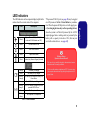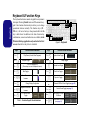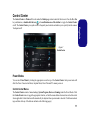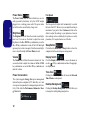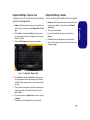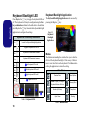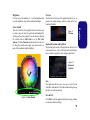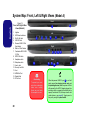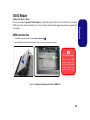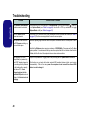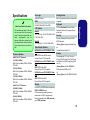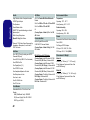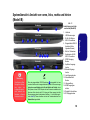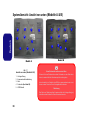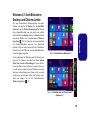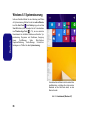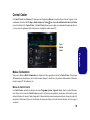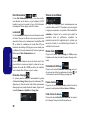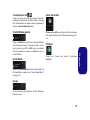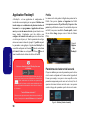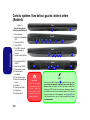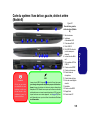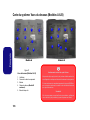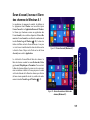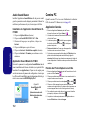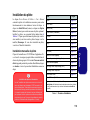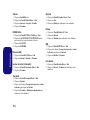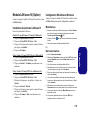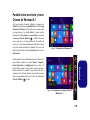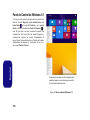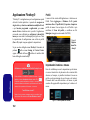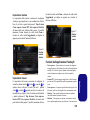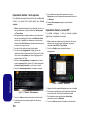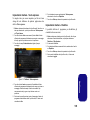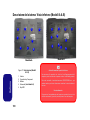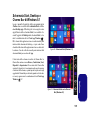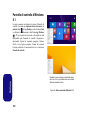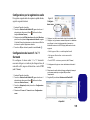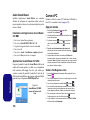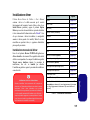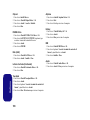
1
Introduction (English) Introducción (Español) This Concise User’s Guide introduces the main features of your computer. The English version of this guide begins on page 1. The expanded User’s Manual is on the Device Drivers & Utilities + User’s Manual disc. Esta Guía del Usuario Concisa le presenta las características principales de su ordenador. La versión española de esta guía comienza en la página 127. El Manual del usuario completo se encuentra en el disco de Controladores del dispositivo y Utilidades + Manual del usuario (disco Device Drivers & Utilities + User's Manual). Einführung (Deutsch) Dieses Ausführliche Benutzerhandbuch führt Sie in die Hauptfunktionen des Computers ein. Die deutsche Version des Handbuchs beginnt auf Seite 43. Das erweiterte Benutzerhandbuch finden Sie auf der Disc für die Gerätetreiber und Hilfsprogramme (Disc Device Drivers & Utilities + User's Manual). Présentation (Français) Introduzione (Italiano) La presente Guida Rapida per l'Utente introduce le caratteristiche principali del computer. La versione italiana di questa guida inizia da pagina 169. Il Manuale utente completo si trova nel disco contenente driver e utilità + Manuale utente (disco Device Drivers & Utilities + User's Manual). Ce Guide Utilisateur Concis présente les fonctionnalités principales de votre ordinateur. La version française de ce guide commence à la page 85. Le Manuel de l'Utilisateur étendu se trouve sur le disque de Pilotes & Utilitaires + Manuel de l'Utilisateur (disque Device Drivers & Utilities + User's Manual). I Contents Inhalt About this Concise User Guide ......................................................... 1 System Startup ................................................................................... 4 RAID Setup ....................................................................................... 6 System Map: Front View with LCD Panel Open (Models A & B) ................................................................................ 8 LED Indicators ................................................................................... 9 Keyboard & Function Keys ............................................................. 10 Control Center ................................................................................. 11 Flexikey® Application .................................................................... 14 Keyboard Backlight LED ................................................................ 18 System Map: Front, Left & Right Views (Model A) ....................... 20 System Map: Front, Left & Right Views (Model B) ....................... 21 System Map: Bottom Views (Models A & B) ................................. 22 Windows 8.1 Start Screen, Desktop and Charms Bar .................... 23 Windows 8.1 Control Panel ............................................................. 24 Video Features ................................................................................. 25 Power Options ................................................................................. 26 Audio Features ................................................................................. 26 PC Camera ....................................................................................... 28 Driver Installation ............................................................................ 29 Wireless LAN Module (Option) ...................................................... 31 Fingerprint Reader (Option) ............................................................ 33 Bluetooth Module (Option) ............................................................. 34 Intel® Smart Response Technology ................................................ 35 Intel® Rapid Start Technology ........................................................ 36 Trusted Platform Module ................................................................. 38 3G/4G Module ................................................................................. 39 Troubleshooting ............................................................................... 40 Specifications ................................................................................... 41 Über das Ausführliche Benutzerhandbuch ...................................... 43 Schnellstart ....................................................................................... 46 RAID Setup ...................................................................................... 48 Systemübersicht: Ansicht von vorne mit geöffnetem LCD-Bildschirm (Modelle A & B) .................................................. 50 LED-Anzeigen ................................................................................. 51 Tastatur & Funktionstasten .............................................................. 52 Control Center .................................................................................. 53 Flexikey® Anwendung .................................................................... 56 Tastatur-Hintergrundlicht-LED ....................................................... 60 Systemübersicht: Ansicht von vorne, links, rechts und hinten (Modell A) ....................................................................................... 62 Systemübersicht: Ansicht von vorne, links, rechts und hinten (Modell B) ........................................................................................ 63 Systemübersicht: Ansicht von unten (Modelle A & B) ................... 64 Windows 8.1 Start-Bildschirm, Desktop und Charms-Leiste .......... 65 Windows 8.1 Systemsteuerung ........................................................ 66 Grafikfunktionen .............................................................................. 67 Energieoptionen ............................................................................... 68 Audiofunktionen .............................................................................. 68 PC-Kamera ....................................................................................... 70 Installation der Treiber ..................................................................... 71 Wireless-LAN-Modul (Option) ....................................................... 73 Fingerabdruckleser (Option) ............................................................ 75 Bluetooth-Modul (Option) ............................................................... 76 Intel® Smart Response-Technologie ............................................... 77 Intel® Rapid Start-Technologie ....................................................... 78 TPM (Trusted Platform Module) ..................................................... 80 3G/4G-Modul ................................................................................... 81 Fehlerbehebung ................................................................................ 82 Technische Daten ............................................................................. 83 II Sommaire Contenidos A propos de ce Guide Utilisateur Concis ......................................... 85 Guide de démarrage rapide .............................................................. 88 Configuration RAID ........................................................................ 90 Carte du système: Vue de face avec l’écran LCD ouvert (Modèles A & B) ............................................................................. 92 Indicateurs LED ............................................................................... 93 Clavier & touches fonction .............................................................. 94 Control Center ................................................................................. 95 Application Flexikey® .................................................................... 98 LED du rétroéclairage du clavier ................................................... 102 Carte du système: Vues de face, gauche, droite et arrière ............. 104 (Modèle A) ..................................................................................... 104 Carte du système: Vues de face, gauche, droite et arrière ............. 105 (Modèle B) ..................................................................................... 105 Carte du système: Vues du dessous (Modèles A & B) .................. 106 Écran d'accueil, bureau et Barre des charmes de Windows 8.1 .... 107 Panneau de Configuration de Windows 8.1 ................................... 108 Caractéristiques vidéo .................................................................... 109 Options d’alimentation .................................................................. 110 Caractéristiques audio .................................................................... 110 Caméra PC ..................................................................................... 112 Installation du pilote ...................................................................... 113 Module LAN sans fil (Option) ...................................................... 115 Lecteur d'empreintes digitales (Option) ......................................... 117 Module Bluetooth (Option) ........................................................... 118 Technologie Intel® Smart Response ............................................. 119 Technologie Intel® Rapid Start ..................................................... 120 TPM (Trusted Platform Module) ................................................... 122 Module 3G/4G ............................................................................... 123 Dépannage ..................................................................................... 124 Spécifications ................................................................................. 125 Acerca de esta Guía del Usuario Concisa ...................................... 127 Guía rápida para empezar .............................................................. 130 Configuración RAID ...................................................................... 132 Mapa del sistema: Vista frontal con panel LCD abierto (Modelos A & B) .......................................................................... 134 Indicadores LED ............................................................................ 135 Teclado & teclas de función .......................................................... 136 Control Center ................................................................................ 137 Aplicación Flexikey® .................................................................... 140 LED de retroiluminación del teclado ............................................. 144 Mapa del sistema: Vistas frontal, izquierda, derecha y posterior (Modelo A) .................................................................................... 146 Mapa del sistema: Vistas frontal, izquierda, derecha y posterior (Modelo B) ..................................................................................... 147 Mapa del sistema: Vistas inferiores (Modelos A & B) ................. 148 Pantalla Inicio, escritorio y barra Charms de Windows 8.1 ......... 149 Panel de Control de Windows 8.1 ................................................. 150 Parámetros de vídeo ....................................................................... 151 Opciones de energía ....................................................................... 152 Características de audio ................................................................. 152 Cámara PC ..................................................................................... 154 Instalación de controladores .......................................................... 155 Módulo LAN Wireless (Opción) ................................................... 157 Lector de huellas digitales (Opción) .............................................. 159 Módulo Bluetooth (Opción) ........................................................... 160 Tecnología Intel® Smart Response ............................................... 161 Tecnología Intel® Rapid Start ....................................................... 162 TPM (Trusted Platform Module) ................................................... 164 Módulo 3G/4G ............................................................................... 165 Solución de problemas ................................................................... 166 Especificaciones ............................................................................. 167 III Sommario Informazioni sulla Guida Rapida per l'Utente ............................... 169 Guida di avvio rapido .................................................................... 172 Configurazione RAID .................................................................... 174 Descrizione del sistema: Vista anteriore con pannello LCD aperto (Modelli A & B) ............................................................................ 176 Indicatori LED ............................................................................... 177 Tastiera & tasti funzione ................................................................ 178 Control Center ............................................................................... 179 Applicazione Flexikey® ................................................................ 182 LED di retroilluminazione delle tastiera ........................................ 186 Descrizione del sistema: Vista anteriore, sinistra, destra e posteriore (Modello A) ................................................................................... 188 Descrizione del sistema: Vista anteriore, sinistra, destra e posteriore (Modello B) ................................................................................... 189 Descrizione del sistema: Vista inferiore (Modelli A & B) ........... 190 Schermata Start, Desktop e Charms Bar di Windows 8.1 ............. 191 Pannello di controllo di Windows 8.1 ........................................... 192 Funzioni video ............................................................................... 193 Opzioni risparmio energia ............................................................. 194 Funzionalità audio ......................................................................... 194 Camera PC ..................................................................................... 196 Installazione driver ........................................................................ 197 Modulo LAN Wireless (Opzione) ................................................. 199 Lettore d’impronte digitali (Opzione) ............................................ 201 Modulo Bluetooth (Opzione) ......................................................... 202 Tecnologia Intel® Smart Response ............................................... 203 Tecnologia Intel® Rapid Start ....................................................... 204 TPM (Trusted Platform Module) ................................................... 206 Modulo 3G/4G ............................................................................... 207 Risoluzione dei problemi ............................................................... 208 Specifiche tecniche ........................................................................ 209 IV About this Concise User Guide Some or all of the computer’s features may already have been setup. If they aren’t, or you are planning to re-configure (or re-install) portions of the system, refer to the expanded User’s Manual. The Device Drivers & Utilities + User’s Manual disc does not contain an operating system. Regulatory and Safety Information Please pay careful attention to the full regulatory notices and safety information contained in the expanded User’s Manual on the Device Drivers & Utilities + User’s Manual disc. FCC Statement © November 2014 This device complies with Part 15 of the FCC Rules. Operation is subject to the following two conditions: Trademarks 1. This device may not cause harmful interference. 2. This device must accept any interference received, including interference that may cause undesired operation. Intel and Intel Core are trademarks/registered trademarks of Intel Corporation. 1 English This quick guide is a brief introduction to getting your system started. This is a supplement, and not a substitute for the expanded English language User’s Manual in Adobe Acrobat format on the Device Drivers & Utilities + User’s Manual disc supplied with your computer. This disc also contains the drivers and utilities necessary for the proper operation of the computer (Note: The company reserves the right to revise this publication or to change its contents without notice). English Instructions for Care and Operation The computer is quite rugged, but it can be damaged. To prevent this, follow these suggestions: • Don’t drop it, or expose it to shock. If the computer falls, the case and the components could be damaged. • Keep it dry, and don’t overheat it. Keep the computer and power supply away from any kind of heating element. This is an electrical appliance. If water or any other liquid gets into it, the computer could be badly damaged. • Avoid interference. Keep the computer away from high capacity transformers, electric motors, and other strong magnetic fields. These can hinder proper performance and damage your data. • Follow the proper working procedures for the computer. Shut the computer down properly and don’t forget to save your work. Remember to periodically save your data as data may be lost. • Note that in computer’s featuring a raised LCD electro-plated logo, the logo is covered by a protective adhesive. Due to general wear and tear, this adhesive may deteriorate over time and the exposed logo may develop sharp edges. Be careful when handling the computer in this case, and avoid touching the raised LCD electro-plated logo. Avoid placing any other items in the carrying bag which may rub against the top of the computer during transport. If any such wear and tear develops contact your service center. Power & Battery Safety • Only use an AC/DC adapter approved for use with this computer. • Use only the power cord and batteries indicated in this manual. • Your AC/DC adapter may be designed for international travel but it still requires a steady, uninterrupted power supply. If you are unsure of your local power specifications, consult your service representative or local power company. 2 • The AC/DC adapter may have either a 2-prong or a 3-prong grounded plug. The third prong is an important safety feature; do not defeat its purpose. If you do not have access to a compatible outlet, have a qualified electrician install one. • When you want to unplug the power cord, be sure to disconnect it by the plug head, not by its wire. • Make sure the socket and any extension cord(s) you use can support the total current load of all the connected devices. • Make sure that your computer is completely powered off before putting it into a travel bag (or any such container). • Only use batteries designed for this computer. The wrong battery type may explode, leak or damage the computer. • Do not continue to use a battery that has been dropped, or that appears damaged (e.g. bent or twisted) in any way. Even if the computer continues to work with a damaged battery in place, it may cause circuit damage, which may possibly result in fire. • Recharge the batteries using the computer’s system. Incorrect recharging may make the battery explode. • Do not try to repair a battery pack. Refer any battery pack repair or replacement to your service representative or qualified service personnel. • Keep children away from, and promptly dispose of a damaged battery. Always dispose of batteries carefully. Batteries may explode or leak if exposed to fire, or improperly handled or discarded. • Keep the battery away from metal appliances. • Affix tape to the battery contacts before disposing of the battery. • Do not dispose of batteries in a fire. They may explode. Check with local codes for possible special disposal instructions. • Do not touch the battery contacts with your hands or metal objects. Cleaning Note the following information which is specific to polymer batteries only, and where applicable, this overrides the general battery precaution information. • Use a soft clean cloth to clean the computer, but do not apply cleaner directly to the computer. • Do not use volatile (petroleum distillates) or abrasive cleaners on any part of the computer. • Before cleaning the computer remove the battery and make sure the computer is disconnected from any external power supplies, peripherals and cables (including telephone lines). • Polymer batteries may experience a slight expansion or swelling, however this is part of the battery’s safety mechanism and is not a cause for concern. • Use proper handling procedures when using polymer batteries. Do not use polymer batteries in high ambient temperature environments, and do not store unused batteries for extended periods. Battery Disposal & Caution The product that you have purchased contains a rechargeable battery. The battery is recyclable. At the end of its useful life, under various state and local laws, it may be illegal to dispose of this battery into the municipal waste stream. Check with your local solid waste officials for details in your area for recycling options or proper disposal. Danger of explosion if battery is incorrectly replaced. Replace only with the same or equivalent type recommended by the manufacturer. Discard used battery according to the manufacturer’s instructions. Servicing Attempting to service the computer yourself may violate your warranty and expose you and the computer to electric shock. Refer all servicing to qualified service personnel, particularly under any of the following conditions: • When the power cord or AC/DC adapter is damaged or frayed. • If the computer has been exposed to any liquids. • If the computer does not work normally when you follow the operating instructions. • If the computer has been dropped or damaged (do not touch the poisonous liquid if the LCD panel breaks). • If there is an unusual odor, heat or smoke coming from your computer. 3 English Polymer Battery Precautions System Startup English 1. 2. 3. 4. 5. 6. 7. Remove all packing materials. Place the computer on a stable surface. Insert the battery and make sure it is locked in position. Securely attach any peripherals you want to use with the computer (e.g. keyboard and mouse) to their ports. Attach the AC/DC adapter to the DC-In jack at the rear of the computer, then plug the AC power cord into an outlet, and connect the AC power cord to the AC/DC adapter (make sure you use the adapter when first setting up the computer, as to safeguard the computer during shipping the battery will be locked to not power the system until first connected to the AC/DC adapter). Use one hand to raise the lid/LCD to a comfortable viewing angle (do not to exceed 135 degrees); use the other hand (as illustrated in Figure 1) to support the base of the computer (Note: Never lift the computer by the lid/LCD). Press the power button to turn the computer “on”. 135° Figure 1 - Opening the Lid/LCD/Computer with AC/DC Adapter Plugged-In Shut Down Note that you should always shut your computer down by choosing the Shut down command in Windows (see below). This will help prevent hard disk or system problems. Click the icon from the menu. in the Start Screen and choose Shut down Or at the bottom of the Start Screen or the Desktop Right-click the Start button and choose Shut down or sign out > Shut down from the context menu. 4 Model Differences This notebook series includes two different model types that mainly differ as indicated in the table below. Model A Model B Display Type 15.6" (39.62cm), 16:9, QFHD (3840x2160)/ FHD (1920x1080) 17.3" (43.94cm), 16:9, FHD (1920x1080) 3G/4G Module Factory Option No Sub Woofer No Yes Dimensions & Weight 386mm(w) * 262mm(d) * 7 - 35.7mm(h) 3.4kg (Barebone System with Video Card and 82WH Battery) 418mm(w) * 282mm(d) * 16 - 38.7mm(h) 3.9kg (Barebone System with Video Card and 82WH Battery) English Feature Table 1 - Model Differences System Software Your computer may already come with system software pre-installed. Where this is not the case, or where you are reconfiguring your computer for a different system, you will find this manual refers to Microsoft Windows 8.1. HDD RAID Support Your hard disk(s) can be set up in AHCI mode or RAID mode (for increased performance or protection). Note that setting up your hard disk(s) in RAID mode needs to be done prior to installing the Windows OS. Do not change the mode unless you intend to reinstall your operating system, and make sure you back up all necessary files and data before doing so. 5 RAID Setup English You may use your hard disks in combination with Striping (RAID 0), Mirroring (RAID 1) or Recovery for either fault tolerance or performance. RAID Level Description RAID 0 (at lease two hard disks/ SSDs needed) Identical drives reading and writing data in parallel to increase performance. RAID 0 implements a striped disk array and the data is broken into blocks and each block is written to a separate disk drive. RAID 1 (at lease two hard disks/ SSDs needed) Identical drives in a mirrored configuration used to protect data. Should a drive that is part of a mirrored array fail, the mirrored drive (which contains identical data) will handle all the data. When a new replacement drive is installed, data to the new drive is rebuilt from the mirrored drive to restore fault tolerance. Recovery (at lease two hard disks/ SSDs needed) Two Identical drives copying data between a master and a recovery disk. This provides more control over how data is copied between the master and recovery drives, fast volume updates and the ability to view the data in Windows Explorer. Table 2 - RAID Description • A hard disk installed in the Primary HDD bay and a second (identical) hard disk installed in the Secondary HDD bay. Or Two Identical SATA solid state drives. • The Device Drivers & Utilities + User’s Manual disc. Note: All hard disks/SSDs in a RAID should be identical (the same size and brand) in order to prevent unexpected system behavior. RAID Setup Procedure 1. Start-up your notebook computer and press <F2> to enter the BIOS. 2. Go to the Boot menu, select UEFI Setting and press <Enter>. 3. Set UEFI Boot to “Enabled”. 4. Press <Esc> to exit the menu and go to the Advanced menu. 5. Select SATA Mode, press <Enter> and select “RAID Mode”. 6. Press <F4> and <Yes> to “Save Changes and Reset”. 7. After the computer restarts press <F2> to enter the BIOS again. 8. Go to Intel(R) Rapid Storage Technology (in the Advanced menu) and press <Enter>. 9. Select Create RAID Volume and press <Enter>. 10. You can now setup your RAID volume using any two installed disks. 11. Go to Name: and press <Enter>. 12. Type a name of your choice for your RAID volume and press <Enter>. Prepare the following before setting up your serial ATA hard disks in RAID mode: • The Microsoft Windows 8.1 OS disc. • An attached external DVD drive. 6 Figure 2 -Name the RAID Volume (Advanced > Intel(R) Rapid Storage Technology) 13. Go to RAID Level: and press <Enter>. 14. Choose the RAID Level required (see Table 2 on page 6) and press <Enter>. 21. The RAID volume will then be created and the RAID information will be displayed under Intel(R) Rapid Storage Technology (in the Advanced menu). • RAID 0 (Stripe)/RAID 1 (Mirror)/Recovery If you have selected a Recovery level RAID then you need to select one disk to be Master disk (M) and one disk to be the Recovery disk (R). Figure 3 Select Disks 17. You should select two identical disks to form your RAID volume. 18. If you have selected RAID 0 (Stripe) then you can adjust the “Strip Size” to your requirements. 19. If you have selected Recovery then you can adjust the Synchronization to “On Request” or “Continuous”. 20. Go to Create Volume and press <Enter>. Figure 4 RAID Information (Advanced > Intel(R) Rapid Storage Technology) 22. Press <Esc> to exit the menu. 23. Press <F4> and <Yes> to “Save Changes and Reset”. 24. Make sure the Windows 8.1 OS DVD is in the attached DVD drive and as the computer starts up it will automatically boot from the Windows 8.1 OS DVD (you will be prompted to press a key to boot from the DVD). 25. Press <F7> as the computer starts up to bring up the boot device menu. 26. Select the DVD drive containing the Windows 8.1 OS DVD and press <Enter>. 27. Press a key at system startup to begin installing Windows from your Windows 8.1 OS DVD. 28. Click Next > Install Now to continue installing the operating system as normal (see your Windows documentation if you need help on installing the Windows OS). 29. Follow the on-screen instructions to install the Windows 8.1 operating system. 30. Install the Windows drivers as per Table 7 on page 29. Make sure you install the Intel® Rapid Storage Technology (IRST) driver (see page 35). 7 English 15. Go to any of the disks listed under Select Disks: and select a disk name and press <Enter>. 16. Move the cursor down (use the arrow keys) onto X (or select the disk required) and press <Enter>. System Map: Front View with LCD Panel Open (Models A & B) 3 2 1 3 English 3 2 1 3 4 4 Model B Model A 17.3” (43.94cm) 15.6” (39.62cm) 5 7 6 5 5 5 7 7 6 7 8 8 9 9 10 10 Figure 5 - Front View with LCD Panel Open (Models A & B) 1. 2. 8 PC Camera *PC Camera LED *When the PC camera is in use, the LED will be illuminated. 3. 4. 5. 6. Built-In Array Microphone LCD Speakers Power Button 7. 8. 9. 10. LED Indicators Keyboard Touchpad & Buttons Fingerprint Reader (Optional) LED Indicators The LED indicators on the computer display helpful information about the current status of the computer. Icon Description Green Airplane Mode is ON (the WLAN, Bluetooth and 3G/4G Modules are OFF) Green The Hard Disk is in use Green Scroll Lock Activated Green Caps Lock Activated Green Number Lock (Numeric Keypad) Activated Wireless Device Operation Aboard Aircraft The use of any portable electronic transmission devices aboard aircraft is usually prohibited. Orange The Battery is Charging Green The Battery is Fully Charged Blinking Orange The Battery Has Reached Critically Low Power Status Orange The AC/DC Adapter is Plugged In Blinking Orange* The AC/DC adapter is plugged in and the powered USB Port is on* Green The Computer is On Blinking Green The Computer is in Sleep Mode Make sure the wireless modules are OFF if you are using the computer aboard aircraft by putting the system in to Airplane Mode. Table 3 - LED Indicators 9 English Color *The powered USB 3.0 port (see page 20) may be toggled on /off by means of the Fn + Power Button key combination. When the powered USB port is on it will supply power (for charging devices only, not for operating devices) when the system is off but still powered by the AC/DC adapter plugged into a working outlet, or powered by the battery with a capacity level above 20% (this may not work with certain devices - see page 40). English Keyboard & Function Keys The keyboard includes a numeric keypad for easy numeric data input. Pressing NumLk turns on/off the numeric keypad. It also features function keys to allow you to change operational features instantly. The function keys (F1 F12 etc.) will act as hot keys when pressed while the Fn key is held down. In addition to the basic function key combinations, some visual indicators are available (in the Windows Desktop application only and not in the Start screen) when the hot key driver is installed. Keys Fn + Fn + Function/Visual Indicators Play/Pause (in Audio/Video Programs) Touchpad Toggle Fn + Turn LCD Backlight Off (Press a key to or use Touchpad to turn on) Fn + Mute Toggle Fn + Fn + Fn + Fn + Change Display Configuration ScrLk & NumLk Fn Key Numeric Keypad Windows Logo Key Figure 6 - Keyboard Keys Fn + Fn + Function/Visual Indicators Airplane Mode Toggle Sleep Toggle Number Lock Toggle Fn + Volume Decrease/ Increase Scroll Lock Toggle Caps Lock Toggle Fn + Power Button Brightness Decrease/ Increase Fn + PC Camera Power Toggle Fn + Table 4 - Function Keys & Visual Indicators 10 Function Keys Fn + Powered USB Port Power Toggle (see page 20) Control Center Toggle (see page 11) Fan Automatic Control/ Full Power Disable/Enable Flexikey® (see page 14) Control Center Figure 7 Control Center Power Modes You can set a Power Mode by clicking the appropriate icon at the top of the Control Center. Each power mode will affect the Power Conservation Mode, Airplane Mode, Power Plan and PC camera power etc. Control Center Menus The Control Center contains 3 menu headings (System Program, Device and Gaming) under the Power Modes. Click the Control Center icons to toggle the appropriate function, or hold the mouse button down and move the dial control where applicable. Certain functions will automatically be adjusted when a power mode is selected. Click the menu headings and then click any of the buttons outlined on the following page(s). 11 English The Control Center in Windows 8.1 works under the Desktop app and not under the Start screen. Press the Fn + Esc key combination, or double-click the icon in the notification area of the taskbar to toggle the Control Center on/off. The Control Center gives quick access to frequently used controls and enables you to quickly turn the camera/ Touchpad on/off. English Power Status The Power Status icon will show whether you are currently powered by the battery, or by the AC/DC adapter plugged in to a working power outlet. The power status bar will show the current battery charge state. Brightness The Brightness icon will show the current screen brightness level. You can use the slider to adjust the screen brightness or the Fn + F8/F9 key combinations, or use the Fn + F2 key combination to turn off the LED backlight (press any key to turn it on again). Note that screen brightness is also effected by the Power Mode selected. Fan Speed The fan speed will adjust itself automatically to control the heat of the CPU. However you can adjust the setting to maximum if you prefer. Select Custom and click on the sliders to adjust the settings to your preference, however these settings can be overidden by the system, as a safety precaution, if it requires heavier use of the fan. Sleep Button Click either the Hibernate or Sleep button to have the computer enter the selected power-saving mode. Volume Display Switch The Volume icon will show the current volume level. You can use the slider to adjust the volume or the Fn + F5/F6 key combinations, or use the Fn + F3 key combination to mute the volume. Click the Display Switch button to access the menu (or use the + P key combination) and select the appropriate display mode. Power Conservation Clicking the Time Zone button will access the Date and Time Windows control panel. This system supports Energy Star power management features that place computers (CPU, hard drive, etc.) into a low-power sleep mode after a designated period of inactivity. Click either the Performance, Balanced or Energy Star button. 12 Time Zone Desktop Background Clicking the Desktop Background button will allow you to change the desktop background picture. Touchpad/PC Camera Backlight Keyboard Left Windows Key Click Disable to disable the Windows Key on the left side of the keyboard. This may be useful if you are using the gaming keys (W, A, S & D) and wish to avoid accidentally triggering menus with the Windows Key. Sound Blaster Click the numbers under the Backlight Keyboard icon to adjust the brightness of the keyboard backlight LED. Flexikey® Click the button to access the Flexikey® application. Click Enable/Disable to enable/disable the Sound Blaster audio (see Sound Blaster Audio on page 28). Headphone The headphones may be set for different effects using this menu. 13 English Click either of these buttons to toggle the Touchpad or camera module’s power status. Note that the power status of the camera module is also effected by the Power Mode selected. English Flexikey® Application Profiles The Flexikey® application is a quick hotkey configuration application, which allows you to assign a single key to launch multiple key combinations, or to launch programs and applications, to create text macros and to disable certain keys. The application can also be used to configure the mouse buttons to create hotkeys for gaming etc. All the configuration settings are retained under (up to12) profiles to which the settings are applied. The menus on the left side of the application relate to Profiles. You can Add or Delete profiles (you can maintain 12 active Profiles), Export and Import profiles from the menus. If you double-click on a profile you can change the Profile Name, and change an Image file (images created using PNG files). Figure 8 Flexikey® Application The Flexikey® application can be accessed by clicking the button in the Gaming section of the Control Cenin the notification area of ter or by clicking the icon the desktop taskbar. Enabling or Disabling the Flexikey® Profile in Use Keyboard and Mouse Settings You can enable or disable any keyboard or mouse profile functions currently in use by using the Fn + key combination. Pressing this key combination will toggle you between the currently selected keyboard or mouse profile to the standard keyboard and/or mouse settings, and back again. Click Enable to create settings for the keyboard and/or mouse by clicking the button on the top left of the screen (e.g. you may wish to create a profile with settings only for the mouse or keyboard). Clicking on the keyboard or mouse icons will allow you to access the settings page for either the keyboard or mouse. Windows key and P key Note that you can assign actions to any keyboard key except the Windows key and P key. Figure 9 - Enable (Keyboard & Mouse) 14 Keyboard Settings English The keyboard settings allow you to configure actions for any single key (or a combination of keys). Click the key and then select the Action Type (Express Key, Launch App, Express Text or Disable) from the menu at the bottom of the page. You can rename the action by clicking in the Name box, and click in Tool Tips to type in a note to remind you of the action’s function. by clicking in the Name box, and click in Tool Tips to type in a note to remind you of the action’s function. Figure 11 - Mouse Configuration Flexikey® Application Features: Figure 10 - Keyboard Configuration Mouse Settings The mouse settings allow you to configure actions for the left 1 , right 2 and middle 3 buttons of any attached mouse, and also for any backward 4 and forward 5 buttons if applicable (on a gaming type mouse). Click the button number and then select the Action Type (Express Key, Launch App, Express Text or Disable) from the menu at the bottom of the page. You can rename the action • EXPRESS KEY - This feature allows you to configure a single key (or mouse click) to send multiple key combinations, or to create more useful shortcut keys This is useful in gaming or when using applications which have a complex set of keyboard shortcuts. • LAUNCH APP - This simply assigns single keys (or mouse clicks) to launch any program’s or application’s executable file. • EXPRESS TEXT - With this you can assign single keys (or mouse clicks) to send commonly used strings of text. • DISABLE - Use this function to disable any keyboard keys or mouse buttons. • STATISTICS - Use this to quickly record keys in use in any application, and to disable unused keys. 15 Keyboard Settings - Express Key English To configure a single key to send multiple key combinations, or to create more useful shortcut keys, use Express Key. 1. 2. 3. 4. 5. 6. Enable and select the keyboard under your chosen profile, click on a key to select it, and then click to select Express Key in Action Type. In the following example we want to change an existing game key configuration which uses the left shift key for sprinting, and the W key for moving forwards, to use the left Ctrl key to combine this movement to sprint forward. Click on the chosen key for the shortcut action. Click in the Tool Tips field and type to give the key combination a name e.g. “Sprint Fwds”, then click back in the Name field (to avoid adding the recorded keys to the Tool Tips name). Click Start Record and then press the key or keys (in this case we will press Left Shift and W) required (make sure you press the key(s) required and do not click on them). Click Stop Record to complete the process. 9. If you want to clear all the settings click Restore to return to the default key setting. 10. Any assigned Express Keys will appear in orange. Keyboard Settings - Launch App You can configure keys to launch any application or program as follows: 1. 2. Enable and select the keyboard under your chosen profile, click to select a key to launch the appllication, and then click to select Launch App in Action Type. Click Browse... at the bottom right of the application window. Figure 13 - Keyboard - Launch App 3. Figure 12 - Keyboard - Express Key 7. 8. 16 Click Save to save the settings within your chosen profile. If you want to remove any individual key click to select it, and then click Delete. 4. 5. 6. Navigate to the executable file of the application and click Open. The key will now be configured to open the selected application under your chosen Profile, and the key will appear in green. If you want to remove any Launch App key, select it and click on Restore. Click Save to save the settings within your chosen profile. Keyboard Settings - Express Text Keyboard Settings - Disable A single key can be set to send a string of text within any application using Express Text. You can use the program to disable any keys not required. 1. 3. 1. 2. 3. 4. 5. Enable and select the keyboard under your chosen profile, click to select a key to disable, and then click to select Disable in Action Type. The key will now be disabled. If you want to enable the key again, select it and click on Restore. Click Save to save the settings within your chosen profile. The key will be disabled under your chosen Profile, and the key will appear in gray. Figure 14 - Keyboard - Express Text 4. 5. 6. 7. Click in Send key if required (the Send key is the key used in your target program to send a text message e.g the Enter key would be the most commonly used), or you can leave it blank if you prefer. The key will now be configured to send the text message in the target program under your chosen Profile, and the key will appear in blue. If you want to remove any Express Text key, select it and click on Restore. Click Save to save the settings within your chosen profile. 17 English 2. Enable and select the keyboard under your chosen profile, click to select a key, and then click to select Express Text in Action Type. Click in Start key if required (the Start key is the key used in your target program to open a text message), or you can leave it blank if you prefer. Click in the Click to type field and type in your message. English Keyboard Backlight LED Keyboard Backlight Application Press Fn plus the key to toggle the keyboard LED on/ off. The keyboard LED may be configured using the Fn + key combination outlined in the table below. In addition press Fn plus the key to launch the keyboard backlight application to configure the settings. The Keyboard Backlight application can be accessed by pressing the Fn plus key. Keyboard LED Function key Combinations Fn + Launch the Keyboard Backlight Application Fn + Toggle the Keyboard LED On/Off Fn + Keyboard LED Illumination Decrease Modes The buttons surrounding the swatch allow you to alter the effects of the keyboard backlight. Click on any of the buttons to view the effects on the keyboard. Click Save when exiting the application to retain the setting. Keyboard LED Illumination Increase Fn + Fn + 1 Left keyboard LED on/off Fn + 2 Middle keyboard LED on/off Fn + 3 Right keyboard LED on/off Fn + 4 Lightbar LED on/off 1 2 Figure 15 Keyboard Backlight Application Mode Buttons 3 Random Color Wave Up/Down Custom - Display & Configure Keyboard Sections & Colors Dancing Effect Breathe (All Colors) Tempo Beat Cycle Colors Flashing 4 Table 5 - Keyboard LEDs Table 6 - Mode Buttons 18 Brightness Preview Click on any of the numbers (0 - 3) on the brightness bar to set the brightness level of the keyboard backlight. The bottom left section of the application allows you to preview the setting changes made to colors on the keyboard and lightbar. The color swatch in the top right of the screen allows you to select a range of colors for your keyboard backlight by clicking on the color required. You can choose to display the swatch either in Full Color or as an 256 Color Scheme. Click the Custom mode button to select any colors from the swatch and to apply your chosen colors to parts of the keyboard (and the lightbar). English Color Swatch Figure 17 Preview Keyboard Sections and Lightbar The bottom right section of the application allows you to select partial areas, or all, of the keyboard (and the lightbar) on which to apply the color changes and effects. Figure 18 Keyboard Sections Sets The application allows you to save up to 3 sets of color and effect combinations. Click Save when exiting the application to retain the settings. Figure 16 - Color Swatch Save & Exit Click Exit to quit the application without saving, or Save to exit and retain the settings. 19 English System Map: Front, Left & Right Views (Model A) Front Figure 19 Front, Left, Right & Rear Views (Model A) 1. 2. 3. 4. 5. 6. 7. 8. 9. 10. 11. 12. 13. 14. 15. 16. Lightbar LED Power Indicators RJ-45 LAN Jack USB 3.0 Ports Powered USB 3.0 Port (See Below) Multi-in-1 Card Reader Combined eSATA/ USB 3.0 Port S/PDIF-Out Jack Headphone Jack Microphone Jack Line-In Jack Security Lock Slot Vent HDMI-Out Port DisplayPorts DC-In Jack Left 3 4 6 5 4 7 Right 4 8 9 10 11 12 Rear 13 14 Overheating To prevent your computer from overheating make sure nothing blocks any vent while the computer is in use. 20 2 1 15 16 15 13 USB When the powered USB 3.0 port 5 is on it will supply power (for charging devices only, not for operating devices) when the system is off but still powered by the AC/DC adapter plugged into a working outlet, or powered by the battery with a capacity level above 20% (this may not work with certain devices - see page 40). Toggle power to this port by using Fn + power button. System Map: Front, Left & Right Views (Model B) Figure 20 Front, Left, Right & Rear Views (Model B) Front 2 1. 2. 3. 4. 5. Left 3 4 4 6 5 7 6. 7. Right 4 8 12 9 10 11 Rear 13 Overheating To prevent your computer from overheating make sure nothing blocks any vent while the computer is in use. 14 15 16 15 13 USB 8. 9. 10. 11. 12. 13. 14. 15. 16. Lightbar LED Power Indicators RJ-45 LAN Jack USB 3.0 Ports Powered USB 3.0 Port (See Below) Multi-in-1 Card Reader Combined eSATA/ USB 3.0 Port S/PDIF-Out Jack Headphone Jack Microphone Jack Line-In Jack Security Lock Slot Vent HDMI-Out Port DisplayPorts DC-In Jack When the powered USB 3.0 port 5 is on it will supply power (for charging devices only, not for operating devices) when the system is off but still powered by the AC/DC adapter plugged into a working outlet, or powered by the battery with a capacity level above 20% (this may not work with certain devices - see page 40). Toggle power to this port by using Fn + power button. 21 English 1 English System Map: Bottom Views (Models A & B) 1 1 1 1 2 1 1 1 1 2 1 1 1 3 1 1 3 4 5 Model A 1 5 Model B Figure 21 Bottom & Rear Views (Models A & B) 1. 2. 3. 4. 5. Vent Component Bay Cover Battery Sub Woofer (Model B Only) HDD Bay Bottom Cover Removal Warning Do not remove any cover(s) and/or screw(s) for the purposes of device upgrade as this may violate the terms of your warranty. If you need to replace/remove the hard disk/RAM etc., for any reason, please contact your distributor/supplier for further information. Overheating To prevent your computer from overheating make sure nothing blocks any vent while the computer is in use. 22 Windows 8.1 Start Screen, Desktop and Charms Bar English The Apps, control panels, utilities and programs within Windows 8.1 are accessed from the Start screen and/or Windows Desktop app. The Desktop (which runs as an app within the Start screen) can be accessed by clicking the Desktop item in the Start screen (or by using the Windows Logo Key + D key combination). The taskbar is displayed at the bottom of the desktop screen, and you can see the notification area of the taskbar in the bottom right of the screen. Click the arrow at the bottom of the Start screen to access Apps. Figure 22 - Start Screen (Windows 8.1) The right side of the screen displays the Charms Bar. The Charms Bar contains the Search, Share, Start, Devices and Settings menus. To access up the Charms Bar move the cursor to the upper or lower right corners of the screen, and then hover over one of the items in the Charms Bar to activate it (the bar will be black when it is active), or use the Windows Logo Key + C key combination. Figure 23 - Start Screen with Charms Bar (Windows 8.1) 23 English Windows 8.1 Control Panel Throughout this manual you will see an instruction to open the Control Panel. Right-click the Start button in the Desktop app or Start screen (or use the Windows Logo Key + X key combination) to bring up an advanced context menu of useful features such as Control Panel, Programs and Features, Power Options, Task Manager, Search, File Explorer, Command Prompt, Device Manager and Network Connections etc. and then select Control Panel. Move the mouse to the bottom left of the screen and right-click the Start button to access the menu. Figure 24 - Context Menu (Windows 8.1) 24 Video Features You can switch display devices, and configure display options, from the Display control panel in Windows as long as the video driver is installed. 3. Besides the built-in LCD, you can also use an external Flat Panel Display or TV (connected to the HDMI-Out port/ DisplayPort) as your display device. Go to the Control Panel. Click Display (icon) - in the Appearances and Personalization category. Click Adjust Screen Resolution/Adjust resolution. OR 4. 5. 6. Right-click the desktop (use the Windows Logo Key +D key combination to access the desktop) and select Screen resolution. Use the dropbox to select the screen resolution. Click Advanced settings. To access the NVIDIA Control Panel: 1. 2. Go to the Control Panel. Click NVIDIA Control Panel (icon) - in the Appearances and Personalization category. OR 3. Right-click the desktop (use the Windows Logo Key +D key combination to access the desktop) and select NVIDIA Control Panel from the menu. 25 English To access the Display control panel in Windows: 1. 2. Display Devices English Power Options Audio Features The Power Options (Hardware and Sound menu) control panel icon in Windows allows you to configure power management features for your computer. You can conserve power by means of power plans and configure the options for the power button, sleep button (Fn + F4), computer lid (when closed), display and sleep mode (the default power saving state) from the left menu. Note that the Power saver plan may have an affect on computer performance. You can configure the audio options on your computer from the Sound control panel in Windows, or from the Realtek HD Audio Manager / icon in the notification area/Control panel (right-click the notification area icon to bring up an audio menu). The volume may also be adjusted by means of the Fn + F5/F6 key combination. Click to select one of the existing plans, or click Create a power plan in the left menu and select the options to create a new plan. Click Change Plan Settings and click Change advanced power settings to access further configuration options. Volume Adjustment Figure 25 - Power Options 26 The sound volume level can also be set using the volume control in the Settings menu in the Charms Bar (on the Start screen) or the Speaker icon in the desktop taskbar. Setup for Audio Recording 4. To record audio sources on your computer at optimum quality follow the instructions below: 3. 4. Go to the Control Panel. Click Realtek HD Audio Manager (or right-click the notification and select Sound Manager). area icon Click Microphone Effects (tab) in Microphone (tab), and then click to select Noise Suppression (button), or adjust the Recording Volume level to around 60, to obtain the optimum recording quality. Click OK to close the Sound control panel. Figure 26 Realtek HD Audio Manager - Recording Setup Setup for 5.1 or 7.1 Surround Sound Figure 27 Speaker Configuration 5. 6. Plug the front speaker cables into the Headphone-Out Jack. Plug in the cables (you may require an adapter to connect each cable to the appropriate jack e.g a stereo mini to dual RCA adapter) from your speakers as follows: • Line-In Jack = Side Speaker Out • Microphone-In Jack = Center/Subwoofer Speaker Out • S/PDIF-Out Jack = Rear Speaker Out (7.1 Speaker only) 7. 8. 9. As you plug in each cable a dialog box will pop up. Click to put a tick in the appropriate box according to the speaker plugged-in (e.g. Rear Speaker Out), and then click OK to save the setting. Click OK to exit Realtek HD Audio Manager. To setup your system for 5.1 or 7.1 surround sound you will need to connect the audio cables to the Line-In, Headphone-Out, Microphone-In and S/PDIF-Out jacks (7.1 Speaker only). 1. 2. 3. Go to the Control Panel. Click Realtek HD Audio Manager (or right-click the notification area icon and select Sound Manager). Click Speakers (tab) and click Speaker Configuration (tab). Figure 28 - Connected Device Auto Popup 27 English 1. 2. Select 5.1 Speaker or 7.1 Speaker from the Speaker Configuration pull-down menu. English Sound Blaster Audio PC Camera Install the Sound Blaster application to allow you to configure the audio settings to your requirements for the best performance in games, music and movies. When the PC Camera is in use the PC Camera LED will be illuminated (see page 8). Sound Blaster X-Fi MB3 AP Installation 1. 2. 3. 4. 5. 6. Click Option Drivers (button). Click 6.Install SBX-Fi MB 3 AP > Yes. Choose the language you prefer and click Next. Click Yes to accept the license. Click Next > Full Installation (button). Click Next > Finish to restart the computer. Camera App 1. 2. 3. 4. 5. Sound Blaster X-Fi MB3 Application Run the Sound Blaster control panel from the notification area of the taskbar (or from the item in the Apps screen). Click on the tabs to access any of the control panel menus. Note that the Sound Blaster audio effects do not apply to audio generated through an HDMI/DisplayPort connection. Figure 29 Sound Blaster X-Fi MB3 (Taskbar Notification Area Icon) Taking Pictures/Capturing Video 1. 2. 3. 4. 5. 6. 28 Run the Camera app from the Start screen by clicking on the Camera icon . The camera interface will display two buttons on the right side of the screen. The upper button is used to record video, and the lower button is used to take still pictures. Right-click on the screen to bring up menu buttons at the bottom of the screen. These buttons enable you to access the Camera roll (where captured pictures and video are displayed), set the timer (the time period before capture begins) and set the exposure level using the slider to obtain the best results. Run the Camera app from the Start screen by clicking on the Camera icon . Click to select the timer if you require a countdown before capture. Click to select either photo or video mode. Click in the appropraite icon to take a picture or start video capture (if video capture begins a timer will appear in the bottom left corner of the screen). To stop video capture click the main window again (or click the stop icon ). Captured photos and videos will be saved to a Camera Roll folder within the Pictures folder. Driver Installation Page# Chipset page 30 Video page 30 LAN page 30 Cardreader page 30 Touchpad page 30 Airplane page 30 Hotkey page 30 Manual Driver Installation MEI page 30 Click the Browse CD/DVD button in the Drivers Installer application and browse to the executable file in the appropriate driver folder. Audio page 30 Wireless LAN Module (Optional) page 31 Fingerprint Reader (Optional) page 33 If a Found New Hardware wizard appears during the installation procedure, click Cancel and follow the installation procedure as directed. Bluetooth Module (Optional) page 34 Intel® Rapid Storage Technology (IRST) page 35 Intel® Rapid Start Technology page 37 Sound Blaster Audio page 28 Driver Installation & Power When installing drivers make sure your computer is powered by the AC/DC adapter connected to a working power source. Some drivers draw a significant amount of power during the installation procedure, and if the remaining battery capacity is not adequate this may cause the system to shut down and cause system problems (note that there is no safety issue involved here, and the battery will be rechargeable within 1 minute). English Driver The Device Drivers & Utilities + User’s Manual disc contains the drivers and utilities necessary for the proper operation of the computer. Insert the disc and click Install Drivers (button), or Option Drivers (button) to access the Optional driver menu. Install the drivers in the order indicated in Table 7. Click to select the drivers you wish to install (you should note down the drivers as you install them). Note: If you need to reinstall any driver, you should uninstall the driver first. Enable Windows Update* *After installing all the drivers make sure you enable Windows Update in order to get all the latest security updates etc. (all updates will include the latest hotfixes from Microsoft). Table 7 - Driver Installation 29 English Chipset 1. Click Install Drivers (button). 2. Click 1.Install Chipset Driver > Yes. 3. Click Next > Yes > Next > Next. 4. Click Finish to restart the computer. Video 1. Click 2.Install NVIDIA VGA Driver > Yes. 2. Click AGREE AND CONTINUE (button) to accept the terms of the license agreement. 3. Click Next. 4. Click Close. LAN 1. Click 3.Install LAN Driver > Yes. 2. Click Next > Install > Finish. CardReader 1. Click 4.Install Cardreader Driver > Yes. 2. Click Finish. Touchpad 1. Click 5.Install Touchpad Driver > Yes. 2. Click Next. 3. Click the tickbox to accept the license, and then click Next. 4. Click Finish > Restart Now to restart the computer. 30 Airplane 1. Click 6.Install Airplane Driver > Yes. 2. Click Next. 3. Click Finish to restart the computer. Hotkey 1. Click 7.Install Hotkey AP > Yes. 2. Click Next. 3. Click Finish to restart the computer. MEI 1. Click 8.Install MEI Driver > Yes. 2. Click the tickbox to accept the license, and then click Next. 3. Click Install > Finish. Audio 1. Click 9.Install Audio Driver > Yes. 2. Click Next > Finish to restart the computer. WLAN Configuration in Windows Make sure the Wireless LAN module is turned on (and not in Airplane Mode). Make sure the Wireless LAN module is turned on (and not in Airplane Mode) before configuration begins. WLAN Driver Installation Desktop Mode Follow the instructions below: (Intel) WLAN and Bluetooth Combo 1. Click Option Drivers (button). 2. Click 1.Install WLAN Driver > Yes. 3. Click the button to accept the license and click Install. 4. Click Finish. (Third Party) WLAN 802.11b/g/n and Bluetooth 4.0 Combo 1. Click Option Drivers (button). 2. Click 1.Install WLAN Driver > Yes. 3. Click Next. 4. Click Finish to restart the computer. (Third Party) WLAN 802.11ac and Bluetooth 4.0 Combo 1. Click Option Drivers (button). 2. Click 1.Install WLAN Driver > Yes. 3. Choose the language you prefer and click Next. 4. Click Next > Next. 5. Click the button to accept the license and click Next. 6. Click Finish > Yes to restart the computer. 1. 2. 3. Switch to the Windows Desktop (click the Desktop item in the Start screen or use the Windows Logo Key + D key combination). Click the icon in the notification area of the taskbar. A list of available access points will appear. Or Charms Bar 1. 2. Go to the Charms Bar. Select Settings and then click the Wi-Fi icon (it should read Available under the icon and Airplane mode should be Off). 3. A list of available access points will appear. 4. Double-click an access point to connect to it (or click it and click Connect). 5. Enter a network security key (password) if required, and click Next. 6. You can choose to find other devices or not. 7. When you are connected to the network access point it will display Connected. 8. Select any connected network and click Disconnect to disconnect from a connected access point. 9. You can click the Airplane Mode button to turn the mode On or Off. 10. Alternatively you can click the Wi-Fi button to turn just the Wi-Fi On or Off. 31 English Wireless LAN Module (Option) English Wireless Display Wireless Display Configuration Wireless Display uses your Wireless LAN module/ WLAN/Bluetooth Combo module (you need to make sure that your video adapter/display device is compatible with your particular WLAN/Combo module) in conjunction with a compatible video adapter/display device (purchased separately) to allow you to display the contents of the notebook display on another display (e.g. HDTV), without the need to have cables stretching across a room. You can then play games, browse the internet, display videos or photo slide shows on your TV/external display without using HDMI or A/V cables. 1. Before configuring Wireless Display you will need to set up your compatible adapter with your display. Connect the adapter using an HDMI or A/V cable and turn on the display, and then set the display to the appropriate input channel (see the documentation supplied with your compatible adapter for full details). Note that no driver or application is required for wireless display in Windows 8.1. 32 Note that no driver or application is required for wireless display in Windows 8.1. 2. Go the Charms Bar, and select Devices. 3. Click Project. 4. Click Add a wireless display. 5. The system will then search for compatible display devices (this may take up to 60 seconds so allow time for this to complete). 6. Double-click any detected display device in the list. 7. You may then need to input a pin number for the device to which you are connecting. 8. Click Next. 9. The display will then connect (for specific settings for your display see the documentation supplied with your compatible adapter/display for full details). 10. Go to the Project menu (Charms Bar > Devices) and click Disconnect to temporarily disconnect from the wireless display. 11. To permanently disconnect from the display (you will need to go back through the connection process again) you can select it in PC and Devices > Devices and click Remove Device > Yes. Fingerprint Reader (Option) Install the driver and enroll your fingerprints as instructed below before use. The fingerprint reader module uses the Sign-in options configuration of the Windows Account. Figure 30 Accounts Sign-in options English Fingerprint Reader Driver Installation 10. Input the Windows password and click OK. 1. Click Option Drivers (button). 2. Click 2.Install Fingerprint Driver > Yes. 3. Click Next > Install > Finish. Fingerprint Module Configuration 1. 2. 3. 4. 5. 6. 7. 8. 9. Go to the Charms Bar. Select Settings and then click Change PC Settings. Click Accounts and then click Sign-in options. You will need to add a Windows password (click Add under Password). After you have added the password you will need to restart the computer and use your password to log on to the system. Go to the Charms Bar. Select Settings and then click Change PC Settings. Click Accounts and then click Sign-in options. Click Add under Fingerprint. 11. You will then be instructed to swipe the same finger across the reader a number of times. Figure 31 - Add a Fingerprint 12. Click Finish. 13. You can choose to Add another finger (this is recommended) or Remove the current fingerprint reading. 14. You can now scan your fingerprint to log-on to the computer. 33 English Bluetooth Module (Option) Bluetooth Configuration in Windows Make sure the Bluetooth module is turned on (and not in Airplane Mode). Make sure the Bluetooth module is turned on (and not in Airplane Mode) before configuration begins. Bluetooth Driver Installation Desktop Mode Follow the instructions below: (Intel) WLAN and Bluetooth Combo 1. Click Option Drivers (button). 2. Click 3.Install Combo BT Driver > Yes. 3. Click Next > Next. 4. Click the button to accept the license and click Next. 5. Click Next > Finish > Yes to restart the computer. (Third Party) WLAN 802.11b/g/n and Bluetooth 4.0 Combo 1. Click Option Drivers (button). 2. Click 3.Install Combo BT Driver > Yes. 3. Click Next. 4. Click Finish to restart the computer. 1. 2. 3. Or Charms Bar 1. 2. 3. 4. 5. 6. 7. (Third Party) WLAN 802.11ac and Bluetooth 4.0 Combo 1. Click Option Drivers (button). 2. Click 3.Install Combo BT Driver > Yes. 3. Click Next > Next > Install. 4. Click Finish > Yes to restart the computer. 34 Switch to the Windows Desktop (click the Desktop item in the Start screen or use the Windows Logo Key + D key combination). Click the notification area of the taskbar and double-click the Bluetooth icon (or click and select Show Bluetooth Devices). The Bluetooth item in PC and devices will appear. 8. 9. Go to the Charms Bar. Select Settings and then click Change PC Settings. The Bluetooth item in PC and Devices will appear. Select the Bluetooth item in PC and devices. Make sure that Bluetooth is turned on and a list of discovered devices will appear. Double-click the device you want to pair with the computer and click Pair. On first connection the computer will provide you with a pairing code to be entered onto the device. Enter the code into your Bluetooth enabled device and click Yes on the computer to complete the pairing. Select a device and click Remove Device to disconnect from any device. Intel® Smart Response Technology System Requirements to support Intel® Smart Response Technology: • System BIOS with SATA mode set to RAID Mode. • Intel® Rapid Storage Technology (IRST) software installed. • A SATA Solid State Drive (SSD) with a minimum capacity of 18.6GB (or with a partition on the drive formatted to more than 18.6GB e.g a 20GB partition set on the SSD). Note that the SSD requires at least 5MB of free unpartitioned and unallocated space (if you have used all the disk space for the partition you will need to shrink some of space for the cache memory’s use). Note that Intel® Smart Response Technology does not support M.2 PCIe SSDs. Enabling Intel Smart Response Technology 1. 2. 3. 4. 5. 6. IRST Driver Installation 1. Click Option Drivers (button). 2. Click 4.Install IRST Driver > Yes. Click Next. Click the tickbox to accept the license and click Next. Click Next > Next > Next. Click Finish to restart the computer (you will need to restart the system again after the computer has rebooted). 7. Click the icon (Intel® Rapid Storage Technology) on the Apps screen. Click Enable acceleration under Performance > Smart Response Technology (note that you will need at least 5MB of free unpartitioned and unallocated space on the SSD otherwise the Smart Response Technology item will not appear). Select the SSD to be used as a cache device. Select the size from the SSD to be allocated for the cache memory (any remaining space on the SSD can be used for data storage using the simple data single-disk RAID 0 volume that is automatically created). Select the HDD (or RAID volume) to be accelerated (it is highly recommended that you accelerate the system volume or system disk for maximum performance). Select the acceleration mode (Enhanced mode is selected by default). Note: Enhanced mode (default): Acceleration optimized for data protection. Maximized mode: Acceleration optimized for input/output performance. The page will refresh and report the new configuration under Performance > Smart Response Technology. 35 English Intel® Smart Response Technology is an Intel® Rapid Storage Technology (RST) caching feature that accelerates computer system performance by using the SSD as cache memory between the hard disk drive and system memory. If you have a Solid State Drive (SSD) module included in your purchase option you may configure Intel® Smart Response Technology for your system. 3. 4. 5. 6. Intel® Rapid Start Technology English Intel® Rapid Start Technology can resume power from Hibernation within 7 to 9 seconds and can remember your computer's previous state with zero power. System Requirements to support Intel® Rapid Start Technology: • Rapid Start Technology should be enabled in the BIOS’s Advanced menu. • Intel® Rapid Storage Technology software installed. • A SATA Solid State Drive (SSD) with a minimum capacity of 18.6GB. Note that Intel® Rapid Start Technology does not support M.2 PCIe SSDs. Intel® Rapid Start Technology Configuration 1. Enable/disable Intel(R) Rapid Start Technology from the BIOS. 2. Go the Windows Control panel and double-click Administrative Tools (System and Security) > Computer Management > Storage > Disk Management. 3. Right-click the SSD and select Shrink Volume from the menu. 4. Enter the figure, which should be equal to amount of system memory (RAM) in your computer, in “Enter the amount of space to shrink in MB”. 5. Click Shrink (any unallocated file space may be formatted for storage use). 6. Run the Desktop app and right-click the lower left hot corner (or use the Windows Logo Key + X key combination) and select Command Prompt (Admin). 7. Type “DISKPART”. 8. At the DISKPART command type “list disk”. 9. Type “select disk #” (# is disk number where you want to create the store partition, so refer to the results obtained from "list disk" for exact disk number). 10. The message “Disk # is now the selected disk.” will appear. 11. Type “create partition primary”. 12. A “DiskPart succeeded in creating the specified partition.” message should appear. 13. Type “detail disk”. 36 Intel® Rapid Start Technology Driver Installation 1. 2. 3. 4. Click Option Drivers (button). Click 5.Install Rapid Start Driver > Yes. Click Next >Next > Yes > Next > Next. Click Finish to restart the computer. English 14. Type “select Volume #” (# is volume of your storage partition so refer to results obtained from "detail disk" for the exact volume number). 15. The message “Volume # is now the selected volume.” will appear. 16. (MBR) Type “set id=84 override” (the id must be set to 84). (GPT) Type “set id=D3BFE2DE-3DAF-11DF-BA40-E3A556D89593”. 17. The message “DiskPart successfully set the partition ID.” will appear. 18. Close the CMD window. 19. Go the Windows Control panel and double-click Administrative Tools (System and Security) > Computer Management > Storage > Disk Management. 20. The disk partition should read Healthy (Hibernation Partition). 21. Restart the computer. 22. Install the driver (see below). 37 Trusted Platform Module 4. English Before setting up the TPM functions you must initialize the security platform. The TPM Management window allows you to configure the TPM within Windows. As TPM is usually administered within large enterprises and organizations, your system administrator will need to assist you in managing the information here. Activating TPM 1. 2. 3. 4. 5. 6. Figure 33 Trusted Platform Module (TPM) Management on Local Computer Administration Restart the computer. Enter the Aptio Setup Utility pressing <F2> during the POST. Use the arrow keys to select the Security menu. Select TPM Configuration and press Enter. Press Enter to access the Security Device Support menu and select Enable. You will then need to press <F4> to save the changes and restart the computer. TPM Management in Windows TPM Actions You can manage your TPM settings from within Windows: 1. 1. 2. 3. Go to the Control Panel. Click BitLocker Drive Encryption (System and Security). Click TPM Administration. 2. 3. Click Prepare the TPM and follow the instructions in the Wizard to prepare the TPM (this will probably require a restart of the computer and confirmation of the setting changes after restart by pressing the appropriate F key). After the restart the TPM will be prepared and you can then use the Actions menu to Turn TPM off, Change Owner Password, Clear TPM or Reset TPM Lockout. A wizard will help take you through any setup steps. Figure 34 Actions Menu Figure 32 - BitLocker Drive Encryption (TPM Administration) 38 3G/4G Module USIM Card Insertion 1. Turn off the computer, and turn it over and remove the battery 1 . 2. Insert the USIM card as illustrated below until it clicks into position, and replace the battery. USIM Card Orientation 1 Model A Note that the USIM card’s readable side (with the gold-colored contacts) should face upwards as illustrated. Figure 35 - Remove the battery and Insert the USIM Card 39 English (Optional for Model A Only) If you have included an optional 3G/4G module in your purchase option, follow the instructions below to install the USIM card (which will be provided by your service provider), and then run the appropriate application supplied with your module. English Troubleshooting Problem Possible Cause - Solution The Wireless LAN/Bluetooth modules cannot be detected. The modules are off as the computer is in Airplane Mode. Check the LED indicator to see if it is in Airplane Mode (see Table 3 on page 9). Use the Fn + F11 key combination to toggle Airplane Mode on/off (see Table 4 on page 10). The PC Camera module cannot be detected. The module is off. Press the Fn + F10 key combination in order to enable the module (see Table 4 on page 10). Run the camera application to view the camera picture. The captured video files from the PC Camera are taking up too much disk space. Note that capturing high resolution video files requires a substantial amount of disk space for each file. Note that the Windows system requires a minimum of 20GB (64bit) of free space on the C: drive system partition. It is recommended that you save the capture video file to a location other than the C:drive, limit the file size of the captured video or reduce video resolution. The computer is off (or in Sleep Mode) but powered by the AC/DC adapter plugged in to a working outlet or powered by the battery with a capacity level above 20%. I have plugged a device into the powered USB port in order to charge it, but the device is not charging. 40 The port is not powered on. Toggle power to the port using the Fn + power button combination. This function may not work with certain external USB compliant devices (check your device’s documentation). If this is the case, power the computer on and connect the external USB device in order to charge it. Specifications The specifications listed in this section are correct at the time of going to press. Certain items (particularly processor types/speeds) may be changed, delayed or updated due to the manufacturer's release schedule. Check with your service center for details. Processor Options Intel® Core™ i7 Processor i7-4790K (4.00GHz) 8MB L3 Cache, 22nm, DDR3L-1600MHz, TDP 88W i7-4790 (3.60GHz) 8MB L3 Cache, 22nm, DDR3L-1600MHz, TDP 84W i7-4790S (3.20GHz) 8MB L3 Cache, 22nm, DDR3L-1600MHz, TDP 65W Intel® Core™ i5 Processor i5-4690K (3.50GHz) 6MB L3 Cache, 22nm, DDR3L-1600MHz, TDP 88W i5-4460 (3.20GHz) 6MB L3 Cache, 22nm, DDR3L-1600MHz, TDP 84W Pointing Device Intel® Z97 Chipset BIOS Built-in Touchpad (scrolling key functionality integrated) AMI BIOS (64Mb SPI Flash-ROM) Keyboard LCD Options Model A 15.6" (39.62cm), 16:9, QFHD (3840x2160)/ FHD (1920x1080) Model B 17.3" (43.94cm), 16:9, FHD (1920x1080) Video Adapter Options NVIDIA® GeForce GTX 980M PCIe Video Card 8GB GDDR5 Video RAM on board Microsoft DirectX® 12 Compatible NVIDIA® GeForce GTX 970M PCIe Video Card 6GB GDDR5 Video RAM Microsoft DirectX®12 Compatible NVIDIA® GeForce GTX 965M PCIe Video Card 4GB GDDR5 Video RAM Microsoft DirectX®12 Compatible Full Color Illuminated Full-size Winkey Keyboard (with numeric keypad and antighost keys) Security Security (Kensington® Type) Lock Slot BIOS Password (Factory Option) Fingerprint Reader Module Trusted Platform Module 2.0 Storage Two changeable 2.5" (6cm) 7.0mm (h)/ 9.5mm (h) SATA (Serial) Hard Disk Drives/ Solid State Drives (SSD) supporting RAID level 0/1 (Factory Option) Two M.2 SATA 2280 SSDs supporting RAID level 0/1 Or (Factory Option) Two M.2 PCIe 2280 SSDs Memory Four 204 Pin SO-DIMM Sockets Supporting DDR3L 1600MHz Memory (The real memory operating frequency depends on the FSB of the processor.) Memory Expandable from 4GB (minimum) up to 32GB (maximum) 41 English Latest Specification Information Core Logic English Audio M.2 Slots Environmental Spec High Definition Audio Compliant Interface S/PDIF Digital Output Slot 1 for Combo WLAN and Bluetooth Module Slot 2 for SATA or PCIe x2 or PCIe x4 SSD Slot 3 for SATA or PCIe x2 SSD Or (Factory Option - Model A) Slot 3 for 3G/ 4G Module Temperature Operating: 10°C - 35°C Two Speakers Sound Blaster Audio ANSP™ 3D sound technology on headphone output Built-In Array Microphone (Model B Only) Sub-Woofer External 7.1CH Audio Output Supported by Headphone, Microphone, Line-In and S/ PDIF Out Jacks Interface Four USB 3.0 Ports (Including one AC/DC Powered USB port) One eSATA Port (USB 3.0 Port Combined) One HDMI-Out Port Two DisplayPorts (1.2) One S/PDIF Out Jack One Headphone/Speaker-Out Jack One Microphone-In Jack One Line-In Jack One RJ-45 LAN Jack One DC-In Jack Card Reader Embedded Multi-In-1 Push-Push Card Reader MMC (MultiMedia Card) / RS MMC SD (Secure Digital) / Mini SD / SDHC/ SDXC (up to UHS-II) 42 Communication Built-In Gigabit Ethernet LAN 2.0M FHD PC Camera Module (Factory Option - Model A Only) M.2 3G/ 4G Module Non-Operating: -20°C - 60°C Relative Humidity Operating: 20% - 80% Non-Operating: 10% - 90% Power Removable 8-cell Smart Lithium-Ion Battery Pack, 82WH Full Range AC/DC Adapter AC Input: 100 - 240V, 50 - 60Hz DC Output: 19.5V, 11.8A (230W) WLAN/ Bluetooth M.2 Modules: Dimensions & Weight (Factory Option) Intel® Wireless-AC 7265 Wireless LAN (802.11ac) + Bluetooth 4.0 (Factory Option) Intel® Wireless-N 7265 Wireless LAN (802.11b/g/n) + Bluetooth 4.0 (Factory Option) Intel® Wireless-AC 3160 Wireless LAN (802.11ac) + Bluetooth 4.0 (Factory Option) Third-Party Wireless LAN 802.11b/g/n + Bluetooth 4.0 (Factory Option) Third-Party Wireless LAN 802.11ac + Bluetooth 4.0 Model A 386mm (w) * 262mm (d) * 7 - 35.7mm (h) 3.4kg (Barebone System with Video Card and 82WH Battery) Model B 418mm (w) * 282mm (d) * 16 - 38.7mm (h) 3.9kg (Barebone System with Video Card and 82WH Battery) Über das Ausführliche Benutzerhandbuch Diese Kurzanleitung soll einen Überblick über die Schritte geben, die dazu notwendig sind, das System zu starten. Dieses ist nur eine Ergänzung und kein Ersatz für das erweiterte englischsprachige Benutzerhandbuch, das auf der mitgelieferten Disc Device Drivers & Utilities + User's Manual im Adobe-Acrobat-Format vorliegt. Diese Disc enthält auch die Treiber und Utility-Programme, die für einen einwandfreien Betrieb des Computers notwendig sind (Hinweis: Das Unternehmen behält sich das Recht vor, diese Publikation ohne Vorankündigung zu überarbeiten und den Inhalt zu verändern). Einhaltung gesetzlicher Vorschriften und Sicherheitshinweise Beachten Sie sorgfältig die Hinweise zu gesetzlichen Vorschriften und zu Sicherheitshinweisen im erweiterten Benutzerhandbuch auf der Disc Device Drivers & Utilities + User's Manual. © November 2014 Warenzeichen Intel und Intel Core sind warenzeichen/eingetragenes warenzeichen der Intel Corporation. 43 Deutsch Einige oder alle Funktionen des Computers sind bereits eingerichtet worden. Falls das nicht der Fall ist oder wenn Sie einzelne Teile des Systems neu konfigurieren (oder neu installieren) möchten, finden Sie eine Anleitung im erweiterten Benutzerhandbuch. Die Disc Device Drivers & Utilities + User's Manual enthält nicht das Betriebssystem. Hinweise zu Pflege und Betrieb Deutsch Der Computer ist zwar sehr stabil, kann aber dennoch beschädigt werden. Damit es nicht dazu kommt, sollten Sie die folgenden Hinweise beachten: • • Das Gerät darf nicht herunterfallen und in anderer Form Stößen ausgesetzt werden. Wenn der Computer fällt, können das Gehäuse und andere Komponenten beschädigt werden. • Das Gerät darf nicht nass werden und sich nicht überhitzen. Der Computer und das Netzteil dürfen nicht in der Nähe einer Wärmequelle stehen. Dies ist ein elektrisches Gerät. Wenn Wasser oder andere Flüssigkeiten eindringen, kann der Computer stark beschädigt werden. • Vermeiden Sie Interferenzen mit anderen Geräten. Halten Sie den Computer fern von magnetischen Feldern, die von Stromquellen, Monitoren, Magneten etc. erzeugt werden. Die können die Leistung beeinträchtigen und Ihre Daten beschädigen. • Achten Sie auf die richtige Bedienung des Computers. Schalten Sie ihn erst aus, wenn alle Programme geschlossen wurden (speichern Sie Ihre Daten!). Speichern Sie regelmäßig Ihre Daten, da diese verloren gehen können, wenn der Akku verbraucht ist. • Beachten Sie, dass das Logo bei den Computern, die über ein galvanisch beschichtetes LCD-Logo verfügen, von einer Schutzfolie bedeckt ist. Durch die natürliche Abnutzung kann diese Schutzfolie beschädigt werden oder abgehen und die scharfen Kanten des frei liegenden Logos freigeben. Seien Sie in solch einem Fall vorsichtig bei der Handhabung des Computers, und vermeiden Sie es, das herausstehende beschichtete LCD-Logo zu berühren. Legen Sie keine Gegenstände in die Tragetasche, da diese während des Transports gegen den Computer drücken können. Wenden Sie sich in einem solchen Fall von Abnutzung an Ihr Service Center. • Strom- und Akkusicherheit • • • Verwenden Sie nur einen AC/DC-Adapter, der für die Verwendung mit diesem Computer zugelassen ist. • Verwenden Sie nur das Netzkabel und die Akkus, die in diesem Benutzerhandbuch spezifiziert sind. • Der AC/DC-Adapter kann zwar für internationale Benutzung vorgesehen sein, benötigt aber trotzdem eine gleichmäßige, ununterbro- 44 • • • • • • • • • chene Stromversorgung. Wenn Sie sich über Ihre lokalen Stromspezifikationen nicht im klaren sind, wenden Sie sich an Ihren Servicevertreter oder Ihre lokale Stromgellschaft. Der AC/DC-Adapter kann einen zwei- oder dreipoligen geerdeten Netzstecker haben. Der dritte Pol hat eine wichtige Sicherheitsfunktion. Setzen Sie die nicht außer Kraft. Wenn Sie keinen Zugang zu einer passenden Steckdose haben, lassen Sie von einem qualifizierten Elektriker eine solche einbauen. Fassen Sie das Netzkabel am Stecker und nicht am Kabel an, wenn Sie es vom Stromnetz trennen möchten. Achten Sie darauf, daß die Steckdose und alle verwendeten Verlängerungskabel die Gesamtstromlast aller angeschlossenen Geräte trägt. Achten Sie darauf, dass Ihr Computer ausgeschaltet ist, wenn Sie es fur den Transport z.B. wahrend einer Reise in eine Tasche einpakken. Verwenden Sie nur Akkus, die für diesen Computer entwickelt wurden. Ein falscher Akku-Typ kann explodieren, auslaufen oder den Computer beschädigen. Verwenden Sie den Akku nicht mehr, wenn er heruntergefallen ist oder in anderer Weise beschädigt (z.B. verzogen) ist. Auch wenn der Computer mit dem beschädigten Akku zu funktionieren schein, können dadurch Stromkreise beschädigt werden, die schließlich einen Brand verursachen können. Laden Sie die Akkus über den Computer auf. Durch falsches Laden kann der Akku explodieren. Versuchen Sie nicht, Akkus zu reparieren. Lassen Sie die Akkupacks durch den Servicevertreter oder qualifiziertes Fachpersonal reparieren oder austauschen. Halten Sie Kinder vom Akku fern und entsorgen Sie beschädigte Akkus sofort. Seien Sie vorsichtig bei der Entsorgung der Akkus. Akkus können explodieren oder auslaufen, wenn sie Feuer ausgesetzt sind oder unsachgemäß behandelt oder entsorgt werden. Halten Sie den Akku von Metallgeräten fern. Bringen Sie Klebeband auf den Akkukontakten an, bevor Sie den Akku entsorgen. Entsorgen Sie die Akkus nicht in Feuer. Sie können explodieren. Richten Sie sich nach den regional gültigen Entsorgungsvorschriften. Berühren Sie die Akkukontakte nicht mit Ihren Händen oder mit metallenen Gegenständen. Polymer Akku Sicherheitshinweise Reparatur Beachten Sie die folgenden Hinweise, die sich speziell auf Polymer Akkus beziehen. Diese Hinweise haben zudem Vorrang gegenüber den Allgemeinen Akku Sicherheitshinweisen. Nehmen Sie vor dem Reinigen des Wenn Sie versuchen, den Computer selbst zu reparieren, können Ihre Garantieansprüche verloren gehen. Außerdem besteht Stromschlaggefahr für Ihre Gesundheit und das Gerät durch frei liegende Teile. Lassen Sie Reparaturarbeiten nur von qualifizierten Reparaturfachleuten durchführen, insbesondere wenn folgende Umstände vorliegen: • Polymer Akkus können sich etwas ausdehnen oder anschwellen. Dies ist Teil des Sicherheitsmechanismus des Akkus und kein Anlass zur Sorge. • Seien Sie vernünftig im Umgang mit Polymer Akkus. Verwenden Sie keine Polymer Akkus in Umgebungen mit hohen Temperaturen und lagern Sie keine ungenutzten Akkus über längere Zeiträume. Das von Ihnen gekaufte Produkt enthält einen aufladbaren Akku. Dier Akku ist wiederverwertbar. Nach verschiedenen nationalen und regionalen Getzgebungen kann es verboten in, einen nicht mehr gebrauchsfähigen Akku in den normalen Hausmüll zu werfen. Informieren Sie sich bei Ihrem regionalen Entsorgungsunternehmen über Recycling-Möglichkeiten oder korrekte Entsorgung. Wenn ein falscher Akku eingesetzt wird, besteht Explosionsgefahr. Tauschen Sie den Akku nur durch den gleichen oder einen baugleichen Typ aus, der vom Hersteller empfohlen wird. Entsorgen Sie den verbrauchten Akku entsprechend der Anweisungen des Herstellers. Reinigung • Reinigen Sie den Computer mit einem weichen, sauberen Tuch. Tragen Sie das Reinigungsmittel nicht direkt auf den Computer auf. • Verwenden Sie keine flüchtigen Reinigungsmittel (Petroleumdestillate) oder Scheuermittel zum Reinigen des Computers. • Nehmen Sie vor dem Reinigen des Computers den Akku heraus, und trennen Sie es von allen externen Stromquellen, Peripheriegeräten und Kabeln (einschließlich Telefonkabel) ab. 45 Deutsch Entsorgen der Akkus/Batterien & Achtung • Wenn das Netzkabel oder der AC/DC-Adapter beschädigt oder zerschlissen sind. • Wenn der Computer Regen ausgesetzt war oder mit Flüssigkeiten in Berührung gekommen ist. • Wenn der Computer unter Beachtung der Bedienungsanweisungen nicht korrekt arbeitet. • Wenn der Computer heruntergefallen ist oder beschädigt wurde (berühren Sie nicht die giftige Flüssigkeit des LCD-Bildschirms). • Wenn ein ungewöhnlicher Geruch, Hitze oder Rauch aus dem Computer entweicht. Deutsch Schnellstart 1. Entfernen Sie das gesamte Verpackungsmaterial. 2. Legen Sie den Computer auf eine stabile Unterlage. 3. Setzen Sie den Akku ein, und stellen Sie sicher, dass sie fest sitzt. 4. Setzen Sie den Akku ein, und stellen Sie sicher, dass sie fest sitzt.Schließen Sie alle Peripheriegeräte, die Sie mit dem Computer verwenden wollen (z. B. Tastatur und Maus), an die entsprechenden Schnittstellen an. 5. Schließen Sie den AC/DC-Adapter an die DC-Eingangsbuchse an der Rückseite des Computers an. Verbinden Sie dann das Netzkabel mit einer Netzsteckdose und dem AC/DC-Adapter (benutzen Sie bei der Ersteinrichtung des Computers den Adapter, da der Akku des Computers während des Transports so geschützt ist, dass er den Computer bis zum ersten Anschluss des AC/DCAdapter nicht starten kann). 6. Klappen Sie den Deckel/LCD vorsichtig mit einer Hand auf, und öffnen Sie ihn auf einen angenehmen Sichtwinkel (jedoch nicht weiter als 135°). Mit der anderen Hand halten Sie das Unterteil des Computers fest (siehe Abb. 1) (Hinweis: Heben Sie den Computer niemals am Deckel/LCD hoch). 7. Drücken Sie auf den Netzschalter, um den Computer einzuschalten. 46 135° Abb. 1 Öffnen des Dekkels/ LCD/Computers mit angeschlossenem AC/DCAdapter Herunterfahren Bitte beachten Sie, daß der Computer immer mit dem Befehl Herunterfahren in Windows (siehe unten) heruntergefahren werden muß. Dadurch werden Festplatten- bzw. Systemprobleme vermieden. Klicken Sie auf das Symbol auf dem Start-Bildschirm und wählen Sie aus dem Menü die Option Herunterfahren. Oder Klicken Sie mit der rechten Maustaste auf die Start-Taste unten auf dem Start-Bildschirmin oder auf den Desktop und wählen Sie aus dem Kontextmenü Herunterfahren oder abmelden > Herunterfahren. Modellunterschiede Diese Notebookserie umfasst zwei verschiedene Modelltypen, die sich hauptsächlich in Folgendem unterscheiden. Modell A Modell B LCD-Typ 15,6" (39,62cm), 16:9, QFHD (3840x2160)/ FHD (1920x1080) 17,3" (43,94cm), 16:9, FHD (1920x1080) 3G/4G-Modul Werkseitige Option Nein Subwoofer Nein Ja Abmessungen und Gewicht 386 (B) x 262 (T) x 7 - 35,7 (H) mm 3,4kg (Barebone mit Video Karte und 82WHAkku) 418 (B) x 282 (T) x 16 - 38,7 (H) mm 3,9kg (Barebone mit Video Karte und 82WH-Akku) Deutsch Funktion Tabelle 1 - Modellunterschiede Systemsoftware Möglicherweise wurde das Notebook bereits mit vorinstallierter Software ausgeliefert. Ist das nicht der Fall, oder wenn Sie das Notebook für ein anderes System neu konfigurieren möchten, finden Sie dazu eine Anleitung in diesem Handbuch zu Microsoft Windows 8.1. HDD RAID-Unterstützung Die Festplatte(n) können im AHCI-Modus und im RAID-Modus (für eine erhöhte Leistung oder Sicherheit) eingerichtet werden. Die Einrichtung der Festplatte(n) im RAID-Modus muss vor der Installation des Windows-Betriebssystems erfolgen. Ändern Sie den Modus nicht, es sei denn, Sie möchten Ihr Betriebssystem neu installieren. Stellen Sie zudem sicher, dass Sie sämtliche benötigten Dateien und Daten vorab sichern. 47 RAID Setup Sie können Ihre Festplatten für jede beliebige Fehlertoleranz oder Leistung in Kombination mit Striping (RAID 0), Mirroring (RAID 1) oder Recovery verwenden. Deutsch RAID-Ebene RAID 0 (mindestens zwei Festplatten/SSDs erforderlich) Beschreibung Identische Laufwerke lesen und schreiben Daten parallel, um die Leistung zu verbessern. Bei RAID 0 wird ein Striped-Disk-Array verwendet, die Daten werden in Blöcke aufgeteilt, und jeder Block wird auf ein anderes Laufwerk geschrieben. Identische Laufwerke mit einer Mirror-Konfiguration zum Schutz von Daten. Wenn ein Laufwerk, das Teil RAID 1 eines "gespiegelten" Arrays ist, nicht funktionieren, (mindestens übernimmt das andere Laufwerk (das dieselben zwei FestDaten enthält) die weiteren Funktionen. Wenn ein platten/SSDs neues Ersatzlaufwerk installiert wird, werden die erforderlich) Daten aus dem Mirror-Laufwerk auf dieses Laufwerk gespielt, um die Fehlertoleranz wieder herzustellen. Recovery (mindestens zwei Festplatten/SSDs erforderlich) Zwei identische Laufwerke kopieren Daten zwischen einer Master- und einer Recovery-Disk. Auf diese Weise können Sie besser steuern, wie Daten zwischen dem Master- und dem Recovery-Laufwerk kopiert werden, schnelle Laufwerksaktualisierungen durchführen, und Sie können sich die Daten im Windows Explorer ansehen. Tabelle 2 - RAID-Beschreibung Um die Serial ATA-Festplatten im RAID-Modus einrichten können, benötigen Sie Folgendes: • Die Microsoft Windows 8.1 Betriebssystem-Disc. • Ein angeschlossen externes DVD Laufwerk. 48 • Eine Festplatte im primären HDD-Schacht installiert und eine zweite (identisch) Festplatte im sekundären HDD-Schacht installiert. Oder Zwei identische SATA SSDs. • Die Disc Device Drivers & Utilities + User's Manual. Hinweis: Alle Festplatten/SSDs in einem RAID sollten identisch sein (gleiche Größe und Marke), um ein unerwartetes Systemverhalten zu vermeiden. Beschreibung des RAID Setup 1. Starten Sie den Computer und drücken Sie auf die Taste <F2>, um in das BIOS zu gelangen. 2. Gehen Sie zum Menü Boot, wählen Sie UEFI Setting und drücken Sie auf die Eingabetaste. 3. Wählen Sie UEFI Boot, drücken Sie auf die Eingabetaste und wählen Sie “Enabled”. 4. Drücken Sie auf <Esc> um das Menü zu verlassen und gehen Sie zum Menü Advanced. 5. Wählen Sie SATA Mode, drücken Sie auf die Eingabetaste und wählen Sie "RAID Mode". 6. Drücken Sie auf <F4> und <Yes> (Ja), um die Änderungen zu speichern und das Gerät zurückzusetzen. 7. Drücken Sie beim Neustart des Computers auf <F2>, um das BIOS erneut aufzurufen. 8. Wechseln Sie zu Intel(R) Rapid Storage Technology (im Menü Advanced) und drücken Sie auf die Eingabetaste. 9. Wählen Sie Create RAID Volume und drücken Sie auf die Eingabetaste. 10. Jetzt können Sie das RAID-Volumen so einrichten, dass es zwei beliebige installierte Festplatten nutzt. 11. Wechseln Sie zu Name: und drücken Sie auf die Eingabetaste. 12. Geben für das RAID-Volumen einen beliebigen Namen ein und drücken Sie auf die Eingabetaste. 13. Wechseln Sie zu RAID Level: und drücken Sie auf die Eingabetaste. Abb. 2 Benennen Sie das RAIDVolumen (Advanced > Intel(R) Rapid Storage Technology) Wenn Sie eine RAID-Wiederherstellungsebene ausgewählt haben, müssen Sie eine Festplatte als Master-Festplatte (M) und die andere als Wiederherstellungs-Festplatte (R) festlegen. Abb. 3 Select Disks (Ausgewählte Festplatten) 17. Wählen Sie für Ihr RAID-Volumen zwei identische Festplatten. 18. Wenn Sie RAID 0 (Stripe) gewählt haben, können Sie die “Strip Size” (Stripe-Größe) entsprechend den Anforderungen wählen. 19. Wenn Sie Recovery (Wiederherstellung) gewählt haben, können Sie die Synchronization (Synchronisierung) auf “On Request” (Nach Bedarf) oder “Continuous” (Kontinuierlich) einstellen. Abb. 4 RAID-Daten (Advanced > Intel(R) Rapid Storage Technology) 22. Drücken Sie auf <Esc> um das Menü zu verlassen. 23. Drücken Sie auf <F4> und <Yes> (Ja), um die Änderungen zu speichern und das Gerät zurückzusetzen. 24. Stellen Sie sicher, dass sich die Windows 8.1-DVD im angeschlossenen DVD Laufwerk befindet. Während der Computer hochfährt, startet dieser automatisch von der Windows 8.1-DVD (Sie werden aufgefordert, eine Taste zu drücken, um den Systemstart von der DVD auszuführen). 25. Drücken Sie während des Computerstarts auf <F7>, um das Menü zum Festlegen des Bootgeräts aufzurufen. 26. Legen Sie das DVD-Laufwerk fest, in dem sich die DVD mit dem Betriebssystem Windows 8.1 befindet und drücken Sie auf die Eingabetaste. 27. Drücken Sie während des Systemstarts auf eine Taste, um die Installation von Windows von der Windows 8.1-DVD zu starten. 28. Drücken Sie auf Weiter > Jetzt installieren, um die Installation des Betriebssystems wie herkömmlich fortzusetzen (die Anleitung zur Installation des Windows-Betriebssystems finden Sie in der Windows- Dokumentation). 29. Folgen Sie den Anweisungen auf dem Bildschirm, um das Windows 8.1-Betriebssystem zu installieren. 30. Installieren Sie die Windows-Treiber entsprechend Tabelle 7 auf Seite 71. Sollten Sie den Intel® Rapid Storage-Technologie (IRST) Treiber Installieren (siehe Seite 77). 49 Deutsch 14. Wählen Sie die erforderliche RAID-Ebene (siehe Tabelle 2 auf Seite 48) und drücken Sie auf die Eingabetaste. • RAID 0 (Stripe)/RAID 1 (Mirror)/Recovery 15. Gehen Sie zu einer der unter Select Disks: (Ausgewählte Festplatten:) aufgeführten Festplatten aus, und wählen Sie einen Festplattennamen und drücken Sie auf die Eingabetaste. 16. Bewegen Sie den Cursor (mit den Pfeltasten) nach unten zu X (oder wählen Sie die erforderliche Festplatte) und drücken Sie auf die Eingabetaste. 20. Wechseln Sie zu Create Volume und drücken Sie auf die Eingabetaste. 21. Das RAID-Volumen wird erstellt, und die RAID-Daten werden unter Intel(R) Rapid Storage Technology (im Menü Advanced) angezeigt. Systemübersicht: Ansicht von vorne mit geöffnetem LCD-Bildschirm (Modelle A & B) 3 2 1 3 3 2 1 3 4 Deutsch 4 Modell B Modell A 17,3” (43,94cm) 15,6” (39,62cm) 7 6 5 5 5 5 7 7 6 7 8 8 9 9 10 10 Abb. 5 - Ansicht von vorne mit geöffnetem LCD-Bildschirm (Modelle A & B) 1. PC-Kamera 2. *LED der PC-Kamera *Wenn die PC-Kamera verwendet wird, leuchtet die LED. 50 3. 4. 5. 6. Eingebautes Array-Mikrofon LCD-Bildschirm Lautsprecher Netzschalter 7. LED-Anzeigen 8. Tastatur 9. Touchpad mit Tasten 10. Fingerabdruckleser (optional) LED-Anzeigen Die LED-Anzeigen auf dem Computer zeigen wichtige Informationen über den aktuellen Status des Computers. Symbol Farbe Beschreibung Grün Flugzeugmodus ist EIN (das WLAN-, das Bluetooth- und 3G/4G-Modul ausgeschaltet sind) Grün Es wird auf die Festplatte zugegriffen Grün Scroll-Lock ist aktiviert Grün Caps-Lock ist aktiviert Die Nummerntastatur ist aktiviert Die Benutzung drahtlos angeschlossener Geräte in Flugzeugen Grün In der Regel ist die Benutzung jeglicher tragbarer elektronischer Funkgeräte in Flugzeugen verboten. Orange Der Akku wird geladen Grün Der Akku ist voll geladen Lampe blinkt orange Der Akku hat einen kritisch niedrigen Stromstatus erreicht Orange Der AC/DC-Adapter ist angeschlossen Stellen Sie sicher, dass die drahtlosen Module durch Aktivieren des Flugzeugmodus ausgeschaltet sind, wenn Sie sich an Bord eines Flugzeugs befinden. Lampe blinkt Wenn der AC/DC-Adapter angeschlossen Orange* wird, ist der USB-Anschluss eingeschaltet* Grün Der Computer ist angeschaltet Lampe blinkt grün Das System ist im konfigurierten Energiesparmodus Tabelle 3 - LED-Anzeigen 51 Deutsch *Der eingeschaltete USB 3.0 Anschluss (siehe Seite 60) kann mit der Tastenkombination Fn + Netzschalter einbzw. ausgeschaltet werden. Wenn der eingeschaltete USB Anschluss eingeschaltet ist, kann er andere Geräte auch bei ausgeschaltetem System mit Strom versorgen (jedoch nur zum Aufladen, nicht für den Betrieb der Geräte), sofern das System mit dem AC/DC-Adapter mit dem Stromnetz verbunden oder über einen Akku mit mehr als 20 % Ladung mit Strom versorgt wird (die Stromversorgung kann bei bestimmten Geräten u. U. nicht funktionieren - siehe Seite 82). Deutsch Tastatur & Funktionstasten Die Tastatur hat eine eingebettete Nummerntastatur für einfache Zahleneingabe. Durch Drücken auf Num wird die Nummerntastatur ein- und ausgeschaltet. Zusätzlich gibt es Funktionstasten, über die Sie direkt zwischen den Funktionen umschalten können. Wenn die Funktionstasten (F1 F12) gleichzeitig mit der Fn-Taste gedrückt werden, funktionieren sie wie Hotkeys. Neben den Tastenkombinationen für die Grundfunktionen gibt es einige visuelle Anzeigen (nur bei der Windows Desktop-Anwendung, aber nicht im Start-Bildschirm), wenn der Hotkey Treiber installiert ist. Tasten Funktion/Visuelle Anzeigen Funktionstasten Fn Taste Windows-Logo-Taste Tasten Wiedergabe/Pause (in Audio /Videoprogrammen) Fn + Fn + Touchpad aktivieren/deaktivieren Fn + Fn + LCD-Hintergrundlicht ausschalten (zum Einschalten beliebige Taste drücken oder Touchpad berühren) Stummschaltung/Stummschaltung aufheben Fn + Fn + Fn + Flugzeugmodus ein-/ausschalten Wechsel Schlaf/Wiederaufnahme Fn + Ein-/Ausschalten des Scroll-Modus Ein-/Ausschalten der Feststelltaste Fn + Ein-/Ausschalten des eingeschalteten USB Anschlusses Netzschalter (siehe Seite 60) LCD-Helligkeit verringern/erhöhen Fn + PC-Kamera aktivieren/deaktivieren Fn + Automatische Lüftersteuerung/Volle Leistung Fn + Flexikey® aktivieren/deaktivieren (siehe Seite 56) Tabelle 4 - Funktionstasten & visuelle Anzeigen 52 Funktion/Visuelle Anzeigen Ein-/Ausschalten der Nummerntastatur Audio-Lautstärke verringern/erhöhen Wechseln der Anzeigegerate Fn + Nummemtastatur Abb. 6 - Tastatur Fn + Fn + Num & Rollen Ein-/Ausschalten des Control Center (siehe Seite 53) Control Center Das Control Center in Windows 8.1 funktioniert in der Desktop App und nicht auf dem Start-Bildschirm. Drücken Sie auf die Tastenkombination Fn + Esc, oder doppelklicken Sie auf das Symbol im Infobereich auf der Taskleiste um das Control Center ein-/auszuschalten. Das Control Center bietet den schnellen Zugriff auf häufig verwendete Funktionen, und Sie haben hier die Möglichkeit, das Touchpad/das Kamera-Modul direkt ein-/auszuschalten. Deutsch Abb. 7 Control Center Energiemodi Sie können einen Energiemodus einstellen, indem Sie im Control Center auf das entsprechende Symbol klicken. Jeder Energiemodus wird Einfluss auf den Energiesparmodus, Flugzeugmodus, Energiesparplan und PC Kamerastrom usw. haben. Control Center Menüs Das Control Center umfasst 3 Menütitel (Systemprogramm, Gerät und Gaming) für die Strommodi. Klicken Sie auf die Symbole des Control Center, um die entsprechende Funktion zu wählen, oder halten Sie die Maustaste gedrückt und verschieben Sie den Regler, falls vorhanden. Bestimmte Funktionen werden automatisch angepasst, wenn ein Strommodus ausgewählt ist. Klicken Sie auf die Menütitel und anschließend auf eine der Schaltflächen der folgenden Seite(n). 53 Energiestatus / Das Energiestatus-Symbol zeigt an, ob die Stromversorgung aktuell über den Akku oder über das an das Stromnetz angeschlossene Netzteil erfolgt. Die Energiestatus-Anzeige zeigt den aktuellen Akkuladestatus an. Deutsch Helligkeits Das Helligkeits-Symbol zeigt die aktuell eingestellte Bildschirmhelligkeit an.Sie können die Bildschirmhelligkeit entweder mit dem Schieberegler oder mit der Tastenkombination Fn + F8/F9 ändern. Mit der Tastenkombination Fn + F2 wird das LED-Hintergrundlicht ausgeschaltet (drücken Sie auf eine beliebige Taste, um es wieder einzuschalten). Beachten Sie, dass die Bildschirmhelligkeit auch vom eingestellten Energiemodus abhängt. Lautstärke Das Lautstärke-Symbol zeigt die aktuelle Lautstärke an.Sie können die Lautstärke entweder mit dem Schieberegler oder mit der Tastenkombination Fn + F5/F6 einstellen. Mit der Tastenkombination Fn + F3 wird der Ton ausgeschaltet. Strom sparen Dieses System unterstützt die Energy Star-Stromsparfunktionen, die Computer (CPU, Festplatte usw.) nach einer längeren Zeit der Inaktivität in einen Ruhemodus versetzen, bei dem weniger Strom verbraucht wird. Klicken Sie entweder auf die Taste Leistungsmodus, Ausgeglichen oder Energy Star. 54 Lüftergeschwindigkeit Die Lüftergeschwindigkeit wird sich automatisch einstellen, um die Temperatur der CPU zu regeln. Sie können die Einstellung nach Bedarf auch auf die maximale Einstellung anpassen. Wählen Sie Benutzer und klicken Sie auf die Regler, um die Einstellungen nach Ihren Wünschen anzupassen. Diese Einstellungen können allerdings als Sicherheitsvorkehrung vom System überschrieben werden, wenn Sie den Lüfter zu stark beanspruchen. Schalter Klicken Sie entweder auf die Schaltfläche Ruhezustand oder Schlaf, um den Computer der ausgewählten Stromsparmodus aufrufen zu lassen. Anzeige wechseln Klicken Sie auf die Taste zum Wechseln des Anzeigegeräts, um das Menü aufzurufen (Sie können dazu auch die Tastenkombination und P verwenden), und wählen Sie einen Anzeigemodus aus. Zeitzone Wenn Sie auf die Schaltfläche Zeitzone klicken, wird das Windows-Systemsteuerungsfenster Datum und Uhrzeit aufgerufen. Desktop-Hintergrund Wenn Sie auf die Schaltfläche Desktop-Hintergrund klikken, können Sie das Bild für den Desktophintergrund einstellen. Touchpad/PC-Kamera-Modul Die Kopfhörer können in diesem Menü für verschiedene Effekte eingestellt werden. Beleuchtete Tastatur Linke Windows Taste Klicken Sie auf die Zahlen unter den Beleuchtete Tastatursymbol, um die Helligkeit der Tastatur-HintergrundlichtLED anzupassen. Klicken Sie auf Deaktiviere, um die Windows-Taste auf der linken Seite der Tastatur zu deaktivieren. Dies könnte hilfreich sein, wenn Sie die Gaming-Tasten (W, A, S & D) benutzen und eine versehentliche Aktivierung von Menüs über die Windows-Taste vermeiden möchten. Flexikey® Sound Blaster Klicken Sie auf die Schaltfläche, um auf die Flexikey® Anwendung zuzugreifen. Klicken Sie auf Aktiviere/Deaktiviere, um die Sound Blaster audio zu aktivieren/deaktivieren (siehe "Sound Blaster Audio" auf Seite 70). 55 Deutsch Klicken Sie auf eine dieser Tasten, um das Touchpad oder das Kamera-Modul ein- oder auszuschalten. Beachten Sie, dass der Energiestatus des Kamera-Moduls auch vom ausgewählten Energiemodus abhängen. Kopfhörer Deutsch Flexikey® Anwendung Profile “Flexikey®” ist eine Direkttasten-Konfigurationsanwendung, mit der Sie eine Einzeltaste für das Ausführen mehrerer Tastenkombinationen zuweisen können, oder um Programme und Anwendungen auszuführen, um Textmakros zu erstellen und um bestimmte Tasten zu deaktivieren. Die Anwendung kann auch zum Konfigurieren der Maustasten zum Erstellen von Direkttasten für Gaming usw. verwendet werden. Sämtliche Konfigurationseinstellungen werden unter (bis zu 12) Profilen gespeichert, für welche die Einstellungen angewendet werden. Die Flexikey® Anwendung kann durch Klicken der Schaltfläche im Gaming Abschnitt des Control Center oder durch Klikken des Symbols im Infobereich auf der DesktopTaskleiste aufgerufen werden. Die Menüs auf der linken Seite der Anwendung gelten für Profile. Sie können Profile in den Menüs Hinzufügen oder Löschen (Sie können 12 aktive Profile speichern), Exportieren und Importieren. Wenn Sie doppelt auf ein Profil klicken, können Sie den Profilnamen und eine Bild Datei ändern (mit PNG Dateien erstellte Bilder). Abb. 8 Flexikey® Anwendung Das verwendete Flexikey® Profil aktivieren oder deaktivieren Sie können jede gegenwärtig verwendete Tastatur- oder Mausprofilfunktion aktivieren oder aktivieren, indem Sie auf Fn + drücken. Wenn Sie diese Tastenkombination drücken, können Sie zwischen den aktuell ausgewählten Tastatur- oder Mausprofilen zur Standard Tastatur- bzw. Mauseinstellungen und wieder zurück wechseln. Tastatur- und Mauseinstellungen Klicken Sie auf Aktivieren, um Einstellungen für die Tastatur bzw. Maus zu erstellen, indem Sie auf die Taste ganz links klicken (z.B. wenn Sie ein Profil nur mit Einstellungen die Maus oder Tastatur erstellen möchten). Wenn Sie auf die Tastatur- oder Maussymbole klicken, können Sie auf die Einstellungsseite für die Tastatur oder Maus zugreifen. Windows Taste und P Taste Beachten Sie, dass Sie Aktionen für jede Taste zuweisen können, außer der Windows Taste und P Taste. Abb. 9 - Aktivieren (Tastatur & Maus) 56 Tastatureinstellungen Die Tastatureinstellungen erlauben die Konfiguration von Aktionen für jede einzelne Taste (oder einer Kombination von Tasten). Klicken Sie auf die Taste und wählen Sie anschließend Aktionstyp (Express-Taste, APP ausführen, Express-Text oder Deaktivieren) aus dem Menü unten auf der Seite aus. Sie können die Aktion umbenennen, indem Sie auf das Kästchen Name und Quick-Infos klicken, um eine Notiz zu tippen, die Sie an die Funktion der Aktion erinnert. Infos klicken, um eine Notiz zu tippen, die Sie an die Funktion der Aktion erinnert. Deutsch Abb. 11 - Mauskonfiguration Flexikey® Anwendungsfunktionen: Abb. 10 - Tastaturkonfiguration Mauseinstellungen Die Mauseinstellungen ermöglichen Ihnen die Konfigurationen von Aktionen für die linke 1 , rechte 2 und mittlere 3 Taste jeder angeschlossenen Maus, sowie für die Zurück 4 - und Vorwärtstasten 5 falls verfügbar (bei einer Gaming-Maus). Klicken Sie auf die Tastennummer und wählen Sie anschließend Aktionstyp (Express-Taste, APP ausführen, Express-Text oder Deaktivieren) aus dem Menü unten auf der Seite aus. Sie können die Aktion umbenennen, indem Sie auf das Kästchen Name und Quick- • Express-Taste - Diese Funktion ermöglicht Ihnen die Konfiguration einer einzelnen Taste (oder Mausklick) für das Senden mehrerer Tastenkombinationen. Dies ist praktisch beim Gaming oder wenn Sie Anwendungen mit vielen Tastaturkürzeln verwenden. • APP ausführen - Hiermit werden Einzeltasten (oder Mausklicks) für den Start von ausführbaren Dateien von Programmen oder Anwendungen zugewiesen. • Express-Text - Hiermit können Sie einzelne Tasten (oder Mausklicks) für das Senden von häufig genutzten Textstrings zuweisen. • Deaktivieren - Mit dieser Funktion können Sie sämtliche Tastaturtasten oder Maustasten deaktivieren. • Statistik - Verwenden Sie dies zur schnellen Aufnahme von Tasten für jede Anwendung und zum Deaktivieren von nicht verwendeten Tasten. 57 Tastatureinstellungen - Express-Taste Deutsch Wenn Sie eine einzelne Taste für das Senden mehrerer Tastenkombinationen konfigurieren möchten, oder um nützlichere Tastenkürzel zu erstellen, verwenden Sie ExpressTaste. 1. Aktivieren und wählen Sie die Tastatur unter Ihrem ausgewählten Profil aus, klicken Sie zur Auswahl auf eine Taste und wählen Sie anschließend Express-Taste unter Aktionstyp aus. 2. Im folgenden Beispiel möchten wir eine bestehende Spieltastenkombination, welche die linke Umschalttaste zum Sprinten und die W Taste zum Vorwärtsbewegen verwendet, auf die linke Strg-Taste legen, um diese Bewegung als vorwärts sprinten miteinander zu kombinieren. 3. Klicken Sie auf die gewünschte Taste für die verknüpfte Aktion. 4. Klicken Sie auf das Quick-Infos Feld und geben Sie der Tastenkombinationen einen Namen, z.B. “Vorwärts sprinten”. Klicken Sie anschließend wieder in das Feld Name (um zu vermeiden, dass die gespeicherten Tasten zum Quick-Info hinzugefügt werden). 5. Klicken Sie auf Aufnahme starten und drücken Sie anschließend auf die erforderliche Taste oder Tasten (in diesem Fall drücken wir die linke Umschalttaste und W) (stellen Sie sicher, dass Sie erforderliche(n) Taste(n) drücken und nicht anklicken). 6. Klicken Sie auf Aufnahme stoppen, um den Vorgang abzuschließen. Abb. 12 Tastatur ExpressTaste 7. Klicken Sie auf Speichern, um die Einstellungen in Ihrem gewählten Profil zu speichern. 58 8. Wenn Sie eine einzelne Taste entfernen möchten, klicken Sie zur Auswahl auf die Taste, und klicken Sie auf Löschen. 9. Wenn Sie sämtliche Einstellungen löschen möchten, klicken Sie auf Wiederherstellen, um zu den Standard Tasteneinstellungen zurückzukehren. 10. Jede zugewiesene Express-Taste wird in Orange angezeigt. Tastatureinstellungen - APP ausführen Sie können Tasten für den Start von Anwendungen und Programmen wie folgt konfigurieren: 1. Aktivieren und wählen Sie die Tastatur unter Ihrem ausgewählten Profil aus, klicken Sie zum Auswahl einer Taste, um die Anwendung zu starten und wählen Sie anschließend APP ausführen unter Aktionstyp aus. 2. Klicken Sie auf Durchsuchen unten rechts im Anwendungsfenster. Abb. 13 - Tastatur - APP ausführen 3. Navigieren Sie zur ausführbaren Datei der Anwendung und klicken Sie auf Öffnen. 5. Die Taste wird jetzt zum Senden von Textnachrichten im Zielprogramm in Ihrem ausgewählten Profil konfiguriert und die Taste in Blau angezeigt. 6. Wenn Sie eine Express-Text Taste entfernen möchten, wählen Sie sie aus und klicken Sie auf Wiederherstellen. 7. Klicken Sie auf Speichern, um die Einstellungen in Ihrem gewählten Profil zu speichern. Tastatureinstellungen - Express-Text Tastatureinstellungen - Deaktivieren Eine Einzeltaste kann für das Senden eines Textstrings innerhalb jeder Anwendung mit Express-Text eingestellt werden. Sie können das Programm verwenden, um nicht benötigte Tasten zu deaktivieren. 1. Aktivieren und wählen Sie die Tastatur unter Ihrem ausgewählten Profil aus, klicken Sie zur Auswahl auf eine Taste und wählen Sie anschließend Express-Text unter Aktionstyp aus. 2. Klicken Sie ggf. auf die Starttaste (die Starttaste ist die Taste, die in Ihrem Zielprogramm verwendet wird, um eine Textnachricht zu öffnen), oder Sie können dies auch frei lassen. 3. Klicken Sie in das Textnachrichten Feld und geben Sie Ihre Nachricht ein. 1. Aktivieren und wählen Sie die Tastatur unter Ihrem ausgewählten Profil aus, klicken Sie zur Auswahl einer Taste, die deaktiviert werden soll und wählen Sie anschließend Deaktivieren unter Aktionstyp aus. 2. Die Taste wird jetzt deaktiviert. 3. Wenn Sie die Taste erneut aktivieren möchten, wählen Sie sie aus und klicken Sie auf Wiederherstellen. 4. Klicken Sie auf Speichern, um die Einstellungen in Ihrem gewählten Profil zu speichern. 5. Die Taste wird jetzt deaktiviert unter Ihrem ausgewählten Profil und die Taste in Grau angezeigt. Abb. 14 - Tastatur - Express-Text 4. Klicken Sie ggf. auf Versandtaste (die Versandtaste ist die Taste, die in Ihrem Zielprogramm verwendet wird, zum Senden einer Textnachricht z.B. wird die Enter-Taste dafür am häufigsten verwendet, oder Sie können dies auch frei lassen. 59 Deutsch 4. Die Taste wird jetzt zum Öffnen der ausgewählten Anwendung in Ihrem ausgewählten Profil konfiguriert und die Taste in Grün angezeigt. 5. Wenn Sie eine APP ausführen Taste entfernen möchten, wählen Sie sie aus und klicken Sie auf Wiederherstellen. 6. Klicken Sie auf Speichern, um die Einstellungen in Ihrem gewählten Profil zu speichern. Tastatur-Hintergrundlicht-LED Tastatur-Hintergrundlichtanwendung Drücken Sie auf die Fn- und die -Taste, um die TastaturLED ein-/auszuschalten. Die Tastatur-LED kann mit einer Tastenkombination aus Fn + beliebiger Taste wie unten beschrieben konfiguriert werden. Drücken Sie die Fn-Taste gleichzeitig mit der -Taste zum Starten des Hintergrundlichts, um die Einstellungen zu konfigurieren. Die Tastatur-Hintergrundlichtanwendung kann durch Drükken von Fn und der -Taste. Abb. 15 Tastatur-Hintergrundlichtanwendung Deutsch Tastatur-LED Funktionstastenkombinationen Fn + Startet die Anwendung für das Tastatur-Hintergrundlicht Fn + Schaltet das Tastatur-Hintergrundlicht ein/aus Fn + Tastatur-LED Beleuchtung verringern Modi Fn + 1 Linke Tastatur-LED ein/aus Mit den Schaltflächen neben dem Muster können Sie die Effekte der Tastatur-Hintergrundbelichtung ändern. Klicken Sie auf eine der Schaltflächen, um die Effekte auf der Tastatur zu sehen. Klicken Sie auf Speichern wenn Sie die Anwendung verlassen, um die Einstellung beizubehalten. Fn + 2 Mittlere Tastatur-LED ein/aus Modusschaltflächen Fn + 3 Rechte Tastatur-LED ein/aus Zufallsfarbe Auf- und Abbewegung Fn + 4 Lichtleiste-LED ein/aus Custom (Benutzerdefiniert): Tastaturbereiche und –farben anzeigen und konfigurieren Tanzeffekt Atem (alle Farben) Taktschlag Zyklus Blinken Tastatur-LED Beleuchtung erhöhen Fn + 1 2 3 4 Tabelle 5 - Tastatur-LED Tabelle 6 - Modusschaltflächen 60 Helligkeits Vorschau Klicken Sie auf eine der Zahlen (0 - 3) auf der Helligkeitsleiste, um die Helligkeitsstufe der Hintergrundbeleuchtung einzustellen. Im unteren linken Abschnitt der Anwendung können Sie die an Farben vorgenommenen Änderungen für die Tastatur und Lichtleiste sehen. Abb. 17 Vorschau Farbmuster Tastatur Abschnitte (und Lichtleiste) Im unteren rechten Abschnitt der Anwendung können Sie Teilbereiche oder sämtliche Bereiche der Tastatur (und der Lichtleiste) auswählen, in denen die Farbänderungen und Effekte angewendet werden. Abb. 18 Tastatur Abschnitte Sätze In der Anwendung können bis zu 3 Sätze von Farb- und Effektkombinationen gespeichert werden. Klicken Sie auf Speichern wenn Sie die Anwendung verlassen, um die Einstellung beizubehalten. Speichern & Beenden Abb. 16 - Farbmuster Klicken Sie auf Beenden, um die Anwendung ohne speichern zu beenden oder auf Speichern, um die Anwendung zu beenden und die Einstellungen beizubehalten. 61 Deutsch Über das Farbmuster oben rechts können Sie eine Reihe von Farben für die Hintergrundbeleuchtung auswählen, indem Sie auf die gewünschte Farbe klicken. Sie können das Farbmuster entweder in Vollfarben oder als ein 256 Farbschema anzeigen lassen. Klicken Sie auf die Modustaste Benutzer um vom Swatch Farben auszuwählen und diese Bereichen der Tastatur (und der Lichtleiste) zuzuweisen. Systemübersicht: Ansicht von vorne, links, rechts und hinten (Modell A) Deutsch Abb. 19 Ansicht von vorne, links und rechts (Modell A) Lichtleiste LED-Stromanzeigen RJ-45 LAN-Buchse USB 3.0 Anschlüsse Eingeschaltete USB 3.0 Anschluss (Siehe folgenden Hinweis) 6. Multi-in-1 Kartenleser 7. Kombinierter eSATA/ USB 3.0 Anschluss 8. S/PDIF-AusgangBuchse 9. Kopfhörer-Ausgangsbuchse 10. Mikrofon-Eingangsbuchse 11. Line-Eingangsbuchse 12. SicherheitsschloßBuchse 13. Luftungsoffnung 14. HDMI-Ausgangsanschluss 15. DisplayPort Anschlüsse 16. DC-Eingangsbuchse Vorderseite 1. 2. 3. 4. 5. 62 2 1 Linke Seite 3 4 6 5 4 7 Rechte Seite 4 8 9 10 11 12 Hinterseite 13 14 15 16 15 13 Überhitzung USB Zum Schutz vor Überhitzung Ihres Computers dürfen die Luftungsoffnung(en) nicht während das Notebook in Betrieb ist verdeckt werden. Wenn der eingeschaltete USB 3.0 Anschluss 5 eingeschaltet ist, kann er andere Geräte auch bei ausgeschaltetem System mit Strom versorgen (jedoch nur zum Aufladen, nicht für den Betrieb der Geräte), sofern das System mit dem AC/DC-Adapter mit dem Stromnetz verbunden oder über einen Akku mit mehr als 20 % Ladung mit Strom versorgt wird (die Stromversorgung kann bei bestimmten Geräten u. U. nicht funktionieren - siehe Seite 82). Dieser Anschluss wird mit der Tastenkombination Fn + Netzschalter eingeschaltet. Systemübersicht: Ansicht von vorne, links, rechts und hinten (Modell B) Abb. 20 Ansicht von vorne, links und rechts (Modell B) Vorderseite 2 1 3 4 4 6 5 7 Rechte Seite 4 8 12 9 10 11 Hinterseite 13 14 15 16 15 13 Überhitzung USB Zum Schutz vor Überhitzung Ihres Computers dürfen die Luftungsoffnung(en) nicht während das Notebook in Betrieb ist verdeckt werden. Wenn der eingeschaltete USB 3.0 Anschluss 5 eingeschaltet ist, kann er andere Geräte auch bei ausgeschaltetem System mit Strom versorgen (jedoch nur zum Aufladen, nicht für den Betrieb der Geräte), sofern das System mit dem AC/DC-Adapter mit dem Stromnetz verbunden oder über einen Akku mit mehr als 20 % Ladung mit Strom versorgt wird (die Stromversorgung kann bei bestimmten Geräten u. U. nicht funktionieren siehe Seite 82). Dieser Anschluss wird mit der Tastenkombination Fn + Netzschalter eingeschaltet. Lichtleiste LED-Stromanzeigen RJ-45 LAN-Buchse USB 3.0 Anschlüsse Eingeschaltete USB 3.0 Anschluss (Siehe folgenden Hinweis) 6. Multi-in-1 Kartenleser 7. Kombinierter eSATA/ USB 3.0 Anschluss 8. S/PDIF-AusgangBuchse 9. Kopfhörer-Ausgangsbuchse 10. Mikrofon-Eingangsbuchse 11. Line-Eingangsbuchse 12. SicherheitsschloßBuchse 13. Luftungsoffnung 14. HDMI-Ausgangsanschluss 15. DisplayPort Anschlüsse 16. DC-Eingangsbuchse 63 Deutsch 1. 2. 3. 4. 5. Linke Seite Systemübersicht: Ansicht von unten (Modelle A & B) 1 1 1 1 2 1 1 1 1 2 1 1 Deutsch 1 3 1 1 4 3 5 1 5 Modell B Modell A Abb. 21 Ansicht von unten (Modelle A & B) 1. 2. 3. 4. 5. Luftungsoffnung Komponentenfachabdekkung Akku Subwoofer (Nur Modell B) HDD-Schacht Keine Gehäuseteile entfernen oder öffnen Entfernen Sie keine Gehäuseteile und/oder Schrauben, um das Gerät aufzurüsten, da anderenfalls Ihre Garantieansprüche verloren gehen. Ist es erforderlich, die Festplatte, den RAM usw. auszuwechseln oder zu entfernen, wenden Sie sich an Ihren Vertragshändler/Lieferanten. Überhitzung Zum Schutz vor Überhitzung Ihres Computers dürfen die Luftungsoffnung(en) nicht während das Notebook in Betrieb ist verdeckt werden. 64 Windows 8.1 Start-Bildschirm, Desktop und Charms-Leiste Deutsch Die Apps, Bedienfenster, Dienstprogramme und andere Software erreichen Sie bei Windows über den Start-Bildschirm und/oder die Windows Desktop-App. Der Desktop (der im Start-Bildschirm eine App startet) wird geöffnet durch Anklicken des Desktop-Eintrags im Start-Bildschirm (oder durch Drükken der Tastenkombination WindowsLogo-Taste + D). Die Taskleiste wird am unteren Rand des Desktop-Bildschirms angezeigt. Der Infobereich befindet sich in der rechten unteren Ecke des Bildschirms. Klicken Sie auf den Pfeil unten auf dem Start-Bildschirm, um auf die Apps zuzugreifen. Abb. 22 - Start-Bildschirm (Windows 8.1) An der rechten Seite des Bildschirms wird die Charms-Leiste angezeigt. Die Charms-Leiste enthält die Menüs Suchen, Teilen, Start, Geräte und Einstellungen. Um eines der Menüs aus der Charms-Leiste aufzurufen, bewegen Sie den Cursor in die unteren rechten Ecken des Bildschirms und dann über den jeweiligen Eintrag in der Charms-Leiste, um diesen zu aktivieren (ein aktivierter Eintrag wird schwarz dargestellt) oder drücken Sie auf die Tastenkombination Windows-Logo-Taste + C. Abb. 23 - Start-Bildschirm mit Charms-Leiste (Windows 8.1) 65 Deutsch Windows 8.1 Systemsteuerung In diesem Handbuch finden Sie eine Anleitung zum Öffnen der Systemsteuerung. Klicken Sie mit der rechten Maustaste auf die Start-Taste in der Desktop-App oder auf dem Start-Bildschirm (oder verwenden Sie die Tastenkombination Windows-Logo-Taste + X), um ein erweitertes Kontextmenü der nützlichen Funktionen aufzurufen: Systemsteuerung, Programme und Funktionen, Energieoptionen, Task-Manager, Suche, Datei-Explorer, Eingabeaufforderung, Geräte-Manager, Netzwerkverbindungen usw. Wählen Sie dann Systemsteuerung. Verschieben Sie die Maus in die linke untere Ecke des Bildschirms, und klikken Sie mit der rechten Maustaste auf die Start-Taste darauf, um das Menü aufzurufen. Abb. 24 - Kontextmenü (Windows 8.1) 66 Grafikfunktionen Wenn der Grafiktreiber installiert ist, können Sie bei Windows im Einstellfenster Anzeige die Anzeigegeräte wechseln und Anzeigeoptionen konfigurieren. So öffnen Sie in Windows das Einstellfenster Anzeige: Anzeigegeräte Neben dem integrierten LCD-Monitor können Sie auch einen externen Flachbildschirm oder ein Fernsehgerät (an den HDMI-Ausgangsanschluss/DisplayPort Anschluss angeschlossen) als Anzeigegerät anschließen. Deutsch 1. Rufen Sie die Systemsteuerung auf. 2. Klicken Sie auf Anzeige (Symbol) - im Kategorie Darstellung und Anpassung. 3. Klicken Sie auf Bildschirmauflösung anpassen/Auflösung anpassen. Oder 4. Klicken Sie mit der rechten Maustaste auf den Desktop (der Desktop wird aufgerufen, indem Sie die Windows Logo-Taste und gleichzeitig auf D drücken) und dann die Option Bildschirmauflösung wählen. 5. Wählen Sie aus dem Drop-down-Menü die Bildschirmauflösung. 6. Klicken Sie auf Erweiterte Einstellungen. So öffnen Sie die NVIDIA Systemsteuerung : 1. Rufen Sie die Systemsteuerung auf. 2. Klicken Sie auf NVIDIA Systemsteuerung (Symbol) - im Kategorie Darstellung und Anpassung. Oder 3. Klicken Sie mit der rechten Maustaste auf den Desktop (der Desktop wird aufgerufen, indem Sie die Windows Logo-Taste und gleichzeitig auf D drücken) und dann aus dem Menü die Option NVIDIA Systemsteuerung wählen. 67 Deutsch Energieoptionen Audiofunktionen Die Energieoptionen von Windows ermöglichen Ihnen die Konfiguration der Optionen für das Energiemanagement des Computers. Sie können Strom sparen, indem Sie Energiesparpläne erstellen und im linken Menü können Sie die Optionen für den Netzschalter, die Energiespartasten (Fn + F4) und Zuklappeinstellung (beim Schließen des Dekkels) und den Anzeige- und Energiesparmodus (die Standardeinstellung Energie sparen) konfigurieren. Beachten Sie, dass sich die Energiesparpläne (Energiesparmodus) auf die Computerleistung auswirken. Die Audioeinstellungen können Sie bei Windows durch Anklicken des Soundsymbols oder des Realtek HD Audio Manager-Symbols / im Infobereich/in der Systemsteuerung aufrufen (wenn Sie mit der rechten Maustaste auf das Symbol im Infobereich klikken, wird das Audiomenü aufgerufen). Die Lautstärke können Sie durch Drücken der Tastenkombination Fn + F5/F6 ändern. Wählen Sie einen bestehenden Plan aus, oder klicken Sie im linken Menü auf Energiesparplan erstellen, und wählen Sie die Optionen, um einen neuen Plan zu erstellen. Klicken Sie auf Energieplaneinstellungen ändern, und klicken Sie auf Erweiterte Energieeinstellungen ändern, um weitere Optionen für die Konfiguration aufzurufen. Lautstärkeeinstellung Abb. 25 - Energieoptionen 68 Die Lautstärke kann auch mit den Lautstärkeeinstellung im Menü Einstellungen in der Charms-Leiste (auf dem StartBildschirm) oder über das Lautsprecher-Symbol in der Desktop-Taskleiste eingestellt werden. Einrichten der Audioaufnahme Wenn Sie auf Ihrem Computer Audioaufnahmen mit optimaler Qualität machen möchten, führen Sie die folgenden Schritte aus: Einrichten des 5.1 oder 7.1 Surround Sound Um das System für 5.1 oder 7.1 Surround Sound einzurichten, müssen Sie die Audiokabel an die Anschlüsse LineEingangsbuchse, die Kopfhörer-Ausgangsbuchse, die Mikrofon-Eingangsbuchse und S/PDIF-Ausgangsbuchse (nur 7.1 Lautsprecher) anschließen. 1. Rufen Sie die Systemsteuerung auf. 2. Klicken Sie auf Realtek HD Audio-Manager (oder klicken Sie mit der rechten Maustaste auf das Symbol im Infobereich und wählen Sie Sound-Manager). 3. Klicken Sie auf Lautsprecher (Registerkarte) und klicken Sie auf Lautsprecherkonfiguration (Registerkarte). Abb. 26 Lautsprecherkonfig uration 5. Schließen Sie die Kabel der vorderen Lautsprecher an die Kopfhörer-Ausgangsbuchse an. 6. Schließen Sie die Kabel an (möglicherweise benötigen Sie einen Adapter, um die Kabel an die entsprechenden Anschlüsse anzuschließen (z. B. einen Stereo-mini-auf-dual-RCA-Adapter). Stellen Sie die folgenden Kabelverbindungen her: • Line-Eingangsbuchse = Seitenlautsprecherausgabe • Mikrofon-Eingangsbuchse = Mitten-/Subwoofer-Lautsprecherausgang • S/PDIF-Ausgang = Lautsprecherausgang hinten (nur 7.1 Lautsprecher) 7. Sobald ein Stecker angeschlossen wird, erscheint ein Dialogfeld. 8. Setzen Sie ein Häkchen in die Felder der angeschlossenen Lautsprecher (z. B. Lautsprecherausgang hinten), und speichern Sie die Einstellung mit OK. 9. Klicken Sie auf OK, um den Realtek HD Audio-Manager zu verlassen. Abb. 27 - Entsprechend den angeschlossenen Geräten automatisch angezeigtes Dialogfeld 69 Deutsch 1. Rufen Sie die Systemsteuerung auf. 2. Klicken Sie auf Realtek HD Audio-Manager (oder klicken Sie mit der rechten Maustaste auf das Symbol im Infobereich, und wählen Sie Sound-Manager). 3. Klicken Sie bei Mikrofon (Registerkarte) auf Mikrofoneffekt (Registerkarte). Klicken Sie dann auf Rauschunterdrückung (Schaltfläche), oder regeln Sie die Lautstärke bei Aufnahmelautstärke auf ca. 60. So erhalten Sie eine optimale Aufnahmequalität. 4. Klicken Sie auf OK, um das Fenster Sound zu schließen. 4. Wählen Sie bei Lautsprecherkonfiguration die Option 5.1 Lautsprecher oder 7.1 Lautsprecher. Sound Blaster Audio PC-Kamera Mit der Anwendung Sound Blaster können Sie die Audioeinstellungen nach Ihren Anforderungen konfigurieren, um eine bestmögliche Audioleistung bei Spielen und der Wiedergabe von Musik und Videos zu erreichen. Wenn die PC-Kamera verwendet wird, leuchtet die LED der PC-Kamera (siehe Seite 50). Deutsch Installation der Anwendung Sound Blaster XFi MB3 1. 2. 3. 4. 5. Klicken Sie auf Option Drivers (Schaltfläche). Klicken Sie auf 6.Install SBX-Fi MB 3 AP > Ja. Wählen Sie eine Sprache und klicken auf Weiter > Ja. Klicken Sie auf Weiter > Vollinstallation (Schaltfläche). Klicken Sie auf Weiter > Fertig stellen, um den Computer neu zu starten. Anwendung Sound Blaster X-Fi MB3 Starten Sie das Sound Blaster-Bedienfenster aus dem Infobereich der Taskleiste heraus (oder über das entsprechende Symbol auf dem Apps-Bildschirm). Klicken Sie auf die Registerkarten, um in die entsprechenden Menüs des Bedienfensters zu gelangen. Die Sound Blaster-Audioeffekte können nicht verwendet werden, wenn der Klang über einen HDMI/DisplayPort-Anschluss erzeugt wird. Abb. 28 Sound Blaster X-Fi MB3 (Symbol im Infobereich der Taskleiste) 70 Kamera-App 1. Führen Sie die Kamera-App von dem Start-Bildschirm aus durch Klicken auf das Kamera-Symbol . 2. Die Kamera-Schnittstelle wird zwei Schaltflächen auf der rechten Seite des Bildschirms zeigen. 3. Die obere Schaltfläche wird verwendet, um Videos aufzunehmen, und die untere Schaltfläche dient zum Aufnehmen von Standbildern. 4. Rechtsklicken Sie auf den Bildschirm, um die MenüSchaltflächen an der Unterseite des Bildschirms aufzurufen. 5. Diese Schaltflächen ermöglichen es Ihnen, auf die Eigene Aufnahmen zuzugreifen (wo aufgenommene Bilder und Videos angezeigt werden), den Timer (der Zeitraum, bevor die Aufnahme beginnt) einzustellen und die Belichtung mit dem Schieberegler einzustellen, um die besten Ergebnisse zu erzielen. Aufnehmen von Bildern/Videos 1. Führen Sie die Kamera-App von dem Start-Bildschirm aus durch Klicken auf das Kamera-Symbol . 2. Klicken Sie für die Auswahl des Timers, wenn Sie vor der Aufnahme einen Countdown benötigen. 3. Wählen Sie den Foto oder Video modus. 4. Klicken Sie auf das passende Symbol, um ein Foto aufzunehmen oder die Videoaufnahme zu starten (wenn die Videoaufnahme beginnt, erscheint ein Timer in der unteren linken Ecke des Bildschirms). 5. Um die Videoaufnahme zu stoppen, klicken Sie erneut auf das Hauptfenster (oder klicken Sie auf das Symbol Anhalten ). 6. Die aufgenommenen Fotos und Videos werden im Ordner Eigene Aufnahmen im Ordner Bilder gespeichert. Installation der Treiber Manuelle Treiber-Installation Klicken Sie in der Anwendung Drivers Installer auf die Schaltfläche Browse CD/DVD und navigieren Sie zu der ausführbaren Datei in dem Ordner für Ihren Treiber. Wenn während des Installationsvorgangs der Assistent Neue Hardware gefunden erscheint, klicken Sie auf Abbrechen. Befolgen Sie dann die Installationsanweisungen. Treiberinstallation und Stromversorgung Während die Treiber installiert werden, muss der Computer über den AC/DC-Adapter mit Strom versorgt werden. Einige Treiber benötigen für den Installationsvorgang sehr viel Strom. Wenn der Akku nicht mehr über genügend Strom verfügt, kann sich das System während der Installation ausschalten, was zu Systemfehlern führen kann (das ist kein Sicherheitsproblem, und der Akku ist innerhalb von einer Minute wieder aufladbar). Treiber Seite# Chipsatz (Chipset) Seite 72 NVIDIA Video Seite 72 LAN Seite 72 Kartenleser (Cardreader) Seite 72 Touchpad Seite 72 Airplane Seite 72 Hotkey Seite 72 MEI Seite 72 Audio Seite 72 Wireless-LAN-Modul (Option) Seite 73 Fingerabdruckleser (Option) Seite 75 Bluetooth-Modul (Option) Seite 76 Intel® Rapid Storage-Technologie (IRST) Seite 77 Intel(R) Rapid Start-Technologie Seite 79 Sound Blaster Audio Seite 70 Deutsch Die Disc Device Drivers & Utilities + User's Manual enthält die Treiber und Hilfsprogramme, die für das einwandfreie Funktionieren des Computers notwendig sind. Möglicherweise wurden diese bereits vorinstalliert. Ist das nicht der Fall, legen Sie die Disc ein, und klicken Sie auf Install Drivers oder Option Drivers, um das Treibermenü Optional aufzurufen. Installieren Sie die Treiber in der in Tabelle 7 angegebenen Reihenfolge. Markieren Sie die Treiber, die installiert werden sollen (notieren Sie zum späteren Nachlesen die Treiber, die Sie installiert haben). Hinweis: Muss ein Treiber neu installiert werden, sollten Sie den alten Treiber zunächst deinstallieren. Windows Update aktivieren* *Nachdem Sie alle Treiber installiert haben, sollten Sie die Funktion Windows Update aktualisieren, um immer die neuesten SicherheitsUpdates usw. zu erhalten (die Updates enthalten die neuesten Fehlerbehebungen von Microsoft). Tabelle 7 - Installationsvorgang 71 Deutsch Chipsatz (Chipset) 1. Klicken Sie auf Install Drivers. 2. Klicken Sie auf 1.Install Chipset Driver > Ja. 3. Klicken Sie auf Weiter > Akzeptieren > Installieren. 4. Klicken Sie auf Fertig stellen. NVIDA Video (NVIDA VGA) 1. Klicken Sie auf 2.Install NVIDIA VGA Driver > Ja. 2. Klicken Sie auf ZUSTIMMEN UND FORTFAHREN (Schaltfläche), um die Bedingungen der Lizenzvereinbarung zu akzeptieren. 3. Klicken Sie auf WEITER. 4. Klicken Sie auf SCHLIESSEN. LAN 1. Klicken Sie auf 3.Install LAN Driver > Ja. 2. Klicken Sie auf Weiter > Installieren > Fertig stellen. Kartenleser (Cardreader) 1. Klicken Sie auf 4.Install Cardreader Driver > Ja. 2. Klicken Sie auf Fertig stellen. Touchpad 1. Klicken Sie auf 5.Install Touchpad Driver > Ja. 2. Klicken Sie auf Weiter. 3. Klicken Sie auf die Schaltfläche Ich akzeptiere die Bedingungen der Lizenzvereinbarung, und dann auf Weiter. 4. Klicken Sie auf Fertig stellen > Jetzt neu starten, um den Computer neu zu starten. 72 Airplane 1. Klicken Sie auf 6.Install Airplane Driver > Ja. 2. Klicken Sie auf Next. 3. Klicken Sie auf Finish, um den Computer neu zu starten. Hotkey 1. Klicken Sie auf 7.Install Hotkey AP > Ja. 2. Klicken Sie auf Weiter. 3. Klicken Sie auf Fertig stellen, um den Computer neu zu starten. MEI 1. Klicken Sie auf 8.Install MEI Driver > Ja. 2. Klicken Sie auf Weiter. 3. Klicken Sie auf die Schaltfläche Ich akzeptiere die Bedingungen der Lizenzvereinbarung, und dann auf Weiter. 4. Klicken Sie auf Weiter > Fertig stellen. Audio 1. Klicken Sie auf 9.Install Audio Driver > Ja. 2. Klicken Sie auf Weiter > Fertig stellen, um den Computer neu zu starten. Wireless-LAN-Modul (Option) WLAN-Konfiguration in Windows Stellen Sie sicher, dass das WLAN-Modul eingeschaltet ist (Flugzeugmodus deaktiviert). Stellen Sie vor der Konfiguration sicher, dass das WLANModul eingeschaltet ist (Flugzeugmodus deaktiviert). Desktop-Modus Installieren des WLAN-Treibers Führen Sie die folgenden Schritte aus: (Dritthersteller) WLAN 802.11b/g/n und Bluetooth 4.0 1. Klicken Sie auf Option Drivers (Schaltfläche). 2. Klicken Sie auf 1.Install WLAN Driver > Ja. 3. Klicken Sie auf Weiter > Fertig stellen, um den Computer neu zu starten. (Dritthersteller) WLAN 802.11ac und Bluetooth 4.0 1. Klicken Sie auf Option Drivers (Schaltfläche). 2. Klicken Sie auf 1.Install WLAN Driver > Ja. 3. Wählen Sie eine Sprache und klicken auf Weiter > Weiter > Weiter. 4. Klicken Sie auf die Schaltfläche, um die Lizenzvereinbarung anzunehmen und klicken Sie dann auf Weiter. 5. Klicken Sie auf Fertig stellen > Ja, um den Computer neu zu starten. Oder Charms-Leiste 1. Rufen Sie die Charms-Leiste auf. 2. Wählen Sie Einstellungen und klicken Sie dann auf das WiFiSymbol (unter dem Symbol steht Verfügbar, und der Flugzeugmodus muss Aus sein). 3. Eine Liste aller verfügbaren Zugriffspunkte wird angezeigt. 4. Klicken Sie doppelt auf einen Zugriffspunkt, um die Verbindung herzustellen (oder klicken Sie ihn an, und klicken Sie auf Verbinden). 5. Geben Sie einen Sicherheitsschlüssel für das Netzwerk (passwort) ein, falls erforderlich, und klicken Sie auf Weiter. 6. Sie können sich entscheiden, ob Sie andere Geräte ausfindig machen wollen. 7. Wenn die Verbindung zum Netzwerk-Zugriffspunkt besteht, wird das Verbunden Symbol angezeigt. 8. Um die Verbindung zu einem Zugriffspunkt zu trennen, wählen Sie das verbundene Netzwerk, und klicken Sie auf Trennen. 9. Klicken Sie auf die Schaltfläche Flugzeugmodus, um den Flugzeugmodus ein- oder auszuschalten. 10. Alternativ können Sie auf die Schaltfläche WiFi klicken, um nur das Wi-Fi ein- oder auszuschalten. 73 Deutsch (Intel) WLAN/WLAN und Bluetooth Combo 1. Klicken Sie auf Option Drivers (Schaltfläche). 2. Klicken Sie auf 1.Install WLAN Driver > Ja. 3. Klicken Sie auf die Schaltfläche, um die Lizenzvereinbarung anzunehmen und klicken Sie dann auf Installieren. 4. Klicken Sie auf Fertig stellen. 1. Wechseln Sie zum Windows-Desktop (klicken Sie auf den Desktop-Eintrag im Start-Bildschirm oder verwenden Sie die Tastenkombination Windows-Logo-Taste + D). 2. Klicken Sie auf das Symbol im Infobereich auf der Taskleiste. 3. Eine Liste aller verfügbaren Zugriffspunkte wird angezeigt. Deutsch Wireless-Display Wireless-Display-Konfiguration Das Wireless-Display verwendet Ihr Wireless LAN-Modul/ WLAN/Bluetooth-Combo-Modul (Sie müssen sicherstellen, dass Ihre Grafikkarte/Anzeige-Gerät kompatibel mit Ihrem speziellen WLAN/Combo-Modul ist) in Verbindung mit einer bzw. einem kompatiblen Grafikkarte/AnzeigeGerät (separat erhältlich), um den Inhalt des Notebook-Displays auf einem anderen Display (zB- HDTV) anzeigen zu können, ohne die Notwendigkeit, Kabel quer durchs Zimmer zu ziehen. Sie können dann auf dem TV/externen Monitor ohne HDMI- oder A/V-Kalbelverbindung Games spielen, im Internet browsen oder Videos oder Fotos ansehen. 1. Bitte beachten Sie, dass kein Treiber bzw. keine Applikation notwendig ist, um das Wireless-Display unter Windows 8.1 zu betreiben. 2. Rufen Sie die Charms-Leiste auf und wählen Sie Geräte. 3. Klicken Sie auf Projizieren. 4. Klicken Sie auf Drahtlose Anzeige hinzufügen. 5. Das System wird dann nach kompatiblen Display-Geräten (dies kann bis zu 60 Sekunden dauern, was Sie bitte bei der Fertigestellung einberechnen). 6. Doppelklicken Sie jegliches angezeigtes Display-Gerät in der Liste an. 7. Danach müssen Sie eventuell eine Pin-Nummer für das Gerät eingeben, mit dem Sie sich verbinden. 8. Klicken Sie auf Weiter. 9. Das Display wird dann eine Verbindung herstellen (für bestimmte Einstellungen für Ihren Bildschirm siehe bitte die Dokumentation zu Ihrem kompatiblen Adapter/Display für volle Details im Lieferumfang enthalten). 10. Gehen Sie zum Menü Projizieren (Charms-Leiste > Geräte) und klicken Sie auf Trennen um eine zeitweilige Trennung vom Wireless-Display durchzuführen. 11. Zur permanenten Trennung vom Display (Sie werden den Verbindungsprozess wiederholen müssen) können Sie es unter PC und Geräte > Geräte auswählen und auf Gerät entfernen > Ja klicken. Bevor Sie das Wireless-Display konfigurieren, müssen Sie den kompatiblen Adapter an den Monitor anschließen und einrichten. Schließen Sie den Adapter mit einem HDMIoder A/V-Kabel an, und schalten Sie den Monitor ein. Schalten Sie dann den Monitor auf den entsprechenden Eingangskanal (Angaben dazu finden Sie in der Dokumentation, die Sie zusammen mit dem kompatiblen Adapter erhalten haben). Bitte beachten Sie, dass kein Treiber bzw. keine Applikation notwendig ist, um das Wireless-Display unter Windows 8.1 zu betreiben. 74 Fingerabdruckleser (Option) Installieren Sie die Treiber und melden Sie Ihre Fingerabdrücke vor dem Benutzen wie unten beschrieben an. Das Fingerabdrucklesemodul verwendet die Anmeldeoption Konfiguration des Windows Kontos. 9. Klicken Sie auf Hinzufügen unter Fingerabdruck. Abb. 29 Konten Anmeldeoptionen Installieren des FingerabdruckleserTreibers 10. Geben Sie das Windows Kennwort ein und klicken Sie auf OK. 11. Sie werden anschließend aufgefordert, mit Ihrem Finger mehrere Male über den Leser zu streichen. Fingerabdruckmodulkonfiguration 1. Rufen Sie die Charms-Leiste auf. 2. Wählen Sie Einstellungen und klicken Sie dann auf PCEinstellungen ändern. 3. Klicken Sie auf Konten und klicken Sie dann auf Anmeldeoptionen. 4. Sie müssen ein Windows Kennwort hinzufügen (klicken Sie auf Hinzufügen unter Kennwort). 5. Nach dem Hinzufügen des Kennwortes müssen Sie den Computer neu starten und Ihr Kennwort für die Anmeldung am System verwenden. 6. Rufen Sie die Charms-Leiste auf. 7. Wählen Sie Einstellungen und klicken Sie dann auf PCEinstellungen ändern. 8. Klicken Sie auf Konten und klicken Sie dann auf Anmeldeoptionen. Abb. 30 - Einen Fingerabdruck hinzufügen 12. Klicken Sie auf Fertig stellen. 13. Sie können Einen weiteren Finger hinzufügen auswählen (empfohlen) oder Den aktuellen Fingerabdruck entfernen. 14. Sie können nun Ihren Fingerabdruck scannen lassen, um sich am Computer anzumelden. 75 Deutsch 1. Klicken Sie auf Option Drivers (Schaltfläche). 2. Klicken Sie auf 2.Install Fingerprint Driver > Ja. 3. Klicken Sie auf Next > Install > Finish. Bluetooth-Modul (Option) Bluetooth-Konfiguration in Windows Stellen Sie sicher, dass das Bluetooth-Modul eingeschaltet ist (Flugzeugmodus deaktiviert). Stellen Sie vor der Konfiguration sicher, dass das BluetoothModul eingeschaltet ist (Flugzeugmodus deaktiviert). Installieren des Bluetooth-Treibers Desktop-Modus Deutsch Führen Sie die folgenden Schritte aus: (Intel) WLAN und Bluetooth Combo 1. Klicken Sie auf Option Drivers (Schaltfläche). 2. Klicken Sie auf 3.Install Combo BT Driver > Ja. 3. Klicken Sie auf Weiter > Weiter. 4. Klicken Sie auf die Schaltfläche, um die Lizenzvereinbarung anzunehmen und klicken Sie dann auf Weiter. 5. Klicken Sie auf Weiter > Fertig stellen > Ja, um den Computer neu zu starten. (Dritthersteller) WLAN 802.11b/g/n und Bluetooth 4.0 1. Klicken Sie auf Option Drivers (Schaltfläche). 2. Klicken Sie auf 3.Install Combo BT Driver > Ja. 3. Klicken Sie auf Weiter. 4. Klicken Sie auf Fertig stellen, um den Computer neu zu starten. (Dritthersteller) WLAN 802.11ac und Bluetooth 4.0 1. Klicken Sie auf Option Drivers (Schaltfläche). 2. Klicken Sie auf 3.Install Combo BT Driver > Ja. 3. Klicken Sie auf Weiter > Weiter > Installieren. 4. Klicken Sie auf Fertig stellen > Ja, um den Computer neu zu starten. 76 1. Wechseln Sie zum Windows-Desktop (klicken Sie auf den Desktop-Eintrag im Start-Bildschirm oder verwenden Sie die Tastenkombination Windows-Logo-Taste + D). 2. Klicken Sie im Infobereich der Taskleiste und doppelklicken Sie auf das Bluetooth-Symbol (oder klicken Sie auf und wählen Sie Bluetooth-Netzwerkgeräte anzeigen). 3. Der Eintrag Bluetooth erscheint in den PC und Geräte. Oder Charms-Leiste 1. Rufen Sie die Charms-Leiste auf. 2. Wählen Sie Einstellungen und klicken Sie dann auf PCEinstellungen ändern. 3. Der Eintrag Bluetooth erscheint in den PC und Geräte. 4. Wählen Sie den Eintrag Bluetooth in den PC und Geräte. 5. Stellen Sie sicher, dass die Bluetooth-Funktion eingeschaltet ist und eine Liste der gefundenen Geräte angezeigt wird. 6. Klicken Sie doppelt auf das Gerät, das mit dem Computer gekoppelt werden soll, und klicken Sie auf Koppeln. 7. Wenn Sie das erste Mal eine Verbindung mit dem Computer herstellen mochten, mussen einen Kopplungscode in das Gerät eingeben. 8. Geben Sie den Code in das Gerät mit aktivierter BluetoothFunktion ein, und klicken Sie auf dem Computer auf Ja, um die Kopplung abzuschliesen. 9. Wählen Sie ein Gerät aus und klicken Sie auf Gerät entfernen für eine Trennung von jedem Gerät. Intel® Smart Response-Technologie Systemvoraussetzungen für die Unterstutzung der Intel® Smart Response-Technologie: • System-BIOS mit SATA Mode (SATA-Modus) eingestellt auf RAID Mode. • Intel® Rapid Storage-Technologie (IRST)-Software installiert. • Ein SATA SSD-Laufwerk mit einer Mindestkapazitat von 18,6GB (oder mit einer Partition auf dem Laufwerk, das mit mehr als 18,6GB formatiert ist (z. B. eine Partition mit 20GB auf der SSD). Die SSD benötigt mindestens 5MB freien, nicht partitionierten und nicht zugewiesenen Speicherplatz (wenn Sie den gesamten Speicherplatz für die Partition verwendet haben, müssen Sie einen Teil des Speicherplatzes für den CacheSpeicher verringern). Beachten Sie, dass die Intel® Smart Response-Technologie keine M.2 PCIe SSDs unterstützt. Installieren des IRST-Treibers 1. Klicken Sie auf Option Drivers (Schaltfläche). 2. Klicken Sie auf 4.Install IRST Driver > Ja. 3. Setzen Sie ein Häkchen in die Felder, um die Lizenzver- Aktivieren der Intel® Smart ResponseTechnologie 1. Klicken Sie auf das Symbol (Intel® Rapid Storage-Technologie) auf dem Apps-Bildschirm. 2. Klicken Sie bei Leistung > Smart Response-Technologie auf Beschleunigung aktivieren (Sie benötigen mindestens 5MB nicht partitionierten und nicht zugewiesenen Speicher auf der SSD, da anderenfalls der Eintrag Smart Response-Technologie nicht erscheint). 3. Wahlen Sie das SSD-Laufwerk aus, das als Cache-Gerat verwendet werden soll. 4. Wahlen Sie den Grosenanteil der SSD, der dem Cache-Speicher zugewiesen werden soll (der restliche Speicherplatz auf dem SSD-Laufwerk kann mit dem einfachen Einzeldisc-Volumen RAID 0, der automatisch erzeugt wird, zum Speichern von Daten verwendet werden). 5. Wahlen Sie die Festplatte (oder das RAID-Volumen) aus, die beschleunigt werden soll (um die maximale Leistung zu erreichen, wird dringend empfohlen, das Systemvolumen oder die Systemfestplatte zu beschleunigen) 6. Wahlen Sie den Beschleunigungsmodus aus (standardmasig ist der Erweiterte Modus eingestellt). Hinweis: Erweiterter Modus (Standard): Fur Datenschutz optimierte Beschleunigung Maximierter Modus: Fur Eingangs-/Ausgangsleistung optimierte Beschleunigung. 7. Diese Seite wird aktualisiert und sie zeigt die neue Konfiguration bei Leistung > Smart Response-Technologie an. 77 Deutsch Die Intel® Smart Response-Technologie ist eine CachingFunktion der Intel® Rapid Storage-Technologie (RST), mit der die Systemleistung des Computers durch die Verwendung des SSD-Laufwerks als Cache-Speicher zwischen der Festplatte und dem Systemspeicher beschleunigt wird. Wenn das von Ihnen erworbene Gerät über ein SSDLaufwerk verfügt (optional) können Sie die Intel® Smart Response-Technologie konfigurieren für das System. einbarung anzunehmen und klicken Sie dann auf Weiter. 4. Klicken Sie auf Weiter > Weiter > Weiter. 5. Klicken Sie auf Fertig stellen, um den Computer neu zu starten (Nach dem erneuten Hochfahren des Computers muss das System neu gestartet werden). Intel® Rapid Start-Technologie Die Intel(R) Rapid Start-Technologie aktiviert den Status vor einem Ruhezustand ohne Strom innerhalb von 7 bis 9 Sekunden wieder. Deutsch Systemvoraussetzungen fur die Unterstutzung der Intel® Rapid Start-Technologie: • Rapid Start Technology (Rapid Start-Technologie) muss im BIOS-Menu Advanced aktiviert werden. • Intel® Rapid Storage-Technologie (IRST)-Software installiert. • Ein SATA SSD-Laufwerk mit einer Mindestkapazitat von 18,6GB. Beachten Sie, dass die Intel® Rapid Start-Technologie keine M.2 PCIe SSDs unterstützt. 78 Konfiguration der Intel® Rapid StartTechnologie 1. Aktivieren/deaktivieren Sie die Intel(R) Rapid Start Technology im BIOS. 2. Rufen Sie die Windows-Systemsteuerung auf, und klicken Sie doppelt auf Verwaltung (System und Sicherheit) > Computerverwaltung > Speicher > Datentragerverwaltung. 3. Klicken Sie mit der rechten Maustaste auf SSD, und wahlen Sie aus dem Menu die Option Volume verkleinern. 4. Geben Sie bei “Zu verkleinernder Speicherplatz in MB:” einen Wert ein. Dieser sollte mit der Grose des Systemspeichers (RAM) Ihres Computers ubereinstimmen. 5. Klicken Sie auf Verkleinern (jeder nicht zugewiesene Speicherbereich kann fur die Speicherverwendung formatiert werden). 6. Starten Sie die Desktop-App und klicken Sie mit der rechten Maustaste in die linke untere Hot Corner (oder verwenden Sie die Tastenkombination Windows-Logo-Taste + X) und wählen Sie Eingabeaufforderung (Administrator). 7. Type “DISKPART”. 8. Geben Sie beim Befehlstyp DISKPART "list disk" ein. 9. Geben Sie “select disk # ” ein (# ist die Laufwerksnummer, auf der Sie eine Speicherpartition erstellen mochten. Die genaue Laufwerksnummer mussen Sie deshalb aus der bei “list disk” erzeugten Liste der Suchergebnisse entnehmen). 10. Die Meldung “Datenträger # ist jetzt der gewählte Datenträger.” wird jetzt angezeigt. 11. Geben Sie "create partition primary" ein. 12. Die Meldung “Die angegebene Partition wurde erfolgreich erstellt.” erscheint. Installieren des Intel® Rapid Start-Technologie Treibers 1. Klicken Sie auf Option Drivers (Schaltfläche). 2. Klicken Sie auf 5.Install Rapid Start Driver > Ja. 3. Klicken Sie auf Weiter > Weiter > Ja > Weiter > Weiter. 4. Klicken Sie auf Fertig stellen, um den Computer neu zu starten. Deutsch 13. Geben Sie "detail disk" ein. 14. Geben Sie "select Volume #" ein (# ist das Volumen Ihrer Speicherpartition. Entnehmen Sie deshalb die genaue Volumennummer auf die mit "detail disk" ermittelten Suchergebnisse). 15. Die Meldung “Volume # ist jetzt das gewählte Volume.” wird jetzt angezeigt. 16. (MBR) Geben Sie “set id=84 override” ein (die id muss auf 84 eingestellt werden). (GPT) Geben Sie “set id=D3BFE2DE-3DAF-11DF-BA40E3A556D89593”. 17. Die Meldung “Die Partitions-ID wurde erfolgreich festgelget.” wird jetzt angezeigt. 18. Schliesen Sie das CMD-Fenster. 19. Rufen Sie die Windows-Systemsteuerung auf, und klicken Sie doppelt auf Verwaltung (System und Sicherheit) > Computerverwaltung > Speicher > Datentragerverwaltung. 20. Diese Laufwerkspartition tragt nun die Bezeichnung Fehlerfrei (Ruhezustandpartition). 21. Starten Sie den Computer neu. 22. Installieren Sie die Treiber (siehe unten). 79 TPM (Trusted Platform Module) Bevor Sie die TPM-Funktionen einrichten, müssen Sie die Sicherheitsplattform initialisieren. 4. Im Fenster TPM-Verwaltung können Sie TPM unter Windows verwalten. Da ein TPM normalerweise in großen Unternehmen und Organisationen verwaltet wird, benötigen Sie bei der Verwaltung der hiesigen Informationen die Hilfe Ihres Systemadministrators. Deutsch Aktivieren der TPM-Funktionen 1. Starten Sie das Notebook neu. 2. Rufen Sie das Aptio Setup Utility auf, indem Sie während des POST-Vorgangs auf F2 drücken. 3. Wählen Sie mit den Pfeiltasten das Menü Security. 4. Wählen Sie TPM Configuration und drücken Sie auf die Eingabetaste. 5. Drücken Sie auf die Eingabetaste, um auf das Menü Security Device Support zuzugreifen und wählen Sie Enable (Aktivieren). 6. Sie müssen anschließend auf F4 drücken, um die Änderungen zu speichern und den Computer neu zu starten. TPM Verwaltung in Windows Sie können Ihre TPM Einstellungen unter Windows verwalten: 1. Rufen Sie die Systemsteuerung auf. 2. Klicken Sie auf BitLocker-Laufwerkverschlüsselung (System und Sicherheit). 3. Klicken Sie auf TPM-Verwaltung. Abb. 32 “Trusted Platform Module”Management (TPM) auf dem lokalen Computer TPM Aktionen 1. Klicken Sie auf TPM vorbereiten und folgen Sie den Anweisungen des Assistenten, um TPM vorzubereiten (dabei wird möglicherweise ein Neustart des Computers und eine Bestätigung der Einstellungsänderungen nach dem Neustart durch Drücken der entsprechenden F-Taste erforderlich sein). 2. Nach dem Neustart wird TPM vorbereitet und Sie können anschließend das Menü Aktionen verwenden für TPM ausschalten, Besitzerkennwort ändern, TPM löschen oder TPM-Sperre zurücksetzen. 3. Ein Assistent wird Sie durch die Einrichtungsschritte leiten. Abb. 33 Menü Aktionen Abb. 31 - BitLocker-Laufwerkverschlüsselung (TPM-Verwaltung) 80 3G/4G-Modul (Optional nur für Modell A) Wenn Ihr Modell das optionale 3G/4G-Modul enthält, folgen Sie den nachfolgenden Anweisungen, um die USIM-Karte zu installieren (Sie erhalten sie von Ihrem Dienstanbieter). Installieren Sie dann die Anwendung. Einsetzen der USIM-Karte 1. Schalten Sie den Computer aus, drehen Sie es herum, und nehmen Sie den Akku 1 heraus. 2. Schieben Sie die USIM-Karte wie unten abgebildet hinein, und lassen Sie sie einrasten. Setzen Sie den Akku wieder ein. Deutsch Ausrichtung der USIMKarte 1 Model A Die lesbare Seite der USIMKarte (die Seite, auf der sich die Goldkontakte befinden) muss wie abgebildet nach oben zeigen. Abb. 34 - Herausnehmen des Akkus und einsetzen der USIM-Karte 81 Fehlerbehebung Deutsch Problem Mögliche Ursache - Lösung Die Module Wireless-LAN/Bluetooth können nicht erkannt werden. Im Flugzeugmodus sind die Module ausgeschaltet. Prüfen Sie der LED-Anzeige , ob der Computer im Flugzeugmodus ist (siehe Tabelle 4 auf Seite 52). Mit der Tastenkombination Fn + F11 können Sie den Flugzeugmodus ein- oder ausschalten (siehe Tabelle 4 auf Seite 52). Das PC-Kamera-Modul kann nicht erkannt werden. Das ist ausgeschaltet. Mit der Tastenkombination Fn + F10 können Sie das PCKamera-Modul einschalten (siehe Tabelle 4 auf Seite 52). Starten Sie die KameraAnwendung, um das Kamerabild zu sehen. Die mit der PC-Kamera aufgenommenen Dateien benötigen zu viel Speicherplatz. Videodateien, die mit hoher Auflösung aufgenommen werden, erfordern sehr viel Speicherplatz. Beachten Sie, dass das Betriebssystem Windows mindestens 20GB (64bit) freien Speicher im Laufwerk C: der Systempartition benötigt. Es wird empfohlen, die aufgenommenen Videodateien in einem anderen Laufwerk als C: zu speichern, die Dateigröße der Aufnahmedateien zu beschränken oder die Auflösung der Videos zu verringern. Der Computer ist ausgeschaltet (oder im Energiesparmodus), wird aber über den an das Stromnetz angeschlossenen AC/ DC-Adpater mit Strom versorgt oder über einen Akku mit mehr als 20 % Ladung mit Strom versorgt wird. Ich habe ein Gerät an den eingeschalteten USB Anschluss angeschlossen, um es aufzuladen, was aber nicht geschieht. 82 Der Anschluss ist nicht eingeschaltet. Schalten Sie den Anschluss mit der Tastenkombination Fn + Netzschalter ein. Bei manchen externen USB-Geräten funktioniert die Stromversorgung nicht (lesen Sie dazu in der Dokumentation zum Gerät nach). Ist das der Fall, schließen Sie das externe USB-Gerät an, und laden Sie es bei eingeschaltetem Computer auf. Technische Daten Aktualität der technischen Daten Prozessor-Optionen Intel® Core™ i7 Prozessor i7-4790K (4,00GHz) 8MB L3 Cache, 22nm, DDR3L-1600MHz, TDP 88W i7-4790 (3,60GHz) 8MB L3 Cache, 22nm, DDR3L-1600MHz, TDP 84W i7-4790S (3,20GHz) 8MB L3 Cache, 22nm, DDR3L-1600MHz, TDP 65W Intel® Core™ i5 Prozessor i5-4690K (3,50GHz) 6MB L3 Cache, 22nm, DDR3L-1600MHz, TDP 88W i5-4460 (3,20GHz) 6MB L3 Cache, 22nm, DDR3L-1600MHz, TDP 84W Zeigegerät Intel® Z97 Chipsatz Touchpad (integrierte Rolltastenfunktion) BIOS Tastatur AMI BIOS (64Mb SPI Flash-ROM) Vollfarbig beleuchtete WinkeyTastatur in Originalgröße mit Nummerntastatur und AntiGhost Tasten LCD-Optionen Modell A 15,6" (39,62cm), 16:9, QFHD (3840x2160)/ FHD (1920x1080) Modell B 17,3" (43.94cm), 16:9, FHD (1920x1080) Videoadapter-Optionen NVIDIA® GeForce GTX 980M PCI-E Video Karte 8GB GDDR5 Video-RAM On Board Kompatibel mit MS DirectX® 12 NVIDIA® GeForce GTX 970M PCI-E Video Karte 6GB GDDR5 Video-RAM On Board Kompatibel mit MS DirectX® 12 NVIDIA® GeForce GTX 965M PCI-E Video Karte 4GB GDDR5 Video-RAM On Board Kompatibel mit MS DirectX® 12 Speicher Quatre 204-Pin SODIMM-Sockel, Unterstützung von DDR3L 1600MHz Speicher (Die tatsächliche Speicherarbeitsfrequenz hängt vom FSB des Prozessors ab.) Speicher erweiterbar von 4GB (Minimum) bis zu 32GB (Maximum) Sicherheit Öffnung für Sicherheitsschloß (Typ Kensington) BIOS-Paßwort (Werkseitige Option) Fingerabdruckleser TPM 2.0 Speichereinheiten Zwei austauschbare (7,0 mm/9,5 mm Höhe) SATA-2,5"-Festplatten/SSDs, die RAID Level 0/1 unterstützen (Werkseitige Option) Zwei M.2 SATA 2280 SSDs, die RAID Level 0/1 unterstützen Oder (Werkseitige Option) Zwei M.2 PCIe 2280 SSDs 83 Deutsch Die in diesem Anhang aufgeführten technischen Daten sind zum Zeitpunkt der Druckstellung richtig. Bestimmte Elemente (insbesondere Prozessortypen/-geschwindigkeiten) können im Rahmen des Entwicklungsplans des Herstellers zwischenzeitlich geändert oder aktualisiert werden. Detailinformationen erhalten Sie bei Ihrem Servicezentrum. Core Logic Audio M.2-Steckplätze Umgebungsbedingungen High-Definition-Audio-kompatible Schnittstelle S/PDIF Digtalausgang Zwei Lautsprecher Steckplatz 1 für Kombinierte Bluetooth und WLAN-Modul Steckplatz 2 für SATA oder PCIe x2 oder PCIe x4 SSD Steckplatz 3 für SATA oder PCIe x2 SSD Oder (Werkseitige Option - Modell A) Steckplatz 3 für 3G/4G-Modul Temperatur In Betrieb: 10ºC – 35ºC Bei Aufbewahrung: -20ºC – 60ºC Relative Luftfeuchtigkeit Deutsch Sound Blaster Audio ANSP™ 3D-Soundtechnologie am Kopfhörerausgang Eingebautes Array-Mikrofon (Nur Modell B) Subwoofer Hinweis: Externe 7.1CH-Audioausgabe bei Kopfhörer-, Mikrofon-, Line-Eingang, und S/ PDIF-Ausgangsbuchsen Schnittstellen Quatre USB 3.0-Anschlüsse (Verfügt über einen über den USB-Anschluss mit Strom versorgten USB-Anschluss) Ein eSATA-Anschluss (kombinierter USB 3.0-Anschluss) Ein HDMI-Ausgangsanschluss Zwei DisplayPort Anschlüsse Eine S/PDIF-Ausgangsbuchse Eine Kopfhörer-Ausgangsbuchse Eine Mikrofon-Eingangsbuchse Eine Line-Eingangsbuchse Eine RJ-45 LAN-Buchse Eine DC-Eingangsbuchse Kartenleser Festes Multi-in-1 Push-Push KartenleserModul MMC (MultiMedia Card) / RS MMC SD (Secure Digital) / Mini SD / SDHC/ SDXC (bis zu UHS-II) 84 In Betrieb: 20 – 80 % Bei Aufbewahrung: 10 – 90 % Stromversorgung Kommunikation Abnehmbarer 8 Zellen-Smart Lithium-IonenAkku, 82WH Gbit PCI-Express Fast-Ethernet-LAN 2,0M FHD PC-Kamera-Modul (Werkseitige Option - Nur Modell A) M.2 3G/4G-Modul AC/DC-Adapter für den gesamten Spannungsbereich AC-Eingang: 100-240V, 50-60Hz DC-Ausgang: 19,5V, 11,8A (230W) WLAN/ Bluetooth M.2 Module: (Werkseitige Option) Intel® Wireless-AC 7265 WLAN (802.11ac) und Bluetooth 4.0 (Werkseitige Option) Intel® Wireless-N 7265 WLAN (802.11b/g/n) und Bluetooth 4.0 (Werkseitige Option) Intel® Wireless-AC 3160 WLAN (802.11ac) und Bluetooth 4.0 (Werkseitige Option) Wireless LAN 802.11b/g/n und Bluetooth 4.0 (andere Hersteller) (Werkseitige Option) Wireless LAN 802.11ac und Bluetooth 4.0 (andere Hersteller) Abmessungen und Gewicht Modell A 386 (B) x 262 (T) x 7 - 35,7 (H) mm 3,4kg (Barebone mit Video Karte und 82WHAkku) Modell B 418 (B) x 287 (T) x 16 - 38,7 (H) mm 3,9kg (Barebone mit Video Karte und 82WHAkku) A propos de ce Guide Utilisateur Concis Ce guide rapide est une brève introduction à la mise en route de votre système. Il s’agit d’un supplément, et non pas d’une alternative au Manuel de l’Utilisateur en Anglais complet au format Adobe Acrobat sur le disque Device Drivers & Utilities + User's Manual fourni avec votre ordinateur. Ce disque contient aussi les pilotes et utilitaires nécessaires au fonctionnement correct de votre ordinateur (Remarque: La compagnie se réserve le droit de revoir cette publication ou de modifier son contenu sans préavis). Certains ou tous les éléments de l’ordinateur peuvent avoir été déjà installés. Si ce n’est pas le cas, ou si vous avez l’intention de reconfigurer (ou réinstaller) des portions du système, reportez-vous au Manuel de l’Utilisateur complet. Le disque Device Drivers & Utilities + User’s Manual ne contient pas de système d’exploitation. Informations de réglementation et de sécurité © Novembre 2014 Marques déposées Intel et Intel Core sont des marques déposées ou enregistrées d’Intel Corporation. 85 Français Prêtez attention aux avis réglementaires et informations de sécurité contenus dans le Manuel de l'Utilisateur se trouvant sur le disque Device Drivers & Utilities + User’s Manual. Instructions d’entretien et d’utilisation Français L’ordinateur est robuste, mais il peut toutefois être endommagé. Afin d’éviter ceci, veuillez suivre ces recommandations : • Ne le laissez pastomber. Ne l’exposez à aucun choc ou vibration. Si l’ordinateur tombe, le boîtier et d’autres éléments pourraient être endommagés. • Gardez-le sec. Ne le laisser pas surchauffer. Tenez l’ordinateur et son alimentation externe à distance de toute source de chaleur. Il s’agit d’un appareil électrique. Si de l’eau ou tout autre liquide venait à pénétrer à l’intérieur de votre ordinateur, il pourrait être sérieusement endommagé. • Evitez les interférences. Tenez l’ordinateur à distance de transformateurs à haute capacité, moteurs électriques, et autres appareils générateurs de champs magnétiques importants. Ceux-ci peuvent gêner ses performances normales et endommager vos données. • Suivez les procédures appropriées d’utilisation de votre ordinateur. Arrêtez l’ordinateur correctement, et fermez tous vos programmes (n’oubliez pas d’enregistrer votre travail). N’oubliez pas d’enregistrer vos données régulièrement puisqu’elles peuvent être perdues si la batterie est vide. • Notez que dans les ordinateurs ayant un logo fixé par dépôt électrolytique, le logo est recouvert par une protection adhésive. À cause de l’usure générale, cette protection adhésive se détériore avec le temps et le logo exposé peut former des angles coupants. Faites bien attention lorsque vous manipulez l'ordinateur, et évitez de toucher le logo fixé par dépôt électrolytique. Dans la sacoche de voyage, ne mettez pas d’autres objets qui risquent de se frotter contre l’ordinateur pendant le transport. En cas d’une telle usure, contactez votre centre de services. • • • • • • • • • Sécurité de l'alimentation et de la batterie • Utilisez uniquement un adaptateur AC/DC agréé avec votre ordinateur. • Utilisez uniquement le cordon d’alimentation et les batteries indiqués dans ce manuel. • Votre adaptateur AC/DC peut avoir été conçu pour les voyages internationaux mais il lui faut tout de même une source de courant régulière et ininterrompue. Si vous n’êtes pas sûr des caractèristiques du réseau 86 • • • • électrique local, consultez notre représentant de service ou la compagnie électrique locale. L’adaptateur AC/DC que vous utilisez, peut être à 2 broches ou à 3 broches, comprenant une prise de terre. Cette prise de terre est un des éléments de sécurité importants, ne vous en passez pas ! Si une prise murale compatible n’est pas disponible, demandez à un électricien qualifié de vous en installez une. Quand vous voulez débrancher le cordon d’alimentation, ne tirez pas sur le fil, mais attrapez la tête de la prise. Assurez-vous que la prise murale et la (les) rallonge(s) que vous utilisez peuvent supporter la consommation électrique de tous les appareils qui y sont reliées. Assurez-vous que votre ordinateur est complètement éteint avant de le mettre dans un sac de voyage (ou tout autre bagage similaire). Utilisez uniquement des batteries conçues pour votre ordinateur. Un mauvais type de batterie peut provoquer des explosions, des fuites et/ou endommager votre ordinateur. Ne continuez pas d'utiliser une batterie qui est tombée, ou qui paraît endommagée (ex: tordue ou vrillée) d'une manière quelconque. Même si l'ordinateur continue de fonctionner avec la batterie en place, cela peut détériorer le circuit, pouvant déclencher un incendie. Rechargez les batteries en utilisant le système de l’ordinateur. Un rechargement incorrect peut provoquer l’explosion de la batterie. N’essayez jamais de réparer la batterie. Au cas où votre batterie aurait besoin d’être réparée ou changée, veuillez vous adresser à votre représentant de service ou à des professionnels qualifiés. Gardez les batteries endommagées hors de portée des enfants et débarrassez-vous en le plus vite possible. Veuillez toujours jeter les batteries avec précautions. Les batteries peuvent exploser ou se mettre à fuire si elles sont exposées au feu ou si elles sont manipulées ou jetées d’une façon non appropriée. Gardez la batterie loin des appareils métalliques. Placez un morceau de scotch sur les contacts de la batterie avant de la jeter. Ne jetez pas les batteries dans le feu. Elles peuvent exploser. Consultez la réglementation locale pour des instructions de recyclage possibles. Ne touchez pas les contacts de la batterie avec les mains ou avec des objects en métal. Précautions concernant les batteries polymères Révision Notez les informations suivantes spécifiques aux batteries polymères, et le cas échéant, celles-ci remplacent les informations générales de précaution sur les batteries. Si vous essayez de réparer l'ordinateur par vous-même, votre garantie sera annulée et vous risquez de vous exposer et d'exposer l'ordinateur à des chocs électriques. Confiez toute réparation à un technicien qualifié, particulièrement dans les cas suivants: • Les batteries polymères peuvent présenter une légère dilatation ou gonflement, mais cela est inhérent au mécanisme de sécurité de la batterie et ne représente pas une anomalie. • Manipulez les batteries polymères de façon appropriée lors de leur utilisation. Ne pas utiliser de batteries polymères dans des environnements présentant une température ambiante élevée, et ne pas stocker les batteries non utilisées pendant de longues périodes. Le produit que vous venez d’acheter contient une batterie rechargeable. Cette batterie est recyclable. Quand elle n’est plus utilisable, en fonction des lois locales des différents états et pays, il peut être illégal de s’en débarrasser en la jetant avec les ordures ménagères normales. Vérifiez auprès du responsable local de l’élimination des déchets solides de votre quartier pour vous informer des possibilités de recyclage ou de la manière appropriée de la détruire. Nettoyage • Utilisez un chiffon propre et doux pour nettoyer l'ordinateur, mais n'appliquez pas d'agent de nettoyage directement sur l'ordinateur. • N’utilisez pas de produit de nettoyage volatil (des distillés pétrôle) ou abrasifs sur aucun des éléments de l’ordinateur. • Avant de nettoyer l'ordinateur, retirez la batterie et assurez-vous que l'ordinateur est débranché de toute alimentation électrique externe, périphériques et câbles (y compris les lignes téléphoniques). Il existe un danger d’explosion si la batterie est remise de façon incorrecte. Remplacez-la uniquement par des batteries de même type ou de type équivalent, recommandées par le fabricant. Eliminez les batteries usagées selon les instructions du fabricant. 87 Français Elimination de la batterie & avertissement • Si le cordon d’alimentation ou l’adaptateur AC/DC est endommagé, abimé ou effiloché. • Si votre ordinateur a été exposé à la pluie ou tout autre liquide. • Si votre ordinateur ne fonctionne pas normalement bien que vous ayez suivi les instructions de mise en marche à la lettre. • Si votre ordinateur est tombé par terre ou a été endommagé (si l'écran LCD est cassé, ne touchez pas le liquide car il contient du poison). • Si une odeur inhabituel, de la chaleur ou de la fumée apparaissait sortant de votre ordinateur. Français Guide de démarrage rapide 1. Enlevez tous les emballages. 2. Posez l’ordinateur sur une surface stable. 3. Installez la batterie et assurez-vous qu’elle correctement positionnée. 4. Connectez fermement les périphériques que vous souhaitez utiliser avec votre ordinateur (par ex. clavier et souris) à leurs ports respectifs. 5. Branchez l'adaptateur AC/DC à la prise d'entrée DC à l’arrière de l’ordinateur, branchez ensuite le cordon secteur à une prise murale, puis à l’adaptateur AC/DC (prenez soin d'utilisez l'adaptateur lors de la configuration de l'ordinateur, car pour des raisons de sécurité pour l'ordinateur, la batterie sera verrouillée lors de l'expédition afin de ne pas alimenter le système avant la première connexion à l'adaptateur AC/DC). 6. D'une main, soulevez soigneusement le couvercle/LCD pour obtenir un angle de vision confortable (ne pas dépasser 135 degrés), de l'autre main (comme illustré dans la Figure 1) maintenez la base de l'ordinateur (Remarque : Ne soulevez jamais l'ordinateur par le couvercle/LCD). 7. Pressez le bouton d'alimentation pour allumer. 135° Figure 1 - Ouvrir le couvercle/LCD/ordinateur avec un adaptateur AC/DC branché Arrêt Veuillez noter que vous devriez toujours éteindre votre ordinateur en utilisant la commande Arrêter dans Windows (voir ci-dessous). Cette précaution évite des problèmes de disque dur ou de système. Cliquez sur l’icône dans el menu. sur l'écran d'accueil et sélectionnez Arrêter Ou Cliquez-droit sur le bouton Démarrer en bas de l'écran d'accueil ou du bureau et sélectionnez Arrêter ou se déconnecter > Arrêter dans el menu contextuel. 88 Différences de modèles Cette série d’ordinateurs portables inclut deux types de modèles dont les principales différences sont indiquées dans le tableau ci-dessous. Modèle A Modèle B Type de LCD 15,6" (39,62cm), 16:9, QFHD (3840x2160)/ FHD (1920x1080) 17,3" (43,94cm), 16:9, FHD (1920x1080) Module 3G/4G Option d’usine Non Caisson de basses Non Oui Dimensions physiques & poids 388 (l) x 262 (p) x 7 - 35,7 (h) mm 3,4kg (Barebone avec carte vidéo & batterie 82WH) 418 (l) x 282 (p) x 16 - 38,7(h) mm 3,9kg (Barebone avec carte vidéo & batterie 82WH) Français Caractéristique Tableau 1 - Différences de modèles Logiciel système Votre ordinateur peut être livré avec un logiciel système pré-installé. Si ce n’est pas le cas, ou si vous re-configurez votre ordinateur pour un système différent, vous constaterez que ce manuel fait référence à Microsoft Windows 8.1. Prend en charge les disques durs RAID Votre disque dur peut être configuré en mode AHCI ou RAID (pour améliorer les performances ou la protection). Notez que la configuration de votre disque dur en mode RAID doit être faite avant d'installer le SE Windows. Ne modifiez pas le mode, sauf si vous envisagez de réinstaller votre système d'exploitation, et prenez soin de sauvegarder tous les fichiers et données nécessaires avant de le faire. 89 Configuration RAID Vous pouvez utiliser vos disques durs en RAID 0 (Striping), RAID 1 (Mirroring) ou Recovery (Récupération) pour améliorer la tolérance aux pannes et les performances. Français Niveau RAID Description RAID 0 (deux disques durs/SSD minimum sont nécessaires) Disques identiques lisant et écrivant des données en parallèle pour améliorer les performances. RAID 0 implémente une matrice de disques agrégés et les données sont décomposées en blocs et chaque bloc est écrit sur un disque séparé. RAID 1 (deux disques durs/SSD minimum sont nécessaires) Des disques identiques dans une configuration en miroir utilisée pour protéger les données. Si un disque faisant partie d'une matrice en miroir tombe en panne, le disque en miroir (qui contient des données identiques) gèrera toutes les données. Quand un nouveau disque de rechange est installé, les données sont reconstruites sur le nouveau disque à partir du disque en miroir pour rétablir la tolérance de faute. Recovery (Récupération) (deux disques durs/SSD minimum sont nécessaires) Deux disques identiques copiant des données entre un disque maître et un disque de récupération. Cela offre plus de contrôle sur la façon dont les données sont copiées entre le disque maître et le disque de récupération, des mises à jour rapides de volume et la possibilité de consulter les données dans Windows Explorer. Tableau 2 - Description RAID Avant de configurer votre disque dur Serial ATA en mode RAID, vous devrez préparer ce qui suit : • Le disque de SE Microsoft Windows 8.1. • Un lecteur DVD externe connecté. • Un disque dur installé dans la baie du disque dur primaire et un second (identique) disque dur installé dans la baie du disque dur 90 secondaire. Ou Deux SSD SATA identiques. • Le disque Device Drivers & Utilities + User’s Manual. Remarque: Tous les disques durs/SSD en configuration RAID doivent être identiques (même capacité et même marque) afin d’éviter tout comportement inattendu du système. Procédure de configuration RAID 1. Allumez l’ordinateur et appuyez sur <F2> pour aller dans le BIOS. 2. Allez au menu Boot, sélectionnez UEFI Setting et appuyez sur Entrée. 3. Paramétrez UEFI Boot sur «Enabled». 4. Appuyez sur <Échap> pour sortir du menu et allez au menu Advanced. 5. Sélectionnez SATA Mode, appuyez sur Entrée et sélectionnez "RAID Mode". 6. Appuyez sur <F4> et <Oui> pour “Enregistrer les modifications et réinitialiser”. 7. Pendant le redémarrage de l’ordinateur, appuyez sur <F2> pour accéder au BIOS. 8. Allez à Intel(R) Rapid Storage Technology (dans le menu Advanced) et appuyez sur Entrée. 9. Sélectionnez Create RAID Volume et appuyez sur Entrée. 10. Vous pouvez maintenant configurer votre volume RAID à l'aide des deux disques installés. 11. Allez à Name: et appuyez sur Entrée. 12. Tapez un nom de votre choix pour votre volume RAID et appuyez sur Entrée. Figure 2 - Nommer le volume RAID (Advanced > Intel(R) Rapid Storage Technology) 13. Allez à RAID Level: et appuyez sur Entrée. 14. Choisissez le niveau RAID requis (voir le Tableau 2 à la page 90) et appuyez sur Entrée. 21. Le volume RAID sera alors créé et les informations RAID seront affichées sous Intel(R) Rapid Storage Technology (dans le menu Advanced). • RAID 0 (Stripe)/ RAID 1 (Mirror)/ Recovery (Récupération) 15. Allez à l'un des disques énumérés sous Select Disks: (Sélectionner les disques:) et sélectionnez un nom de disque et appuyez sur Entrée. 16. Déplacez le curseur (utilisez les touches fléchées) vers le bas sur X (ou sélectionnez le disque requis) et appuyez sur Entrée. Si vous avez sélectionné un niveau RAID Recovery (Récupération) alors vous devez sélectionner un disque comme Master disk (M) (Disque Maître (M) et un disque comme Recovery disk (R) (Disque de Récupération). 17. Vous devez sélectionner deux disques identiques pour former votre volume RAID. 18. Si vous avez sélectionné RAID 0 (Stripe) (Bande) alors vous pouvez ajuster la «Strip Size» (Taille de bande) pour qu'elle corresponde à vos besoins. 19. Si vous avez sélectionné Recovery (Récupération) alors vous pouvez paramétrer la Synchronisation sur «On Request» (sur demande) ou «Continuous» (Continu). 20. Allez à Create Volume (Créer un volume) et appuyez sur Entrée. 22. Appuyez sur <Échap> pour sortir du menu. 23. Appuyez sur <F4> et <Oui> pour “Enregistrer les modifications et réinitialiser”. 24. Vérifiez que le DVD du SE Windows 8.1 est dans le lecteur DVD connecté, ainsi l'ordinateur démarrera automatiquement à partir du DVD du SE Windows 8.1 (vous serez invité à appuyer sur une touche pour démarrer à partir du DVD). 25. Appuyez sur <F7> au démarrage de l'ordinateur pour faire apparaître le menu des périphériques d'amorçage. 26. Sélectionnez le lecteur de DVD contenant le DVD du SE Windows 8.1 et appuyez sur Entrée. 27. Appuyez sur une touche au démarrage du système pour commencer à installer Windows à partir de votre disque Microsoft Windows 8.1. 28. Appuyez sur Suivant > Installer maintenant pour continuer à installer le système d'exploitation normalement (voir votre documentation de Windows si vous avez besoin d'instructions pour installer le Système d'Exploitation Windows). 29. Suivez les instructions à l'écran pour installer le SE Windows 8.1. 30. Installez les pilotes Windows comme dans le Tableau 7 à la page 113. Vérifiez que vous avez installé le pilote technologie Intel® Rapid Storage (IRST) (voir la page 119). 91 Français Figure 3 Select Disks (Sélectionner les disques) Figure 4 Informations RAID (Advanced > Intel(R) Rapid Storage Technology) Carte du système: Vue de face avec l’écran LCD ouvert (Modèles A & B) 3 2 1 3 3 2 1 3 4 4 Modèle B Modèle A 17,3” (43,94cm) Français 15,6” (39,62cm) 7 6 5 5 5 5 7 7 6 7 8 8 9 9 10 10 Figure 5 - Vue de face avec l’écran LCD ouvert (Modèles A & B) 1. Caméra PC 2. *Indicateur LED de caméra PC *Quand la caméra PC est en cours d'utilisation le Indicateur LED sera illuminé. 92 3. Réseau de microphones intégré 4. Écran LCD 5. Haut-parleurs 6. Bouton d'alimentation 7. Indicateurs LED 8. Clavier 9. Touchpad et boutons 10. Lecteur d'empreintes digitales (optionnel) Indicateurs LED Les indicateurs LED sur votre ordinateur affichent des informations utiles sur l’état actuel de votre ordinateur. Icône Description Vert Mode Avion activé (les modules WLAN, Bluetooth et 3G/4G sont désactivés) Vert Le disque dur est en cours d'utilisation Vert Verrouillage défilement activé Vert Verrouillage majuscule activé Vert Verrouillage numérique (pavé numérique) activé Orange La batterie est en charge Vert La batterie est complètement chargée Orange clignotant La batterie a atteint le niveau bas critique Orange L'adaptateur AC/DC est branché Orange clignotant* L'adaptateur AC/DC est branché et le port USB alimenté est activé* Vert L’ordinateur est allumé Vert clignotant Le système est dans le mode de Veille configuré Français Couleur *Le port USB 3.0 alimenté (voir la page 102) peut être activé/désactivé par le biais de la combinaison de touches Fn + Bouton d’alimentation. Lorsque le port USB alimenté est activé il fournit du courant (pour charger les appareils uniquement, pas pour les faire fonctionner) lorsque le système est éteint mais toujours alimenté par l'adaptateur AC/ DC branché sur une prise qui fonctionne ou alimenté par la batterie avec un niveau de capacité supérieur à 20% (ceci peut ne pas fonctionner avec certains appareils - voir la page 124). Utilisation des appareils sans fil à bord d'un avion L'utilisation de tout appareil électronique de transmission est généralement interdite à bord d'un avion. Vérifiez que les modules sans fil sont désactivés si vous utilisez l'ordinateur à bord d'un avion en mettant le système en Mode Avion. Tableau 3 - Indicateurs LED 93 Clavier & touches fonction Français Le clavier est doté d'un pavé numérique intégré pour une saisie des données numériques plus facile. Le fait d'appuyer sur Verr Num active ou désactive le pavé numérique. Il est également doté de touches fonction pour vous permettre de changer instantanément de mode opérationnel.Les touches de fonctions (F1 F12 etc.) agiront comme touches de raccourci (hot-key) quand pressée en maintenant la touche Fn appuyée. En plus des combinaisons des touches de fonction de base, des indicateurs visuels sont disponibles (dans l'application Bureau de Windows uniquement et pas dans l'écran d'accueil) quand le pilote de touches de raccourci (Hotkey Driver) est installé. Touches Fn + Fn + Fn + Fn + Fn + Fn + Fn + Fn + Fonction/ indicateurs visuels Lecture/Pause (dans les programmes audio/vidéo) Activer/Désactiver le Touchpad Eteindre le rétroéclairage LCD (Appuyez sur une touche ou utilisez le Touchpad pour allumer) Allume/Éteind le son Touche Logo de Windows Pavé numérique Figure 6 - Clavier Touches Fn + Fn + Fonction/ indicateurs visuels Permutation du mode Avion Permutation veille Activer/Désactiver le pavé numérique Fn + Activer/Désactiver l'arrêt défilement Basculer entre majuscule et minuscule Fn + bouton Permutation de l’alimentation du port USB alimenté (voir d’alimentation la page 102) Diminution/Augmentation de la luminosité de l’écran LCD Fn + Activer/Désactiver le module caméra PC Fn + Tableau 4 - Touches de fonctions & indicateurs visuels 94 Touche Fn Diminution/Augmentation du volume sonore Alternance d'affichage Verr Num & ArrêtDét Touches Fonction Fn + Activer/Désactiver le Control Center (voir la page 95) Contrôle Automatique du Ventilateur /Pleine Puissance Activer/Désactiver Flexikey® (voir la page 98) Control Center Le Control Center dans Windows 8.1 fonctionne dans l'application Bureau et non dans l'écran d'accueil. Appuyez sur la combinaison de touches Fn + Échap ou double-cliquez sur l'icône dans la zone de notification de la barre des tâches pour activer/désactiver le Control Center. Le Control Center donne un accès rapide aux commandes fréquemment utilisées, et vous permet de rapidement d'activer/désactiver le touchpad/le module caméra PC. Figure 7 Control Center Français Modes d’alimentation Vous pouvez définir un Mode d’alimentation en cliquant sur l'icône appropriée au dessus du Control Center. Chaque mode d'alimentation aura une incidence sur le mode Economie d'énergie, le mode Avion, la gestion de l'alimentation et l'alimentation de la caméra PC de l'ordinateur, etc. Menus du Control Center Le Control Center contient trois rubriques du menu (Programme système, Appareil et Jeux) dans les modes d'alimentation. Cliquez sur les icônes du Control Center pour activer la fonction correspondante, ou maintenez le bouton de la souris enfoncé et déplacez le curseur à l'endroit approprié. Certaines fonctions sont automatiquement ajustées lorsque le mode d'alimentation est sélectionné. Cliquez sur les rubriques du menu, puis cliquez sur l'un des boutons indiqués sur la (les) page(s) suivante(s). 95 État d'alimentation / L'icône État d'alimentation indique si vous êtes actuellement alimenté par la batterie, ou par l'adaptateur AC/DC branché à une prise de courant. La barre d’état d’alimentation indiquera l'état de charge actuel de la batterie. Français Luminosité L'icône Luminosité indiquera le niveau de luminosité actuel de l'écran. Vous pouvez utiliser le curseur pour ajuster la luminosité de l'écran ou les combinaisons de touches Fn + F8/ F9, ou utiliser la combinaison de touches Fn + F2 pour éteindre le rétroéclairage LED (appuyez sur une touche pour le rallumer). Notez que la luminosité de l'écran est également affectée par le Mode d'alimentation choisi. Volume L'icône Volume indiquera le niveau du volume actuel. Vous pouvez utiliser le curseur pour régler le volume ou les combinaisons de touches Fn + F5/F6, ou utiliser les combinaisons de touches Fn + F3 pour couper le volume. Économie d'énergie Ce système prend en charge les fonctionnalités de gestion d’alimentation Energy Star qui placent les ordinateurs (CPU, disque dur, etc.) dans des modes veille à faible consommation d'énergie après une période d'inactivité donnée. Cliquez sur le bouton Performances, Equilibré ou Energy Star. Vitesse du ventilateur La vitesse du ventilateur s'ajuste automatiquement pour contrôler la chaleur du CPU. Cependant, vous pouvez ajuster le réglage au maximum si vous préférez. Sélectionnez Per- sonnalisée et cliquez sur les curseurs pour ajuster les paramètres selon vos préférences, cependant, ces paramètres peuvent être supplantés par le système, par mesure de sécurité, si une utilisation plus intensive du ventilateur est nécessaire. Bouton Veille Cliquez sur le bouton Veille Prolongée ou Veille pour que l'ordinateur entre dans le mode d'économie d'énergie sélectionné. Permutation d’affichage Cliquez sur le bouton Permutation d’affichage pour accéder au menu (ou utilisez la combinaison de touches + P) et sélectionnez le mode d'affichage joint approprié. Fuseau horaire Cliquer sur le bouton Fuseau horaire permet d’accéder au panneau de configuration de Date et heure de Windows. Fond d'écran du bureau Cliquer sur le bouton Fond d'écran du bureau vous permettra de changer l'image du fond d'écran du bureau. 96 Touchpad/caméra PC Clavier rétroéclairé Cliquez sur l’un de ces boutons pour permuter l’état d’alimentation du TouchPad ou du module caméra. Notez que l'état de l'alimentation du module caméra est également affecté par le mode d'alimentation choisi. Touche Windows gauche Sound Blaster Flexikey® Cliquez sur le bouton pour accéder à l'application Flexikey®. Cliquez sur Activer/Désactiver pour activer/désactiver l’audio Sound Blaster (reportez-vous à "Audio Sound Blaster" à la page 112). Casque Les casques peuvent être réglés pour des effets différents à l'aide de ce menu. 97 Français Cliquez sur Désactiver pour désactiver la touche Windows sur le côté gauche du clavier. Cela peut être utile si vous utilisez les touches de jeu (W, A, S & D) et que vous souhaitez éviter de déclencher les menus accidentellement avec la touche Windows. Cliquez sur les chiffres sous l'icône du Clavier rétroéclairé pour régler la luminosité de la LED du rétroéclairage du clavier. Français Application Flexikey® Profils « Flexikey® » est une application de configuration de touches de raccourci rapide, qui vous permet d'attribuer une touche unique aux combinaisons de plusieurs touches de lancement, ou aux programmes et applications de lancement, pour créer des macros de texte et pour désactiver certaines touches. L'application peut être utilisée pour configurer les boutons de la souris pour créer des raccourcis clavier pour les jeux, etc. Tous les paramètres de configuration sont conservés dans des (jusqu'à 12) profils auxquels les paramètres sont appliqués. L'application Flexikey® est accessible en cliquant sur le bouton dans la section Jeux du Control Center ou en cliquant sur l'icône dans la zone de notification de la barre des tâches du bureau. Les menus sur le côté gauche de l'application portent sur les Profils. Vous pouvez Ajouter ou Supprimer des Profils (vous pouvez conserver 12 profils actifs), Exporter et Importer des profils dans les menus. Si vous double-cliquez sur un Profil, vous pouvez modifier le Nom du profil, et modifier un fichier Image (images créées à l'aide des fichiers PNG). Figure 8 Application Flexikey® Activer ou désactiver le profil Flexikey® en cours d'utilisation Vous pouvez activer ou désactiver des fonctions de profil du clavier ou de la souris en cours d'utilisation en utilisant Fn + . Cette combinaison de touches vous permettra de passer du profil du clavier ou de la souris actuellement sélectionné aux paramètres standard du clavier et/ou de la souris, et vice-versa. Paramètres du clavier et de la souris Cliquez sur Activer pour créer des paramètres pour le clavier et/ou la souris en cliquant sur le bouton en haut à gauche de l'écran (par exemple, vous pouvez créer un profil avec des paramètres uniquement pour la souris ou le clavier). En cliquant sur les icônes du clavier ou de la souris vous pourrez accéder à la page des paramètres pour le clavier ou la souris. Touche Windows et touche P Notez que vous pouvez associer des actions aux touches du clavier à l'exception de la touche Windows et de la touche P. Figure 9 - Activer (clavier et souris) 98 Paramètres du clavier Les paramètres du clavier vous permettent de configurer des actions pour toute touche unique (ou une combinaison de touches). Cliquez sur la touche, puis sélectionnez le Type d'action (Touche Express, Lancer APP, Texte Express ou Désactiver) dans le menu au bas de la page. Vous pouvez renommer l'action en cliquant dans la zone Nom, puis cliquez dans les Info-Bulles pour taper dans une note pour vous rappeler la fonction de l'action. Paramètres de la souris Les paramètres de la souris vous permettent de configurer des actions pour les boutons de gauche 1 , de droite 2 et du milieu 3 d'une souris connectée, et aussi pour les boutons retour arrière 4 et avance 5 le cas échéant (sur une souris de type jeu). Cliquez sur le chiffre du bouton, puis sélectionnez le Type d'action (Touche Express, Lancer APP, Texte Express ou Désactiver) dans le menu au bas de la page. Vous pouvez renommer l'action en cliquant dans la Figure 11 Configuration de la souris Caractéristiques de l'application Flexikey® : • Touche Express - Cette fonction vous permet de configurer une seule touche (ou le clic de la souris) pour envoyer plusieurs combinaisons de touches. Ceci est utile dans les jeux ou lors de l'utilisation d'applications ayant un ensemble complexe de raccourcis clavier. • Lancer APP - Ceci affecte simplement des touches uniques (ou les clics de la souris) pour le lancement de tout fichier exécutable de programme ou d'application. • Texte Express - Cela vous permet d'affecter des touches uniques (ou les clics de la souris) pour envoyer des chaînes de texte couramment utilisées. • Désactiver - Utilisez cette fonction pour désactiver des touches du clavier ou les boutons de la souris. • Statistiques - Utilisez cette fonction pour enregistrer rapidement les touches utilisées dans une quelconque application, et pour désactiver les touches non utilisées. 99 Français Figure 10 Configuration du clavier zone Nom, puis cliquez dans les Info-Bulles pour taper dans une note pour vous rappeler la fonction de l'action. Paramètres du clavier - Touche Express Français Pour configurer une touche unique pour envoyer plusieurs combinaisons de touches, ou pour créer les touches de raccourci les plus utiles, utilisez Touche Express. 1. Activez et sélectionnez le clavier sous votre profil choisi, cliquez sur une touche pour la sélectionner, puis cliquez pour sélectionner Touche Express dans Type d'action. 2. Dans l'exemple suivant, nous voulons changer une configuration de touches de jeu existante qui utilise la touche Maj gauche pour le sprint, et la touche W pour se déplacer vers l'avant, pour utiliser la touche Ctrl gauche pour combiner ce mouvement au sprint avant. 3. Cliquez sur la touche choisie pour l'action de raccourci. 4. Cliquez dans le champ Info-Bulles et tapez pour donner un nom à la combinaison de touches, par exemple « Sprint Avant », puis cliquer à nouveau dans le champ Nom (pour éviter d'ajouter des touches enregistrées au nom Info-bulles). 5. Cliquez sur Démarrer l'enregistrement puis appuyez sur la touche ou les touches requise(s) (dans ce cas, nous allons appuyer sur Maj gauche et W) (assurez-vous que vous appuyez sur la touche ou les touches requise(s) et ne cliquez pas sur celles-ci). 6. Cliquez sur Arrêter l'enregistrement pour terminer le processus. 7. Cliquez sur Sauvegarder pour enregistrer les paramètres de votre profil choisi. 8. Si vous voulez retirer une touche individuelle cliquez pour la sélectionner, puis cliquez sur Supprimer. 9. Si vous voulez effacer tous les paramètres, cliquez sur Restaurer pour revenir au paramétrage de touche par défaut. 10. Les Touches Express attribuées apparaîtront en orange. Paramètres du clavier - Lancer APP Vous pouvez configurer des touches pour lancer une application ou un programme comme suit : 1. Activez et sélectionnez le clavier sous votre profil choisi, clliquez pour sélectionner une touche pour lancer l'application, puis cliquez pour sélectionner Lancer APP dans Type d'action. 2. Cliquez sur Naviguer en bas à droite de la fenêtre de l'application. Figure 13 - Clavier - Lancer APP 3. Localisez le fichier exécutable de l'application et cliquez sur Ouvrir. Figure 12 - Clavier - Touche Express 100 4. La touche est maintenant configurée pour ouvrir l'application sélectionnée sous votre Profil choisi, et la touche s'affichera en vert. 5. Si vous voulez retirer une touche Lancer APP, sélectionnez-la et cliquez sur Restaurer. 6. Cliquez sur Sauvegarder pour enregistrer les paramètres de votre profil choisi. Paramètres du clavier - Texte Express Une touche unique peut être configurée pour envoyer une chaîne de texte dans n'importe quelle application en utilisant Texte Express. Paramètres du clavier - Désactiver Vous pouvez utiliser le programme pour désactiver les touches non requises. 1. Activez et sélectionnez le clavier sous votre profil choisi, cliquez pour sélectionner une touche à désactiver, puis cliquez pour sélectionner Désactiver dans Type d'action. 2. La touche sera alors désactivée. 3. Si vous voulez activer à nouveau la touche, sélectionnez-la et cliquez sur Restaurer. 4. Cliquez sur Sauvegarder pour enregistrer les paramètres de votre profil choisi. 5. La touche sera désactivée sous votre Profil choisi, et la touche s'affichera en gris. Figure 14 - Clavier - Texte Express 101 Français 1. Activez et sélectionnez le clavier sous votre profil choisi, cliquez sur une touche pour la sélectionner, puis cliquez pour sélectionner Texte Express dans Type d'action. 2. Cliquez sur la touche Démarrer si nécessaire (la touche Démarrer est la touche utilisée dans votre programme cible pour ouvrir un message texte), ou vous pouvez la laisser vide si vous préférez. 3. Cliquez dans le champ Contenu Texte et tapez votre message. 4. Cliquez sur la touche Envoyer si nécessaire (la touche Envoyer est la touche utilisée dans votre programme cible destinée à envoyer un message texte, par exemple la touche Entrée serait la plus couramment utilisée), ou vous pouvez la laisser vide si vous préférez. 5. La touche est maintenant configurée pour envoyer le message texte dans le programme cible sous votre Profil choisi), et la touche s'affichera en bleu. 6. Si vous voulez retirer une touche Texte Express, sélectionnez-la et cliquez sur Restaurer. 7. Cliquez sur Sauvegarder pour enregistrer les paramètres de votre profil choisi. LED du rétroéclairage du clavier Application de rétroéclairage du clavier Appuyez sur Fn plus sur la touche pour allumer/éteindre la LED du clavier. La LED du clavier peut être configurée en utilisant la combinaison Fn + touche décrites dans le tableau ci-dessous. De plus appuyez sur Fn plus la touche pour lancer l'application de rétroéclairage du clavier afin de configurer les paramètres. L'application de rétroéclairage du clavier est accessible en appuyant sur Fn plus la touche . Combinaisons de touches de fonction de LED du clavier Fn + Lancer l'application de rétroéclairage du clavier Fn + Activer/désactiver le rétroéclairage du clavier Fn + Diminution de l’illumination de la LED du clavier Figure 15 Application de rétroéclairage du clavier Français Modes Fn + 1 LED de clavier gauche allumé / éteint Les boutons autour du nuancier vous permettent de modifier les effets de l'éclairage du clavier. Cliquez sur l'un des boutons pour afficher les effets sur le clavier. Cliquez sur Sauvegarder lorsque vous quittez l'application pour conserver le réglage. Fn + 2 LED de clavier central allumé / éteint Boutons de mode Fn + 3 LED de clavier droit allumé / éteint Fn + 4 LED de barre lumineuse allumé / éteint Fn + Augmentation de l’illumination de la LED du clavier 1 2 3 4 Tableau 5 - LED du clavier 102 Couleurs aléatoires Vague montante et descendante Personnalisé: Afficher et configurer les sections de clavier et les couleurs Effet de danse Respiration (Toutes les couleurs) Battement de tempo Cycle Clignotant Tableau 6 - Boutons de mode Luminosité Aperçu Cliquez sur l'un des chiffres (0 - 3) sur la barre de luminosité pour régler le niveau de luminosité du rétroéclairage du clavier. La partie inférieure gauche de l'application vous permet de prévisualiser les changements de réglages effectués sur les couleurs du clavier et barre lumineuse. Figure 17 Aperçu Nuancier de couleurs Sections Clavier (et barre lumineuse) La partie inférieure droite de l'application vous permet de sélectionner des zones partielles, ou toutes, du clavier (et de la barre lumineuse) sur lesquelles appliquer les modifications et les effets de couleur. Figure 18 Sections Clavier Ensembles L'application vous permet d'enregistrer jusqu'à 3 ensembles de combinaisons de couleurs et d'effets. Cliquez sur Sauvegarder lorsque vous quittez l'application pour conserver le réglage. Figure 16 - Color Swatch (Nuancier de couleurs) Sauvegarder & Sortie Cliquez sur Sortie pour quitter l'application sans enregistrer, ou sur Sauvegarder pour quitter et conserver les paramètres. 103 Français Le nuancier de couleurs en haut à droite de l'écran vous permet de sélectionner une gamme de couleurs pour le rétroéclairage du clavier en cliquant sur la couleur désirée. Vous pouvez choisir d'afficher le nuancier en Pleine couleur ou sous forme de Jeu de 256 couleurs. Cliquez sur le bouton du mode Personnalisé pour sélectionner toutes les couleurs de l'échantillon et pour appliquer les couleurs désirées aux parties du clavier (et à la barre lumineuse). Carte du système: Vues de face, gauche, droite et arrière (Modèle A) Français Figure 19 Vues de face, gauche, droite et arrière (Modèle A) 1. Barre lumineuse 2. Indicateurs d’alimentation LED 3. Prise réseau RJ-45 4. Ports USB 3.0 5. Port USB 3.0 alimenté (voir la remarque cidessous) 6. Lecteur de carte Multi-en1 7. Port combiné eSATA et USB 3.0 8. Prise de sortie S/PDIF 9. Prise de sortie casque 10. Prise d'entrée de microphone 11. Prise d'entrée de ligne 12. Fente de verrouillage de sécurité 13. Ventilation 14. Prise de sortie HDMI 15. DisplayPorts 16. Prise d'entrée DC 104 Face 2 1 Gauche 3 4 6 5 4 7 Droit 4 8 9 10 11 12 Arrière 13 Surchauffe Afin de ne pas causer une surchauffe de votre ordinateur, verifiez que rien ne bouche la (les) ventilation(s) quand le systeme est allumé. 14 15 16 15 13 USB Lorsque le port USB 3.0 alimenté 5 est activé il fournit du courant (pour charger les appareils uniquement, pas pour les faire fonctionner) lorsque le système est éteint mais toujours alimenté par l'adaptateur AC/DC branché sur une prise qui fonctionne ou alimenté par la batterie avec un niveau de capacité supérieur à 20% (ceci peut ne pas fonctionner avec certains appareils - voir la page 124). Basculer l’alimentation sur ce port en utilisant la combinaison Fn + bouton d’alimentation. Carte du système: Vues de face, gauche, droite et arrière (Modèle B) Figure 20 Vues de face, gauche, droite et arrière (Modèle B) Face 2 1 Gauche 3 4 4 6 5 7 Droit 8 12 9 10 11 Arrière 13 Surchauffe Afin de ne pas causer une surchauffe de votre ordinateur, verifiez que rien ne bouche la (les) ventilation(s) quand le systeme est allumé. 14 15 16 15 13 USB Lorsque le port USB 3.0 alimenté 5 est activé il fournit du courant (pour charger les appareils uniquement, pas pour les faire fonctionner) lorsque le système est éteint mais toujours alimenté par l'adaptateur AC/DC branché sur une prise qui fonctionne ou alimenté par la batterie avec un niveau de capacité supérieur à 20% (ceci peut ne pas fonctionner avec certains appareils - voir la page 124). Basculer l’alimentation sur ce port en utilisant la combinaison Fn + bouton d’alimentation. 105 Français 4 1. Barre lumineuse 2. Indicateurs d’alimentation LED 3. Prise réseau RJ-45 4. Ports USB 3.0 5. Port USB 3.0 alimenté (voir la remarque cidessous) 6. Lecteur de carte Multien-1 7. Port combiné eSATA et USB 2.0 8. Prise de sortie S/PDIF 9. Prise de sortie casque 10. Prise d'entrée de microphone 11. Prise d'entrée de ligne 12. Fente de verrouillage de sécurité 13. Ventilation 14. Prise de sortie HDMI 15. DisplayPorts 16. Prise d'entrée DC Carte du système: Vues du dessous (Modèles A & B) 1 1 1 2 1 1 1 1 1 2 1 1 1 Français 3 1 3 4 5 Modèle A Figure 21 Vues du dessous (Modèles A & B) 1. 2. 3. 4. 1 Ventilation Couvercle de baie de composant Batterie Caisson de basses (Modèle B seulement) 5. Baie de disque dur 1 5 Modèle B Avertissement de retrait du capot inférieur Ne pas retirer le(s) capot(s) et/ou la (les) vis dans le but de mettre à niveau l'appareil car cela pourrait enfreindre les termes de votre garantie. Si vous avez besoin de remplacer/supprimer le disque dur/RAM etc., pour une raison quelconque, contactez votre distributeur/fournisseur pour plus d'informations. Surchauffe Afin de ne pas causer une surchauffe de votre ordinateur, verifiez que rien ne bouche la (les) ventilation(s) quand le systeme est allumé. 106 Écran d'accueil, bureau et Barre des charmes de Windows 8.1 Figure 22 - Écran d'accueil (Windows 8.1) Français Les applications, les panneaux de contrôle, les utilitaires et les programmes dans Windows sont accessibles depuis l'écran d'accueil et/ou l'application Bureau de Windows. Le Bureau (qui fonctionne comme une application dans l'écran d'accueil) est accessible en cliquant sur l'élément Bureau dans l'écran d'accueil (ou en utilisant la combinaison de touches Touche Logo de Windows + D). La barre des tâches est affichée au bas de l'écran du bureau, et vous pouvez voir la zone de notification de la barre des tâches en bas à droite de l'écran. Cliquez sur la flèche en bas de l'écran d'accueil pour accéder à Applications. Le côté droit de l'écran affiche la Barre des charmes. La Barre des charmes contient les menus Rechercher, Partager, Accueil, Périphériques et Paramètres. Pour accéder à la Barre des charmes déplacez le curseur vers les coins supérieurs ou inférieurs à droite de l'écran, puis passez la souris sur l'un des éléments de la Barre des charmes pour l'activer (la barre est noire quand elle est active), ou utilisez la combinaison de touches Touche Logo de Windows + C. Figure 23 - Ecran d'accueil avec la Barre des charmes (Windows 8.1) 107 Français Panneau de Configuration de Windows 8.1 Tout au long de ce manuel, vous verrez une instruction pour ouvrir le Panneau de Configuration. Faites un clic droit sur le bouton Démarrer dans l'appli Bureau ou sur l'écran d'accueil (ou utilisez la combinaison de touches Touche Logo de Windows + X) pour faire apparaître un menu contextuel avancé de fonctionnalités utiles telles que Panneau de configuration, Programmes et fonctionnalités, Options d'alimentation, Gestionnaire de tâches, Rechercher, Explorateur de fichiers, Invite de commandes, Gestionnaire de périphériques et Connexions réseau, et plus encore et sélectionnez Panneau de Configuration. Déplacez la souris vers le coin inférieur gauche de l'écran et faites un clic droit sur le bouton Démarrer pour accéder au menu. Figure 24 - Menu contextuel (Windows 8.1) 108 Caractéristiques vidéo Vous pouvez permuter les dispositifs d'affichage et configurer les options d'affichage depuis le panneau de contrôle Affichage dans Windows, à partir du moment où le pilote vidéo est installé. Périphériques d’affichage En plus du LCD intégré, vous pouvez aussi utiliser un écran plat externe ou TV (connecté au DisplayPort ou à la prise de sortie HDMI) comme périphérique d'affichage. Pour accéder au panneau de contrôle Affichage: 1. Allez au Panneau de Configuration. 2. Cliquez sur Affichage dan Apparence et personnalisation (catégorie). 3. Cliquez sur Modifier la résolution de l’écran/Ajuster la résolution. OU Français 4. Cliquez-droit sur le bureau (utilisez la combinaison de touches Touche Logo de Windows + touche D pour accéder au bureau) et sélectionnez la Résolution d’écran. 5. Utilisez le menu déroulant pour sélectionner la résolution d’écran. 6. Cliquez sur Paramètres avancés. Pour accéder au Panneau de configuration NVIDIA: 1. Allez au Panneau de Configuration. 2. Cliquez sur Panneau de configuration NVIDIA dan Apparence et personnalisation (catégorie). OU 3. Cliquez-droit sur le bureau (utilisez la combinaison de touches Touche Logo de Windows + touche D pour accéder au bureau) et sélectionnez Panneau de configuration NVIDIA dans le menu. 109 Français Options d’alimentation Caractéristiques audio Le panneau de configuration Options d'alimentation de Windows vous permet de configurer la gestion d'alimentation de votre ordinateur. Vous pouvez économiser de l'énergie à l'aide de modes de gestion de l'alimentation et configurer les options pour le bouton d'alimentation, bouton de veille (Fn + F4), couvercle de l'ordinateur (lorsqu'il est fermé), mode Affichage et Veille (l'état d'économie d'énergie par défaut) dans le menu de gauche. Remarquez que le mode de gestion d'économie d'énergie peut avoir un impact sur les performances de l'ordinateur. Vous pouvez configurer les options audio sur votre ordinateur à partir du panneau de configuration de Sons dan Windows, ou à partir de l'icône du Gestionnaire audio DD Realtek / dans la zone de notification/dans le Panneau de Configuration (faites un clic droit sur l'icône de la zone de notification pour faire apparaître un menu audio). Le volume peut aussi être réglé à l'aide de la combinaison de touches Fn + F5/F6. Cliquez pour sélectionner l'un des modes existants, ou cliquez sur Créer un mode de gestion d'alimentation dans le menu gauche et sélectionnez les options pour créer un nouveau mode. Cliquez sur Modifier les paramètres du mode et cliquez sur Modifier les paramètres d'alimentation avancés pour accéder à plus d'options de configuration. Figure 25 - Options d’alimentation 110 Réglages du Volume Sonore Le niveau du volume sonore aussi peut également être réglé à l'aide du réglage du volume dans le menu Paramètres dans la barre des Charmes (dans l'écran d'accueil) ou au moyen de l'icône Haut-parleurs de la barre des tâches du bureau. Configuration pour l'enregistrement audio Pour enregistrer des sources audio sur votre ordinateur à la qualité optimale suivez les instructions ci-dessous: 1. Allez au Panneau de Configuration. 2. Cliquez sur Gestionnaire audio HD Realtek (ou faites un clicdroit sur l'icône de zone de notification et sélectionnez Gestionnaire de sons). 3. Cliquez sur Effet microphone (onglet) dans Microphone (onglet), puis cliquez pour sélectionner Suppression de bruit (bouton), ou ajuster le niveau du Volume d'enregistrement à environ 60, pour obtenir la qualité d'enregistrement optimale. 4. Cliquez sur OK pour fermer la fenêtre Son . Pour configurer votre système pour un son surround 5.1 ou 7.1 vous devrez connecter les câbles audio aux prises d'entrée de ligne, d'entrée de microphone, de sortie casque et de sortie S/PDIF (7.1 Haut-parleur seulement). 1. Allez au Panneau de Configuration. 2. Cliquez sur Gestionnaire audio HD Realtek (ou cliquez avec le bouton droit de la souris sur l'icône de zone de notification et sélectionnez Gestionnaire de sons). 3. Cliquez sur Haut-parleurs (onglet) et cliquez sur Configuration du haut-parleur (onglet). Figure 26 Configuration du haut-parleur 5. Connectez les câbles du haut-parleur avant à la prise de sortie casque. 6. Branchez les câbles (vous pouvez avoir besoin d'un adaptateur pour connecter chaque câble à la prise appropriée i.e. un adaptateur mini stéréo vers double RCA) depuis vos haut-parleurs comme suit: • Prise d'entrée de ligne = Sortie haut-parleur latéral • Prise d'entrée de microphone = Sortie haut-parleur central/ subwoofer • Sortie S/PDIF = Sortie haut-parleur arrière (7.1 Haut-parleur seulement) 7. Quand vous connectez chaque câble, une fenêtre de dialogue apparaîtra. 8. Cliquez pour cocher la case appropriée en fonction des hautparleurs branchés (i.e.. Sortie haut-parleur arrière), puis cliquez sur OK pour enregistrer la configuration. 9. Cliquez sur OK pour quitter le Gestionnaire audio HD Realtek. Figure 27 - Fenêtre de dialogue automatique quand un périphérique est connecté 111 Français Configuration pour le son surround 5.1 Ou 7.1 4. Sélectionnez 5.1 Haut-parleur ou 7.1 Haut-parleur à partir du menu déroulant Configuration du haut-parleur. Audio Sound Blaster Caméra PC Installez l'application Sound Blaster afin de pouvoir configurer les paramètres audio adéquats permettant d’obtenir les meilleures performances de jeux, de musique et de films. Quand la caméra PC est en cours d'utilisation le indicateur LED de caméra PC s'allumera (voir la page 92). Français Installation de l'application Sound Blaster XFi MB3 1. Cliquez sur Option Drivers (bouton). 2. Cliquez sur 6.Install SBX-Fi MB 3 AP > Oui. 3. Choisissez la langue que vous préférez, et cliquez sur Suivant. 4. Cliquez sur Oui pour accepter la licence. 5. Cliquez sur Suivant > Installation compléte (bouton). 6. Cliquez sur Suivant > Terminer pour redémarrer votre ordinateur. Application Sound Blaster X-Fi MB3 Exécutez le panneau de configuration Sound Blaster dans la zone de notification de la barre des tâches (ou à partir de l'élément dans l'écran Applications). Cliquez sur les onglets pour accéder aux menus du panneau de configuration. A noter que les effets audio Sound Blaster ne s'appliquent pas à l'audio généré via une connexion HDMI/DisplayPort. Figure 28 Sound Blaster X-Fi MB3 (Icône de zone de notification de la barre des tâches) 112 Application Caméra 1. Exécutez l'application Caméra à partir de l'écran d'accueil en cliquant sur l'icône Caméra . 2. L'interface de la caméra affiche deux boutons sur le côté droit de l'écran. 3. Le bouton supérieur est utilisé pour enregistrer de la vidéo, et le bouton inférieur est utilisé pour prendre des photos. 4. Faites un clic droit sur l'écran pour faire apparaître les boutons du menu au bas de l'écran. 5. Ces boutons vous permettent d'accéder à la Pellicule (où les photos et les vidéos capturées sont affichées), réglez le minuteur (le délai avant que la capture commence) et réglez le niveau d'exposition à l'aide du curseur pour obtenir les meilleurs résultats. Prendre des Photos/Capturer une Vidéo 1. Exécutez l'application Caméra à partir de l'écran d'accueil en cliquant sur l'icône Caméra . 2. Cliquez pour sélectionner le minuteur si vous avez besoin d'un compte à rebours avant la capture. 3. Cliquez pour sélectionner les modes photo ou vidéo . 4. Cliquez sur l'icône appropriée pour prendre une photo ou commencer la capture vidéo (si la capture vidéo commence une minuterie apparaît dans le coin inférieur gauche de l'écran). 5. Pour arrêter la capture vidéo cliquez à nouveau sur la fenêtre principale (ou cliquez sur l'icône d'arrêt ). 6. Les photos et vidéos capturées seront enregistrées dans un dossier Pellicule dans le dossier Images. Installation du pilote Page# Chipset page 114 NVIDIA Vidéo page 114 Réseau (LAN) page 114 Lecteur de carte (Cardreader) page 114 Touchpad page 114 Airplane page 114 Hotkey page 114 MEI page 114 Installation manuelle du pilote Son (Audio) page 114 Cliquez le bouton Browse CD/ DVD dans l'application Drivers Installer et naviguer jusqu'au fichier exécutable dans le dossier de pilote approprié. Si l’assistant Nouveau matériel détecté apparaît pendant la procédure d'installation, cliquez sur Annuler et suivez la procédure d'installation comme indiqué. Module LAN sans fil (option) page 115 Lecteur d'empreintes digitales (option) page 117 Module Bluetooth (option) page 118 Technologie Intel® Rapid Storage (IRST) page 119 Technologie Intel® Rapid Start page 121 Sound Blaster Audio page 112 Installation des pilotes et alimentation Lors de l'installation des pilotes assurez-vous que votre ordinateur est alimenté par l'adaptateur AC/DC connecté à une source d'alimentation. Certains pilotes consomment une quantité importante d'énergie pendant la procédure d'installation, et si la capacité restante de la batterie n'est pas suffisante cela peut provoquer l'arrêt du système et entraîner des problèmes de système (à noter qu'il n'y a pas ici de problème de sécurité en cause, et la batterie sera rechargeable en 1 minute). Activer Windows Update* *Après avoir installé tous les pilotes vérifiez que vous avez activé Windows Update afin d'obtenir toutes les dernières mises à jour de sécurité etc. (toutes les mises à jour incluront les derniers correctifs de Microsoft). Tableau 7 - Procédure d'Installation 113 Français Pilote Le disque Device Drivers & Utilities + User’s Manual contient les pilotes et les utilitaires nécessaires pour un bon fonctionnement de votre ordinateur. Insérez le disque et cliquez sur Install Drivers (bouton) ou cliquez sur Option Drivers (bouton) pour accéder au menu de pilote optionnel. Installez les pilotes en respectant l'ordre indiqué dans le Tableau 7. Cliquez pour sélectionner les pilotes que vous désirez installer (vous devez noter les pilotes lorsque vous les installez). Remarque: Si vous devez réinstaller un pilote, vous devez d’abord le désinstaller. Chipset Airplane 1. 2. 3. 4. 1. Cliquez sur 6.Install Airplane Driver > Oui. 2. Cliquez sur Next. 3. Cliquez sur Finish pour redémarrer votre ordinateur. Cliquez sur Install Drivers. Cliquez sur 1.Install Chipset Driver > Oui. Cliquez sur Suivant > Accepter > Installer. Cliquez sur Terminer. Hotkey NVIDIA Vidéo Français 1. Cliquez sur 2.Install NVIDIA VGA Driver > Oui. 2. Cliquez sur ACCEPTER ET CONTINUER (bouton) pour accepter les termes du contrat de licence. 3. Cliquez sur SUIVANT. 4. Cliquez sur FERMER. Réseau (LAN) 1. Cliquez sur 3.Install LAN Driver > Oui. 2. Cliquez sur Suivant > Installer > Terminer. 1. Cliquez sur 7.Install Hotkey AP > Oui. 2. Cliquez sur Suivant. 3. Cliquez sur Terminer pour redémarrer votre ordinateur. MEI 1. Cliquez sur 8.Install MEI Driver > Oui. 2. Cliquez sur le bouton J’accepte les termes de ce contrat de licence, puis cliquez sur Suivant. 3. Cliquez sur Installer > Terminer. Son (Audio) Lecteur de carte (Cardreader) 1. Cliquez sur 4.Install Cardreader Driver > Oui. 2. Cliquez sur Terminer. Touchpad 1. Cliquez sur 5.Install Touchpad Driver > Oui. 2. Cliquez sur Suivant. 3. Cliquez sur le bouton J’accepte les termes de ce contrat de licence, puis cliquez sur Suivant. 4. Cliquez sur Terminer > Redémarrer maintenant pour redémarrer votre ordinateur. 114 1. Cliquez sur 9.Install Audio Driver > Oui. 2. Cliquez sur Suivant > Terminer pour redémarrer votre ordinateur. Module LAN sans fil (Option) Configuration WLAN dans Windows Assurez-vous que le module LAN sans fil est activé (et non en Mode Avion). Assurez-vous que le module LAN sans fil est activé (et non en Mode Avion) avant que la configuration commence. Installation du pilote de LAN sans fil Mode Bureau Suivez les instructions ci-dessous: 1. Bascule sur le Bureau de Windows (cliquez sur l'élément Bureau dans l'écran d'accueil ou utilisez la combinaison de touches Touche Logo de Windows + D). 2. Cliquez sur l’icône dans la zone de notification de la barre des tâches. 3. Une liste des points d'accès disponibles s'affiche. (Intel) LAN sans fil/Combo LAN sans fil et Bluetooth 1. Cliquez sur Option Drivers (bouton). 2. Cliquez sur 1.Install WLAN Driver > Oui. 3. Cliquez sur le bouton pour accepter le contrat de licence, puis cliquez sur Installer. 4. Cliquez sur Terminer. (Tiers) Combo LAN sans fil 802.11ac et Bluetooth 4.0 1. Cliquez sur Option Drivers (bouton). 2. Cliquez sur 1.Install WLAN Driver > Oui. 3. Choisissez la langue que vous préférez, et cliquez sur Suivant. 4. Cliquez sur Suivant > Suivant. 5. Cliquez sur le bouton pour accepter le contrat de licence, puis cliquez sur Suivant. 6. Cliquez sur Terminer > Oui pour redémarrer votre ordinateur. Barre des charmes 1. Allez à la barre des charmes. 2. Sélectionnez Paramètres et cliquez sur l'icône Wi-Fi (elle devrait indiquer Disponible sous l'icône et Mode Avion devrait être Désactivé). 3. Une liste des points d'accès disponibles s'affiche. 4. Double-cliquez sur un point d'accès pour se connecter à celui-ci (ou cliquez dessus, puis cliquez sur Connecter). 5. Entrez une clé de sécurité réseau (mot de passe) si nécessaire, et cliquez sur Suivant. 6. Vous avez la possibilité de rechercher d'autres périphériques. 7. Lorsque vous êtes connecté au point d'accès du réseau, il affiche l'icône Connecté. 8. Sélectionnez n'importe quel réseau connecté et cliquez sur Déconnecter pour vous déconnecter d'un point d'accès connecté. 9. Vous pouvez cliquer sur le bouton Mode Avion pour activer ou désactiver le mode. 10. Vous pouvez également cliquer sur le bouton Wi-Fi pour simplement activer ou désactiver Wi-Fi. 115 Français (Tiers) Combo LAN sans fil 802.11b/g/n et Bluetooth 4.0 1. Cliquez sur Option Drivers (bouton). 2. Cliquez sur 1.Install WLAN Driver > Oui. 3. Cliquez sur Suivant > Terminer pour redémarrer votre ordinateur. Ou Affichage sans fil (Wireless Display) Français Affichage sans fil (Wireless Display) utilise votre module LAN sans fil/module Combo Bluetooth/WLAN (vous devez vous assurer que votre adaptateur vidéo/périphérique d'affichage est compatible avec votre module WLAN/Combo particulier) en conjonction avec un adaptateur vidéo/périphérique d'affichage compatible (vendu séparément) pour vous permettre d'afficher le contenu de l'écran de l'ordinateur portable sur un autre affichage (par exemple HDTV), sans la nécessité de câbles s'étalant à travers une pièce. Vous pouvez ensuite jouer à des jeux, naviguer sur Internet, afficher des vidéos ou des diaporamas de photos sur votre écran TV/externe sans utiliser les câbles HDMI ou A/V. Avant de configurer l'Affichage sans fil vous aurez besoin d’installer votre adaptateur compatible avec votre affichage. Connectez l'adaptateur à l'aide d'un câble HDMI ou A/V et allumez l’affichage, puis paramétrez l'affichage sur le canal d’entrée approprié (consultez la documentation fournie avec votre adaptateur compatible pour plus de détails). Notez qu'aucun pilote ou application n'est nécessaire pour l'affichage sans fil dans Windows 8.1. 116 Configuration de Configuration de l'affichage sans fil 1. Notez qu'aucun pilote ou application n'est nécessaire pour l'affichage sans fil dans Windows 8.1. 2. Allez à la barre des charmes et sélectionnez Périphériques. 3. Cliquez sur Projecter. 4. Cliquez sur Ajouter un affichage sans fil. 5. Le système va alors rechercher les périphériques d'affichage compatibles (cela peut prendre jusqu'à 60 secondes veuillez donc patienter jusqu'à la fin de l'opération). 6. Double-cliquez sur l'un des périphériques d'affichage détectés dans la liste. 7. Vous devrez alors entrer le code PIN de l'appareil auquel vous vous connectez. 8. Cliquez sur Suivant. 9. L'affichage va alors se connecter (pour les paramètres spécifiques à votre affichage voir la documentation fournie avec votre adaptateur/affichage compatible pour en savoir plus). 10. Allez au menu Projecter (Barre des charmes > Périphériques) et cliquez sur Déconnecter pour déconnecter temporairement de l'affichage sans fil. 11. Pour déconnecter définitivement de l'affichage (vous devrez retourner en arrière dans le processus de connexion), vous pouvez le sélectionner dans PC et périphériques > Périphériques et cliquez sur Supprimer le périphérique > Oui. Lecteur d'empreintes digitales (Option) Figure 29 Comptes Options de connexion Installez le pilote et enregistrez vos empreintes digitales comme indiqué ci-dessus avant utilisation. Le module de lecteur d'empreintes digitales utilise la configuration Options de connexion du Compte Windows. Installation du pilote du lecteur d'empreintes digitales 1. Cliquez sur Option Drivers (bouton). 2. Cliquez sur 2.Install Fingerprint Driver > Oui. 3. Cliquez sur Next > Install > Finish. 10. Entrez le mot de passe Windows et cliquez sur OK. 11. Vous serez alors invité à faire glisser le même doigt à travers le lecteur plusieurs fois. Français Configuration du module d'empreinte digitale 1. Allez à la barre des charmes. 2. Sélectionnez Paramètres et cliquez sur Modifier les paramètres du PC. 3. Cliquez sur Comptes, puis cliquez sur Options de connexion. 4. Vous devrez ajouter un mot de passe Windows (cliquez sur Ajouter sous Mot de passe). 5. Une fois que vous aurez ajouté le mot de passe, vous devrez redémarrer l'ordinateur et utiliser votre mot de passe pour ouvrir une session sur le système. 6. Allez à la barre des charmes. 7. Sélectionnez Paramètres et cliquez sur Modifier les paramètres du PC. 8. Cliquez sur Comptes, puis cliquez sur Options de connexion. 9. Cliquez sur Ajouter sous Empreinte digitale. Figure 30 - Ajouter une empreinte 12. Cliquez sur Terminer. 13. Vous pouvez choisir d'Ajouter un autre doigt (ce qui est recommandé) ou de Supprimer la lecture actuelle de l'empreinte. 14. Vous pouvez maintenant scanner votre empreinte pour ouvrir une session sur l'ordinateur. 117 Module Bluetooth (Option) Configuration Bluetooth dans Windows Assurez-vous que le module Bluetooth est activé (et non en Mode Avion). Assurez-vous que le module Bluetooth est activé (et non en Mode Avion) avant que la configuration commence. Installation du pilote de Bluetooth Mode Bureau Français Suivez les instructions ci-dessous: (Intel) Combo LAN sans fil et Bluetooth 1. Cliquez sur Option Drivers (bouton). 2. Cliquez sur 3.Install Combo BT Driver > Oui. 3. Cliquez sur Suivant > Suivant. 4. Cliquez sur le bouton pour accepter le contrat de licence, puis cliquez sur Suivant. 5. Cliquez sur Suivant > Terminer > Oui pour redémarrer votre ordinateur. (Tiers) Combo LAN sans fil 802.11b/g/n et Bluetooth 4.0 1. Cliquez sur Option Drivers (bouton). 2. Cliquez sur 3.Install Combo BT Driver > Oui. 3. Cliquez sur Suivant. 4. Cliquez sur Terminer pour redémarrer votre ordinateur. (Tiers) Combo LAN sans fil 802.11ac et Bluetooth 4.0 1. Cliquez sur Option Drivers (bouton). 2. Cliquez sur 3.Install Combo BT Driver > Oui. 3. Cliquez sur Suivant > Suivant > Installer. 4. Cliquez sur Terminer > Oui pour redémarrer votre ordinateur. 118 1. Bascule sur le Bureau de Windows (cliquez sur l'élément Bureau dans l'écran d'accueil ou utilisez la combinaison de touches Touche Logo de Windows + D). 2. Cliquez sur la zone de notification de la barre des tâches, puis double-cliquez sur l'icône Bluetooth (ou cliquez et sélectionnez Afficher les périphériques Bluetooth). 3. L'élément Bluetooth dans PC et périphériques apparaîtra. Ou Barre des charmes 1. Allez à la barre des charmes. 2. Sélectionnez Paramètres et cliquez sur Modifier les paramètres du PC. 3. L'élément Bluetooth dans PC et périphériques apparaîtra. 4. Sélectionnez l'élément Bluetooth dans PC et périphériques. 5. Assurez-vous que Bluetooth est activé et une liste des périphériques détectés apparaît. 6. Double-cliquez sur le périphérique que vous souhaitez appairer avec l'ordinateur et cliquez sur Jumeler. 7. Lors de la première connexion l'ordinateur vous fournira un code d'appairage à entrer sur l'appareil. 8. Saisissez le code dans votre appareil compatible Bluetooth, puis cliquez sur Oui sur l'ordinateur pour terminer l’appairage. 9. Sélectionnez un périphérique, puis cliquez sur Supprimer le périphérique pour déconnecter de tout périphérique. Technologie Intel® Smart Response La technologie Intel® Smart Response (technologie de réponse intelligente) est une fonctionnalité de cache de la technologie Intel® Rapid Storage (technologie de stockage Intel® Rapid) qui accélère les performances des systèmes informatiques en utilisant le SSD comme mémoire cache entre le disque dur et la mémoire système. Si votre option d'achat comporte un lecteur SSD (Solid State Drive) vous pouvez configurer la technologie Intel® Smart Response pour votre système. • System BIOS avec SATA Mode (mode SATA) défini sur RAID Mode. • Logiciel technologie Intel® Rapid Storage (IRST) installé. • Un SSD SATA d'une capacité minimum de 18,6Go (ou comportant une partition de disque formatée à plus de 18,6Go (par exemple, une partition de 20Go créée sur le SSD). Notez que le SSD nécessite au moins 5Mo d'espace libre non partitionné et non alloué (si vous avez utilisé tout l'espace disque pour la partition vous aurez besoin de réduire l'espace pour permettre l'utilisation de la mémoire cache). Notez que la technologie Intel® Smart Response ne prend pas en charge les disques SSD M.2 PCIe. Installation du pilote IRST 1. Cliquez sur Option Drivers. 2. Cliquez sur 4.Install IRST Driver > Oui. Activation de la technologie Intel Smart Response 1. Cliquez sur l’icône (Technologie de stockage Intel® Rapid) dans l'écran Applications. 2. Cliquez sur Activer l'accélération sous Performance > Technologie de réponse intelligente (Notez que vous aurez besoin d'au moins 5Mo d'espace libre non partitionné et non alloué sur le SSD autrement l'élément Technologie de réponse intelligente n'apparaîtra pas). 3. Sélectionnez le disque SSD à utiliser comme dispositif de cache. 4. Sélectionnez la taille du SSD qui sera allouée pour la mémoire cache (tout espace restant sur le SSD peut être utilisé pour le stockage de données en utilisant le volume RAID 0 à un seul disque de données simple qui est créé automatiquement). 5. Sélectionnez le disque dur (ou le volume RAID) à accélérer (il est fortement recommandé que vous accélériez le volume système ou le disque système pour obtenir des performances maximales). 6. Sélectionnez le mode d'accélération (Mode Amélioré est sélectionné par défaut). Remarque: Mode Amélioré (Par défaut): Accélération optimisée pour la protection des données Mode Optimisé: Accélération optimisée pour les performances d'entrée/sortie. 7. La page sera actualisée et signalera la nouvelle configuration sous Performance > Technologie de réponse intelligente. 119 Français Configuration requise pour prendre en charge la technologie Intel® Smart Response: 3. Cliquez sur Suivant. 4. Cochez la case pour accepter le contrat de licence, puis cliquez sur Suivant. 5. Cliquez sur Suivant > Suivant > Suivant. 6. Cliquez sur Terminer pour redémarrer votre ordinateur (Vous devrez redémarrer le système après le redémarrage de l'ordinateur). Technologie Intel® Rapid Start La technologie Intel® Rapid Start peut sortir de la veille prolongée en moins de 7 à 9 secondes et se souvenir de l'état antérieur de votre ordinateur avec une alimentation nulle. Configuration requise pour prendre en charge la technologie Intel® Rapid Start: Français • Rapid Start Technology (technologie Rapid Start) doit être activée dans le menu Advanced du BIOS. • Logiciel technologie Intel® Rapid Storage (IRST) installé. • Un SSD SATA d'une capacité minimum de 18,6Go. Notez que la technologie Intel® Rapid Start ne prend pas en charge les disques SSD M.2 PCIe. Configuration de la technologie Intel® Rapid Start 1. Activer/désactiver Intel(R) Rapid Start Technology dans le BIOS. 2. Allez au Panneau de configuration de Windows et doublecliquez sur Outils d'administration (Système et Sécurité) > Gestion de l'ordinateur > Stockage > Gestion des disques. 3. Faites un clic droit sur le SSD et sélectionnez Réduire le volume dans le menu. 4. Entrez le chiffre, qui doit être égale à la quantité de mémoire système (RAM) dans votre ordinateur, dans « Quantité d'espace à réduire (en Mo) ». 5. Cliquez sur Réduire (tout espace non alloué du fichier peut être formaté pour une utilisation de stockage). 6. Activez l’application du Bureau et cliquez-droit sur le coin chaud inférieur gauche (ou utilisez la combinaison de touches Touche Logo de Windows + X) et sélectionnez Invite de commandes (admin). 7. Tapez “DISKPART”. 8. A la commande DISKPART tapez « list disk ». 9. Tapez « select disk # » (# est le numéro du disque où vous voulez créer la partition de stockage, aussi référez-vous aux résultats obtenus à partir de « list disk » pour le numéro exact du disque). 10. Le message « Le disque # est maintenant le disque sélectionné. » apparaîtra. 11. Tapez “create partition primary”. 12. Le message « DiskPart a réussi à créer la partition spécifiée. » devrait apparaître. 13. Tapez “detail disk”. 120 Installation du pilote de la technologie Intel® Rapid Start 1. Cliquez sur Option Drivers. 2. Cliquez sur 5.Install Rapid Start Driver > Oui. 3. Cliquez sur Suivant > Suivant > Oui > Suivant > Suivant. 4. Cliquez sur Terminer pour redémarrer votre ordinateur. Français 14. Tapez “select volume #” (# est le volume de votre partition de stockage, aussi référez-vous aux résultats obtenus à partir de « detail disk » pour le numéro du volume exact). 15. Le message «Le volume # est le volume sélectionné. » apparaîtra. 16. (MBR) Tapez « set id=84 override » (l'ID doit être définie sur 84). (GPT) Tapez « set id=D3BFE2DE-3DAF-11DF-BA40-E3A556D89593 ». 17. Le message « DiskPart a définit l’ID de partition. » apparaîtra. 18. Fermez la fenêtre CMD. 19. Allez au Panneau de configuration de Windows et doublecliquez sur Outils d'administration (Système et Sécurité) > Gestion de l'ordinateur > Stockage > Gestion des disques. 20. La partition du disque devrait indiquer Sain (Partition de mise en veille prolongée). 21. Redémarrez votre ordinateur. 22. Installez le pilote (voir ci-dessous). 121 TPM (Trusted Platform Module) Avant de paramétrer les fonctions TPM vous devez initialiser la plate-forme de sécurité. 4. La fenêtre de gestion du TPM vous permet de configurer le TPM dans Windows. Comme le TPM est généralement administré au sein de larges enterprises et organisations, votre administrateur système devra vous assister pour la gestion des données. Français Activer TPM Figure 32 Gestion de module de plateforme sécurisée sur l’ordinateur local 1. Redémarrez l’ordinateur. 2. Entrez dans l'Aptio Setup Utility en appuyez sur F2 pendant le POST. 3. Utilisez les touches fléchées pour sélectionner le menu Security. 4. Sélectionnez TPM Configuration, puis appuyez sur Entrée. 5. Appuyez sur Entrée pour accéder au menu Security Device Support et sélectionnez Enable. 6. Appuyez ensuite sur F4 pour enregistrer les modifications et redémarrer l’ordinateur. Actions du TPM Gestion du TPM dans Windows Vous pouvez gérer vos paramètres du TPM depuis Windows: 1. Allez au Panneau de Configuration. 2. Cliquez sur Chiffrement de lecteur BitLocker (Système et Sécurité). 3. Cliquez sur Administration du TPM. Figure 31 - Chiffrement de lecteur BitLocker (Administration du TPM) 122 1. Cliquez sur Préparer le module de plateforme sécurisée (TPM) et suivez les instructions de l'Assistant pour préparer le TPM (cela nécessitera probablement un redémarrage de l'ordinateur et la confirmation des modifications des paramètres après le redémarrage en appuyant sur la touche F appropriée). 2. Après le redémarrage, le TPM sera préparé et vous pourrez alors utiliser le menu Actions pour Désactiver le module de plateforme sécurisée, Modifier le mot de passe du propriétaire, Effacer le module de plateforme sécurisée ou Réinitialiser le verrouillage du module de plateforme sécurisée. 3. Un assistant vous guidera au long de toutes les étapes de configuration. Figure 33 Menu Actions Module 3G/4G (Optionnel pour Modèle A seulement) Si votre option d'achat comporte un module 3G/4G optionnel, suivez les instructions ci-dessous pour installer la carte USIM (qui vous sera fournie par votre fournisseur de service), et installez ensuite l'application. Insérer la carte USIM 1. Eteignez l'ordinateur, retournez-le et retirez la batterie 1 . 2. Insérez la carte USIM comme illustré ci-dessous jusqu'à ce qu'elle se clique en position, et remettez la batterie. 1 Model A Français Orientation de la carte USIM Notez que le côté lisible de la carte USIM (avec les contacts dorés) doit être orienté vers le haut comme illustré. Figure 34 - Retirer la batterie et insérer la carte USIM 123 Dépannage Français Problème Cause possible - résolution Les modules LAN sans fil/Bluetooth ne peuvent pas être détectés. Les modules sont désactivés quand l'ordinateur est en Mode Avion. Vérifiez l'indicateur LED pour voir si l'ordinateur est en Mode Avion (voir le Tableau 3 à la page 93). Utilisez la combinaison de touches Fn + F11 pour activer ou désactiver le Mode Avion (voir le Tableau 4 à la page 94). Le module caméra PC ne peut pas être détecté. Le module est désactivé. Utilisez la combinaison de touches Fn + F10 pour activer le module (voir le Tableau 4 à la page 94). Exécutez l’application Caméra pour voir l'image de l'appareil photo. Les fichiers vidéo capturés depuis la caméra PC prennent trop de place sur le disque. Notez que la capture de fichiers vidéo à haute résolution nécessite un espace substantiel sur le disque pour chaque fichier. L'ordinateur est éteint (ou en mode Veille) mais alimenté par l'adaptateur AC/DC branché à une prise qui fonctionne ou alimenté par la batterie avec un niveau de capacité supérieur à 20%. J'ai branché un périphérique sur le port USB alimenté, afin de le charger, mais l'appareil ne se recharge pas. Le port n'est pas activé. Basculer l’alimentation sur le port en utilisant la combinaison Fn + bouton d’alimentation. 124 Notez que le système Windows nécessite un minimum de 20Go (64bit) d'espace libre sur la partition système du lecteur C:. Il vous est recommandé d'enregistrer le fichier vidéo capturé dans un autre emplacement que le lecteur C:, limitez la taille du fichier de la vidéo capturée ou réduisez la résolution vidéo. Cette fonction peut ne pas fonctionner avec certains périphériques externes USB compatibles (consultez la documentation de votre appareil). Si c'est le cas, allumez l'ordinateur et connectez le périphérique externe USB afin de le charger. Spécifications Dernières informations de spécification Les spécifications énumérées dans cet Appendice sont correctes à l'heure de la mise sous presse. Certains éléments (particulièrement les types de processeur/vitesse unique) peuvent être modifiés ou mis à niveau en fonction du calendrier des parutions du fabricant. Voyez auprès de votre service clientèle pour les détails. Core logic Dispositif de pointage Chipset Intel® Z97 BIOS Touchpad intégré (avec fonction de défilement) AMI BIOS (SPI Flash ROM de 64Mb) Clavier Options de LCD Modèle A Clavier illuminé pleine couleur pleine taille avec pavé numérique et touches antifantômes 15,6" (39,62cm), 16:9, QFHD (3840x2160)/ FHD (1920x1080) Modèle B 17,3" (43,94cm), 16:9, FHD (1920x1080) Options d'adaptateurs vidéo Carte vidéo PCI-E NVIDIA® GeForce GTX 980M RAM Vidéo interne GDDR5 8Go Compatible avec MS DirectX® 12 Processeur Intel® Core i7 Carte vidéo PCI-E NVIDIA® GeForce GTX 970M RAM Vidéo interne GDDR5 6Go i7-4790K (4,00GHz) Cache L3 8Mo, 22nm, DDR3L-1600MHz, TDP 88W Compatible avec MS DirectX® 12 i7-4790 (3,60GHz) Cache L3 8Mo, 22nm, DDR3L-1600MHz, TDP 84W Carte vidéo PCI-E NVIDIA® GeForce GTX 965M RAM Vidéo interne GDDR5 4Go i7-4790S (3,20GHz) Cache L3 8Mo, 22nm, DDR3L-1600MHz, TDP 65W Compatible avec MS DirectX® 12 Processeur Intel® Core i5 i5-4690K (3,50GHz) Cache L3 6Mo, 22nm, DDR3L-1600MHz, TDP 88W Fente de verrouillage de sécurité (type Kensington) Mot de Passe du BIOS (Option d’usine) Lecteur d'empreintes digitales TPM 2.0 Stockage de données Deux disques durs/SSD 2,5" (6cm) 7,0mm/ 9,5mm (h) SATA changeables prenant en charge la configuration RAID niveau 0/1 Ou (Option d’usine) Deux SSD M.2 SATA 2280 prenant en charge la configuration RAID niveau 0/1 Ou (Option d’usine) Deux SSD M.2 PCIe 2280 Mémoire Quatre emplacements SODIMM 204 broches, supportant la mémoire DDR3L 1600MHz (La fréquence réelle d’opération de la mémoire dépend du FSB du processeur.) Mémoire extensible de 4Go (minimum) jusqu'à 32Go (maximum) i5-4460 (3,20GHz) Cache L3 6Mo, 22nm, DDR3L-1600MHz, TDP 84W 125 Français Options de processeurs Sécurité Son Logements M.2 Spécifications environnementales Interface conforme HDA (Son Haute Définition) Sortie numérique S/PDIF Deux haut-parleurs Logement 1 pour module combo Bluetooth et LAN sans fil Logement 2 pour lecteur SSD SATA ou PCIe x2 ou PCIe x4 Logement 3 pour lecteur SSD SATA ou PCIe x2 Ou (Option d’usine - Modèle A) Logement 3 pour module 3G/4G Température En fonction : 10°C- 35°C Eteint : -20°C - 60°C Sound Blaster Audio Technologie audio ANSP™ 3D sur la sortie casque Réseau de microphones intégré (Modèle B seulement) Un caisson de basses Remarque : Sortie audio 7.1CH externe prise en charge par les prises casque, microphone, d'entrée de ligne et de sortie S/PDIF Français Interface Quatre ports USB 3.0 (comprenant un port USB alimenté par AC/DC) Un port eSATA (port USB 3.0 combiné) Un port de Sortie HDMI Deux DisplayPorts Une prise de sortie S/PDIF Une prise de sortie casque Une prise d'entrée de microphone Une prise d'entrée de Ligne Une prise réseau RJ-45 Une prise d’entrée en DC Lecteur de carte Lecteur de carte Push-Push multi-en-1 MMC (MultiMedia Card) /RS MMC SD (Secure Digital) /Mini SD /SDHC / SDXC (jusqu'à UHS-II) 126 Communication Gigabit réseau Ethernet PCI-E intégré Caméra PC 2,0M FHD (Option d’usine - Modèle A seulement) Module 3G/4G M.2 Modules M.2 LAN sans fil/Bluetooth: (Option d’usine) Bluetooth 4.0 et LAN sans fil (802.11ac) Intel® Wireless-AC 7265 (Option d’usine) Bluetooth 4.0 et LAN sans fil (802.11b/g/n) Intel® Wireless-N 7265 (Option d’usine) Bluetooth 4.0 et LAN sans fil (802.11ac) Intel® Wireless-AC 3160 (Option d’usine) Bluetooth 4.0 et LAN sans fil 802.11b/g/n (tiers) (Option d’usine) Bluetooth 4.0 et LAN sans fil 802.11ac (tiers) Humidité relative En fonction : 20% - 80% Eteint : 10% - 90% Mise en marche Batterie amovible Smart Lithium-Ion à 8 éléments, 82WH Adaptateur AC/DC pleine bande Entrée AC: 100-240V, 50-60Hz Sortie DC: 19,5V, 11,8A (230W) Dimensions physiques & poids Modèle A 386 (l) x 262 (p) x 7 - 35,7 (h) mm 3,4kg (Barebone avec carte vidéo & batterie 82WH) Modèle B 418 (l) x 282 (p) x 16 - 38,7 (h) mm 3,9kg (Barebone avec carte vidéo & batterie 82WH) Acerca de esta Guía del Usuario Concisa Esta guía rápida es una breve introducción para poner su sistema en funcionamiento. Es un suplemento y no un sustituto del Manual del usuario completo en inglés en formato Adobe Acrobat del disco Device Drivers & Utilities + User's Manual suministrado con el ordenador. En este disco también se encuentran los controladores y utilitarios necesarios para utilizar el ordenador correctamente (Nota: La compañía se reserva el derecho a revisar esta publicación o cambiar su contenido sin previo aviso). Algunas o todas las características del ordenador pueden haberse configurado de antemano. Si no lo están, o si desea reconfigurar (o reinstalar) partes del sistema, consulte el Manual del usuario completo. El disco Device Drivers & Utilities + User’s Manual no contiene un sistema operativo. Información de regulación y seguridad Por favor, preste especial atención a todos los avisos de regulación e información de seguridad contenidos en el Manual del usuario completo del disco Device Drivers & Utilities + User’s Manual. © Noviembre del 2014 Marcas registradas Español Intel e Intel Core son marcas/marcas registradas de Intel Corporation. 127 Instrucciones para el cuidado y funcionamiento Español El ordenador es muy robusto, pero puede dañarse. Para evitar esto, siga estas sugerencias: • No lo deje caer ni lo exponga a golpes fuertes. Si el ordenador se cae, la carcasa y los componentes podrían dañarse. • Manténgalo seco y no lo sobrecaliente. Mantenga el ordenador y fuente de alimentación alejados de cualquier tipo de fuente de calor. Esto es un aparato eléctrico. Si se derrama agua u otro líquido en su interior, el ordenador podría dañarse seriamente. • Evite las interferencias. Mantenga el ordenador alejado de transformadores de alta capacidad, motores eléctricos y otros campos magnéticos fuertes. Éstos pueden dificultar el correcto funcionamiento y dañar los datos. • Siga las instrucciones apropiadas de manejo del ordenador. Apague el ordenador correctamente y no olvide guardar su trabajo. Recuerde guardar periódicamente sus datos, pues los datos pueden perderse si la batería se descarga. • Tenga en cuenta que en ordenadores con logotipos de LCD etiquetados eléctricamente en relieve, el logotipo está recubierto por un adhesivo protector. Debido al desgaste y rotura normales, este adhesivo puede deteriorarse con el tiempo y en el logotipo expuesto pueden formarse bordes afilados. Tenga cuidado al manipular el ordenador en este caso y evite tocar el logotipo del LCD etiquetado eléctricamente. Evite colocar cualquier elemento en la bolsa de transporte que pueda rozar la parte superior del ordenador durante el transporte Si ocurre un desgaste o rotura, contacte con el centro de servicios. Seguridad de corriente y batería • Utilice solamente un adaptador AC/DC aprobado para su uso con este ordenador. • Utilice solamente el cable de corriente y las baterías indicados en este manual. • Su adaptador AC/DC puede estar diseñado para viajes 128 • • • • • • • • • • • • • internacionales, pero puede que necesite una fuente de alimentación continuada. Si no está seguro de las especificaciones de alimentación locales, consulte con el servicio de asistencia o compañía de electricidad del lugar. El adaptador de alimentación puede tener un enchufe de 2 dientes o un enchufe con tierra de 3 dientes. El tercer diente es una característica de seguridad; no lo elimine. Si no tiene acceso a un enchufe de pared compatible, haga que un electricista cualificado instale uno. Cuando desee desenchufar el cable de alimentación, asegúrese de desconectarlo por la cabeza del enchufe, no por su cable. Compruebe que la toma y cualquier alargadera que utilice puedan soportar la carga de corriente total de todos los dispositivos conectados. Compruebe que su ordenador esté completamente apagado antes de introducirlo en una bolsa de viaje (o en cualquier funda). Utilice sólo baterías diseñadas para este ordenador. Una batería inadecuada podría explotar, perder o dañar el equipo. Nunca utilice una batería que se haya caído o que parezca dañada (p. ej. doblada o retorcida). Incluso si el ordenador sigue funcionando con una batería dañada, puede provocar daños en el circuito que podrían causar fuego. Recargue la batería con el sistema del ordenador. Una recarga incorrecta puede hacer que la batería explote. No intente reparar baterías. Solicite la reparación o la sustitución a su representante de servicio o a personal de servicio cualificado. Mantenga las baterías dañadas fuera del alcance de los niños y deséchelas inmediatamente. La eliminación de baterías debe efectuarse con cuidado. Las baterías pueden explotar o perder si se exponen al fuego o si se manipulan o desechan de manera inadecuada. Mantenga las baterías lejos de elementos metálicos. Cubra los contactos de la batería con cinta adhesiva antes de desecharla. No tire las baterías al fuego. Podrían explotar. Consulte los códigos locales para posibles instrucciones para desechos especiales. No toque los contactos de la batería con las manos o con objetos metálicos. Precauciones para baterías de polímero Servicio Tenga en cuenta la información siguiente específica para baterías de polímero; además, donde corresponda, invalida la información sobre precauciones para baterías normales. Si intenta reparar el ordenador usted mismo, podría anular la garantía y exponerse usted y el ordenador a descarga eléctrica. Deje que sea personal de reparación cualificado el que realice las reparaciones, especialmente bajo cualquiera de estas condiciones: • Las baterías pueden aumentar o hincharse ligeramente, sin embargo, esto es parte del mecanismo de seguridad de la batería y o supone un problema. • Utilice los procedimientos de manejo apropiados cuando utilice baterías de polímero. No utilice baterías de polímero en entornos con temperatura ambiental alta y no guarde las baterías sin usar durante mucho tiempo. Eliminación de la batería & Cuidado Peligro de explosión si la batería está mal colocada. Sustitúyala con un tipo de batería igual o equivalente al recomendado por el fabricante. Elimine la batería usada de conformidad con las instrucciones del fabricante. Limpieza • Utilice un trapo limpio y suave para limpiar el ordenador, pero no aplique limpiador directamente en el ordenador. • No utilice limpiadores volátiles (derivados del petróleo) o limpiadores abrasivos en ningún lugar del ordenador. • Antes de limpiar el ordenador, quite la batería y asegúrese de que el ordenador esté desconectado de cualquier fuente de alimentación externa, periféricos y cables (incluyendo la línea telefónica). 129 Español El producto que usted ha comprado contiene una batería recargable. La batería es reciclable Terminada su vida útil, según las leyes locales y estatales, puede ser ilegal desecharla junto con los residuos ordinarios. Verifique con las autoridades locales responsables de los desechos sólidos cuáles son las opciones de eliminación y reciclado existentes en su zona. • Cuando el cable de alimentación o adaptador AC/DC esté dañado o pelado. • Si el ordenador ha estado expuesto a la lluvia u otros líquidos. • Si el ordenador no funciona con normalidad tras seguir las instrucciones de uso. • Si el ordenador se ha caído o dañado (no toque el líquido venenoso si el panel LCD se rompe). • Si hay un olor fuera de lo normal, calor o humo que sale del ordenador. Español Guía rápida para empezar 1. Quite todos los materiales del embalaje. 2. Coloque el ordenador en una superficie estable. 3. Inserte la batería y asegúrese de que quede bloqueada en su posición. 4. Conecte en los puertos correspondientes los periféricos que desee utilizar con el ordenador (p. ej. teclado y ratón). 5. Conecte el adaptador AC/DC al conector de entrada DC que está del lado posterior del ordenador, y luego conecte el cable de alimentación AC en un eschufe y al adaptador (asegúrese de usar el adaptador cuando configure por primera vez el ordenador, pues para proteger el ordenador durante el envío la batería estará bloqueada para no alimentar al sistema hasta que se conecte al adaptador AC/DC por primera vez). 6. Utilice una mano para levantar con cuidado la tapa/LCD a un ángulo de visión cómodo (no exceder 135 grados), mientras utiliza la otra mano (como se muestra en la Figura 1) para sostener la base del ordenador (Nota: Nunca levante el ordenador por la tapa/LCD). 7. Presione el botón de encendido para “encender”. 135° Figura 1 - Abrir la tapa/LCD/ordenador con el adaptador AC/DC enchufado Apagar Por favor, tenga en cuenta que debería siempre apagar el ordenador eligiendo la opción Apagar en Windows (ver abajo). Esto le ayudará a evitar problemas con el disco duro o el sistema. Haga clic en el icono desde el menú. en la pantalla Inicio y elige la opción Apagar O Haga clic con el botón derecho en el botón Inicio en la parte inferior de la pantalla Inicio o del Escritorio y elige Apagar o cerrar sesión > Apagar en el menú contextual. 130 Diferencias de modelos Esta serie de portátil incluye dos tipos de modelos distintos que principalmente se diferencian según se indica en la siguiente tabla. Característica Modelo A Modelo B Tipo de LCD 15,6" (39,62cm), 16:9, QFHD (3840x2160)/FHD (1920x1080) 17,3" (43,94cm), 16:9, FHD (1920x1080) Módulo 3G/4G Opción de fábrica No Sub Woofer No Sí Dimensiones y peso 386 (a) x 262 (l) x 7 - 35,7 (h) mm 3,4kgs (Barebone con tarjeta de vídeo & batería de 82WH) 418 (a) x 282 (l) x 16 - 38,7 (h) mm 3,9kgs (Barebone con tarjeta de vídeo & batería de 82WH) Tabla 1 - Diferencias de modelos Software de sistema Soporte para HDD RAID Su(s) disco(s) duro(s) puede(n) configurarse en modo AHCI o en modo RAID (para rendimiento mejorado o protección). Tenga en cuenta que necesita configurar su(s) disco(s) duro(s) en el modo RAID antes de instalar el SO Windows. No cambie el modo a menos que desee reinstalar el sistema operativo y asegúrese de realizar una copia de seguridad de todos los archivos y datos que necesite antes de hacerlo. 131 Español Puede ser que su ordenador tenga instalado un software de sistema. Si no es el caso, o si desea reconfigurarlo con otro sistema, este manual se refiere a Microsoft Windows 8.1. Configuración RAID Español Puede utilizar sus discos duros combinando en Tira (RAID 0), Espejo (RAID 1) o Recovery (Recuperación) para tolerancia de fallo o rendimiento. Nivel de RAID Descripción RAID 0 (se necesitan al menos dos discos duros/SSDs) Unidades idénticas leyendo y escribiendo datos en paralelo para aumentar el rendimiento. RAID 0 implementa una matriz de discos dividida, los datos se dividen en dos bloques y cada uno se escribe en una unidad de disco diferente. RAID 1 (se necesitan al menos dos discos duros/SSDs) Se usan unidades idénticas en una configuración de espejo (mirror) para proteger los datos. Si una unidad que es parte de una matriz de espejo falla, la unidad reflejada (que contiene datos idénticos) continuará con todos los datos. Cuando se instala una nueva unidad, los datos se reconstruyen en la nueva unidad desde la unidad reflejada para restablecer la tolerancia a fallos. Dos unidades idénticas copiando datos entre un Recovery (Recu- disco maestro y un disco de recuperación. Esto ofrece más control sobre cómo los datos son peración) (se necesitan al copiados entre las unidades maestra y de recumenos dos dis- peración, las actualizaciones de volumen rápicos duros/SSDs) das y la posibilidad de ver los datos en el Explorador de Windows. Tabla 2 - Descripción de RAID • Un disco duro instalado en la bahía HDD primaria y un segundo (idéntico) disco duro instalado en la bahía HDD secundaria. O Dos SSDs SATA idénticas. • El disco Device Drivers & Utilities + User’s Manual. Nota: Todos los discos duros/SSDs en la RAID deben ser idénticos (del mismo tamaño y marca) para evitar un comportamiento inesperado del sistema. Procedimiento de configuración de RAID 1. 2. 3. 4. 5. 6. 7. 8. 9. 10. 11. 12. Inicie su ordenador y pulse <F2> para entrar en la BIOS. Vaya al menú Boot, seleccione UEFI Setting y pulse Entrar. Ajuste UEFI Boot a “Enabled”. Pulse <Esc> para salir del menú y vaya al menú Advanced. Seleccione SATA Mode, pulse Entrar y seleccione "RAID Mode". Presione <F4> y <Yes> para “Save Changes and Reset” (Guardar cambios y reiniciar). Cuando el ordenador reinicie presione <F2> para entrar en la BIOS de nuevo. Vaya a Intel(R) Rapid Storage Technology (en el menú Advanced) y presione Entrar. Seleccione Create RAID Volume y presione Entrar. Ahora puede configurar su volumen RAID usando cualquiera de los dos discos instalados. Vaya a Name: y presione Entrar. Escriba un nombre de su elección para el volumen RAID y presione Entrar. Antes de configurar su disco duro Serial ATA en el modo RAID necesitará preparar lo siguiente: • El disco del SO Microsoft Windows 8.1. • Una unidad de DVD externa conectada. 132 Figura 2 - Nombrar el volumen RAID (Advanced > Intel(R) Rapid Storage Technology) 13. Vaya a RAID Level: y presione Entrar. 14. Elija el nivel RAID Level requerido (vea la Tabla 2 en la página 132) y presione Entrar. • RAID 0 (Stripe)/ RAID 1 (Mirror)/ Recovery (Recuperación) 15. Vaya a cualquiera de los discos listados bajo Select Disks: y seleccione un nombre de disco y presione Entrar. 16. Mueva el cursor (utilizando las flechas) hasta X (o seleccione el disco requerido) y presione Entrar. Si ha seleccionado un nivel RAID Recovery (Recuperación) necesita seleccionar un disco como Master disk (M) (Disco maestro) y otro como Recovery disk (R) (Disco de recuperación (R)). Figura 3 Select Disks (Seleccionar discos) Figura 4 Información RAID (Advanced > Intel(R) Rapid Storage Technology) 22. Pulse <Esc> para salir del menú. 23. Presione <F4> y <Yes> para “Save Changes and Reset”. 24. Asegúrese de que el DVD del SO Windows 8.1 esté en la unidad de DVD externa. Cuando el ordenador se inicie, arrancará automáticamente desde el DVD del SO Windows 8.1 (Se le pedirá que presione una tecla para iniciar desde el DVD). 25. Presione <F7> mientras el ordenador se reinicia para abrir el menú de dispositivo de arranque. 26. Seleccione la unidad DVD que contiene el DVD Windows 8.1 OS y presione Entrar. 27. Presione una tecla mientras el sistema arranca para comenzar a instalar Windows desde su disco Microsoft Windows 8.1. 28. Pulse Siguiente > Instalar ahora para continuar instalando el sistema operativo normalmente (consulte su documentación de Windows si necesita instrucciones sobre la instalación del SO Windows). 29. Siga las instrucciones en pantalla para instalar el SO Windows 8.1. 30. Instale los controladores de Windows según la Tabla 7 en la página 155. Asegúrese de instalar el controlador Tecnología Intel® Rapid Storage (IRST) (vea la página 161). 133 Español 17. Debería seleccionar dos discos idénticos para formar su volumen RAID. 18. Si ha seleccionado RAID 0 (Stripe) podrá ajustar el “Strip Size” (Tamaño de lista) según sus necesidades. 19. Si ha seleccionado Recovery (Recuperación) entonces podrá ajustar la Synchronization (Sincronización) a “On Request” (A petición) o “Continuous” (Contínua). 20. Vaya a Create Volume (Crear volumen) y presione Entrar. 21. El volumen RAID será creado y la información RAID aparecerá bajo Intel(R) Rapid Storage Technology (en el menú Advanced). Mapa del sistema: Vista frontal con panel LCD abierto (Modelos A & B) 3 2 1 3 3 2 1 3 4 4 Modelo B Modelo A 17,3” (43,94cm) 15,6” (39,62cm) 7 6 5 5 5 5 7 7 8 8 Español 6 7 9 9 10 10 Figura 5 - Vista frontal con panel LCD abierto (Modelos A & B) 1. Cámara PC 2. *LED de cámara PC *Cuando la cámara PC esté en uso, el LED se iluminará. 134 3. Micrófono en línea incorporado 4. Panel LCD 5. Altavoces incorporados 6. Botón de encendido 7. Indicadores LED 8. Teclado 9. Touchpad y botones 10. Lector de huellas digitales (opcional) Indicadores LED Los indicadores LED en su ordenador muestran una valiosa información sobre el estado actual del ordenador. Icono Color Descripción Verde El Modo de avión está activado (los módulos WLAN, Bluetooth y 3G/4G están apagados) Verde El disco duro está en uso Verde Verde Verde El bloqueo de desplazamiento está activado El bloqueo de mayúsculas está activado El teclado numérico (NumLk) está activado La batería se está cargando La batería está completamente cargada La batería ha alcanzado el estado crítico de poca energía El adaptador AC/DC está conectado El adaptador AC/DC está enchufado y Naranja el puerto USB alimentado está actiparpadeante* vado* Verde El ordenador está encendido Verde El ordenador está en modo Suspenparpadeante sión Uso de dispositivos inalámbricos a bordo El uso de dispositivos electrónicos portátiles a bordo de un avión suele estar prohibido. Asegúrese de que los módulos inalámbricos estén apagados si utiliza el equipo en un avión ajustando el sistema al Modo de avión. Tabla 3 - Indicadores LED 135 Español Naranja Verde Naranja parpadeante Naranja *El puerto USB 3.0 alimentado (vea la página 144) puede ser activado o desactivado con la combinación de teclas Fn + botón de encendido. Cuando el puerto USB alimentado está activado suministrará energía (para cargar dispositivos, no para el uso de dispositivos) cuando el sistema esté apagado, pero estando alimentado por el adaptador AC/DC enchufado en una toma de corriente o alimentado por la batería con un nivel de carga superior al 20% (esto puede no funcionar con ciertos dispositivos - vea la página 166). Teclado & teclas de función El teclado incluye un teclado numérico (en la parte derecha del teclado) para una entrada fácil de datos numéricos. Al presionar Bloq Num el teclado numérico se habilita o inhabilita. También incluye las teclas de función para permitirle cambiar las características operacionales al instante. Las teclas de función (F1 - F12 etc.) actuarán como teclas directas (Hot-Key) cuando se pulsan junto con la tecla Fn. Además de las combinaciones de teclas de función básicas algunos indicadores visuales están disponibles (sólo en la aplicación Escritorio de Windows y no en la pantalla Inicio) cuando el controlador de teclas directas está instalado. Teclas Fn + Español Fn + Fn + Fn + Fn + Fn + Fn + Fn + Función/indicadores visuales Reproducir/pausar (en los programas audio/vídeo) Activar/desactivar el Touchpad Apagar luz de fondo del LCD (presione una tecla o utilice el Touchpad para encenderlo) Conmutación mudo Conmutación pantalla Bloq Num & BloqDespl Tecla Fn Tecla de Windows Teclado numérico Figura 6 - Teclado Teclas Fn + Fn + Fn + Reducción/Aumento volumen de sonido Función/indicadores visuales Cambiar Modo de avión Conmutación dormir Activar/disactivar el teclado numérico Cambiar el bloqueo de desplazamiento Cambio Bloq. Mayúsculas Fn + botón de Cambio de la alimentación para el puerto USB alimentado encendido (vea la página 144) Reducción/Aumento brillo LCD Fn + Activar/desactivar el módulo cámara PC Fn + Tabla 4 - Teclas de función & indicadores visuales 136 Teclas de función Fn + Activar/disactivar el Control Center (vea la página 137) Contrôle Automatique du Ventilateur /Pleine Puissance Activar/disactivar Flexikey® (vea la página 140) Control Center El Control Center en Windows 8.1 funciona bajo la app Escritorio y no en la pantalla Inicio. Presione la combinación de teclas Fn + Esc o haga doble clic en el icono en el área de notificación de la barra de tareas para activar o desactivar el Control Center. El Control Center ofrece un acceso rápido a los controles usados con más frecuencia y le permite activar, y desactivar el touchpad/el módulo cámara rápidamente. Figura 7 Control Center Puede ajustar el Modo de energía haciendo clic en el icono apropiado en la parte superior del Control Center. Cada modo de energía afectará al Modo ahorro de energía, Modo de avión, Plan de energía y a la Energía de cámara PC, etc. Menús del Control Center El Control Center tiene 3 menús principales (Programas del Sistema, Dispositivo y Juegos) en Modos de energía. Haga clic en los iconos del Control Center para cambiar a la función apropiada o mantenga presionado el botón del ratón y nueva el control dial a la posición deseada. Algunas funciones serán ajustadas automáticamente al seleccionar un modo de energía. Haga clic en los menús y luego en cualquiera de los botones resaltados en la(s) página(s) siguiente(s). 137 Español Modos de energía Estado de energía / El icono Estado de energía mostrará si la alimentación actual viene dada por la batería o por el adaptador AC/DC enchufado en una toma de corriente. La barra de estado de energía muestra el estado actual de la carga de la batería. Brillo El icono Brillo mostrará el nivel actual del brillo de la pantalla. Puede usar el control deslizante para ajustar el brillo de la pantalla o las combinaciones de teclas Fn + F8/F9 o usar la combinación de teclas Fn + F2 para apagar la retroiluminación LED (presione una tecla para volver encenderla). Tenga en cuenta que Modo de energía también puede afectar el brillo de la pantalla. Español Volumen Velocidad del ventilador Esto ajustará la velocidad del ventilador automáticamente para controlar el calor de la CPU. Sin embargo, puede ajustar la configuración al máximo si lo desea. Seleccione Personalizada y haga clic en los controles deslizantes para ajustar la configuración según sus preferencias, aunque la configuración puede ser anulada por el sistema, como medida de precaución, si necesita un uso mayor del ventilador. Botón Suspender Haga clic en el botón Hibernar o Suspender para que el equipo entre en el modo de ahorro de energía seleccionado. El icono Volumen mostrará el nivel actual del volumen. También puede usar el control deslizante para ajustar el volumen o las combinaciones de teclas Fn + F5/F6 o la combinación de teclas Fn + F3 para silenciar el volumen. Cambiar pantalla Ahorro de energía Zona horaria Este sistema soporta las características de administración de energía Energy Star que hace que los equipos (CPU, disco duro, etc.) entren en modos de ahorro de energía y suspensión tras el período de tiempo de inactividad designado. Haga clic en el botón Rendimiento, Equilibrado o Energy Star. Si hace clic en el botón Zona horaria accederá al panel de control Fecha y hora de Windows. 138 Haga clic en el botón Cambiar pantalla para acceder al menú (o utilice la combinación de teclas + P) y seleccione el modo de pantalla apropiado. Fondo de pantalla Auriculares Si hace clic en el botón Fondo de pantalla podrá cambiar la imagen del fondo del escritorio. Los auriculares pueden ajustarse a diferentes efectos usando este menú. Touchpad/cámara PC Teclado con retroiluminación Haga clic en cualquiera de estos botones para cambiar el estado de energía del Touchpad o del módulo cámara. Tenga en cuenta que el estado de energía del módulo cámara también queda afectado por el Modo de energía seleccionado. Tecla de Windows izquierda Sound Blaster Flexikey® Haga clic en el botón para acceder a la aplicación Flexikey®. Haga clic en Habilitar/Deshabilitar para habilitar/ deshabilitar el audio Sound Blaster (consulte "Audio Sound Blaster" en la página 154). 139 Español Haga clic en Deshabilitar para deshabilitar la tecla Windows del lado izquierdo del teclado. Esto puede resultar útil si utiliza teclas para juegos (W, A, S y D) y desea evitar que se abran los menús por accidente con la tecla Windows. Haga clic en los números bajo el icono de Teclado con retroiluminación para ajustar el brillo del LED de retroiluminación del teclado. Aplicación Flexikey® Perfiles “Flexikey®” es una aplicación de configuración de teclas directas rápidas, que le permite asignar una única tecla para lanzar varias combinaciones de teclas o abrir programas y aplicaciones, crear macros de texto y deshabilitar ciertas teclas. La aplicación también puede usarse para configurar los botones del ratón para crear teclas de acceso directo para juegos, etc. Todas las configuraciones quedarán guardadas en (hasta 12) perfiles en los que la configuración será aplicada. Los menús de la izquierda de la aplicación indican los Perfiles. Puede Añadir o Eliminar perfiles (puede mantener hasta 12 perfiles activos), Exportar o Importar perfiles de los menús. Si hace doble clic en un perfil podrá cambiar el Nombre de perfil y un archivo de Imagen (imágenes creadas con archivos PNG). Figura 8 Aplicación Flexikey® La aplicación Flexikey® puede accederse haciendo clic en el botón de la sección Juegos del Control Center o haciendo clic en el icono en el área de notificación de la barra de tareas del escritorio. Español Habilitar o deshabilitar el perfil de Flexikey® en uso Puede habilitar o deshabilitar las funciones de los perfiles del teclado o ratón actualmente en uso usando Fn + . Si presiona esta combinación de teclas cambiará entre el perfil del teclado o ratón seleccionado actualmente y la configuración del teclado y/o ratón y viceversa. Configuración del teclado y ratón Haga clic en Habilitar para realizar la configuración del teclado y/o ratón haciendo clic en el botón de la parte superior izquierda de la pantalla (p. ej. puede que desee crear un perfil con la configuración sólo para el ratón o teclado). Si hace clic en los iconos del teclado o ratón, podrá acceder a la página de configuración para el teclado o ratón. Tecla Windows y tecla P Tenga en cuenta que puede asignar acciones a cualquier tecla del teclado excepto la tecla Windows y la tecla P. 140 Figura 9 - Habilitar (teclado y ratón) Configuración del teclado La configuración del teclado le permite configurar acciones para una única tecla (o una combinación de teclas). Haga clic en la tecla y seleccione el Tipo de acción (Tecla express, Abrir APP, Texto Express o Deshabilitar) en el menú de la parte inferior de la página. Puede cambiar el nombre a la acción haciendo clic en el cuadro Nombre y haciendo clic en Consejos de herramientas en una nota para recordarle la función de la acción. Figura 10 Configuración del teclado La configuración del ratón le permite configurar acciones para los botones izquierdo 1 , derecho 2 y central 3 de un ratón conectado y también para los botones atrás 4 y adelante 5 si existen (en un ratón para juegos). Haga clic en el número del botón y seleccione el Tipo de acción (Tecla express, Abrir APP, Texto Express o Deshabilitar) en el menú de la parte inferior de la página. Puede cambiar el nombre a la acción haciendo clic en el cuadro Nombre y Figura 11 Configuración del ratón Características de la aplicación Flexikey®: • Tecla express - Esta característica le permite configurar una tecla (o clic de ratón) para enviar múltiples combinaciones de teclas. Esto resulta útil para juegos o si se utilizan aplicaciones con un conjunto complejo de accesos directos de teclado. • Abrir APP - Esto simplemente asigna teclas individuales (o clics de ratón) para abrir el archivo ejecutable de un programa o aplicación. • Texto Express - Con esto podrá asignar teclas individuales (o clics de ratón) para enviar cadenas de texto usadas frecuentemente. • Deshabilitar - Utilice esta función para deshabilitar cualquier tecla del teclado o botón del ratón. • Estadísticas - Utilice esto para grabar rápidamente las teclas usadas en una aplicación y para deshabilitar las teclas no usadas. 141 Español Configuración del ratón haciendo clic en Consejos de herramientas en una nota para recordarle la función de la acción. Configuración del teclado - Tecla express Español Para configurar una única tecla para enviar varias combinaciones de teclas, o para crear más teclas de acceso directo útiles, use la Tecla express. 1. Habilite y seleccione el teclado en el que ha elegido el perfil, haga clic en una tecla para seleccionarla y luego haga clic para seleccionar la Tecla Express en el Tipo de acción. 2. En el ejemplo siguiente queremos cambiar una configuración de tecla para juegos existente que utiliza la tecla mayúsculas izquierda para acelerar y la tecla W para moverse hacia adelante, para usar la tecla Ctrl izquierdo para combinar este movimiento para acelerar hacia adelante. 3. Haga clic en la tecla elegida para la acción de acceso directo. 4. Haga clic en el campo Consejos de herramientas y escriba el nombre de la combinación de teclas, p. ej. “Acelerar adelante”, luego haga clic atrás en el campo Nombre (para evitar añadir las teclas grabadas en el nombre de Consejos de herramientas). 5. Haga clic en Iniciar grabación y luego presione la tecla o teclas (en este caso presionaremos Mayúsculas izquierda y W) requeridas (asegúrese de presionar la(s) tecla(s) requeridas y no haga clic en ellas). 6. Haga clic en Detener grabación para completar el proceso. 8. Si desea quitar una tecla individual haga clic para seleccionarla, y luego haga clic en Eliminar. 9. Si desea borrar toda la configuración, haga clic en Restaurar para volver a la configuración de teclas predeterminada. 10. Las Teclas Express aparecerán en naranja. Configuración del teclado - Abrir APP Puede configurar las teclas para abrir cualquier aplicación o programa como sigue: 1. Habilite y seleccione el teclado en el que ha elegido el perfil, haga clic para seleccionar una tecla para abrir la aplicación y luego haga clic para seleccionar Abrir APP en el Tipo de acción. 2. Haga clic en Examinar en la parte inferior derecha de la ventana de la aplicación. Figura 13 - Teclado - Abrir APP Figura 12 - Teclado - Tecla express 7. Haga clic en Guardar para guardar la configuración dentro del perfil elegido. 142 3. Navegue hasta el archivo ejecutable de la aplicación y haga clic en Abrir. 4. La tecla estará configurada para abrir la aplicación seleccionada bajo el perfil elegido, y la tecla aparecerá en verde. 5. Si desea quitar una tecla Abrir APP, selecciónela y haga clic en Restaurar. 6. Haga clic en Guardar para guardar la configuración dentro del perfil elegido. Configuración del teclado - Texto Express Se puede ajustar una única tecla para enviar una cadena de texto dentro de una aplicación usando Texto Express. 1. Habilite y seleccione el teclado en el que ha elegido el perfil, haga clic en una tecla para seleccionarla y luego haga clic para seleccionar Texto Express en el Tipo de acción. 2. Haga clic en la tecla Iniciar si es necesario (la tecla Iniciar es la tecla usada en el programa de destino para abrir un mensaje de texto), o puede dejarlo en blanco si lo desea. 3. Haga clic en el campo Contenido del texto y escriba su mensaje. 5. La tecla estará configurada para enviar el mensaje de texto al programa destinado bajo el perfil elegido, y la tecla aparecerá en azul. 6. Si desea quitar una tecla Texto Express, selecciónela y haga clic en Restaurar. 7. Haga clic en Guardar para guardar la configuración dentro del perfil elegido. Configuración del teclado - Deshabilitar Puede usar el programa para deshabilitar las teclas no requeridas. Figura 14 - Teclado - Texto Express 4. Haga clic en la tecla Enviar si es necesario (la tecla Enviar es la tecla en el programa de destino para enviar un mensaje de texto, como la tecla Entrar, que debería usarse como la más común), o puede dejarlo en blanco si lo desea. 143 Español 1. Habilite y seleccione el teclado en el que ha elegido el perfil, haga clic para seleccionar una tecla para deshabilitarla y luego haga clic para seleccionar deshabilitar en el Tipo de acción. 2. La tecla estará deshabilitada. 3. Si desea habilitar la tecla de nuevo, selecciónela y haga clic en Restaurar. 4. Haga clic en Guardar para guardar la configuración dentro del perfil elegido. 5. La tecla estará deshabilitada bajo el perfil elegido, y la tecla aparecerá en gris. LED de retroiluminación del teclado Aplicación Retroiluminación de teclado Presione Fn y la tecla para encender o apagar el LED del teclado. El LED del teclado puede configurarse usando la combinación Fn + tecla según la tabla siguiente. Además, presione Fn más la tecla para abrir la aplicación Retroiluminación de teclado para ajustar la configuración. La aplicación Retroiluminación de teclado puede accederse presionando Fn y la tecla . Figura 15 Aplicación Retroiluminación de teclado Combinaciones de teclas para la función LED del teclado Fn + Abre la aplicación Retroiluminación de teclado Fn + Enciende o apaga retroiluminación de teclado Fn + Disminuir iluminación LED del teclado Fn + 1 Encendido y apagado del LED izquierdo del teclado Los botones alrededor de la paleta le permiten usar varios efectos en la luz del teclado. Haga clic en uno de los botones para ver los efectos en el teclado. Haga clic en Guardar cuando salga de la aplicación para mantener la configuración. Fn + 2 Encendido y apagado del LED central del teclado Botones de modo Fn + 3 Encendido y apagado del LED derecho del teclado Fn + 4 Encendido y apagado del LED de la barra de luz Aumentar iluminación LED del teclado Fn + Español Modos 1 2 3 4 Tabla 5 - LEDs del teclado Color aleatorio Onda arriba y abajo Personalizado: Mostrar y configurar secciones del teclado y colores Efecto baile Respiración (todos los colores) Ritmo tempo Cíclico Parpadeando Tabla 6 - Botones de modo 144 Brillo Vista previa Haga clic en uno de los números (0 - 3) en la barra de brillo para ajustar el nivel del brillo de la luz del teclado. La sección inferior izquierda de la aplicación le permite previsualizar los cambios realizados a los colores en el teclado y la barra de luz. Paleta de colores La paleta de colores en la parte superior derecha de la pantalla le permite seleccionar un color entre la gama de colores para la luz del teclado haciendo clic en el color deseado. Puede elegir mostrar la paleta con Full Color (Todos los colores) o como 256 Color Scheme. Haga clic en el botón de modo Personalizado para seleccionar un color de la paleta de colores y aplicar los colores elegidos a las partes del teclado (y la barra de luz). Figura 17 Vista previa Secciones del teclado (y barra de luz) La sección inferior derecha de la aplicación le permite seleccionar parte de áreas, o todas, del teclado (y de la barra de luz) en las que aplicar los cambios de color y efectos. Conjuntos La aplicación le permite guardar hasta 3 conjuntos de combinaciones de colores y efectos. Haga clic en Guardar cuando salga de la aplicación para mantener la configuración. Guardar & Salir Figura 16 - Paleta de colores Haga clic en Salir para salir de la aplicación sin guardar o en Guardar para salir y mantener la configuración. 145 Español Figura 18 Secciones del teclado Mapa del sistema: Vistas frontal, izquierda, derecha y posterior (Modelo A) Español Figura 19 Vistas frontal, izquierda, derecha y posterior (Modelo A) 1. Barra de luz 2. Indicadores LED de encendido 3. Conector LAN RJ-45 4. Puertos USB 3.0 5. Puerto USB 3.0 alimentado (Ver nota abajo) 6. Lector de tarjetas Multi en 1 7. Puerto combinado eSATA/USB 3.0 8. Conector salida S/PDIF 9. Conector de salida de auriculares 10. Conector de entrada para micrófono 11. Conector de entrada de línea 12. Ranura del cierre de seguridad 13. Rejilla 14. Puerto de salida de HDMI 15. Puertos DisplayPort 16. Conector de entrada DC 146 Parte frontal 2 1 Lateral izquierdo 3 4 6 5 4 7 Lateral derecho 4 8 9 10 11 12 Parte posterior 13 14 Recalentamiento Para evitar que su ordenador se recaliente compruebe que nada bloquea la(s) rejilla(s) con el equipo encendido. 15 16 15 13 USB Cuando el puerto USB 3.0 alimentado 5 está activado suministrará energía (para cargar dispositivos, no para el uso de dispositivos) cuando el sistema esté apagado, pero estando alimentado por el adaptador AC/DC enchufado en una toma de corriente o alimentado por la batería con un nivel de carga superior al 20% (esto puede no funcionar con ciertos dispositivos - vea la página 166). Active o desactive este puerto con Fn + botón de encendido. Mapa del sistema: Vistas frontal, izquierda, derecha y posterior (Modelo B) Figura 20 Vistas frontal, izquierda, derecha y posterior (Modelo B) Parte frontal 2 1 Lateral izquierdo 3 4 4 6 5 7 Lateral derecho 4 8 12 9 10 11 Parte posterior Recalentamiento Para evitar que su ordenador se recaliente compruebe que nada bloquea la(s) rejilla(s) con el equipo encendido. 14 15 16 15 13 USB Cuando el puerto USB 3.0 alimentado 5 está activado suministrará energía (para cargar dispositivos, no para el uso de dispositivos) cuando el sistema esté apagado, pero estando alimentado por el adaptador AC/DC enchufado en una toma de corriente o alimentado por la batería con un nivel de carga superior al 20% (esto puede no funcionar con ciertos dispositivos - vea la página 166). Active o desactive este puerto con Fn + botón de encendido. 147 Español 13 1. Barra de luz 2. Indicadores LED de encendido 3. Conector LAN RJ-45 4. Puertos USB 3.0 5. Puerto USB 3.0 alimentado (Ver nota abajo) 6. Lector de tarjetas Multi en 1 7. Puerto combinado eSATA/USB 3.0 8. Conector salida S/PDIF 9. Conector de salida de auriculares 10. Conector de entrada para micrófono 11. Conector de entrada de línea 12. Ranura del cierre de seguridad 13. Rejilla 14. Puerto de salida de HDMI 15. Puertos DisplayPort 16. Conector de entrada DC Mapa del sistema: Vistas inferiores (Modelos A & B) 1 1 1 1 2 1 1 1 1 2 1 1 1 3 1 3 Español Figura 21 - Vistas inferiores (Modelos A & B) Rejilla Tapa de la bahía componente Batería Sub Woofer (Sólo Modelo B) Bahía HDD 4 5 Modelo A 1. 2. 3. 4. 5. 1 1 5 Modelo B Advertencia sobre quitar la tapa inferior No quite ninguna tapa y/o tornillo para actualizar el dispositivo, pues podría violar los términos de su garantía. Si necesita colocar o quitar el disco duro/SSD/RAM, etc. por cualquier razón, contacte con su distribuidor o vendedor para más información. Recalentamiento Para evitar que su ordenador se recaliente compruebe que nada bloquea la(s) rejilla(s) con el equipo encendido. 148 Pantalla Inicio, escritorio y barra Charms de Windows 8.1 A las apps, paneles de control, utilidades y programas en Windows se accede desde la pantalla Inicio y/o desde la app Escritorio de Windows. Al Escritorio (que se ejecuta como una app dentro de la pantalla Inicio) se puede acceder haciendo clic en Escritorio en la pantalla Inicio (o usando la combinación Tecla de Windows + tecla D). La barra de tareas aparecerá en la parte inferior de la pantalla del escritorio y verá el área de notificación de la barra de tareas en la parte inferior derecha de la pantalla. Haga clic en la flecha en la parte inferior de la pantalla Inicio para acceder a Aplicaciones. Figura 22 - Pantalla Inicio (Windows 8.1) Español El lado derecho de la pantalla muestra la barra Charms. La barra Charms contiene los menús Buscar, Compartir, Inicio, Dispositivos y Configuración. Para acceder a la barra Charms, mueva el cursor hacia la esquina superior o inferior derecha de la pantalla y luego mueva uno de los elementos hacia la barra Charms para activarla (la barra estará en negro cuando esté activa) o utilice la combinación Tecla de Windows + tecla C. Figura 23 - Pantalla Inicio con la barra Charms (Windows 8.1) 149 Panel de Control de Windows 8.1 Español A lo largo de este manual verá una instrucción para abrir el Panel de Control. Haga clic con el botón derecho en el botón Inicio en la app del Escritorio o en la pantalla Inicio (o utilice la combinación Tecla de Windows + tecla X) para abrir un menú contextual avanzado con características útiles como Panel de control, Programas y características, Opciones de energía, Administrador de tareas, Buscar, Explorador de archivos, Símbolo del sistema, Administrador de dispositivos, Conexiones de red, etc y seleccionar Panel de Control. Mueva el ratón a la esquina inferior izquierda de la pantalla y haga clic con el botón derecho en el botón Inicio para acceder al menú. Figura 24 - Menú contextual (Windows 8.1) 150 Parámetros de vídeo Puede cambiar los dispositivos de pantalla y configurar las opciones de pantalla desde el panel de control en Windows siempre que tenga instalado el controlador de vídeo. Dispositivos de pantalla Además del LCD incorporado, también puede utilizar una pantalla plana o TV (conectado al puerto de salida de HDMI o al puerto DisplayPort) como dispositivo de pantalla. Para acceder al panel de control Pantalla: 1. Vaya al Panel de Control. 2. Haga clic en Pantalla (icono) - en Apariencia y personalización (categoría). 3. Haga clic en Ajustar resolución de pantalla/Ajustar resolución. O 4. Haga clic con el botón derecho en el escritorio (utilice la combinación Tecla de Windows + tecla D para acceder al escritorio) y seleccione Resolución de pantalla. 5. Utilice el cuadro desplegable para seleccionar la resolución de la pantalla. 6. Haga clic en Configuración avanzada. Español Para acceder al Panel de control de NVIDIA: 1. Vaya al Panel de Control. 2. Haga clic en Panel de control de NVIDIA (icono) - en Apariencia y personalización (categoría). O 3. Haga clic con el botón derecho en el escritorio (utilice la combinación Tecla de Windows + tecla D para acceder al escritorio) y seleccione Panel de control de NVIDIA en el menú. 151 Características de audio El panel de control de las opciones de energía (menú Hardware y sonido) de Windows permite configurar las funciones de administración de energía del ordenador. Puede ahorrar energía con los planes de energía y configurar las opciones para el botón de encendido, botón de suspensión (Fn + F4), tapa del ordenador (al cerrarla), pantalla y modo de suspensión (el estado de ahorro de energía predeterminado) en el menú de la izquierda. Tenga en cuenta que el plan economizador puede afectar al rendimiento del ordenador. Puede configurar las opciones de audio de su ordenador en el panel de control de Sonido , o desde el icono de Administrador de sonido Realtek HD / en el área de notificación o en el Panel de Control (haga clic con el botón derecho en el icono del área de notificación para abrir el menú de audio). El volumen también puede ajustarse con la combinación de teclas Fn + F5/F6. Haga clic para seleccionar uno de los planes existentes o haga clic en Crear un plan de energía en el menú izquierdo y seleccione las opciones para crear un plan nuevo. Haga clic en Cambiar la configuración del plan y haga clic en Cambiar la configuración avanzada de energía para acceder a más opciones de configuración. Ajuste del volumen del sonido (Windows) Español Opciones de energía El nivel del volumen del sonido también se ajusta utilizando el control del volumen en el menú Configuración en la barra Charms (en la pantalla Inicio) o con el icono Altavoces en la barra de tareas del escritorio. Configuración para grabación de audio Para grabar de fuentes de audio en su ordenador a calidad óptima siga las instrucciones siguientes: Figura 25 - Opciones de energía 152 1. Vaya al Panel de Control. 2. Haga clic en Administrador de sonido Realtek HD (o haga clic con el botón derecho en el icono del área de notificación y seleccione Administrador de sonido). 3. Haga clic en Efecto micrófono (ficha) en Micrófono (ficha), y haga clic para seleccionar Supresión de ruidos (botón), o ajuste el nivel de Volumen de grabación al 60, para obtener la calidad de grabación óptima. 4. Haga clic en Aceptar para cerrar el panel de control Sonido . Configuración para grabación de audio Para grabar de fuentes de audio en su ordenador a calidad óptima siga las instrucciones siguientes: 1. Vaya al Panel de Control. 2. Haga clic en Administrador de sonido Realtek HD (o haga clic con el botón derecho en el icono del área de notificación y seleccione Administrador de sonido). 3. Haga clic en Efecto micrófono (ficha) en Micrófono (ficha), y haga clic para seleccionar Supresión de ruidos (botón), o ajuste el nivel de Volumen de grabación al 60, para obtener la calidad de grabación óptima. 4. Haga clic en Aceptar para cerrar el panel de control Sonido . Configuración para el sonido envolvente 5.1 o 7.1 1. Vaya al Panel de Control. 2. Haga clic en Administrador de sonido Realtek HD (o haga clic con el botón derecho en el icono del área de notificación y seleccione Administrador de sonido). 3. Haga clic en Altavoces (ficha) y haga clic en Configuración de los altavoces (ficha). 4. Seleccione 5.1 altavoces o 7.1 altavoces en el menú desplegable Configuración de altavoces. 5. Enchufe los cables del altavoz frontal en el conector de salida de auriculares. 6. Enchufe los cables (puede que necesite un adaptador para conectar cada cable en el conector apropiado, como un adaptador estéreo mini o RCA dual) de sus altavoces del modo siguiente: • Conector de entrada de línea = Salida de altavoz lateral • Conector de entrada para micrófono = Salida de altavoz central/graves • Salida de S/PDIF = Salida de altavoz trasero (sólo 7.1 altavoces) 7. Conforme enchufa cada cable, aparecerá un cuadro de diálogo. 8. Haga clic para marcar el cuadro apropiado según el altavoz enchufado (p.ej. Salida de altavoz trasero), y haga clic en Aceptar para guardar la configuración. 9. Haga clic en Aceptar para salir de Administrador de sonido Realtek HD. Figura 27 - Mensaje emergente de dispositivo conectado 153 Español Para configurar el sistema para el sonido envolvente 5.1 o 7.1, necesitará conectar los cables de audio a los conectores de entrada de línea, salida de auriculares, entrada para micrófono y salida S/PDIF (sólo 7.1 altavoces). Figura 26 Configuración de los altavoces Audio Sound Blaster Cámara PC Instale la aplicación Sound Blaster para poder ajustar la configuración de audio según sus necesidades para obtener el mejor rendimiento en juegos, música y películas. Cuando la cámara PC esté en uso, el indicador LED de cámara PC se iluminará (vea la página 134). Instalación de la aplicación Sound Blaster XFi MB3 1. 2. 3. 4. 5. 6. Haga clic en Option Drivers (botón). Haga clic en 6.Install SBX-Fi MB 3 AP > Sí. Elija el idioma que prefiera y haga clic en Siguiente. Haga clic en Sí para aceptar la licencia. Haga clic en Siguiente > Instalacíon completa (botón). Haga clic en Siguiente > Finalizar para reiniciar el sistema. Español Aplicación Sound Blaster X-Fi MB3 Ejecute el panel de control de Sound Blaster desde el área de notificación de la barra de tareas (o desde el elemento en la pantalla Aplicaciones). Haga clic en las fichas para acceder a cualquiera de los menús del panel de control. Tenga en cuenta que los efectos de audio Sound Blaster no se aplican al audio generado a través de una conexión HDMI/DisplayPort. Figura 28 Sound Blaster X-Fi MB3 (Icono del área de notificación de la barra de tareas) 154 App Cámara 1. Ejecute la app Cámara en la pantalla Inicio haciendo clic en el icono Cámara . 2. La interfaz de la cámara mostrará dos botones en el lado derecho de la pantalla. 3. El botón superior se utiliza para grabar vídeo y el botón inferior para tomar fotos. 4. Haga clic con el botón derecho en la pantalla para hacer aparecer los botones del menú de la parte inferior de la pantalla. 5. Estos botones le permiten acceder a la carpeta Álbum de cámara (donde aparecen las imágenes y vídeos capturados), ajuste el temporizador (el período de tiempo para que comience la captura) y ajuste el nivel de exposición con el control deslizante para obtener los mejores resultados. Tomar Fotos/Capturar Vídeo 1. Ejecute la app Cámara en la pantalla Inicio haciendo clic en el icono Cámara . 2. Haga clic para seleccionar el temporizador si necesita una cuenta atrás para la captura. 3. Haga clic para seleccionar los modos foto o vídeo . 4. Haga clic en el icono apropiado para tomar una foto o iniciar una captura de vídeo (si la captura del vídeo comienza, aparecerá un temporizador en la esquina inferior izquierda de la pantalla). 5. Para detener la captura de vídeo, haga clic en la ventana principal de nuevo (o haga clic en el icono para detener). 6. Las fotos y vídeos capturados se guardarán en la carpeta Álbum de cámara dentro de la carpeta Imágenes. Instalación de controladores El disco Device Drivers & Utilities + User’s Manual contiene los controladores y utilitarios necesarios para utilizar el ordenador correctamente. Inserte el disco y haga clic en Install Drivers (botón), u Option Drivers (botón) para acceder al menú de controladores opcional. Instale los controladores en el orden indicado en la Tabla 7. Haga clic para seleccionar los controladores que desea instalar (debería anotar los controladores conforme los instala). Nota: Si necesita reinstalar un controlador, debería desinstalar el controlador antes. Controlador Página # Chipset página 156 NVIDIA Vídeo página 156 Red (LAN) página 156 Lector de tarjetas (Cardreader) página 156 Touchpad página 156 Airplane página 156 Hotkey página 156 MEI página 156 Sonido (Audio) página 156 Haga clic en el botón Browse CD/DVD en la aplicación Drivers Installer y busque el archivo ejecutable en la carpeta de controladores apropiada. Si durante el procedimiento de instalación aparece una ventana Nuevo hardware encontrado, haga clic en Cancelar para cerrar la ventana y siga con el procedimiento de instalación. Módulo LAN Wireless (opción) página 157 Lector de huellas digitales (opción) página 159 Módulo Bluetooth (opción) página 160 Tecnología Intel® Rapid Storage (IRST) página 161 Tecnología Intel® Rapid Start página 163 Sound Blaster Audio página 154 Instalación del controlador y alimentación Cuando instale controladores asegúrese de que el ordenador esté alimentado por el adaptador AC/DC conectado a una fuente de corriente activa. Algunos controladores consumen una cantidad significativa de corriente durante el proceso de instalación, y si la batería se consume puede provocar que el sistema se apague, causando problemas en el sistema (tenga en cuenta que esto no supone un problema de seguridad y la batería podrá recargarse en 1 minuto). Activar Windows Update* *Tras instalar todos los controladores asegúrese de haber habilitado Windows Update para obtener las últimas actualizaciones de seguridad, etc. (todas las actualizaciones incluirán los últimos parches de Microsoft) Tabla 7 - Procedimiento de instalación 155 Español Instalación manual del controlador Chipset Airplane 1. 2. 3. 4. 1. Haga clic en 6.Install Airplane Driver > Sí. 2. Haga clic en Next. 3. Haga clic en Finish para reiniciar el sistema. Haga clic en Install Drivers (botón). Haga clic en 1.Install Chipset Driver > Sí. Haga clic en Siguiente > Aceptar > Instalar. Haga clic en Finalizar. Hotkey NVIDIA Vídeo 1. Haga clic en 2.Install NVIDIA VGA Driver > Sí. 2. Haga clic en ACEPTAR Y CONTINUAR (botón) para aceptar el acuerdo de licencia. 3. Haga clic en SIGUINTE. 4. Haga clic en CERRAR. Red (LAN) 1. Haga clic en 3.Install LAN Driver > Sí. 2. Haga clic en Siguiente > Instalar > Finalizar. 1. Haga clic en 7.Install Hotkey AP > Sí. 2. Haga clic en Siguiente. 3. Haga clic en Finalizar para reiniciar el sistema. MEI 1. Haga clic en 8.Install MEI Driver > Sí. 2. Haga clic en el botón Acepto los términos del contrato de licencia, luego haga clic en Siguiente. 3. Haga clic en Instalar > Finalizar. Sonido (Audio) Español Lector de tarjetas (Cardreader) 1. Haga clic en 4.Install Cardreader Driver > Sí. 2. Haga clic en Finalizar. Touchpad 1. Haga clic en 5.Install Touchpad Driver > Sí. 2. Haga clic en Siguiente. 3. Haga clic en el botón Acepto los términos del contrato de licencia, luego haga clic en Siguiente. 4. Haga clic en Finalizar > Reiniciar ahora para reiniciar el sistema. 156 1. Haga clic en 9.Install Audio Driver > Sí. 2. Haga clic en Siguiente > Finalizar para reiniciar el sistema. Módulo LAN Wireless (Opción) Configuración de WLAN en Windows Asegúrese de que el módulo LAN inalámbrica esté encendido (y no en Modo de avión). Asegúrese de que el módulo LAN inalámbrica esté encendido (y no en Modo de avión) antes de comenzar la configuración. Instalación del controlador de WLAN Siga las instrucciones siguientes: (Intel) WLAN/WLAN y Bluetooth Combo 1. Haga clic en Option Drivers (botón). 2. Haga clic en 1.Install WLAN Driver > Sí. 3. Haga clic en el botón para aceptar el acuerdo de licencia, luego haga clic en Instalar. 4. Haga clic en Finalizar. (Tercera parte) WLAN 802.11b/g/n y Bluetooth 4.0 Combo Haga clic en Option Drivers (botón). Haga clic en 1.Install WLAN Driver > Sí. Haga clic en Siguiente. Haga clic en Finalizar para reiniciar el sistema. (Tercera parte) WLAN 802.11ac y Bluetooth 4.0 Combo 1. 2. 3. 4. 5. Haga clic en Option Drivers (botón). Haga clic en 1.Install WLAN Driver > Sí. Elija el idioma que prefiera y haga clic en Siguiente. Haga clic en Siguiente > Siguiente. Haga clic en el botón para aceptar el acuerdo de licencia, luego haga clic en Siguiente. 6. Haga clic en Finalizar > Sí para reiniciar el sistema. 1. Cambie al escritorio de Windows (haga clic en Escritorio en la pantalla Inicio o utilice la combinación Tecla de Windows + tecla D). 2. Haga clic en el icono en el área de notificación de la barra de tareas. 3. Aparecerá una lista de puntos de acceso disponibles. O Barra Charms 1. Vaya a la barra Charms. 2. Seleccione Configuración y haga clic en el icono Wi-Fi (debería leerse Disponible bajo el icono y el Modo de avión debería estar Desactivado). 3. Aparecerá una lista de puntos de acceso disponibles. 4. Haga doble clic en un punto de acceso para conectarse a él (o haga clic en él y en Conectar). 5. Escriba una clave de seguridad de red (contraseña) si se le pide, y haga clic en Siguiente. 6. Puede elegir si buscar otros dispositivos o no. 7. Cuando esté conectado al punto de acceso de red aparecerá el icono Conectado. 8. Seleccione una red conectada y haga clic en Desconectar para desconectarse de un punto de acceso al que está conectado. 9. Puede hacer clic en el botón Modo de avión para activar o desactivar el Modo de avión. 10. Como alternativa, puede hacer clic en el botón Wi-Fi para activar o desactivar la Wi-Fi. 157 Español 1. 2. 3. 4. Modo escritorio Español Pantalla inalámbrica (Wireless Display) Configuración de pantalla inalámbrica Pantalla inalámbrica (Wireless Display) utiliza su módulo de LAN inalámbrica o módulo WLAN/Bluetooth Combo (deberá comprobar si su adaptador de vídeo o si el dispositivo de pantalla es compatible con su módulo WLAN/Combo en particular) junto con un adaptador de vídeo o dispositivo de pantalla compatible (comprado por separado) para permitirle mostrar los contenidos de la pantalla del portátil en otra pantalla (p. ej. HDTV), sin necesidad de desplegar cables por toda la habitación. Podrá jugar a videojuegos, explorar Internet, mostrar vídeos o presentaciones de fotos en su televisor o pantalla externa sin usar cables HDMI o A/V. 1. Tenga en cuenta que no necesitará controladores ni aplicaciones para la función de pantalla inalámbrica en Windows 8.1. 2. Vaya a la barra Charms y seleccione Dispositivos. 3. Haga clic en Proyectar. 4. Haga clic en Agregar una pantalla inalámbrica. 5. El sistema buscará entonces dispositivos de pantalla compatibles (esto puede tardar hasta 60 segundos, espere el tiempo necesario hasta que se complete). 6. Haga doble clic en cualquier dispositivo de pantalla detectado en la lista. 7. Puede que necesite introducir un número pin para el dispositivo al que se está conectando. 8. Haga clic en Siguiente. 9. La pantalla se conectará entonces (para la configuración específica de su pantalla, consulte la documentación incluida con su adaptador o pantalla para más detalles). 10. Vaya al menú Proyectar (Barra Charms > Dispositivos) y haga clic en Desconectar para desconectar temporalmente la pantalla inalámbrica. 11. Para desconectar permanentemente la pantalla (deberá realizar a la inversa el proceso de conexión) puede seleccionarla en PC y dispositivos > Dispositivos y hacer clic en Quitar dispositivo > Sí. Antes de configurar la función de Pantalla inalámbrica necesitará ajustar su adaptador compatible con su pantalla. Conecte el adaptador usando un cable HDMI o A/V y encienda la pantalla, y luego ajuste la pantalla al canal de entrada apropiado (vea la documentación incluida con su adaptador compatible para más detalles). Tenga en cuenta que no necesitará controladores ni aplicaciones para la función de pantalla inalámbrica en Windows 8.1. 158 Lector de huellas digitales (Opción) Instale el controlador y registre sus huellas digitales como se describe a continuación antes de usarlo. El módulo lector de huellas digitales utiliza la configuración de las opciones de inicio de sesión de la cuenta de Windows. 9. Haga clic en Agregar bajo Huella digital. Figura 29 Cuentas Opciones de inicio de sesión Instalación del controlador para huellas digitales 1. Haga clic en Option Drivers (botón). 2. Haga clic en 2.Install Fingerprint Driver > Sí. 3. Haga clic en Next > Install > Finish. 10. Introduzca la contraseña de Windows y haga clic en Aceptar. 11. Entonces deberá colocar el mismo dedo en el lector varias veces. Configuración del módulo de huellas digitales Figura 30 - Agregar una huella digital 12. Haga clic en Finalizar. 13. Puede elegir Agregar otro dedo (recomendado) o Quitar la lectura de la huella digital actual. 14. Ahora puede escanear su huella digital para iniciar sesión en el ordenador. 159 Español 1. Vaya a la barra Charms. 2. Seleccione Configuración y haga clic en Cambiar configuración de PC. 3. Haga clic en Cuentas y luego haga clic en Opciones de inicio de sesión. 4. Necesitará añadir una contraseña de Windows (haga clic en Agregar bajo Contraseña). 5. Tras añadir la contraseña necesitará reiniciar el ordenador y usar su contraseña para iniciar sesión en el sistema. 6. Vaya a la barra Charms. 7. Seleccione Configuración y haga clic en Cambiar configuración de PC. 8. Haga clic en Cuentas y luego haga clic en Opciones de inicio de sesión. Módulo Bluetooth (Opción) Configuración de Bluetooth en Windows Asegúrese de que el módulo Bluetooth esté encendido (y no en Modo de avión). Asegúrese de que el módulo Bluetooth esté encendido (y no en Modo de avión) antes de comenzar la configuración. Instalación del controlador de Bluetooth Modo escritorio Siga las instrucciones siguientes: (Intel) WLAN y Bluetooth Combo 1. 2. 3. 4. Haga clic en Option Drivers (botón). Haga clic en 3.Install Combo BT Driver > Sí. Haga clic en Siguiente > Siguiente. Haga clic en el botón para aceptar el acuerdo de licencia, luego haga clic en Siguiente. 5. Haga clic en Siguiente > Finalizar > Sí para reiniciar el sistema. Español (Tercera parte) WLAN 802.11b/g/n y Bluetooth 4.0 Combo 1. 2. 3. 4. Haga clic en Option Drivers (botón). Haga clic en 3.Install Combo BT Driver > Sí. Haga clic en Siguiente. Haga clic en Finalizar para reiniciar el sistema. (Tercera parte) WLAN 802.11ac y Bluetooth 4.0 Combo 1. 2. 3. 4. Haga clic en Option Drivers (botón). Haga clic en 3.Install Combo BT Driver > Sí. Haga clic en Siguiente > Siguiente > Instalar. Haga clic en Finalizar > Sí.para reiniciar el sistema. 160 1. Cambie al escritorio de Windows (haga clic en Escritorio en la pantalla Inicio o utilice la combinación Tecla de Windows + tecla D). 2. Haga clic en el área de notificación de la barra de tareas y haga doble clic en el icono Bluetooth (o haga clic y seleccione Mostrar dispositivos Bluetooth). 3. El elemento Bluetooth en PC y dispositivos aparecerá. O Barra Charms 1. Vaya a la barra Charms. 2. Seleccione Configuración y haga clic en Cambiar configuración de PC. 3. El elemento Bluetooth en PC y dispositivos aparecerá. 4. Seleccione el elemento Bluetooth en PC y dispositivos. 5. Asegúrese de que Bluetooth esté activado y que aparezca una lista de dispositivos detectados. 6. Haga doble clic en el dispositivo que desee asociar al ordenador y haga clic en Emparejar. 7. En la primera conexión el ordenador le facilitará un código de asociación que deberá introducir en el dispositivo. 8. Escriba el código en el dispositivo con Bluetooth y haga clic en Sí en el ordenador para completar la asociación. 9. Seleccione un dispositivo y haga clic en Quitar dispositivo para desconectar un dispositivo. Tecnología Intel® Smart Response La tecnología Intel® Smart Response (tecnología de respuesta inteligente) es una característica de caché de la tecnología Intel® Rapid Storage (tecnología de almacenamiento Intel® Rapid) que acelera el rendimiento del sistema del ordenador usando la SSD como memoria caché entre el disco duro y la memoria del sistema. Si su opción de compra incluye una unidad Solid State (SSD) puede configurar la tecnología Intel® Smart Response para su sistema. Requisitos del sistema para el soportar la tecnología Intel® Smart Response: Instalación del controlador IRST 1. Haga clic en Option Drivers (botón). 2. Haga clic en 4.Install IRST Driver > Sí. Habilitar la tecnología Intel® Smart Response 1. Haga clic en el icono (Tecnología de almacenamiento Intel® Rapid) en la pantalla Aplicaciones. 2. Haga clic en Activar aceleración bajo Rendimiento > Tecnología de respuesta inteligente (tenga en cuenta que necesitará al menos 5MB de espacio libre no particionado y sin asignar en la SSD, de lo contrario el elemento Tecnología de respuesta inteligente no aparecerá). 3. Seleccione la unidad SSD que se va a usar como dispositivo caché. 4. Seleccione el tamaño de la SSD que se va a designar para la memoria caché (cualquier espacio restante en la SSD puede usarse para almacenamiento de datos usando el volumen de datos de un disco RAID 0 que se crea automáticamente). 5. Seleccione el HDD (o volumen RAID) que se va a acelerar (se recomienda encarecidamente que acelere el volumen del sistema o el disco del sistema para el máximo rendimiento). 6. Seleccione el modo de aceleración (Modo mejorado es seleccionado por defecto). Nota: Modo mejorado (predeterminado): Aceleración optimizada para protección de datos Modo maximizado: Aceleración optimizada para rendimiento de entrada/salida. 7. La página se actualizará e informará sobre la nueva configuración bajo Rendimiento > Tecnología de respuesta inteligente. 161 Español • Sistema BIOS con SATA Mode (modo SATA) ajustado a RAID Mode. • Software tecnología Intel® Rapid Storage (IRST) instalado. • Una unidad Solid State (SSD) SATA con capacidad mínima de 18,6GB (o con una partición de unidad formateada a más de 18,6GB (es decir, una partición de 20GB en la SSD). Tenga en cuenta que la SSD necesita al menos 5MB de espacio libre no particionado y sin asignar (si ha usado todo el espacio del disco para la partición necesitará comprimir parte del espacio para el uso de la memoria de la caché). Tenga en cuenta que la tecnología Intel® Smart Response no soporta SSDs M.2 PCIe. 3. Haga clic en Siguiente. 4. Marque el cuadro para aceptar el acuerdo de licencia, luego haga clic en Siguiente. 5. Haga clic en Siguiente > Siguente > Siguiente. 6. Haga clic en Finalizar para reiniciar el sistema (deberá reiniciar el sistema otra vez después del reinicio del sistema). Tecnología Intel® Rapid Start La tecnología Intel® Rapid Start puede reanudar la alimentación desde el estado de Hibernación de 7 a 9 segundos y puede recordar el estado anterior del ordenador con energía cero. Requisitos del sistema para el soportar la tecnología Intel® Rapid Start: Español • Rapid Start Technology (tecnología Rapid Start) debe habilitarse en el menú Advanced del BIOS. • Software tecnología Intel® Rapid Storage (IRST) instalado. • Una unidad Solid State (SSD) SATA con capacidad mínima de 18,6GB. Tenga en cuenta que la tecnología Intel® Rapid Start no soporta SSDs M.2 PCIe. 162 Configuración de la tecnología Intel® Rapid Start 1. Habilite/deshabilite Intel(R) Rapid Start Technology en el BIOS. 2. Vaya al Panel de control de Windows y haga doble clic en Herramientas administrativas (Sistema y Seguridad) > Administración de equipos > Almacenamiento > Administración de discos. 3. Haga clic con el botón derecho en SSD y seleccione Reducir volumen en el menú. 4. Escriba el número, que debería ser igual a la cantidad de memoria del sistema (RAM) en su equipo, en “Tamaño del espacio que desea reducir, en MB:”. 5. Haga clic en Reducir (el espacio de archivos no asignado puede ser formateado para uso de almacenamiento). 6. Ejecutar la app Escritorio y haga clic con el botón derecho en la esquina inferior izquierda para abrir el menú contextual (o utilice la combinación Tecla de Windows + tecla X) y seleccione Símbolo del sistema (administrador). 7. Escriba “DISKPART”. 8. En el comando DISKPART escriba “list disk”. 9. Escriba “select disk #” (# es el número del disco donde desea crear la partición de almacenamiento, consulte los resultados obtenidos en "list disk" para el número exacto del disco). 10. Aparecerá el mensaje “El disco # es ahora el disco seleccionado.”. 11. Escriba “create partition primary”. 12. Debería aparecer el mensaje “DiskPart ha creado satisfactoriamente la partición especificada.”. 13. Escriba “detail disk”. 14. Escriba “select volume #” (# es el volumen de su partición de almacenamiento, consulte los resultados obtenidos en "detail disk" para el número de volumen exacto). 15. Aparecerá el mensaje “El volumen # es el volumen seleccionado.”. 16. (MBR) Escriba “set id=84 override” (el id debe ajustarse a 84). (GPT) Escriba “set id=D3BFE2DE-3DAF-11DF-BA40-E3A556D89593”. 17. Aparecerá el mensaje “DiskPart estableció correctamente el Id. de la partición.”. 18. Cierre la ventana CMD. 19. Vaya al Panel de control de Windows y haga doble clic en Herramientas administrativas (Sistema y Seguridad) > Administración de equipos > Almacenamiento > Administración de discos. 20. La partición del disco debería aparecer como Correcto (Partición de hibernación). Instalación del controlador tecnología Intel® Rapid Start 1. Haga clic en Option Drivers (botón). 2. Haga clic en 5.Install Rapid Start Driver > Sí. 3. Haga clic en Siguente > Siguiente > Sí > Siguente > Siguente. 4. Haga clic en Finalizar. Español 21. Reinicie el sistema. 22. Instale el controlador (vea abajo). 163 TPM (Trusted Platform Module) Antes de configurar las funciones del TPM deberá iniciar la plataforma de seguridad. 4. La ventana Administración del TPM le permite configurar el TPM desde Windows. Como la TPM normalmente es administrada en empresas y organizaciones grandes, su administrador de sistemas deberá asesorarle para administrar esta información. Activar TPM Figura 32 Administración del Módulo de plataforma segura (TPM) en el equipo local 1. 2. 3. 4. 5. Reinicie el ordenador. Entre en Aptio Setup Utility pulsando F2 durante el POST. Utilice las flechas para seleccionar el menú Security. Seleccione TPM Configuration y presione Entrar. Presione Entrar para acceder al menú Security Device Support y seleccione Enable (Activar). 6. Luego deberá presionar F4 para guardar los cambios y reiniciar el ordenador. Acciones TPM Administración TPM en Windows Español Puede administrar su configuración TPM desde Windows: 1. Vaya al Panel de Control. 2. Haga clic en Cifrado de unidad BitLocker (Sistema y Seguridad). 3. Haga clic en Administración de TPM. 1. Haga clic en Preparar TPM y siga las instrucciones del asistente para preparar el TPM (esto probablemente requiera reiniciar el ordenador y confirmar los cambios de la configuración tras reiniciar presionando la tecla F apropiada). 2. Tras reiniciar el TPM estará listo y podrá usar el menú Acciones para Desactivar TPM, Cambiar contraseña de propietario, Quitar TPM o Restablecer bloqueo de TPM. 3. Un asistente le guiará a través del proceso de configuración. Figura 33 Menú Acciones Figura 31 - Cifrado de unidad BitLocker (Administración de TPM) 164 Módulo 3G/4G (Opcional sólo para Modelo A) Si ha incluido un módulo opcional 3G/4G en su opción de compra, siga las instrucciones siguientes para instalar la tarjeta USIM (suministrada por su proveedor de servicios) y luego instale la aplicación. Insertar la tarjeta USIM 1. Apague el ordenador y gírelo para quitar la batería 1 . 2. Inserte la tarjeta USIM como se ilustra a continuación hasta que haga clic en su posición y vuelva a colocar la batería. Orientación de la tarjeta USIM 1 Model A Tenga en cuenta que el lateral legible de la tarjeta USIM (con los contactos dorados) debería mirar hacia arriba, como se ilustra. Español Figura 34 - Quitar la batería e insertar la tarjeta USIM 165 Solución de problemas Problema Posible causa - Solución Los módulos WLAN y Bluetooth no pueden Los módulos están apagados cuando el equipo está en Modo de avión. Compruebe el detectarse. indicador LED para ver si el equipo está en Modo de avión (vea la Tabla 3 en la página 135). Utilice la combinación de teclas Fn + F11 para activar/desactivar el Modo de avión (vea la Tabla 4 en la página 136). El módulo cámara PC no puede detectarse. El módulo está desactivado. Utilice la combinación de teclas Fn + F10 para activar el módulo (vea la Tabla 4 en la página 136). Ejecute la aplicación de la cámara para ver la imagen de la cámara. Español Tenga en cuenta que capturar archivos de vídeo de alta resolución requiere una cantidad Los archivos de vídeo capturados de la cámara PC ocupan demasiado espacio en sustancial de espacio en el disco para cada archivo. el disco. Tenga en cuenta que el sistema Windows requiere un mínimo de 20GB (64bit) de espacio libre en la partición del sistema unidad C:. Se recomienda que guarde el archivo de vídeo capturado en una ubicación distinta a la unidad C:, limite el tamaño de archivo del vídeo capturado o reduzca la resolución del vídeo. El ordenador está apagado (o en modo Suspensión) pero alimentado con el adaptador AC/DC enchufado en una toma de corriente o alimentado por la batería con un nivel de carga superior al 20%. He enchufado un dispositivo en el puerto USB con alimentación para cargarlo, pero el dispositivo no carga. 166 El puerto no está activado. Active o desactive este puerto con la combinación Fn + botón de encendido. Esta función puede no funcionar con ciertos dispositivos externos compatibles con USB (compruebe la documentación de su dispositivo). Si éste es el caso, encienda el ordenador y conecte el dispositivo USB externo para cargarlo. Especificaciones Información actualizada de especificaciones Las especificaciones listadas en este Apéndice son correctas en el momento de publicación. Ciertas opciones (particularmente tipos/velocidades de procesadores) pueden cambiar o actualizarse según la fecha de lanzamiento del fabricante. Diríjase a su centro de servicios para más detalles. Opciones de procesadores Dispositivo puntero Chipset Intel® Z97 BIOS Touchpad incorporado (funcionalidad de tecla de desplazamiento integrada) AMI BIOS (SPI Flash ROM de 64Mb) Teclado Opciones de LCDs Modelo A Teclado Winkey con iluminación a todo color de tamaño completo con teclado numérico y teclas multitáctiles (antifantasma) 15,6" (39,62cm), 16:9, QFHD (3840x2160)/ FHD (1920x1080) Modelo B 17,3" (43,94cm), 16:9, FHD (1920x1080) Opciones de adaptadores de vídeo Tarjeta de vídeo NVIDIA® GeForce GTX 980M PCI-E 8GB de RAM de vídeo GDDR5 Compatible con MS DirectX® 12 Tarjeta de vídeo NVIDIA® GeForce GTX 970M PCI-E 6GB de RAM de vídeo GDDR5 Compatible con MS DirectX® 12 Tarjeta de vídeo NVIDIA® GeForce GTX 965M PCI-E 4GB de RAM de vídeo GDDR5 Compatible con MS DirectX® 12 Memoria Cuatro bases de 204 contactos SODIMM, para memoria DDR3L 1600MHz Seguridad Ranura para cierre de seguridad (tipo Kensington®) Contraseña de BIOS (Opción de fábrica) Módulo lector de huellas digitales TPM 2.0 Dispositivos de almacenamiento Dos unidades de disco duro/SSDs intercambiables de 2,5" (6cm) 7,0mm/ 9,5mm (h) SATA con soporte para RAID nivel 0/1 (Opción de fábrica) Dos SSDs M.2 SATA 2280 con soporte para RAID nivel 0/1 O (Opción de fábrica) Dos SSDs M.2 PCIe 2280 (La frecuencia de operación de memoria real depende del FSB del procesador.) Memoria ampliable de 4GB (mínimo) a 32GB (máximo) 167 Español Procesador Intel® Core™ i7 i7-4790K (4,00GHz) Caché de nivel 3 de 8MB, 22nm, DDR3L1600MHz, TDP 88W i7-4790 (3,60GHz) Caché de nivel 3 de 8MB, 22nm, DDR3L1600MHz, TDP 84W i7-4790S (3,20GHz) Caché de nivel 3 de 8MB, 22nm, DDR3L1600MHz, TDP 65W Procesador Intel® Core™ i5 i5-4690K (3,50GHz) Caché de nivel 3 de 6MB, 22nm, DDR3L1600MHz, TDP 88W i5-4460 (3,20GHz) Caché de nivel 3 de 6MB, 22nm, DDR3L1600MHz, TDP 84W Núcleo logic Audio Ranuras M.2 Especificaciones del ambiente Interfaz compatible HDA (Sonido de alta definición) Ranura 1 para módulo combo Bluetooth y LAN Inalámbrica Ranura 2 para SSD SATA o PCIe x2 o PCIe x4 Ranura 3 para para SSD SATA o PCIe x2 O (Opción de fábrica - Modelo A) Ranura 3 para módulo 3G/4G Temperatura Emissione digitale S/PDIF Dos altavoces Sound Blaster Audio Tecnología de sonido 3D ANSP™ en salida de auriculares Micrófono en línea incorporado (Sólo Modelo B) Un Sub-Woofer Nota: Salida de audio externa de 7.1CH compatible con conectores de altavoces, micrófono, entrada de línea y salida S/PDIF Español Interfaz Cuatro puertos USB 3.0 (incluyendo un puerto USB alimentado por AC/DC) Un puerto eSATA (puerto USB 3.0 combinado) Un puerto de salida HDMI Dos puertos DisplayPort Un conector de salida S/PDIF Un conector de salida de auriculares Un conector de entrada para micrófono Un conector de entrada de línea Un conector LAN RJ-45 Un conector de entrada DC Lector de tarjetas Módulo lector de tarjetas Push-Push multi en 1 MMC (MultiMedia Card) / RS MMC SD (Secure Digital)/ Mini SD/ SDHC/ SDXC (hasta UHS-II) 168 Comunicaciones LAN Ethernet de Gigabit PCI-E incorporada Módulo cámara PC FHD 2,0M (Opción de fábrica - Sólo Modelo A) Módulo 3G/4G M.2 Módulos M.2 WLAN/Bluetooth: (Opción de fábrica) Bluetooth 4.0 y LAN inalámbrica (802.11ac) Intel® Wireless-AC 7265 (Opción de fábrica) Bluetooth 4.0 y LAN inalámbrica (802.11b/g/n) Intel® Wireless-N 7265 (Opción de fábrica) Bluetooth 4.0 y LAN inalámbrica (802.11ac) Intel® Wireless-AC 3160 (Opción de fábrica) Bluetooth 4.0 y LAN Inalámbrica 802.11b/g/n (tercera parte) (Opción de fábrica) Bluetooth 4.0 y LAN Inalámbrica 802.11ac (tercera parte) En funcionamiento: 10°C - 35°C Apagado: -20°C - 60°C Humedad relativa En funcionamiento: 20% - 80% Apagado: 10% - 90% Alimentación Batería amovible de Litio-Ion inteligente de 8 elementos, 82WH Adaptador de AC/DC autodetector de corriente Entrada AC: 100-240V, 50-60Hz Salida DC: 19,5V, 11,8A (230W) Dimensiones y peso Modelo A 386 (a) x 262 (l) x 7 - 35,7 (h) mm 2,5kgs (Barebone con tarjeta de vídeo & batería de 82WH) Modelo B 418 (a) x 282 (l) x 16 - 38,7(h) mm 3,9kgs (Barebone con tarjeta de vídeo & batería de 82WH) Informazioni sulla Guida Rapida per l'Utente Questo manuale rappresenta un’introduzione rapida all’avvio del sistema. Si tratta di un supplemento e non di una sostituzione del Manuale per l'utente completo in lingua inglese nel formato Adobe Acrobat, memorizzato sul disco Device Drivers & Utilities + User's Manual fornito a corredo del computer. Inoltre, questo disco contiene i driver e le utilità necessari per il corretto uso del computer (Nota: La società si riserva il diritto di revisionare la presente pubblicazione o di modificarne il contenuto senza preavviso). È possibile che alcune o tutte le funzionalità del computer siano già state configurate. In caso contrario, o se si sta pianificando di riconfigurare (o reinstallare) componenti del sistema, fare riferimento al Manuale per l'utente completo. Il disco Device Drivers & Utilities + User’s Manual non contiene il sistema operativo. Informazioni legali e di sicurezza Prestare particolare attenzione alle informative legali e di sicurezza contenute nel Manuale per l'utente che si trova sul disco Device Drivers & Utilities + User’s Manual. © Novembre 2014 Marchi registrati Intel ed Intel Core sono marchi/marchi registrati della Intel Corporation. Italiano 169 Istruzioni per la custodia e il funzionamento • Italiano Il computer è abbastanza rigido, ma è possibile che possa essere danneggiato. Per evitare qualsiasi danno, attenersi ai seguenti suggerimenti: • Non lasciarlo cadere ed evitare urti. Se il computer cade, è possibile che il telaio e i componenti possano esserne danneggiati. • Tenerlo all'asciutto e non provocarne il surriscaldamento. Tenere il computer e l'alimentazione lontani da ogni tipo di impianto di riscaldamento. Si tratta di un apparato elettrico. Se acqua o altri liquidi dovessero penetrarvi, esso potrebbe risultarne seriamente danneggiato. • Evitare le interferenze. Tenere il computer lontano da trasformatori ad alta capacità, motori elettrici e altri intensi campi magnetici. Ciò ne può impedire il corretto funzionamento e danneggiare i dati. • Attenersi alle corrette procedure di lavoro con il computer. Spegnere il computer correttamente e non dimenticare di salvare il proprio lavoro. Ricordare di salvare frequentemente i propri dati poiché essi potrebbero essere persi nel caso in cui la batteria si esaurisse. • Si noti che nei computer che hanno un logo elettroimpresso LCD in rilievo, questo è coperto da un adesivo protettivo. Nell'uso quotidiano e con il passare del tempo, questo adesivo potrebbe deteriorarsi e il logo sottostante potrebbe avere del bordi acuminati. In questo caso, fare attenzione quando si maneggia il computer ed evitare di toccare il logo elettroimpresso LCD in rilievo. Evitare di inserire altri oggetti nella borsa di trasporto poiché potrebbero sfregare contro la copertura del computer durante il trasporto. Se si sviluppano parti consumate e logorate, contattare il centro di assistenza. Sicurezza dell'alimentazione e della batteria • Utilizzare esclusivamente un adattatore AC/DC approvato per l'utilizzo di questo computer. • Utilizzare solo il cavo di alimentazione e le batterie indicate in questo manuale. • L'adattatore AC/DC potrebbe essere stato progettato per viaggi all'estero, ma richiede ugualmente un'alimentazione stabile e continua. 170 • • • • • • • • • • • • Se non si è certi delle specifiche elettriche locali, consultare l'assistenza tecnica o la società locale di fornitura elettrica. L'adattatore di alimentazione deve avere una spina dotata di messa a terra a due o tre poli. Il terzo polo costituisce un'importante funzionalità di sicurezza. Non rinunciare al suo impiego. Se non è disponibile una presa compatibile, farne installare una da un elettricista qualificato. Quando si desidera scollegare il cavo dell'alimentazione, accertarsi di scollegarlo toccando la testa della spina, non il suo cavo. Accertarsi che la presa e ogni prolunga utilizzata siano in grado di supportare il carico di corrente totale risultante da tutte le periferiche collegate. Assicurarsi che il computer sia completamente spento prima di inserirlo in una borsa da viaggio (o in un contenitore simile). Utilizza unicamente batterie progettate per questo computer. Un tipo di batteria errato potrebbe esplodere, avere perdite o danneggiare il computer. Non continuare a usare in alcun modo una batteria che sia caduta in terra o che sembri danneggiata (es. piegata o torta). Anche se il computer continua a funzionare con una batteria danneggiata, questa può provocare danni ai circuiti risultanti in pericolo di incendio. Ricaricare le batterie utilizzando il sistema del computer. Un'operazione di ricarica non corretta può far esplodere la batteria. Non provare a riparare il pacco batteria. Fare riferimento sempre all'assistenza tecnica o a personale qualificato per la riparazione o la sostituzione del pacco batteria. Tenere i bambini lontani da una batteria danneggiata e provvedere tempestivamente al suo smaltimento. Smaltire sempre con cura le batterie. Le batterie possono esplodere o presentare perdite se esposte a fuoco oppure se manipolate o smaltite impropriamente. Tenere la batteria lontana da qualsiasi apparecchio di metallo. Apporre del nastro adesivo sui contatti della batteria prima di smaltirla. Non gettare le batterie nel fuoco, poiché potrebbero esplodere. Fare riferimento alle normative locali per istruzioni speciali in tema di smaltimento rifiuti. Non toccare i contatti della batteria con le mani o con oggetti metallici. Precauzioni relative alla batteria ai polimeri Assistenza Le informazioni seguenti sono molto importanti e si riferiscono unicamente alle batterie ai polimeri e, ove applicabile, hanno priorità rispetto alle precauzioni generali relative alle batterie. Ogni tentativo di riparare da soli il computer può annullare la garanzia ed esporre l'utente a scosse elettriche. Per l'assistenza rivolgersi solo a personale tecnico qualificato, in particolar modo nelle situazioni seguenti: • Le batterie ai polimeri possono espandersi o gonfiarsi leggermente, tuttavia questo fa parte del meccanismo di sicurezza della batteria e non deve essere causa di preoccupazione. • Maneggiare le batterie ai polimeri in modo corretto nel loro utilizzo. Non utilizzare batterie ai polimeri in ambienti con temperature elevate e non conservare le batterie inutilizzate per periodi di tempo prolungati. • Quando il cavo di alimentazione o l'adattatore AC/DC è danneggiato o logorato. • Se il computer è stato esposto alla pioggia o ad altri liquidi. • Se il computer non funziona normalmente dopo aver seguito correttamente le istruzioni operative. • Se il computer è caduto o si è danneggiato (non toccare il liquido velenoso in caso di rottura dello schermo LCD). • Se c'è un odore non usuale, calore o fumo che fuoriesce dal computer. Smaltimento della batteria & Attenzione Il prodotto acquistato contiene una batteria ricaricabile. La batteria è riciclabile. Al termine della durata di uso, in base alle diverse leggi locali e statali, può essere illegale smaltire questa batteria insieme ai rifiuti comuni. Controllare i requisiti previsti nella propria zona consultando i funzionari locali addetti allo smaltimento dei rifiuti solidi per le opzioni di riciclo o lo smaltimento corretto. Pulizia • Per pulire il computer utilizzare solo un panno morbido e pulito, evitando di applicare detergenti direttamente sul computer. • Non utilizzare detergenti volatili (distillati di petrolio) o abrasivi su qualsiasi parte del computer. • Prima di pulire il computer ricordare sempre di rimuovere la batteria e di scollegare il computer da qualsiasi fonte di alimentazione esterna, da periferiche e altri cavi (incluse linee telefoniche). Italiano Pericolo di esplosione in caso sostituzione errata della batteria. Sostituire solamente con lo stesso tipo o con uno analogo raccomandato dal produttore. Eliminare la batteria usata seguendo le istruzioni del produttore. 171 Guida di avvio rapido Italiano 1. Eliminare tutti i materiali di imballo. 2. Appoggiare il computer su una superficie stabile. 3. Inserire la batteria e verificare che sia bloccata in posizione. 4. Collegare l'adattatore AC/DC al jack di ingresso CC situato sul retro del computer, quindi inserire il cavo di alimentazione AC in una presa e collegare il cavo di alimentazione AC all'adattatore AC/DC (accertarsi di utilizzare l'adattatore nella prima impostazione del computer, poiché, per proteggere il computer durante la spedizione, la batteria sarà bloccata e non potrà alimentare il sistema prima di essere collegata ad un adattatore AC/DC). 5. Con una mano sollevare con cautela il coperchio/LCD fino a un angolo di visione comodo (non superare i 135 gradi), mentre con l'altra mano (come illustrato nella Figura 1) si mantiene la base del computer (nota: non sollevare mai il computer tenendolo dal coperchio/LCD). 6. Premere il pulsante di alimentazione per accendere. 135° Figura 1 Apertura del coperchio/LCD/ Computer con alimentatore AC/DC collegato Spegnimento È importante tenere presente che è sempre necessario spegnere il computer scegliendo il comando Arresta il sistema in Windows (vedere sotto). In questo modo si evitano problemi al sistema o al disco rigido. Fare clic sull'icona nella schermata Start e scegliere il comando Arresta il sistema disponibile dal menu. O Fare clic con il pulsante destro del mouse sul pulsante Start nella parte inferiore della schermata Start o del Desktop e scegliere Chiudi o disconnetti > Arresta il sistema dal menu contestuale. 172 Differenze dei modelli Questa serie di notebook comprende due tipi di modelli differenti che variano tra loro principalmente per le caratteristiche indicate nella tabella seguente. Funzionalità Modello A Modello B Tipo de LCD 15,6" (39,62cm), 16:9, QFHD (3840x2160)/FHD (1920x1080) 17,3" (43,94cm), 16:9, FHD (1920x1080) Modulo 3G/4G Opzione di fabbrica No Subwoofer No Sì Dimensioni fisiche & peso 386 (larghezza) x 262 (profondità) x 7 - 35,7 (altezza) mm 3,4kg (Barebone con scheda video & batteria 82WH) 418 (larghezza) x 282 (profondità) x 16 - 38,7 (altezza) mm 3,9kg (Barebone con scheda video & batteria 82WH) Tabella 1 - Differenze dei modelli Software del sistema È possibile che il software sia già pre-installato sul computer. In caso contrario, oppure in casi di riconfigurazione del computer per un sistema diverso, questo manuale si riferisce a Microsoft Windows 8.1. I dischi rigidi possono essere configurati in modalità AHCI o in modalità RAID (per ottenere maggiori prestazioni o più sicurezza). Si noti che la configurazione dei dischi rigidi in modalità RAID deve essere effettuata prima di installare il S. O. Windows. Non cambiare la modalità a meno che non si intenda reinstallare il sistema operativo. Eseguire il backup di tutti i file e i dati importanti prima di procedere. 173 Italiano Supporto RAID dei dischi rigidi Configurazione RAID È possibile combinare i dischi rigidi in modalità Striping (RAID 0), Mirroring (RAID 1) o Recovery (Ripristino) per ottenere la protezione di fault tolerance o maggiore prestazioni. Livello di RAID RAID 0 (sono necessari almeno due dischi rigidi/ SSD) Descrizione Unità identiche leggono e scrivono dati in parallelo per aumentare le prestazioni. RAID 0 implementa un array di dischi in configurazione "striped" e i dati vengono spezzati in blocchi. Ciascun blocco viene scritto su un'unità disco separata. Unità identiche in configurazione "mirror" consentono di proteggere i dati. Se un'unità che fa parte RAID 1 di un array in mirror si guasta, l'altra unità (che con(sono necessari tiene gli stessi dati) provvede a gestire tutti i dati. almeno due Quando viene installata una nuova unità sostitutiva, dischi rigidi/ i dati vengono ricostruiti su quest'ultima leggendoli SSD) dall'unità precedente che non si è guastata, ripristinando in tal modo la tolleranza ai guasti. Italiano Recovery (Ripristino) (sono necessari almeno due dischi rigidi/ SSD) Due unità identiche che copiano dati tra un disco master e un disco di ripristino. In questo modo si ottiene maggior controllo sulla modalità di copia dei dati tra l'unità master e quella di ripristino, aggiornamenti rapidi dei volumi e la possibilità di visualizzare i dati in Esplora risorse di Windows. Tabella 2 - Descrizione del RAID Prima di configurare il disco rigido Serial ATA in modalità RAID è necessario disporre di quanto segue: • • • Il disco del sistema operativo Microsoft Windows 8.1. Un'unità DVD esterna collegata. Un disco rigido installato nel bay HDD Primario ed un 174 • secondo (identico) disco rigido installato nel bay HDD Secondario. O Due SSD SATA identiche. Il disco Device Drivers & Utilities + User’s Manual. Nota: Tutti i dischi rigidi/SSD di un gruppo RAID devono essere identici (stesso taglio e stessa marca) per evitare che il sistema si comporti in modo inatteso. Procedimento di configurazione RAID 1. 2. 3. 4. 5. 6. 7. 8. 9. 10. 11. 12. Accendere il computer e premere <F2> per entrare nel BIOS. Aprire il menu Boot, selezionare UEFI Setting e premere Invio. Impostare UEFI Boot su “Enabled”. Premere <Esc> per uscire dal menu e aprire il menu Advanced. Selezionare SATA Mode, premere Invio e selezionare "RAID Mode". Premere <F4> e <Yes> per salvare le modifiche e riavviare (“Save Changes and Reset”). Quando il computer si riavvia, premere <F2> per entrare di nuovo nel BIOS. Passare a Intel(R) Rapid Storage Technology (nel menu Advanced) e premere Invio. Selezionare Create RAID Volume e premere Invio. A questo punto è possibile configurare il volume RAID utilizzando uno dei due dischi installati. Passare a Name: e premere Invio. Immettere un nome a scelta per il volume RAID e premere Invio. Figura 2 - Assegnare un nome al volume RAID (Advanced > Intel(R) Rapid Storage Technology) 13. Passare a RAID Level: e premere Invio. 14. Scegliere il livello RAID richiesto (vedere la Tabella 2 a pagina 174) e premere Invio. • RAID 0 (Stripe)/ RAID 1 (Mirror)/ Recovery (Ripristino) 15. Passare in uno dei dischi elencati in Select Disks: e selezionare il nome del disco. 16. Spostare il cursore (con i tasti freccia su/giù) in basso sulla X (o selezionare il disco richiesto) e premere Invio. Se è stato selezionato un RAID di livello Recovery, sarà necessario selezionare un disco da impostare come Master disk (M) e un disco da impostare come Recovery disk (R). Figura 3 Select Disks (Scegliere dischi) 22. Premere <Esc> per uscire dal menu. 23. Premere <F4> e <Yes> per salvare le modifiche e riavviare (“Save Changes and Reset”). 24. Verificare che il DVD del sistema operativo Windows 8.1 si trovi nell'unità DVD collegata, nonché che il computer si avvii automaticamente dal DVD del sistema Windows 8.1 (viene richiesto di premere un tasto per avviare il computer dal DVD). 25. Premere <F7> appena il computer si avvia per aprire il menu di avvio del dispositivo. 26. Selezionare l'unità DVD che contiene il sistema operativo Windows 8.1 e premere Invio. 27. Premere un tasto qualsiasi all'avvio del sistema per iniziare l'installazione di Windows dal disco Microsoft Windows 8.1. 28. Premere Avanti > Installa per continuare l'installazione del sistema operativo normalmente (vedere la documentazione di Windows se occorrono istruzioni sull'installazione del sistema operativo Windows). 29. Attenersi alle istruzioni visualizzate sullo schermo per installare il S. O. Windows 8.1. 30. Installare i driver di Windows come in Tabella 7 a pagina 197. Assicurarsi di aver installato il driver Tecnologia Intel® Rapid Storage (IRST) (vedere la pagina 203). 175 Italiano 17. Per formare un volume RAID è consigliabile scegliere due dischi identici. 18. Se si è selezionato RAID 0 (Stripe), è possibile impostare la dimensione “Strip Size” come desiderato, in base alle proprie esigenze. 19. Se si è selezionato Recovery, è possibile impostare il campo Synchronization su “On Request” o “Continuous”. 20. Passare a Create Volume e premere Invio. 21. Il volume RAID viene creato e le informazioni RAID vengono visualizzate in Intel(R) Rapid Storage Technology (nel menu Advanced). Figura 4 Informazioni RAID (Advanced > Intel(R) Rapid Storage Technology) Descrizione del sistema: Vista anteriore con pannello LCD aperto (Modelli A & B) 3 2 1 3 3 2 1 3 4 4 Modello B Modello A 17,3” (43,94cm) 15,6” (39,62cm) 7 6 5 5 5 5 7 7 8 8 9 9 10 10 Italiano 6 7 Figura 5 - Vista anteriore con pannello LCD aperto (Modelli A & B) 1. Camera PC 2. *LED della camera PC *Quando si utilizza la camera PC, l'indicatore LED si illumina. 176 3. Microfono array integrato 4. Schermo LCD 5. Altoparlanti incorporati 6. Pulsante di alimentazione 7. Indicatori LED 8. Tastiera 9. Touchpad e pulsanti 10. Lettore d’impronte digitali (opzionale) Indicatori LED Gli indicatori LED sul computer segnalano importanti informazioni relative allo stato corrente del computer. Icona *La porta USB 3.0 alimentata (vedere la pagina 190) può essere attivata e disattivata con la combinazione di tasti Fn + Pulsante di alimentazione. Quando la porta USB alimentata è attiva, essa fornisce alimentazione (solo per ricaricare i dispositivi, non per farli funzionare) quando il sistema è spento ma ancora alimentato tramite l'alimentatore collegato in una presa funzionante o dalla batteria con un livello di capacità superiore al 20% (potrebbe non funzionare con alcuni dispositivi - vedere la pagina 208). Colore Descrizione Verde La modalità aereo è ON (i moduli WLAN, Bluetooth e 3G/4G sono OFF) Verde Il disco rigido è in uso Verde Bloc Scorr è attivato Verde Bloc Maiusc è attivato Verde La funzione blocco numerico (tastierino numerico) è attivata Funzionamento del dispositivo senza fili a bordo di un aereo Solitamente l’uso di qualsiasi dispositivo di trasmissione elettronica è proibito a bordo di un aereo. La batteria è in carica Verde Batteria completamente carica Arancione lampeggiante La batteria ha raggiunto lo stato critico di carica bassa Arancione L'adattatore AC/DC è collegato Arancione lampeggiante* L'adattatore AC/DC è collegato e la porta USB alimentata è attiva* Verde Il computer è acceso Verde lampeggiante Il computer è in modalità Sospensione Accertarsi che i moduli senza fili siano OFF quando si utilizza il computer a bordo di un aereo inserendo il sistema nella modalità aereo. Italiano Arancione Tabella 3 - Indicatori LED 177 Tastiera & tasti funzione La tastiera è dotata di un tastierino numerico (sul lato destro della tastiera) per facilitare l'immissione di dati numerici. Premere Bloc Num per commutare l’attivazione e la disattivazione della tastiera numerica. Dispone anche di tasti funzione che consentono di cambiare istantaneamente le funzionalità operative. I tasti funzione (da F1 a F12) agiscono come Hot-Key quando premuti tenendo premuto il tasto Fn. In aggiunta alle combinazioni di tasti funzione base, quando è installato il driver hot key (HotKey Driver) alcuni indicatori visivi sono disponibili (solo nell'applicazione Windows Desktop e non nella schermata Start). Tasti Fn + Fn + Fn + Fn + Italiano Fn + Fn + Fn + Fn + Tasti funzione e indicatori visivi Play/pausa (nei programmi audio/video) Attiva/disattiva il touchpad Commutazione mute Tasto logo Windows Tastierino numerico Figura 6 - Tastiera Tasti Fn + Fn + Funzione/indicatori visivi Commutazione modalità aereo Commutazione Sospendi Attiva/disattiva il tastierino numerico Fn + Riduzione/aumento volume audio Commutazione display Bloc Num & Bloc Scorr Tasto Fn Spegne la retroilluminazione dello schermo LCD (premere un tasto o utilizzare il touchpad per ripristinare lo schermo) Attiva/disattiva il blocco dello scorrimento Attiva/ disattiva maiuscolo Fn + Pulsante di alimentazione Attivazione/disattivazione della porta USB alimentata (vedere la pagina 190) Riduzione/aumento luminosità LCD Fn + Attiva/disattiva Control Center (vedere la pagina 179) Attiva/disattiva la camera PC Fn + Controllo automatico ventola/Pieno Power Fn + Attiva/disattiva Flexikey® (vedere la pagina 182) Tabella 4 - Tasti funzione e indicatori visivi 178 Tasti funzione Control Center Il Control Center di Windows 8.1 funziona sotto la app Desktop e non sotto la schermata Start. Premere la combinazione di tasti Fn + Esc oppure fare doppio clic sull'icona nell'area di notifica della barra delle applicazioni per attivare/ disattivare il Control Center. Il Control Center consente di accedere rapidamente ai controlli utilizzati più frequentemente, e di attivare/disattivare velocemente il touchpad/il modulo camera del computer. Figura 7 Control Center Modalità risparmio energia Menu del Control Center Il Control Center contiene 3 titoli di menu (Programma sistema, Dispositivo e Gaming), sotto le modalità di alimentazione. Cliccare l'icona Control Center per alternare la funzione appropriata, oppure tenere premuto il pulsante del mouse e spostare il controllo quadrante dove applicabile. Alcune funzioni saranno regolate automaticamente quando è selezionata una modalità di alimentazione. Cliccare i titoli del menu e quindi cliccare qualsiasi dei pulsanti visualizzati e sulle pagine seguenti. 179 Italiano È possibile impostare una Modalità risparmio energia facendo clic sull'icona corrispondente nella parte superiore del Control Center. Ogni modalità di alimentazione influirà sulla modalità di risparmio energetico, modalità aereo, pianificazione energetica e alimentazione camera PC ecc. Stato di alimentazione L'icona Stato di alimentazione viene visualizzata se attualmente il computer è alimentatore con la batteria, oppure mediante l'alimentatore collegato in una presa funzionante. La barra dello stato di alimentazione mostra la carica corrente della batteria. Luminosità L'icona Luminosità mostra il livello di luminosità corrente dello schermo. È possibile utilizzare la barra di scorrimento per regolare la luminosità dello schermo o le combinazioni di tasti Fn + F8/F9, oppure utilizzare la combinazione di tasti Fn + F2 per disattivare la retroilluminazione LED (premere un tasto qualsiasi per riattivarla). Si noti che anche la luminosità dello schermo viene influenzata dalla Modalità di risparmio energetico selezionata. Volume Italiano L'icona Volume mostra il livello di volume corrente. È possibile utilizzare la barra di scorrimento per regolare il Volume o le combinazioni di tasti Fn + F5/F6, oppure utilizzare la combinazione di tasti Fn + F3 per disattivare totalmente l'audio. Conservazione dell'energia Il sistema supporta le funzionalità della gestione energetica Energy Star che pone i computer (CPU, disco rigido ecc.) in una modalità di sospensione a basso consumo dopo un certo periodo di inattività impostato. Fare clic sul pulsante Prestazioni, Bilanciato o Energy Star. 180 Velocità ventola La velocità della ventola si regola automaticamente per controllare il calore della CPU. Tuttavia, se desiderato, è possibile regolare l'impostazione sulla velocità massima. Selezionare Custom e fare clic sulle barre di scorrimento per impostare le impostazioni desiderate, tuttavia queste impostazioni possono essere bypassate dal sistema, come precauzione di sicurezza, se richiedono un uso più intenso della ventola. Pulsante Sospensione Cliccare il pulsante di Ibernazione o Sospensione per consentire al computer di attivare la modalità di risparmio energetico selezionato. Switch visualizzazione Fare clic sul pulsante Switch visualizzazione per accedere al menu (o utilizzare la combinazione di tasti + P) e selezionare la modalità di visualizzazione appropriata. Fuso orario Il pulsante Fuso orario consente di accedere al pannello di controllo di Windows Data e ora. Sfondo del desktop Il pulsante Sfondo del desktop consente di cambiare l'immagine sullo sfondo del desktop. Touchpad/camera PC Fare clic su uno di questi pulsanti per cambiare lo stato di risparmio energetico del Touchpad o dei moduli. Si noti che lo stato di risparmio energetico di un modulo e la potenza del Touchpad viene influenzato anche dalla Modalità di risparmio energetico selezionata. Auricolare Utilizzando questo menu l'auricolare può essere impostato per diversi effetti. Tastiera retroilluminata Tasto Windows sinistro Cliccare Disattiva per disattivare il tasto Windows sul lato sinistro della tastiera. Questo può essere utile se si utilizzano i tasti di gioco (W, A, S & D) e si desidera evitare di attivare menu con il tasto Windows. Fare clic sui numeri sotto l'icona Tastiera retroilluminata per regolare la luminosità del LED di retroilluminazione delle tastiera. Flexikey® Sound Blaster Cliccare il pulsante per accedere all'applicazione Flexikey®. Italiano Cliccare Attiva/Disattiva per attivare/disattivare l'audio Sound Blaster (vedere "Audio Sound Blaster" a pagina 196). 181 Applicazione Flexikey® Profili “Flexikey®” è un'applicazione per la configurazione rapida dei tasti di scelta rapida che vi permette di assegnare un singolo tasto per lanciare combinazione multiple di tasti, o per lanciare programmi e applicazioni, per creare macro di testo e disattivare tasti specifici. L'applicazione può anche essere utilizzata per configurare i pulsanti del mouse per creare tasti di scelta rapida per il gioco ecc. Tutte le impostazioni di configurazione sono salvate in profili (fino a 12) ai quali vengono applicate le impostazioni. I menu sul lato sinistro dell'applicazione si riferiscono ai Profili. Potete Aggiungere o Eliminare Profili (potete mantenere fino a 12 profili attivi), Esportare e Importare profili dai menu. Con un doppio clic sul Profilo si può modificare il Nome del profilo, e modificare un file Immagine (imaggini create usando i file PNG). Figura 8 Applicazione Flexikey® Si può accedere all'applicazione Flexikey® cliccando sul pulsante nella sezione Gaming del Control Center oppure cliccando sull'icona nell'area di notifica della barra delle applicazioni desktop. Italiano Abilitazione o disabilitazione del Profilo Flexikey® in uso Potete abilitare o disabilitare qualsiasi funzione di profilo tastiera o mouse attualmente in uso usando Fn + . Premendo questa combinazione di tasti si commuta tra la tastiera attualmente selezionata o profilo mouse e la tastiera standard e/o impostazioni del mouse, e viceversa. Impostazioni tastiera e mouse Fare clic su Attiva per creare le impostazioni per la tastiera e/o mouse facendo clic sul pulsante in alto a sinistra dello schermo (ad esempio, si potrebbe desiderare di creare un profilo con le impostazioni solo per il mouse o la tastiera). Cliccando sulle icone della tastiera o del mouse si potrà accedere alla pagina delle impostazioni per la tastiera o il mouse. Tasto Windows e tasto P Notare che si possono assegnare azioni a qualsiasi tasto della tastiera fatta eccezione del tasto Windows e tasto P. Figura 9 - Attiva (tastiera e mouse) 182 Impostazioni tastiera Le impostazioni della tastiera consentono di configurare azioni per ogni singolo tasto (o una combinazione di tasti). Fare clic sul tasto e quindi selezionare il Tipo di azione (Tasto expresso, Lancia APP, Testo expresso, Disattiva) dal menu nella parte inferiore della pagina. È possibile rinominare l'azione facendo clic nella casella Nome, e facendo clic nella casella Suggerimenti per digitare un appunto per ricordare la funzione dell'azione. facendo clic nella casella Nome, e facendo clic nella casella Suggerimenti per digitare un appunto per ricordare la funzione dell'azione. Figura 11 Configurazione mouse Figura 10 Configurazione tastiera Funzioni dell'applicazione Flexikey®: • Impostazioni mouse • • • • 183 Italiano Le impostazioni del mouse consentono di configurare le azioni dei pulsanti sinistro 1 , destro 2 e centrale 3 di qualsiasi mouse collegato, e anche per tutti i pulsanti avanti 5 e indietro 4 , quando presenti (su un mouse di tipo utilizzato per il gioco). Fare clic sul numero del pulsante e quindi selezionare il Tipo di azione (Tasto expresso, Lancia APP, Testo expresso, Disattiva) dal menu nella parte inferiore della pagina. È possibile rinominare l'azione Tasto expresso - Questa funzione vi consente di configurare un singolo tasto (o clic del mouse) per l'invio di configurazioni multiple. Ciò è utile nel gioco o quando si utilizzano applicazioni che hanno una complessa serie di scelte rapide da tastiera. Lancia APP - Questo assegna i singoli tasti (o clic del mouse) per lanciare il file eseguibile di qualsiasi programma o applicazione. Testo expresso - Con questo si può definire tasti singoli (o clic del mouse) per l'invio di stringhe di testo comunemente usate. Disattiva - Usare questa funzione per disattivare qualsiasi tasto della tastiera o pulsante del mouse. Statistica - Usare questo per registrare velocemente i tasti in uso in qualsiasi applicazione e per disattivare i tasti non in uso. Impostazioni tastiera - Tasto expresso Model A - Left Per configurare un singolo tasto per inviare più combinazioni di tasti, o per creare tasti di scelta rapida, usare il tasto expresso. Italiano 1. Attiva e selezionare la tastiera sotto il profilo scelto, fate clic su un tasto per selezionarlo, e quindi per selezionare Tasto expresso nel Tipo di azione. 2. Nel seguente esempio vogliamo cambiare una configurazione di tasti per il gioco esistente che utilizza il tasto Maiusc di sinistra per lo sprint, e il tasto W per lo spostamento in avanti per poter utilizzare il tasto Ctrl di sinistra per combinare combinare questo movimento in uno sprint in avanti. 3. Fare clic sul tasto scelto per l'azione di scelta rapida. 4. Fare clic nel campo Suggerimenti e digitare per dare alla combinazione di tasti un nome ad esempio "Sprint avanti", poi fare clic di nuovo nel campo Nome (per evitare di aggiungere i tasti registrati al nome Tool Tips). 5. Fare clic su Avvia registrazione poi premere il tasto o tasti (in questo caso premere Maiusc sinistro e W) richiesto (assicuratevi di premere il tasto(i) richiesto(i) e non fare clic su di essi). 6. Fare clic su Arresta registrazione per completare il processo. 9. Se si desidera cancellare tutte le impostazioni, fare clic su Ripristina per tornare all'impostazione tasto predefinita e fare clic su Eliminare. 10. Qualsiasi Tasto expresso assegnato verrà visualizzato arancione. Impostazioni tastiera - Lancia APP È possibile configurare i tasti per lanciare qualsiasi applicazione o programma come segue: 1. Attiva e selezionare la tastiera sotto il profilo scelto, fate clic per selezionare un tasto per lanciare l'applicazione, e quindi per selezionare Lancia APP nel Tipo di azione. 2. Fare clic su Sfoglia in basso a destra della finestra dell'applicazione. Figura 13 - Tastiera - Lancia APP Figura 12 - Tastiera - Tasto expresso 7. Fare clic su Salva per salvare le impostazioni nel profilo scelto. 8. Se desiderate rimuovere qualsiasi singolo tasto cliccare per selezionarlo. 184 3. Navigare fino al file eseguibile dell'applicazione e fare clic su Apri. 4. Il tasto sarà ora configurato per aprire l'applicazione selezionata sotto il profilo scelto, e il tasto verrà visualizzato in verde. 5. Se si desidera rimuovere qualsiasi tasto di lancio App, selezionarlo e fare clic su Ripristina. 6. Fare clic su Salva per salvare le impostazioni nel profilo scelto. Impostazioni tastiera - Testo expresso Un singolo tasto può essere impostato per l'invio di una stringa di testo all'interno di qualsiasi applicazione che utilizza Testo expresso. 1. Attiva e selezionare la tastiera sotto il profilo scelto, fate clic su un tasto per selezionarlo, e quindi per selezionare Testo expresso nel Tipo di azione. 2. Fare clic nel tasto Avvio se necessario (il tasto Avvio è il tasto utilizzato nel programma di destinazione per aprire un messaggio di testo), oppure si può lasciare vuoto se si preferisce. 3. Fare clic nel campo Contenuto testo e digitare il proprio messaggio. 6. Se si desidera rimuovere qualsiasi tasto Testo expresso, selezionarlo e fare clic su Ripristina. 7. Fare clic su Salva per salvare le impostazioni nel profilo scelto. Impostazioni tastiera - Disattiva È possibile utilizzare il programma per disabilitare gli eventuali tasti non necessari. 1. Attiva e selezionare la tastiera sotto il profilo scelto, fate clic per selezionare il tasto da disabilitare, e quindi per selezionare Disattiva nel Tipo di azione. 2. Il tasto verrà disabilitato. 3. Se si desidera abilitare nuovamente il tasto, selezionarlo e fare clic su Ripristina. 4. Fare clic su Salva per salvare le impostazioni nel profilo scelto. 5. Il tasto verrà disabilitato sotto il profilo scelto, e il tasto verrà visualizzato in grigio. Figura 14 - Tastiera - Testo expresso Italiano 4. Fare clic nel tasto Invia se necessario (il tasto Invio è il tasto utilizzato nel programma di destinazione che serve per inviare un messaggio di testo ad esempio il tasto Invio sarebbe il più comunemente usato), oppure si può lasciare vuoto se si preferisce. 5. Il tasto sarà ora configurato per inviare il messaggio di testo nel programma di destinazione sotto il profilo scelto, e il tasto verrà visualizzato in blu. 185 LED di retroilluminazione delle tastiera Premere Fn + tasto per attivare/disattivare il LED della tastiera. È possibile configurare il LED della tastiera utilizzando Fn + combinazione di tasti secondo quanto riportato nella seguente tabella. È inoltre possibile premere Fn più il tasto per avviare l'applicazione di retroilluminazione della tastiera per configurare le impostazioni. Applicazione di retroilluminazione della tastiera Si può accedere all'applicazione Retroilluminazione tastiera premendo Fn più il tasto . Figura 15 Applicazione Retroilluminazione tastiera Combinazione tasti funzione LED tastiera Fn + Avviare l'applicazione di retroilluminazione della tastiera Fn + Attiva/disattiva la retroilluminazione della tastiera Fn + L'illuminazione del LED della tastiera si riduce Italiano Fn + L'illuminazione del LED della tastiera aumenta Modalità I pulsanti intorno al campione consentono di alterare gli effetti della retroilluminazione della tastiera. Cliccare qualsiasi dei pulsanti per vedere gli effetti sulla tastiera. Cliccare Salva quando si esce dall'applicazione per mantenere l'impostazione. Fn + 1 Accensione/spegnimento LED della tastiera sinistro Fn + 2 Accensione/spegnimento LED della tastiera centrale Fn + 3 Accensione/spegnimento LED della tastiera destro Colore casuale Onda su e giù 4 Accensione/spegnimento LED della barra fari sup- Custom (personalizzata): visualizza e configura le sezioni della tastiera e i colori Effetto ballo Respiro in tutti i colori Battito del tempo Ciclo colori Lampeggiante Fn + plementari 1 2 3 4 Tabella 5 - LED della tastiera 186 Pulsanti di modalità Tabella 6 - Pulsanti di modalità Luminosità Anteprima Fare clic su qualsiasi dei numeri (0 - 3) sulla barra della luminosità per impostare il livello di luminosità della retroilluminazione della tastiera. La sezione inferiore sinistra dell'applicazione consente di vedere in anteprima le modifiche alle impostazioni dei colori sulla tastiera e barra fari supplementari. Campione colore Il campione colore in alto a destra dello schermo consente di selezionare una gamma di colori per la retroilluminazione della tastiera cliccando sul colore richiesto. Potete scegliere di visualizzare il campione con Tutti i colori oppure come una Combinazione a 256 colori. Fare clic sul pulsante della modalità Personalizzato per selezionare i colori desiderati dai campioni e per applicarli alle parti della tastiera (e alla barra fari supplementari). Figura 17 Anteprima Sezioni Tastiera (e barra fari supplementari) La sezione destra inferiore dell'applicazione consente di selezionare aree parziali, o tutte, della tastiera (e barra fari supplementari) su cui applicare le modifiche di colore e gli effetti. Figura 18 Sezioni Tastiera Serie Salva & Esci Figura 16 - Campione colore Fare clic su Esci per uscire dall'applicazione senza salvare, oppure Salva per uscire e mantenere le impostazioni. 187 Italiano L'applicazione consente di salvare fino a 3 serie di combinazioni di colore ed effetto. Cliccare Salva quando si esce dall'applicazione per mantenere l'impostazione. Descrizione del sistema: Vista anteriore, sinistra, destra e posteriore (Modello A) Italiano Figura 19 Vista anteriore, sinistra, destra e posteriore (Modello A) 1. Barra fari supplementari 2. Indicatori LED alimentazione 3. Jack di rete tipo RJ-45 4. Porte USB 3.0 5. Porta USB 3.0 alimentata (vedere la nota sotto) 6. Lettore di schede Multiin-1 7. Porta eSATA/USB 3.0 combinata 8. Jack uscita S/PDIF 9. Jack uscita delle cuffie 10. Jack ingresso del microfono 11. Jack di ingresso di linea 12. Slot blocco di sicurezza 13. Ventola 14. Porta uscita HDMI 15. Porte DisplayPort 16. Jack di ingresso DC 188 Lato anteriore 2 1 Lato sinistro 3 4 6 5 4 7 Lato destro 4 8 9 10 11 12 Lato posteriore 13 14 15 16 15 13 Surriscaldamento USB Per prevenire il surriscaldamento del computer, accertarsi che non vi sia nulla che ostruisca la (le) ventola (ventole) durante l’uso del computer. Quando la porta USB 3.0 alimentata 5 è attiva, essa fornisce alimentazione (solo per ricaricare i dispositivi, non per farli funzionare) quando il sistema è spento ma ancora alimentato tramite l'alimentatore collegato in una presa funzionante o dalla batteria con un livello di capacità superiore al 20% (potrebbe non funzionare con alcuni dispositivi - vedere la pagina 208). Attivare/disattivare la porta utilizzando Fn + Pulsante di alimentazione. Descrizione del sistema: Vista anteriore, sinistra, destra e posteriore (Modello B) Figura 20 Vista anteriore, sinistra, destra e posteriore (Modello B) Lato anteriore 2 1 Lato sinistro 3 4 4 6 5 7 Lato destro 4 8 12 9 10 11 Lato posteriore 13 14 15 16 15 13 Surriscaldamento USB Per prevenire il surriscaldamento del computer, accertarsi che non vi sia nulla che ostruisca la (le) ventola (ventole) durante l’uso del computer. Quando la porta USB 3.0 alimentata 5 è attiva, essa fornisce alimentazione (solo per ricaricare i dispositivi, non per farli funzionare) quando il sistema è spento ma ancora alimentato tramite l'alimentatore collegato in una presa funzionante o dalla batteria con un livello di capacità superiore al 20% (potrebbe non funzionare con alcuni dispositivi - vedere la pagina 208). Attivare/disattivare la porta utilizzando Fn + Pulsante di alimentazione. 189 Italiano 1. Barra fari supplementari 2. Indicatori LED alimentazione 3. Jack di rete tipo RJ-45 4. Porte USB 3.0 5. Porta USB 3.0 alimentata (vedere la nota sotto) 6. Lettore di schede Multiin-1 7. Porta eSATA/USB 3.0 combinata 8. Jack uscita S/PDIF 9. Jack uscita delle cuffie 10. Jack ingresso del microfono 11. Jack di ingresso di linea 12. Slot blocco di sicurezza 13. Ventola 14. Porta uscita HDMI 15. Porte DisplayPort 16. Jack di ingresso DC Descrizione del sistema: Vista inferiore (Modelli A & B) 1 1 1 1 2 1 1 1 1 2 1 1 1 3 1 1 3 4 5 Modello A 1 5 Modello B Figura 21 - Vista inferiore (Modelli A & B) Italiano 1. 2. 3. 4. 5. Ventola Coperchio bay Component Batteria Subwoofer (Solo Modello B) Bay HDD Avviso di rimozione coperchio inferiore Non rimuovere il/i coperchio/i e/o vite/viti ai fini dell'aggiornamento del dispositivo poiché così facendo si possono violare i termini della garanzia. Se avete necessità di sostituire/rimuovere HDD/SSD/RAM ecc., per qualsiasi motivo, per ulteriori informazioni contattare il vostro distributore/ fornitore. Surriscaldamento Per prevenire il surriscaldamento del computer, accertarsi che non vi sia nulla che ostruisca la (le) ventola (ventole) durante l’uso del computer. 190 Schermata Start, Desktop e Charms Bar di Windows 8.1 Le app, i pannelli di controllo, utilità e programmi dentro Windows sono accessibili dalla schermata Start e/o Windows Desktop app. Il Desktop (che viene eseguito come app all'interno della schermata Start) è accessibile cliccando l'oggetto del Desktop nella schermata Start (o tra+ mite la combinazione di tasti Tasto logo Windows D). La barra delle applicazioni viene visualizzata nella parte inferiore della schermata del desktop, e si può vedere l'area di notifica della barra delle applicazioni in basso a destra dello schermo. Fare clic sulla freccia nella parte inferiore della schermata Start per accedere alle App. Figura 22 - Schermata Start (Windows 8.1) Il lato destro dello schermo visualizza la Charms Bar. La Charms Bar contiene i menu Ricerca, Condivisione, Start, Dispositivi e Impostazioni. Per accedere alla Charms Bar spostare il dispositivo di scorrimento negli angoli superiore e inferiore dello schermo, e quindi passare sopra a uno degli oggetti nella Charms Bar per attivarlo (quando è attiva la barra è nera), oppure usare la combinazione di tasti Tasto logo Windows + C. Italiano Figura 23 - Schermata Start con la Charms Bar (Windows 8.1) 191 Pannello di controllo di Windows 8.1 In questo manuale sarà richiesto di aprire il Pannello di controllo. Fare clic con il pulsante destro del mouse sul pulsante Start nell'app Desktop o nella schermata Start (o utilizzare la combinazione di tasti Tasto logo Windows + X) per visualizzare il menu di scelta rapida con utili funzionalità quali Pannello di controllo, Programmi e funzionalità, Opzioni di risparmio energetico, Gestione attività, Cerca, Esplora computer, Prompt dei comandi, Gestione periferiche e Connessioni di rete, ecc e selezionare Pannello di controllo. Italiano Spostare il mouse in basso a sinistra dello schermo e fare clic con il pulsante destro sul pulsante Start per accedere al menu. Figura 24 - Menu contestuale (Windows 8.1) 192 Funzioni video È possibile modificare le Impostazioni di visualizzazione dal pannello di controllo Schermo in ambiente Windows, se è installato il driver video. Per accedere al pannello di controllo Schermo: Dispositivi di visualizzazione Oltre allo schermo LCD integrato, è possibile utilizzare un monitor VGA/LCD a schermo piatto o una TV (collegato alla porta uscita HDMI o alla porta DisplayPort) come periferica di visualizzazione. 1. Andare al Pannello di controllo. 2. Fare clic sull'icona Schermo - in Aspetto e personalizzazione (categoria). 3. Fare clic su Modifica risoluzione dello schermo/Modifica risoluzione. O 4. Fare clic con il pulsante destro del mouse sul Desktop (utilizzare la combinazione di tasti Tasto logo Windows + D per accedere al Desktop) e scegliere Risoluzione dello schermo. 5. Utilizzare la casella di riepilogo a discesa per selezionare la risoluzione dello schermo. 6. Fare clic su Impostazioni avanzate. Per accedere al Pannello di controllo NVIDIA: 1. Andare al Pannello di controllo. 2. Fare clic sull'icona Pannello di controllo NVIDIA - in Aspetto e personalizzazione (categoria). O Italiano 3. Fare clic con il pulsante destro del mouse sul Desktop (utilizzare la combinazione di tasti Tasto logo Windows + D per accedere al Desktop) e scegliere Pannello di controllo NVIDIA dal menu. 193 Opzioni risparmio energia Funzionalità audio Il pannello di controllo delle Opzioni risparmio energia (menu Hardware e suoni) di Windows consente la configurazione delle funzioni di risparmio energetico del computer. Selezionando Risparmio di energia è possibile attivare questa funzione e configurare le opzioni relative al pulsante di alimentazione, pulsante di sospensione (Fn + F4), coperchio del computer (chiuso), schermo e modalità sospensione (lo stato di risparmio di energia predefinito). Nota: la funzione Risparmio di energia può influire sulle prestazioni del computer. È possibile configurare le opzioni audio del computer dal pannello di controllo Audio di Windows, oppure dall'icona Gestione Audio Realtek HD / nell'area di notifica/Pannello di controllo (fare clic con il pulsante destro del mouse sull'icona dell'area di notifica per aprire un menu audio). Il volume può essere regolato anche con la combinazione di tasti Fn + F5/F6. Italiano Fare clic su una delle combinazioni esistenti o su Crea combinazione per il risparmio di energia sul menu di sinistra e personalizzarla per creare una nuova combinazione. Fare clic su Modifica impostazioni combinazione, quindi su Cambia impostazioni avanzate risparmio energia per accedere a ulteriori opzioni di configurazione. Figura 25 - Opzioni risparmio energia 194 Regolazione del volume audio Il livello del volume del suono può essere anche impostato utilizzando il controllo del volume nel menu Impostazioni nella barra Charms (nella schermata Start) o mediante l'icona dell'Altoparlanti nella barra delle applicazioni desktop. Configurazione per la registrazione audio Per registrare sorgenti audio sul computer in qualità ottimale, seguire le seguenti istruzioni: 1. Andare al Pannello di controllo. 2. Fare clic su Gestione Audio Realtek HD (oppure fare clic con il pulsante destro del mouse sull'icona nell'area di notifica e scegliere Gestione Sonoro). 3. Selezionare la scheda Effetti microfono nella scheda Microfono, quindi fare clic sul pulsante Soppressione dei disturbi o regolare il livello del Volume di registrazione a un valore intorno a 60 al fine di ottenere la qualità di registrazione ottimale. 4. Fare clic su OK per chiudere il pannello di controllo Audio . Configurazione del suono 5.1 o 7.1 Surround Per configurare il sistema audio 5.1 o 7.1 Surround è necessario collegare i cavi audio ai jack di ingresso linea, di uscita delle cuffie, ingresso del microfono e uscita S/PDIF (solo 7.1 casse). 5. Collegare i cavi delle casse frontali nel jack di uscita delle cuffie. 6. Collegare i cavi (può essere necessario disporre di un adattatore per collegare i vari cavi ai jack appropriati, ad esempio un adattatore da stereo mini a RCA doppio) dalle casse nel modo seguente: • Jack di ingresso di linea = uscita altoparlanti laterali • Jack ingresso del microfono = uscita cassa centrale/ subwoofer • Uscita S/PDIF = uscita casse posteriori (solo 7.1 casse) 7. Al collegamento di ogni cavo viene visualizzata una finestra di dialogo. 8. Selezionare la casella relativa alla cassa collegata (ad esempio uscita cassa posteriore) e scegliere OK per salvare l'impostazione. 9. Scegliere OK per chiudere Gestione audio Realtek HD. Italiano 1. Andare al Pannello di controllo. 2. Fare clic su Gestione Audio Realtek HD (oppure fare clic con il pulsante destro del mouse sull'icona nell'area di notifica e selezionare Gestione Sonoro). 3. Fare clic su Altoparlanti (scheda) e fare clic su Configurazione casse (scheda). 4. Selezionare 5.1 casse o 7.1 casse dal menu Configurazione casse. Figura 26 Configurazione casse Figura 27 - Visualizzazione automatica al collegamento dei dispositivi 195 Audio Sound Blaster Camera PC Installare l'applicazione Sound Blaster per consentire all'utente di configurare le impostazioni audio in base ai propri requisiti per ottenere le prestazioni migliori in giochi, musica e filmati. Quando si utilizza la camera PC, l'indicatore LED della camera PC si accenderà (vedere la pagina 176). Installazione dell'applicazione Sound Blaster X-Fi MB3 1. 2. 3. 4. 5. 6. Fare clic su Option Drivers (pulsante). Fare clic su 6.Install SBX-Fi MB 3 AP > Sì. Scegliere la lingua desiderata e fare clic su Avanti. Fare clic su Sì. Fare clic su Avanti > Installazione completa (pulsante). Fare clic su Fine per riavviare il computer. Applicazione Sound Blaster X-Fi MB3 Italiano Eseguire il pannello di controllo Sound Blaster dall'area di notifica del sistema operativo (o dalla voce corrispondente nella schermata della App). Fare clic sulle schede per accedere ai menu del pannello di controllo. Si noti che gli effetti audio Sound Blaster non vengono applicati all'audio generato da un collegamento HDMI/DisplayPort. Figura 28 Sound Blaster X-Fi MB3 (Icona nell'area di notifica) 196 App per camere 1. Avviare l'app Camera dalla schermata Start scegliendo l'icona Camera . 2. L'interfaccia della camera mostra due pulsanti sul lato destro dello schermo. 3. Il pulsante superiore è utilizzato per registrare i video, mentre il pulsante inferiore per scattare foto. 4. Fare clic con il pulsante destro del mouse sullo schermo per mostrare i pulsanti del menu nella parte inferiore della schermata. 5. Questi pulsanti consentono di accedere al Rullino della fotocamera (dove vengono visualizzate le foto e i video catturati), impostare il timer (il periodo di tempo prima che venga avviata la cattura) e impostare il livello di esposizione utilizzando il cursore per ottenere il risultato migliore. Scattare foto/Registrare video 1. Avviare l'app Camera dalla schermata Start scegliendo l'icona Camera . 2. Fare clic per selezionare il timer, se si vuole eseguire il conto alla rovescia prima dello scatto. 3. Fare clic per selezionare la modalità foto o video . 4. Fare clic sull'icona desiderata per scattare una foto o avviare l'acquisizione video (se la registrazione video avvia un timer, questo apparirà nell'angolo in basso a sinistra dello schermo). 5. Per interrompere la cattura del video, fare clic nuovamente la finestra principale (o fare clic sull'icona di stop ). 6. Le foto scattate e i video verranno salvati in una cartella Rullino all'interno della cartella Immagini. Installazione driver Il disco Device Drivers & Utilities + User’s Manual contiene i driver e le utilità necessari per il corretto funzionamento del computer. Inserire il disco e fare clic su Install Drivers (pulsante), oppure il pulsante Option Drivers per accedere al menu del driver opzionale. Installare i driver attenendosi all'ordine indicato nella Tabella 7. Fare clic per selezionare i driver da installare (è consigliabile annotarsi i driver quando li si installa). Nota: Se occorre reinstallare un qualsiasi driver, è opportuno disinstallare prima quello precedente. Installazione manuale dei driver Fare clic sul pulsante Browse CD/DVD nell'applicazione Drivers Installer e selezionare il file eseguibile nella cartella del driver corrispondente. Se compare l’installazione guidata Trovato nuovo hardware durante la procedura di installazione, fare clic su Annulla per chiudere l’installazione guidata e seguire la procedura di installazione come descritto. Installazione dei driver e alimentazione Pagina# Chipset pagina 198 NVIDIA Video pagina 198 Rete (LAN) pagina 198 Lettore di schede (Cardreader) pagina 198 Touchpad pagina 198 Airplane pagina 198 Hotkey pagina 198 MEI pagina 198 Audio pagina 198 Modulo LAN Wireless (opzione) pagina 199 Lettore d’impronte digitali (opzione) pagina 201 Modulo Bluetooth (opzione) pagina 202 Tecnologia Intel® Rapid Storage (IRST) pagina 203 Tecnologia Intel® Rapid Start pagina 205 Sound Blaster Audio pagina 196 Attivare Windows update* *Dopo l'installazione di tutti i driver assicurarsi di aver attivato Windows update per ottenere tutti i recenti aggiornamenti di sicurezza ecc. (tutti gli aggiornamenti includeranno i più recenti hotfixes di Microsoft). Tabella 7 - Procedura di installazione 197 Italiano Quando si installano i driver, assicurarsi che il computer sia alimentato con l'alimentatore collegato a una fonte di corrente funzionante. Alcuni driver assorbono una quantità considerevole di energia durante la procedura d'installazione, e se la capacità rimanente della batteria non è sufficiente, il computer potrebbe spegnersi e causare problemi al sistema (si noti che non si tratta di un problema legato alla sicurezza e che la batteria sarà ricaricabile in un minuto). Driver Chipset Airplane 1. 2. 3. 4. 1. Fare clic su 6.Install Airplane Driver > Sì. 2. Fare clic su Next. 3. Fare clic su Finish per riavviare il computer. Fare clic su Install Drivers. Fare clic su 1.Install Chipset Driver > Sì. Fare clic su Avanti > Accetta > Installa. Fare clic su Fine. Hotkey NVIDIA Video 1. Fare clic su 2.Install NVIDIA VGA Driver > Sì. 2. Fare clic sul ACCETTA E CONTINUA (pulsante) per accettare i termini del contratto di licenza. 3. Fare clic su Avanti. 4. Fare clic su CHIUDI. Rete (LAN) 1. Fare clic su 3.Install LAN Driver > Sì. 2. Fare clic su Avanti > Installa > Fine. 1. Fare clic su 7.Install Hotkey AP > Sì. 2. Fare clic su Avanti. 3. Fare clic su Fine per riavviare il computer. MEI 1. Fare clic su 8.Install MEI Driver > Sì. 2. Fare clic sul pulsante “Accetto i termini del contratto di licenza”, quindi fare clic su Avanti. 3. Fare clic su Installa > Fine. Audio Lettore di schede (Cardreader) 1. Fare clic su 4.Install Cardreader Driver > Sì. 2. Fare clic su Fine. Italiano Touchpad 1. Fare clic su 5.Install Touchpad Driver > Sì. 2. Fare clic su Avanti. 3. Fare clic sul pulsante “Accetto i termini del contratto di licenza”, quindi fare clic su Avanti. 4. Fare clic su Fine > Riavvia ora per riavviare il computer. 198 1. Fare clic su 9.Install Audio Driver > Sì. 2. Fare clic su Avanti > Fine per riavviare il computer. Modulo LAN Wireless (Opzione) Configurazione WLAN in Windows Accertarsi che il modulo Wireless LAN sia attivato (e non in Modalità aereo). Accertarsi che il modulo Wireless LAN sia attivato (e non in Modalità aereo) prima di iniziare la configurazione. Installazione del driver WLAN Modalità Desktop Seguire le seguenti istruzioni: (Intel) WLAN/WLAN e Bluetooth Combo 1. Fare clic su Option Drivers (pulsante). 2. Fare clic su 1.Install WLAN Driver > Sì. 3. Fare clic sul pulsante di accettazione dell’accordo di licenza, quindi fare clic su Installa. 4. Fare clic su Fine. (Terze parti) WLAN802.11b/g/n e Bluetooth 4.0 Combo 1. Fare clic su Option Drivers (pulsante). 2. Fare clic su 1.Install WLAN Driver > Sì. 3. Fare clic su Avanti. 4. Fare clic su Fine per riavviare il computer. O Barra Charms 1. Andare alla barra Charms. 2. Selezionare Impostazioni e fare clic sull'icona Wi-Fi (si dovrebbe leggere Disponibile sotto l'icona e la Modalità Aereo dovrebbe essere Disattivata). 3. Apparirà un elenco dei punti di accesso disponibili. 4. Fare doppio clic su un punto di accesso per connettersi ad esso (o fare clic sul punto di accesso, quindi fare clic su Connetti). 5. Inserire una chiave di sicurezza di rete (password), se necessario, e fare clic su Avanti. 6. Si può scegliere se trovare altri dispositivi o meno. 7. Quando si è collegati al punto di accesso di rete verrà visualizzata l'icona di Connesso. 8. Selezionare una rete connessa e fare clic su Disconnetti per disconnettersi da un punto di accesso collegato. 9. È possibile fare clic sul pulsante Modalità aereo per ativare o disattivare la modalità. 10. In alternativa, è possibile fare clic sul pulsante Wi-Fi per accendere/spegnere il Wi-Fi. 199 Italiano (Terze parti) WLAN802.11ac e Bluetooth 4.0 Combo 1. Fare clic su Option Drivers (pulsante). 2. Fare clic su 1.Install WLAN Driver > Sì. 3. Scegliere la lingua desiderata e fare clic su Avanti. 4. Fare clic su Avanti > Avanti. 5. Fare clic sul pulsante di accettazione dell’accordo di licenza, quindi fare clic su Avanti. 6. Fare clic su Fine > Sì per riavviare il computer. 1. Passa al desktop di Windows (fare clic sull'oggetto del Desktop nella schermata Start o utilizzare la combinazione di tasti Tasto logo Windows + D). 2. Fare clic sull'icona nell'area di notifica della barra delle applicazioni. 3. Apparirà un elenco dei punti di accesso disponibili. Wireless Display Configurazione di Wireless Display Wireless Display utilizza il modulo Wireless LAN/WLAN/ Bluetooth Combo (occorre accertarsi che scheda video e schermo siano compatibili con il modulo WLAN/Combo particolare) insieme a una scheda video e a uno schermo compatibili (da acquistare separatamente) per consentire all'utente di visualizzare i contenuti dello schermo del notebook su un altro schermo (ad esempio HDTV), senza dover utilizzare cavi in giro per la stanza. È possibile riprodurre giochi, navigare in Internet, visualizzare video o presentazioni di foto direttamente sulla TV o su uno schermo esterno, senza dover utilizzare cavi HDMI o A/V. 1. Si noti che Wireless Display non richiede alcun driver o applicazione aggiuntiva in Windows 8.1. 2. Andare alla barra Charms e selezionare Dispositivi. 3. Fare clic su Proietta. 4. Fare clic su Aggiungi uno schermo wireless. 5. Il sistema cerca tutti i dispositivi di visualizzazione compatibili (l'operazione potrebbe impiegare fino a 60 secondi per essere completata). 6. Fare doppio clic su un dispositivo compatibile nell'elenco. 7. Può essere necessario immettere un codice PIN relativo al dispositivo da connettere. 8. Fare clic su Avanti. 9. Lo schermo viene quindi connesso (per le impostazioni specifiche dello schermo in oggetto consultare la documentazione fornita a corredo della scheda video o dello schermo). 10. Aprire il menu Proietta (Barra Charms > Dispositivi) e fare clic su Disconnetti per disconnettere temporaneamente lo schermo wireless. 11. Per disconnettere in modo permanente lo schermo (sarà necessario ripetere nuovamente il processo di connessione) è possibile selezionarlo in PC e dispositivi > Dispositivi e fare clic su Rimuovi dispositivo > Sì. Prima di configurare il Wireless Display sarà necessario configurare la scheda compatibile con lo schermo. Collegare la scheda utilizzando un cavo HDMI o A/V e accendere lo schermo, quindi configurare lo schermo per il canale di ingresso appropriato (per informazioni dettagliate, consultare la documentazione fornita a corredo con la scheda compatibile). Italiano Si noti che Wireless Display non richiede alcun driver o applicazione aggiuntiva in Windows 8.1. 200 Lettore d’impronte digitali (Opzione) Installare il driver e registrare le proprie impronte seguendo le istruzioni seguenti prima dell'uso. Il modulo di lettura impronte digitali utilizza la configurazione Opzioni di accesso dell'Account di Windows. 9. Fare clic su Aggiungi sotto impronta digitale. Figura 29 Account Opzioni di accesso Installazione del driver per l'impronta digitale 1. Fare clic su Option Drivers (pulsante). 2. Fare clic su 2.Install Fingerprint Driver > Sì. 3. Fare clic su Next > Install > Finish. 10. Immettere la password di Windows e fare clic su OK. 11. Dopodiché vi verrà chiesto di strisciare lo stesso dito sul lettore diverse volte. Configurazione modulo impronte digitali Figura 30 - Aggiungere un'impronta digitale 12. Fare clic su Fine. 13. Potete scegliere di Aggiungere un altro dito (consigliato) oppure di Rimuovere la lettura digitale corrente. 14. Adesso effettuate la scansione dell'impronta digitale per accedere al computer. 201 Italiano 1. Andare alla barra Charms. 2. Selezionare Impostazioni e fare clic su Modifica impostazioni PC. 3. Fare clic su Account e quindi fare clic su Opzioni di accesso. 4. Sarà necessario aggiungere una password di Windows (cliccare su Aggiungi sotto Password). 5. Dopo avere aggiunto la password sarà necessario riavviare il computer e usare la password per accedere al sistema. 6. Andare alla barra Charms. 7. Selezionare Impostazioni e fare clic su Modifica impostazioni PC. 8. Fare clic su Account e quindi fare clic su Opzioni di accesso. Modulo Bluetooth (Opzione) Configurazione Bluetooth in Windows Accertarsi che il modulo Bluetooth sia attivato (e non in Modalità aereo). Accertarsi che il modulo Bluetooth sia attivato (e non in Modalità aereo) prima di iniziare la configurazione. Installazione del driver Bluetooth Modalità Desktop Seguire le seguenti istruzioni: (Intel) WLAN e Bluetooth Combo 1. Fare clic su Option Drivers (pulsante). 2. Fare clic su 3.Install Combo BT Driver > Sì. 3. Fare clic su Avanti > Avanti. 4. Fare clic sul pulsante di accettazione dell’accordo di licenza, quindi fare clic su Avanti. 5. Fare clic su Avanti > Fine > Sì per riavviare il computer. Italiano (Terze parti) WLAN802.11b/g/n e Bluetooth 4.0 Combo 1. Fare clic su Option Drivers (pulsante). 2. Fare clic su 3.Install Combo BT Driver > Sì. 3. Fare clic su Avanti. 4. Fare clic su Fine per riavviare il computer. (Terze parti) WLAN802.11ac e Bluetooth 4.0 Combo 1. Fare clic su Option Drivers (pulsante). 2. Fare clic su 3.Install Combo BT Driver > Sì. 3. Fare clic su Avanti > Avanti > Installa. 4. Fare clic su Fine > Sì per riavviare il computer. 202 1. Passa al desktop di Windows (fare clic sull'oggetto del Desktop nella schermata Start o utilizzare la combinazione di tasti Tasto logo Windows + D). 2. Fare clic nell'area di notifica della barra delle applicazioni e fare doppio clic sull'icona Bluetooth (oppure fare clic e selezionare Mostra dispositivi Bluetooth). 3. Viene visualizzata la voce Bluetooth in PC e dispositivi. O Barra Charms 1. Andare alla barra Charms. 2. Selezionare Impostazioni e fare clic su Modifica impostazioni PC. 3. Viene visualizzata la voce Bluetooth in PC e dispositivi. 4. Selezionare la voce Bluetooth in PC e dispositivi. 5. Accertarsi che il Bluetooth sia acceso e che compaia l'elenco dei dispositivi rilevati. 6. Fare doppio clic sul dispositivo con cui eseguire il pairing con il computer e fare clic su Associa. 7. Alla prima connessione, il computer fornisce un codice di pairing da immettere sul dispositivo. 8. Immettere il codice nel dispositivo Bluetooth e fare clic su Sì sul computer per completare il pairing. 9. Selezionare un dispositivo e scegliere Rimuovi dispositivo per scollegarsi da esso. Tecnologia Intel® Smart Response La tecnologia Intel® Smart Response è una funzionalità di cache della tecnologia Intel® Rapid Storage (RST) che accelera la prestazioni del computer utilizzando la SSD come memoria cache tra disco rigido e memoria di sistema. Se nell'opzione di acquisto è stato incluso un Solid State Drive (SSD) è possibile configurare la tecnologia Intel® Smart Response per il sistema. Requisiti di sistema per supportare la tecnologia Intel® Smart Response: • • • Installazione del driver IRST 1. Fare clic su Option Drivers (pulsante). 2. Fare clic su 4.Install IRST Driver > Sì. 3. Fare clic su Avanti. Attivazione della tecnologia Intel® Smart Response 1. Fare clic sull'icona (Tecnologia Intel® Rapid Storage) nella schermata della App. 2. Fare clic su Attiva accelerazione in Prestazioni > Tecnologia Smart Response (Si noti che occorreranno almeno 5MB di spazio libero non partizionato e non allocato sulla SSD altrimenti la voce Tecnologia Smart Response non comparirà). 3. Selezionare la SSD da utilizzare come dispositivo cache. 4. Selezionare la dimensione della SSD da assegnare alla memoria cache (tutto lo spazio libero della SSD può essere utilizzato per archiviare dati utilizzando il volume RAID 0 a singolo disco dati semplice che viene creato automaticamente). 5. Selezionare il disco rigido (o il volume RAID) da accelerare (è vivamente consigliato accelerare il volume di sistema o il disco di sistema per ottenere le massime prestazioni). 6. Selezionare la modalità di accelerazione (la Modalità Avanzata è attivata per impostazione predefinita). Nota: Modalità Avanzata (predefinita): Accelerazione ottimizzata per la protezione dati Modalità Ingrandita: Accelerazione ottimizzata per le prestazioni input/output. 7. La pagina viene aggiornata e riporta la nuova configurazione in Prestazioni > Tecnologia Smart Response. 203 Italiano BIOS di sistema con SATA mode (modalità SATA) impostata su RAID Mode. Software tecnologia Intel® Rapid Storage (IRST) installata. Un'unità allo stato solido (SSD) SATA con capacità minima di 18,6GB (o con una partizione sull'unità formattata a più di 18,6GB (ad esempio una partizione di 20GB impostata sulla SSD). Si noti che l'SSD richiede almeno 5MB di spazio libero non partizionato e non allocato (se si è utilizzato tutto lo spazio del disco per la partizione occorrerà comprimere dello spazio per l'uso della memoria cache). Notare che la tecnologia Intel® Smart Response non è compatibile con i M.2 PCIe SSD. 4. Selezionare la casella per accettare i termini del contratto di licenza, quindi fare clic su Avanti. 5. Fare clic su Avanti > Avanti > Sì > Avanti. 6. Fare clic su Fine per riavviare il computer (Dopo il riavvio del computer sarà necessario riavviare di nuovo il sistema). Tecnologia Intel® Rapid Start La tecnologia Intel® Rapid Start può riprendere l'alimentazione a partire dall'Ibernazione entro 7/9 secondi e può ricordare lo stato precedente del computer in assenza di alimentazione. Requisiti di sistema per supportare la tecnologia Intel® Rapid Start: • Italiano • • La Rapid Start Technology (tecnologia Rapid Start) va attivata dal menu Advanced del BIOS. Software tecnologia Intel® Rapid Storage (IRST) installata. Un Solid State Drive (SSD) SATA con capacità minima di 18,6GB. Notare che la tecnologia Intel® Rapid Start non è compatibile con i M.2 PCIe SSD. 204 Configurazione della tecnologia Intel® Rapid Start 1. Attivare/disattivare la Intel(R) Rapid Start Technology dal BIOS. 2. Aprire il Pannello di controllo di Windows e fare doppio clic su Strumenti di amministrazione (Sistema e sicurezza) > Gestione computer > Archiviazione > Gestione disco. 3. Fare clic con il pulsante destro del mouse sulla SSD e selezionare Riduci volume dal menu. 4. Immettere la cifra, che dovrebbe essere uguale alla quantità di memoria di sistema (RAM) del computer, in “Specificare la quantità di spazio da ridurre, in MB”. 5. Fare clic su Riduci (tutto lo spazio libero può essere formattato per l'uso di archiviazione). 6. Eseguire l'applicazione Desktop e fare clic con il pulsante destro del mouse nell'angolo inferiore sinistro per far apparire il menu contestuale (o utilizzare la combinazione di tasti Tasto logo Windows + X) e selezionare Prompt dei comandi (amministratore). 7. Digitare “DISKPART”. 8. Al comando DISKPART digitare “list disk”. 9. Digitare “select disk #” (dove # è il numero del disco su cui creare la partizione di archiviazione, pertanto fare riferimento ai risultati ottenuti da "list disk" per il numero di disco da utilizzare). 10. Viene visualizzato il messaggio “Il disco attualmente selezionato è il disco #”. 11. Digitare “create partition primary”. 12. Dovrebbe comparire il messaggio “Creazione della partizione specificata completata.”. 13. Digitare “detail disk”. 14. Digitare “select Volume #” (# è il volume della partizione di archiviazione, pertanto fare riferimento ai risultati ottenuti da "detail disk" per il numero di volume esatto). 15. Viene visualizzato il messaggio “Il volume attualmente selezionato è il volume #”. 16. (MBR) Digitare “set id=84 override” (l'id deve essere impostato su 84). (GPT) Digitare “set id=D3BFE2DE-3DAF-11DF-BA40-E3A556D89593”. 17. Viene visualizzato il messaggio “impostazione dell’ID della partizione specificata completata.”. 18. Chiudere la finestra di CMD. 19. Aprire il Pannello di controllo di Windows e fare doppio clic su Strumenti di amministrazione (Sistema e sicurezza) > Gestione computer > Archiviazione > Gestione disco. 20. La partizione del disco dovrebbe divenire Integro (Partizione per ibernazione). Installazione del driver tecnologia Intel® Rapid Start 1. 2. 3. 4. Fare clic su Option Drivers. Fare clic su 5.Install Rapid Start Driver > Sì. Fare clic su Avanti > Sì > Avanti. Fare clic su Fine. Italiano 21. Riavviare il computer. 22. Installare il driver (vedere sotto). 205 TPM (Trusted Platform Module) Prima di configurare le funzioni TPM è necessario inizializzare la piattaforma di sicurezza. 4. La finestra di gestione TPM vi consente di configurare il TPM dall'interno di Windows. Dato che in genere il TPM è amministrato all'interno delle organizzazioni e delle imprese di grandi dimensioni, l'amministratore di sistema dovrà assistere l'utente nella gestione delle informazioni qui riportate. Attivazione di TPM Figura 32 Gestione Trusted Platform Module (TPM) sul computer locale 1. 2. 3. 4. 5. Riavviare il computer. Inserire Aptio Setup Utility premendo F2 durante il POST . Utilizzare i tasti freccia per selezionare il menu Security. Selezionare TPM Configuration e premere Invio. Premere Invio per accedere al menu Security Device Support e selezionare Enable (Attiva). 6. Sarà necessario premere F4 per salvare le modifiche e riavviare il computer. Gestione TPM in Windows Potete gestire le vostre impostazioni TPM dalll'interno di Windows: Italiano 1. Andare al Pannello di controllo. 2. Fare clic su Crittografia unità BitLocker (Sistema e sicurezza). 3. Fare clic su Amministrazione TPM. Azioni TPM 1. Cliccare Prepara TPM e seguire le istruzioni della procedura guidata per preparare il TPM (è probabile che ciò richieda un riavvio del computer e la conferma delle impostazioni dopo il riavvio mediante la pressione del pertinente tasto F). 2. Dopo il riavvio il TPM verrà preparato e potrete usare il menu Azioni per Disattiva TPM, Cambia password proprietario, Cancella TPM oppure Reimposta blocco TPM. 3. Una procedura guidata vi condurrà tra i vari passaggi della procedura di impostazione. Figura 33 Menu Azioni Figura 31 - Crittografia unità BitLocker (Amministrazione TPM) 206 Modulo 3G/4G (Opzionale solo per il Modello A) Se nell'opzione di acquisto è stato incluso un modulo 3G/4G opzionale, seguire le istruzioni sotto per installare la carta USIM (presumibilmente fornita dal proprio operatore), quindi installare l'applicazione. Inserimento della carta USIM 1. Spegnere il computer, girarlo e rimuovere la batteria 1 . 2. Inserire la carta USIM come illustrato sotto finché non scatta in posizione e installare nuovamente la batteria. Orientamento della scheda USIM 1 Model A Si noti che il lato leggibile della scheda USIM, quello con i contatti di colore oro, deve essere rivolto verso l'alto, come illustrato in figura. Figura 34 - Rimozione della batteria e inserimento della carta USIM Italiano 207 Risoluzione dei problemi Italiano Problema Possibile causa - Soluzione Non è possibile rilevare i moduli LAN Wireless e Bluetooth. I moduli sono disattivati quando il computer si trova nella modalità aereo. Controllare il LED indicatore per vedere se il computer è in modalità aereo (vedere la Tabella 4 a pagina 178). Utilizzare la combinazione di tasti Fn + F11 per attivare/disattivare la modalità aereo (vedere la Tabella 4 a pagina 178). Non è possibile rilevare il modulo camera PC. II modulo è disattivato. Utilizzare la combinazione di tasti Fn + F10 per attivare il modulo (vedere la Tabella 4 a pagina 178). Lanciare l'applicativo fotocamera per visualizzare l'immagine della fotocamera. I file video catturati dalla camera PC prendono troppo spazio sul disco. Nota catturare file di video ad altra risoluzione molto spazio disco disponibile per ogni file. Il computer è spento (o in modalità Sospensione) ma alimentato dall'alimentatore collegato in una presa funzionante o dalla batteria con un livello di capacità superiore al 20%. Ho collegato un dispositivo alla porta USB alimentata per caricarlo, ma questo non si carica. La porta non è alimentata. Attivare/disattivare la porta utilizzando la combinazione di tasti Fn + Pulsante di alimentazione. 208 Nota Windows richiede un minimo di 20GB (64bit) di spazio disco libero sulla partizione del disco C:. Si consiglia di salvare la cattura del file video in un'ubicazione diversa dal disco C:, limitare la dimensione del file del video catturato o ridurne la risoluzione. Questa funzione potrebbe non funzionare con certi dispositivi esterni conformi USB (controllare nella documentazione del dispositivo). Se è questo il problema, accendere il computer e collegare il dispositivo USB esterno per caricarlo. Specifiche tecniche Ultimi aggiornamenti delle specifiche tecniche Le specifiche tecniche elencate in questa appendice sono corrette al momento di andare in stampa. Alcuni elementi (in particolare tipi di processore e velocità) possono essere modificati o aggiornati causa la programmazione del produttore. Per dettagli rivolgersi al proprio centro di assistenza. Opzioni di processore Periferica di puntamento Chipset Intel® Z97 BIOS Touchpad incorporato (funzionalità tasto di scorrimento integrata) AMI BIOS (SPI Flash ROM da 64Mb) Tastiera Opzioni LCD Tastiera Winkey illuminata colore completo con tastierino numerico e tasti anti-ghost Modello A 15,6" (39,62cm), 16:9, QFHD (3840x2160)/ FHD (1920x1080) Modello B 17.3" (43.94cm), 16:9, FHD (1920x1080) Opzioni di adattatori video Scheda video NVIDIA® GeForce GTX 980MX PCI-E 8GB GDDR5 Video RAM On Board Compatibile con MS DirectX® 12 Scheda video NVIDIA® GeForce GTX 970MX PCI-E 6GB GDDR5 Video RAM On Board Compatibile con MS DirectX® 12 Scheda video NVIDIA® GeForce GTX 965MX PCI-E 4GB GDDR5 Video RAM On Board Compatibile con MS DirectX® 12 Sicurezza Slot blocco di sicurezza (tipo Kensington®) Password del BIOS (Opzione di fabbrica) Modulo lettore d’impronte digitali TPM 2.0 Periferiche di memorizzazione Due dischi rigidi/SSD sostituibili da 2,5" (6cm) 7,0mm/9,5mm (altezz.) SATA con supporto RAID livelli 0/1 (Opzione di fabbrica) Due SSD M.2 SATA 2280 con supporto RAID livelli 0/1 O (Opzione di fabbrica) Due SSD M.2 PCIe 2280 Italiano Processore Intel® Core™i7 i7-4790K (4,00GHz) Cache L3 da 8MB, 22nm, DDR3L1600MHz, TDP 88W i7-4790 (3,60GHz) Cache L3 da 8MB, 22nm, DDR3L1600MHz, TDP 84W i7-4790S (3,20GHz) Cache L3 da 8MB, 22nm, DDR3L1600MHz, TDP 65W Processore Intel® Core™i5 i5-4690K (3,50GHz) Cache L3 da 6MB, 22nm, DDR3L1600MHz, TDP 88W i5-4460 (3,20GHz) Cache L3 da 6MB, 22nm, DDR3L1600MHz, TDP 84W Logica del core Memoria Quattro prese SODIMM 204 pin, dotate di supporto per la memoria DDR3L 1600MHz (La frequenza operativa reale della memoria dipende dal bus FSB del processore.) Memoria espandibile da 4GB (minimo) a 32GB (massimo) 209 Audio Slot M.2 Requisiti ambientali Interfaccia conforme HDA Emissione digitale S/PDIF Due casse Sound Blaster Audio Tecnologia del suono 3D ANSP™ sull'uscita delle cuffie Microfono array integrato (Solo Modello B) Un subwoofer Slot 1 per il modulo combo Bluetooth e Wireless LAN Slot 2 per SSD SATA o PCIe x2 o PCIe x4 Slot 3 per SSD SATA o PCIe x2 O (Opzione di fabbrica - Modello A) Slot 3 per il modulo 3G/4G Temperatura In esercizio: 10°C - 35°C Non in esercizio: -20°C - 60°C Nota: Uscita audio 7.1 canali esterna con supporto di jack uscita delle cuffie, jack ingresso del microfono, jack di ingresso di linea e jack uscita S/PDIF Ethernet LAN gigabit PCIe Modulo di camera PC FHD 2,0M (Opzione di fabbrica - Solo Modello A) Modulo 3G/4G M.2 Italiano Interfaccia Quattro porte USB 3.0 (include una porta USB alimentata AC/DC) Una porta eSATA (porta USB 3.0 combinata) Una porta uscita HDMI Due porte DisplayPort Un jack uscita S/PDIF Un jack uscita delle cuffie Un jack ingresso del microfono Un jack di ingresso di linea Un jack RJ-45 per LAN Un jack di ingresso Lettore di schede Modulo lettore di schede Push-Push multi-in1 MMC (MultiMedia Card) / RS MMC SD (Secure Digital)/ Mini SD/ SDHC/ SDXC (fino a UHS-II) 210 Comunicazione Moduli M.2 WLAN/ Bluetooth: (Opzione di fabbrica) Intel® Wireless-AC 7265 Bluetooth 4.0 e Wireless LAN (802.11ac) (Opzione di fabbrica) Intel® Wireless-N 7265 Bluetooth 4.0 e Wireless LAN (802.11b/g/n) (Opzione di fabbrica) Intel® Wireless-AC 3160 Bluetooth 4.0 e Wireless LAN (802.11ac) (Opzione di fabbrica) Bluetooth 4.0 e Wireless LAN (802.11b/g/n) (terze parti) (Opzione di fabbrica) Bluetooth 4.0 e Wireless LAN (802.11ac) (terze parti) Umidità relativa In esercizio: 20% - 80% Non in esercizio: 10% - 90% Alimentazione Pacco batteria rimovibile Smart agli ioni di Litio a 8 celle, 82WH Adattatore AC/DC a pieno campo Ingresso AC: 100-240V, 50-60Hz Uscita DC: 19,5V, 11,8A (230W) Dimensioni fisiche & peso Modello A 386 (larghezza) x 262 (profondità) x 7 - 35,7 (altezza) mm 3,4kg (Barebone con scheda video & batteria 82WH) Modello B 418 (larghezza) x 282 (profondità) x 16 38,7 (altezza) mm 3,9kg (Barebone con scheda video & batteria 82WH)