1
ONLINE SETUP GUIDE
SMART ROOM SYSTEM FOR MICROSOFT LYNC
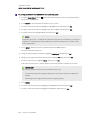
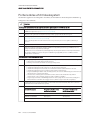
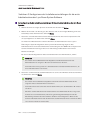
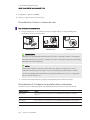
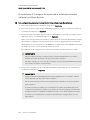
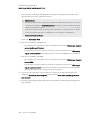
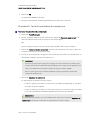
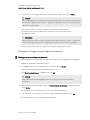
c. If your organization’s business day is 12 hours, select 12 Hour Setting, and then select the
appropriate time frame in the drop-down list.
OR
If your organization’s business day is not 12 hours, select Custom Setting, and then select the
start and end times for your organization’s business day.
d. Select the days of the week your organization operates.
NOTE
Your room system enters power saving mode outside of the business hours you define in
this screen.
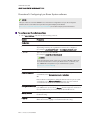
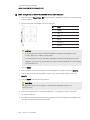
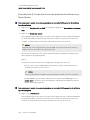
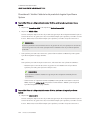
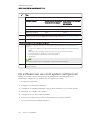
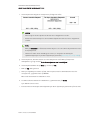
e. Click SMART Hardware Settings.
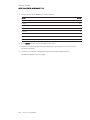
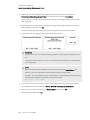
f. Confirm that all components of your room system are listed on this screen. If a component isn’t
listed, do the following:
o
Ensure the component’s USB cable is properly connected to the Lync appliance.
o
If the component is a SMART Board 8055i-G5 or 8065i-G5 interactive flat panel, ensure
Lync Room System software 15.12.02 or later is installed (see Procedure 7: Updating
Lync Room System software on page EN-16).
g. Continue to step h.
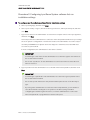
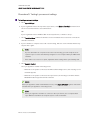
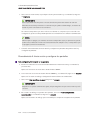
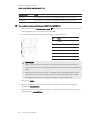
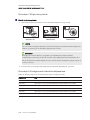
To calibrate and orient touch on the interactive flat panels
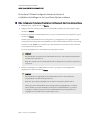
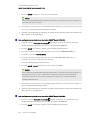
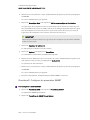
h. If SMART Settings isn’t open from the previous steps, click OEM Settings, and then click
SMART Settings.
SMART Settings appears.
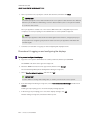
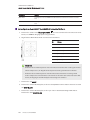
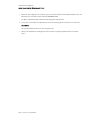
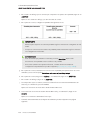
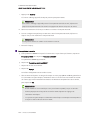
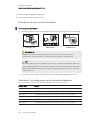
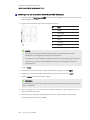
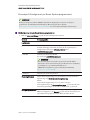
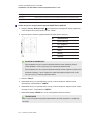
i. Press SMART Hardware Settings.
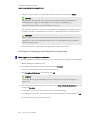
j. Press the first interactive flat panel’s icon.
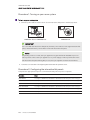
TIP
When you press an interactive flat panel’s screen, the circle beside the icon associated with
that interactive flat panel turns blue.
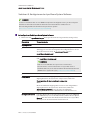
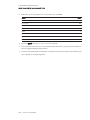
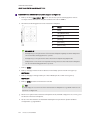
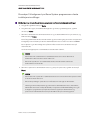
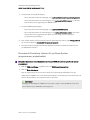
k. Select Advanced Settings from the drop-down list.
EN-18 smarttech.com/kb/170608