1
Guía de instalación rápida
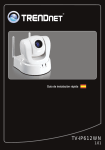
TV-IP512P
1.31
Table of Contents
Español
1. Antes de iniciar
2. Inslatación y configuración del Hardware
3. Instalación Power over Ethernet (PoE)
1
1
2
7
Troubleshooting
9
Version 02.08 .2010
1. Antes de iniciar
Contenidos del paquete
?
TV-IP512P
?
CD-ROM de la herramienta
?
Guía de instalación rápida multilingüe
?
Cable RJ-45
?
Kit de montaje
?
Adaptador de corriente (12V, 1.5A)
Requisitos del sistema
Adaptador Ethernet a 10/100Mbps
?
?
Unidad de CD-ROM
CPU: 2GHz processor o superior
?
Memoria: 256MB RAM o superior/ 512MB RAM o superior
?
(Windows Vista)
Windows 7(32/64-bits) / Vista(32/64-bits) / XP(32/64-bits) / 2000
?
Resolución VGA: 800 x 600 o superior
?
Web Brower: Internet Explorer (6.0 o superior)
?
?
Enrutador
?
Un servidor DHCP disponible, los enrutadores tienen por lo general un
servidor DHCP integrado
?
Conmutador PoE (Ej. TPE-S88) (Opcional)
?
Inyector (Ej. TPE-101I) (Opcional)
Nota: El TV-IP512P sólo trabaja con dispositivos PoE (Power over Ethernet) que
cumplen con el estándar IEEE 802.3af.
1
2. Inslatación y configuración del Hardware
Nota:
1. Se recomienda configurar la cámara IP desde un PC por cable.
2. Si desea usar el software IPViewPro 2.0, instale el software mediante un clic en
Install IPView Pro 2.0 (Instalar IPView Pro 2.0) en la ventana Autorun (Ejecución
automática) y consulte la guía del usuario en el CD para más información.
1. Introduzca el CD-ROM de la herramienta en la
unidad de CD-ROM
2. Haga clic en Run setup.exe
(sólo para Windows7/Vista)
3. Haga clic en Setup Winzard.
(Asistente de instalación).
4. Siga las instrucciones del Setup Wizard
(Asistente de instalación) y haga clic en Next
(Siguiente).
2
5. Haga clic en Close.
6. Haga doble clic en el icono de su escritorio
SetupWizard (Asistente de instalación).
7. Conecte un cable de red RJ-45 del
conmutador/enrutador al puerto Ethernet de la
Cámara IP.
8. Conecte el adaptador eléctrico de AC al
Servidor de cámara de Internet después a
una toma de corriente.
9. Haga clic en Next (Siguiente).
10. Seleccione la cámara IP y luego haga clic en
Next (Siguiente).
3
11. Introduzca su nombre de usuario y
contraseña. Luego, haga clic en Next
(Siguiente). Por defecto:
Nombre de usuario: admin
Contraseña: admin
12. Si desea cambiar la contraseña del
administrador, haga clic en Change
Password (Cambiar contraseña), introduzca
la nueva contraseña, vuelva a escribir la
nueva contraseña y luego haga clic en Next
(Siguiente).
13. Seleccione DHCP y luego haga clic en Next
(Siguiente).
14. Configure el Camera Name (Nombre de la
cámara), Camera Time (Hora de la cámara) y
la Camera Date (Fecha de la cámara), luego
haga clic en Next (Siguiente).
15. Haga clic en Next (Siguiente).
4
16. Espere mientras se guardan las
configuraciones de su cámara.
17. Haga clic en la siguiente URL o enlace para
abrir la configuración del navegador.
18. Haga clic derecho en la barra amarilla y luego
seleccione Install ActiveX Control (Instalar
control ActiveX).
19. Haga clic en Install (instalar).
20. Haga clic derecho en la barra amarilla y luego
seleccione Install ActiveX Control (Instalar
control ActiveX).
5
21. Haga clic en Run.
22. Le aparecerá el video en tiempo real.
23. Utilice los iconos de los comandos para
controlar la cámara.
La instalación ha sido completada
Para obtener información más detallada sobre la configuración y las opciones de
configuración avanzadas de la TV-IP512P, por favor consulte la sección de resolución de
problemas en el CD-ROM de la Guía del Usuario, o el sitio Web de TRENDnet en
http://www.trendnet.com.
Registre su producto
Para asegurar los más altos niveles de servicio y apoyo al cliente, registre su producto
en línea en: www.trendnet.com/register Gracias por elegir TRENDnet.
6
3. Instalación Power over Ethernet (PoE)
Uso del TV-IP512P con un conmutador PoE
1. Conecte un cable de red RJ-45 del conmutador
PoE (Ej. TPE-80WS) al puerto LAN del
servidor de cámara de Internet.
2. Compruebe que los LEDs estén encendidos.
Consulte el paso 4 en la sección de instalación
del Hardware.
7
Uso del TV-IP512P con un Inyector (TPE-111GI)
1. Conecte el cable de alimentación al inyector.
Luego, conecte el cable de alimentación a una
toma de corriente.
2. Conecte un cable CAT-5e/6 del conmutador al
puerto DATA IN del TPE-111GI.
3. Conecte un cable CAT-5e/6 del TV-IP512P al
puerto DATA OUT del TPE-111GI.
4. Compruebe que los LEDs estén encendidos.
8
Troubleshooting
1. I inserted the Utility CD-ROM into my computer's CD-ROM Drive but the installation menu
does not appear automatically. What should I do?
1. For Windows 7, if the installation menu does not appear automatically, click on the
Windows Icon on the bottom left hand corner of the screen,, click the “Search programs
and files” box, and type D:\autorun.exe, where “D” in “D:\autorun.exe” is the letter
assigned to your CD-ROM Drive, and then press the ENTER key on your keyboard
2. For Windows Vista, if the installation menu does not appear automatically, click Start, click
the Start Search box, and type D:\autorun.exe where "D" in "D:\autorun.exe" is the letter
assigned to your CD-ROM Drive, and then press the ENTER key on your keyboard.
3. For Windows XP/2000, if the window does not appear automatically, click Start, click Run
and type D:\autorun.exe where “D” in “D:\autorun.exe” is the letter assigned to your CDROM Drive, and then press the ENTER key on your keyboard.
2. Setup Wizard is unable to detect my camera. What should I do?
1. Verify that you have followed all the steps in the Section 2: Hardware Installation and
Configuration.
2. Disable any software firewall programs such as ZoneAlarm or Norton Internet Security. If
you are using Windows 7, Vista or XP disable the built in firewall.
3. Click on Rescan in the SetupWizard.
3. I do not have a DHCP server or DHCP is disabled on my network and I am unable to
configure the TV-IP512P. What should I do?
1. Go to the TCP/IP settings on your computer and assign a static IP address on your
computer's network adapter in the subnet of 192.168.10.x. Since the default IP address
of the TV-IP512P is 192.168.10.30, do not assign a static IP address of 192.168.10.30 on
your computer's network adapter.
2. Open Internet Explorer and enter http://192.168.10.30 into the address bar.
4. The Image is blurry. How can I adjust the focus on the IP Camera?
You can adjust the IP Camera's focus by rotating the lens.
5. Live video does not appear when I click on Live View. What should I do?
1. Make sure that you are using a browser that supports ActiveX.
2. Make sure that you added ActiveX. See steps 18 to 21 in Section 2: Hardware
Installation and Configuration.
6. I forgot my password. What should I do?
1. Take a pin or paperclip and press the reset button on the back of the unit for 15 seconds.
This will return settings back to factory defaults.
2. Open up the SetupWizard program to find out the IP address of the camera (see step 10 in
Section 2: Hardware Installation and Configuration. If you do not have a DHCP server
on your network, the default IP address is 192.168.10.30. The default administrator ID
and password is admin.
If you still encounter problems or have any questions regarding the TV-IP512P, please contact
TRENDnet's Technical Support Department.
9
Copyright ©2010. All Rights Reserved. TRENDnet.