1
Troubleshooting section in this guide or to the Configuration section of the User Guide on the U.S.
Robotics Installation CD-ROM for more information.
Opening the Configuration Utility
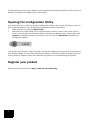
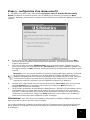
You should now see a small icon for the Configuration Utility in the system tray by your clock on
your computer desktop. You can open the Configuration Utility in two ways:
•
Right-click the icon and click Open Utility.
•
Left-click once on the Utility icon to open the quick connect screen. In the quick connect
screen, you can select an available network and enter the Network key, if applicable. Click
Connect to establish a wireless connection. You can also click Advanced to open the full
Configuration Utility.
The Configuration Utility is used to change or verify the configuration information that relates to
your Wireless MAXg PC Card. The Configuration Utility icon will be colored to indicate the status
of your wireless network: red for disconnected and green for connected with good quality.
Register your product
Register your product online at http://www.usr.com/productreg
4