1
Using the HDD compatible browser
US
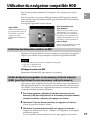
At the Main menu, select “Browser,” and then press the × (Enter) button.
At the Browser screen, you can display the contents of the HDD, and manage data
stored on a memory card (8MB) (for PlayStation®2) or a memory card.
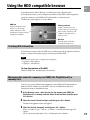
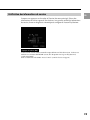
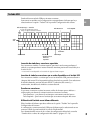
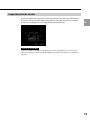
The Browser screen appears as shown below.
HDD icon
Displays the HDD screen,
where you can manage
folders and data, or start
PlayStation®2 format software
installed on the HDD.
Memory card icon
Displays the memory card
screen, where you can manage
data saved to a memory card
(8MB) (for PlayStation®2) or
memory card.
Disc icon
Starts playback of the disc
currently in the disc tray.
Checking HDD information
At the Browser screen, select the HDD icon, and then press the f (Options) button to
display a screen showing the capacity and free space of the HDD.
Note
HDD capacity and free space are displayed in megabytes.
– 1 gigabyte = 1024 megabytes
– 1 megabyte = 1024 kilobytes
To view the contents of the HDD
Select the HDD icon, and then press the × button.
Managing data saved to a memory card (8MB) (for PlayStation®2) or
memory card
You can copy or move data from one memory card (8MB) (for PlayStation®2) or
memory card to another, or to the HDD. You can also delete data and view
information about a selected data item.
1
At the Browser screen, select the icon for the memory card (8MB) (for
PlayStation®2) or memory card that holds the desired data, and then press
the × button.
2
Select the icon of the desired data, and then press the f button.
The data management screen will appear.
3
Select the desired command, and then press the × button.
When you select “Copy,” “Move,” or “Delete,” a confirmation message will
appear.
If you want to proceed, select “Yes,” and then press the × button.
17