1
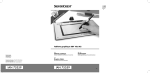
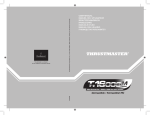
Wireless Tablet Series
Product information
A: Indicator
B: Functions buttons
C: Pen holder
D: Work area
E: Pen point
F: Pen button
G: Pen button +Battery-low indicator
LED
This is lit when the tablet has been installed correctly.
These have the same function as the keyboard function buttons.
The driver must be installed in order to use these buttons.
Holder for the pen when it is not in use.
Area for making a drawing
The same as the left mouse button
The same as the middle mouse button
The same as the right mouse button
Only for Tablet TB-2100, TB-3100 and TB-4200
H: Left mouse button
I : Middle mouse button (TB-4200: +scroll)
J: Right mouse button
Installation
A: Insert the battery into the pen
1
B: Insert the battery into the mouse (
Only for Tablet TB-2100, TB-3100 and TB-4200)
Turn on PC
2
Insert CD-ROM into the CD drive
3
Click ‘Install driver’
4
Click ‘Next’
5
A: Select “Yes, I want to restart computer now”
6
B: Click ‘Next’
Connect tablet to PC
7
Click ‘Yes’ to restart PC
8
Configuration
Double-click on the tablet icon in the taskbar
9
10 Click “Buttons” tab.
11
12
13
14
A: Configures the function of button 1 C: Restores the default settings
B: Configures the function of button 2 D: Configures the pen’s click pressure
Click ‘Test’ to test Pen settings
- Click on ‘Test’ to test the pen’s click pressure
- Click on the ‘X‘ in the top right-hand corner to close the window
- Click 'Mouse' tab
A: Mouse pointer speed
C: Function of the middle mouse button
B: Configuration for left-handed or right-handed use
Click 'Control' tab
The work surface can be configured to use centimetres (cm) or inches (inch),
Click 'Function Key' tab
1
UK