1
L9EAZ_WA(VA-20LAN_INSTALLATION).book
1 ページ
2006年5月10日 水曜日 午後4時10分
INSTALLATION MANUAL
Option Board (Network)
● For the customers in US and Canada
THIS INSTALLATION SHOULD BE MADE BY A QUALIFIED SERVICE PERSON AND SHOULD CONFORM TO ALL LOCAL
CODES.
About this manual
Please read this manual before installing and using this unit, and always follow the instructions in it for proper use.
VA-20LAN
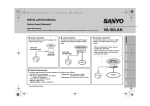
■ Internet connection
Connect the camera to the LAN through a switching hub using LAN
cables (straight type).
Connect the camera to a router or ADSL modem with LAN interface
using LAN cables.
LAN cable
(straight type)
When connecting to a router, use the
straight type LAN cable.
When connecting to an ADSL
modem or other devices, refer to the
instruction manual for the device.
Router or
ADSL modem
Deutsch
Switching hub
English
■ LAN connection
Français
Internet
Español
LAN
中文简体
■ System Requirements
• PC: IBM PC/AT and compatibles
• OS: Windows 2000/Windows XP Home Edition/
Windows XP Professional
• CPU: Pentium III (800MHz or higher)
• Memory: 128MB or more
• Network interface: 10Base-T/100Base-TX
• Display card: 1024 x 768 pixels or higher,
16 million colors or higher
• Web browser: Internet Explorer Ver.6.0 or higher
日本語
The system requirements for camera operation via network are as follows:
L9EAZ_WA(VA-20LAN_INSTALLATION).book
2 ページ
2006年5月10日 水曜日 午後4時10分
1. Installing the Option Board
Before installing
As a precaution against static electricity damage, touch a
nearby metal object (door knob, etc.) to dissipate static
electricity in your body before touching this device.
(D)
2
4
(C)
(A)
Check the contents of the “20LAN” label that is
attached to the camera cable. If the label contents
differ from those given on page 9, apply the labels
supplied with the option board on both sides.
1 Remove the camera cover and then the camera
unit.
• Please refer to “3 Checking the image from the camera (1) ”
and “Removing the camera unit” in the INSTALLATION
MANUAL supplied with the camera.
2 Remove the three pin connector cables
connected to the camera unit from the camera
fixing base.
1
3 Passing the pin connector cable (B) from the
option board (A) through the gap of the circuit
board, connect it to the CN407 terminal on the
bottom side.
3
• Form the cable on the bottom side as shown in the arrowed
detail so that it doesn’t sag.
(B)
CN407
(B)
4 Diagonally inserting the option board, attach in
the direction of Arrow 1 and affix with the
supplied screws (C).
• Do not apply pressure to the flat cable (FFC).
2
L9EAZ_WA(VA-20LAN_INSTALLATION).book
3 ページ
2006年5月10日 水曜日 午後4時10分
1. Installing the Option Board
5 Connect the W6004 pin connector cable (D) from
the option board to the CN403 terminal on the
camera unit.
6 Connect the three pin connector cables that were
6
removed in 2 to the camera unit, and place the
camera unit back.
CN605
CN604
6
5
CN401
CN403
• 3-pin cable → CN401
• 4-pin cable → CN604
• 5-pin cable → CN605
7 Connect the camera and LAN cables according to
the following table.
(D)
To prevent electromagnetic interference
• On the LAN cable
• On the power cable
Be sure to attach the
supplied clamping
core to the cable as
illustrated.
• The LAN cables come in general colors. Always confirm the
signal before connecting.
• For the LAN cable, use category 5 (shield type) cable.
Camera
cable
BLUE
YELLOW
ORANGE
BROWN
RX+
TX–
TX+
RX–
GRAY/BLACK COMMON
LAN cable
(straight type)
WHITE/GREEN
ORANGE
WHITE/ORANGE
GREEN
RJ45
Pin No.
3
2
1
6
Shield
–
MEMO: When the LAN cable is connected, zoom is possible only
through network operation.
8 Following installation, configure the network
settings (see next page).
• When the settings are finished, place the camera cover back.
3
L9EAZ_WA(VA-20LAN_INSTALLATION).book
4 ページ
2006年5月10日 水曜日 午後4時10分
2. Configuring the Network Settings
Configure the settings required for connecting the camera to the network (LAN) in the menu screen.
• For accessing the Main menu, see pages 5 - 7 on the INSTRUCTION MANUAL supplied with the camera.
• After you turn on the power, it takes approximately one minute for the “NETWORK” setting menu to appear on the
“OPTION” screen. When connected to the network, the option board link lamp (D6453) flashes.
SYNC
BLC
IRIS
WHITE BALANCE
AGC GAIN
GAMMA
SHUTTER
APERTURE
DAY/NIGHT
·OPTION
PRESET
MENU
·OPTION
(SET)
SET
R
R
·NETWORK
(SET)
LEFT
PRESET
MENU
OFF
SET
SET
SET
SET
SET
y
y
y
y
y
SET
R
OFF
BACK
1 Select “IP ADDRESS”, specify the option for
SET
SET
S4002
LEFT
TITLE
PRIVACY MASK
PASSWORD
ALARM
LANGUAGE
·NETWORK
UP
2
UP
OPTION
INT
OFF
SET y
ATW
NORM
0.45
60
HIGH
AUTO y
SET y
OFF
END
1
Link
lamp
retrieving the IP address, and press the SET
button.
RIGHT
NETWORK SETTING
RIGHT
S4001
DOWN
MONITOR
OUT
CN411
MONITOR OUT
TP431
·IP ADDRESS
PORT
DOWN
1 SET button
Press and hold for over a second for the settings
screen to appear.
2 Select button
Press up, down, left, right to select an item on
the settings screen or change a setting value.
·IP ADDRESS
FIX y
00080
MAC ADDRESS
08-00-7B-81-12-20
FIX
: Manual configuration (Default IP address: 192.168.0.2)
AUTO : Automatic configuration (DHCP)
RThe “IP ADDRESS SETTING” screen appears.
MEMO: The “MAC ADDRESS” cannot be changed.
4
SET
R
L9EAZ_WA(VA-20LAN_INSTALLATION).book
5 ページ
2006年5月10日 水曜日 午後4時10分
2. Configuring the Network Settings
2 Select the item to configure, and press the Select
(c) button.
5 Change the port number “PORT” (1-65535) if
required.
NETWORK SETTING
IP ADDRESS SETTING
IP ADDRESS
·PORT
·IP ADDRESS
192.168.000.002
x
·PORT
ROnly the item selected appears and “x” is displayed below the
address.
• To display all the items again, press the Select (d or c) button
repeatedly until “x” disappears.
MEMO: When you select “AUTO” for the “IP ADDRESS” setting in the
“NETWORK SETTING” screen, the IP address cannot be
changed. Confirm the setting, and advance to step 4.
3 Select the digit to be changed, and specify the
value.
FIX y
00080
x
MAC ADDRESS
08-00-7B-81-12-20
RDisplay “x” below the port number.
MEMO: When you set the SSL option to ON, “00443” is selected for the
“PORT” setting.
6 Select the digit to be changed, and specify the value.
NETWORK SETTING
IP ADDRESS
·PORT
FIX y
00090
x
IP ADDRESS SETTING
·IP ADDRESS
192.168.000.052
x
• Repeat step 3 as required.
• When you want to change other items, return to step 2.
4 Set “MENU” to “BACK” and press the SET
button.
RReturns to the “NETWORK SETTING” screen.
MAC ADDRESS
08-00-7B-81-12-20
• Repeat step 6 as required.
• When finished, press the Select (d or c) button repeatedly
until “x” disappears.
7 Set “MENU” to “END” and press the SET button.
RCloses the settings screen and returns to the normal monitoring
screen.
• If you want to return to the previous screen, select “BACK” and
press the SET button.
5
L9EAZ_WA(VA-20LAN_INSTALLATION).book
6 ページ
2006年5月10日 水曜日 午後4時10分
3. Flow of Camera Operation through to Network Operation
Perform the following procedures according to the detailed instructions given in the INSTRUCTION MANUAL [VA-50LAN_20LAN] contained in the
supplied CD-ROM.
Refer to
1 Accessing the camera
Enter your user name and password, and then select a language you want to display on the screen.
User name: admin
Password: admin
6
5
2 Displaying live video from the camera on the main screen
8
5
3 Configuring the administration settings
Using the [MAIN SETTINGS] screen for an administrative user, configure the detailed settings for administration.
When you access the camera for the first time, be sure to perform the settings on the [CLOCK SETTINGS] screen.
11
5
4 Changing the camera settings
Changes in the camera settings can be made through the network connection.
18
MEMO: • After you turn on the power, wait approximately one minute before network connection is established.
• If you have to configure TCP/IP settings for your PC, refer to the INSTRUCTION MANUAL from page 4 onward.
• To view the INSTRUCTION MANUAL contained in the supplied CD-ROM, you need Adobe® Reader® application. If your PC has not
been installed with it, you can download it for installation from the following web site at Adobe Systems Incorporated.
http://www.adobe.com
6
L9EAZ_WA(VA-20LAN_INSTALLATION).book
7 ページ
2006年5月10日 水曜日 午後4時10分
4. Software Setup Procedure for VA-SW3050LITE
The VA-SW3050LITE software achieves multiple monitoring by using up to 128 cameras and allows frame switchover among several selections
including 4-frame and 16-frame views.
Perform the following procedures according to the detailed instructions given in the INSTRUCTION MANUAL [VA-SW3050LITE] contained in the
supplied CD-ROM.
1 Installing the VA-SW3050LITE software (refer to the next page)
5
Refer to
2 Starting the VA-SW3050LITE software and perform the login procedure
Double-click the “Network Recorder” shortcut icon created on the desktop.
USER ID:
admin
PASSWORD: admin
5
5
3 Registering the camera(s) with the software
Register the camera(s) to access, and configure the camera settings such as IP address and camera title.
7
5
4 Displaying live video from the camera on the main screen
10
MEMO: After you turn on the power, wait approximately one minute before you can login.
7
L9EAZ_WA(VA-20LAN_INSTALLATION).book
8 ページ
2006年5月10日 水曜日 午後4時10分
Installing the VA-SW3050LITE Software
Start the installation program from the software CD, and use the interactive dialog boxes to advance the installation process.
“Setup.exe” contained in the supplied
1 Double-click
CD-ROM.
“Welcome to the InstallShield Wizard for
2 The
VA-SW3050LITE” dialog appears.
Click [Next].
3 The “License Agreement” dialog appears.
Select the “I accept the agreement” option and then click [Next].
4 The “Select Destination Location” dialog appears.
Click [Next].
• To change the destination folder in which you want to save the
VA-SW3050LITE software, click [Browse] and select the
desired folder. You may also type the folder name directly in the
box.
5 The “Select Start Menu Folder” dialog appears.
Click [Next].
• To change the start menu folder, click [Browse] and select the
desired folder. You may also type the folder name directly in the
box.
8
6 The “Ready to Install” dialog appears.
Click [Install].
RInstalling
“Completing the VA-SW3050LITE Setup Wizard”
7 The
dialog appears.
Click [Finish].
RNow you have installed the VA-SW3050LITE software
successfully.
You will find the “Network Recorder” short cut icon on the
desktop.
MEMO:
• Microsoft .NET Framework 1.1 is required to use the
VA-SW3050LITE software. If your PC has not been installed
with it, an automatic installation program will show you a
confirmation dialog box to start its setup process, when
you double-click “Setup”. It will be about two minutes
before the installation program finishes.
• Once the installation is finished, you may be prompted to
restart the PC. Follow the instructions that may appear on
the screen.
L9EAZ_WA(VA-20LAN_INSTALLATION).book
9 ページ
2006年5月10日 水曜日 午後4時10分
Specifications
■ Copyright notice
Power
consumption
6 W (when installed on the main unit)
Power source
Supplied from main unit
Weight
(approx.)
21 g (0.7 oz)
Accessory
Label ...........................................1 sheet (2 labels)
Screw ................................................................... 4
Clamping core...................................................... 2
CD-ROM (VA-SW3050LITE)................................ 1
Appearance and specifications are subject to change without prior notice
or obligations.
■ License for Software Contained in CD-ROM
• Please read carefully the terms and conditions contained in the
license agreement that appears on the screen during the software
installation process. Provided that you have agreed to all the terms
and conditions therein, you may use the software subject to the
license agreement.
• For information on the other products or services provided by third
parties which are introduced in the CD-ROM, please contact each
supplier or manufacturer.
This instruction manual is copyrighted by SANYO Electric Co., Ltd.
No materials contained in this manual may be reproduced in any format
without the prior permission of the copyright holder.
Microsoft, Windows and Internet Explorer are registered trademarks or
trademarks of Microsoft Corporation in the United States and other
countries.
The official name for “Windows” used in this manual is Microsoft®
Windows® Operating System. In this manual, note that the word
“Windows” refers to both “Microsoft® Windows® 2000 Operating System”
and “Microsoft® Windows® XP Operating System”.
Intel and Pentium are registered trademarks or trademarks of Intel
Corporation and its subsidiaries in the United States and other countries.
IBM and IBM PC/AT are trademarks of International Business Machines
Corporation.
Adobe Reader is a trademark of Adobe Systems Incorporated.
UPnP is a trademark of UPnP Implementers Corporation, which is
established by the UPnP Forum SC.
Java is a trademark of Sun Microsystems, Inc.
All other brands and product names in this manual are the registered
trademarks or trademarks of their respective owners.
■ Cable Labels
Check the contents of the “20LAN” label that is attached
to the camera cable. If the label contents differ from those
shown on the right, apply the labels supplied with the
option board on both sides.
20LAN
VIDEO
DAY/NIGHT
ALARM IN
COMMON
RX+
TX–
TX+
RX–
AC24/DC12(+)
AC24/DC12(–)
GND
9
L9EAZ_WA(VA-20LAN_INSTALLATION).book
10 ページ
2006年5月10日 水曜日 午後4時10分
Screen Sequence
SYNC
BLC
IRIS
WHITE BALANCE
AGC GAIN
GAMMA
SHUTTER
APERTURE
DAY/NIGHT
·OPTION
PRESET
MENU
OPTION
TITLE
PRIVACY MASK
PASSWORD
ALARM
LANGUAGE
·NETWORK
PRESET
MENU
10
INT
OFF
SET y
ATW
NORM
0.45
60
HIGH
AUTO y
SET y
OFF
END
NETWORK SETTING
OFF
SET
SET
SET
SET
SET
OFF
BACK
y
y
y
y
y
·IP ADDRESS
PORT
FIX y
00080
MAC ADDRESS
08-00-7B-81-12-20
MENU
BACK
AUTO
FIX
1-65535
IP ADDRESS SETTING
·IP ADDRESS
192.168.000.002
SUBNET MASK
255.255.255.000
GATEWAY
192.168.000.001
MENU
BACK
L9EAZ_WA(VA-20LAN_INSTALLATION).book
1 ページ
2006年5月10日 水曜日 午後4時10分
INSTALLATIONSANLEITUNG
Optionskarte (Netzwerk)
Zu dieser Anleitung
VA-20LAN
Lesen Sie bitte diese Anleitung vor der Installation und Verwendung dieser Einheit sorgfältig durch
und befolgen Sie die Anweisungen für den richtigen Gebrauch.
■ Internet-Anschluss
Schließen Sie die Kamera über ein Umschalt-Hub mit LAN-Kabeln
(Patchkabeln) an das LAN-Netzwerk an.
Verbinden Sie die Kamera mithilfe von LAN-Kabeln mit einem Router
oder ADSL-Modem mit LAN-Schnittstelle.
Router oder
ADSL-Modem
Français
LAN-Netzwerkkabel
(Patchkabel)
Verwenden Sie
Patch-Netzwerkkabel, wenn Sie
einen Router anschließen.
Bei Anschluss an ein ADSL-Modem
oder andere Geräte, wird auf
die Bedienungsanleitung
des angeschlossenen Geräts
verwiesen.
Deutsch
Umschalt-Hub
English
■ LAN-Anschluss
Internet
Español
LAN
中文简体
■ Systemanforderungen
• PC: IBM PC/AT und kompatible Modelle
• Betriebssystem: Windows 2000/Windows XP Home
Edition/Windows XP Professional
• CPU: Pentium III (800 MHz oder höher)
• Arbeitsspeicher: mindestens 128 MB
• Netzwerk-Schnittstelle: 10Base-T/100Base-TX
• Grafikkarte: Mindestens 1024 x 768 Bildpunkte
Mindestens 16 Millionen Farben
• Internet-Browser: Internet Explorer Version 6.0 oder
höher
日本語
Die Systemvoraussetzungen für den Kamerabetrieb über das Netzwerk sind wie folgt:
L9EAZ_WA(VA-20LAN_INSTALLATION).book
2 ページ
2006年5月10日 水曜日 午後4時10分
1. Installieren der Optionskarte
Vor der Installation
Berühren Sie zur Vermeidung von Schäden durch
elektrostatische Entladungen einen Metallgegenstand in der
Nähe (Türknauf o.Ä.), damit die statische Ladung aus Ihrem
Körper abgeleitet wird, bevor Sie das Gerät berühren.
(D)
2
4
(C)
Überprüfen Sie die den Inhalt des Etiketts “20LAN”,
das am Kamerakabel angebracht ist. Wenn die
Aufschrift anders lautet, als auf Seite 9 angegeben,
bringen Sie auf beiden Seiten die mit der Optionskarte
mitgelieferten Etiketten an.
1 Entfernen Sie die Kameraabdeckung und
nehmen Sie anschließend die Kameraeinheit ab.
• Siehe Abschnitte „3 Das Bild von der Kamera überprüfen (1)“
und „Entfernen der Kameraeinheit“ in der
INSTALLATIONSANLEITUNG der Kamera.
2 Entfernen Sie die drei an der Kameraeinheit
(A)
angeschlossenen Steckerkabel von der
Kamerabefestigungsplatte.
1
3 Führen Sie das Steckerkabel (B) von der
Optionskarte (A) durch den Spalt der
Schaltplatine und schließen Sie es am Anschluss
CN407 auf der Unterseite an.
3
• Ordnen Sie das Kabel an der Unterseite (siehe Pfeil in der
Abbildung) so an, dass es nicht durchhängt.
(B)
CN407
(B)
4 Die Optionskarte diagonal einführen, in Richtung
des Pfeils 1 anbringen und mit den beigefügten
Schrauben (C) befestigen.
• Keinen Druck auf das Flachkabel (FFC) ausüben.
2
L9EAZ_WA(VA-20LAN_INSTALLATION).book
3 ページ
2006年5月10日 水曜日 午後4時10分
1. Installieren der Optionskarte
5 Das Steckerkabel W6004 (D) von der Optionskarte
mit dem Anschluss CN403 an der Kameraeinheit
verbinden.
6 Die drei in Schritt 2 entfernten Steckerkabel an
6
der Kameraeinheit anschließen und die
Kameraeinheit wieder anbringen.
CN605
CN604
6
5
CN401
CN403
(D)
Vermeiden von elektromagnetischen Störungen
• Am
LAN-Netzwerkkabel
• Am Kabel der
Stromversorgung
Den mitgelieferten
Ferritkern wie
abgebildet an den
Anschlusskabel
anbringen.
• 3-poliges Kabel → CN401
• 4-poliges Kabel → CN604
• 5-poliges Kabel → CN605
7 Schließen Sie das Kamerakabel und das
LAN-Netzwerkkabel gemäß der folgenden
Tabelle an.
• Die LAN-Netzwerkkabel werden in den allgemein üblichen Farben
geliefert. Überprüfen Sie vor dem Anschluss stets das Signal.
• LAN-Kabel der Kategorie 5 (abgeschirmt) verwenden.
LAN-Netzwerkkabel
RJ45(Patchkabel)
Steckernr.
BLAU
RX+
WEISS/GRÜN
3
GELB
TX–
ORANGE
2
ORANGE
TX+
WEISS/ORANGE
1
BRAUN
RX–
GRÜN
6
GRAU/SCHWARZ GEMEINSAM
Abschirmung
–
Kamerakabel
MEMO: Bei angeschlossenem LAN-Kabel ist die Zoom-Funktion
nur über die Netzwerkbedienung möglich.
8 Konfigurieren Sie nach der Installation die
Netzwerkeinstellungen (siehe folgende Seite).
• Bringen Sie nach Abschluss der Einstellungen die
Kameraabdeckung wieder an.
3
L9EAZ_WA(VA-20LAN_INSTALLATION).book
4 ページ
2006年5月10日 水曜日 午後4時10分
2. Konfiguration der Netzwerkeinstellungen
Konfigurieren Sie im entsprechenden Menüfenster die Einstellungen, die für den Anschluss der
Kamera an das Netzwerk (LAN) erforderlich sind.
VerbindungsLED
• Zum Aufrufen des Hauptmenüs siehe Seite 5 - 7 in der BEDIENUNGSANLEITUNG der Kamera.
• Nach dem Einschalten dauert es etwa eine Minute bis das Einstellmenü „NETZWERK“ im Fenster „OPTION“
angezeigt wird. Bei Verbindung mit dem Netzwerk blinkt die Verbindungs-LED (D6453) der Optionskarte.
SYNC
BLC
IRIS
WEISSABGLEICH
AGC VERSTAERK.
GAMMA
VERSCHLUSSZEIT
BLENDE
TAG/NACHT
·OPTION
VOREINST.
MENUE
·OPTION
(EINST)
SET
R
R
·NETZWERK
(EINST)
SET
S4002
LEFT
VOREINST.
MENUE
AUS
EINSTy
EINSTy
EINSTy
EINSTy
EINSTy
SET
R
AUS
ZURUECK
1 Wählen Sie „IP-ADRESSE“, wählen Sie die
UP
2
LEFT
BEZEICHNUNG
PRIV.MASK.
KENNWORT
ALARM
SPRACHE
·NETZWERK
SET
1
UP
OPTION
INT
AUS
EINSTy
ATW
NORM
0.45
60
HOCH
AUTO y
EINSTy
AUS
ENDE
Option für das Abrufen der IP-Adresse und
drücken Sie die SET-Taste.
RIGHT
NETZWERK EINST.
RIGHT
S4001
DOWN
MONITOR
OUT
CN411
MONITOR OUT
TP431
·IP-ADRESSE
PORT
DOWN
1 SET-Taste
Mindestens eine Sekunde gedrückt halten,
damit der Einstellbildschirm angezeigt wird.
2 Auswahltaste
Zur Auswahl eines Menüpunkts im
Einstellbildschirm oder zum Ändern eines
Einstellwerts die Taste aufwärts, abwärts, links
oder rechts drücken.
·IP-ADRESSE
FESTy
00080
MAC-ADRESSE
08-00-7B-81-12-20
FEST : Manuelle Konfiguration (Standard-IP-Adresse:
192.168.0.2)
AUTO : Automatische Konfiguration (DHCP)
RDer Bildschirm „IP-ADRESSE EINST.“ wird angezeigt.
MEMO: Die „MAC-ADRESSE“ kann nicht geändert werden.
4
SET
R
L9EAZ_WA(VA-20LAN_INSTALLATION).book
5 ページ
2006年5月10日 水曜日 午後4時10分
2. Konfiguration der Netzwerkeinstellungen
2 Wählen Sie den zu konfigurierenden Menüpunkt
und drücken Sie die Auswahltaste (c).
5 Ändern Sie ggf. die Port-Nummer „PORT“
(1-65535).
NETZWERK EINST.
IP-ADRESSE EINST.
IP-ADRESSE
·PORT
·IP-ADRESSE
192.168.000.002
x
·PORT
RNur der gewählte Menüpunkt wird angezeigt und „x“ wird unter
der Adresse eingeblendet.
• Drücken Sie zur erneuten Anzeige aller Menüpunkte mehrmals
die Auswahltaste (d oder c) bis „x“ verschwindet.
MEMO: Wenn Sie für die „IP-ADRESSE“ im Menü „NETZWERK EINST.“
die Option „AUTO“ auswählen, kann die IP-Adresse nicht geändert
werden. Überprüfen Sie die Einstellung und gehen Sie weiter zu
Schritt 4.
MEMO: Wenn Sie für die Option SSL EIN wählen, wird für die Einstellung
„PORT“ der Wert „00443“ ausgewählt.
6 Wählen Sie die zu ändernde Ziffer aus und legen
Sie den Wert fest.
NETZWERK EINST.
IP-ADRESSE
·PORT
Sie den Wert fest.
4 „MENUE“ auf „ZURUECK“ einstellen und die
SET-Taste drücken.
RDamit wird zum Bildschirm „NETZWERK EINST.“
zurückgeschaltet.
FESTy
00090
x
MAC-ADRESSE
08-00-7B-81-12-20
IP-ADRESSE EINST.
• Wiederholen Sie Schritt 3 nach Bedarf.
• Wenn Sie weitere Menüpunkte ändern möchten, gehen Sie
zurück zu Schritt 2.
MAC-ADRESSE
08-00-7B-81-12-20
RAnzeige „x“ unter der Port-Nummer.
3 Wählen Sie die zu ändernde Ziffer aus und legen
·IP-ADRESSE
192.168.000.052
x
FESTy
00080
x
• Wiederholen Sie Schritt 6 nach Bedarf.
• Drücken Sie nach Abschluss der Einstellungen mehrmals die
Auswahltaste (d oder c) bis „x“ verschwindet.
7 „MENUE“ auf „ENDE“ einstellen und die
SET-Taste drücken.
RSchließt den Einstellbildschirm und schaltet zum normalen
Monitorbildschirm zurück.
• Um auf den vorhergehenden Bildschirm zurückzuschalten,
stellen Sie „ZURUECK“ ein und drücken Sie die SET-Taste.
5
L9EAZ_WA(VA-20LAN_INSTALLATION).book
6 ページ
2006年5月10日 水曜日 午後4時10分
3. Ablauf der Kamerabedienung durch Netzwerkbetrieb
Gehen Sie wie im Folgenden beschrieben vor und schlagen Sie zu diesem Zweck in der detaillierten BEDIENUNGSANLEITUNG
[VA-50LAN_20LAN] nach, die auf der mitgelieferten CD-ROM enthalten ist.
Siehe
1 Zugriff auf die Kamera
Geben Sie Benutzername und Kennwort ein und wählen Sie anschließend eine Sprache für die Anzeige auf dem
Bildschirm aus.
Benutzername: admin
Kennwort:
admin
6
5
2 Wiedergabe von Live-Videobildern von der Kamera auf dem Hauptbildschirm
8
5
3 Konfiguration der Administratoreinstellungen
Konfigurieren Sie die detaillierten Einstellungen für einen Administrator im Menü [HAUPTEINSTELLUNGEN].
Vergessen Sie nicht, die Einstellungen im Menü [UHREINSTELLUNGEN] vorzunehmen, wenn Sie zum ersten Mal auf
die Kamera zugreifen.
11
5
4 Ändern der Kameraeinstellungen
Änderungen an den Kameraeinstellungen können über die Netzwerkverbindung vorgenommen werden.
18
MEMO: • Warten Sie nach dem Einschalten etwa eine Minute bis die Netzwerkverbindung hergestellt wurde.
• Wenn Sie TCP/IP-Einstellungen für Ihren PC konfigurieren müssen, schlagen Sie in der BEDIENUNGSANLEITUNG ab Seite 4 nach.
• Zum Öffnen der BEDIENUNGSANLEITUNG auf der mitgelieferten CD-ROM benötigen Sie das Programm Adobe® Reader®. Falls diese
Anwendung nicht auf Ihrem PC installiert ist, können Sie das Programm unter der nachstehend angegebenen Internet-Adresse bei
Adobe Systems Incorporated zur Installation herunterladen:
http://www.adobe.com
6
L9EAZ_WA(VA-20LAN_INSTALLATION).book
7 ページ
2006年5月10日 水曜日 午後4時10分
4. Vorgehensweise zum Einrichten der Software VA-SW3050LITE
Das Programm VA-SW3050LITE kann für die Überwachung von bis zu 128 Kameras verwendet werden und gestattet unter anderem das
Umschaltenzwischen Einzelbildern sowie die Mehrfachbildanzeige mit 4 bis 16 Bildern.
Gehen Sie wie im Folgenden beschrieben vor und schlagen Sie zu diesem Zweck in der detaillierten BEDIENUNGSANLEITUNG
[VA-SW3050LITE] nach, die auf der mitgelieferten CD-ROM enthalten ist.
1 Installation des Programms VA-SW3050LITE (siehe folgende Seite)
5
Siehe
2 Starten des Programms VA-SW3050LITE und Anmeldevorgang
Doppelklicken Sie das auf dem Desktop erstellte Verknüpfungssymbol „Network Recorder“ an.
USER ID:
admin
PASSWORD: admin
5
5
3 Registrieren der Kamera(s) mit der Software
Registrieren Sie die Kamera(s), auf die Sie zugreifen möchten, und konfigurieren Sie die Kameraeinstellungen
(z.B. IP-Adresse und Kamerabezeichnung).
7
5
4 Wiedergabe von Live-Videobildern von der Kamera auf dem Hauptbildschirm
10
MEMO: Warten Sie nach dem Einschalten etwa eine Minute bis die Anmeldung möglich ist.
7
L9EAZ_WA(VA-20LAN_INSTALLATION).book
8 ページ
2006年5月10日 水曜日 午後4時10分
Installation des Programms VA-SW3050LITE
Starten Sie das Installationsprogramm von der Software-CD und benutzen Sie die interaktiven Dialogfelder für den Installationsvorgang.
Sie auf die Datei „Setup.exe“ auf der
1 Doppelklicken
mitgelieferten CD-ROM.
Dialogfeld „Welcome to the InstallShield Wizard
2 Das
for VA-SW3050LITE“ wird geöffnet.
Klicken Sie auf [Next].
3 Das Dialogfeld „License Agreement“ erscheint.
Wählen Sie die Option „I accept the agreement“ und klicken Sie
anschließend auf [Next].
Dialogfeld „Select Destination Location“ wird
4 Das
geöffnet.
Klicken Sie auf [Next].
• Klicken Sie zum Ändern des Zielordners, in dem das Programm
VA-SW3050LITE gespeichert werden soll, auf [Browse] und
wählen Sie den gewünschten Ordner aus. Der Ordnername
kann auch direkt in das Feld eingegeben werden.
Dialogfeld „Select Start Menu Folder“ wird
5 Das
geöffnet.
Klicken Sie auf [Next].
• Klicken Sie zum Ändern des Ordners im Startmenü auf
[Browse] und wählen Sie den gewünschten Ordner. Der
Ordnername kann auch direkt in das Feld eingegeben werden.
8
6 Das Dialogfeld „Ready to Install“ wird geöffnet.
Klicken Sie auf [Install].
RInstallation
Dialogfeld „Completing the VA-SW3050LITE Setup
7 Das
Wizard“ wird geöffnet.
Klicken Sie auf [Finish].
RDie Software VA-SW3050LITE wurde nun erfolgreich
installiert.
Sie finden das Verknüpfungssymbol „Network Recorder“ auf
dem Desktop.
MEMO:
• Für die Nutzung des Programms VA-SW3050LITE wird
Microsoft .NET Framework 1.1 benötigt. Falls diese
Anwendung nicht auf Ihrem PC installiert ist, wird ein
Dialogfeld für die Bestätigung der automatischen
Installation des Programms geöffnet, um den
Installationsvorgang durch doppelklicken auf „Setup“ zu
starten. Für die Installation des Programms werden etwa
zwei Minuten benötigt.
• Nach Abschluss der Installation werden Sie ggf. zu einem
Neustart des PC’s aufgefordert. Befolgen Sie die
Anweisungen, die ggf. auf dem Bildschirm angezeigt
werden.
L9EAZ_WA(VA-20LAN_INSTALLATION).book
9 ページ
2006年5月10日 水曜日 午後4時10分
Technische Daten
Leistungsaufnahme
6 W (bei Installation auf dem Hauptgerät)
Stromquelle
Versorgung durch das Hauptgerät
Gewicht (ungefähr)
21 g (0,7 oz)
Zubehör
Etikett .......................... 1 Bogen (2 Etiketten)
Schrauben ...................................................4
Ferritkerns ...................................................2
CD-ROM (VA-SW3050LITE) .......................1
Änderungen des Aussehens und der technischen Daten ohne
Vorankündigung oder sonstige Verpflichtungen bleiben vorbehalten.
■ Lizenz für die auf der CD-ROM enthaltene Software
• Lesen Sie bitte sorgfältig die in der Lizenzvereinbarung enthaltenen
Bedingungen und Bestimmungen, die während dem
Installationsvorgang der Software auf dem Bildschirm angezeigt
werden. Unter der Voraussetzung, dass Sie allen hierin enthaltenen
Bedingungen und Bestimmungen zugestimmt haben, können Sie die
Software gemäß der Lizenzvereinbarung nutzen.
• Wenden Sie sich bitte für Informationen zu anderen Produkten oder
Dienstleistungen, die durch auf der CD-ROM angegebene Dritte
bereitgestellt werden, an den jeweiligen Lieferanten oder Hersteller.
■ Hinweis zum Urheberrecht
Diese Anleitung unterliegt dem Urheberrecht der SANYO Electric Co., Ltd.
Sämtliche in diesem Handbuch enthaltenen Materialien dürfen ohne
vorherige Genehmigung durch den Inhaber des Urheberrechts in keiner
Weise reproduziert werden.
Microsoft, Windows und Internet Explorer sind eingetragene Warenzeichen
oder Warenzeichen der Microsoft Corporation in den USA und in anderen
Ländern.
Eine offizielle Bezeichnung für „Windows“, die in diesem Handbuch
verwendet wird, ist das Betriebssystem Microsoft® Windows®. Es ist zu
beachten, dass sich in diesem Handbuch das Wort „Windows“ sowohl auf
das Betriebssystem „Microsoft® Windows® 2000“ als auch auf das
Betriebssystem „Microsoft® Windows® XP“ bezieht.
Intel und Pentium sind eingetragene Warenzeichen oder Warenzeichen der
Intel Corporation und ihren Tochtergesellschaften in den USA und in anderen
Ländern.
IBM und IBM PC/AT sind Warenzeichen der IBM International Business
Machines Corporation.
Adobe Reader ist ein Warenzeichen der Adobe Systems Incorporated.
UPnP ist ein Warenzeichen der UPnP Implementers Corporation, gehalten
durch das UPnP-Forum SC.
Java ist ein Warenzeichen der Sun Microsystems, Inc.
Bei allen weiteren in diesem Handbuch erwähnten Marken- und
Produktnamen handelt es sich um die Markenbezeichnungen und
registrierten Warenzeichen ihrer jeweiligen Eigentumsgesellschaften.
■ Kabeletiketten
Überprüfen Sie die den Inhalt des Etiketts „20LAN“, das
am Kamerakabel angebracht ist. Wenn die Aufschrift
anders lautet, als auf der rechten Seite dargestellt,
bringen Sie auf beiden Seiten die mit der Optionskarte
mitgelieferten Etiketten an.
20LAN
VIDEO
DAY/NIGHT
ALARM IN
COMMON
RX+
TX–
TX+
RX–
AC24/DC12(+)
AC24/DC12(–)
GND
9
L9EAZ_WA(VA-20LAN_INSTALLATION).book
10 ページ
2006年5月10日 水曜日 午後4時10分
Menüfolge
SYNC
BLC
IRIS
WEISSABGLEICH
AGC VERSTAERK.
GAMMA
VERSCHLUSSZEIT
BLENDE
TAG/NACHT
·OPTION
VOREINST.
MENUE
OPTION
BEZEICHNUNG
PRIV.MASK.
KENNWORT
ALARM
SPRACHE
·NETZWERK
VOREINST.
MENUE
10
INT
AUS
EINSTy
ATW
NORM
0.45
60
HOCH
AUTO y
EINSTy
AUS
ENDE
NETZWERK EINST.
AUS
EINSTy
EINSTy
EINSTy
EINSTy
EINSTy
AUS
ZURUECK
·IP-ADRESSE
PORT
FESTy
00080
MMAC-ADRESSE
08-00-7B-81-12-20
MENUE
ZURUECK
AUTO
FEST
1-65535
IP-ADRESSE EINST.
·IP-ADRESSE
192.168.000.002
SUBNETZMASKE
255.255.255.000
GATEWAY
192.168.000.001
MENUE
ZURUECK
L9EAZ_WA(VA-20LAN_INSTALLATION).book
1 ページ
2006年5月10日 水曜日 午後4時10分
MANUEL D’INSTALLATION
Carte optionnelle (Réseau)
● Pour les clients résidant aux Etats-Unis et au Canada
L’INSTALLATION DOIT ETRE EFFECTUEE PAR UN PERSONNEL DE SERVICE QUALIFIE ET DOIT ETRE CONFORME A
TOUTES LES REGLEMENTATIONS LOCALES.
A propos de ce manuel
Avant d’installer et d’utiliser cette unité, veuillez lire avec attention le présent manuel et respectez toujours les instructions d’utilisation fournies.
VA-20LAN
■ Connexion Internet
Reliez la caméra au réseau local (LAN) via un concentrateur de
commutation en utilisant des câbles LAN (de type droit).
Reliez la caméra à un routeur ou un modem ADSL avec interface
LAN en utilisant des câbles LAN.
Routeur ou
modem ADSL
Français
Câble LAN (droit)
Pour la connexion à un routeur,
utilisez un câble LAN de type droit.
Pour la connexion à un modem ADSL
ou à d’autres dispositifs,
reportez-vous au manuel
d’instructions du dispositif concerné.
Internet
Español
LAN
中文简体
■ Conditions de système requises
supérieure
日本語
Les conditions de système requises pour le fonctionnement de la caméra via réseau sont les suivantes :
• Ordinateur personnel : IBM PC/AT et compatibles
• Unité centrale : Pentium III (800 MHz ou supérieur)
• Carte d'affichage : 1024 x 768 pixels ou plus,
16 millions de couleurs ou plus
• Système d’exploitation : Windows 2000/Windows
• Mémoire : 128 Mo ou plus
XP Home Edition/
• Explorateur Web : Internet Explorer Version 6.0 ou
• Interface réseau : 10Base-T/100Base-TX
Windows XP Professional
Deutsch
Concentrateur de
commutation
English
■ Connexion LAN
L9EAZ_WA(VA-20LAN_INSTALLATION).book
2 ページ
2006年5月10日 水曜日 午後4時10分
1. Installation de la carte optionnelle
Avant l’installation
Pour éviter tout dommage électrostatique, touchez un objet
métallique (poignée de porte, etc.) pour diffuser l’électricité
statique dans votre corps avant de toucher l’appareil.
(D)
2
4
(C)
(A)
Vérifiez les données de l’étiquette « 20LAN » apposée
sur le câble de la caméra. Si les données de l’étiquette
sont différentes des données figurant page 9, appliquez
les étiquettes fournies avec la carte optionnelle des
deux côtés.
1 Otez la protection de la caméra, puis démontez le
groupe caméra.
• Reportez-vous aux points « 3 Vérification de l’image qui
provient de la caméra (1) » et « Dépose du groupe caméra »
du MANUEL D’INSTALLATION fourni avec la caméra.
2 Débranchez les trois câbles à connecteur à
broches branchés au groupe caméra de la base
de fixation de la caméra.
1
3 En faisant passer le câble à connecteur à broches
(B) de la carte optionnelle (A) à travers l’espace de
la carte de circuit imprimé, branchez-le sur la
borne CN407 située côté inférieur.
3
• Formez le câble en bas comme indiqué dans le détail repéré
par la flèche de façon à ce qu’il ne pende pas.
(B)
CN407
(B)
4 Insérez la carte optionnelle diagonalement,
appuyez dans la direction de la flèche 1 et
fixez-la avec les vis (C) fournies.
• N’exercez pas de pression sur le câble plat (FFC).
2
L9EAZ_WA(VA-20LAN_INSTALLATION).book
3 ページ
2006年5月10日 水曜日 午後4時10分
1. Installation de la carte optionnelle
5 Branchez le câble à connecteur à broches W6004
(D) de la carte optionnelle à la borne CN403 du
groupe caméra.
6 Branchez les trois câbles à connecteur à broches
6
débranchés au point 2 au groupe caméra et
reposez le groupe caméra.
CN605
CN604
6
5
CN401
CN403
• Câbles 3 broches → CN401
• Câbles 4 broches → CN604
• Câbles 5 broches → CN605
7 Branchez les câbles de la caméra et LAN suivant
les indications du tableau ci-dessous.
(D)
Pour empêcher les interférences
électromagnétiques
• Sur le câble LAN
• Sur le câble
d’alimentation
Veillez à bien fixer le
noyau de ferrite fourni
aux câble comme le
montre la figure.
• Les câbles LAN sont de couleurs courantes. Confirmez toujours
le signal avant de les brancher.
• Pour le câble LAN, utilisez un câble de catégorie 5 (de type blindé).
Câble de la
caméra
BLEU
JAUNE
ORANGE
MARRON
GRIS/NOIR
RX+
TX–
TX+
RX–
COMMUN
Câble LAN (droit) RJ45 Nbre
de broches
BLANC/VERT
3
ORANGE
2
BLANC/ORANGE
1
VERT
6
Blindage
–
N.B. : Quand le câble LAN est branché, le zoom est possible
uniquement en fonctionnement en réseau.
8 Après l’installation, configurez les réglages de
réseau (voir page suivante).
• Une fois les réglages terminés, reposez la protection de la
caméra.
3
L9EAZ_WA(VA-20LAN_INSTALLATION).book
4 ページ
2006年5月10日 水曜日 午後4時10分
2. Configuration des réglages de réseau
Dans l’écran de menu, configurez les réglages requis pour la connexion de la caméra au réseau (LAN).
• Pour accéder au menu principal, reportez-vous aux pages 5 - 7 du MANUEL D’INSTRUCTIONS fourni avec la caméra.
• Après avoir mis l’unité sous tension, il faudra attendre une minute environ avant que le menu de réglage « RESEAU »
apparaisse sur l’écran « OPTION ». Lorsqu’elle est connectée au réseau, le voyant gauche (D6453) de la carte
optionnelle clignote.
SYNC
BLC
IRIS
EQUIL BLANC
GAIN CAG
GAMMA
VIT OBTURATEUR
OUVERTURE
JOUR/NUIT
·OPTION
PREREGLAGE
MENU
·OPTION
(REG)
TITRE
MASQUE
M/PASSE
ALARME
LANGUE
·RESEAU
SET
R
R
·RESEAU
(REG)
PREREGLAGE
MENU
ARR
REG
REG
REG
REG
REG
y
y
y
y
y
SET
R
ARR
RETOUR
1 Sélectionnez « ADRESSE IP », spécifiez l’option
SET
UP
2
SET
S4002
UP
OPTION
INT
ARR
REG y
ATW
NORM
0.45
60
HAUT
AUTO y
REG y
ARR
FIN
1
LEFT
Voyant
gauche
LEFT
définissant l’adresse IP et appuyez sur le bouton
SET.
RIGHT
REGLAGE RESEAU
RIGHT
S4001
DOWN
MONITOR
OUT
CN411
MONITOR OUT
TP431
·ADRESSE IP
PORT
DOWN
1 Bouton SET
Pressez et maintenez enfoncé pendant plus
d’une seconde pour afficher l’écran des
réglages.
2 Bouton de sélection
Pressez haut, bas, gauche et droite pour
sélectionner un élément sur l’écran des réglages
ou pour modifier une valeur de réglage.
·ADRESSE IP
FIX y
00080
ADRESSE MAC
08-00-7B-81-12-20
FIX
: Configuration manuelle (Adresse IP par défaut :
192.168.0.2)
AUTO : Configuration automatique (DHCP)
RL’écran « REG.ADRESSE IP » s’affiche.
N.B. : L’« ADRESSE MAC » ne peut pas être modifiée.
4
SET
R
L9EAZ_WA(VA-20LAN_INSTALLATION).book
5 ページ
2006年5月10日 水曜日 午後4時10分
2. Configuration des réglages de réseau
2 Sélectionnez l’élément à configurer et appuyez
sur le bouton de sélection (c).
5 Modifiez le numéro du port “PORT” (1-65535)
si nécessaire.
REGLAGE RESEAU
REG.ADRESSE IP
ADRESSE IP
·PORT
·ADRESSE IP
192.168.000.002
x
·PORT
RSeul l’élément sélectionné apparaît et « x » s’affiche sous
l’adresse.
• Pour afficher de nouveau tous les éléments, appuyez plusieurs
fois sur le bouton de sélection (d ou c) jusqu’à ce que « x »
disparaisse.
N.B. : Lorsque vous sélectionnez « AUTO » pour le paramètre
« ADRESSE IP » dans l’écran « REGLAGE RESEAU », l’adresse IP
ne peut pas être modifiée. Confirmez le réglage et passez au point
4.
N.B. :
Lorsque vous réglez l’option SSL sur MAR, « 00443 »
est sélectionné pour le réglage du « PORT ».
6 Sélectionnez le chiffre à modifier et spécifiez
une valeur.
REGLAGE RESEAU
ADRESSE IP
·PORT
une valeur.
4 Réglez « MENU » sur « RETOUR » et appuyez sur
le bouton SET.
RL’écran « REGLAGE RESEAU » réapparaît.
FIX y
00090
x
ADRESSE MAC
08-00-7B-81-12-20
REG.ADRESSE IP
• Répétez si nécessaire le point 3.
• Pour modifier d’autres éléments, revenez au point 2.
ADRESSE MAC
08-00-7B-81-12-20
R« x » s’affiche sous le numéro du port.
3 Sélectionnez le chiffre à modifier et spécifiez
·ADRESSE IP
192.168.000.052
x
FIX y
00080
x
• Répétez si nécessaire le point 6.
• Quand vous avez terminé, appuyez plusieurs fois sur le bouton
de sélection (d ou c) jusqu’à ce que « x » disparaisse.
7 Sélectionnez « FIN » dans « MENU » et appuyez
sur le bouton SET.
RL’écran de réglage se ferme et l’écran normal de contrôle
réapparaît.
• Pour retourner à l’écran précédent, sélectionnez « RETOUR »
et appuyez sur le bouton SET.
5
L9EAZ_WA(VA-20LAN_INSTALLATION).book
6 ページ
2006年5月10日 水曜日 午後4時10分
3. Flux de fonctionnement de la caméra par l’intermédiaire d’une opération réseau
Effectuez les procédures suivantes en vous reportant aux instructions détaillées données dans le MANUEL D’INSTRUCTIONS [VA-50LAN_20LAN]
contenu dans le CD-ROM fourni.
Reportez-vous à
1 Accès à la caméra
Entrez votre nom d’utilisateur et votre mot de passe, puis sélectionnez la langue que vous voulez afficher à l’écran.
Nom d’utilisateur : admin
Mot de passe :
admin
6
5
2 Affichage d’une vidéo en direct de la caméra sur l’écran principal
8
5
3 Configuration des réglages d’administration
En utilisant l’écran [REGLAGES PRINCIPAUX] pour un utilisateur administratif, configurez les réglages détaillés relatifs à
l’administration.
Lorsque vous accédez à la caméra pour la première fois, veillez à bien effectuer les réglages sur l’écran [REGLAGES
HORLOGE].
11
5
4 Modification des réglages de la caméra
Vous pouvez modifier les réglages de la caméra par l’intermédiaire de la connexion réseau.
N.B. :
6
18
• Après avoir mis l’unité sous tension, attendez une minute environ avant que la connexion réseau soit établie.
• Si vous avez configuré des paramètres TCP/IP pour votre ordinateur, reportez-vous à la page 4 et suivantes du MANUEL
D’INSTRUCTIONS.
• Pour visualiser le MANUEL D’INSTRUCTIONS contenu dans le CD-ROM fourni, l’application Adobe® Reader® vous est nécessaire. Si
votre ordinateur a été installé sans cette application, vous pouvez la télécharger depuis le site Web suivant d’Adobe Systems
Incorporated.
http://www.adobe.com
L9EAZ_WA(VA-20LAN_INSTALLATION).book
7 ページ
2006年5月10日 水曜日 午後4時10分
4. Procédure d’installation du logiciel VA-SW3050LITE
Le logiciel VA-SW3050LITE permet une surveillance multiple en utilisant jusqu’à 128 caméras ainsi que la commutation d’images entre
plusieurs sélections incluant des vues à 4 et 16 images.
Effectuez les procédures suivantes en vous reportant aux instructions détaillées données dans le MANUEL D’INSTRUCTIONS [VA-SW3050LITE]
qui est contenu dans le CD-ROM fourni.
1 Installation du logiciel VA-SW3050LITE (reportez-vous à la page suivante)
5
Reportez-vous à
2 Démarrage du logiciel VA-SW3050LITE et exécution de la procédure d’ouverture de
session
Double-cliquez sur l’icône de raccourci « Network Recorder » créée sur le bureau.
USER ID:
admin
PASSWORD: admin
5
5
3 Enregistrement de la ou des caméras avec le logiciel
Enregistrez la ou les caméras auxquelles vous voulez accéder et configurez leurs paramètres tels que Adresse IP et Titre
caméra.
7
5
4 Affichage d’une vidéo en direct de la caméra sur l’écran principal
N.B. :
10
Après avoir mis l’unité sous tension, attendez une minute environ avant d’effectuer la procédure d’ouverture de session.
7
L9EAZ_WA(VA-20LAN_INSTALLATION).book
8 ページ
2006年5月10日 水曜日 午後4時10分
Installation du logiciel VA-SW3050LITE
Lancez le programme d’installation depuis le CD du logiciel, et utilisez les boîtes de dialogue interactives pour faire progresser le processus
d’installation.
sur le fichier « Setup.exe » contenu
1 Double-cliquez
dans le CD-ROM fourni.
boîte de dialogue « Welcome to the InstallShield
2 La
Wizard for VA-SW3050LITE » s’affiche.
Cliquez sur [Next].
3 La boîte de dialogue « License Agreement » s’affiche.
Sélectionnez l’option « I accept the agreement » et cliquez sur
[Next].
boîte de dialogue « Select Destination Location »
4 La
s’affiche.
Cliquez sur [Next].
• Pour changer le dossier de destination dans lequel vous voulez
enregistrer le logiciel VA-SW3050LITE, cliquez sur [Browse] et
sélectionnez le dossier de votre choix. Vous pouvez aussi taper
directement le nom du dossier dans le champ.
boîte de dialogue « Select Start Menu Folder »
5 La
s’affiche.
Cliquez sur [Next].
• Pour changer le dossier du menu de démarrage, cliquez sur
[Browse] et sélectionnez le dossier de votre choix. Vous pouvez
aussi taper directement le nom du dossier dans le champ.
8
6 La boîte de dialogue « Ready to Install » s’affiche.
Cliquez sur [Install].
RInstallation
boîte de dialogue « Completing the VA-SW3050LITE
7 La
Setup Wizard » s’affiche.
Cliquez sur [Finish].
RL’installation du logiciel VA-SW3050LITE a été exécutée
avec succès.
L’icône de raccourci « Network Recorder » doit figurer sur
votre bureau.
N.B. :
• Microsoft .NET Framework 1.1 est requis pour utiliser le
logiciel VA-SW3050LITE. Si votre ordinateur n’a pas été
installé avec, un programme d’installation automatique
affichera une boîte de dialogue vous demandant de
confirmer le démarrage du processus d’installation,
lorsque vous double-cliquez sur « Setup ». L’exécution du
programme d’installation durera deux minutes environ.
• Une fois l’installation exécutée, le programme peut vous
inviter à redémarrer l’ordinateur. Suivez les instructions
qui s’affichent éventuellement à l’écran.
L9EAZ_WA(VA-20LAN_INSTALLATION).book
9 ページ
2006年5月10日 水曜日 午後4時10分
Spécifications
■ Notice de copyright
Consommati
on d’énergie
6 W (quand installée sur l’unité principale)
Source
d’alimentation
Fournie depuis l’unité principale
Poids
(environ)
21 g (0,7 oz)
Accessoires
Étiquette............................... 1 feuille (2 étiquettes)
Vis ........................................................................ 4
Noyau de serrage................................................. 2
CD-ROM (VA-SW3050LITE)................................ 1
L’aspect et les spécifications peuvent être modifiés sans préavis ou
obligations.
■ Licence pour le logiciel contenu dans le CD-ROM
• Veuillez lire avec attention les termes et conditions contenus dans
l’accord de licence qui s’affiche à l’écran durant le processus
d’installation du logiciel. Pour pouvoir utiliser le logiciel faisant l’objet
de l’accord de licence, vous devez accepter tous les termes et
conditions qui y sont contenus.
• Pour obtenir des informations sur les autres produits ou services
fournis par des tiers et présentés dans le CD-ROM, veuillez contacter
chaque fournisseur ou fabricant.
Le copyright du présent manuel d’instructions appartient à SANYO Electric Co.,
Ltd.
Aucun des matériels contenus dans ce manuel ne peut être reproduit, dans
quelque format que ce soit, sans l’autorisation préalable du détenteur du copyright.
Microsoft, Windows et Internet Explorer sont des marques déposées ou des
marques commerciales de Microsoft Corporation aux Etats-Unis et dans d’autres
pays.
Une appellation officielle du terme « Windows » utilisé dans le présent manuel est
la suivante : système d’exploitation Microsoft® Windows®. Dans le présent manuel,
remarquez que le terme « Windows » utilisé se réfère aussi bien au « système
opérationnel Microsoft® Windows® 2000 » qu’au « système opérationnel Microsoft®
Windows® XP ».
Intel et Pentium sont des marques déposées ou des marques commerciales d’Intel
Corporation et de ses filiales aux Etats-Unis et dans d’autres pays.
IBM et IBM PC/AT sont des marques commerciales d’International Business
Machines Corporation.
Adobe Reader est une marque commerciale d’Adobe Systems Incorporated.
UPnP est une marque commerciale d’UPnP Implementers Corporation, qui est
établie par le Comité de Direction du Forum UPnP.
Java est une marque commerciale de Sun Microsystems, Inc.
Les autres marques et noms de produit mentionnés dans le présent manuel sont
tous des marques déposées ou des marques commerciales de leurs propriétaires
respectifs.
■ Étiquettes de câbles
Vérifiez les données de l’étiquette « 20LAN » apposée
sur le câble de la caméra. Si les données de l’étiquette
sont différentes des données ci-contre, appliquez les
étiquettes fournies avec la carte optionnelle des deux
côtés.
20LAN
VIDEO
DAY/NIGHT
ALARM IN
COMMON
RX+
TX–
TX+
RX–
AC24/DC12(+)
AC24/DC12(–)
GND
9
L9EAZ_WA(VA-20LAN_INSTALLATION).book
10 ページ
2006年5月10日 水曜日 午後4時10分
Séquence des écrans
SYNC
BLC
IRIS
EQUIL BLANC
GAIN CAG
GAMMA
VIT OBTURATEUR
OUVERTURE
JOUR/NUIT
·OPTION
PREREGLAGE
MENU
REGLAGE RESEAU
OPTION
TITRE
MASQUE
M/PASSE
ALARME
LANGUE
·RESEAU
PREREGLAGE
MENU
10
INT
ARR
REG y
ATW
NORM
0.45
60
HAUT
AUTO y
REG y
ARR
FIN
ARR
REG
REG
REG
REG
REG
y
y
y
y
y
ARR
RETOUR
·ADRESSE IP
PORT
FIX y
00080
ADRESSE MAC
08-00-7B-81-12-20
MENU
RETOUR
AUTO
FIX
1-65535
REG.ADRESSE IP
·ADRESSE IP
192.168.000.002
MASQUE SOUS-RESEAU
255.255.255.000
PASSERELLE
192.168.000.001
MENU
RETOUR
L9EAZ_WA(VA-20LAN_INSTALLATION).book
1 ページ
2006年5月10日 水曜日 午後4時10分
MANUAL DE INSTALACIÓN
Placa opcional (Red)
● Para los clientes en los Estados Unidos y Canadá
ESTA INSTALACIÓN TIENE QUE SER REALIZADA POR UN TÉCNICO CUALIFICADO Y DEBE CUMPLIR CON TODAS LAS
NORMAS LOCALES.
Acerca de este manual
Antes de instalar y de usar esta unidad leer este manual y seguir las instrucciones del mismo para asegurar un uso correcto.
VA-20LAN
■ Conexión Internet
Conectar la cámara a la LAN a través de un conmutador mediante
cables LAN (tipo recto).
Conectar la cámara a un enrutador o módem ADSL con interfaz LAN
mediante cables LAN.
Enrutador o
módem ADSL
Français
Cable LAN
(recto)
Al conectarse a un enrutador, usar el
cable LAN recto.
Al conectarse a un módem ADSL u
otros dispositivos, consultar el
manual de instrucciones del
dispositivo.
Deutsch
Conmutador
English
■ Conexión LAN
Internet
Español
LAN
中文简体
■ Requisitos del sistema
Los requisitos del sistema para el funcionamiento de la cámara a través de la red son los siguientes:
• CPU: Pentium III (800 MHz o superior)
• Memoria: 128 MB o más
• Interfaz de red: 10Base-T/100Base-TX
• Tarjeta de visualización:
1024 x 768 pixeles o superior, 16 millones de
colores o superior
• Programa de navegación:
Internet Explorer Versión 6.0 o superior
日本語
• PC: IBM PC/AT y compatibles
• SO: Windows 2000/Windows XP Home Edition/
Windows XP Professional
L9EAZ_WA(VA-20LAN_INSTALLATION).book
2 ページ
2006年5月10日 水曜日 午後4時10分
1. Instalación de la placa opcional
Antes de la instalación
Como medida precautoria contra los daños causados por la
electricidad estática, antes de tocar este dispositivo tocar
un objeto metálico que se encuentre cerca (el pomo de la
puerta, etc.) para disipar la electricidad estática presente en
el cuerpo.
1 Quitar la carcasa de la cámara y a continuación la
(D)
2
Controlar el contenido de la etiqueta “20LAN” aplicada
al cable de la cámara. Si el contenido de la etiqueta es
distinto a lo que se indica en la página 9, aplicar las
etiquetas suministradas con la placa opcional en
ambos lados.
4
(C)
unidad de la cámara.
• Consultar los párrafos “3 Controlar la imagen de la cámara
(1)” y “Extracción de la unidad de la cámara” del MANUAL DE
INSTALACIÓN facilitado con la cámara.
2 Desenchufar los tres cables del conector de
(A)
pines conectados a la unidad de la cámara desde
la base de fijación de la cámara.
1
3 Pasando el cable del conector de pines (B) de la
placa opcional (A) a través de la abertura de la
placa de circuito, conectarlo al terminal CN407
de la parte inferior.
3
• Formar el cable de la parte inferior de modo que no se combe,
como se muestra en el detalle en forma de flecha.
(B)
CN407
(B)
4 Insertando diagonalmente la placa opcional,
montar en la dirección de la flecha 1 y fijar con
los tornillos que se incluyen (C).
• No ejercer presión en el cable plano (FFC).
2
L9EAZ_WA(VA-20LAN_INSTALLATION).book
3 ページ
2006年5月10日 水曜日 午後4時10分
1. Instalación de la placa opcional
5 Conectar el cable del conector de pines W6004
(D) desde la placa opcional al terminal CN403 en
la unidad de la cámara.
6 Conectar los tres cables del conector de pines
6
que se habían desenchufado en el paso 2 a la
unidad de la cámara y volver a colocar la unidad
de la cámara.
CN605
CN604
6
5
CN401
CN403
• cable de 3 pines → CN401
• cable de 4 pines → CN604
• cable de 5 pines → CN605
7 Conectar el cable de la cámara y el cable LAN
según la tabla siguiente.
(D)
Para prevenir las interferencias
electromagnéticas
• En el cable LAN
• En el cable para la
alimentación
eléctrica
• Los cables LAN tienen los colores estandarizados. Confirmar
siempre la señal antes de conectar.
• Para el cable LAN, usar un cable de categoría 5 (del tipo
apantallado).
Cable de la
cámara
AZUL
AMARILLO
NARANJA
MARRÓN
RX+
TX–
TX+
RX–
GRIS/NEGRO COMÚN
Asegurarse de fijar el
núcleo de bloqueo
suministrado a los
cable como se
muestra.
Cable LAN
(recto)
BLANCO/VERDE
NARANJA
BANCO/NARANJA
VERDE
RJ45
Pin N°
3
2
1
6
Pantalla
–
NOTA: Cuando se conecta el cable LAN, sólo es posible hacer
zoom mediante un funcionamiento en red.
8 Continuando el procedimiento de instalación,
configurar los ajustes de red (ver la página siguiente).
• Una vez completados los ajustes, volver a colocar la carcasa
de la cámara.
3
L9EAZ_WA(VA-20LAN_INSTALLATION).book
4 ページ
2006年5月10日 水曜日 午後4時10分
2. Configuración de los ajustes de red
Configurar los ajustes necesarios para la conexión de la cámara a la red (LAN) en la pantalla del menú.
• Para el acceso al menú principal, ver las páginas de 5 a 7 del MANUAL DE INSTRUCCIONES suministrado con la cámara.
• Tras haber conectado la alimentación eléctrica, será necesario cerca de un minuto para que el menú de ajuste “RED”
aparezca en la pantalla “OPCION”. Cuando está conectada la red, el testigo de enlace de la placa opcional (D6453)
parpadea.
SINC
BLC
IRIS
BALANCE BLANCO
GANANCIA AGC
GAMMA
VELO OBTURADOR
APERTURA
DIA/NOCHE
·OPCION
PREAJUSTES
MENU
·OPCION
(AJU)
SET
R
R
·RED
(AJU)
LEFT
PREAJUSTES
MENU
OFF
AJU
AJU
AJU
AJU
AJU
y
y
y
y
y
SET
R
OFF
ATRAS
1 Seleccionar “DIRECCION IP”, especificar la
SET
SET
S4002
LEFT
TITULO
MASCARA PRIV
CONTRASENA
ALARMA
IDIOMA
·RED
UP
2
UP
OPCION
INT
OFF
AJU y
ATW
NORM
0.45
60
ALTA
AUTO y
AJU y
OFF
FIN
1
Testigo de
enlace
opción para recuperar la dirección IP y pulsar el
botón SET.
RIGHT
AJUSTES RED
RIGHT
S4001
DOWN
4
MONITOR
OUT
CN411
MONITOR OUT
TP431
·DIRECCION IP
PUERTO
DOWN
1 Botón SET
Presionar y mantener presionado durante un
segundo para que aparezca la pantalla de los
ajustes.
2 Botón de selección
Presionar hacia arriba, abajo, izquierda,
derecha para seleccionar un elemento de la
pantalla de los ajustes o para cambiar un valor
configurado.
·DIRECCION IP
FIJAy
00080
DIR. MAC
08-00-7B-81-12-20
FIJA : Configuración manual (Dirección IP predefinida:
192.168.0.2)
AUTO : Configuración automática (DHCP)
RAparece la pantalla “AJUS. DIRECC. IP”.
NOTA: La “DIR. MAC” no puede cambiarse.
SET
R
L9EAZ_WA(VA-20LAN_INSTALLATION).book
5 ページ
2006年5月10日 水曜日 午後4時10分
2. Configuración de los ajustes de red
2 Seleccionar el elemento a configurar y pulsar el
botón de selección (c).
5 Cambiar el número de puerto “PUERTO”
(1-65535) si es necesario.
AJUSTES RED
AJUS.DIRECC.IP
DIRECCION IP
·PUERTO
·DIRECCION IP
192.168.000.002
x
·PUERTO
RAparece sólo el elemento seleccionado y se visualiza “x”
debajo de la dirección.
• Para volver a visualizar todos los elementos, pulsar el botón de
selección (d o c) varias veces hasta que “x” desaparece.
NOTA: Cuando se selecciona “AUTO” en el ajuste “DIRECCION IP” de la
pantalla “AJUSTES RED”, la dirección IP no puede cambiarse.
Confirmar el ajuste y continúe con el punto 4.
3 Seleccionar el dígito a cambiar y especificar
FIJAy
00080
x
DIR. MAC
08-00-7B-81-12-20
RSe visualiza “x” debajo del número del puerto.
NOTA: Si se ajusta la opción SSL en ON, se selecciona “00443” para el
ajuste “PUERTO”.
6 Seleccionar el dígito a cambiar y especificar
el valor.
el valor.
AJUSTES RED
AJUS.DIRECC.IP
·DIRECCION IP
192.168.000.052
x
• Repetir el punto 3 si es necesario.
• Si se desea cambiar otros elementos, volver al punto 2.
4 Colocar “MENU” en “ATRAS” y pulsar
el botón SET.
RSe vuelve a la pantalla “AJUSTES RED”.
DIRECCION IP
·PUERTO
FIJAy
00090
x
DIR. MAC
08-00-7B-81-12-20
• Repetir el punto 6 si es necesario.
• Al terminar, pulsar el botón de selección (d o c) varias veces
hasta que “x” desaparece.
7 Colocar “MENU” en “FIN” y pulsar el botón SET.
RSe cierra la pantalla de ajustes y se vuelve a la pantalla normal
de monitorización.
• Si se desea volver a la pantalla anterior, seleccionar “ATRAS” y
pulsar el botón SET.
5
L9EAZ_WA(VA-20LAN_INSTALLATION).book
6 ページ
2006年5月10日 水曜日 午後4時10分
3. Flujo de funcionamiento de la cámara a través del funcionamiento de red
Llevar a efecto los siguientes procedimientos siguiendo las instrucciones detalladas que se proporcionan en el MANUAL DE INSTRUCCIONES
[VA-50LAN_20LAN] contenido en el CD-ROM que se suministra.
Consultar
1 Acceso a la cámara
Escribir el nombre de usuario y la contraseña y a continuación seleccionar el idioma que se desea visualizar en la
pantalla.
Nombre de usuario: admin
Contraseña:
admin
6
5
2 Visualización de imágenes en vivo de la cámara en la pantalla principal
8
5
3 Configuración de los ajustes de administración
Mediante la pantalla [AJUSTES PRINCIPALES] destinada al usuario administrativo, configurar los ajustes detallados
para la administración.
Cuando se accede a la cámara por primera vez, asegurarse de realizar los ajustes de la pantalla [AJUSTES RELOJ].
11
5
4 Cambio de los ajustes de la cámara
Los cambios de los ajustes de la cámara pueden realizarse a través de la conexión de red.
18
NOTA: • Tras haber conectado la alimentación eléctrica, esperar cerca de un minuto para que se establezca la conexión de red.
• Si se tienen que configurar los ajustes TCP/IP del ordenador, consultar el MANUAL DE INSTRUCCIONES desde la página 4 en
adelante.
• Para ver el MANUAL DE INSTRUCCIONES contenido en el CD-ROM suministrado, es necesario disponer de la aplicación Adobe®
Reader®. Si el PC no tiene instalada esta aplicación, es posible descargarla para la instalación en el siguiente sitio web en Adobe
Systems Incorporated.
http://www.adobe.com
6
L9EAZ_WA(VA-20LAN_INSTALLATION).book
7 ページ
2006年5月10日 水曜日 午後4時10分
4. Procedimiento de configuración del Software para VA-SW3050LITE
Mediante el software VA-SW3050LITE se logra la monitorización múltiple usando hasta un máximo de 128 cámaras asimismo permite el
cambio de fotogramas entre varias selecciones e incluso imágenes de 4 fotogramas y 16 fotogramas.
Realizar los siguientes procedimientos siguiendo las instrucciones detalladas que se proporcionan en el MANUAL DE INSTRUCCIONES
[VA-SW3050LITE] contenido en el CD-ROM que se suministra.
1 Instalación del software VA-SW3050LITE (consultar la página siguiente)
5
Consultar
2 Inicio del software VA-SW3050LITE y operación de inicio de sesión
Hacer doble clic en el icono de acceso directo “Network Recorder” creado en el escritorio.
USER ID:
admin
PASSWORD: admin
5
5
3 Registro de la/s cámara/s con el software
Registrar la/s cámara/s para el acceso, y configurar los ajustes de la/s misma/s como dirección IP y el título de la
cámara.
7
5
4 Visualización de imágenes en vivo de la cámara en la pantalla principal
10
NOTA: Tras haber conectado la alimentación eléctrica, esperar cerca de un minuto para poder iniciar la sesión.
7
L9EAZ_WA(VA-20LAN_INSTALLATION).book
8 ページ
2006年5月10日 水曜日 午後4時10分
Instalación del software VA-SW3050LITE
Iniciar el programa de instalación del CD de software y usar los cuadros de diálogo interactivos para avanzar en el proceso de instalación.
doble clic en “Setup.exe” contenido en el
1 Hacer
CD-ROM suministrado.
el cuadro de diálogo “Welcome to the
2 Aparece
InstallShield Wizard for VA-SW3050LITE”.
Hacer clic en [Next].
3 Aparece el cuadro de diálogo “License Agreement”.
Elegir la opción “I accept the agreement” y a continuación hacer
clic en [Next].
el cuadro de diálogo “Select Destination
4 Aparece
Location”.
Hacer clic en [Next].
• Para cambiar la carpeta de destino en el que se desea guardar
el software VA-SW3050LITE hacer clic en [Browse] y
seleccionar la carpeta deseada. Es posible además escribir el
nombre de la carpeta directamente en el cuadro.
el cuadro de diálogo “Select Start Menu
5 Aparece
Folder”.
Hacer clic en [Next].
• Para cambiar la carpeta del menú de inicio, hacer clic en
[Browse] y seleccionar la carpeta deseada. Es posible además
escribir el nombre de la carpeta directamente en el cuadro.
8
6 Aparece el cuadro de diálogo “Ready to Install”.
Hacer clic en [Install].
RInstalación
el cuadro de diálogo “Completing the
7 Aparece
VA-SW3050LITE Setup Wizard”.
Hacer clic en [Finish].
RLa instalación del software VA-SW3050LITE se ha llevado a
cabo con éxito.
Se encontrará el icono de acceso directo “Network Recorder”
en el escritorio.
NOTA:
• Es necesario disponer de Microsoft .NET Framework 1.1
para poder usar el software VA-SW3050LITE. Si no está
instalado en el PC, un programa de instalación automática
mostrará un cuadro de diálogo de confirmaciónpara iniciar
el proceso de configuración del mismo, cuando se hace
doble clic en “Setup”. El programa de instalación durará
unos dos minutos.
• Al finalizar la instalación, es posible que se pida al usuario
la reinicialización del PC. Seguir las instrucciones que
puedan aparecer en la pantalla.
L9EAZ_WA(VA-20LAN_INSTALLATION).book
9 ページ
2006年5月10日 水曜日 午後4時10分
Especificaciones
■ Aviso de Copyright
Consumo
eléctrico
6 W (si se instala en la unidad principal)
Fuente
de alimentación
Suministrada por la unidad principal
Peso
(aproximado)
21 g (0,7 onzas)
Accesorio
Etiqueta .............................. 1 hoja (2 etiquetas)
Tornillo ............................................................ 4
Núcleo de bloqueo .......................................... 2
CD-ROM (VA-SW3050LITE) .......................... 1
El aspecto y las características técnicas pueden sufrir variaciones sin
previo aviso u obligación.
■ Licencia para software contenida en CD-ROM
• Por favor, leer atentamente los términos y condiciones contenidos en
el Acuerdo de Licencia que aparece en la pantalla durante el proceso
de instalación del software. El software al que se refiere el acuerdo
de licencia puede usarse con la condición de que se hayan aceptado
los términos y condiciones establecidos en el mismo.
• Para información acerca de otros productos o servicios suministrados
por terceras partes, que se han incluido en el CD-ROM, por favor
contactar con el proveedor o fabricante correspondiente.
Este manual de instrucciones es propiedad intelectual de SANYO
Electric Co., Ltd.
Los materiales contenidos en este manual no pueden reproducirse con
ningún medio sin la previa y expresa autorización del propietario.
Microsoft, Windows e Internet Explorer son marcas o marcas
registradas de Microsoft Corporation en los Estados Unidos y en otros
países.
Un nombre oficial para “Windows” usado en este manual es Microsoft®
Windows® Operating System. Notar que en este manual la palabra
“Windows” se refiere a los sistemas operativos “Microsoft® Windows®
2000 Operating System” y “Microsoft® Windows® XP Operating System”.
Intel y Pentium son marcas o marcas registradas de Intel Corporation y
sus filiales en los Estados Unidos y en otros países.
IBM e IBM PC/AT son marcas de IBM International Business Machines
Corporation.
Adobe Reader es una marca de Adobe Systems Incorporated.
UPnP es una marca de UPnP Implementers Corporation, creada por la
junta rectora del Forum UPnP.
Java es una marca de Sun Microsystems, Inc.
Las demás marcas y nombres de productos citados en este manual son
marcas registradas o marcas de sus respectivos propietarios.
■ Etiquetas de los cables
Controlar el contenido de la etiqueta “20LAN” aplicada al
cable de la cámara. Si el contenido de la etiqueta es
distinto a lo que se indica a la derecha, aplicar las
etiquetas suministradas con la placa opcional en ambos
lados.
20LAN
VIDEO
DAY/NIGHT
ALARM IN
COMMON
RX+
TX–
TX+
RX–
AC24/DC12(+)
AC24/DC12(–)
GND
9
L9EAZ_WA(VA-20LAN_INSTALLATION).book
10 ページ
2006年5月10日 水曜日 午後4時10分
Secuencia de pantalla
SINC
BLC
IRIS
BALANCE BLANCO
GANANCIA AGC
GAMMA
VELO OBTURADOR
APERTURA
DIA/NOCHE
·OPCION
PREAJUSTES
MENU
OPCION
TITULO
MASCARA PRIV
CONTRASENA
ALARMA
IDIOMA
·RED
PREAJUSTES
MENU
10
INT
OFF
AJU y
ATW
NORM
0.45
60
ALTA
AUTO y
AJU y
OFF
FIN
AJUSTES RED
OFF
AJU
AJU
AJU
AJU
AJU
OFF
ATRAS
y
y
y
y
y
·DIRECCION IP
PUERTO
FIJAy
00080
DIR. MAC
08-00-7B-81-12-20
MENU
ATRAS
AUTO
FIJA
1-65535
AJUS.DIRECC.IP
·DIRECCION IP
192.168.000.002
MASCARA SUBRED
255.255.255.000
GATEWAY
192.168.000.001
MENU
ATRAS
L9EAZ_WA(VA-20LAN_INSTALLATION).book
1 ページ
2006年5月10日 水曜日 午後4時10分
安装手册
选项板 (网络)
关于本手册
VA-20LAN
在安装和使用本装置之前,请仔细阅读本手册,并始终遵照本手册中的说明正确使用。
■ Internet连接
使用 LAN 电缆 (直线型)通过交换集线器将摄像机连接到 LAN。
使用 LAN 电缆通过 LAN 接口将摄像机连接到路由器或 ADSL 调制解
调器。
交换集线器
路由器或
ADSL 调制解调器
Deutsch
LAN 电缆
(直线型)
当连接到路由器时,请使用直线型
LAN 电缆。
当连接到 ADSL 调制解调器或其他设
备时,请参阅该设备的说明手册。
English
■ LAN连接
Français
Internet
Español
LAN
中文简体
■ 系统要求
• CPU: Pentium III (800MHz或更高)
• 内存:128MB或以上
• 网络接口: 10Base-T/100Base-TX
• 显卡:1024 x 768像素或更高, 16 M色或更高
• Web浏览器:Internet Explorer 6.0或更高版本
日本語
通过网络操作摄像机的系统要求如下:
• PC: IBM PC/AT及兼容机
• 操作系统: Windows 2000/Windows XP Home
Edition/Windows XP Professional
L9EAZ_WA(VA-20LAN_INSTALLATION).book
2 ページ
2006年5月10日 水曜日 午後4時10分
1. 安装选项板
安装之前
为了预防静电产生的损坏,请在触摸本设备之前,先触摸附近的
金属物体 (如门把等),让身上的静电消散。
(D)
2
4
(C)
检查连接到摄像机电缆的 “20LAN”标签内容。如果该标
签内容与第 9 页提供的内容不同,请在两面都贴上随选项
板所附的标签。
1 取下摄像机罩,然后拆下摄像机装置。
• 请参阅摄像机随附的安装手册的步骤 “3 检查来自摄像机的图
像 (1)”与 “卸下摄像机装置”。
2 将连接到摄像机装置上的三条针式接头电缆从摄像机
固定底座卸下。
(A)
3 将选项板 (A)上的针式接头电缆 (B)穿过电路板
1
的缝隙,将它连接到底部端子CN407上。
• 将电缆沿着底部,按有箭头细部图所示的方式成形放置以避免
其下垂。
4 按对角线方向插入选项板,沿着箭头1的方向安装,
3
然后用随附的螺钉 (C)将其固定。
• 请勿在扁平电缆上 (FFC)施加压力。
(B)
CN407
2
(B)
L9EAZ_WA(VA-20LAN_INSTALLATION).book
3 ページ
2006年5月10日 水曜日 午後4時10分
1. 安装选项板
5 将选项板的W6004针式接头电缆 (D)连接到摄像机
装置上的CN403端子。
6 将在步骤2卸下的三条针式接头电缆连接到摄像机装
置,并装回摄像机装置。
6
• 三针式电缆 → CN401
CN605
6
5
CN401
• 五针式电缆 → CN605
• 四针式电缆 → CN604
CN604
CN403
7 按下表规定连接摄像机电缆与LAN电缆。
• LAN 电缆有数种一般的颜色。连接前请总是先确认信号。
• LAN 电缆应使用 Category 5 (屏蔽型)电缆。
蓝色
RX+
黄色
橙色
棕色
灰色 / 黑色
TX–
TX+
RX–
橙色
白色 / 橙色
绿色
RJ45
针的编号
3
2
1
6
公用
屏蔽
–
摄像机电缆
(D)
防止电磁干扰
• LAN 电缆上
• 电源线上
请务必按图示将随附的
卡榫屏蔽环连接到电缆
上。
LAN电缆
(直线型)
白色 / 绿色
备注: 当连接 LAN 电缆时,缩放功能仅能通过网络操作执行。
8 安装之后,配置网络设置 (请参见下一页)。
• 完成设置后,请将摄像机罩装回。
3
L9EAZ_WA(VA-20LAN_INSTALLATION).book
4 ページ
2006年5月10日 水曜日 午後4時10分
2. 配置网络设定
在菜单屏幕中配置将摄像机连接到网络 (LAN) 所需的设定。
• 有关访问主菜单的信息,请参见摄像机随附的说明手册第 5 - 7 页。
连接指示灯
• 打开电源后,“NETWORK”设定菜单出现在 “OPTION”屏幕上大约需要一分钟时间。连接到网络时,选项板连接指
示灯 (D6453) 会闪烁。
SYNC
BLC
IRIS
WHITE BALANCE
AGC GAIN
GAMMA
SHUTTER
APERTURE
DAY/NIGHT
·OPTION
PRESET
MENU
·OPTION
(SET)
SET
R
R
·NETWORK
(SET)
PRESET
MENU
SET
R
1 选择 “IP ADDRESS”,指定用于检索IP地址的选
项,然后按SET按钮。
SET
S4002
NETWORK SETTING
LEFT
RIGHT
·IP ADDRESS
PORT
RIGHT
DOWN
CN411
MONITOR OUT
MONITOR
OUT
y
y
y
y
y
OFF
BACK
S4001
TP431
OFF
SET
SET
SET
SET
SET
UP
2
LEFT
TITLE
PRIVACY MASK
PASSWORD
ALARM
LANGUAGE
·NETWORK
SET
1
UP
OPTION
INT
OFF
SET y
ATW
NORM
0.45
60
HIGH
AUTO y
SET y
OFF
END
1 SET 按钮
按住此灯达一秒以上,设定屏幕将出现。
2 “选择”按钮
按上、下、左、右按钮,在设定屏幕上选择项目
或更改设置值。
·IP ADDRESS
FIX
MAC ADDRESS
08-00-7B-81-12-20
: 手动配置 (缺省 IP 地址:192.168.0.2)
AUTO : 自动配置 (DHCP)
R“IP ADDRESS SETTING”屏幕随即出现。
备注:“MAC ADDRESS”无法更改。
4
FIX y
00080
DOWN
SET
R
L9EAZ_WA(VA-20LAN_INSTALLATION).book
5 ページ
2006年5月10日 水曜日 午後4時10分
2. 配置网络设定
2 选择要配置的项目,然后按 “选择 (c)”按钮。
5 必要时更改端口号 “PORT” (1-65535)。
NETWORK SETTING
IP ADDRESS SETTING
IP ADDRESS
·PORT
·IP ADDRESS
192.168.000.002
x
·PORT
R仅出现选定的项目,并且地址下面显示 “x”。
• 要重新显示所有项目,请反复按 “选择 (d 或 c)”按钮,直
到 “x”消失。
备注: 在 “NETWORK SETTING”屏幕中为 “IP ADDRESS”设定
选择 “AUTO”时,无法更改 IP 地址。确认设定,然后进入
步骤 4。
3 选择要更改的数字并指定值。
IP ADDRESS SETTING
·IP ADDRESS
192.168.000.052
x
• 根据需要重复步骤 3。
• 当希望更改其他项目时,请返回到步骤2。
4 将 “MENU”设定为 “BACK”,然后按SET按钮。
R返回到 “NETWORK SETTING”屏幕。
FIX y
00080
x
MAC ADDRESS
08-00-7B-81-12-20
R端口号下面显示 “x”。
备注: 将 SSL 选项设定为 ON 时,为 “PORT”设定选择 “00443”。
6 选择要更改的数字并指定值。
NETWORK SETTING
IP ADDRESS
·PORT
FIX y
00090
x
MAC ADDRESS
08-00-7B-81-12-20
• 根据需要重复步骤 6。
• 完成后,反复按 “选择”按钮 (d 或 c),直到 “x”消失。
7 将 “MENU”设定为 “END”,然后按SET按钮。
R关闭设定屏幕,返回正常监控屏幕。
• 如果希望返回前一屏幕,请选择 “BACK”然后按 SET 按钮。
5
L9EAZ_WA(VA-20LAN_INSTALLATION).book
6 ページ
2006年5月10日 水曜日 午後4時10分
3. 摄像机操作到网络操作流程
参阅随附光盘中包含的说明手册 [VA-50LAN_20LAN],并按其中给出的详细说明执行以下步骤。
参阅
1 访问摄像机
输入您的用户名和密码,然后选择您要在屏幕上显示的语言。
用户名: admin
密码: admin
6
5
2 在主屏幕上显示来自摄像机的实况视频
8
5
3 配置管理设置
使用管理员用户的[MAIN SETTINGS]屏幕,配置详细的管理设置。
在第一次访问摄像机时,请务必在[CLOCK SETTINGS]屏幕上进行设置。
11
5
4 更改摄像机设置
通过网络连接可以更改摄像机设置。
18
备注: • 打开电源后,需要等待大约一分钟时间,然后才能建立网络连接。
• 如果必须为您的 PC 配置 TCP/IP 设定,请参阅说明手册从第 4 页开始的说明。
• 要查看随附光盘中包含的说明手册,您需要安装有 Adobe® Reader® 应用程序。如果您的 PC 上没有安装此应用程序,则您可以从 Adobe
Systems Incorporated 的以下网站下载并进行安装。
http://www.adobe.com
6
L9EAZ_WA(VA-20LAN_INSTALLATION).book
7 ページ
2006年5月10日 水曜日 午後4時10分
4. VA-SW3050LITE 的软件设置过程
VA-SW3050LITE 软件可以通过使用最多 128 个摄像机来完成多个监控,并且允许在包括 4 帧和 16 帧视图的多个选项之间进行帧转换。
参阅随附光盘中包含的说明手册 [VA-SW3050LITE],并按其中给出的详细说明执行以下步骤。
1 安装VA-SW3050LITE软件 (请参阅下一页)
5
参阅
2 启动VA-SW3050LITE软件并执行登录过程
双击在桌面上创建的 “Network Recorder”快捷方式图标。
USER ID:
admin
PASSWORD: admin
5
5
3 通过此软件注册摄像机
注册要访问的摄像机,然后配置摄像机设定,如IP地址和摄像机标题。
7
5
4 在主屏幕上显示来自摄像机的实况视频
10
备注: 打开电源后,需要等待大约一分钟时间,然后才能登录。
7
L9EAZ_WA(VA-20LAN_INSTALLATION).book
8 ページ
2006年5月10日 水曜日 午後4時10分
安装 VA-SW3050LITE 软件
从软件光盘启动安装程序,使用交互对话框进入安装过程。
1 双击随附光盘中包含的 “Setup.exe”。
6 “Ready to Install”对话框随即出现。
单击 [Install]。
to the InstallShield Wizard for
2 “Welcome
VA-SW3050LITE”对话框随即出现。
单击 [Next]。
3 “License Agreement”对话框随即出现。
选择 “I accept the agreement”选项,然后单击 [Next]。
4 “Select Destination Location”对话框随即出现。
单击 [Next]。
• 要更改您希望保存VA-SW3050LITE软件的目标文件夹,请单击
[Browse],然后选择所需文件夹。您也可以直接在框中键入文件
夹名称。
5 “Select Start Menu Folder”对话框随即出现。
单击 [Next]。
• 要更改开始菜单文件夹,请单击[Browse],然后选择所需文件
夹。您也可以直接在框中键入文件夹名称。
8
R安装
the VA-SW3050LITE Setup Wizard”对话
7 “Completing
框随即出现。
单击 [Finish]。
R至此您已经成功安装了 VA-SW3050LITE 软件。
您将会在桌面上看到 “Network Recorder”快捷方式图标。
备注:
• 要使用VA-SW3050LITE软件,必须有Microsoft .NET
Framework 1.1。如果您的PC上没有安装此软件,当您双击
“Setup”时,自动安装程序将向您显示一个确认对话框,以开
始其安装过程。完成安装程序大约需要两分钟时间。
• 完成安装后,可能会提示您重新启动PC。请遵照屏幕上可能出
现的说明操作。
L9EAZ_WA(VA-20LAN_INSTALLATION).book
9 ページ
2006年5月10日 水曜日 午後4時10分
规格
功耗
6W (当安装在主设备上时)
电源
主设备供应
重量 (大约) 21 g (0.7 oz)
附件
标签 . . . . . . . . . . . . . . . . . . . . . . 1片 (2个标签)
螺钉 . . . . . . . . . . . . . . . . . . . . . . . . . . . . . . . . . . . 4
卡榫屏蔽环 . . . . . . . . . . . . . . . . . . . . . . . . . . . . . 2
光盘 (VA-SW3050LITE) . . . . . . . . . . . . . . . . 1
产品外观和规格如有变更,恕不另行通告,也不承担责任。
■ 光盘中包含的软件许可协议
• 在软件安装过程中,请仔细阅读屏幕上出现的许可协议中包含
的条件和条款。只要您在此同意所有条件和条款,您即可依许
可协议的规定使用软件。
• 有关由光盘中介绍的第三方提供的其它产品或服务的信息,请
与每个供应商或制造商联系。
■ 版权通告
本说明手册版权归SANYO Electric Co., Ltd所有。
未经版权所有者的事先许可,不得以任何形式复制本手册中所包
含的所有材料。
Microsoft、 Windows和Internet Explorer是Microsoft Corporation在
美国和其他国家 (地区)的注册商标或商标。
本手册中使用的 “Windows”的官方名称为Microsoft® Windows®
Operating System。请注意,本手册中 “Windows”一词指的是
“Microsoft® Windows® 2000 Operating System”和 “Microsoft®
Windows® XP Operating System”。
Intel和Pentium是Intel Corporation及其子公司在美国和其他国家
(地区)的注册商标或商标。
IBM和IBM PC/AT是International Business Machines Corporation的
商标。
Adobe Reader是Adobe Systems Incorporated的商标。
UPnP是UPnP Implementers Corporation (由UPnP Forum SC创立)
的商标。
Java是Sun Microsystems, Inc.的商标。
本手册中的所有其他品牌和产品名称均是其各自所有者的注册商
标或商标。
■ 电缆标签
检查连接到摄像机电缆的 “20LAN”标签内容。如
果该标签内容与右边所示的内容不同,请在两面贴
上随选项板所附的标签。
20LAN
VIDEO
DAY/NIGHT
ALARM IN
COMMON
RX+
TX–
TX+
RX–
AC24/DC12(+)
AC24/DC12(–)
GND
9
L9EAZ_WA(VA-20LAN_INSTALLATION).book
10 ページ
2006年5月10日 水曜日 午後4時10分
屏幕顺序
SYNC
BLC
IRIS
WHITE BALANCE
AGC GAIN
GAMMA
SHUTTER
APERTURE
DAY/NIGHT
·OPTION
PRESET
MENU
OPTION
TITLE
PRIVACY MASK
PASSWORD
ALARM
LANGUAGE
·NETWORK
PRESET
MENU
10
INT
OFF
SET y
ATW
NORM
0.45
60
HIGH
AUTO y
SET y
OFF
END
NETWORK SETTING
OFF
SET
SET
SET
SET
SET
OFF
BACK
y
y
y
y
y
·IP ADDRESS
PORT
FIX y
00080
MAC ADDRESS
08-00-7B-81-12-20
MENU
BACK
AUTO
FIX
1-65535
IP ADDRESS SETTING
·IP ADDRESS
192.168.000.002
SUBNET MASK
255.255.255.000
GATEWAY
192.168.000.001
MENU
BACK
L9EAZ_WA(VA-20LAN_INSTALLATION).book
1 ページ
2006年5月10日 水曜日 午後4時10分
設置説明書
オプションボード(ネットワーク)
本書について
VA-20LAN
ご使用前にこの設置説明書をよくお読みのうえ、正しくお使いください。
■ インターネット接続
スイッチングハブなどを使って LAN とカメラを LAN ケーブル(ス
トレートタイプ)で接続します。
カメラとルーターまたは LAN 接続の ADSL モデムなどを LAN
ケーブルで接続します。
ルーターに接続する場合は、スト
レートタイプの LAN ケーブルを使
用してください。
ルーターまたは
ADSL モデム
Français
ADSL モデムや、その他の機器に接
続する場合は、接続する機器の取扱
説明書をご覧ください。
LAN ケーブル
(ストレートタイプ)
Deutsch
スイッチングハブ
English
■ 基本接続
インターネット
Español
LAN
中文简体
■ システム環境
• PC: IBM PC/AT とその互換機
• OS: Windows 2000/Windows XP Home
Edition/Windows XP Professional
• CPU: Pentium Ⅲ (800MHz 以上 )
• メモリー : 128MB 以上
• インターフェイス: 10Base-T/100Base-TX
• ディスプレイカード: 1024×768ピクセル以上、
1600万色以上
• ブラウザ: Internet Explorer Ver.6.0 以上
日本語
ネットワーク操作に必要なシステム環境は次のとおりです。
L9EAZ_WA(VA-20LAN_INSTALLATION).book
2 ページ
2006年5月10日 水曜日 午後4時10分
1.取り付け方
取り付けの前に
静電気による破損を防ぐため、本機に触れる前に身近な金属
(ドアノブなど)に手を触れて、身体の静電気を取り除いてくだ
さい。
(D)
2
4
カメラのケーブルに付いているラベルの“20LAN”の
内容を確認してください。9 ページのラベルと内容が異
なる場合は、オプションボードに付属のラベルを両面に
貼ってください。
1 カメラカバーと本体を取りはずす
• カメラ本体に付属の設置説明書「3 カメラの映像を確認する
1」と「カメラユニットの取り外し方」をご参照ください。
(C)
2 本体と接続している3か所のコネクターをはずす
(A)
3 オプションボード(A)からのコネクター(B)をメ
1
イン基板のすき間から通し下側CN407端子に接続
する
• 下側に出ているケーブルは浮き上がらないように図の矢印部
を整形してください。
4 オプションボードを斜めに差し込みながら矢印1の
3
方向に装着し、付属のネジ(C)で固定する
(B)
CN407
2
(B)
• フラットケーブル(FFC) を圧迫しないでください。
L9EAZ_WA(VA-20LAN_INSTALLATION).book
3 ページ
2006年5月10日 水曜日 午後4時10分
1. 取り付け方
5 オプションボードからのW6004コネクター(D)を
CN403に接続する
6 2で取りはずしたコネクターを接続し、本体を取り
付ける
6
• 3 ピン → CN401 • 4 ピン → CN604 • 5 ピン → CN605
CN605
CN604
6
5
CN401
CN403
(D)
不要電波の放射を軽減するために…
• LAN ケーブル
• 電源ケーブル
図のように付属のコア
をケーブルに取り付け
てください。
7 下表に従って、カメラのケーブルとLANケーブル
を接続する
• LAN ケーブルの色は一般的な配色ですので、必ず信号を確認
して接続してください。
• LAN ケーブルはカテゴリー5(シールドタイプ)をご使用く
ださい。
カメラの
ケーブル
青
黄
オレンジ
茶
グレー/黒
LANケーブル
(ストレートタイプ)
RX+
白/緑
TX−
オレンジ
TX+
白/オレンジ
RX−
緑
COMMON
シールド
RJ45
ピン番号
3
2
1
6
ー
メモ : LAN ケーブルを接続するとネットワーク操作でのみ
ZOOM 操作が可能になります。
8 設置が完了したら、ネットワークの設定をおこなう
(次ページ参照)
設定が終了したらカメラカバーを取り付けてください。
3
L9EAZ_WA(VA-20LAN_INSTALLATION).book
4 ページ
2006年5月10日 水曜日 午後4時10分
2.ネットワークの設定をおこなう
カメラをネットワーク (LAN) に接続するために必要な項目をメニュー画面で設定してください。
• メインメニューへのアクセス方法は、カメラに付属の取扱説明書 5-7 ページをご参照ください。
• 電源を入れてから、約 1 分で設定可能になります。ネットワークに接続するとオプションボードのリンクランプ
(D6453) が点滅します。
SYNC
BLC
IRIS
WHITE BALANCE
AGC GAIN
GAMMA
SHUTTER
APERTURE
DAY/NIGHT
·OPTION
PRESET
MENU
·OPTION
(SET)
SET
R
R
·NETWORK
(SET)
OFF
SET
SET
SET
SET
SET
PRESET
MENU
NETWORK SETTING
LEFT
RIGHT
·IP ADDRESS
PORT
RIGHT
DOWN
CN411
MONITOR OUT
MONITOR
OUT
FIX y
00080
DOWN
·IP ADDRESS
1 SET ボタン
1秒以上押し続けると、設定画面を表示しま
す。
2 選択ボタン
上下左右に押すと、設定画面の項目の選択や設
定値の変更ができます。
4
SET
R
OFF
BACK
S4001
TP431
y
y
y
y
y
ADDRESS”を選び、取得方法を指定しSET
1“IP
ボタンを押す
SET
SET
S4002
UP
TITLE
PRIVACY MASK
PASSWORD
ALARM
LANGUAGE
·NETWORK
UP
2
LEFT
OPTION
INT
OFF
SET y
ATW
NORM
0.45
60
HIGH
AUTO y
SET y
OFF
END
1
リンク
ランプ
FIX
MAC ADDRESS
08-00-7B-81-12-20
: 手動設定(初期値:192.168.0.2)
AUTO : 自動取得(DHCP)
RIP ADDRESS SETTING 画面を表示します。
メモ :“MAC ADDRESS”は変更できません。
SET
R
L9EAZ_WA(VA-20LAN_INSTALLATION).book
5 ページ
2006年5月10日 水曜日 午後4時10分
2. ネットワークの設定をおこなう
2 変更が必要な項目を選び、選択(c)ボタンを押す
5 必要であれば、ポート“PORT”番号を変更する
(1-65535)
IP ADDRESS SETTING
NETWORK SETTING
·IP ADDRESS
192.168.000.002
x
R選んだ項目だけを表示し、アドレスの下に“x”を表示しま
す。
• 再度、全項目を表示するときは“x”が消えるまで、選択(d
または c)ボタンを押してください。
メモ : NETWORK SETTING 画面で“AUTO”を指定した場
合は、変更できません。内容を確認した後、手順 4 へ
進んでください。
3 変更する数字を選び、変更する
IP ADDRESS SETTING
·IP ADDRESS
192.168.000.052
x
• 必要に応じて手順 3 を繰り返してください。
• 他の項目を変更する場合は、手順 2 に戻ってください。
4“MENU”の“BACK”を選び、SETボタンを押す
RNETOWORK SETTING 画面に戻ります。
IP ADDRESS
·PORT
·PORT
FIX y
00080
x
MAC ADDRESS
08-00-7B-81-12-20
Rポート番号の下に“x”を表示します。
メモ : SSL を ON にすると、“00443”になります。
6 変更する数字を選び、変更する
NETWORK SETTING
IP ADDRESS
·PORT
FIX y
00090
x
MAC ADDRESS
08-00-7B-81-12-20
• 必要に応じて手順 6 を繰り返してください。
• 変更後は“x”が消えるまで選択(d または c)ボタンを押し
てください。
7“MENU”の“END”を選び、SETボタンを押す
R設定画面が終了し、通常のモニター画面になります。
• 前画面に戻るときは、
“BACK”のまま SET ボタンを押してく
ださい。
5
L9EAZ_WA(VA-20LAN_INSTALLATION).book
6 ページ
2006年5月10日 水曜日 午後4時10分
3.ネットワーク操作までの流れ
付属の CD-ROM 内の取扱説明書 [VA-50LAN_20LAN] を参照しながら操作を進めてください。
参照ページ
1 カメラにアクセスする
ユーザー名とパスワードを入力して、画面の表示言語を選んでください。
ユーザー名: admin
パスワード: admin
6
5
2 カメラのライブ映像をメイン画面に表示する
8
5
3 メニュー画面で設定する
管理ユーザー用のメニュー画面で、操作条件などを設定します。
カメラに初めてアクセスしたときは、CLOCK SETTING画面の設定をおこなってください。
11
5
4 カメラの設定を変更する
カメラ側の設定をネットワーク操作で変更できます。
18
メモ: • 電源を入れてから約 1 分でカメラへのアクセスが可能になります。
• パソコンの TCP/IP 設定が必要な場合は、4 ページをご参照ください。
• CD-ROM 内の「取扱説明書」をご利用いただくには、Adobe® Reader® が必要です。お使いのパソコンに Adobe® Reader® がイン
ストールされていない場合は、Adobe 社の下記 Web サイトからダウンロードし、インストールしてください。
http://www.adobe.com
6
L9EAZ_WA(VA-20LAN_INSTALLATION).book
7 ページ
2006年5月10日 水曜日 午後4時10分
4. 本ソフトウェア (VA-SW3050LITE) をご利用になるまでの流れ
複数台のカメラで監視(最大 128 台)したり、4 画面や 16 画面に切り換えができる監視用ソフトウェアです。
付属の CD-ROM 内の取扱説明書 [VA-SW3050LITE] を参照しながら操作を進めてください。
1 本ソフトウェアをインストールする(次ページ参照)
5
参照ページ
2 本ソフトウェアを起動してログインする
デスクトップにできたショートカットアイコン“Network Recorder”をダブルクリックしてください。
ユーザー ID: admin
パスワード: admin
5
5
3 カメラを登録する
接続するカメラを登録して、IPアドレスやカメラタイトルなどを設定してください。
7
5
4 カメラのライブ映像をメイン画面に表示する
10
メモ: 電源を入れてから約1分でログインが可能になります。
7
L9EAZ_WA(VA-20LAN_INSTALLATION).book
8 ページ
2006年5月10日 水曜日 午後4時10分
本ソフトウェア (VA-SW3050LITE) をインストールする
画面との会話形式でインストールをおこなってください。
1 付属のCD-ROM内の“Setup.exe”をダブルク
リックする
6「インストール準備完了」
2「VA-SW3050LITE セットアップウィザードの
Rインストールを開始します。
開始」
[ 次へ (N)>] をクリックする
3「使用許諾契約書の同意」
“同意する”を選んで、[ 次へ (N)>] をクリックする
4「インストール先の指定」
[ 次へ (N)>] をクリックする
• インストール先のフォルダを変更する場合は、[ 参照 (r)] をク
リックしてフォルダを選ぶか、ボックスに直接入力して変更
してください。
5「プログラムグループの指定」
[ 次へ (N)>] をクリックする
• スタートメニューのフォルダを変更する場合は、[ 参照 (r)] を
クリックしてフォルダを選ぶか、ボックスに直接入力して変
更してください。
8
[ インストール (I)] をクリックする
7「VA-SW3050セットアップウィザードの完了」
[ 完了 (F)] をクリックする
Rインストール完了です。
デスクトップ上に "Network Recorder" のショートカット
アイコンができます。
メモ:
・ 本ソフトウェアには、Microsoft .NET Framework1.1
が必要です。
ご使用のパソコンに Microsoft . NET Framework1.1 が
インストールされていない場合は、“Setup”をダブルクリッ
クしたとき、動作確認のダイアログを表示し、自動的にイン
ストールを開始します。
(約 2 分)
・ インストール完了後、パソコンの再起動を促すメッセージが
出た場合は、パソコンを再起動してください。
L9EAZ_WA(VA-20LAN_INSTALLATION).book
9 ページ
2006年5月10日 水曜日 午後4時10分
仕様
消費電力
6 W(本体取付け時)
電源
本体から給電
質量 ( 約 )
21 g (0.7 oz)
付属品
ラベル ............................................ 1 シート(2 枚)
ネジ .......................................................................... 4
コア .......................................................................... 2
CD-ROM ( VA-SW3050LITE)......................... 1
外観及び仕様は、お断りなしに変更する場合がありますのでご了承く
ださい。
■ CD-ROMの使用許諾について
• 本 CD-ROM に収納されているソフトウェアのインストールにあたっ
ては、インストール時に表示されるソフトウェアの使用許諾契約内
容をご確認のうえ、同意された内容において使用することができま
す。
• 本 CD-ROM で紹介する他社製品およびサービス内容につきまして
は、供給メーカーにお問い合わせください。
■ 著作権について
この取扱説明書は三洋電機株式会社の著作物です。この説明書の内容
の一部、またはすべてを無断転載することは固くお断りします。
Microsoft、Windows、Internet Explorerは、Microsoft
Corporationの米国およびその他の国における登録商標もしくは商標
です。
Windowsの正式名称は、Microsoft Windows Operating System
です。本文中では、Microsoft Windows 2000 Operating
System, Microsoft Windows XP Operating Systemを Windows
と表記しています。ご了承ください。
IntelならびにPentiumはIntel Corporationとその系列会社の米国お
よびその他の国における登録商標もしくは商標です。
IBMならびにIBM PC/ATは、International Business Machinesの
商標です。
Adobe Readerは、Adobe Systems Incorporated(アドビシステ
ムズ社)の商標です。
UPnPは、UPnP Forum SCが設立したUPnP Implementers
Corporationの商標です。
Javaは、Sun Microsystems Inc.の商標です。
この取扱説明書で使用されているその他のすべてのブランドや商品名
はそれぞれの会社の登録商標もしくは商標です。
■ ケーブルのラベルについて
カメラのケーブルに付いているラベルの“20LAN”の
内容を確認してください。右記と内容が異なる場合は、
オプションボードに付属のラベルを上から貼ってくださ
い。
20LAN
VIDEO
DAY/NIGHT
ALARM IN
COMMON
RX+
TX–
TX+
RX–
AC24/DC12(+)
AC24/DC12(–)
GND
9
L9EAZ_WA(VA-20LAN_INSTALLATION).book
10 ページ
2006年5月10日 水曜日 午後4時10分
設定画面一覧
SYNC
BLC
IRIS
WHITE BALANCE
AGC GAIN
GAMMA
SHUTTER
APERTURE
DAY/NIGHT
·OPTION
PRESET
MENU
OPTION
TITLE
PRIVACY MASK
PASSWORD
ALARM
LANGUAGE
·NETWORK
PRESET
MENU
Printed on recycled paper
Gedruckt auf Recyclingpapier
Imprimé sur du papier recyclé
1AC6P1P3055-L9EAZ/WA (0506KP-DC)
INT
OFF
SET y
ATW
NORM
0.45
60
HIGH
AUTO y
SET y
OFF
END
NETWORK SETTING
OFF
SET
SET
SET
SET
SET
y
y
y
y
y
OFF
BACK
·IP ADDRESS
PORT
FIX y
00080
MAC ADDRESS
08-00-7B-81-12-20
MENU
BACK
AUTO
FIX
1-65535
IP ADDRESS SETTING
·IP ADDRESS
192.168.000.002
SUBNET MASK
255.255.255.000
GATEWAY
192.168.000.001
MENU
BACK
Impreso en papel reciclado
使用再生纸印刷
この取扱説明書は、再生紙を使用しています
SANYO Electric Co., Ltd.
Pri nt ed in Japan