1
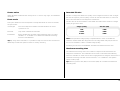
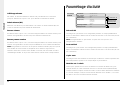
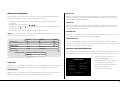
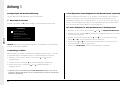
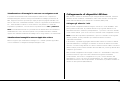
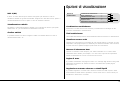
Filtering the Event log
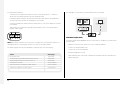
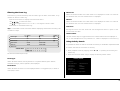
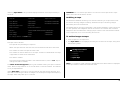
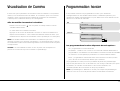
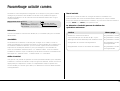
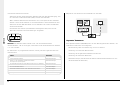
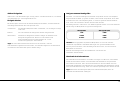
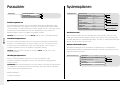
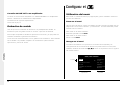
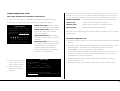
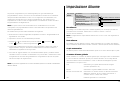
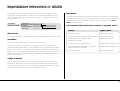
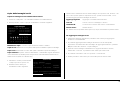
Filter from
The event log can be filtered by time and date, type of alarm, event state, or by
camera. To filter the event log:
Select the time and date of the first event to be displayed. If there is no event at
the selected time, the next nearest event is displayed.
•
•
•
•
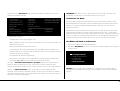
Filter to
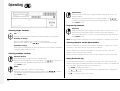
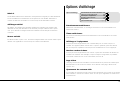
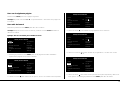
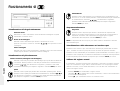
Press and hold event to display the event filter menu.
Use
to move the cursor.
Use
to toggle the box on n or off o, or change the time or date.
Press event to see filtered event log.
Tip: It is advisable to filter the events before displaying them when recording over
a number of days.
Select the time and date of the last event to be displayed. If there is no event at
the selected time, the next nearest event is displayed.
Time now
Moving the cursor onto the ‘time now’ text changes the ‘Filter to’ option to the
current time and date.
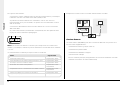
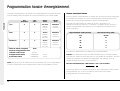
Camera select
Alarm
Activity
System
■
■
■
On
Off
Both
Event state
❏
❏
■
Filter from
00:00
01:01:1999
Filter to
12:00
01:01:2000
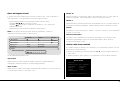
Event type
Time now
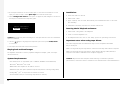
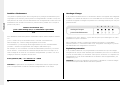
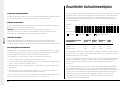
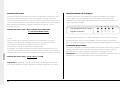
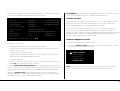
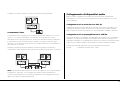
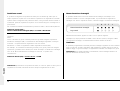
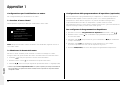
Camera Select
Use the camera keys to toggle whether the camera events will be displayed or
not. In the example above only cameras 1 to 3 will be displayed in the event log.
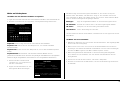
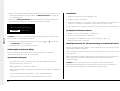
Using Activity Search
It is possible to search an area of the screen for activity or movement at specified times.
To search and area of the screen for activity:
1 2
3
4
5
6
7
8
9
■ ■
■
❏
❏
❏
❏
❏
❏
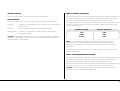
Note: Cameras cannot be selected using the cursor keys.
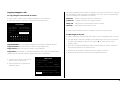
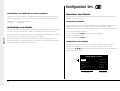
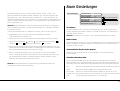
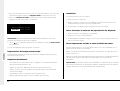
1. Enter playback mode by tapping either or , or pressing and holding the
GOTO key.
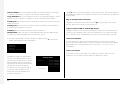
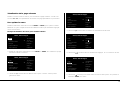
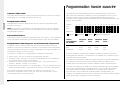
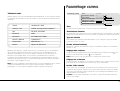
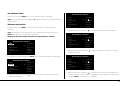
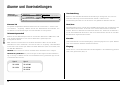
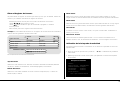
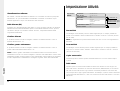
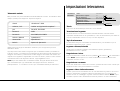
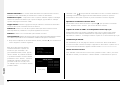
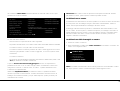
2. Press and hold the ‘Event’ key to display the Activity Search menu:
Event type
Select whether Alarms, Activity detection or Systems alarms (panic alarms,
time/date change, power up/down) are displayed.
Event state
Select whether the event is to be displayed when it is triggered (On) or when it
ends (Off) or both.
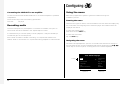
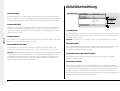
Activity Search
Camera 4
Copy destination
Activity grid
Activity from
Activity to
Playback time
CDR list/External
Setup
Time/Date
Time/Date
Press << to begin search
31