1
Logitech® Keyboard Case
Charge the Keyboard Case
Paste (Command-V)
Plug the micro-USB cable into the micro-USB
port on the Keyboard Case. Plug the other
end of the cable into a powered USB port on
a computer.
Previous track Skips to previous track
on current playlist
Power on the Keyboard Case
and pair with iPad 2
Next track Skips to the next track on
the current playlist
The Keyboard Case’s Bluetooth keyboard should
only need to pair to your iPad 2 once as follows:
1. On the Keyboard Case, slide the power
switch on. The status light illuminates for
four seconds, and then it turns off.
2.On the iPad 2, select Settings > General >
Bluetooth > On.
3.Press the Connect button to make the
Keyboard Case discoverable. The status light
flashes on the Keyboard Case, and the iPad 2
displays “Logitech Keyboard Case” as an
available device.
4.Select “Logitech Keyboard Case” on
the iPad 2. The iPad 2 will display a code.
5.Type the code using the Keyboard Case and
press Enter. The Keyboard Case is now paired
to the iPad 2.
Mute Mutes iPad 2 audio
Position the iPad 2 on
the Keyboard Case
Place the iPad 2 (either in portrait or landscape
mode) into the central groove.
Play/Pause Starts or stops current playlist
Volume down Decreases iPad 2 volume
Volume up Increases iPad 2 volume
Black screen Makes the iPad 2 screen
go dark or restores the screen when
pressed again
International Keyboard Toggles between
international keyboards
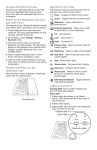
Lights and buttons
Charging light: turns on when charging
and turns off when fully charged
Status light:
1. Flashes when the battery is low (there’s about
a 20% charge and two to four days
of use remaining)
2.Flashes when pairing
3.Lights briefly when you turn on the Keyboard
Case, and then it turns off
Charging light
Status light
Bluetooth button
Central groove
Special function keys
The Keyboard Case has special function keys
to give you more control of your iPad 2.
Home Displays the iPad 2 home screen
Search Displays the iPad 2 search screen
Slide-show Plays a slide-show of
saved pictures
Keyboard hide/show Allows you to hide
or show iPad 2 on screen keyboard
Cut (Command-X)
Copy (Command-C)
English 3