1
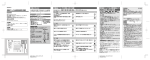
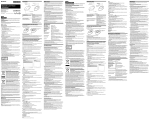
The POWER lamp flashes green and yellow.
Perform step 2 while it is flashing.
Note
If you do not perform step 2 within 10 seconds, the power turns on with the settings
unchanged. You can also skip setup and turn on the power by pressing the SLIDE
SHOW button.
2 Enable or disable scrolling or tapping.
To enable scrolling
Press and hold the Next Slide button for over 1 second.
To disable scrolling
Press and hold the Previous Slide button for over 1 second.
To enable tapping
Press and hold the Right button for over 1 second.
To disable tapping
Press and hold the Left button for over 1 second.
The controller turns on with the new settings.
Note
You cannot enable/disable the scrolling and tapping features at the same time. To set
each of these features, follow the above mentioned procedure to set the scrolling or
tapping feature, then set the power switch to OFF and perform steps 1 and 2 again.
z Hint
The setting you performed in step 2 will be saved until you set it again, even if you
remove the batteries or turn the power off and on.
Adjusting the pointer speed
If the pointer does not move smoothly when you slide your finger on the
touchpad, follow the steps below to set the pointer to a speed that is easier
to use.
(The instructions below are only an example using Windows XP. The
actual procedure may differ depending on your personal computer. For
details, refer to the manuals provided with your personal computer.)
1 Click “start”, then “Control Panel”.
The “Control Panel” window appears.
Click the “Printers and Other Hardware” icon.
2 Click the “Mouse” icon.
The “Mouse Properties” dialog appears.
Continued on next page
15 GB