1
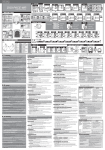
ENGLISH USER MANUAL The DMX-protocol is a widely used high speed signal to control intelligent light equipment. You need to “daisy chain” your DMX controller and all the connected units with a balanced cable of good quality. Both XLR-3pin and XLR-5pin connectors are used, however XLR-3pin is more popular because these cables are compatible with balanced audio cables. Pin layout XLR-3pin: Pin1 = GND ~ Pin2 = Negative signal (-) ~ Pin3 = Positive signal (+) Pin layout XLR-5pin: Pin1 = GND ~ Pin2 = Negative signal (-) ~ Pin3 = Positive signal (+) ~ Pins4+5 not used. Wire colors: GND = black, Negative signal (-) = white, Positive signal (+) = red To prevent strange behavior of the light effects, due to interferences, you must use a 90Ω to 120Ω terminator at the end of the chain. Never use Y-splitter cables, this simply won’t work! Make sure that all units are connected to the mains. Each light effect in the chain needs to have its proper starting address so it knows which commands from the controller it has to decode. In the next section you will learn how to set the DMX addresses. SETUP INSTRUCTIONS Since the projectors have no display and/or menu buttons, you should configure them first using a separate unit called “Firmware Updater” (order code: 4319) and a PC-program called “DMX Tools” (to be downloaded from our website, free of charge). HOW TO PROCEED First install and connect all projectors without configuring them. Configuring is done at the very end. Connect the “Firmware Upgrader” to the PC using the USB-cable that came with the unit. DO NOT install the software that was delivered on the CDROM, instead download the latest software from the “Firmware Updater” product page: http://en.briteq-lighting.com/product/4319 Install the software (at least version V2.0) following the included instructions. Connect the Firmware updater to the DMX-input of the first projector in the DMX-chain, see drawing below: Start the PC-program by clicking the “DMX-Tools”-ICON or the filename “DMXTools.exe” in the program folder “BRITEQ”. If the Firmware Updater is not found, the window shows: “Could not find USB to DMX device” check if the Firmware Updater is well connected and installed on your computer! The main window shows at least 4 options: choose “Remote fixture setup” BRITEQ® 5/44 LDP-GARDENSPOT 4TC