1
Intro to Pro Tools Express.book Page 3 Monday, April 30, 2012 6:24 PM
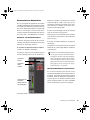
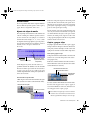
Play and Listen
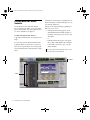
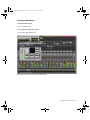
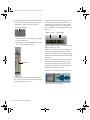
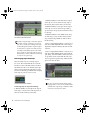
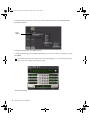
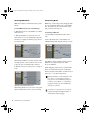
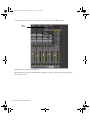
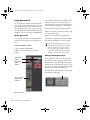
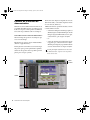
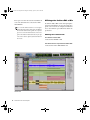
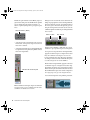
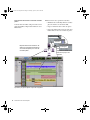
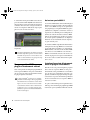
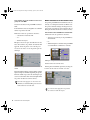
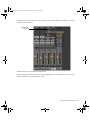
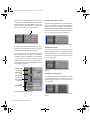
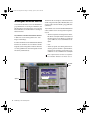
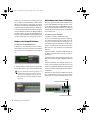
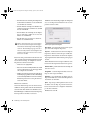
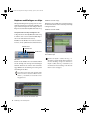
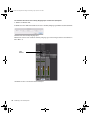
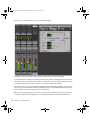
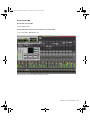
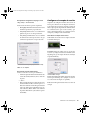
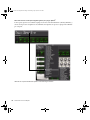
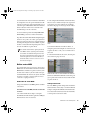
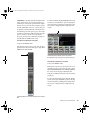
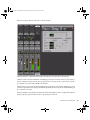
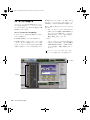
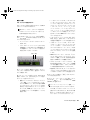
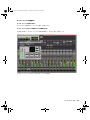
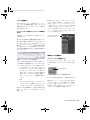
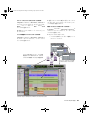
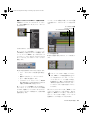
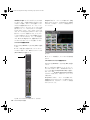
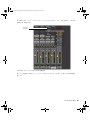
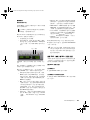
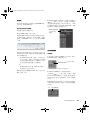
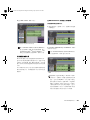
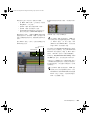
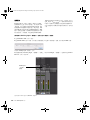
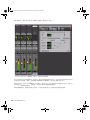
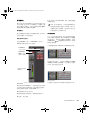
• The Mix window shows tracks as channel
strips—much like a mixing board—with
level meters and controls for plug-in and
hardware inserts, sends, input and output
assignments, panning, volume, solo, mute,
and record enable. Use the Mix window for
routing and mixing audio and MIDI in your
session.
To play the Demo Session:
1
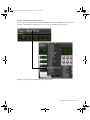
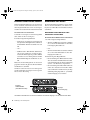
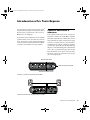
Turn the volume on your Mbox down so that
you don’t play back audio at an uncomfortably
high level.
For more information about headphone and
monitor connections and volume control on
your Mbox, refer to its documentation.
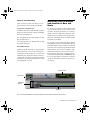
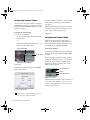
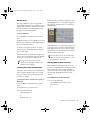
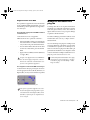
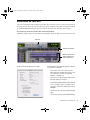
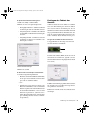
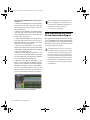
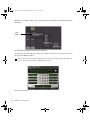
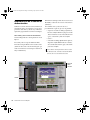
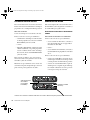
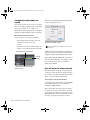
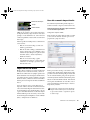
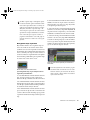
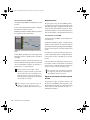
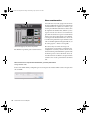
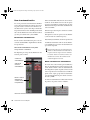
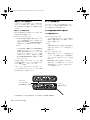
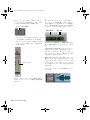
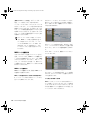
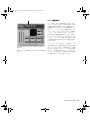
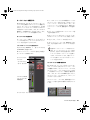
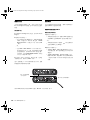
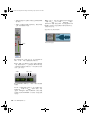
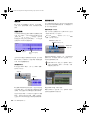
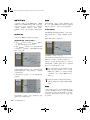
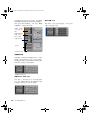
• The Transport window provides controls
for transport related functions such as Play,
Stop, Record, Fast Forward, and Rewind.
2
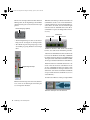
Start playback of the demo session in
Pro Tools. To start or stop Pro Tools, do one of
the following:
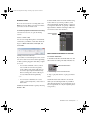
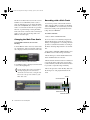
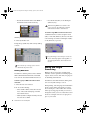
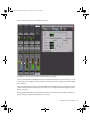
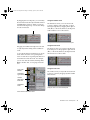
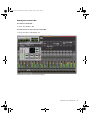
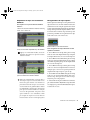
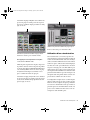
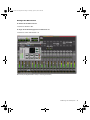
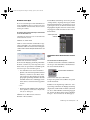
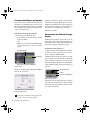
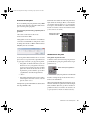
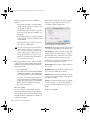
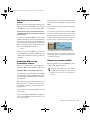
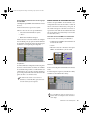
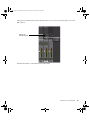
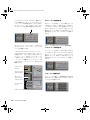
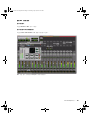
• Plug-In windows provide controls for audio
processing and virtual instrument plug-ins
(which can be either real-time, track-based
plug-in inserts or non-real-time, file-based
plug-ins).
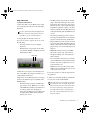
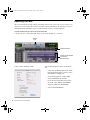
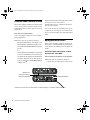
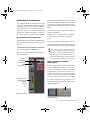
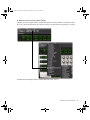
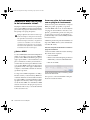
• Press the Spacebar on your computer
keyboard.
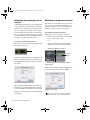
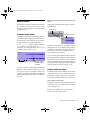
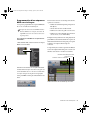
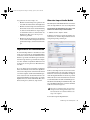
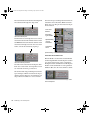
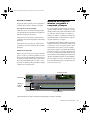
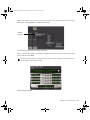
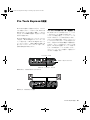
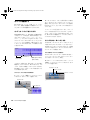
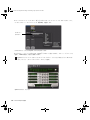
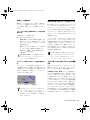
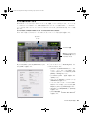
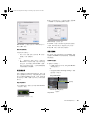
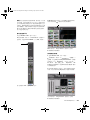
• Click the Play or Stop button in the Transport window ( Window > Transport) or in the
Edit window toolbar.
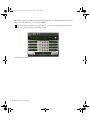
• MIDI Editor windows let you edit MIDI
data using a “piano-roll” style interface,
breakpoint editing, and even traditional
music notation.
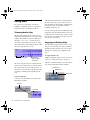
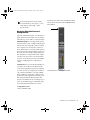
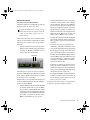
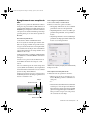
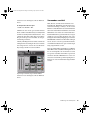
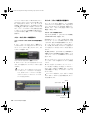
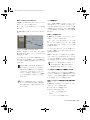
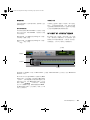
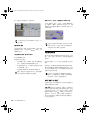
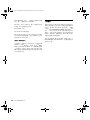
Stop Play
• The Score Editor window lets you edit the
session’s MIDI data using traditional music
notation. You can even print the score directly from Pro Tools.
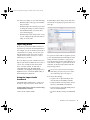
• DigiBase browsers provide an interactive
database for all of the media in your session
as well as for your system.
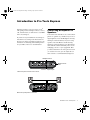
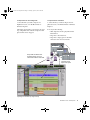
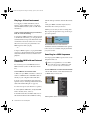
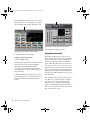
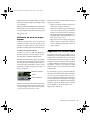
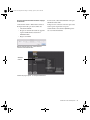
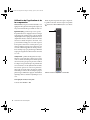
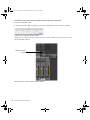
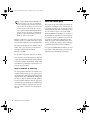
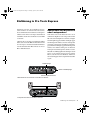
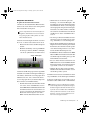
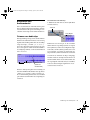
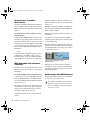
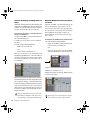
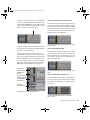
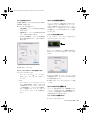
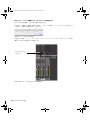
Stop and Play controls in the Transport window
3
While the session plays, raise the Master volume on the Mbox (by turning it clockwise) to a
comfortable listening level.
4
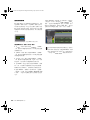
Explore Pro Tools while the demo session plays
back (see the different options available in the
Window menu):
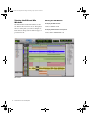
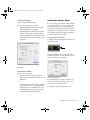
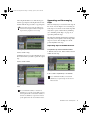
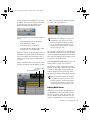
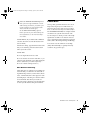
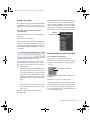
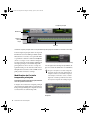
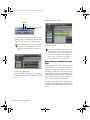
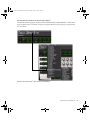
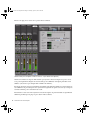
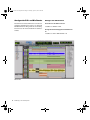
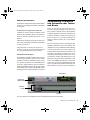
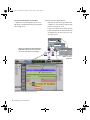
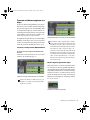
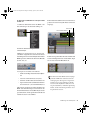
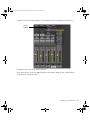
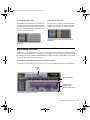
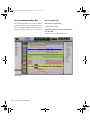
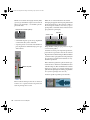
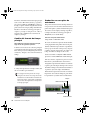
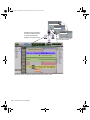
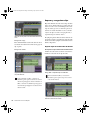
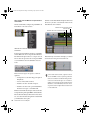
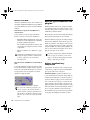
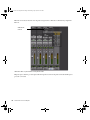
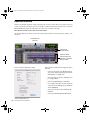
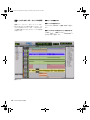
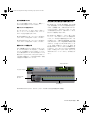
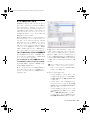
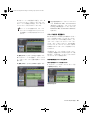
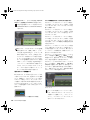
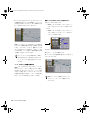
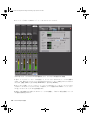
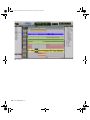
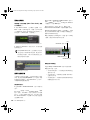
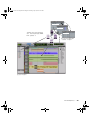
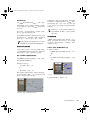
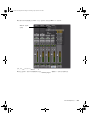
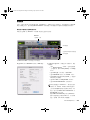
• The Edit window provides a Timeline display of audio, video, MIDI notes, as well as
other MIDI data and mixer automation for
recording, editing, and arranging on
tracks. Use the Edit window for editing and
arranging audio, MIDI, and automation
data in your session.
5
Press the Spacebar or click the Stop button to
stop playback.
6
When you’re finished checking out the Demo
Session, choose File > Close Session.
The Demo Session is an example of a finished
project that has been arranged, edited, and
mixed. You don’t need to return to the Demo
Session for anything else in this guide, but
you might want to check it out again later,
after you’ve been introduced to a few more
Pro Tools features.
Introduction to Pro Tools Express
3