1
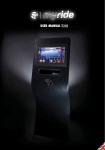
USER MANUAL
1. INTRODUCTION.
1. INTRODUCTION
P.3
P.4
P.5
2. INSTALLATION
P.6
P.13
P.7
P.8
P.10
P.12
3. OPERATION
P.26
P.17
P.18
P.19
P.23
P.25
P.28
4. WARRANTY TERMS
P.29
QUESTIONS?
At Indoorcycling Group we are committed to provide complete customer satisfaction. If you have any questions, please
contact your local distributor or refer to our web-site www.indoorcycling.com
Version 2.0 Copyright by Indoorcycling Group GmbH 2012 | www.indoorcycling.com
1. It is the sole responsibility of the owner/
operator and his staff to ensure that all
users of the indoor cycle are informed of all
warnings and precautions by an authorized
trainer or instructor prior to using the
Myride product.
7. Always wear appropriate athletic clothes
and shoes while operating the indoor cycle.
Do not wear loose clothes that could become
caught on the indoor cycle. Keep laces
secured and out of the way of moving parts.
2. Any indoor cycle used in conjunction with
the Myride system must be operated and
maintained in accordance with its
owners manual.
8. Before using the indoor cycle, make
sure that you are familiar with the setup/
operation of the indoor cycle. If not, refer to
the respective owner’s manual of the bike
or ask a trainer.
3. The Myride system is intended for indoor
use only. Do not use in areas with poor
insulation, excessive dust or moisture (for
example, near a swimming pool).
9. Some indoor cycles do not have an
independently moving flywheel (wheel); the
pedals will continue to move together with
the flywheel until the flywheel stops.
4. Place the Myride system on a level surface.
To protect the floor or carpet from damage,
place a mat beneath the equipment. Be
sure there is sufficient space around the
Myride system and indoor cycling bike for
a user to mount, dismount and operate the
equipment safely.
10. If you feel pain or dizziness while using
the Myride system, stop immediately, rest
and cool down and consult a physician.
5. Regularly inspect all parts of the Myride
hardware. Please replace defective parts
immediately and do not use the equipment
until repairs are carried out. Only use original
parts from the manufacturer.
6. Children under the age of 16 should only
use the Myride system with parental approval
and under supervision of a specially
trained instructor.
WARNING!
To reduce the risk of serious injury please read the
following important precautions and information
before enjoying the Myride personal training
experience.
MEDICAL WARNING:
Before beginning any exercise program, consult your
physician. This is especially important for persons with
pre-existing health problems.
Read all instructions before use. Be aware that incorrect exercise
may result in serious injury. The manufacturer assumes no
responsibility for personal injury or property damage
sustained by or through the use of this product.
ATTENTION: To prevent a risk of electric shock, be sure the power plug is fully and correctly
inserted into the Myride system and the wall socket.
Environment:
Keep the Myride system between 30% and 70% humidity. Low humidity can cause gaskets
to dry out; high humidity may cause condensation inside the unit. Operating temperatures
should not exceed 110° or dip below 40° Fahrenheit. Spikes or dips in voltage may damage the
Myride system. If your power is subject to fluctuations, prevent damage to the Myride system
with a surge protector.
CAUTION: RISK OF ELECTRIC SHOCK. DO NOT OPEN
High voltages are present within the enclosure. Do not open the monitor or computer housing.
There are no user-serviceable parts inside the Myride system. Only trained and qualified service
technicians should service the Myride system.
Cleaning:
The LCD and touchscreen panel is delicate. Clean only when necessary with a soft, damp cloth.
If necessary, moisten the cloth with a diluted, mild detergent. Never use liquids on the touch
screen, which can leak into the wave stand and cause electrical problems.
WARNING: To prevent risk of electric shock or fire, do not allow this system to become wet.
Do not expose the Myride system to moist environments, and do not place liquid filled
containers on or near the unit.
!
The exclamation point within a triangle is intended to warn the
user of important operating and maintenance instructions.
Software:
To take advantage of new features and bug fixes, update the software on the Myride system
occasionally. You can check for new software at www.indoorcycling.com
System Specifications.
Monitor
17.3“ / 1600 x 900 / 16:9 / 400 nits / 30W max
Touch screen
4 wire resistive industrial-grade touchscreen panel
Video content
1280 x 720p HD
OS
Ubuntu Linux Live System
PC
Intel Atom, ION2, 500 GB HDD, 2 GB RAM, 35W max
Power
110-220V AC input / 2 x 12V 3.5A DC output
TV tuner
built-in mini PCIe card (ATSC/NTSC or DVBT/PAL)
Working temperature 40º F-110º F (5º C - 45º C)
Connections
USB 2.0, RJ45 LAN, TV coax optional (F-connector)
Connections for Myride+ updates
The wave stand itself may require occasional dusting. Do not use cleaning liquids on the
wave stand, as they can leak into the stand and damage electronics. Avoid harsh chemicals or
abrasives which may damage the coating on the surface of the stand.
HDMI out, 3,5mm stereo audio out
Version 2.0 Copyright by Indoorcycling Group GmbH 2012 | www.indoorcycling.com
To update the software, download the update file onto an empty USB stick (FAT32 file
format), and plug the USB stick into the Myride. Turn on the Myride and follow the on-screen
instructions. When the update is finished, the Myride will reboot, signaling that it is safe to
remove the USB stick. (If not removed soon after the reboot, the update process may happen
again -- avoid this by promptly removing the USB stick when the Myride reboots.) Check for
updates at least semi-annually.
Hardware:
Heavy use may work some fasteners loose. As part of your quarterly maintenance, please verify
that all bolts and screws are secure in the Myride wave stand.
Trouble shooting:
Should any unexpected problems arise, please consult the troubleshooting guide at www.
indoorcycling.com. If problems persist, contact your service representative.
2. INSTALLATION.
The Myride system
The Myride system is a touchscreen media console for use as an exercise aid. The system
consists of an industrial computer and touchscreen, housed in a sheet metal wave stand. The
computer and touchscreen are fully connected and configured at the factory, but the wave
stand requires some assembly on-site. Depending on mounting and other options, setup may
take from 30 minutes to slightly over one hour.
1.
2.
Setup Requirements
Tools and parts: All tools and parts necessary for assembling the wave stand are included in
the original shipping box. Wall mounting the Myride system will require additional hardware
and tools.
base plate
Customer Support
For the most up-to-date customer support, please visit the website at www.indoorcycling.com.
Basic maintenance and support questions are addressed in this manual. If your problem is not
answered by these resources, or if your Myride system requires service, please contact
your distributor.
3.
Installation Notes:
Myride® is a product for professional and / or commercial use. Such training equipment is
intended for use in training areas of organizations such as fitness clubs or sport associations
where access and control is regulated and the legal responsibility for use lies with such club
or association.
3 Wave stand
Foot print of Myride system:
86 x 56 cm / 34 x 22 inch
Weight of Myride system:
42kg / 92.5 Lbs
Height of Myride system:
150cm
Foot print of Myride + bike:approx. 200 x 65 cm / 79 x 26 inch
Weight of Myride + bike:approx.100 kg / 220 Lb
Allen key
8.00 mm
for Bolt A
Allen key
4.00 mm
for bolt B
Stabilizer rear Fin‘s
a.
b.
M10x16
4x
M5x10
6x
c.
d.
10.5 mm
4x
5.5 mm
6x
4 x 30mm
4 x M10x16
Version 2.0 Copyright by Indoorcycling Group GmbH 2012 | www.indoorcycling.com
6x M5x10
6 x 11mm
3: Attach center fin and rubber feet
Place the large center fin over the bolt holes in the wave stand and secure using six M5 bolts
with washers. Affix the four adhesive rubber pads to the base of the wave stand as shown in
the illustration.
1: Remove the wave stand from the packaging
The Wave stand is very heavy! It requires at least two people to remove the stand from the
packaging. Make sure you have a firm grip, and avoid holding the edges (which may bend).
Please verify when unpacking that all of the required parts are included with the stand. Place
the wave stand on the side for easier assembly.
3.
2.
rubber
pads
4xA / 4xC / 8mm Key
2: Attach the bottom plate and side fins
Place the Wave stand on its side for assembly (see illustration). Place the base plate on the
stand and secure the two small fins to the rear by bolting through the base plate and into the
screw posts at the bottom of the stand. Before tightening the bolts, tap or push the base plate
to ensure it is seated firmly against the bottom of the wave stand.
Version 2.0 Copyright by Indoorcycling Group GmbH 2012 | www.indoorcycling.com
6x B / 6x D / 5mm Key
4x self adhesive rubber pads
4: Move the Myride system into position
With at least two people, pick the Myride system up and move to its proper location. Use a
firm grip; do not slide or tilt the stand, as the weight of the unit may bend the metal frame. To
prevent the Myride system from tipping over, manufacturer recommends to bolt the unit to the
floor using the holes in the floor plate. Make sure sufficient bolts and anchors are being used.
3: Prepare the wall anchors
Measure up 55“ (1400 mm) from the floor. Insert two wall anchors 10.5“ (265 mm) apart,
following the anchor manufacturer‘s directions. Note: the anchor must be rated to support at
least 100 lbs. Be sure the wall itself can support the weight of the stand!
1: Remove the wave stand from the packaging
The wave stand is very heavy! It requires at least two people to remove the stand
from the packaging. Make sure you have a firm grip, and avoid holding the edges
(which may bend). Please verify when unpacking that all of the required parts are
included with the stand.
2.
3.
IMPORTANT! The weight of the Myride system of 92.5 lbs requires
the use of proper wall mounting fixtures supporting the weight
of the system. If you are unsure what fixtures are suitable, please
consult your local professional. Warranty may void in case of
inproper mounting.
1400 mm
265 mm
4xA / 4xC / 8mm Key
2: Attach the side fins
Place the wave stand on its side. Secure the two small fins to the rear of the wave
stand, rubber foot side down, by bolting into the posts.
When wall mounted, the Myride system does not use the base plate or the center fin.
Version 2.0 Copyright by Indoorcycling Group GmbH 2012 | www.indoorcycling.com
Attention! the left and right support are
required to keep the required clearance to
the wall and avoid buckling of the cables
reaching out of the terminal
4: Mount the MyRide to the wall anchors
With at least two people, lift the Myride system onto the wall anchors.
Once you have finished the installation of the Myride system, plug in the power cable and turn
the power switch to on (|). The Myride system will take a moment to boot up.
1.
Art. no: 500 033
Mini PC DVB-T/PAL
TV Tuner (optional)
Made for iPod/iPhone
Art. no: 500 020
Touchscreen monitor
17,3“
EU plug
UK plug
USA plug
Attention!
Please use the AC extension cable required for the electrical system in your country. Consult a professional electrician
if you are unsure how to connect the Myride system to your in-house electrical circuit.
Version 2.0 Copyright by Indoorcycling Group GmbH 2011 | www.indoorcycling.com ENG 12
Version 2.0 Copyright by Indoorcycling Group GmbH 2012 | www.indoorcycling.com
Art. no: 500 032
Art. no: 500 095
Art. no: 500 021
Art. no: 500 080
Mini PC ATSC/NTSC
TV Tuner/
Made for iPod/iPhone
Bezel for 17,3“ TS monitor
Black color; incl. rubber gasket
Mounting plate for PC
Zinc coated
PSU 110/220V
2x 12V/2,5 A
Power supply for
monitor and PC
cont.
Terminal plate for external
connections incl. cables
(USB, RJ45-LAN, HDMI, TV, Audio,
power & ground cable)
Art. no: 500 092
Internal L-bracket incl. cable harness
(2x USB A;
1x audio extension to PC
and terminal plate)
Art. No: 500 094
Art. no: 500 081
Fuse (5 Ampere)
for power switch
Made for iPod 30 pin connection
cable; 70 cm; L-bracket > basket
4 pin Audio twin socket „Y“
extension cable; 110 cm;
L-bracket > basket
Art. no: 500 091
Art. no: 500 093
Art. no: 500 099
Art. no: 500 075
Art. no: 500 076
Storage basket for
iPod/iPhone
incl. mounting material
Floor plate
and 3 pcs. fins (backside)
incl. mounting material
Art. No:
02 11 05B MYR
Leveling feet
Version 2.0 Copyright by Indoorcycling Group GmbH 2012 | www.indoorcycling.com
Service kit
incl. screws
and foam pads
Art. no: 500 070
USB cable male/female;
60 cm; PC > terminal plate
Art. no: 500 078
HDMI cable male/female;
60 cm; PC > terminal plate
Art. no: 500 071
Art. no: 500 074
USB cable male/female;
130 cm; PC > L-bracket
Art. no: 500 077
RJ-45 LAN cable;
60 cm; PC > connector plate
AC power switch incl. ground cable;
60 cm; power switch >
PC mounting plate
Art. no: 500 079
Art. no: 500 050
internal power cable male
60 cm; power switch >
power supply unit
VGA cable male/male
150 cm; PC > monitor
3. OPERATION
cont.
Please register your Myride system before you start any operation!
Contact your distributor if you need any support during this process.
You will have a 30 day trial period until the registration process needs to be completed.
Art. no: 500 051
Art. no: 500 052
Art. no: 500 053
USB cable male/male; 150 cm;
PC > monitor
TV cable male/male; 60 cm;
PC > terminal plate
Audio cable extension
internal Y-splitter
130cm/60cm
L-bracket/terminal plate > PC
Art. no: 400 209
Art. no: 400 210
Art. no: 400 211
UK extension cable
USA extension cable
Using the Touchscreen
The Myride features a 17.3“ single-touch industrial touchscreen. The touchscreen functions
best with a firm touch from the fingertip – no stylus is required, and touching the screen with
more than one finger at a time will not work.
EU extension cable
Most icons on the Myride are touch buttons – a single press will activate the control. Lists, such
as a playlist for a custom-built workout, can be scrolled by touching the screen with your finger
and dragging across the surface of the touchscreen. The Television channel list (MyTV) should
be scrolled by touching near the channel listing and dragging.
The Home Screen
The Myride experience begins at the home screen. Touching the icons on the home screen will
launch different entertainment and coaching options. The coached workouts are the MyRide
studio workout and MySportif outdoor coaching. For non-instructed workout entertainment,
the Myride system features MyScape and optional television (MyTV). By using the MyMusic
function you can connect your own media device (Made for iPod/iPhone). You can always
return to the homescreen by touching the “home” icon in the lower left corner of the screen (it
will appear in the upper left on the Administration Screen).
Version 2.0 Copyright by Indoorcycling Group GmbH 2012 | www.indoorcycling.com
(optional)
Starting from the home screen, enter the Administration Screen to make changes to the
configuration of your Myride. It is not password protected, but it is hidden from view. To
activate it, touch the ICG logo in the lower-right corner of the screen (1), then touch the ‘Myride
v3.0’ text in the upper-left corner (2) within 1.5-2 seconds. This automatically launches the
Administration Screen (picture below).To return to the home screen, touch the”home” icon in
the upper left corner. You can use the Administration Screen to make changes to your system.
2.
The Myride has the ability to decode analog and digital television signals. Some television
signals will not be appropriate, such as encrypted channels (which would require a cable or
satellite decoder), but most cable boxes and all over-air and in-club television signals will work.
1: Physically connect the television to the Myride
Using an F-connector coaxial cable (not included), connect the Myride to your television
source.
2: Enable television in the administration menu
Navigate to the administration menu by touching the icon in the lower-right of the screen,
then touching the ‘Myride v3.0’ text in the upper-left corner of the screen. On the ‘General’ tab,
touch the checkbox for TV. (Unchecking this box later will disable TV on the home screen.)
3: Choose your television standard
The Myride can decode many different types of television signals. It is important you know
what kind of television signal you are providing to the Myride. If you are unsure of your television signal, contact your television service provider.
1.
In the administration menu, choose ‘TV Channelscan’ from the left pane. On the Channelscan
screen, choose your region from the top dropdown menu. This will highlight what types of
television signals are available in your country. For analog sources (like in-club distributed TV),
choose NTSC or PAL. For digital sources, choose the appropriate source: over-air if the Myride is
connected directly to an antenna, or terrestrial/cable if it is connected to a decoder or box (or if
your club has digital television distribution -- this is rare).
Version 2.0 Copyright by Indoorcycling Group GmbH 2012 | www.indoorcycling.com
(optional)
(optional)
4: Perform a channelscan
5: Editing the channel list
In order for the Myride system to list and allow to change TV channels successfully, it must scan
the incoming television signal. This process might take a while.
Once the channel scan has finished, you can edit the list. Choose ‘TV Channel Editor’ in the left
pane to bring up the channel editor. If the channelscan was successful, a list of detected channels will appear in the next pane over (picture below). By selecting each channel in that pane,
you can choose to activate or inactivate individual channels.
Once you have chosen the signal type, a ‘scan’ button will appear next to its checkbox. Touch
the scan button to start a channelscan. (This process can take up to thirty minutes.) During this
time, the Myride is detecting available channels and adding them to the TV menu. While scanning, the Myride will display a series of technical messages. When it is finished, the message
‘channelscan finished’ will appear at the end of the list. You can now navigate away from the
message by touching the ‘cancel’ button (the results have already been saved).
If the channel list is empty, please verify that you selected and scanned the correct signal type.
Most clubs’ in-house television systems are analog (NTSC or PAL), while cable or over-air television is typically digital (ATSC or DVB). If you are unsure, contact your television provider or try
scanning different television signal types.
Note: some cable or satellite television stations may be encrypted (for example, premium
digital cable signals). They will be detected by the channelscan, but will appear as static
and should be removed from the channel list in the channel editor.
Version 2.0 Copyright by Indoorcycling Group GmbH 2012 | www.indoorcycling.com
(optional)
6: Using MyTV
From the home screen, touching the ‘MyTV’ button will launch the television. To change
channels, you can touch the MyTV channel button or simply touch the middle of the screen to
call up the channel list.
Touch the channel listing to change channels, and touch-and-drag to scroll the channel
listings. Touching the TV screen away from the channel list closes the channel listing panel.
The Myride system is „Made for iPod/iPhone“. Please connect your media device by using the 30
pin connector cable at the front of the device.
Entering the MyMusic mode
You can control your media device at anytime during a MySportif or MyScape workouts by
pressing the Music button in the navigation bar at the bottom of the screen (1) or by pressing
the MyMusic button on the home screen (2).
1.
music button
music button
2.
Attention: You can‘t listen to your own music during a MyRide workout or while watching TV.
All MyRide workouts have their own music built-in.
Version 2.0 Copyright by Indoorcycling Group GmbH 2012 | www.indoorcycling.com
Within the MyMusic mode you can conrol the playback of either built-in music (internal
jukebox) or of your personal music on your media device.
Devices section
Playlist section
WARNING
This product is intended to motivate fit, healthy exercisers.
This product and coaching are not intended to replace the services of a physician, nor does it
constitute medical advice. This product is not intended to diagnose, treat, or cure any medical
condition. Any actions you take in the course of using this product are entirely at your own
discretion; please use good judgment. You should consult with your physician about the
appropriateness of any workout for your individual health, and before starting a new exercise
regimen.
Track section
Please watch the “learn the moves” instructions to learn about the bike setup, riding positions,
energy zones or how to built your workout. To enter the “learn the moves” tutorials, please
press MyRide or MySportif button on the home screen (1), then select “learn the moves” by
pressing the button. The tutorial will start automatically (2).
1.
Back, Play/Pause
and Next Controls
Volume
Control
Selection
Indicator
Devices sectionlists all of your connected devices
Playlist sectionlists the playlists of the selected device
Track sectionlists all tracks of the selected playlist
Selection Indicatorhighlights the selected item
Back Play/Pause
Next Controlsgive you the ability to control your iPod
Volume Controlcontrols the volume auf the MyRide systeM
Version 2.0 Copyright by Indoorcycling Group GmbH 2012 | www.indoorcycling.com
2.
To see the latest software version, installed on your Myride system, enter the Administration
Screen. Press System Information to show all individual information of your Myride system,
including the current SW Version.
Software updates can be downloaded from support website www.indoorcycling.com Please
only use an empty, FAT 32 formated, USB Stick to store the update.
Following steps must be done to install the update software on
your Myride system:
Step 1:
Put the USB Stick (with latest software update) into the USB slot.
Version 2.0 Copyright by Indoorcycling Group GmbH 2012 | www.indoorcycling.com
Step 2:
The system will ask, if you want to install the update. Press “Installing System Update”.
Step 3:
After the update is finished, the Myride system will reboot again. Before that, the Myride
system invites you to remove the USB stick.
It is possible to exchange the configuration from one Myride system to another.
Export Configuration
Put an empty, FAT 32 formated, USB stick into the USB slot of the Myride system. Enter the
Administrator Screen and select Exchange Configuration.
Indoorcycling Group GmbH warrants that all new equipment will be free of manufacturing
defects in workmanship and materials, becoming effective on the date of the original
registration of the Myride system on www.indoorcycling.com. Parts and components repaired
or replaced under the terms of warranty will be warranted for the remainder of the original
warranty period only. Warranty may vary by region or country.
Please contact Indoorcycling Group GmbH by email [email protected] to obtain detailed
information on applicable warranty terms and conditions.
Please note that warranty does not cover for damages caused by inappropriate use of the
Myride product and any negligent act by the consumer. Manufacturer states that the product
was thoroughly tested and found free of failure prior to shipping.
IMPORTANT!
Manufacturer requires the proper registration of the product on its dedicated
support website www.indoorcycling.com to uphold warranty obligations.
Limited Warranty on Myride system
Press Export Configuration and wait, till the configuration is exported on the USB stick.
Remove the USB stick.
Import Configuration
Put the USB stick with the exported configuration of a Myride system into the USB slot of
another system, where you want to add the same configuration.
Enter the Administator Screen and select Exchange Configuration. Press Import Configuration
and wait, till the configuration is imported on the Myride system. Remove the USB stick.
5 years warranty: Myride metal wave stand
2 years warranty:
* Monitor Bezel ( Art.: 500 021)
* basket ( Art.: 500 091)
* Internal Monitor cable routing (VGA, USB)
* External cable connection terminal incl.
hard wires from terminal to PC (Art.: 500 092)
1 year warranty:
* Mini PC incl. HDD, RAM, TV Hybrid tuner
(Art.: 500 032 ATSC/NTSC & Art.: 500 033 DVB-T/
PAL) * 17,3“ single touch Monitor (Art.: 500 020)
* Internal Power supply Unit (Art.:500 080)
The following items are considered wear items excluded from warranty:
* Audio twin socket „Y“ extension cable ( Art.: 500 571)
* Media device connection cable; USB > 30pin ( Art.: 500 070)
Version 2.0 Copyright by Indoorcycling Group GmbH 2012 | www.indoorcycling.com
BENUTZERHANDBUCH
CAUTION.
Read all precautions and instructions in this manual
before you begin using this equipment. Please keep this
manual for future reference. Improper assembly, set up,
use or maintenance may void the warranty.
The Myride® content is licensed to be used exclusively
with an exercise bike as a personal training device.
No other license is conveyed, expressed or implied.
EMAIL: [email protected]
WEBSITE: WWW.INDOORCYCLING.COM
© 2011 Indoorcycling Group. Myride® Art. no.: 5000 02 (ATSC/NTSC TV) 5000 03 (DVB-T/PAL TV)
Manufactured by: Indoorcycling Group® GmbH
Happurger Str. 86 90482 Nuremberg Germany
1. EINFÜHRUNG
1. EINFÜHRUNG
S.3
1. Es liegt in der alleinigen Verantwortung
des Besitzers / Betreibers und seiner
Mitarbeiter, dass alle Nutzer des Indoor
Cycles über alle Warnungen und
Vorsichtsmaßnahmen, durch autorisierte
Trainer oder Ausbilder vor der Nutzung der
Myride-Produkte, informiert werden.
S.6
S.7
S.8
S.10
S.12
2. Jedes Indoor Cycle, das mit dem MyrideSystem genutzt wird, darf nur entsprechend
der Bedienungsanleitung benutzt und
gewartet werden.
S.4
S.5
2. INSTALLATION
S.13
3. BEDIENUNG
S.25
S.26
S.17
S.18
S.23
3. Das Myride-System ist nur für den
Innenbereich zugelassen. Es darf nicht
in Räumen mit schlechter Isolation,
übermäßigem Staub oder Feuchtigkeit
(beispielsweise in der Nähe eines
Schwimmbeckens) genutzt werden.
S.19
S.28
4. GARANTIEBESTIMMUNGEN
P.29
Fragen?
Ihre Zufriedenheit liegt uns am Herzen. Haben Sie Fragen, kontaktieren Sie Ihren Händler vor Ort oder konsultieren Sie
unsere Website unter www.indoorcycling.com
Version 2.0 Copyright by Indoorcycling Group GmbH 2012 | www.indoorcycling.com
4. Das Myride-System ist auf eine ebene
Fläche zu stellen. Um den Boden oder
Teppich vor Schäden zu schützen, ist es
ratsam, eine Matte unter das Gerät zu legen.
Es ist dafür zu sorgen, dass genug Platz um
das Myride-System und dem Indoor Cycle
vorhanden ist, um als Nutzer sicher auf- und
absteigen zu können und um das Gerät
sicher zu bedienen.
5. Kontrollieren Sie regelmäßig alle Teile
der Myride-Hardware. Defekte Teile sind
umgehend auszutauschen. Während der
Reparatur darf das Gerät nicht benutzt
werden und muss vom Stromnetz getrennt
werden. Es sind ausschließlich Originalteile
des Herstellers zu verwenden.
6. Kinder unter 16 Jahren dürfen das MyrideSystem nur mit Erlaubnis ihrer Eltern und
unter Anleitung eines geschulten Trainers
nutzen.
7. Das Indoor Cycle darf nur mit passender
Sportbekleidung und –schuhen genutzt
werden. Lockere Kleidung, die sich im Indoor
Cycle verfangen kann, ist nicht erlaubt. Es ist
darauf zu achten, dass sich die Schnürsenkel
nicht in den beweglichen Teilen verfangen.
8. Vergewissern Sie sich vor der Benutzung
des Indoor Cycles, dass Sie mit dem Aufbau
und der Funktion des Indoor Cycles vertraut
sind. Falls nicht, informieren Sie sich in der
entsprechenden Bedienungsanleitung des
Bikes oder fragen Sie einen Trainer.
9. Die meisten Indoor Cylces haben keinen
Freilauf. Die Pedale bewegen sich weiter, bis
die Schwungscheibe stoppt.
10. Treten Schmerzen oder Schwindel
während der Nutzung des Myride-Systems
auf, sollte das Training sofort abgebrochen
werden. Bessert sich das Unwohlsein nicht
kurzfristig, empfiehlt es sich einen Arzt
aufzusuchen.
WARNUNG!
Um das Risiko ernsthafter Verletzungen zu reduzieren,
lesen Sie bitte vor der Nutzung von Myride die
folgenden wichtigen Sicherheitsvorkehrungen und
Informationen.
MEDIZINISCHER HAFTUNGSAUSSCHLUSS!
Suchen Sie generell Ihren Arzt auf, bevor Sie mit
einem neuen Training beginnen.
Dies ist für Personen mit bereits bestehenden gesundheitlichen
Problemen extrem wichtig. Lesen Sie alle Anweisungen vor
der Nutzung. Nicht korrekt durchgeführte Übungen können
ernsthafte Verletzungen nach sich ziehen. Der Hersteller
übernimmt keine Verantwortung für Personen- oder
Sachschäden, die durch die oder bei der Verwendung
des Gerätes auftreten.
WARNUNG: Das Gerät darf nicht nass werden, andernfalls besteht die Gefahr eines elektrischen
Schocks oder Feuer. Das Myride-System darf feuchten Umgebungen nicht ausgesetzt werden.
Behälter mit Flüssigkeiten dürfen nicht auf oder in der Nähe des Geräts platziert werden.
ACHTUNG: Stellen Sie sicher, dass der Netzstecker korrekt im Myride-System und der
Wandsteckdose eingesteckt ist, andernfalls besteht die Gefahr eines elektrischen Schocks.
VORSICHT: GEFAHR VON STROMSCHLÄGEN. NICHT ÖFFNEN
Innerhalb des Gehäuses herrschen hohe Spannungen. Der Monitor oder das
Computergehäuse dürfen nicht geöffnet werden. Das Myride-System enthält im Inneren
keine vom Nutzer zu wartenden Teile. Nur ausgebildete und qualifizierte Techniker dürfen das
Myride-System warten.
!
Das Ausrufezeichen in einem Dreieck bezeichnet wichtige
Bedienungs- und Wartungshinweise.
Systemspezifikation.
MONITOR
17,3“ / 1600 x 900 / 16:9 / 400 NITS /30 W MAX
TOUCHSCREENwiderstandsfähiger 4-Draht Touchscreen-Panel,
Industriequalität
VIDEO INHALT
1280 x 720P HD
BETRIEBSSYSTEM
UBUNTU LINUX-LIVE-SYSTEM
STROMVERSORGUNG
110-220V WECHSELSTROM EINGANGSSPANNUNG / 2 x 12V 6 A
GLEICHSTROM AUSGANGSSPANNUNG
TV-TUNER
EINGEBAUTE MINI-PCIE-KARTE (ATSC/NTSC oder DVBT/PAL) OPtional
BETRIEBSTEMPERATUR 5˚C – 45˚C
ANSCHLÜSSE
USB 2.0, RJ45 LAN, TV OPTIONAL (F-STECKER-KOAX)
ANSCHLÜSSE FÜR MYRIDE+ UPDATES HDMI Ausgang, 3,5MM STEREO-AUDIO-AUSGANG
Version 2.0 Copyright by Indoorcycling Group GmbH 2012 | www.indoorcycling.com
UMGEBUNG:
Die Luftfeuchtigkeit für das Myride-System sollte zwischen 30% und 70% liegen. Niedrige
Luftfeuchtigkeit führt zur Austrocknung der Dichtungen; hohe Luftfeuchtigkeit kann zu
Kondensation im Gerät führen. Die Betriebstemperatur sollte 45˚ Celsius nicht übersteigen und
nicht unter 5˚ Celsius fallen. Spannungsspitzen und -einbrüche können zur Beschädigung des
Myride-Systems führen. Ist Ihr Stromnetz Spannungsschwankungen unterworfen, bewahren
Sie das Myride-System mit einem Überspannungsschutz vor Schäden.
REINIGUNG:
Das LCD- und Touchscreen-Panel ist empfindlich. Reinigen Sie es nur wenn nötig, mit einem
weichen, feuchten Tuch. Falls nötig, befeuchten Sie das Tuch mit einem milden, verdünnten,
Reinigungsmittel. Den Touchscreen niemals mit Flüssigkeiten reinigen, die in das Gehäuse
eindringen und zu elektrischen Problemen führen können.
Der Wave Ständer sollte gelegentlich abgestaubt werden. Bitte dazu keine Reinigungsmittel
verwenden, da diese in das Gehäuse eindringen und Kurzschlüsse verursachen können.
Verwenden Sie keine chemischen Produkte oder Scheuermittel, da diese die Beschichtung des
Ständers angreifen.
SOFTWARE:
Um neue Funktionen nutzen zu können und die Software auf dem neuesten Stand zu halten,
führen Sie gelegentlich ein Software-Update auf dem Myride-System durch. Den aktuellsten
Softwarestand finden Sie unter www.indoorcycling.com.
Um ein Software-Update durchzuführen, laden Sie die Update-Datei auf einen leeren USB-Stick
(FAT32-Dateisystem) und stecken Sie den USB-Stick in den USB Anschluss auf der Rückseite des
Myride-Systems. Schalten Sie das Myride an und folgen Sie den Bildschirmanweisungen. Ist das
Update durchgeführt, wird das System neu starten und anzeigen, dass der USB-Stick entfernt
werden kann. (Wird der USB-Stick nicht kurz nach dem Neustart entfernt, kann es zu einem
erneuten Update-Vorgang kommen – vermeiden Sie dies durch sofortiges Entfernen des USBSticks beim Neustart.) Überprüfen Sie mindestens halbjährlich das System auf Updates.
HARDWARE:
Durch starken Gebrauch können sich einige Verbindungen lockern. Überprüfen Sie bei Ihrer
vierteljährlichen Wartung, ob alle Bolzen und Schrauben fest mit dem Myride Wave Ständer
verbunden sind.
PROBLEMBEHANDLUNG:
Sollte ein unerwartetes Problem auftauchen, schauen Sie in den Leitfaden zur
Problembehandlung unter www.indoorcycling.com. Bestehen die Probleme weiterhin,
kontaktieren Sie einen Kundendienstmitarbeiter.
2. INSTALLTATION.
DAS MYRIDE-SYSTEM
Das Myride-System ist eine Touch-Screen-Medienkonsole zur Trainingsunterstützung. Das
System besteht aus einem Computer und Touchscreen in Industriequalität, eingefasst in ein
wellenförmiges Metallgehäuse. Computer und Touchscreen werden werkseitig angeschlossen
und konfiguriert, der Wave Ständer muss vor Ort lediglich noch endmontiert werden.
Abhängig vom Zusammenbau und anderen Gegebenheiten, kann das Aufstellen zwischen 30
Minuten und rund einer Stunde dauern.
1.
2.
AUFBAU-ANFORDERUNGEN
Werkzeuge und Bauteile: Alle für den Zusammenbau des Wave Ständers nötigen Werkzeuge
und Bauteile, sind im Originalkarton enthalten. Die Wandbefestigung des Myride-Systems
benötigt zusätzliches Montagematerial und Werkzeug.
BODENPLATTE
KUNDENBETREUUNG
Für die aktuellsten Wartungstipps besuchen Sie unsere Seite unter www.indoorcycling.com.
Einfache Wartungs- und Support-Fragen werden in diesem Handbuch beantwortet. Finden
Sie bei beiden Anliegen keine Lösungen für Ihre Fragen, oder soll Ihr Myride-System gewartet
werden, so wenden Sie sich bitte an Ihren Händler.
3.
INSTALLATIONSHINWEIS:
Myride® ist ein Produkt für den professionellen und/oder kommerziellen Einsatz. Diese
Trainingsgeräte sind für die Benutzung in Trainingsräumen von Organisationen, beispielsweise
Fitnessclubs oder Sportvereinen bestimmt, in welchen der Zugang und die Kontrolle der
Geräte geregelt sind. Die gesetzliche Verantwortung für die Benutzung liegt beim Club oder
Verein.
ABMESSUNGEN DES MYRIDE-SYSTEMS:
86 x 56 cm
GEWICHT DES MYRIDE-SYSTEMS:
42kg
HÖHE DES MYRIDE-SYSTEMS:
150cm
ABMESSUNGEN VON MYRIDE + BIKEca. 200 x 65 cm
GEWICHT VON MYRIDE + BIKEca. 100kg
HINTERE STABILISATORPLATTEN/FINNEN
WAVE STÄNDER
INNENSECHSKANTSCHLÜSSEL
8.00 MM FÜR
SCHRAUBE A
INNENSECHSKANTSCHLÜSSEL
4.00 MM FÜR
SCHRAUBE B
a.
b.
M10x16
4x
M5x10
6x
c.
d.
10.5 mm
4x
5.5 mm
6x
4 x 30mm
4 x M10x16
Version 2.0 Copyright by Indoorcycling Group GmbH 2012 | www.indoorcycling.com
6x M5x10
6 x 11mm
3. ANBRINGEN DER MITTLEREN FINNE UND DER GUMMIFÜSSE
Platzieren Sie die große, mittlere Finne über den Schraublöchern des Wave Ständers und
sichern Sie diese mit sechs M5 Schrauben und Unterlegschrauben. Befestigen Sie die vier
selbstklebenden Gummipads am Fuß des Wave Ständers, wie in der Abbildung zu sehen.
1: ENTNAHME DES WAVE STÄNDERS AUS DER VERPACKUNG
Der Wave Ständer ist sehr schwer! Es sind mindestens zwei Personen nötig, ihn auszupacken.
Fassen Sie fest zu und halten Sie nicht ausschließlich die Ecken (diese können sich verbiegen).
Überprüfen Sie nach dem Auspacken, ob alle nötigen Teile vorhanden sind. Legen Sie den
Ständer zur einfacheren Montage auf die Seite.
3.
2.
rubber
pads
4xA / 4xC / 8mm SCHLÜSSEL
2. ANBRINGEN DER BODENPLATTE UND ÄUSSEREN FINNEN
Legen Sie den Wave Ständer auf die Seite (siehe Abbildung). Stecken Sie die Bodenplatte auf
den Ständer und sichern Sie die beiden kleinen, seitlichen Finnen an der Rückseite durch das
Verschrauben durch die Bodenplatte in die Gewinde am Boden des Wave Stands. Klopfen oder
drücken Sie vor dem Festziehen der Schrauben die Bodenplatte um sicherzustellen, dass sie
fest am Boden des Wave Ständers sitzt.
Version 2.0 Copyright by Indoorcycling Group GmbH 2012 | www.indoorcycling.com
6X B / 6X D / 5MM SCHLÜSSEL
4X SELBSTKLEBENDE GUMMIPADS
4. AUFSTELLEN DES MYRIDE-SYSTEMS
Das Myride-System sollte mit mindestens zwei Personen aufgestellt und in Position gebracht
werden. Fassen Sie fest an und lassen Sie den Ständer nicht abrutschen oder kippen, um den
Metallständer nicht zu beschädigen. Um ein Überkippen des Myride-Systems zu vermeiden,
empfiehlt der Hersteller das Verschrauben der Einheit mit dem Boden durch die vorgesehenen
Löcher in der Bodenplatte. Verwenden Sie dafür die nötigen Schrauben und Verankerungen,
welche optional beschafft werden müssen.
3: VORBEREITEN DER WANDVERANKERUNGEN
Messen Sie 1400mm vom Boden aus nach oben. Bringen Sie zwei Wandverankerungen im
Abstand von 265mm nach Herstellerangaben an der Wand an.
Hinweis: Jeder Anker muss mindestens 45kg tragen können. Vergewissern Sie sich, dass auch
die Wand dieses Gewicht aushält.
1: ENTNAHME DES WAVE STANDS AUS DER VERPACKUNG
Der Wave Ständer ist sehr schwer! Es sind mindestens zwei Personen nötig, ihn auszupacken.
Fassen Sie fest zu und halten Sie nicht ausschließlich die Ecken (diese können sich verbiegen).
Überprüfen Sie nach dem Auspacken, ob alle nötigen Teile vorhanden sind. Legen Sie den
Ständer zur einfacheren Montage auf die Seite.
2.
3.
WICHTIG! Das Gewicht des Myride-Systems beträgt ca. 42kg
und benötigt daher entsprechende Wandverschraubungen, die
dieses Gewicht tragen können. Sollten Sie sich nicht sicher sein,
welche Befestigungen zu verwenden sind, kontaktieren Sie einen
örtlichen Handwerker. Die unsachgemäße Anbringung kann einen
Garantieverlust zur Folge haben.
1400 mm
265 mm
4xA / 4xC / 8mm SCHLÜSSEL
2: ANBRINGEN DER BODENPLATTE UND ÄUSSEREN FINNEN
Legen Sie den Wave Ständer auf die Seite. Bringen Sie die beiden kleinen, äußeren Finnen
hinten am Wave Ständer mit den Gummifüßen nach unten durch Verschrauben in die
vorgesehenen Gewindelöcher an.
Wird das Myride-System an der Wand befestigt, werden die Bodenplatte und die große,
mittlere Finne nicht benötigt
Version 2.0 Copyright by Indoorcycling Group GmbH 2012 | www.indoorcycling.com
ACHTUNG! Der rechte und linke
Seitenflügel dienen dem nötigen Abstand
zwischen Gerät und Wand, damit eine
sachgerechte Verkabelung vorgenommen
werden kann.
4. ANBRINGEN VON MYRIDE AN DER WAND
Heben Sie das Myride-System mit mindestens zwei Personen und verankern
Sie es an den Wandhaken.
Schließen Sie nach der Installation des Myride-Systems das Netzkabel an und schalten Sie den
Anschaltknopf auf AN (I). Das Myride-System benötigt einen Moment zum Booten.
1.
Art. no: 500 033
Art. no: 500 032
Mini PC ATSC/NTSC
TV Tuner/
Made for iPod/iPhone
Befestigungsplatte für Mini PC
verzinkt
Art. no: 500 020
Art. no: 500 021
Art. no: 500 080
Mini PC DVB-T/PAL
TV Tuner (optional)
Made for iPod/iPhone
Touchscreen monitor
17,3“
EU-Stecker
GB-Stecker
USA-Stecker
ACHTUNG!
Benutzen Sie das passende Wechselstromkabel für Ihr Land. Ziehen Sie einen professionellen Elektriker hinzu, falls Sie
unsicher sind, wie das Myride-System mit dem hauseigenen Stromnetz verbunden wird.
Version 2.0 Copyright by Indoorcycling Group GmbH 2012 | www.indoorcycling.com
Rahmenblende für 17,3”
Touchscreen-Monitor
schwarz; inkl. Gummidichtung
Art. no: 500 095
Netzteil (110/220V
2x 12V / 6 A) zur Spannungsversorgung
von Monitor und PC
Forts.
Art. no: 500 092
Externes Anschlussterminal inkl.
Kabeln
(USB, RJ45-LAN, HDMI, TV, Audio,
Strom- & Massekabel)
Art. no: 500 091
Ablagefach für iPod/iPhone inkl.
Befestigungsmaterial
Art. No: 500 094
Internes L-Bracket inkl. Kabelbaum
(2x USB A; 1x Audio-Verlängerung zu
PC und Anschlussplatte)
Art. no: 500 093
Bodenplatte mit 3 Finnen; schwarz;
inkl. Befestigungsmaterial
Art. No:
02 11 05B MYR
Standfuß
Version 2.0 Copyright by Indoorcycling Group GmbH 2012 | www.indoorcycling.com
Art. no: 500 081
Art. no: 500 070
Art. no: 500 071
Sicherung (5 Ampere)
für Netzschalter
iPod/iPhone 30 pin Anschlusskabel;
70cm; L-bracket > Ablagefach
4-pin Audiokabel; Y-splitter;
110cm; L-bracket > Ablagefach
Art. no: 500 099
Art. no: 500 075
Art. no: 500 076
Service-Kit inkl. Schrauben
und Pads
USB-Kabel; male/female;
60cm; PC > Anschlussterminal
Art. no: 500 078
HDMI-Kabel; male/female;
60cm; PC > Anschlussterminal
Art. no: 500 074
USB-Kabel male/female;
130cm; PC > Ablagefach
Art. no: 500 077
RJ-45 LAN-Kabel;
60cm; PC > Anschlussterminal
AC Netzschalter inkl. Massekabel;
60cm; Netzschalter > PCBefestigungsplatte
Art. no: 500 079
Art. no: 500 050
Internes Stromkabel, male
60cm; Netzschalter > Netzteil
VGA-Kabel male/male
150cm; PC > Monitor
3. BEDIENUNG
Forts.
BITTE REGISTRIEREN SIE IHR MYRIDE-SYSTEM VOR DER ERSTEN BENUTZUNG!
Sollten Sie hierbei Unterstützung benötigen, kontaktieren Sie Ihren Händler.
Sie können das Produkt 30 Tage testen, bevor Sie es registrieren müssen.
Es kann sein, dass Ihr Händler das Myride System bereits für Sie registriert und aktiviert hat.
Art. no: 500 051
USB-Kabel male / male;
150cm; PC > Monitor
Art. no: 400 209
Stromversorgungskabel für GB
Art. no: 500 052
TV-Kabel male / male;
60cm; PC > Anschlussterminal
Art. no: 400 210
Stromversorgungskabel für USA
Art. no: 500 053
Internes Audiokabel, Y-splitter
130cm / 60cm
L-bracket/Anschlussterminal > PC
BENUTZUNG DES TOUCHSCREENS
Das Myride bietet einen 17,3“ berührungsempfindlichen Touchscreen in Industriequalität.
Der Touchscreen reagiert am besten mit einer festen Berührung durch die Fingerspitze – ein
Eingabestift ist nicht nötig. Durch die Single-Touch-Funktion wird immer nur ein Eingabebefehl
verarbeitet. Bei gleichzeitiger Berührung mit zwei Fingern, wird das Signal nicht verarbeitet.
Art. no: 400 211
Stromversorgungskabel EU
Die meisten Symbole des Myride sind Schaltflächen – ein einzelner Druck aktiviert die Funktion. Listen, wie
beispielsweise die Playlisten der Musik, können bedient werden, indem Sie den Bildschirm mit dem Finger
berühren und das Bild nach oben oder unten ziehen. Die Liste der Fernsehkanäle (MyTV - optional) kann durch
das Berühren neben der Kanalliste bedient werden.
DER STARTBILDSCHIRM
Das Myride-Erlebnis beginnt mit dem Home Screen. Durch das Berühren der Symbole auf
dem Startbildschirm werden verschiedene Unterhaltungs- und Trainingsoptionen gestartet.
Die vorgefertigten Übungseinheiten finden Sie unter MyRide Studio Workout und MySportif
Outdoor Coaching. Für Trainingsunterhaltung ohne virtuellen Trainer stehen das MyrideProgramm MyScape und ein optionales Fernsehprogramm (MyTV) zur Verfügung. Mit der
MyMusic-Funktion können Sie Ihr eigenes Abspielgerät nutzen (Anschlussmöglichkeit für iPod/
iPhone). Zum Home Screen gelangen Sie jederzeit durch das Berühren von „MENÜ“ in der
unteren linken Bildschirmecke (im Administratorbereich befindet es sich oben links).
Version 2.0 Copyright by Indoorcycling Group GmbH 2012 | www.indoorcycling.com
(optional)
Ausgehend vom Home Screen können Sie im Administratorbereich Änderungen an der
Konfiguration von Myride vornehmen. Dieser ist nicht passwortgeschützt, aber verborgen.
Um den Bereich zu aktivieren, drücken Sie auf das ICG Logo in der rechten unteren Ecke des
Bildschirms (1) und klicken dann innerhalb von 1,5-2 Sekunden auf das Myride Logo in der
oberen linken Ecke (2). Dies startet automatisch den Administratorbereich (unteres Bild). Um
zum Home Screen zu gelangen, klicken Sie auf „MENÜ“ in der oberen linken Ecke. Über den
Administratorbereich können Sie Änderungen an Ihrem System vornehmen.
2.
Myride hat optional die Möglichkeit, analoges und digitales Fernsehen zu empfangen. Einige
Fernsehsignale, wie beispielsweise verschlüsselte Programme (die einen Kabel- oder Satellitenreceiver benötigen), sind nicht geeignet. Die meisten Kabelanschlüsse und terrestrischen,
sowie Club-internen Signale können verwertet und dargestellt werden.
1: ANSCHLUSS DES FERNSEHERS AN DAS MYRIDE
Mit einem Koaxialkabel (F-Stecker) (nicht enthalten) kann das Myride an das Fernsehgerät
angeschlossen werden.
2. FERNSEH-AKTIVIERUNG IM ADMINISTRATIONSMENÜ
Navigieren Sie zum Administrationsmenü durch Anklicken des Icons in der unteren rechten
Bildschirmecke; danach klicken Sie auf den Text „Myride v3.0“ in der oberen linken Bildschirmecke. Unter dem Reiter „Einstellungen“ berühren Sie das Kontrollkästchen für TV. („Deaktivieren dieser Box“ deaktiviert die Einstellung TV auf dem Home Screen).
3. WÄHLEN SIE IHRE FERNSEHNORM
Das Myride kann viele verschiedene Fernsehsignale entschlüsseln. Sie sollten wissen,
welche Art des Fernsehsignals Sie an das Myride übergeben möchten. Sollten Sie sich beim
Fernsehsignal unsicher sein, kontaktieren Sie Ihren TV-Dienstleister.
1.
Wählen Sie im Administrationsmenü „TV-Einstellungen“ in der linken Navigation. Wählen Sie dann im KanalsucheBildschirm „automatisch“ oder „manuell“ und Ihre Region aus dem Dropdown-Menü. Dieses zeigt an, welche Fernsehsignale in Ihrem Land zur Verfügung stehen. Für analoge Quellen (beispielsweise Club-internes TV-Programm),
wählen Sie NTSC oder PAL. Für digitale Quellen wählen Sie die passende Angabe: over-air, falls das Myride direkt
mit einer Antenne verbunden ist, oder terrestrisch/Kabel, falls es mit einem Dekoder oder Kabelanschluss verbunden ist (oder falls Ihr Club digitales Fernsehen ausstrahlt).
Version 2.0 Copyright by Indoorcycling Group GmbH 2012 | www.indoorcycling.com
(optional)
(optional)
4: DURCHFÜHREN EINER KANALSUCHE
5: EDITIEREN DER KANALLISTE
Damit das Myride-System Fernsehkanäle anzeigen und wechseln kann, muss es die ankommenden Fernsehsignale scannen. Dieser Vorgang kann eine Weile dauern.
Nach dem Ende der Kanalsuche kann die Liste von Ihnen editiert werden. Wählen Sie „TV- Kanaleditor“ im linken Menü. War die Kanalsuche erfolgreich, erscheint eine Liste der erkannten
Kanäle in der nächsten Ebene (s. Bild). Durch das Auswählen jedes Kanals können Sie nun
individuelle Kanäle aktivieren und deaktivieren.
Haben Sie den Signaltyp ausgewählt, erscheint ein „Suchen“-Feld neben dem Kontrollkästchen.
(Dieser Vorgang kann bis zu 30 Minuten dauern.) Während dieser Zeit erkennt das Myride
vorhandene Kanäle und fügt sie dem TV-Menü hinzu. Während des Scanvorgangs zeigt Myride
verschiedene technische Meldungen. Ist der Vorgang beendet, erscheint die Meldung „Kanalsuche beendet“ am Ende der Liste. Sie können nun die Liste durch das Berühren von „O.K.“
verlassen (die Ergebnisse wurden bereits gespeichert).
Ist die Kanalliste leer, überprüfen Sie bitte, ob der richtige Signaltyp ausgewählt und gescannt wurde. Die meisten In-House-Programme von Sportclubs sind analog (NTSC oder PAL),
während Kabel- oder Satellitenprogramme digital sind (ATSC oder DVB). Sollten Sie unsicher
sein, kontaktieren Sie Ihren Fernsehanbieter oder scannen Sie einen anderen Signaltyp.
Hinweis: Einige Kabel- oder Satellitenprogramme sind verschlüsselt (z.B. Premium-Digitalsender). Sie werden durch die Kanalsuche erkannt, erscheinen aber als statisch in der
Liste und sollten über den Kanal-Editor in der Kanalliste entfernt werden.
Version 2.0 Copyright by Indoorcycling Group GmbH 2012 | www.indoorcycling.com
(optional)
6. ANWENDEN VON MYTV
Durch drücken des „MyTV“ Feldes auf dem Home Screen startet die Fernsehfunktion. Um den
Kanal zu wechseln, berühren Sie den MyTV-Kanal-Button oder berühren Sie die Mitte des
Schirms, um die Kanalliste aufzurufen.
Berühren Sie die Kanalauswahl, um den Sender zu wechseln; drücken und navigieren Sie
über die Bildschirmoberfläche, um die Kanäle zu bedienen. Berühren Sie den TV-Bildschirm
außerhalb der Kanalliste, schließt sich das Kanalfenster.
Das Myride-System ist für den Anschluss von iPod/iPhone vorbereitet. Schließen Sie Ihr Abspielgerät über den 30-poligen Anschlussstecker am Myride an.
MYMUSIC-MENÜ AUFRUFEN
Sie können Ihr Abspielgerät zu jeder Zeit während eines MySportif oder MyScape-Kurses durch
Berühren des Musik-Feldes in der Navigationsleiste am unteren Bildschirmrand (1) oder durch
Berühren des MyMusic-Feldes auf dem Home Screen (2) steuern.
1.
music button
music button
2.
Achtung: Sie können während eines MyRide-Kurses oder eines Fernsehprogramms nicht Ihre
eigene Musik hören. Alle MyRide-Kurse haben ihre eigenen Musikstücke.
Version 2.0 Copyright by Indoorcycling Group GmbH 2012 | www.indoorcycling.com
Im MyMusic-Modus können Sie die Wiedergabe der internen Musik (interne Jukebox) oder die
Ihres Abspielgerätes (iPod/iPhone) steuern.
Gerätebereich
Wiedergabebereich
Stückbereich
WARNUNG
Dieses Produkt dient der Motivation von fitten, gesunden Teilnehmern.
Dieses Gerät mit seinen Inhalten ersetzt keinen Arzt und gibt auch keine medizinischen
Empfehlungen aus. Es dient nicht der Diagnose, Behandlung oder Heilung jeglicher
Beschwerden. Alle Bewegungen, die im Laufe des Kurses an diesem Gerät durchgeführt werden,
unterliegen allein Ihrem eigenen Ermessen. Bitte schätzen Sie sich selbst richtig ein. Generell
sollten Sie Ihren Arzt fragen, ob Sie Sport treiben können. Konsultieren Sie ihn, bevor Sie mit
einer neuen Sportart beginnen.
Schauen Sie sich die Anweisungen in „Trainingsinfo-Anleitungen“ an, um mehr über die
Bike-Einstellungen, Fahrpositionen und Energiezonen zu erfahren und zu lernen, wie man
eine Kurseinheit aufbaut. Um „Trainingsinfo-Anleitungen“ zu starten, drücken Sie auf MyRide
oder MySportif auf dem Home Screen (1), wählen Sie dann „Trainingsinfo-Anleitungen“ durch
Berühren des Buttons. Die Einführung startet automatisch (2).
1.
Zurück-, Wiedergabe/ Pause- und WeiterSchaltflächen
Lautstärkeregler
Auswahlanzeige
GerätebereichZeigt alle angeschlossenen Geräte an
WiedergabebereichZeigt alle Wiedergabelisten der
angeschlossenen Geräte an
StückbereichZeigt alle Stücke der ausgewählten
Wiedergabeliste an
Auswahlanzeige
Hebt den ausgewählten Punkt hervor
Zurück-, Wiedergabe/Pause
und Weiter-Schaltflächen
Steuerungsmöglichkeiten für iPod/iPhone
Lautstärkeregler
Steuert die Lautstärke des Myride-Systems
Version 2.0 Copyright by Indoorcycling Group GmbH 2012 | www.indoorcycling.com
2.
Um die installierte Softwareversion auf dem Myride-System einzusehen, wechseln Sie in den
Administrator-Bereich. Drücken Sie auf Systeminformationen um alle individuellen Angaben
zum Myride-System, inkl. aktueller SW-Version, aufzurufen.
Software-Updates können von der Support-Website www.indoorcycling.com heruntergeladen
werden. Benutzen Sie dafür ausschließlich einen leeren, FAT-32-kompatiblen USB-Stick, um das
Update darauf zu speichern.
FOLGENDE SCHRITTE MÜSSEN FÜR EIN SOFTWARE-UPDATE AUF DEM MYRIDE-SYSTEM
DURCHGEFÜHRT WERDEN:
SCHRITT 1:
Stecken Sie den USB-Stick mit dem aktuellsten Update in den USB-Port.
Version 2.0 Copyright by Indoorcycling Group GmbH 2012 | www.indoorcycling.com
SCHRITT 2:
Das System fragt, ob Sie das Update installieren wollen. Betätigen Sie die Schaltfläche „Installing System Update“.
SCHRITT 3:
Nach dem Import des Updates startet das Myride-System neu. Zuvor erscheint eine Meldung,
den USB-Stick zu entfernen. Entfernen Sie den USB-Stick.
Es ist möglich, die Konfiguration von einem Myride-System auf ein anderes zu übertragen.
Die Indoorcycling Group GmbH garantiert, dass alle neuen Geräte frei von Material- und
Verarbeitungsfehlern sind; dies tritt mit dem Tag der Original-Registrierung des MyrideSystems unter www.indoorcycling.com in Kraft. Im Rahmen der Garantiebestimmungen
reparierte oder ausgetauschte Teile und Komponenten erhalten nur eine Garantie für den
Rest der ursprünglichen Gewährleistungsfrist. Die Garantie kann je nach Region oder Land
unterschiedlich sein.
KONFIGURATION EXPORTIEREN
Stecken Sie einen leeren, FAT-32-formatierten, USB-Stick in den USB-Port des Myride-Systems.
Wechseln Sie in den Administratorbereich und wählen Sie „Konfiguration tauschen“.
Kontaktieren Sie die Indoorcycling Group GmbH per E-Mail unter [email protected], um
ausführliche Informationen zu anwendbaren Garantiebestimmungen und
Konditionen zu erhalten.
Beachten Sie bitte, dass die Garantie nicht für Schäden, die durch unsachgemäße Nutzung des
Myride-Produkts entstehen und für keinerlei fahrlässige Nutzung durch den Kunden, gilt. Der
Hersteller erklärt, dass das Produkt gründlich getestet wurde und vor dem Versand
als fehlerfrei galt.
EINGESCHRÄNKTE GARANTIE AUF MYRIDE-SYSTEMEN
Drücken Sie auf „Konfiguration exportieren“ und warten Sie, bis der Export auf den Stick
abgeschlossen ist. Ziehen Sie den USB-Stick ab.
Myride Metall-Wave-Ständer
2-Jahres-Garantie:
* Monitor-Rahmenblende (Art.: 500 021)
Ablagefach (Art.: 500 091)
* interne Monitorkabelführung (VGA,USB)
* Externe Kabelanschlussverbindung inkl. fester
Verkabelung von Anschlussplatte zu PC (Art.: 500 092)
KONFIGURATION IMPORTIEREN
Stecken Sie den USB-Stick mit der exportierten Konfiguration des Myride-Systems in den
USB-Port eines weiteren Systems, auf dem dieselben Einstellungen übernommen werden
sollen. Wechseln Sie in den Administratorbereich und wählen Sie „Konfiguration tauschen“
aus. Klicken Sie auf „Konfiguration importieren“ und warten Sie, bis die Konfiguration auf das
System importiert wurde. Entfernen Sie den USB-Stick.
-
-
Version 2.0 Copyright by Indoorcycling Group GmbH 2012 | www.indoorcycling.com
5-Jahres-Garantie: 1-Jahres-Garantie:
* Mini-PC, inkl. HDD, RAM, TV-Hybrid-Tuner (Art.: 500
032 ATS/NTSC & Art. 500 033 DVB-T/PAL)
* 17,3“ Touchscreen-Monitor (Art.: 500 020)
* Internes Netzteil (Art.: 500 080)
Die folgenden Teile sind Verschleißteile und sind deshalb von der Garantie ausgeschlossen:
Audio-Verlängerungskabel mit zwei Ausgangsbuchsen „Y-splitter“ (Art.: 500 571)
Anschlusskabel für iPod/iPhone (30-poliges Anschlusskabel) (Art.: 500 070)
MANUAL DE USARIO
ACHTUNG.
Machen Sie sich mit allen Sicherheitsmaßnahmen
und -anweisungen, die in dieser Bedienungsanleitung
beschrieben sind, vertraut, bevor Sie das Gerät in Betrieb
nehmen. Bewahren Sie diese Anleitung sorgfältig auf.
Bei unsachgemäßem Zusammen- und Aufbau,
unsachgemäßer Wartung und Pflege, sowie
unsachgemäßem Gebrauch, können die
Garantiebestimmungen erlöschen.
Der Myride® Inhalt ist ausschließlich für das Training mit
Indoor Bikes, als Einheit, lizensiert.
Es sind keine weiteren Lizenzen berührt,
eingebunden oder beinhaltet.
EMAIL: [email protected]
WEBSITE: WWW.INDOORCYCLING.COM
© 2012 Indoorcycling Group. Myride® Art. no.: 5000 02 (ATSC/NTSC TV) 5000 03 (DVB-T/PAL TV)
Manufactured by: Indoorcycling Group® GmbH
Happurger Str. 86 90482 Nuremberg Germany
1. INTRODUCCIÓN.
1. INTRODUCCIÓN
1. Es la responsabilidad exclusiva del
propietario / operador y su personal para
asegurar que todos los usuarios de la
bicicleta de interior son informados de
todas las advertencias y precauciones de un
entrenador o instructor autorizado antes de
usar el producto Myride.
P.3
P.4
P.5
2. INSTALACIÓN
P.6
P.10
P.8
P.13
3. OPERACIÓN
2. Cualquier bicicleta de interior usada en
conjunción con el sistema Myride debe ser
operada y mantenida de acuerdo con su
manual de usuario.
P.7
P.12
P.17
P.19
P.23
P.25
P.26
P.28
3. El sistema MyRide está diseñado
solamente para el uso en el interior. No utilice
en áreas con aislamiento insuficiente, exceso
de polvo o de humedad (por ejemplo, cerca
de una piscina).
P.18
4. TÉRMINOS DE GARANTÍA
P.29
4. Coloque el sistema Myride sobre una
superficie plana. Para proteger el suelo o la
alfombra de algún daño, coloque un felpudo
debajo del equipo. Asegúrese que haya
suficiente espacio alrededor del sistema
Myride y de las bicicletas de ciclismo para el
usuario durante el uso y para desmontar y
utilizar el equipo con seguridad.
5. Inspeccione periódicamente todas
las partes del equipamiento Myride. Por
favor, reemplaze las partes defectuosas
inmediatamente y no utilice el equipo hasta
que los arreglos se lleven a cabo. Utilice
únicamente piezas originales del fabricante.
6. Niños y personas menores de 16 años sólo
deben utilizar el sistema Myride con permiso
de sus padres y bajo la supervisión de un
instructor especializado.
PREGUNTAS?
Indoorcycling Group se compromete a ofrecer satisfacción completa al cliente. Si tiene algunas preguntas por favor
contacte su distribudor local o vaya a nuestra página web www.indoorcycling.com.
Version 2.0 Copyright by Indoorcycling Group GmbH 2012 | www.indoorcycling.com
7. Siempre use ropa y zapatos deportivos
durante la operación de la bicicleta de
interior. No use ropa suelta que pueda
engancharse en la bicicleta de interior.
Mantenga los cordones asegurados y fuera
de las piezas móviles.
8. Antes de utilizar la bicicleta de interior,
asegúrese de que usted está familiarizado
con la instalación / funcionamiento de la
bicicleta. Si no es así, consulte el manual
de propietario respectivo de la bicicleta o
pregunte a un entrenador.
9. Algunas bicicletas de interior no tienen un
movimiento independiente del disco volante
(rueda); los pedales continuarán moviéndose
junto con el volante hasta que se detenga el
disco volante.
10. Si siente dolores o mareos mientras
utilizar el sistema de Myride, pare
inmediatamente, descanse y refresquese y
consulte a un médico.
ADVERTENCIA!
Para reducir el riesgo de lesiones serias, por favor,
lea las siguientes precauciones importantes y
informaciones antes de disfrutar de la experiencia
personal del entrenamiento Myride.
ADVERTENCIA MÉDICO:
Antes de comenzar cualquier programa de ejercicio,
consulte a su médico. Esto es especialmente importante
para las personas con problemas de salud preexistentes.
Lea todas las instrucciones antes de usar. Tenga en cuenta
que el ejercicio incorrecto puede resultar en lesiones graves.
El fabricante no asume ninguna responsabilidad por lesiones
personales o daños materiales sufridos por o a través del uso de
este producto.
ADVERTENCIA: Para evitar el riesgo de descargas eléctricas o incendios, no permita que
este sistema se moje. No exponga el sistema Myride a ambientes húmedos, ni coloque
contenedores con líquidos en o cerca de la unidad.
ATENCIÓN: Para evitar un riesgo de descarga eléctrica, asegúrese de que el cable de
alimentación esté completa y correctamente insertado en el sistema Myride y en la toma de
corriente.
PRECAUCIÓN: PELIGRO DE DESCARGA ELÉCTRICA. NO ABRIR
Hay altas tensiones dentro de la caja. No abra la caja del monitor o del ordenador.
No hay piezas reparables por el usuario dentro del sistema Myride. Sólo técnicos de servicio
entrenados y calificados deben arreglar el sistema de Myride.
!
El signo de exclamación en un triángulo advierte al usuario de
instrucciones operativas y de mantenimiento importantes.
ESPECIFICACIONES DEL SISTEMA.
Monitor
17.3“ / 1600 x 900 / 16:9 / 400 nits / 30W max
PANTALLA TÁCTIL 4 WIRE RESISTIVE INDUSTRIAL-GRADE TOUCHSCREEN PANEL
CONTENIDO DE VIDEO 1280 x 720p HD
SISTEMA OS Ubuntu Linux Live
PC
Intel Atom, ION2, 500 GB HDD, 2 GB RAM, 35W max
CORRIENTE 110-220V AC input / 2 x 12V 3.5A DC output
TV SINTONIZADOR EMPOTRADO MINI PCIE CARD (ATSC/NTSC O DVBT/PAL)
TEMPERATURA DE OPERACIÓN 40º F-110º F (5º C - 45º C)
CONEXIONES USB 2.0, RJ45 LAN, TV coax optional (F-connector)
CONEXIONES PARA MYRIDE+ ACTUALIZACIONES
HDMI out, 3,5mm stereo audio
Version 2.0 Copyright by Indoorcycling Group GmbH 2012 | www.indoorcycling.com
MEDIO AMBIENTE:
Mantenga el sistema Myride entre 30% y 70% de humedad. La baja humedad puede hacer
que las juntas se sequen; humedad alta puede provocar condensación dentro de la unidad.
Temperaturas de operación no deben de exceder 110 ° o descender por debajo de 40 °
Fahrenheit (5º C - 45º C). Picos o caídas de tensión pueden dañar el sistema MyRide. Si la
corriente está sujeta a fluctuaciones, evite daños del sistema Myride con un protector contra
sobretensiones.
LIMPIEZA:
La pantalla LCD y el panel táctil son delicados. Limpie sólo cuando sea necesario con un paño
suave y húmedo.
Si es necesario, humedezca el paño con un detergente suave. Nunca use líquidos en la pantalla
táctil, que puedan filtrarse en la caja y causar problemas eléctricos.
La caja puede requerir ocasionalmente limpieza de polvo. No utilice productos de limpieza
líquidos en la caja, ya que pueden filtrarse en la caja y dañar la electrónica. Evite los productos
químicos fuertes o abrasivos que puedan dañar el recubrimiento en la superficie de la caja.
Software:
Para aprovechar las ventajas de las características nuevas y hacer correcciones de errores,
actualice el software en el sistema Myride de vez en cuando. Puede comprobar por software
nuevo en www.indoorcycling.com.
Para actualizar el software, descargue el archivo de actualización en una memoria USB vacía
(formato de archivo FAT32), y conecte la memoria USB en el Myride. Encienda el Myride y
siga las instrucciones en la pantalla. Cuando finalice la actualización, se reiniciará el Myride,
indicando que es seguro retirar el dispositivo USB. (Si no se retira inmediatamente después
del reinicio, el proceso de actualización puede suceder de nuevo - evite esto retirando
rápidamente la memoria USB cuando se reinicia el MyRide.) Busce actualizaciones al menos
dos veces al año.
Hardware:
El uso excesivo puede soltar algunos tornillos. Como parte de su mantenimiento trimestral, por
favor verifique que todos los pernos y tornillos estén seguros en la caja Myride.
SOLUCIÓN DE PROBLEMAS:
En caso de que se produzcan problemas, por favor consulte la guía de resolución de problemas
en www.indoorcycling.com. Si el problema persiste, póngase en contacto con el servicio
técnico.
2. INSTALLATION.
EL SISTEMA MYRIDe
El sistema Myride es una consola de pantalla táctil de medios de comunicación para su uso
como ayuda para el ejercicio. El sistema consta de un ordenador industrial con pantalla táctil y
se encuentra en un soporte de metal. El ordenador y la pantalla táctil están todos conectados
y configurados en la fábrica, pero el Myride requiere un poco de montaje en el lugar.
Dependiendo de las opciones de montaje y otras opciones, la instalación puede tardar desde
30 minutos a poco más de una hora.
1.
2.
REQUISITOS DE CONFIGURACIÓN
Herramientas y piezas: Todas las herramientas y piezas necesarias para el montaje del soporte
de metal están incluidos en la caja de embalaje original. Montaje en la pared del sistema
Myride requiere material de fijación adicional y herramientas.
CAJA SOPORTE
ASISTENCIA TÉCNICA
Para asistencia técnica más actual, visite la pagina web de www.indoorcycling.com.
Mantenimiento básico y las preguntas de asistencia se abordan en este manual. Si el problema
no es respondido por estos recursos, o si su sistema Myride requiere servicio, contacte a su
distribuidor.
3.
NOTAS DE INSTALACIÓN:
Myride ® es un producto para uso profesional y / o comercial. El equipo es diseñado para ser
utilizado en áreas de entrenamiento de organizaciones tal como gimnasios o asociaciones
deportivas donde se regula el acceso y el control y la responsabilidad legal del uso queda con
el club o asociación.
MEDIDA HUELLA DEL SISTEMA MYRIDE:
86 x 56 cm / 34 x 22 inch
PESO DEL SISTEMA MYRIDE:
42kg / 92.5 Lbs
ALTURA DEL SISTEMA MYRIDE:
150cm
MEDIDA HUELLA DEL SISTEMA
MYRIDE+ BICICLETA:approx. 200 x 65 cm / 79 x 26 inch
PESO DEL MYRIDE + BICICLETA:approx.100 kg / 220 Lb
LA PLACA BASE
LLAVE ALLEN
8.00 MM
PARA PERNO A
LLAVE ALLEN
4.00 MM
PARA PERNO B
ALETAS ESTABILIZADORAS POSTERIOR
a.
b.
M10x16
4x
M5x10
6x
c.
d.
10.5 mm
4x
5.5 mm
6x
4 x 30mm
4 x M10x16
Version 2.0 Copyright by Indoorcycling Group GmbH 2012 | www.indoorcycling.com
6x M5x10
6 x 11mm
3: ADJUNTE FIN DEL CENTRO Y LOS PIES DE GOMA
Coloque la aleta grande de centro sobre los agujeros en la caja soporte y atornille con seis
tornillos M5 con arandelas. Coloque las cuatro almohadillas de goma adhesiva a la base de la
caja soporte como se muestra en la ilustración.
1: RETIRE EL CAJA SOPORTE DEL EMBALAJE
La unidad de Myride es muy pesada! Se requiere al menos dos personas para sacar la caja
soporte del desembalaje. Asegúrese de tener un firme control, y evite mantener en los bordes
(que se puede doblar). Por favor, verifique en el desembalaje de que todas las piezas necesarias
para el Myride esten incluidas. Coloque la caja soporte en el lado para facilitar el montaje.
3.
2.
ALMOHADILLAS
DE GOMA
4xA / 4xC / 8mm LLAVE
2: COLOCAR LA PLACA BASE Y ALETAS ESTABILIZADORAS POSTERIOR
Coloque la caja soporte en el lado para el montaje (vea ilustración). Colocar la placa base en
la caja soporte y asegurar las dos aletas pequeñas en la parte trasera por medio de pernos a
través de la placa base y en los puestos de tornillo en la parte inferior del soporte. Antes de
apretar, toque o empuje los tornillos de la placa base para asegurarse de que se asienten con
firmeza contra la parte inferior del soporte.
Version 2.0 Copyright by Indoorcycling Group GmbH 2012 | www.indoorcycling.com
6x B / 6x D / 5mm LLAVE
4x ALMOHADILLAS DE GOMA
4: COLOQUE EL SISTEMA MYRIDE EN POSITION
Con al menos dos personas, levante el sistema Myride y trasládelo a su ubicación correcta.
Utilice un agarro firme, no arrastre o incline el soporte, ya que el peso de la unidad puede
doblar el marco de metal. Para evitar que el sistema Myride se vuelque, el fabricante
recomienda atornillar la unidad al suelo usando los orificios de la placa base. Asegúrese que los
tornillos y tornillos de anclaje utilizandos sean suficientes.
3: PREPARE LOS TORNILLOS DE ANCLAJE DE PARED
Tome medida a la altura 55“ (1400 mm) desde el suelo. Inserte dos anclajes de pared con
distancia de10.5“ (265 mm), siguiendo las instrucciones del fabricante del anclaje. Nota: El
anclaje debe ser evaluado para apoyar a por lo menos 100 libras (50 kg). Asegúrese de que el
muro en sí puede soportar el peso del Myride!
1: RETIRE EL CAJA SOPORTE DEL EMBALAJE
La unidad de Myride es muy pesada! Se requiere al menos dos personas para sacar la caja
soporte del desembalaje. Asegúrese de tener un firme control, y evite mantener en los bordes
(que se puede doblar). Por favor, verifique en el desembalaje de que todas las piezas necesarias
para el Myride esten incluidas. Coloque la caja soporte en el lado para facilitar el montaje.
2.
3.
IMPORTANTE! El peso del sistema Myride de 92,5 libras (46 kg)
requiere el uso de accesorios correctos de montaje en la pared para
soportar el peso del sistema. Si no está seguro qué los accesorios son
adecuados, por favor consulte a un profesional local. Garantía puede
anular en caso de montaje incorrecto.
1400 mm
265 mm
4xA / 4xC / 8mm LLAVE
2: COLOCAR LAS ALETAS ESTABILIZADORAS POSTERIORES
Coloque la caja soporte en el lado para el montaje (vea ilustración).
Coloce y asegure las dos aletas pequeñas en la parte trasera, con los pies de goma abajo, por
medio de pernos en los puestos de tornillo.
Quando es montado a la pared, el sistema Myride no necesita la placa base o la aleta
estabilizadora central.
Version 2.0 Copyright by Indoorcycling Group GmbH 2012 | www.indoorcycling.com
ATENCIÓN! Las aletas estabilizadoras a la
izquierda y la derecha son obligatorios
para mantener la distancia necesaria de
la pared y evitar el pandeo de los cables
saliendo del terminal.
4: COLOCAR EL MYRIDE SOBRE LOS TORNILLOS DE ANCLAJE DE PARED
Con porlomenos dos personas, levante el sistema Myride sobre los anclajes de pared.
Una vez que haya finalizado la instalación del sistema de Myride, enchufe el cable eléctrico y
encienda el interruptor de encendido (|). El sistema Myride toma un momento para arrancar.
1.
Art. no: 500 033
Mini PC DVB-T/PAL
TV Tuner (opcional)
Hecho para iPod/iPhone
Art. no: 500 020
Pantalla táctil 17,3“
EU ENCHUFE
UK ENCHUFE
USA ENCHUFE
ATTENCIÓN!
Por favor, use el cable eléctrico necesario para el sistema de eléctricidad en su país. Consulte a un electricista profesional si no está seguro de cómo conectar el sistema Myride a un circuito eléctrico en su casa.
Version 2.0 Copyright by Indoorcycling Group GmbH 2011 | www.indoorcycling.com ENG 12
Version 2.0 Copyright by Indoorcycling Group GmbH 2012 | www.indoorcycling.com
Art. no: 500 032
Art. no: 500 095
Mini PC ATSC/NTSC
TV Tuner/
Hecho para iPod/iPhone
Placa de montaje para ordenador/
PC Revestimiento de zinc
Art. no: 500 021
Art. no: 500 080
Marco para pantalla TS 17,3“
Color negro; incl. junta de goma
PSU 110/220V
2x 12V/2,5 A
Suministro eléctrico para
pantalla y ordenador/PC
Art. no: 500 092
Placa de montaje para connecciónes
externas incl. cables
(USB, RJ45-LAN, HDMI, TV, Audio,
power & ground cable)
Art. no: 500 091
Cesta almacenamiento para iPod/
iPhone incl. Material de montaje
Art. No: 500 094
Interno L-soporte incluido. mazo de
cables (2x USB A;
1x audio extension to PC
PC y placa de terminal
Art. no: 500 093
Placa base y 3 piezas aletas
estabilizador posterior
Art. No:
02 11 05B MYR
patas niveladoras
Version 2.0 Copyright by Indoorcycling Group GmbH 2012 | www.indoorcycling.com
Art. no: 500 081
Fusible (5 Ampere) para
interruptor de encendido
Art. no: 500 099
Equipo de servicio incl. tornillos y
almohadillas de goma
Art. no: 500 070
Echo para iPod 30 pines cable de
connexion; 70 cm; L- soporte > cesta
Art. no: 500 075
USB cable macho / hembra; 60 cm;
PC > placa de terminal
Art. no: 500 078
HDMI cable macho / hembra; 60 cm;
PC > placa de terminal CONT.
Art. no: 500 071
4 Audio pines doble „Y“ cable
de extensión; 110 cm;
L-soporte > cesta
Art. no: 500 076
RJ-45 LAN cable; 60 cm; PC >
placa de conector
Art. no: 500 079
Cable interno suministro eléctrico
macho 60 cm; interruptor de
encendido > suministro eléctronico
Art. no: 500 074
USB cable macho / hembra;
130 cm; PC > L- soporte
Art. no: 500 077
AC interruptor de encendido incl.
cable de tierra; 60 cm; interruptor de
encendido > PC placa de montaje
Art. no: 500 050
VGA cable macho / hembra
150 cm; PC > monitor
3. OPERACCIÓN
Por favor registre su sistema MYRIDE antes de comenzar cualquier FUNCIONAMIENTO!
Contacte a su distribuidor si necesita cualquier tipo de apoyo durante este proceso.
Usted tendrá un periodo de prueba de 30 días hasta que el proceso de registro debe ser completado.
Art. no: 500 051
USB cable macho/macho; 150 cm;
PC > monitor
Art. no: 400 209
UK cable suministro eléctrico
Art. no: 500 052
TV cable macho/macho; 60 cm;
PC > placa de terminal
Art. no: 400 210
USA cable suministro eléctrico
Art. no: 500 053
Audio cable extension interno
Y-splitter 130cm/60cm L- soporte /
placa de terminal > PC
USANDO LA PANTALLA TÁCTIL
El Myride ofrece una pantalla táctil industrial 17,3 “ de solo un toque. La pantalla táctil funciona
mejor con un toque firme de la punta de los dedos - no se necesita lápiz - y tocar la pantalla con
más de un dedo a la vez no va a funcionar.
La mayoría de los iconos de la MyRide son botones de un toque - una sola pulsación activa el control. Listas, como una lista de
reproducción para un entrenamiento a la medida, se puede desplazar al tocar la pantalla con el dedo y arrastrando a través de
la superficie de la pantalla táctil. La lista de canales de televisión (MyTV) debe desplazarse por tocar cerca de la lista de canales
y arrastrandola.
Art. no: 400 211
EU cable suministro eléctrico
LA PANTALLA DE INICIO
La experiencia Myride comienza en la pantalla de inicio. Al tocar los iconos de la pantalla
de inicio se lanzará de entretenimientos diferentes y opciones de entrenamiento. Los
entrenamientos giados son el Myride entrenamiento estudio y el entrenamiento MySportif al
aire libre.
El entretenimiento para el entrenamiento sin instrucción, el sistema ofrece Myride MyScape
y televisión opcional (MyTV). Al utilizar la función de MyMusic se puede conectar su propio
dispositivo de medios (Made for iPod / iPhone). Siempre se puede volver a la pantalla de inicio
pulsando el icono “Home” en la esquina inferior izquierda de la pantalla (que aparecerá en la
parte superior izquierda de la pantalla de administración).
Version 2.0 Copyright by Indoorcycling Group GmbH 2012 | www.indoorcycling.com
(OPCIONAL)
A partir de la pantalla de inicio, entre en la pantalla de administración para realizar cambios
en la configuración de su Myride. No está protegido con contraseña, pero se oculta de la
vista. Para activarlo, pulse el logotipo de ICG en la esquina inferior derecha de la pantalla (1),
a continuación, el texto de la “v3.0 Myride ‘en la esquina superior izquierda (2) dentro de 1.5-2
segundos. Esto inicia automáticamente la pantalla de Administración (foto abajo). Para volver
a la pantalla de inicio, toque el icono “Home” en la esquina superior izquierda. Puede utilizar la
pantalla de administración para realizar cambios en su sistema.
El Myride tiene la capacidad de decodificar señales de televisión analógica y digital. Algunas
señales de televisión no seran adecuadas, como los canales codificados (que requieren un
cable o decodificador de satélite), pero la mayoría de las cajas de empalme y todas las señales
de televisión en el aire y en el club van a funcionar.
1: CONECTE FÍSICAMENTE EL TELEVISOR EN EL MYRIDE
Using an F-connector coaxial cable (not included), connect the Myride to your television
source.Usando un cable coaxial de F-conector (no incluido), conecte el Myride a la fuente de
televisión.
2: ACTIVAR LA TELEVISIÓN EN EL MENÚ DE ADMINISTRACIÓN
Vaya al menú de administración pulsando el icono en la esquina inferior derecha de la pantalla,
despues de tocar el texto de la “v3.0 Myride” en la esquina superior izquierda de la pantalla. En
la pestaña ‘General’, pulse la casilla de verificación para la televisión. (Deseleccionando la casilla
más tarde se desactiva la televisión en la pantalla de inicio.)
2.
3: ELIJA SU NORMA DE TELEVISIÓN
El Myride puede decodificar muchos tipos diferentes de señales de televisión. Es importante
que usted sepa qué tipo de señal de televisión que se entrega al Myride. Si no está seguro de
su señal de televisión, póngase en contacto con su proveedor de servicios de televisión.
sion signal, contact your television service provider.
1.
En el menú de administración, seleccione “TV Channelscan” en el panel izquierdo. En la pantalla
Channelscan, elija su región en el menú desplegable superior. Esto pondrá de relieve los
tipos de señales de televisión disponibles en su país. Para fuentes analógicas (como televisión
distribuida en el club), seleccione NTSC o PAL. En fuentes digitales, eliga la fuente adecuada: el
exceso de aire si el Myride se conecta directamente a una antena, o terrestre / por cable si está
conectado a un decodificador o una caja (o si su club tiene la distribución de televisión digital esto es raro).
Version 2.0 Copyright by Indoorcycling Group GmbH 2012 | www.indoorcycling.com
(OPCIONAL)
(OPCIONAL)
4: BÚSQUEDA DE CANALES
5: EDICIÓN DE LA LISTA DE CANALES
Para que el sistema de MyRide lista y permite cambiar los canales de televisión con éxito, tendrá que buscar la señal de televisión. Este proceso puede tardar un tiempo.
Una vez que la búsqueda de canales se ha terminado, usted puede editar la lista. Seleccione
‘Editor de canales de TV’ en el panel izquierdo para abrir el editor de canales. Si el channelscan
fue un éxito, una lista de canales detectados aparecen en el panel de al lado (foto de abajo). Al
seleccionar cada canal en ese panel, puede elegir por activar o desactivar los canales individualmente.
Una vez elegido el tipo de señal, un ‘escaneo’ botón aparecerá al lado de la casilla de verificación. Toque el botón de escaneo para iniciar un escaneo de canales. (Este proceso puede
durar hasta treinta minutos.) Durante este tiempo, el MyRide detecta los canales disponibles y
los añade al menú de TV. Durante la exploración, la MyRide mostrará una serie de mensajes técnicos. Cuando haya terminado, aparecerá el mensaje ‘channelscan terminado’ en la parte final
de la lista. Ahora puede navegar fuera de el mensaje al tocar el botón “Cancelar”
(los resultados seran guardados).
Si la lista de canales está vacía, por favor asegúrese de haber seleccionado y escaneado el tipo
de señal correcta. La mayoría de los sistemas internos de televisión en los clubes son analógicos (NTSC o PAL), mientras que la televisión por cable o por aire es típicamente digital (ATSC o
DVB). Si no está seguro, póngase en contacto con su proveedor de televisión o intentar escanear diferentes tipos de señales de televisión.
Nota: algunas estaciones de cable o televisión por satélite pueden ser codificados (por
ejemplo, las primas señales de cable digital). Ellos serán detectados por el channelscan, pero
aparecerá como estática y debe ser eliminado de la lista de canales en el editor de canal.
Version 2.0 Copyright by Indoorcycling Group GmbH 2012 | www.indoorcycling.com
(OPCIONAL)
6: USANDO MYTV
Desde la pantalla principal, tocando el ‘MyTV’ botón se iniciará la televisión. Para cambiar de
canal, puede tocar el botón del canal MyTV o simplemente tocar el centro de la pantalla para
llegar a la lista de canales.
Toque la lista de canales para cambiar de canal, y el toque y arrastre para desplazarse por la
lista de canales. Al tocar la pantalla del televisor fuera de la lista de canales se cierra el panel de
lista de canales.
El sistema MyRide es „Made for iPod / iPhone“. Por favor, conecte su dispositivo de medios de
comunicación mediante el cable de 30 pines en la parte delantera del dispositivo.
ENTRAR EN EL MODO MYMUSIC
Usted puede controlar su dispositivo de los medios de comunicación en cualquier momento
durante un MySportif o entrenamientos MyScape pulsando el botón de la música en la barra
de navegación en la parte inferior de la pantalla (1) o pulsando el botón de MyMusic en la
pantalla de inicio (2).
1.
BOTÓN DE MÚSICA
BOTÓN DE MÚSICA
2.
Atención: Usted no puede escuchar su propia música durante un entrenamiento MyRide o
mientras ve la televisión.
Todos los entrenamientos MyRide tienen su propia música incorporada.
Version 2.0 Copyright by Indoorcycling Group GmbH 2012 | www.indoorcycling.com
Dentro del modo de MyMusic se puede controlar la reproducción de cualquiera de la
música integrada (jukebox interna) o de su música personal en el dispositivo de los medios
de comunicación.
Playlist section
Devices section
Track section
ADVERTENCIA
Este producto está diseñado para motivar a los deportistas en forma, saludable.
Este producto y el entrenamiento no pretende a reemplazar los servicios de un médico,
ni constituye un consejo médico. Este producto no pretende a diagnosticar, tratar o curar
cualquier condición médica. Cualquier acción que usted toma en el curso de la utilización de
este producto a su entera discreción, por favor use su buen juicio. Usted debe consultar con su
médico sobre la conveniencia de cualquier sesión de ejercicios para su salud individual, y antes
de comenzar un nuevo régimen de ejercicio.
Por favor, vea las “aprender los movimientos” instrucciones para aprender acerca de la
configuración de bicicletas, puestos de conducción, las zonas de energía o cómo formar su
entrenamiento. Para ingresar al “aprender los movimientos” tutoriales, por favor presione el
botón MyRide o MySportif en la pantalla principal (1), a continuación, seleccione “aprender los
movimientos” pulsando el botón. El tutorial se inicia automáticamente (2).
1.
Back, Play/Pause
and Next Controls
VOLUMEN
Control
Selection
Indicator
DEVICES SECTION
LISTA DE TODOS LOS DISPOSITIVOS CONECTADOS
PLAYLIST SECTION
LISTAS DEL DISPSITIVO SELECCIONADO
TRACK SECCION
LISTA TODAS LAS PARTES DE LA LISTA SELECCIONADA
SELECTION INDICATOR
RESALTA EL ELEMENTO SELECCIONADO
BACK PLAY/PAUSE
NEXT CONTROLS
LE DAN LA POSIBILIDAD PARA CONTROLAR EL iPOD
VOLUME CONTROL
CONTROLA EL VOLUMEN DEL SISTEMA MYRIDE
Version 2.0 Copyright by Indoorcycling Group GmbH 2012 | www.indoorcycling.com
2.
Para ver la versión más reciente del software, instalado en su sistema MyRide, entre en la
pantalla de administración. Pulse Sistema de Información para mostrar toda la información
individual de su sistema MyRide, incluida la versión actual del software.
PASO 2:
El sistema le preguntará si desea instalar la actualización. Pulse “Instalación de actualización del
sistema” (Installing System Update).
Las actualizaciones de software puede ser descargado desde sitio de apoyo web www.indoorcycling.com. Por favor, utilice sólo una memoria USB vacía, con formato FAT 32, para guardar la
actualización.
PASO 3:
Después de finalizada la actualización, el sistema MyRide se reiniciará de nuevo. Antes de eso,
el sistema MyRide le invitara a que retire la memoria USB.
SIGUIENTES PASOS SE DEBE HACER PARA INSTALAR LA ACTUALIZACIÓN DE SOFTWARE EN
SU SISTEMA MYRIDE:
PASO 1:
Coloque la memoria USB (con la actualización más reciente del software) en el enchufe USB.
Version 2.0 Copyright by Indoorcycling Group GmbH 2012 | www.indoorcycling.com
Es posible de intercambiar la configuración de un sistema MyRide a otra.
EXPORTAR CONFIGURACIÓN
Ponga una memoria USB vacía, con formato FAT 32, en el enchufe USB del sistema MyRide.
Entra en la pantalla del administrador y seleccione de Exchange Configuration.
Indoorcycling Group GmbH garantiza que todos los nuevos equipos estarán libres de defectos
de fabricación en ejecución y materiales, y entró en vigor en la fecha de la inscripción original
del sistema de MyRide sobre www.indoorcycling.com. Piezas y componentes reparados o
reemplazados bajo los términos de la garantía se garantizará por el resto del período de
garantía original solamente. La garantía puede variar según la región o país.
Por favor, póngase en contacto con Indoorcycling Group GmbH por correo electrónico info@
indoorcycling.com para obtener información detallada sobre las condiciones de garantía y
condiciones aplicables.
Tenga en cuenta que la garantía no cubre los daños causados por uso inadecuado del
producto MyRide y cualquier acto de negligencia por parte del consumidor. El fabricante indica
que el producto fue probado a fondo y se encuentra libre de falio antes de su envío.
IMPORTANTE!
El fabricante exige el registro adecuado del producto en su sitio dedicado apoyo web www.
indoorcycling.com para mantener las obligaciones de garantía.
GARANTÍA LIMITADA DEL SISTEMA MYRIDE
Pulse Export Configuration y espere, hasta que la configuración se exporte a la memoria USB.
Retire la memoria USB.
IMPORTACIÓN DE CONFIGURACIÓN
Coloque la memoria USB con la configuración de exportación de un sistema de MyRide en el
enchufe USB de otro sistema, en la que desea agregar la misma configuración.
Entre en la pantalla de administrador y seleccione Exchange Configuration. Pulse Importar
configuración (Import Configuration) y espere, hasta que se importe la configuración en el
sistema MyRide. Retire la memoria USB.
5 AÑOS DE GARANTÍA: MYRIDE CAJA SOPORTE DE METAL
2 AÑOS DE GARANTÍA:
*MARCO PARA PANTALLA (ART.: 500 021)
*CESTA ALMACENAMIENTO (ART.: 500 091)
* ENRUTAMIENTO INTERNO CABLES PANTALLIA (VGA, USB)
*PLACA DE CONNECCIÓNES DE CABLE EXTERIOR INCL.
CABLEADO DURO DE PLACA AL PC (ART.: 500 092)
1 AÑOS DE GARANTÍA:
*MINI PC INCL. HDD, RAM, TV HYBRID TUNER
(ART.: 500 032 ATSC/NTSC & ART.: 500 033 DVB-T/PAL)
*17,3“ SINGLE TOUCH MONITOR (ART.: 500 020)
*UNIDAD INTERNA DE SUMINISTRO ELÉCTRICO (ART.: 500 080)
Los siguientes artículos son considerados piezas de desgastade y excluidos de la garantía:
* Audio pines doble „Y“ cable de extensión (Art.: 500 571)
* cable de connexion de dispositivos; USB > 30 pines (Art.: 500 070)
Version 2.0 Copyright by Indoorcycling Group GmbH 2012 | www.indoorcycling.com
PRECAUCIÓN.
Lea todas las precauciones e instrucciones de este
manual antes de comenzar a utilizar este equipo. Por
favor, guarde este manual para referencia futura. El
montaje incorrecto, configuración, uso o mantenimiento
puede anular la garantía.
El contenido MyRide ® está licenciado para ser utilizado
exclusivamente con una bicicleta de ejercicio como un
dispositivo de entrenamiento personal.
Ninguna otra licencia se transmite, expresa o implícita.
EMAIL: [email protected]
PAGINA : WWW.INDOORCYCLING.COM
© 2012 Indoorcycling Group. Myride® Art. no.: 5000 02 (ATSC/NTSC TV) 5000 03 (DVB-T/PAL TV)
Manufactured by: Indoorcycling Group® GmbH
Happurger Str. 86 90482 Nuremberg Germany
EMAIL: [email protected]
WEBSITE: WWW.INDOORCYCLING.COM
© 2011 Indoorcycling Group. Myride® Art. no.: 5000 02 (ATSC/NTSC TV) 5000 03 (DVB-T/PAL TV)
Manufactured by: Indoorcycling Group® GmbH
Happurger Str. 86 90482 Nuremberg Germany