1
Basics
Viewing files
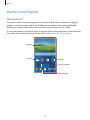
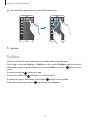
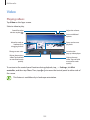
Tap My Files on the Apps screen.
Select a folder to open it. To go up a level in the directory, tap . To return to the My Files main
screen, tap .
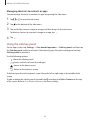
Select a folder, tap , and then use the following options:
• Select: Select files or folders to apply options.
• Delete: Delete files or folders.
• Create folder: Create a folder.
• View as: Change the view mode.
• Sort by: Sort files or folders.
• Add shortcut: Add a shortcut to a folder on the My Files main screen or to the Home
screen.
• Settings: Change the file manager settings.
Tap and hold a file or folder, and then use the following options:
• : Share files with others.
• : Delete files or folders.
• → Move: Move files or folders to another folder.
• → Copy: Copy files or folders to another folder.
• → Move to Private: Move files to the private folder. This option appears once you
activate Private mode. Refer to Private mode for more information.
• → Rename: Rename a file or folder.
• → Add shortcut: Add a shortcut to a folder on the My Files main screen or to the Home
screen.
• → Zip: Compress files or folders to create a zip file.
• → Details: View file or folder details.
38