1
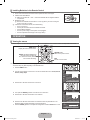
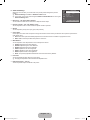
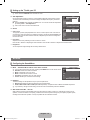
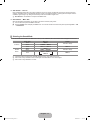
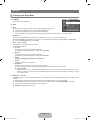
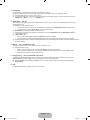
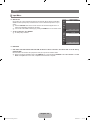
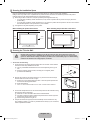
❑ Advanced Settings TV Samsung’s new TVs allow you to make even more precise picture settings than previous models. N Advanced Settings is available in Standard or Movie mode. N In PC mode, you can only make changes to Gamma and White Balance from among the Advanced Settings items. Advanced Settings Black Tone : Off Dynamic Contrast : Medium Gamma : 0 Colour Space : Native White Balance Flesh Tone : 0 Edge Enhancement : On ■ Black Tone → Off / Dark / Darker / Darkest You can select the black level on the screen to adjust the screen depth. ■ Dynamic Contrast → Off / Low / Medium / High You can adjust the screen contrast so that the optimal contrast is provided. ■ Gamma You can adjust the primary colour (red, green, blue) Intensity. ■ Colour Space Colour Space is a colour matrix composed of red, green and blue colours. Select your favourite colour space to experience the most natural colour. ● Auto: Auto Colour Space automatically adjusts to the most natural colour tone based on programme sources. ● Native: Native Colour Space offers deep and rich colour tone. ■ White Balance You can adjust the colour temperature for more natural picture colours. ● R-Offset: Adjusts the red colour darkness. ● G-Offset: Adjusts the green colour darkness. ● B-Offset: Adjusts the blue colour darkness. ● R-Gain: Adjusts the red colour brightness. ● G-Gain: Adjusts the green colour brightness. ● B-Gain: Adjusts the blue colour brightness. ● Reset: The previously adjusted white balance will be reset to the factory defaults. ■ Flesh Tone You can emphasize the pink ‘flesh tone’ in the picture. N Changing the adjustment value will refresh the adjusted screen. ■ Edge Enhancement → Off / On You can emphasize object boundaries in the picture. U Move E Enter R Return English - 12 BN68-02101Z-00Eng.indb 12 2009-08-04 �� 8:57:14