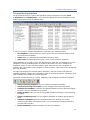
1
LANDesk Management Suite 9.0
®
User’s Guide
USERS GUIDE
Copyright © 2002-2009 Avocent Corporation. All rights reserved. Avocent, LANDesk,
Touchpaper, ITBM and their respective logos are either registered trademarks or trademarks
of Avocent Corporation and/or its affiliated companies in the United States and/or other
countries. Other names or brands may be claimed as the property of others.
LANDesk and Avocent do not warrant that this document is error free and each retains the
right to make changes to this document or related product specifications and descriptions at
any time without notice. LANDesk and Avocent do not assume any obligation to update the
information contained herein. This document is provided “AS IS” and without any guaranty,
warranty, or license, express or implied, including but not limited to: fitness for a particular
purpose, merchantability, non infringement of intellectual property, or other rights of any third
party. Any LANDesk or Avocent products referenced in this document are not intended for use
in medical, life saving, or life sustaining applications. Third parties may have intellectual
property rights relevant to this document and the technologies discussed herein.
2
LANDESK MANAGEMENT SUITE
Contents
Cover .....................................................................................................................1
Contents ................................................................................................................3
Introduction to LANDesk® Management Suite 9 ..................................................10
What you can do with Management Suite 9 ............................................................... 10
Where to go for more information............................................................................. 10
Using the console .................................................................................................12
Console overview ................................................................................................... 12
Starting the console ................................................................................................ 13
Changing the core server connection......................................................................... 14
Understanding the network view .............................................................................. 15
Creating groups...................................................................................................... 17
Device icons .......................................................................................................... 18
Viewing managed devices in the All Devices group...................................................... 18
Shortcut menus ...................................................................................................... 19
Configuring the network view with column sets .......................................................... 20
Toolbar options ...................................................................................................... 22
Using console tools ................................................................................................. 23
Dockable tool windows ............................................................................................ 23
Saving window layouts ............................................................................................ 24
Find bar ................................................................................................................ 24
Status bar ............................................................................................................. 25
Viewing device properties ........................................................................................ 25
Monitoring devices for network connectivity ............................................................... 27
Management Suite port usage .................................................................................. 28
Setting up additional Management Suite consoles ....................................................... 29
Setting up the Web console ..................................................................................... 30
Running CoreDbUtil to reset, rebuild, or update a database ......................................... 33
Choosing the core server and database hardware................................................34
All Management Suite services hosted on one server (up to 750 devices) ...................... 34
All Management Suite Services Hosted on One Server (750-1,500 Devices) ................... 34
Multi-server configuration (3,000 – 5,000 devices) ..................................................... 35
Multi-server configuration (5,000-8,000 devices)........................................................ 36
Multi-server configuration (8,000-12,000 devices) ...................................................... 37
Multi-server configuration (16,000 or more devices) ................................................... 38
Installing LANDesk Management Suite ...................................................................... 38
Core activation .....................................................................................................41
Activating the core server ........................................................................................ 41
Role-based administration ...................................................................................44
Adding Management Suite console users ................................................................... 46
Managing authentications ........................................................................................ 47
Managing roles ....................................................................................................... 48
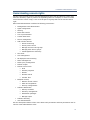
Understanding console rights ................................................................................... 51
Managing group permissions .................................................................................... 57
Creating scopes...................................................................................................... 59
Using teams........................................................................................................... 61
Managing report access with role-based administration ............................................... 61
Multi-core support .................................................................................................. 62
Configuring services ............................................................................................64
Selecting a core server and database ........................................................................ 64
Configuring the Inventory service ............................................................................. 65
Configuring the scheduler service ............................................................................. 68
Configuring preferred server credentials .................................................................... 70
3
USERS GUIDE
Configuring the Custom jobs service ......................................................................... 71
Configuring the Multicast service .............................................................................. 72
Configuring the OS deployment service ..................................................................... 72
Configuring the BMC password ................................................................................. 74
Configuring OS virtualization credentials.................................................................... 74
Configuring device agents ....................................................................................75
Working with agent configurations ............................................................................ 75
Agent security and trusted certificates ...................................................................... 81
Agent configuration in mixed-language environments ................................................. 83
Uninstalling device agents ....................................................................................... 83
Using LANDesk® System Manager with LANDesk® Management Suite ......................... 83
Configuring Linux and UNIX device agents ................................................................. 83
Supported platforms and functionality ....................................................................... 91
Managing inventory .............................................................................................94
Inventory scanning overview ................................................................................... 94
Viewing inventory data ............................................................................................ 96
Tracking inventory changes ..................................................................................... 97
Using custom data forms ......................................................................................... 97
Using an off-core inventory server .......................................................................... 100
Manage software list ............................................................................................. 101
Database queries ...............................................................................................104
Queries overview .................................................................................................. 104
Query groups ....................................................................................................... 104
Creating database queries ..................................................................................... 105
Running database queries...................................................................................... 106
Importing and exporting queries ............................................................................ 106
LDAP queries .....................................................................................................108
Configure LDAP directories..................................................................................... 108
About the Directory manager window...................................................................... 109
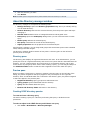
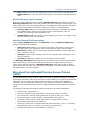
More about the Lightweight Directory Access Protocol (LDAP) .................................... 111
Reports ..............................................................................................................113
Using the reporting console ................................................................................... 113
Importing and exporting reports ............................................................................. 115
Scheduling reports................................................................................................ 116
Viewing the report history ..................................................................................... 117
Working with the reports tree ................................................................................ 117
Managing reports for multiple cores ........................................................................ 118
Creating and editing custom reports ....................................................................... 119
Scripts and tasks................................................................................................120
Managing scripts .................................................................................................. 120
Scheduling tasks .................................................................................................. 121
Using the default scripts ........................................................................................ 125
Using the rollup core to globally schedule tasks ........................................................ 126
Using the local scheduler ....................................................................................... 127
Remote control ..................................................................................................133
Using the remote control viewer ............................................................................. 133
Changing device remote control security ................................................................. 139
Using remote control logging ................................................................................. 139
Customizing the viewer and remote control agents ................................................... 140
Troubleshooting remote control sessions ................................................................. 142
Software distribution .........................................................................................143
Software distribution overview ............................................................................... 143
Setting up the delivery server ................................................................................ 147
Distributing a package .......................................................................................... 150
Using MSI distribution packages ............................................................................. 162
Assigning return codes .......................................................................................... 165
Using the software deployment portal ..................................................................... 168
Distributing software to Linux devices ..................................................................... 168
4
LANDESK MANAGEMENT SUITE
Troubleshooting distribution failures ....................................................................... 169
Policy-based management .................................................................................171
About policy-based management ............................................................................ 171
Configuring policies............................................................................................... 172
Software license monitoring ..............................................................................176
What's new in this version ..................................................................................... 177
Integration with other LANDesk products................................................................. 179
Software license monitoring tasks........................................................................... 179
The software license monitoring console .................................................................. 180
Monitoring software usage ..................................................................................... 187
Monitoring software license compliance ................................................................... 188
Maintaining accurate license data ........................................................................... 188
Unmanaged device discovery .............................................................................191
Unmanaged device discovery overview.................................................................... 191
Discovering unmanaged devices with UDD ............................................................... 192
Using extended device discovery (ARP and WAP) ...................................................... 194
What happens when a device is discovered .............................................................. 197
Deploying LANDesk agents to unmanaged devices .................................................... 199
Restoring client records ......................................................................................... 199
OS deployment ...................................................................................................201
OS deployment overview ....................................................................................... 202
OS image guidelines ............................................................................................. 203
Customizing images with Setup Manager and Sysprep .............................................. 205
Agent-based deployment ....................................................................................... 206
Creating imaging scripts ........................................................................................ 207
Modifying scripts .................................................................................................. 208
Multicasting OS images ......................................................................................... 209
Viewing image status reports ................................................................................. 210
PXE-based deployment.......................................................................................... 211
Using PXE representatives ..................................................................................... 211
Booting devices with PXE ....................................................................................... 213
Understanding the PXE boot options ....................................................................... 213
Troubleshooting ................................................................................................... 216
Hardware-independent imaging .............................................................................. 216
Provisioning .......................................................................................................221
Provisioning overview ........................................................................................... 221
Creating provisioning templates ............................................................................. 227
Creating boot media ............................................................................................. 228
Deploying PXE representatives ............................................................................... 229
Sharing templates ................................................................................................ 230
Updating provisioning templates............................................................................. 231
Importing installation scripts .................................................................................. 233
Provisioning template variables .............................................................................. 235
Setting variables for all templates........................................................................... 239
Adding actions to a provisioning template ................................................................ 240
Included templates ............................................................................................... 251
Parent templates .................................................................................................. 252
Template properties .............................................................................................. 252
Provisioning history .............................................................................................. 253
Creating provisioning groups.................................................................................. 254
Provisioning troubleshooting .................................................................................. 254
Profile migration ................................................................................................257
Profile migration overview ..................................................................................... 257
Creating migration scripts with the OS deployment wizard ......................................... 259
Defining profile content ......................................................................................... 263
Managing local accounts ....................................................................................270
Local accounts overview ........................................................................................ 270
Core synchronization .........................................................................................274
5
USERS GUIDE
Adding servers to the synchronization list ................................................................ 274
Synchronizing items on demand ............................................................................. 276
Automatically synchronizing items .......................................................................... 276
Exporting and importing items ............................................................................... 277
Changing auto synchronization settings ................................................................... 278
Monitoring synchronization status ........................................................................... 279
Conflict management ............................................................................................ 279
Managing Macintosh devices ..............................................................................280
LANDesk Management Suite for Macintosh overview ................................................. 280
Agent Configuration for Macintosh devices ............................................................... 281
Connecting through the LANDesk Management Gateway ........................................... 285
Inventory for Macintosh devices ............................................................................. 285
Remote control for Macintosh devices ..................................................................... 288
Software Distribution for Macintosh devices ............................................................. 288
Managed scripts for Macintosh devices .................................................................... 291
Scheduled tasks for Macintosh devices .................................................................... 291
Reporting for Macintosh devices ............................................................................. 292
Software license monitoring for Macintosh devices .................................................... 292
Blocking applications for Macintosh devices.............................................................. 292
Patch and compliance for Macintosh devices ............................................................ 292
Operating system deployment for Macintosh devices................................................. 293
Using the Mac remote control viewer ...................................................................... 293
Patch and Compliance ........................................................................................296
Patch and Compliance overview ............................................................................. 297
Patch and compliance task workflow ....................................................................... 301
Understanding and using the Patch and Compliance tool ........................................... 302
Configuring devices for security scanning and remediation......................................... 309
Managing security content and patches .............................................................315
Downloading security content ................................................................................ 315
Viewing security content........................................................................................ 319
Purging unused definitions ..................................................................................... 320
Viewing security information for a scanned device .................................................... 321
Working with patches ............................................................................................ 322
Using custom definitions........................................................................................ 324
Using CVE names ................................................................................................. 330
Scanning and remediating devices .....................................................................332
Scanning devices for security risks ......................................................................... 332
Viewing detected security data ............................................................................... 340
Remediating devices that detected security risks ...................................................... 342
Remediation methods ........................................................................................... 347
What happens on a device during remediation ......................................................... 351
Viewing patch and compliance information for scanned devices .................................. 352
Other patch and compliance management tasks ....................................................... 353
Security Configurations ......................................................................................355
Using the Security Configurations tool ..................................................................... 356
Configuring alert settings ...................................................................................... 362
Generating security authorization codes .................................................................. 363
Using Windows Firewall settings ............................................................................. 364
LANDesk Antivirus .............................................................................................366
Antivirus overview ................................................................................................ 366
Antivirus task workflow ......................................................................................... 370
Configuring devices for Antivirus protection ............................................................. 371
Removing Antivirus from devices ............................................................................ 373
Updating virus definition files ................................................................................. 373
Evaluating virus definition files with a pilot test ........................................................ 376
Backing up virus definition files .............................................................................. 376
Scanning devices for viruses .................................................................................. 377
Enabling real-time antivirus protection (file, email) ................................................... 379
6
LANDESK MANAGEMENT SUITE
Configuring antivirus scan options with antivirus settings .......................................... 381
What happens on a device during an antivirus scan .................................................. 386
Using antivirus alerts ............................................................................................ 388
Using antivirus reports .......................................................................................... 389
Endpoint Security ...............................................................................................390
Enabling and deploying Endpoint Security................................................................ 390
Endpoint Security settings help .............................................................................. 392
What happens on a device configured with Endpoint Security components ................... 394
Host Intrusion Prevention System (HIPS) .........................................................395
Host Intrusion Prevention (HIPS) overview .............................................................. 395
HIPS task workflow ............................................................................................... 398
Configuring devices for HIPS protection ................................................................... 399
Customizing HIPS protection with HIPS settings ....................................................... 402
HIPS settings help ................................................................................................ 404
Understanding the HIPS learn mode ....................................................................... 408
Merging HIPS certifications .................................................................................... 409
LANDesk Firewall ...............................................................................................410
Using LANDesk Firewall settings ............................................................................. 410
LANDesk Firewall settings help ............................................................................... 412
Device Control ....................................................................................................415
Device Control overview ........................................................................................ 415
Using Device Control settings to restrict device access .............................................. 415
Deploying Device Control settings........................................................................... 417
Device Control settings help................................................................................... 418
Device Control management tasks .......................................................................... 421
Troubleshooting Device Control .............................................................................. 424
Security Activity .................................................................................................426
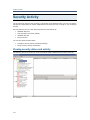
Viewing security status and activity ........................................................................ 426
Configuring security activity threshold settings ......................................................... 429
Purging security activity ........................................................................................ 430
Network Access Control (NAC)...........................................................................431
Network Access Control overview ........................................................................... 431
Implementing LANDesk 802.1X NAC support ........................................................... 435
Using LANDesk 802.1X NAC ...............................................................................436
LANDesk 802.1X NAC overview .............................................................................. 437
Setting up a remediation server ............................................................................. 440
Setting up a 802.1X Radius server or proxy ............................................................. 441
Deploying the LANDesk 802.1X NAC agent to managed devices ................................. 448
Configuring a switch and router for LANDesk 802.1X NAC support .............................. 450
What happens on a managed device configured with LANDesk 802.1X NAC ................. 451
Troubleshooting LANDesk 802.1X NAC .................................................................... 451
Setting up and configuring a remediation server ....................................................... 453
Defining compliance security criteria and publishing NAC settings ............................... 457
Publishing NAC settings ......................................................................................... 459
Using the remediation pages .................................................................................. 461
Managing 802.1X NAC compliance security .............................................................. 465
Viewing non-compliant devices............................................................................... 467
Quickstart task list for LANDesk 802.1X NAC ............................................................ 468
Agent Watcher ...................................................................................................471
Agent Watcher overview ........................................................................................ 471
Enabling and configuring Agent Watcher.................................................................. 472
Agent Watcher settings help .................................................................................. 476
Using Agent Watcher reports ................................................................................. 477
LaunchPad .........................................................................................................479
Adding links to LaunchPad ..................................................................................... 480
Scheduling tasks .................................................................................................. 483
LANDesk Power Management Overview .............................................................484
Creating a New Power Management Policy ............................................................... 485
7
USERS GUIDE
Viewing Reports ................................................................................................... 486
Custom Wattage Settings ...................................................................................... 487
Application Management........................................................................................ 488
Monitoring with alerts ........................................................................................490
Using alerts ......................................................................................................... 490
Configuring alert rulesets ...................................................................................... 495
Deploying alert rulesets......................................................................................... 505
Viewing alert rulesets for a device .......................................................................... 507
Viewing the alert log ............................................................................................. 507
Rollup cores .......................................................................................................509
Hardware-specific configuration ........................................................................515
Intel vPro support overview ................................................................................... 515
Configuring Intel vPro devices ................................................................................ 517
Changing the password for Intel vPro devices .......................................................... 525
Configuring System Defense policies ....................................................................... 526
Configuring Intel vPro Agent Presence settings ......................................................... 528
Intel vPro wireless support .................................................................................... 529
Intel vPro device management ............................................................................... 530
Remote access for Intel vPro devices ...................................................................... 533
Configuring Dell OMCI devices................................................................................ 534
Managing Dell DRAC devices .................................................................................. 535
IPMI support ........................................................................................................ 537
IPMI BMC configuration ......................................................................................... 539
File replicator .....................................................................................................544
Using the file replicator ......................................................................................... 544
Scheduling replication from the command-line ......................................................... 546
Thin clients ........................................................................................................549
Thin clients running Windows CE ............................................................................ 549
Thin clients running Microsoft Windows XP Embedded OS .......................................... 550
Working with thin client configurations .................................................................... 550
Scanning for custom registry settings for Wyse thin clients running Windows CE .......... 551
About the New thin client configuration dialog .......................................................... 552
LANDesk Application Virtualization ....................................................................553
LANDesk Inventory Manager .............................................................................556
Appendix: Additional inventory operations and troubleshooting ........................557
Scanning custom information ................................................................................. 557
Specifying the software scanning interval and history................................................ 558
Scanning for custom data on Macintosh devices ....................................................... 565
Appendix: Additional OS deployment and profile migration information ............569
Creating an imaging boot disk ................................................................................ 569
Adding application package distributions to the end of an OSD script .......................... 570
Using CSVIMPORT.EXE to import inventory data ....................................................... 570
Creating custom computer names .......................................................................... 571
Customizing the SYSPREP.INF [RunOnce] section with tokenized inventory values ........ 572
Using images in mixed uniprocessor and multiprocessor environments ........................ 572
Adding network adapter drivers to the DOS boot environment ................................... 573
Adding network adapter drivers to the Windows PE boot environment ......................... 574
Using the LANDesk imaging tool for DOS ................................................................. 575
Using the LANDesk imaging tool for Windows ........................................................... 577
Understanding the Windows PE preboot environment ................................................ 580
Appendix: Additional software distribution information .....................................585
Processing custom scripts ...................................................................................... 585
Scripting guide for deployment scripts (.INI) files ..................................................... 587
Understanding software distribution error codes ....................................................... 588
Appendix: Additional security scanner information ............................................592
Appendix: Context-sensitive help.......................................................................596
Antivirus help ....................................................................................................... 596
Antivirus Download Updates help............................................................................ 596
8
LANDESK MANAGEMENT SUITE
Antivirus tasks help .............................................................................................. 600
Antivirus settings help ........................................................................................... 602
Inventory help ..................................................................................................... 610
Local accounts management help ........................................................................... 614
Managed device help............................................................................................. 615
Configuring the LANDesk Management Gateway ....................................................... 637
OS deployment and Profile migration wizard help ..................................................... 638
Patch and Compliance help .................................................................................... 649
Patch and Compliance tool window help .................................................................. 649
Download security content updates help .................................................................. 651
Definition properties help ...................................................................................... 655
Detection Rule properties help ............................................................................... 658
Patch and Compliance tasks help ............................................................................ 666
Patch and Compliance settings help ........................................................................ 672
Patch and Compliance toolbar help ......................................................................... 680
Scheduled tasks help ............................................................................................ 682
Software distribution help ...................................................................................... 685
Using the Distribution package dialog...................................................................... 685
Using the Delivery methods dialog .......................................................................... 691
Software license monitoring help ............................................................................ 701
Unmanaged Device Discovery help ......................................................................... 705
9
USERS GUIDE
Introduction to LANDesk® Management
Suite 9
LANDesk® Management Suite consists of tools you can use to help manage your Windows,
Macintosh, Linux, and UNIX devices. Use these tools to distribute software packages, monitor
software usage, deploy OS images and migrate profiles, remote control devices, detect and
remediate security risks, and complete many other management tasks.
In this chapter, you'll learn more about Management Suite 9, including:
•
What you can do with Management Suite 9
•
Where to go for more information
What you can do with Management Suite 9
With Management Suite 9, you can:
•
Use the LANDesk® Management Suite console to configure and manage your network.
See Using the LANDesk® Management Suite console.
•
Create and manage queries on inventory data and LDAP directories. See Using queries.
•
Manage inventories, track inventory changes, create forms to gather custom data from
devices, and view detailed reports. See Managing inventory and Using reports.
•
Diagnose and troubleshoot problems on remote devices from the console. You can
remote control, reboot, execute files, and transfer files to devices. See Administering
remotely.
•
Quickly distribute software to all of your network users. See Using software distribution.
•
Use a Web-based console to access key Management Suite features from anywhere you
have a browser. See Using the Web console.
•
Monitor software licenses and compliance, and track software usage trends. See Using
software license monitoring.
•
Deploy OS images and migrate user profiles. See Using OS deployment and Using
profile migration.
•
Create application policies based on core database queries. Devices targeted by policies
automatically receive application sets. See Using policy-based distributions.
•
Use the Patch and Compliance tool to download the latest security content (definitions
and patches) and create security scans, compliance scans, and remediation tasks. You
can configure security scanner behavior and end-user interactive options with
customized settings, and even create your own custom security definitions to scan
devices for specific potentially threatening conditions. See "Patch and Compliance" on
page 296.
•
Protect your managed devices from other harmful security risks with a wide-ranging set
of security tools, including: LANDesk Antivirus, HIPS, Firewall, Device Control, Security
Activity, 802.1X NAC support, and more. See Introduction to 9.
Where to go for more information
The LANDesk User Community at http://community.landesk.com has user forums and best
known methods for using many Management Suite features. Also, the community Web site is
your main resource for Management Suite installation and deployment information, such as:
10
LANDESK MANAGEMENT SUITE
•
Finding out system requirements
•
Installing Management Suite
•
Activating the core server
•
Upgrading from previous versions of Management Suite
•
Installing LANDesk add-on products
11
USERS GUIDE
Using the console
LANDesk Management Suite provides a full range of system management tools that let you
view, configure, manage, and protect devices on your network. All of these tasks can be
performed via a single console. This chapter introduces the console interface and describes
how to configure and navigate the console's network view and tool windows.
Read this chapter to learn about:
•
"Console overview" on page 12
•
"Starting the console" on page 13
•
"Changing the core server connection" on page 14
•
"Understanding the network view" on page 15
•
"Creating groups" on page 17
•
"Device icons" on page 18
•
"Viewing managed devices in the All Devices group" on page 18
•
"Shortcut menus" on page 19
•
"Configuring the network view with column sets" on page 20
•
"Toolbar options" on page 22
•
"Using console tools" on page 23
•
"Dockable tool windows" on page 23
•
"Auto hide" on page 23
•
"Saving window layouts" on page 24
•
"Find bar" on page 24
•
"Status bar" on page 25
•
"Viewing device properties" on page 25
•
"Configuring agent discovery" on page 26
•
"Monitoring devices for network connectivity" on page 27
Console overview
The power of the console is that you can perform all critical network management functions
from one convenient location, freeing you from the need to go to each managed device to
perform routine maintenance or to troubleshoot problems. From a single console, you can
distribute and update software or configuration settings, diagnose hardware and software
issues, deploy OS images and migrate user profiles, use role-based administration to control
user access to both features and devices, use remote control features to train end users or
resolve problems, and more.
You can have multiple core servers and databases to accommodate your specific network
management needs. For information on installing a core server and console, additional
consoles, Web console, and managing multiple core servers and databases, refer to the
Installation and Deployment Guide (this guide is available as a printable PDF document).
This chapter describes how to navigate and use the console to view and organize devices; and
how to access the various management tools. (Each tool, such as software distribution and
remote control, are described in-depth in their own separate chapters in this guide.)
12
LANDESK MANAGEMENT SUITE
Console wizards
Wizards are available for several areas of LANDesk Management Suite. Most wizards
automatically increment based upon the user following the steps outlined by the wizard.
Getting started wizard
The Getting Started wizard helps the user configure LANDesk Management Suite to perform
the following functions:
•
Schedule tasks on your managed devices
•
Manage Intel® vPro and IPMI devices
•
Remote control managed devices
•
View domain users in the Web Console
You can choose to work through the wizard, or click to place a checkmark in the Don’t show
this wizard again checkbox to prevent the wizard from being shown.
Discovering and installing agents
The Discovering and Installing Agents wizard helps the user configure LANDesk Management
Suite to perform the following functions:
•
Discovery: Looks for devices on the network that are unknown to the LANDesk
Management Suite. IP address ranges can be specified to scan on the network.
•
Deploying an agent: Installs the LANDesk Management agent on devices to be
managed.
Security updates
The Download Patch Updates wizard assists the user in downloading and managing security
and patch vulnerability definition files from the LANDesk content servers. The wizard helps in
configuring tasks to download updates, starting the task, and scheduling future downloads.
Creating roles and groups
The Creating Roles and Groups wizard assists you in performing the steps necessary to
manage who can access devices on the network and what tools or specific features can be
used on those devices. It takes you through the process of creating a scope, a role, and a user
group permission.
Starting the console
To start the console
1.
Click Start > Programs > LANDesk | Management Suite. (The actual program
name may be different depending on the LANDesk product that's installed and the
license used to activate your core server.)
2.
Enter a valid user name and password.
If you're connecting to a remote core server, follow the normal Windows rules for
remote login (i.e., if the user is local to that core server, just enter the user name; if
the user is a domain user, enter the domain name\user name).
3.
Select the core server you want to connect to. The user must have proper
authentication credentials to that core server.
4.
Click OK.
13
USERS GUIDE
The console opens with the layout (size, position, open tool windows, etc.) that was being
used the last time this user logged out.
For additional consoles, the credentials you use to log into Management Suite must match the
credentials used for any drives you have mapped to the core server. Otherwise, you might see
a "Multiple connections" error in the console login dialog.
About the Login dialog
Use this dialog to launch the console and connect to a core server.
•
Username: Identifies a LANDesk user. This might be an administrator user or some
other type of user with restricted access (see "Role-based administration" on page 44).
The user must be a member of one of the LANDesk groups on the core server. Follow
the normal Windows rules for remote login (i.e., if the user is local to that core server,
just enter the user name; if the user is a domain user, enter the domain name\user
name).
•
Password: The user's password. (Note: If a LANDesk Administrator changes the
password of another user, for example an additional console user, the new password
does not take effect until that user reboots their console. At that point, the user would
enter their new password to log into the console.)
•
Authentication source: The source that the core should use to authenticate the
credentials you provide. This source can either be a local group on the core server
(Windows Local) or an active directory.
•
Core server: Specifies the core server you want to connect to. This drop-down list is
the same as the core server drop-down list available on the console toolbar.
Changing the core server connection
The console lets you view and manage the contents of any database associated with a core
server that you can connect to on your network. This allows you to create databases for
different sites, organizational units, or logical internal networks.
You can only be connected to one core server at a time.
To change core server connections
1.
Select a core server from the Core drop-down list located on the console toolbar. Or,
enter a core server name in the Core text box and press Enter.
The server is searched for on your network. If found, you're prompted to log in at the
standard Login dialog.
2.
Enter a valid user name and password.
Follow the normal Windows rules for remote login (i.e., if the user is local to that core server,
just enter the user name; if the user is a domain user, enter the domain name\user name.
Once you've connected to a core server, its name is automatically added to the Core dropdown list in the toolbar.
You can also quickly log in as another user to the current core by clicking the Core drop-down
list and without changing the core name, pressing Enter.
14
LANDESK MANAGEMENT SUITE
Understanding the network view
The network view is the main window of the console and is the starting point for most
administrative tasks. This is where you view device's inventory data, create queries to search
for and group devices, select devices to remote control, and so on.
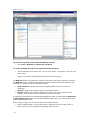
The network view window is always open and contains two panes. The left-hand pane shows a
hierarchical tree view of the core server\database you're currently connected to and its
Devices, Queries, and Configuration groups. You can expand or collapse the tree objects as
needed. The right-hand pane in the network view displays a detailed list of the selected
group's items.
You can resize the network view window and its panes and columns, but you can't close it. The
network view window is not dockable like the tools windows.
Role-based administration
The devices you can view and manage in the network view, and the management tools you can use, are
determined by the access rights and device scope assigned to you by the administrator. For more
information, see "Role-based administration" on page 44.
The Network View contains the following groups and subgroups:
Core
The Core object identifies the core server you're currently connected to. The Core object is
located directly under the network view root and can be collapsed and expanded.
Core object name syntax
The syntax for the core object name is:
Server Name\Database Instance
Devices
The Devices group contains the following device subgroups.
•
My devices: Lists devices for the currently logged-in user, based on the user's scope. A
user can create device subgroups only under My devices. Users can add devices to
their My devices group, or any of its subgroups, by copying them from the Public
devices and All devices groups. Users can also click and drag devices from Public
devices and All devices into their My devices group.
Dragging and dropping items in the network view
When you click an item in order to drag it to another group in the network view, the cursor indicates
where you can and can't drop the item. As you move the cursor over a group object, a plus-sign (+)
indicates that you can add the item to that group; and a cross-out sign indicates that you can't add the
item to that group.
•
Public devices: Lists devices an administrator (a user with the LANDesk Administrator
right) has added from the All devices group. An administrator sees all of the devices in
this group, while other users see only the devices allowed by their scope. Also, only an
administrator can create a subgroup under Public devices.
•
All devices: Lists all devices that can be seen by the currently logged-in user, based on
the user's scope, in a flat list (no subgroups). For an administrator, All devices lists all
managed devices that have been scanned into the core database. Devices configured
with the standard LANDesk agent automatically appear in the All devices group when
they are scanned into the core database by the inventory scanner.
For regular users, All Devices is a composite of their user's My devices and Public devices
groups.
Administrators and users can run asset reports on the devices in this group.
15
USERS GUIDE
You can also manually add computers to the network view by right-clicking the All devices
group, selecting, clicking Insert new computer, filling in the device and network
information, and clicking OK. These computers also appear in the User added computers
subgroup under the Configuration group.
Virtual OS Hosts
The Virtual OS Hosts group shows managed devices, which are virtual hosts stored in the
database. The Virtual OS Hosts group contains the following configuration groups:
•
My virtual OS hosts: Lists virtual OS hosts for the currently logged-in user, based on
the user’s scope. A user can create device subgroups only under My virtual OS hosts.
Users can add devices to their My virtual OS hosts group, or any of its subgroups, by
copying and pasting them from the Public virtual OS hosts and All virtual OS hosts
groups. Users can also click and drag virtual OS hosts from public virtual OS hosts and
All virtual OS hosts into their My virtual OS hosts group.
•
Public virtual OS hosts: Lists devices a Management Suite administrator has added
from the All virtual OS hosts group. Users with the LANDesk administrator right see all
of the devices in this group, while other Console users see only the devices allowed by
their scope. Only an administrator can create a subgroup under Public virtual OS hosts.
•
All virtual OS hosts: Lists all virtual OS hosts that can be seen by the currently
logged-in user, based on the user’s scope, in a flat list (no subgroups). For an
administrator, All virtual OS hosts lists all managed virtual OS hosts that have been
scanned into the database. Virtual OS hosts configured with the Standard LANDesk
Agent automatically appear in the All virtual OS hosts group/folder when they are
scanned into the database by the inventory scanner.
Queries
The Queries group contains the following query subgroups.
•
My queries: Lists queries either created by the currently logged-in user, or added to
the user's User queries group by an administrator. A user can create, modify and
delete query groups and queries under their My queries group. They can also copy
queries to this group from the Public queries group.
Any query a user runs is limited to the range of devices defined by the user's scope. For
example, if a user's scope is All machines, the query will search all devices in the core
database, but if the user's scope is restricted to 20 machines, only those 20 machines will be
searched by the query. For more information on creating queries, see "Creating database
queries" on page 105.
•
Public queries: Lists queries that an administrator, or a user with the Public Query
Management (PQM) right, has added. Only users with the LANDesk Administrator right
or the PQM right can add, modify, or delete query groups or queries in the Public
queries group. However, all users can see the queries in this group, and can copy them
to their own My queries group.
•
All queries: Lists all queries that can be seen by the currently logged-in user, based on
the user's scope, in a flat list (no subgroups). All queries is a composite of the user's
My queries and Public queries groups.
Administrators can use this group to run a user's queries against that user's scope, as if they
were that user. In this way, an administrator can preview exactly the results a user will see
when they run a query.
Configuration
The Configuration group contains the following configuration groups.
16
LANDESK MANAGEMENT SUITE
•
PXE holding queue: Lists PXE holding queues and the devices that are waiting in the
PXE holding queue. For more information, see "Using the PXE holding queue" on page
215.
•
Bare Metal Server: Lists bare metal devices that have been created for provisioning
tasks.
•
PXE Provisioning (Windows PE): Lists devices targeted for Microsoft Windows PE
provisioning tasks.
•
PXE Provisioning (Linux PE): Lists devices targeted for Linux PE provisioning tasks.
•
Multicast domain representatives: Lists configured multicast domain representatives
that can be used for software distribution load balancing. For more information, see
"Using Targeted Multicast with software distribution" on page 159.
•
PXE representatives: Lists devices configured as PXE representatives that can deploy
OS images to devices in their subnet. For more information, see "Using PXE
representatives" on page 211.
•
Pending unmanaged client deployments: Lists devices that have been discovered
by the Unmanaged Device Discovery tool, and are waiting for an agent configuration
task. For more information, see "Unmanaged device discovery" on page 191.
•
User added computers: (Administrator only) Lists computers that have been added
manually to the network view via the Insert new computer dialog (right-click the All
devices group).
Fast Find
The Fast Find feature appears in a toolbar wherever it makes sense for the user to search for a
specific item in a corresponding list. For example, any time a list of items is displayed in either
the upper or lower portion of the console, the Fast Find field accompanies that view to
facilitate locating a specific item in the corresponding list.
An example of when this can be helpful is if an organization has 10,000 nodes listed in the
database. A user calls for assistance, and the helpdesk team member needs to find the device
in the console. The helpdesk member can ask for the caller’s login name, or machine name, or
any other user and device specific information, and (as long as the view includes the column
with the specific information) the Fast Find can find the exact entry among the 10,000 entries
in a second or two.
Creating groups
Groups help you organize devices and queries in the console's network view. You can create
groups to organize network devices based on function, geographic location, department,
device attribute or any other category that meets your needs. For example, you could create a
marketing group for all devices in the marketing department or a group that includes all
devices running a specific OS.
Rules for creating groups
•
My devices and My queries: Administrators and all other users can create groups
under My devices and My queries.
•
Public devices: Only administrators can create groups under Public devices.
•
Public queries: Only administrators or users with the "Public query m Management"
right can create groups under Public queries.
•
All devices and All queries: There are no subgroups in All devices or All queries.
Users, including administrators, cannot create groups under All devices or All
queries.
17
USERS GUIDE
To create a group
1.
In the console's network view, right-click the parent group (such as My devices), and
then click New group. Or, select the parent group, and then click Edit > My Devices
> New Group.
2.
Type in a name for the new group, and then press the Enter key.
You can right-click groups to perform various tasks, based on the type of group. For example,
if you created a device subgroup, its shortcut menu lets you:
•
Add devices
•
Create a new subgroup
•
View as a report
•
Cut
•
Copy
•
Paste
•
Delete
•
Rename
For more information on right-click features, see "Shortcut menus" on page 19.
Device icons
Device icons display in the console's network view and show the current agent and health
status of a device.
You can update the agent and health status for devices one at a time as you select them in
the network view, or for all of the visible devices in the network view at the same time. You
can also update a device's status by selecting it and clicking the Refresh toolbar button. For
information on configuring how agent discovery is handled, see "Configuring agent discovery"
on page 26.
Icon display quality
These are high-color icons and require at least a 16-bit color-depth setting. If the icons in your console
appear out of focus, change your color settings in the Windows Display Properties.
If your firewall blocks UDP packets
If you manage devices through a firewall that blocks UDP packets, you won't be able to use these device
shortcut menu features: Wake Up, Shut Down, Reboot, and Inventory Scan.
Viewing managed devices in the All Devices group
Devices running LANDesk agents automatically appear in the All devices group when they are
scanned into the core database by the inventory scanner. Typically, this scan takes place for
the first time during a device's initial agent configuration. Once a device is scanned into the
core database it is considered to be a managed device. In other words, it can now be
managed by that core server. For more information on setting up devices, see "Configuring
device agents" on page 75.
Because the All devices group is populated automatically, via an inventory scan, you may
never need to manually discover devices. However, to discover devices not already in the core
database, you can scan the network for devices with the unmanaged device discovery tool. For
more information, see "Unmanaged device discovery" on page 191.
When connected to a particular core server, the administrator can see every device managed
by that core server. Regular users, on the other hand, are restricted and can only see the
devices that reside within their assigned scope (a scope is based on either a database query or
a directory location). For more information, see "Role-based administration" on page 44.
18
LANDESK MANAGEMENT SUITE
Shortcut menus
Shortcut (context) menus have been significantly expanded for all items in the console,
including groups, devices, queries, scheduled tasks, scripts, reports, and so on. Shortcut
menus provide quick access to an item's common tasks and critical information.
To view an item's shortcut menu, select and right-click the item.
Available options in the shortcut menu
Options that appear in a device's shortcut menu, as well as options that are disabled or
dimmed, may differ depending upon the device platform and upon which LANDesk agents are
installed on the device.
For example, when you right-click a managed device in the network view, its shortcut menu
will typically display the following options:
•
Inventory: Displays all of the device's inventory data scanned in the core database.
•
Inventory history: Displays inventory data changes for the attributes you've selected
for tracking. You can print the inventory history or export it to a .CSV file.
•
Remote control: Opens a remote control session with the device.
•
Chat: Opens a remote chat session with the device.
•
File transfer: Opens the file transfer dialog where you can transfer files to and
from the device.
•
Remote execute: Lets you browse to and execute a batch file or application on
the device.
•
Wake up: Remotely wakes up a device whose BIOS supports Wake on LAN*
technology.
•
Shut down: Remotely shuts down the device.
•
Reboot: Remotely reboots the device.
•
Inventory scan: Runs an inventory scan on the device.
•
Scheduled tasks and policies: Displays the device's current scheduled tasks and
application management policies.
•
Add to new group: Adds a copy of the device to a new user-defined group under the
My Devices group. You're prompted to enter a name for the new group.
•
Add to existing group: Lets you select the group where you want to add a copy of the
device.
•
Group membership: Displays all of the groups where the device is currently a
member.
•
Run inventory report: Opens the Reports dialog where you can select from a list of
reports to run on the device. Double-click the report name to run it.
•
Update Agent Watcher settings: Opens the Update Agent Watcher settings dialog
where you can enable/disable real-time monitoring of specific LANDesk agents and
services, choose an Agent Watcher settings or configure a new one, and specify a time
interval to check for changes in the selected setting.
•
Security and patch information: Opens the Security and patch information dialog
that displays detailed vulnerability scan and remediation data for the device: including
detected vulnerabilities and other security risks, installed patches, and repair history.
•
Security/compliance scan now: Opens a dialog that lets you select a scan and repair
settings, and then click OK to perform an immediate security scan on the device.
•
Antivirus scan now: Opens a dialog that lets you select antivirus settings, and then
click OK to perform an immediate antivirus scan on the device.
•
Manage local users and groups: Opens the Local users and groups dialog that lets
you remotely manage a Windows device's local users and groups.
19
USERS GUIDE
•
Cut: Removes items from a user-defined group. You can't cut items from the "All"
groups.
•
Copy: Creates a copy of the item that you can add to a another group.
•
Paste: Places the item you've cut or copied into a user-defined group.
•
Remove: Removes the item from a user-defined group.
•
Delete: Deletes the item from the "All" group AND from any other group it's a member
of at the time.
•
Properties: Displays the device's inventory summary, device information, agent status,
and remote control settings.
This guide does not cover every item type's possible shortcut menu. We recommend that you
right-click any item to see the options that are available.
Configuring the network view with column sets
Column sets allow you to customize the inventory data that displays in the right pane of the
network view, for both device lists and query results lists. Each column in a column set
represents a unique attribute (or component) from the scanned inventory. For example, the
default column set that displays in the network view is comprised of the Device Name, Type,
and OS Name attributes.
Use the Column Set Configuration tool (Tools > Administration > Column Set
Configuration) to create as many column sets as you like. Then, to apply a column set, drag
the desired column set to device groups and query objects in the network view tree.
Column sets tool
The Column sets tool organizes column sets into three categories:
•
My column sets: Column sets created by the currently logged-in user.
•
Public column sets: Column sets created by an administrator, or predefined column
sets.
•
All column sets (only visible to an administrator): Column sets created by all LANDesk
users.
A user can copy a column set from the Public Column Sets group into their own My Column
Sets group and then modify the column set properties.
You can create subgroups under the My column sets object to further organize your column
sets.
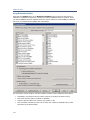
Creating column sets
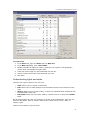
The Column configuration dialog is where you create column sets. Each column represents a
single inventory attribute or component that has been scanned into the core database.
Columns appear from left to right in the network view in the order that they appear in the
Columns list.
To create a column set
1.
Click Tools > Administration > Column Set Configuration.
2.
Select the My column sets object (or the Public column sets object), and then click
the Create a new column set toolbar button.
3.
In the Column Configuration dialog, enter a name for the new column set.
4.
Select inventory attributes from the list and add them to the Columns list by clicking
Add to columns. Remember to select attributes that will help you identify the devices
in the device list or returned by the query.
20
LANDESK MANAGEMENT SUITE
5.
(Optional) You can customize how and where the columns appear in the network view
by directly editing a component's heading, alias, and sort order fields; or by removing
or moving the selected component up or down in the list with the available buttons.
6.
(Optional) You can specify more precise qualifying data for software components. Select
the software component, click the Qualify button, and then select a primary key value
from the list of available values. For more information, see "Using the qualify option
with software components" on page 21.
7.
Click OK to save the column set.
Restoring the original default columns
To restore the default columns in the network view, simply create a custom column set that includes the
Device Name, Type, and OS Name attributes, and then apply it to device groups and query objects. Or,
you can use the predefined column set named Original in the My column sets group.
Applying column sets to device groups and queries
Once you've created a column set, you can drag it to a devices group or subgroup, or to a
specific query object in a queries group or subgroup. The device list, or query results list,
displays the inventory data specified by the selected column set in the right pane of the
network view.
Note that for device lists, once a column set is applied to a group it persists even when you
select different device groups. However, for query results lists, the column set must be
reapplied when changing between various queries.
You can also right-click a column set to access its shortcut menu and perform common tasks,
as well as view and edit its properties. The shortcut menu includes the following options:
•
Add to new group
•
Add to existing group
•
Group Membership
•
Set as default
•
View as
•
Cut
•
Copy
•
Delete
•
Rename
•
Properties
•
Info
•
Export
•
Copy to other core(s)
•
Auto sync
Using the qualify option with software components
When creating column sets that include software components, you can specify a qualifier for
those software components by choosing a specific primary key value. A software qualifier lets
you more precisely identify the data you want a query to search for and display in that
software component's column. For example, you can configure the column set to display
version information for only one specific application by selecting that application's executable
file name as the qualifier.
To specify a software component's qualifier, select the software component in the Columns
list, click the Qualify button, and then select a value from the list of available primary key
values.
21
USERS GUIDE
As with the Alias field, once you select a primary key value and add it to the software
component's Qualifier field, you can manually edit it by clicking in the field.
About the Column Configuration dialog
Use this dialog to create a new column configuration.
•
Name: Identifies the column configuration.
•
Inventory attributes: Lists each of the inventory objects and attributes scanned into
the core database. Expand or collapse objects by clicking the box to the left of the
object.
•
Add to columns: Moves the selected inventory attribute into the columns list. If you
select an entire inventory component, all of the inventory attributes contained in that
component are added to the columns list.
•
Columns: Lists the inventory attributes in the order they will appear, from left to right,
in the network view.
•
Qualify: Lets you specify a precise data qualifier for the selected software component.
For more information, see "Using the qualify option with software components" on page
21.
•
Remove: Removes the selected attribute from the list.
•
Move up: Moves the selected attribute up one position.
•
Move down: Moves the selected attribute down one position.
•
OK: Saves the current column configuration and closes the dialog.
•
Cancel: Closes the dialog without saving any of your changes.
Toolbar options
The console includes a toolbar that provides one-click access to common network view
operations and some basic console configuration options. The toolbar buttons are dimmed
when an item in the network view is selected that does not support that operation.
You can enable text descriptions for toolbar buttons by clicking View > Show toolbar text.
The console toolbar includes the following buttons:
22
•
Cut: Removes items from the network view and stores them temporarily on the
clipboard. If you accidentally cut an item, use the paste command to restore it. You
must restore the deleted item before you perform any other command.
•
Copy: Copies items from one location in the network view to another.
•
Paste: Pastes items you've cut or copied.
•
Delete: Permanently removes the item. You can't restore items you delete from the
network view.
•
Refresh: Updates the selected group or item in the network view. You can also collapse
and expand a group to update its items. You can also click View > Refresh to update
the currently selected item in the network view.
•
Refresh scope: Updates the selected group or item in the network view, based on the
currently logged-in user's scope (as defined in the Users tool). Scopes are updated
when users log in or when a console user with administrative privileges clicks this
button.
•
Layout: Lists your saved window layouts. Select a layout from the drop-down list to
restore the console to that layout configuration. If you want to save your current layout,
click the Save the current layout button.
•
Core: Lists core servers you have connected to before (which makes them appear in
this list). You can select a core server from the list, or type the name of a core server
LANDESK MANAGEMENT SUITE
and press Enter. That core server is searched for on your network, and if found you're
prompted to log in with a valid user name and password.
Using console tools
Tools are available through both the Tools menu and the Toolbox. To enable the Toolbox,
click View > Toolbox.
A Management Suite administrator sees all of the tools in both the Tools menu and the
Toolbox. Other Management Suite users will see only the tools (features that are allowed by
their assigned rights). Tools dependent on rights that a user hasn't been granted don't appear
at all in the Tools menu or in the Toolbox when that user is logged in to the console. For
example, if a user doesn't have the "Power management" right, the Power management tool
does not appear in either the Tools menu or the Toolbox.
When you click a tool name, the tool's window opens in the console. Tool windows can be
resized, docked, floating, hidden, and closed. You can have multiple tool windows open at the
same time, docked or floating. See the next section for more information on manipulating tool
windows.
Dockable tool windows
Dockable windows is a console feature that lets you open as many of the tools as you want
and move them in and out of the main console window.
Note: You can save console layouts you've designed and prefer for certain management tasks, and
restore a saved layout whenever you need it. For more information, see "Saving window layouts" on page
24 later in this chapter.
When you open multiple tool windows, they're tabbed in a single window. The active tool
window displays on top, with a tab for each open tool running along the side or bottom. Click a
tab to display that tool window. You can dock the tabbed tools window or drag it so that it is
floating outside of the console window.
Docking a tool window means attaching it to one of the edges of the console. The window is
said to be in a docked state if it is currently attached to an edge of the console. You can also
undock the tools window and have it free-floating outside of the console. You can dock
windows horizontally or vertically in the console.
To dock a tool window
1.
Click the window's title bar and drag the window to an edge of the console
2.
When the docking rectangle (dim outline of the window appears indicating that the
window will be docked), release the mouse button. The window attaches to that edge of
the console.
Note that only tool windows (those windows accessible from the Tools menu or Toolbox) can
exist as docked windows, floating windows, or tabbed windows. The network view window can
be resized but can't be tabbed with other windows, floated outside the console, or closed.
If you minimize and then restore the main console window, then all docked and floating
windows, including tabbed windows, are also minimized and restored with it.
Auto hide
The tool windows also support the auto hide feature. Auto hide is a push pin button in the
upper right-hand corner of a window that lets you hold a window in place or hide it.
23
USERS GUIDE
When the push pin is in (i.e., the pin points down), the window is pinned in place and auto
hide is temporarily disabled. When the push pin is out (i.e., the pin points to the left) the
window goes into auto hide mode when the cursor moves off of the window. Auto hide
minimizes and docks the window along one of the edges of the console and displays a tab in
its place.
The Toolbox also supports auto hide.
Saving window layouts
Layouts are saved console configurations, meaning the position and size of the network view,
the Toolbox, and all open tool windows. You can use window layouts to save and restore
customized console configurations that are especially useful for certain tasks or users.
To change the layout of the console, select a saved layout from the Layout drop-down list on
the main toolbar.
To save your current layout
1.
Configure the console interface the way you want it.
2.
Click the Disk button next to the Layout drop-down list on the toolbar.
3.
Enter a unique name for the layout.
4.
Click OK.
About the Manage window layouts dialog
Use this dialog to manage saved window layouts and to reset the console window to the
previous layout.
•
Saved layouts: Lists all of your saved layouts.
•
Reset: Returns the console window to the previous layout.
•
Delete: Removes the selected layout.
•
Rename: Lets you change the name of the selected layout.
Find bar
Find lets you search for items in a list containing a specific word or phrase. The Find bar is
available in the network view and tool windows that contain flat lists of items. For example,
the Find bar appears when you're viewing the:
•
All Devices group
•
All Queries group
•
Pending Unmanaged Client Deployments group
•
Unmanaged Device Discovery tool window
To search for an item with the Find bar
1.
Select the All devices group. The Find bar appears at the top of the list.
2.
In the Find text box, type any text you want to search for.
3.
From the In column drop-down list, select the column you want to search
4.
Click the Search toolbar button.
The resulting list displays only those items that matched your search criteria.
24
LANDESK MANAGEMENT SUITE
Status bar
The status bar at the bottom of the console displays the following information (from left to
right):
•
Number of selected items in a listing
•
Current job name and status
•
Name of the currently logged-in user
•
Days until the core server will attempt to contact the licensing server
The status bar is always visible.
Viewing device properties
In the console's network view, you can quickly view information about a device by rightclicking the device in the device list and selecting Properties.
More detailed information about the device is available in its inventory data. You can view
inventory data in the network view columns (which are configurable), or by right-clicking the
device and selecting Inventory to open the full Inventory window.
About the Device properties dialog
Use this dialog to view useful information about the selected device. The dialog includes three
tabs: Inventory, Device, and Agents. Click each one to view related information.
Inventory tab
The Inventory tab contains a summary of the device's inventory data. For more details, see
"Viewing a summary inventory" on page 96.
Device tab
The Device tab contains basic information about a device, including its location and identity
on the network. This tab also appears when you manually insert a device (from the All
devices group's shortcut menu, click Insert new computer).
•
•
Device:
•
Name: The name that appears in the core database and network view for the
device.
If you are manually inserting a device, you can make this a user-friendly name.
If you enter nothing here, the default device name will be the Windows computer
name.
•
Type: The type of device, such as Windows 2000 Server or XP Workstation.
Network:
•
IP Name: The Windows computer name for the device.
•
IP address: The IP address assigned to the device.
•
Physical address: The physical address of the device.
Agents tab
The Agents tab contains information about the current status of agents and remote control
settings for the device.
•
Common Base Agent status: Indicates whether the standard LANDesk agent
(Common Base Agent is loaded on the device.
25
USERS GUIDE
•
Real-time inventory and monitoring status: Indicates whether the real-time
inventory and monitoring agent is loaded on the device.
•
Remote control agent status: Indicates whether the remote control agent is loaded
on the device. If this agent is not loaded on the device, remote control operations (such
as file transfer and chat are not available.
•
Security type: Indicates the remote control security model used for the device.
Options include: Local template, Windows NT security/local template, and Certificatebased/local template.
•
Allow: Shows the remote control operations that are allowed on the device. These
operations were enabled by the device agent configuration.
•
Settings: Indicates how remote control operates when you attempt to interact with the
device.
Configuring agent discovery
Agent discovery is the process used to find managed devices that have the standard LANDesk
agent or remote control agent installed. These two agents provide the following capability:
•
The standard LANDesk agent: Enables the PDS (ping discovery service). If the
standard LANDesk agent is installed on a device, you can schedule software
distributions and device setup configurations.
•
Remote control: Lets you remotely access and control a device.
Agent discovery uses TCP/IP to verify agents running on the devices.
IP addresses are used as search criteria in order to perform standard LANDesk agent discovery
with TCP/IP. Management Suite looks for the standard LANDesk agent and remote control
agent on devices within a specific range of IP addresses. This range of addresses is implied by
the IP network address you supply.
If you don't designate subnet network addresses when searching on TCP/IP, discovery is
performed only on the network segment where the console initiating the discovery resides. For
example, if you've installed four consoles, each residing on a different network segment, you
would have to initiate four scans, one from each of the four consoles.
On network segments where consoles don't exist, you MUST use subnet network addresses to
access the information on that network segment.
Note on firewalls: If you have one or more firewalls on your network, agent discovery can't be used to
search outside firewalls, because firewalls generally limit the flow of packet traffic to designated ports.
To configure agent discovery options
1.
Click Configure > Agent status options.
2.
Select whether you want agent discovery to update agent status for only the selected
item in the network view, or all visible items in the network view.
3.
Specify the agent status refresh rate.
4.
Configure how you want to discover the remote control agent, and prioritize the address
resolution methods.
5.
Specify how long agent discovery will attempt to discover the remote control agent on
the device before timing out.
6.
Click OK.
About the Agent status options dialog
Use this dialog to configure the following agent discovery options.
•
26
Gather agent status:
LANDESK MANAGEMENT SUITE
•
For selected items only: Specifies that a device's agent status is updated as
the device is selected in the network view. This option generates the least
amount of network traffic and is the default.
•
For visible items in network view: Specifies that all visible devices in the
network view will have their agent status updated according to the refresh rate.
As new devices become visible, their agent status (and health) are updated.
•
Agent and health status refreshes every < > minutes: Indicates whether agent
status is automatically updated. You can specify the refresh rate.
•
Communication method: Indicates how the agent is discovered.
•
•
IP address: Uses the core database to retrieve the computer's stored IP
address.
•
Domain Name Service (DNS): Resolves the computer's ID name with the DNS
server when verifying the remote control agent. If you do not have a DNS server,
clear this option.
•
Move up and Move down: Moves the selected method up or down in the
Discover agent using list. Methods are tried in the order they appear in the list.
Timeout: Sets the timeout value before the remote control agent discovery fails for
each checked address resolution method.
Monitoring devices for network connectivity
Device monitoring lets you regularly monitor the connectivity of any of your managed devices.
Ping settings are specific to the device you've selected. When a device stops responding to a
ping (when it goes offline), an alert notification is added to the log on the core server. If you
want to be notified with another alert action, such as receiving an e-mail when a device goes
offline, you can configure an alert in the core alert ruleset.
To monitor connectivity for managed devices
1.
Click Configure > Device monitoring.
2.
Click Add. Select one or more devices that you want to monitor, and then click Add.
3.
Specify the Ping frequency setting, the number of retries, and the timeout limit.
4.
Click OK.
About the Configure device monitoring dialog
Use this dialog to configure the following device monitoring options.
•
Monitor these devices: Lists the devices that are currently being monitored.
•
Add: Opens the Add monitored devices dialog where you can search for and select
managed devices that you want to monitor.
•
Remove: Deletes the selected device from the list.
•
Ping frequency: Control when and how the ping operation occurs. These settings can
be applied to each device individually.
•
Ping every: Schedules a periodic ping at the specified minute interval.
•
Schedule daily at: Schedules a daily ping at a specific time.
•
Retries: Specifies the number of ping retries.
•
Timeout: Specifies the number of seconds until ping retries will timeout.
•
OK: Saves your changes and closes the dialog.
•
Cancel: Closed the dialog without saving your changes.
27
USERS GUIDE
Configuring device monitoring alerts
If you want device monitoring to notify you when managed devices come online or go offline,
you have to first configure an alert ruleset that has additional actions (such as receiving an email when the alert is sent).
To configure device monitoring alert settings
1.
Click Tools > Configuration > Alerting.
2.
In the Alerts tree, expand the Alert rulesets item.
3.
Right-click Core alert rulesets and click Edit.
4.
In the Ruleset window's Alert ruleset pane on the left, click Alerts.
5.
In the Alerts pane, under the Standard folder, click Device monitor.
6.
In the right pane, click Rules > Add.
7.
Drag the Device monitor system connectivity alert to the Alerts well at the bottom
of the page.
8.
In the Ruleset window's Alert ruleset pane on the left, click Actions and drag any
additional actions that you want down to the Actions well. By default the core alert log
handler configuration is the action. You can choose to send an e-mail or an SNMP trap,
or run an executable on the core when the alert is received. (You may need to define an
action, such as specifying where to send e-mail alerts.)
9.
In the Ruleset window's Alert ruleset pane on the left, click Time and drag Always
down to the Time well.
10.
Click the OK button next to the wells.
11.
In the Actions pane on the right, click Publish.
12.
In the Alert ruleset pane on the left, click Rules summary and double-click the rule
you created.
13.
In the dialog that appears, check the Health box if you want a device's health status in
the console to change when it is online/offline, then click OK to close the dialog.
14.
Click Publish to publish any changes you made in the dialog and close the Ruleset
window.
Note: When you configure alert settings, they apply to all of the devices you're monitoring.
Management Suite port usage
When using Management Suite in an environment that includes firewalls (or routers that filter
traffic), information on which ports need to be opened at the firewalls is crucial. The following
table lists the ports used by the Management Suite components. This information focuses on
required router and firewall configurations. Ports used only locally and ports used only to
communicate with devices running legacy versions of Management Suite are not included.
Feature
TCP Ports
Inbound / Outbound
Alert management system
38292
In
Inventory
5007
in
Management Gateway using HTTPS
443 HTTPS
In/Out
Management Gateway using HTTP
80 HTTP
In
443 HTTPS
Out
80 HTTP
In
Management Web services
28
LANDESK MANAGEMENT SUITE
Feature
TCP Ports
Inbound / Outbound
Remote control
9535, 9595
Out
Secure inventory/Web console
443 HTTPS
In
Software distribution (policy)
12175, 12176 In
Software distribution (push)
9594, 9595
Out
Software distribution (targeted multicasting)
33354
Out
LANDesk trusted access
4444, 7777
In
Avocent Management Platform (RBA, licensing, reporting) 8443, 8092
In/Out
The table summarizes the ports that need to be opened at the firewall in order to enable
specific product features. Inbound and outbound are based on the assumption that the core
server / console is inside the firewall, and the devices to be managed are outside the firewall.
Inbound means that a service on the core server is listening at the indicated port and that
devices will open connections to it. Outbound means that the device outside the firewall is
listening at the indicated port and the core server (or console in the case of remote control)
will open connections to it.
If certificate-based security is used for remote control, the TCP 9594 port needs to be enabled
(core server to managed device and console to core server). When a computer is chosen in
the Network View, a ping discovery is sent to the device on UDP port 9595. If the port is
blocked, there will be no response and the remote control option will be grayed on the
shortcut menu.
Setting up additional Management Suite consoles
The Management Suite console is automatically installed on the core server. This console
should be installed on LANDesk administrator’s machines that need full functionality or access
to all the Management Suite tools. The console is used to interact with the various
Management Suite features; e.g., to distribute software, remotely control managed devices,
view inventory information, and perform other management functions.
For additional utility and functionality, consoles can be installed throughout the network.
(LANDesk Software doesn't charge extra for additional consoles.)
To install an additional console
1.
From your Management Suite installation media, launch the autorun.
2.
Click the Remote console button.
3.
Click Continue.
4.
If the prerequisite check passes, click Continue. Otherwise, fix the missing
prerequisites.
5.
Click Run setup.
6.
Follow the installation prompts.
Supported console operating systems
The following is a list of supported console operating systems:
•
Windows Vista Business/Ultimate/Enterprise SP1 (32-bit)
•
Windows XP Professional SP1 or SP2 or SP3
•
Windows Server 2003 (32-bit) with SP1 or SP2
29
USERS GUIDE
•
•
Windows Server 2003 R2 (32-bit) with or without SP2
Windows Server 2008 R2
Console computer Requirements
The following is a list of console computer requirements:
•
Supported Windows OS using NTFS
•
Microsoft Internet Explorer 6.x SP1 or later
•
Microsoft Data Access Components (MDAC) 2.8
Setting up the Web console
The Web console offers a subset of the Management Suite console functionality from the
convenience of a Web browser. Once installed on a Web server, designated users can access
the Web console through Microsoft Internet Explorer*, or other supported Web browsers. This
setup (installed by default on the core server) allows Web console access to users without
additional installation at their local PCs.
By default, Setup places the Web Console files in the \Inetpub\wwwroot\remote folder.
Setup also creates Web console file shares with the necessary permissions on the core server.
The Web console and managed devices require the following shares and permissions to work
correctly:
•
ldmain: Server applications (\Program Files\LANDesk\ManagementSuite). The
Administrators group must have Full Control. For Microsoft Windows 2003, the Network
Service group must have Read and Execute, List Folder Contents, and Read rights.
•
ldlog: Logs (\Program Files\LANDesk\ManagementSuite\log).
•
ldlogon: Managed device applications and agents (\Program
Files\LANDesk\ManagementSuite\ldlogon). The Administrators group must have Full
Control and the Everyone group must have Read Only rights.
•
scripts: Software distribution scripts (\Program
Files\LANDesk\ManagementSuite\Scripts).
If the Web console is being installed on a server other than the core server, the logged-in user
must be a domain administrator, and the domain administrator account must be in one of the
Core Server’s LANDesk user groups. The core server and Web console servers must be in the
same domain, and any users needing to use the Web console must be added to one of the
LANDesk user groups on both the core server and Web console servers.
The Management Suite 9 Web console can't be run on an older core server or console. Only
the Management Suite 9 Web console can be run on a Management Suite 9 Core server or
console computer.
Earlier versions of Management Suite will not work.
If the Web console is being installed on a Microsoft Windows 2003 server, Internet Information
Server (IIS) disables active server pages by default. They must be enabled for the Web
console to work correctly.
To enable active server pages on Microsoft Windows 2003 servers
1.
Click Start|Administrative Tools|Internet Information Services (IIS) Manager.
2.
Click to expand <CoreServerName>.
3.
Click Web Service Extension.
4.
Click Active Server Pages.
5.
Click Allow.
30
LANDESK MANAGEMENT SUITE
6.
Close the Internet Information Services (IIS) Manager window.
In order to verify the installation of the Web Console, a Web browser can be opened and the
Web server URL can be entered. By default, the URL is:
•
http://<WebServerName>/remote
The installation was successful if the browser prompts for login credentials and opens the
Console.
The first time the Console is launched, it may take up to 90 seconds to display. This delay
happens because the server has to do a one-time compile of Console codes. The Console
launches much faster after the first time.
If a permission denied error occurs when the Web Console is being accessed, Integrated
Microsoft Windows authentication must be enabled as the authentication method for the Web
Console’s site.
How to verify the authentication method
1.
Click Start|Administrative Tools|Internet Information Services (IIS) Manager.
2.
Click to expand <CoreServerName>|Web Sites| Default Web Site.
3.
Click Properties from the Remote folder’s drop-down menu.
4.
Click the Directory Security tab.
5.
Click Edit in the Anonymous access and authentication control field.
6.
Clear the Enable Anonymous Access checkbox.
7.
Check the Integrated Windows authentication checkbox.
8.
Click OK to exit the Authentication Methods window.
9.
Click OK to exit the Remote Properties window.
10.
Close the Internet Information Services (IIS) Manager window.
Console and Web console functionality comparison
The following table lists the capabilities of the Management Suite console and the Management
Suite Web console.
Capability
Console
Web
Console
Notes
Agent Configuration
Yes
Minimal
Scheduled Agent Deployments and Update tasks are
visible and controllable by Web Console users with rights
to Agent Configuration.
Alerting
Yes
No
Antivirus
Yes
No
Column Set
Configuration
Yes
Yes
In the Web Console access under Preferences on the
Custom Columns tab.
Configure Services
Yes
No
Vastly different behavior: Inventory Service, Scheduler
Service, Management Gateway, PXE behavior, OSD
validation, and many other features must be configured in
the Console.
However, licensing
status can be viewed in
either.
31
USERS GUIDE
Capability
Console
Web
Console
Notes
Connection Control
Manager
Yes
Minimal
Custom Data Forms
Yes
No
Delivery Methods
Yes
Yes
Tab located under Distribution in Web Console.
Device right-click
Yes
Yes
Vastly different behavior – the only overlapping function is
to run an inventory scan (on Web “Scan Device”).
Directory Manager
Yes
Yes
Display Manager
Yes
No
Distribution Packages
Yes
Yes
Host Intrusion
Prevention
Yes
No
LaunchPad Link
Manager
Yes
Minimal
Logs
Yes
No
Manage Scripts
Yes
Partial
From Scripts, existing scripts can be scheduled and
grouped.
OS Deployment
Yes
Minimal
Existing OS Deployment scripts that have already been
scheduled can be viewed and controlled by Web Console
users with rights to OSD via Scripts > OSD Scripts.
Power Management
Yes
Minimal
Scheduled power policy tasks are potentially visible and
controllable by Web Console users.
Provisioning
Yes
No
PXE Boot Menu
Yes
No
QueCapability
Yes
Partial
Remote Control
Yes
Yes
Reports
Yes
Yes
Scheduled Tasks
Yes
Yes
Scopes
Yes
Partial
Existing Scopes can be added to a User, but new Scopes
cannot be created.
Security and Patch
Manager
Yes
Minimal
Scheduled scans and repair tasks are visible and
controllable by Web Console users with Patch Manager
rights.
Software License
Monitoring
Yes
Partial
In the Web Console product usage data is not visible,
individual product and group compliance reports are not
available and you cannot ignore or group products.
Thin Client
Configuration
Yes
No
32
Scheduled deployments are visible and controllable by
Web Console users with rights to CCM.
Scheduled LaunchPad Link Deployments are visible and
controllable by Web Console users with rights to Software
Distribution.
The Web Console allows use of a Count feature which is
not in the Console. Queries cannot be viewed as reports in
the Web Console.
The reporting console launches in a separate browser
window.
LANDESK MANAGEMENT SUITE
Capability
Console
Web
Console
Unmanaged Device
Discovery
Yes
Minimal
Users
Yes
No
Windows CE Agent
Configuration
Yes
No
Windows CE CAB
Creator
Yes
No
Notes
Scheduled Unmanaged Device Discovery Scans are visible
and controllable by Web Console users with rights to UDD.
Running CoreDbUtil to reset, rebuild, or update a database
The CoreDbUtil.exe utility, in the core server's \Program Files\LANDesk\ManagementSuite
folder, creates all the tables, indexes, and constraints needed to use the core database. Before
running CoreDbUtil.exe, you must install your database correctly or the table creation may
fail. CoreDbUtil.exe looks for registry keys on the core server to determine the core database
connection information. CoreDbUtil doesn't work on core rollup databases.
Use CoreDbUtil to:
•
Reset database: Drops all tables, and rebuilds the database from scratch using
DATAMART.XML. Rebuilds Vulnerability scanning database tables. Warning: all existing
data will be lost.
•
Build components: Updates the schema (specifically to include column additions) in
an existing core database from metadata.xml. This isn't destructive to existing data.
•
Publish app list: Publishes the software configuration list using defaults.xml and
ldappl3.template to generate ldappl3.ini, ldappl3.bak, ldappl3.ldz, ldappl3.pat,
ldappl3.paz, and ldappl3.reset.
•
Update Display Names: Updates the Display Name field in an existing core database
for all devices in that database. This isn't destructive to other existing data.
To run CoreDbUtil
1.
On the core server, run CoreDbUtil.exe
2.
After CoreDbUtil connects to the database, select the option you want.
3.
Wait until the Status is finished. Depending on the database size and the task you
chose, this could take a few minutes or several hours.
If you reset the database, some patch management and LANDesk NAC features won't work
correctly until you do the following.
To update patch management database components after resetting a database
1.
Launch CoreDbUtil as follows:
CoreDbUtil.exe /xml=datamartpm.xml
2.
Click Build components.
33
USERS GUIDE
Choosing the core server and database
hardware
When setting up a LANDesk Management Suite core server, decisions must be made on the
speed, memory, and storage of the servers involved. The administrator must also decide when
to move to multiple core servers. This section will cover these decisions. The four main
hardware choices are the CPU, memory, storage, and network card selection. The lists that
follow are recommendations on hardware for various numbers of managed nodes.
The biggest factor in making these decisions will be the number of managed nodes in the
network. The number of nodes should have already been estimated during while gathering
network information. However, other factors such as which components will be the most used,
the number of people needing to access the LANDesk console or the Web console, network
management model, and compliance with business practices and standards should be
considered.
Hardware recommendations are different for each environment and the following are general
guidelines to help determine what the desired hardware would be for a given environment.
When choosing the database software there are four choices:
•
Microsoft SQL 2005
•
Microsoft SQL 2008
•
Oracle 10g
•
Oracle 11g
All Management Suite services hosted on one server (up to
750 devices)
For Management Suite management domains with 1,000 devices or fewer, you can install the
core server, console, Web console server, and the core database on one server. For these
networks, you may want to consider using the default Microsoft MSDE database, which is
generally easier to maintain. Your server should at least meet these system requirements
before you install Management Suite in a 1,000 or less device configuration.
•
Intel Xeon Dual Core 32-bit or 64-bit processor
•
4 GB of RAM
•
100/1000 Megabit network adapter
•
72 GB of free disk space on 10K RPM or faster drives or arrays
Important: Microsoft SQL Express 2005 has a 4 gigabyte limitation. If this limitation is reached, the core
server will stop functioning properly and the database will no longer be able to write more data. It is
possible that each agent could use as much as 2-4 megabyte or more so be careful to monitor the disk
usage and upgrade to a full version of SQL prior to reaching the 4 gigabyte limit.
All Management Suite Services Hosted on One Server (7501,500 Devices)
If your Management Suite management domain consists of 1,001-3,000 devices, you can still
use one server. Your servers should at least meet the following system requirements before
you install Management Suite.
34
LANDESK MANAGEMENT SUITE
•
Intel Xeon Dual Core 32 bit or 64 bit processor
•
4 GB or more of RAM
•
One gigabit network adapter
•
3 drives or arrays with 72 GB of free disk space per array on 15K RPM or faster drives
Note: A core server that is at 750 to 1,500 nodes and is running all LANDesk features may see some
read/write slowness on drives if the operating system, the LANDesk management suite application, the
database application, the database, and the database logs are all on the same drive or array. Tuning may
be needed. The server hosting such a full-featured configuration is recommended to have three drive
arrays on separate spindles (physical disks) to prevent resource issues. The following drive configuration
should be implemented.
•
One drive or array for the Operating System
•
One drive or array for the LANDesk Management Suite application and the database
application
•
One drive or array for the database and database logs
Important: The server hosting this configuration requires three drive arrays on separate spindles
(physical disks).
Single server configuration (1,500-3,000 devices)
If your Management Suite management domain consists of 1,500 – 3,000 devices, LANDesk
recommends that you divide your Management Suite components between two servers for
improved database performance. Your servers should at least meet the following system
requirements before you install Management Suite.
Management Suite core server and Web console software on one
server
•
Dual (two physical processors) Intel Xeon Quad Core 64-bit processors
•
6-10 GB or more of RAM (4 GB for the OS and LANDesk services, plus 1 to 2 MB per
node for the database. For RAM to spare, get 10 GB.)
•
Important: The Management Suite core server in this configuration requires two drive
arrays on separate spindles.
•
One gigabit network adapter
•
3 drives or arrays with 72 GB of free disk space per array on 15K RPM or faster drives
Note: A core server that is at 1,500 to 3,000 nodes and is running all LANDesk features may see some
read/write slowness on drives if the operating system, the LANDesk management suite application, the
database application, the database, and the database logs are all on the same drive or array. Tuning may
be needed. The server hosting such a full-featured configuration is recommended to have three drive
arrays on separate spindles (physical disks) to prevent resource issues. The following drive configuration
should be implemented.
•
One array for the Operating System, Raid 0, 1, 5 or equivalent/faster technology
•
Management Suite software should be installed to an array in RAID 0, 5, 10 or an
equivalent/faster technology
•
One array for the database and database logs, RAID 0, RAID 5, or RAID 10 or an
equivalent/faster technology
Important: The server hosting this configuration requires three drive arrays on separate spindles
(physical disks).
Multi-server configuration (3,000 – 5,000 devices)
If your Management Suite management domain consists of 3,000 – 5,000 devices, LANDesk
recommends that you divide your Management Suite components between two servers for
improved database performance. Your servers should at least meet the following system
requirements before you install Management Suite.
35
USERS GUIDE
Management Suite core server and Web console software on one
server
•
Dual (two physical processors) Intel Xeon Quad Core 32 bit or 64-bit processors
•
4 GB or more of RAM
•
One gigabit network adapter (the core and database should have a gigabit connection
to each other)
•
Two arrays of 72 GB of free disk space per array on 15K RPM or faster drives
•
The Operating System array should be RAID 0 or 1 or an equivalent / faster technology
•
Management Suite software should be installed to an array in RAID 0, 5, or 10 or an
equivalent / faster technology
Core database on a second server
•
64-bit Operating System is recommended for the database server for the memory
management
Important: If using a 32-bit Windows Server Operating System with SQL 2000 Enterprise or SQL 2005,
AWE (Addressing Windowing Extensions) must be enabled.
•
Dual (two physical processors) Intel Xeon Quad Core 64-bit processors
•
4 GB to 10 GB or RAM (1 GB for the OS, plus 1 – 2 MB per node.)
Important: RAM requirement vary. Multiply the total devices this core server will be managing by 2 MB to
get a better estimate. For example, 5,000 devices require 6-10GB of RAM.
•
SQL 2005 or 2008 Enterprise, or Oracle 10g or 11g
•
Three arrays of 72 GB of free disk space per array on 15K RPM or faster drives
•
The Operating System array should be RAID 1 or an equivalent / faster technology
•
One array for the database, RAID 0, RAID 5, RAID 10 or an equivalent / faster
technology
•
One array for the database logs, RAID 0,1, 5 or an equivalent / faster technology
Important: The database server in this configuration requires three drive arrays on separate spindles.
•
One gigabit network adapter (the core and database should have a gigabit connection
to each other)
Multi-server configuration (5,000-8,000 devices)
If your Management Suite management domain consists of 5,000-8,000 devices, LANDesk
recommends that you divide your Management Suite components between two servers for
improved database performance. Your servers should at least meet the following system
requirements before you install Management Suite.
Management Suite core server and Web console software on one
server
•
Quad (four physical processors) Intel Xeon Quad Core 64-bit processors
Important: If using a 32-bit Windows Server Operating System with SQL 2000 Enterprise or SQL 2005,
AWE (Addressing Windowing Extensions) must be enabled.
•
4 GB or more of RAM
Important: The Management Suite core server in this configuration requires two drive arrays on separate
spindles.
•
36
Two arrays of 72 GB of free disk space per array on 15K RPM or faster drives
•
The Operating System array should be RAID 1 or an equivalent / faster technology
•
Management Suite software should be installed to an array in RAID 0, 1, 5, or 10 or an
equivalent / faster technology
LANDESK MANAGEMENT SUITE
•
One gigabit network adapter (the core and database should have a gigabit connection
to each other)
Core database on a second server
•
64bit Operating System is recommended for the database server for the memory
management
•
Dual (two physical processors) Intel Xeon Quad Core 64-bit processors
•
6 GB to 12 GB or RAM (1 GB for the OS, plus 1 – 2 MB per node.)
Important: RAM requirement vary. Multiply the total devices this core server will be managing by 2 MB to
get a better estimate. For example, 8,000 devices require 9-16GB of RAM.
•
SQL 2005 or 2008 Enterprise, or Oracle 10g or 11g
•
Three arrays of 72 GB of free disk space per array on 15K RPM or faster drives
•
The Operating System array should be RAID 1 or an equivalent / faster technology
•
One array for the database, RAID 0, RAID 5, RAID 10 or an equivalent / faster
technology
•
One array for the database logs, RAID 0,1, 5 or an equivalent / faster technology
Important: The database server in this configuration requires three drive arrays on separate spindles.
•
One gigabit network adapter (the core and database should have a gigabit connection
to each other)
Multi-server configuration (8,000-12,000 devices)
If your Management Suite management domain consists of 8,000 or more devices, LANDesk
recommends that you divide your Management Suite components between multiple servers for
improved performance in all areas. Your servers should at least meet the following system
requirements before you install Management Suite.
Management Suite core server and Web console software on one
server
•
Four physical processors, each dual-core or better
•
4 - 8 GB of RAM
•
Two arrays of 72 GB of free disk space per array on 15K RPM or faster drives
•
The Operating System array should be RAID 1 or an equivalent / faster technology
•
Management Suite software should be installed to an array in RAID 0, 1, 5, or 10 or an
equivalent / faster technology
Important: LANDesk performs a lot of write operations on the following folders under LDLogon: LDScan,
VulscanResults, sdstatus, AlertQueue, etc. Mounting a drive as a folder such as LDlogon instead of a drive
letter can improve disk I/O.
Important: The Management Suite core server in this configuration requires two drive arrays on separate
spindles.
•
The Operating System array should be RAID 1 or an equivalent / faster technology
•
The application array should be on a second separate RAID array
•
One gigabit network adapter (the core and database should have a gigabit connection
to each other)
Core database on a second server
•
64bit Operating System is recommended for the database server for the memory
management
Important: If using a 32-bit Windows Server Operating System with SQL 2000 Enterprise or SQL 2005,
AWE (Addressing Windowing Extensions) must be enabled.
37
USERS GUIDE
•
Quad (four physical processors) Intel Xeon Quad Core 64 bit processors
•
12 to 24 GB or more of RAM minimum
Important: RAM requirement varies. Multiply the number of devices this core server will be managing by
1 to 2 MB to get a better estimate. For example, 16,000 devices require 17 to 24 GB of RAM.
•
SQL 2005 or 2008 Enterprise, or Oracle 10g or 11g
•
Three arrays of 72 GB of free disk space per array on 15K RPM or an equivalent / faster
technology
•
The Operating System array should be RAID 1 or an equivalent / faster technology
•
One array for the database, RAID 0, RAID 5, or RAID 10 or an equivalent / faster
technology
•
One array for the database logs, RAID 0,1, or 5 or an equivalent / faster technology
•
One gigabit network adapter (the core and database should have a gigabit connection
to each other)
Off-core Web console server (optional)
In some organizations a large number of support individuals may be accessing the Web
console. If the core server is already under a heavy load, the use of the Web console may be
slowed significantly. This can be alleviated by installing an additional Web Console server.
•
Intel Xeon processor or better (preferably a dual-core processor)
•
2-3 GB of RAM
•
Gigabit Network adapter
Off-core inventory server (optional)
In some organizations a large number of inventory scans may be coming in and the core
server may be under a heavy load with other LANDesk® features. In this instance it may be
desired to off-load inventory scanning to an additional Inventory server. This feature is used
less often now that the core server supports multiple inventory threads but still may be
needed if the core server’s processor is reaching maximum capability.
•
Intel Xeon processor or better (preferably a dual-core processor)
•
2-3 GB of RAM
•
Gigabit Network adapter
Multi-server configuration (16,000 or more devices)
Yes, with our new Enterprise core features LANDesk supports single core servers that exceed
16,000 nodes. For LANDesk Management Suite installations of this size and larger we
recommend obtaining further tuning assistance from LANDesk Professional Services or a
valued Expert Solutions Provider (ESP).
Installing LANDesk Management Suite
Before installing Management Suite, make sure the server you've chosen meets the system
requirements described earlier in this section. The following steps install Management Suite
with the default Microsoft SQL Express 2005 database. If you'll be using one of the other
supported databases, you need to install and configure that database before running
Management Suite setup. For detailed instructions on doing this and installing Management
Suite, refer to the LANDesk User Community at http://support.landesk.com.
38
LANDESK MANAGEMENT SUITE
The Indexing Service and Windows Search Service must both be disabled prior to installation
of LANDesk Management Suite 9.0; failure to disable these services could cause the
installation to fail. See the following article for more information:
http://community.landesk.com/support/docs/DOC-7245.
Because each environment has different needs, we recommended that you contact your
reseller or Expert Solution Provider (ESP) about the Certified LANDesk® Deployment. If you
are unsure who your reseller is, go to this site to find a LANDesk inside sales manager who
can direct you to your reseller:
•
http://www.landesk.com/wheretobuy/default.aspx
For more information visit the following web site:
•
http://www.landesk.com/SupportDownload/Support.aspx?id=3215
To install LANDesk Management Suite
1.
From your installation media, launch Autorun.exe.
2.
In the LANDesk autorun, click Core server and then click Continue.
3.
On the Prerequisites page, make sure your server passes the prerequisites check. If it
doesn't, install the missing prerequisites and click Continue.
4.
On the Database page, click Create new 9.0 database and then click Continue.
5.
On the Enter database information page, enter and confirm the password that you
want to use for SQL Express.
6.
On the same page, enter a User name for the Avocent Management Platform, which
installs with Management Suite and handles licensing, reporting, and role-based
administration. The credentials you provide will let you log directly into the Avocent
Management Platform.
39
USERS GUIDE
7.
Click Continue. SQL Express will install and setup configures the database.
8.
After the database installation finishes, click Run setup on the Install page.
9.
On the Welcome page, click Next.
10.
On the License agreement page, review the license and click Next.
11.
On the Destination folder page, click Next to accept the default installation path
(C:\Program Files\LANDesk\Management Suite\).
12.
On the Security certificate page, enter your Organization name and a Certificate
name, then click Next.
13.
On the Ready to install page, click Install.
14.
When setup finishes click Reboot now.
15.
After you reboot, wait five minutes for all of the services to start.
16.
Activate your core as described in "Core activation" on page 41.
17.
Launch the console and log in with the Windows credentials of the user logged in during
Management Suite setup. (During setup, this user is automatically given full
administrator rights in the console.)
When you launch the console, a getting started wizard opens to help you configure
Management Suite. It's important that you complete these steps. After you've done this, see
"Configuring device agents" on page 75 and the LANDesk User Community at
http://community.landesk.com for more information about agent deployment.
40
LANDESK MANAGEMENT SUITE
Core activation
This chapter provides information about activating your core server with a valid LANDesk
software licensee.
Activating the core server
LANDesk Software, Ltd. uses a central licensing server at LANDesk to help you manage your
core server's product and node licenses. To use the LANDesk products, you must obtain from
LANDesk a user name and password that will activate the core server with an authorized
certificate. Activation is required on each core server before you can use LANDesk products on
that server. You can activate each core server either automatically by the Internet or manually
by e-mail. You may need to reactivate a core server in the event that you significantly modify
its hardware configuration.
On a periodic basis, the activation component on each core server will generate data
regarding:
•
The precise number of nodes you're using
•
The non-personal encrypted hardware configuration
•
The specific LANDesk Software programs you're using (collectively, the "node count
data")
No other data is collected or generated by the activation. The hardware key code is generated
on the core server using non-personal hardware configuration factors, such as the size of the
hard drive, the processing speed of the computer, and so on. The hardware key code is sent
to LANDesk in an encrypted format, and the private key for the encryption resides only on the
core server. The hardware key code is then used by LANDesk to create a portion of the
authorized certificate.
After installing a core server, use the Core Server Activation utility (Start > All Programs >
LANDesk > Core Server Activation) to either activate it with a LANDesk account associated
with the licenses you've purchased or with a 45-day evaluation license. The 45-day evaluation
license is for 100 nodes. The 45-day evaluation period begins when you first activate a
product on the core server. If you install other LANDesk products for evaluation on the core
server later in the 45-day period, that doesn't extend the initial 45-day evaluation period. All
LANDesk products on a single core server share the same evaluation license and the same 45day evaluation period.
You can install additional LANDesk products under your 45-day evaluation license by using the
installation CD's autorun program. From the autorun install the product you want, and during
setup choose the Modify option. You will then be able to add or remove LANDesk products on
your core server.
You can switch from a 45-day evaluation to a paid license at any time by running the Core
Server Activation utility and entering your LANDesk username and password.
There are two types of licenses, client and server. Any time you install Management Suite
agents on a server operating system, such as Windows 2000 Server or Windows 2003 Server,
that installation consumes a Management Suite license for a server. Rollup core servers don't
need to be activated.
41
USERS GUIDE
Each time the node count data is generated by the activation software on a core server, you
need to send the node count data to LANDesk, either automatically by the Internet or
manually by e-mail. If you fail to provide node count data within a 30-day grace period after
the initial node count verification attempt, the core server may become inoperative until you
provide LANDesk with the node count data. Once you send the node count data, LANDesk will
provide you with an authorized certificate that will allow the core server to work normally once
again.
Once you've activated a core server, use the Management Suite console's Configure >
Product Licensing dialog to view the products and the number of authorized nodes
purchased for the account the core server authenticates with. You can also see the date the
core server will verify node count data with the central licensing server. The core server
doesn't limit you to the number of authorized nodes you purchased.
About the Core Server Activation utility
Use the Core Server Activation utility to:
•
Activate a new server for the first time
•
Update an existing core server or switch from a trial-use license to a full-use license
•
Activate a new server with a 45-day trial-use license
Start the utility by clicking Start > All Programs > LANDesk > Core Server Activation. If
your core server doesn't have an Internet connection, see "Manually activating a core or
verifying the node count data" on page 43.
Each core server must have a unique authorized certificate. Multiple core servers can't share
the same authorization certificate, though they can verify node counts to the same LANDesk
account.
Periodically, the core server generates node count verification information in the "\Program
Files\LANDesk\Authorization Files\LANDesk.usage" file. This file gets sent periodically to the
LANDesk licensing server. This file is in XML format and is digitally signed and encrypted. Any
changes manually made to this file will invalidate the contents and the next usage report to
the LANDesk licensing server.
The core communicates with the LANDesk licensing server via HTTP. If you use a proxy server,
click the utility's Proxy tab and enter your proxy information. If your core has an Internet
connection, communication with the license server is automatic and won't require any
intervention by you.
Note that the Core Server Activation utility won't automatically launch a dial-up Internet
connection, but if you launch the dial-up connection manually and run the activation utility,
the utility can use the dial-up connection to report usage data.
If your core server doesn't have an Internet connection, you can verify and send the node
count manually, as described later in this section.
Activating a server with a LANDesk account
Before you can activate a new server with a full-use license, you must have an account set up
with LANDesk that licenses you for the LANDesk products and number of nodes you
purchased. You will need the account information (contact name and password) to activate
your server. If you don't have this information, contact your LANDesk sales representative.
To activate a server
1.
Click Start > All Programs > LANDesk > Core Server Activation.
2.
Click Activate this core server using your LANDesk contact name and password.
3.
Enter the Contact name and Password you want the core to use.
42
LANDESK MANAGEMENT SUITE
4.
Click Activate.
Activating a server with a trial-use license
The 45-day trial-use license activates your server with the LANDesk licensing server. Once the
45-day evaluation period expires, you won't be able to log in to the core server, and it will
stop accepting inventory scans, but you won't lose any existing data in the software or
database. During or after the 45-day trial use license, you can rerun the Core Server
Activation utility and switch to a full activation that uses a LANDesk account. If the trial-use
license has expired, switching to a full-use license will reactivate the core.
To activate a 45-day evaluation
1.
Click Start > All Programs > LANDesk > Core Server Activation.
2.
Click Activate this core for a 45-day evaluation.
3.
Click Activate.
Updating an existing account
The update option sends usage information to the LANDesk licensing server. Usage data is
sent automatically if you have an Internet connection, so you normally shouldn't need to use
this option to send node count verification. You can also use this option to change the
LANDesk account the core server belongs to. This option can also change a core server from a
trial-use license to a full-use license.
To update an existing account
1.
Click Start > All Programs > LANDesk > Core Server Activation.
2.
Click Update this core server using your LANDesk contact name and password.
3.
Enter the Contact name and Password you want the core to use. If you enter a name
and password that's different than the one used to originally activate the core, this
switches the core to the new account.
4.
Click Activate.
Manually activating a core or verifying the node count data
If the core server doesn't have an Internet connection, the Core Server Activation utility won't
be able to send node count data. You'll then see a message prompting you to send activation
and node count verification data manually through e-mail. E-mail activation is a simple and
quick process. When you see the manual activation message on the core, or if you use the
Core Server Activation utility and see the manual activation message, follow these steps.
To manually activate a core or verify the node count data
1.
When the core prompts you to manually verify the node count data, it creates a data
file called {languagecode}-activate.{ datestring}.txt in the "\Program
Files\LANDesk\Authorization Files" folder. Attach this file to an e-mail message and
send it to [email protected]. The message subject and body don't matter.
2.
LANDesk will process the message attachment and reply to the mail address you sent
the message from. The LANDesk message provides instructions and a new attached
authorization file.
3.
Save the attached authorization file to the "\Program Files\LANDesk\Authorization Files"
folder. The core server immediately processes the file and updates its activation status.
If the manual activation fails or the core can't process the attached activation file, the
authorization file you copied is renamed with a .rejected extension and the utility logs an
event with more details in the Windows Event Viewer's Application Log.
43
USERS GUIDE
Role-based administration
LANDesk Management Suite lets you manage console users with an extensive set of rolebased administration features, you can:
•
Assign granular feature-based group permissions
•
Easily assign permissions to multiple users through local or LDAP user groups
•
Synchronize console user configurations across multiple core servers
You can create roles based on user responsibilities, the management tasks you want them to
be able to perform, and the devices you want them to be able to see, access, and manage.
Access to devices can be restricted to a geographic location like a country, region, state, city
or even a single office or department. Or, access can be restricted to a particular device
platform, processor type, or some other device hardware or software attribute. With rolebased administration, it's completely up to you how many different roles you want to create,
which users can act in those roles, and how large or small their device access scope should be.
For example, you can have one or more users whose role is software distribution manager,
another user who is responsible for remote control operations, a user who runs reports, and so
on.
If you don't have many console users or you don't want to limit the console users that you do
have, you can bypass role-based administration entirely and just add users to the core
server's local LANDesk Administrators group. Members of this group have full access to the
console and can manage all devices. By default, the account used to install Management Suite
is placed into the LANDesk Administrators group.
The table below lists some of the possible Management Suite administrative roles you might
want to implement, the common tasks that user would perform, and the permissions that user
would need in order to function effectively in that role.
Role
Tasks
Required rights
Administrator
Configure core servers, install additional
consoles, perform database rollup, manage
users, configure alerts, and so on. (Of course,
administrators with full permissions can perform
any management tasks.)
Management Suite
administrator
(all permissions
implied). Member of
core's LANDesk
Administrators local
group.
Device inventory
manager
Discover devices, configure devices, run the
inventory scanner, create and distribute custom
data forms, enable inventory history tracking,
and so on.
Device management.
Member of core's
LANDesk Management
Suite local group.
Helpdesk
Remotely control devices, chat, transfer files,
execute software, shutdown, reboot, view agent
and health status, and so on.
Remote control tools.
Member of core's
LANDesk Management
Suite local group.
Application
Distribute software packages, use Targeted
Software distribution.
44
LANDESK MANAGEMENT SUITE
Role
Tasks
Required rights
manager
Multicast and peer download, and so on.
Member of core's
LANDesk Script Writers
local group.
Migration
manager
Create images, deploy OS images, migrate user
profiles, create and distribute user-initiated
profile migration packages, deploy PXE
representatives, assign PXE holding queues,
configure the PXE boot menu, create boot floppy
disks, and so on.
OS deployment provisioning. Member of
core's LANDesk Script
Writers local group.
Reporting
manager
Run predefined reports, create custom reports,
print reports, publish reports, import and export
reports, test user reports, and so on.
Reporting designer or
Reporting viewer roles.
Member of core's
LANDesk Management
Suite local group.
Software license
monitoring
manager
Configure applications to monitor, add licenses,
downgrade licenses, verify reports, and so on.
Software license
monitoring. Member of
core's LANDesk
Management Suite local
group.
Security manager
Download security content updates and patches,
configure devices for security and antivirus
scanning, create vulnerability scans and
configure security scanner settings, create
antivirus scans and configure antivirus settings,
edit custom variables and configure custom
variable override settings, and many more
security-related tasks.
Endpoint security.
Member of LANDesk
Script Writers local
group.
Note: Some of the example administrative roles would require the "Basic Web console" permission in
order to use the features in the Web console.
These are just example administrative roles. Role-based administration is flexible enough to
let you create as many custom roles as you need. You can assign the same few permissions to
different users but restrict their access to a limited set of devices with a narrow scope. Even
an administrator can be restricted by scope, essentially making them an administrator over a
specific geographic region or type of managed device. How you take advantage of role-based
administration depends on your network and staffing resources, as well as your particular
needs.
The following is the basic process for using role-based administration:
1.
Create roles for console users.
2.
Add console users to the Windows LANDesk Management Suite group.
3.
Create authentications for each active directory you will be using to designate console
users.
4.
Optionally use scopes to limit the list of devices that console users can manage.
5.
Create a group permission by assigning the roles you created to the active directory
groups containing your console users.
45
USERS GUIDE
6.
Optionally use teams to further categorize console users.
Note: If you've upgraded from Management Suite 8, setup creates a log file called
..\LANDesk\Management Suite\RBAUpgradeReport.txt. This file has information to help you map 8.x roles
to 9.x.
For more information on using roles, see the following sections:
•
"Adding Management Suite console users" on page 46
•
"Managing authentications" on page 47
•
"Managing roles" on page 48
•
"Understanding console rights" on page 51
•
"Managing group permissions" on page 57
•
"Creating scopes" on page 59
•
"Using teams" on page 61
•
"Managing report access with role-based administration" on page 61
Adding Management Suite console users
Management Suite users can log in to the console and perform specific tasks for specific
devices on the network. The user that is logged in to the server during Management Suite
installation is automatically placed into the Windows NT LANDesk Administrators group,
which gives them full administrator permissions. This individual is responsible for adding
additional groups of users to the console and assigning permissions and scopes. Once other
administrators have been created, they can perform the same administrative tasks.
Management Suite setup creates several local Windows groups on the core server. These
groups control file system permissions to the Management Suite program folders on the core
server. You must manually add console users to one of these local Windows groups:
•
LANDesk Management Suite: This group allows basic core access. The Management
Suite folders are read-only. Users in this group can't write to the scripts directory, so
they won't be able to manage scripts. Patching vulnerabilities and OS deployment won't
work correctly for users in this group because both those features use scripts.
•
LANDesk Script Writers: This group includes the rights of the LANDesk Management
Suite group and it also allows users to write to the scripts folder. Patching vulnerabilities
and OS deployment require membership in this group.
•
LANDesk Administrators: This is the failsafe group for console access. Anyone in this
group has full rights in the console, including script writing. By default, the user account
that installed Management Suite is added to this group. If you don't have many console
users or you don't want to limit the console users that you do have, you can bypass
role-based administration entirely and just add users to this group.
When adding full administrators to the console, you can either add them to the core server's
local LANDesk Administrators group or you can add them to a different group that has the
LANDesk "Administrator" right. The only difference is that users in the Windows LANDesk
Administrators group can't be deleted from the console until they are removed from the
LANDesk Administrators group.
IMPORTANT: Don't put user accounts in multiple local or Active Directory groups that have group
permissions. If an account is a member of more than one group with a group permission, the console
won't be able to define which group permission to apply and the resulting rights may not be consistent.
The best way to have rights for more than one group is to make a group with all the roles that the user
will need, and then make the user part of that group.
IMPORTANT: Additional consoles and the core server must be members of the same domain or
workgroup. Console users won't be able to authenticate with a core server that is in a different domain or
workgroup.
46
LANDESK MANAGEMENT SUITE
To add users to a LANDesk group from the Windows Computer Management dialog
1.
Navigate to the server's Administrative Tools > Computer Management > Local
Users and Groups > Groups utility.
2.
Right-click the LANDesk group you want, and then click Add to group.
3.
In the group's Properties dialog, click Add.
4.
In the Select the users and groups dialog, select the desired users (and groups) from
the list and click Add.
5.
Click OK.
Viewing the user log and deleting users
The Users tool's All users group is a log that gets populated as console users log in. You can
see the last time they logged in, their group, role, and team. For example, you can monitor
users that haven't logged in a long time and consider whether they need the rights that they
have. When you add a console user, they won't appear in this list until they log into the
console.
You can also delete a user from this list. When you delete a user, you'll be prompted to decide
how you want to handle console items they are the owners of, such as queries, scheduled
tasks, and so on. You can either have the console automatically delete any items they own or
you can have the console reassign items they own to another user that you select. Note that
deleting a user only deletes that user from the Management Suite user database. You'll need
to also manually remove the user from any Active Directory groups that give them console
access. If you don't do this, the deleted user will still be able to log into the console.
To view the user log
1.
Click Tools > Administration > Users.
2.
In the Users, roles, and scopes tree click All users.
To delete a console user
1.
Click Tools > Administration > Users.
2.
In the Users, roles, and scopes tree click All users.
3.
Select the user you want to delete and press the Delete key.
4.
If you want to delete objects associated with the user, click OK.
5.
If you want to reassign objects associated with the console user, select Assign Objects
to the following user and click the user or team you want to receive the objects and
click OK.
6.
Remove the user from the local or Active Directory group that gives them console
access.
Managing authentications
Use the authentications tree to define credentials for Active Directory groups that will have
console access. These credentials only need to let Management Suite enumerate the directory.
You'll need to provide credentials for each active directory containing users you want to have
console access. The authentications you provide determine which user groups you can select
from to assign console group permissions.
Console authentication is based on Windows local or Active Directory group membership.
When a LANDesk administrator assigns group permissions to a local or Active Directory group,
users who are members of that group can log into the Windows or Web consoles and share the
permissions assigned to that group.
47
USERS GUIDE
You should be aware of the following issues when managing Active Directories for use with
Management Suite:
•
Active Directory is fully integrated with DNS and TCP/IP (DNS) is required, and to be
fully functional, the DNS server must support SRV resource records or service records.
•
Using Active Directory to add a user to a group being used in the console will not enable
the user to log in to the console even though the user has Management Suite
permissions assigned. In order to log in to the console, a user must belong to the core
server's local LANDesk groups. For more information, see "Adding Management Suite
console users" on page 46.
•
In order for Active Directories to work properly with role-based administration, you
need to configure the COM+ server credentials on the core server. This enables the core
server to use an account in one of the core server's local LANDesk groups that has the
necessary permissions to enumerate Windows domain members, such as the
administrator account. For instructions on how to perform the configuration, see "Multicore support" on page 62.
If the account password for an authentication changes, you will have to log into the console
and change the password in the authentication dialog to the new password. You can do this by
logging in as a local group. Users are authenticated when they log in, so any existing session
will continue to work. Users in the domain that has had the password changed won't be
allowed to log in until the password change as been corrected in the Users tool.
To add an authentication
1.
In the Users tool, right-click Authentications and click New authentication.
2.
In the Authentication details dialog, enter credentials that give access to the Active
Directory.
3.
Click OK.
Setting rights with Active Directory
The following rules apply to when using Active Directory with RBA:
•
If a user is a member of an Active Directory group on OU, the user inherits the RBA
rights for that group or OU.
•
If a user is a member of an Active Directory group or OU, which is a member of a
higher level group or OU, the user inherits the RBA rights of the upper level group or
OU.
•
Groups can be nested and inherit the appropriate rights according to the usual Active
Directory rules.
Managing roles
Use the Roles tree to define and maintain administrative roles and their associated console
rights. Console rights are based on Management Suite features. For example, you can create a
help desk role and give it the remote control right.
You can add as many additional roles as you need. New roles aren't automatically assigned to
any user groups. Once you create a role, you associate it with a user group in the Group
Permissions tree.
Since you can assign multiple roles to a group of users, decide how you want to assign rights.
You can either assign rights based on a job description, such as "help desk," or you can assign
rights based on console feature, like "remote control." Depending on the number and variety
of console users your organization may have, one way may work better than the other.
48
LANDESK MANAGEMENT SUITE
To create a role
1.
In the Users tool, right-click Roles and click New role.
2.
In the New role dialog, enter a Role name.
3.
Enable or disable the rights you want by clicking on the symbol in the appropriate
column. Each click toggles the right's state.
4.
Check the device scope you want associated with the role.
5.
Set any remote control time constraints that you want.
6.
Click Save.
Understanding rights and states
There are four types of rights a user can have:
•
View: Allows users to access a console tool.
•
Edit: Allows users to make changes in the associated console tool. Includes the view
right.
•
Deploy: Allows users to create, modify, or delete any scheduled tasks associated with
the associated console tool.
•
Edit public: Allows users to create, modify, or delete items in a console tool's Public
folder.
Not all rights support all types. For example, the "Public query management" right can only
have the "Edit public" type. It wouldn't make sense to also have the "View," "Edit," or
"Deploy" types.
There are three states a right can have:
49
USERS GUIDE
•
A checkmark:
•
An X:
•
A not applicable symbol:
Clicking on a checkmark or an X will toggle its state.
If users have no rights for a tool, they won't see the tool when they log into the console. The
tool won't appear in the Toolbox or in the Tools menu.
The Scheduled tasks tool is only visible to users who have a "Deploy" right, and in that case,
they can only work with tasks associated with the tool they have deploy rights for. All other
tasks are read-only.
Understanding the default roles
There are three default roles under the Roles tree. You can't edit or delete these default roles:
•
LANDesk Administrator: This role has all console rights, including adding and deleting
console users.
•
ReportingDesigner: This role gives users the ability to create, edit, and run reports.
•
ReportingViewer: This role gives users the ability to run reports.
LANDesk Administrators have full rights to all scopes and rights. They also have full access to
the Users tool and can make any changes they want. Only users with the Administrator right
can configure LANDesk services running on the core.
For more information on the reporting roles, see the reports chapter.
Understanding the "Edit public" right
A tool's Public group is visible to all users. Items in the public group are read-only, unless you
have the "Edit public" right. Users that have "Edit public" rights on a feature can only edit
public items for that feature. Other public items will be read-only. Read-only items are still
useful, since users can copy those items to the "My ..." tree group and edit them there.
The Scheduled tasks tool's Public group works slightly differently. All tasks in the Public
group are visible to users with a "deploy" right, including tasks for features users may not
have access to. However, only tasks that users have a "Deploy" right for are editable. The rest
are read-only.
If you have "Edit Public" and "Deploy" right types, you can create new tasks in the Public
group as well as add/remove tasks from it.
Using remote control and time constraints
When creating a role, you have the opportunity to also define remote control time constraints.
These time constraints limit the hours and days console users can initiate remote control
sessions. When enabled, specify the days of the week, the starting time (in UTC format) and
duration for the period of time that you want to allow remote control.
Note that the starting time is in UTC (Coordinated Universal Time or Greenwich Mean Time)
format. The core server determines the starting time by checking the UTC time reported by
the core server's operating system. The core server doesn't adjust for the console users' local
time zone. When entering the starting time value, you need to compensate for the difference
between UTC time and the console operators' local time zone and use the resulting adjusted
time.
Note: Remote control integrated security only works with scope assigned to the same role.
50
LANDESK MANAGEMENT SUITE
Understanding console rights
Console rights provide access to specific Management Suite tools and features. Users must
have the necessary rights to perform corresponding tasks. For example, in order to remote
control devices in their scope, a user must be part of a group that has the remote control
right.
Role-based administration includes the following permissions:
•
Management Suite Administrator
•
Agent configuration
•
Alerting
•
Basic Web console
•
Core synchronization
•
Custom data forms
•
Device management
•
Add or delete devices
•
Device monitoring
•
Device power control
•
Manage local users and groups
•
Manage public device groups
•
Unmanaged device discovery
•
Thin client
•
Link management
•
OS deployment-Provisioning
•
Power management
•
Public query management
•
Refresh scopes
•
Remote control tools
•
•
•
Execute programs
•
Reboot
•
Remote control
•
Transfer files
Endpoint security
•
•
Chat
Network access control
•
Patch and compliance
•
Security configurations
Software distribution
•
Delivery methods
•
Directory management
•
Distribution packages
•
Manage scripts
•
Software licensing
•
User administration
See the descriptions below to learn more about each permission and how permissions can be
used to create administrative roles.
51
USERS GUIDE
Scope controls access to devices
Keep in mind that when using the features allowed by these permissions, users will always be limited by
their scope (the devices they can see and manipulate).
Management Suite Administrator
The Management Suite Administrator permission provides full access to all of the application
tools (however, use of these tools is still limited to the devices included in the administrator's
scope).
The Management Suite Administrator permission provides users the ability to:
•
Manage users with the Users tool.
•
See and configure product licensing in the Configure menu.
•
Configure LANDesk services.
•
Important: Perform ALL of the Management Suite tasks allowed by the other
permissions.
Agent configuration
•
No rights: Can’t see the tool.
•
View: Can see this tool and can view anything. Can’t change anything.
•
Edit: Can see and change anything. Can’t deploy an agent configuration job.
•
Deploy: Can see everything. Can’t change anything. Can schedule any agent
configuration task that they can see (including public).
•
Edit public: Can assign configurations to public. Can edit public configurations.
Alerting
•
No rights: Can’t see the tool.
•
View: Can see this tool and can view anything. Can’t change anything.
•
Edit: Can see and change anything. Can’t deploy.
•
Deploy: Can see everything. Can’t change anything. Can deploy.
Basic Web console
•
No rights: Can’t log into Web console.
•
View: Not applicable.
•
Edit: Can log into Web console and see the most basic things.
•
Deploy: Not applicable.
Core synchronization
•
No rights: No core synchronization tool. No right-click options to Autosync or Copy to
core. Still show import and export options. (These are tied into the "Edit" right for the
tool that has these options.)
•
View: Can see the tool, but can't make any changes. Still no synchronization options in
context menus as above.
•
Edit: Can do everything. Add/remove target cores, turn components on and off, enable
auto sync on instances, and manual sync.
•
Deploy: Not applicable.
Custom data forms
•
52
No rights: Can’t see the tool.
LANDESK MANAGEMENT SUITE
•
View: Can see this tool and can view anything. Can’t change anything.
•
Edit: Can see and change anything. Can’t deploy.
•
Deploy: Can see everything. Can’t change anything. Can deploy.
Device management
Add / Delete devices
•
No rights:
•
Can’t see the Insert new computer option in the context menu when viewing
All devices in the Network view.
•
Can’t see the Delete option in the context menu when selecting a device in the
Network view.
•
Can’t see the Network view > Configuration > User added computers tree
node.
•
View: Not applicable.
•
Edit:
•
•
Can see and use the Insert new computer option in the context menu when
viewing All devices in the Network view.
•
Can see and use the Delete option in the context menu when selecting a device
in the Network view.
•
Can see the Network view > Configuration > User added computers tree
node.
Deploy: Not applicable.
Manage public device groups
•
No rights: Can’t change anything in Public devices.
•
View: Not applicable.
•
Edit: Not applicable.
•
Deploy: Not applicable.
•
Edit Public: Can create, delete and change device groups in Public devices. Can move
a device group into Public devices.
Unmanaged device discovery
•
No rights: Can’t see the UDD tool.
•
View: Can open the UDD tool and view any item. Can’t create/delete/edit anything.
•
Edit: Can open the UDD tool and view any item. Can create/delete/edit anything.
•
Deploy: Can open the UDD tool and view any item. Can’t create/delete/edit anything.
Can schedule a UDD task.
Device monitoring
•
No rights: Can’t see Device monitoring from the Configure menu.
•
View: Can see the Alerting tool and Logs tool. Can see information in the Device
monitoring tool. Can't edit it.
•
Edit: Can see the Alerting tool and Logs tool. Can see and edit information in the Device
monitoring tool.
•
Deploy: Not applicable.
53
USERS GUIDE
Wake/Reboot/Shutdown
•
Edit: Can see and use Wake up, Reboot and Shutdown options in the context menu
when selecting a device.
Manage local users and groups
•
Edit: Can see and use Manage local users and groups in the context menu when
selecting a device.
Handheld
•
No rights: Can’t see the handheld tools.
•
View: Can see the handheld tools. Can’t change anything.
•
Edit: Can create, edit and delete items. Can't schedule a job.
•
Deploy: Can't create, edit and delete items. Can schedule a job. Can use the Handheld
task button in the Scheduled tasks tool.
Launchpad
•
No rights: Can’t see the Launchpad tool.
•
View: Can see the tool. Can’t change anything.
•
Edit: Can create, edit, and delete items. Can't schedule a task/policy.
•
Deploy: Can't create, edit, and delete items. Can schedule a task/policy.
OS Deployment / Provisioning
•
No rights: Can’t see the OS Deployment tool.
•
View: Can see the tool. Can’t change anything.
•
Edit: Can create, edit and delete items. Can't schedule tasks.
•
Deploy: Can schedule tasks for items that they can see (including public). Can't create,
edit and delete items.
•
Edit Public: Can move items to the Public folder. Can create, edit or delete items in the
Public folder.
Power management
•
No rights: Can’t see the Power Management tool.
•
View: Can see the tool. Can’t change anything.
•
Edit: Can create, edit and delete items. Can't schedule tasks.
•
Deploy: Can schedule tasks for items that they can see (including public). Can't create,
edit and delete items.
•
Edit Public: Can move items to the Public folder. Can create, edit or delete items in the
Public folder.
Public query management
•
54
No rights: Regular behavior.
•
View: Not applicable.
•
Edit: Not applicable.
•
Deploy: Not applicable.
•
Edit Public: Can move queries to the Public folder. Can create, edit or delete queries in
the Public folder.
LANDESK MANAGEMENT SUITE
Refresh scopes
No rights: The Network view's Refresh scopes toolbar button doesn't do anything.
Edit: The Network view's Refresh scopes toolbar button updates all scopes. Use this when
you've added devices to a scope or changed a user's scope and you want that user to see the
new scope. Otherwise the scope refresh can wait up to an hour before it occurs automatically.
Remote control tools
Remote control
•
No rights: Can’t see the Remote control > Remote control option in the context
menu.
•
View: Can see the Remote control > Remote control option and can remote control
a device. Can’t take control of the device (view only).
•
Edit: Can see the Remote control > Remote control option and can remote control
and take control of a device.
•
Deploy: Not applicable.
Execute programs
•
Edit: Can see the Remote control > Execute program option and can use it. The
Execute program option is enabled in the Remote control window.
Transfer files
•
Edit: Can see the Remote control > Transfer files option and can use it. The
Transfer files option is enabled in the Remote control window.
Chat
•
Edit: Can see the Remote control > Chat option and can use it. The Chat option is
enabled in the Remote control window.
Reboot
•
Edit: Can see the Remote control > Reboot option and can use it. The Reboot option
is enabled in the Remote control window.
Security
Patch and compliance
•
No rights: Can’t see the tool. Can’t see any scheduled tasks or policies in software
distribution that are created from the tool.
•
View: Can see the tool. Can see everything inside. Can't download content,
create/edit/delete configurations, or change anything. It is read-only.
•
Edit: Can see the tool. Can see everything inside. Can edit anything. Can’t schedule
anything, including: content downloads, scan jobs, repair jobs, gather history, etc.
•
Deploy: Can see the tool. Can see everything inside. Can't modify anything, but can
create a task or policy using the information there for items that they can see (including
public).
•
Edit Public: Can move items to the Public folder. Can create, edit or delete items in the
Public folder.
55
USERS GUIDE
Security configurations
•
No rights: Can’t see the tool. Can’t see any scheduled tasks or policies in the Scheduled
tasks window that are created from this tool.
•
View: Can see this tool and the Security Activities tool. Can look at but not change any
configurations or create any tasks.
•
Edit: Can see the tool and the Security Activities tool. Can see everything inside. Can
edit anything. Can’t schedule anything.
•
Deploy: Can see the tool and the Security Activities tool. Can see everything inside.
Can't modify anything, but can create a task or policy to deploy this to a client or
change its configuration for items that they can see (including public).
•
Edit Public: Can move items to the Public folder. Can create, edit or delete items in the
Public folder.
Network access control
•
No rights: Can’t see the tool.
•
View: Can see this tool and can view anything (such as the 802.1x configuration). Can’t
change anything.
•
Edit: Can see and change anything, including publishing NAC settings.
•
Deploy: Not applicable.
Software distribution
Delivery methods
•
View: Can see the tool and everything in it.
•
Edit: Can create/edit/delete methods.
•
Deploy: Not applicable
•
Edit Public: Can move items to the Public folder. Can create, edit or delete items in the
Public folder.
Distribution packages
•
View: Can see the tool and everything in it.
•
Edit: Can create/edit/delete packages.
•
Deploy:
•
•
Can deploy a package in the distribution package tool.
•
Can use the Create software distribution task button in the Scheduled tasks
tool.
•
Can use the Create custom script task button in the Scheduled tasks tool.
•
This applies to all items that they can see (including public).
Edit Public: Can move items to the Public folder. Can create, edit or delete items in the
Public folder.
Directory manager
56
•
View: Can see the tool and everything in it (assuming someone has authenticated
already).
•
Edit: Can authenticate to a new directory and can see everything and can
create/edit/delete queries.
•
Deploy: Not applicable.
LANDESK MANAGEMENT SUITE
Manage scripts
•
View: Can see this tool and can view anything. Can’t change anything.
•
Edit: Can see and change anything. Can’t schedule a task.
•
Deploy: Can schedule tasks for items that they can see (including Public). Can't create,
edit and delete items.
•
Edit Public: Can move items to the Public folder. Can create, edit or delete items in the
Public folder.
Scheduled tasks
•
If someone has "Deploy" rights for any of the tools listed below, they can see the
scheduled task tool.
•
If someone has "Deploy" rights they have rights to modify any part of the type of task
that they have "Deploy" rights for (for example, agent configuration, software
distribution, Patch, etc.).
•
If someone has "Deploy" rights, they can change only the Target and the Schedule
panes of a Public task.
•
If someone has "Deploy" rights and "Edit Public" rights, they can make any changes to
Public tasks and can move tasks to and from the Public folder.
•
If someone has "Edit Public" rights but not "Deploy" rights, they can't edit any task of
that type, including Public tasks.
Software license monitoring
•
No rights: Can’t see the Software license monitoring tool.
•
View: Can see everything. Can’t change anything.
•
Edit: Can see and edit anything.
•
Deploy: Not applicable.
User administration
•
No rights: Can’t see the Users tool.
•
View: Can see everything. Can’t change anything.
•
Edit: Not applicable.
•
Deploy: Not applicable.
Managing group permissions
Use the Group permissions tree to associate local or Active Directory groups with roles
you've created. This combination of roles and groups is called a group permission. When you
add or edit group permissions, only active directories that you've provided authentication
credentials for are visible.
You can't assign permissions to an individual, only a group. If you want to assign rights to an
individual, you must put them into a group first and then assign rights to that group.
You can assign multiple roles to a single Active Directory group. If there are conflicting rights
among the selected roles, the group permission consists of the sum of the combined roles and
scopes. For example, if one included role allows remote control and another included role
denies it, the resulting group permission will allow remote control.
57
USERS GUIDE
Generally, you should avoid assigning group permissions to the default local groups: LANDesk
Management Suite, LANDesk Script Writers, and LANDesk Administrators. Assigning group
permissions to a group affects everyone in the group. Since all console users must be a
member of one of these three groups, you could unintentionally restrict everyone's access to
console features.
Also, make sure users aren't in multiple groups that have different group permissions. In this
scenario, users will only get one of their assigned group permissions and the group permission
they get may vary from login to login.
Note: The LANDesk Administrators group permission associates the LANDesk Administrator role with the
LANDesk Administrators local users group. This group permission can't be edited or deleted.
To create a group permission
1.
In the Users tool, right-click Group permissions and click New group permission.
2.
In the Group permissions dialog, enter a Name for your group permission.
3.
Select an AD authentication source. This determines which groups appear in the
Available AD groups box.
58
LANDESK MANAGEMENT SUITE
4.
Use the >> and << buttons to move groups from the Available AD groups box to the
Targeted AD groups box.
5.
Select the roles you want assigned to this group permission.
6.
Click Save.
Creating scopes
A scope defines the devices that can be viewed and managed by a Management Suite user.
A scope can be as large or small as you want, encompassing all of the managed devices
scanned into a core database, or possibly just a single device. This flexibility, combined with
modularized tool access, is what makes role-based administration such a versatile
management feature.
Default scopes
Management Suite's role-based administration includes one default scope: the "default all
machines scope." This scope includes all managed devices in the database. You can't edit or
remove the default scope.
Custom scopes
There are three types of custom scopes you can create and assign to users:
•
LDMS query: Controls access to only those devices that match a custom query search.
You can select an existing query or create new queries from the Scope properties dialog
to define a scope. Note that you can also copy queries from the Queries groups in the
network view directly into the Scopes group. For more information on creating queries,
see "Creating database queries" on page 105.
•
LDAP: Controls access to only those devices gathered by the inventory scanner that are
located in an LDAP-compliant directory structure. Select directory locations from the
Select visible devices dialog to define a scope. This directory-based scope type also
supports custom directory locations (if you've entered custom directory paths as part of
an agent configuration). Available custom directory paths appear in the Select visible
devices dialog. Use custom directories to define a scope if you don't have an LDAPcompliant structure, or if you want to be able to restrict access to devices by a specific
organizational detail such as geographic location or department.
•
Device group: Controls access to only those devices that belong to a specific device
group in the network view.
A Management Suite user can be assigned one or more scopes at a time. Additionally, a scope
can be associated with multiple users.
How multiple scopes work
More than one scope can be assigned to any of the Management Suite users. When multiple
scopes are assigned to a user, the user has rights to all computers in all assigned scopes. The
cumulative list of computers in all assigned scopes is the user's effective scope.
A user’s effective scope can be customized by adding and removing scopes at any time.
Multiple scopes and scope types can be used together.
A user’s rights and scopes can be modified at any time. If you modify a user’s rights or
scopes, those changes take affect the next time that user logs into the console or when a
console administrator clicks the Refresh scope toolbar button on the Console (top of
window).
59
USERS GUIDE
Creating a scope
To create a scope
1.
Click Tools > Administration > Users.
2.
Right-click Scopes and click New Scope.
3.
In the Scope Properties dialog, enter a name for the new scope.
4.
Specify the type of scope you want to create (LDMS query, LDAP or custom directory,
or device group) by clicking a scope type from the drop-down list, and then clicking
New.
5.
If you're creating an LDMS query-based scope, define the query in the New scope
query dialog, and then click OK.
6.
If you're creating a directory-based scope, select locations (LDAP directory and/or
custom directory) from the Select visible devices list, and then click OK.
Click on the plus (+) and minus (-) signs to expand and collapse nodes in the directory tree.
You can multi-select locations by using Ctrl-click. All nodes under a selected parent node will
be included in the scope.
LDAP directory locations are determined by a device's directory service location. Custom
directory locations are determined by a device's computer location attribute in the inventory
database. This attribute is defined during device agent configuration.
7.
If you're creating a device group-based scope, select a group from the available device
group list, and then click OK.
8.
Click OK again to save the scope and close the dialog.
About the Scope Properties dialog
Use this dialog to create or edit a scope. You can access this dialog by selecting a scope and
clicking the Edit scope toolbar button or by right-clicking the scope and then clicking
Properties.
60
•
Scope name: Identifies the scope.
•
Select a scope type:
•
LDMS query: Creates a scope whose device range is determined by a custom
query. Clicking New with this scope type selected opens the New query dialog
where you can define and save a query. This is the same query dialog you use
when creating a database query from the network view. (Note that you can also
copy queries from the Queries groups in the network view directly into the
Scopes group.)
•
LDAP: Creates a scope whose device range is determined by the device location
(LDAP directory and/or custom directory). Clicking New with this scope type
selected opens the Select visible devices dialog where you can select locations.
Click on the plus (+) and minus (-) signs to expand and collapse nodes in the
directory tree. You can multi-select locations by using Ctrl-click. All nodes under
a selected parent node will be included in the scope.
•
Device group: Creates a scope whose device range is determined by an existing
group of devices contained under the Devices object in the network view. Clicking
New with this scope type selected opens the Query filter dialog where you can
select a device group.
•
Current scope definition: Displays the query statements for a query-based scope, the
location paths for a directory-based scope, or the group name for a device group-based
scope.
•
Edit: Opens the scope's appropriate dialog where you can change query parameters
and statements.
LANDESK MANAGEMENT SUITE
Using teams
A role-based administration team is a group of users that can view and share ownership of
tasks and configurations that belong to the team. For example, if you have multiple
departments that want to share queries or tasks, you can group the departments into a team.
A team's tasks and configurations appear in a special group named after the team in a tool's
tree view. For example, if you have a team named "Salt Lake" that you are a member of, you
would see a "'Salt Lake' devices" subgroup under the Devices group in the Network view.
People can belong to multiple teams.
People who aren't in a particular team won't see that team's group anywhere in the console.
People with the administrator right see all teams and team content. While you can use public
folders to share console content, public folder content is visible to everyone with rights to a
tool. The advantage with teams is that only team members see team content, potentially
making content more organized and accessible to team members.
Teams consist of one or more group permissions. You can even create teams with as few as 1
or 2 people. For example, if a person is out sick, you can add that person's substitute to the
same team. Or, if you have two people that share responsibilities, you can put them in the
same team.
Administrators and team members can change the ownership of tree items by right-clicking
them and clicking Info. Information dialog boxes have an Owner drop-down list where you
can select the item's owner.
To create a team
1.
In the Users tool, right-click Teams and click New team.
2.
Enter a Team name.
3.
Check the Group permissions you want for the members of this team.
4.
Click Save.
Managing report access with role-based administration
Users who need to use Management Suite reports must have one of these roles assigned to
them in the Users tool:
•
ReportingDesigner: This role gives users the ability to create, edit, and run reports.
•
ReportingViewer: This role gives users the ability to run reports.
These roles are defaults and aren't editable. Users without one of these roles won't see the
console's Reports tool.
In the Reporting console (Tools > Reporting/Monitoring > Reports), reports and the
folders that contain them are associated with role-based administration roles. By default,
reports and folders have these roles and associated rights:
•
Avocent administrator: Folder read, folder write, report read, report write
•
LANDesk administrator: Folder read, folder write, report read, report write
•
ReportingDesigner: Folder read, folder write, report read, report write
•
ReportingViewer: Folder read, report read
Reporting rights do the following:
•
Read rights on a folder let users open that folder and see the reports that are visible to
them.
•
Read rights on a report let users run that report.
61
USERS GUIDE
•
Write rights on a folder let users add reports to a folder or delete an empty folder.
•
Write rights on a report let users modify or delete that report.
Reporting rights only apply to the selected object and they aren't recursive. For example,
applying read rights to a folder doesn't automatically give read rights to all reports in that
folder.
Limiting access to specific reports or folders
By default, anyone with the ReportingViewer role can see all reports and folders. If necessary,
you can restrict access to specific reports and folders.
To restrict access to specific reports and folders
1.
In the Users tool under Roles, right-click the ReportingViewer role and click Clone.
2.
Rename the cloned ReportingViewer role to something more specific, like "Inventory
report viewer"
3.
Create a new group permission for the users you want to limit, and in the Group
permissions dialog, target the Active Directory groups you want. In the roles box,
clear the ReportingViewer right and check your new cloned role (Inventory report
viewer, for example).
4.
Click Tools > Reporting/Monitoring > Reports.
5.
In the Reports viewer, open the properties for the report or folder you want to limit by
right-clicking it and clicking Edit. Go to the Security page and Add the cloned
reporting role you made. You'll need to do this on the parent folder level too, otherwise
users with the cloned right won't be able to open the folder to see the report they need
access to.
Multi-core support
The following conditions must be met in order to use multiple cores:
•
Both cores must be part of the same domain.
•
The domain administrator account must be added to the LANDesk ManagementSuite
local user group on both cores.
•
The identity of the LANDesk COM+ application under component services must be set to
the domain administrator. This is described in the next section.
•
The core.asp file must be edited to include the second core. The core.asp file is in the
\inetpub\wwwroot\LANDesk\LDMS\xml folder. Once this is done, when you initially
access the Web console in a browser, you'll see a dropdown list containing the servers
defined in core.asp. Click the server you want and click Connect.
Below is a sample core.asp that includes multiple servers.
<?xml version="1.0" ?>
<core>
<cores>
<item name="Core_Host_Name_1" rollup="0"/>
<item name="Core_Host_Name_2" rollup="0"/>
<item name="Rollup_Core_Host_Name_3" rollup="1"/>
</cores>
</core>
To log into a core in a multi-core environment
1.
Launch the Management Suite Web console.
2.
In the Select a core list, select the core that you want to log into and click Connect.
Type the user name and password.
62
LANDESK MANAGEMENT SUITE
Notes
•
To successfully complete client configuration, use the correct URL for the core.
Otherwise, the configuration won't work.
•
You may find it useful to add entries for each core server to your Favorites menu in
Internet Explorer. This facilitates switching between cores.
Configuring COM+ server credentials
When using a Web console server that isn't on the core, or if you want to use domain groups
inside the LANDesk Management Suite group on the core server, there is some additional
server configuration you must do for Management Suite authentication to work correctly.
Remote Web console servers must get database connection information and user information
from the core server, but since remote Web console servers use impersonated Web credentials
on IIS, they can't communicate with the core server directly.
To solve this issue, the Web console server and core server use a COM+ application to
communicate via HTTPS, allowing the Web console server to get core server database and
user information. You need to configure this COM+ application on the Web console server to
use an account that has the necessary rights, such as the domain administrator account. The
account that you provide needs to be in the LANDesk Management Suite group on the core
server (this allows it to access core server database connection information), and it needs to
have rights to enumerate Windows domain members.
If you're using domain groups inside the core server's LANDesk Management Suite group,
Management Suite also needs to be able to enumerate Windows domain members. In this
case, you also need to provide an account for the core server's LANDesk1 COM+ application.
To configure the LANDesk1 COM+ application on a core or remote Web console server
1.
Go to the Web server or core server you want to configure.
2.
From the Windows Control Panel's Administrative Tools, open Component Services.
3.
Click Component Services > Computers > My Computer > COM+ Applications.
4.
Right-click the LANDesk1 COM+ application and select Properties.
5.
On the Identity tab, enter the credentials you want to use.
6.
Click OK.
63
USERS GUIDE
Configuring services
Many of the most integral and fundamental functions provided by LANDesk components, such
as the inventory server and the scheduler service, can and should be configured in order to
optimize performance in your particular network environment. Do this by using the Configure
LANDesk Software Services applet that you can launch from the LANDesk Start menu
program group.
Configuring services is restricted to only LANDesk Administrators
Only a user with the LANDesk Administrator right can modify service settings. Also, the Configure
services option is available only from the main console, not from any additional consoles you may have
set up.
Read this chapter to learn about:
•
"Selecting a core server and database" on page 64
•
"Configuring the Inventory service" on page 65
•
"Resolving duplicate device records in the database" on page 67
•
"Configuring the scheduler service" on page 68
•
"Configuring preferred server credentials" on page 70
•
"Configuring the Custom jobs service" on page 71
•
"Configuring the Multicast service" on page 72
•
"Configuring the OS deployment service" on page 72
•
"Configuring the BMC password" on page 74
•
"Configuring OS virtualization credentials" on page 74
Selecting a core server and database
Before configuring a service, use the General tab to specify the core server and database you
want to configure the service for.
Note: Any service configuration changes you make for a core server and database will not take effect until
you restart the service on that core server.
About the Configure LANDesk Software Services dialog: General tab
Use this dialog to select the core server and database you want to configure a specific service
for. Then, select the desired service tab and specify the settings for that service.
64
•
Server name: Displays the name of the core server you're currently connected to.
•
Server: Lets you enter the name of a different core server and its database directory.
•
Database: Lets you enter the name of the core database.
•
User name: Identifies a user with authentication credentials to the core database
(specified during setup).
•
Password: Identifies the user's password required to access the core database
(specified during setup).
•
This is an Oracle database: Indicates that the core database specified above is an
Oracle database.
•
Web console settings: Displays the server name or IP address on which the Web
console can be run. When you want to access the Web console from another device,
you type this name or address, followed by /remote, in a Web browser.
LANDESK MANAGEMENT SUITE
•
Refresh settings: Restores the settings that were present when you opened the
dialog.
When specifying usernames and passwords to a database, the username and the password
may not contain an apostrophe ('), a semicolon (;) or an equals sign (=).
Configuring the Inventory service
Use the Inventory tab to configure the Inventory service for the core server and database
you selected using the General tab.
If you need to restart the Inventory service on a clustered core, you'll need to do it through
the Windows Service Control Manager. The Restart services button in the LANDesk Software
Services dialog's Inventory tab can't restart the Inventory service on a clustered core.
About the Configure LANDesk Software Services dialog: Inventory tab
Use this tab to specify the following inventory options:
•
Server name: Displays the name of the core server you're currently connected to.
•
Log statistics: Keeps a log of core database actions and statistics. You can view the
log data in the Windows Event Viewer's Application log.
•
Encrypted data transport: Enables the inventory scanner to send device inventory
data from the scanned device back to the core server as encrypted data through SSL.
•
Scan server at: Specifies the time to scan the core server.
•
Perform maintenance at: Specifies the time to perform standard core database
maintenance.
•
Days to keep inventory scans: Sets the number of days before the inventory scan
record is deleted.
•
Primary owner logins: Sets the number of times the inventory scanner tracks logins
to determine the primary owner of a device. The primary owner is the user who has
logged in the most times within this specified number of logins. The default value is 5
and the minimum and maximum values are 1 and 16, respectively. If all of the logins
are unique, the last user to log in is considered the primary owner. A device can have
only one primary owner associated with it at a time. Primary user login data includes
the user's fully qualified name in either ADS, NDS, domain name, or local name format
(in that order), as well as the date of the last login.
•
Advanced settings: Displays the Advanced settings dialog. You can change
inventory-related advanced settings here. As you click each item, help text appears at
the bottom of the dialog explaining each option. The default values should be fine for
most installations. To change a setting, click it, change the Value, then click Set.
Restart the inventory service when you're done.
•
Unknown items: Opens the Unknown inventory items dialog box, which lists any
objects that have been found in scans that are not already found in the database. This
gives you control over what new items are added to the database so you can eliminate
potential problems with data. You can choose to allow the data to be added to the
database, simply delete the data from this list, or ignore the item in all future scans.
•
Software: Displays the Software scan settings dialog. Configure when the software
scans run and how long to save the inventory history.
•
Manage duplicates: Devices: Opens the Duplicate devices dialog, where you can
configure how duplicate devices are handled.
•
Manage duplicates: Device IDs: Opens the Duplicate device ID dialog, where you
can select attributes that uniquely identify devices. You can use this option to avoid
having duplicate device IDs scanned into the core database (see "Resolving duplicate
device records in the database" on page 67).
65
USERS GUIDE
•
Status of inventory service: Indicates whether the service is started or stopped on
the core server.
•
Start: Starts the service on the core server.
•
Stop: Stops the service on the core server.
•
Restart: Restarts the service on the core server.
About the Unknown inventory items dialog
The Unknown inventory items dialog box lets you control what new items are added to the
inventory database. When the inventory scan runs, it can find objects that are not identified in
the database. Because there can be corrupt data or other issues on a managed device, you
may not want the new data to be added to the database. This dialog box lists all items that
have been found and gives you the option to add the new items to the database, delete them,
or block them from ever being added to the database.
•
Block unknown inventory items: When this check box is selected, all unknown items
are listed here until you choose how to disposition them.
•
Blocked items: Lists all inventory objects that are not currently in the database. Click
one or more items to select them and apply an action.
•
Allow: Select items and click Allow to add the data to the database. The items will be
added to the database and allow it to be processed in future inventory scans.
•
Delete: Select items and click Delete to remove them from this list only. If the item if
found again, it will be listed again. Typically you would delete items that are the result
of data corruption and will likely never be found again in a scan.
•
Ignore: Select items and click Ignore to permanently block them from being added to
the database. For performance reasons, the Ignore list should be kept as short as
possible. Note that items in this list are permanently ignored; the only way to remove
them from the list is to remove them manually from the META_IGNORE table in the
inventory database and restart the inventory service.
•
OK/Cancel: In this dialog box, the OK and Cancel buttons apply only to the Block
unknown inventory items check box, not to any actions on blocked items.
About the Software scan settings dialog
Use this dialog (Configure > Services > Inventory tab > Software button) to configure
the frequency of software scans. A device's hardware is scanned each time the inventory
scanner is run on the device, but the device's software is scanned only at the interval you
specify here.
•
Every login: Scans all of the software installed on the device every time the user logs
on.
•
Once every (days) : Scans the device's software only on the specified daily interval,
as an automatic scan.
•
Save history (days) : Specifies how long the device's inventory history is saved. Clear
the check box to not save the inventory history.
Configuring what inventory scan attributes get stored in the database
The inventory scanner looks for hundreds of inventory items. If you don't need all of this scan
information in your database, you can speed up scan insertion time and reduce your database
size by limiting the number of scan attributes that get stored in the database. When you do
this, managed devices still submit complete inventory scans, but the core server's inventory
service only stores the attributes you specify in the database.
By default, the inventory service inserts all scan attributes into the database. Any attribute
filtering changes you make won't affect data that is already in the database. To limit what
data gets stored, follow the steps below.
66
LANDESK MANAGEMENT SUITE
To set up inventory scan data filtering
1.
Click Configure > Services > Inventory tab > Attributes button.
2.
Attributes in the Selected attributes column on the right get inserted into the
database. Move the attributes you don't want in the database to the Available
attributes column on the left. When you have finished, click OK.
3.
Restart the inventory service by clicking Restart on the Inventory tab.
4.
Click OK.
Resolving duplicate device records in the database
In some environments OS imaging is used regularly and frequently to set up devices. Because
of this, the possibility of duplicate device IDs among devices is increased. You can avoid this
problem by specifying other device attributes that, combined with the device ID, create a
unique identifier for your devices. Examples of these other attributes include device name,
domain name, BIOS, bus, coprocessor, and so on.
The duplicate ID feature lets you select device attributes that can be used to uniquely identify
the device. You specify what these attributes are and how many of them must be missed
before the device is designated as a duplicate of another device. If the inventory scanner
detects a duplicate device, it writes an event in the applications event log to indicate the
device ID of the duplicate device.
In addition to duplicate device IDs, you may also have duplicate device names or MAC
addresses that have accumulated in the database. If you're experiencing persistent duplicate
device problems (and you want to prevent future duplicate device records being scanned into
your database), you can also specify that any duplicate device names currently residing in the
database are removed. This supplementary duplicate device handling feature is included as
part of the procedure below.
To set up duplicate device handling
1.
Click Configure > Services > Inventory > Device IDs.
2.
Select attributes from the Attributes list that you want to use to uniquely identify a
device, and then click the right-arrow button to add the attribute to the Identity
Attributes list. You can add as many attributes as you like.
3.
Select the number of identity attributes (and hardware attributes) that a device must
fail to match before it's designated as a duplicate of another device.
4.
If you want the inventory scanner to reject duplicate device IDs, select the Reject
duplicate identities check box.
5.
Click OK to save your settings and return to the Configure Inventory dialog.
6.
(Optional) If you also want to resolve duplicate devices by name and/or address, click
Devices to open the Duplicate Devices dialog box, where you can specify the
conditions when duplicate devices are removed, such as when device names match,
MAC addresses match, or both match.
About the Duplicate Device ID dialog
Use this dialog (click Configure > Services >| Inventory tab > Device IDs button) to set
up duplicate device ID handling.
•
Attributes list: Lists all of the attributes you can choose from to uniquely identify a
device.
•
Identity attributes: Displays the attributes you've selected to uniquely identify a
device.
•
Log as a duplicate device ID when: Identifies the number of attributes that a device
must fail to match before it's designated as a duplicate of another device.
67
USERS GUIDE
•
Reject duplicate identities: Causes the inventory scanner to record the device ID of
the duplicate device and reject any subsequent attempts to scan that device ID. Then,
the inventory scanner generates a new device ID.
About the Duplicate Devices dialog
Use this dialog (click Configure > Services > Inventory tab > Devices button) to specify
the name and/or address conditions when duplicate devices are removed from the database.
When you have one of the remove duplicate options checked, duplicates are allowed in the
database, but they are removed the next time database maintenance happens.
•
•
Remove duplicate when:
•
Device names match: Removes the older record when two or more device
names in the database match.
•
MAC addresses match: Removes the older record when two or more MAC
addresses in the database match.
•
Both device names and MAC addresses match: Removes the older record
ONLY when two or more device names and MAC addresses (for the same record)
match.
Restore old device IDs: Restores the original device ID from the older record of a
scanned device, if two records for that device exist in the database and at least one of
the remove options above is selected and its criteria met. The original device ID is
restored when the next inventory maintenance scan runs. This option has no effect
unless one of the remove options above is selected.
Configuring the scheduler service
Use the Scheduler tab to configure the scheduler service ( Tools > Distribution >
Scheduled tasks) for the core server and database you selected using the General tab.
You must have the appropriate rights to perform these tasks, including full administrator
privileges to the Windows NT/XP/2000/2003 devices on the network, allowing them to receive
package distributions from the core server. You can specify multiple login credentials to use on
devices by clicking Change login.
One additional setting you can configure manually is the Scheduled task window's refresh
rate. By default, every two minutes the Scheduled tasks window checks the core database to
determine if any of the visible items have been updated. If you want to change the refresh
rate, navigate to this key in the registry:
•
HKEY_CURRENT_USER\Software\LANDesk\ManagementSuite\WinConsole
Set "TaskRefreshIntervalSeconds" to the number of seconds between refreshes for an active
task. Set "TaskAutoRefreshIntervalSeconds" to the refresh interval for the whole Scheduled
task window.
About the Configure LANDesk Software Services dialog: Scheduler tab
Use this tab to see the name of the core server and the database that you selected earlier,
and to specify the following scheduled task options:
68
•
User name: The user name under which the scheduled tasks service will be run. This
can be changed by clicking the Change login button.
•
Number of seconds between retries: When a scheduled task is configured with
multiple retries, this setting controls the number of seconds the scheduler will wait
before retrying the task.
•
Number of seconds to attempt wake up: When a scheduled task is configured to
use Wake On LAN, this setting controls the number of seconds that the scheduled tasks
service will wait for a device to wake up.
LANDESK MANAGEMENT SUITE
•
Interval between query evaluations: A number that indicates the amount of time
between query evaluations, and a unit of measure for the number (minutes, hours,
days, or weeks).
•
Wake on LAN settings: The IP port that will be used by the Wake On LAN packet set
by the scheduled tasks to wake up devices.
•
Status of scheduler service: Indicates whether the scheduler service is started or
stopped on the core server.
•
•
Start: Starts the service on the core server.
•
Stop: Stops the service on the core server.
•
Restart: Restarts the service on the core server.
Advanced: Displays the Advanced scheduler settings dialog. You can change
scheduler-related advanced settings here. As you click each item, help text appears at
the bottom of the dialog explaining each option. The default values should be fine for
most installations. To change a setting, click it, click Edit, enter a new value, then click
OK. Restart the scheduler service when you're done.
About the Configure LANDesk Software Services dialog: Change login dialog
Use the Change login dialog (click Change login on the Scheduler tab) to change the
default scheduler login. You can also specify alternate credentials the scheduler service should
try when it needs to execute a task on unmanaged devices.
To install LANDesk agents on unmanaged devices, the scheduler service needs to be able to
connect to devices with an administrative account. The default account the scheduler service
uses is LocalSystem. The LocalSystem credentials generally work for devices that aren't in a
domain. If devices are in a domain, you must specify a domain administrator account.
If you want to change the scheduler service login credentials, you can specify a different
domain-level administrative account to use on devices. If you're managing devices across
multiple domains, you can add additional credentials the scheduler service can try. If you want
to use an account other than LocalSystem for the scheduler service, or if you want to provide
alternate credentials, you must specify a primary scheduler service login that has core server
administrative rights. Alternate credentials don't require core server administrative rights, but
they must have administrative rights on devices.
The scheduler service will try the default credentials and then use each credential you've
specified in the Alternate credentials list until it's successful or runs out of credentials to try.
Credentials you specify are securely encrypted and stored in the core server's registry.
Note: Rollup core servers use the scheduler service credentials to authenticate for synchronization. On
rollup cores, these scheduler service credentials must be a member of a group with console administrator
privileges on the source core servers. If the credentials don't have these privileges, the rollup will fail and
you'll see task handler errors in the source core server's synchronization log.
You can set these options for the default scheduler credentials:
•
User name: Enter the default domain\username or username you want the scheduler
to use.
•
Password: Enter the password for the user name you specified.
•
Confirm password: Retype the password to confirm it.
You can set these options for additional scheduler credentials:
•
Add: Click to add a new user name and password to the Alternate credentials list.
•
Remove: Click to remove the selected credentials from the list.
•
Modify: Click to change the selected credentials.
When adding alternate credentials, specify the following:
•
User name: Enter the username you want the scheduler to use.
69
USERS GUIDE
•
Domain: Enter the domain for the username you specified.
•
Password: Enter the password for the credentials you specified.
•
Confirm password: Retype the password to confirm it.
Configuring preferred server credentials
There is a Credentials button at the bottom of the Configure LANDesk Software services
dialog box. This button launches the Preferred servers dialog, where you can specify the
preferred servers that devices will check for software distribution packages. These preferred
servers offload demand on the core server and help you distribute network traffic in low-speed
WAN environments where you don't want devices downloading packages from off-site servers.
Preferred servers work for every delivery method except multicast. UNC package shares work
with all packages. HTTP package shares only work with MSI and SWD packages.
Importing and exporting preferred server lists
You can share lists of preferred servers by exporting a list and then importing it on another
core server. Lists are saved as LANDesk exported items files, with a .ldms extension.
•
File > Import server list: Select this option to import an exported items file, with a
.ldms extension. Browse in the Select file to import dialog box to select the list, and
then click Open.
•
File > Export server list: Select this option to create an exported items file that
contains the services currently listed in the Preferred servers list. Specify a file name
and browse to the location where you want to save the file, and then click Save.
•
File > Copy to other cores: Select this option to copy custom content (such as
configurations, scheduled tasks, software packages, and patch content) directly to other
core servers. Select other core servers from the list and click Copy content.
Adding servers to the preferred servers list
You can add servers, remove them, and modify server information for the Preferred servers
list.
•
Edit > Add server: Opens the User name and password dialog, where you specify
the following options:
•
Description: A description for this preferred server. The description appears in
the Server credentials dialog.
•
Server name: The name of the server that will host packages.
•
User name: The user name devices will use to log into the server. This user
name should allow only read access for security reasons.
•
Password/Confirm password: The password for the user name you specified.
•
Limit preferred server usage by these IP address ranges: If you only want
devices within a specified IP range to use this preferred server, you can specify
the Starting IP address and Ending IP address, and click Add. Select an IP
address range and click Delete to remove it from this list.
•
Test credentials: Click this button to make sure the server name and
credentials you entered work correctly.
Note: When controlling preferred server access through IP address ranges, note that devices within the
same multicast domain share their configuration files and may use the same servers, even if some of
those devices aren't in a particular preferred server's IP address range.
When you have completed the information in this dialog box, click OK to save the server
information to the Preferred servers list.
70
LANDESK MANAGEMENT SUITE
To modify a server or remove it from the list, select it and click Edit > Edit selected server
or Remove selected server.
Configuring the Custom jobs service
Use the Custom jobs tab to configure the custom jobs service for the core server and
database you selected using the General tab. Examples of custom jobs include inventory
scans, device deployments, or software distributions.
Jobs can be executed with either of two remote execution protocols, TCP or the standard
LANDesk agent protocol, CBA. When you disable TCP remote execute as the remote execute
protocol, custom jobs uses the standard LANDesk agent protocol by default, whether it's
marked disabled or not. Also, if both TCP remote execute and standard LANDesk agent are
enabled, the custom jobs service tries to use TCP remote execute first, and if it's not present,
uses standard LANDesk agent remote execute.
The Custom jobs tab also enables you to choose options for device discovery. Before the
custom jobs service can process a job, it needs to discover each device's current IP address.
This tab allows you to configure how the service contacts devices.
About the Configure LANDesk Software Services dialog: Custom jobs tab
Use this tab to set the following custom jobs options:
Remote execute options
•
Disable TCP execute: Disables TCP as the remote execute protocol, and thereby uses
the standard LANDesk agent protocol by default.
•
Disable CBA execute / file transfer: Disables the standard LANDesk agent as the
remote execute protocol. If the standard LANDesk agent is disabled and TCP remote
execute protocol is not found on the device, the remote execution will fail.
•
Enable remote execute timeout: Enables a remote execute timeout and specifies the
number of seconds after which the timeout will occur. Remote execute timeouts trigger
when the device is sending heartbeats, but the job on the device is hung or in a loop.
This setting applies to both protocols (TCP or standard LANDesk agent). This value can
be between 300 seconds (5 minutes) and 86400 seconds (1 day).
•
Enable client timeout: Enables a device timeout and specifies the number of seconds
after which the timeout will occur. By default, TCP remote execute sends a heartbeat
from device to server in intervals of 45 seconds until the remote execute completes or
times out. Device timeouts trigger when the device doesn't send a heartbeat to the
server.
•
Remote execute port: Specifies the port over which the TCP remote execute occurs.
The default is 12174. If this port is changed, it must also be changed in the device
configuration.
Distribution options
•
Distribute to <nn> computers simultaneously: Specifies the maximum number of
devices to which the custom job will be distributed simultaneously.
Discovery options
•
UDP: Select UDP to use a LANDesk agent ping via UDP. Most LANDesk device
components depend on standard LANDesk agent, so your managed devices should have
standard LANDesk agent on them. This is the fastest discovery method and the default.
With UDP, you can also select the UDP ping number of Retries and a Timeout value.
71
USERS GUIDE
•
TCP: Select TCP to use an HTTP connection to the device on port 9595. This discovery
method has the benefit of being able to work through a firewall if you open port 9595,
but it's subject to HTTP connection timeouts if devices aren't there. These timeouts can
take 20 seconds or more. If a lot of target devices don't respond to the TCP connection,
your job will take a while before it can start.
•
Both: Select Both to have the service attempt discovery with UDP first, then TCP, and
lastly DNS/WINS if it's selected.
•
Disable subnet broadcast: When selected, disables discovery via a subnet broadcast.
•
Disable DNS/WINS lookup: When selected, disables a name service lookup for each
device if the selected TCP/UDP discovery method fails.
Configuring the Multicast service
Use the Multicast tab to configure the multicast domain representative discovery options for
the core server and database you selected using the General tab.
About the Configure LANDesk Software Services dialog: Multicast tab
Use this tab to set the following multicast options:
•
Use multicast domain representative: Uses the list of multicast domain
representatives stored in the network view's Configuration > Multicast domain
representatives group.
•
Use cached file: Queries each multicast domain to find out who might already have
the file, therefore not needing to download the file to a representative.
•
Use cached file before preferred domain representative: Changes the order of
discovery to make Use cached file the first option attempted.
•
Use broadcast: Sends a subnet-directed broadcast to find any device in that subnet
that could be a multicast domain representative.
•
Log discard period: Specifies the number of days that entries in the log will be
retained before being deleted.
Configuring the OS deployment service
Use the OS deployment tab to designate PXE representatives as PXE holding queues, and to
configure basic PXE boot options for the core server and database you selected using the
General tab.
PXE holding queues are one method of deploying OS images to PXE-enabled devices. You
designate existing PXE representatives (located in the Configuration group in the network
view) as PXE holding queues. For more information, see "PXE-based deployment" on page
211.
Select and move PXE representatives from the Available proxies list to the Holding queue
proxies list.
About the Configure LANDesk Software Services dialog: OS Deployment tab
Use this tab to assign PXE holding queue proxies (representatives), and to specify the PXE
boot options.
72
•
Available proxies: Lists all available PXE proxies on your network, identified by device
name. This list is generated when the inventory scanner detects PXE software (PXE and
MTFTP protocols) running on the device.
•
Holding queue proxies: Lists the PXE proxies that have been moved from the
Available proxies list, thereby designating the proxy as a PXE holding queue. PXEenabled devices on the same subnet as the PXE holding queue proxy will be
LANDESK MANAGEMENT SUITE
automatically added to the PXE holding queue group in the console's network view
when they PXE boot. The devices can then be scheduled for an image deployment job.
•
Reset: Forces all of the PXE-enabled devices on the same subnet as the selected PXE
representative to re-enter the PXE holding queue group in the console's network
view. The devices can then be scheduled for an imaging job. (The Reset button is
enabled when you select a PXE proxy in the Holding queue proxies list).
Note: Changes you make here to the PXE boot options will not take effect on any of your PXE
representatives until you run the PXE Representative Deployment script on that representative.
•
Timeout: Indicates how long the boot prompt displays before timing out and resuming
the default boot process. The maximum number of seconds you can enter is 60
seconds.
•
Message: Specifies the PXE boot prompt message that appears on the device. You can
type any message you like in the text box, up to 75 characters in length.
Validating your OS deployment preboot environment
There is an OSD Validation button at the bottom of the Configure LANDesk Software
services dialog box. Click this to open the OSD imaging environment dialog box, with
which you can validate your license to use a DOS or Windows preboot environment for OS
deployment.
About the OSD imaging environment dialog
Use the OSD imaging environment dialog to validate your license to use a DOS or Windows
preboot environment. (No validation is required for using a Linux preboot environment.)
License validation requirements are as follows:
•
DOS: License verification requires a Windows NT 4 server CD and a Windows 98 CD.
This 7 MB image is the smallest one, reducing the network bandwidth used. It
potentially is the slowest at creating and restoring images, and has lower hardware
compatibility than the other imaging solutions.
•
Windows PE: License verification requires that you install the Windows Automated
Installation Kit (WAIK) available from Microsoft. The OSD imaging environment dialog
box includes a link to download the WAIK in a .iso image, which you then need to burn
to a DVD or mounted as a disk image with a drive emulator. The Windows PE is the
largest environment. It has the best hardware compatibility and is potentially the
fastest at creating and restoring images.
To validate a DOS PE environment
1.
Click the OSD Validation button at the bottom of the Configure LANDesk Software
services dialog box. (If you are using the OS deployment tool, click the Validate
licenses button on the toolbar.)
2.
In the DOS imaging environment section, click Validate now.
3.
Insert a Windows NT4 server install CD in a drive. Click Browse and select the
\CLIENTS\MSCLIENT\DISKS folder on the CD.
4.
Click OK. The validation process accesses files on that CD. When finished, it prompts for
the next CD.
5.
When prompted, insert a Windows 98 install CD into a drive. Click Browse and select
the \WIN98 folder on the CD.
6.
Click OK. The validation process will continue, and when complete, click OK.
73
USERS GUIDE
To validate a Windows PE environment
1.
Click the OSD Validation button at the bottom of the Configure LANDesk Software
services dialog box. (If you are using the OS deployment tool, click the Validate
licenses button on the toolbar.)
2.
In the Windows PE imaging environment section, click Validate now.
3.
Click the link to download the WAIK. At the download dialog box, save the .iso image to
a location on your core server.
4.
Burn the .iso image to a DVD, or make it accessible from your hard disk drive by using
a drive emulator.
5.
Run the WAIK install from the DVD or image, using the default settings.
6.
When it is installed, return to the Windows PE imaging environment validation
dialog box and click Next.
7.
Click Browse and select the location where you installed WAIK. Click OK.
8.
Click Next. The validation process will continue, and when you see the success
message, click Finish.
Information about downloading and installing the WAIK is available in a LANDesk Support
Community document at http://community.landesk.com/support/docs/DOC-6794.pdf.
To select a default preboot environment
1.
After you have validated the preboot environments you want to use, return to the OSD
imaging environment dialog box.
2.
From the Default preboot environment list, select DOS, Linux, or Windows as
your default preboot environment.
3.
Click OK.
Configuring the BMC password
Use the BMC password tab to create a password for the IPMI Baseboard Management
Controller (BMC) on IPMI-enabled devices.
•
Password: Type the password to be used for the BMC password on IPMI devices.
•
Confirm password: Retype the password in this text box, then click Apply or OK to
set the password.
The password can be no longer than 15 characters and can contain only numbers 0-9 or
upper/lowercase letters a-z.
Configuring OS virtualization credentials
Use the OS virtualization tab to enter default credentials for managing VMware ESX servers
that are configured as virtual OS hosts. Virtual OS hosts that have been discovered are
displayed in the network view in a separate Virtual OS hosts folder.
74
•
User name: Type the default user name
•
Password/Confirm password: Type and confirm the password to be used, then click
Apply or OK to set the credentials.
LANDESK MANAGEMENT SUITE
Configuring device agents
Devices need the Management Suite agents on them to be fully manageable. Read this
chapter to learn about:
•
"Working with agent configurations" on page 75
•
"Creating an agent configuration" on page 76
•
"Using the advance agent" on page 78
•
"Updating agent preferences on devices" on page 80
•
"Creating standalone agent configuration packages" on page 80
•
"Agent security and trusted certificates" on page 81
•
"Uninstalling device agents" on page 83
The Agent configuration window lets you create new agent configurations for Windows,
Linux, and Macintosh devices. The agent configurations you create can then be pushed to
clients using the console's Scheduled tasks window.
Deploying agents to Windows 95/98/NT devices
Management Suite no longer ships with agents that support Windows 95, Windows 98, or Windows NT
devices. You can contact LANDesk Customer Care if you need the legacy agent that works with these
devices.
Creating device configurations for Windows devices not enabled for management
If you have Windows devices that are part of a Windows domain, you can push a configuration to those
devices even if the standard LANDesk agent and the remote control agents aren't present. For more
information, see the deployment documentation on the LANDesk community at
http://community.landesk.com.
Working with agent configurations
Management Suite uses agent configurations that you create to deploy agents and agent
preferences to managed devices. Once devices have the Management Suite agents on them,
you can easily update agent configurations.
The Agent Configuration tool is used to create and update device and server agent
configurations (such as what agents are installed on devices and what network protocols the
agents use). Different configurations can be created for department or group specific needs.
For example, configurations can be created for the devices in the accounting department or for
devices using a particular Operating System. For each type of configuration there can only be
one default configuration. The default configuration cannot be deleted, but it can be edited. It
is a good idea not to have too many different configurations, as this makes support and
troubleshooting more complex and time-consuming.
75
USERS GUIDE
Prior to installing any Agent software it is necessary to create an Agent Configuration (or use
the default). This involves considerable planning and testing. It is best to deploy the correct
configuration the first time - although the agent can be reconfigured and redeployed again if
necessary.
An organization may need to have multiple Agent configurations. A laptop system might need
a different configuration than a desktop system. In order to avoid deploying the wrong agent
to the wrong system, it is important to adopt a sensible naming convention for each Agent
configuration.
The security and patch scanner agent is installed by default with the standard LANDesk agent.
You can configure security scans to determine how and when the security scanner runs on
managed devices and whether to show progress and interactive options to the end user. (The
security scanner allows you to check for LANDesk software updates on devices and core
servers even if you don't have a LANDesk Security Suite content subscription. With a Security
Suite subscription you can take full advantage of the security scanner's capability to scan for
and remediate known vulnerabilities, spyware, unauthorized applications, viruses, and other
potential security risks.)
Before deploying agents, be sure to see the best known methods for agent deployment on the
LANDesk user community Web site at
http://community.landesk.com/support/community/systems/agent.
IMPORTANT: When creating agent configurations in mixed-language environments, make sure the agent
configuration name is ASCII (English character set). An English core server is compatible with clients using
all supported languages.
However, if the agent configuration name uses a non-ASCII characters, such as Japanese, Chinese, or
Russian, the agent configuration must be created on a core/console of that same language and will only
work on devices using the same language. For example, an agent configuration that includes Japanese
characters must be created on a Japanese core, and must be deployed to a Japanese client.
Read the following sections for more information on:
•
Creating an agent configuration
•
Updating agent preferences on devices
•
Creating standalone agent configuration packages
Creating an agent configuration
Use the Agent configuration window to create and update device and server agent
configurations (such as what agents are installed on devices and what network protocols the
agents use).
You can create different configurations for groups' specific needs. For example, you could
create configurations for the devices in your accounting department or for devices using a
particular operating system.
76
LANDESK MANAGEMENT SUITE
To push a configuration to devices, you need to:
•
Create the agent configuration: Set up specific configurations for your devices. An
"advance agent configuration" is usually the best choice. For more information, see the
next section, "Using the advance agent" on page 78.
•
Schedule the agent configuration: Push the configuration to devices that have the
standard LANDesk agent installed. For more information, see "Scripts and tasks" on
page 120. Users with administrative rights can also install the default agent
configuration by running WSCFG32.EXE or IPSETUP.BAT from the core server's LDLogon
share.
To create an agent configuration
1.
In the console, click Tools > Configuration > Agent configuration.
2.
In the Agent configuration tree, click the configurations category you want.
3.
Click the New Windows, New Windows Server, New Macintosh, or New Linux
toolbar button.
4.
Enter a Configuration name.
5.
In the Agent configuration window's Start page, select the agents you want to
deploy.
6.
Use the tree to navigate the dialogs relating to the options you selected. Customize the
options you selected as necessary. Click Help for more information if you have
questions about a page.
7.
Click Save.
77
USERS GUIDE
8.
If you want the configuration to be the default (the configuration
LDLOGON\WSCFG32.EXE or LDLOGON\IPSETUP.BAT will install), from the
configuration's shortcut menu, click Default configuration.
Using the advance agent
The Advance agent is the preferred method for deploying the agent in most environments.
Advance agent has been created to leverage LANDesk bandwidth-friendly technology during
the agent deployment. The Advance agent can reduce the amount of network bandwidth used
for Windows-based agent configuration. The Advance agent is a two stage deployment
method. The Advance agent is an MSI file that is deployed in advance of the full agent. The
MSI installs and then initiates the download and install of the full agent exe package.
The advance agent works well most devices, including laptops with intermittent or slow
network connections. The advance agent doesn't support PDAs and other handheld devices.
78
LANDESK MANAGEMENT SUITE
The advance agent is a small 500 KB .MSI package. When this package runs on a managed
device, it downloads an associated full agent configuration package, which may be up to 15
MB in size, depending on the agents you select. In the Advance agent configuration dialog,
you can configure what bandwidth-friendly distribution options the .MSI will use for the full
agent configuration download.
The advance agent works independently from the core server once it starts downloading the
full agent configuration. If a device disconnects from the network before the agent
configuration finishes downloading, the advance agent will automatically resume the download
once the device is back on the network.
When you create an advance agent configuration, it takes a few seconds for the console to
create the full agent configuration package. The console places the advance agent package
(<configuration name>.msi) and the newly-created full agent configuration package
(<configuration name>.exe) in the core server's LDLogon\AdvanceAgent folder. The file
names are based on the agent configuration name.
Once you've created an agent configuration package, you need to run the .MSI portion on
devices by using one of the following methods:
•
Schedule the small .MSI portion for push distribution.
•
Run the .MSI manually on each device.
•
Manually configure the .MSI to run via a login script.
Once you deploy the advance agent to devices, the advance agent starts downloading the
associated agent configuration. The agent runs silently on the managed device, without
showing any dialogs or status updates. The advance agent uses the bandwidth preferences
you specified in the Advance agent configuration dialog, such as Peer Download and
dynamic bandwidth throttling.
Once the .MSI installs and successfully configures agents on a device, it removes the full agent
configuration package. The .MSI portion stays on the device and if the same .MSI runs again it
won't reinstall the agents.
To create an advance agent configuration
1.
Create a Windows-based agent configuration (Tools > Configuration > Agent
configuration).
2.
From that configuration's shortcut menu, click Advance agent.
3.
Select the options you want.
4.
If you select Peer download, you must make sure that the advance agent .msi file and
the full agent configuration .EXE package are in the software distribution cache of a
device in the broadcast domain. If you select Peer download and don't do this before
deploying the advance agent configuration, the deployment will fail because no cache or
peer in the broadcast domain has the necessary files.
5.
If you'll be relocating the associated agent configuration package (the .EXE file), change
the path for the agent configuration package to match the new location.
6.
Click OK.
7.
If necessary, copy the associated .EXE file from the LDLogon\AdvanceAgent folder to
your distribution server. Make sure the path to the agent configuration executable
matches the path you specified in the Advance agent configuration dialog. You
should leave the MSI package on the core server in the default location. Otherwise, the
package won't be visible for the advance agent push distribution task below.
To set up an advance agent push distribution
1.
In the Agent configuration window (Tools > Configuration > Agent configuration),
click the Schedule a push of an advance agent configuration button.
79
USERS GUIDE
2.
The Advance agent configurations dialog lists the agent configurations in the
LDLogon\AdvanceAgent folder. Click the configuration you want to distribute and click
OK.
3.
The Scheduled tasks window opens with the advance agent task you created selected.
The task name is "Advance agent <your configuration name>".
4.
Add target devices to the task by dragging them from the Network view and dropping
then on the task in the Scheduled tasks window.
5.
From the task's shortcut menu, click Properties and schedule the task. You can see the
.MSI portion distribution progress in the Scheduled tasks window. There are no status
updates on the full agent configuration once the .MSI distribution completes.
Updating agent preferences on devices
If you want to update agent preferences on devices, such as requiring permission for remote
control, you don't have to redeploy the entire agent configuration. You can make the changes
you want in the Agent configuration window, and from that configuration's shortcut menu
click Schedule update. This opens the Scheduled tasks window and creates an update task
and package for the configuration you scheduled the update from. This package is only a few
hundred kilobytes in size.
Updating preferences won't install or remove agents on a device. If the update contains
preferences for agents that aren't on a device, the preferences that don't apply will be
ignored.
IMPORTANT: Agent Watcher doesn't support preference changes through scheduled updates. If you want
to change Agent Watcher preferences, right-click the device you want in the Network view and click
Update Agent Watcher settings.
To update agent preferences on devices
1.
Click Tools > Configuration > Agent configuration.
2.
Customize the configuration you want to use.
3.
When you're done, from the configuration's shortcut menu, click Schedule update to
agent settings. This opens the Scheduled tasks window.
4.
Target the devices you want to update and schedule the task.
Creating standalone agent configuration packages
Normally the client configuration utility, WSCFG32.EXE, configures clients. If you want, you
can have the Agent configuration window create a self-extracting single-file executable that
installs an agent configuration on the device it's run on. This is helpful if you want to install
agents from a CD or portable USB drive, or if you want to multicast an agent configuration.
To create a standalone agent configuration package
1.
Click Tools > Configuration > Agent configuration.
2.
Customize the configuration you want to use.
3.
When you're done, from the configuration's shortcut menu, click Create selfcontained client installation package.
4.
Select the path where you want the package stored. Make sure the file name contains
only ASCII characters (a-z, A-Z, 0-9).
5.
Wait for Management Suite to create the package. It may take a few minutes.
80
LANDESK MANAGEMENT SUITE
Agent security and trusted certificates
With Management Suite 8, the certificate-based authentication model has been simplified.
Device agents still authenticate to authorized core servers, preventing unauthorized cores
from accessing clients. However, Management Suite 8 doesn't require a separate certificate
authority to manage certificates for the core, console, and each client. Instead, each core
server has a unique certificate and private key that Management Suite Setup creates when
you first install the core or rollup core server.
These are the private key and certificate files:
•
<keyname>.key: The .KEY file is the private key for the core server, and it only
resides on the core server. If this key is compromised, the core server and device
communications won't be secure. Keep this key secure. For example, don't use e-mail
to move it around.
•
<keyname>.crt: The .CRT file contains the public key for the core server. The .CRT
file is a viewer-friendly version of the public key that you can view to see more
information about the key.
•
<hash>.0: The .0 file is a trusted certificate file and has content identical to the .CRT
file. However, it's named in a manner that lets the computer quickly find the certificate
file in a directory that contains many different certificates. The name is a hash
(checksum) of the certificates subject information. To determine the hash filename for a
particular certificate, view the <keyname>.CRT file. There is a .INI file section [LDMS]
in the file. The hash=value pair indicates the <hash> value.
An alternate method for getting the hash is to use the openssl application, which is stored in
the \Program Files\LANDesk\Shared Files\Keys directory. It will display the hash associated
with a certificate using the following command line:
openssl.exe x509 -in <keyname>.crt -hash -noout
All keys are stored on the core server in \Program Files\LANDesk\Shared Files\Keys. The
<hash>.0 public key is also in the LDLOGON directory and needs to be there by default.
<keyname> is the certificate name you provided during Management Suite Setup. During
Setup, it's helpful to provide a descriptive key name, such as the core server's name (or even
its fully qualified name) as the key name (example: ldcore or ldcore.org.com). This will make
it easier to identify the certificate/private key files in a multi-core environment.
You should back up the contents of your core server's Keys directory in a safe, secure place. If
for some reason you need to reinstall or replace your core server, you won't be able to
manage that core server's devices until you add the original core's certificates to the new core,
as described below.
Sharing keys among core servers
Devices will only communicate with core and rollup core servers for which they have a
matching trusted certificate file. For example, let's say you have three core servers, managing
5,000 devices each. You also have a rollup core managing all 15,000 devices. Each core server
will have its own certificate and private keys, and by default, the device agents you deploy
from each core server will only talk to the core server from which the device software is
deployed.
There are two main ways of sharing keys among core and rollup core servers:
1.
Distributing each core server trusted certificate (the <hash>.0 file) to devices and their
respective core servers. This is the most secure way.
2.
Copying the private key and certificates to each core server. This doesn't require you to
do anything to devices, but since you have to copy the private key, it exposes more
risk.
81
USERS GUIDE
In our example, if you want the rollup core and Web console to be able to manage devices
from all three cores, you need to distribute the rollup core's trusted certificate (the <hash>.0)
file to all devices, in addition to copying the same file to each core server's LDLOGON
directory. For more information, see the next section. Alternatively, you can copy the
certificate/private key files from each of the three core servers to the rollup core. This way,
each device can find the matching private key for its core server on the rollup core server. For
more information, see "Copying certificate/private key files among core servers" on page 82.
If you want one core to be able to manage devices from another core, you can follow the
same process, either distributing the trusted certificate to devices or copying the
certificate/public key files among cores.
If you are copying certificates between standalone cores (not to a rollup core), there is an
additional issue. A core won't be able to manage another core's devices unless it first has an
inventory scan from those devices. One way of getting inventory scans to another core is to
schedule an inventory scan job with a custom command line that forwards the scan to the new
core. In a multiple core scenario, using a rollup core and the Web console is a simpler way to
manage devices across cores. Rollup cores automatically get inventory scan data from all
devices on the cores that get rolled up to it.
Distributing trusted certificates to devices
There are two ways you can deploy trusted certificates to devices:
1.
Deploy a device setup configuration that includes the core server trusted certificates
you want.
2.
Use a software distribution job to directly copy the trusted certificate files you want to
each device.
Each additional core server trusted certificate (<hash>.0) that you want devices to use must
be copied to the core server's LDLOGON directory. Once the trusted certificate is in this
directory, you can select it within the device setup dialog's Common base agent page.
Device setup copies keys to this directory on devices:
•
Windows devices: \Program Files\LANDesk\Shared Files\cbaroot\certs
•
Mac OS X devices: /usr/LANDesk/common/cbaroot/certs
If you want to add a core server's certificate to a device, and you don't want to redeploy
device agents through device setup, create a software distribution job that copies < hash>.0
to the directory specified above on the device. You can then use the Scheduled tasks window
to deploy the certificate distribution script you created.
The following is an example of a custom script that can be used to copy a trusted certificate
from the LDLOGON directory of the core server to a device. To use this, replace d960e680
with the hash value for the trusted certificate you want to deploy.
; Copy a trusted certificate from the ldlogon directory of the core server
; into the trusted certificate directory of the client
[MACHINES]
REMCOPY0=%DTMDIR%\ldlogon\d960e680.0, %TRUSTED_CERT_PATH%\d960e680.0
Copying certificate/private key files among core servers
An alternative to deploying certificates (<hash>.0) to devices is to copy certificate/private key
sets among cores. Cores can contain multiple certificate/private key files. As long as a device
can authenticate with one of the keys on a core, it can communicate with that core.
When using certificate-based remote control, target devices must be in the core database
If you're using certificate-based remote control security with devices, you can only remote control devices
that have an inventory record in the core database that you're connected to. Before contacting a node to
launch remote control, the core looks in the database to ensure the requesting party has the right to view
the device. If the device isn't in the database, the core denied the request.
82
LANDESK MANAGEMENT SUITE
To copy a certificate/private key set from once core server to another
1.
At the source core server, go to the \Program Files\LANDesk\Shared Files\Keys folder.
2.
Copy the source server's <keyname>.key, <keyname>.crt, and <hash>.0 files to a
floppy disk or other secure place.
3.
At the destination core server, copy the files from the source core server to the same
folder (\Program Files\LANDesk\Shared Files\Keys). The keys take effect immediately.
Care should be taken to make sure that the private key <keyname>.key is not compromised.
The core server uses this file to authenticate devices, and any computer with the
<keyname>.key file can perform remote executions and file transfer to a Management Suite
device.
Agent configuration in mixed-language environments
When creating agent configurations in mixed-language environments, make sure the agent
configuration name is ASCII (English character set). An English core server is compatible with
all supported languages. However, if the agent configuration name uses a non-ASCII
characters, such as Japanese, Chinese, or Russian, the agent configuration must be created on
a core/console of that same language and will only work on devices using the same language.
For example an agent configuration that includes Japanese characters must be created on a
Japanese core, and must be deployed to a Japanese client.
Uninstalling device agents
Prior to Management Suite 8.5, anyone could uninstall Management Suite agents by running
WSCFG32 with the /u parameter. Since WSCFG32 was in the LDLogon share, which managed
devices could access, it was relatively easy for users to uninstall Management Suite agents.
With Management Suite 8.5 and later, the /u parameter has been removed from WSCFG32.
There's a new utility called UninstallWinClient.exe in the LDMain share, which is the main
ManagementSuite program folder. Only administrators have access to this share. This
program uninstalls Management Suite or Server Manager agents on any device it runs on. You
can move it to any folder you want or add it to a login script. It's a Windows application that
runs silently without displaying an interface.
Running this program won't remove a device from the core database. If you redeploy agents
to a device that ran this program, it will be stored in the database as a new device.
Using LANDesk® System Manager with LANDesk®
Management Suite
System Manager helps you manage devices on your network and troubleshoot common
computer problems before they become serious. If you have devices on your network that
you're already managing with System Manager, you can use Management Suite and System
Manager integration to manage these computers from the Management Suite console.
Configuring Linux and UNIX device agents
You can use LANDesk Management Suite to manage supported Linux/UNIX distributions.
Read this chapter to learn about:
•
Supported Linux/UNIX distributions
•
Installing Linux agents
•
Installing UNIX agents
83
USERS GUIDE
•
Using the inventory scanner with Linux/UNIX
Supported Linux/UNIX distributions
Supported Linux and UNIX distributions:
•
Red Hat Enterprise Linux 3, 4, and 5
•
SuSE Linux Professional 9 and 10
•
SuSE Linux Enterprise Server 9 and 10
•
Ubuntu 8 and 9
•
UNIX Hewlett Packard (HP-UX 11/11i)
SUSE Linux and Red Hat Enterprise Linux support these Management Suite features:
•
Agent deployment
•
Standard LANDesk agent
•
Inventory scanning for hardware and software
•
Software distribution, including policy support
•
Vulnerability scanning and remediation
Ubuntu Linux supports these Management Suite features:
•
Agent deployment
•
Standard LANDesk agent
•
Inventory scanning for hardware and software
Linux runs on a variety of architectures, but the Linux inventory scanner will only run on Intel
architecture.
Installing Linux agents
You can remotely deploy and install Linux agents on Linux servers. Your Linux server must be
configured correctly for this to work. To install an agent on a Linux server, you must have root
privileges.
The default Red Hat Enterprise Linux AS and ES install includes the RPMs that the Linux
standard agent requires. For the complete list of RPMs that the product requires, see the list
later in this chapter.
For an initial Linux agent configuration, the core server uses an SSH connection to target
Linux servers. You must have a working SSH connection with username/password
authentication. This product doesn't support public key/private key authentication. Any
firewalls between the core and Linux servers need to allow the SSH port. Consider testing your
SSH connection from the core server with a 3rd-party SSH application.
The Linux agent installation package consists of a shell script, agent tarballs, .INI agent
configuration, and agent authentication certificates. These files are stored in the core server's
LDLogon share. The shell script extracts files from the tarballs, installs the RPMs, and
configures the server to load the agents and run the inventory scanner periodically at the
interval you specified in the agent configuration. Files are placed under /usr/LANDesk.
Use the Configure Services (Tools > Configure Services) dialog to enter the SSH credentials
you want the scheduler service to use as alternate credentials. The scheduler service uses
these credentials to install the agents on your servers. You should be prompted to restart the
scheduler service. If you aren't, click Stop and then Start on the Scheduler tab to restart the
service. This activates your changes.
84
LANDESK MANAGEMENT SUITE
Deploying the Linux agents
After you've configured your Linux servers and added Linux credentials to the core server, you
must create a Linux agent configuration, and then use unmanaged device discovery to
discover your Linux servers. You can then add the discovered servers to the My devices list
so you can deploy the Linux agents. Before you can deploy to a server, you must add it to the
My devices list. Do this by discovering your Linux server with unmanaged device discovery.
To create a Linux agent configuration
1.
In Tools > Configuration > Agent configuration, click the New Linux button.
2.
Enter a Configuration name.
3.
On the Start page, the Standard LANDesk agent, remote control, and software
distribution agents are installed by default. If you want to install the LANDesk
vulnerability scanner, check that box.
4.
On the Standard LANDesk agent page, select the Trusted certificates for agent
authentication that you want installed. For more information, see Agent security and
trusted certificates.
5.
Click Save.
To discover your Linux servers and deploy a configuration to them
1.
In Tools > Configuration > Unmanaged Device discovery, create a discovery job
for each Linux server. Use a standard network scan and enter the Linux server's IP
address for the starting and ending IP ranges. If you have many Linux servers, enter a
range of IP addresses. Click Scan now once you've added your discovery IP ranges.
2.
When the task finishes, verify that unmanaged device discovery found the Linux servers
you want to manage.
3.
In the Unmanaged device discovery window, drag the Linux servers onto the Linux
configuration that you want in the Agent configuration window.
4.
Finish scheduling the task in the Scheduled tasks window.
To manually pull a Linux agent configuration
1.
Create a new Linux configuration using the console or you can use the Default Linux
configuration.
2.
Create a directory on your Linux device (for example, /mnt/core) .
3.
Mount to LDLOGON. You can use the following command to do this:
mount –t smbfs –o username=administrator,workgroup=<yourworkgroup>
//<corename>/ldlogon /mnt/core
4.
Change the directory to /mnt/core.
5.
Enter ./linuxpull.sh <configuration name.ini> (where this is the name of the
configuration you created).
To uninstall a Linux agent configuration
1.
On the Linux device you want to uninstall the agent from, mount <corename>\LDMAIN.
2.
From the LDMAIN share, copy linuxuninstall.tar.gz to the Linux device.
3.
Extract linuxuninstall.tar.gz.
4.
In the extracted folder, run the following command: ./linuxuninstall.sh -f ALL
85
USERS GUIDE
Required RPMs for Red Hat and SUSE (version # or later)
It is recommended that you store all RPMs in the ...\ManagementSuite\ldlogon\RPMS
directory. You can browse to this folder through http://core name/RPMS.
Red Hat Enterprise
python
RPM Version:2.2.3-5 (RH3), 2.3.4-14 (RH4)
Binary Version:2.2.3
pygtk2
RPM Version:1.99.16-8 (RH3), 2.4.0-1 (RH4)
Binary Version:
sudo
RPM Version:1.6.7p5-1, Binary Version:1.6.7.p5
bash
RPM Version:2.05b-29 (RH3), 3.0-19.2 (RH4)
Binary Version:2.05b.0(1)-release
xinetd
RPM Version:2.3.12-2.3E, (RH3) 2.3.13-4 (RH4)
Binary Version:2.3.12
mozilla
RPM Version: 1.7.3-18.EL4 (RH4)
Binary Version:1.5
openssl
RPM Version:0.9.7a-22.1 (RH3), 0.9.7a-43.1 (RH4)
Binary Version:0.9.7a
sysstat
RPM Version:4.0.7-4, Binary Version:4.0.7
lm_sensors
RPM Version: 2.6 (this version may not be sufficient to display sensors on newer ASIC
machines. Please see the lm_sensors documentation or the web site ( http://www2.lmsensors.nu/~lm78) for more detailed information.
SUSE Linux (SUSE 64)
bash
RPM Version: 2.05b-305.6
mozilla
RPM Version: 1.6-74.14
net-snmp
RPM Version: 5.1-80.9
openssl
RPM Version: 0.9.7d-15.13
python-gtk
86
LANDESK MANAGEMENT SUITE
RPM Version: 2.0.0-215.1 [note: package name change]
python
RPM Version: 2.3.3-88.1
sudo
RPM Version: 1.6.7p5-117.1
sysstat
RPM Version: 5.0.1-35.1
xinetd
RPM Version: 2.3.13-39.3
lm_sensors
RPM Version: NA (note: this has been incorporated into the kernel for the 2.6 version)
Installing UNIX agents
You have to manually install the UNIX agents. Follow the steps below for your UNIX
distribution.
To install the agents on HPUX
You must be logged in as root on the HP-UX machine to perform the installation.
1.
From the LDLogon share on the core server machine (c:\Program
Files\LANDesk\ManagementSuite\ldlogon), copy the following files to a temporary
directory on the HP-UX machine:
•
2.
Default HP-UX Server Configuration.sh — rename file to install.sh
•
Default HP-UX Server Configuration.ini — rename file to install.ini
•
certificate file — this file will have the extension ‘.0’. You can search the ldlogon
directory for files matching ‘*.0’ to find the certificate file.
•
unix/hpux/baseclient.tar.gz
•
unix/hpux/vulscan.tar.gz
Change the file access permissions by running the following command:
chmod +x install.sh
3.
Open install.ini and look for the ServerFQDN line. Take note of the name and exit. Ping
the ServerFQDN from the command line to make sure the core server is visible to the
client machine with the following command:
ping ServerFQDN
If you can’t ping the machine, an entry for the core server may have to be added to the
/etc/hosts file.
4.
Run the install using the following command:
./install.sh install.ini
5.
Modify the PlatformID line in the /etc/vulscan.conf file to match your OS and machine
type. This will be necessary for vulnerability scans to properly identify the machine type
when scanning. For example:
platformid=HP-UX11.31:S800
6.
If the machine is a NIS server, a new NIS services map needs to be generated. This can
be done by running the following command:
ypmake services.byname
87
USERS GUIDE
If the machine is a NIS client machine, the master server and slave servers will need to
be updated to include pds and cba service entries inserted into the /etc/services file on
the client machine.
To install the agents on Solaris (Intel architecture)
1.
From LDLogon\unix\common, copy ldiscnux.conf and ldappl.conf to /etc. Copy
ldiscnux.8 to /usr/man/man8. Give ldiscnux.conf read/write access for users. Give
ldappl.conf read access for users. Use the UNIX chmod command to assign rights to the
files.
2.
Edit ldappl.conf to customize the software scanning if desired. See the sample entries in
ldappl.conf for more information.
3.
From LDLogon\unix\common\solia, copy ldiscnux to a directory that is accessible by the
individuals who will be running the application. Usually this is /usr/sbin.
4.
If needed, make ldiscnux executable using the chmod command.
To install the agents on Solaris 8 and 9 (SPARC architecture)
•
From LDLogon\solsparc, follow the directions in installation.txt.
Required HPUX libraries
Depot packages required beyond the standard OS installation include:
•
openssl 0.9.8j: cryptography toolkit implementing SSL
•
expat 1.95.8: a C library for parsing XML
Required software dependencies for cba:
•
OS-Core.CORE-SHLIBS: /usr/lib/libdld.2
•
OS-Core.CORE-SHLIBS: /usr/lib/libc.2
•
OS-Core.CORE-SHLIBS: /usr/lib/libcl.2
•
OS-Core.CORE-SHLIBS: /usr/lib/libCsup_v2.2
•
OS-Core.CORE-SHLIBS: /usr/lib/libstd_v2.2
•
OS-Core.CORE-SHLIBS: /usr/lib/libpam.1
•
COMPLIBS.LIBISAM-PS32: /usr/lib/libisamstub.1
•
COMPLIBS.LIBISAM-PS32: /usr/lib/libm.2
•
openssl.OPENSSL-LIB: /usr/lib/libcrypto.sl.0
•
openssl.OPENSSL-LIB: /usr/lib/libssl.sl.0
Required software dependencies for pds2d:
•
OS-Core.CORE-SHLIBS: /usr/lib/libdld.2
•
OS-Core.CORE-SHLIBS: /usr/lib/libc.2
•
OS-Core.CORE-SHLIBS: /usr/lib/libcl.2
•
OS-Core.CORE-SHLIBS: /usr/lib/libCsup_v2.2
•
OS-Core.CORE-SHLIBS: /usr/lib/libstd_v2.2
•
OS-Core.CORE-SHLIBS: /usr/lib/libpam.1
•
COMPLIBS.LIBISAM-PS32: /usr/lib/libisamstub.1
•
COMPLIBS.LIBISAM-PS32: /usr/lib/libm.2
Required software dependencies for ldiscan:
88
•
OS-Core.CORE-SHLIBS: /usr/lib/libdld.2
•
OS-Core.CORE-SHLIBS: /usr/lib/libc.2
LANDESK MANAGEMENT SUITE
•
OS-Core.CORE-SHLIBS: /usr/lib/libcl.2
•
OS-Core.CORE-SHLIBS: /usr/lib/libCsup_v2.2
•
OS-Core.CORE-SHLIBS: /usr/lib/libstd_v2.2
•
OS-Core.CORE-SHLIBS: /usr/lib/libpam.1
•
COMPLIBS.LIBISAM-PS32: /usr/lib/libisamstub.1
•
COMPLIBS.LIBISAM-PS32: /usr/lib/libm.2
Required software dependencies for vulscan:
•
OS-Core.CORE-SHLIBS: /usr/lib/libdld.2
•
OS-Core.CORE-SHLIBS: /usr/lib/libc.2
•
OS-Core.CORE-SHLIBS: /usr/lib/libcl.2
•
OS-Core.CORE-SHLIBS: /usr/lib/libCsup_v2.2
•
OS-Core.CORE-SHLIBS: /usr/lib/libstd_v2.2
•
OS-Core.CORE-SHLIBS: /usr/lib/libpam.1
•
COMPLIBS.LIBISAM-PS32: /usr/lib/libisamstub.1
•
COMPLIBS.LIBISAM-PS32: /usr/lib/libm.2
•
expat.expat-RUN: /usr/local/lib/libexpat.sl
Required Solaris libraries
Solaris 8 libraries:
•
libstdc++.so.5.0.4 (ftp://ftp.sunfreeware.com/pub/freeware/sparc/8/libgcc-3.3-sol8sparc-local.gz)
•
libexpat.so (ftp://ftp.sunfreeware.com/pub/freeware/sparc/8/expat-1.95.5-sol8-sparclocal.gz)
Solaris 9 libraries:
•
libstdc++.so.5.0.5 (ftp://ftp.sunfreeware.com/pub/freeware/sparc/9/libgcc-3.3-sol9sparc-local.gz)
•
libexpat.so (ftp://ftp.sunfreeware.com/pub/freeware/sparc/9/expat-1.95.5-sol9-sparclocal.gz)
Using the inventory scanner with Linux/UNIX
Inventory scanner command-line parameters
The inventory scanner, ldiscan for Linux or ldiscnux for UNIX, has several command-line
parameters that specify how it should run. See "ldiscnux -h" or "man ldiscnux" for a detailed
description of each. Each option can be preceded by either '-' or '/'.
Parameter
Description
-d=Dir
Starts the software scan in the Dir directory instead of the root. By default,
the scan starts in the root directory.
-f
Forces a software scan. If you don't specify -f, the scanner does software
scans on the day interval (every day by default) specified in the console
under Configure > Services > Inventory > Scanner Settings.
-f-
Disables the software scan.
89
USERS GUIDE
Parameter
-i=ConfName
Description
Specifies the configuration filename. Default is /etc/ldappl.conf.
Host name or IP address of core server. Port is optional.
ntt=address:port
-o=File
Writes inventory information to the specified output file.
-s=Server
Specifies the core server. This command is optional, and only exists for
backward compatibility.
-stdout
Writes inventory information to the standard output.
-v
Enables verbose status messages during the scan.
-h or -?
Displays the help screen.
Examples
To output data to a text file, type:
ldiscnux -o=data.out -v
To send data to the core server, type:
ldiscnux -ntt=ServerIPName -v
UNIX inventory scanner files
File
ldiscnux
Description
The executable that is run with command-line parameters to indicate the
action to take. All users that will run the scanner need sufficient rights to
execute the file.
There is a different version of this file for each platform supported above.
/etc/ldiscnux.conf This file always resides in /etc and contains the following information:
•
Inventory assigned unique ID
•
Last hardware scan
•
Last software scan
All users who run the scanner need read and write attributes for this file.
The unique ID in /etc/ldiscnux.conf is a unique number assigned to a
computer the first time the inventory scanner runs. This number is used to
identify the computer. If it ever changes, the core server will treat it as a
different computer, which could result in a duplicate entry in the database.
Warning: Do not change the unique ID number or remove the
ldiscnux.conf file after it has been created.
90
LANDESK MANAGEMENT SUITE
File
Description
/etc/ldappl.conf
This file is where you customize the list of executables that the inventory
scanner will report when running a software scan. The file includes some
examples, and you'll need to add entries for software packages that you
use. The search criteria are based on filename and file size. Though this file
will typically reside in /etc, the scanner can use an alternative file by using
the -i= command-line parameter.
ldiscnux.8
Man page for ldiscnux.
Console integration
Once a Linux/UNIX computer is scanned into the core database, you can:
•
Query on any of the attributes returned by the Linux inventory scanner to the core
database.
•
Use the reporting features to generate reports that include information that the Linux
scanner gathers. For example, Linux will appear as an OS type in the Operating
Systems Summary Report.
•
View inventory information for Linux computers.
•
Distribute software on distributions that support this.
Queries on "System Uptime" sort alphabetically, returning unexpected results
If you want to do a query to find out how many computers have been running longer than a certain
number of days (for example, 10 days), query on "System Start" rather than "System Uptime." Queries
on System Uptime may return unexpected results, because the system uptime is simply a string formatted
as "x days, y hours, z minutes, and j seconds." Sorting is done alphabetically and not on time intervals.
Path to config files referenced in ldappl.conf doesn't appear in the console
ConfFile entries in ldappl.conf file need to include a path.
Supported platforms and functionality
The following table shows which operating system products and versions are supported by
Management Suite. Major functionality support is also shown for the various operating
systems.
Microsoft Windows9x
and ME
Microsoft
Windows NT*, XP,
and 2000
Apple
Macintosh*
Linux*
Unix
Protocols
TCP/IP
TCP/IP
TCP/IP
TCP/IP TCP/IP
Console support
No
Yes (MDAC 2.8)
No
No
No
Remote control
Yes
Yes
Yes
Yes
No
Inventory
Yes
Yes
Yes
Yes
Yes
Software
distribution
Yes
Yes
Yes
Yes
Yes
(RPM
only)
LANDesk standard
agent
Yes
Yes
Yes
Yes
No
91
USERS GUIDE
Microsoft Windows9x
and ME
Microsoft
Windows NT*, XP,
and 2000
Apple
Macintosh*
Linux*
Unix
Real-time inventory
and monitoring
Yes
Yes
No
Yes
Yes
Software license
monitoring
Yes
Yes
Yes
No
No
Vulnerability
scanner
Yes
Yes
Yes
Yes
Yes
Operating system
deployment
Microsoft Windows 9x
and ME are NOT
supported.
Yes
Yes
No
No
All other agents
Yes
Yes
Yes
No
No
Managed devices
Management Suite supports the following managed device operating systems (not all
operating systems are supported equally):
Microsoft Windows
Supported client platforms:
•
Microsoft Windows 7 (32-bit and 64-bit)
•
Microsoft Windows Vista Business/Ultimate/Enterprise SP1 (32-bit and 64-bit)
•
Microsoft Windows XP Professional SP1 or SP2 or SP3
•
Microsoft Windows XP Professional, x64 Edition
•
Microsoft Windows 2000 Professional SP4
•
Microsoft Windows NT 4.0 Workstation SP6a
•
Microsoft Windows 98 SE
•
Microsoft Windows 95 B with Winsock 2
Supported client/server platforms:
•
Microsoft Windows Server 2008 R2
•
Microsoft Windows Server 2008 (32-bit and 64-bit)
•
Microsoft Windows Server 2003 SP1 or greater Standard Edition
•
Microsoft Windows Server 2003 R2, Standard Edition
•
Microsoft Windows Server 2003 SP1 or greater Enterprise Edition
•
Microsoft Windows Server 2003 R2 Enterprise Edition
•
Microsoft Windows Server 2000 Server SP4
•
Microsoft Windows Server 2000 Advanced Server SP4
Linux and UNIX
Supported client platforms:
•
Red Hat Enterprise Linux 3, 4, 5 WS
•
SUSE Linux Professional 9.1, 10
•
Ubuntu
Supported client/server platforms:
92
LANDESK MANAGEMENT SUITE
•
HP-UX 11/11i
•
Red Hat Enterprise Linux 3, 4, 5, ES and AS (with or without EM64T)
•
SLES 9 SP2, 10 (with or without EM64T)
Mac OS
•
Mac OS 10.5, 10.4, 10.3
Client languages supported
The following is a list of supported languages:
•
Chinese (Simplified)
•
Chinese (Traditional)
•
English
•
French
•
German
•
Italian (client only)
•
Japanese
•
Korean
•
Portuguese (Brazilian)
•
Russian
•
Spanish
93
USERS GUIDE
Managing inventory
LANDesk Management Suite uses an inventory scanning utility to add devices to the core
database and to collect device hardware and software data. You can view, print, and export
inventory data. You can also use it to define queries, group devices together, and generate
specialized reports.
Read this chapter to learn about:
Inventory
•
"Inventory scanning overview" on page 94
•
"Viewing inventory data" on page 96
•
"Tracking inventory changes" on page 97
•
"Creating custom data forms" on page 98
•
"Using an off-core inventory server" on page 100
•
"Manage software list" on page 101
Note: For more information about running the inventory scanner, and inventory scanner troubleshooting
tips, see "Appendix: Additional inventory operations and troubleshooting" on page 557.
Inventory scanning overview
The inventory scanner collects hardware and software data and enters it into the core
database. When you configure a device with the Agent configuration tool, the inventory
scanner is one of the components of the standard Management Suite agent that gets installed
on the device. The inventory scanner runs automatically when the device is initially
configured. A device is considered managed once it sends an inventory scan to the core
database. The scanner executable is named LDISCN32.EXE and supports Macintosh, Linux,
and Windows 95/98/NT/2000/2003/XP devices.
There are two types of inventory scans:
•
Hardware scan: Hardware scans inventory hardware on managed devices. Hardware
scans run quickly. You can configure the hardware scan interval in an agent
configuration (Tools > Configuration > Agent Configuration) that you can deploy to
managed devices. By default, hardware scans run each time the device boots.
•
Software scan: Software scans inventory software on managed devices. These scans
take longer to run than hardware scans. Software scans can take a few minutes to
complete, depending on the number of files on the managed device. By default, the
software scan runs once a day, regardless of how often the inventory scanner runs on
the device. You can configure the software scan interval in the Configure > Services
> Inventory tab.
You can scan a device on demand by finding it in the network view, and from its shortcut
menu, and clicking Inventory scan.
Note: A device added to the core database using the discovery feature has not yet scanned its inventory
data into the core database. You must run an inventory scan on each device for full inventory data to
appear for that device.
You can view inventory data and use it to:
•
94
Customize the network view columns to display specific inventory attributes
LANDESK MANAGEMENT SUITE
•
Query the core database for devices with specific inventory attributes
•
Group devices together to expedite management tasks, such as software distribution
•
Generate specialized reports based on inventory attributes
You can also use inventory scans to keep track of hardware and software changes on devices,
and generate alerts or log file entries when such changes occur. For more information, see
"Tracking inventory changes" on page 97.
Read the sections below to learn more about how the inventory scanner works.
Delta scanning
After the initial full scan is run on a device, the inventory scanner only captures delta changes
and sends them to the core database. By sending only changed data, network traffic and data
processing times are minimized.
Forcing a full scan
If you want to force a full scan of the device's hardware and software data, you
can delete the existing delta scan file and change a setting in the Configure LANDesk
Software Services applet.
1.
Delete the invdelta.dat file from the server. A copy of the latest inventory scan in
stored locally as a hidden file named invdelta.dat. The LDMS_LOCAL_DIR environment
variable sets the location for this file. By default it is in C:\Program
Files\LANDesk\LDClient\Data.
2.
Add the /sync option to the inventory scanner utility's command line. To edit the
command line, click Start > All Programs > LANDesk Management, right-click the
Inventory Scan shortcut icon, select Properties > Shortcut, then edit the Target
path.
3.
At the core server, click Start > All Programs > LANDesk > LANDesk Configure
Services.
4.
Click the Inventory tab, then click Advanced settings.
5.
Click the Do Delta setting. In the Value box type 0.
6.
Click OK twice, then click Yes at the prompt to restart the service.
Scan compression
Inventory scans performed by the Windows inventory scanner (LDISCAN32.EXE) are
compressed by default. The scanner compresses full scans and delta scans with approximately
an 8:1 compression ratio. Scans are first built completely in memory, then compressed and
sent to the core server using a larger packet size. Scan compression requires fewer packets
and reduces bandwidth usage.
Scan encryption
Inventory scans are encrypted (TCP/IP scans only). You can disable inventory scan encryption
by changing a setting in the LANDesk Configure Services applet.
1.
At the core server, click Start > All Programs > LANDesk > LANDesk Configure
Services.
2.
Click the Inventory tab, then click Advanced settings.
3.
Click the Disable Encryption setting. In the Value box type 1.
4.
Click Set, then click OK.
5.
Click OK, then click Yes at the prompt to restart the service.
95
USERS GUIDE
Encrypted data transport
In Configure > Services > Inventory tab, there is an Encrypted data transport option.
This option causes device scans to be sent to the core using SSL. Since the files are sent
through the Web service and not the inventory service front end, a NAT address won't be
appended to the scan file, even if that option is enabled in the registry.
Viewing inventory data
Once a device has been scanned by the inventory scanner, you can view its system
information in the console.
Device inventories are stored in the core database, and include hardware, device driver,
software, memory, and environment information. You can use the inventory to help manage
and configure devices, and to quickly identify system problems.
You can view inventory data in the following ways:
•
"Viewing a summary inventory" on page 96
•
"Viewing a full inventory" on page 96
You can also view inventory data in reports that you generate. For more information, see
"Reports" on page 113.
Viewing a summary inventory
Summary inventory is found on the device's properties page and provides a quick look at the
device's basic OS configuration and system information. The summary also shows the date
and time of the last inventory scan so you know how current the data is.
Note: If you added a device to the core database using the discovery tool, its inventory data isn't yet
scanned into the core database. You must run an inventory scan on the device for the summary inventory
feature to complete successfully.
To view summary inventory
1.
In the console's network view, right-click a device.
2.
Click Properties > Inventory tab.
Viewing a full inventory
A full inventory provides a complete listing of a device's detailed hardware and software
components. The listing contains objects and object attributes.
To view a full inventory
1.
In the console's network view, right-click a device.
2.
Click Inventory.
For detailed information, see "Inventory help" on page 610.
Viewing attribute properties
You can view attribute properties for a device's inventory objects from the inventory listing.
Attribute properties tell you the characteristics and values for an inventory object. You can
also create new custom attributes and edit user-defined attributes.
To view an attribute's properties, double-click the attribute.
For more information, see "About the Inventory attribute properties dialog" on page 612.
96
LANDESK MANAGEMENT SUITE
Tracking inventory changes
LANDesk can detect and record changes about the device hardware and software. Tracking
inventory changes can help you control your network assets. Inventory change settings let
you select which types of changes you want to save and with what severity level. The selected
changes can be saved in an inventory history log, the core server's Windows event log, or sent
as an AMS alert.
You can view and print a device's history of inventory changes. Additionally, you can export
the inventory changes to a .CSV formatted file for analysis using your own reporting tools.
To track and use inventory changes, you must first configure the inventory change settings.
You will be able to perform the other inventory changes history tasks:
•
"Configuring inventory change settings" on page 97
•
"Viewing, printing, or exporting inventory changes" on page 97
Configuring inventory change settings
Note: You must first configure these settings if you want to view, print, or export inventory
changes for any devices on your network.
To configure inventory change settings
1.
Click Configure > Inventory history.
2.
In the Inventory change settings dialog, expand the Computer object in the
Current inventory list, and select the system component you want to track.
3.
In the Log event in list, select the component's attribute you want to track.
4.
Check the appropriate box to specify where to record a change in that attribute.
Inventory changes can be recorded in the inventory changes history log, Windows NT
event viewer log, or as an AMS alert.
5.
Select a severity level from the Log/Alert severity drop-down list. Severity levels
include: None, Information, Warning, and Critical.
6.
Click OK.
For more information, see "About the Inventory change settings dialog" on page 612.
Viewing, printing, or exporting inventory changes
To view, print, or export inventory changes
1.
In the console's network view, right-click a device.
2.
Click Inventory history.
3.
Click Print to print the inventory changes history.
4.
Click Export to save the inventory changes history as a .CSV file.
For more information, see "About the Inventory changes history dialog" on page 612.
Using custom data forms
LANDesk includes a custom data forms tool (Tools > Configuration > Custom data forms)
that you can use to create and manage forms. Custom data forms provide a way for you to
collect information from users and add it to the core database.
Custom data forms are not supported in LANDesk Security Suite
Custom data forms is not available with a LANDesk Security Suite only license. You must have a full
LANDesk Management Suite in order to use the custom data forms feature.
97
USERS GUIDE
The inventory scanner can't gather certain types of personalized user-specific information,
such as:
•
Where is a user's desk?
•
What is a user's asset number?
•
What is the user's phone number?
The best way to get this information is directly from your users with custom data forms.
Custom data forms have two main components: the form designer which is used by you to
create forms for users to fill out, and the form viewer which is used by users to fill out forms.
Forms can be stored centrally or locally. If they're stored centrally, all users automatically
have access to the latest forms because everyone views the same form from the same place.
If forms are stored locally, you must ensure that users receive the latest forms.
After a user completes a form, the form viewer stores the results locally in C:\Program
Files\LANDesk\LDClient\LDCSTM.DAT. This file contains the results from all of the forms the
user has responded to. If the user ever needs to fill out the same form again (for example, if
the original form was revised), the form viewer fills in the form with the previously entered
data.
The inventory scanner takes the information from each device's LDCSTM.DAT file and adds it
to the core database.
Oracle databases are case-sensitive
When creating custom fields with custom data forms (or using any other feature) on an Oracle database,
make sure you consistently capitalize field names. For example, data associated with "Cube location" is
stored in a different place in the database than data associated with "Cube Location."
Also, make sure custom fields have names that are unique regardless of capitalization. The correct
inventory data may not be retrieved if two custom fields have the same name but different capitalization.
For more information about custom data forms, see the following procedures:
•
"Creating custom data forms" on page 98
•
"Creating a group of forms" on page 99
•
"Configuring devices to receive custom data forms" on page 99
•
"Filling out forms on the device" on page 100
Creating custom data forms
Follow these steps to create a custom data form.
To create a custom data form
1.
Click Tools > Configuration > Custom data forms.
2.
In the Custom Data Forms window, double-click Add new form.
3.
Enter a name for the form.
4.
Enter a description for the form.
5.
Click Add to open the Add question dialog.
6.
In the Add Question dialog, type in the Question text, Inventory name, and
Description.
7.
Select the Control type.
8.
Select whether you want the field to be required.
9.
If you selected the Edit control type, click Finish to close the Add question dialog.
The Edit control type lets users type in their own answers to questions in an editable
text box. You can add more questions or proceed to step 12.
98
LANDESK MANAGEMENT SUITE
10.
If you selected either of the Combo box control types, click Next to open the Add
items dialog. The Combo box control type lets users select their answers from a dropdown list of pre-defined items.
11.
In the Add Items dialog, enter an item name and click Insert to place the item in the
Items list. These items appear in a drop-down list for that question on the form. You
can add as many items as you like, then click Finish.
12.
When you're done adding questions, click Close to save the form.
You can right-click on a form to schedule it for distribution to devices.
Creating a group of forms
If you have more than one form that you want to send to devices, you can organize them into
a group. Then you can simply schedule the group of forms for distribution. Of course, this is
not a required procedure.
When you schedule a group of forms for distribution, the local scheduler reads the contents of
the group when it's time to distribute it. In other words, you can still change the contents of
the group even after it has been scheduled (as long as the scheduled job hasn't yet occurred).
Note: If a form that is part of a group is later modified or deleted, the group automatically reflects those
changes.
To create a group of forms
1.
In the Custom data forms window, click the Multiple forms toolbar button.
2.
Enter a name for the new group.
3.
Select the forms you want to add to the group from the list of available forms.
4.
Click OK.
You can right-click on a group of forms to schedule it for distribution to devices.
Configuring devices to receive custom data forms
When you set up devices, you can configure them to receive custom data forms. You must
select to install the custom data forms component, and specify custom data form options on
the agent configuration dialog. For more information, see "Deploying custom data forms" on
page 621.
In the agent configuration dialog, you need to specify how you want to update forms on the
device:
•
Automatic update: If all of the forms are stored centrally (automatic updates), users
check a single location for new forms. That way, when a new form is available, all
devices looking there have immediate access to it. The disadvantage is that users may
see forms that aren't relevant to them.
•
Manual update: If forms are stored locally (manual updates), you'll need to distribute
the forms to the users that need to fill them out. There is less network overhead
because each device has its own copy of the form. The benefit of local forms is that you
can limit the forms users see to only those that are relevant to them. You copy forms to
devices during device setup or with the Scheduled Tasks tool.
You also need to specify when forms will be shown on the device:
•
On startup: The device's form viewer checks for any new or modified forms each time
the device boots. The form viewer launches after the operating system loads. The next
time the inventory scanner runs, it sends completed forms to the core database.
•
When the inventory scanner runs: The inventory scanner starts the form viewer,
which checks for any new or modified forms. As soon as users finish filling out the form
99
USERS GUIDE
and close the form viewer, the scan finishes and the data is entered in the core
database.
•
When launched from the LANDesk program folder: The form viewer can be
launched manually from the Management Suite program group. The next time the
inventory scanner runs, it sends completed forms to the core database.
You can also use the Scheduled tasks window to launch the form viewer on devices at a
predefined time. In this scenario, use the Scheduled tasks window to first distribute the
forms to devices. Make sure to allow enough time to distribute the forms before you use the
scheduled task scriptable jobs feature to run the form viewer.
Filling out forms on the device
When the form viewer launches on the device, a list of forms and each form's status displays:
•
New: Indicates the form has never been filled out by this user.
•
Completed: Indicates the user has opened this form and filled out, at a minimum, the
required fields.
•
Do again: Indicates the user has completed this form before, but the form has since
changed. The user needs to look at the form again and make any necessary changes.
Once this is done, the form's status changes to completed.
Once users select a form to fill out and click Open, a simple Form wizard appears. It contains a
list of questions and fields for answers. If there are more questions than fit on a page, there
are Back/Next buttons. Users can click Help (or press F1) while the cursor is in a field to
display a help message generated by the Description field in the form designer.
Users must answer any required questions before continuing to the next page or exiting a
form. Required questions have a red dot beside them.
The last page of the form wizard has a Finish button that users click when they're done.
Clicking this button returns users to the Form selection dialog where the status message
beside the form name is updated.
Using custom data forms on devices running the LANDesk legacy agent
The form designer saves forms in a Unicode format. The form viewer used by the legacy agent on
Windows NT and Windows 98 devices can't open a Unicode form and so the viewer displays an error. You
can work around this issue by opening the .FRM file on the core where it was created in the Windows
Notepad application and saving the file as ANSI. Then the custom data form can be pushed to the legacy
device and it will work.
Using an off-core inventory server
Normally, the core server processes inventory scans from managed devices. If you're
concerned about the demand this scan processing is placing on your core server, you can
install an off-core inventory server. This off-core inventory server contains a special version of
the LANDesk Inventory Server service that will accept inventory scans and insert scan data
into the database. Once you've configured an off-core inventory server, when the inventory
scanner on a Windows-based device pings the core server, the core server replies telling the
scanner to send its scan file to the off-core server.
The off-core inventory server only processes scans from Windows-based devices. The core
server still processes scans from these devices:
•
Macintosh
•
Linux
•
Unix
•
Devices behind a Management Gateway
•
Devices running pre-8.7 versions of the inventory scanner
100
LANDESK MANAGEMENT SUITE
The off-core inventory server has these system requirements:
•
Microsoft Windows 2000 Server SP4, Microsoft Windows 2000 Advanced Server SP4,
Microsoft Windows 2003 Standard Server, Microsoft Windows 2003 Enterprise Server,
Windows Server 2008, Windows XP Professional SP1
•
.NET Framework 2.0 or 3.0
•
ASP.NET 2.0 or 3.0
•
MDAC 2.8 or higher
•
Administrator privileges
•
Can't install on a core server or rollup core server, but you must already have a core
server running elsewhere
•
If the device is firewalled, you need to open port 5007
Don't use the inventory Encrypted Data Transport option with off-core inventory servers
The Configure LANDesk Software Services dialog's Inventory tab has an Encrypted Data
Transport option. Encrypted transport isn't compatible with off-core inventory servers. If you're using an
off-core inventory server, make sure this option is disabled.
To install an off-core inventory server
1.
From the device you want to make an off-core inventory server, map a drive to the core
server's LDMAIN share and run \Install\Off-Core Inventory Server\Setup. This installs
the off-core inventory server. When setup finishes, it will prompt you to reboot. Reboot
to finish the installation.
2.
From the core server, click Start > Programs > LANDesk > LANDesk Configure
Services.
3.
On the Inventory tab, click Advanced settings.
4.
Click the Off-core inventory server option.
5.
In the Value box, enter the off-core inventory server's computer name and click Set.
6.
Click OK, and on the Inventory tab click Restart to restart the inventory service.
7.
Go to the off-core inventory server, and from the Services Control Panel applet, restart
the LANDesk Inventory Server service.
8.
Windows-based device scans will now go to the off-core inventory server.
Note: Any time you make changes on the Configure LANDesk Software Services dialog's Inventory
tab, you need to restart the LANDesk Inventory Server service on both the core server and the off-core
server. Restarting the off-core service allows it to load the configuration changes you made.
Manage software list
Use the Manage software list to configure the files you want scanned or ignored by the
inventory scanner. The inventory scanner uses this configuration data to identify your devices'
software inventory. The scanner recognizes software applications in three ways:
•
Filename
•
Filename and size
•
Information included in an application's executable file
Note: By default, the inventory scanner only scans for files listed in the Manage software list. If you want
to scan all files on devices, you can change the scanning mode to all files. A mode=all scan mode can
generate inventory scan files from devices that may be several megabytes in size. After the initial scan,
the inventory scanner sends only delta scans, which will be much smaller.
The Manage software tree contains two panes that show the following details.
•
Left pane: This pane shows a Files tree.
•
Files: Displays the categories you can use to organize the files:
101
USERS GUIDE
•
•
To be scanned: Files that the scanner can identify on devices. This list is
prepopulated with descriptions of several thousand applications, providing
a baseline of executables that your devices may have installed. You can
add files to or exclude files from this list.
•
To be dispositioned: Files that have been discovered on devices but are
unknown to the scanner. You must move these files into other categories
before the scanner can identify them.
•
To be excluded: The scanner ignores all occurrences of a file that you
move here. If you delete a file from To be excluded, it appears in the To
be dispositioned category.
Right pane: This pane displays the contents of the selected category as defined by the
search criteria specified at the top of the pane.
Modifying the Manage software list
You can modify the Manage software list to determine which files are included in or excluded
from scans. You can drag files from the right pane to the categories in the left pane. You can
also change the properties for any file in the list by selecting it and clicking the Properties.
toolbar button.
Important: After you have edited the core's Manage software list using any of the procedures below, you
must click the Make available to clients button to update the product definition files used by the
inventory scanner. The next time devices do an inventory scan, the scanner gets the updated product
definition files from the core server and applies any changes.
About the File properties dialog
Use this dialog (click Files > and the To be scanned or To be dispositioned category, then
click the New File toolbar button) to add files to Manage software list.
•
Browse button: Use this button to directly select a file. Selecting a file this way fills in
the Filename and Size fields for you.
•
Filename: Browse for or enter a filename.
•
Size (in bytes): Enter the file's size in bytes. Don't use commas or other separators
between the digits. If you enter file size of 1, any file with that file name matches.
•
Product name: Enter the product name the file belongs to.
•
Vendor: Enter the vendor name for the product that uses the file.
•
Version: Enter a version name for the file.
•
Action or state: Select what you want done with the file:
•
To be scanned: Add the file to this category to have the inventory scanner look
for it on devices.
•
To be dispositioned: Add the file to this category if you want to decide later
what you want to do with the file.
Dispostioning files
You can disposition files by dragging them to either the To be scanned or To be excluded
category in the Manage software tree.
Excluding files from the To be scanned list
To exclude a file
1.
Select the To be excluded category under Files in the Manage software tree.
2.
Click the New file toolbar button.
3.
Enter the name of the file to be excluded.
102
LANDESK MANAGEMENT SUITE
4.
Click OK.
Identifying application files that don't have .exe extensions
The default To be scanned list contains descriptions of executables (.exe files only). If you
want the scanner to also identify other types of application files (.DLLs, .COMs, .SYSes, and so
on), see "Editing the LDAPPL3.TEMPLATE file" on page 563.
103
USERS GUIDE
Database queries
Queries are customized searches for managed devices. LANDesk Management Suite provides a
method for you to query devices that have been scanned into your core database via database
queries, as well as a method for you to query for devices located in other directories via LDAP
queries. You view, create and organize database queries with the Queries groups in the
console's network view. You create LDAP queries with the Directory Manager tool.
For more information on creating and using LDAP directory queries with Directory Manager,
see "LDAP queries" on page 108.
Read this chapter to learn about:
•
"Queries overview" on page 104
•
"Query groups" on page 104
•
"Creating database queries" on page 105
•
"Running database queries" on page 106
•
"Importing and exporting queries" on page 106
Queries overview
Queries help you manage your network by allowing you to search for and organize network
devices that are in the core database, based on specific system or user criteria.
For example, you can create and run a query that captures only devices with a processor clock
speed of less than 2 GHz, or with less than 1024 MB of RAM, or a hard drive of less than 20
GB. Create one or more query statements that represent those conditions and relate
statements to each other using standard logical operators. When the queries are run, you can
print the results of the query, and access and manage the matching devices.
Query groups
Queries can be organized into groups in the network view. Create new queries (and new query
groups) by right-clicking either the My queries group and selecting New query or New
group, respectively.
A Management Suite administrator (user with Management Suite Administrator rights) can
view the contents of all of the query groups, including: My queries, Public queries, and All
queries.
When other Management Suite users log in to the console, they can see queries in the My
queries, Public queries, and All queries groups, based on their device scope.
When you move a query to a group (by right-clicking and selecting Add to new group or
Add to existing group), or by dragging and dropping the query, you're actually creating a
copy of the query. You can remove the copy in any query group and the master copy of the
query (in the All queries group) isn't affected. If you want to delete the master copy, you can
do it from the All Queries group.
For more information on how query groups and queries display in the network view, and what
you can do with them, see "Understanding the network view" on page 15.
104
LANDESK MANAGEMENT SUITE
Creating database queries
Use the New query dialog to build a query by selecting from attributes, relational operators,
and the attribute's values. Build a query statement by choosing an inventory attribute and
relating it to an acceptable value. Logically relate the query statements to each other to
ensure they're evaluated as a group before relating them to other statements or groups.
To create a database query
1.
In the console's network view, right-click the My queries group (or Public queries), if
you have the public query management right, and then click New query.
2.
Enter a unique name for the query.
3.
Select a component from the inventory attributes list.
4.
Select a relational operator.
5.
Select a value from the values list. You can edit a value.
6.
Click Insert to add the statement to the query list.
7.
If you want to query for more than one component, click a logical operator (AND,
OR) and repeat steps 2-5.
8.
(Optional) To group query statements so they're evaluated as a group, select two or
more query statements and click Group() .
9.
When you're finished adding statements, click Save.
About the New query dialog
Use this dialog to create a new query with the following functions:
•
Name: Identifies the query in query groups.
•
Machine components: Lists inventory components and attributes the query can scan
for.
•
Relational operators: Lists relational operators. These operators determine which
description values for a certain component will satisfy the query.
The Like operator is a new relational operator. If a user doesn't specify any wild cards (*) in
their query, the Like operator adds wildcards to both ends of the string. Here are three
examples of using the Like operator:
Computer.Display Name LIKE "Bob's Machine" queries for: Computer.Display Name
LIKE "%Bob's Machine%"
Computer.Display Name LIKE "Bob's Machine*" queries for: Computer.Display Name
LIKE "Bob's Machine%"
Computer.Display Name LIKE "*Bob's Machine" queries for: Computer.Display Name
LIKE "%Bob's Machine"
•
Display scanned values: Lists acceptable values for the chosen inventory attribute.
You can also manually enter an appropriate value, or edit a selected value, with the Edit
values field. If the selected relational operator is Exists or Does Not Exist, no description
values are possible.
•
Logical operator: Determines how query statements logically relate to each other:
•
AND: Both the previous query statement AND the statement to be inserted must
be true to satisfy the query.
•
OR: Either the previous query statement OR the statement to be inserted must
be true to satisfy the query.
•
Insert: Inserts the new statement into the query list and logically relates it to the other
statements according to the listed logical operator. You can't choose this button until
you've built an acceptable query statement.
•
Edit: Lets you edit the selected query statement. When you're finished making
changes, click the Update button.
105
USERS GUIDE
•
Delete: Deletes the selected statement from the query list.
•
Clear all: Deletes all statements from the query list.
•
Query list: Lists each statement inserted into the query and its logical relationship to
the other listed statements. Grouped statements are surrounded by parentheses.
•
Group (): Groups the selected statements together so they're evaluated against each
other before being evaluated against other statements.
•
Ungroup: Ungroups the selected grouped statements.
•
Filters: Opens the Query Filter dialog that displays device groups. By selecting device
groups, you limit the query to only those devices contained in the selected groups. If
you don't select any groups, the query ignores group membership.
•
Select columns: Lets you add and remove columns that appear in the query results
list for this query. Select a component, and then click the right-arrow button to add it to
the column list. You can manually edit the Alias and Sort Order text, and your changes
will appear in the query results list.
•
Qualifier: The qualifier button is used to limit the results of one-to-many relationships
in the database; without it, you will get the same machine listed numerous times in
your result set. For example, if you want to see which version of Microsoft Word is
installed on every machine in your organization, you would insert
Computer.Software.Package.Name = 'Microsoft Word' in the query box and select
Computer.Software.Package.Version in the Select Columns list. However, simply listing
the software version will list every version of every piece of software installed on each
machine; precisely what you don't want. To solution is to limit (or qualify) the version
to only Microsoft Word. Click on the Qualify button and you will be able to insert
Computer.Software.Package.Name = "Microsoft Word". This will return only the
versions of Microsoft Word.
•
Save: Saves the current query. When you save a query before running it, the query is
stored in the core database and remains there until you explicitly delete it.
Query statements are executed in the order shown
If no groupings are made, the query statements listed in this dialog are executed in order from the bottom
up. Be sure to group related query items so they're evaluated as a group; otherwise, the results of your
query may be different than you expect.
Running database queries
To run a query
1.
In the network view, expand the query groups to locate the query you want to run.
2.
Double-click the query. Or, right-click and select Run.
3.
The results (matching devices) display in the right-hand pane of the network view.
Importing and exporting queries
You can use import and export to transfer queries from one core database to another. You can
import:
•
Management Suite 8 exported queries
•
Web console exported .XML queries
To import a query
1.
Right-click the query group where you want to place the imported query.
2.
Select Import from the shortcut menu.
3.
Navigate to the query you want to import and select it.
106
LANDESK MANAGEMENT SUITE
4.
Click Open to add the query to the selected query group in the network view.
To export a query
1.
Right-click the query you want to export.
2.
Select Export from the shortcut menu.
3.
Navigate to the location where you want to save the query (as an .ldms file).
4.
Type a name for the query.
5.
Click Save to export the query.
107
USERS GUIDE
LDAP queries
In addition to the ability to query the core database with database queries, Management Suite
also provides the Directory Manager tool that lets you locate, access, and manage devices in
other directories via LDAP (the Lightweight Directory Access Protocol).
You can query devices based on specific attributes such as processor type or OS. You can also
query based on specific user attributes such as employee ID or department.
For information about creating and running database queries from the Queries groups in the
network view, see "Database queries" on page 104.
Read this chapter to learn about:
•
"Configure LDAP directories" on page 108
•
"About the Directory manager window" on page 109
•
"Creating LDAP directory queries" on page 109
•
"More about the Lightweight Directory Access Protocol (LDAP) " on page 111
Configure LDAP directories
Use the Directory Manager configuration tool to manage the LDAP directories you use with
LANDesk Management Suite. The LDAP server, username and password you enter are saved
and used when you browse or execute queries to the directory. If you change the password of
the configured user in the LDAP directory, you must also change the password in here.
Note: The account you configure here must be able to read the users, computers and groups that you use
for management with LDMS.
To configure a new directory
1.
Click Configure > Manage Directories.
2.
Click Add.
3.
Enter the DNS name of the directory server in the LDAP:// field.
4.
Enter the User name and Password.
Note: If you are using Active Directory, enter the name as <domain-name>\<nt-user-name>. If you are
using another directory service, enter the distinguished name of the user.
5.
Click OK to save the information. The information you enter is verified against the
directory before the dialog closes.
To modify an existing directory configuration
1.
Click Configure > Manage Directories.
2.
Click the directory you want.
3.
Click Edit.
4.
Change the server, username, password as desired
5.
Click OK to save the information. The information is verified against the directory
before the dialog closes
To delete and existing directory configuration
1.
108
Click Configure > Manage Directories.
LANDESK MANAGEMENT SUITE
2.
Click the directory you want.
3.
Click Delete.
Note: All LDAP queries using this directory will be deleted when the directory is removed.
About the Directory manager window
Use directory manager to accomplish the following tasks:
•
Manage directory: Opens the Directory properties dialog where you identify and log
in to an LDAP directory.
•
Remove directory: Removes the selected directory from the preview pane and stops
managing it.
•
Refresh view: Reloads the list of managed directories and targeted users.
•
New query: Opens the LDAP query dialog where you can create and save an LDAP
query.
•
Delete query: Deletes the selected query.
•
Run query: Generates the results of the selected query.
•
Object properties: See the properties for the selected object.
Using directory manager, you can drag LDAP groups and saved LDAP queries onto scheduled
tasks, making them task targets.
The directory manager window consists of two panes: a directory pane on the left and a
preview pane on the right.
Directory pane
The directory pane displays all registered directories and users. As an administrator, you can
specify the name of a registered directory and see a list of queries that are associated with the
directory. You can create and then save new queries for a registered directory with a right
mouse click or by using drop-down menus. After creating a query, you can drag and drop it to
the Scheduled tasks window so that the task is applied to users who match the query.
Preview pane
When you select a saved query in directory manager's directory pane on the left side of the
dialog, the policies targeted to that query appear in the preview pane on the right side.
Likewise, when an individual LDAP user is selected in the directory pane, the policies targeted
to that user appear in the preview pane.
•
Registered directory: Query groups item and Browse item.
•
Query groups: Queries associated with the directory.
•
Query: Provides details about the query.
•
Browse and directory items: Sub-items in the directory.
Creating LDAP directory queries
To create and save a directory query
The task of creating a query for a directory and saving that query is divided into two
procedures:
To select an object in the LDAP directory and initiate a new query
1.
Click Tools > Distribution > Directory Manager.
109
USERS GUIDE
2.
Browse the Directory Manager directory pane, and select an object in the LDAP
directory. You'll create an LDAP query that returns results from this point in the
directory tree down.
3.
From directory manager, click the New query toolbar button. Note that this icon only
appears when you select the root organization (o) of the directory tree (o=my
company) or an organizational unit (ou=engineering) within the root organization.
Otherwise, it's dimmed.
4.
The Basic LDAP query dialog appears.
To create, test, and save the query
1.
From the Basic LDAP query dialog, click an attribute that will be a criterion for the
query from the list of directory attributes (example = department).
2.
Click a comparison operator for the query (=,<=, >=) .
3.
Enter a value for the attribute (example department = engineering).
4.
To create a complex query that combines multiple attributes, select a combination
operator (AND or OR) and repeat steps 1 through 3 as many times as you want.
5.
When you finish creating the query, click Insert.
6.
To test the completed query, click Test query.
7.
To save the query, click Save. The saved query will appear by name under Saved
queries in the directory pane of directory manager.
About the Basic LDAP query dialog
•
LDAP query root: Select a root object in the directory for this query
(LDAP://ldap.xyzcompany.com/ou = America.o = xyzcompany). The query that you're
creating will return results from this point in the tree down.
•
LDAP attributes: Select attributes for user-type objects.
•
Operator: Select the type of operation to perform relating to an LDAP object, its
attributes, and attribute values including equal to (=), less than or equal to (<=), and
greater than or equal to (>=).
•
Value: Specify the value assigned to the attribute of an LDAP object.
•
AND/OR/NOT: Boolean operators that you can select for your query conditions.
•
Test query: Execute a test of the query you've created.
•
Save: Save the created query by name.
•
Advanced: Create a query using the elements of a basic LDAP query but in a freeform
manner.
•
Insert: Insert a line of query criteria.
•
Delete: Delete a selected line of criteria.
•
Clear all: Clear all lines of query criteria.
About the Save LDAP query dialog
From the Basic LDAP query dialog, click Save to open the Save LDAP query dialog, which
displays the following:
•
Choose a name for this query: Enables you to choose a name for the query you've
created.
•
Query Details LDAP Root: Enables you to create a query using the elements of a
basic LDAP query but in a freeform manner.
•
Query Details LDAP Query: Displays query examples you can use as a guide when
creating your own query in freeform.
110
LANDESK MANAGEMENT SUITE
•
Save: Enables you to save the created query by name. The query is saved under the
Saved queries item under the LDAP directory entry in the directory manager directory
pane.
About the Directory properties dialog
From the directory manager toolbar, click the Manage directory toolbar button to open the
Directory properties dialog. This dialog enables you to start managing a new directory, or to
view properties of a currently managed directory. This dialog also shows the URL to the LDAP
server and the authentication information required to connect to the LDAP directory:
•
Directory URL: Enables you to specify the LDAP directory to be managed. An example
of an LDAP directory and the correct syntax is ldap.<companyname>.com. For
example, you might type ldap.xyzcompany.com.
•
Authentication: Enables you to log in as the following user (that is, you specify a user
path and name and the user password).
About the Advanced LDAP query dialog
From the Basic LDAP query dialog, click Advanced to open the Advanced LDAP query
dialog, which displays the following:
•
LDAP query root: Enables you to select a root object in the directory for this query.
The query that you're creating will return results from this point in the tree down.
•
LDAP query: Enables you to create a query using the elements of a basic LDAP query
but in a freeform manner.
•
Examples: Displays query examples you can use as a guide when creating your own
query in freeform.
•
Test query: Enables you execute a test of the query you have created.
The Advanced LDAP query dialog appears when you select to edit a query that has already
been created. Also, if you select an LDAP group in directory manager and then choose to
create a query from that point, the Advanced LDAP query dialog appears with a default
query that returns the users who are members of that group. You can't change the syntax of
this default query, only save the query.
More about the Lightweight Directory Access Protocol
(LDAP)
Lightweight Directory Access Protocol (LDAP) is an industry standard protocol for accessing
and viewing information about users and devices. LDAP enables you to organize and store this
information into a directory. An LDAP directory is dynamic in that it can be updated as
necessary, and it is distributed, protecting it from a single point of failure. Common LDAP
directories include Novell Directory Services* (NDS) and Microsoft Active Directory Services*
(ADS).
The following examples show LDAP queries that can be used to search the directory:
•
Get all entries: (objectClass=*)
•
Get entries containing 'bob' somewhere in the common name: (cn=*bob*)
•
Get entries with a common name greater than or equal to 'bob': (cn>='bob')
•
Get all users with an e-mail attribute: (&(objectClass=user)(email=*))
•
Get all user entries with an e-mail attribute and a surname equal to 'smith':
(&(sn=smith)(objectClass=user)(email=*))
•
Get all user entries with a common name that starts with 'andy', 'steve', or 'margaret':
(&(objectClass=User)(| (cn=andy*)(cn=steve*)(cn=margaret*)))
•
Get all entries without an e-mail attribute: (!(email=*))
111
USERS GUIDE
The formal definition of the search filter is as follows (from RFC 1960):
•
<filter> ::= '(' <filtercomp> ')'
•
<filtercomp> ::= <and> > <or> > <not> > <item>
•
<and> ::= '&' <filterlist>
•
<or> ::= '|' <filterlist>
•
<not> ::= '!' <filter>
•
<filterlist> ::= <filter> > <filter> <filterlist>
•
<item> ::= <simple> > <present> > <substring>
•
<simple> ::= <attr> <filtertype> <value>
•
<filtertype> ::= <equal> > <approx> > <ge> > <le>
•
<equal> ::= '='
•
<approx> ::= '~='
•
<ge> ::= '>='
•
<le> ::= '<='
•
<present> ::= <attr> '=*'
•
<substring> ::= <attr> '=' <initial> <any> <final>
•
<initial> ::= NULL > <value>
•
<any> ::= '*' <starval>
•
<starval> ::= NULL > <value> '*' <starval>
•
<final> ::= NULL > <value>
The token <attr> is a string representing an AttributeType. The token <value> is a string
representing an AttributeValue whose format is defined by the underlying directory service.
If a <value> must contain one of the characters * or ( or ), precede the character with the
slash (\) escape character.
112
LANDESK MANAGEMENT SUITE
Reports
Accurate and reliable information is essential to making any business decision. This is as true
in IT as in finance. Reporting plays a role in almost every area of IT. Management Suite
automates many aspects of reporting. By scheduling reports, information can be delivered to a
central Web server, or directly to a user's inbox. Reports can be produced in a variety of
formats, i.e., spreadsheet, Adobe PDF, HTML links, Rich Text files, .CSV, or XML format.
The reporting tool can be used to generate a wide variety of specialized reports that provide
critical information about the devices on your network. The reporting tool takes advantage of
Management Suite inventory scanning utility, which collects and organizes hardware and
software data, in order to produce useful, informative, and up-to-date reports. The reporting
console is also used independently of Management Suite as a reporting tool for third party
programs that are connected to a database.
Several types of reports are available:
•
Standard (predefined) reports: Default reports that ship with Management Suite.
•
Custom reports: Custom reports created through Jaspersoft iReport that enable
defining a unique set of information to generate a report. You can also customize any of
the standard reports.
•
Ad-hoc reports: One-click reports available from various areas of Management Suite.
•
Query-based reports: One-click reports based on a query. Right-clicking a query and
clicking New report creates a report under Reporting > Auto generated based on
the query and named after it.
Additionally, you can schedule reports so they run at an interval you specify and you can also
e-mail reports directly to users.
Read this chapter to learn about:
Using the reporting console
The reporting console is a Java-based application that works independently of Management
Suite and can be used with third party programs. The reporting console runs off a centralized
program called Avocent Management Platform (AMP) to accommodate reporting needs for any
organization. In conjunction with iReport from Jaspersoft, full customization is possible with all
reports inside the reporting console.
113
USERS GUIDE
To launch the reporting console from the Windows console
•
Click Tools > Reporting / Monitoring > Reports.
To run the reporting console from a supported browser anywhere
•
Use the following direct access URL. You'll need to replace <core name> with your core
server name.
https://<core name>:8443/console/console.html?root=reporting
The Reports section of the Reporting console is where the main body of reports is accessed.
The Reports section is modeled after Windows Explorer on how the files are organized and
accessed. It is organized into the following sections:
•
Report Folders: (Left pane) Shows the reporting folder structure. Use this for
navigation.
•
Reports: (Middle pane) Shows reports in the selected folder.
•
Actions: (Right pane) A toolbar that shows you what you can do with the current
selection. Click an item that isn't dimmed to perform that action.
The standard reports that are included with Management Suite are filed under the Reporting
> Management Suite folder. Auto-generated folders appear when you create a report from
queries in Management Suite.
When running a report, you can choose from one of these formats:
•
114
HTML: Standard HTML. You can often click on charting tools (such as pie charts) in
HTML reports to get more detailed information about an item.
LANDESK MANAGEMENT SUITE
•
PDF: Adobe PDF
•
XLS: Microsoft Excel format
•
CSV: Comma-separated value text file
•
RTF: Rich-text format
Note: The PDF report format doesn't display double-byte characters correctly, such as Japanese. If you
need a double-byte report in PDF format, choose an HTML format and generate a PDF from that using a
third-party PDF generator.
If there's a default application associated with the selected file extension, the report opens in
that application. If the file extension doesn't have a default association, you'll be prompted to
save the file.
To run a report
1.
In the Reports content panel, select a folder from the Report folders column.
2.
In the Reports table, select a report to run.
3.
Click the Actions panel > Reports heading > Run.
4.
When the Run report dialog opens, enter or edit the information.
5.
Click the OK button.
To run a query-based report
1.
From the Network view, right-click the query you want a report for and click New
report.
2.
A dialog appears saying the report was created. Click Yes so the reporting console
launches.
3.
In the reporting console's Report folders panel, click Reporting > Auto generated.
Your new report appears in this list. Double-click it to run it.
You can also run reports on most Windows console tree view items that are groups or
containers. These "view as" reports contain information about the item you generated the
report from. For example, running a report from a group in the Network view shows a list of
devices in that group.
To run a "view as" report from the Windows console
1.
Right-click a tree item, such as a group in the Network view or My packages in the
Distribution packages tool.
2.
If there's a View as menu item, click it and click the report format you want. If there's
no View as menu item, what you right-clicked doesn't support "View as" reports.
Importing and exporting reports
You can import and export reports. This is helpful if you want to share report templates with
others. If you've deleted some default reports and later decide you want them back, you can
also re-import them.
Reports are stored in plain-text XML files with a .jrxml file extension. You can find them in this
folder:
•
C:\Program Files\Avocent\Management Platform\reporting\definition\managementsuite
The folder and file names generally match the way they appear in the reporting console.
To export a report
1.
In the Reports content panel, select a folder from the Report folders column.
115
USERS GUIDE
2.
In the Reports table, select a report to export.
3.
Click the Actions panel > Reports heading > Export.
4.
When the window opens, go to the location where you want to export the report to and
click Save.
To import a report in Internet Explorer
1.
In the Reports content panel, select a folder. Important: The reports must be in a
folder under the Reporting folder. If needed create a new folder for the report.
2.
Click the Actions panel > Reports heading > New.
3.
When the Report properties dialog opens, enter the information. Important: You
must enter the path to the report file to add the new report.
4.
Click the OK button.
Unlike Internet Explorer, Firefox doesn't support browsing for files with the standard file
browser dialog. In Firefox, you'll instead need to open the .jrxml file you want in Notepad,
copy the text to the clipboard, and paste it into the Report properties dialog's Report
definition box.
To import a report in Firefox
1.
In the Reports content panel, select a folder. Important: The reports must be in a
folder under the Reporting folder. If needed create a new folder for the report.
2.
Click the Actions panel > Reports heading > New.
3.
When the Report properties dialog opens, enter the information. Important: For the
Report definition, you must open the .jrxml file you want to import in a text editor,
copy all of the text to the Windows clipboard, and paste the text into the Report
definition box.
4.
Click the OK button.
Scheduling reports
If there's a report you need regularly, you can schedule it to run ahead of time or during offhours when the core database load may be lighter. You can view scheduled reports from the
reporting console's Report history dialog or you can have the reporting console e-mail the
report to e-mail addresses you specify. E-mailing reports requires an SMTP mail server.
Each time a scheduled report runs, the report uses the scope of the person who originally
scheduled it.
To enter SMTP mail server information
1.
In the Reports content panel, click the Actions panel > General heading > Report
settings.
2.
Enter the SMTP server information.
3.
Click OK.
To schedule a report
1.
In the Reports content panel, select a folder from the Report folders column.
2.
In the Reports table, select a report to schedule.
3.
Click the Actions panel > Reports heading > Schedule.
4.
When the Schedule report dialog opens, enter or edit the information.
5.
116
Click the OK button.
LANDESK MANAGEMENT SUITE
To view the scheduled reports
1.
In the Reports content panel, click the Actions panel > General heading >
Scheduled reports.
2.
When the Scheduled reports dialog opens, view the information in the table.
3.
Click the OK button.
Viewing the report history
The report history is a log of all reports that have been run. You can filter the history by date
range or by text in the report name. If you double-click a report in the history it will display
that report again. Every time a report runs it generates a temporary file on the core server
and a history log entry. Periodically you should delete entries in the report history. When you
delete an entry, the associated temporary file gets deleted too.
To view the report history
•
In the reporting console's Actions panel, click Report history.
To delete report history entries
1.
In the Report history dialog, select the entries you want to delete. You can hold down
Ctrl while clicking to select multiple entries, or you can click the first item in a range
and then hold down Shift while you click the last item. This will select the whole range.
2.
Click Delete.
3.
Click Yes to delete the selected entries and their associated temporary files.
Working with the reports tree
In the reporting console, you can copy, cut, paste, and delete reports. You can also add, edit,
and delete folders.
Working with reports
To copy a report
Copying a report is useful when you have a report that is similar to the report you need. You
can copy the report, paste the report, and then modify the pasted report.
1.
In the Reports content panel, select a folder from the Report folders column.
2.
In the Reports table, select a report to copy.
3.
Click the Actions panel > Reports heading > Copy.
The report is copied to memory and is available to be pasted to another location. The Paste
action is also enabled.
To cut a report
1.
2.
3.
In the Reports content panel, select a folder from the Report folders column.
In the Reports table, select a report to cut.
Click the Actions panel > Reports heading > Cut.
The report is removed from the report list, copied to memory, and is available to be pasted to
another location.
117
USERS GUIDE
To paste a report
Pasting a report is useful when you have a report is similar to the report you need. You can
copy the similar report, paste the report, and then modify the pasted report.
1.
Cut or copy a report.
2.
Move to the report folder where you want to paste the report.
3.
Click the Actions panel > Reports heading > Paste.
The report is pasted to the report folder.
To delete report
1.
2.
In the Reports content panel, select a folder from the Report folders column.
In the Reports table, select a report to delete.
3.
Click the Actions panel > Reports heading > Delete.
4.
At the confirmation prompt, click Yes.
The report is deleted.
Working with report folders
To add a new folder
1.
In the Reports content panel, select a folder from the Report folders column.
2.
Click the Actions panel > Folders heading > New.
3.
When the Folder properties dialog opens, enter the information.
4.
Click the OK button.
The report folder is displayed in the Report folders content panel.
To edit a folder
1.
In the Reports content panel, select a folder from the Report folders column.
2.
Click the Actions panel > Folders heading > Edit.
3.
When the Folder properties dialog opens, edit the information.
4.
Click the OK button.
The report folder is updated in the Report folders content panel.
To delete a folder
1.
In the Reports content panel, select a folder from the Report folders column.
2.
Click the Actions panel > Folders heading > Delete.
3.
At the warning prompt, click Yes to delete the folder, its sub folders and reports.
The folder is deleted from the Report folders content panel.
Managing reports for multiple cores
If you have multiple cores on your network, you don't have to manage reports separately on
each core. You can pick a single core and configure the report to run against the core server
you choose. The Run report dialog that appears when you double-click a report has a
Connection list that you can use to choose which core server database the report runs
against. You'll have to add a connection for each core server that you want to run reports on.
118
LANDESK MANAGEMENT SUITE
To add a connection to a core server that uses the default SQL database included with
Management Suite
1.
In the reporting console's Actions panel, click Manage connections.
2.
Click New.
3.
Enter a Connection name and Description.
4.
For SQL databases, in the JDBC drivers list click
com.microsoft.sqlserver.jdbc.SQLServerDriver.
5.
In the Server address field, enter the remote core server address in the format of
<core name>\ldmsdata.
6.
In the Database (service) name field, enter ulddb.
7.
In the Username field, enter sa.
8.
In the Password field, enter the database password you provided during the core
server installation.
9.
Click Test to make sure the connection works.
10.
Click OK. You can now select this connection when you run a report.
If the core server you're connecting to doesn't use the default database included with
Management Suite, you'll need to change the field values to match your database installation.
To manage connections
Important: Changing a report's default connection does not change any scheduled report's
default connections.
1.
In the Reports content panel, click the Actions panel > General heading > Manage
connections.
2.
When the Connections dialog opens, view the information in the table.
3.
Click New, Edit, or Delete and complete the dialog that appears. When New or Edit is
clicked, the dialog opens. Enter or edit the applicable information.
4.
Click the OK button.
The connection is updated in the Connections dialog.
Creating and editing custom reports
All reports in the reporting console are created by Jaspersoft's iReport program. You can
customize the report appearance, underlying SQL query statements, and so on by using
iReport. For more information on using iReport with Management Suite reports, go to the
LANDesk User Community's reporting portal at http://community.landesk.com/ldmsreports.
The reporting portal also has additional reports you can download.
119
USERS GUIDE
Scripts and tasks
LANDesk Management Suite includes a powerful scheduled task system. Both the core server
and managed devices have services/agents that support scheduled tasks. Management Suite
consoles and Web consoles can add tasks to the scheduler.
A task consists of a distribution package, delivery method, targeted devices, and a scheduled
time. Non-distribution tasks consist of a script, targeted devices, and scheduled time.
Here are some of the tasks you can schedule:
•
Device configurations
•
Various custom scripts
•
Custom data form deployments
•
Unmanaged device discoveries
•
Vulnerability scans
•
Software execution on managed devices
IMPORTANT: Console users who will be working with scripts must be in the core server's local LANDesk
Script Writers group. This group gives console users write access to the ManagementSuite\Scripts folder.
Read this chapter to learn about:
•
"Managing scripts" on page 120
•
"Scheduling tasks" on page 121
•
"Using the Scheduled tasks window" on page 121
•
"Assigning targets to a task" on page 123
•
"What you see when tasks run" on page 124
•
"Monitoring task status" on page 124
•
"Viewing task logs" on page 125
•
"Using the default scripts" on page 125
•
"Using the rollup core to globally schedule tasks" on page 126
Managing scripts
LANDesk Management Suite uses scripts to execute custom tasks on devices. You can create
scripts from the Manage scripts window (Tools > Distribution > Manage scripts) for
these tasks:
•
"Creating file deployment scripts" on page 698
•
Custom scripts that you create
•
"Using the local scheduler" on page 127
The Manage scripts window divides scripts into three categories:
•
My scripts: Scripts that you created.
•
Public scripts: Scripts that have been marked public by a user with the Manage scripts
"Edit public" right. These scripts are read-only to everyone else. Users can copy public
scripts to their My scripts folder to edit them.
•
All scripts: All scripts on the core server.
120
LANDESK MANAGEMENT SUITE
You can create groups under the My scripts item to further categorize your scripts. To create
a new script, right-click the My scripts item or a group you've created and click the script
type you want to create.
Once you've created a script, you can click Schedule on the script's shortcut menu. This
launches the Scheduled tasks window (Tools > Distribution > Scheduled tasks) where
you can specify devices the task should run on and when the task should run. See the next
section for more information on scheduling tasks.
Due to specific capabilities supported by the Windows console, scripts created in the Windows
console shouldn't be edited in the Web console.
Scheduling tasks
The Scheduled tasks window shows scheduled task status and whether tasks completed
successfully or not. The scheduler service has two ways of communicating with devices:
•
Through the standard LANDesk agent (must already be installed on devices).
•
Through a domain-level system account. The account you choose must have the log in
as a service privilege. For more information on configuring the scheduler account, see
"Configuring the scheduler service" on page 68.
The console includes scripts that you can schedule to perform routine maintenance tasks such
as running inventory scans on selected devices. You can schedule these scripts from Tools >
Distribution > Manage scripts > All scripts.
Using the Scheduled tasks window
Use the Scheduled tasks window to configure and schedule scripts you've created. Schedule
items for single delivery, or schedule a recurring task, such as a script task to regularly search
for unmanaged devices.
The Scheduled tasks window is divided into two halves. The left half shows task tree and
tasks, and the right half shows information specific to what you've selected in the tree.
Left pane
The left pane shows these task groups:
•
My tasks: Tasks that you have scheduled. Only you and Management Suite
administrative users can see these tasks.
•
Public tasks: Tasks that users with the "Edit public" right have marked public.
•
All tasks: Both your tasks and tasks marked common.
You can drag scripts onto the Scheduled tasks window's left pane. Once a script is in the left
pane, you can configure targets for it by dragging devices, queries, or groups to the right
pane.
121
USERS GUIDE
When you click My tasks, Common tasks, or All tasks, the right pane shows this
information:
•
Task: The task names.
•
Start On: When the task is scheduled to run. Double-click a task name to edit the start
time or to reschedule it.
•
Status: The overall task status. View the right pane Status and Result columns for
more details.
•
Owner: The name of the person who originally created the script this task is using.
When you click a scheduled task, the right pane shows this summary information:
•
Name: The task state name.
•
Quantity: The number of devices in each task state.
•
Percentage: The percentage of devices in each task state.
When you click a task status category under a task, the right pane shows this information:
•
Name: The device name.
•
IP address: The device IP address.
•
Status: The task status on that device (for example, "Waiting").
•
Result: Whether the task ran successfully on the device.
•
Return code: The task's return code on the device.
•
Hostname: The computer name reported by the device.
•
LDAP object name: If the device was targeted through LDAP, the LDAP object name.
•
Query name: If the device was targeted through a query, the query name.
•
Message: Custom messages from the device. These are used with tasks that run a
DOS batch file. Include a command that launches sdclient.exe with a /msg="<Message
you want to send>" command-line parameter.
•
Log file: If a device failed to complete the task, the path to the task log file for that
device is here.
Before you can schedule tasks for a device, it must have the standard LANDesk agent and be
in the inventory database.
To schedule a task
1.
In the Scheduled tasks window, click one of these toolbar buttons: Create software
distribution task, Schedule custom script, Thin client, Custom data forms,
Agent configuration, or Schedule inventory scan.
2.
Enter the information necessary for the task type you selected.
3.
Click the Schedule button. This displays the Scheduled tasks window and adds the
script to it, where it becomes a task.
4.
In the Network view, select the devices you want to be task targets and drag them
onto the task in the Scheduled tasks window.
5.
In the Scheduled tasks window, click Properties from the task's shortcut menu.
6.
On the Schedule task page, set the task start time and click Save.
You can add more devices to the task by dragging them from the network view and dropping
them on the task you want in the Scheduled tasks window.
Canceling a task
You can cancel waiting or active tasks. The way to cancel a task depends on the task type, as
described below.
122
LANDESK MANAGEMENT SUITE
•
Software distribution tasks: Use the cancel button on the toolbar. This toolbar
button is only available for software distribution tasks.
•
Custom scripts: From the shortcut menu of the script you want to cancel, click
Current status. The Task status dialog has Discontinue task and Cancel task
buttons. Click the button you want.
•
Waiting tasks: From the shortcut menu of the task you want to cancel, click
Properties. On the Schedule task page, click Leave unscheduled.
Assigning targets to a task
Once you've added a script to the Scheduled tasks window, you can assign targets to it.
Drag targets from the network view onto the task that you want in the Scheduled tasks
window. Targets can include individual devices, device groups, LDAP objects, LDAP queries,
and inventory queries. Queries and groups are powerful options that let you have a dynamic
list of devices that can change for recurring tasks. For example, as the device target list from
a query changes, any tasks using that query will automatically target the new devices.
If a device is targeted more than once, such as when two target queries have overlapping
results, the core server detects the duplication and won't run the task multiple times for the
same device.
When using queries for task targets, the query won't run until the task is started. The
Scheduled task properties dialog won't show the target devices until after the task is
launched.
Applying scope to tasks
For scheduled tasks, multiple Management Suite users can add targets to a task. However, in
the Scheduled tasks window, each Management Suite user will only see targets within their
scope. If two Management Suite users with scopes that don't overlap each add 20 targets to a
task, each Management Suite user will see only the 20 targets they added, but the task will
run on all 40 targets.
Selecting targets for your task
Each task you create needs a set of targets that the task will run on. Tasks can have two types
of targets, static and dynamic.
•
Static targets: A list of specific devices or users that doesn't change unless you
manually change it. Static targets can be LDAP users or devices from Directory Manager
or devices from the console's network view.
•
Dynamic targets: A dynamic list of devices that allows policy-based distribution tasks
to periodically check the target list for any changes. Dynamic targets include query
results and LDAP groups/containers or network view groups.
Dynamic policy targets are unique, in that Management Suite updates the results of these
queries periodically. As new devices meet the query criteria, recurring tasks using those
queries get applied to the new devices.
You can specify static policy targets in these ways:
•
Network view devices :A static set of devices from the core database.
•
LDAP users or devices: A static set of user and/or device objects.
You can specify dynamic policy targets in these ways:
•
Network view group: A dynamic set of devices from the core database.
•
LDAP group/container: A dynamic set of user, machine, or group objects.
•
Database query: A set of devices generated by a query against the core database.
•
User group: A group of users selected from an LDAP-compliant directory.
123
USERS GUIDE
•
LDAP query: A set of users, devices, or both, generated by a query on an LDAPcompliant directory.
Targeting devices through a directory
In order for devices to receive policies that are targeted through Active Directory or NetWare
Directory Services, they have to be configured to log in to the directory. This means that they
need to have all the correct device software installed, and they need to actually log in to the
correct directory so that their fully distinguished name will match the name that was targeted
through Directory Manager.
Windows 95/98 devices need to be configured to log into the domain where the Active
Directory resides. Windows NT and Windows 95/98 don't include Active Directory support. You
must install Active Directory support on devices that log in to a directory and require policybased management. As of this printing, more information on installing Active Directory device
support was available here:
http://www.microsoft.com/technet/archive/ntwrkstn/downloads/utils/dsclient.mspx
For each Windows device, there must be a computer account on the Active Directory domain
controller. This means that the computer being used as the device must be logged into the
domain where the Active Directory exists. You can't simply map a network drive using the
fully-qualified Windows domain name. The policy won't take effect this way.
To use Directory Manager to create a query
1.
Click Tools > Distribution > Directory manager.
2.
Click the Manage directory toolbar button.
3.
Enter the directory URL and authentication information and click OK.
4.
Click the New query toolbar icon.
5.
Create your query. For more information, see "LDAP queries" on page 108.
What you see when tasks run
The Scheduled tasks window always shows job status. If you're scheduling device
configurations or OS deployments, you'll also see the Client setup utility dialog. As the
scheduler service proceeds through the target list, you'll see the devices to be configured,
devices being configured, and devices completed lists. For more information, see "About the
Client Setup Utility dialog" on page 635.
If you're scheduling Targeted Multicast distributions, you'll see the Multicast software
distribution status window. This window shows multicast status. For more information, see
"About the Multicast software distribution status window" on page 697.
If you're scheduling custom scripts, you'll see the Custom job processing window showing
scheduled, working, and completed targeted devices, in addition to a line-by-line script status
as it executes.
Monitoring task status
When a task starts processing, targeted devices move through various task states. You can
monitor the task state for targeted devices by clicking an active task in the Scheduled tasks
window. Devices will be in one of these categories:
•
All devices: All targets for the task.
•
Active: Targets that are currently being processed.
•
Pending: Targets that haven't been processed yet.
•
Successful: Targets that completed the task successfully.
124
LANDESK MANAGEMENT SUITE
•
Failed: Targets that failed the task.
These are the states the device can be in, and the category they are visible in:
•
Waiting: Ready to process a task. (Pending) category
•
Active: Processing the current task. (Active) category
•
Done: Task processed successfully. (Successful) category
•
Busy: Device is already processing a different task and couldn't process the current
task. (Failed) category
•
Failed: Didn't complete processing the task for some reason. (Failed) category
•
Off: Device was off or unreachable. (Failed) category
•
Canceled: The user cancelled the task. (Failed) category
Viewing task logs
If a device fails to process a task, the Scheduled tasks window stores the task log. Available
logs appear in the Log file column next to a device. In the log file you can see the task
command that failed.
Using the default scripts
Management Suite ships with a default set of scripts that are listed below. You can use them
to help you complete some Management Suite tasks. These scripts are available under the All
scripts tree in the Manage scripts window (Tools > Distribution > Manage scripts):
•
am_verifyall: Verifies all packages installed via policies on clients.
•
Create Management Gateway client certificate: Creates a security certificate so a
device can use a Management Gateway.
•
inventoryscanner: Runs the inventory scanner on the selected devices.
•
multicast_domain_discovery: Does a Targeted Multicast domain representative
discovery. For more information, see "Using Targeted Multicast with software
distribution" on page 159.
•
multicast_info: Runs a troubleshooting script that shows what information the
Scheduled Tasks window will pass to Targeted Multicast, including target device IP
addresses and subnet information. Creates a file called C:\MCINFO.TXT.
•
Package sync: Runs a policy check to see if any new policies need to be applied or
made available.
•
Restore client records: Runs the inventory scanner on selected devices, but the
scanner reports to the core the device was configured from. If you have to reset the
database, this task helps you add devices back to the proper core database in a multicore environment.
•
Uninstall metering client: Removes the software metering agent on target devices.
This agent was used in Management Suite prior to version 8.
125
USERS GUIDE
Understanding bandwidth options
When configuring local scheduler commands, you can specify the minimum bandwidth criteria
necessary for the task to execute. The bandwidth test consists of network traffic to the device
you specify. When the time comes for the task to execute, each device running the local
scheduler task will send a small amount of ICMP network traffic to the device you specify and
evaluate the transfer performance. If the test target device isn't available, the task won't
execute.
You can select these bandwidth options:
•
RAS: The task executes if the device's network connection to the target device is at
least RAS or dialup speed, as detected through the networking API. Selecting this option
generally means the task will always run if the device has a network connection of any
sort.
•
WAN: The task executes if the device's connection to the target device is at least WAN
speed. WAN speed is defined as a non-RAS connection that's slower than the LAN
threshold.
•
LAN: The task executes when the device's connection to the target device exceeds the
LAN speed setting. LAN speed is defined as anything greater than 262,144 bps by
default. You can set the LAN threshold in agent configuration (Tools > Configuration
> Agent > Configuration, Bandwidth detection page). Changes won't take effect
until you deploy the updated configuration to devices.
Using the rollup core to globally schedule tasks
If you have a rollup core in your LANDesk environment, tasks you create on it are globally
scheduled and can have targets from multiple child cores. When you create a task on the
rollup core and schedule it, the rollup core checks the target list to see which targets belong to
which child core server. The rollup core then sends each child core server the task and its
unique portion of the overall target list. Each child core server runs the task in the background
and reports task status to the rollup core.
If a child core server has targets but doesn't have a rollup core certificate, which is necessary
for a child core to process globally scheduled tasks, the rollup core runs the task on those
targets instead.
Globally scheduled tasks and task status doesn't appear in the child core's Scheduled tasks
window. The easiest way to view this information is from the task details on the rollup core. If
you want to see delegated task status on a child core that is processing the task, you can use
the Delegated Tasks report.
Note: Tasks scheduled from a 9.0 rollup core, including security-related tasks, won't work on version 8.7
and 8.8 cores.
126
LANDESK MANAGEMENT SUITE
To view delegated task status on a child core
1.
On the child core, click Tools > Reporting / Monitoring > Reports.
2.
In the reports window, click Reporting > Management Suite > Task status.
3.
Double-click the Delegated Tasks report, and enter the date range you want.
4.
Click OK to see the report.
To reduce network traffic, task status on delegated tasks isn't reported in real-time to the
rollup core. Instead, task status is updated every two minutes by default. Do the following to
change this interval.
To change the task status check interval
1.
On the rollup core, click Start > Programs > LANDesk > LANDesk Configure
Services.
2.
On the Scheduler tab, click Advanced.
3.
Click Delegate task status check, and click Edit.
4.
Enter the number of seconds you want the scheduler to wait between task status
checks, and click OK. The default is 120 seconds.
5.
From the Scheduler tab, Restart the scheduler service on the rollup core.
Using the local scheduler
The local scheduler is a service that runs on devices. It's part of the common base agent and
you can install it through device setup. Usually the local scheduler handles Management Suite
tasks, such as running the inventory scanner periodically. Other tasks that you schedule, such
as software or OS deployments, are handled by the core server rather than the local
scheduler. You can use the local scheduler to schedule your own tasks to run periodically on
devices. Once you create a local scheduler script, you can deploy it to devices by using the
Scheduled tasks window.
The local scheduler assigns each task an ID number. Local scheduler scripts have an ID range
that is different from the default local scheduler scripts that Management Suite uses. By
default, you can only have one custom scheduler script active on each device. If you create a
new script and deploy it to devices, it will replace the old script (any script in the custom local
scheduler ID range) without affecting the default local scheduler scripts, such as the local
inventory scan schedule.
When selecting schedule options, don't be so restrictive that the task criteria are infrequently
met, unless that's your intention. For example, while configuring a task, if you select Monday
as the day of the week and 17 as the day of the month, the task will only execute on a
Monday that's also the 17th of the month, which happens very infrequently.
127
USERS GUIDE
To configure a local scheduler command
1.
In the Managed scripts window (Tools > Distribution > Manage Scripts), from the
My scripts shortcut menu, click New local scheduler script.
2.
Enter a Script name.
3.
Click Add to define the script options.
4.
Configure the local scheduler options as described earlier.
5.
Click Save to save your script.
6.
Use the Scheduled tasks window to deploy the script you created to devices.
128
LANDESK MANAGEMENT SUITE
Installing the local scheduler service on an unmanaged Device
The LANDesk Local Scheduler service can be installed on an unmanaged device. Only two files
are required for local scheduler functionality:
•
LocalSch.exe
•
LTapi.dll
To install the LANDesk Local Scheduler service on an unmanaged server or workstation, follow
the steps below.
1.
Create the following folder.
%ProgramFiles%\LANDesk\LDClient
2.
3.
Copy LocalSch.exe and LTapi.dll to this folder.
Click Start > Run and type the following command.
“%ProgramFiles%\LANDesk\LDClient\localsch.exe” /i
Uninstalling the Local Scheduler service
To uninstall the LANDesk Local Scheduler service, follow the steps below.
1.
Click Start > Run and type the following command.
“%ProgramFiles%\LANDesk\LDClient\localsch.exe” /r
2.
Delete the files and folders.
LocalSch.exe command-line parameters
In additional to monitoring and running local tasks, LocalSch.exe can be used to install or
remove the service, add new tasks, and list all of the currently configured tasks.
The following are the command line options supported by the local scheduler application.
LocalSch.exe [/i] [/r] [/d] [/tasks] [/isinstalled] [/del] [/removetasks]
[/exe=<executable>] [/cmd=<command line>] [/start=”<date/time>”] [/freq=xxx]
[/user] [/bw=xxx|<server>] [/tod=<begin>|<end>] [/dow=<begin>|<end>]
[/dom=<begin>|<end>] [/ipaddr] [/taskid=<id>] [/range=<min>|<max>]
/i – Install service
Installs the local scheduler service on the device. After being installed the local scheduler will
still need to be started.
/r – Remove service
Removes the local scheduler service from the machine. The local scheduler service should be
stopped before removing the service.
/d – Run in debug mode
Runs the local scheduler in a debug mode. When run in debug mode, the local scheduler runs
as a normal Windows process rather than as a service or pseudo service. This mode does not
result in any additional debug output.
/isinstalled – Is installed check
Checks to see if the local scheduler service is installed on the local computer. This method will
return S_OK, or zero, if the local scheduler is installed. If the local scheduler is not installed a
non-zero value will be returned.
129
USERS GUIDE
/tasks – List tasks
This command will output the currently configured tasks to stdout but can only be seen in a
command prompt if piped to more.
LocalSch.exe /tasks | more
The output can be redirected to a text file, tasks.txt for example, using the following command
line:
LocalSch.exe /tasks > tasks.txt
Adding a task with LocalSch.exe
The rest of the command-line parameters are used for adding a local task. When adding a
local task, you must specify the executable using the /exe parameter. If the user or process
executing the command line doesn't have administrator rights, the task won't be scheduled. If
the current user doesn't have administrator privileges, the task won't be created.
In addition to the command line options outlined below, the /taskid option may be used to
specify the task.
/exe=<executable> - Scheduled application
Specifies the application that is to be launched when the scheduled time arrives. If this
parameter isn't provided, the local task won't be created.
/cmd=<command line> - Application command line
Specifies the command line to be used when the scheduled application is launched. If this
parameter is not specified, the scheduled application will be launched without command line
parameters.
/start="<date/time>" – Start time
Specifies the start time for the application. If this parameter isn't specified, the application will
be launched as soon as possible. If any filters are specified they must be satisfied before the
application is launched. The start time is specified is in local system time of the computer and
has the following format:
/start="06 Nov 2001 17:39:47" /bw=WAN|myserver.domain.com
This format is a shortened version of the format used by HTTP. The month is always specified
using a three-letter ASCII abbreviation: Jan, Feb, Mar, Apr, May, Jun, Jul, Aug, Sep, Oct, Nov,
or Dec. If the format of the date is specified incorrectly, the task won't be added.
/freq=xxx – Frequency
Specifies a periodic frequency. Frequency is the number of seconds before the task will be run
again. If this parameter isn't specified or is zero, the task will only be run once.
/user – User filter
Specifies that a user filter should be created for the task. A user filter will prevent the task
from being run until a user is logged onto the system.
130
LANDESK MANAGEMENT SUITE
/bw=xxx|<network host> - Bandwidth filter
Specifies the bandwidth needed to a specific network host. The bandwidth can be specified as
LAN, WAN, or RAS. If another bandwidth value is used the local scheduler will default to RAS
bandwidth. The task won't be run until the local scheduler detects that the specified type of
bandwidth is available between the device and the specified network host.
For example, the following filter would specify not running the task until at least WAN
connectivity is available to the myserver.domain.com computer.
/bw=WAN|myserver.domain.com
/tod=<begin>|<end> - Time of day filter
Specifies a time of day filter. The task won't be run unless the time of day is between the
specified begin and end hours. Time of day values are specified as the hour 0 through 23. For
example, the following filter would specify running a task between 7 p.m. and 10 p.m.
/tod=19|22
/dow=<begin>|<end> - Day of the week filter
Specifies a day of the week filter. The task won't be run unless the weekday is between the
specified begin and end days. Day of week values are specified as an integer with 0 being
Sunday. For example, the following filter would specify running a task between Sunday and
Thursday.
/dow=0|4
/dom=<begin>|<end> - Day of month filter
Specifies a day of the month filter. The task won't be run unless the day of the month is
between the specified begin and end days. The day of month filter is specified using numeric
value between 1 and 31. For example, the following filter would specify running the task
between the 16th and 28th of the month.
/dom=16|28
/ipaddr - IP address change filter
Specifies that the task should be run whenever the IP address of the machine changes. This
functionality requires the IP Helper libraries and is not available on Windows 95 systems and
on Windows 98/NT systems without Internet Explorer 4 or later installed.
Deleting a task with LocalSch.exe
The local scheduler provides the ability to delete one or more tasks. The following parameters
are used when deleting tasks.
/del – Delete task or tasks
Deletes the task specified by the /taskid parameter or deletes all tasks within the /range max
and min values inclusive. The task IDs can be determined by either looking at the tasks using
/tasks command line option or by using a constant /taskid when adding a task.
/removetasks – Remove all tasks
Removes all currently scheduled local tasks.
131
USERS GUIDE
/taskid – Specifying the task ID
Specifies the ID of the task that is being deleted. Task IDs can be determined by looking at
the tasks currently scheduled (see /tasks above). The ID is specified as an integer value.
/range=<min>|<max> – Range of task IDs
Specifies a minimum and maximum value of a range of task IDs. It can be used with the /del
command to remove all tasks with task IDs within the given range.
Normally when generating a task an ID is randomly assigned, using the current time (time_t)
value as the task ID. A randomly assigned ID will never be less than 100000. This command
line parameter can be used to specify the ID for the task. Task ID values 0 -1000 are reserved
for internal LANDesk use. Task ID values 1001-2000 are reserved for use by the management
console's local scheduler interface.
Character parsing and the command line
The local scheduler uses standard white space-delimited parsing for the command line. This
means that if any of the parameters contain white space they need to be enclosed in quotation
marks. Certain parameters, such as /start, always contain white space and hence always need
to be quoted. Other parameters, such as /exe and /cmd, may or may contain white space and
may or may not need to be quoted.
The following example shows a command line that does not need quotation marks.
LocalSch.exe /exe=c:\windows\system32\cmd.exe
The following example shows a command line that does need quotation marks.
LocalSch.exe /exe="%ProgramFiles%\MyProgram\myprog.exe" /cmd="/apm /s /ro"
Quoting already quoted parameters
If the parameters that are to be passed to /cmd= are already quoted, then three quotes are
required. One set to quote the entire string. Another to quote the quoted values, and the
quoted values.
For example, the following command line shows an example of parameters that need to be
surrounded by three quotation marks.
LocalSch.exe /exe="%ProgramFiles%\LANDesk\File Replicator\LANDeskFileReplicatorNoUI.exe"
/cmd="""%ProgramFiles%\LANDesk\File Replicator\LDHTTPCopyTaskConfig.xml""
""%ProgramFiles%\LANDesk\File Replicator\replicator.log"""
In the above command, the two parameter are paths to files. Because both paths are in the
“Program Files” directory, they paths have spaces and must be quoted in order to be proper
parameters for LANDeskFileReplicatorNoUI.exe. So each quoted parameter is surrounded by a
second set of quotes, and then the entire string is surrounded by quotes.
Quoting redirection operators
Quotes must also surround any switches that contain a redirection operator. Redirection
operators include the following symbols: <, >, |. The /bw switch uses a | character called a
pipe or bar. It is important to remember that the | character is used in the command prompt
to pipe the output to another application. To prevent this character from being parsed by the
command line, it must be surrounded with quotes.
For example, the following command uses a /bw parameter with a | character and needs to be
quoted.
LocalSch.exe /exe=C:\ldclient\myprogram.exe /cmd="/apm /s /ro" /bw="LAN|server"
132
LANDESK MANAGEMENT SUITE
Remote control
Use LANDesk Management Suite's remote control feature to easily resolve device problems
from one location. You can only remote control devices that have the remote control agent
installed. During a remote control session, the remote device actually has two users, you and
the end user. You can do anything at the remote device that the user sitting at it can do. All of
your actions are in real-time on that device.
Management Suite enables you to remote control these device types:
•
Windows NT/2000/2003/XP/Vista/7 devices
•
Windows 95/98 devices
•
Mac OS 9.2, 10.3 and greater devices
The remote control viewer application runs on both Windows and Mac OS 10 devices.
Read this chapter to learn about:
•
Using the remote control viewer
•
Connecting to devices
•
Remote controlling devices
•
Using the drawing tools on remote devices
•
Adjusting remote control settings
•
Optimizing remote control performance
•
Chatting with remote devices
•
Transferring files to remote devices
•
Running programs on remote devices
•
Rebooting remote devices
•
Changing device remote control security
•
Using remote control logging
•
Customizing the viewer and remote control agents
Using the remote control viewer
Use the remote control viewer to remotely access a device. You can only remote control
devices that have the remote control agent installed. During a remote control session, the
remote device actually has two users--you and the end user. You can do anything at the
remote device that the user sitting at it can do.
You can do a lot more than just remote control a device from the viewer window. Once the
viewer connects to a device, you can choose from these tasks:
•
Remote control: Remotely view and control a device.
•
Chat: Remotely chat with a device.
•
File transfer: Remotely transfer files to and from your computer to another device. In
essence, this works as though you've mapped a drive to remote device.
•
Reboot: Remotely reboot a device.
•
Draw: Displays drawing tools you can use to draw on the remote screen.
You can do multiple viewer tasks on a device at the same time. When you activate a viewer
task, the interface for that task appears in the viewer window.
133
USERS GUIDE
Once you've taken control of a remote device, its screen appears in the viewer window.
Because the viewer window often isn't as big as the remote device's screen, you'll either need
to use the autoscroll feature to scroll up, down, and side to side, or use the Move Remote
Screen icon to maneuver more easily around the different areas of the remote screen. Also,
autoscroll automatically scrolls the window as the mouse pointer approaches the viewer
window's edge.
You can also increase the viewer window displayable area by disabling items in the View
menu, such as connection messages, the toolbar, or the status bar. Use the View menu's Full
screen option to completely remove the viewer window's controls. If the remote screen's
resolution exceeds yours, autoscroll will still be necessary.
If you want to speed up the viewing rate or change the viewer window settings, use the items
under the Options menu. To remotely chat, transfer files, or reboot the device, use the items
under the Tools menu or the toolbar.
Connecting to devices
Before you can do any remote control tasks, you must connect to the target device. Only one
viewer can communicate with a device at a time, though you can open multiple viewer
windows and control different devices at the same time. When you connect to a device, you
can see connection messages and status in the Connection messages pane, if that is visible.
If it isn't, you can toggle it by clicking View > Connection messages.
To connect to a device
1.
In the network view, from the shortcut menu for the device you want to remote control,
click Remote control, Chat, File transfer, or remote execute.
2.
Once viewer window appears and connects to the remote device, you can use any of
the remote control tools available from the viewer's Tools menu, such as chat, file
transfer, reboot, inventory, or remote control.
3.
To end a remote control session, click File > Stop connection.
Remote controlling devices
Once you've connected to a device, often you'll want to view it remotely.
To view a remote device
•
Click Tools > Remote control. If options in the Tools menu are dimmed, that means
you aren't connected to a device.
To view different areas of a remote device screen
1.
Move the mouse pointer to the edge of the viewer window. The window scrolls
automatically.
OR
1.
Click the View another part of the remote screen icon.
2.
Your cursor becomes a hand that you can click, drag, and release to view various areas
of the remote screen.
134
LANDESK MANAGEMENT SUITE
Using the drawing tools on remote devices
Once you're remotely viewing a device, you can use the drawing tools on it. The drawing tools
can help you explain to users what you're doing or highlight information on the remote screen
for users to look at. When you use a tool to draw on the screen, both you and the remote user
can see what you've drawn. The drawn images stay on both your screens until you click the
eraser in the drawing tool palette.
You have three drawing tools to choose from:
•
Pencil: Use the pencil tool to make freehand drawings. You aren't limited to a shape
with the pencil tool.
•
Box: Use the box tool to draw a rectangle around something on the screen. Click where
you want a corner of the rectangle to be, and while holding down the mouse button,
drag it over the area you want boxed. Release the mouse button when you're ready for
the rectangle to be drawn.
•
Pointer: Use the pointer tool to point at objects on screen. When you hold down the
left mouse button, the pointer tool is active and a red dot appears under the mouse
pointer that makes it easy for users to see where the pointer is. When you release the
left mouse button, the dot disappears. You can't change the dot color and it doesn't
leave a trail like the pencil tool does.
You can also use the line thickness and line color drop-down lists to change how your drawings
will look. Changes to these items only affect new things that you draw. When you're done
drawing, click the eraser button on the drawing palette or close the palette.
Adjusting remote control settings
Use the Options dialog's Change settings tab (Tools > Options) to adjust the remote
control settings.
•
Allow autoscroll: Enables the viewer window to scroll as you move the cursor closer to
the window border. The closer you move to the border, the faster the scrolling occurs.
•
Lock out the remote keyboard and mouse: Locks the remote device's keyboard and
mouse so that only the user running the viewer can control the remote device. Note
that special key combinations in Windows such as "CTRL-ALT-DEL" or the "Windows
Key+L" aren't locked out.
•
Synchronize clipboards to paste between local and remote computers:
Synchronizes the keyboards between the local and remote device so you can paste
information between the two devices.
•
Hide the remote computer screen: Hides the remote device's screen so only the
user running the viewer can see the user interface display on the remote device.
•
Always ask to clear remote computer's screen when starting remote control: Asks the
remote user if it's OK to blank their screen during remote control. When selected, the
Hide remote computer screen option's state doesn't matter.
•
Lock the remote computer when the session ends: When the session ends,
activates the operating system's lock feature.
•
Auto keyboard mapping: You should keep this option checked. It remaps the target
device's keyboard so it matches the administrators. This helps ensure what the
administrator is typing appears correctly on the target device. This is especially useful
when the administrator and target keyboards are based on different alphabets or
languages.
•
Enable old agent compatibility (pre-8.5 agents):LANDesk changed remote control
security and added a new remote control viewer in version 8.5. If you have remote
control agent versions on your network that are pre-8.5, you can check this option to
allow the new remote control viewer to communicate with these older agent versions.
135
USERS GUIDE
Using alternate names
Depending on how you've configured the remote control agent on managed devices, users on
a device that's being remote controlled can double-click the remote control status icon in the
Windows system tray and see the computer name and user name of the administrator that is
remotely controlling them. If you don't want your real computer or user names to be visible
from remote devices for security reasons, you can specify an alternate user name and/or
computer name that appears in the remote control status dialog on remote devices.
To use alternate names
1.
Click Tools > Options.
2.
On the Change settings tab, select Use alternate names.
3.
Specify the names you want users at remote devices to see.
4.
Click OK.
Optimizing remote control performance
Use the Options dialog's Optimize performance tab (Tools > Options) to optimize remote
control performance for these connection types:
•
Slow connection (modem)
•
Medium connection (broadband)
•
Optimize for fast connection (LAN)
•
Custom connection
Changing the optimization setting dynamically adjusts color reduction, wallpaper visibility, and
remote windows appearance effects (the ones you can adjust in Display Properties >
Appearance > Effects), such as transition effects for menus and tooltips.
Remote control always uses a highly efficient compression algorithm for remote control data.
However, even with compression, it requires a lot of data to send high color depth
information. You can substantially reduce the amount of remote control data required by
reducing the color depth displayed in the remote control viewer. When the viewer reduces the
color depth, the viewer has to map the full color palette from the remote desktop to a reduced
color palette in the viewer. As a result, you may notice colors in the remote control window
that don't accurately reflect the remote desktop. If that's a problem, select a higher-quality
compression setting.
Another way you can optimize performance is to suppress the remote wallpaper. When you do
this, remote control doesn't have to send wallpaper updates as parts of the remote desktop
are uncovered. Wallpaper often includes bandwidth-intensive images, such as photographs.
These don't compress well and take time to transfer over slower connections.
The final way you can optimize performance is to use a mirror driver on the remote device.
For more information, see the next section.
Using the mirror driver
The mirror driver provides many benefits. The main benefit is that it provides a Microsoftsupported way of capturing screen output without requiring modifications to the existing video
driver. This allows the remote control mirror driver to behave in a standard way that can
cause fewer problems on devices.
The other benefit is that the mirror driver doesn't use as much processing power from the
target device. If you're remote controlling devices that have a 1.5 GHz or slower processor,
the mirror driver can provide noticeable performance improvements over faster network
connections. On slower network connections, remote control performance is limited more by
bandwidth than processor utilization.
136
LANDESK MANAGEMENT SUITE
The standard remote control agent is always installed on devices. When the mirror driver is
installed with it, the standard agent and the mirror driver coexist. You can't uninstall the
standard remote control driver and use only the mirror driver.
Changing viewer hot key settings
The remote control viewer supports the following hot keys:
•
Enables hot keys (Ctrl + Alt + H): Enables/Disables hot key availability. Hotkeys are
enabled by default.
•
Close viewing session (Ctrl + Alt + S): Disconnects the current viewing session. The
remote control viewer window stays open.
•
Send Ctrl-Alt-Delete (Ctrl + Alt + D): Sends Ctrl+Alt+Delete to the target device.
•
Lock out remote keyboard and mouse (Ctrl + Alt + K): Enables/Disables the target
device's local mouse and keyboard.
•
Toggle full-screen (Ctrl + Alt + M): Toggles the remote control viewer between
windowed mode and full screen mode.
•
Send Ctrl+Esc (CTRL + Alt + E): Sends CTRL+ESC to the target device.
•
Toggle mouse and drawn mode: Toggles between drawing mode and normal mouse
pointer mode.
•
Refresh screen: Retransmits screen data from the remote computer.
•
Refresh data: Sends a refresh command (F5) to the remote computer.
•
Disconnect session: Ends the current remote control session. The viewer window
stays open.
You can change a hot key by clicking in the box next to it and pressing the new key
combination. The print screen or pause/break keys can't be part of a key combination.
Sending CTRL+ALT+DEL to Vista and Windows 7 devices
The default local security policy on Windows Vista and Windows 7 won't allow CTRL+ALT+DEL
from a remote control viewer. To change this, do the following.
To allow CTRL+ALT+DEL on Vista and Windows 7 devices
1.
In the Start menu's search box, type gpedit.msc and press Enter.
2.
Navigate to Local Computer Policy > Administrative Templates > Windows
Components > Windows Logon Options > Software Secure Attention Sequence.
3.
Double-click Disable or Enable Software Secure Attention Sequence.
4.
Click Enabled, and in the drop-down list click either Services or Services and Ease
of Access applications.
5.
Click OK.
Chatting with remote devices
You can use the remote control viewer to remotely chat with a user at a remote device. This
feature is useful if you need to give instructions to a remote user whose dial-up connection is
using the only available phone line. Users can respond back using the chat window that
appears on their screen. You can only use chat on devices that have the remote control agent
installed. This feature works even if you're not viewing a remote device's screen.
If you want to save the messages from a chat session, you can. Any text appearing in the
gray area of the chat session will be saved to a text file.
137
USERS GUIDE
To chat with a user at a remote device
1.
Click Tools > Chat. A section of the viewer window turns into a chat area.
2.
In the lower left section of the chat area, type in a short message. Click Send.
Your message will appear on the remote device's screen. A user can respond by typing a
message and clicking Send. The user also can click Close to exit out of a chat session.
To save messages from a chat session
1.
In the chat area of the viewer window, click Save messages.
2.
In the Save as dialog, type in a filename and click Save.
Transferring files to remote devices
You can use the remote control viewer to transfer files to and from your computer to the
remote device. In essence, this works as though you've mapped a drive to the remote device.
You can only transfer files to/from devices that have the remote control agent installed. This
feature works even if you're not viewing a remote device's screen.
To transfer files to a device
1.
Click Tools > File Transfer. Windows Explorer appears.
2.
Select a file to transfer by clicking the filename. From the file's shortcut menu, click
Copy.
3.
Scroll down the Windows Explorer tree to LANDesk Remote Control. You should see
the name of the remote device you're currently controlling.
4.
On the remote device, select a folder to paste the file to, then right-click and click
Paste.
Similarly, you can also transfer files from a remote device to your computer.
Running programs on remote devices
You can launch programs on remote devices. Use the Run box on the viewer toolbar to enter
the remote program's path and filename. Since the program will be launched on the remote
device, the path and filename you enter must be present on the remote device.
To run a program on a remote device
1.
In the viewer's Run box, enter the program path and filename. If you don't know
either, you can drop down the list and click Browse. This opens a dialog that allows
you to browse the remote device's folders.
2.
Click the Remote execute button to the right of the Run box.
Rebooting remote devices
You can use the remote control viewer to remotely reboot a device. You can only remotely
reboot devices that have the remote control agent installed. This feature works even if you're
not viewing a remote device's screen.
To remotely reboot a device
1.
Click Tools > Reboot.
2.
In the Timeout (seconds) edit box, enter the time that a user will have before the
device is rebooted. The maximum delay is 300 seconds.
138
LANDESK MANAGEMENT SUITE
3.
In the Remote user prompt box, type in a brief warning message that a user will see
on the device before it's remotely rebooted.
4.
You can save your settings by clicking Save these settings.
5.
Click OK.
The warning message will appear on the device, with a countdown showing how much time
remains before the reboot. The user has the option of clicking OK to immediately reboot, or
Cancel to not accept the request. A message box will appear on your computer telling you if
the user cancelled the request. If the reboot has taken place, you'll see a message in the
session messages area of the viewer window.
Changing device remote control security
Management Suite has a high level of control over devices when granted access rights. The
device controls remote access security. It stores its remote access security settings in the
registry.
You can change remote control settings and security model on clients by updating the agent
configuration settings ( Tools > Agent configuration), and from the updated configuration's
shortcut menu, clicking Schedule update. Once you deploy the update to devices, their
agents will use the settings you specified.
For more information, see Deploying remote control.
Using remote control logging
By default, Management Suite logs remote control actions, including the device remote
controlled and the console doing the remote controlling. You can disable remote control
logging if you want or purge remote control log entries older than a date you specify. The
remote control agent on each managed device stores log information in C:\Program
Files\LANDesk\ldclient\issuser.log. The inventory scanner reads this file and stores the data in
the core database.
If logging is enabled, you can view these remote control reports ( Tools >
Reporting/Monitoring > Reports), and in the Reports tool, click Reports > Standard
reports > Remote control:
•
Remote Control History by Client
•
Remote Control History by Console
•
Remote Control History for Managed Computer
•
Remote Control Summary
To enable or disable remote control logging
1.
In the Management Suite console, click Configure > Remote control logging.
2.
Check or clear the Enable remote control history option, depending on your
preference.
To purge the remote control log
1.
Click Configure > Remote control logging.
2.
Enter the date you want purged. All entries older than this date will be deleted.
3.
Click Delete history to execute the purge.
139
USERS GUIDE
If managed devices are using the "Windows NT security" remote control model, there are
some additional steps you need to take to make sure that the remote control reports show the
right information. With the "Windows NT security" model, both the remote control operator
and managed devices must be members of the same Windows domain. You also need to make
sure the domain accounts for all remote control operators are in the Remote control
operators group in the Remote control agent configuration page. If you don't do this, the
remote control report will show the local user as the remote control operator, rather than the
actual operator.
Changing the remote control mode on target devices
The LANDesk remote control agent on devices accepts two types of connections:
•
Direct connections from the LANDesk remote control viewer window.
•
Management Gateway connections through a management gateway.
The remote control agent only listens for one type of connection. If you want to change the
connection type the agent listens for, double-click the remote control status icon in the target
device's system tray and click Switch mode. This toggles the agent between direct mode and
gateway mode. Text in the remote control status dialog shows which mode the remote control
agent is currently in. You can either have remote users toggle this for you or you can do it
through a remote control session. If you do it through a remote control session, the session
will disconnect once you click the Switch mode button.
LANDesk System Manager doesn't support the Management Gateway, so this button will
always be dimmed on devices managed by System Manager.
Customizing the viewer and remote control agents
The remote control viewer has command-line options you can use to customize how it works.
You can also adjust the remote control agent registry keys on devices if necessary. Normally
these registry keys are set by the remote control agent configuration that you deploy to
devices.
Viewer command-line options
You can launch the remote control viewer using a command-line option that immediately
opens a viewer window, connects to a specific device, and activates the viewer features you
want, such as remote control, chat, file transfer, or device reboot. The remote control
program, isscntr.exe, is in the main ManagementSuite program folder.
Remote control command-line options use the following syntax:
isscntr /a<address> /c<command> /l /s<core server>
If your core server uses certificate-based security or integrated security for remote control,
you must use the /s parameter to specify the core server.
Option
Description
/a<address>
Contact a device at a particular TCP/IP address. The TCP/IP address may
include both numeric- and name-style addresses, separated by semicolons.
You can also specify the hostname.
/c<command> Start the remote control viewer and run a particular feature. (See command
names below.) You can specify multiple /c arguments on one command line.
For example:
140
LANDESK MANAGEMENT SUITE
Option
Description
isscntr /agamma /c"remote control" /c"file transfer"
You can choose from these features:
Remote control: Open a remote control window
Reboot: Reboot the given device
Chat: Open a chat window
File transfer: Open a file transfer session
System info: Opens a window displaying information about the device,
including OS, memory, and hard drive space.
/l
Limit the viewer interface so it only displays the features you specify with /c.
/s<core
server>
If you're using certificate-based security, use this option to specify the core
server to authenticate with. This option is helpful if you're remote-controlling
clients in a multi-core environment. If your core server uses certificate-based
security or integrated security for remote control, you must use the /s
parameter to specify the core server.
Example 1
Opens the viewer window. Any changes made, such as sizing the connection messages
window or setting performance options are retained from the last time the viewer window was
used.
isscntr
Example 2
Launches a remote control session connecting to the device named "gamma." (Note that there
is no space and no punctuation between "/a" and "gamma.")
isscntr /agamma /c"remote control"
Example 3
Launches a remote control and chat session connecting to the device named "gamma".
Remote control first attempts to try to resolve the name "gamma". If this fails, it attempts to
connect to the numeric address 10.10.10.10:
isscntr /agamma;10.10.10.10 /c"remote control" /c"chat"
Port 9535 is used to communicate between the viewer and agent computers. If devices
running issuser.exe are configured to use a port other than 9535, the port must be passed as
part of the address given to isscntr.exe. For example, to remote control a device with address
10.4.11.44, where issuser.exe is configured to use port 1792 as the verify port, the command
line would be:
isscntr /a10.4.11.44:1792 /c"remote control"
Macintosh agents still use ports 1761 and 1762 to communicate, but you can still use
isscntr.exe in Management Suite 8.7 to remote control.
The NetWare agent uses port 1761.
141
USERS GUIDE
Troubleshooting remote control sessions
This section describes problems you may encounter when remote controlling a device and
possible solutions.
I can't remote control a device
Check that the device has the LANDesk agents loaded.
To check that the LANDesk agents are loaded:
•
In the console's network view, click Properties from the device's shortcut menu. Click
the Agents tab and view the loaded agents.
To load the remote control agent
•
Create an agent configuration task in the console and push it to the device, or map a
drive from the device to the core server and run the appropriate device configuration
task.
Can't transfer files between the console and a target device
Check to see if you're running Norton AntiVirus*, and if its Integrity Shield is turned on. If the
Integrity Shield is turned on, you must have temporary privileges that let you copy to the
directory that the Integrity Shield is protecting.
142
LANDESK MANAGEMENT SUITE
Software distribution
This chapter explains how to use LANDesk Management Suite to distribute software and files
to devices throughout your network.
Read this chapter to learn about:
•
"Software distribution overview" on page 143
•
"Understanding package types" on page 145
•
"Understanding the available delivery methods" on page 146
•
"Software distribution core server components" on page 147
•
"Setting up the delivery server" on page 147
•
"Configuring IIS Web servers for software distribution" on page 149
•
"Distributing a package" on page 150
•
"Working with distribution owners and rights" on page 153
•
"Using multiple distribution packages in a task" on page 153
•
"About file downloading" on page 154
•
"Updating package hashes" on page 155
•
"Running packages from the source server" on page 155
•
"Using software distribution with packages on a distributed file system (DFS)" on page
155
•
"Configuring preferred package servers" on page 156
•
"About byte-level checkpoint restart and dynamic bandwidth throttling" on page 158
•
"Using Targeted Multicast with software distribution" on page 159
•
"Running an application under the context of the currently logged-on user" on page 161
•
"Using MSI distribution packages" on page 162
•
"Distributing software to Linux devices" on page 168
•
"Troubleshooting distribution failures" on page 169
Software distribution overview
Software distribution enables you to deploy software and file packages to devices running the
following operating systems:
•
Windows 95B/98SE
•
Windows NT (4.0 SP6a and higher)
•
Windows 2000/2003/XP/Vista/7
•
Mac OS X 10.4x and 10.5x (using the current agent for Macintosh)
•
Max OS X 10.2x. and 10.3.x (using the legacy agent for Macintosh)
•
RedHat Linux 7.3,8.0, 9, and Enterprise Linux v3/v4/v5 (AS, ES and WS)
•
Suse Linux Server 9 and 10, and Linux Professional 9.3
Devices receiving the software distribution packages must have the following LANDesk agents
installed:
•
Standard LANDesk agent (formerly known as CBA)
•
Software distribution agent
Software distribution features include:
143
USERS GUIDE
•
LANDesk Targeted Multicasting® features that minimize bandwidth use when
distributing large packages to many users—without dedicated hardware or router
reconfigurations
•
Delivery methods enable detailed control over how tasks complete
•
Easy task scheduler integrates with the inventory database to make target selection
easy
•
Real-time status reporting for each deployment task
•
Policy-based distributions, including support for create push tasks supported by policy
•
Distribution to Mac OS 9.22 and Mac OS X devices
•
Mobile device support, including bandwidth detection, checkpoint restart, and the ability
to complete the job using a policy
•
Ability to distribute any package type, including MSI, setup.exe, and other installers
If you don't have an existing package that you want to deploy, you can use Management Suite
package-building technology to create a standalone executable program for the required
software installation. Once you have a package, store it on a Web or network server called a
"delivery server." Through the console, you can schedule distribution using the Scheduled
tasks window. The core server communicates the package's location (URL or UNC path to the
device), and the device then copies only the files or the portions of the files it needs from the
delivery server.
For example, if you're reinstalling a software program because some of its files were corrupted
or missing, the system copies only the damaged or missing files, not the entire program. This
technology also works well over WAN links. You can store the package on multiple servers,
and then schedule devices to use the server appropriate to their needs (that is, location
proximity, bandwidth availability, and so on).
Software distribution will also resume interrupted package downloads. For example, if a
mobile device was in the process of downloading a large package and that device disconnects
from the network, once the device reconnects the download resumes right where it left off.
In Management Suite, software distribution consists of these main steps:
1.
Create or obtain a software package. The software package can be one or more MSI
files, an executable, a batch file, a Macintosh package, a Linux RPM package, a
Windows script host package, an application virtualization package, or a package
created with the legacy Management Suite package builder. Put the package on your
delivery server.
2.
Create a distribution package (Tools > Distribution > Distribution Packages).
The distribution package contains the files and settings necessary to install a specific
software package, such as the package name, any dependencies or prerequisites,
command-line parameters, additional files needed to install the package, and so on.
These settings are stored in the database and create a distribution package. Once you
create a distribution package, the information is stored in the database and can easily
be used in multiple tasks.
3.
Create a delivery method (Tools > Distribution > Delivery Methods). The
delivery method defines how a package will be sent to devices. These options aren't
associated with a specific distribution package. Options include Targeted Multicast and
push and/or policy distributions. Don't create a delivery method every time you want to
distribute a package. Delivery methods allow you to define best practices for deploying
software. Ideally, create a template delivery method to reuse for distributions that use
the same delivery method.
4.
Schedule the distribution job in the Scheduled tasks window (Tools >
Distribution > Scheduled Tasks). Here you specify the distribution package, the
delivery method, the devices that need to receive the distribution package, and when
the task should run.
144
LANDESK MANAGEMENT SUITE
5.
When the scheduled time occurs, the scheduler service will start the scheduled task
handler which deploys the package using the options selected in the delivery method.
These may include:
•
If a delivery method that uses multicast is selected, multicast is used.
•
If a push delivery method is selected, the service contacts the software
distribution agent on each device and informs it that the package is ready for
installation.
•
If a policy base delivery method is selected, the package becomes available for
download.
6.
The software distribution agent obtains the package from its local cache, a peer on the
network, or the delivery server and processes it on the device by installing or removing
the packaged files.
7.
After the package is processed, the software distribution agent sends the result to the
core server, where it's recorded in the core database.
Separating distribution tasks into two parts, distribution packages and delivery methods,
simplifies the distribution process. Now you can create delivery method templates that are
independent of a particular package. For example, you could create a default Targeted
Multicast delivery method template, and whenever you have a package you want to multicast,
you can deliver the package using that template without having to reconfigure the distribution
package or the delivery method.
If you have different people in your organization that create packages and distribute
packages, these changes help simplify job roles and task divisions. Package creators can now
work independently from package deliverers.
Understanding package types
Software distribution supports these package types:
MSI
These are packages in the Windows Installer format. You must use a third-party tool to create
MSI packages. These packages consist of a primary .MSI file and can include supporting files
and transforms. Transforms customize how MSI packages are installed. If your MSI package
consists of multiple files, make sure you add all of them in the Distribution package dialog.
Executable
In order for an executable package to be used by software distribution, it must meet the
following criteria:
•
The executable must not exit before the installation is complete.
•
The executable must return zero (0) for a successful installation.
As long as the executable meets these two criteria, any executable can be used for installing
the package. You can include additional files for executable packages.
Batch file
Batch file packages are based on a Windows/DOS batch file. You can include additional files for
these distribution packages. The successful completion status of the batch file package is
based on the value of the errorlevel system environment variable when the batch file has
finished running.
145
USERS GUIDE
Using batch files in tasks on Windows 95/98 devices
In Windows 95/98, when command.com launches a batch file that contains a Windows executable, the
batch file will launch the executable and continue executing commands in the batch file without waiting.
The core will receive a result when the batch file ends, not necessarily when the Windows executable
ends. In this case, the core won't know if the Windows executable ran correctly and it will report a
successful completion if the rest of the DOS commands ran successfully.
If the batch file launches a DOS executable, the batch file will then wait for the executable to finish before
continuing on. For DOS executables, the core will receive a result when all processes have ended.
Macintosh
Any Macintosh file can be downloaded, though Management Suite won't download directories.
Install packages (.PKG) can contain directories. They must be compressed. If the file
downloaded has an extension of .SIT, .ZIP, .TAR, .GZ, .SEA, or .HQX, Management Suite will
decompress the file before returning. (Users should make sure that Stuffit Expander* has its
"check for new versions" option disabled; otherwise a dialog may interrupt script execution.)
Linux RPM
These are packages in Linux RPM format. These packages must be stored on a Web share for
Linux RPM distribution to work.
LANDesk Application Virtualization:
LANDesk Application Virtualization uses Thinstall technology to virtualize an application,
storing it in a single self-contained executable file with the application and the .DLL/device
driver dependencies. When run, virtualized applications run in an isolated environment without
making changes to the Windows installation they are run on.
Virtualized applications run on locked-down devices without requiring additional privileges.
Virtualized applications generally consist of one or more executable files. Software distribution
can be used to deploy virtualized application executable files to managed devices. Any of the
software distribution delivery methods are used with virtualized application packages,
including the Run command from the source. When deploying a run from source virtualized
application package, managed devices use an application shortcut icon to run the virtualized
application executable file over the network.
Windows Script Host Package (.WSF):
Windows Script Host Packages (WSH) are Microsoft Software’s new alternative to batch files
but are often used to automate similar tasks such as mapping drives, copying files, or
modifying registry keys. The WSH files are most commonly used with Jscript (.JS) and
VBScript (.VBS). One major advantage of the Windows Script Host package over the .bat
package is that they allow the user to combine multiple languages into a single file by using
the language independent file extension (WSF). These packages are often can be created in
notepad, HTML editor, Microsoft Visual C++, or Visual InterDev.
SWD package
These are packages built with the legacy LANDesk Enhanced Package Builder (installed
separately). Although the Enhanced Package Builder is no longer shipped with Management
Suite, LANDesk Software continue to support the distribution of files having been created with
it. They are executable files that have properties that uniquely identify them as software
distribution (SWD) packages.
Understanding the available delivery methods
Software distribution provides these delivery methods:
146
LANDESK MANAGEMENT SUITE
•
Push: The packages may be multicast out to the managed devices. The core server
then initiates package installation at the managed devices.
•
Policy: The core server makes the packages available for download. When a managed
device checks for available policies, the package will be returned. Depending on the
policy type, devices may install the package automatically or make the package
available to users for them to install when they want.
•
Policy-supported push: The combined push distribution and policy model. First,
software distribution attempts to install the package on all devices in the target list.
This way, you can do an initial deployment using Targeted Multicast. Second, any
devices that didn't get the package or that later become part of the target list (in the
case of a dynamic target list) receive the package when the policy-based management
agent on the device requests it. Generally, this is the recommended delivery method.
•
Multicast (cache only): Multicasts the package to the target devices, no other action
is taken on the managed device. The result is the package is cached locally on managed
devices. Use this option to multicast the package to a few devices on each multicast
domain. You can then create a task that uses the Peer download (only install from
cache or peer) option. This allows you to regulate network bandwidth used for the
distribution so it doesn't span multicast domains.
Note: LANDesk has included default delivery method configurations for each of these delivery method
types. These default methods have default settings that should work well in most environments. If you
want to modify one of these defaults, you may want to use copy and paste to create a duplicate delivery
method that you can then rename, preserving the defaults for future reference.
Software distribution core server components
The following components of software distribution run or reside on the core server:
•
LANDesk scheduled task handler: This program (ScheduledTaskHandler.exe),
launched by the scheduler service, starts a distribution job.
•
LANDesk scheduler service: The console stores information about scheduled jobs in
the database. The scheduler service (SCHEDSVC.EXE) monitors the information in the
database to determine when tasks should be run.
•
Distribution package: When you select a software distribution package in the
Distribution package window, it stores this definition in the database. This definition
is used by Management Suite when creating the commands that will be sent to the
devices to install the packages.
•
Software distribution packages: A package can be one or more MSI files, an
executable, a batch file, a Macintosh package, a Linux RPM package, a Windows script
host package, an application virtualization package, or a package created with the
legacy Management Suite package builder. In most cases, the software package needs
to contain everything necessary to install the application you're distributing.
Setting up the delivery server
The delivery server is the server that stores the software distribution packages. It can be
either a Web server or a Windows file server. We recommend that for best results, the
packages be URL-based. In general, properly configuring a URL is less work than configuring a
UNC path.
HTTP package shares need to have the Internet Guest Account added with at least read
privileges, since the packages will be accessed via anonymous HTTP.
UNC package shares need to have the Domain Computers group added with at least read
privileges.
147
USERS GUIDE
To configure a Web server for software distribution
These steps explain how to create a virtual directory on a Web server and enable it for
browsing. In general, virtual directories need to allow reading and directory browsing, and
anonymous access to the virtual directory must be enabled. Execute must not be set or the
share won't work correctly. You also may want to disable write permissions so devices can't
change the directory's contents.
1.
Create a directory on the Web server where you want to store your software distribution
packages. The usual location for such a directory on an IIS Web server is a subdirectory
in the c:\inetpub\wwwroot directory.
2.
Copy the packages to this directory.
3.
From the Control Panel, double-click Administrative Tools and then Internet
Services Manager.
4.
In the right panel, double-click the icon with the device's name and then click Default
Web Site.
5.
In an empty area in the right panel, right-click and select New, then click Virtual
Directory.
6.
From the wizard, click Next and then enter an alias for your directory. Click Next.
7.
Either enter the path or browse to a path and click Next.
8.
In the Access Permissions dialog, enable Run script and Browse. This enables you to
browse packages when creating a distribution package. Click Next and Finish.
9.
From the shortcut menu for the virtual directory you just created, click Properties.
10.
On the Documents tab, clear the Enable default content page option and click OK.
Default pages can interfere with the share's ability to provide a directory that can be
browsed.
11.
On the Directory Security tab, click the Edit button in the Authentication and
access control box. Make sure Integrated Windows authentication is checked.
Also make sure Digest authentication for Windows domain servers is cleared.
12.
To enable Port 80 on the Web server, in the left panel, right-click Default Web Site.
13.
Click Properties. In the Web Site Identification dialog, the TCP Port box should
display 80. If it doesn't, click Advanced to add the port.
14.
Ensure that the Web site is available by opening a browser and entering the URL for
your Web server and virtual directory. For example, if the name of your Web server is
Test and the name of the virtual directory is Packages, enter the following URL:
http://Test/Packages
A list of the packages you have copied to this directory should appear.
The size and number of packages you put in this directory is limited only by available disk
space. Subdirectories can be created to logically group packages. Each subdirectory that's
created must have the access permissions set, as described in the "To configure a Web server
for software distribution" task above.
Once you copy the packages to a package share on a Web server, they're staged and ready to
be copied to the target devices. When scheduled, the URL or UNC path of the package is
passed to SDCLIENT.EXE (the device agent) as a command-line parameter. SDCLIENT.EXE
manages the file transfer, starts the installation, and reports the status. Although the HTTP
protocol is used for the file transfer, the status report is returned through the standard
LANDesk agent.
148
LANDESK MANAGEMENT SUITE
The Web server communicates with the device to ensure that the package copies correctly. If
the package transmission is interrupted during the download, the Web server can use the
HTTP protocol to restart the download at the point where it stopped. The Web server doesn't
check, however, to ensure that the package was installed correctly. That traffic is TCP-based,
and it returns the status to the core server using the standard LANDesk agent.
Configuring a file server for software distribution
Devices that don't have a browser must receive distribution packages from a UNC path on a
Windows network server. This can be the same folder as the one you set up on your Web
server. If you're using preferred servers, you can configure authentication credentials for your
UNC package share there, without having to configure a null-session share.
If you aren't using preferred servers or preferred server credentials, you'll need to make your
package share null-session, which allows users to access the share without having to provide
alternate credentials. Use the SYSSHRS.EXE utility to create a null-session share folder.
To configure a network server for software distribution
1.
To set up a shared folder on your network server, right-click the folder you want to
share and then click Sharing.
2.
Click Share this folder and click Permissions.
3.
Add the Everyone and the Guest groups, but grant them only read permissions. In a
domain environment, also add the Domain Computers group and grant only read
permissions. Apply the changes.
4.
Configure preferred package server credentials as described in "Configuring preferred
package servers" on page 156.
5.
Copy the software distribution packages to this folder on the network server.
The size and number of packages you store on the network server is limited only by the
available disk space.
Configuring IIS Web servers for software distribution
When hosting packages on a Microsoft IIS Web server, there is some additional configuration
you need to do:
•
Configure the virtual directory that hosts your packages.
•
Register a MIME type with IIS.
IIS 6 handles virtual directories differently than IIS 5 (IIS 5 was the Windows 2000 Web
server). On an IIS 6 server, if you select a directory and from its shortcut menu make it a
Web share, the directory registers itself in IIS 6 as a Web application rather than a virtual
directory. The problem is that as a Web application, when trying to select an executable file,
the Web server attempts to run the file as a Web application rather than download the file to
the user.
The resolution is to go into IIS, change the shared directory from a Web application to a
virtual directory, and turn off execute permissions.
When hosting files on an IIS 6 server, files without a registered MIME file type will result in an
HTTP error 404, File Not Found. This will resulting in the multicast and/or installation of the file
failing unless you register MIME file types.
To register MIME file types
1.
Launch Internet Information Services (IIS) Manager.
2.
Expand the local computer in the tree.
149
USERS GUIDE
3.
Click Web Sites > Default Web Site.
4.
From the package Web share's shortcut menu, click Properties.
5.
Click the HTTP Headers tab.
6.
Click MIME Types.
7.
Click New.
8.
In the Extension box, enter an asterisk (.*).
9.
10.
In the MIME Type box, type application/octet-stream.
Click OK twice and apply the changes.
Distributing a package
A distribution package consists of the package file you want to distribute, any additional files
needed by the package, and settings that describe the package components and behavior. You
must create the package before you can create the distribution package definition for it.
These instructions explain how to create a software distribution package. For the package to
execute correctly, the software distribution package must exist on either a network or Web
server and the devices must have the software distribution agent installed.
There are three main steps required to distribute a package to devices.
Step 1: Create a distribution package for the package you want to distribute.
150
LANDESK MANAGEMENT SUITE
Step 2: Choose the delivery method.
151
USERS GUIDE
Step 3: Schedule the package and delivery method for distribution.
To create a distribution package
1.
Create the package you want to distribute.
2.
Click Tools > Distribution > Distribution Packages.
3.
From the shortcut menu of the package group you want, click New distribution
package > the package type you want to create.
4.
In the Distribution package dialog, enter the package information and change the
options you want. Note that you must enter the package name, description, and
primary file. For more information on each page, click Help.
5.
Click OK when you're done. Your script appears under the tree item for the package
type and owner you selected.
Note: LANDesk has included default delivery method configurations for each delivery method type. These
default methods have default settings that should work well in most environments. If you want to modify
one of these defaults, you may want to use copy and paste to create a duplicate delivery method that you
can then rename, preserving the defaults for future reference.
To create a delivery method (only necessary if a default delivery method isn't ideal in your
environment)
1.
If you've already configured a delivery method that you want to use, or you are using
one of the default delivery methods, skip to the next procedure, "To schedule a
distribution task."
2.
Click Tools > Distribution > Delivery Methods.
152
LANDESK MANAGEMENT SUITE
3.
From the shortcut menu of the delivery method you want to use, click New delivery
method.
4.
In the Delivery Method dialog, enter the delivery information and change the options
you want. For more information on each page, click Help.
5.
Click OK when you're done. Your script appears under the tree item for the delivery
method and owner you selected.
To schedule a distribution task
1.
Click Tools > Distribution > Scheduled tasks.
2.
Click the Create software distribution task toolbar button.
3.
On the Distribution package page, select the distribution package you created.
4.
On the Delivery Method page, select the delivery method you want to use.
5.
Click Save to save your changes.
6.
From the network view, drag targets onto the task in the Scheduled tasks window.
Targets can include individual devices, computer groups, LDAP objects (user, machine,
and group), LDAP queries, and inventory queries.
7.
From the task's shortcut menu, click Properties.
8.
The Target devices page shows the devices that will receive this task.
9.
On the Schedule task page, enter the task name and the task schedule.
10.
Return to the Overview page and confirm the task is configured how you want it to be.
11.
Click Save when you're done.
View the task progress in the Scheduled tasks window.
Working with distribution owners and rights
In environments where there are many Management Suite users, it can get confusing knowing
which distribution packages, delivery methods, and scheduled tasks each user is responsible
for. To help with this problem, Management Suite makes the user that created the distribution
package, delivery method, or scheduled task the default owner of that item. Only the owner
and RBA Administrators/Software distribution configuration users can see these private items.
Private items appear under the My delivery methods, My packages, or My tasks trees.
Administrative users can see items for all users under the All distribution packages, All
delivery methods, and All tasks trees.
When users create a distribution item, the Description page has an Owner option. Users can
select Public if they want all console users to see that item. Administrators can select a
specific user in addition to Public.
For more information on using role-based administration with software distribution, see
"Software distribution" on page 56.
Using multiple distribution packages in a task
Push, policy, and policy-supprted push software distribution tasks can include a preliminary
package and a final package. When using multiple packages, the packages are installed in
order one at a time. The previous package must return a successful task status on all targeted
devices before the next package begins installing.
153
USERS GUIDE
Preliminary and final packages are useful in cases where you want to run commands before
and/or after the main package. For example, you could create a batch file package that
executes commands to configure the target device for the main package. After the main
package finishes installing, you could specify a final batch file package that does any postconfiguration. Any package type can be a preliminary or final package, but the delivery
method must be push. The policy-supported push delivery method doesn't support preliminary
and final packages.
You can specify preliminary and final packages when you schedule a distribution task. The
Scheduled task - properties dialog's Distribution package page has the Preliminary
package and Final package options. Before you can click one of these options, you must go
to the Delivery method page and select a push delivery method. To do this, click Push for
the Delivery type and click the Delivery method that you want to use.
To use multiple distribution packages in a task
1.
Create the packages you want to use in the task.
2.
Click Tools > Distribution > Scheduled tasks. Click the Create software
distribution task toolbar button.
3.
On the Delivery method tab, click Push as the Delivery type and click the Delivery
method that you want to use.
4.
On the Distribution package tab, click the Package type and Distribution package
that you want to use.
5.
Click Preliminary package, Main package, or Final package, depending on when
you want that package installed, and click Set.
6.
Repeat steps 4 and 5 for any other packages you want installed for this task. You can
only have one package in each stage and you must always have a Main package.
7.
Finish configuring the task and schedule it.
About file downloading
Software distribution has several methods for getting the file down to the device for
installation. These include:
•
Obtaining the file from the multicast cache
•
Obtaining the file from a peer
•
Downloading directly from the remote source
When a file needs to be downloaded, the device software distribution agent, SDClient, first
checks the cache to determine if the file is located in the cache. The cache is defined as either
C:\Program Files\LANDesk\LDClient\sdmcache or the path stored in the "Cache Directory"
under the multicast registry key:
•
HKEY_LOCAL_MACHINE\SOFTWARE\Intel\LANDesk\LDWM\Distribution\Multicast
The structure of files in the cache will be identical to the structure of the files on the Web or
network server. This allows multiple packages to have files with the same name and not cause
problems.
If the file isn't in the cache, SDClient will typically attempt to download the file from a peer in
the network. You can configure the delivery method to require a peer download.
If the file can't be obtained from a peer, SDClient will download the files directly from the UNC
or URL source. You can configure the delivery method so that if the file is to be obtained from
the source, only one device in the multicast domain will download the file from the source
location. Under most circumstances when downloading from a UNC share, this requires the
UNC share to be a NULL session share. If the file to be downloaded is URL-based, SDClient will
download the file from the Web site.
154
LANDESK MANAGEMENT SUITE
In either case, SDClient will put the file in the multicast cache. After it is put in the multicast
cache, SDClient processes the downloaded file.
When a file is downloaded into the cache it will remain in the cache for several days, but is
eventually deleted from the cache. The amount of time that the file will remain in the cache is
controlled by the delivery method used when deploying the package.
Updating package hashes
Because many package files are obtained from peers in the network, the files are verified prior
to installation. The integrity of the files are verified by comparing the MD5 hash of the file to
the MD5 hash generated at the core server.
When a distribution package is first scheduled, Management Suite downloads the files and
calculates the hash values associated with the primary file and any additional files used by the
distribution package. If the hash stored with the package doesn't match the hash value
SDClient computed on the target device, the download isn't considered valid.
If you make any changes to the package outside of Management Suite, such as updating the
package contents, you need to reset the hash, or any scheduled tasks using the updated
package will fail.
To reset a package hash
1.
Click Tools > Distribution > Distribution packages.
2.
From the shortcut menu for the package whose hash you want to update, click Reset
file hashes. This can take a few minutes on large packages.
Running packages from the source server
Software distribution normally downloads package files to the local device's cache and then
installs the package from the cache. This may not work well if a package or application
expects installation files to be in a specific folder structure, such as with the Microsoft Office
installer, or if the application installation doesn't use all source files for every installation.
For cases like these, you can instead have the local software distribution agent run the file
directly from the source, whether that's a preferred server or the source specified in the
package. When you enable run from source, software distribution won't download package
files to the local cache, nor will it run the package from a peer.
When using run from source with packages stored on Web shares, the primary file must be an
MSI file or SWD package. With UNC shares, the primary file can be any file type.
To create a delivery method that uses run from source
1.
Click Tools > Delivery methods > Network usage.
2.
Click Use run from source to deploy files.
3.
Finish configuring the delivery method.
Using software distribution with packages on a distributed file
system (DFS)
Distributed file systems (DFS) use several servers to provide files that are available from a
single file share. Software distribution's default method of bandwidth detection in a DFS
scenario ends up using the root server to calculate bandwidth, which may not be the actual
server that provides the file. Software distribution now provides an optional way of calculating
bandwidth. With this new method, bandwidth detection retrieves a small portion of the actual
file being distributed. This way, software distribution calculates bandwidth from the server
providing the file.
155
USERS GUIDE
This alternate bandwidth detection method isn't enabled by default. You can enable this option
from the ntstacfg.in# file in the core server's ldlogon folder. Once you update this file, the
changes become part of new or updated agent configurations. You must redeploy your agent
configuration to devices for the change to take effect.
Look for this section in ntstacfg.in# and make the necessary changes.
; The following registry values control detecting bandwidth by file download
; change the UseDownloadForBandwidth value to 1 to enable use of file download for
bandwidth detection
; the DownloadSize value should be entered as a Hex value between 400 and FFFF(1024 bytes
to 65535 bytes).
REG1=HKEY_LOCAL_MACHINE,
SOFTWARE\LANDesk\ManagementSuite\WinClient\SoftwareDistribution\UseDownloadForBandwidth,
0, , REG_DWORD
REG2=HKEY_LOCAL_MACHINE,
SOFTWARE\LANDesk\ManagementSuite\WinClient\SoftwareDistribution\DownloadSize, 2000, ,
REG_DWORD
Configuring preferred package servers
You can specify the preferred server that devices will check for software distribution packages.
This can be important in low-speed WAN environments where you don't want devices
downloading packages from off-site servers. When you specify preferred servers, you can also
specify the credentials managed devices should use to authenticate with each preferred
server. You can also specify the IP address ranges that preferred server will be available to.
156
LANDESK MANAGEMENT SUITE
When using preferred servers with a distribution job, only the server portion of the UNC or
URL file/package path is replaced; the rest of the path must be the same as what was
specified in the distribution task. If the file isn't on the preferred server, it will be downloaded
from the location specified in the distribution package. The only distribution method that
doesn't support preferred servers is Multicast (cache only).
The core server also uses preferred servers. The core server uses distribution package hashes
to verify distribution packages in scheduled tasks. The core server will first try to generate
these hashes from a preferred server. Using a local preferred server makes the hashing
process much quicker. If the package isn't available on one of the preferred servers, the core
server falls back to generating the package hash from the path specified in the distribution
package. You generally won't want the core server pulling a large package over the WAN link
for hashing, so hashing files on a server that's local to the core will be much faster and use
less low-speed bandwidth.
Managed devices store the preferred server list locally in the preferredserver.dat file. To create
this file, a device communicates with the core server and then makes a filtered list of
preferred servers (based on IP address range limits, if any). The device then does a bandwidth
check to each preferred server and saves the top three servers in the preferredserver.dat file.
Note that the bandwidth check doesn't produce guaranteed reliable results. For example, a
server that's close by may have a high load at the time the agent checks, so it may get
bumped off even if normally it's the best candidate.
The distribution agent updates the preferredserver.dat file every 24 hours or when the IP
address changes. Not every device has to go through this process. Devices share their
preferred server lists with peers. This is the process managed devices go through to maintain
a current preferred server list:
1.
If preferredserver.dat is in the local file cache, the distribution agent uses it.
2.
If preferredserver.dat is on a peer, the agent retrieves the file from that peer.
3.
If preferredserver.dat isn't available locally or on a peer, the device contacts the core
server, creates a filtered preferred server list, and saves that locally as
preferredserver.dat.
4.
If preferredserver.dat is empty or if none of the preferred servers respond, the agent
checks for a preferred server list in the local registry.
If none of these steps results in an available preferred server, the local agent uses the
distribution path specified in the distribution job.
To configure preferred package servers
1.
Click Configure > Preferred server.
2.
Click Add to add a new server, or click an existing entry and click Edit.
3.
Enter the server information. If you want to use IP address ranges that you want this
server to be available to, enter them and click Add.
4.
Click Test credentials to make sure the credentials you provided work.
5.
Click OK.
Storing preferred package servers in the registry
The easiest way to manage preferred servers is with the Server credentials dialog
(Configure > Preferred server). If you want to configure a fallback list of preferred servers
that will be used if there are no servers in the preferredserver.dat file, you can create the
following registry key on managed devices, and set the value to the preferred package server
name. You can specify multiple package servers by separating them with semicolons.
•
HKEY_LOCAL_MACHINE\Software\LANDesk\ManagementSuite\WinClient\SoftwareDistri
bution\PreferredPackageServer
157
USERS GUIDE
Here's a sample registry entry:
•
[HKEY_LOCAL_MACHINE\SOFTWARE\LANDesk\ManagementSuite\WinClient\SoftwareDi
stribution]"PreferredPackageServer "="Server1;Server2;Server3"
Customizing the number of servers stored in preferredserver.dat
By default, the preferredserver.dat file contains three servers whose test results gave the
highest bandwidth at the time of the bandwidth check, in order. You can change the number
of servers stored in preferredserver.dat by updating this line in the ntstacfg.in# file in the core
server's ldlogon folder. Valid numbers range from 0 to 7. Once you update this file, the
changes become part of new or updated agent configurations. You must redeploy your agent
configuration to devices for the change to take effect.
; Settings for the lddwnld/ldredirect files, the DynamicPreferredServers is the
; maximum number of preferred servers that will be stored. Set this to 0 to disable
; the dynamic preferred server functionality.
REG51=HKEY_LOCAL_MACHINE,
SOFTWARE\LANDesk\ManagementSuite\WinClient\SoftwareDistribution\DynamicPreferredServers,
3, , REG_DWORD
Customizing preferred server prioritization
In order to prevent delays when the most preferred servers do not have a package, the
redirection logic will start to prefer servers that have been actually providing files to the
device. You can change the preferred server prioritization in preferredserver.dat by updating
these lines in the ntstacfg.in# file in the core server's ldlogon folder:
; In order to prevent delays when the most preferred servers do not have a package
; the redirection logic will start to prefer servers that have been actually
; providing files to the client. The following registry options control when a
; server is moved up the list. The ServerHistoryUseCount value indicates the number
; of times a server must be used before it will be moved to the start of the list,
; the ServerHistoryCacheTime value indicates how long it should be remembered (in
seconds).
REG52=HKEY_LOCAL_MACHINE,
SOFTWARE\LANDesk\ManagementSuite\WinClient\SoftwareDistribution\ServerHistoryUseCount, 3,
, REG_DWORD
REG53=HKEY_LOCAL_MACHINE,
SOFTWARE\LANDesk\ManagementSuite\WinClient\SoftwareDistribution\ServerHistoryCacheTime,
3600, , REG_DWORD
Understanding UNC authentication
When you add preferred servers (Configure > Preferred server), you also provide
credentials that devices should use when accessing the preferred server. For security reasons,
make sure these credentials provide read-only access. Devices obtain these credentials from
the core and use them to authenticate with that preferred server. When using preferred
servers added to the Server Credentials dialog, you no longer have to configure your
package shares to be null-session shares, as was necessary with previous versions. As long as
the credentials you provide for the preferred server work with the package share (Click Test
credentials in the User name and password dialog), managed devices should be able to
access the share.
About byte-level checkpoint restart and dynamic bandwidth throttling
Management Suite 8 and later versions support distribution byte-level checkpoint restart and
dynamic bandwidth throttling. Checkpoint restart works with distribution jobs that SWD first
copies to the device cache folder (by default, C:\Program
Files\LANDesk\LDClient\SDMCACHE). When a bandwidth controlling option is selected, the
files get copied to the device cache first, and checkpoint restart allows interrupted distributions
to resume at the point where they left off.
158
LANDESK MANAGEMENT SUITE
Dynamic bandwidth throttling specifies that the network traffic a device creates has
priority over distribution traffic. This option also forces a full download of the file into the
device's cache, which also enables byte-level checkpoint restart, where downloads resume
where they left off if interrupted. If you select this option and leave the Minimum available
bandwidth percentage at 0, once the device initiates network traffic, the distribution cuts
back to about one packet per second until the traffic stops. Increasing the minimum available
bandwidth preserves approximately the amount of device bandwidth you specify for
distribution if the distribution needs network bandwidth and there is contention for bandwidth
on the device.
If you're reinstalling or repairing an SWD package or an MSI package, you may not want to
use the dynamic bandwidth throttling option, because these package types normally only
download the files they need. Using dynamic bandwidth throttling in this case would force a
full download of the package when a repair might normally only require a small portion of the
package.
Dynamic bandwidth throttling isn't available on Windows 95, Macintosh, or DOS devices.
Windows 98 and Windows NT devices can use dynamic bandwidth throttling if they have
Internet Explorer version 4 or later installed.
You can configure collective bandwidth throttling so that only one device from the multicast
domain will download from the remote source. You can also configure the amount of
bandwidth used when downloading from the source. This feature is available on all versions of
Windows systems. Collective bandwidth throttling isn't available on Macintosh or DOS
systems.
Using Targeted Multicast with software distribution
LANDesk Targeted Multicast technology makes it possible to distribute large packages to many
users across the network with a minimum of network traffic. Targeted Multicast features
require no additional hardware or software infrastructure, and require no router configurations
to allow multicast packets. You get the extraordinary benefits of multicast technology with
none of its traditional headaches.
Targeted Multicast is designed to work with your existing software distribution packages.
When you use Targeted Multicast, you can easily distribute software, even in WAN
environments with multiple hops and low connection speeds (56k). Targeted Multicast uses
HTTP for delivery from a Web site to a subnet representative. Management Suite's inventory
scanner provides all the subnet information to the Targeted Multicast service.
Targeted Multicast provides unique benefits that standard methods of "multicast" don't
provide. Inventory-based targeting of devices enables you to send a package to a selected
group of computers that fit specific criteria via a multicast. Targeted Multicast is also simplified
because there's no need to configure routers to handle deliveries.
When compared to conventional software distribution methods, Targeted Multicast significantly
reduces the time and bandwidth needed to deliver software packages. Instead of sending a
package across the wire for each device, only one transfer is made for each subnet. Bandwidth
savings increase as the number of devices on each subnet increases.
You can activate Targeted Multicast from the delivery method properties by checking the Use
Multicast to deploy files option on the Network usage page of the Delivery methods
properties. Multicast is available in policy supported push, push, and multicast (cache only)
delivery methods. Underneath the Network usage page you will find several pages that allow
the multicast to be configured.
When you start a distribution using Targeted Multicast, you'll see the Multicast software
distribution window. This window contains detailed information about how the distribution is
proceeding. For more information about what each field means, click the Help button on the
Multicast software distribution window.
159
USERS GUIDE
Both Windows and Macintosh OS 10.2 devices support Targeted Multicast. Additionally, you
can multicast OS deployment images.
Using peer download
Peer download is a Targeted Multicast option that forces targeted devices to install a package
from the devices' local cache or from a peer on the same subnet. This option conserves
network bandwidth, but for the package installation to be successful, the package must be in
the local cache or a peer's cache.
If you don't select the Peer Download option, the Targeted Multicast device agent will still
attempt to conserve bandwidth by checking the following locations for package files in this
order:
1.
Local cache
2.
Peer on the same subnet
3.
Package server
Copying files to the local multicast cache folder
You have the option of copying one or more files to the local multicast cache folder using
multicast. This option copies a file to the target devices' local cache. It doesn't install the file
or do anything else with it. This option is useful for getting files to multicast domain
representatives or a device in each multicast domain. You can do an initial deployment to
domain representatives and then redo the deployment with the peer download option to
ensure devices only download the package from a peer on their subnet.
Configuring Targeted Multicast
Before using Targeted Multicast, you need to make sure the Targeted Multicast components
are in place on the subnet you're distributing to. Targeted Multicast requires Management
Suite 8 agents and a multicast domain representative.
To manually specify which computers will be multicast domain representatives
1.
In the network view, click Configuration > Multicast Domain Representatives.
2.
Add domain representatives by dragging the computers you want to be representatives
from the network view into this category.
Targeted Multicast will use the first computer that responds per subnet in the Multicast
domain representatives group.
Only Windows computers can be multicast domain representatives. If you are using multicast
to distribute packages to Macintosh computers, make sure there is at least one Windows
computer in the multicast domain that can act as a domain representative for the Macintosh
computers. If you only have a few Windows computers in a predominantly Macintosh
environment, it's best to manually specify Windows domain representatives in the Multicast
Domain Representatives group.
You can throttle multicasts by changing the bandwidth sliders in the Bandwidth usage page
under the Network usage page on the Policy-supported Push, Push, and Multicast
delivery method windows.
You can also customize Targeted Multicast options in the Configure Management Suite
Services dialog. To configure the Targeted Multicast service, click Configure > Services >
Multicast tab. Click Help on that tab for more information.
160
LANDESK MANAGEMENT SUITE
Running an application under the context of the currently logged-on
user
LANDesk Management Suite performs most application installations and other tasks using full
system privileges. Some application installations and other tasks need to be performed as the
system's current user. As part of the release of LANDesk Management Suite 8.7 SP2, a new
utility, the STARTASUSER.EXE application, is available that makes it possible to run an
application under the context of the currently logged-on user.
STARTASUSER.EXE will launch the supplied command line in the context of the user currently
logged onto the system. STARTASUSER.EXE supports the following command line format:
startasuser.exe [///silent] [///timeout=x] [///?] command line...
If no user is logged onto the system when STARTASUSER.EXE launches, the application
returns the standard Windows ERROR_NOT_LOGGED_ON (1245) error.
All of the command-line options for the STARTASUSER.EXE application are preceded with three
forward slashes (///); this is done to prevent confusion with command line options of the
launched application.
The command line options are outlined in more detail below.
///silent
This option results in the created process being started as hidden, this should prevent any
windows of the application displaying.
///timeout=x
This option controls the timeout (in seconds) for the launched application. If the launched
application has not completed before the specified timeout has occurred, the startasuser.exe
application will exit with the standard windows error WAIT_TIMEOUT (258).
///?
This option causes command line usage to be displayed to stdout. Because STARTASUSER.EXE
is a windows application, the help will not display in the command prompt by default. Use the
following command line to display help from within a command prompt:
startasuser.exe ///? > more
command line…
After any STARTASUSER.EXE options, specify the full command line for the application to be
run.
The following two examples show how to use the STARTASUSER.EXE application to launch an
executable or install an MSI.
To run an executable (in this case, regedit) as the currently logged-on user
1.
Create a batch file with the following command line:
startasuser.exe ///timeout=300 regedit.exe
2.
Save the batch file on a file server set up for use with software distribution.
3.
In the LANDesk Management Suite console, click Tools > Distribution > Distribution
packages.
4.
From the My distribution packages group shortcut menu, click New distribution
package > New batch file package.
5.
Add the batch file saved in step two as the main distribution package.
161
USERS GUIDE
6.
Save the distribution package.
This package can now be used in a software distribution task and will result in the regedit
application being launched in the context of the user currently logged on.
To install an MSI package as the currently logged-on user:
1.
Create a batch file with the following command line:
startasuser.exe msiexec.exe /I <name>.msi
2.
When creating the batch file replace <name> with the name of the MSI package to be
launched. Add additional MSI command-line options if needed.
3.
Save the batch file on a file server set up for use with software distribution.
4.
On the same file server, preferably at the same location, add the MSI package and any
additional files.
5.
In the LANDesk Management Suite console, click Tools > Distribution > Distribution
packages.
6.
From the My distribution packages group shortcut menu, click New distribution
package > New batch file package.
7.
Add the batch file saved in step two as the main distribution package.
8.
Save the distribution package.
This package can now be used in a software distribution task and will install the MSI package
using the currently logged on user.
Using MSI distribution packages
Management Suite supports MSI installation with full status reporting and MSI package
recognition. The MSI distribution package type is the Management Suite preferred method of
software distribution. Understanding the MSI parameters will help you set up MSI packages
and delivery methods.
Using MSI command-line parameters with software distribution
When installing an MSI distribution package, Management Suite leverages the MSI API calls.
MSI installations use two different types of command-line parameters:
•
Option parameters
•
Property reference parameters
162
LANDESK MANAGEMENT SUITE
Option parameters
Option parameters are the switches that are used by the Microsoft installation tool,
Msiexec.exe. For example, the /q switch, is a common switch for Msiexec that silences an
unattended installation.
In the Distribution package-properties dialog, you can enter MSI option parameters in the
Install/Uninstall options page's Command line field. Click the checkmark button next to
the field to validate the command line. More information on Msiexec options can be found at:
http://support.microsoft.com/?kbid=227091.
Property reference parameters
Property references, also known as public properties, are specific to the MSI file. The
parameters are passed to the MSI installation APIs directly. They can be used in the
Command line field of an MSI distribution package’s Install/Uninstall options.
The syntax of property references is PROPERTY=VALUE. A common property reference is the
Transforms property. This is the property that calls up a .mst (transform) file. More
information on property reference parameters can be found at:
http://support.microsoft.com/?kbid=230781.
The information on an application’s public properties can be obtained from the software
installation documentation, the application's official web site, or by contacting the software
vendor directly.
163
USERS GUIDE
Running an MSI silently
In Management Suite, running an MSI silently is automatically handled under the
Install/Uninstall options for a delivery method. To run an MSI silently, go to the
Install/Uninstall options page for the desired delivery method and click Quiet mode, no
user interaction.
Automating an MSI installation
For many MSI’s, silencing the MSI also automates the installation. In such cases, all you need
to do to automate an MSI installation is select Quiet mode, no user interaction in the
delivery method.
Sometimes a property reference is required for the installation to complete. In such cases the
MSI installer will prompt for a value. During an automated installation, no such prompt will
occur. The MSI installation will fail with the standard MSI error 1603, Fatal error during install.
Required public properties should be assigned a value in the distribution package’s Command
line field.
Using a transform file with an MSI installation
Answer files for MSI’s are called transform files and end with a .mst extension. Not all MSI
installations need a transform file; however, a transform file can be used if there are too many
property references that need their values changed or assigned. If supported by the
application, an answer file may be created to pass in all property reference parameters.
If a transform file is required but not provided during the installation, error 1603, Fatal error
during install, will be the result. Often the software vendor will have the information needed or
a tool to create a transform file for their specific MSI. For example, to deploy the volume
license version of Microsoft Office 2003, a transform file should be used. Microsoft has a tool
called the Custom Installation Wizard that installs as part of the Office 2003 Resource Kit. The
Office 2003 Resource Kit can be downloaded from the following web site:
•
http://download.microsoft.com/download/0/e/d/0eda9ae6-f5c9-44be98c7¬ccc3016a296a/ork.exe
If the vendor doesn't have the needed information or such a tool, Microsoft provides a tool
called Orca that can create a transform file. For additional assistance, refer to the Orca help
file.
Handling reboots with an MSI installation
Management Suite handles MSI reboots using the Reboot page in the delivery method
properties. LANDesk will automatically pass both the REBOOT=REALLYSUPPRESS and the
/NORESTART parameters when Never reboot is selected in the delivery method.
The Always reboot option passes the /FORCESTART parameter.
Reboot only if needed allows the MSI to handle the reboot. If feedback is enabled, the user
can be prompted as to whether to reboot. It is important to know that MSIs support custom
actions. If a custom action initiates a reboot, Management Suite can't prevent this.
MSI checklist
If a deployment involves an MSI, follow this checklist.
•
I have the correct version of the installation files, including the MSI and all additional
files, for a volume license deployment.
•
I have the information from the software vendor on how to automate and silence the
software installation and configuration, and how to handle reboots.
164
LANDESK MANAGEMENT SUITE
•
I know what public property parameters I need to pass to the MSI.
•
I know whether this MSI needs a transform file to install and if so I have created one.
Assigning return codes
The Assign return codes dialog box is used to send status back to the Core Server based on
whether or not a distribution task was successful. In the past Management Suite only read 0
as a success and anything else would be treated as a failure. This would pose issues for
administrators as the application may have installed without error, however, because the
return code was sent back as a number other than 0 Management Suite would indicate failure.
Vendors maintain lists created by product developers of all possible return codes and the
specific outcome developers were coded to indicate. Now Management Suite has added the
ability for administrators to look up return code lists and build templates that can be
associated with individual or multiple packages. Each return code can be designated by the
administrator to indicate success or failure and send back a custom message indicating
specific results of the installation. Management Suite now ships with a Windows installer
process for Office 2003 and Office XP templates. For more information on the return codes
included in this template go to: http://support.microsoft.com/kb/290158.
In addition to using this feature with third-party vendor applications, Return code templates
can also be created for proprietary in house applications written by internal developers.
Management Suite provides a default template as well as the ability to create new custom
templates, copy the default or custom templates, or make modifications to any templates
through the Return code template manager. When templates are created, a specific template
can be associated with a specific package on the Assign return codes dialog box through the
Package return code mappings window. Modifications to templates can also be made from this
location.
Users have the option to add all possible return codes indicating success or failure or only add
additional return codes that indicate success. In the instance that only success codes are
added, any return codes not referenced in the template are automatically mapped as failures.
165
USERS GUIDE
There are two default templates included with Management Suite:
•
Default MSI template: Contains over 50 mappings that cover standard MSI return
codes.
•
Default non MSI template: Contains a single mapping for return code 0, "The action
completed successfully." All non-zero error codes return "Package deployment failed."
One of these templates is automatically assigned to the distribution package based on its type.
You can change the template mapping in a distribution package's properties.
To use the Return code template manager
1.
Click Tools > Distribution > Distribution packages.
2.
On the Distribution packages toolbar, click the Return code template manager
button.
3.
In the Return code template manager dialog, click Add, Modify, Delete, Import,
or Export.
4.
Click Save.
To add a new return code mapping template
1.
166
Click Tools > Distribution > Distribution packages.
LANDESK MANAGEMENT SUITE
2.
On the Distribution packages toolbar, click the Return code template manager
button.
3.
In the Return code template manager dialog, click Add.
4.
Enter a Template name and Template description.
5.
Select a Template filter type.
6.
Click OK.
7.
In the dfg dialog box, if you want to change the default message for success or failure,
select a State and enter a corresponding Message for that state.
8.
Add a new mapping by clicking Add.
9.
At the bottom of the dialog, enter the numeric return code or return code range.
10.
Enter a Message and select a State.
11.
Repeat steps 8-10 as necessary.
12.
Click OK. Your new template appears in the list.
To apply the return code mapping to a distribution package
1.
Click Tools > Distribution > Distribution packages.
2.
Double-click the package you want to modify.
3.
In the package properties tree, click Assign return codes.
4.
Click the return code template you want to apply.
5.
Click Assign.
6.
Click Save.
Exporting and importing return code templates
Return code templates are stored in the core database, but you can export templates to an
XML file and import them at other servers. If a distribution package is being synchronized
through core synchronization, its assigned return code template is part of the synchronization
data.
To export a return code template
1.
Click Tools > Distribution > Distribution packages.
2.
On the Distribution packages toolbar, click the Return code template manager
button.
3.
Click the template you want to export.
4.
Click Export.
5.
Browse for a path and enter a File name.
6.
Click Save.
To import a return code template
1.
Click Tools > Distribution > Distribution packages.
2.
On the Distribution packages toolbar, click the Return code template manager
button.
3.
Click Import.
4.
Browse for the XML file containing an exported template.
5.
Click Open.
167
USERS GUIDE
Using the software deployment portal
The Portal window is accessible through Desktop Manager on managed devices. The portal
lists all software distribution package tasks that have been distributed using a policy based
delivery method.
When you launch the Software Deployment Portal, it prompts you to wait while it synchronizes
with the policy server to refresh the application list. During this time the policy sync is running
and downloading any new policies. The required policies aren't displayed on the Software
Deployment Portal window and start installing automatically (unless deferred by the enduser). The other tasks are displayed in the Software Deployment Portal window.
The managed device includes a policy invoker service that examines policies that are
downloaded. The policy tasks are stored in a small database when retrieved. The invoker
service monitors this database and updates that status of policies as they move from one state
to another. It also reads the status of policies to determine if an installation needs to take
place. The invoker doesn't install packages. It calls the software distribution agent
(sdclient.exe), which does the install.
In addition to the policy update that happens when a user opens the Software Deployment
Portal, these agent configuration options also affect policy update intervals:
•
At logon if the When user logs on option is selected.
•
When a user's IP address changes if the When UP address changes option is
selected.
•
At the local scheduler interval you specify when you click the Change settings button.
By default, managed devices use the local scheduler to get policy updates once a day.
You can change these policy update settings on the agent configuration dialog's Software
distribution > Policy Options page.
Distributing software to Linux devices
Once you've deployed the Linux agents, you can distribute software to your Linux devices. The
initial Linux agent deployment uses an SSH connection. Once the agents are installed, the core
server uses the standard LANDesk agent to communicate with the Linux server and transfer
files. To distribute software to a Linux device, you must have Administrator rights.
You can only distribute RPMs to Linux devices. The Linux agents will automatically install the
RPM you distribute. The RPM itself isn't stored on the server after installation. You can install
and uninstall the RPM you specify using software distribution. You can only use push delivery
methods with Linux software distribution. For Linux software distribution, the settings in the
push delivery method are ignored, so it doesn't matter which push delivery method you select
or what the settings in it are.
The distribution follows this process:
1.
The core server connects to the Linux device through the Standard LANDesk agent
2.
The device downloads the package
3.
The device runs a shell script that uses RPM commands to install the RPM package
4.
The device sends status back to the core server.
You can store Linux RPMs on HTTP shares. Linux software distribution doesn't support UNC file
shares. For HTTP shares, make sure you've enabled directory browsing for that share. If you
use an HTTP share on a Windows device other than the core, you need to configure IIS with
the correct MIME type for RPM files. Otherwise, the default MIME type IIS uses will cause the
RPM to fail to download the file.
168
LANDESK MANAGEMENT SUITE
To configure the RPM MIME type on Windows devices
1.
From Windows Control Panel, open Internet Services Manager.
2.
Navigate to the folder that hosts your distribution files. From that folder's shortcut
menu, click Properties.
3.
On the HTTP Headers tab, click the File Types button.
4.
Click New Type.
5.
For the Associated Extension, type rpm. Note that rpm is lowercase.
6.
For the Content type, type text/plain.
7.
Click OK to exit the dialogs.
Once you've hosted the files on your package share, create a new Linux distribution package
in the Distribution packages window, associate it with the delivery method you want, and
schedule the delivery.
Understanding Linux software dependencies
When you click Save in a Linux package's Distribution package-properties dialog, software
distribution parses the primary RPM and any dependent RPMs you selected for dependencies
those RPMs require. These dependencies then appear in the Missing libraries dialog.
Checking a dependency in this dialog tells software distribution to not prompt you about it
again. You can check dependencies you know are installed on managed devices. This dialog is
for your information only. If a dependency is missing on a target device and you didn't
specifically include that dependency as a dependent package, the RPM probably won't install
successfully.
Troubleshooting distribution failures
Software distribution provides the ability to distribute packages to a large number of devices
at once. If there is a problem with the package, or the software being deployed conflicts with
already existing software, you have the ability to cause problems at thousands of devices at
once. When planning a deployment using software distribution, take care to not overwhelm
the help desk.
Before deploying a new package, test it with some test systems. Ideally, these test systems
should include all of the operating systems and applications that are used in your
environment. Once the package is deployed, confirm that all of the systems and applications
are still working as expected.
Once the package has been validated against test systems, do a limited deployment. Target a
small number of devices in your environment. When deciding how many devices to target, the
rule of thumb is not to target more devices than your help desk can handle. Once the package
has been deployed to these devices, let the software sit for a couple of days to see if users
encounter any problems.
After the initial deployment, you can begin rolling out the software to other devices in the
enterprise. The speed at which these roll outs occur should be based upon how much device
variety the enterprise has and how much of a load the help desk can handle.
Here are some other problems you might encounter:
Scheduled task can't find package
If the scheduled task indicates that the package can't be located, make sure that the package
can be viewed from the device.
169
USERS GUIDE
If the package is URL-based, you can check to make sure it is accessible by using a Web
browser. Remember, if your DNS is set up to resolve the package, you'll need to verify that
the package has been distributed to all of the Web servers.
If the package can be viewed from the device but still does not download properly, the
problem may be that the URL or UNC based package share doesn't allow anonymous access.
Check the permissions on the UNC or URL share and make sure it allows anonymous access.
For UNC locations, make sure it has properly been configured as a null session share.
Bandwidth detection doesn't work
One of the most common problems that can occur is having PDS set up for bandwidth
detection. In device setup, one of the common base agent options is to choose between PDS
and ICMP for device bandwidth detection. When a device is configured to use PDS for
bandwidth detection, it will only detect between RAS and non-RAS connections. So, if you
configure a distribution to only work with high speed connection and the package installs on a
computer with a WAN connection, check and make sure it is configured to use ICMP and not
PDS.
170
LANDESK MANAGEMENT SUITE
Policy-based management
LANDesk Management Suite enables you to manage sets of applications on groups of devices
using policy-based management feature.
Read this chapter to learn about:
•
"About policy-based management" on page 171
•
"Configuring policies" on page 172
•
"Applying scope to application policies" on page 174
•
"What users see on their devices" on page 174
•
"Using the local software deployment portal" on page 174
About policy-based management
Policy-based management (known as application policy management in earlier Management
Suite releases) helps you easily manage sets of applications on groups of devices. Like any
other scheduled task, policies require:
•
An SWD package, MSI, executable, batch file, or Macintosh package that you create.
•
A delivery method that supports policies, either policy or policy-supported push.
•
Policy targets for the distribution packages, such as the results of an LDAP or core
database query.
•
A scheduled time at which the policy should be made available.
Policy-based management periodically reruns queries you have configured as part of the
policy, applying your policies to any new managed devices. For example, perhaps you have a
Department container in your LDAP directory that contains user objects. Any user whose
Department object is "Marketing" uses a standard set of applications. After you set up a policy
for Marketing users, new users who are added to Marketing automatically get the correct set
of applications installed onto their computer.
Use the console to configure application policies, which are stored in the core database.
Policy-based management can deploy these file types:
•
MSI
•
Executable
•
Batch file
•
Macintosh
•
Linux RPM
•
LANDesk Application Virtualization
•
Windows Script Host Package (.WSF)
•
Legacy SWD package
Here's the task flow for policy-based management:
1.
Make sure the software distribution agents are on your devices.
2.
If you don't have a package for the application you want a policy for, create one. For
more information, see "Software distribution" on page 143.
3.
Use the distribution packages window create a package definition for the package.
4.
Create or select an existing policy-based delivery method.
171
USERS GUIDE
5.
Create a software distribution task in the Scheduled tasks window and select the
package and delivery method from above.
6.
Select the targets for the policy, this can include any combination of individual devices,
database queries, device groups, LDAP items, and LDAP queries.
7.
Schedule the task to run. When run, the distribution package will be made available for
pull.
8.
The policy-based management service on the core server periodically updates the policy
target list by reevaluating the LDAP/database query results. This helps ensure that the
core database has a current set of targeted users/computers.
9.
A user logs on to a device, connects to the network, or otherwise starts the policybased management agent.
10.
The core server's policy-based management service determines the applicable policies
based on the device's device ID and the logged-in user or LDAP device location.
11.
The policy-based management service sends the policy information back to the policybased management agent.
12.
Depending on how you've configured the device to handle policies, the user selects the
policies to run or the policies run automatically. Only recommended or optional policies
are available in the list on the device. When an unprocessed recommended policy is in
the list, it's checked by default. Periodic policies appear in the list once their execution
intervals have lapsed. Selected policies execute sequentially.
13.
The policy-based management agent sends the policy results to the core server, which
stores the results in the core database. Policy-based management status is reported to
the core server using HTTP for enhanced reliability. This status is reported in the
Scheduled tasks window.
Configuring policies
Policy-based management requires a supported distribution package type for any policy you
create. You can either create the packages ahead of time or you can create the packages while
creating the policy. We recommend that you create the packages ahead of time to test them
and ensure that they work before using them in a policy.
Normal distributions and policies can use the same distribution package. The difference is in
the deployment, not the package creation. There are two delivery methods that support policy
based distribution:
•
Policy delivery methods: The policy-only distribution model. Only devices meeting
the policy criteria receive the package.
•
Policy-supported push delivery methods: The combined push distribution and
policy model. First, software distribution attempts to install the package on all devices
in the target list. This way, you can do an initial deployment using Targeted Multicast.
Second, any devices that didn't get the package or that later become part of the target
list (in the case of a dynamic target list) receive the package when the policy-based
management agent on the device requests it.
The main difference between standard delivery methods and the policy-based delivery method
is the policy-based Delivery methods dialog has a Job type and frequency page.
The job type and frequency options affect how target devices act when they receive the policy:
•
Required: The policy-based management agent automatically applies required policies
without user intervention. You can configure required policies to run silently. Any UI
that appears on the device while a required task is installing should be non-blocking; in
other words, the application being installed shouldn't require user input.
•
Recommended: Users have the choice of when to install recommended policies.
Recommended policies are selected by default on the device UI.
172
LANDESK MANAGEMENT SUITE
•
Optional: Users have the choice of when to install optional policies. Optional policies
aren't selected by default on the device UI.
You can also configure how frequently a policy can run:
•
Run once: Once a policy successfully runs on a device, the device won't run that policy
again.
•
Periodic: When a recommended or optional policy is specified as being periodic, it will
be removed from the UI when it's successfully processed and will be shown again in the
UI after the specified interval has elapsed.
•
As desired: Can be installed by users at any time.
To create a policy-based distribution
1.
In the console, click Tools > Distribution > Delivery methods.
2.
From the shortcut menu for either Policy-based distribution or Policy-supported
push distribution, click New delivery method.
3.
Configure the delivery method options you want. Click Help for more information on
each page.
4.
Set the Type and frequency of policy options you want.
5.
Click OK when you're done.
6.
Click Tools > Distribution > Scheduled tasks.
7.
Click the Create software distribution task toolbar button.
8.
Configure the task options you want and click OK.
9.
With the policy-based distribution task selected, drag the policy targets to the right
window pane.
Policy-based distributions take effect as soon as the policy task is started and there are
targets resolved. Policy-supported push distributions take effect after the initial push-based
distribution completes.
Adding static targets
Policy-based management can use static targets as policy targets. Static targets are a list of
specific devices or users that doesn't change unless you manually change it. Add static targets
by selecting individual devices from the network view as targets. Individual LDAP devices can't
be added as static targets.
Adding dynamic targets
Policy-based management can use queries to determine policy targets. As of Management
Suite 8, queries are stored only in the core database. For more information on queries, see
"Database queries" on page 104.
Dynamic targets can include network view device groups, LDAP objects, LDAP queries, and
inventory queries.
In order for devices to receive policies that are targeted through Active Directory or NetWare
Directory Services, they have to be configured to log in to the directory. This means that they
need to have all the correct agent software installed, and they need to actually log in to the
correct directory so that their fully distinguished name will match the name that was targeted
through Directory Manager and Scheduled Tasks Application Policy Manager.
Windows 95/98 and NT devices need to be configured to log in to the domain where the Active
Directory resides. Windows NT and Windows 95/98 don't include Active Directory support. You
must install Active Directory support on devices that log in to a directory and require policybased management application policy management. As of this printing, more information on
installing Active Directory client support was available here:
173
USERS GUIDE
http://www.microsoft.com/technet/archive/ntwrkstn/downloads/utils/dsclient.mspx
In order to target a device from LDAP, each Windows NT/2000/2003/XP device must have a
computer account on the Active Directory domain controller. This means that the computer
being used as the device must be logged in to the domain where the Active Directory exists.
You can't simply map a network drive using the fully-qualified Windows NT domain name. The
policy won't take effect this way.
To use Directory Manager to create a query
1.
Click Tools > Distribution > Directory Manager.
2.
Click the Manage directory toolbar button.
3.
Enter the directory URL and authentication information and click OK.
4.
Click the New query toolbar icon.
5.
Create your query. For more information, see "LDAP queries" on page 108.
Adding additional targets
When creating a policy-based task, it is often a good idea to initially deploy the policy to a
small target set. This is done so that if problems are encountered when deploying the policy it
will only impact a small set of users. Once the results of the deployment to the small set of
users have been validated, add additional targets to the policy. When new targets are added
to an active policy task, the policy immediately becomes available to the newly-targeted
devices or LDAP items.
Applying scope to application policies
Multiple scopes can filter the policy-based management target details pane for a target lists.
However, the final scope that a policy uses is always the scope of a task owner. If the policy
task is listed in Common tasks, and another Management Suite user with a different scope
looks at the target details pane for the task (let's call this second person a target list "editor"),
the target details pane is filtered by the editor's scope. In this case, the editor may not see all
the targets the policy will be applied to in the target details pane, because the editor's scope
may not allow them to see all targets in the creator's scope.
What users see on their devices
Application policies are always processed using a pull model. Devices check with the core
server for new policies that might apply to them. When this check occurs, a dialog appears at
the device showing only unprocessed, recommended and optional policies, not required
policies. When an unprocessed, recommended policy appears in the UI, it is checked by
default to encourage the end user to process it.
Once a policy is processed, it may still show up in the UI if it's set up to run periodically. If this
is the case, it will continue to be selected, even if it's a recommended policy. A policy may also
continue to appear in the UI if it wasn't applied correctly.
Users can manually launch the policy-based agent by clicking Start > Programs > LANDesk
> Policy-based delivery.
Using the local software deployment portal
The software distribution agent on managed devices also provides a software deployment
portal. The portal checks the local software distribution cache for policies that apply to the
local device/user. The portal then displays a Web page listing available policies. Users can
select a policy from the list and click Download selected to install the packages associated
with the policy.
174
LANDESK MANAGEMENT SUITE
To use the software deployment portal
1.
On the managed device, click Start > Programs > LANDesk Management >
LANDesk Software Deployment Portal.
2.
Click the policy you want to apply.
3.
Click Download selected.
175
USERS GUIDE
Software license monitoring
Software license monitoring gives you the tools to manage software assets so you can track
software usage, monitor license compliance, and control costs in your organization.
IT administrators and software asset managers find it challenging to track product licenses
installed on numerous devices across a network. They run the risk not only of over-deploying
product licenses, but also of purchasing too many licenses for products. You can avoid these
problems by using the software license monitoring console to monitor and report on product
licenses and usage across your organization.
The software license monitoring console displays data from multiple perspectives (by products,
computers, or licenses) and presents reports in multiple formats (such as HTML, PDF, and
CSV). As you filter the data to find the products or licenses you want in a report, click the
View as report button to create a report of the data currently being displayed.
More extensive reports are available in the LANDesk Management Suite Reports tool.
Software license monitoring features include:
•
176
Passive, low-bandwidth monitoring. The software monitoring agent passively monitors
product usage on devices, using minimal network bandwidth. The agent monitors usage
for mobile devices that are disconnected from the network, and then sends the data to
the core server when the device is connected to the network.
LANDESK MANAGEMENT SUITE
•
Automatic product discovery scans for installed applications on managed devices,
gathering data based on which files are associated with those applications. Product data
is matched with a normalized database of over 22,000 product definitions.
•
Product license downgrading. For some products, a newer version of a product can loan
a license to older versions, keeping your devices license-compliant at all times.
•
Easily accessible reporting on application usage and license compliance.
•
Extensive data reporting features, including number of times each licensed application
was launched, last date used, and total duration of application usage.
•
Easy configuration of license parameters, including purchase information, license type,
quantity, and serial number.
•
Installation tracking and reconciliation, including items you track such as the license
holder and physical location of the device the license is installed on, as well as
additional notes.
•
Integration with LANDesk Asset Manager for current, complete information about
installed applications and licenses in your asset management.
Read this chapter to learn about:
•
"What's new in this version" on page 177
•
"Integration with other LANDesk products" on page 179
•
"Software license monitoring tasks" on page 179
•
"The software license monitoring console" on page 180
•
"Monitoring software usage" on page 187
•
"Monitoring software license compliance" on page 188
•
"Maintaining accurate license data" on page 188
What's new in this version
Software license monitoring is designed to give you accurate data about your organization's
use of software licenses, in a format that is readily accessible. New features and
enhancements include the following:
•
New user interface: Software license monitoring functionality is now managed in a
new console that offers three perspectives (products, computers, and licenses) to give
you the tools you need for the task at hand. In each perspective, two independent
controls let you filter the data that's displayed in the bottom pane of the console.
•
Improved console performance: The software license monitoring console displays
inventory data from the database, but does not perform real-time updates. The new
interface is designed to be responsive so you can quickly and easily find the data you
need.
•
Usage calculation on demand: Usage is calculated regularly, when inventory
maintenance is run on the database. If you want to update the current data in between
calculations, click the Re-calculate usage button to retrieve the most current data
from the database.
•
Software license compliance calculations: License compliance is calculated
regularly, when inventory maintenance is run on the database. Data is updated from
the inventory scans that have been run on your managed devices. You can also run
compliance calculation on-demand in between regular calculations.
•
Normalized product data and more accurate recognition: This version of software
license monitoring is enhanced by a normalized database of over 22,000 product
definitions, which makes it easier to identify which software products are in use.
Installed products are recognized by executable files installed, file size, and other
characteristics, so products are more accurately identified.
177
USERS GUIDE
•
Improved ad-hoc reporting: Six types of report outputs are now available when you
click the View as report button, giving you the data that is displayed in the console, in
the format you want. In addition, Management Suite includes predefined reports for
license and product usage.
•
Role-based administration filtering for users: A user's ability to view data is tied to
the role and scope assigned to that user. Depending on the user's scope, some or all
product, computer, and license data is displayed in the console. Only data for
computers within the user's scope is displayed.
•
Dynamic product definitions: You can now group different versions of a software
product so they are reported as the same product. For example, minor (point) revisions
of a product (such as version 9.0, 9.0.1, and 9.1) can be combined in a single product
definition with a wildcard (9.*) version. This reduces the number of different products
you manage.
•
Flexible product types: Product licenses are now defined as single products, dynamic
products, and suite products, which include all the individual products that can be sold
in a suite.
Notes about previous versions of software license monitoring
If you have used previous versions of software license monitoring, note the following changes
in this version:
•
Compliance tree replaced by new console: There is no longer a Compliance tree;
this functionality is included in the new console. Computer groups are based on
Management Suite groups and queries, so you can specify a scope for a product group
when you define the group or query.
•
Denying use of products: If you want to prevent users from installing or running
specific software, use the Application blocker feature, which is now found under the
Security group of tools (click Tools > Security > Patch and compliance in the
Management Suite console). For more information, see "Creating custom definitions and
detection rules" on page 324.
•
Managing software definitions: To manage the software products that are tracked
(which was formerly done by editing the LDAPPL3 files), you can now add product
definitions in the software license monitoring console. When you do this, the product
information is automatically added to the LDAPPL3 file so that inventory scans include
the product you defined. To add products only for inventory scanning (but not for
license tracking), use the Manage software list tool, which is a separate tool under
the Reporting/Monitoring group of tools (click Tools > Reporting/Monitoring >
Manage software list in the Management Suite console).
•
Inventory feature: The list of files that the inventory scanner uses to identify products
now includes the normalized product data that is added in this version. You can still
create custom definitions, but we suggest that you look for existing product definitions
before creating custom definitions.
•
Alias feature: Aliases are now handled with wildcards in the license definition. You can
associate different versions of a product under one product definition by using a
wildcard (* character) in the version number. You can use the wildcard at any level, so
you can combine all versions of a product (revisions 1, 2, and 3 with version "*") or all
point revisions of a product version (revisions 4.0, 4.1, and 4.5 with version "4.*").
Manufacturer name aliases are now handled by the normalized software product data
that is included in this product.
•
License data format: The format of database tables containing license information has
changed in this version. To import license data from a previous version, you need to
export the old license data, reformat it using the new data structure, and import it into
the database using the Import licenses button in the software license monitoring
console. For instructions on importing data, see "Importing software license data" on
page 189.
178
LANDESK MANAGEMENT SUITE
Integration with other LANDesk products
Software license monitoring is an important component of your overall IT asset management
strategy. As a part of LANDesk Management Suite, this tool takes data from the inventory
management of devices in your organization and gives you a way to determine where software
is installed. As you define the software licenses you want to monitor, this tool helps you
allocate licenses efficiently by providing a reporting structure that shows when you are in
compliance with the licenses, and indicates where you can improve efficiency in license
allocation.
To create a comprehensive software license management solution that includes discovery,
advanced license definition, user entitlement, reconciliation, and license recovery, we
recommend that you use LANDesk Asset Lifecycle Manager with LANDesk Management Suite.
With Asset Lifecycle Manager you can define licenses in more detail, track license assignment,
use automated process flows to managed licenses efficiently. Using Asset Lifecycle Manager,
you can roll up license data from multiple cores and define automated flows that cover the full
process of software licensing from user requests to reporting, compliance auditing, and
recovery of unused software licenses.
Software license monitoring tasks
Any user with a role definition that includes software license monitoring can view and edit data
in the software license monitoring console. Administrative users are assigned this role by
default. Other users can be assigned View and Edit permissions for the Software license
monitoring role.
There are a few basic tasks that you do to enable software license monitoring. These tasks are
summarized below; specific instructions are found later in this chapter.
Gathering accurate software data
The Management Suite software monitoring agent gathers inventory data from managed
devices about what software applications are installed, by which computers groups, and how
often they are run. As you review this data you may find that some applications are not found
or not recognized correctly. You can use the software license monitoring console to check for
specific software, and if needed you can add or correct product definitions.
Choosing which software to monitor
When the inventory data has been saved to the inventory database, it is displayed in the
software license monitoring console under the Discovered product super group. Your task is
to select products from that list that you want to monitor. Those products can then be linked
to your license data and can be tracked in the reports that show you how well your licenses
match actual product usage.
Adding license data
You will need to add data about the software licenses you want to monitor. You can add this
data manually, or import data from another source. Once you have added information about
your licenses, such as how many licenses you have purchased, purchase date and expirations
dates, type of license, and how the licenses are consumed, you will see compliance statistics
and reports that compare the license data with actual software usage.
179
USERS GUIDE
Creating reports
As you review software and license compliance data, you can generate a report of the
currently displayed data. Reports can be formatted in six ways: HTML, PDF, CSV file, XML file,
RTF document, and Excel spreadsheet (.xls) file.
When you have license and software data established in the database, you can also use the
Management Suite reports feature to generate predefined reports with license and usage data.
For more information, see "Reports" on page 113.
The software license monitoring console
The software license monitoring console is designed to let you view what software applications
are discovered on your managed devices. The console offers three different perspectives—
product, license, and computer—so you can focus on what's important to you.
After you select the perspective you want, use the top left and center panes to select data,
which is displayed in the lower half of the console. As you select items, you filter the data to
view specific products, computers, or licenses. When you have a group of data that you want
to share, you can generate reports easily in six different formats.
After you have run inventory scans on managed devices, you will see a list of installed
software under the Discovered product super group. From this group, you can choose which
software products you want to monitor. You can choose to ignore some software, such as
approved freeware that users may install. You don't need to monitor all software as you begin,
so you can leave products in the Discovered group until you decide whether to monitor or
ignore them.
180
LANDESK MANAGEMENT SUITE
As you navigate the window from the left pane, refine your search by using the top middle
pane. For example, if you are viewing computer groups in the left pane, you can then select a
product in the middle pane to see which computers have that product installed. As you select
different combinations, the data in the lower pane changes to match your selections.
To use the software license monitoring console
1.
Click Tools > Reporting/Monitoring > Software license monitoring.
2.
To view different perspectives, click the Products, Computers, or Licenses tabs at
the top of the window.
3.
To quickly move to an item in any of the filter panes, type a name or partial name in
the Find text box and click the Find (magnifying glass) button.
181
USERS GUIDE
4.
In the Products pane, click the Hide automatically generated product groups
toggle button to show only the product groups you have created. Click the toggle button
again to show the automatically generated groups.
5.
To view a report of the data currently displayed in the lower pane, click the View as
report button and select a report format.
The different views available in the console are described in the sections below.
Products perspective
Click the Products tab to view a list of product super groups in the left pane. This perspective
is typically used by IT administrators. Three product super groups are displayed as defaults:
•
Monitored
•
Ignored
•
Discovered
These default group names are displayed in a normal font. As you move products to the
Monitored or Ignored super group, product groups based on manufacturer are automatically
created (these are also displayed in a normal font). If you create other custom product
groups, your group names are displayed in a bold font.
A custom product group includes any combination of products that suits your needs.
Depending on whether you have chosen to monitor those products or ignore them, you'll see
the product group displayed under the Monitored super group or the Ignored super group, or
both.
To find a group or a product, click the chevrons (>>) to the right of a product group (or
double-click the product group name). To return back to a product group, click the product
group in the hierarchical list.
In the Products pane, a toolbar provides quick access to basic tasks:
•
Add product: Create a new custom product definition, with details about the product
type and which files determine whether it is installed or has been run.
•
Add custom product group: Create a group that contains related products you want
to monitor.
•
Edit: Modify the definition for a product.
•
Delete: Remove a product from the Monitored or Ignored group. You can't delete a
product that is referenced by a license or a suite product.
•
Move product: Move a product from the Discovered super group to the Monitored
super group. If the license for the product can be applied to multiple versions, specify
the product version number with a wildcard character (*) to include multiple versions.
As you select different groups, manufacturers, or products, you'll notice that the contents of
the lower pane change. There are two view options for the lower pane:
•
Product usage displays a record for every computer on which the product has been
discovered; if any type of group is selected, all products in that group are displayed
with one record for each time the product is discovered. Columns include product name,
manufacturer, name of the computer on which the product was found, the primary user
of that computer, the date the product was last run, the number of launches since
usage monitoring started or was reset, and the total number of minutes the product
was used since monitoring started or was reset.
•
Product details displays the product name, version number, and manufacturer of the
selected product. From this list, you can right-click a product name and move it to the
Monitored or Ignored group. You can also reset all product usage counts for this product
on all computers.
182
LANDESK MANAGEMENT SUITE
Product usage view limitations
In the Product usage view, the first 100 records are displayed. To view more records, click the
Get all records button. If you have a very large number of records, there may be a limit to
how many you can view. No more than 10,000 records that can be displayed in the product
usage view. If there are more than 10,000 records available, the Get all records button is
not displayed because displaying so many records would cause the console to respond too
slowly. In this case, if you want to display more than the first 100 records, you'll need to filter
the data so a smaller number of records (less than 10,000) are displayed.
Note: If your core server is running Windows 2003 Server, a limit on how much memory can be
addressed by the operating system can prevent SLM from calculating usage correctly on more than 15,000
managed computers. If you need to calculate usage on more devices and if you have more than 3.6 GB of
physical memory installed on your server, you'll need to change the settings in Windows 2003 Server so
the OS can address more than its default limit of 3.6 GB of memory (see the article on large memory
support available from Microsoft Support at http://support.microsoft.com/kb/283037).
Re-calculating usage
The data displayed in the Product usage view represents the composite of all inventory scans
saved to the database. A time stamp indicates at what time the last product usage calculation
was started. The product usage calculation is performed automatically, when your regular
inventory maintenance is run on the database.
If you believe there is additional data from inventory scans that is not reflected in the product
usage view, and you don't want to wait for the next automatic calculation, you can click the
Re-calculate usage button to start a new calculation.
If you have a large number of records, this calculation can take several minutes. Be aware
that while the calculation is being performed, the reported number of available records reflects
only the current number that have been processed. If the number of records changes or
seems too low, the calculation has most likely not been completed. If you click the Recalculate usage button again, the calculation will start over (so the number reported will
change again).
Notes
•
If you are unsure whether the calculation is still in progress, you can check the
Windows Task Manager and look in the Processes list for ProductUsageCalculator.exe,
which is the calculation executable.
•
The daily time that inventory maintenance runs is specified in the inventory setting in
Configure LANDesk Software Services: In the Management Suite Windows console, click
Configure > Services, and then click the Inventory tab. The Perform maintenance
at setting shows when maintenance runs.)
•
In the Product perspective, you can normally right-click a discovered product in the
lower pane and move it to the Monitored or Ignored group. However, while product
usage is being calculated, the context (right-click) menu is inactive. If you have
recently clicked the Re-calculate usage button, or if a calculation is in progress, you'll
183
USERS GUIDE
need to wait until the calculation is complete before you can move products to another
group.
•
If you have deleted any computers from the Management Suite list of devices, the
change will not be reflected in the software license monitoring console until the next
time a usage calculation is performed. There will be a period of time in which the
deleted computers will still be listed in the software license monitoring console.
Resetting product usage calculation
Normally, product usage is calculated from the first time a product is found in an inventory
scan. Over time, you may have situations where you want to reset the calculation to get a
more accurate picture of current product usage. For example, if a product has been installed
for several months and used a few times on some computers, you can reset product usage
calculation for that product on all managed devices. After you do this, the new usage data
(number of launches and minutes used) will reflect only usage from the time you reset it.
To reset usage calculation for a product
1.
In the software license monitoring console, click the Products tab.
2.
Select a product group.
3.
Click the Show product detail records button to display the Product details view.
4.
Right-click the product and select Reset product usage for this product.
A task is scheduled to reset product usage, and the Custom job processing dialog box is
displayed to show you the progress of the task. When it is completed, click Close.
If the task was not completed of any of the computers, that computer will continue to show the old usage
calculations. This could happen with a mobile device that is not connected to the network at the time the
task is run. Check the Scheduled tasks tool to make sure all devices have completed the task, and if
needed, re-run the task on only those computers that failed when the task was run.
Computers perspective
Click the Computers tab to view a list of computer groups. This perspective is typically used
by managers to view computers and software usage in their organizations. This perspective is
also where you create computer groups that can be associated with licenses, if you want to
track license usage for a division in your organization.
Computer groups listed here are based on the device groups or queries in your Management
Suite network view. Items in My devices and Public devices, for example, can be selected
as computer groups. Other groups you have created can also be selected, so you can view
groups based on device type, functional groups within your organization, or other criteria you
have used to create groups.
If you have defined queries in your Management Suite network view, you can use those
queries to create dynamic lists in the software license monitoring console.
When you select a group in the Computers perspective, the lower pane displays all records for
software installed in the computers that belong to the group.
As a default, the first 100 records are displayed in the lower pane. To view all records, click
the Get all records button. If you have a very large number of records, you may be limited in
how many records you can view. If this is the case, filter the data so a smaller number of
records are available. (For additional notes, see "Product usage view limitations" on page
183.)
In the Computers pane, a toolbar provides quick access to basic tasks:
•
Add computer group: Create a new group definition. Groups are based on the queries
and device groups you have defined in the Management Suite network view.
•
Edit computer group: Modify the details for a computer group.
184
LANDESK MANAGEMENT SUITE
•
Delete computer group: Remove a group from the Computers list.
Resetting product usage on a computer
Normally, product usage is calculated from the first time an inventory scan is run on a
managed device. Over time, you may have situations where you want to reset the calculation
of all software running on a managed computer. For example, if a computer is reassigned to
another user or other changes are made, you can start over with software usage calculation.
After you do this, the new usage data will reflect only usage from the time you reset it.
To reset usage calculation for a computer
1.
In the software license monitoring console, click the Computers tab.
2.
Select a computer group and select one or more computers in the bottom pane.
3.
Right-click the product and select Reset product usage for selected devices.
A task is scheduled to reset product usage, and the Custom job processing dialog box is
displayed to show you the progress of the task. When it is completed, click Close.
Licenses perspective
Click the Licenses tab to view license data, grouped by software manufacturer, vendor, or the
license groups that you create. This perspective is typically used by those who track license
compliance for your organization.
This perspective is empty until you add or import license data. When you add license data, the
manufacturer and vendor names are automatically used to create groups in the licenses pane.
These groups are displayed in a normal font. You can also create groups to view any
combination of licenses, such as all site licenses or all freeware. The groups you create are
displayed in a bold font.
When you click a license group name, the licenses in that group are displayed in the bottom
pane of the console. If a computer group is associated with the licenses, the licenses for only
computers in that group are displayed in the bottom pane.
For example, if you monitor a software license for software that is used by your Advertising
division, you can associate that license definition with an Advertising computer group. When
you display that license, only the license details for the Advertising division are displayed in
the lower pane.
In the Licenses pane, a toolbar provides quick access to basic tasks:
•
Add license: Create a new license definition, with details about the number of licenses
purchased, license type, manufacturer, and associated products. You can associate the
license with a computer group if it only applies to computers in that group.
•
Add license group: Create a group that contains related licenses you want to monitor.
•
Edit: Modify the definition for a license.
•
Delete: Remove a license from the list of licenses.
•
Import: Import an XML file containing license data from another data source or from a
previous version of Management Suite.
185
USERS GUIDE
The statistics pane
The top right pane in the software license monitoring console displays charts that show you at
a glance key information you can act on as you review software license usage. When you look
at the Products and Computers perspectives, you'll see a chart that shows the five most
underutilized products. When you look at the Licenses perspective, you'll see a chart that
shows an overview of license compliance in terms of non-compliance and opportunities for
saving money when licenses are underused. The graphs reference whatever data is displayed
in the lower pane of the console.
Top 5 underutilized products
This graph shows up to five monitored products that are installed but not actively used. The
calculation for this graph is tied to the Last used and Launches columns in the Product usage
view. If there are products installed that have never been used, those products (and version
numbers) are shown with the percentage of users that have never used the products. Hover
your mouse pointer over the bars in the graph to view the product data.
You can use the data to review with employees in your organization whether they need to
have licensed software installed on their computers, and possibly reduce costs by
redistributing or not renewing those licenses.
Compliance statistics
This graph shows three helpful situations in monitoring license compliance:
•
Non-compliant: Shows the number of products installed on more computers than you
have valid licenses. These products have a higher number in the Used column than in
the Purchased column in the License details view.
•
Warning: Shows the number of products that are within 10 percent of having all
available licenses in use. This figure lets you know when you may need to purchase
additional licenses or review the allocation of that software.
•
Opportunity: Shows the number of products that are being actively used on less than
50 percent of the computers they're installed on. This gives you an indication that you
186
LANDESK MANAGEMENT SUITE
may be able to reduce costs by not renewing as many licenses for products that are
unused.
For the Warning and Opportunity calculations, you can change the thresholds at which products are
counted for these compliance issues. For example, you may want to know when you are within 20 percent
of using all purchased licenses for a product. To modify these percentages, edit the settings in the
SLM.View.exe.config file, found on the core server in the \Program Files\LANDesk\ManagementSuite
folder.
Monitoring software usage
The LANDesk Management Suite software monitor scan runs when you schedule regular
inventory scans. It monitors executable files that are running and compares application
information on each device with a standardized database of software applications, matching
the names and file sizes of executable files against the database.
Two other inventory scans help complete the picture with other data about software. These
scans look at the Windows registry, uninstall keys, .msi files, shortcuts, and GUIDs to identify
software products. All the scan data is then compared to give as complete a picture as
possible of what software is installed on each managed device.
The software license monitoring console displays this summary of data in the Products
perspective. Even if you don't have license data available, you can view this product data to
find out on how many managed devices a particular software product has been discovered.
Adding product definitions
Most applications installed on your managed devices will be identified as matches with the
software data included in this product, but in some cases there may be software that doesn't
match the standardized data.
You can create custom products, which add product definitions for any unidentified software
executable files. When you do this, the executable files in the product definition are
automatically added to the list of executables that the inventory scanner looks for. You can
specify which files indicate that software is discovered, and also define usage executables that
are the applications used when the software is run on a computer.
To add a product definition to the database
1.
Click Tools > Reporting/Monitoring > Software license monitoring to open the
console.
2.
Click the Products tab at the top of the window.
3.
Click the Add product button (in the Products pane).
4.
Type the name in the Product text box.
5.
Select an entry in the Manufacturer list, or click the blank line and type a new
manufacturer name.
6.
Click a Product type (Single, Dynamic, or Suite). If you select Suite, a list of products
from the manufacturer is displayed. Select the products that make up this version of
the suite.
7.
Type a number in the Version text box.
8.
Click Monitored product or Ignored product to list this new product in one of those
super groups.
9.
(Single products only) Add filename tracking information for Installation. Click Add
and specify the filename, size of the file, and version number for the product executable
file. Repeat this for every product file you want to use to determine when the product is
installed. Select Match any or Match all to specify whether all files must be found or
only a minimum of one file must be found.
187
USERS GUIDE
10.
(Single and suite products only) Add filename tracking information for Usage. Click
Add and specify the filename, size of the file, and version number of one or more files
that can be used to determine when the product is used.
11.
When all information is complete, click Save.
Monitoring software license compliance
Software license compliance is an important part of your overall IT asset management. You
want to be able to show accurate compliance when your organization is audited, and if your
organization has policies related to software usage, software license compliance can help
ensure that employees are following your policies.
Your organization's compliance with the terms of your software licenses is dependent on:
•
Accurate inventory scans that compile data on what software is discovered and being
used
•
Accurate data regarding the terms of the software licenses you have purchased
•
Reconciliation of license data with inventory data
The first item is taken care of by the LANDesk Management Suite inventory scans that run on
managed devices in your network. These scans include a software monitor scan that saves
software information to the Management Suite database.
The second item needs to be added to the database from the license records that your
organization has compiled. You can import data from different sources by exporting the data
from an Excel spreadsheet to an XML file.
The third item is what the software license monitoring feature does when all data is available
in the database. Compliance is calculated each day when regular inventory maintenance runs
on the database (as specified in the Inventory tab of Configure LANDesk Software Services).
The success of your software license monitoring depends on how accurately you have entered
software license data, and how completely your inventory scans cover the devices in your
organization.
Maintaining accurate license data
Someone in your organization maintains records of which licenses have been purchased, and
this data needs to be available and accurate for compliance calculation.
If you are just starting with software license monitoring, you may want to begin with a small
number of licenses, most likely the ones that need to be monitored for audits. You can enter
or import that license data using the software license monitoring console. The data is then
used to generate statistics (in the top right pane of the console) and reports.
Entering license data manually
If your license data is in a format not easily imported, you can enter the data manually in the
Licenses perspective. The data you enter is stored in the database and is used to calculate
compliance.
To add a license to the database
1.
Click Tools > Reporting/Monitoring > Software license monitoring to open the
console.
2.
Click the Licenses tab at the top of the window.
3.
Click the Add license button (in the Licenses pane).
188
LANDESK MANAGEMENT SUITE
4.
Enter information in the text boxes, and click Save when you have finished. While you
don't need to add data to all fields, you should at least enter a Name, License quantity,
Manufacturer, and Primary product, and select options in Consumption and Compliance
type, to have accurate compliance reporting.
Importing software license data
You can import existing license data from a previous version of LANDesk Management Suite or
from another data source. The data must be saved as an XML file with a specific format. (If
you are importing from a previous version, note that the format of license database tables in
version 9.x is different than the format in 8.x versions, so you will need to modify the data
format before importing.)
A sample Excel spreadsheet (LicenseImport.xls) is included in the LDMAIN share of the core
server, for your reference. Any XML file that you use to import license data must be formatted
with the same column headings, and the same order of columns, as in the sample
spreadsheet. If the headings in your XML file do not match exactly, the data can't be
imported.
A Product Name column is not included in the format for importing license data, so after importing your
licenses you need to manually associate each license with a Primary product and, if needed, a Secondary
product.
To import license data
1.
From the original data source, export the license data as an Excel spreadsheet.
2.
Open the sample spreadsheet (\Program
Files\LANDesk\ManagementSuite\LicenseImport.xls) and note the column headings and
order of columns. Edit the data in your spreadsheet so it matches the column order and
column heading names in the sample spreadsheet.
3.
In Excel, export your spreadsheet as an XML data file.
4.
In the software license monitoring console, click the Licenses tab, and then click the
Import button on the toolbar.
189
USERS GUIDE
5.
Browse to the location of the XML data file you just exported, and then click Open.
The license data is added to the database and is displayed in the Licenses perspective of
the software license monitoring console.
6.
For each license that you import, select the license in the Licenses perspective and click
the Edit button. Select a Primary product to associate with the license (if needed,
select a Secondary product as well).
If the data does not appear in the console, or you receive an error message, any of the
following items may have caused an error:
•
All headings are required and must be spelled exactly including case and spacing
•
If any spreadsheet columns are missing or you have extra columns, the data will not be
imported
•
The XML file must not be open (in Excel) when you import it
When you associate a license with a product, you can only select from products that are
currently monitored. If you don't find the manufacturer or product name that you want, check
in the Products perspective to make sure the product is being monitored.
Re-calculating license compliance
In the License details pane, a time stamp shows the last time that license compliance was
calculated. This is done on a daily basis at the time inventory maintenance is run on your
database. If you have added license data and want to re-calculate compliance without waiting
for the scheduled maintenance, you can click the Re-calculate compliance button in the
License details pane.
If you have a large number of records, this calculation can take several minutes.
190
LANDESK MANAGEMENT SUITE
Unmanaged device discovery
The Unmanaged device discovery (UDD) tool provides a way for you to find devices on your
network that haven't submitted an inventory scan to the LANDesk core database. Additionally,
Extended device discovery (XDD) uses an agent installed on managed devices to find other
devices sending network ARP broadcasts, as well as wireless access point (WAP) devices.
Read this chapter to learn about:
•
"Unmanaged device discovery overview" on page 191
•
"Discovering unmanaged devices with UDD" on page 192
•
"Using extended device discovery (ARP and WAP)" on page 194
•
"Configuring devices to use extended device discovery (ARP and WAP)" on page
195
•
"Understanding IP address filtering with XDD" on page 196
•
"Working with devices found through XDD" on page 196
•
"What happens when a device is discovered" on page 197
•
"Deploying agents to unmanaged devices" on page 199
•
"Restoring client records" on page 199
Unmanaged device discovery overview
Unmanaged device discovery (UDD) provides many ways to scan for and detect unmanaged
devices on your network.
Here are the basic UDD scanning methods:
•
Network scan: Looks for computers by doing an ICMP ping sweep. This is the most
thorough search, but also the slowest. You can limit the search to certain IP and subnet
ranges. By default this option uses NetBIOS to try and gather information about the
device.
•
IP OS fingerprinting: Use nmap to try and discover more about a device, such
as what operating system it is running.
•
SNMP: UDD uses SNMP to discover devices. Click Configure to enter
information about SNMP on your network.
•
Standard LANDesk agent: Looks for the standard LANDesk agent (CBA) on
computers. This option discovers computers that have the LANDesk products installed.
•
NT domain: Looks for devices in a domain you specify. Discovers members whether
the computer is on or off.
191
USERS GUIDE
•
LDAP: Looks for devices in a directory you specify. Discovers members whether the
computer is on or off.
•
IPMI: Looks for servers enabled with the Intelligent Platform Management Interface,
which allows you to access many features regardless of whether the server is turned on
or not, or what state the OS may be in.
•
Intel* AMT: Looks for Intel Active Management Technology-enabled devices. AMT
devices appear in the Intel vPro folder.
•
Virtual hosts: Looks for servers running VMware ESX Server. These servers appear in
the Virtual hosts folder.
To automate unmanaged device discovery, you can schedule UDD discovery scans to occur
periodically. For example, you could divide your network into thirds and schedule a ping sweep
for one third each night.
If you schedule a discovery, the core server does the discovering. Unscheduled discoveries
happen from the console that starts it.
Extended device discovery
The UDD tool also supports extended device discovery (XDD) scanning. XDD relies on a device
agent (deployed via an agent configuration) that listens for ARP broadcasts and WAP signals
on your LANDesk network. The XDD agent on a configured device then checks to see if the
broadcasting device has the standard LANDesk agent installed. If the standard LANDesk agent
doesn't respond, an ARP discovered device displays in the Computers group with reported
information in the item list view, and a WAP device displays in the Wireless Access Points
group with reported information in the list view.
Extended device discovery is ideal in situations involving firewalls that prevent devices from
responding to the normal ping-based UDD discovery methods.
Use extended device discovery to discover firewalled devices
Be aware that the normal unmanaged device discovery methods usually can't discover devices that use a
firewall, such as the Windows firewall that is built into Windows XP. The firewall typically prevents the
device from responding to the discovery methods that unmanaged device discovery uses. Extended device
discovery helps solve this problem by using network ARP traffic to discover devices.
Discovering unmanaged devices with UDD
It's easy to discover unmanaged devices with the basic UDD scan methods.
192
LANDESK MANAGEMENT SUITE
To discover unmanaged devices with UDD
1.
In the unmanaged device discovery window (Tools > Configuration > Unmanaged
device discovery), click the Scan network button.
2.
Click More >> and select the discovery option you want.
3.
Enter a starting and ending IP range for the scan. You must enter a range for Standard
LANDesk agent discovery (CBA) or Network discovery to work. The range is
optional for NT domain and LDAP.
4.
Enter a Subnet mask.
5.
Click the Add button to add the scan you just configured to the task list.
6.
In the task list at the bottom of the dialog, select the scans you want to run and click
the Scan now button to scan immediately, or the Schedule task button to run the
scans later or on a recurring schedule. The Scan now and Schedule task buttons only
run scans you've added to the task list and that are selected.
7.
Watch the Scan Status dialog for scan status updates. When the scan finishes, click
Close in the Scan Status and Scanner Configuration dialogs.
8.
Click Computers in the UDD tree to view the scan results.
Configuring Windows NT domain discovery
The Windows NT domain discovery option won't work unless you configure the scheduler
service to log in to the domain with a domain administrator account.
To configure the Scheduler login account
1.
Click Configure > Services and click the Scheduler tab.
2.
Click Change login.
193
USERS GUIDE
3.
Enter a domain administrator username and password.
4.
Click OK
5.
Restart the scheduler service so the change takes effect. On the Scheduler tab, click
Stop, and once the service has stopped click Start.
Using extended device discovery (ARP and WAP)
Extended device discovery (XDD) works outside the normal scan-based UDD discovery
methods. The XDD agent can be configured and deployed to managed devices to use the ARP
and/or WAP discovery methods. This section describes both discovery methods.
ARP discovery method
Managed devices configured with the XDD discovery agent for ARP discovery listen for ARP
(Address Resolution Protocol) broadcasts and maintain a cache (both in memory and in a file
on the local drive) of devices that make them. Networked devices use ARP to associate a
TCP/IP address with a specific device network hardware MAC address. This communication
happens at a very low level and doesn't rely on devices responding to pings or agent
communication on specific network ports. Even heavily firewalled devices rely on ARP. Because
of this, extended device discovery can help you find devices that normal discovery scans won't
find.
When a new ARP broadcast is recognized by a device configured with the extended device
discovery agent, the agents that heard the ARP broadcast wait two minutes for the detected
device to boot and then each agent waits a random amount of time. The agent with the
shortest random wait time pings the new device first, checking for LANDesk agents, and then
the agent sends a UDP broadcast to the subnet to let the other agents know that it took care
of the ping for that new discovered device. If you have multiple extended device discovery
agents installed, this prevents devices from generating excess traffic by all pinging at the
same time.
The ARP tables stored by the extended device discovery agent timeout after 48 hours by
default. This means that every network device will be pinged once per time out period. Even
devices that generate a lot of ARP traffic are only pinged once per timeout period.
Devices with LANDesk agents on them are assumed to be managed and aren't reported to the
core server. Devices without LANDesk agents are reported to the core server as unmanaged
devices. These devices appear in the Unmanaged device discovery window's Computers
list. ARP-discovered devices show True in the ARP Discovered column. For ARP discovered
unmanaged devices, XDD reports back the following information in the list view columns:
•
IP Address
•
MAC address
•
First scanned
•
Last scanned
•
Times scanned
WAP discovery method
You can also configure managed devices to listen for wireless access point (WAP) devices on
your network, and add any discovered WAP devices to the Wireless Access Points group in the
Unmanaged device discovery tool.
For discovered WAP devices, XDD reports back the following information in the list view
columns:
•
Device name
•
MAC address
194
LANDESK MANAGEMENT SUITE
•
First scanned
•
Last scanned
•
Times scanned
•
WAP status (Allowed, Rogue, Active exception)
•
Signal strength (use to determine the approximate location of the WAP device)
•
Encryption level (the encryption scheme used by the WAP device)
•
Manufacturer
Reporting the MAC address
XDD uses the wireless detection API on devices running Windows Vista to obtain the device MAC address
and display it in the list view. However, this capability is not supported on devices running Windows
XP/SP2.
Configuring devices to use extended device discovery (ARP and
WAP)
You can use the Agent configuration tool to configure some of your managed devices with the
extended device discovery (XDD) agent so they can act as discovering devices that listen for
ARP and WAP signals on the network.
You don't have to deploy extended device discovery to every managed device, though you can
if you want to. Deploying the XDD agent to several devices on each subnet should give enough
coverage.
To deploy the extended device discovery agent for ARP and/or WAP discovery
1.
Click Tools > Configuration > Agent configuration.
2.
Click the New toolbar button.
3.
Enter a Configuration name.
4.
In the Agent configuration dialog's Extended device discovery page, select one or
both of the discovery methods you want to deploy.
5.
Specify a setting for the discovery method(s) you've selected. You can select on
existing setting from the drop-down list, or click Configure to edit a setting or create a
new one for this agent configuration.
6.
Finish specifying options on the agent configuration. For more information about any
page, click Help.
7.
Click Save.
8.
Deploy the agent configuration to desired target devices on each subnet.
You can configure various extended device discovery settings for devices with the extended
device discovery agent. This agent periodically synchronizes its settings with the core server.
To configure extended device discovery agent settings for ARP and/or WAP discovery
1.
Click Tools > Configuration > Unmanaged device discovery.
2.
Click the Configure extended device discovery toolbar button, and select which type
of discovery method's settings you want to configure (ARP or WAP).
3.
Specify the discovery method scan options as you like. For more information, click
Help.
4.
Click OK when done. The next time extended device discovery agents synchronize with
the core server, your changes are applied.
195
USERS GUIDE
Understanding IP address filtering with XDD
We don't recommend that you install extended device discovery on notebook computers, since
they may connect to other networks that you don't want to monitor, such as hotel or airport
networks. To help prevent discovery of devices that aren't on your network, the core server
ignores IP addresses where the first and second IP address octets are plus or minus 10 from
that of the core server. For example, if your core server's IP address is 192.168.20.17,
extended device discovery on the core server will ignore addresses above 203.179.0.0 and
addresses below 181.157.0.0.
You can disable this feature by adding the following DWORD registry key to the core server
and setting its value to 0:
•
HKEY_LOCAL_MACHINE\SOFTWARE\LANDesk\ManagementSuite\XDD\Filter
You can set the Filter value to 1 to enable filtering again.
You can adjust the first and second octet monitoring ranges by adding the following DWORD
registry keys to the core server and setting their values to the numeric range that you want
monitored (the default is 10 for the first and second octets):
•
HKEY_LOCAL_MACHINE\SOFTWARE\LANDesk\ManagementSuite\XDD\FilterThreshold1
•
HKEY_LOCAL_MACHINE\SOFTWARE\LANDesk\ManagementSuite\XDD\FilterThreshold2
FilterThreshold1 contains the range for the first octet and FilterThreshold2 contains the range
for the second octet.
Working with devices found through XDD
Unmanaged devices found through extended device discovery's ARP discovery method appear
in the Unmanaged device discovery window's Computers list. WAP Devices found through
extended device discovery's WAP discovery method appear in the Unmanaged device
discovery window's Wireless Access Points list.
From these lists you can perform the normal UDD options, such as moving them to other
groups. Right-click a device to access its shortcut menu and use the available options.
You can also import and export extended device discovery exceptions. An exception is a
device on the network that isn't manageable or that the administrator knows about but
doesn't want extended device discovery to report on.
These exceptions are in a text .CSV file format that consists of comma-separated IP and MAC
addresses, in that order, one pair per line. The exceptions export includes all exceptions
stored in the database. The exceptions import replaces all exceptions stored in the database
with the exceptions you include in the import file.
To export all extended device discovery exceptions
1.
Click Tools > Configuration > Unmanaged device discovery.
2.
Click the Export extended device discovery exceptions to CSV file toolbar button.
3.
Choose a folder and give the file a name.
4.
Click Save.
To import all extended device discovery exceptions
1.
Create or update a comma-separated CSV file that contains the exceptions you want.
2.
Click Tools > Configuration > Unmanaged device discovery.
3.
Click the Import extended device discovery exceptions from CSV file toolbar
button.
4.
Click Open.
196
LANDESK MANAGEMENT SUITE
Maintaining ARP discovered device records
UDD stores devices found through extended device discovery in the core server's database. If
you have a lot of unmanaged devices on your network, this data can grow very quickly. By
default, this data is kept for 24 hours. You can customize how long devices found through
extended device discovery stay in the database. After the number of days you specify, devices
that haven't been rediscovered within that period will be deleted.
To configure the ARP discovery history
1.
Click Tools > Configuration > Unmanaged device discovery.
2.
Click the Configure ARP discovery history toolbar button.
3.
Change the options you want. Click Help for more information.
4.
Click OK when done.
Extended device discovery reports
There are several XDD reports in the Reports window (Tools > Reporting / Monitoring,
click Reporting > Management Suite |Unmanaged Devices) that you can view.
Extended device discovery reports include:
•
ARP discovered device history: History of unauthorized devices.
•
Current ARP discovered devices without the agent: Current devices where the
LANDesk agent is either disabled or not working.
•
History of ARP discovered devices without the agent: History of devices where the
LANDesk agent is either disabled or not working.
•
Unmanaged devices: Devices on the network that aren't assigned to a core server.
•
Wireless devices: History of all wireless devices that have been discovered.
What happens when a device is discovered
When UDD or XDD finds an unmanaged device for the first time, it tries to identify the device
type so it can add the device to one of the following groups:
•
Computers: Contains devices discovered by UDD scanning methods (and the XDD
agent's ARP discovery method)
•
Infrastructure: Contains routers and other network hardware.
•
Intel vPro: Contains Intel vPro-enabled devices.
•
IPMI: Contains servers that have the Intelligent Platform Management Interface.
•
Other: Contains unidentified devices.
•
Printers: Contains printers.
•
Virtual hosts: Contains virtual hosts.
•
Wireless Access Points: Lists discovered WAP devices (found by the XDD agent).
These groups help keep the UDD list organized so you can more easily find the devices you're
interested in. You can sort the device lists by any column heading when you click on a
heading.
Moving devices to different groups
UDD may not categorize devices correctly and place them in the appropriate device groups in every
instance. If this happens, you can easily drag misidentified devices to the correct group.
UDD tries to discover and report basic information about each device, including the following
data that appears in the item list view in the right-hand pane of the tool window:
•
Device name: The discovered device name, if available.
197
USERS GUIDE
•
IP address: The discovered IP Address. UDD always shows this. XDD does not.
•
Subnet mask: The discovered subnet mask. UDD always shows this.
•
OS description: The discovered OS description, if available.
•
MAC address: The discovered MAC address, usually returned if the device has the
standard LANDesk agent, NetBIOS, or if the device is on the same subnet as the core
server or console that's doing the discovery.
•
Group: The UDD group the device belongs to.
•
Standard LANDesk agent: Shows whether the device has CBA on it. You can deploy
other LANDesk agents directly to managed devices with CBA loaded.
•
All users: Users logged in at the device being scanned, if available.
•
Group/Domain: The group/domain the device is a member of, if available.
•
First scanned: The date UDD first scanned this device.
•
Last scanned: The date UDD last scanned this device. This column helps you find
unmanaged devices that may not be on the network any more or that were recently
found.
•
Times scanned: The number of times UDD scanned this device.
•
Intel vPro: Whether the device supports Intel vPro.
•
ARP discovered: Whether the device was discovered via ARP.
•
XDD exception: Whether the device is an XDD exception.
•
IPMI GUID: The IPMI GUID of the device, if available.
Depending on the device, UDD may not have information for all columns. When UDD finds a
device for the first time, it looks in the core database to see if that device's IP address and
name are already in the database. If there's a match, UDD ignores the device. If there isn't a
match, UDD adds the device to the unmanaged device table. Devices in the unmanaged table
don't use a LANDesk license. A device is considered managed once it sends an inventory scan
to the core database. You can't drag devices from UDD into the main console network view.
Once unmanaged devices submit an inventory scan, they'll be removed from UDD and added
to the network view automatically.
You can create custom groups to further categorize unmanaged devices. If you move a device
to another group, UDD will leave that device in that group if UDD detects the device again
later. By keeping the main Computers group organized and by moving devices you know you
won't be managing with LANDesk into subgroups or other categories, you can easily see new
devices in the Computers group. If you delete a group that contains devices, UDD moves the
devices to the Other group.
You can quickly find devices matching search criteria you specify by using the Find toolbar
field. You can search for information in a particular column, or in all columns. Search results
appear in the Find results category. For example, use Find to group unmanaged computers
that have CBA by searching for "Y" in the Standard LANDesk agent field.
You can also create an alert when UDD finds unmanaged devices. In Alerting (Tools >
Configuration > Alerting, click Core alert ruleset) the alert name to configure is
Unmanaged Device discovery - unmanaged device found.
Troubleshooting inaccurate OS version results
In some environments, an nmap mapping on an IP address that isn't in use will return a
response on specific ports, confusing nmap. The ports that do or don't respond vary in
different environments. If nmap isn't returning accurate OS version results, or as a best
practice, nmap should be tuned to the customer environment.
To tune nmap
1.
198
Determine several IP addresses that aren't in use in the environment.
LANDESK MANAGEMENT SUITE
2.
At a command prompt on the core server, use the following command line to manually
scan the IP addresses:
nmap -O -sSU -F -T4 -d -v <targets> -oX test.xml > test.txt
3.
Review the results and see if there are any ports that consistently respond on IP
addresses that aren't in use.
4.
Open Management Suite's nmap-services document (C:\Program
Files\LANDesk\Management Suite\nmap\nmap-services) and comment out the ports
with a # character that consistently respond.
Deploying LANDesk agents to unmanaged devices
After you've discovered unmanaged devices using the scan and discovery methods described
above, you can deploy LANDesk agents to those devices using one of the following methods:
•
Push-based deployments using scheduled tasks and a domain administrative account
you've configured for the scheduler.
•
Push-based deployments using the standard LANDesk agent. If the devices have the
standard LANDesk agent, you can do a push-based deployment.
•
Pull-based deployment using a login script.
For more information on deploying devices, see the LANDesk User Community at
http://community.landesk.com.
When organizing devices for agent deployment, you may find it easier to sort the unmanaged
device list by the standard LANDesk agent to group for standard LANDesk agent device
deployments and to sort by domain for scheduled task deployments.
When deploying to Windows devices
The Windows default setting forces network logins that use a local account to log in using the guest
account instead. If you aren't using a domain-level administrative account and are using a local account
for the scheduler service, scheduled tasks will fail because the scheduler service won't be able to
authenticate.
To deploy LANDesk agents to unmanaged devices
1.
Click Tools > Configuration > Agent configuration and create a new configuration
or use an existing one. From that configuration's shortcut menu, click Schedule.
2.
Click Tools > Configuration > Unmanaged device discovery, and select the
devices you want to deploy to. Drag the devices onto the Scheduled tasks window. If
the Scheduled tasks window is a minimized tab, you can drag devices onto the
Scheduled tasks tab, which opens the Scheduled tasks window.
3.
If the devices don't have the standard LANDesk agent, click Configure > Services,
and click the Scheduler tab. Make sure the scheduler account is one that will have
administrative privileges on the devices you're deploying to.
4.
Double-click the deployment script and set a start time. Click OK when you're done.
5.
Watch the Scheduled tasks window for updates.
Restoring client records
Should you ever reset your core database and need to restore device data, you can use UDD
to discover all devices on the network. You can then use the discovery results as the target for
the "Restore client records" scheduled task.
199
USERS GUIDE
If the devices have the standard LANDesk agent on them, this task has the devices send a full
inventory scan to the core database that each device is locally configured for. The result of this
task is those devices that have already been configured will be rescanned backed into the
database and the devices will still be pointing to their correct managing core server. The task
will fail on devices that haven't been managed by a core server.
To restore client records
1.
Use UDD to discover unmanaged devices, as described earlier.
2.
Click Tools > Distribution > Scheduled tasks.
3.
In the Scheduled tasks window, click the Schedule custom script button.
4.
Click Restore client records, and from its shortcut menu click Schedule.
5.
From the UDD Find results tree, drag the computers you want restored onto the
Restore client records task in the Scheduled tasks window.
6.
From the Restore client records task's shortcut menu, click Properties and configure
the task.
7.
Watch the Scheduled tasks window for updates.
200
LANDESK MANAGEMENT SUITE
OS deployment
The LANDesk OS deployment tool groups together several features that let you deploy images
remotely to new or existing devices. These features streamline new device provisioning and
redeploying existing devices, with options to migrate user profiles and to image with
hardware-independent templates that can be applied to different device models. With these
automated features you can deploy and re-image devices without user input or the need for a
technician to work at each device.
You can schedule deployments and migrations to occur after hours, and by using the LANDesk
targeted multicast technology to distribute images, you won't saturate network bandwidth by
deploying the same image to multiple devices.
The following features are part of the OS deployment tool:
•
OS deployment: Create images and scripts to deploy images with DOS, Windows, and
Linux preboot environments. Use agent-based or PXE-based deployment to distribute
images. To begin, see "OS deployment overview" on page 202.
•
Hardware-independent imaging: Create an imaging template that is hardwareagnostic, so you can apply one template to devices from multiple manufacturers. Create
a library of drivers and associate them with specific device models; the drivers that
apply to each device are injected during the imaging process. For more information, see
"Hardware-independent imaging" on page 216.
•
Provisioning: Create templates that apply a full range of device attributes and features
to the imaging process. In addition to deploying OS images, you can define actions that
occur before and after the OS is installed, such as installing software, patching the
system, and configuring drive and network settings. You can provision new devices and
have them ready for use in your environment with no downtime. For more information,
see "Provisioning" on page 221.
•
Profile migration: Capture and restore user profile data when you update a user's
computer or assign them a new one. You can preserve the user's desktop, application
settings, printer and network settings, and file and folder structure on the new device.
For more information, see "Profile migration" on page 257.
This chapter begins with the basics of deploying OS images:
•
"OS deployment overview" on page 202
•
"OS image guidelines" on page 203
•
"Customizing images with Setup Manager and Sysprep" on page 205
•
"Agent-based deployment" on page 206
•
"Creating imaging scripts" on page 207
•
"Modifying scripts" on page 208
•
"Multicasting OS images" on page 209
•
"Viewing image status reports" on page 210
•
"PXE-based deployment" on page 211
•
"Using PXE representatives" on page 211
•
"Booting devices with PXE" on page 213
•
"Configuring the PXE boot prompt" on page 213
•
"Using LANDesk managed boot" on page 214
•
"Using the PXE boot menu" on page 214
•
"Using the PXE holding queue" on page 215
201
USERS GUIDE
•
"Troubleshooting" on page 216
•
"Hardware-independent imaging" on page 216
OS deployment overview
The OS deployment (OSD) feature provides two methods of deploying OS images to devices
on your network:
•
Agent-based deployment: Uses the device's existing Windows OS and installed
LANDesk agents to deploy images. For more information, see "Agent-based
deployment" on page 206.
•
PXE-based deployment: Allows you to image devices with empty hard drives or
unusable OSes. Lightweight PXE representatives eliminate the need for a dedicated PXE
server on each subnet. For more information, see "PXE-based deployment" on page
211.
If you use Microsoft's Sysprep utility to create your images, OS deployment creates
customized SYSPREP.INF files and injects them into each device's image on a per device basis,
customizing Windows computer names, domain information, and so on from the core
database.
OS deployment includes a built-in imaging tool you can use to create images. OS deployment
also supports third-party imaging tools that you may already be using, such as Symantec
Ghost, PowerQuest DeployCenter, and Microsoft XImage.
OS deployment can image, deploy, and migrate from these boot environments:
•
DOS
•
Windows PE*
•
Linux
* The LANDesk PE Toolkit contains Microsoft Windows Pre-installation Environment software
(“WinPE”), a third party product. In order to use the LANDesk PE Toolkit, you must have a
valid license to use WinPE. If you purchased a license to use WinPE from LANDesk, your use of
WinPE is subject to the applicable terms and conditions of LANDesk’s End User License
Agreement for the licensing of LANDesk software.
Since some of these environments require licensed software, you'll need to provide copies of
the licensed software for OS deployment to validate before you can use a particular
environment.
OS deployment (imaging) should be used with caution. Operating system deployment includes wiping all
existing data from a device's hard drive and installing a new operating system. There is a substantial risk
of losing critical data if the OS deployment is not performed exactly as described in this document, or if
poorly implemented images are used. Before performing any OS deployment, we recommend that you
back up all data in such a manner that any lost data may be restored.
OS deployment steps for Windows devices
When planning and implementing a Windows OS deployment operation, follow this sequence
of steps:
1.
If you plan to use a DOS or Windows PE imaging environment and you haven't
validated your licenses already, validate them by clicking the Validate licenses toolbar
button in the Operating system deployment window. Insert the operating system
CDs as prompted. You only need to do this once. The Linux boot environment doesn't
require license validation.
2.
(Optional) Run the Microsoft Setup Manager and Sysprep utilities on the device whose
image you want to capture.
202
LANDESK MANAGEMENT SUITE
3.
Create or reuse an image capture script in the Operating system deployment
window.
4.
Schedule a task with the Scheduled tasks tool that runs the capture image script on
the device whose image you want to capture. (Watch the Custom Job Status window
updates for success or failure).
5.
Create or reuse an existing image deployment script in the Operating system
deployment window.
6.
Schedule a task with the Scheduled tasks tool that runs the deploy image script on
target devices where you want the image deployed.
7.
Targeted devices running Windows OSes and LANDesk agents will begin the image
deployment job when scheduled (agent-based deployment).
8.
Targeted devices that are PXE-enabled will begin the image deployment job the next
time they boot (PXE-based deployment).
Read the relevant sections below for detailed information about each of these steps.
OS deployment steps for Linux devices
The following is a list of constraints imposed on Linux installations.
1.
The root ('/') partition must be of filesystem type ext2, ext3, or xfs.
2.
The root partition cannot be contained in an LVM PV (Logical Volume Manager - Physical
Volume), but must be a partition (physical, or extended) in the drive's MBR (Master
Boot Record).
3.
The last partition is the only partition that can be expanded; therefore it, too, must be
of filesystem type ext2, ext3, or xfs.
4.
You must specify which partition the root partition is on ( hda3 or sda2)
Linux PE only supports IDE devices. Serial ATA and SCSI are not supported. If you want to image these
devices you must use a third-party imaging tool
When planning and implementing a Linux OS deployment operation, follow this sequence of
steps:
1.
Create or reuse a Linux configuration image capture script in the Operating system
deployment window.
2.
Schedule a task with the Scheduled tasks tool that runs the capture image script on
the device whose image you want to capture. (Watch the Custom Job Status window
updates for success or failure).
3.
Create or reuse a Linux configuration image deployment script with the OS
Deployment/Migration Tasks wizard.
4.
Schedule a task with the Scheduled tasks tool that runs the deploy image script on
target devices where you want the image deployed.
5.
Targeted devices running Windows OSes and LANDesk agents will begin the image
deployment job when scheduled (agent-based deployment).
6.
Targeted devices that are PXE-enabled will begin the image deployment job the next
time they boot (PXE-based deployment).
OS image guidelines
You can create OS images with the LANDesk imaging tool or other imaging tools. When you
run the OS Deployment/Migration Tasks wizard to create an imaging script, you are prompted
to specify the image type and imaging tool. The wizard automatically generates command
lines for the LANDesk imaging tool, Symantec Ghost 7.5, and PowerQuest DeployCenter
5.01.1.
203
USERS GUIDE
When you install the OS deployment and profile migration component, files for the LANDesk imaging tool
are automatically installed on your core server. If you want to run the LANDesk imaging tool from a
different location, you need to copy the following four files: imageall.exe, image.exe, restall.bat, and
backall.bat. If you want to use Microsoft XImage, you must copy the files ximage.exe and xmlrw.dll into
the \\<core>\ManagementSuite\OSD\imaging folder.
If you have a different imaging tool, you can supply the command line for it at the end of the
wizard. If you specify a custom command line, the wizard will put your custom line in the right
location in the script so that you don't have to edit the script manually.
Understanding the OS deployment imaging environments
When capturing or restoring an image, OS deployment boots the target device into an imaging
environment. OS deployment supports these imaging environments:
•
DOS: License verification requires a Windows NT 4 server CD and a Windows 98 CD.
This 7 MB image is the smallest one, reducing the network bandwidth used. It
potentially is the slowest at creating and restoring images, and has lower hardware
compatibility than the other imaging solutions.
•
Windows PE: License verification requires a Windows PE 2005 CD and a Windows
2003 SP1 CD. This 120 MB image is the largest one. It has the best hardware
compatibility and is potentially the fastest at creating and restoring images. The
imaging speed benefits from 32-bit drivers and applications. This imaging environment
also supports Microsoft's imaging tools. For more information on how the Windows PE
environment works, see "Understanding the Windows PE preboot environment" on page
580.
•
Linux: No license verification required. This 37 MB image typically has mid-range
compatibility and speed. Since it doesn't require any license verification, it also may be
one of the most convenient imaging environments.
Note that the imaging environment you choose is independent of the OS you are imaging. For
example, you can use the Linux imaging environment to image Windows operating systems.
Validate the DOS and Windows PE boot environments by clicking the Validate licenses
toolbar button in the Operating system deployment window. Insert the operating system
CDs as prompted. You only need to do this once. The Linux boot environment doesn't require
license validation. The validation dialog also lets you change the default preboot environment
for devices in the PXE holding queue. Devices in the holding queue will boot into the
environment you select. Your choices are limited to boot environments you have validated.
Image filenames
You should give your images unique filenames. Deploying different images with the same
filename simultaneously on the same subnet can cause problems. Depending on how an
imaging utility names image files and the imaging environment you're using, (DOS with multifile Ghost images, for example), you may have only five unique characters in your filename
once it is converted to a DOS 8.3 name format.
When capturing images, the LANDesk imaging tool for DOS, Windows, and Linux uses the last
six characters of the computer name, followed by a two-digit image number for each file in the
image. If you're capturing images from multiple devices at the same time and the last six
characters of the computer name aren't unique, you'll experience errors during the capture
process.
Symantec Ghost and PowerQuest DeployCenter generally use the first eight characters of the
computer name for the image filename, which must also be unique for simultaneous image
capture to work correctly.
When capturing images from multiple devices, you have two ways of ensuring that your
images have unique names:
204
LANDESK MANAGEMENT SUITE
•
Image one device at a time, renaming each image as it's created.
•
Before running the job, ensure that the last six characters (LANDesk imaging tool) or
first eight characters (Ghost and DeployCenter) of your Windows computer names are
unique.
LANDesk agents and images
You should not include the LANDesk agents in your images. If you use a Sysprep image, OS
deployment will install the LANDesk agents on the Windows-based OS after the image is
restored.
If your Windows-based non-Sysprep images include LANDesk agents, you will need to delete
the ldiscan.cfg file from the root of the hard drive before imaging. You will also need to delete
these keys:
•
HKLM\Software\Intel\LANDesk\Common API\Unique ID
•
HKLM\Software\LANDesk\Common API\Unique ID
If you leave these in the image, all devices using the image will have the same core database
entry. Alternatively, if you have non-Sysprep images that already have LANDesk agents on
them, you can enable the Reject duplicate identities option on the Duplicate device ID
dialog (Configure > Services > Inventory > Device IDs).
Partitions and images
By default, when OS deployment restores an image on a target device, it deletes any existing
partitions on that device.
The LANDesk imaging tool supports single-partition and multiple partition images (up to four
partitions). In the Linux PE environment, when using the LANDesk imaging tool, you can only
capture and deploy one partition at a time.
Non-Windows images
You can use OS deployment to deploy almost any image your imaging tool supports, not just
Windows-based images. When deploying non-Windows or non-Sysprep images, make sure you
do not select the Image is Sysprepped option in the new configuration dialogs.
Customizing images with Setup Manager and Sysprep
You can use Microsoft's Setup Manager and Sysprep utilities when deploying Windows
2000/2003, Windows XP, and Windows XP x64 Edition images. Sysprep customizes a Windows
installation so that when the OS reboots, it looks for an answer file (sysprep.inf) and
reconfigures itself for the new device. Setup Manager creates the sysprep.inf answer file that
Sysprep uses.
Before creating OS deployment scripts, you should run Microsoft's Setup Manager
(setupmgr.exe) and create a sysprep.inf answer file for the images you're deploying. You can
then use this file as the basis for any OS deployment scripts you create by selecting the Use
existing sysprep.inf file as a template option on the Specify Sysprep file information
page of the wizard. Any OS deployment script settings you make in the wizard override the
equivalent options in the template sysprep.inf file.
Using Sysprep on your Windows 2000/XP images allows OS deployment to query the core
database for each device you're deploying and to migrate certain user settings, such as:
•
Windows computer name
•
GUID (the unique identifier used to identify devices in the core database)
205
USERS GUIDE
You can also set these options globally for images you deploy:
•
Time zone
•
Volume license key
•
Registered name and organization
•
Workgroup/Domain/LDAP Organizational Unit (OU)
OS deployment uses information from the core database and from the image deployment
script to create a custom sysprep.inf for each device you're imaging. OS deployment then
injects that sysprep.inf into each device's image.
Creating a Sysprep image
To create an image that uses Sysprep
1.
On the device whose image you want to capture, make configuration or customization
changes to prepare it for imaging.
2.
At the root of the device's hard drive, make a c:\sysprep folder.
3.
From a Windows 2000 or Windows XP installation CD, open \Support\Tools\DEPLOY.CAB
and copy sysprep.exe and setupcl.exe to the sysprep folder you created.
4.
Open a DOS command prompt and change to the sysprep folder. Run Sysprep. If you
don't use the reboot option, you'll need to shut down the device from the Start menu
once a message appears requesting that you shut down.
5.
Boot to DOS and run your imaging tool manually.
For more information on Setup Manager and Sysprep
Refer to Microsoft's Web site for official documentation about the Setup Manager and Sysprep
utilities. Sysprep has many powerful features you can use that are beyond the scope of this
document.
You may also find help for issues with using Sysprep on the LANDesk Support Community Web
site; go to community.landesk.com.
Agent-based deployment
You can use the agent-based deployment method to deploy OS images to devices running
Windows 98, Windows 2000, or Windows XP.
For information on the other method of image deployment, see "PXE-based deployment" on
page 211.
Prerequisites
If you're not using PXE to deploy images, devices must meet the following criteria:
•
Be in the core database if you have multiprocessor images.
•
Have the standard LANDesk agent, Enhanced Software Distribution agent, and
Inventory agent loaded. OS deployment uses the Enhanced Software Distribution agent
to distribute images. If you'll be multicasting images, you also need to have the
Targeted Multicasting agent loaded.
What happens during an agent-based deployment
1.
206
The core server connects to the device and runs any preconfiguration commands you
specified in the image deployment script.
LANDESK MANAGEMENT SUITE
2.
OS deployment uses the software distribution agent to distribute a virtual boot partition
file to the device and modifies the boot sector to boot from this file, then reboots the
device.
3.
The device boots to DOS or Windows PE (depending on your choice), detects and loads
a network driver, then retrieves and installs the image file from the image server.
For non-Sysprep images, the device reboots after the imaging completes. OS
deployment considers the job complete after this reboot.
For Sysprep images, agent-based deployment continues in this manner:
4.
Before rebooting and loading the image, the DOS or Windows PE agent replaces
sysprep.inf with a customized file for that device.
5.
The imaged device boots and customizes itself based on what is in the sysprep.inf file.
6.
For Windows images, any post-image commands you specified in the image deployment
script are run from the RunOnce registry key.
7.
For Windows images, OS deployment runs wscfg32.exe using your default device agent
configuration to reinstall the LANDesk agents.
Creating imaging scripts
LANDesk OS deployment provides OS deployment and profile migration tools that let you
create and manage both imaging (image capture and image deploy) scripts and profile
migration scripts.
With the OS deployment tool you can create scripts that perform the following tasks:
•
Capture image: Creates a script that captures and stores an OS image from a device.
Images can be captured using the built-in LANDesk imaging tool, or a third-party tool
such as Ghost, PowerQuest, or another tool of your choice.
•
Capture profile: Creates a script that captures and stores a device's unique user
settings, application and desktop settings, and files. You can also use this option to
access the Collection Manager dialog to create a user-initiated profile migration package
that can be run locally at individual devices.
•
Deploy image: Creates a script that deploys a previously captured OS image to target
devices.
•
Restore profile: Creates a script that restores previously captured profile data (user
settings, application and desktop settings, and files to target devices.
•
Generic DOS tasks: Creates a script that runs DOS commands (including application
launches on devices).
Once you have created a script, you can schedule it to run on devices by using the Scheduled
tasks tool.
If you are deploying an image to PXE-enabled devices, you can add image deployment scripts
to the PXE DOS boot menu. This menu is DOS-based and appears on the device during a PXE
boot. For more information, see "Using the PXE boot menu" on page 214.
To run the OS Deployment/Migration Tasks wizard
1.
Click Tools > Distribution > OS deployment.
2.
In the Operating system deployment window, right-click All OSD Scripts and click
the script type you want to create. (You can also click the toolbar button for the script
type you want to create.)
207
USERS GUIDE
A wizard opens to guide you through the script creation.
3.
Configure the script as necessary. Once complete, the script appears in the All OSD
Scripts group in the Operating system deployment window.
Administrators (users with the LANDesk Administrator right) can copy scripts to user
subgroups in the User scripts group.
Additional notes on scripts
•
Script names must follow Windows file naming conventions. The wizard uses the script
name you enter as the filename. If you use characters that aren't allowed in Windows
filenames, you'll get an error about using invalid characters.
•
All scripts are stored on the core server, in the \\<core>\LDMain\Scripts directory. If
you have multiple consoles, the scripts will appear in the Manage Scripts window of
each console.
•
The wizard restores the settings on each page from the last script you created. If you
change the script type from an imaging task to a profile migration task or a DOS task,
the wizard clears the remembered settings.
•
Because of changes to how administrator user account permissions are handled in
Windows Vista and especially in Windows 7, you may find that master images you
create that include these versions of Windows may not successfully deploy. We
recommend that you visit the LANDesk Support Community website,
community.landesk.com, for best-known method documents that describe master
image scenarios and recommended procedures for creating and deploying images.
About Generic DOS tasks scripts
•
DOS scripts reboot the selected target devices and run the commands you've specified.
These remote commands are sent one line at a time.
•
DOS scripts run from the virtual boot partition and go through the same network
detection process as normal OS distributions do.
•
The "Abort this job if any command fails" option stops execution if one of the
commands returns a non-zero DOS error level code. You can view DOS task status in
the Custom Job window or with a report.
•
For more information about script commands, see "Using Custom Scripts," a technical
document found in the LANDesk Support Community Web site (go to
http://community.landesk.com and search for "using custom scripts").
Modifying scripts
You can modify your scripts at any time, either by reopening the configuration dialog and
making changes, or by modifying the script directly in its .INI file and modifying any existing
Sysprep settings in its associated .INF file.
With DOS scripts, the only changes you should make are between the REMPINGx=DOS and
REMEXECx=reboot.com lines. The other lines in the script manage the virtual boot partition files and boot
process.
To modify a script via the dialogs
1.
Click Tools > Distribution > OS Deployment.
2.
Right-click the script and click Edit in the shortcut menu (or double-click the script).
3.
Advance through the wizard, making your changes.
208
LANDESK MANAGEMENT SUITE
To modify a script via an .INI file
1.
Click Tools > Distribution > OS Deployment.
2.
Right-click the script and click Advanced edit. The script's .INI file opens in Notepad. If
this script has Sysprep settings associated with it, the SYSPREP.INF file also opens in
Notepad.
3.
Make your changes
4.
Save the file(s).
Where .INI and .INF files are saved
.INI files are saved to the \\<core>\LDMain\Scripts directory. .INF files are saved to the
\\<core>\LDMain\LANDesk\Files directory.
Multicasting OS images
This section discusses deploying images using the LANDesk targeted multicast technology.
Multicasting is slower than a single distribution. Multicasting throttles bandwidth and stages
the image on the target device's hard drive. However, multicasting to four or more devices will
usually save enough bandwidth to make this worth it.
Targeted Multicasting supports only single-partition images, not multiple-partition images.
Also, when using Targeted Multicasting with OS deployment, images can span up to 10 files.
When multicasting images, the image file is cached on the device before being restored. Your
hard drive must have enough space for the image file and the restored files.
Before using multicasting with OS deployment, make sure the multicasting components are in
place on the subnet to which you are distributing/deploying image files. Multicast OS
deployments may fail if you don't specify domain representatives for each multicast domain in
the network view's Multicast Domain Representatives group. Multicasting requires
LANDesk Management Suite 6.62 or higher agents on devices, and a LANDesk Management
Suite 6.62 or higher multicast domain representative on the subnet.
If you try to multicast to a subnet that does not have a Multicast Domain Representative, the
deployment will start but it will not be able to finish, and you will have to create an OSD boot
floppy. For more information, see "Creating an imaging boot disk" on page 569. If your routers
forward UDP-directed broadcasts, and there will be Windows devices that can act as multicast
domain representatives on the subnet you're deploying the image to, you should be able to
use Targeted Multicasting without designating multicast domain representatives. If your
routers don't forward UDP-directed broadcasts, you must manually select your multicast
domain representatives for each subnet, making sure the representatives you choose aren't
among the devices you're deploying images to.
You can manually specify which devices will be multicast domain representatives by adding
devices to the Configuration > Multicast domain representatives group in the network
view.
Make sure you don't image any multicast domain representatives in a subnet, because the
imaging will fail and leave the devices in an unusable state.
You can throttle multicasts by changing the Minimum number of milliseconds between
packet transmissions option in the Configure advanced multicast options page of the
OS Deployment/Migration Tasks wizard.
If your Multicasting environment isn't configured correctly and the Targeted Multicasting fails, all target
devices may be unbootable unless you follow the directions above.
209
USERS GUIDE
Setting the Maximum Packet Size for a Targeted Multicast with OSD
If multicast fails with distribution jobs, it may be because the maximum transmission unit
(MTU size on your network is fragmenting packets. Follow the steps below to adjust the MTU
that multicast uses.
To set the Maximum Packet Size to 512 bytes for a Targeted Multicast script
1.
Click Tools > Distribution > OS Deployment.
2.
From the script's shortcut menu, click Edit.
3.
In the Multicast section of the script, add the following line at the end of the section.
MAX_PACKET_SIZE=512
This string will set the Maximum Packet Size for the Targeted Multicast to 512 bytes.
Maximum Packet Size can be set to between 256 and 1464 bytes. A setting above this
range, or no setting at all, will force the default setting of 1464. A setting below this
range will default to 256 bytes.
4.
Save and close the script.
The MAX_PACKET_SIZE setting must be at least 28 bytes smaller than the Maximum Transmission Unit
(MTU for the network the package is being distributed on. This is determined by adding the size of the IP
header (20 bytes) and the UDP header (8 bytes) that are sent with each packet of data. Setting the
Maximum Packet Size higher than this limit will cause your distribution to fail.
Viewing image status reports
The device being imaged sends status updates to the core server. You can track status in the
Custom Job window or with a report. As OS deployment sends imaging commands to devices,
the commands appear in the Custom Job window. Devices being imaged send status updates
for each script command that is sent. If image deployment fails for some reason, you can see
the command that failed.
Common reasons why imaging fails include:
•
Partition corruption
•
Problems the imaging tool can't handle
•
Network adapter auto-detection can't find a network adapter
•
Undetectable network adapter you specified doesn't work. If the network adapter driver
you specify fails to load, that device will be stuck at the DOS prompt. You'll have to
manually reboot it.
OS deployment creates a status report for each job, showing if it failed or succeeded on
targeted devices.
To view a status report
1.
Click Tools > Reporting/Monitoring > Reports.
2.
Select the OS deployment success rate report.
3.
From the list of log files, select the file for the job you're interested in viewing.
4.
Click Run.
At the top of each report will be any jobs that failed on individual devices. Reports also show
the details of each job, such as:
•
210
Machine Name: For devices already scanned into the core database, this name will be
the device name assigned to the device. For PXE-booted devices that haven't been
inventory scanned, the machine name will be a MAC address. You can use a .CSV file to
LANDESK MANAGEMENT SUITE
import MAC addresses into the core database. For more information, see "Using
CSVIMPORT.EXE to import inventory data" on page 570.
•
Duration: The amount of time each command took to complete.
•
Commands: Each command that ran as part of the script. If a job failed, this column
shows which command caused the failure.
PXE-based deployment
OS deployment supports PXE booting and image deployment. PXE-based deployment provides
another method (in addition to agent-based deployment) of automated remote imaging of
devices on your network. With PXE support, you can boot both new and existing PXE-enabled
devices and either execute an OS deployment script at the device from a custom PXE DOS
boot menu, or scan devices into your core database and then schedule an image deployment
job with the Scheduled tasks tool.
PXE-based deployment is a quick and easy way to image devices in a variety of situations. For
example:
•
Initial provisioning of new devices
•
Imaging devices in a test or training lab
•
Re-imaging corrupted devices
LANDesk offers several options for using PXE to deploy OS images. For more information, see
"Understanding the PXE boot options" on page 213.
PXE protocol basics
PXE (Preboot Execution Environment) is an industry-standard networking protocol that enables
devices to be booted and imaged from the network, by downloading and installing an
executable image file from an image server, before the device boots from the local hard drive.
On a PXE-enabled device, the PXE protocol is loaded from either the network adapter's flash
memory or ROM, or from the system BIOS.
PXE uses the following communication standards: DHCP (Dynamic Host Configuration
Protocol), TFTP (Trivial File Transfer Protocol), and MTFTP (Multicast Trivial File Transfer
Protocol).
When a PXE-enabled device boots up, it sends out a DHCP discovery request. If a DHCP server
implementing PXE is found, the server assigns an IP address to the device and sends
information about available PXE boot servers. After completing the DHCP discovery process,
the device contacts the PXE server and downloads an image file through TFTP. The imaging
script is then executed, loading the OS image from the imaging server onto the device. The
image file is referenced by an OS deployment script.
If you want to learn more about PXE and its underlying technologies and functionality, read
the PXE Specification v2.1 located at
http://download.intel.com/design/archives/wfm/downloads/pxespec.pdf.
Using PXE representatives
PXE support software is installed on your core server as part of the normal OSD installation.
However, to enable PXE support, you must first deploy a PXE representative on each subnet of
your network where you want PXE support available. PXE representatives provide scalability
on your network by deploying OS images to devices in their respective subnets.
Devices on each subnet use normal PXE query and file transfer methods to communicate with
their resident PXE representative, which communicates with the core server using Web
services (HTTP).
211
USERS GUIDE
Disable other PXE servers
If there is any other PXE server currently running on your network, you must first disable it in order to use
LANDesk PXE support.
Deploying PXE representatives
You need to deploy one PXE representative on each subnet where you want to provide PXE
boot support. You set up a PXE representative by running the PXE Representative Deployment
script on the selected device. This predefined script is available in the Manage scripts tool
(click Tools > Distribution > Manage scripts, then click the Public scripts folder).
You can have multiple PXE representatives on a subnet to help with load-balancing. When this
is the case, the first PXE representative to respond to a device's request is the one that will be
used to communicate with the core server.
We recommend that you do not deploy a PXE representative on your core server.
There are no special hardware requirements for the device you select to be a PXE
representative, but it must meet the following software requirements:
•
Operating system: Windows NT 4, Windows 2000, or Windows XP.
For Windows NT and 2000, ensure that the Microsoft MSI service is running (XP includes
MSI by default). If you have installed the latest service pack for either OS, MSI service
should be running. Otherwise, you can deploy it to the target PXE representative from
the console by following these steps: Click Tools > Distribution > Manage scripts,
select the MSI service deployment task under All scripts, and click the Schedule
button. In the Scheduled tasks windows, drag the target devices into the window,
right-click the MSI service deployment task and select Properties, click Schedule
task and specify a start time to schedule the MSI service deployment.
•
Installed LANDesk agents: Enhanced Software Distribution agent and Inventory
Scanner agent. For more information, see "Configuring device agents" on page 75.
To deploy a PXE representative
1.
In the console, click Tools > Distribution > OS Deployment.
2.
In the Operating system deployment window, click the All other scripts tree item.
Click the PXE representative deployment script, and then click the Schedule toolbar
button.
3.
In the console's network view, select the target device on which you want to install PXE
services.
4.
Drag and drop the selected device to the PXE Representative deployment task in the
Scheduled tasks window.
5.
Right-click the PXE Representative deployment task, click Properties, and finish
configuring the task.
Updating PXE representatives
If you modify the PXE boot option settings (on the Configure > Services > OS deployment tab), you
need to update all of your PXE representatives by re-running the PXE Representative Deployment script to
propagate those changes to PXE representatives on each subnet. However, re-running the script is not
necessary if you simply move PXE proxies from the Available proxies list to the Holding queue proxies list.
For more information about the PXE holding queue, see Using the PXE holding queue later in this chapter.
To update or remove a PXE representative
1.
Click Tools > Distribution > Manage scripts.
2.
To update a PXE proxy, select Public scripts > PXE Representative Deployment.
Right-click the script and select Schedule. (Or, to remove a PXE proxy, select the PXE
Representative Removal script instead.)
212
LANDESK MANAGEMENT SUITE
3.
Drag and drop the target devices to the appropriate task in the Scheduled tasks
window.
4.
Right-click the task, click Properties, and finish configuring the task.
Booting devices with PXE
When a PXE-enabled device boots, the following occurs:
1.
The PXE-enabled device sends out a query for PXE services running on a PXE
representative on the network.
2.
If a PXE representative exists on the subnet, it responds and tells the device to continue
to boot using PXE.
3.
A PXE boot session is initiated on the device and the PXE boot prompt displays. The
default prompt message displays for four seconds and says "Press F8 to view menu."
(You can modify these PXE boot prompt settings on the Configure > Services > OS
deployment tab.)
4.
If the F8 key is pressed before the countdown expires, a preliminary PXE boot menu
appears, allowing you to choose from the following boot options:
5.
6.
•
Local boot: The device boots to the local hard drive. If no OS is present, an
error message appears.
•
LANDesk managed boot: The device is added to the console's network view
(displays the device's MAC address), where you can schedule an OS deployment
script to run on it.
•
LANDesk boot menu: The device displays the boot menu you created with the
PXE Boot Menu tool, and you can select an OS deployment script to run on it. For
more information, see "Configuring the PXE boot prompt" on page 213.
If you don't press the F8 key before the countdown expires, the device will use the
default boot option. The default boot option is determined by the following conditions:
•
If the device detects a scheduled imaging job for itself in the core database
(either a failed or pending job), the default boot option becomes LANDesk
managed boot.
•
If the device does not detect an image job for itself, the default boot option
becomes Local boot.
•
The PXE DOS menu will never become the default boot option.
The scheduled OS deployment script runs on the device.
Understanding the PXE boot options
This section provides information on configuring the PXE boot prompt, and how to use the
following PXE boot options:
•
LANDesk managed boot
•
PXE Boot menu
•
PXE holding queue
Configuring the PXE boot prompt
You can control how the PXE boot prompt behaves when devices attempt to PXE boot.
When a PXE-enabled device boots up, a DHCP request attempts to initiate a PXE session by
looking for a server (or proxy) running PXE services software (PXE and MTFTP) services. If the
device discovers a PXE server, the PXE boot prompt displays on the device for a specified
number of seconds. By pressing the F8 function key during this countdown, you access the
PXE boot menu and can select an OS image to deploy on the device.
213
USERS GUIDE
If you have PXE representatives running on subnets of your network, and you want to implement PXE boot
prompt changes to any of those proxies, you must run the PXE Representative Deployment script on the
proxy.
To configure PXE boot prompt options
1.
Click Configure > Services, then click the OS deployment tab.
2.
Enter a value (in seconds) in the Timeout option. The default value is 4 seconds. The
maximum number of seconds you can enter is 60 seconds.
3.
Type a message in the Message text box. The default message is "Press F8 to view
menu." The maximum number of characters you can type is 75 characters.
4.
Click Apply to save your changes, or click OK to save your changes and close the
dialog.
To implement PXE boot prompt changes to a PXE representative
1.
Click Tools > Distribution > Manage scripts.
2.
Select Public scripts > PXE representative deployment. Right-click the script and
select Schedule.
3.
Drag and drop the PXE representative from the network view onto the task in the
Scheduled tasks window.
4.
Right-click the PXE representative deployment script, click Properties, and finish
configuring the task.
Using LANDesk managed boot
LANDesk managed boot is the default boot option when a PXE-enabled device boots and
detects a failed image deployment script or failed DOS task script for it in the core database.
You can also select this boot option manually at the device when the boot option menu
appears.
Because it allows unattended deployment, LANDesk managed boot is useful for pre-targeting
devices for imaging. For example, you could pre-target new devices for a particular OS image
even before they arrive by importing a .CSV file containing device MAC addresses into the core
database. For more information, see "Using CSVIMPORT.EXE to import inventory data" on
page 570.
To pre-target devices with the LANDesk managed boot option
1.
Before the PXE-enabled devices are connected to the network, add their identifications
to the core database by importing a .CSV file.
2.
Schedule an image deployment job for the devices.
3.
The imaging job fails because the devices are not yet connected to the network.
4.
Connect the devices to your network and boot them.
5.
The devices detect a failed imaging job and default to the LANDesk managed boot
option.
6.
The previous failed image deployment job automatically launches and images the target
devices.
Using the PXE boot menu
The PXE boot menu lets you interactively select an image deployment script for a device
without having to schedule an image deployment job. This method might be useful when you
have to re-image corrupted devices. Before using the PXE boot menu, you must first configure
it by adding the OS deployment scripts you want to display in the menu.
214
LANDESK MANAGEMENT SUITE
You build the PXE boot menu system by creating directories and placing pre-configured OS
deployment scripts in those directories. The script's description appears as a menu item in the
PXE boot menu on the device.
To configure the PXE boot menu
1.
Click Tools > Distribution > PXE Boot Menu.
2.
To add a new directory or subdirectory to the menu system, click the New toolbar
button (or right-click the parent directory and select New).
Subdirectories can extend four levels from the top directory.
3.
Type a name for the directory. For example, the directory name could describe the OS
platform or version number of the images contained in that directory. You can also
change the name of the directory at any time by clicking the Rename toolbar button
(or right-clicking the directory and selecting Rename).
4.
Click Tools > Distribution > Manage scripts, then drag and drop image deployment
scripts to the appropriate directory in the PXE Boot Menu window.
A maximum of 18 scripts can be placed in each directory.
5.
To save the PXE boot menu, click the Update toolbar button. (Note that you must click
the Update button here in the console if you want changes to appear in the PXE boot
menu on PXE devices when they boot.)
To access the PXE boot menu from a device
1.
Boot a PXE-enabled device.
2.
When the PXE boot prompt displays, press the F8 key before the countdown expires.
Select PXE DOS menu. The menu system that you configured in the console's PXE
Boot Menu window appears.
3.
To open a directory and view its subdirectories and images, type the number of the
directory and press Enter. Navigate the menu system and find the image you want
deployed on the device. You can press B to go back one level, or press X to exit the
menu system.
If you exit the menu system without making a selection, the device will wait for a scheduled imaging job
from the core server.
4.
To select an OS image (referenced in an OS deployment script), type the number of the
script and press Enter. The script runs and the image is loaded on the device.
Using the PXE holding queue
The PXE holding queue is another method for remotely deploying OS images to PXE-enabled
devices. This method is especially useful in these situations:
•
In a controlled lab environment where you frequently need all devices re-imaged with
an identical image.
•
For imaging "bare-metal" devices in a lab that can then be moved into their appropriate
production environment.
By designating a subnet's PXE representative as a PXE holding queue, all the PXE-enabled
devices on that subnet will be automatically added to the PXE holding queue in the console's
network view when they PXE boot. You can also add a device to a PXE holding queue by
scheduling the PXE - Add to Holding Queue script on the device, or by copying the device
directly into the PXE holding queue group in the network view. Devices can then be scheduled
for an image deployment job.
To configure a PXE holding queue
1.
Set up PXE representatives on your network.
215
USERS GUIDE
2.
Click Configure > Services, then click the OS deployment tab.
3.
Select and move PXE representatives from the Available proxies list to the Holding
queue proxies list.
The Available proxies list shows all available PXE representatives on your network,
identified by device name. This list is generated by running an inventory scan that
detects PXE software (PXE and MTFTP) protocols running on the device. The inventory
scan is run automatically whenever a PXE representative is initially set up.
4.
Click Reset. The Reset button forces all PXE-enabled devices on the same subnet as the
selected PXE representative to re-enter the PXE holding queue in the console's network
view. These devices can then be scheduled for an imaging job.
The Reset button is enabled when you select a PXE representative in the Holding queue proxies list.
5.
Click OK to save your changes and close the dialog.
The next time a device on that subnet boots, it will be added to the PXE holding queue object
in the console's network view.
To deploy an image to a device in the PXE holding queue
1.
Click Tools > Distribution > Manage Scripts.
2.
Click an OS deployment script from the list, then click the Schedule toolbar button.
3.
In the console's network view, open the PXE holding queue folder, then select the
target devices you want to deploy the image to.
4.
Drag and drop the selected devices to the Scheduled tasks window, and from the
task's shortcut menu, click Properties and finish configuring the task.
Troubleshooting
Invalid OEM drivers in a Windows PE image will reset a device's boot environment and
cause OSD tasks using that image to fail
If you add an invalid OEM driver to a Windows PE image and use that image for a task on a
device, the device will boot into the Windows PE from that point onwards and the OSD task
won't run. If this happens, do the following to fix the Windows PE image and restore the
normal boot environment:
1.
On the OSD toolbar, click the Manage the drivers in the Windows PE image button.
2.
Remove the invalid OEM driver from the PXE-based Windows PE file (under
\\pxeserver\..\PXE\System\images\peboot.img) and agent-based Windows PE file
(under \\coreserver\ldmain\landesk\vboot\ldvpe1.img).
3.
PXE boot the device to the modified Windows PE image by selecting the "LANDesk
Managed WinPE" option.
4.
Once the image boots, run this command: Diskinfo fix
5.
Restart the device and it will boot to the previous OS normally.
6.
Execute the OSD task what you scheduled.
Hardware-independent imaging
As you deploy images to your managed devices, it's challenging to maintain many different
images based on different hardware configurations. New hardware requires new drivers, and
existing hardware may have updated drivers you want to deploy. Rather than maintain dozens
or hundreds of individual images for various hardware configurations, you can use hardwareindependent imaging (HII) to deploy a base image to different devices and then automatically
add the drivers that are required for each different type of hardware.
216
LANDESK MANAGEMENT SUITE
Hardware-independent imaging helps resolve common problems with imaging managed
devices. For example, the hardware abstraction layer (HAL) .dll files need to be accurately
chosen or the device may reboot to a black screen after imaging. Operating systems typically
don't have the ability to recognize mass storage devices correctly, so it's important to have
the right drivers when imaging. Also, manufacturers often have hardware-specific plug-andplay device drivers or they build driver dependencies into their applications, so it's possible to
create new problems when imaging a device with the wrong drivers. With the hardwareindependent imaging tool in LANDesk Management Suite you can avoid these types of
problems and have greater control over the use of drivers in your managed devices.
An important consideration in using LANDesk hardware-independent imaging is that you can
use it with images from any imaging tool. You can define the images with the tool you prefer,
then create imaging scripts in Management Suite that incorporate the HII tool. If you already
have images created with another tool, you'll be able to re-use them rather than create all
new scripts.
A simplified description of the HII process is as follows. Details about the specific steps you'll
need to follow and considerations for different types of images are described in the following
sections.
1.
When you deploy an image created using HII, the imaging script boots the device to the
Windows preboot environment. In the preboot environment, the HII tool will select the
appropriate HAL .dll file and load it.
2.
The OS is installed on the device, but before the OS boots, the HII imaging script
determines which drivers are required by the device and copies the driver files to the
device's hard disk.
3.
The drivers are added to the device's registry, so that when the OS boots the Windows
setup detects the new drivers, installs them, and configures the device with the drivers.
4.
Windows then restarts with the drivers running, and the Management Suite agent is
installed.
Note: Because of changes to how administrator user account permissions are handled in Windows Vista
and especially in Windows 7, you may find that master images you create that include these versions of
Windows may not successfully deploy. We recommend that you visit the LANDesk Support Community
website, community.landesk.com, for best-known method documents that describe master image
scenarios and recommended procedures for creating and deploying images.
Tasks to set up hardware-independent imaging
To implement hardware-independent imaging with OS deployment scripts or provisioning
templates, there are two general tasks you need to complete for the drivers you want to use
in your images:
•
Create a library of drivers that will be available to the imaging tool. These drivers are
used on the hardware you want to image, and are for devices in categories such as
audio, video, network, mass storage devices, and other types of devices.
•
Associate specific device models with drivers in your library. When the hardwareindependent imaging tool runs it will detect the device manufacturer and model, and
then download the associated drivers and install them on the device during the imaging
process.
These two tasks are described in the following sections. In addition, there are notes for how to
incorporate hardware-independent imaging into OS deployment scripts and provisioning
templates.
217
USERS GUIDE
Creating a driver library
As you plan and define the images you want to use for managed devices, you'll decide which
drivers you want to use with specific device models. To use these drivers for hardwareindependent imaging, you create a library of drivers that is saved on the LANDesk
Management Suite core server. The drivers are then available for any deployment or
provisioning script you want to run.
To create a library, you need to have the driver files in a folder, and the driver's .inf file must
be included. You can include drivers from any device or share, because the files will be copied
to the core server and stored in the library.
To add a driver to the driver library
1.
Click Tools > Distribution > OS Deployment.
2.
Click the Manage driver library button on the toolbar.
3.
Click Add.
4.
Select the Device type for which you will add a driver.
5.
Type the name of the device in the Device name text box.
This is also a list that lets you select a device name you have previously used.
6.
Click Next. Select the versions of Windows that the driver can be used with.
7.
Type any details about the driver that you need for your reference.
8.
Click Next. Click Browse and specify the location of the driver files.
All driver files in the folder you selected are displayed.
9.
Verify that the correct files, including a .inf file, are displayed in the list, and click Next.
10.
If the driver files are valid, you will see a success message. Click Finish to close the
dialog box.
If you see an error icon, you'll need to find the correct driver files for the driver you
have named.
The driver you added is now displayed in the Hardware-independent driver library
dialog box, under its corresponding device type. You can add other drivers by repeating
the steps above.
11.
To add the drivers to the device library, click the Update button. Click Close when you
have finished managing your drivers.
Associating devices with drivers in the library
When you have created a driver library for hardware-independent imaging, you can associate
specific device models with the drivers you want to use in imaging those devices. By doing this
you ensure that you can use one basic image for devices from different manufacturers,
because as the HII tool runs it will find the correct drivers for each different device type.
The list of manufacturers and models that you use in this process must be accurate. These
strings need to match the manufacturer and model strings in the device BIOS, which is where
the HII tool looks to determine the correct model name.
To associate a device manufacturer and model with a driver in the library
1.
Click Tools > Distribution > OS Deployment.
2.
Click the Manage manufacturer and model button on the toolbar.
3.
In the Manufacturer column click the Add button.
4.
Select a manufacturer name from the list, or type a new name and press Enter.
5.
With the manufacturer selected, click the Add button in the Model column.
6.
Select a model name from the list, or type a new name and press Enter.
218
LANDESK MANAGEMENT SUITE
7.
With the model selected, click the Add button in the Device name column.
8.
In the Map model and device dialog box, select the device type in the left column and
the device name, then click OK.
The devices listed here are those you have added to the driver library.
9.
Repeat the steps above to make other associations between device models and the
drivers you want to install on them. When you have finished, click Exit.
Using hardware-independent imaging with OS deployment scripts
You can incorporate hardware-independent imaging into an OS deployment script for Windows
devices, if the script meets these requirements:
•
It must be based on the Windows PE boot environment
•
It must use Windows Sysprep to configure the OS image
To incorporate hardware-independent imaging, you need to select the HII option in the script
wizard so the HII tool runs after the operating system is installed. Also, you need to select one
of the following options:
•
You can have the HII tool automatically select the manufacturer and model of the
device you are imaging, based on the strings in the device's BIOS. Select this option if
you want to use the script for devices from multiple manufacturers.
•
You can specify one manufacturer and model. Select this option only if you will use the
script on the same device model every time.
To include hardware-independent imaging in an OS deployment script
1.
Click Tools > Distribution > OS Deployment.
2.
Under OS images, select a script. Right-click the script and select Edit. Or, to create a
new script, right-click All OSD Scripts and select New Windows PE configuration.
3.
Click Methods and credentials. Select the Images uses Sysprep and Use
Hardware-independent imaging check boxes.
4.
Click Sysprep options > Hardware-independent imaging.
5.
To have the HII tool automatically select the manufacturer and model of the device to
be imaged, click Auto detect.
The tool will read the settings in the device BIOS to find strings that match the
manufacturer and model strings you have defined when you associated device models
with drivers.
6.
If you want to specify a manufacturer and model for the script, click Select
manufacturer and model. Select a manufacturer and then a model from the lists.
The device drivers associated with that model are listed for your reference.
7.
Define all other script options you want, and click Save to save the script.
Using hardware-independent imaging with provisioning templates
You can incorporate hardware-independent imaging into a provisioning template for Windows
devices, if the template meets these requirements:
•
It must be based on the Windows PE boot environment
•
It must use Windows Sysprep to configure the OS image
To incorporate hardware-independent imaging, you need to add an HII option in the Post-OS
installation section of the template, so the HII tool runs after the operating system is
installed.
There are two options for provisioning templates:
219
USERS GUIDE
•
You can have the HII tool automatically select the manufacturer and model of the
device you are provisioning, based on the strings in the device's BIOS. Select this
option if you want to use the provisioning template for devices from multiple
manufacturers.
•
You can specify one manufacturer and model, and select drivers for that model. Select
this option only if you will use the template on the same device model every time.
To include hardware-independent imaging in a provisioning template
1.
Click Tools > Distribution > OS Deployment.
2.
Under Provisioning templates, select a Windows-based template. Right-click the
template and select Edit. Or, to create a new template, click the New provisioning
template button on the toolbar.
3.
Click Action list, then click the Post-OS installation section.
4.
Click Add. Type a name and description for the action (such as HII), and then select
Hardware-independent imaging from the Type list. Click OK.
5.
To have the HII tool automatically select the manufacturer and model of the device to
be provisioned, click Auto detect.
The tool will read the settings in the device BIOS to find strings that match the
manufacturer and model strings you have defined when you associated device models
with drivers.
6.
If you want to specify a manufacturer and model for the template, click Select
manufacturer and model. Select a manufacturer and then a model from the lists.
The device drivers associated with that model are listed for your reference.
7.
Click Apply to save the HII action with the template, then add any other actions to the
template. Note that you should include a Reboot action in the Post-OS installation
section after the HII action.
8.
Modify any other variables, included templates, or other settings for the template, and
click OK when you have finished.
220
LANDESK MANAGEMENT SUITE
Provisioning
Provisioning overview
Read this chapter for information about:
•
Introduction to provisioning
•
The provisioning interface
•
Steps for provisioning a device
•
Provisioning bare metal devices
Introduction to provisioning
LANDesk provisioning lets you define all the attributes and features of new devices before they
are introduced into your environment. Provisioning uses automation to apply this set of
attributes and features to the devices. With provisioning you can reduce downtime and make
sure new devices are reliable and predictable when they go into your production environment.
You can access the provisioning history of each device to find out when and with what it was
provisioned, and, if necessary, return it to a previous state. Provisioning runs on both
Windows and Linux; there is no difference in the way you create templates for either operating
system.
Provisioning consists of a series of actions to be executed on a target device. Actions are the
fundamental unit of provisioning. A template is a collection of actions that are executed in a
pre-defined order. LANDesk provides several pre-built provisioning templates to get you
started. These are optimized to work with specific hardware configurations, such as several
popular Dell and Hewlett-Packard systems. You can combine these provisioning templates with
your own master templates, or run these templates with little modification to generically
provision a specific Dell- or HP-brand device. You can split the provisioning tasks the way you
split the work when setting up a system manually.
Provisioning works equally well on new devices or dynamic devices. You can provision new
devices with the precise configuration you require, setting up the configuration before the new
device has even arrived. You can use provisioning to reconfigure a device from one purpose to
another, changing a device's base function to handle your organization's changing demands.
You can use alerting to let you know when provisioning events occur. For more information,
see "Monitoring with alerts."
Provisioning agent
The center of provisioning is the agent ldprovision, located in the /ldlogon/provisioning folder.
This agent consists of small applications for each action. The agent resides on the target
device. It is placed there through a PXE server or a physical boot media such as a USB drive
or a CD.
The provisioning process is completed as the agent does the following:
•
It requests a template's configuration settings from a web service on the core server
•
It checks the preboot type tag to ensure it is running in the correct preboot
environment
•
It performs the actions in the order designated in the configuration
•
It reboots the device (if necessary)
221
USERS GUIDE
•
It injects a version of itself into the target OS so it can continue working when the real
OS loads after the reboot
•
It sends feedback to the web service on the core
The agent spans any reboots required, immediately moving to the next action after the
reboot. Most provisioning work can be done before you receive a new device. You can create a
template and create the task for the template to run on the new device. The task will not run
until the provisioning agent runs on the new device.
To fully use provisioning, users require two rights: the Provisioning - Schedule right and the
Provisioning - Configuration right. Together, these rights let a user create, edit, and schedule
provisioning templates. These rights are automatically enabled for any users with
Administrator rights, and can be enabled for any users. For more information, see Role-based
administration.
Preboot tools
Provisioning requires the ability to boot the device prior to putting an operating system on it.
This can be accomplished through a PXE server or through a physical boot media (CD or USB
drive). PXE is the most convenient way to boot many computers at a time into the same
preboot environment. CD or USB drives are highly portable and guarantee that the computer
running the preboot environment is the one the administrator intended to provision.
The preboot environment (PE) includes an operating system complete with video, networking,
a small inventory scanner, and an agent capable of receiving files and executing commands.
This agent executes an imaging tool or scripted install tool to install the OS on the device. The
agent initiates the provisioning process. Provisioning supports the Windows and Linux preboot
environments.
It is recommended that you install the new operating system using the same type of preboot
environment that you are installing. For example, install Windows using the Windows PE and
install Linux using the Linux PE. This is because Windows PE does not support EXT2, EXT3, or
Reiser file systems, and Linux, though it supports NTFS, may cause problems with
misconfiguration, particularly if PXE is isolated from the production network.
You don't need unique boot media for each client system; you can re-use the boot media for
other devices.
Differences between OS deployment and Provisioning
Provisioning has broader use than OS deployment. While OS deployment can be part of the
provisioning process, it is only one part of provisioning. Provisioning encompasses the start-tofinish process of preparing a device for secure usage in your environment. The table below
shows how provisioning differs from OS deployment.
OS deployment
Provisioning
Driven from the core
Driven from the target device
Work done after device arrives from factory
Most work can be done before device arrives
Encompasses only the OS deployment step of
the provisioning process.
Comprises the end-to-end sequence of building a device
Requires one entire image; cannot be broken
down
Comprised of smaller templates, which can be modified or
swapped out at template level
222
LANDESK MANAGEMENT SUITE
The provisioning interface
The provisioning tools are a part of the Operating system deployment tool (click Tools
> Distribution > OS deployment). A tree structure displays provisioning templates, and a
toolbar opens dialog boxes for different tasks.
In the tree structure, available templates are organized in the following folders:
•
My templates: Templates that you have created. Only you and administrative users
can access these templates
•
Public: Both your templates and templates marked as public.
•
Other users (administrative users only): A list of users and their templates.
Public templates are created by users with Administrator rights and are viewable by all users.
Templates in the My templates folder are visible to others but can only be edited by the
template's creator or users with Administrator rights. Each time you use a template not
marked public, the instance of the template is locked in history. This instance can't be deleted,
but it can be hidden.
The right pane displays the selected folder's templates, with five columns that show the
template properties. Double-click a template to view its complete properties, including a list of
other templates that include the selected template.
The toolbar includes buttons for creating, modifying, and managing provisioning templates.
•
New provisioning template: Lets you create a provisioning template,
•
Create provisioning boot media: Lets you configure and create boot media.
•
Condense the template: Combines all included templates into the selected template,
so there is only one template file to execute.
•
Public variables: Lets you view and set global variables that apply to all provisioning
templates.
•
Create a template group: Lets you organize templates by creating groups within a
folder.
•
Schedule a template: Opens the Scheduled tasks tool, allowing you to view
provisioning and other management tasks. You can schedule provisioning tasks and
view the status of tasks.
•
Import templates: Imports a template into the core database.
223
USERS GUIDE
•
Install scripts: Lets you make installation scripts available for use in creating scripted
installation actions and deploy image action in templates.
•
Update templates: Lets you download and import templates from LANDesk, and
configure the template download location as well as proxy server settings.
If you double-click a template, the Template view opens. From this view, you can modify the
action list (add or delete actions, modify the action order, and so forth). You can modify
variables applying specifically to this template, view and modify the list of templates included
by this template, or the list of templates that include the template. You can make a template
public, view its history (when the template was executed), and view or modify the template's
XML code.
Creating and editing provisioning templates
The New template button is the starting point for creating a new template. To modify a
template, right-click the template and select Edit. To remove a template, select it and click
the Delete button. You can only delete templates that have never been used.
Creating template groups
You can use provisioning groups to organize your templates in ways to suit your needs. For
example, you could create groups based on specific vendors, and additional subgroups based
on device models. You can create subgroups up to six layers deep.
Cloning existing templates
Once a template has been used, it cannot be changed directly. It can be cloned, and then
changed. For this reason we recommend that templates be smaller in nature so that if any
changes are required, you can change that one component of the provisioning configuration.
The Clone option makes a copy of the selected template. You can modify the copy, making
minor changes to the copy rather than taking the time create an entirely new template.
If you clone a public template, the copy is placed in the My templates folder
and acquires the properties of a private template.
1.
Click the Public or My templates folder to display templates in the right pane.
2.
Right-click a template and select Clone.
A copy of the template is created in the folder, with the name of the original template
and the date and time the clone was created.
3.
To change the name, description, boot environment, or target OS of the cloned
template, right-click the clone, click Properties, modify the settings, and click OK.
4.
To modify the actions, included templates, user variables, or the XML of the cloned
template, double-click the clone to open the Template view.
Condensing a template
Use the Condense button to combine multiple templates into one template. If there are other
templates included with the current template, their XML code will be saved within the XML
code of the template to create a single XML file. Once you condense a template, it can't be
expanded into separate templates again.
224
LANDESK MANAGEMENT SUITE
Steps for provisioning a device
On the most basic level, provisioning a device is a simple process consisting of three steps.
First, you create a provisioning template, then you configure the template with the features
and components you want to install on the device, and then you schedule a task to run the
template on the device. These steps are outlined briefly here; detailed instructions are found
in the following sections.
Step 1: Creating a template
To provision a device, you create a template. A template is an XML document with a series of
building blocks to be applied to the device. They build upon each other, and can consist of
actions, attributes, constraints, and so forth. A template can have one or many actions.
Templates may be chained together in a provisioning task in a particular sequence. You can
change the task order in a template. The sequence can be changed where applicable (for
example, one cannot place a post–OS task before the installation of the OS). There are
numerous pre-configured templates for various vendors (HP, Dell, and so forth).
Templates are saved as XML documents in the database.
To create a template
1.
Click Tools > Distribution > OS deployment.
2.
In the Operating system deployment tool, click New provisioning template on the
toolbar.
3.
Type a descriptive name in the Name text box.
4.
Select the boot environment you want the template to preboot the device to (Windows
PE or Linux PE).
5.
Select a target operating system for the template (Windows or Linux). The boot
environment and target OS should match (Windows PE and Windows OS, or Linux PE
and Linux OS).
6.
Type a description in the Description box.
7.
Click OK.
The name and description are displayed in the list of templates.
Step 2: Configuring the template
Once the template is created, it must be configured by adding actions to it. Template actions
are sorted into five sections. You can only select actions in each section that can apply to the
section (for example, you can't select Software distribution as an action for the Pre-installation
section). You can add any available action to any section, but be aware that some actions will
break the template or may render your system unusable if completed in the improper steps.
1.
Double-click the template you just created.
2.
In the left navigation pane, click Action list.
3.
In the middle pane, select the section in which you want the action to occur.
•
System migration: Features and components that need to be saved before
modifying the system (or migrating a device to other hardware or virtual
machine). For example, this section can include an action to capture profile
information when migrating to Windows Vista.
•
Pre OS install: Actions that are performed when the device boots into a preinstallation environment (Linux PE, Windows PE). For example, on a server you
would add RAID configuration in this section.
•
OS Install: Actions that are performed in the pre-installation environment when
the OS in installed (Linux PE, Windows PE).
225
USERS GUIDE
•
Post OS Install: Actions that are performed in the target operating system after
it has been installed, such as running a patch management task.
•
System configuration: Additional application installation/execution and system
configuration in the installed OS. For example, add driver installation tasks in this
section.
4.
Click Add.
5.
Type a specific name for the action in the Name field.
6.
Type a detailed description of the action in the Description field.
7.
In the Type list select an action type.
8.
Under Action variables, click Add to add a variable that applies to this action only.
Specify the values in the text boxes, select the variable type, and click OK.
9.
Under Selected action properties, complete the data required for the action type.
This data varies depending on the action type you selected.
10.
When the action is defined, click Apply to save it and continue editing the template.
When you have finished defining the template, click OK.
Step 3: Scheduling the template for deployment
A provisioning task contains templates and the device identifiers of the target devices. When a
provisioning task begins, the job is associated with the device’s Computer record in the
database so that the configuration history remains attached to the computer. Configuration
tasks can't be reused with different target devices, but can be reused by specifying another
device identifier.
The Scheduled tasks tool shows scheduled task status while the task is running and upon
completion. The scheduler service has two ways of communicating with devices: Through the
standard management agent (must already be installed on devices), or through a domainlevel system account. The account you choose must have the login as a service privilege and
you must have specified credentials in the Configure Services utility. For more information on
configuring the scheduler account, see "Configuring the scheduler service."
To schedule a provisioning task
1.
In the Operating system deployment tool, select a template from one of the
Provisioning templates folders.
2.
Click the Schedule template button on the toolbar.
The Scheduled tasks tool opens with a task for the provisioning template.
3.
In the network view, select the devices to which you will deploy the provisioning task.
Drag the devices to the Scheduled tasks tool and drop them on the provisioning task.
4.
Right-click the provisioning task and select Properties. Select a schedule option and
click Save.
When you click Schedule template, a task is created (it has no targeted devices, and it is
unscheduled). If you don't add target devices or schedule the task, be aware that the task
remains in the task list until you schedule it or delete it.
In the Scheduled tasks tool, tasks are grouped in the following folders:
•
My tasks: Tasks that you have scheduled. Only you and Management Suite
administrative users can see these tasks.
•
Public tasks: Tasks that users have marked public. Anyone who schedules a task from
this category will become the owner of that task. The task remains in the Public tasks
folder and will also be visible in the User tasks group for that user.
•
All tasks: Both your tasks and tasks marked public.
•
User tasks (Management Suite administrative users only): All tasks users have
created.
226
LANDESK MANAGEMENT SUITE
Provisioning bare metal devices
Provisioning lets you provision bare metal devices. You can begin this process before device is
physically present. To do so, you enter a hardware identifier (such as the GUID or MAC
address) for each new device in the Configuration > Bare Metal Server folder in the
network view. The information required by the automated provisioning agent (ldprovision) is
recorded in the database.
To provision bare metal devices
1.
In the network view, click Configuration > Bare metal servers.
2.
Right-click in the device list and select Add devices.
3.
To enter data for individual devices, click Add. Type a name for the devices that you
will add (you can type a name describing a group of devices or just one device).
4.
Select a type from the Identifier type list.
5.
Type the identifier for each device and click Add to add it to the list.
6.
To import the device data, select a type from the Identifier type list. Type the drive,
path, and filename of the import file or browse to select it. Click Import.
7.
Associate each device with a provisioning template.
8.
Plug in the devices and provide them an ldProvision boot CD, bootable USB drive, or
configure BIOS to network/PXE boot.
9.
Power up the devices.
Creating provisioning templates
Use the Template dialog to create a provisioning template. A template is a series of actions or
building blocks to be applied to the server in a particular order. A template can have one or
many actions. You can change the task order in a template. The action sequence can be
changed where the action makes sense, but cannot be changed where it does not make sense
(for example, one cannot place a post-OS-specific action before the installation of the OS).
There are numerous pre-configured templates for various vendors (HP, Dell, and so forth).
Templates are stored as XML in the database.
To create a template
1.
Click Tools > Distribution > OS Deployment.
2.
Under the Provisioning templates group, select either the Public or My templates
folder.
3.
Click New provisioning template on the toolbar.
227
USERS GUIDE
4.
Type a descriptive name in the Name box.
5.
Type a description in the Description box. The Name and Description are displayed in
columns in the list of templates.
6.
If necessary, select the boot environment you want the template to preboot the server
in (Windows PE or Linux PE).
7.
If necessary, select a target operating system for the template. The boot environment
and target OS should match (for example, Windows PE and Windows OS).
8.
Click OK.
To change template properties, double-click the template or right-click the template and select
Properties.
To delete a template
1.
Select a template, and click Delete.
2.
Click Yes.
You can delete only templates that have not been previously executed (locked) and that are
not included in other templates. Locked templates can be deleted (removed) from the list view
but remain in the database.
Creating boot media
Use the LANDesk Boot Media Creator dialog to create boot media that can be used to provision
devices. Provisioning creates a physical media by which to boot the device into a preboot
environment. This media can be delivered through a PXE server or a bootable USB
device/CD/DVD. A preboot environment consists of an operating system complete with video,
networking, a mini-inventory scanner, and an agent capable of receiving files and executing
commands. In order for the boot media to work, you must configure the target device to boot
from the proper media (in BIOS enable network IPXE or CD/DVD boot).
1.
Click Tools > Distribution > OS Deployment.
2.
On the toolbar, click the Create provisioning boot media button.
3.
Select the Preboot environment type (Windows or Linux).
4.
Select the Boot media type (USB drive, bootable CD, or bootable ISO). If you selected
USB Drive, insert the USB drive and select the drive letter. If you selected Bootable CD,
select the CD burning drive. If you selected Bootable ISO, select the destination path
the ISO will be saved to.
5.
Click Create boot media.
228
LANDESK MANAGEMENT SUITE
The creation of boot media may fail if the system is low on memory.
When creating a USB boot media, you must have administrator rights. In the case of Microsoft Vista, you
have to download the program and run the program as administrator.
To create CD or ISO media, the device where you run the boot media creation tool must have IMAP2,
which is available from Microsoft at http://support.microsoft.com/kb/kb932716.
Deploying PXE representatives
PXE support software is installed on your core server as part of the normal installation.
However, to enable PXE support, you must first deploy a PXE representative on each subnet of
your network where you want PXE support available. PXE representatives provide scalability
on your network by deploying OS images to devices in their respective subnets..
Devices on each subnet use normal PXE query and file transfer methods to communicate with
their resident PXE representative, which communicates with the core server using Web
services (HTTP).
Disable other PXE servers
If there is any other PXE server currently running on your network, you must first disable it in order to use
LANDesk PXE support.
Deploying PXE representatives
You need to deploy one PXE representative on each subnet where you want to provide PXE
boot support. You set up a PXE representative by running the PXE Representative Deployment
script on the selected device. This predefined script is available in the Manage scripts tool
(click Tools > Distribution > Manage scripts, then click the Public scripts folder).
You can have multiple PXE representatives on a subnet to help with load-balancing. When this
is the case, the first PXE representative to respond to a device's request is the one that will be
used to communicate with the core server.
We recommend that you do not deploy a PXE representative on your core server.
There are no special hardware requirements for the device you select to be a PXE
representative, but it must meet the following software requirements:
•
Operating system: Windows NT 4, Windows 2000, or Windows XP.
For Windows NT and 2000, ensure that the Microsoft MSI service is running (XP includes
MSI by default). If you have installed the latest service pack for either OS, MSI service
should be running. Otherwise, you can deploy it to the target PXE representative from
the console by following these steps: Click Tools > Distribution > Manage scripts,
select the MSI service deployment task under All scripts, and click the Schedule
button. In the Scheduled tasks windows, drag the target devices into the window,
right-click the MSI service deployment task and select Properties, click Schedule
task and specify a start time to schedule the MSI service deployment.
•
Installed agents: Enhanced Software Distribution agent and Inventory Scanner agent.
For more information, see "Configuring device agents" on page 75.
To deploy a PXE representative
1.
In the console, click Tools > Distribution > OS Deployment.
2.
In the Operating system deployment window, click the All other scripts tree item.
Click the PXE representative deployment script, and then click the Schedule toolbar
button.
3.
In the console's network view, select the target device on which you want to install PXE
services.
229
USERS GUIDE
4.
Drag and drop the selected device to the PXE Representative deployment task in the
Scheduled tasks window.
5.
Right-click PXE representative deployment, click Properties, and finish configuring
the task.
Sharing templates
Use the Import templates toolbar button to import templates in XML format. You can edit the
XML in the XML contents section of the Template view. The template displays in the following
general XML format.
<template name= >
<description></description>
<section name= >
<description></description>
<action></action>
</section>
<section name= >
<description></description>
<action></action>
</section>
</template>
To import a template
1.
Click Tools > Distribution > OS Deployment.
2.
On the toolbar, click the Import templates button.
3.
Type the path and file name of the XML file in the Import file text box, or click Brows
e and select the file. Click Import. This imports the template into the My templates
folder.
The file is saved as a .XTP file (XML Template Pages)
To export a template
1.
Click Tools > Distribution > OS Deployment.
2.
Select Public or My templates or one of their subgroups.
3.
Double-click a template. In the Template view, click XML.
4.
Click Export. Select the location you want to save the template to, and click Save.
The file is saved as a .XTP file (XML Template Pages). If you are exporting a template
containing UTF- only characters, the title will not display correctly in Internet Explorer. The
non-displayable characters in the template title will appear as underscores. You can change
the template title through the Save As dialog box.
To view a template's XML code
1.
Click Tools > Distribution > OS Deployment.
2.
Select Public or My templates or one of their subgroups.
3.
Double-click a template. In the Template view, click XML.
4.
You can view or edit the XML code for the template. To save changes, click Save
changes. Click OK to close the Template view.
230
LANDESK MANAGEMENT SUITE
Updating provisioning templates
Use Update templates to download and update predefined templates optimized for specific
system hardware and common provisioning tasks. You can also specify proxy server settings if
you use a proxy server for external access.
When any scheduled template update task runs, it uses the settings on this dialog that are current at the
time, not the settings when the scheduled task was created.
231
USERS GUIDE
Download latest templates tab
•
Select download source site: Specifies which provisioning template content server
you will access to update your database with the latest provisioning templates. Select
the server nearest your location.
•
Select provisioning templates to update: Identifies which platforms' provisioning
templates are updated. You can select one or more platforms. The more platforms you
select, the longer the download will take.
•
Import as a new copy: Import the templates as new templates, not overwriting any
existing templates or groups.
Proxy server settings tab
If your network uses a proxy server for external transmissions (such as Internet access), use
this tab to enable and configure the proxy server settings. Internet access is required for
updating provisioning template information.
•
Use proxy server: Enables the proxy server option (by default, this option is off). If
you enable a proxy server, you must fill in the address and port fields below.
•
Address: Identifies the IP address of your proxy server.
•
Port: Identifies the port number of your proxy server.
•
HTTP-based Proxy: Enables the proxy server, if it's an HTTP-based proxy (such as
Squid), so that it will successfully connect to and download patches from FTP sites.
(Patches hosted at some FTP sites cannot be downloaded through an HTTP-based proxy
unless you first enable this option.)
232
LANDESK MANAGEMENT SUITE
•
Requires login: Allows you to enter a username and password if the proxy server is
credentialed instead of a transparent proxy server.
•
Username: Enter a valid username with authentication credentials to the proxy
server.
•
Password: Enter the user's password.
To download the latest templates
1.
Click Tools > Distribution > OS Deployment.
2.
On the toolbar, click the Update templates button.
The Update templates dialog box opens. To save your changes on either tab, at
any time, click Apply.
3.
Select a download source site.
4.
Select the vendor-specific templates you want to download.
5.
Select Import as a new copy to save downloaded templates separately,
without overwriting any existing templates or groups with the same name.
6.
Click Download. A success message displays at the top of the dialog box.
7.
Click Import to move the templates to the My templates folder.
Importing installation scripts
Use Install scripts to create a template out of one or more scripts. Install scripts makes
installation scripts available for use in creating scripted installation actions in templates.
Provisioning supports batch file scripts, shell scripts, and many other scripts. The Deploy
image, Scripted install, and Inject script actions use scripts like sysprep.inf or unattend.txt.
Install scripts can also insert variables into your scripts; for example, a device name can be
inserted into a sysprep.inf file.
To import installation scripts
1.
Click Tools > Distribution > OS Deployment.
2.
On the toolbar, click the Install scripts button.
3.
Type the path and file name of the script in the File name text box, or click Browse,
navigate to the script, select it, and click OK.
4.
Type a name for the script in the Script name text box. This name will display in the
Install scripts list in this dialog box.
It will also be displayed in the Installation scripts list when you add a Scripted install
action to a provisioning template.
5.
Type additional details about the script in the Description text box.
6.
Select the target operating system in the Target operating system list.
7.
Select the Insert variables into script check box if you want to swap out variables
during the script import. When variables are replaced, the ones in the table below will
be replaced automatically. Additional custom variables are supported, and the values
will be replaced when the template is run.
8.
Click Import to place the script in the Install scripts list.
To export an installation script
1.
2.
In the Install scripts dialog box, select the script in the Install scripts list.
Click Export. Specify a file name and location and click Save.
233
USERS GUIDE
Using variables
Install scripts supports many key value pairs, such as:
Variable
Description
%ldHostname%
The host name
%ldDeviceID%
GUID of the device
If there is a key value pair in the WIN.INF file that already exists as a user-defined variable,
Install scripts replaces it with the user-defined variable.
To pass variables through an installation script as a variable (not to be replaced by the
provisioning process) encapsulate the variable in double percent signs, (for example,
%%variable%%).
Notes on using scripts
•
In Windows, a valid, active, formatted partition must exist before the Scripted install
action can occur.
•
The network installation source must have drivers for the target device injected
correctly or put into the OEM's PnP driver path (for additional information, refer to the
Microsoft installation documentation).
•
Currently, only a command-line installation using winnt32 works.
•
The file cmdlines.txt is used to append commands to the final OS boot.
•
Currently, PXE/RIS is not supported.
•
If the installation fails, you can troubleshoot the error by looking in the
\ManagementSuite\ldlogon\provisioning\config folder to see the installation script with
the variables replaced. This strategy also applies to any time you modify a
script, or use a script in the Inject script or Deploy image actions.
•
The temporary directory used for provisioning is %systemdrive%/ldprovisioning.
Linux installation issues
Linux scripted installation is only supported using PXE boot.
When running a scripted install action for Linux, be aware that each version of Linux checks
that you are using the correct CD when you begin an installation. Therefore, you will need a
different initrd and linux (vmlinuz) for every version of Linux.
The best way to do this is
to copy the boot images from each CD to the PXE and rename them. You should copy them to
\LANDesk\PXE\System\images\x86pc\undi\provlinux . For example, for Red Hat
4, rename the files to initrd.rh4as and vmlinuz.rh4as, and for Sles10, rename the files to
initrd.sles10 and linux.sles10. Then, when you create a scripted install action, use the correct
initrd.xxx and xxxlinux.xxx in the Scripted install template.
Linux install scripts support many key value pairs, such as:
Variable
Description
ldDNSDomain
The DNS domain
ldInstallServer
The install source server
ldInstallDir
The installation directory. For example,
/storage/OS/linux/redhat/enterprise_4as/u3/i386/
ldNameserver1
DNS server 1
234
LANDESK MANAGEMENT SUITE
Variable
ldNameserver2
Description
DNS server 2
Provisioning template variables
Template variables allow for greater portability and customizability in templates. For example,
a template may contain very specific file names to copy, paths to install to, or an IP address to
export files from, but with user variables in place of these specific items, the template can
address more situations or locales because you can simply swap out the variables in the XML
code to replace those specific items.
There are four types of variables. They are (in order of precedence)
•
Device: Variables assigned to a specific device
•
Global: Variables that are public (available) to all templates
•
Template: Variables applying only to the assigned template
•
Action: Variables applying only to a specific action
Variables are case-sensitive.
To define a device variable
1.
In the All devices list, right-click a device and select Manage variables.
2.
Type the name of the item (such as IP address) in the Name text box.
3.
Type the value to be replaced in the Value text box.
4.
Select the type.
•
String: Enter a string value
235
USERS GUIDE
•
Database value: Enter a database ID string, such as Computer.Network."NIC
Address"
•
Sensitive data: Enter the value to be encrypted in the database.
Use quotation marks around names with spaces. Most values from the Inventory database can be
used.
5.
Click Save.
To define a public (global) variable
1.
Click Tools > Distribution > OS Deployment.
2.
On the toolbar, click the Public variables button.
3.
To add a variable, click Add.
4.
Type the variable you want to add in the Search value text box (for example, CoreIP).
5.
Type the value you want to replace in the Replacement value text box (for example,
if the search value is CoreIP, type the IP address you want to replace CoreIP with).
6.
Select the type.
•
String: Enter a string value
•
Database value: Enter a database ID string, such as Computer.Network."NIC
Address"
•
Sensitive data: Enter the value to be encrypted in the database.
Use quotation marks around names with spaces. Most values from the Inventory database can be
used.
7.
236
Click OK.
LANDESK MANAGEMENT SUITE
Creating unique identifiers for new devices
To create unique identifiers for new devices, use a Public variable that is based on the MAC
address of the target device as shown below:
Variable (Database) =macAddress
Value = Computer.Network."NIC Address"
Variable (String) = Prefix
Value = UT (User value like location - Optional)
Variable (String) = Suffix
Value = XP (User value like OS - Optional)
Variable (String) = ComputerName
Value = %Prefix%%MACaddr%%Suffix%
Next, use the ComputerName variable in your sysprep.inf or unattend.txt files to uniquely
identify the new device, as shown in the following code sample.
[UserData]
ProductKey=%ProductKey%
FullName="Engineering"
OrgName="LANDesk"
ComputerName=%ComputerName%
To define a template variable
1.
Click Tools > Distribution > OS Deployment.
2.
Under Provisioning templates, click Public or My templates to display a list of
templates.
3.
Double-click a template to open the Template view.
4.
Click Template variables.
237
USERS GUIDE
5.
Click Add.
6.
Type the variable you want to add in the Search value text box.
7.
Type the value you want to replace in the Replacement value text box.
8.
Select the type.
•
String: Enter a string value
•
Database value: Enter a database ID string, such as Computer.Network."NIC
Address"
•
Sensitive data: Enter the value to be encrypted in the database.
Use quotation marks around names with spaces. Most values from the Inventory database can be
used.
9.
Click OK.
To define an action variable
1.
Click Tools > Distribution > OS Deployment.
2.
Right-click a template and click Edit.
3.
Click Action list.
4.
Click Add to create a new action. (If you want to modify an existing action, right-click
the action and select Properties.)
5.
To add an action variable, click Add.
238
LANDESK MANAGEMENT SUITE
6.
Type the variable you want to add in the Search value text box.
7.
Type the value you want to replace in the Replacement value text box
8.
Select the type.
•
String: Enter a string value
•
Database value: Enter a database ID string, such as Computer.Network."NIC
address"
•
Sensitive data: Enter the value to be encrypted in the database.
Use quotation marks around names with spaces. Most values from the Inventory database can be
used.
9.
Click OK.
Setting variables for all templates
Use the Public variables toolbar button to view and set global variables that apply to all
provisioning templates. Such variables are used to customize template file names to copy,
paths to install to, or IP addresses to export files from. User variables (variables that apply to
only one template) take precedence over public variables.
To set public user-defined variables
1.
Click Tools > Distribution > OS Deployment.
2.
On the toolbar, click the Public variables button.
3.
Click Add.
239
USERS GUIDE
4.
Type the value to be replaced in the Search value box (for example, CoreIP).
5.
Type the new value in the Replacement value box. For example, if the Search value is
CoreIP, type the IP address you want to replace CoreIP with.
6.
Select the type.
•
String: Enter a string value
•
Database value: Enter a database ID string, such as Computer.Network."NIC
Address"
•
Sensitive data: Enter the value to be encrypted in the database.
Use quotation marks around names with spaces. Most values from the Inventory database can be
used.
7.
Click OK.
Database lookups are handled by adding a ldbnf: prefix to the Replace value. The database
table and key pair can then be used to lookup a specific entry in the database. The ldDeviceID
public variable that is configured by default is an example of how to add a database lookup
variable.
Creating unique identifiers for new devices
To create unique identifiers for new devices, use a Public variable that is based on the MAC
address of the target device as shown below:
Variable (Database) =macAddress Value = Computer.Network."NIC Address"
Variable (String) = Prefix
Value = UT (User value like location - Optional)
Variable (String) = Suffix
Value = XP (User value like OS - Optional)
Variable (String) = ComputerName Value = %Prefix%%MACaddr%%Suffix%
Next, use the ComputerName variable in your sysprep.inf or unattend.txt files to uniquely
identify the new device, as shown in the following code sample:
[UserData]
ProductKey=%ProductKey%
FullName="Engineering"
OrgName="LANDesk"
ComputerName=%ComputerName%
Adding actions to a provisioning template
The following actions are described in this section:
•
Capture image
•
Download file
•
Patch system
•
Configure agent
•
Execute file
•
Reboot/Shutdown
•
Configure target OS
•
Hardware-independent
imaging
•
Replace text
•
Scripted install
•
Uninstall service
•
Control service
•
Copy file
•
Inject script
Install service
Join domain
•
Create directory
•
•
Delete file
•
•
Deploy image
•
Map/unmap drive
•
Distribute software
•
Partition
240
•
Unzip file
•
Update registry
•
Wait
LANDESK MANAGEMENT SUITE
Use the Add action dialog to create new actions for provisioning templates, or to edit the
actions of existing templates. Public templates are visible to all users. Templates in the My
templates group are not visible to all users, and can
only be modified by the template creator or by users with administrative rights.
Actions are ordered in five sections. You can only select actions in each section that can apply
to the section (for example, you can't select Software distribution as an action for the Preinstallation section). You can add any available action to any section, but be aware that some
actions will break the template or may render your system unusable if completed in the
improper steps.
The Condense toolbar button rewrites the current parent template to incorporate all included
templates, so that all actions from the included templates become part of the parent template.
This means that the parent template has no more dependencies. This is useful for exporting
templates or making templates public. Once a template is condensed, it is a new template.
You can't expand a condensed template.
To add actions to a template
1.
Click Tools > Distribution > OS Deployment.
2.
Under Provisioning templates, click Public or My templates to display templates.
3.
Double-click a template.
4.
In the Template view, click Action list.
5.
Click the section you want to add an action to. You can choose from these sections:
•
System migration: Features and components that need to be saved before
modifying the system (or migrating a device to other hardware or virtual
241
USERS GUIDE
machine). For example, this section can include an action to capture profile
information when migrating to Windows Vista.
•
Pre OS install: Actions that are performed when the device boots into a preinstallation environment (Linux PE, Windows PE). For example, on a server you
would add RAID configuration in this section.
•
OS Install: Actions that are performed in the pre-installation environment when
the OS in installed (Linux PE, Windows PE).
•
Post OS Install: Actions that are performed in the target operating system after
it has been installed, such as running a patch management task.
•
System configuration: Additional application installation/execution and system
configuration in the installed OS. For example, add driver installation tasks in this
section.
6.
Click Add.
7.
Type a specific name for the action in the Name text box.
8.
Type a detailed description of the action in the Description text box.
9.
Select an action type from the Type list. The type you select will determine what
options you'll need to specify for the action. See below for more information on the
specific action types.
10.
If you want to add a variable that applies to this action only, click Add under Action
variables. Type the name and value of the variable in the text boxes, and click Save.
11.
Select Stop processing the template if this action fails if you want to define this
action as essential to the provisioning task. If the action can be ignored, clear this check
box.
12.
When finished, click OK.
Action types
The table below displays the action types and where they fit into sections by default. You can
add any action type to any section, but note that some actions inherently fit in certain
sequences in provisioning, and if an action is executed outside its intended sequence,
unintended consequences may occur.
Action name
System
migration
Pre-OS
installation
Capture image
OS
installation
Post-OS
Installation
System
configuration
X
Configure agent
X
Configure target
OS
X
Control service
X
Copy file
X
X
X
X
X
Create directory
X
X
X
X
X
Delete file
X
X
X
X
X
Deploy image
X
Distribute software
X
Download file
X
X
X
X
X
Execute file
X
X
X
X
X
Inject script
X
X
X
X
X
242
LANDESK MANAGEMENT SUITE
Action name
System
migration
Pre-OS
installation
OS
installation
Post-OS
Installation
System
configuration
Install service
X
Join domain
X
Map/Unmap drive
X
Partition
X
X
X
X
X
X
Patch system
X
X
Reboot/Shutdown
X
X
X
X
X
Replace text
X
X
X
X
X
Scripted install
X
Uninstall service
Unzip file
X
X
X
X
X
Update registry
Wait
X
X
X
X
X
X
X
Capture image (OS installation section only)
The Capture image action lets you capture an image at the time of OS installation, through the
use of the imaging tool you specify. If the tool or the contents to be captured in an image are
located on a share, you must place the Map drive action prior to the Capture image action in
order to authenticate to the share.
•
Imaging tool: The path to the location of the imaging tool.
•
Command-line parameters: Enter any command-line parameters that will customize
the way the image is captured.
•
Launch wizard: Launches the imaging tool's wizard, which takes you through the
process of capturing an image.
Note: To avoid the problem of the file system being locked open in WinPE, you must first
Sysprep your image. In Windows Vista, follow the steps below.
1.
Boot into Vista.
2.
Change to the %SystemRoot%\System32\sysprep directory.
3.
Run "sysprep /generalize /shutdown".
4.
Boot to the PE and run ImageX.
The Windows XP/2003 steps don't require the /generalize and /shutdown switches for sysprep.
The /factory switch should work on those operating systems.
Configure agent (System configuration section only)
The Configure agent action lets you select an agent configuration to install on the provisioned
server. This action should be the first thing done after the reboot that follows the OS install
actions. Configurations are added to the drop-down list as you create them in Agent
configuration. This action can only be completed as part of a template that includes either the
Scripted install or Deploy image actions, or if the client machine has already been configured
with an agent.
•
Configuration name: The name of the configuration. Select a configuration from the
list.
243
USERS GUIDE
•
Domain and user name: Enter a domain and user name to log on to the core server
on which the agent configuration resides.
•
Use variable for the password: Select this check box to use a variable for the
password. This variable is set in Template variables under Sensitive data type. (For
details about variables, see Provisioning template variables.)
•
Password: Enter the password to log on to the core server. Confirm the password in
the Confirm password box.
When you install a new service pack, the agent configuration database IDs change. This
means that the templates referencing those configurations become outdated. As a result, any
provisioning history referencing those configurations will be unable to display the name of the
configuration it once referenced, and any template referencing the old configurations will need
to be updated before it will run correctly. The configuration name is not displayed in the
History page, and if you try to re-schedule this template, it will fail on the Agent Configuration
action because of this problem. To fix it, you must clone the template, open the cloned
template, open the Agent Configuration action, and assign the configuration you want to
use. Then the task will run successfully.
Configure target OS (post-OS installation section only)
This action inserts the provisioning agent (ldprovision) into an image so that the agent can be
installed after reboot. It is required for continued provisioning after the new OS starts. For this
action to work, the following conditions must be met:
1.
The Windows system drive must be mounted.
2.
The Windows file system must be either sysprepped or have an agent on the machine
3.
Linux can't have any uncommon file systems (xfs, jfs, bobfs). The reiserfs and ext2/3
OSes are the only current valid supported OSes.
4.
The Linux root system can't be on a software RAID controller, or be on a software RAID
(md's). Real hardware RAID configurations are allowed, as long as the controller driver
is recognized by the PE.
•
Insert unique ID: To use the existing device ID, select this check box and enter the
device ID in the text box.
This action should be performed as the last action in the post-OS installation section because
this action includes a reboot operation.
Control service (System configuration section only)
The Control service action starts, stops, or restarts a specified service. The target OS must be
Windows for this action.
•
Display name: The name of the service.
•
Service control action: The action to execute on the service. Can be Stop, Start, or
Restart.
Copy file (all sections)
The Copy file action copies files to specific locations on the target server. Both the source and
destination can be located on a share. If this is so, you must include a Map drive action prior
to the Copy file action. The Copy file action can be recursive, meaning that all files/folders
below the source path can be copied, maintaining their original structure. Wildcard characters
are supported (such as *.exe or ld*.*).
•
244
Source path and file name: The server/share path and file name location of the file to
be copied. If you want to copy all files and folders below the source path, no file name
is necessary.
LANDESK MANAGEMENT SUITE
•
Destination path and file name: The server/share path and file name location to
copy the file to.
•
Copy subdirectories: Copies all subfolders and files below the source.
Create directory (all sections)
The Create directory action creates a directory in the specified location and can create the
parent directory, if needed.
•
Path of the directory: Type the path to the directory to be created.
•
Create parent directory if needed: Select this check box to create the parent
directory.
Delete file (all sections)
The Delete file action removes files in specific locations on the target server. The path can be
located on a share. If this is so, you must include a Map drive action prior to the Delete file
action. The Delete file action can be recursive, meaning that all files/folders below the source
path can be deleted. Wildcard characters are supported (such as *.exe or ld*.*).
•
Path and file name: Enter the full path and name of the file to be deleted.
•
Delete subdirectories: Deletes all subfolders and files below the source.
Deploy image (OS installation section only)
This action deploys the selected image to the target server through the use of the imaging tool
you specify. If the tool or the image to be deployed are located on a share, you must place the
Map drive action prior to the Deploy image action in order to authenticate to the share.
You must manually reboot after deploying an image.
•
Imaging tool: The path to the location of the imaging tool. If you select "Other" as
imaging tool, then the entry for the path and filename of the image needs to contain
the complete command line string for the imaging tool.
•
Command-line parameters: Enter any command-line parameters that will customize
the way the image is deployed.
•
Launch wizard: Click this button to open a dialog box that lets you specify the type of
image as well as the imaging application and command-line parameters.
Distribute software (System configuration section only)
This action distributes a software distribution package to the target. You can choose from any
distribution package that you have saved in the Distribution packages tool. This action can
only be completed after the agent configuration action, or after agents have been installed on
the server.
•
Software distribution package: Select the package you want to distribute.
Download file (all sections)
The Download file action downloads the selected file using anonymous user (anonymous HTTP
login) to a destination you specify. If the files to be downloaded or the destination are located
on a share, you must place the Map drive action prior to the Download file action in order to
authenticate to the share.
•
Source path and file name: The current server/share path and name of the file to be
downloaded. Downloading files from a UNC path is not supported. If you want to
download a file from a UNC path, you should use the Map drive action to map to the
UNC path, then use the Copy file action.
•
Destination path and file name: The location the file is to be downloaded to.
245
USERS GUIDE
•
Use proxy server: Enables the proxy server option to download a file. By default, this
option is off. If you enable a proxy server, you must fill in the address and port fields
below.
•
Address: Identifies the IP address of your proxy server.
•
Port: Identifies the port number of your proxy server.
•
Requires login: Allows you to enter a username and password if the proxy server is
credentialed instead of a transparent proxy server.
•
Username: Enter a valid username with authentication credentials to the proxy
server.
•
Use variable for the password: Click this checkbox to use a variable for the
password. This variable is set in Template variables under Sensitive data type.
(For details about variables, see Provisioning template variables.)
•
Password: Enter the user's password.
Execute file (all sections)
The Execute file action executes the selected file on the targeted server, along with any
command-line parameters or return codes you specify.
•
Target path and file name: The location of the file you want to execute.
•
Command-line parameters: Enter any command-line parameters that customize the
way the file is executed.
•
Working directory: The program will be executed with reference to this directory. Any
supporting files of the program should reside in this directory. Command-line
parameters start from this reference point.
•
Expected return value: The value expected to be returned by the application upon
execution. Can be Any, equals (=), less than (<), greater than (>), or Between. If the
value is to be anything other than Any, enter the values to be expected in the boxes
provided.
•
Insert: Opens the Environment variable dialog box, where you can add an
environment variable and its value.
•
Name: Type the name of the environment variable of the file. Use double
percent signs to specify environment variables (for example,
%%windir%%\system32\calc.exe).
•
Value:Enter the value of the variable.
•
Modify: Modify the selected variable.
•
Remove: Delete the selected variable.
Hardware-independent imaging (Post-OS installation only)
The Hardware-independent imaging action includes the hardware-independent imaging tool
(hiiclient.exe) in the provisioning process. Hardware-independent imaging (HII) lets you
create a single provisioning template or deployment script that can be deployed to multiple
device models. A base image is installed on the device, and the HII tool then injects drivers
that are specific to the device model.
This action is only included in the Post-OS installation section for templates based on the
Windows preboot environment. After the OS is installed, but before the device reboots, the HII
tool detects the device model and retrieves drivers for that model. The drivers are installed
onto the device and their information is included in the registry. After a reboot, when the OS
starts it configures the drivers.
•
246
Auto detect: select this option to have the HII tool automatically select the
manufacturer and model of the device you are provisioning, based on the strings in the
device's BIOS. You should select this option if you want to use the provisioning
template for devices from multiple manufacturers.
LANDESK MANAGEMENT SUITE
•
Select manufacturer and model: select this option only if you will use the template
on the same device model every time. Select a manufacturer from the list, then select a
model from the list. The device drivers associated with this model are listed for your
reference.
If you use this action, include a Reboot action after it in the Post-OS installation section.
For more information about hardware-independent imaging, see Hardware-independent
imaging
Inject script (all sections)
This action injects a script into the target OS file system. You can inject sysprep.inf into the
Deploy image action or unattend.txt into a Scripted install action. The Inject script action can
only be done after the OS install action and before the first reboot that follows the OS install.
The scripts that you can select are those in the Install scripts list that can be applied to the
current template.
•
Script name: The name of the script.
•
Target file name: The location of the script you want to inject.
Install service (System configuration section only)
The target OS must be Windows for this action.
•
Display name: The name you want to display to represent the service.
•
Service name: The name of the service.
•
Service description: A description of the service
•
Target path and file name: The location of the service you want to install.
•
Command-line parameters: Enter any command-line parameters that will customize
the way the service is installed.
•
Service startup type: Can be Manual, Automatic, or Disabled.
•
Interactive service: Select this option to display on the desktop any user interface
that can be used by the logged-in user when the service is started. This includes any
message boxes the service may invoke during the installation process. If this check box
is not selected, the template runs without user interaction, assuming the default
selections of any service messages. If the service displays any messages during
startup, it may cause the template to pause until the message dialog box is closed.
Join domain (System configuration section only)
Joins target device to a domain or workgroup.
•
Select operation type: Can be Join domain or Join workgroup.
•
Domain name: Enter the domain you want to join.
•
Workgroup name: Enter the workgroup you want to join.
•
Username: Type the username required to authenticate to the domain.
•
Use a variable for the password: Click this checkbox to use a variable for the
password. This variable is set in Template variables under Sensitive data type. (For
details about variables, see Provisioning template variables.)
•
Password: Enter the corresponding password to the username above. Confirm the
password in the Confirm password text box.
Map/Unmap drive (all sections)
Map a drive or connect to a resource to access vital files to complete actions in a section or
disconnect a drive or resource. Please note that some systems do not accept drive mappings
below H:.
247
USERS GUIDE
•
Map/Unmap a drive: Select whether this action is to map a drive or disconnect a
drive.
•
UNC path: Enter the server and share you want to map to.
•
Drive letter/Mount point: Enter the drive letter you to map the path above to. If you
chose to unmap a drive, type the name of the drive you want to disconnect.
•
User name: Enter the name of the user credential to log into the drive.
•
Use variable for the password: Click this checkbox to use a variable for the
password. This variable is set in Template variables under Sensitive data type. (For
details about variables, see Provisioning template variables.)
•
Password: Enter the corresponding password to the username above. Confirm the
password in the Confirm password text box.
Partition (Pre-OS installation, OS installation, Post-OS installation sections only)
The Partition action lets you complete a variety of actions relating to partitions on the target
server. Select partition actions from the Action type list. The actions are listed below.
The boot environment and target OS must be set prior to executing this action.
Create partition: Create a partition on the specified disk.
•
Disk: Type the disk ID. On Windows, it is the disk number. On Linux, it is the name of
the disk.
•
Partition type: Select the partition type. This can be Primary, Extended, or Logical.
•
Size: The size of the partition to be created, in MB.
•
Offset: A number (in 8-bit byte format) indicating how far into the disk you want to
create the partition.
•
Start: The start position of the partition (cylinder number).
•
End: The end position of the partition (cylinder number).
Remove partition: Delete a partition on the specified disk.
•
Remove from disk: Type the disk ID. On Windows, it is the disk number. On Linux, it
is the name of the disk.
•
Partition ID: The partition number to be removed.
Remove all partitions: Delete all partitions on the disk.
•
Remove from disk: Type the disk ID. On Windows, it is the disk number. On Linux, it
is the name of the disk.
Format partition: Create a file system structure on a partition.
•
Logical disk drive letter: The drive letter of the partition to be formatted (Windows).
•
Partition: The device name of the partition to be formatted (Linux).
•
File system: For Windows , the file systems are FAT, FAT32, and NTFS. For
Linux, the file systems are ext2, ext3, reiserfs, and linux-swap.
•
Quick format: Select this check box to perform a quick format on the partition.
Mount partition: Mount a partition.
•
Disk: The disk number to be mounted (Windows).
•
Partition: The device name of the partition (Linux).
•
Partition ID: The partition number to be mounted (Windows).
•
File system: For Linux, the file systems are ext2, ext3, and reiserfs.
•
File path to mount: The name of the partition to be mounted. The mount point must
exist (Linux).
248
LANDESK MANAGEMENT SUITE
•
Logical disk drive letter to create: The drive letter of the partition to be mounted
(Windows).
Unmount partition: Unmount a partition.
•
Disk: The disk number to be unmounted.
•
Partition ID: For Windows, the partition number to be unmounted. For Linux, the
device name of the partition.
•
Logical disk drive letter to remove: The drive letter of the partition to be unmounted
(Windows).
•
Mount point to unmount: The name of the partition to be unmounted (Linux). The
mount point must exist.
Make bootable: Make a partition bootable.
•
Disk: The disk number to be made bootable. For Windows, this is the disk number. For
Linux, this is the name of the disk.
•
Partition ID: The partition number to be made bootable.
•
Bootable: Select the check box to make the partition bootable.
•
Windows 7/Windows 2008 R2 with a separate system partition: Select this
check box to create separate OS partition.
•
OS partition ID: The partition number for the separate OS partition.
Expand partition: Expands the last partition on the drive. Free space must be available.
•
Disk: The disk number to be mounted.
•
Partition ID: For Windows, the partition number to be mounted. For Linux, the device
name of the partition.
•
Size: The new size of the partition in MB (Windows). If you leave this blank, the
partition will be expanded to fill the disk.
•
Start: The start position of the partition (cylinder number).
•
End: The end position of the partition (cylinder number).
Patch system (System configuration section only)
The Patch system action scans the target device for vulnerabilities and remediates them. This
action can only run after a Configuration action that installs the Software updates agent is run.
•
Scan only: Scans the machine for vulnerabilities.
•
Scan and remediate vulnerability: Scans the machine for vulnerabilities, and fixes
(where possible) the vulnerability.
•
Scan and remediate group: Scans the machine for vulnerabilities and fixes the
vulnerabilities included in the group.
•
Vulnerability ID: A valid vulnerability ID from Patch Manager. If the ID is not valid,
the action will fail.
•
Group ID: A valid group ID from Patch Manager. If the ID is not valid, the action will
fail. You can click the Group ID list button to select a vulnerability group that you have
created.
The core vulnerability definitions should be updated prior to executing this action. All patches
to be remediated must be downloaded on the core before executing either remediation option
in this action.
249
USERS GUIDE
Reboot/Shutdown (all sections)
Reboot or shut down the server. A reboot must immediately follow the OS install action. Upon
reboot, the provisioning agent restarts the template to continue the progression of
provisioning tasks. Use the Reboot action to move from System migration section to OS
sections or OS sections to System configuration section. Multiple reboots are supported.
•
Reboot: Shut down the server and restart it.
•
Shut down: Shut down the server at the end of the provisioning task and leave it
powered down (off). You must make sure that this action is the last action in the
template, or additional actions will not be completed.
Replace text (all sections)
Replace text in an existing file.
•
Source path and filename: The path and filename of the file to have text replaced.
•
Find what: The existing text that is to be replaced.
•
Replace with: The text that is to take the place of the existing text.
•
Replace first occurrence, Replace all occurrences: Replace the new text either the
first time it is encountered or every time it is encountered.
Scripted install (OS installation section only)
Install an operating system through the use of custom scripts. There can only be one action
that installs an OS.
Windows
•
UNC path to installation source: This is a path where the executable file is found
within the installation source. This must have been mounted within the Pre-OS Install
section (Map drive action).
•
Domain and user name: Enter a domain and user name to log on to the device on
which the executable file resides.
•
Use variable for the password: Select this check box to use a variable for the
password. This variable is set in Template variables under Sensitive data type. (For
details about variables, see Provisioning template variables.)
•
Password: Enter the password to log on to the device. Confirm the password in the
Confirm password box.
•
Additional parameters passed to setup: Parameters to be passed to the install file
when it is executed. For Winnt32, the Provisioning handler automatically fills in the
unattend (/unattend) and the source arguments (/s). These are generated from the
path that was given in the Winnt32 path, and from the script that has been selected.
•
Installation script: The unattend file used when installing the operating system.
Linux
•
Location of the initrd: The location of the Initial RAMdisk file. The default is
/x86pc/undi/provlinux/initrd.img.
•
Kernel location: The location of the Linux kernel.
•
Additional parameters passed on boot: Parameters to be passed to initrd when it is
executed.
•
Installation script: The unattend file used when installing the operating system.
Uninstall service (System configuration section only)
Uninstall a service on the target device.
250
LANDESK MANAGEMENT SUITE
•
Service name: The name of the service to be uninstalled.
Unzip file (all sections)
Unzip the contents of a package to a predetermined location. This action can restore original
structure.
•
Source path and file name: The path and file name of the package to be unzipped.
•
Target path: The location where the package is to be unzipped. If this is an existing
directory/folder, any duplicate filenames will be overwritten.
•
Create target directory if it doesn't already exist: If the target does not exist,
select this check box to create it automatically.
Update registry (System configuration section only)
This action adds or removes keys or values to the registry, or imports a registry (.REG) file.
Editing the registry incorrectly may damage your system, potentially rendering it inoperable.
Before making changes to the registry, you should back up any valued data on your computer.
Select an operation from the Registry operation drop-down list.
•
Delete key: Remove a registry key's expected folder and path.
•
Delete value: Remove the expected value of the key.
•
Create key: Create a folder on the left side of the Registry Editor.
•
Import value: Import a registry file.
•
Set value: Create a
value. The data entered is interpreted as a value determined by the Type list.
•
Key: Enter the key to create or delete.
•
Value: Enter the value to create or delete.
•
Datum: Enter data to be saved in a value.
•
Type: Select a data type. This can be String Value, Expanded string value, Binary
Value, DWord Value, or Multi-String Value.
•
Import file contents: Type a description of the registry file to be imported.
•
Import data from registry file: Type the full path to the registry file, or click Browse
to find it, then click Import file.
Wait (all sections)
Pause the template execution for a specified time or until a required file has been created.
•
Number of seconds to wait: Pause the template for a specified number of seconds.
•
Wait for file to exist: Pause the action until the specified path and file exists. This is
useful when an action requires an application to install a file. When the file is created,
you can trigger execution of the next action based on the existence of the file.
•
Maximum number of seconds to wait: Waits for the specified time (in seconds). If
the time passes and the file never appears, the template continues with the next action.
Included templates
The Template view displays the templates that are included in the current template (included
templates are also known as child templates). You can view included templates and add
templates to the current template. Once a template is included with another template, it is
part of the parent template. If you change the included template in its original stand-alone
form, it is changed in the parent template package, too.
251
USERS GUIDE
To add a template to the current template
1.
Click Tools > Distribution > OS Deployment.
2.
Under Provisioning templates, click Public or My templates to display templates.
3.
Double-click a template.
4.
In the Template view, click Includes.
5.
Click the Include button.
6.
Using the tree structure, navigate to the template you want to include, select it, and
click OK.
The Template information section displays details about the template that may be
useful in deciding whether to include the template.
To delete a template from the list of included templates, click Remove to remove the selected
template.
To include a template, its boot environment and target OS must match the template setting of
the parent template. Not Applicable is treated as a wildcard.
To view other templates that include the current template, see "Parent templates" on page
252.
Parent templates
The Included by view displays a list of other templates that include the current template
(templates including the current template are also known as parent templates).
To view the list of templates that include the current template
1.
Click Tools > Distribution > OS Deployment.
2.
Under Provisioning templates, click Public or My templates to display templates.
3.
Double-click a template.
4.
Click Included by.
To include other templates in the current templates, see "Included templates" on page 251.
Template properties
Use the template Properties view to display the template information current to the time the
template was created.
To view template properties
1.
Click Tools > Distribution > OS Deployment.
2.
Under Provisioning templates, click Public or My templates or one of their subgroups.
3.
Double-click a template, and click Properties. The following information is displayed:
252
•
Template name: The name of the template.
•
Description: The description of the template.
•
Owner name: The core server and login name of the person who has rights to
run the template. If the template is in a Public folder, this name is Public User.
•
Boot environment: The preboot environment the template boots into (Windows
PE or Linux PE).
•
Target OS: The target operating system of the template (for example: Windows,
Windows XP, Windows 2000, Linux, SuSE, or Red Hat).
LANDESK MANAGEMENT SUITE
This view of a template's properties is not editable. You can also view and change some
properties for a template by right-clicking it in a list of templates and selecting Properties.
Templates in the My templates folder are visible to others but can only be edited by the
template's creator or users with Administrator rights.
Provisioning history
The provisioning history option lets you view the history of a provisioning template. You can
check on the status of a particular task, determine how a particular server was provisioned, or
find out which servers were provisioned with a particular template. When a system is
provisioned, all the actions are recorded in the provisioning history.
If you want to put a system back into a known state, you can replay the template that lets you
return to that known state. If you want to replay a template, keep in mind that some actions
are external to provisioning. Save any software distribution packages, agent configurations,
and programs that you download and execute in conjunction with a template. Otherwise you
won’t be able to replay them.
To view a template's provisioning history
1.
Click Tools > Distribution > OS Deployment.
2.
Under Provisioning templates, click the Public or My templates folders to display
templates.
3.
Double-click a template.
4.
Click History.
5.
Click a name in the Task name column and click Select to view details about that task.
If the template has never been executed, there will be no history.
To view the provisioning history by task
1.
Click Tools > Distribution > Scheduled tasks.
2.
Under My tasks or Public tasks, click the task name.
3.
Click a category under the task (All devices, Active, Pending, Successful, or Failed).
Targeted devices are listed in these categories depending on the status of the
provisioning task on the device.
4.
Right-click a targeted device and select Provisioning history.
5.
Click Properties to view the provisioning template properties.
6.
Expand a template section and click an action to view details of the action's
deployment.
To view the provisioning history by device
1.
In the network view, click My devices or Public devices and find the device.
2.
Right-click the device and select Provisioning history.
3.
Click a task name and click Select to view details of the provisioning task.
4.
Click Properties to view the provisioning template properties.
5.
Expand a template section and click an action to view details of the action's
deployment.
To get the current status of a template that is in the process of executing, click the Refresh button to
update the history status.
253
USERS GUIDE
Creating provisioning groups
You can create groups of provisioning templates for use in provisioning tasks. You can use
provisioning groups to organize your templates in ways to suit your needs. For example, you
could create groups based on specific vendors, and additional subgroups based on server
models. Later, if you want to modify one of the templates in the group, you only need to
remove the template from the group and re-add it to the group in its modified state. You can
create subgroups up to six layers deep.
To create a group of templates
1.
Click Tools > Distribution > OS Deployment.
2.
Select Public or My templates.
3.
Click the Create a template group button on the toolbar.
4.
Type a name for the group in the Group name text box.
5.
Type a description in the Group description text box.
6.
Click OK.
To delete a group
1.
Select a group, and click the Delete button on the toolbar.
2.
Click Yes, and then confirm that you want to delete the group.
A group can be deleted even if it is not empty. Make sure than any subgroups or templates in the group
can be deleted before you confirm the deletion.
Provisioning troubleshooting
Problems booting into WinPE
In Windows Vista, if the machine is configured to go into hibernation, it will have difficulty in
booting into WinPE. If HIBERFIL.SYS exists, WinPE will not boot.
To work around this, make sure that hibernation is turned off.
The location on the core the provisioning templates are downloaded to
The provisioning templates on the Content server are downloaded to the \Program
Files\LANDesk\ManagementSuite\cache folder. Within that folder, additional folders are used
to organize the templates.
Setting the level of logged provisioning status messages
The file LogLevel.ini controls the logging level used for various components in provisioning. It
can be modified to fit the needs of your environment. You can set the level of logging to
compile messages of a certain level and below. These levels are (in order from lowest to
highest) ERROR, WARNING, INFO, VERBOSE, and DEBUG. The levels are additive, so a logging
level of INFO will also display all ERROR and WARNING message. DEBUG displays all
messages. Additional information can be found in the commented text of LogLevel.ini, which is
located in the \Program Files\LANDesk\ManagementSuite\log\provisioning folder.
How do I lock and unlock templates?
Any time you use a template not marked Public, an instance of that template is locked. The
instance can't be deleted, but it can be hidden. You can't unlock an instance of a template.
You must open the original template.
254
LANDESK MANAGEMENT SUITE
Troubleshooting – core
Template execution messages are stored in “provisioning.log” located in the \Program
Files\LANDesk\ManagementSuite\ldlogon\provisioning folder. You can view PXE representative
deployment and prov_schedule log files in \Program Files\LANDesk\ManagementSuite\log
folder
Troubleshooting – target
The tables below describes some useful files for troubleshooting.
WinPE
Folder\File
Description of file content
\ldprovision\launch.log
Provisioning loading status
\provision folder\ldprovision.log Error messages and XML content
\ldprovision\output.txt
Application error messages only if the application hangs
LinuxPE
Use Alt+F2 to toggle to a terminal window.
Directory/File
Description of file content
var/log/messages
Errors loading LinuxPE
var/log/taskmaster.log
Errors load provisioning
var/log/provisioning.log Template errors and XML content
Windows target device
Folder/File
Description of file content
WinDir\Temp\ldProvision.log Error messages and XML content
WinDir\Temp\run##.tmp
Template execution messages
Linux target device
Directory\File
Description of file content
/tmp/ldProvision.log Error messages and XML content
Troubleshooting – PE manual execution
Load new console into PE and change to ldprovision folder x:\ldprovision – PXE, z:\ldprovision
– Boot Media
Launch provisioning by executing ldprovision.exe
ldProvision command-line options:
Option
-c
Explanation
core name or IP
255
USERS GUIDE
Option
Explanation
-d
debug
-f
task XML file name
-h
help
-m
mode 1-3 (1=default)
-s
run as daemon (Linux only)
-t
download directory
-v
version V # (1-255) Verbose logging
Example: ldprovision –c mycore –t x:\ldclient –V 255
OS manual execution
Windows
Using target that has ld agent installed, map a drive to or copy contents of \Program
Files\LANDesk\ManagementSuite\ldlogon\provisioning\windows from core to local folder.
Execute ldprovision as shown in PE manual execution above. Note that the log files are placed
in windir/temp.
Linux
Using target that has ld agent installed, mount point to or copy contents of \Program
Files\LANDesk\ManagementSuite\ldlogon\provisioning\linux from core to local folder. Execute
ldprovision as shown in PE manual execution above. Note that the log files are placed in
var/log.
Tips on provisioning large numbers of devices
If you need to provision or re-provision a large (100+) number of devices, you may encounter
slowdowns or timeouts in the downloading of the PE image from the PXE Representative,
particularly the WinPE image. The actual OS imaging is not affected by provisioning, but is
limited by the network capacity or ability to get the image file from depository server to client.
For example, downloading a WinPE image to 14 clients from a single PXE Representative may
require approximately 45 seconds. Using 14 clients, 0 to 3 clients would time out before they
received an acknowledgement from the PXE Representative. These clients would then precede
to the local boot. If the device was bare metal (No OS) they would reboot and PXE boot to the
PXE Rep. Multicast clients would not remove the PXE Rep booting/downloading bottleneck.
If this occurs, try the following:
•
PXE boot groups of up to 10 devices at a time. If you want to PXE boot more than 10
clients at a time, you should increase the PXE boot retries/timeout.
•
Stagger the device groups at three-plus minute intervals. This will allow the PE image to
be downloaded and the majority of the OS imaging to take place.
•
If you need to provision/image devices at a faster rate, add additional PXE
Representatives as needed.
Even though the LinuxPE image is a third the size of WinPE, the PXE Representative still can't
handle more than 10 simultaneous boot requests. If you stagger them by a couple of seconds
they should all book as expected, but if you start them all at once, some clients will not PXE
boot. Generally the LinuxPE image will download twice as fast as WinPE.
256
LANDESK MANAGEMENT SUITE
Profile migration
The Management Suite profile migration feature adds device profile migration capabilities to
your network. Profile migration is used with other OS deployment and provisioning features to
streamline new device provisioning and existing device migration, without requiring additional
end-user or IT interaction once the process starts.
For information on installing the OS deployment and profile migration component on your core server, and
configuring your OS deployment and profile migration environment, refer to "OS deployment" on page 201
Read this chapter to learn about:
•
"Profile migration overview" on page 257
•
"Creating migration scripts with the OS deployment wizard " on page 259
•
"Defining profile content" on page 263
•
"Creating a command file" on page 263
•
"Migrating user profiles" on page 264
•
"Migrating desktop settings " on page 264
•
"Migrating application settings and associated files" on page 266
•
"Migrating printer settings" on page 267
•
"Migrating network settings" on page 267
•
"Migrating files and folders" on page 268
Profile migration overview
Profile migration complements OS deployment by offering a complete user migration solution.
With profile migration, you can preserve customized user profiles, desktops, settings for
applications, network connections, printers, files, and folders, as you implement upgrade or
migration projects. Profile migration supports in-place migrations of individual devices as well
as remote, large-scale migrations of multiple devices across your network.
The User Migration Assistant (UMA) tool is used for migration tasks: it runs on each managed
device to capture profiles and restore them on a new OS. When you schedule an OS
deployment script, the UMA is installed on the managed device after the first time the
"Capture profile" or "Restore profile" task is run on the device. You can also run the UMA as a
standalone tool on managed devices after it has been installed (see "Profile migration" on
page ).
Profile migration is a two-part process:
1.
Capturing a source device's unique profile, consisting of user accounts, desktop (PC)
and application settings, network settings, printers, and data files and folders.
2.
Restoring the profile to a target device.
For step-by-step descriptions of the profile capture and restore procedures, see "Creating
migration scripts with the OS deployment wizard " on page 259.
For page-by-page descriptions of the wizard's interface, see "OS deployment and Profile
migration wizard help" on page 638.
257
USERS GUIDE
How profile migration works
Using profile migration, you can create separate capture and restore scripts with the OS
Deployment/Migration Tasks wizard. The script can then be scheduled to run remotely on one
or multiple target devices on your network. The actual process of capturing and restoring
profiles is done by the User Migration Assistant (UMA), an executable that is silently installed
on the managed device as the script is running.
What can be captured depends on the User Migration Assistant command file source, an XML
file with specific settings related to profile migration. Each item in the file can be turned on or
off by setting it to True or False. For example, the setting <mouse>true</mouse> means that
the user's mouse setting will be captured. A sample command file is provided for your
reference, located in the <core server>\ldlogon\uma\commandxml folder.
For more information about the types of data that can be migrated, see "Defining profile
content" on page 263.
Prerequisites
To do a profile migration, devices must meet the following prerequisites:
•
Devices must be scanned in the core database.
•
Devices must have the standard LANDesk agent, which includes the inventory scanner,
local scheduler, and software distribution agents. (Profile migration uses the software
distribution agent to distribute files.)
Migration paths
Profile migration supports migrating across the following Windows operating system versions:
•
Windows 2000 Professional
•
Windows XP Home
•
Windows XP Tablet PC Edition 2005
•
Windows XP Professional
•
Windows Vista(R) Home Basic 32-bit
•
Windows Vista Home Premium 32-bit
•
Windows Vista Business 32-bit
•
Windows Vista Ultimate 32-bit
•
Windows Vista Home Basic 64-bit
•
Windows Vista Home Premium 64-bit
•
Windows Vista Business 64-bit
•
Windows Vista Ultimate 64-bit
•
Windows 7 Home Premium 32-bit
•
Windows 7 Professional 32-bit
•
Windows 7 Ultimate 32-bit
•
Windows 7 Home Premium 64-bit
•
Windows 7 Professional 64-bit
•
Windows 7 Ultimate 64-bit
Work environments from a 32-bit OS can be migrated to a 64-bit OS, but you can't migrate from a 64-bit
OS to a 32-bit OS.
The source and target devices must run the same language version of Windows.
For a detailed list of allowable migration scenarios, see "Using profile migration in LANDesk
Management Suite 9," which can be downloaded from the LANDesk support community at
community.landesk.com.
258
LANDESK MANAGEMENT SUITE
Creating migration scripts with the OS deployment wizard
The steps below outline the basic procedures for capturing and restoring a device's profile
using the OS deployment wizard. For more information about each of these steps, click the
Help button located on each page of the script wizard.
To create a profile capture script
1.
Click Tools > Distribution > OS Deployment.
2.
If you have not yet done so, validate your operating system preboot environment
license. Click the Validate licenses button on the toolbar and click Validate now for
DOS or Windows environments. (For more information about validating licenses, see
"OS image guidelines" on page 203
3.
In the Operating system deployment window, right-click My OSD Group members
or All OSD Scripts and then select the PE configuration type you want to create. (Only
Windows and DOS PE configurations can capture profiles.)
Use My OSD Group members to create a private profile migration script; use All
OSD Scripts to create a public profile migration script.
4.
Select Capture profile, and then click OK.
5.
On the General page, enter a description for the script. If you want the profile capture
to continue even when there are errors, select the Continue with file capture errors
check box. (If you select this, the file errors are recorded in the log file.)
259
USERS GUIDE
6.
260
On the Storage UNC page, enter a UNC path and authentication credentials for the
location where you want to store the profile data. Specify a filename to use for storing
the profile data.
LANDESK MANAGEMENT SUITE
7.
On the UMA command file page, specify the name and location of the command file to
be used for profile migration. Click Edit to create a new command file or edit an
existing command file.
•
In the Migration settings dialog box, select an existing command file and click
Edit, or click New to create a new command file.
•
Click Desktop settings and select the check box for each item you want to
capture in the migration.
•
Click Application settings and select the check box for each application that
you want to capture in the migration.
•
Click Network settings and select the check box for each network, drive, and
computer setting you want to capture in the migration.
•
Click Save to save the settings to the command file you have specified.
261
USERS GUIDE
8.
Click Save to create the profile capture script.
To run a profile capture script
1.
Click Tools > Distribution > OS Deployment.
2.
In the All OSD scripts folder, select the capture script.
3.
Click the Schedule button on the toolbar.
4.
Using the Scheduled tasks tool, schedule the script to run on one or more target
devices on your network.
Storing profile data for multiple devices (and multiple users)
Profile data is stored in System Migration Assistant (.sma) files in a directory structure located
under the UNC path you specify. If you run a profile capture script on multiple devices, each
device's profile data is stored in a separate directory named after its unique Windows
computer name.
Likewise, if multiple users are discovered and captured on the same source device, each user's
profile data is stored in a separate subdirectory of the device's directory, and is named with
the user login name. In other words, every migrated device has its own profile storage
directory and contains a subdirectory for every captured user account on that device.
To create a profile restore script
1.
262
Click Tools > Distribution > OS Deployment..
LANDESK MANAGEMENT SUITE
2.
In the Operating system deployment window, right-click All OSD Scripts and then
select the PE configuration type you want to create. Only Windows and DOS PE
configurations can restore profiles.
3.
Select Restore profile, and then click OK.
4.
On the General page, enter a name and a description for the script.
5.
On the Profile storage page, enter a UNC path and authentication credentials for the
location where the profile data is stored.
6.
Click Save to create the profile restore script.
To run a profile restore script
1.
Click Tools > Distribution > OS Deployment.
2.
In the All OSD scripts folder, select the restore script.
3.
Click the Schedule button on the toolbar.
4.
Using the Scheduled tasks tool, schedule the script to run on one or more target
devices on your network.
Profile migration log file
Profile migration creates a log file for every script you run. Log files are saved on the core
server in the <core server>\ldlog folder. Log files are named CJ-OSD-scriptname-datetime.log
Defining profile content
Profile migration allows you to migrate the following content:
•
User profiles
•
Desktop settings
•
Application settings and associated files
•
Printer settings
•
Network settings
•
Files and folders
User accounts are migrated by default. Settings and files are migrated according to a userdefined rules in the UMA command file, described in the following sections.
You don't need to edit the UMA command file directly; the OS deployment Capture Profile wizard gives you
the option to select settings as you are creating a profile capture script. The wizard lets you change
settings for the desktop, applications, and network. However, if you want to change other settings that
are not in the wizard, the following sections will help you modify the UMA command file.
Creating a command file
The User Migration Assistant (UMA) stores information about the profile content you want to
migrate in an XML file called a command file. To specify what options are stored when you
capture a profile, you edit the command file.
The easiest way to create a new command file is to create or edit one when you create a
profile capture script in the Operating system deployment tool (see "To create a profile
capture script" on page 259). The command file you create here will have the default settings
plus any changes you have made to the desktop, application, and network settings that are
listed for you.
263
USERS GUIDE
If you want to further customize the many settings in the command file, you can create a new
XML file with the settings you want. A sample command file (sample_command_file.xml) is
found on the core server in the <core server>\ldlogon\uma\commandxml folder. Copy this
example file to create custom files for different profile migration tasks.
The following sections contain specific help for customizing a command file by editing the XML
document.
If you delete a command file from the core server, any migration script referencing that command file will
not run properly. You should also delete any scripts that reference the file, or edit them to reference
another command file.
Migrating user profiles
In a scripted profile migration, all discovered local and domain user accounts on the source
devices are captured by default, except for the All Users and Default User accounts.
All captured user accounts will be restored to the target devices. A user account that does not
already exist on the target device will be created as a new local user account and its settings
migrated. Before restoring user accounts, you can enter a default password for these new
local user accounts. If a duplicate user account does already exist on the target device, the
captured (source) user account's settings will be migrated to the existing user account, but
the user's current password is preserved and should be used to log in.
To specify which user profiles to migrate
In the UMA command file, include user names to migrate in the <IncUsers> section. You can
include all users with the variable $(all) or specify individual names enclosed in
<UserName></UserName> tags. A code sample is shown below.
<IncUsers>
<UserName>$(all)</UserName>
</IncUsers>
To specify which user profiles to exclude from migration
In the UMA command file, exclude user names to migrate in the <ExcUsers> section. Specify
individual names enclosed in <UserName></UserName> tags. A code sample is shown below.
<ExcUsers>
<UserName>ASPNET</UserName>
</ExcUsers>
Migrating desktop settings
Many of the customized and optimized settings on your device desktops can be migrated.
These settings are defined in the <Desktop> section in the command file. For each item you
want to include, specify true within the tags (for example, <colors>true</colors> will
capture color settings). For items you do not want to include, specify false within the tags.
You can select from the following settings:
•
Desktop settings: Desktop theme, color scheme, visual effects
•
Accessibility: Accessibility settings such as those for the keyboard, the sound, and the
mouse (see Ease of Access Center in the Windows Vista or Windows 7 Control Panel)
•
Active Desktop: The active state is only supported in the Windows 2000 operating
system
•
Colors: Desktop and window colors
•
Desktop icons: All desktop contents, including folders, files, shortcuts, icons, and icon
positions
264
LANDESK MANAGEMENT SUITE
•
Display: Desktop width, height, and color depth
•
Icon Font: The font used for the desktop icons
•
Keyboard: Keyboard repeat rate, cursor blink rate, and delay
•
Mouse: Left or right-handed mouse settings, speed, and double-click rate
•
Pattern: The pattern used for the desktop is only supported in the Windows 2000
operating system
•
Screen Saver: Current screen saver settings
•
Send To menu: Send To menu settings
•
Shell: View sort order, view type (large or UMAll icon), status bar, and toolbar
show/hide status
•
Sound: Sound settings
•
Start Menu: Start menu commands
•
Taskbar: Docking edge, size, always-on-top, auto hide, show clock, show UMAll icons
in the Start menu
•
Time zone: System time zone
•
Wallpaper: Desktop wallpaper
•
Window metrics: Spacing and arrangement of minimized windows, dialog message
font, menu size, and scroll bar sizes
The following restrictions apply to desktop settings:
•
Active Desktop: To migrate the Active Desktop including the wallpaper, you must
select the wallpaper setting as well.
•
Icons:1) The vertical and horizontal spacings between desktop icons do not migrate
precisely. 2) Only the icons that are in the current user's desktop directory are
migrated.
•
Shell: To migrate the Windows Explorer shell settings, you must migrate both your
shell desktop settings and your Microsoft Internet Explorer application settings. If the
target computer uses Windows 2000 Professional, Windows XP, Windows Vista, or
Windows 7, the folder view settings (such as large icons, tiles, and details) do not
migrate.
•
Sound: UMA migrates the active sound scheme from the source computer to the target
computer. The sound scheme is set in the Sounds and Multimedia Properties window of
the Windows control panel. If the sound scheme in the source computer is set to No
Sounds, sounds will not be migrated to the target computer. If the source computer
uses custom sounds, you must migrate the sound files along with the sound scheme.
•
Wallpaper: If the wallpaper that you want to migrate is a JPEG file, you also must
capture the Active desktop setting. It is not necessary to capture the Active desktop
setting when you migrate wallpaper that is a BMP file.
A code sample of desktop settings is shown below.
<Desktop>
<desktop_settings>true</desktop_settings>
<accessibility>true</accessibility>
<active_desktop>true</active_desktop>
<colors>true</colors>
<desktop_icons>true</desktop_icons>
<display>false</display>
<icon_metrics>false</icon_metrics>
<keyboard>true</keyboard>
<mouse>true</mouse>
<pattern>false</pattern>
<screen_saver>true</screen_saver>
<sendto_menu>false</sendto_menu>
265
USERS GUIDE
<shell>false</shell>
<sound>true</sound>
<start_menu>false</start_menu>
<taskbar>false</taskbar>
<time_zone>true</time_zone>
<wallpaper>true</wallpaper>
<window_metrics>false</window_metrics>
</Desktop>
Migrating application settings and associated files
Persistent application settings and associated files can be migrated as part of a device's
profile. Application programs themselves are not migrated during profile migration (however,
they can be part of an OS image deployment).
Individual applications are specified for migration in the <Applications> section of the
command file. You can specify that all application settings are migrated by using the variable
$(all).
UMA can capture the user's settings and customizations. For Lotus Notes and Microsoft
Outlook, the settings might be the address book and any locally stored e-mail. For Internet
Explorer and Netscape Navigator, the customizations might include bookmarks, cookies, and
preferences.
For more information about the restrictions that apply to migrating specific applications, see
"Using profile migration in LANDesk Management Suite 9," which can be downloaded from the
LANDesk support community at community.landesk.com.
A code sample of application settings is shown below.
<Applications>
<Application>$(all)</Application>
</Applications>
<Inclusions>
<IncDescription>
<Description>%Personal Directory%\ /s</Description>
<DateCompare>
<Operand />
<Date />
</DateCompare>
<SizeCompare>
<Operand />
<Size />
</SizeCompare>
<Dest />
<Operation />
</IncDescription>
</Inclusions>
<Exclusions>
<ExcDescription>
<Description>%Personal Directory%\*.vol /s</Description>
<DateCompare>
<Operand />
<Date />
</DateCompare>
<SizeCompare>
<Operand />
<Size />
</SizeCompare>
</ExcDescription>
266
LANDESK MANAGEMENT SUITE
</Exclusions>
Migrating printer settings
Printer settings to migrate are specified in the <Printers> section of the command file. You
can specify individual printer settings by enclosing the printer name within
<Printer></Printer> tags, or you can migrate all settings by using the variable $(all).
You can only migrate printer settings for printers that have built-in printer definitions in the operating
system you are using.
Virtual printers settings (for example, settings for an XPS printer) can't be migrated from a
source computer to a target computer.
A code sample of printer settings is shown below.
<Printers>
<Printer>$(all)</Printer>
</Printers>
Migrating network settings
You can migrate settings for network connections and configurations, computer identification,
and mapped drives. . These settings are defined in the <Network> section in the command file.
For each item you want to include, specify true within the tags (for example,
<computer_name>true</computer_name> will capture the computer name). For items you do
not want to include, specify false within the tags. You can select from the following settings:
TCP / IP configuration
•
IP / Subnet / Gateway
•
DNS configuration
•
WINS configuration
Network identification
•
Computer name
•
Computer description
•
Domain / Workgroup name
Other
•
Mapped drives
•
Dial-up networking
•
Shared folders / Drives
•
ODBC data sources
The following restrictions apply to network settings:
•
Domain/Workgroup: If the source computer is a member of a domain and you want
the target computer to be a member of the same domain, create an account for the
target computer on the domain controller. If the domain controller is running Microsoft
Windows 2000 Server, select the Allow pre-Windows 2000 computers to use this
account option.
•
DNS Configuration: The DNS settings do not migrate when you perform a PC-to-PC
migration.
A code sample of network settings is shown below.
<Network>
<ip_subnet_gateway_configuration>false</ip_subnet_gateway_configuration>
<dns_configuration>false</dns_configuration>
267
USERS GUIDE
<wins_configuration>false</wins_configuration>
<computer_name>false</computer_name>
<computer_description>false</computer_description>
<domain_workgroup>false</domain_workgroup>
<shared_folders_drives>true</shared_folders_drives>
<mapped_drives>true</mapped_drives>
<dialup_networking>true</dialup_networking>
<microsoft_networking>false</microsoft_networking>
<odbc_datasources>false</odbc_datasources>
</Network>
Migrating files and folders
You can migrate individual or multiple files determined by directory location and filename. File
and folder settings are enabled in the <FilesAndFolders> section of the command file. You
can specify individual folders and files in the <Inclusions> and <Exclusions> sections of the
document to specify which files you do and don't want to include.
Input the files that you want to migrate. The Files / Folders page lists the files on the source
computer, sorted by location. You can select all the files in a location, or you can expand the
tree and select individual files.
Consider where you want the selected files to be placed on the target computer. If the hard
disks on the source and target computers are configured differently, you must select
alternative destinations for files and directories.
Be careful when changing the locations of files. Batch and configuration files might contain fully qualified
path names. If you change the locations of the files and directories to which the batch and configuration
files refer, the programs or tasks will not run successfully.
A code sample of file and folder settings is shown below.
<FilesAndFolders>
<run>true</run>
</FilesAndFolders>
<ArchiveFile>
<filename></filename>
</ArchiveFile>
<Inclusions>
<IncDescription>
<Description>%Personal Directory% /s</Description>
<DateCompare>
<Operand></Operand>
<Date></Date>
</DateCompare>
<SizeCompare>
<Operand></Operand>
<Size></Size>
</SizeCompare>
<Dest></Dest>
<Operation></Operation>
</IncDescription>
</Inclusions>
<Exclusions>
<ExcDescription>
<Description>%Personal Directory%\*.vol /s</Description>
<DateCompare>
<Operand></Operand>
<Date></Date>
268
LANDESK MANAGEMENT SUITE
</DateCompare>
<SizeCompare>
<Operand></Operand>
<Size></Size>
</SizeCompare>
</ExcDescription>
</Exclusions>
269
USERS GUIDE
Managing local accounts
LANDesk provides an administrative tool that enables you to manage a local machine's users
and groups from the console.
Read this chapter to learn about:
•
"Local accounts overview" on page 270
•
"Managing local users" on page 270
•
"Managing local groups" on page 271
•
"Assigning users to groups" on page 272
•
"Changing passwords" on page 273
•
"Resetting passwords" on page 273
Local accounts overview
Local accounts is an administrative tool used to manage the users and groups on local
machines on your network. From the console, you can add and delete users and groups, add
and remove users from groups, set and change passwords, edit user and group settings, and
create tasks to reset passwords for multiple devices. For local accounts management to work,
the Standard LANDesk Agent must be installed. If a device is turned off or not connected to
the network, you won't be able to use local accounts to manage the device.
Note: When using local accounts, the core interacts with the other machines at near real-time.
Using the core server's local account
Since your core server is a node on your network and has local accounts, you can use the local
accounts tool to perform administrative tasks on the server, as well as the console itself. You
can add LANDesk users to the console by creating local users and adding them to the Windows
LANDesk Management Suite, LANDesk Script Writers, or LANDesk Administrators group. This
enables you to perform administrative tasks from the console, without having to use the
native local accounts management system, such as Computer Management on Windows.
If you prefer, you can still use the native local accounts management system to manage local
accounts. You can access the devices directly, remote control the machines from the console,
or use a third-party tool to access the devices and perform the administrative tasks.
For more information on using the console to perform local accounts management, see
"Adding Management Suite console users" on page 46.
Managing local users
You can add, delete, and edit users on a local machine from the console.
To add a user
1.
In the console, from the Network View, click Devices > All devices.
2.
Right-click the device you want to manage and select Manage local users and
groups.
3.
In the Local users and groups dialog, right-click Users and then click Add.
4.
In the New User dialog, enter a user name, a full name, and a description.
270
LANDESK MANAGEMENT SUITE
5.
Enter a password, confirm the password, and specify the password settings.
6.
Click Save.
To delete a user
1.
In the console, from the Network View, click Devices > All devices.
2.
Right-click the device you want to manage and select Manage local users and
groups.
3.
In the Local users and groups dialog, click Users.
4.
Right-click the user you want to delete and then click Delete.
5.
Click Yes to verify the procedure.
To edit a user
1.
In the console, from the Network View, click Devices > All devices.
2.
Right-click the device you want to manage and select Manage local users and
groups.
3.
In the Local users and groups dialog, click Users.
4.
Right-click the user you want to edit and then click Edit.
5.
Make your desired changes and then click OK.
Managing local groups
You can add, delete, and edit groups on a local machine from the console.
To add a group
1.
In the console, from the Network View, click Devices > All devices.
2.
Right-click the device you want to manage and select Manage local users and
groups.
3.
In the Local users and groups dialog, right-click Groups and then click Add.
4.
In the New Group dialog, enter a group name and a description.
5.
6.
(Optional) Add users to the group by clicking Add.
Click Save.
To delete a group
1.
In the console, from the Network View, click Devices > All devices.
2.
Right-click the device you want to manage and select Manage local users and
groups.
3.
In the Local users and groups dialog, click Groups.
4.
Right-click the group you want to delete and then click Delete.
5.
Click Yes to verify the procedure.
To edit a group
1.
In the console, from the Network View, click Devices > All devices.
2.
Right-click the device you want to manage and select Manage local users and
groups.
3.
In the Local users and groups dialog, click Groups.
4.
Right-click the group you want to edit and then click Edit.
5.
Make your desired changes and then click OK.
271
USERS GUIDE
Assigning users to groups
There are two methods for adding and removing users to and from groups on a local machine
from the console. The first method allows you to add or remove multiple users to or from a
group at one time. The second method allows you to add or remove the selected user to or
from one or more groups.
To add users to a group
1.
In the console, from the Network View, click Devices > All devices.
2.
Right-click the device you want to manage and select Manage local users and
groups.
3.
In the Local users and groups dialog, click Groups.
4.
Right-click the group you want to add users to and then click Edit.
5.
In the Edit group dialog, click Add.
6.
Select the users you want to add to the group and then click Add>>.
7.
Click OK.
8.
Click OK in the Edit group dialog.
To add a user to one or more groups
1.
In the console, from the Network View, click Devices > All devices.
2.
Right-click the device you want to manage and select Manage local users and
groups.
3.
In the Local users and groups dialog, click Users.
4.
Right-click the user you want to add to one or more groups and then click Edit.
5.
In the Edit user dialog, click the Member of tab.
6.
Click Add.
7.
Select the groups you want the user to belong to and then click Add>>.
8.
Click OK.
9.
From the Edit user dialog, click OK .
To remove users from a group
1.
In the console, from the Network View, click Devices > All devices.
2.
Right-click the device you want to manage and select Manage local users and
groups.
3.
In the Local users and groups dialog, click Groups.
4.
Right-click the group you want to remove users from and then click Edit.
5.
Select the users you want to remove and then click Remove>>.
6.
Click OK.
To remove a user from one or more groups
1.
In the console, from the Network View, click Devices > All devices.
2.
Right-click the device you want to manage and select Manage local users and
groups.
3.
In the Local users and groups dialog, click Users.
4.
Right-click the user you want to remove from one or more groups and then click Edit.
5.
In the Edit user dialog, click the Member of tab.
6.
Select the groups you want the user to be removed from and then click Remove>>.
272
LANDESK MANAGEMENT SUITE
7.
Click OK.
Changing passwords
You can change a user's password on a local machine from the console.
To change a user's password
1.
In the console, from the Network View, click Devices > All devices.
2.
Right-click the device you want to manage and select Manage local users and
groups.
3.
In the Local users and groups dialog, click Users.
4.
Right-click the user you want to change the password for and then click Set password.
5.
Enter a new password, confirm the password, and then click OK.
6.
Click OK to verify the password has been changed successfully.
Resetting passwords
You can create a scheduled task to reset the password for a specific user name. Once the task
has been scheduled, you are taken to the Scheduled tasks tool where you can specify the
target devices and the start time. For example, from a local account you could create a task to
reset the password for the Administrator user name. You would then designate the target
devices and schedule when the task will occur. Once the task is run, all administrators wanting
to authenticate to the target devices would have to use the new password.
To reset the password
1.
In the console, from the Network View, click Devices > All devices.
2.
Right-click the device you want to manage and select Manage local users and
groups.
3.
In the Local users and groups dialog, click Users.
4.
Click the Schedule icon.
5.
In the Schedule task dialog, insert the user name that you want to reset the password
for. You can select an existing user name from the drop-down list, or type a different
one.
6.
Enter a new password, confirm the password, and then click Schedule.
7.
From the Scheduled tasks tool, right-click on the scheduled task and then click
Properties.
8.
From the Scheduled tasks - properties dialog, designate the target devices and enter
the scheduling information.
9.
Click Save.
273
USERS GUIDE
Core synchronization
Core synchronization is a new feature introduced in LANDesk Management Suite 9.0. With
core synchronization, you can copy configurations and tasks from core to core, either manually
or automatically. You can use this feature to keep multiple cores synchronized with a master
core.
You can synchronize these items:
•
Agent configurations
•
Alerts
•
Column sets
•
Delivery methods
•
Distribution packages
•
Power management settings
•
Queries and query column settings
•
Scripts
•
Security and patch settings
•
Tasks and policies
There are three ways to synchronize items:
•
On demand
•
Automatically
•
Import/Export
When you export/sync tasks or software distribution package configurations, the export/sync
data will contain associated queries and related items. Note that export/sync data only
contains information from the Management Suite database. For example, software distribution
export files won't contain the actual package being distributed.
Related to this, when working with export/sync scheduled tasks, make sure any package paths
are the same for the source and target servers. Otherwise, when you import/sync the task and
run it, the task will fail because the target server couldn't find the package.
When you copy or autosync an item, the following happens:
1.
The source core server creates an XML .ldms export file containing information
necessary to recreate the source item and any items referenced by the source item.
2.
The source core server connects via HTTPS to the target core server's secure Web
service and transmits the .ldms file.
3.
The target core's secure Web service copies the received .ldms file to its C:\Program
Files\LANDesk\ManagementSuite\exportablequeue folder.
4.
The core synchronization service regularly checks this folder for new files. It finds the
exported file from the source core and imports it, removing the file from the folder.
Note: The OS deployment and software license monitoring tools don't support core synchronization.
Adding servers to the synchronization list
Before you can use synchronization, you need to configure the list of servers you want to
synchronize with. Cores communicate via HTTPS and authenticate with a username and
password you provide for each core.
274
LANDESK MANAGEMENT SUITE
To add a core server to the synchronization list
1.
Click Tools > Administration > Core synchronization.
2.
Right-click the Core servers tree item and click Add target core.
3.
Enter the Core name.
4.
Select Synchronize to this core to enable core synchronization when you exit the
dialog. You can select or clear this option later on to selectively enable or disable
synchronization to that core.
5.
Enter a Description.
6.
Enter the fully-qualified domain name for the user account to use when synchronizing
(domain\username). This account should have full console privileges and it must be a
member of one of the local LANDesk user groups on the target core.
7.
Enter and confirm the Password for the account you provided.
8.
Click Test to confirm your configuration.
9.
Click OK.
IMPORTANT: Rollup core servers use the scheduler service credentials to authenticate for
synchronization. On rollup cores, these scheduler service credentials must be a member of a group with
console administrator privileges on the source core servers. If the credentials don't have these privileges,
you'll see task handler errors in the source core server's synchronization log. For information on how to
change the scheduler service credentials, see "About the Configure LANDesk Software Services dialog:
Change login dialog" on page 69.
275
USERS GUIDE
Synchronizing items on demand
Synchronize an item on demand by right-clicking it and clicking Copy to other core(s). When
you do this, you can select the servers you want to receive the copy. Clicking Copy content
immediately starts the copy operation. The copy only happens once, and the item you copied
is available on the remote cores immediately. Note that you may have to manually refresh the
remote core's console view by pressing F5 for the item to appear. The remote copies have the
same name and location as the source copy and are editable. Any groups or subgroups
containing the item will be created automatically.
Automatically synchronizing items
Before using auto sync, configure which Management Suite components you want to
synchronize.
Configuring auto sync
You can enable auto sync on individual items, but if an item's component doesn't have
synchronization enabled, that item won't sync. Disabling synchronization on a component
doesn't change the auto sync flag on flagged items, so if you disable and then later on enable
synchronization, items you originally enabled auto sync for will resume synchronization.
To select the auto sync components you want enabled
1.
Click Tools > Administration > Core synchronization.
2.
Right-click the Components tree item and click Edit auto sync components.
3.
Move the components you want to sync to the Auto sync components list.
4.
Click OK.
You can also enable or disable auto sync by right-clicking a component and clicking Auto
sync.
276
LANDESK MANAGEMENT SUITE
When you select a component in the Components tree, you can see synchronization activity
for that component.
Enabling auto sync for an item
Synchronize an item automatically by right-clicking it in a component's tree view and clicking
Auto sync. If the item's sync component isn't enabled, you'll be prompted to enable that
component. The synchronization for this item will happen at the next synchronization interval.
If you again right-click that item, you'll see a check mark next to Auto sync in the menu.
As with on-demand synchronization, auto sync items appear in the same location in the
console. However, auto sync items are read-only on target cores and they can't be edited or
deleted. Each time you change an auto sync item on the source core, the item gets
synchronized to the target cores. If you want console users to be able to delete an auto
synced item, just turn auto sync off. That won't remove the item from target cores, but those
target items will become editable.
Synchronizing scheduled tasks
Synchronized scheduled task data doesn't include the task start time. If you synchronize a
scheduled task, the only way to run it on the target server is to right-click it and click Start
now. Since synchronized items are read only, you can't edit it on the target core and add a
new start time. As a workaround, you can use the copy to core feature. The task still won't
include a start time on the target core, but this way the task will be editable there.
Exporting and importing items
Items that you can sync can also be exported and imported. Exporting an item creates a .ldms
file in XML format that contains the data necessary to recreate that item and any items that
item referenced. You can then take this file to another core, for example, and re-import it.
When importing, you'll be prompted to do one of these three things:
•
Update: Insert or update matching items, maintaining group hierarchy specified in the
.ldms file. Preserves IDs from the file. This will overwrite any changes to the existing
item.
•
Insert items into selected group or owner: Insert all items and assign new IDs to
each. Only add to group if the type matches. Update the owner of each imported item.
•
Insert items into group(s) specified in the .ldms file: Insert the new items,
maintaining group hierarchy specified in the .ldms file. New IDs are assigned to each
item.
For more information on how conflict management works, see "Conflict management" on page
279.
277
USERS GUIDE
To export an item
1.
In the Network view or tool tree view, right-click the item you want to export and
click Export. If an item is exportable it will have an Export command.
2.
Enter a file name and navigate to the path you want.
3.
Click Save.
To import an item
1.
In the Network view or tool tree view, navigate to the location where you want the
imported item to appear.
2.
Right-click and click Import.
3.
Click the import option you want.
4.
Click Import.
Changing auto synchronization settings
You can configure the core server's auto synchronization interval. The default interval is two
minutes. When your selected interval has passed, the core server checks auto sync items for
changes. If any have changed, the core then sends those changes to the target cores you
specified. Depending on the amount of data being synchronized, lowering this interval slightly
increases the source core's processor load.
The Auto synchronization settings dialog has these options:
•
Synchronize every: The synchronization interval you want. The default is two
minutes.
•
Maximum number of retries: The number of times this core will try to connect to
target cores. The default is five. Once this limit is reached, the source core will no
longer try to sync that item.
•
Compress data when sending: Cores synchronize via HTTPS. When checked, this
option also compresses the data stream. The default is checked.
•
Show read only warnings when user attempts to edit auto-synced items: This
option applies only to the server you make this change on, and it refers to auto-synced
items that this server receives, not originates. You can disable this option if you don't
want console users to see an extra warning if they try to make changes to an autosynced item on this server. Disabling this only disables the extra warning. Console
users still won't be able to change auto-synced items the server receives.
To change auto synchronization settings
1.
Click Tools > Administration > Core synchronization.
2.
On the Core synchronization tool's toolbar, click the Edit sync service settings
button.
3.
Enter the synchronization interval you want.
4.
Change the other options if necessary.
5.
Click OK.
To restart synchronization on an item that has exceeded the retry limit
1.
Click Tools > Administration > Core synchronization.
2.
Under Core servers, click the server you want to restart synchronization on.
3.
In the log, right-click the failed item and click Synchronize again.
278
LANDESK MANAGEMENT SUITE
Monitoring synchronization status
When you select a Core server or Component in the tree view, you can see a log of syncs
and real-time sync status. Scroll to the right to see the status columns that are available.
When you select the root Core servers node, you can see a high-level sync status for target
cores. This data includes the pending count, which if high or stuck may indicate there's a
problem synchronizing to that core.
Sync items can have one of these states:
•
Pending: The item is waiting to be sent.
•
Sent: The item has been sent.
•
Working: The target core is processing the item.
•
Succeeded: The item was synchronized successfully.
•
Failed: The item wasn't synchronized successfully.
Conflict management
Exportable items have a unique ID that helps Management Suite track whether items are the
same or not. This helps synchronization manage sync item conflicts. If you copy or sync an
item on one server and that same item exists on the target server, that item will only be
overwritten if the items share the same unique ID. That unique ID consists of the core server
name and the database row number containing that item. You can see an item's unique ID
and revision number in an item's information dialog (right-click the item and click Info).
If two items with the same name have a different ID, synchronization will leave the original
alone on the target and add a %1 to the sync item's filename. Synchronization will keep
creating new entries on subsequent sync conflicts and increment this number for each one
until the limit of 99 is reached.
279
USERS GUIDE
Managing Macintosh devices
LANDesk Management Suite provides complete system management for Apple Macintosh
computers and devices. This enables IT professionals to automate system management tasks
throughout the enterprise. From the console, you can gather and analyze detailed hardware
and software inventory data from each device. Use the data to select targets for software
distributions and to establish policies for automated configuration management. Manage
software licenses to save costs and monitor compliance with license agreements. Remote
control devices to resolve problems or perform routine maintenance. Protect your devices from
a variety of prevalent security risks and exposures. Keep track of your inventory and produce
informative reports.
Read this chapter to learn more about:
•
LANDesk Management Suite for Macintosh overview
•
Agent Configuration for Macintosh devices
•
Connecting through the LANDesk Management Gateway
•
Inventory for Macintosh devices
•
Remote control for Macintosh devices
•
Software Distribution for Macintosh devices
•
Managed scripts for Macintosh devices
•
Scheduled tasks for Macintosh devices
•
Reporting for Macintosh devices
•
Software license monitoring for Macintosh devices
•
Blocking applications for Macintosh devices
•
Patch and compliance for Macintosh devices
•
Operating system deployment for Macintosh devices
•
Using the Mac remote control viewer
LANDesk Management Suite for Macintosh overview
This chapter describes how LANDesk Management Suite is used to manage Macintosh
computers. It provides a central location for referencing specific information on Macintoshrelated tasks, tools, features, and functionality. For more information about using tools and
features to manage your network, refer to the section for each tool.
LANDesk Management Suite for Macintosh functionality works with the following operating
systems:
Mac OS X: 10.4 (Tiger) and 10.5 (Leopard)
Mac OS X versions 10.4 (Tiger) and 10.5 (Leopard) support all of the Macintosh features
available in LANDesk Management Suite.
Legacy support
You can find information on downloading legacy agents for Macintosh at
http://community.landesk.com/support.
280
LANDESK MANAGEMENT SUITE
Mac OS X: 10.2 (Jaguar) and 10.3 (Panther)
The LANDesk Management Suite version 9.0 agent for Macintosh does not support Jaguar or
Panther. However, you can still manage devices running these operating systems if they have
the LANDesk Management Suite version 8.8 agent for Macintosh installed on them.
Note: Due to policy differences between version 8.8 and version 9.0, policy-based management will not
work with Jaguar and Panther clients using the version 8.8 agent.
Mac OS 9
You can use inventory and remote control with Mac OS 9 devices. This OS is in the process of
being phased out, so only limited support is available.
Agent Configuration for Macintosh devices
LANDesk uses agent configurations to gain control of devices and manage them. Management
Suite version 9.0 introduces support for pushing Mac agent configurations to unmanaged
Macintosh devices using the same process used to push agents to Windows devices.
Loading the default agent configuration for Macintosh devices
The Default Mac Configuration package contains the required agent for controlling Macintosh
devices. In order to gain control of your Macintosh devices, you need to:
1.
Obtain the necessary package (agents).
2.
Deploy and install the agents to the devices.
After the default agents have been installed, your devices become managed devices. Then you
can create custom configurations to have greater control of your Macintosh devices. Custom
agents are easily implemented once your devices are managed.
Note: All devices must support TCP/IP.
Obtaining the package (agents) for Macintosh devices
You can obtain the default package Default_Mac_Configuration.mpkg.zip from the
LDLogon/Mac shared folder on your core server. The LDLogon/Mac folder is automatically
created during the installation of Management Suite. Since the LDLogon folder is a Web share,
it is available from the Internet at http://<CoreServerName>/LDLogon/Mac.
Deploying agents to Macintosh devices that use Secure Shell (SSH)
To place agents on Macintosh devices that have Secure Shell (SSH) turned on, you must
specify the SSH login credentials for the unmanaged Mac devices by selecting Configure >
Services > Scheduler > Change Login from the Windows console. You can then use the
same push-based agent deployment you would use for Windows devices.
Deploying and installing agents on Macintosh devices that do not use Secure
Shell (SSH)
To place agents on Macintosh devices that do not have Secure Shell (SSH) turned on, you will
need to decide on an alternate deployment method, such as:
•
Accessing the agent using a Web browser from LDLogon/Mac (see Obtaining the
package (agents) for Macintosh devices), and e-mailing the configuration package to
users.
•
Putting the configuration package on a CD or other removable media and taking it to
each Macintosh device.
281
USERS GUIDE
After you have deployed the agents to the target devices, you need to install them on the
machines. A full hardware and software scan is run at the end of every install, which
synchronizes the devices with the core server. You must have the Management Suite agents
installed on your Macintosh devices and their inventory information sent to the core server
before you can manage them. After you've installed the base agents, subsequent agent
deployments and updates are easily handled through the existing agents.
To install agents
1.
On the client machine, locate Default Mac Configuration.mpkg.zip or access the
package from the Web share (see Obtaining the package (agents) for Macintosh
devices).
2.
Unzip the file or copy the files to the target device.
3.
Double-click LDMSClient.mpkg.
4.
Reboot the machine.
Creating agent configurations for Macintosh devices
Use the Agent configuration tool to create and update (replace) custom configurations for your
Macintosh devices. You can create different configurations for your specific needs, such as
changing inventory scanner settings, remote control permissions, or what network protocols
the agents use.
In order to push a configuration to devices, you need to create or update an agent
configuration and schedule the task to occur.
Creating or updating the agent configuration
Set up specific configurations for your devices. Don't use parentheses in your Macintosh agent
configuration names. Parentheses in the name will cause the deployment task to fail.
To create an agent configuration for Macintosh devices
1.
Click Tools > Configuration > Agent configuration.
2.
Click the New Mac button to create a new Macintosh configuration.
3.
Complete the Agent configuration dialog. For more information, see Using the Agent
configuration dialog (for Macintosh), or click Help in the dialog.
4.
Click Save.
To update an agent configuration
1.
Click Tools > Configuration > Agent configuration.
2.
Right-click the agent configuration to be updated and select Properties.
3.
Make the updates to the agent configuration.
4.
Click Save.
Scheduling the agent configuration
You can push agent configurations to devices that have the standard LANDesk agent installed.
Use the Scheduled tasks tool to run your new or updated agent configuration.
To schedule an agent configuration for Macintosh devices
1.
Click Tools > Configuration > Agent configuration.
2.
Right-click the agent configuration to be scheduled and select Schedule.
3.
Target devices for the task and start the task.
282
LANDESK MANAGEMENT SUITE
Manually running agent configuration for Macintosh devices
You can manually run agent configurations for Macintosh devices once they have been created
or updated. When an agent configuration is created (Tools > Configuration > Agent
configuration), the following file is created in the LDLogon/Mac folder on your core server:
•
<agent configuration name>.mpkg.zip
The LDLogon/Mac folder is a Web share and should be accessible from any browser. Follow the
instructions for Loading the default agent configuration for Macintosh devices. Insert your
agent configuration files instead of the default files.
Uninstalling Macintosh agents
To uninstall Macintosh agents, run uninstallmacagent.sh from \\<core>\ldmain.
Using the Agent configuration dialog (for Macintosh)
This section describes the agent configuration dialog for Macintosh devices. The dialog consists
of the following:
•
Application policy management
•
Inventory
•
Remote control
•
Standard LANDesk agent
•
Patch and compliance scan
About the Application policy management page
Use this page to configure settings for the policy-based distribution agent.
•
TCP port number: Specifies the port the policy-based distribution agent will use to
communicate with the core server. The default port is 12175. You'll need to make sure
this port is open on any firewalls between devices and the core server. If you change
this port, you'll also need to change it on the core server. You can change the port the
QIP server service uses by editing the following registry key:
HKLM\Software\Intel\LANDesk\LDWM\QIPSrvr
•
Run when IP address changes: If checked, a scan is triggered when the IP address
changes.
•
Change settings: Changes settings and configures a custom schedule based on time,
day of week or month, whether a user is logged in, if an IP address changes, and the
available network bandwidth.
About the Inventory page
Use this page to configure the inventory scanner.
•
Send scan to LDMS core server: Sends the scan information to the core server
database.
•
Save scan in directory: The directory where the data from the scan is saved. If you
select both the core server option and this option, the scan information will go to both
locations.
•
Choose scan components: Select the components you want to scan. Not selecting all
components may slightly increase scanning speed.
•
Force software scan: Forces the device to do a software scan with each inventory
scan, regardless of whether the core server indicates one is due.
•
Run when IP address changes: The IP address trigger sends only a mini scan to the
core server, which makes the inventory much faster in IP address changes.
283
USERS GUIDE
•
Change settings: Changes settings and configures a custom schedule based on time,
day of week or month, whether a user is logged in, if an IP address changes, and the
available network bandwidth. The default schedule is to run a scan every day with a
random delay of up to one hour.
About the Remote control page
Use this page to configure the remote control agent.
•
Local template: This is the most basic security, using whatever remote control
settings are specified on the device. This model doesn't require any other authentication
or group membership.
•
Integrated security: This is the most secure option. Integrated security follows this
communication flow:
1.
The remote control viewer connects to the managed device's remote control
agent, but the agent replies that integrated security authentication is required.
2.
The viewer requests remote control rights from the core server.
3.
The core server calculates remote control rights based on the viewer's scope,
role-based administration rights, and Active Directory rights. The core server
then creates a secure signed document and passes it back to the viewer.
4.
The viewer sends this document to the remote control agent on the managed
device, which verifies the signed document. If everything is correct, the agent
allows remote control to begin.
•
Permission required: Prompts the user for permission to be remote-controlled
whenever someone initiates a remote control session. If the user isn't at the keyboard
or denies permission, the remote control session won't start.
•
Open applications and files: Permits a remote user to open files on this device.
•
Copy items: Permits a remote user to copy files to and from this device.
•
Delete and rename items: Permits a remote user to delete or rename files that reside
on this device.
•
Lock keyboard and mouse: Permits a remote user to lock your keyboard and mouse
during a remote control session. This option prevents you from interfering with remote
actions.
•
Blank screen: Permits a remote user to make your screen go blank during a remote
control session. This option is useful if your device contains sensitive documents that an
administrator may need to open remotely without letting others read if they happen to
walk by your device monitor.
•
Restart and shut down: Permits a remote user to restart or shut down your device.
•
Control and observe: Permits a remote user to remote control and observe your
actions on this device. The administrator can't do anything except watch your actions.
•
Alert when observing: When a remote control session is active, display a visual cue in
the menu bar.
About the Standard LANDesk agent page
Use this page to configure agent security and management scope. For more information on
agent security, see Agent security and trusted certificates. For more information on scope, see
Role-based administration.
•
284
Trusted certificates: Lists the certificates on the core server. The client must have a
certificate that matches the certificate on the core server for agent communication to be
authorized. These certificates are used to authenticate agent communication. You can
enter a domain name or IP address for the client to use when communicating with the
LANDesk core server. The remote control agent for Macintosh doesn't use a certificate.
LANDESK MANAGEMENT SUITE
•
Path: Defines the device's computer location inventory attribute. Scopes are used by
role-based administration to control user access to devices, and can be based on this
custom directory path. The path is optional.
About the Patch and compliance scan page
Use this page to configure scheduling for patch and compliance scans.
•
Change settings: Changes settings and configures a custom schedule based on time,
day of week or month, whether a user is logged in, if an IP address changes, and the
available network bandwidth. The default schedule is to run a scan every day with a
random delay of up to one hour.
Connecting through the LANDesk Management Gateway
There are two options for configuring managed Macintosh devices to connect to the core
through the LANDesk Management Gateway:
•
Push the configuration to mobile devices while they are attached to the local network.
This is an easy way to configure mobile devices so they can connect through the
LANDesk Management Gateway after they are disconnected from the local network.
This type of configuration enables LANDesk Management Suite functionality through the
appliance without the necessity of manually configuring individual managed devices.
•
Manually configure each managed device to connect through the LANDesk Management
Gateway. This type of configuration enables LANDesk Management Suite functionality
through the appliance. Manual configuration can only be done by a user with
Administrator rights on the client device.
To push the configuration to mobile devices while they are connected to the network
•
After configuring the core for connection through the Management Gateway, rebuild any
agents for Macintosh devices and push them to the devices. For more information, see
Configuring the LANDesk Management Gateway .
To manually configure a managed device
1.
From the Utilities folder on the managed device, launch the LANDesk Management
Gateway application.
2.
Specify the Domain name of the Management Gateway.
3.
Choose the best connection method to the LANDesk core.
4.
Request a certificate by typing a LANDesk console user name and password, then
clicking Request.
5.
Click Test to test the connection from the managed device to the LANDesk
Management Gateway.
6.
If the test fails, check the information you entered and correct any mistakes, then click
Test to make sure the connection works.
7.
If the managed device accesses the Internet through a proxy, specify the necessary
proxy settings.
Inventory for Macintosh devices
The inventory scanning utility is used to add Macintosh devices to the core database and to
collect device hardware and software data. When you configure a device, the inventory
scanner is one of the components of the LANDesk agent that gets installed on the device. The
inventory scanner runs automatically when the device is initially configured. A device is
considered managed once it sends an inventory scan to the core database.
285
USERS GUIDE
The scanner executable for Mac OS X is called ldiscan (UNIX; it is case sensitive). Inventory
scan files are saved locally on the client and are compatible with the core. You can e-mail the
file to the core administrator and then drag and drop it into the ldiscan directory. You need to
change the extension of the file to .SCN.
Macintosh devices can be configured to scan at boot-up, at log in, at wake from sleep, and at
network change. You can also use agent configuration to schedule the inventory scan to occur
at a regular interval.
The Macintosh inventory scanner encrypts scans. The inventory scanner also uses delta scans
so that after the initial full inventory scan, subsequent scans send only the changed data to
the core server, reducing network bandwidth consumption.
The Macintosh inventory scanner looks in the "Custom Data" folder under the agent
installation folder for XML files that contain additional information you want the inventory
scanner to pass to the core server. This additional information appears in the inventory tree
under the Custom Data node.
With the inventory scanner, you can view summary or full inventory data. You can print and
export the inventory data. You can also use it to define queries, group devices together, and
generate specialized reports. For more information about the Inventory tool, see Managing
inventory.
Software scanning
A software scan compiles an inventory of software on managed devices. These scans take
longer to run than hardware scans. Software scans can take a few minutes to complete,
depending on the number of files on the managed device. You can configure the software scan
interval in the Configure > Services > Inventory tab.
All applications installed in the Applications folder are placed into the Software >
Application Suites node in the inventory tree.
Scanner command-line parameters
You can add command-line parameters to the inventory scanner's (ldiscan) shortcut properties
to control how it functions. The option are case-sensitive.
Note: Unless the --ignore option is set, command line options don't override settings in the agent
configuration scan preferences. For example, specifying -F for a full software scan won't perform software
scan if the software scan is turned off in preferences.
Option
Name
Description
-c
--core
<path>
Specifies which core the scan is sent to. Example: c spencercore2.landesk.com
-D
--Delta
Forces a delta scan
-e
-everything
Forces a full hardware and software scan
-F
--force
Forces a software scan even when none of the software scanning options
have been selected in the agent configuration. Example:
[MACHINES_MACX] REMEXEC0=/Library/Application\
Support/LANDesk/bin/ldiscan –F
-h
--help
Displays a list of command-line options
-i
--ignore
Ignores user and server preference settings
286
LANDESK MANAGEMENT SUITE
Option
Name
Description
-l
--ldappl
<path>
Specifies path to alternate ldappl.ini path
-L
--Limit
Limits downloading of ldappl3.ini
-o
--output
<path>
Specifies which directory you want the scan file to go to. Example: -o /Users/spencer
-P
--Print
Displays scan settings without scanning
-R
--reset
Resets scan database
-s
--sync
Performs a synchronization scan (and implies -R)
-T
--send
<file>
Sends <file> to the core
-t
--mini
Performs a mini scan
--v
--version
<n>
Reports formatted version information (1,2, or 3)
-V
--Verbostiy
<n>
Sets verbosity level (debugging)
Editing the LDAPPL3.TEMPLATE file
The LDAPPL3.TEMPLATE file contains the scanner's inventory parameters. This template file
works with the LDAPPL3 file to identify a device's software inventory.
You can edit the template file's [LANDesk Inventory] section to configure the parameters that
determine how the scanner identifies software inventory. By default, LDAPPL3.TEMPLATE is
located in this directory on the core server:
•
\Program Files\LANDesk\ManagementSuite\LDLogon
Use this table as a guide to help you edit the [LANDesk Inventory] section in a text editor.
Option
Description
MacMode Determines how the scanner scans for Macintosh software on devices. The default
is All. Here are the settings:
•
Listed: Records the files listed in LDAPPL3.
•
Unlisted: Records the names and dates of all files that have the extensions
listed on the MacScanExtensions line but that are not defined in the
LDAPPL3. This mode helps discover unauthorized software on the network.
•
All: Discovers files with extensions listed on the MacScanExtensions line.
You need to click Make available to the clients, so they can download the MacModes.
MacScanExtensions is turned on by default. This can create very large scan files (11 MB+), so
you may want to change these defaults.
Note: The /Library or /System directories are not scanned in a MacScanExtensions scan by default. This
reduces the size of the scan file. The directories can be placed in the Mac folder include section.
Scanning for custom data
For information on scanning for custom data, see Scanning for custom data on Macintosh
devices
287
USERS GUIDE
Remote control for Macintosh devices
You can remote control a Macintosh device from the console the same way you would a
Windows device. Before you can perform any remote control tasks, you must connect to the
target device. Only one viewer can communicate with a device at a time, though you can open
multiple viewer windows and control different devices at the same time. When you connect to
a device, you can see the connection messages and status in the Connection messages
pane (View > Connection messages). The Management Suite integrated security checks to
see if the user initiating the remote control session has the appropriate rights and that the
machine is part of the user’s scope. The data is obfuscated as it is passed over the network.
Note: Integrated security is turned on by default.
Macintosh keyboards have some keys that PC keyboards don't have. When remote controlling
a Macintosh device, the following keys are used on the PC keyboard to emulate a Macintosh
keyboard:
•
The Alt key maps to the Command key.
•
The Windows key maps to the Option key.
You need to have system key pass-through enabled in the remote control viewer window for
the Alt and Windows keys to pass their Macintosh mappings.
Note: Clipboard sharing and draw features are not supported on Macintosh devices.
For more information, see Using remote control.
Connecting to a device
You can connect to a Macintosh device and remote control it.
To connect to a device
1.
In the Network view, right-click the device you want to remote control, and then click
Remote control, Chat, File transfer, or Remote execute.
2.
Once the viewer window appears and connects to the remote device, you can use any
of the remote control tools available from the Tools menu, such as chat, file transfer,
reboot, inventory, or remote control.
3.
To end a remote control session, click File > Stop connection.
Command line remote control
You can remote control a Mac machine from the command line on a machine that has the
remote control container installed. Use the following command:
irccntr.exe /a[client name] /s[core name]
Remote control features
The inactivity timeout specifies a period of time (10 minutes by default), after which, if the
client hasn’t received mouse or key moves, the session is terminated. Similar to a screen
saver, it prevents others from using the remote computer if it is left unattended.
Software Distribution for Macintosh devices
Software distribution lets you deploy software and file packages to Macintosh running OS X on
your network.
288
LANDESK MANAGEMENT SUITE
You can distribute single-file executable packages to Mac OS X devices. Each distributed
package consists of only one file, and the agent will try to install the file once the device
receives it. Any file can be downloaded. Install packages (.PKG) can also contain directories,
but they must be compressed. If the file downloaded has a suffix of .DMG, .PKG, .MPKG, .SIT,
.SITX, .ZIP, .TAR, .GZ, .SEA, .APP, .SH, .HQX, or for Automator/workflow packages, LANDesk
will decompress the file before returning (Automator packages will only work on versions
10.4.2 or later).
Note: Users should make sure that Stuffit Expander has its "check for new versions" option disabled;
otherwise a dialog may interrupt the software distribution execution.
Software distribution also provides the ability to distribute shell scripts as jobs. This enables IT
to take even greater control over the Mac operating environment and perform nearly any
configuration or information gathering task on a Mac OS X device.
You can schedule Mac OS X distributions in the Scheduled tasks window and drag Mac OS X
devices into the Scheduled tasks window as distribution targets (see Scheduled tasks for
Macintosh devices).
Note: You must install the LANDesk Mac OS X agent on the target devices before you can distribute files
to them.
A distribution package consists of the package files you want to send and distribution details,
which describe the package components and behavior. You must create the package before it
can be delivered and run. The following instructions explain how to perform software
distribution. In order to execute it correctly, the software distribution package must exist on
either a network or Web server and the recipient devices must have the software distribution
agent installed.
There are three main steps required to distribute a package to devices:
1.
Create a distribution package for the software you want to distribute
2.
Create a delivery method
3.
Schedule a software distribution task
To create a distribution package
1.
Create the package you want to distribute.
2.
Click Tools > Distribution > Distribution Packages.
3.
Under My distribution packages, Public distribution packages, or All distribution
packages, right-click Macintosh and select New distribution package.
4.
In the Distribution package dialog, enter the package information and set the
options. For more information on each page, click Help.
5.
Click OK when you're done. Your distribution appears under the tree item for the
package type you selected.
To create a delivery method
1.
If you've already configured a delivery method that you want to use, skip to the next
procedure (To schedule a software distribution task).
2.
Click Tools > Distribution > Delivery Methods.
3.
Right-click the delivery method you want to use and then click New delivery method.
4.
In the Delivery method dialog, enter the delivery information and change the options
you want. For more information on each page, click Help.
5.
Click OK when you're done. Your script appears under the tree item for the delivery
method you selected.
289
USERS GUIDE
To schedule a software distribution task
1.
Click Tools > Distribution > Scheduled Tasks.
2.
Click the Create software distribution task toolbar button.
3.
On the Schedule task page, enter the task name and the task schedule.
4.
On the Delivery Methods page, select the delivery method you want to use.
5.
On the Distribution package page, select the package script you created.
6.
On the Target machines page, add the devices you want to receive the package.
7.
On the Summary page, confirm the task is configured correctly.
8.
Click OK when you're done.
View the task progress in the Scheduled tasks window.
You can use queries to create a list of devices to deploy a package to. For information on
creating queries, see Database queries.
Macintosh software distribution commands
Macintosh software distribution commands are download commands, as opposed to a shell
command (see Managed scripts for Macintosh devices). Download commands begin with either
"http://" or "ftp://". If it's not a download command, it's a shell command by definition. The
following is an example of a download command:
REMEXEC0=http://...
A download command won't autorun any files. After downloading the file to devices, you can
follow up with a shell command to execute the file. Files are downloaded to
/Library/Application Support/LANDesk/sdcache/, which you need to be aware of in your shell
commands.
Note: If you're hosting files on a Windows 2003 server, you need to create MIME types for the Macintosh
file extensions, such as .SIT, otherwise the 2003 server won't let you access the files. The MIME type
doesn't have to be valid, it just needs to exist.
Configuring policies for Macintosh devices
You can also create Macintosh device policies. Creating a Macintosh device policy is similar to
creating a policy for a Windows-based device. Macintosh devices also have the same required,
recommended, and optional policy types. Macintosh application packages must be a single-file
format. Policy-based management will check for policy updates at an interval of four hours.
For optional or recommended policies, the client user needs to launch the LANDesk preference
pane and click Check now for policy-based distribution. When targeting policies, Macintosh
devices don't support policy-based management by user name, only by device name.
Policy-based management does the following with Macintosh application policy packages:
1.
Downloads files to /Library/Applications/LANDesk/sdcache (just like software
distribution downloads).
2.
If the download is compressed, policy-based management will decompress it in place.
3.
If the download is a disk image, policy-based management will mount it, look for the
first Apple Package Installer file found on the mounted volume, run it silently, and then
un-mount it.
4.
If the download is an Apple Package Installer file, policy-based management will run it
silently.
Also, policy-based management does support .DMG files with EULAs.
Note: Some package types don't work well with software distribution. (Installer Vise and Installer Maker
installers don't work well with policy-based management. They almost always require user interaction and
can be canceled.)
290
LANDESK MANAGEMENT SUITE
To add a Macintosh client policy
1.
Click Tools > Distribution > Delivery methods.
2.
Configure a policy-supported push or policy delivery method for the package you want
to distribute.
3.
Click Tools > Distribution > Scheduled tasks.
4.
Click the Create software distribution task button.
5.
Configure the task. Click Help on each page if you need more information.
To refresh the local client policies
1.
In the LANDesk agent application on the Macintosh device, click the Delivery icon.
2.
Click Check now for application policy management.
To view installed policies
•
In the Management Suite Preference Pane on the Macintosh device, click the APM tab.
Exposing the UI to the client
You have the option of showing or hiding the UI to the client when distributing a software
package. If the LANDesk administrator is pushing out a package that requires the user to
select a license agreement, the package needs to be installed using a user-controlled type
delivery method because the package will not install if the license agreement is not accepted
by the end user. You can expose the UI for either a push- or policy-based delivery method.
To show the UI to the client during software distribution
1.
Create a new software distribution delivery method or select an existing method to edit.
2.
Select Feedback from the tree.
3.
Select Display progress to user and then select Display full package interface.
Managed scripts for Macintosh devices
Management Suite uses scripts to execute custom tasks on devices. You can create scripts
from the Manage scripts window (Tools > Distribution > Manage scripts). Macintosh
scripts use shell commands to execute files. Shell commands run as root. The scripts are
saved as text files, and you can edit them manually if you need to once they're created. The
following is an example of a command:
REMEXEC0=/Library/Application\ Support/LANDesk/bin/ldscan
The user can use the shell command "open" to launch files and applications, or "installer" to
install .PKG files. It's also possible for the download file to be a shell script written in Perl,
Ruby, Python, and so on.
When files are downloaded, they are saved to /Library/Application Support/LANDesk/sdcache/,
which you need to be aware of in order to execute some of your shell commands.
You can schedule Mac OS X managed scripts in the Scheduled tasks window and drag Mac OS
X devices into the Scheduled tasks window as script targets (see Scheduled tasks for
Macintosh devices ).
Scheduled tasks for Macintosh devices
The scheduled tasks tool activates or starts many of the tasks you set up or configure in the
application. These tasks can be run immediately, scheduled to occur at a later time, or
configured to run on a regular basis. For more information, see Scripts and tasks.
291
USERS GUIDE
Note: Before you can schedule tasks for a device, it must have the standard LANDesk agent installed and
be in the inventory database.
The following procedures require the use of the scheduled tasks tool:
•
Agent configuration deployment
•
Software distribution
•
Managed scripts
•
Operating system deployment
•
Security and patch manager
Reporting for Macintosh devices
The reporting tool lets you generate a wide variety of specialized reports that provide critical
information about the Macintosh devices on your network. The reporting tool operates the
same way for all operating systems. For more information, see Reports.
Software license monitoring for Macintosh devices
Macintosh devices running Mac OS X support software license monitoring. With each inventory
scan, the Macintosh software monitoring agent sends information to the core server about the
applications that devices run. The Software license monitoring window shows Macintosh
applications along with Windows applications.
You can scan for files based on their extensions. The LDAPPL3.INI file contains the list of
extensions to scan for. By default, .DMG and . PKG file types are scanned for. You can insert
additional extensions into the LDAPPL3.INI file, which is located in the
/Library/Applications/System/User folders by default. The file location can be changed as
well. You can also use the LDAPPL3.INI file to scan for multimedia files.
The LANDesk agent application can be used to show applications that have been launched and
how often they have been used.
Blocking applications for Macintosh devices
You can use the Management Suite Patch and compliance tool to block applications on
managed Macintosh devices. This functionality works the same way as it does for Windows
devices, except that no pre-defined blocked content is available for Macintosh devices. In
order to block specific applications, you will need to create a custom definition for each
blocked application using the procedure outlined in Creating custom definitions and detection
rules. When creating the custom definition, be sure to check Apply to Mac.
Note: You can block only .APP files on managed Macintosh devices.
Patch and compliance for Macintosh devices
Patch and compliance is a complete, integrated security solution that helps you protect your
Macintosh devices from a wide range of prevalent security risks. The tool allows you to
manage security and patch content, scan devices, use patches, and remediate devices.
Configuring Macintosh devices for security scanning and remediation
Security functionality is included as part of the standard LANDesk agent for Macintosh devices.
It allows you to scan managed Macintosh devices for vulnerabilities, and perform remediation
by deploying patches or software updates.
292
LANDESK MANAGEMENT SUITE
Launching the scanner for Macintosh devices
You can launch the scanner from the console or manually on the client machine.
To launch the security scanner
1.
Open the Mac OS X System Preferences on the target device and select the LANDesk
Client panel.
2.
On the Overview tab, click Check Now in the Security and Patch Manager section.
Operating system deployment for Macintosh devices
You can use operating system deployment with the LANDesk agent for Macintosh by utilizing
NetBoot/NetInstall as part of Mac OS X Server. For information, download the operating
system deployment for Macintosh white paper from
http://community.landesk.com/support/docs/DOC-1192.
Using the Mac remote control viewer
Use the remote control viewer to remotely access a device. You can only remote control
Windows and Mac devices that have the LANDesk agent installed. During a remote control
session, you will have the same rights and privileges as the logged-in user on the remote
device. You can do anything at the remote device that the user sitting at it can do.
Once you've taken control of a remote device, its screen appears in the viewer window.
Because the viewer window often isn't as big as the remote device’s screen, you’ll either need
to use the scroll bars to scroll up, down, and side to side, or use the Scale feature to rescale
the remote screen representation so it fits in the viewer window. Scaling reduces the image
quality, and if the scaler has to reduce the screen size too much you may have a hard time
reading text.
You can also increase the viewer window displayable area by disabling items in the Session
menu, such as the chat and log panes or the toolbar. Use the Session menu's Full screen
option to completely remove the viewer window's controls. If the remote screen's resolution
exceeds yours, it will be scaled to fit your monitor.
If you want to speed up the viewing rate or change the viewer window settings, use the
LANDesk Remote Control menu's Preferences option to display the Options dialog.
Read the following sections for more information:
•
Connecting to devices
•
Chatting with remote devices
•
Sending special key sequences
•
Using remote control without viewing the remote screen
•
Customizing remote control
Connecting to devices
Before you can do any remote control tasks, you must connect to the target device. Only one
viewer can communicate with a device at a time, though you can open multiple viewer
windows and control different devices at the same time. When you connect to a device, you
can see connection messages and status in the log pane, if that is visible. If it isn't, you can
display it by clicking Session > Show log.
If you want to start a new session, click File > New. To stop a session, click File > Close. If
the Session menu options are dimmed, you aren't connected to a device.
293
USERS GUIDE
Chatting with remote devices
You can use the remote control viewer to remotely chat with a user at a remote device. This
feature is useful if you need to give instructions to a remote user whose dial-up connection is
using the only available phone line. Users can respond back using the chat window that
appears on their screen. You can only use chat on devices that have the LANDesk Agent for
Mac installed. This feature works even if you’re not viewing a remote device's screen.
If you want to save the messages from a chat session, you can. Any text appearing in the
gray area of the chat session will be saved to a text file.
To chat with a user at a remote device
1.
Once you're connected to a remote device, click Session > Show chat.
2.
A chat frame appears on the right side of the viewing window. The top section shows
sent and received messages. The bottom section is where you can type your message.
Press enter to send a message you've typed.
Your message will appear on the remote device's screen. A user can respond by typing a
message and clicking Send. The user also can click Close to exit out of a chat session.
To save messages from a chat session
1.
In the chat area of the viewer window, click Save messages.
2.
In the Save as dialog, type in a filename and click Save.
Sending special key sequences
You can send special key sequences such as Alt-Tab to remote devices. You need to use a
menu item to send these key sequences to prevent your local OS from intercepting them.
Once you're connected to a remote device, click Session and click the special key sequence
you want. The available special key sequences vary, depending on the operating system
you're remote controlling.
•
Send Alt-Tab
•
Send Ctrl-Esc
•
Send Ctrl-Alt-Del
•
Send Command-Tab
Using remote control without viewing the remote screen
If you don't want to see the remote device's screen but you still want to be able to chat with a
user at the remote device, you can stop observation.
To stop observing a remote device but still maintain a remote control connection
1.
Once you've connected to a remote device, click Session > Don't observe. You can
still use the chat feature with the device.
2.
Click Session > Observe to restore the remote view.
Customizing remote control
You can customize these remote control options:
•
Change remote control settings
•
Optimize remote control performance
•
Customize the toolbar
294
LANDESK MANAGEMENT SUITE
Changing remote control settings
Use the Options dialog's Change settings tab (LANDesk Remote Control > Preferences)
to adjust the remote control settings.
•
Lock out the remote keyboard and mouse: Locks the remote device's keyboard and
mouse so that only the user running the viewer can control the remote device. Note
that special key combinations in Windows such as "Ctrl-Alt-Del" or the "Windows
Key+L" aren't locked out.
•
Blank the remote computer screen: Blanks the remote device's screen so only the
user running the viewer can see the user interface display on the remote device.
•
Write log entries to Remote.log: If you want to save a log of remote control actions
in a log file on the remote device, check this option. You can choose from three logging
levels, with level 1 being the least detailed and level 3 being the most detailed. Level 1
is the default level.
Optimizing remote control performance
Use the Options dialog's Optimize performance tab (LANDesk Remote Control >
Preferences) to optimize remote control performance.
Changing the optimization setting dynamically adjusts color reduction, wallpaper visibility, and
remote windows appearance effects (the ones you can adjust in Windows Display Properties
> Appearance > Effects), such as transition effects for menus and tool tips.
Remote control always uses a highly efficient compression algorithm for remote control data.
However, even with compression, it requires a lot of data to send high color depth
information. You can substantially reduce the amount of remote control data required by
reducing the color depth displayed in the remote control viewer. When the viewer reduces the
color depth, the viewer has to map the full color palette from the remote desktop to a reduced
color palette in the viewer. As a result, you may notice colors in the remote control window
that don't accurately reflect the remote desktop. If that's a problem, select a higher-quality
compression setting.
Another way you can optimize performance is to Suppress remote wallpaper. When you do
this, remote control doesn't have to send wallpaper updates as parts of the remote desktop
are uncovered. Wallpaper often includes bandwidth-intensive images, such as photographs.
These don't compress well and take time to transfer over slower connections.
Customizing the remote control toolbar
You can customize which buttons appear on the remote control toolbar.
To customize toolbar buttons
1.
Click Session > Customize toolbar.
2.
Drag buttons you want from the palette onto the viewer window.
3.
Drag buttons you don't want from the viewer window to the palette.
4.
To restore the default button layout, drag the default set at the bottom of the palette
onto the viewer window.
You can change the button size by clicking Use small size. You can also use the Show option
to show icons only, text only, or both icons and text.
295
USERS GUIDE
Patch and Compliance
Patch and Compliance is a complete, integrated security management solution that helps you
protect your LANDesk managed devices from a variety of prevalent security risks and
exposures.
Patch and Compliance provides all the tools you need in order to download the most common
types of security content updates (such as vulnerabilities, spyware, configuration security
threats, virus definition (pattern) files, and unauthorized applications) from LANDesk security
services. You can download associated patch files, and configure and run security assessment
and remediation scans on your managed devices. You can also create your own custom
definitions to scan for and remediate specific, potentially harmful conditions on devices. If any
security risks are detected, Patch and Compliance provides a variety of methods to remediate
affected devices. Additionally, at any time you can view detailed security information for
scanned devices, and generate specialized patch and compliance reports.
All of these enterprise security management tasks can be performed from the convenience of
a single console.
Additionally, Patch and Compliance lets you scan managed devices, and core servers and
console machines, for versions of installed LANDesk software and deploy the appropriate
LANDesk software updates.
About LANDesk Security Suite
The Patch and Compliance tool is the main security management component of LANDesk Security Suite.
Security Suite is based on much of the primary LANDesk Management Suite functionality, supplemented
with specialized security management tools such as the Patch and Compliance, Antivirus, Endpoint
Security (HIPS, Firewall, Device Control), and more. The Patch and Compliance tool offers the same
features in Management Suite and Security Suite and is described in detail in this section. For more
information on which basic LANDesk functionality is supported in Security Suite, see the LANDesk Security
Suite Users Guide.
Read this section to learn about:
•
"Looking ahead: What to do after configuring devices for security scanning and
remediation" on page 296
•
"Patch and Compliance overview" on page 297
•
•
"Security content types and subscriptions" on page 298
•
"Supported device platforms" on page 300
•
"Role-based administration with Patch and Compliance" on page 300
"Patch and compliance task workflow" on page 301
•
"Understanding and using the Patch and Compliance tool" on page 302
•
"Configuring devices for security scanning and remediation" on page 309
Looking ahead: What to do after configuring devices for security
scanning and remediation
Once you understand Patch and Compliance concepts, how to navigate the user interface, and
the general task workflow; and after you've configured devices to work with Patch and
Compliance, you can perform the following patch and compliance management tasks:
•
Download security content updates and patches
•
View security content definition and detection rule properties
•
Create custom vulnerability definitions
296
LANDESK MANAGEMENT SUITE
•
Scan managed devices for security risks
•
Remediate affected devices
•
Enable security alerts
•
Generate security reports
For detailed information on performing these tasks, see "Managing security content and
patches" on page 315, and "Scanning and remediating devices" on page 332.
Patch and Compliance overview
Patch and Compliance provides all of the tools you need to establish system-wide security
across your network. With Patch and Compliance, you can automate the repetitive processes
of maintaining security content, and organizing and viewing that content.
Use security scan tasks and policies to assess managed devices for known platform-specific
vulnerabilities. You can download and manage patch executable files. Finally, you can
remediate detected vulnerabilities by deploying and installing the necessary patch files, and
verify successful remediation.
Additionally, you can create your own custom vulnerability definitions in order to scan
managed devices for specific OS and application conditions that might threaten the operation
and security of your system. Custom definitions can be configured for detection only or to do
both detection and remediation. For more information, see "Creating custom definitions and
detection rules" on page 324.
New features
Patch and Compliance offers several new capabilities, such as:
•
Use the change settings task to change/update only the device agent configuration
settings you want to, including : 802.1X support settings, compliance security settings,
configure Windows firewall settings, custom variable override settings, HIPS settings,
LANDesk Antivirus settings, and security scan and repair settings. With the change
settings task you can change desired settings without a full device agent configuration
deployment.
•
Configure global alert settings.
•
Scan for the presence of spyware on your managed devices. If spyware is detected, you
can schedule a repair job that removes the spyware from affected devices.
•
Deny launch of unauthorized or prohibited applications on end user devices with blocked
application definitions.
•
Enable real-time spyware monitoring (detection and removal), and real-time application
blocking.
•
Scan managed devices for security threats (Windows system configuration errors and
exposures) on the local hard drive. Once a security threat is identified, you can perform
the necessary fix manually at the affected device.
•
Use specific security threat definitions that detect the Windows firewall, turn it on or off,
and configure the firewall settings.
•
Use custom variables that are included with other security threat definitions in order to
customize and change specific local system configurations, and to enforce enterprisewide system configuration policies.
•
Receive alerts when specified vulnerabilities are detected on managed devices by a
security scan. You can configure alerting by definition severity.
•
Implement frequent security scans for critical, time-sensitive security risks such as virus
scanning.
•
Use vulnerability dependency relationships to identify which patches need to be
installed before other vulnerabilities can adversely affect managed devices or before
297
USERS GUIDE
they can be remediated. Supercedence information describes patches that have been
replaced by more recent versions and that don't need to be applied.
•
Verify the latest LANDesk software is installed on your managed devices, as well as core
servers and console machines, by scanning for LANDesk software updates. If an
outdated version is detected on a device, you can schedule a repair job the deploys and
installs the latest LANDesk software update.
Features
With Patch and Compliance, you can:
•
Provide patch security for international versions of the operating systems on your
network, including current support for the following languages: Czech, Danish, Dutch,
English, Finnish, French, German, Italian, Japanese, Norwegian, Polish, Portuguese,
Simplified Chinese, Spanish, Swedish, and Traditional Chinese.
•
Organize and group security definitions to perform customized security assessment
scans and remediation (see "Tree view" on page 304).
•
Assess vulnerabilities and other security risks on a variety of supported device
platforms, including Windows, Sun Solaris, and Linux (see "Scanning devices for
security risks" on page 332).
•
View patch and compliance information for scanned devices (see "Viewing security
content" on page 319).
•
Schedule automatic patch management tasks, including content updates, device scans,
and patch downloads.
•
Perform remediation as a scheduled task, a policy, or automatically with the Auto Fix
feature (see "Remediating devices that detected security risks" on page 342).
•
Download, deploy, and install patches that have been researched and verified (see
"Downloading patches" on page 322).
•
Track the status of patch deployments and installation on scanned devices.
•
Use LANDesk's Targeted Multicast, peer download, and checkpoint restart features for
fast and efficient patch deployment.
•
Generate and view detected an extensive variety of patch and compliance
management-specific reports (see "Using patch and compliance reports" on page 354).
Security content types and subscriptions
When you install LANDesk Management Suite, the Patch and Compliance tool is now included
by default (previously, it was a separate add-on). However, without a Security Suite content
subscription, you can only scan for LANDesk software updates and custom definitions. A
Security Suite content subscription enables you to take full advantage of the Patch and
Compliance tool by providing access to additional security content (definition types).
LANDesk Security Suite content types include:
•
Antivirus updates (for third-party scanners, includes antivirus scanner detection content
only; for LANDesk Antivirus, includes both scanner detection content AND virus
definition files)
•
Blocked applications (see the "Legal disclaimer for the blocked applications type" on
page 314)
•
Custom vulnerability definitions
•
Driver updates
•
LANDesk software updates
•
Security threats (system configuration exposures; includes firewall detection and
configuration)
•
Software updates
298
LANDESK MANAGEMENT SUITE
•
Spyware
•
Vulnerabilities (known platform- and application-specific vulnerabilities)
For information about Security Suite content subscriptions, contact your LANDesk reseller, or
visit the LANDesk Web site.
The LANDesk User Community has user forums and best known methods for many LANDesk
products and technologies. To access this valuable resource, go to:
http://community.landesk.com
Using Download Updates
Note that the Updates page of the Download updates dialog includes several security
content types in the definition types list.
299
USERS GUIDE
Scanning and remediation functions are not the same for these various content types. For
more information on how Patch and Compliance scans for and remediates detected security
risks on managed devices, see the appropriate sections in "Scanning and remediating devices"
on page 332.
Supported device platforms
Patch and Compliance supports most of the standard LANDesk-managed device platforms,
including the following operating systems:
•
Windows NT 4.0 (SP6a and higher)
•
Windows 2000 Professional (SP4)
•
Windows 2003 Servers
•
Windows XP Professional (SP1/SP2)
•
Windows Vista
•
Mac OS X (10.2.x, 10.3.x, and 10.4.x)
•
Red Hat Linux 9 (scanning from the console; manual remediation)
•
SUSE Linux (scanning from the console; manual remediation)
•
Sun Solaris (scanning from the console; manual remediation)
For information on configuring managed devices for security scanning, see "Configuring
devices for security scanning and remediation" on page 309 later in this section.
Scanning core servers and consoles for LANDesk software updates is supported
You can also scan LANDesk core servers and consoles for LANDesk software updates, but those machines
must first have the standard LANDesk agent deployed, which includes the security scanner agent required
for security scanning tasks.
Role-based administration with Patch and Compliance
Patch and Compliance uses role-based administration to allow users access to features. Rolebased administration is the access and security framework that lets LANDesk Administrators
restrict user access to tools and devices. Each user is assigned specific roles and scope that
determine which features they can use and which devices they can manage.
Administrators assign these roles to other users with the Users tool in the console. Patch and
Compliance is a specific right that appears under the Security rights group in the Roles dialog.
In order to see and use the Patch and Compliance tool, a user must be assigned the necessary
Patch and Compliance right.
IMPORTANT: LANDesk Script Writers group permission required
In order to create scheduled tasks and policies in the Patch and Compliance tool and the Security
Configurations tool (for security and compliance scan tasks, repair tasks, and change settings tasks), a
user must have the LANDesk Script Writers group permission. In other words, they must belong to a
group that has the LANDesk Script Writers permission assigned. For more information about role-based
administration, see "Role-based administration" on page 44.
With the Patch and Compliance right, you can provide users the ability to:
•
See and access the Patch and Compliance tool in the Tools menu and Toolbox
•
Configure managed devices for security assessment, compliance, and remediation
scanning
•
Configure devices for real-time spyware and blocked application scanning
•
Configure devices for high frequency scanning for critical security risks
•
Download security updates and associated patches for the security types for which you
have a Security Suite content subscription
•
Create scheduled tasks that automatically download definitions and/or patch updates
•
Create custom vulnerability definitions and custom detection rules
300
LANDESK MANAGEMENT SUITE
•
Import, export, and delete custom definitions
•
View downloaded security content by type (including: all types, blocked applications,
custom definitions, LANDesk updates, security threats, spyware, vulnerabilities, driver
updates, and software updates)
•
Customize selected security threats with custom variables
•
Edit custom variable values (for security content types with custom variables, such as
security threats)
•
Add and remove security definitions from the Compliance group
•
Change the status of definitions contained in the Compliance group
•
Configure and run security and compliance scans on managed devices as a scheduled
task or as a policy
•
Divide a scheduled task scan into a staging phase and a deployment phase
•
Create and configure scan and repair settings that determine the scan options, such as:
content type to be scanned for, scanner information and progress display, device reboot
behavior, and the amount of end user interaction. Then, apply scan and repair settings
to security scan tasks, repair tasks, uninstall tasks, and reboot tasks
•
View detailed scan results by: detected group, specific definition, individual device, or a
group of selected devices
•
Perform remediation as a scheduled task or as a policy
•
Use Auto Fix to automatically remediate the following security types if they are
detected: vulnerabilities, spyware, LANDesk software updates, and custom definitions
(must also be a LANDesk Administrator)
•
Track and verify the status of patch deployment and installation (repair history on
scanned devices)
•
Purge unused security type definitions (must be a LANDesk Administrator)
•
Uninstall patches from scanned devices
•
Remove patches from the core database
•
Configure vulnerability alerts
•
Generate a variety of security specific reports (also requires Reporting roles)
Patch and compliance task workflow
The following steps provide a quick summary outline of the typical processes involved in
implementing patch and compliance management on your LANDesk network. Each of these
procedures are described in detail in subsequent sections.
Basic steps in implementing and using patch and compliance management:
1.
Configure managed devices for security and compliance scans and remediation.
2.
Download security content (vulnerability and other security risk definitions) from a
security content server (updated from industry/vendor data sources). Also, create
custom definitions.
3.
Organize and view security content.
4.
Create security and compliance scan tasks.
5.
Configure scan and repair settings to determine scan operation and define security
compliance policies.
6.
Scan for vulnerabilities, spyware, security threats, blocked applications, etc.
7.
View scan results for scanned devices.
8.
Download patches that will remediate detected vulnerabilities.
9.
Repair detected vulnerabilities by deploying and installing patches to affected devices
10.
Repair other detected security risks and exposures.
301
USERS GUIDE
11.
View patch installation status and repair history information.
Understanding and using the Patch and Compliance tool
The Patch and Compliance tool window, like all other LANDesk tools, is opened from either the
Tools menu or the Toolbox and can be docked, floated, and tabbed with other open tool
windows (see "Dockable tool windows" on page 23).
Patch and Compliance right
In order to see and access the Patch and Compliance tool, users must have either the LANDesk
Administrator right (implying full rights), or the specific Patch and Compliance right. For more information
about user roles and rights, see "Role-based administration" on page 44.
To open the Patch and Compliance tool, click Tools > Security > Patch and Compliance.
The Patch and Compliance window contains a toolbar and two panes. The left-hand pane
shows a hierarchical tree view of security type definition and detection rule groups. You can
expand or collapse the objects as needed.
The right-hand pane displays a column list of the selected group's definition details or
detection rule details, depending upon which group you've selected in the left-hand pane, plus
a Find feature for searching in long item lists.
Characters not allowed when searching a list
In the Find box, the following extended characters are not supported: <, >, ', ", !
The Patch and Compliance tool window contains a toolbar with the following buttons:
Toolbar buttons
•
Download updates: Opens a dialog where you can specify the platforms and
languages for the security content types you want to update, as well as which security
content server to access. You can also configure whether to place definitions in the
Unassigned group, whether to download associated patches concurrently, the location
where patches are downloaded, and proxy server settings.
•
Create a task: Includes a drop-down list where you can select which type of task you
want to create:
302
•
Security scan: Lets you create a security scan task, specify whether the scan is
a scheduled task or a policy, and select a scan and repair settings that
determines whether the security scanner displays, reboot and interaction
behavior, and the content types scanned for.
•
Compliance scan: Lets you create a security scan task that specifically checks
target devices for compliance with your current security policy as defined in
LANDesk Network Access Control settings and by the contents of the Compliance
group. You can also specify whether the compliance security scan runs as a
scheduled task (including which devices to scan and whether to scan
immediately) or as a policy.
LANDESK MANAGEMENT SUITE
•
•
Change settings: Lets you create a task that changes the default settings on a
managed device by writing the specified settings ID to the local registry. With a
change settings task you can change one or more of these settings: 802.1X
support settings, compliance security settings, configure Windows firewall
settings, custom variable override settings, HIPS settings, LANDesk Antivirus
settings, and security scan and repair settings. You can use this task as a quick
and convenient way to change only the settings you want to without having to
redeploy a full device agent configuration.
•
Reboot: Lets you create a device reboot task, specify whether the reboot is a
scheduled task or a policy, and select a scan and repair settings that determines
display and interaction behavior. Note that only the options on the reboot page of
the dialog apply to this task.
•
Repair: Lets you create a security repair task that remediates detected security
exposures on scanned devices. You can configure the repair as a scheduled task
or as a policy or both, divide the repair task into separate staging and repairing
phases, select a scan and repair settings, and download patches. Note that one
or more repairable security definitions must first be selected in order to create a
repair task.
•
Gather historical information: Lets you create a task that gathers the current
scanned and detected counts (for a specified number of days) that can be used
for reporting. You can also create and configure a scheduled task that performs
the same action.
Configure settings: Includes a drop-down list where you can select which type of
settings you want to configure, change, or update:
•
Scan and repair settings: Lets you create, edit, copy, and delete scan and
repair settings. Scan and repair settings determine whether the security scanner
displays on devices while running, reboot options, user interaction, and the
content types scanned.
•
Compliance settings: Lets you create, edit, copy, and delete compliance
settings. Compliance settings determine when and how a compliance security
scan takes places, whether remediation occurs automatically, and what to do
when LANDesk Antivirus detects a virus infection on target devices.
•
Custom variable override settings: Lets you create, edit, apply, and delete
scan and repair settings. Custom variables overrides allow you to configure
exceptions to custom variable values. In other words, with custom variable
override settings you can ignore or bypass a specific custom variable condition so
that a scanned device is not determined to be vulnerable.
•
Definition group settings: Lets you create, edit, copy, and delete Definition
group settings to automate security content downloads.
•
Alert settings: Lets you configure global security alerts.
•
Rollup core settings: Lets you create and manage rollup core settings. Rollup
core settings determine automatic forwarding of the latest security scan results
to a rollup core server on your network. Security scan data forwarding allows you
to view real-time vulnerability status for all of your managed devices in a large,
distributed enterprise network without having to manually retrieve that data
directly from the primary core server.
•
Create custom definition: Opens a blank Definition properties dialog with editable
fields where you can specify whether the custom definition is detection only or also
allows remediation, enter specific vulnerability information, create detection rules, and
identify the appropriate patch file for remediation.
•
Import custom definitions: Allows you to import an XML file containing custom
definitions.
•
Export selected custom definitions: Allows you to export a custom definition as an
XML file.
303
USERS GUIDE
•
Scan information: Lets you view detailed patch and compliance activity and status
information, by categories such as recently scanned and definition severity, for all of
your managed devices.
•
Computers out of compliance: Lists devices that have been scanned to check for
compliance with the predefined compliance security policy (based on the content of the
Compliance group), and are determined to be unhealthy or out of compliance.
•
Refresh: Updates the contents of the selected group.
•
Delete selected custom definitions: Removes the selected custom definitions from
the core database.
•
Purge patch and compliance definitions: Lets you specify the platforms and
languages whose definitions you want to remove from the core database. Note that only
a LANDesk Administrator user can perform this operation.
•
Help: Opens the online help to the Patch and Compliance section.
Type drop-down list
Use the Type drop-down list to determine which downloaded definitions display in the tree
view. Definition types are designated by the publisher of the content. Filtering the display can
be helpful if you want to see only one specific type of security content, or if you want to
narrow down an extremely long comprehensive list.
The Type drop-down list includes the following options:
•
All types (comprehensive list of all downloaded security definitions)
•
Antivirus (lists downloaded scanner detection definitions only; does not list specific
LANDesk Antivirus virus definition files)
•
Blocked applications (lists downloaded blocked application definitions only)
•
Custom definitions (lists user-defined vulnerability definitions only)
•
Driver updates (lists downloaded driver update definitions only)
•
LANDesk updates (lists downloaded LANDesk software updates only)
•
Security threats (lists downloaded security threat definitions only)
•
Software updates (lists downloaded software updates only)
•
Spyware (lists downloaded spyware definitions only)
•
Vulnerabilities (lists all downloaded vulnerability definitions for any of the available
platforms)
The left pane of the Patch and Compliance window shows the following items:
Tree view
The root object of the tree view contains all of the security types such as vulnerabilities,
spyware, security threats, blocked applications, and custom definitions groups (and associated
detection rule groups, if applicable). The root object can be expanded and collapsed as
needed.
All Types (or the currently selected type name)
Contains the following subgroups:
•
304
Detected: Lists all of the definitions detected by security scans, for all of the devices
included in the scans. The contents of this group are cumulative based on all the
security scans run on your network. Definitions are removed from this group only by:
being successfully remediated, being removed from the Scan group and running the
scan again, or by actually removing the affected device from the database.
LANDESK MANAGEMENT SUITE
The Detected list is a composite of all detected security definitions found by the most
recent scan. The Scanned and Detected columns are useful in showing how many
devices were scanned, and on how many of those devices the definition was detected.
To see specifically which devices have a detected definition, right-click the item and
click Affected computers.
Note that you can also view device-specific information by right-clicking a device in the
network view, and then clicking Security and Patch Information.
You can only move definitions from the Detected group into either the Unassigned or
Don't Scan groups.
•
Scan: (For the Blocked Applications type, this group is called Block.) Lists all of the
security definitions that are searched for when the security scanner runs on managed
devices. In other words, if a definition is included in this group, it will be part of the
next scan operation; otherwise, it won't be part of the scan.
By default, collected definitions are added to the Scan group during a content update.
(Important: Except for blocked applications, which are added to the Unassigned group
by default.)
Scan can be considered one of three possible states for a security definition, along with
Don't Scan and Unassigned. As such, a definition can reside in only one of these three
groups at a time. A definition is either a Scan, Don't Scan, or Unassigned and is
identified by a unique icon for each state (question mark (?) icon for Unassigned, red X
icon for Don't Scan, and the regular vulnerability icon for Scan). Moving a definition
from one group to another automatically changes its state.
By moving definitions into the Scan group (click-and-drag one or more definitions from
another group, except the Detected group), you can control the specific nature and size
of the next security scan on target devices.
Caution about moving definitions from the Scan group
When you move definitions from the Scan to the Don't Scan group, the current information in the
core database about which scanned devices detected those definitions is removed from the core
database and is no longer available in either an item's Properties dialog or in a device's Security
and Patch Information dialog. To restore that security assessment information, you would have to
move the definitions back into the Scan group and run the same security scan again.
•
Don't scan: (For Blocked Applications, this group is called Don't Block.) Lists all of the
definitions that aren't searched for the next time the security scanner runs on devices.
As mentioned above, if a definition is in this group, it can't be in the Scan or Unassigned
group. You can move definitions into this group in order to temporarily remove them
from a security scan.
•
Unassigned: Lists all of the definitions that do not belong to either the Scan or Don't
Scan groups. The Unassigned group is essentially a holding area for collected definitions
until you decide whether you want to scan for them or not.
To move definitions, click-and-drag one or more from the Unassigned group into either
the Scan or Don't Scan groups.
New definitions can also be automatically added to the Unassigned group during a
content update by checking the Put new definitions in the Unassigned group
option on the Download updates dialog.
•
All Items: Lists all of the selected type's definitions in a flat list, even if you've moved
a definition into either the Unassigned, Scan, or Don't Scan group.
•
View by Product: Lists all of the definitions organized into specific product subgroups.
These subgroups help you identify definitions by their relevant product category.
You can use these product subgroups to copy definitions into the Scan group for productspecific scanning, or copy them into a custom group (see below in order to perform
remediation for groups of products at once).
305
USERS GUIDE
Definitions can be copied from a product group into the Scan, Don't Scan, or Unassigned
group, or any of the user-defined custom groups. They can reside in platform, product, and
multiple custom groups simultaneously.
Groups
Contains the following subgroups:
•
Custom Groups: Lists all of the subgroups you've created and the definitions they
contain. My Groups provide a way for you to organize security definitions however you
want. Use a group's contents to copy several definitions into the Scan group for
customized scanning, or to create a repair job for several definitions at once.
You can also use a custom group to define the contents of a security scan. Copy the
definitions you want to scan for into a custom group and select that group in the Scan
for option of the Scan and repair settings dialog
To create a custom group, right-click Custom Groups (or a subgroup) and then click
New Group.
To add definitions to a custom group, click-and-drag one or more of them from any of
the other definition groups. Or, you can right-click a custom group, and then click Add
Definition.
•
Predefined: Lists any predefined vulnerability definition groups as determined by the
LANDesk security content subscription. For example, this group might contain industry
published definitions such as the SANS Top 20, which are the top 20 vulnerability
definitions identified and published by Microsoft. (These definitions are typically a
subset of the Microsoft Windows Vulnerabilities that are downloaded with the
Download updates dialog.)
•
Alert: Lists all of the definitions that will generate an alert message the next time the
security scanner run and devices.
•
Compliance: Lists all of the definitions that are used to determine whether a managed
(or mobile/guest device) is Healthy or Unhealthy. This group is used by LANDesk
Network Access Control (NAC) to deny or allow access to the main network. The
definitions and associated patch files contained in the Compliance group are copied to a
special remediation server that scans devices, determines compliance or noncompliance, and can remediate non-compliant devices so that they can be granted full
access to the corporate network.
Detection Rules
The Detection Rules group displays only for certain security content types.
Detection rules
These rules define the specific conditions (of the operating system, application, file, or registry) that a
definition checks for in order to detect the associated security risk. Definitions (i.e., content types) that
use detection rules include: vulnerabilities, security threats, and custom definitions. Spyware and blocked
applications do not use detection rules.
The Detection Rules group contains the following subgroups:
•
Scan: Lists all of the detection rules that are enabled for security scanning on devices.
By default, detection rules associated with a definition of any security content type are
added to the Detection Rules Scan group during a content update. Likewise, custom
detection rules associated with a custom definitions are added to the Scan group when
you create the custom definition.
306
LANDESK MANAGEMENT SUITE
Note that in addition to having a definition's detection rules enabled, its corresponding
patch executable file must also be downloaded to a local patch repository on your
network (typically the core server) before remediation can take place. The Downloaded
attribute (one of the detail columns in the tool window's right-hand pane) indicates
whether the patch associated with that rule has been downloaded.
•
Don't Scan: Lists all of the detection rules that are disabled for security scanning on
devices. Some definitions have more than one detection rule. By disabling a detection
rule, you can ensure that it won't be used to scan for the conditions indicating that
definition is present on devices. This can allow you to simplify a security scan without
redefining the definition.
•
View by Product: Lists all of the detection rules for collected definitions, organized into
specific product subgroups. These subgroups help you identify detection rules by their
relevant product category.
You can use these product subgroups to perform group operations.
Settings
The Settings group lets you view the various settings you've created for security scanning
tasks. You can right-click any of the Settings groups to create a new settings and view the
settings information in a report format.
Contains the following subgroups:
•
Scan and Repair: Lists all of the scan and repair settings you've created that are used
to determine the operation of the security scanner. Each scan and repair settings has a
unique ID number. The right-hand pane shows useful information for the listed scan
and repair settings.
•
Compliance: Lists all of the compliance settings you've created that are used to
determine the operation of the security scanner when performing a specific compliance
scan. Each settings has a unique ID number. The right-hand pane shows useful
information for the listed scan and repair settings.
•
Custom variables to override: Lists all of the custom variable override settings
you've created that are used to determine which modified custom variable values to
ignore when the security scanner runs. Each settings has a unique ID number. The
right-hand pane shows useful information for the listed settings.
Definition details
The right pane of the Patch and Compliance window displays detailed information listed in
sortable columns for definition and detection rule items, as described below:
•
ID: Identifies the definition with a unique, vendor-defined alphanumeric code.
•
Severity: Indicates the severity level of the definition. Possible severity levels include:
Service Pack, Critical, High, Medium, Low, Not Applicable, and Unknown.
•
Title: Describes the nature or target of the definition in a brief text string.
•
Language: Indicates the language of the OS or application affected by the definition.
•
Date Published: Indicates the date the definition was published by the vendor.
•
Repairable: Indicates whether the definition can be repaired through patch file
deployment and installation. Possible values are: Yes, No, Some (for a definition that
includes multiple detection rules and not all detected definitions can be fixed), and No
rules (for a custom definition that doesn't include any detection rules).
•
Silent Install: Indicates whether the definition's associated patch (or patches) installs
silently, meaning without user interaction. Some definitions may have more than one
patch. If any of a definition's patches don't install silently, the Silent Install attribute
says No. To see how individual patches install, right-click the definition and click
Properties | Patches.
307
USERS GUIDE
•
Detected: Displays the number of scanned devices that detected the definition.
•
Scanned: Displays the number of devices scanned for the definition.
•
Auto Fix: Indicates whether Auto Fix is enabled or disabled for the definition.
•
CVE ID: (Applies only to vulnerabilities) Identifies a vulnerability by its unique CVE
(Common Vulnerabilities and Exposures) name. For more information, see "Using CVE
names" on page 330.
Using a definition shortcut menu
You can right-click an item to view more details with the Properties option.
A definition's shortcut menu also lets you do the following tasks (depending on the security
type):
•
Affected computers
•
Computers that did not scan
•
Download associated patches
•
Autofix when scanning
•
Add to Compliance group
•
Add to Alert group
•
Clear scan/repair status
•
Repair
•
Copy
•
Properties
•
Info
•
Export
•
Copy to other core(s)
•
Auto sync
Detection Rule details
•
Name: Displays the name of the detection rule (can be the file name of the patch
executable).
•
ID: Displays the ID of the definition associated with the rule.
•
Repairable: Indicates whether the associated definition can be repaired through patch
file deployment and installation.
•
Silent Install: Indicates whether the rule's associated patch installs silently on devices
without user interaction.
•
Reboot: Indicates whether the associated patch file requires a system reboot in order
to complete a successful remediation.
•
Auto Fix: Indicates whether Auto Fix is enabled or disabled for the associated
definition.
•
Downloaded: Indicates whether the rule's associated patch executable file has been
downloaded to the local repository.
Right-click a detection rule to view more details with the Properties option. The shortcut
menu also lets you enable/disable the rule, download the associated patch, open the patch
repository folder, and uninstall the patch.
308
LANDESK MANAGEMENT SUITE
Configuring devices for security scanning and remediation
Before managed devices can be scanned for vulnerabilities, spyware, security threats, and
other security types, and receive patch deployments or software updates, they must have the
security scanner agent installed (this agent is installed by default with the standard LANDesk
agent).
This section includes information about configuring Windows devices for security scanning via
an agent configuration, and information about configuring Linux, UNIX and Mac devices.
Scanning core servers and consoles for LANDesk software updates is supported
You can also scan LANDesk core servers and consoles for LANDesk software updates, but they must first
have the standard LANDesk agent deployed, which includes the security scanner agent required for
security scanning tasks.
Configuring Windows devices for security scanning
The security scanner agent is included by default with the standard LANDesk agent and is
installed on devices with even the most basic agent configuration. In other words, any
Windows device configured with the Agent configuration tool will be ready for patch and
compliance scanning and remediation.
309
USERS GUIDE
Using the Agent Configuration tool
Use the Agent Configuration tool (Tools > Configuration > Agent Configuration > New
Windows configuration) to create agent configurations with specified Patch and Compliance
scanning settings , and other security settings, that can be deployed to target devices.
To configure devices for security scanning and remediation via an agent configuration
1.
In the console, click Tools > Configuration > Agent Configuration.
2.
Click the New Windows toolbar button.
3.
After specifying your desired settings for the agent configuration, click the Security
and Compliance group, and then click Patch and Compliance Scan.
4.
Select how you want the security scanner to run on your managed devices. For more
information about an option, click Help.
5.
Select a scan and repair settings from the available list to apply it to the agent
configuration you're creating. You can create a new settings or edit an existing settings
by clicking Configure. Scan and repair settings determine whether the security scanner
displays on devices while running, reboot options, user interaction, and the security
content types scanned.
6.
Finish specifying any other desired settings for the agent configuration and then click
Save.
310
LANDESK MANAGEMENT SUITE
When creating or editing an agent configuration, you can specify some of the security scanner
options, such as when and how often the scanner runs automatically on managed devices,
whether the scanner displays progress and prompts on the end user device, as well as global
settings for remediation operations such as device reboot and autofix. For more information on
customizing the behavior of the security scanner agent as part of creating and deploying agent
configurations to managed Windows devices, see "Deploying Security services" on page 626.
Note: WinSock2 is required on Windows 9x devices in order for the security scanner agent to run.
After agent configuration occurs, a program icon for the security scanner is added to the
LANDesk Management program group in the Start menu on the managed device. This
program can be used to run the scanner directly from the device as opposed to any runkey
launch, recurring local scheduler launch, or scheduled task via the console.
Additional security settings in agent configurations
When defining a device agent configuration (for Windows devices), you can also enable and
configure complementary security features, such as:
•
Frequent security scanning for critical security risks
•
Spyware monitoring
•
Application Blocker
•
Windows Firewall
•
Endpoint Security which includes the security components: HIPS, LANDesk Firewall, and
Device Control
•
Agent Watcher to monitor files and services
•
802.1X NAC support that extends network access control (NAC) with authentication and
compliance
See the sections below for more information.
About the Frequent Security scan page
Use this page to enable and configure high frequency scanning for critical, time-sensitive
security risks such as recently discovered and malignant viruses, and firewall configuration
risks.
This page contains the following options:
•
Use the frequent security scanner: Enables a frequent security scan on devices with
this agent configuration.
•
Scan only when a user is logged in: Restricts the frequent security scan so that it
runs only if a user is logged into the target device.
•
Every: Specifies the time interval for a the frequent security scan.
•
Scan and repair settings (that scans for a group): Specifies the scan and repair
settings that control the security scanner for frequent security scans. Scan and repair
settings determine whether the security scanner displays on devices while running,
reboot options, and user interaction. The setting you select must be configured to scan
a group, not a type. You can also click Configure to create a new scan and repair
setting that is associated with a group.
About the Spyware and Application Blocker pages
Use these pages to enable and configure spyware detection and real-time application blocking
and removal on managed devices configured with this agent configuration.
Blocked application disclaimer
For legal information about blocked application content, see the "Legal disclaimer for the blocked
applications type" on page 314.
311
USERS GUIDE
Real-time spyware detection checks only for spyware definitions that reside in the Scan
group, and that have autofix turned on. You can either manually enable the autofix option for
downloaded spyware definitions, or configure spyware definition updates so that the autofix
option is automatically enabled when they are downloaded.
Real-time spyware detection monitors devices for new launched processes that attempt to
modify the local registry. If spyware is detected, the security scanner on the device prompts
the end user to remove the spyware.
This page contains the following options:
•
Enable real-time spyware blocking: Turns on real-time spyware monitoring and
blocking on devices with this agent configuration.
Note: In order for real-time spyware scanning and detection to work, you must
manually enable the autofix feature for any downloaded spyware definitions you want
included in a security scan. Downloaded spyware definitions don't have autofix turned
on by default.
•
Notify user when spyware has been blocked: Displays a message that informs the
end user a spyware program has been detected and remediated.
•
If an application is not recognized as spyware, require user's approval before
it can be installed: Even if the detected process is not recognized as spyware
according to the device's current list of spyware definitions, the end user will be
prompted before the software is installed on their machine.
With real-time application blocking, remediation is NOT a separate task. Application blocking
takes place as part of the security scan itself, by editing the registry on the local hard drive to
disable user access to those unauthorized applications. Security services uses the Software
license monitoring tool's softmon.exe feature to deny access to specified application
executables even if the executable file name has been modified because softmon.exe reads
the file header information.
This page contains the following options:
•
Enable blocking of unauthorized applications: Turns on real-time application
blocking on devices with this agent configuration.
•
Notify user when an application has been blocked: Displays a message that
informs the end user they have attempted to launch an unauthorized application and
access has been denied.
312
LANDESK MANAGEMENT SUITE
Configuring Linux and UNIX devices for security scanning
Patch and Compliance also supports vulnerability scanning on:
•
Red Hat Linux
•
SUSE Linux
•
Sun Sparc (Solaris 8)
For each platform, security content can be downloaded with Patch and Compliance just as with
Windows vulnerabilities.
Linux and UNIX devices can't be configured with the security scanner agent via the console's
agent configuration tool. Linux and UNIX device configuration is a manual process. For more
information about setting up Linux and UNIX devices, see "Configuring Linux and UNIX device
agents" on page 83. You can also see the README file contained in the respective platform's
tar file located in the platforms folder under ManagementSuite\LDLogon on the core server.
Once configured, Linux and UNIX platforms can be scanned for vulnerabilities via scheduled
tasks from the console. If vulnerabilities are detected, remediation must be performed
manually at the affected device.
Configuring Mac OS X devices for security scanning
On Macintosh OS X devices, Patch and Compliance supports security content downloads, as
well as security scanning and remediation.
Additionally, you can create and configure agent configuration for your Macintosh devices with
the Agent configuration tool. As with Windows agent configuration, the security scanner agent
is part of the default standard LANDesk agent for Macintosh devices. To create and deploy a
Macintosh agent configuration with security scanner support, see "Managing Macintosh
devices" on page 280.
Once configured, Macintosh devices can be scanned for vulnerabilities via scheduled tasks
from the console. If vulnerabilities are detected, remediation must be performed at the
affected device.
To launch the security scanner manually on Mac devices
1.
Open the Mac OS X System Preferences and select the LANDesk Client page.
2.
On the Overview tab, click Check Now in the Security section.
313
USERS GUIDE
Legal disclaimer for the blocked applications type
Disclaimer
As a convenience to its end users, LANDesk provides access to a database containing certain information
regarding executable files that an end user may utilize in connection with the application blocker
functionality of the LANDesk Security Suite. THIS INFORMATION IS PROVIDED AS-IS WITHOUT ANY
EXPRESS, IMPLIED, OR OTHER WARRANTY OF ANY KIND, INCLUDING BUT NOT LIMITED TO THE IMPLIED
WARRANTIES OF MERCHANTABILITY AND/OR FITNESS FOR A PARTICULAR PURPOSE. As such, LANDesk
does not guarantee the accuracy, completeness or currency of this information and the end user is
responsible to review and confirm this information before use. Any use of this information is at the end
users own risk.
Some of the Summary information in the blocked applications definitions are provided from:
http://www.sysinfo.org, and is copyrighted as follows: "Presentation, format and comments Copyright ©
2001-2005 Paul Collins; Portions Copyright © Peter Forrest, Denny Denham, Sylvain Prevost, Tony Klein;
Database creation and support by Patrick Kolla; Software support by John Mayer; All rights reserved."
314
LANDESK MANAGEMENT SUITE
Managing security content and patches
This section provides information on downloading, viewing, and organizing security content;
downloading and working with patches; and creating and using custom definitions.
Scanning and remediating devices
For information on performing security and compliance scans on managed devices for all types of security
risks (such as OS and application vulnerabilities, software updates, spyware, system configuration
exposures, etc.), remediating affected devices, as well as generating security alerts, logging, and reports,
see "Scanning and remediating devices" on page 332.
Read this section to learn about:
Managing security content
•
"Downloading security content" on page 315
•
"Viewing security content" on page 319
•
"Searching for vulnerabilities by CVE names" on page 319
•
"Using filters to customize item lists" on page 320
•
"Purging unused definitions" on page 320
•
"Viewing security information for a scanned device" on page 321
Working with patches
•
"Downloading patches" on page 322
•
"Uninstalling patches (patch rollback)" on page 323
•
"Removing patches from the core database" on page 323
Using custom definitions
•
"Creating custom definitions and detection rules" on page 324
•
"Importing and exporting custom definitions" on page 328
•
"Deleting custom definitions" on page 329
Downloading security content
Your network and devices are continuously vulnerable to security risks and exposures from
many harmful sources: worms, viruses, spyware, as well as ordinary maintenance issues like
software updates and bug fixes. Patches are released regularly to repair inevitable operating
system and application vulnerabilities. The Patch and Compliance tool makes the process of
gathering the latest security type's definitions and patches quick and easy by letting you
download content via a LANDesk-hosted database. LANDesk Security Suite services
consolidates known definitions from trusted, industry/vendor sources and sends reliable
information directly to you.
Patch and Compliance also supports custom vulnerability definitions
In addition to known vulnerabilities, you can also create your own custom vulnerability definitions and
associated detection rules. For more information, see "Creating custom definitions and detection rules" on
page 324.
By establishing and maintaining up-to-date security content, you can better understand the
nature and extent of the security risks for each platform and application you support,
determine which vulnerabilities and other types of risks are relevant to your environment, and
customize security scanning and remediation tasks. The first step in this security management
strategy is to download a current listing of the latest known security content.
315
USERS GUIDE
Using Download Updates
Use the Download Updates dialog (Tools > Security > Patch and Compliance > Download
Updates) to configure and perform security content updates at once, or create a scheduled
update task to occur at a set time or as a recurring task (see "Scheduling automatic security
content updates" on page 319).
Note: Only one LANDesk user on a specific core server (including additional consoles) can update security
content at a time. If a user attempts to update content while the process is already running, a message
prompt appears indicating there is a conflict.
To download security content (and patches)
1.
Click Tools > Security > Patch and Compliance.
2.
Click the Download updates toolbar button.
316
LANDESK MANAGEMENT SUITE
3.
Select the update source site from the list of available content servers.
4.
Select the definition types whose security content you want to update. You can select
one or more types in the list depending on your LANDesk Security Suite content
subscription. The more types you select, the longer the update will take.
5.
Select the languages whose content you want to update for the types you've specified.
Some vulnerability and other definition types, and any associated patches, are language
neutral or independent, meaning they are compatible with any language version of the
OS or application addressed by that definition. In other words, you don't need a unique
language-specific patch to remediate those vulnerabilities because the patch covers all
supported languages. For example, Linux and UNIX platforms use only language neutral
definitions and patches. However, Microsoft Windows and Apple Macintosh platform
vulnerability definitions and patches are nearly always language specific.
When downloading content for any platform (with the appropriate subscription), all of
the selected platform's language neutral vulnerability definitions are automatically
updated by default. If you've selected a Windows or Mac content type, you must also
select the specific languages whose definitions you want to update. If you've selected
the Sun Solaris or a Linux platform, you do not have to select a specific language
because their content is language neutral and will be updated automatically.
6.
If you want new content (content that does not already reside in any groups) to
automatically be placed in the Unassigned group instead of the default location, which is
the Scan group, check the Put new definitions in the Unassigned group check box.
7.
If you want to automatically download associated patch executable files, click the
Download patches check box, and then click one of the download options. (Note:
Patches are downloaded to the location specified on the Patch Location page of the
Download updates dialog.)
•
For detected definitions only: Downloads only the patches associated with
vulnerabilities, security threats, or LANDesk updates detected by the last security
scan (i.e., the definitions that are currently residing in the Detected group).
•
For all downloaded definitions: Downloads ALL of the patches associated with
vulnerability, security threats, and LANDesk updates currently residing in the
Scan group.
8.
If you have a proxy server on your network that is used for external Internet
transmissions (that is required to update security content and download patches), click
Proxy Settings and specify the server's address, port number, and authentication
credentials if a login is required to access the proxy server.
9.
Click Apply at any time to save your settings.
10.
Click Update Now to run the security content update. The Updating Definitions
dialog (see below) displays the current operation and status. (To create a scheduled
task, click Schedule Update.)
11.
When the update has completed, click Close. Note that if you click Cancel before the
update is finished, only the security content that has been processed to that point is
downloaded to the core database. You would need to run the update again in order to
obtain all of the remaining security content.
317
USERS GUIDE
Note: Do not close the console while an update security process is running or the process will be
terminated. However, this rule does not apply to a Download Security Content scheduled task, which will
finish processing even if the console is closed while it is running.
To configure the patch download location
1.
On the Download updates dialog, click the Patch Location tab.
2.
Enter a UNC path where you want the patch files copied. The default location is the core
server's \LDLogon\Patch directory.
3.
If the UNC path entered above is to a location other than the core server, enter a valid
username and password to authenticate to that location.
4.
Enter a Web URL where devices can access the downloaded patches for deployment.
This Web URL should match the UNC path above.
5.
You can click Test Settings to check to see if a connection can be made to the Web
address specified above.
6.
If you want to restore the UNC path and Web URL to their default locations, click
Restore to Default. Again, the default storage location is the core server's
\LDLogon\Patch directory.
318
LANDESK MANAGEMENT SUITE
Scheduling automatic security content updates
You can also configure security content updates as a scheduled task to occur at a set time or
as a recurring task. To do this, simply click the Schedule download toolbar button. The
Scheduled update information dialog shows task-specific settings for the task. Click OK to
create a Download Security Content task in the Scheduled Tasks window, where you can
specify the scheduling options.
Task-specific settings and global settings
Note that only the definition types, languages, and definition and patch download settings are saved and
associated with a specific task when you create it. Those three settings are considered task specific.
However, all of the settings on the other pages of the Download updates dialog are global, meaning
they apply to all subsequent security content download tasks. Global settings include: patch download
location, proxy server, spyware autofix, security alerts, and antivirus. Any time you change a global
settings it is effective for all security content download tasks from that point on.
Viewing security content
After security content has been updated with the LANDesk Security service, you can view the
definitions and detection rules (for vulnerabilities and custom definitions) only in their
respective groups in the Patch and Compliance tool window.
Use the Type drop-down list to view content for a specific definition type or for all definition
types. You can also use the Filter control to further customize the content you want to
display.
Once security content has been downloaded, you can move items into different status groups,
or copy them into your own custom groups. For information on how to use the different
groups, see "Understanding and using the Patch and Compliance tool" on page 302.
You can also view property details for each of the updated definitions and detection rules by
right-clicking an item and selecting Properties. This information can help you determine
which definitions are relevant to your network's supported platforms and applications, how
detection rules check for the presence of definitions, what patches are available, and how you
want to configure and perform remediation for affected devices.
Custom definitions can be modified
If you select a downloaded industry definition, its properties dialog is primarily for information viewing
purposes only. However, if you select a custom definition, or are creating a new custom definition, the
pages and fields in the properties dialog are editable, allowing you to define the definition and its
detection rules.
Searching for vulnerabilities by CVE names
LANDesk supports the CVE (Common Vulnerabilities and Exposures) naming standard. With
Patch and Compliance you can search for vulnerabilities by their CVE names, and view CVE
information for downloaded vulnerability definitions.
319
USERS GUIDE
For more information about the CVE naming convention, LANDesk compatibility with the CVE
standard, and how to use CVE identification to find individual security vulnerability definitions,
see "Using CVE names" on page 330.
Using filters to customize item lists
The Filter drop-down list lets you create and apply custom display filters to control the items
that display in the right-hand frame of the tool window. Filters can help you streamline a large
amount of security content. You can filter content by operating system and severity.
The Filter control can be used in conjunction with the Type control to display exactly the
security content you're interested in viewing.
To create a new display filter
1.
In Patch and Compliance, click the Filter drop-down list, and then click Manage
filters.
2.
Click New.
3.
Enter a name for the new filter.
4.
If you want to filter content by operating system, click the check box, and then select
the operating systems you want to display.
5.
If you want to filter by the severity of the definition, click the check box, and then select
the severities you want to display. Click OK
To apply a filter to a content group's display
1.
Click the content group in the left-hand pane of the window.
2.
Click the Filter drop-down list, and then select a filter from the list.
Purging unused definitions
You can purge unused definitions from the Patch and Compliance tool window and the core
database if you determine that it isn't relevant to your environment or if a successful
remediation makes the information obsolete.
When you purge definitions, associated detection rule information is also removed from the
Detection Rules groups in the tree view. However, the actual associated patch files aren't
removed by this process. Patch files must be removed manually from the local repository,
which is typically on the core server.
To purge unused definitions
1.
Click Tools > Security > Patch and Compliance.
2.
Click the Purge unused definitions toolbar button.
3.
Select the platforms whose definitions you want to remove. You can select one or more
platforms in the list. If a definition is associated with more than one platform, you must
select all of its associated platforms in order for the definition to be removed.
4.
Select the languages whose definition you want to remove (associated with the platform
selected above). If you select a Windows or Macintosh platform above, you should
specify the languages whose definition you want to remove. If you select a UNIX or
Linux platform above, you must specify the Language neutral option in order to remove
their language independent definitions.
5.
Click Remove.
320
LANDESK MANAGEMENT SUITE
Viewing security information for a scanned device
You can also view information specific to scanned devices directly from the network view by
right-clicking one or more selected devices, and then clicking Security and Patch
Information.
This dialog lets you view detection, installation, and repair history, and perform patch
management tasks.
321
USERS GUIDE
Working with patches
The following section describes various tasks that can be performed specifically with patch
executable files.
Downloading patches
In order to deploy security patches to affected devices, the patch executable file MUST first be
downloaded to a local patch repository on your network. The default location for patch file
downloads is this directory on the core server:
/LDLogon/Patches
You can change this location on the Patch Location page of the Download updates dialog.
You can download one patch at a time, or a set of patches together.
Patch download location and proxy server settings
Patch downloads always use the download location settings currently found on the Patch Location page of
the Download updates dialog. Also note that if your network uses a proxy server for Internet access, you
must first configure the proxy server's settings on the Proxy Settings page before you can download patch
files.
Patch and Compliance first attempts to download a patch file from the URL (shown on the
Patch Properties dialog). If a connection can't be made, or if the patch is unavailable for some
reason, then the patch is downloaded from the LANDesk Security content service, which is a
LANDesk-hosted database containing patches from trusted industry sources.
Download methods
Use one the following methods to download patches:
•
From the Download Updates dialog
•
From a detection rule
•
From a security definition
You can download patches from the Download Updates dialog concurrently with their
associated security definitions. This procedure is described above, see "Using Download
Updates" on page 316.
You can also download patches directly from a detection rule or a security definition.
To download patches from a detection rule
1.
From any Detection Rules group, right-click a detection rule, and then click
Download Patch. (You can also download patches for custom definitions from the
detection rule dialog when creating or editing a custom definition.)
2.
Or, to download a set of patches, select any number of rules in any Detection Rules
group, right-click the selection, and then click Download Patch.
3.
The download operation and status displays in the Downloading Patches dialog. You
can click Cancel at any time to stop the entire download process.
4.
When the download is finished, click the Close button.
Note: With a detection rule, you can also download patches from its properties dialog (Properties >
Patch Information > Download)
To download associated patches from a security definition
1.
Right-click the security definition(s), click Download associated patches.
2.
Select whether to download all associated patches or only current patches.
322
LANDESK MANAGEMENT SUITE
3.
Click Download.
For more information on patch file download status, see "Understanding and using the Patch
and Compliance tool" on page 302.
Uninstalling patches (patch rollback)
You can uninstall (i.e., rollback) patches that have been deployed to managed devices. For
example, you may want to uninstall a patch that has caused an unexpected conflict with an
existing configuration. By uninstalling the patch, you can restore the device to its original
state.
To uninstall or rollback a patch
1.
From any detection rule listing, right-click one or more rules, and then click Uninstall
Patch.
2.
Enter a name for the uninstall task.
3.
Specify whether the uninstall is a scheduled task or a policy-based scan, or both.
4.
If you selected scheduled task, specify which devices from which you want to uninstall
the patch.
5.
If the patch can't be uninstalled without accessing its original executable file (i.e., to
use command-line parameters), and you want to deploy the executable using Targeted
Multicast, check the Use multicast check box. To configure Multicast options, click the
Multicast Options button. For more information, see "About the Multicast options
dialog" on page 669.
6.
If you selected policy, and you want to create a new query based on this uninstall task
that can be used later, click the Add a query check box.
7.
Select a scan and repair settings from the available list (or create a custom settings for
this scan), to determine how the scanner operates on end user devices.
8.
Click OK. For a scheduled task, you can now add target devices and configure the
scheduling options in the Scheduled tasks tool. For a policy, the new policy appears in
the Application Policy Management window with the task name specified above. From
there you can add static targets (users or devices) and dynamic targets (query results),
and configure the policy's type and frequency.
If a patch installation failed, you must first clear the install status information before
attempting to install the patch again. You can clear the install (repair) status for the selected
device by clicking Clear on the Security and Patch Information dialog. You can also clear
the patch install status by vulnerability.
Removing patches from the core database
To remove patch files permanently, you must delete them from the patch repository, which is
typically on the core server.
323
USERS GUIDE
Using custom definitions
Creating custom definitions and detection rules
In addition to the known vulnerabilities that you update via the Patch and Compliance tool,
you can also create your own custom (or user-defined) definitions, complete with custom
detection rules, associated patch files, and special additional commands to ensure successful
remediation.
Vulnerability definitions consist of a unique ID, title, publish date, language, and other
identifying information, as well as the detection rules that tell the security scanner what to
look for on target devices. Detection rules define the specific platform, application, file, or
registry conditions that the security scanner checks for in order to detect a vulnerability (or
practically ANY system condition or status) on scanned devices.
Custom vulnerability definitions is a powerful, flexible feature that lets you implement an
additional, proprietary level of patch security on your LANDesk system. In addition to
enhancing patch security, custom vulnerabilities can be used to assess system configurations,
check for specific file and registry settings, and deploy application updates, among other
innovative uses that take advantage of the scanning capabilities of the vulnerability scanner.
Creating custom blocked application definitions
You can also create your own custom definitions for the blocked application type. From the Type dropdown list, select Blocked Applications, enter an executable filename and a descriptive title for the
definition, and then click OK.
Custom definitions don't necessarily have to perform remediation actions (deploying and
installing patch files). If the custom definition is defined with a Detect Only detection rule or
rules that can only be detected by Patch and Compliance, the security scanner looks at target
devices and simply reports back the devices where the rule's prescribed condition (i.e.,
vulnerability is found). For example, you can write a custom Detect Only rule for the security
scanner to check managed devices for the following:
•
Application existence
•
File existence
•
File version
•
File location
•
File date
•
Registry setting
•
And more...
You can create as many custom vulnerability definitions as you need to establish and maintain
the optimal level of patch security for your environment.
324
LANDESK MANAGEMENT SUITE
Creating custom definitions
To create custom definitions
1.
Click Tools > Security > Patch and Compliance.
2.
From the Type drop-down list, select All Types or Custom Definitions. (The Create
custom definition toolbar button is available only with one of these two types
selected; or with the Blocked Applications type selected, if you want to create a
custom blocked application definition.)
3.
Click the Create custom definition toolbar button. An editable version of the
properties dialog opens, allowing you to configure vulnerability settings.
4.
Enter a unique ID for the vulnerability. (The system-generated ID code can be edited.)
5.
The type is a Custom Definition and can't be modified.
6.
The publish date is today's date and can't be modified.
7.
Enter a descriptive title for the vulnerability. This title displays in vulnerability lists.
8.
Specify the severity level. Available options include: Unknown, Service Pack, Critical,
High, Medium, Low, and Not Applicable.
325
USERS GUIDE
9.
Specify the status for the vulnerability. Available options include: Don't Scan, Scan, and
Unassigned. When you specify a status, the vulnerability is placed in the corresponding
group in the tree view (see "Tree view" on page 304).
10.
The language settings for user-defined vulnerabilities is automatically set to INTL
(International or Language neutral, which means the vulnerability can be applied to any
language version of operating systems and/or applications).
11.
The Detection Rules list displays all the rules used by this vulnerability. If you are
creating a new custom vulnerability, you should configure at least one detection rule
that is used by the security scanner to scan devices for the vulnerability. To add
detection rules, click Add. (See the procedure below for step-by-step instructions.)
12.
If you want to provide additional information about this vulnerability, click Description
and type your comments in the text box and/or enter a valid Web address where more
information is posted.
As with known vendor vulnerabilities, custom vulnerabilities should include one or more
detection rules that tell the security scanner what conditions to look for when scanning
managed devices. Follow the steps below to create a detection rule for a custom vulnerability.
Creating custom detection rules
To create custom detection rules
1.
Right-click a custom definition, and then click Properties. (Or double-click the
vulnerability definition.)
2.
Click the Add button located under the Detection Rules list. An editable version of the
Rules Properties dialog opens at the dialog's General Information page, allowing you to
configure a detection rule.
3.
At the General Information page, enter a unique name for the rule. The rule's status
cannot be modified here. To change the status of a detection rule, right-click the rule in
any list view, and then click Enable or Disable, depending on the current state. The
326
LANDESK MANAGEMENT SUITE
rule's definition information cannot be modified here either. However, you can enter any
information you want in the Comments box.
4.
Use the various pages of the Rules Properties dialog to define the detection rule, as
described in the rest of this procedure.
5.
Open the Detection Logic pages.
6.
At the Affected Platforms page, select the platforms you want the security scanner to
run on to check for this detection rule's definition. The list of available platforms is
determined by the vulnerabilities you've updated via the Patch and Compliance tool.
Click Load default platform list to add the available platforms to the list. You must
select at least one platform.
7.
At the Affected Products page, associate the rule with one or more specific software
applications. First, click Edit to open the Selected Affected Products dialog where you
can add and remove products in the Affected Products list (this list can be shortened if
you like, by clicking the check box at the bottom of the dialog). The list of available
products is determined by the content you've updated. You do not need to have a
product associated with a detection rule. Associated products act as a filter during the
security scan process. If the specified associated product is found on the device, the
scan quits. However, if the product is found, or if no products are specified, the scan
continues to the files check.
8.
At the Files page, configure specific file conditions that you want the rule to scan for.
Click Add to make the fields on this page editable. The first step in configuring a file
condition is to specify the verification method. The fields on this page depend on the
verification method you select. To save a file condition, click Update. You can add as
many file conditions as you like. For a detailed description of this option, see "About the
Detection logic: Files used for detection page" on page 659.
9.
At the Registry Settings page, configure specific registry conditions that you want the
rule to scan for. Click Add to make the fields editable. To save a registry condition, click
Update. You can add as many registry conditions as you like. For a detailed description
of this option, see "About the Detection logic: Registry settings used for detection page"
on page 660.
10.
At the Custom Script page, you can create a custom VB script to assist with detection
for this detection rule. The security scanner's runtime properties that can be accessed
with a custom script to report its results are: Detected, Reason, Expected, and Found.
Note: You can click the Use editor button to open your default script editing tool,
associated with this file type. When you close the tool you're prompted to save your
changes in the Custom Script page. If you want to use a different tool you have to
change the file type association.
11.
At the Patch Information page, specify whether the vulnerability associated with this
detection rule can be repaired or can only be detected on your managed devices. If you
select the repair option, the Patch Download Information and Repair Information fields
become editable.
12.
If you can repair by deploying a patch, enter the URL to that patch file and specify
whether it can be downloaded automatically. (You can attempt to download the
associated patch file at this time by clicking Download, or you can download it at
another time.)
13.
Also, if you can repair by deploying a patch, enter a unique filename for the patch file
and specify whether the patch requires a reboot in order to complete remediation and if
the patch requires user input during remediation. (For a detection rule that includes
remediation, we strongly recommend you create a hash for the patch file by clicking
Generate MD5 Hash. The actual patch file must be downloaded before you can create
a hash. For more information on the hash, see "About the Detection rule: General
information page" on page 658.)
327
USERS GUIDE
14.
For a rule that allows remediation of the associated vulnerability, you can configure
additional commands that are run during the remediation process on affected devices.
To configure additional remediation commands, click the Patch Install Commands page,
and then click Add to select a command type and to make the command's argument
fields editable. Additional patch install commands are NOT required. If you don't
configure special commands, the patch file executes as it normally would by itself. For a
detailed description of this option, see "About the Patch install commands page" on
page 663.
Now that you've created a custom vulnerability definition, you can do the same things with it
as you would with a known vulnerability from an industry source. You can set the
vulnerability's status to Scan or place it in the Scan group to be included in the next security
scan, place it in the Don't Scan or Unassigned group, view affected computers, enable Auto
Fix, create a repair job, or clear scan/repair status. To choose an option, right-click a custom
vulnerability definition to access its shortcut menu.
Two operations that are unique to user-defined definitions are importing and exporting, and
deleting.
Importing and exporting custom definitions
The Patch and Compliance tool provides a way for you to import and export custom definitions
and their detection rules. You can't import and export known industry vulnerability definitions.
Custom definitions are exported and imported as an XML-formatted file.
Import and export is useful if you want to share custom definitions with other core servers.
Exporting makes it possible for you to save a backup copy for a definition that you want to
remove temporarily from the core database.
You can also use the export/import feature to export a definition, manually edit the exported
file as a template and save multiple variations of the definition, and then import the new
definitions. If the definition is complex, this procedure can be faster and easier than creating
multiple definitions in the console.
To export custom definitions
1.
From a Custom Definitions list, select one or more custom definitions.
2.
Click the Export toolbar button. (Or, right-click the selected definitions, and then click
Export.)
3.
Enter the path to the folder where you want to export the definitions as an individual
XML file.
4.
If you've exported the definitions before to the specified location and you want to
replace it, click the Overwrite existing definitions.
5.
Click Export. Check the Export Status window to see whether the definitions are
successfully exported.
Note: An exported definition continues to exist in the core database, and therefore still
appears in the Custom Definitions group that corresponds to its status: Unassigned,
Scan, or Don't Scan.
6.
Click Close.
To import custom definitions
1.
In Patch and Compliance, click the Import Custom Definitions toolbar button.
2.
Locate and select one or more definitions (in the XML file you want to import), and then
click Open. If the definition already exists in the core database, you're prompted
whether you want to overwrite it. Check the status window to see whether the definition
is successfully imported.
328
LANDESK MANAGEMENT SUITE
3.
Click Close. Imported definitions (new and updated) are placed in the Custom
Definitions Unassigned group.
Deleting custom definitions
If you no longer need a custom definition, you can delete it. Deleting a custom definition
removes its information and its associated detection rules from the core database, and from
the Patch and Compliance tool window. (Exporting does not remove the definition
information.)
As with purging known vulnerability information, deleting custom definitions does not remove
any downloaded associated patch files. Patch files must be removed manually from the patch
repository.
To delete custom definitions, select one or more custom definitions, and then click the Delete
selected custom definitions button in the toolbar.
Restoring exported custom definitions
If you delete a custom definition that had previously been exported as an XML file, you can restore that
definition by importing it back into the database via the Patch and Compliance tool.
329
USERS GUIDE
Using CVE names
Patch and Compliance supports the CVE (Common Vulnerabilities and Exposures) naming
standard. You can search for a downloaded vulnerability by its CVE name. You can also view
the CVE name(s) associated with an individual vulnerability.
Read this section to learn about:
•
"What is CVE?" on page 330
•
"LANDesk compatibility with the CVE standard" on page 330
•
"Using CVE names when searching for vulnerabilities" on page 331
What is CVE?
CVE is short for Common Vulnerabilities and Exposures, a collaborative initiative by several
leading security technology organizations to compile and maintain a list of standardized names
for vulnerabilities and other information security exposures. CVE is a dictionary of names
rather than a database.
In short, the stated purpose of the CVE naming standard is to make it easier to search for,
access, and share data across vulnerability databases and security tools. For more details
about CVE and the CVE Editorial Board, visit the MITRE Corporation's Web site.
LANDesk compatibility with the CVE standard
LANDesk security products, including the flagship LANDesk Management Suite as well as
LANDesk Security Suite and LANDesk Patch Manager, offer tools for vulnerability definition
updating, viewing, and reporting that fully support the CVE standard.
When you download vulnerability definition updates, the vulnerability data contains CVE name
references that are based on the most recent information from the CVE board. Additionally,
the vulnerability definition includes a hyperlink to the CVE dictionary Web site where you can
find the most recent CVE version information at its source. The accuracy and currency of the
CVE data is validated by this direct link.
330
LANDESK MANAGEMENT SUITE
Using CVE names when searching for vulnerabilities
Patch and Compliance lets you search for vulnerabilities by their unique CVE names.
You can also find CVE names for downloaded vulnerabilities as well as access the CVE Web site
for more information about the vulnerability and its CVE status.
To find security vulnerability definitions by using CVE names
1.
In the Patch and Compliance tool window, select Vulnerabilities from the Type
drop-down list. A complete list of downloaded vulnerability definitions displays.
2.
Enter the CVE name (CVE ID) in the Find field, select Any or CVE ID from the In
Column drop-down list, and then click the Search button. (You can enter the entire
CVE ID, including the cve- prefix, or as much of the ID as you know, and search your
downloaded security repository for matching vulnerabilities.)
3.
If a vulnerability with a matching CVE ID is found in the repository of vulnerabilities
you've downloaded, it displays in the list.
4.
Right-click the vulnerability to access its shortcut menu for available options.
To find CVE names for downloaded security vulnerability definitions
1.
In Patch and Compliance, select Vulnerabilities or All Types from the Type dropdown list. A list of downloaded definitions displays. (If the column for CVE ID data has
been selected, you can view CVE IDs in the item list. To configure columns, right-click a
column title bar, select Columns, and make sure the CVE ID column is in the Selected
Columns list.)
2.
Double-click a vulnerability definition (or right-click the definition and select
Properties) to open its Properties dialog.
3.
Click the Description page.
4.
If the selected vulnerability has a CVE name, it displays in the CVE ID drop-down list.
Some vulnerabilities might have more than one CVE name, which you can access by
scrolling through the drop-down list.
5.
To access the Web page for a specific CVE ID, click the More information for CVE ID
link. The CVE Web site provides detailed information about each vulnerability with a
CVE name, including its current status with the CVE board (approved Entry, or
Candidate under review).
331
USERS GUIDE
Scanning and remediating devices
This section provides information on scanning managed devices for a variety of security risks
(such as OS and application vulnerabilities, software updates, spyware, system configuration
exposures, etc.); remediating affected devices; and generating security alerts, logging, and
reports.
Managing security content and patches
For information on downloading and organizing security content, working with patches, and using custom
definitions, see Managing security content and patches.
Read this section to learn about:
Scanning devices
•
Scanning devices for security risks
•
How Patch and Compliance scans for different security risks
•
Creating security and compliance scan tasks
•
Configuring scan options with scan and repair settings
•
Using custom variables and custom variable override settings
•
Viewing detected security data
•
Forwarding security scan results to a rollup core
Remediating devices
•
Remediating devices that detected security risks
•
How Patch and Compliance remediates different security risks
•
Remediation methods
•
Using a scheduled repair task
•
Using a repair policy (Windows only)
•
Using an autofix repair
•
What happens on a device during remediation
•
Viewing patch and compliance information for scanned devices
•
Verifying remediation status
•
Clearing vulnerability scan and repair status by vulnerability
Other patch and compliance management tasks
•
Creating a scheduled reboot task
•
Using patch and compliance alerts
•
Using patch and compliance reports
Scanning devices for security risks
Traditionally, security scanning meant checking the currently installed versions of operating
system and application specific files and registry keys on a device against the most current
known vulnerabilities in order to identify and resolve security risks. LANDesk Security services
offers expanded security content types, enabling you to scan for and remediate even more of
today's prevalent security risks and exposures.
Depending on your Security Suite content subscription, you can scan for:
332
LANDESK MANAGEMENT SUITE
•
Known vulnerabilities (for Windows, Mac, Linux, and UNIX)
•
Custom vulnerabilities (defined by a LANDesk Administrator)
•
Spyware
•
Antivirus scanner status (third-party scanner engines, as well as the LANDesk Antivirus
tool)
•
Viruses (using the integrated LANDesk Antivirus tool, you can: download the latest virus
definition files, create and deploy antivirus scans, configure antivirus scanner settings
and the antivirus scan options available to end users, enable real-time file and email
protection, and more. For more information, see LANDesk Antivirus.)
•
Security threats (local system or platform configuration errors; includes firewall
detection and configuration)
•
Blocked applications
•
LANDesk software updates
•
Driver updates
•
Software updates
Security Suite content subscriptions
For information about Security Suite content subscriptions, contact your LANDesk reseller, or visit the
LANDesk Web site.
How Patch and Compliance scans for different security risks
The table below describes how the security scanner searches for each type of security risk:
When scanning
for...
Patch and Compliance scans by...
LANDesk
software
updates
Using software update definitions published by LANDesk to check for the
latest LANDesk software versions.
Windows
vulnerabilities
Using vulnerability definitions published by LANDesk (based on official
vendor security bulletins to check for known operating system and/or
application vulnerabilities).
Macintosh
vulnerabilities
Using vulnerability definitions published by LANDesk (based on official
security bulletins to check for known vulnerabilities).
Linux/UNIX
vulnerabilities
Using vulnerability definitions published by LANDesk (based on official
security bulletins to check for known vulnerabilities).
Custom
definitions
Using custom vulnerability definitions created by a LANDesk Administrators
to check for a user-defined platform, application, file, or registry settings
conditions.
Security threats Using security threat definitions published by LANDesk to check for local
Windows system configuration errors and exposures. You can modify
security threat definitions that use editable custom variables to check for
specific conditions.
333
USERS GUIDE
When scanning
for...
Patch and Compliance scans by...
Spyware
Using spyware detection definitions that check for instances of spyware
programs on scanned devices. Patch and Compliance uses the LANDesk
Software license monitoring tool's softmon.exe program to monitor for
spyware. You can also enable real-time spyware monitoring and blocking
with a device's agent configuration.
Driver updates
Using third-party driver update definitions that check for driver versions.
Software
updates
Using third-party software update definitions that check for software
versions.
Antivirus
updates
Using antivirus scanner detection definitions (NOT actual virus
definition/pattern files) that check for:
- installation of common antivirus scanner engines (including the LANDesk
Antivirus tool)
- real-time scanning status (enabled or disabled)
- scanner-specific pattern file versions (up to date or old)
- last scan date (whether the last scan is within the maximum allowable time
period specified by the administrator)
Blocked
applications
Using application definitions published by LANDesk (or user-defined
application definitions) to immediately deny end user access to the
application by editing the local registry. Remediation is NOT a separate
procedure. Patch and Compliance uses the LANDesk Software license
monitoring tool's softmon.exe program to deny access to specified
application executables, even if the executable file name has been modified,
by reading the file header information. (See the legal disclaimer for the
blocked application type.)
To understand how Patch and Compliance remediates these different content types, see the
How Patch and Compliance remediates different security risks.
Configuring the content of a security scan
After reviewing downloaded definitions and deciding which items you want to scan for, you can
perform customized security assessment on managed devices by moving definitions into their
respective Scan groups. When the security scanner runs, it always reads the contents of the
Scan group and scans for those specific definitions (Important: If that type is selected in the
task's scan and repair settings). Before scanning devices, you should always make sure the
appropriate definitions are in the Scan group. You can move definitions into and out of the
Scan group manually at any time.
You can also update security content which, by default, automatically adds new definitions into
the Scan group.
Blocked applications are placed in the Unassigned group by default
Keep in mind that the blocked application type is handled differently than the other types. By default,
blocked application definitions are placed in the Unassigned group, not in the Scan group.
Security scans add patch and compliance information to a device's inventory in the core
database. This information can be used to generate specific queries, policies, and reports. To
view this information, right-click the device and then click Security and Patch Information.
334
LANDESK MANAGEMENT SUITE
Caution about moving definitions from the Scan group
When you move definitions from the Scan to the Don't Scan group, the current definition assessment
information (information located in the core database about which scanned devices detected those
definitions) is removed from the core database and is no longer available in either the definition Properties
dialogs or in the device Security and Patch Information dialogs. To restore that information, you would
have to move the definitions back into the Scan group and run the scan again.
Creating security and compliance scan tasks
The security scanner can be run directly at a device (Click Start | All Programs | LANDesk
Management | Security Scanner). The security scanner can also be run as a scheduled task
or a policy from the core server.
IMPORTANT: LANDesk Script Writers group permission required
In order to create scheduled tasks and policies in the Patch and Compliance tool and the Security
Configurations tool (for security and compliance scan tasks, repair tasks, and change settings tasks), a
user must have the LANDesk Script Writers group permission. In other words, they must belong to a
group that has the LANDesk Script Writers permission assigned. For more information about role-based
administration, see Role-based administration.
Scheduled tasks can be thought of as a push distribution because the task is pushed from the
core server to devices, while a policy is considered a pull distribution because the policy agent
on the device checks the core server for applicable policies and then pulls the patch from the
core server.
To create a security scan task
1.
Click Tools > Security > Patch and Compliance.
2.
Make sure security content has been updated recently.
3.
Make sure the Scan group contains only those definitions you want to scan for.
4.
Click the Create a task toolbar button, and then click Security scan. The Create
security scan task dialog displays.
5.
Enter a name for the scan.
6.
Specify whether the scan is a scheduled task or a policy-based scan, or both.
7.
Select a scan and repair settings from the available list (or create a custom settings for
this scan), to determine how the scanner operates on end user devices.
335
USERS GUIDE
8.
Click OK. For a scheduled task scan, you can now add target devices and configure the
scheduling options in the Scheduled tasks tool.
Compliance security scans
With the Patch and Compliance tool you can also create a compliance-specific scan task, that checks
target devices for compliance with your customized security policy. A compliance scan is based on the
contents of the Compliance group (and the options specified on the compliance settings), and can be run
as a scheduled task, a policy, and even initiated by LANDesk Antivirus when a virus is detected that can't
be removed or quarantined.
Running an on-demand security or compliance scan
You can also run an immediate on-demand scan on one or more target devices.
To do this, right-click the selected device (or up to 20 multi-selected devices), click Security
/ Compliance scan now, select a scan and repair settings, choose the type of scan, and then
click OK.
About the security scan log file
The security scanner writes a log file for the most recent scan on the device called
vulscan.log, and also saves the last five log files in chronological order by number. These log
files record useful information about the time of the scan, language, platform, and the
processes run by the scan.
Viewing the most recent security scan dates in the device Inventory
To see when the last security scan was run on a device, right-click the device, click
Inventory, and then scroll down to the Last Scan Dates in the right-hand pane of the
Inventory view.
336
LANDESK MANAGEMENT SUITE
Configuring scan options with scan and repair settings
Patch and Compliance gives you complete control over what the end user sees, device reboot
behavior, and the level of interaction the end user is allowed when the security scanner runs
on devices. For example, depending on the purpose or scheduled time of a scan you may want
to show the end user scanner progress and give them the opportunity to cancel or defer an
assessment scan or patch deployment remediation. You can do this by creating and applying
scan and repair settings.
Scan and repair settings is also where you determine the content of a security scan, by
selecting specific definition types.
You can create and apply scan and repair settings (a saved set of configured options) to scan
tasks. You can create as many scan and repair settings as you like. Some scan and repair
settings might be well suited for a variety of scanning or remediation tasks, while others might
be specifically designed for a single task.
All of the scan and repair settings you create are stored in the Scan and Repair group
located under Settings in the tree view.
To create scan and repair settings
1.
In the Patch and Compliance tool window, click the Configure settings toolbar
button, and then click Scan and repair settings.
2.
Click New. Or, you can click Edit or Configure on any of the task dialogs that let you
apply an scan and repair settings.
337
USERS GUIDE
3.
Enter a name for the scan and repair settings.
4.
Specify the various settings on each page as desired for the particular task (scan,
repair, reboot). For more information about an option, click Help.
Once configured, you can apply scan and repair settings to security scan tasks, repair tasks,
uninstall tasks, reboot tasks, and change settings tasks.
Compliance settings
With the Patch and Compliance tool you can also create compliance-specific settings, that determine when
the frequent security scan runs and how detected risks are remediated. A compliance scan is based on the
contents of the Compliance group (and the options specified on the compliance settings), and can be run
as a scheduled task, a policy, and even initiated by LANDesk Antivirus when a virus is detected that can't
be removed or quarantined.
Changing a device's default scan and repair settings
A device's default scan and repair settings are deployed as part of the initial agent
configuration. When a task has a different scan and repair settings associated or assigned to
it, the default settings are overridden. You can also choose to use the device's default settings
by selecting it when you create a task.
At some point you may want to change these default scan and repair settings on certain
devices. Patch and Compliance provides a way to do this without having to redeploy an
entirely new and complete agent configuration. To do this, use the Change settings task
located in the drop-down list of the Create a task toolbar button.
The dialog that appears allows you to enter a unique name for the task, specify whether it is a
scheduled task or policy, and either select an existing scan and repair settings as the default
or use the Edit button to create a new scan and repair settings as the default for target
devices.
338
LANDESK MANAGEMENT SUITE
Using custom variables and custom variable override settings
With custom variables you can fine-tune security threat scanning by modifying one or more
setting's values so that the scanner checks for conditions you define, and therefore determines
a device to be vulnerable only if that condition is met (i.e., the value you specify is detected).
Some system configuration security threat definitions have variable settings that you can
change before including them in a security scan. Typically, antivirus definitions also have
custom variable settings.
Edit Custom Variables right required
In order to edit custom variable settings, a LANDesk user must have the Edit Custom Variables role-based
administration right. Rights are configured with the Users tool.
Every security definition with customizable variables has a unique set of specific values that
can be modified. In each case however, the Custom Variables page will show the following
common information:
•
Name: Identifies the custom variable. The name can't be modified.
•
Value: Indicates the current value of the custom variable. Unless the variable is readonly, you can double-click this field to change the value.
•
Description: Provides additional useful information about the custom variable from the
definition publisher.
•
Default value: Provides the default value if you've changed the settings and want to
restore it to its original value.
To change a custom variable, double-click the Value field, and either select a value if there's
an available drop-down list, or manually edit the value, and then click Apply. Note that some
variables are read-only and can't be edited (this is usually indicated in the description).
Custom variable override settings
In some situations you may want to ignore a custom variable settings, or in other words create an
exception to the rule. You can do this with a feature called custom variable override settings. Custom
variable override settings let you decide which custom variables to essentially ignore when scanning
devices so that they are not detected as vulnerable and are not remediated even if they meet the actual
conditions of a definition's detection rules. A user must have the Edit Custom Variables right in order to
create or edit a custom variable override settings. You can create as many custom variable override
settings as you like, and apply them to devices using a Change settings task. For more information, see
About the Custom variable override settings dialog.
339
USERS GUIDE
Viewing detected security data
If the security scanner discovers any of the selected definitions on target devices, this
information is reported to the core server. You can use any of the following methods to view
detected security data after running a scan:
By the Detected group
In the Patch and Compliance tool window, select the Detected group to view a complete
listing of all definitions detected by the most recent scan.
The Scanned column indicates how many devices were scanned for a definition, and the
Detected column shows how many of those devices are affected by that definition.
By a definition
Right-click a definition, and then click Affected computers to view a list of devices on which
the definition was detected by the most recent scan.
By the device Security and Patch Information dialog
Right-click a specific device in the network view, and then click Security and Patch
Information to view detailed security assessment information and patch deployment status
for the device.
You can also select multiple devices in the network view, right-click the group, and then click
Security and Patch Information to view a list of definitions discovered on one or more of
those devices. When you select a definition in the list, the devices on which the definition was
detected by the most recent scan display in the bottom pane.
340
LANDESK MANAGEMENT SUITE
By the Scan Information dialog
In the Patch and Compliance tool window, click the Scan information toolbar button to view
detailed patch deployment activity and status for scanned devices on your network. You can
view scan results for computers not recently reporting, computers with no results, and
computers needing patches by selected severity type.
Forwarding security scan results to a rollup core
If you're working in a large, distributed enterprise network, you may want to forward the
latest security scan results to a rollup core server located in a specific region in order to
facilitate access to real-time vulnerability information for all of your managed devices. You can
enable automatic and immediate security scan results forwarding by defining the rollup core
settings in the Patch and Compliance tool.
Every time the security scanner runs it writes a scan results file to a folder called
VulscanResults on the core server and notifies the LANDesk Security web service, which adds
the file to the core database. If the rollup core settings are enabled and a valid rollup core is
identified, the rollup core reads the scan results file into its own database, providing faster
access to critical vulnerability information.
To enable the immediate forwarding of security scan results to a rollup core
1.
In the Patch and Compliance tool window, click the Configure settings toolbar
button, and then click Rollup core settings.
2.
Check the Send scan results to rollup core immediately checkbox.
3.
Enter the name of the rollup core you want to receive the latest security scan results.
4.
If you want to use the default URL (location on the rollup core) where the scan results
file is written, check the Use default rollup URL checkbox. Otherwise, you can clear
the checkbox and enter a preferred address.
341
USERS GUIDE
Remediating devices that detected security risks
Once you've updated security content for the content types you've have a license or
subscription for, scanned devices, determined which detected security exposures require
attention, and downloaded patches, the next step in implementing Patch and Compliance
security is to remediate (or repair) the security problem).
Remediation solutions and actions are different depending on the type of security risk.
Furthermore, some remediation can be done remotely with the Patch and Compliance tool,
while other remediation tasks must be done manually. For example, vulnerabilities are
remediated by deploying and installing the necessary security patches on affected devices,
while spyware is remediated by removing the infecting spyware itself, and a system
configuration security threat is typically remediated by editing the registry or changing some
other platform-specific settings.
Remediation for different security risks
Remediation for each type of security risk (i.e., content type) is described below:
Known vulnerabilities
For known vulnerabilities, remediation entails deploying and installing the appropriate security
patch. Windows and Macintosh vulnerability remediation can be performed via the console, as
a scheduled task, or policy-based remediation, or as an autofix scan. However, Linux and
UNIX vulnerability remediation must be done manually at the affected device.
Custom definitions
For custom definitions, remediation can consist of deploying a custom patch or script that
addresses the exposure. Like known vulnerability remediation, custom vulnerability repair
tasks can be done via the console.
LANDesk software updates
For LANDesk software updates, remediation means the proper version upgrade is installed.
You can do this via the console.
Security threats
For security threats (local Windows system or platform configuration errors and exposures),
remediation means applying the configuration settings specified by the security threat
definition. You can do this via the console. You can also modify security threat definitions that
use editable custom variables to apply customized settings.
Some security threats must be remediated manually at the affected device. To find out
whether a security threat can be remediated from the console, view its Repairable column
value (Yes or No) in the item list view.
Firewall detection and configuration (using Windows firewall settings and security
threat definitions)
For Windows firewall configurations, remediation means applying configuration settings
specified by Windows firewall settings or predefined security threat definitions.
Windows firewall settings are associated with a change settings task to enable/disable the
firewall, and configure firewall settings including exceptions, inbound rules, and outbound
rules (for services, ports, programs) on target devices running the following Windows
platforms:
342
LANDESK MANAGEMENT SUITE
•
Windows 2003/XP
•
Windows Vista
Additionally, LANDesk Security provides predefined security threat definitions that let you scan
for, detect, and configure firewall settings on managed devices running specific Windows
platforms. The following security threat definitions let you scan for and modify firewall
configurations:
•
ST000102: Security threat definition for the Windows firewall on Windows 2003 SP1;
Windows XP SP.
•
ST000015: Security threat definition for the Internet Connection Firewall on Windows
2003 SP1; Windows XP SP2.
The Windows firewall security threat properties includes custom variables that let you
configure Windows firewall settings. You can use these security threat definitions to scan for
your specified settings and return a vulnerability condition if those settings are not matched.
You can then use the customized definition in a repair task in order to turn on or off the
firewall as well as change or reconfigure the firewall settings on the scanned device.
Windows GPO could change firewall settings
You should be aware that it is possible for a Windows Group Policy Object (GPO) to interfere with firewall
settings configured with the security scanner. For example, the firewall settings you define in the
Configure the Windows Firewall security threat's custom variables dialog and that are then implemented
by a security scanner repair task could be changed back to their original value according to how the
settings are defined in an active Group Policy Object.
Spyware
For spyware, remediation consists of removing the violating spyware application. This can be
done remotely from the console with a repair task.
You can also configure a device for real-time spyware monitoring (scanning, detection, and
removal). In order to use real-time spyware monitoring, you must enable the settings in the
device's agent configuration. On the Spyware page of the Agent configuration dialog, check
the appropriate spyware monitoring options to enable real-time spyware monitoring and end
user notification. Real-time spyware monitoring uses the LANDesk Software license monitoring
tool's softmon.exe program to monitor for spyware and to create log files that are read by the
security scanner when it scans for spyware definitions on target devices.
Autofix must be enabled for real-time spyware monitoring
In order for real-time spyware scanning and detection to work, downloaded spyware definitions must have
the autofix option enabled. You can manually enable the autofix option for spyware definitions in item lists
in the Patch and Compliance tool window. Or you can configure spyware definition updates so that the
autofix option is turned on by default when spyware definitions are downloaded.
Blocked applications
For blocked applications, remediation is NOT a separate task. Application blocking takes place
as part of the security scan itself, by editing the registry on the local hard drive to disable user
access to any unauthorized applications.
Patch and Compliance uses the LANDesk Software license monitoring tool's softmon.exe
program to deny access to specified application executables, even if the executable file name
has been modified, by reading the file header information.
Antivirus updates
Antivirus updates are available for several common antivirus products, including LANDesk
Antivirus. See the Definition types list in the Download updates dialog to see the antivirus
scanner engines that are supported, meaning the antivirus scanners you can download
detection definitions for.
343
USERS GUIDE
Antivirus scanner detection content versus virus definition content
Antivirus updates does not imply actual virus definition (or pattern) files. When you download third-party
antivirus updates, only scanner detection content is downloaded to the default repository, but scannerspecific virus definition files are not downloaded. However, when you download LANDesk Antivirus
updates, both the scanner detection content AND the LANDesk Antivirus-specific virus definition files are
downloaded. LANDesk Antivirus virus definition files are downloaded to a separate location on the core
server. The default virus definition file repository is the \LDLogon\Antivirus\Bases folder.
Antivirus updates are scanner definitions that detect:
•
Installation of common antivirus scanner engines (including the LANDesk Antivirus tool)
•
Real-time scanning status (enabled or disabled)
•
Scanner-specific pattern file versions (up to date or old)
•
Last scan date (whether the last scan is within the maximum allowable time period
specified by the administrator)
When you deploy a security scan with antivirus scanner detection definitions, the security
scanner checks whether an antivirus scanner engine is installed on managed devices, whether
real-time scanning is enabled or disabled, whether the scanner's pattern files is up to date,
and when the latest scan was run on the device. You can remotely enable real-time scanning if
it's turned off.
How Patch and Compliance remediates different security risks
The table below describes how Patch and Compliance remediates each type of security risk:
When remediating...
Patch and Compliance remediates by...
LANDesk software
updates
Deploying and installing the appropriate LANDesk software update.
Windows
vulnerabilities
Deploying and installing the required patch files (patch files must already
be downloaded to the local patch repository).
Macintosh
vulnerabilities
Deploying and installing the required patch files
Linux/UNIX
vulnerabilities
Remediation is performed manually at the affected device.
Custom definitions
Deploying and installing patch files, if the associated detection rule allows
remediation, and if the specified patch files are available.
Security threats
Applying configuration settings specified by the security threat definition.
You can do this via the console. You can also modify security threat
definitions that use editable custom variables to apply customized
settings. Some security threats must be remediated manually at the
affected device. To find out whether a security threat can be remediated
from the console, view its Repairable column value (Yes or No) in the
item list view.
Spyware
Removing the detected spyware instance. See the spyware section above
for more information on real-time spyware detection and removal.
344
LANDESK MANAGEMENT SUITE
When remediating...
Patch and Compliance remediates by...
Driver updates
Deploying and installing the appropriate third-party driver update.
Software updates
Deploying and installing the appropriate third-party software update.
Antivirus updates
Allowing you to re-enable real-time scanning if it's been turned off. The
other antivirus scanner detection definitions return status information
about specific antivirus scanner engine installations, pattern file versions,
and last scan dates (related issues can't be remediated remotely from the
console).
Blocked
applications
(published and
custom)
Denying access to the application, even if the program's executable file
name has been changed, by reading the file header information.
Remediation in this case is NOT a separate procedure. Application
blocking is done during the security scan process. The security scan
immediately denies end user access to the application by editing the
registry. (See the Legal disclaimer for the blocked applications type.)
To understand how Patch and Compliance scans for these different content types, see the How
Patch and Compliance scans for different security risks.
Remediating from the console
As stated above, Windows and Macintosh vulnerabilities, custom definitions, LANDesk software
updates, and blocked applications can be remediated from the console. The Remediation
methods section below describes these different methods.
Intelligent patch deployment remediation
Patch and Compliance performs an intelligent remediation by installing only those patches that
are needed on each individual device, not all of the patches referenced by all of the
vulnerabilities included in the repair job. The tool also takes advantage of LANDesk's enhanced
package deployment capabilities for fast and efficient patch deployment, such as: Targeted
Multicast, peer download, and checkpoint restart. For more detailed information about these
software distribution features, see Software distribution.
Remediating one or more definitions at a time
You can remediate a single detected definition or a set of them with any of the three
remediation methods described below.
To remediate one definition at a time, right-click the item and then click Repair.
To remediate a set of definitions together, copy definitions from any of the content groups into
a custom group (see Understanding and using the Patch and Compliance tool, right-click the
group, and then click Repair). The Auto Fix method isn't available for custom groups;
however, you can multi-select definitions in a listing, right-click and select Auto Fix.
Remediating Linux and UNIX devices manually
Supported Windows and Macintosh devices can be remediated remotely from the console, but
other platforms such as Linux and UNIX Sun Solaris can only be scanned from the console, not
remediated.
345
USERS GUIDE
You must manually install the appropriate patches on both Linux and UNIX devices in order to
remediate them.
346
LANDESK MANAGEMENT SUITE
Remediation methods
Patch and Compliance provides the following methods to remediate affected devices from the
console:
•
Using a scheduled repair task
•
Using a repair policy (Windows only)
•
Using an autofix repair
Scheduled task remediation can be thought of as a push distribution because the patch is
pushed from the core server to devices, while a policy is considered a pull distribution because
the policy agent on the device checks the core server for applicable policies and then pulls the
patch from the core server.
Using a scheduled repair task
Scheduling a remediation or repair task is useful if you want to set up the task to run at a
specific time in the future, or as a recurring task. Patch and Compliance uses the Scheduled
Tasks tool to configure and process a scheduled repair task.
Scheduled task remediation is supported on both Windows and Macintosh devices.
IMPORTANT: LANDesk Script Writers group permission required
In order to create scheduled tasks and policies in the Patch and Compliance tool and the Security
Configurations tool (for security and compliance scan tasks, repair tasks, and change settings tasks), a
user must have the LANDesk Script Writers group permission. In other words, they must belong to a
group that has the LANDesk Script Writers permission assigned. For more information about role-based
administration, see Role-based administration.
To create a scheduled repair task
1.
Click Tools > Security > Patch and Compliance.
2.
Right-click a single definition from one of the content groups, or right-click a custom
group of definitions, and then click Repair. Or, you can click the Create a task toolbar
button, and then click Repair. The Create repair task dialog displays.
347
USERS GUIDE
3.
Edit the Task name if you want to change the name of the repair task.
4.
Click the Repair as a scheduled task check box.
5.
(Optional) If you want this repair task to be divided into two parts: a staging task that
deploys the necessary patches to affected devices, and the actual repair task that
installs the patch, click the Split into staging task and repair task.
6.
Specify which devices you want to repair. If you want the current affected devices
automatically added to the target list in the Scheduled Tasks window, click the Add all
affected devices check box. The vulnerable devices are those devices where the
vulnerability was detected by the last scan. You can also add more targets once the
task is created in the Scheduled Tasks window.
7.
If you want patches to be deployed using Targeted Multicast, check the Use multicast
check box. To configure Multicast options, click the Multicast Options button. See
About the Multicast options dialog below for details.
348
LANDESK MANAGEMENT SUITE
8.
If you want to use peer download strictly for patch deployment, click the Download
patch only from local peers check box. If this option is selected, the patch file is only
deployed if it currently resides in either the device local cache or on a peer on the same
subnet. This option conserves network bandwidth, but note that for the patch
installation to be successful, it must be in one of these two places.
9.
Specify whether to only download the patch and not deploy and install it on affected
devices.
10.
Select a scan and repair settings for this repair task. The scan and repair settings
determines the scanner display, reboot, and user interaction behavior on scanned
devices, as well as the actual content that is being scanned.
11.
Click OK.
12.
The task appears in the Scheduled Tasks window with the job name specified above,
where you can further customize the target device list and configure scheduling options.
Using a repair policy (Windows only)
Policy-based remediation offers flexibility by letting you dynamically target devices based on
the results of a custom LDAP or core database query. For example, you can configure a
remediation policy so that it runs only on devices in a particular directory container, or only on
devices running a specific OS (or any other inventory attribute that can be queried). Patch and
Compliance uses policies in the Scheduled tasks/Software distribution tool to configure and
process remediation policies.
Supported platforms for policy-based remediation
Policy-based remediation is supported on Windows devices only. Macintosh devices can't be remediated
via the application policy method.
In order to be remediated by a policy, a device must have the Software distribution agent
installed. When the agent runs, it checks the core database for policies that might apply to it.
If such policies exist, a dialog appears at the device showing recommended and optional
policies (required policies are automatically applied).
Remediation (repair) policies operate in much the same way as application policies do, except
you're distributing patch files instead of application files. Policy management prerequisites,
task flow, policy types, and static and dynamic targeting are essentially identical between
repair policies and application policies.
To create a policy-based remediation
1.
Click Tools > Security > Patch and Compliance.
2.
Right-click a single definition from one of the content groups, or right-click a custom
group of definitions, and then click Repair. Or, you can click the Create a task toolbar
button, and then click Repair. The Create repair task dialog displays.
3.
Edit the Task Name if you want to change the name of the repair task.
4.
Check the Repair as a Policy check box.
5.
If you want to create a new query, based on this vulnerability definition, that can be
used later to scan other managed devices, check the Add a query check box.
6.
If you want to use peer download strictly for patch deployment, click the Download
patch only from local peers check box. If this option is selected, the patch file is only
deployed if it currently resides in either the device local cache or on a peer on the same
subnet. This option conserves network bandwidth, but note that for the patch
installation to be successful, it must be in one of these two places.
7.
Specify whether to only download the patch and not deploy and install it on affected
devices.
349
USERS GUIDE
8.
Select a scan and repair settings for this repair policy. The scan and repair settings
determines the scanner display, reboot, and user interaction behavior on scanned
devices, as well as the actual content that is being scanned.
9.
Click OK.
10.
The new policy appears in the Policies group in the Scheduled Tasks window with the
name specified above. From there you can add static targets (users or devices) and
dynamic targets (query results), and configure the policy's type and frequency.
Using an autofix repair
Auto Fix is a convenient, integrated method for quick remediation in cases where you don't
want to create a scheduled task or policy-based repair task. For example, if there is a new
known vulnerability that you want to scan for and repair in a single process, you can use the
Auto Fix feature.
Auto fix is available for the following content types: vulnerabilities, spyware, LANDesk
software updates, and custom definitions.
Requirements for using Auto Fix
Only Administrators or users with the Patch Manager right AND the Default All Machines scope can enable
the Auto Fix feature for applicable definitions. LANDesk users without either the LANDesk Administrator or
Patch Manager right won't even see this option on a definition's shortcut (right-click) menu. For more
information on rights and scope, see Role-based administration.
Auto fix has to be enabled in two places in order to work properly. First, the auto-fix option
must be turned on, and secondly the scan and repair settings must be applied to the
scheduled scan task. If either one of these two item's autofix option is NOT enabled, autofix
will not happen.
When Auto Fix is enabled in both places mentioned above, the next time the security scanner
runs (either manually or via a scan task), Patch and Compliance automatically deploys and
installs the required patch on any affected device. With Auto Fix, if a patch requires a reboot,
the target device always automatically reboots.
You can enable Auto Fix for an individual definition, or a multi-selected group of definitions at
once.
To configure Auto Fix remediation
1.
In the Patch and Compliance tool window, right-click one or more selected definitions
from one of the content groups, and then click Autofix when scanning. (Note: You
can't enable autofix on a custom group.)
2.
Now run the security scanner on the devices you want to scan and automatically
remediate using a scheduled security scan task with an scan and repair settings where
the autofix option is enabled.
350
LANDESK MANAGEMENT SUITE
What happens on a device during remediation
Automated remediation entails deploying and installing patches on managed devices, by any
of the three methods described in the sections above.
It is important to remember that a repair job can include remediation for one or more
detected security definitions. Furthermore, a single detected definition can require the
installation of one or more patches to fix. Because of these factors, remediation might imply
the installation of just one patch file on the device, or the installation of several patch files on
the device, depending on the number and type of detections.
Almost all patch files install silently, meaning transparently, requiring no user interaction at
the end user device itself. Some Windows 9.x patches and non-English patches do not install
silently. You can tell whether a patch installs silently or not by checking the Silent Install
column in a patch listing. For more information, see Understanding and using the Patch and
Compliance tool earlier in this section.
Configuring security scanner display and interaction on end user
devices
However, whether a patch file can install silently or not, you can now configure how much you
want the security scanner to display and prompt for input on the end user device with the scan
and repair settings feature.
Consolidated reboot
If a patch file installation requires a reboot (AND the Never reboot option isn't selected on the Reboot
page of the scan and repair settings applied to the task in question), Patch and Compliance first installs
ALL of the specified task's patches on the device, and then reboots the device once.
Additional commands (for custom definitions only)
Custom definition remediation can include special additional commands that are defined when
you create a custom detection rule. Additional commands run in the order specified on that
rule's Commands tab, and according to the arguments for each command. Additional
commands can run before, during, or after the patch file itself executes.
351
USERS GUIDE
Viewing patch and compliance information for scanned
devices
As mentioned above, one way to view scanned security data is by device. To do this, rightclick a single device or a group of selected devices, and then click Security and Patch
Information.
This page provides many useful functions. With one or more devices selected, you can:
•
View detected definition lists
•
View detailed information about when and why the detection occurred
•
View installed patch and software update lists
•
View detailed information about when the patch was installed or uninstalled
•
Clear patch install status
•
View repair history data
•
Clear repair history data
You can also right-click definitions and detection rules in their respective item lists to run
common tasks for one or more affected devices.
Viewing the most recent security scan dates in the device Inventory
To see when the last security scan was run on a device, right-click the device, click
Inventory, and then scroll down to the various Last Scan Dates in the right-hand pane of
the Inventory view.
Verifying remediation status
After performing remediation on affected devices, Patch and Compliance reports the status of
each patch installation. You can check the status of patch installation per
vulnerability/definition and per target device.
To verify patch installation on a device
1.
Run the security scanner on the device.
2.
Right-click a remediated device in the network view, and then click Security and
Patch Information.
3.
Click the Installed Patches object in the left-hand pane.
4.
Check the Patch Information fields at the bottom of the dialog.
The Install status field indicates whether the installation was successful. Possible states
include: Succeeded, Failed, and Failed to Download.
Clearing vulnerability scan and repair status by vulnerability
If a patch installation failed, you must first clear the install status information before
attempting to install the patch again. You can clear the install (repair) status for the selected
device by clicking Clear on the Security and Patch Information dialog. You can also clear
the patch install status by vulnerability.
You can clear vulnerability scan and repair status information for all devices affected by a
vulnerability (or vulnerabilities with the Clear scan/repair status dialog. As stated above, if
a patch installation fails, you must first clear the install (repair) status before attempting to
install the patch again.
352
LANDESK MANAGEMENT SUITE
You can also use this dialog to remove vulnerability scan information from the database for
one or more vulnerabilities.
To clear vulnerability scan and repair status, right-click the vulnerability and select Clear
scan/repair status, select the desired options, and then click Clear.
Other patch and compliance management tasks
The following section describes other tasks you can perform with the Patch and Compliance
tool.
Creating a scheduled reboot task
Patch and Compliance provides a tool that lets you create a device reboot task. A reboot task
can be useful when you want to install patches, without rebooting, as a single process and
then reboot those remediated devices as another separate task. For example, you can run a
scan or a patch install task during the day, and then deploy a reboot only task at a more
convenient time for end users.
To create a reboot task
1.
Click Tools > Security > Patch and Compliance.
2.
Click the Create a task toolbar button, and then click Reboot.
3.
Specify whether the reboot is a scheduled task or a policy-based scan, or both.
4.
Select a scan and repair settings from the available list (or create a custom settings just
for this scan task), to determine how the scanner operates on end user devices. (Note:
Only the reboot settings in the scan and repair settings are used by a reboot task.)
5.
Click OK. For a scheduled task, you can now add target devices and configure the
scheduling options in the Scheduled tasks tool. For a policy, the new policy appears in
the Application Policy Management window with the task name specified above, where
you can add static targets (users or devices) and dynamic targets (query results), and
configure the policy's type and frequency.
Using patch and compliance alerts
You can configure patch and compliance security alerting so that you can be notified when
specific vulnerabilities are detected on managed devices in your system. Patch and
Compliance's vulnerability alerting uses the standard LANDesk alerting tool.
A vulnerability must copied to the Alert group in order to generate an alert when detected. A
vulnerability in the Alert group is a copy, and also resides in the Scan group. After placing the
desired vulnerability definitions in the Alert group (either manually, or by specifying the
severity level vulnerabilities to automatically be placed during downloads), you can configure
the alert interval in the Configure alerts dialog.
To configure alerting
1.
Specify which vulnerabilities will generate an alert by manually placing downloaded
vulnerability definitions into the Alert group.
2.
Or click the Configure settings toolbar button, and then click Alert settings.
3.
Specify a minimum alert interval for alerting.
4.
To configure security alerting, select the definitions (by severity level) you want to be
automatically placed in the Alert group during a download process. You can select more
than one vulnerability severity level. These vulnerability definitions will also
automatically be placed in the Scan group.
353
USERS GUIDE
5.
If you want to configure antivirus alerting, select the antivirus events you want to
generate alerts.
6.
Click OK.
Using patch and compliance reports
Patch and Compliance information is represented by several reports in the Reports tool. These
reports provide useful information about security risk assessment, compliance, patch
deployment, and remediation status for scanned devices on your network, for each of the
various security risk content types.
In order to access the Reports tool, and generate and view reports, a user must have the
LANDesk Administrator right (implying full rights) and the specific Reporting roles.
For more information about using the Reports tool, see Reports.
354
LANDESK MANAGEMENT SUITE
Security Configurations
The new Security Configurations tool provides a convenient single window where you can
create and manage configurations for several LANDesk Security Suite components and
services, as well as corresponding deployment tasks.
Security configurations (i.e., settings) control how security services operate on managed
devices. Security services and their associated settings can be deployed to your managed
devices as part of the initial agent configuration, separate install or update tasks, and change
settings tasks.
Security Configurations lets you create and manage settings for the following security
services:
•
Antivirus
•
Windows Firewall
•
Endpoint Security (HIPS, LANDesk Firewall, Device Control)
•
Alert settings for security
•
Authorization codes
You can also perform security component tasks described below.
IMPORTANT: LANDesk Script Writers group permission required
In order to create scheduled tasks and policies in the Patch and Compliance tool and the Security
Configurations tool (for security and compliance scan tasks, repair tasks, and change settings tasks), a
user must have the LANDesk Script Writers group permission. In other words, they must belong to a
group that has the LANDesk Script Writers permission assigned. For more information about role-based
administration, see "Role-based administration" on page 44.
355
USERS GUIDE
Using the Security Configurations tool
The Security Configurations tool window provides a convenient single interface that lets you
manage settings and tasks for several security components and services.
Read the sections below to learn about:
•
"Configuring antivirus definition downloads" on page 356
•
"Creating change settings tasks" on page 356
•
"Creating install or update security components tasks" on page 359
•
"Creating remove security components tasks" on page 360
•
"Creating LANDesk Antivirus tasks" on page 361
•
"Configuring alert settings" on page 362
•
"Generating security authorization codes" on page 363
Configuring antivirus definition downloads
The steps below provide a quick summary outline of the typical processes or tasks involved in
implementing antivirus protection on your network with LANDesk Antivirus. Each of these
procedures are described in detail in the "LANDesk Antivirus" on page 366 section.
For more information about the specific task of downloading antivirus definitions, see
"Updating virus definition files" on page 373.
Creating change settings tasks
The device default security settings are deployed as part of the initial agent configuration. At
some point you may want to change these default settings on certain devices. The Security
Configurations tool provides a way to do this without having to redeploy an entirely new and
complete agent configuration.
To do this, click the Change settings task located in the Create a task toolbar button.
356
LANDESK MANAGEMENT SUITE
The dialog that appears allows you to enter a unique name for the task, specify whether it is
a scheduled task or policy, and either select an existing settings as the default or use the Edit
button to create a new settings as the default for target devices.
About the Create change settings task dialog
Use this dialog to create and configure a task that changes the default settings on target
devices for Endpoint Security components.
With a change settings task you can conveniently change a managed device's default settings
(which are written to the device's local registry) without having to redeploy a full agent
configuration.
This dialog contains the following options:
•
Task name: Enter a unique name to identify the task.
•
Create a scheduled task: Adds the task to the Scheduled tasks window, where you
can configure its scheduling and recurrence options, and assign target devices.
•
Create a policy: Adds the task as a policy to the Scheduled tasks window, where you
can configure the policy options.
•
Type: Identifies the security component.
•
Endpoint Security: Specifies the Endpoint Security settings associated with this
particular change settings task. Keep in mind that although Endpoint Security is a single
agent that is deployed to target devices, it provides services for several security
components, including: Location awareness (network connections), HIPS, LANDesk
357
USERS GUIDE
Firewall, and Device Control. Select the settings you want to deploy to target devices,
modify an existing settings by selecting the settings and clicking Edit, or create a new
settings by clicking Configure | New.
•
Antivirus: Specifies antivirus settings used for antivirus scan tasks. Antivirus settings
determine whether the LANDesk Antivirus icon appears in the device system tray,
availability of interactive options to end users, email scan and real-time protection
enabling, file types to scan, files and folders to exclude, infected file quarantine and
backup, scheduled antivirus scans, and scheduled virus definition file updates. Select
one of the settings from the drop-down list. Click Edit to modify the options for the
selected settings. Click Configure to create a new settings. For more information, see
"About the LANDesk Antivirus settings dialog" on page 602.
•
Windows Firewall: Specifies Windows firewall settings on target devices. You can
enable and disable the firewall, and configure firewall settings including exceptions,
inbound rules, and outbound rules (for services, ports, programs).
About the Configure security component settings dialog
Use this dialog to manage your security components settings. Once configured, you can apply
settings to agent configuration tasks, security components install or update tasks, and change
settings tasks.
This dialog contains the following options:
•
New: Opens the settings dialog where you can configure the various options.
•
Edit: Opens the settings dialog where you can modify the selected settings.
•
Copy: Opens a copy of the selected settings as a template, which you can then modify
and rename. This is useful if you want to make minor adjustments to settings and save
them for a specific purpose.
•
Delete: Removes the selected settings from the database. (Note the selected settings
may currently be associated with one or more tasks or managed devices. If you choose
to delete the setting: devices with that settings still have it and continue to use it until a
new change settings task is deployed; scheduled tasks with that settings still run on
target devices, as do local scheduler tasks with that settings, until a new configuration
is deployed.)
•
Use selected: Indicates that the currently selected settings will be used for the task.
•
Close: Closes the dialog without applying any settings to the task.
358
LANDESK MANAGEMENT SUITE
Creating install or update security components tasks
If you want to install or update security components, you can do so as a separate task.
To create an install or update security components task
1.
In the console, click Tools > Security > Security Configurations.
2.
Click the Create a task toolbar button, and then click Install/Update security
components.
3.
Enter a name for the task.
4.
Specify whether the installation is a scheduled task or a policy-based task, or both.
359
USERS GUIDE
5.
Select the component you want to install. You can create a new settings or edit an
existing settings by clicking Configure.
6.
If you want to display the installation progress in the security scanner dialog on target
devices, check the Show progress dialog on client option.
7.
Select a Scan and repair settings from the list to apply its reboot configuration (only) to
the agent configuration you're creating. You can create a new settings or edit and
existing settings by clicking Configure. Keep in mind that ONLY the reboot options
specified on the Scan and repair settings you select are used by this agent
configuration's Endpoint Security agent deployment to target devices. You can use an
existing Scan and repair settings that already includes the reboot configuration you
want, or you can create a brand new Scan and repair settings specifically for your agent
deployment.
8.
Click OK.
About the Install or update security components task dialog
Use this dialog to create and configure a task that installs the security components (via the
shared Endpoint Security agent) on target devices that don't yet have it installed, or updates
the existing version of the security components on target devices.
Note: The installation is executed by the security scanner.
This task lets you conveniently deploy and update a managed device's security components
(and associated settings) without having to redeploy a full agent configuration.
This dialog contains the following options:
•
Task name: Enter a unique name to identify the task.
•
Create a scheduled task: Adds the task to the Scheduled tasks window, where you
can configure its scheduling and recurrence options, and assign target devices.
•
Create a policy: Adds the task as a policy to the Scheduled tasks window, where you
can configure the policy options.
•
Security components to install: Specifies which security components will be installed
with the task. Check the component you want to install. Click in the Settings column to
select an existing settings. Click Edit to modify the options for the selected settings.
Click Configure to create a new settings.
•
Show progress dialog on client: Indicates whether the security scanner dialog
displays the progress of the installation on target devices.
•
Remove existing antivirus agent: Automatically removes other antivirus software
that might already be installed on devices before installing LANDesk Antivirus (see the
list below). (Note: You can also select to remove existing antivirus software from
managed devices when doing an initial agent configuration.)
•
Scan and repair settings (reboot only): Specifies the scan and repair settings
associated with this particular installation. The task will use the selected scan and repair
settings' reboot options ONLY, which determine reboot requirements and actions on
target devices during installation.
List of third-party antivirus products that can be automatically removed
To see the current list in the main LANDesk Antivirus section, go to: "List of third-party
antivirus products that can be automatically removed" on page 371.
Creating remove security components tasks
If you want to remove security components from managed devices, you can also do that as a
separate task from the console.
360
LANDESK MANAGEMENT SUITE
To create a remove security components task
1.
In the console, click Tools > Security > Security Configurations.
2.
Click the Create a task toolbar button, and then click Remove security components.
3.
Enter a name for the task.
4.
Specify whether the installation is a scheduled task or a policy-based task, or both.
5.
Select the component you want to remove.
6.
If you want to display the installation progress in the security scanner dialog on target
devices, check the Show progress dialog on client option.
7.
Select a scan and repair settings from the available list to apply its reboot configuration
to the task you're creating. You can create a new settings or edit an existing settings by
clicking Configure. The task will use the selected scan and repair settings' reboot
options ONLY, which determine reboot requirements and actions on target devices
during agent removal.
8.
Click OK.
About the Remove security components task dialog
Use this dialog to create and configure a task that removes the security components from
target devices.
This dialog contains the following options:
•
Task name: Enter a unique name to identify the task.
•
Create a scheduled task: Adds the task to the Scheduled tasks window, where you
can configure its scheduling and recurrence options, and assign target devices.
•
Create a policy: Adds the task as a policy to the Scheduled tasks window, where you
can configure the policy options.
•
Security components to remove: Specifies which security components will be
removed with the task. Check the component you want to remove.
•
Show progress dialog on client: Indicates whether the security scanner dialog
displays the progress of the agent removal from target devices.
•
Scan and repair settings (reboot only): Specifies the scan and repair settings
associated with this particular agent removal task. The task will use the selected scan
and repair settings' reboot options ONLY, which determine reboot requirements and
actions on target devices during agent removal.
Creating LANDesk Antivirus tasks
The LANDesk Antivirus tool is described in a separate section. For detailed information about
antivirus tasks, see "LANDesk Antivirus" on page 366.
361
USERS GUIDE
Configuring alert settings
You can configure security-related alerting so that you can be notified when specific events are
detected on managed devices in your system. Security Antivirus uses the standard LANDesk
alerting tool.
The alert settings dialog contains options for both vulnerability alerting and antivirus alerting.
Antivirus alerting
To configure antivirus alerting
Antivirus alert settings are found on the Antivirus tab of the Alert settings dialog.
You must first configure the antivirus alerts in the Alert Settings tool in the console. Antivirus
alerts include:
•
An alertable antivirus action failed
•
An alertable antivirus action succeeded
•
Virus outbreak alert (per virus)
The following antivirus events can generate antivirus alerts:
•
Virus removal failed
•
Virus removal succeeded
•
Quarantine failed
•
Quarantine succeeded
•
Deletion failed
•
Deletion succeeded
Select which alerts you want generated. The time interval option lets you prevent too many
alerts. More than one alert (for any antivirus trigger) during the specified time interval is
ignored.
You can view the complete antivirus alert history for a device in its Security and Patch
Information dialog. Right-click a device, select Security and Patch Information, select the
Antivirus type in the Type drop-down list, and then select the Antivirus History object.
Vulnerability alerting
For information on vulnerability alerting, see "Using patch and compliance alerts" on page 353.
362
LANDESK MANAGEMENT SUITE
Generating security authorization codes
Use this dialog create an authorization code that will allow an end user to perform a blocked
operation for a brief period of time. You can use an authorization code to provide temporary
access for a specific user or for an IT administrator to have access to a managed device.
For example, if a user attempts to connect a USB device that is not allowed by a Device
Control settings, a pop-up message displays on the end user device that includes an operation
code. The user would provide that operation code to the administrator, who uses it to
generate an authorization code that is given back to the end user that allows them to perform
the action on a temporary basis.
To generate an authorization code
1.
In the Security Configurations tool, click the Common settings toolbar button, and
then click Generate authorization code.
2.
Enter the operation code provided by the end user.
3.
If the operation code is valid, an authorization code is automatically generated.
4.
Enter the operation type that the end user wishes to perform.
5.
Now you can give the new authorization code to the end user, which they can use to
perform the blocked operation.
Note about inaccurate pop-up message
When a user is given access via an authorization code, a pop-up message on the end user device may
indicate that HIPS has been disabled regardless of the actual action taken by the user. This message can
be ignored.
363
USERS GUIDE
Using Windows Firewall settings
The Security Configurations tool also lets you create, configure, and deploy a Windows Firewall
settings to manage the Windows firewall on target devices.
To create a settings, right-click Windows Firewall, and then click New.
Once configured, you can deploy settings to target devices with an installation or update task,
or a change settings task.
About the Create Windows Firewall settings dialog
Use these dialogs to configure Windows firewall settings. Windows firewall settings are
associated with a change settings task to enable/disable the firewall, and configure firewall
settings including exceptions, inbound rules, and outbound rules (for services, ports, and
programs).
You can use this feature to deploy a configuration for the Windows firewall on the following
Windows versions:
•
Windows 2003
•
Windows XP (SP2 or later)
•
Windows Vista
364
LANDESK MANAGEMENT SUITE
About the Windows Firewall (XP/2003): General page
Use this page to define firewall general settings.
About the Windows Firewall (XP/2003): Exceptions page
Use this page to configure firewall exceptions.
This dialog contains the following options:
•
Current exceptions: Lists programs, ports, and services whose
connection/communication is NOT being blocked by the firewall. The firewall prevents
unauthorized access to devices, except for the items in this list.
•
Add program: Lets you add a specific program to the exception list to allow
communication.
•
Add port: Lets you add a specific port to the exception list to allow communication.
•
Edit: Lets you edit to the selected exception's properties, including the scope of
affected devices.
•
Delete: Removes the selected exception from the list.
•
OK: Saves your changes and closes the dialog.
•
Cancel: Closes the dialog without saving your changes.
Windows firewall security threat definitions
Additionally, LANDesk Security provides predefined security threat definitions that let you scan
for, detect, and configure firewall settings on managed devices running specific Windows
platforms. The following security threat definitions let you scan for and modify firewall
settings:
•
ST000102: Security threat definition for the Windows firewall on Windows 2003, and
Windows XP.
•
ST000015: Security threat definition for the Internet Connection Firewall on Windows
2003, and Windows XP.
The Windows firewall security threat properties includes custom variables that let you
configure Windows firewall settings. You can use these security threat definitions to scan for
your specified settings and return a vulnerability condition if those settings are not matched.
You can then use the customized definition in a repair task in order to turn on or off the
firewall as well as change or reconfigure the firewall settings on the scanned device.
About the Windows Firewall (Vista): General rules page
Use this page to configure firewall general rules.
About the Windows Firewall (Vista): Inbound rules
Use this page to configure firewall inbound rules.
About the Windows Firewall (Vista): Outbound rules
Use this page to configure firewall outbound rules.
365
USERS GUIDE
LANDesk Antivirus
LANDesk Antivirus is one of the major components of LANDesk Security Suite. Antivirus
protects your managed devices from malicious virus attacks by scanning and cleaning viruses
based on the latest known virus definition files.
Antivirus offers configurable virus protection features, including: both scheduled and ondemand virus definition file updates, pilot tests, configurable antivirus scan operation and end
user interactive options, infected object handling, real-time file and email protection, status
and activity views, reports, and more.
Read this section to learn about:
•
"Antivirus overview" on page 366
•
"Antivirus task workflow" on page 370
•
"Configuring devices for Antivirus protection" on page 371
•
"List of third-party antivirus products that can be automatically removed" on
page 371
•
"Removing Antivirus from devices" on page 373
•
"Updating virus definition files" on page 373
•
"Evaluating virus definition files with a pilot test" on page 376
•
"Backing up virus definition files" on page 376
•
"Scanning devices for viruses" on page 377
•
•
"Scanning methods" on page 377
•
"Enabling real-time antivirus protection (file, email)" on page 379
•
"Configuring antivirus scan options with antivirus settings" on page 381
•
"Configuring which files to scan (infectable files only, exclusions, heuristics,
riskware)" on page 383
"What happens on a device during an antivirus scan" on page 386
•
"Antivirus client interface and end user actions" on page 386
•
"When an infected object is detected" on page 387
•
"Automatic scanning of quarantined files" on page 387
•
"Using antivirus alerts" on page 388
•
"Using antivirus reports" on page 389
•
"Viewing antivirus information in the Executive Dashboard" on page 389
Antivirus overview
LANDesk Antivirus is comprised of a built-in antivirus agent scanner, a continuously updated
virus signature database, and antivirus configuration options and features available in the
Security Configurations tool.
Antivirus agent
The Antivirus agent is distinct from the Patch and Compliance security scanner.
LANDesk Security Suite services maintains a current database of virus definition/pattern files
that can be downloaded, evaluated and tested, and distributed to target devices on your
network.
With Antivirus, you can:
366
LANDESK MANAGEMENT SUITE
•
Download the latest virus definition\pattern file updates (the LANDesk Security Suite
service's antivirus signature database is updated several times a day)
•
Schedule recurring virus definition file updates
•
Archive previous virus definition files
•
Create and deploy Antivirus agent installation tasks
•
Run on-demand and scheduled antivirus scans on target devices
•
Configure antivirus scan behavior and end user options
•
Select which types of files to scan, and whether to scan for riskware
•
Enable real-time file and email virus protection
•
Scan for third-party antivirus scanner engines, and enable/disable real-time virus
scanning and ensure up-to-date virus pattern files for those specific antivirus products
•
View antivirus activity and status information for scanned devices
•
Configure antivirus alerts
•
Generate antivirus reports
Security content types and subscriptions
When you install LANDesk Management Suite or LANDesk Security Suite, the Patch and
Compliance tool is included by default. However, without a Security Suite content subscription,
you can only scan for LANDesk software updates and custom definitions. A Security Suite
content subscription enables you to take full advantage of the Patch and Compliance tool (and
Security Configurations tool) by providing access to additional security content (definition
types), including antivirus scanner detection rules and the actual Antivirus virus definition files
used by the antivirus scanner.
Security content types include:
•
Antivirus updates (for third-party scanners, includes antivirus scanner detection content
only; for Antivirus, includes both scanner detection content AND virus definition files, as
well as riskware definition files available in an extended database)
•
Blocked applications (see the "Legal disclaimer for the blocked applications type" on
page 314)
•
Custom vulnerability definitions
•
Driver updates
•
LANDesk software updates
•
Security threats (system configuration exposures; includes firewall detection and
configuration)
•
Software updates
•
Spyware
•
Vulnerabilities (known platform vulnerabilities, and application-specific vulnerabilities)
For information about Security Suite content subscriptions, contact your LANDesk reseller, or
visit the LANDesk Web site.
367
USERS GUIDE
Using Download Updates
Note that the Updates page of the Download updates dialog includes several antivirus
updates in the definition types list, including one named LANDesk Antivirus Updates. When
you select LANDesk Antivirus Updates, both the scanner detection content AND the LANDesk
Antivirus virus definition file updates are downloaded.
For third-party scanner engines, antivirus updates include scanner definitions that detect:
•
Installation of common antivirus scanner engines (including the Antivirus tool)
•
Real-time scanning status (enabled or disabled)
•
Scanner-specific pattern file versions (up to date or old)
•
Last scan date (whether the last scan is within the maximum allowable time period
specified by the administrator)
368
LANDESK MANAGEMENT SUITE
For the Antivirus scanner, antivirus updates includes not only the scanner detection content
listed above, but also the virus definition files used by the Antivirus scanner.
Antivirus scanner detection content versus virus definition content
Antivirus updates does not imply actual virus definition/pattern files. When you download third-party
antivirus updates, only scanner detection content is downloaded to the default repository, but scannerspecific virus definition files are not downloaded. However, when you download Antivirus updates, both
the scanner detection content AND the Antivirus-specific virus definition files are downloaded. Antivirus
virus definition files are downloaded to a separate location on the core server. The default virus definition
file repository is the \LDLogon\Antivirus\Bases folder.
Supported device platforms
Antivirus supports most of the same platforms supported by Patch and Compliance's security
scanning capabilities and the standard LANDesk-managed device platforms, including the
following operating systems:
•
Windows NT (4.0 SP6a and higher)
•
Windows 2000 SP2
•
Windows 2003
•
Windows XP SP1
•
Windows XP 64-bit
•
Windows XP Home Edition/Professional
•
Windows Vista (32-bit, and 64-bit)
Reboot required for Windows NT 4.0 machines
In order for the Antivirus service to be activated, Windows NT 4 machines must be rebooted after agent
configuration deployment.
Other system requirements
Make sure the managed devices you want to configure with the Antivirus agent meet the
following system requirements:
•
Microsoft Internet Explorer 6.0 or higher
•
No other antivirus products installed (For information on automatically removing
antivirus products, see "Deployment considerations" on page 371.)
Role-based administration with Antivirus
LANDesk Antivirus, just like Patch and Compliance, uses role-based administration to allow
users access to features. Role-based administration is the access and security framework that
lets Administrators restrict user access to tools and devices. Each user is assigned specific
roles and scope that determine which features they can use and which devices they can
manage.
Administrators assign these roles to other users with the Users tool in the console. Antivirus is
included in the Security Configurations right, which appears under the Security rights group in
the Roles dialog. In order to see and use Antivirus features, a user must be assigned the
necessary Security Configurations access rights.
IMPORTANT: LANDesk Script Writers group permission required
In order to create scheduled tasks and policies in the Patch and Compliance tool and the Security
Configurations tool (for security and compliance scan tasks, repair tasks, and change settings tasks), a
user must have the LANDesk Script Writers group permission. In other words, they must belong to a
group that has the LANDesk Script Writers permission assigned. For more information about role-based
administration, see "Role-based administration" on page 44.
With the Security Configurations right, you can provide users the ability to:
•
Deploy agent configurations with Antivirus to target devices
369
USERS GUIDE
•
Download virus definition file updates
•
Create scheduled updates
•
Create scheduled antivirus scan tasks
•
Create antivirus settings
•
Deploy antivirus scan tasks and change settings tasks associated with antivirus settings
•
Enable real-time file and email protection
•
Configure antivirus scans to scan for certain file types
•
Exclude certain files, folders, and file types (by extension) from antivirus scans
•
View antivirus scan activity and status information for scanned devices
•
Enable antivirus alerts.
•
Generate antivirus reports (also requires Reporting roles)
Antivirus task workflow
The steps below provide a quick summary outline of the typical processes or tasks involved in
implementing antivirus protection on your network with LANDesk Antivirus. Each of these
procedures are described in detail in subsequent sections.
Basic steps in implementing and using LANDesk Antivirus:
1.
Configure managed devices for antivirus scanning.
2.
Download virus definition/pattern file definition updates from a security content server.
3.
Determine whether to make virus definition files available to managed devices
immediately, or to first evaluate them in a pilot test environment.
4.
Create on-demand and scheduled antivirus scan tasks and policies.
5.
Configure antivirus settings to determine scan operation and end user options.
6.
Scan managed devices for known viruses and suspicious files.
7.
View antivirus scan results for scanned devices.
8.
Configure antivirus alerts.
9.
Generate antivirus reports.
370
LANDESK MANAGEMENT SUITE
Configuring devices for Antivirus protection
Before managed devices can be scanned for viruses and cleaned, they must have the Antivirus
agent installed. You can do this either during initial device agent configuration or with a
separate installation or update task.
Deployment considerations
If you deploy Antivirus to a device that already has another antivirus solution installed and
running, Antivirus does not enable its real-time protection functionality in order to avoid any
potential software conflicts. Once you remove the other antivirus product, you can enable
Antivirus real-time antivirus protection.
You can select to automatically remove existing antivirus software from target devices when
deploying LANDesk Antivirus, either during initial agent configuration or as a separate
Antivirus install/update task. For a current list of antivirus products that can be removed from
devices, see "List of third-party antivirus products that can be automatically removed" on page
371.
Clear password protected antivirus software
If the existing antivirus software is password protected, you must first clear the password before Antivirus
can uninstall the software.
List of third-party antivirus products that can be automatically removed
Other antivirus products that can be automatically removed when deploying (or updating)
LANDesk Antivirus include:
•
Symantec* Antivirus (versions 7, 8, 9, 10)
•
Symantec Endpoint Protection 11
•
McAfee* Enterprise (versions 7.0, 8.0i, 8.5)
•
McAfee ePolicy Orchestrator EPO
•
Trend Micro* PC-cillin (versions 2004, 2005, 2006, 2007 15.3 on Windows Vista 64-bit)
•
Trend Micro OfficeScan
•
Trend Micro ServerProtect
•
Trend Micro Internet Security 2008
•
CA eTrust* Antivirus (versions 6, 7.x, 8, 8.1)
Configuring devices for Antivirus protection
To configure devices with Antivirus via an agent configuration
1.
In the console, click Tools > Configuration > Agent Configuration.
2.
Click the New Windows toolbar button.
3.
After specifying your desired settings for the agent configuration, you must first click
the Start page, and select the LANDesk Antivirus option. Now you can access the
options on the LANDesk Antivirus page.
4.
Click the Security and Compliance group, and then click LANDesk Antivirus.
5.
If you want to automatically remove an existing antivirus product from target devices,
check the Remove existing antivirus agent option. For a current list of antivirus
products that can be removed from devices, see "List of third-party antivirus products
that can be automatically removed" on page 371.
6.
Select an antivirus settings from the available list to apply it to the agent configuration
you're creating. You can create a new settings or edit an existing settings by clicking
371
USERS GUIDE
Configure. Antivirus settings determine whether the Antivirus icon appears in the
device system tray, availability of interactive options to end users, email scan and realtime protection enabling, file types to scan, files and folders to exclude, infected file
quarantine and backup, scheduled antivirus scans, and scheduled virus definition file
updates.
7.
Finish specifying any other desired settings for the agent configuration and then click
Save.
You can also configure devices for Antivirus with the Security Configurations tool.
Using the Security Configurations tool
If you want to install or update Antivirus at a later time, you can do so as a separate task from
the console.
Use the Security Configurations tool (Tools > Security > Security Configurations) to
create install or update tasks, remove tasks, and antivirus definition file update and scan
tasks.
To install or update Antivirus as a separate task
1.
In the console, click Tools > Security > Security Configurations.
2.
Click the Create a task toolbar button, and then click Install or update security
components.
3.
Enter a name for the task.
4.
Specify whether the installation is a scheduled task or a policy-based task, or both.
5.
Select the component you want to install, in this case select LANDesk Antivirus. You can
select an antivirus settings from the available list to apply it to the task you're creating.
You can also create a new settings or edit an existing antivirus settings.
6.
If you want to display the installation progress in the security scanner dialog on target
devices, check the Show progress dialog on client option.
7.
If you want to automatically remove an existing antivirus product from target devices,
check the Remove existing antivirus agent option. For a current list of antivirus
products that can be removed from devices, see "List of third-party antivirus products
that can be automatically removed" on page 371.
8.
Select a scan and repair settings from the available list to apply its reboot configuration
to the task you're creating. You can create a new settings or edit an existing settings by
clicking Configure. The task will use the selected scan and repair settings' reboot
options ONLY, which determine reboot requirements and actions on target devices
during Antivirus agent installation.
9.
Click OK.
372
LANDESK MANAGEMENT SUITE
Removing Antivirus from devices
If you want to remove Antivirus from managed devices, you can also do that as a separate
task.
To remove Antivirus
1.
In the console, click Tools > Security > Security Configurations.
2.
Click the Create a task toolbar button, and then click Remove security components.
3.
Enter a name for the task.
4.
Specify whether the installation is a scheduled task or a policy-based task, or both.
5.
If you want to display the installation progress in the security scanner dialog on target
devices, check the Show progress dialog on client option.
6.
Select a scan and repair settings from the available list to apply its reboot configuration
to the task you're creating. You can create a new settings or edit an existing settings by
clicking Configure. The task will use the selected scan and repair settings' reboot
options ONLY, which determine reboot requirements and actions on target devices
during Antivirus agent removal.
7.
Click OK.
Updating virus definition files
Antivirus lets you download the most current virus definition files from the LANDesk Security
Suite content servers. The virus signature database is updated several times a day in order to
ensure you have all of the latest known virus definitions so that you can protect your managed
devices from these rapidly evolving threats.
You can download virus definition file updates from the console, either immediately as a onetime task or as a regularly scheduled task.
Using Download Updates for virus definition files
Use Download updates (Security Configurations > Download Updates) to specify where
definition files are copied, whether they are stored in the default virus definition file repository
where they are deployed to target devices or in a pilot test folder where they can be deployed
to a limited scope of devices in order to test them before full deployment.
You can also access this dialog directly when creating an Antivirus task. For more information,
see "Scanning devices for viruses" on page 377.
373
USERS GUIDE
Deploying virus definition files to end user devices
The virus definition updates that you download can be deployed to end user devices remotely from the
core server. From their own computer, users can also perform the task of updating virus definition files.
By default they download files from their LANDesk core server. However, if they need to be able to
download the latest virus definition updates while they're not connected to the network (for example,
while traveling or using a laptop), you can provide the option of letting users download files directly from
the LANDesk security content server via an Internet connection.
To download virus definition file updates
1.
Click Tools > Security > Security Configurations.
2.
Click the Download updates toolbar button. The dialog opens to the Antivirus page.
(You can also access the Download updates dialog from the Patch and Compliance
tool.)
3.
At the Updates page, select the update source site from the list of available content
servers. Choose the one closest to your location.
374
LANDESK MANAGEMENT SUITE
4.
At the Updates page, select Antivirus Updates in the Definition types list. (You can
select more than one definition type for a single download. However, you must have the
corresponding depending on your LANDesk Security Suite content subscription. The
more types you select, the longer the update will take.)
5.
At the Updates page, select the languages whose content you want to update for the
types you've specified.
6.
If you want new content (content that does not already reside in any groups in the tree)
to automatically be placed in the Unassigned group instead of the default location,
which is the Scan group, check the Put new definitions in the Unassigned group
check box.
7.
Now click LANDesk Antivirus to view the current status of virus definition files and to
configure specific virus definition file updates settings.
8.
If you want virus definition files to be downloaded to the default repository on the core
server (\LDLogon\Antivirus\Bases) where they can be deployed to target devices, click
Immediately approve. However, if you want to first evaluate virus definition files,
before deploying them to your managed devices, click Restrict definitions to a pilot
test first. (You can also set an automatic approval time period, and minimum test
period, to avoid having to do this manually after the test). If you choose to do a pilot
test first, virus definition files are downloaded to a pilot test folder so that they are
deployed to only those devices whose antivirus settings says to download the "pilot"
version of definition files.
9.
If you want a pop-up message to display on the core server console when virus
definition files have not been updated in the past seven (7) days, click Show reminder
dialog if definitions are out of date.
10.
If you want to download the latest definition files right now, click Get latest
definitions. The Updating Definitions dialog displays the current operation and
status.
11.
If you want to approve virus definitions currently residing in the pilot test folder, click
Approve now. This moves definition files from the pilot test folder to the default folder
(\LDLogon\Antivirus\Bases).
12.
If you want to save a backup copy of the virus definition files currently residing in the
Bases folder, check the Make backups option. You can restore definition file backups
at anytime. Backups are useful if you want to revert to an earlier virus definition file
version. (Virus definition file backups are saved in separate folders named by the date
and time they were created, under: \LDLogon\Antivirus\Backups\)
13.
Click Download Now to download your selected security content updates. The
Updating Definitions dialog displays the current operation and status. Or you can
click the Schedule download button to create a scheduled task (see below).
14.
When the update has completed, click Close. Note that if you click Cancel before the
update is finished, only the security content that has been processed to that point is
downloaded to the core database. You would need to run the update again in order to
obtain all of the remaining security content.
Note: Whenever virus definition files are updated on managed devices, a mini-scan of memory processes
runs on the device. This scan is performed to ensure that the processes running in memory at the time of
the update are still clean.
Scheduling automatic virus definition file updates
You can also configure virus definition file updates as a scheduled task to occur at a set time
in the future, or as a recurring task.
375
USERS GUIDE
To do this, configure security content download options in the Update downloads dialog,
making sure to select LANDesk Antivirus updates in the definition type list on the Updates
tab, configure virus definition file options on the LANDesk Antivirus tab, and then click the
Schedule Update button. The Scheduled update information dialog shows task-specific
settings for the task. Enter a name for the task, and then click OK to create a Download
Security Content task in the Scheduled Tasks tool, where you can specify the scheduling
options.
Task-specific settings and global settings
Note that only the definition types, languages, and definition and patch download settings are saved and
associated with a specific task when you create it. Those three settings are considered task specific.
However, all of the settings on the other pages of the Download updates dialog are global, meaning
they apply to all subsequent security content download tasks. Global settings include: patch download
location, proxy server, spyware autofix, security alerts, and antivirus. Any time you change a global
settings it is effective for all security content download tasks from that point on.
Evaluating virus definition files with a pilot test
You may want to first evaluate virus definition files before deploying them to all of your
managed devices. You can easily do this by specifying to restrict virus definition file updates to
a pilot test folder, and then applying an antivirus settings with the Download pilot version
of virus definition files option selected.
To run a pilot test of virus definition files
1.
On the Download update dialog's LANDesk Antivirus tab, click Restrict them to a
pilot test first.
2.
If you don't want to have to manually move tested virus definition files from the pilot
test folder to the default folder (\LDLogon\Antivirus\Bases), click Automatically
approve, and specify the minimum time period. When this time period elapses, the
virus definition files are automatically approved and moved.
3.
To download the most recent virus definition files from the LANDesk security content
server, click Get latest definitions.
4.
To immediately approve the virus definition files currently residing in the pilot test
folder, click Approve now.
5.
Next, create a pilot test antivirus settings that allows you to deploy virus definition files
to a limited set of testing machines. On the antivirus setting's Virus definition
updates page, select Download pilot version of definition files.
6.
Apply that pilot test antivirus settings to an antivirus scan task that you can use to
target your limited set of test machines. Now you can observe the antivirus scan
activity and results on these devices in order to evaluate the effectiveness of the
downloaded virus definition files before deploying them to a wider audience.
Backing up virus definition files
If you want to save older versions of downloaded virus definition files, use the Virus
definition backups settings on the LANDesk Antivirus tab.
Backing up virus definition files can be very useful if you need to go back to an older virus
definition file to scan and clean specific infected files, or to restore a virus definition file that
resolved a particular problem.
Virus definition file backups are saved in separate folders, named by the date and time the
files were saved, under the parent \LDLogon\Antivirus\Backups\ folder.
376
LANDESK MANAGEMENT SUITE
Scanning devices for viruses
This section provides information on scanning managed devices for known viruses as well as
suspicious objects.
Scanning requires the proper content subscription
Remember that in order to scan for a specific security content type, including viruses, you must have the
corresponding LANDesk Security Suite content subscription. For information about content subscriptions,
contact your LANDesk reseller, or visit the LANDesk Web site.
Scanning methods
There are several different methods of running an antivirus scan on managed devices that
have Antivirus installed:
•
Scheduled antivirus scan
•
On-demand antivirus scan
•
User-initiated antivirus scan
•
Real-time file protection
•
Real-time email protection
Running a scheduled antivirus scan from the console
From the console, you can configure antivirus scan tasks that can be run as either an ondemand scan or as a scheduled task or policy.
Scheduled task remediation can be thought of as a push distribution because the patch is
pushed from the core server to devices, while a policy is considered a pull distribution because
the policy agent on the device checks the core server for applicable policies and then pulls the
patch from the core server.
377
USERS GUIDE
To create an antivirus scan task
1.
Click Tools > Security > Security Configurations.
2.
Make sure virus definition files have been updated recently.
3.
Make sure the default virus definition file folder (\LDLogon\Antivirus\Bases) contains
only those definitions you want to scan for.
4.
Click the Create a task toolbar button, and then click LANDesk Antivirus.
5.
Enter a name for the task.
6.
Specify whether you want this task to update virus definitions, perform an antivirus
scan, or do both.
7.
Specify whether the task is a scheduled task or a policy-based scan, or both.
8.
If you want to scan ALL of your managed devices with Antivirus agent installed, select a
scheduled task, and then select to target all devices. You can also select to start the
antivirus scan of all devices immediately.
378
LANDESK MANAGEMENT SUITE
9.
If you want to ensure that the scan uses the latest known virus definition files, check
the Update virus definitions option.
10.
Select an antivirus settings from the available list (or create a custom settings for this
scan by clicking the Configure button), to determine how the scanner operates on end
user devices. If you want the antivirus scan to use the device's local antivirus settings
(default settings), select that option from the drop-down list. For more information
about configuring the antivirus scan with an antivirus settings, see "About the LANDesk
Antivirus settings dialog" on page 602.
11.
Click OK. (For a typical scheduled task scan, click OK, and then add target devices and
configure the scheduling options in the Scheduled tasks tool.)
Running an on-demand antivirus scan from the console
You can also run an immediate on-demand antivirus scan on one or more target devices.
To do this, right-click the selected device (or up to 20 multi-selected devices), click LANDesk
Antivirus scan now, select an antivirus settings, choose whether to update virus definition
files before scanning, and then click OK.
When you click OK, the Status of requested actions dialog displays the following
information:
•
Progress
•
Results
•
Scan time information
Running an antivirus scan at a managed device
Additionally, if you've configured antivirus settings to display the Antivirus icon in the device
system tray, end users can perform their own on-demand antivirus scans.
To do this at the managed device, right-click the LANDesk Antivirus taskbar icon, and then
select Scan my computer. Or from the Antivirus dialog, click Scan my computer.
Enabling real-time antivirus protection (file, email)
Real-time antivirus protection provides ongoing background scans of specified files, file types,
email messages, and email attachments, based on known virus definitions. You can also
enable real-time notification to inform end users about infected files.
Real-time file protection, email scanning, and notification are all configured with antivirus
settings.
LANDesk Antivirus system tray icon indicator
When real-time antivirus protection is enabled, the LANDesk Antivirus system tray icon (on the end user
device) is yellow. When real-time protection is disabled, the icon is gray.
Real-time file protection
Configure real-time file protection with the options on the Real-time protection page of the
Antivirus settings dialog. For more information, click Help.
When real-time protection is running, files are scanned for viruses every time the file is:
•
Opened
•
Closed
•
Accessed
•
Copied
•
Saved
379
USERS GUIDE
Real-time email scanning
Configure real-time email scanning with the Enable email scanning option on the General
page of the Antivirus settings dialog.
Real-time email protection provides on ongoing scan of incoming and outgoing messages.
Antivirus scans the message body as well as attached message's bodies and file attachments.
Antivirus real-time email protection supports:
•
Microsoft Outlook
When real-time email protection is running, messages and attachments are:
•
Scanned when opened or previewed
•
Not scanned when selected
When an infected email is discovered on a managed device, Antivirus attempts to clean it. If it
can be cleaned: a new header is placed in the message body to inform the end user. If the
infected email can't be cleaned: the entire message body is deleted and replaced with a new
header.
When a suspicious email message is discovered, the message body is converted to plain text
and a header is added to the message.
Also, a dialog displays on the end user device that shows:
•
File path
•
File name
•
Virus name
•
Note telling the end user to contact their network administrator
Real-time (infected file) notification
End users can be notified when a file infected by a virus is detected, quarantined, deleted,
skipped, or cleaned.
Configure real-time infected file notification with the option on the Real-time protection
page of the Antivirus settings dialog.
A dialog displays on the end user device that shows:
•
File path
•
File name
•
Virus name
•
Note telling the end user to contact their network administrator
380
LANDESK MANAGEMENT SUITE
Configuring antivirus scan options with antivirus settings
Antivirus gives you complete control over how antivirus scans run on target devices, and
which options are available to end users. For example, depending on the purpose or scheduled
time of an antivirus scan, you may want to show the Antivirus client on end user devices,
allow the end user to perform antivirus scans, view and restore quarantined objects, download
virus definition file updates on their own, etc. You can do this by creating and applying
antivirus settings to a scan task.
With antivirus settings, you can configure the following options:
•
Whether the Antivirus icon appears in device system trays (providing end user access to
antivirus scanning, quarantine and backup viewing, and file handling tasks)
•
Real-time email scanning
•
End user right-click scans
•
CPU usage
•
Owner (to restrict access)
•
Scheduled antivirus scans
•
Quarantine/backup folder size
•
Restoring infected and suspicious objects
•
Which files, folders, and file types to scan
•
Scan exclusions
•
Whether to use heuristic analysis for detecting suspicious files
•
Whether to scan for riskware
•
Real-time file protection (including which files to scan, heuristics, and exclusions)
•
Downloading virus definition file updates (pilot test versions, scheduled downloads, end
user download permission, and direct downloads from the security content server)
All of the antivirus settings you create are stored in the LANDesk Antivirus group in the
Security Configurations tool.
381
USERS GUIDE
Using Antivirus settings
Create and apply antivirus settings (a saved set of configured options) to antivirus scan tasks.
You can create as many antivirus settings as you like. Antivirus settings can be designed for a
specific purpose, time, or set of target devices.
To create antivirus settings
1.
In the Security Configurations tool, right-click the LANDesk Antivirus object, and
then click New. (Note: You can also access this dialog by clicking Edit or Configure on
any of the task dialogs that let you apply an antivirus settings.)
2.
Enter a name for the antivirus settings.
3.
Specify the settings on the pages as desired for the particular task. For more
information about an option, click Help.
Once configured, you can apply antivirus settings to antivirus tasks (or to a change settings
task).
Changing device default antivirus settings
A device's default antivirus settings are deployed as part of the initial agent configuration.
When a specific task has a different antivirus settings associated or assigned to it, the default
settings are overridden. You can also choose to use the device's default settings by selecting it
when you create a task.
382
LANDESK MANAGEMENT SUITE
At some point you may want to change these default antivirus settings on certain devices.
Patch and Compliance provides a way to do this without having to redeploy an entirely new
and complete agent configuration. To do this, use the Change settings task located in the
drop-down list of the Create a task toolbar button. The dialog that appears allows you to
enter a unique name for the task, specify whether it is a scheduled task or policy, and either
select an existing antivirus settings as the default or use the Edit button to create a new
antivirus settings as the default for target devices.
Viewing device antivirus settings in the Inventory
You can discover and/or verify device antivirus settings in their Inventory view.
To do this, right-click the selected device, click Inventory > LANDesk Management > AV
Settings.
Configuring which files to scan (infectable files only, exclusions,
heuristics, riskware)
You can specify which files (items) you want to scan which files you don't want to scan with
both antivirus scans and real-time antivirus file protection.
See the following sections for information on customizing what to scan:
•
"All files or infectable files only" on page 383
•
"Excluding items from antivirus scans and real-time protection" on page 385
•
"Using heuristic analysis to scan for suspicious objects" on page 385
•
"Scanning for riskware (extended database)" on page 385
All files or infectable files only
Configure to scan all files or infectable files only on the Virus scan and Real-time protection
pages of an antivirus settings.
•
Scan all file types: Specifies that files of all types on the target device are scanned by
an antivirus scan. This may take a long time so it is a good idea to scan all file types
with an on-demand scan rather than real-time protection.
•
Scan infectable files only: Specifies that infectable files only are scanned. Infectable
files are those types of files known to be vulnerable to virus infections. Scanning only
infectable files is more efficient than scanning all files because some viruses affect only
certain file types. However, you should make a habit of regularly scanning all the files
with an on-demand scan in order to ensure devices are clean.
Infectable file types
Infectable file types are identified by their format identifier in the file header rather than by
their file extension, ensuring that renamed files are scanned.
Infectable files include: document files such as Word and Excel files; template files that are
associated with document files; and program files such as Dynamic Link Libraries (.DLLs),
communication files (.COM), Executable files (.EXEs), and other program files. See below for a
list of infectable file types by the file format's standard or original file extension.
•
ACM
•
ACV
•
ADT
•
AX
•
BAT
•
BIN
383
USERS GUIDE
•
BTM
•
CLA
•
COM
•
CPL
•
CSC
•
CSH
•
DLL
•
DOC
•
DOT
•
DRV
•
EXE
•
HLP
•
HTA
•
HTM
•
HTML
•
HTT
•
INF
•
INI
•
JS
•
JSE
•
JTD
•
MDB
•
MSO
•
OBD
•
OBT
•
OCX
•
PIF
•
PL
•
PM
•
POT
•
PPS
•
PPT
•
RTF
•
SCR
•
SH
•
SHB
•
SHS
•
SMM
•
SYS
•
VBE
•
VBS
•
VSD
•
VSS
•
VST
•
VXD
384
LANDESK MANAGEMENT SUITE
•
WSF
•
WSH
Excluding items from antivirus scans and real-time protection
You can also specify what not to scan for with both antivirus scans and real-time file
protection. Configure antivirus scan exclusions by adding files, folders, and file types to the
exclusion list on the Virus scan and Real-time protection pages of an antivirus settings.
Trusted Items list on managed devices
Note that you can also enable an option that allows end users to specify files and folders they don't want
to be scanned by LANDesk Antivirus. This feature is called the trusted items list, and is configured on the
General page of an antivirus settings.
Using heuristic analysis to scan for suspicious objects
You can enable heuristic analysis to check for suspicious (possibly infected) files with both
antivirus scans and real-time file protection.
Enable heuristic scanning on the Virus scan and Real-time protection pages of an antivirus
settings.
Heuristic analysis scanning attempts to detect files suspected of being infected by an unknown
virus (not defined in the virus signature database) by looking for suspicious behavior.
Suspicious behavior can include a program that is self-modifying, immediately tries to find
other executables, or that is modified after terminating. A heuristic analysis emulates program
execution to make protocols of observed suspicious activity, and uses those protocols to
identify possible virus infections. In almost all cases, this mechanism is effective and reliable,
and rarely leads to false positives.
Antivirus utilizes a heuristic analyzer to verify files that have already been scanned by an
antivirus scan based on known virus definitions.
Note that heuristic scanning may negatively affect performance on managed devices.
Scanning for riskware (extended database)
Antivirus lets you enable scanning for risky software, also known as riskware, on target
devices. Risky software is essentially client software whose installation presents a possible but
not definite risk for the end user.
For example: adware, proxy-programs, pornware, remote admin utilities, IRC, dialers, activity
monitors, password utilities, and Internet tools such as FTP, Web, Proxy and Telnet.
When you specify to scan managed devices for risky software, Antivirus loads an extended
database that contains definition files used to perform the scan. The extended database scan
requires more time than the standard antivirus scan.
Additional notes about scanning files
•
System restore point scanning: Antivirus will scan the files in any system restore
point folders that may exist on the managed device.
385
USERS GUIDE
What happens on a device during an antivirus scan
This section describes how Antivirus displays on end user devices with Antivirus installed and
what happens when devices are scanned for viruses by an antivirus scan or through real-time
virus protection. Possible end user options are listed as well as the actions end users can take
when an infected object is discovered by the scan.
Antivirus client interface and end user actions
If the Show LANDesk Antivirus icon in the system tray option is checked on the device's
antivirus settings, the Antivirus client appears and shows the following elements:
System tray icon
•
Real-time protection is enabled (system tray icon is yellow) or disabled (system tray
icon is gray)
Antivirus window
•
Real-time protection is enabled or disabled (If the option is enabled in antivirus
settings, the end user can disable real-time protection for as long a period of time as
you specify)
•
Email scanning is enabled or disabled
•
Latest scan (date and time)
•
Scheduled scan (date and time)
•
Scan engine version number
•
Virus definitions (the last time pattern files were updated)
•
Quarantine (shows the number of objects that have been quarantined. End users can
click View details to access the Quarantined objects dialog. If the option is enabled,
end user can also restore files. If the password requirement option is enabled, the end
user must enter that password.)
•
Backup (shows the number of objects that have been backed up)
•
Trusted items (shows the items the end user has added to their trusted items list that
won't be scanned for viruses or risky software)
End user actions
If Antivirus is installed on their computer, and their antivirus settings (default or task-specific)
allow, users can perform the following tasks:
•
Scan my computer (can view scan status, and pause and cancel the scan)
•
Right-click to perform antivirus scan on files and folders in Windows Explorer (if the
option is enabled by the antivirus setting)
•
View local scheduled antivirus scans tasks
•
Create local scheduled antivirus scans on their own machine (if the option is enabled by
the antivirus setting).
•
Update virus definition files
•
Temporarily disable real-time protection (if the option is enabled by the agent
configuration, and limited to a specified period of time)
•
View quarantined objects
•
View backup objects
•
View trusted items
•
Restore suspicious objects (if the option is enabled by the antivirus setting)
386
LANDESK MANAGEMENT SUITE
•
Restore infected objects and risky software (if the option is enabled by the antivirus
setting)
•
Add and remove files and folders\subfolders to their trusted items list
Note that end users can't configure antivirus scan settings, or disable email scanning.
When an infected object is detected
This process applies to both infected files and email messages.
The infected object is:
1.
Automatically backed up. (The backup file is saved in \LDClient\Antivirus\ folder, with a
*.bak extension.)
2.
An attempt is made to clean the infected object.
3.
If the infected object can be cleaned, it is restored to its original location.
4.
If the infected object can't be cleaned, it is quarantined. (The virus string is removed
and the file is encrypted so it can't be run. The quarantined file is saved in
\LDClient\Antivirus\ folder, with a *.qar extension.)
If the corresponding option is enabled in their antivirus settings (default or task-specific), end
users can restore, delete, and rescan quarantined objects.
Automatic scanning of quarantined files
When an on-demand antivirus scan is executed, or when the virus definition files are updated,
the antivirus scanner automatically scans objects in the quarantine folder to see if any infected
files can be cleaned with the current virus definition files.
If a quarantined file can be cleaned, it is automatically restored and the user is notified.
End users can open a backup file to see a header that provides information on the original file
location, and the reason for the file being backed up.
Note that only the original user is allowed to delete or modify backup files. The user that is
logged in when the infected file is discovered.
387
USERS GUIDE
Using antivirus alerts
You can configure antivirus alerting so that you can be notified when specific virus outbreaks
are detected on managed devices in your system. Antivirus uses the standard LANDesk
alerting tool.
You define virus outbreak parameters based on the number of managed devices infected by a
virus in a specified period of time.
To configure antivirus alerting
Antivirus alert settings are found on the Antivirus page of the Alert settings dialog.
You must first configure the antivirus alerts in the Alert Settings tool in the console. Antivirus
alerts include:
•
An alertable antivirus action failed
•
An alertable antivirus action succeeded
•
Virus outbreak alert (per virus)
The following antivirus events can generate antivirus alerts:
•
Virus removal failed
•
Virus removal succeeded
•
Quarantine failed
•
Quarantine succeeded
•
Deletion failed
•
Deletion succeeded
Select which alerts you want generated. The time interval option lets you prevent too many
alerts. More than one alert (for any antivirus trigger) during the specified time interval is
ignored.
You can view the complete antivirus alert history for a device in its Security Information
dialog. Right-click a device, select Security Information, select the Antivirus type in the Type
drop-down list, and then select the Antivirus History object.
388
LANDESK MANAGEMENT SUITE
Using antivirus reports
Antivirus information is represented by several reports in the Reports tool. These reports
provide useful information about antivirus scan activity and status for scanned devices on your
network.
In order to access the Reports tool, and generate and view reports, a user must have the
LANDesk Administrator right (implying full rights) and the specific Reporting roles.
For more information about using the Reports tool, see "Reports" on page 113.
Viewing antivirus information in the Executive Dashboard
You can also view antivirus scan information in the Web console Executive Dashboard. This
data is useful in identifying virus outbreaks and to show antivirus protection over time.
LANDesk Antivirus-specific widgets show:
•
Top five viruses detected (in the past 10 days or weeks)
•
Managed devices infected with viruses (in the past 10 days or weeks)
•
Percentage gauge of managed devices with real-time protection enabled
•
Percentage gauge of managed devices with up-to-date virus definitions
389
USERS GUIDE
Endpoint Security
The new Endpoint Security tool is actually a set of complementary features and settings that
lets you strongly secure and protect the managed devices on your network. You can restrict
network connections for managed devices, restrict access to those managed devices by other
types of devices, and use the HIPS and Firewall tools to protect prevent unauthorized
application operations.
Although Endpoint Security is a consolidated single agent that is deployed to target devices, it
is fully configurable and provides services for several security components.
The Endpoint Security components are:
•
Location Awareness: Provides network connection control (see below).
•
Host Intrusion Prevention (HIPS): Prevents unauthorized intrusions. For
information, see "Host Intrusion Prevention System (HIPS)" on page 395.
•
LANDesk Firewall: Prevents unauthorized application operations and connections. For
information, see "LANDesk Firewall" on page 410.
•
Device Control: Restricts access for storage volumes, devices, interfaces, etc. For
information, see "Device Control" on page 415.
With Endpoint Security you can define trusted locations (network connections) for managed
devices, create settings for each of the Endpoint Security components listed above, and deploy
those settings based on whether the device is inside the trusted network location or outside
the trusted location.
As stated above, Endpoint Security is a single agent that enforces protection rules on
managed devices and controls the functionality of each of the distinct security components.
Endpoint Security has the flexibility to allow you to enable and configure the security
components independently or in a coordinated deployment. For example, you can deploy HIPS
protection only, or HIPS and Device Control (via their respective settings), or any other
combination of security components.
This section describes how to enable Endpoint Security on your managed devices, and directs
you to information about each of the encompassed Endpoint Security components.
Enabling and deploying Endpoint Security
Endpoint Security is enabled on managed devices with an Endpoint Security settings.
Endpoint Security can be enabled on managed devices via the initial agent configuration. You
can also use a change settings task to install or update Endpoint Security settings to target
devices.
Creating Endpoint Security settings
To create Endpoint Security settings
1.
390
In the Security Configurations tool window, right-click Endpoint Security, and then
click New.
LANDESK MANAGEMENT SUITE
2.
At the General settings page, enter a name for the settings, and then specify the
general requirements and actions. For information about an option, click Help.
3.
If you want to manage network connections, select the Use location awareness
option. When this option is selected, the Trusted location page displays. Also, by
selecting this option, two separate groups are made available on the Security policies
page, one for when the device is inside the trusted location and one for when the device
is outside the trusted location. If location awareness is not enabled, only one policy
group is needed.
4.
At the Security policies page, select which Endpoint Security components you want to
deploy to target devices with this Endpoint Security settings.
5.
At the Trusted location page, define the allowed network connections (by IP address,
IP range, or subnet).
6.
Click Save.
Once configured, you can deploy settings to target devices with an installation or update task,
or a change settings task.
391
USERS GUIDE
Endpoint Security settings help
Use this dialog to create and edit Endpoint Security settings.
This dialog contains the following pages.
About the Endpoint Security: General settings page
Use this page to configure location awareness (trusted network) and other access settings.
•
Name: Identifies the settings with a unique name.
•
Use location awareness: Lets you manage network connections. You can restrict the
network IP addresses that devices are allowed to connect with. You configure network
restrictions by specifying which network addresses are allowed. The device can only
receive IP addresses that are within the range of addresses that are explicitly allowed.
•
Administrator password: Specifies the password required on devices configured with
this Endpoint Security settings in order to perform certain actions on the protected
device. Actions requiring a password include: accessing the HIPS client interface,
installing unsigned software, authorizing HIPS violations, unloading HIPS, erasing the
local report, and switching the HIPS operating mode.
•
Allow Windows Service Control Manager to stop the Endpoint Security service:
Lets the end user stop the Endpoint Security service on the client.
•
Show violation pop-up messages: Displays a message on the end user device if a
blocked operation occurs.
•
Set as default: Assigns this settings as the default settings for tasks that use Endpoint
Security.
•
Save: Saves your changes and closes the dialog.
About the Endpoint Security: Policies page
Use this page to configure security policies for devices inside the trusted network and polices
for devices outside the trusted network.
•
When inside the trusted location: Specifies the component settings to be applied to
devices when they are connected to a trusted location.
•
When outside the trusted location: Specifies the component settings to be applied
to devices when they are not connection to a trusted location.
About the Endpoint Security: Trusted Locations page
Use this page to define trusted locations. A trusted location is made up of a collection of
network addresses, by IP address, IP range, or subnet.
•
Trusted location: Lists the trusted locations for the settings.
•
Import: Click to import the subnet range for the core server.
•
Add: Lets you add a trusted location to the list.
•
Edit: Lets you modify the selected existing trusted location.
•
Delete: Removes the selected trusted location.
•
Verify core server existence on the network: Check this option to ensure that the
core server is running on a network before a device is allowed to connect to that
network. A range of IP addresses can sometimes be used by more than one network,
and this option provides added security in restricting network access. If no core server
is found on the network being accessed, the connection will be disabled. (Note: Leave
this option clear if you're confident that the network addresses in the access list are
trusted, or if you prefer to reduce traffic on the network by not sending pings to the
core server.)
392
LANDESK MANAGEMENT SUITE
•
Add: Lets you add a core server to the list.
•
Remove: Removes the selected core server.
393
USERS GUIDE
What happens on a device configured with Endpoint
Security components
This section describes how the Endpoint Security client displays on managed devices, what
happens on end user devices when they are being protected by Endpoint Security, and the
actions end users can take when a security violation is discovered.
Client interface and user actions
Once Endpoint Security has been deployed to managed devices, the client can be accessed
through either the Start menu or the system tray icon.
Administrator password protection
If the administrator has enabled the password protection option in the Endpoint Security settings, the
correct password must be entered in order to access and use certain client features.
System tray icon
The system tray icon shows whether the HIPS component of Endpoint Security is running in
learn mode or automatic blocking mode.
End users can right-click the icon to access its shortcut menu and select the following options:
•
Open: Opens the client.
•
Options: Displays the options that have been configured by the administrator at the
console (ready-only).
•
Automatic mode: Enables the HIPS component to run in automatic mode where all
predefined security violations are blocked.
•
Learn mode: Enables the HIPS component to run in learn mode where all security
violations are allowed, but are monitored and recorded in an action history file.
•
Install software: Opens a file explorer window where the end user can select an
installation or setup program to run.
•
Unload: Lets the end user uninstall the client from their machine.
End user actions
The client displays in a window that includes the following elements:
•
View the activity log.
•
View the options that have been configured by the administrator at the console (readonly).
•
On the Status page: View HIPS component information, current operating mode, and
activity occurring on the client. Change the operating mode (automatic or learn).
•
On the Programs page: View running applications and their authorizations. Select
programs and view all of their authorizations or kill the process. Modify display options.
•
On the Startup page: View and edit the contents of the system startup. Also, services
running on the client and Internet Explorer extensions.
•
On the Protection page: View program access rights and folder protections. Create,
edit, and delete file protection rules, and change rule priority in the ordered list.
•
On the Certifications page: View programs with special file certifications. Add and
delete file certifications.
394
LANDESK MANAGEMENT SUITE
Host Intrusion Prevention System (HIPS)
Host Intrusion Prevention System, or HIPS, is an important tool in the LANDesk Security Suite
and one of the components of Endpoint Security.
HIPS gives you the ability to protect managed devices from known and unknown internal
malware attacks before they contaminate your network. HIPS adds an extra layer of
protection to your managed devices by monitoring processes and files and using rules to
determine allowed actions and behaviors. In a sense, HIPS protects systems from themselves.
Read this section to learn about:
•
•
"Host Intrusion Prevention (HIPS) overview" on page 395
•
"Supported device platforms" on page 397
•
"Supported antivirus products" on page 397
•
"HIPS licensing" on page 397
•
"Role-based administration with HIPS" on page 397
"HIPS task workflow" on page 398
•
"Configuring devices for HIPS protection" on page 399
•
"Customizing HIPS protection with HIPS settings" on page 402
•
"HIPS settings help" on page 404
•
"Understanding the HIPS learn mode" on page 408
•
"Merging HIPS certifications" on page 409
Host Intrusion Prevention (HIPS) overview
HIPS stands for Host-based Intrusion Prevention System. HIPS provides another layer of
protection on top of antivirus, anti-spyware, patch management and firewall configuration to
prevent malicious activity on your machine. HIPS constantly and continuously monitors
specified processes, files, applications, and registry keys to prevent unauthorized behavior.
You control which applications run on devices and how they are allowed to execute.
Because it is a rule-based system, instead of a definition-based system, HIPS is more effective
at protecting systems against zero-day attacks (malicious exploitation of vulnerable code
before patches are available).
Unlike vulnerability detection and remediation, spyware detection and removal, or antivirus
scanning, HIPS protection does not require ongoing file updates (patch files, definition/pattern
files, or signature database files).
HIPS protects servers and workstations by placing software agents between applications and
the operating system’s kernel. Using predetermined rules based upon the typical behavior of
malware attacks, these systems evaluate activities such as network connection requests,
attempts to read or write to memory, or attempts to access specific applications. Behavior
known to be good is allowed, behavior known to be bad is blocked, and suspicious behavior is
flagged for further evaluation.
The HIPS tool and features are accessed from the main console (Tools > Security >
Security Configurations). The HIPS tool lets you create HIPS agent installation, update, and
removal tasks; configure HIPS settings that can be deployed to target devices you want to
protect; and customize HIPS display/interaction settings that determine how HIPS appears
and operates on managed devices, and which interactive options are available to end users.
You can also view HIPS activity and status information for protected devices.
395
USERS GUIDE
Component of Endpoint Security
HIPS is one of the components of the comprehensive Endpoint Security solution, along with
the LANDesk Firewall and Device Control tools.
Proactive security
HIPS proactively protects your managed devices from by:
•
Providing kernel-level protection against applications that would attempt to modify
binaries (or any files you specify) on your machine or application memory of running
processes. It will also block changes to certain areas of the registry and can detect
rootkit processes.
•
Using memory protection against buffer-overflow and heap exploits.
•
Executing protection schemes to keep an attacker from building and executing code in a
data segment.
•
Watching for unauthorized or unusual file access.
•
Offering real-time protection for your computer without relying on signature databases.
System-level security
HIPS offers the following system-level security:
•
Kernel-level, rule-based file-system protection
•
Registry protection
•
Startup control
•
Detection of stealth rootkits
•
Network filtering
•
Process and file/application certification
•
File protection rules that restrict actions that executable programs can perform on
specified files
HIPS console features
HIPS provides administrators with the ability to define and manage separate profiles for
different user groups with HIPS settings. HIPS settings accommodates the needs of any and
all user groups by allowing administrators to create multiple, highly flexible configurations for
different user profiles.
Each HIPS settings can include custom password protection, WinTrust handling, protection
mode, custom whitelists, network and application access control policies, file certifications, and
file protection rules.
HIPS client features
The HIPS client gives administrators a powerful new tool for controlling what applications run
on enterprise desktops and servers, and how those applications are allowed to execute.
HIPS client software uses proven heuristic and behavior-recognition techniques to recognize
typical patterns and actions of malicious code. For example, a file that attempts to write to the
system registry could be blocked and flagged as potentially malicious. The HIPS client uses a
variety of proprietary techniques to reliably detect malware even before a signature has been
identified.
396
LANDESK MANAGEMENT SUITE
Supported device platforms
HIPS supports many of the same desktop and server platforms supported by the standard
LANDesk-managed device platforms, including the following operating systems:
•
Windows 2000 SP2
•
Windows 2003
•
Windows 2008
•
Windows XP SP1
•
Windows Vista (32-bit, and 64-bit)
HIPS is not supported on core servers or rollup cores
You should not install/deploy HIPS to a core server or a rollup core. However, you can deploy HIPS on an
additional console.
Supported antivirus products
HIPS is compatible with the LANDesk Security Suite Antivirus solution as well as several thirdparty antivirus products. Compatibility means that HIPS will not interfere with antivirus
processes such as scans, real-time protection, etc.
Make sure the managed devices you want to configure with HIPS have one of the following
antivirus products installed:
•
LANDesk Antivirus
•
Symantec* Antivirus (versions 7, 8, 9, 10.1, 10.2)
•
McAfee VirusScan (versions 7.0, 8.0, 8.5i)
•
Trend Micro* PC-cillin (versions 2005, 2006)
•
Trend Micro OfficeScan (versions 6.5, 7.3)
•
Trend Micro ServerProtect (version 5.58)
•
CA eTrust InoculateIT (version 6.0)
•
CA eTrust* Antivirus (versions 7.0, 7.1, 8.0, 8.1)
•
ESET NOD32* (version 2.7)
Do NOT deploy HIPS to devices with any other antivirus product installed.
HIPS licensing
In order to access the HIPS tool you must first activate your core server with a HIPS license.
For information about HIPS licensing, contact your reseller, or visit the LANDesk Web site.
Role-based administration with HIPS
HIPS, like Patch and Compliance, uses role-based administration to allow users access to
features. Role-based administration is the access and security framework that lets LANDesk
Administrators restrict user access to tools and devices. Each user is assigned specific roles
and scope that determine which features they can use and which devices they can manage.
Administrators assign these roles to other users with the Users tool in the console. HIPS is
included in the Security Configurations right, which appears under the Security rights group in
the Roles dialog. In order to see and use HIPS features, a user must be assigned the
necessary Security Configurations access rights.
397
USERS GUIDE
IMPORTANT: LANDesk Script Writers group permission required
In order to create scheduled tasks and policies in the Patch and Compliance tool and the Security
Configurations tool (for security and compliance scan tasks, repair tasks, and change settings tasks), a
user must have the LANDesk Script Writers group permission. In other words, they must belong to a
group that has the LANDesk Script Writers permission assigned. For more information about role-based
administration, see "Role-based administration" on page 44.
With the Security Configurations right, you can provide users the ability to:
•
See and access the Host Intrusion Prevention System (HIPS) features in the console's
Tools menu and Toolbox
•
Configure managed devices for HIPS protection
•
Manage HIPS settings (password protection, signed code handling, action, protection
mode, file certifications, file protection rules, etc.)
•
Deploy HIPS install or update tasks, and change settings tasks
•
View HIPS activity for protected devices
•
Define HIPS data threshold settings for recording and displaying HIPS activity
HIPS task workflow
The steps below provide a quick summary outline of the typical processes or tasks involved in
implementing HIPS protection on your network. All of these procedures are described in detail
in subsequent sections.
Basic steps in implementing and using HIPS:
1.
Configuring managed devices for HIPS protection (i.e., deploying the agent to target
devices).
2.
Configuring HIPS options with HIPS settings, such as: signed code handling, protection
mode, whitelists (applications allowed to execute on devices), file certifications, file
protection rules, and end user interactive/options.
3.
Discovering file and application behavior on devices with the HIPS learn mode.
4.
Enforcing HIPS protection on managed devices with the HIPS automatic block mode.
5.
Viewing HIPS activity for protected devices.
398
LANDESK MANAGEMENT SUITE
Configuring devices for HIPS protection
Before managed devices can be protected from zero-day attacks, they must have the Endpoint
Security agent installed. The Endpoint Security agent is a single agent service that manages
all of the Endpoint Security components, including HIPS.
You can configure devices for HIPS either during initial device agent configuration or with a
separate installation or update task.
To install or update HIPS on managed devices via an agent configuration
1.
In the console, click Tools > Configuration > Agent Configuration.
2.
Click the New Windows toolbar button.
3.
After specifying your desired settings for the agent configuration, you must first click
the Start page, and select the Endpoint Security option under Security. (This
deploys the agent to target devices, but you still need to select a HIPS settings.)
4.
Now you can access the options on the Endpoint Security page.
5.
Select one of the settings from the available list to apply it to the agent configuration
you're creating. You can create a new settings or edit an existing settings by clicking
Configure. The Endpoint Security settings contains a HIPS settings (among other
security component settings). The HIPS settings determine whether the HIPS client is
password protected, WinTrust signed code handling, action on programs added to
399
USERS GUIDE
system startup, buffer overflow protection, operating mode, whitelists, file certifications,
and file protection rules.
6.
Finish specifying settings for the agent configuration and then click Save.
If you want to install or update HIPS at a later time, you can do so with as a separate task
from the Security Configurations tool in the console.
To install or update HIPS as a separate task
1.
In the console, click Tools > Security > Security Configurations.
2.
Click the Create a task toolbar button, and then click Install/Update security
components.
3.
Enter a name for the task.
400
LANDESK MANAGEMENT SUITE
4.
Specify whether the installation is a scheduled task or a policy-based task, or both.
5.
Select an Endpoint Security settings from the available list to apply it to the agent
configuration you're creating. You can create a new settings or edit an existing settings
by clicking Configure. The Endpoint Security settings contains a HIPS settings (among
other security component settings).
6.
If you want to display the installation progress in the security scanner dialog on target
devices, check the Show progress dialog on client option.
7.
Select a Scan and repair settings from the list to apply its reboot configuration (only) to
the agent configuration you're creating. You can create a new settings or edit and
existing settings by clicking Configure. Keep in mind that ONLY the reboot options
specified on the Scan and repair settings you select are used by this agent
configuration's Endpoint Security agent deployment to target devices. You can use an
existing Scan and repair settings that already includes the reboot configuration you
want, or you can create a brand new Scan and repair settings specifically for your agent
deployment.
8.
Click OK.
Removing HIPS from devices
If you want to remove HIPS from managed devices, you can also do that as a separate task
from the console.
To remove HIPS
1.
In the console, click Tools > Security > Security Configurations.
2.
Click the Create a task toolbar button, and then click Remove security components.
3.
Enter a name for the task.
4.
Specify whether the installation is a scheduled task or a policy-based task, or both.
5.
Select the Endpoint Security component to remove this agent that includes HIPS.
6.
If you want to display the installation progress in the security scanner dialog on target
devices, check the Show progress dialog on client option.
7.
Select a scan and repair settings from the available list to apply its reboot configuration
to the task you're creating. You can create a new settings or edit an existing settings by
clicking Configure. The task will use the selected scan and repair settings' reboot
options ONLY, which determine reboot requirements and actions on target devices
during agent removal.
8.
Click OK.
401
USERS GUIDE
Customizing HIPS protection with HIPS settings
HIPS settings give you complete control over how HIPS operates on target devices, and which
options are available to end users.
This section describes how to create and manage HIPS settings:
•
"Creating HIPS settings" on page 402
•
"Changing default HIPS settings" on page 403
•
"Viewing device HIPS settings in the Inventory" on page 403
•
"HIPS settings help" on page 404
Creating HIPS settings
You can create and apply HIPS settings to a HIPS installation or update task or to a change
settings tasks. You can create as many HIPS settings as you like. HIPS settings can be
designed for a specific purpose, time, or set of target devices.
To create HIPS settings
1.
In the Security Configurations tool window, right-click Host Intrusion Prevention,
and click New.
2.
At the General settings page, enter a name for the HIPS settings, and then specify the
general requirements and actions. For information about an option, see "HIPS settings
help" on page 404.
402
LANDESK MANAGEMENT SUITE
3.
At the Mode configuration page, select whether you want to enforce HIPS automatic
blocking protection mode, or learn mode. You can also select to create a whitelist
(applications allowed to execute on devices) based on the current certified files, and if
you want the whitelist generation to run for a specified period of time initially and then
re-enforce automatic blocking mode or continue using learn mode. Note that if you
select learn mode as the general protection mode and want to generate a whitelist, the
enforce automatic mode option is disabled.
4.
At the File certifications page, add, modify, or delete file certifications.
5.
At the File protection rules page, add, modify, prioritize, or delete file protection rules.
HIPS includes a predefined (default) set of protection rules.
6.
At any of the settings pages, click Save at any time to save your configured options for
the HIPS settings, or click Cancel to exit the dialog without saving the settings.
Once configured, you can deploy HIPS settings to target devices with an installation or update
task, or a change settings task.
Changing default HIPS settings
The device default HIPS settings are deployed as part of the initial agent configuration. At
some point you may want to change these default HIPS settings on certain devices. HIPS
provides a way to do this without having to redeploy an entirely new and complete agent
configuration.
To do this, use the Change settings task located in the drop-down list of the Create a task
toolbar button. The dialog that appears allows you to enter a unique name for the task, specify
whether it is a scheduled task or policy, and either select an existing HIPS settings as the
default or use the Edit button to create a new HIPS settings as the default for target devices.
Viewing device HIPS settings in the Inventory
You can discover and/or verify HIPS settings in a device's Inventory view.
To do this, right-click the selected device, click Inventory > LANDesk Management >
Host Intrusion Prevention.
403
USERS GUIDE
HIPS settings help
Use this dialog to create and edit a HIPS settings. When creating HIPS settings, you first
define the general requirements and actions, and then add specific file certifications. You can
create as many HIPS settings as you like and edit them at any time.
If you want to modify the device default HIPS settings without reinstalling the HIPS agent or
redeploying a full agent configuration, make your desired change to any of the options on the
HIPS settings dialog, assign the new settings to a change settings task, and then deploy the
change settings task to target devices.
This dialog contains the following pages:
"About the HIPS: General settings page" on page 404
"About the HIPS: Mode configuration page" on page 405
"About the HIPS: File certifications page" on page 406
"About the HIPS: File protection rules page" on page 407
About the HIPS: General settings page
Use this page to configure the general protection settings and actions for HIPS.
This page contains the following options:
•
Name: Identifies the HIPS settings with a unique name. This name appears in the HIPS
settings drop-down list on an install or update security components task dialog.
•
Protection settings: There are two types of protection: HIPS and whitelist. You can
select one or both. Each protection type shares the same four operating modes (see the
Mode configuration page). If you select both HIPS and whitelist protection on this page,
then the mode you select on the Mode configuration page applies to both types of
protection. (Note: There is one exception. If you specify the Learn mode, there is an
option to allow ONLY whitelist learning even if HIPS protection is selected on the
General settings page.)
•
Enable HIPS: Allows all programs to run (except when the program operation
threatens system security) as defined by predefined protection rules. You grant
special rights with custom file certifications for program executables. HIPS
protection observes application behavior (is the application allowed to modify
another executable, modify the registry, etc.) and enforces security rules.
•
Use Buffer Overflow Protection: Protects devices from system memory
exploits that take advantage of a program or process that is waiting on
user input.
Note: Buffer Overflow Protection (BOP) can be enabled on a 32-bit
Windows device regardless of whether the processor has NX/XD (No
eXecute / eXecute Disable) support. If the processor doesn't have NX/XD
support, it is emulated. However, if the processor has NX/XD support but
it's turned off in either the BIOS or boot configuration, BOP can't be
enabled. Note that the Endpoint Security client displays whether BOP is
enabled or disabled on the end user device. BOP is not supported on 64-bit
Windows devices because the Kernel Patch Protection (KPP) feature
prevents patching the kernel.
IMPORTANT: It is strongly recommend that you first test Buffer Overflow
Protection (BOP) on your specific hardware configurations before doing a
wide-scale deployment to the managed devices on your network. Some
configurations of older processors (prior to Pentium 4 with HT or
404
LANDESK MANAGEMENT SUITE
HyperThreading) running certain Windows OS versions may not fully
support Buffer Overflow Protection.
•
Enable whitelist protection: Allows to run only those applications whose file
certification has the allow execution option enabled.
•
WinTrust: Determines how rights are provided to digitally signed software. An
executable file that is digitally signed by its publisher is considered trusted, and will
show this digital signature in its file properties dialog. HIPS allows rights to digitally
signed software based on the option you select (Don't check for signed code;
Automatically allow signed code; or Automatically allow signed code from these
vendors).
•
Action to take: Determines the action taken when a program is added to the device's
Startup folder. This option provides a second line of defense for authorizing processes in
the system startup folder. HIPS monitors the contents of startup and if it finds a new
process, it performs the action you select (Alert and prompt for action; Simply log in
report without alert; or Remove from startup without alerting).
•
Set as default: Assigns this settings as the default settings for tasks that use HIPS
settings.
•
ID: Identifies this particular settings. This information is stored in the database and can
be used to keep track of each settings.
•
Save: Saves your changes and closes the dialog.
•
Cancel: Closes the dialog without saving your changes.
About the HIPS: Mode configuration page
Use this page to configure the operating mode of HIPS protection.
This page contains the following options:
•
Protection mode: Specifies protection behavior when security violations occur on
managed devices. The protection mode applies to the protection type(s) selected on the
General settings page.
•
Automatic: All security violations (software and system modifications) are
automatically blocked. In other words, all of the file certification rules you've
created for specific files are enforced.
•
Auto-learn period: Specifies a period of time during which applications
are allowed to run on the end user device while security rules are
enforced. During this period, application behavior is observed (or learned)
and that information is sent back to the core database.
Note: These two time period options are executed successive. In other
words , if both are selected, the auto-learn period runs first and when it
expires, the auto-log period runs.
•
•
Auto-log period: Specifies a period of time during which applications are
allowed to run while security rules are not enforced. Application behavior,
including violations, are recorded in an action history file.
Learn: All security violations are allowed, but application behavior is observed
(or learned) and that information is sent back to the core database. Use this
mode of operation to discover application behavior on a specific device or set of
devices, and then use that information to customize your HIPS policies before
deploying them and enforcing HIPS protection throughout the network.
•
Whitelist only learning: Only applications with the whitelist designation
(applications whose file certification has the allow execution option
enabled) are learned.
405
USERS GUIDE
•
•
Log only: Security violations are logged, but not blocked.
•
Block: Security violations are blocked, but not logged.
Security model devices: Specifies the HIPS protection mode for a subset of devices
that are configured with the same HIPS settings. You can use this feature to observe or
learn software and system modifications and which applications are run on a limited
group of devices. For example, you could use the same HIPS settings with the
protection mode set to Automatic blocking mode, but identify a few target devices that
you want to learn from by adding those machines to the security model devices list with
their protection mode set to Learn.
About the HIPS: File certifications page
Use this page to view and manage file certifications. File certifications are a set of rights
(privileges or authorizations) that allow and deny certain actions that can be performed BY an
application on managed devices.
This page contains the following options:
•
Certified files: Lists the files that have certification rights configured for HIPS.
•
Add: Opens a file explorer dialog where you can browse and select a file you want to
configure with file certifications.
•
Configure: Lets you edit the selected file's certifications.
•
Delete: Deletes the selected file and its certifications.
About the HIPS: Configure file certification dialog
Use this dialog to configure certifications for a specific application file.
This dialog contains the following options:
•
File name: Identifies the application file that is being assigned certifications.
•
Full path: Specifies the location of the file.
•
File size: Specifies the size (in KB) of the file.
•
File date: Indicates the creation date and time of the file.
•
Version: Indicates the version number of the file, if available.
•
Certified: Indicates the date and time the file's certifications were created or last
modified.
•
MD5 hash: Shows the file's MD5 hash. A hash file is used to ensure the integrity of the
file.
•
Description: Provides a text box for you to enter a description of the file.
•
Bypass all protection: Allows the application file complete privileges. The file is
completely unfiltered and unmonitored.
•
Bypass buffer overflow protection: Allows you to bypass buffer overflow protection.
You will want to use this option for files (processes) that are certified and that you trust.
•
System security
•
406
•
Modify executable files: Allows the application the right to modify other
executable files.
•
Modify protected files: Allows the application the right to modify protected
files. You can generate a list of protected files, such as the LANDesk Management
Suite device agents.
•
Modify protected registry keys: Allows the application the right to modify
protected registry keys. Protected keys prevent malware infections.
Network security
LANDESK MANAGEMENT SUITE
•
•
•
Send emails: Allows the application to send email messages. (Note: HIPS
recognizes standard email client applications and automatically certifies them so
that they can send emails.)
Files on disk
•
Add to system startup: Allows the application the right to add files to the
system startup.
•
Allow execution: Allows the application (process) to run on the device. Certified
files are automatically have allow execution enabled. Also, if a file's certification
provides partial rights, then the allow execution option is automatically enabled.
Advanced security rules
•
Protect application in memory: Enforces protection for the application as it is
running in memory. The application is protected from termination or
modification.
•
Inherit to child processes: Assigns the same file certifications (rights) to any
subordinate processes executed by this application. For example, you can use
with a setup or installation executable to pass the same rights to subsequent
processes launched by the setup program.
•
Authorized installer: Indicates that the application is allowed to perform
software installation or deployment. This is the case for the LANDesk
Management Suite software distribution tool, and can be applied to other
software distribution applications as well.
•
Lock file certification (authorizations will not be updated via learn mode):
•
OK: Saves the file certifications and adds it to the list of certified files in the main HIPS
settings dialog.
•
Cancel: Closes the dialog without saving the file certifications.
About the HIPS: File protection rules page
Use this page to view, manage, and prioritize file protection rules. File protection rules are a
set of restrictions that prevent specified executable programs from performing certain actions
ON specified files. With file protection rules, you can allow or deny access, modification,
creation, and execution by any program on any file.
This dialog contains the following options:
•
Protection rules: Lists all of the predefined (default) file protection rules provided by
LANDesk, as well as all of the file protection rules that you've created.
•
Rule name: Identifies the file protection rule.
•
Restrictions: Displays the specific actions by programs on files that are
restricted by the file protection rule.
•
Apply rule to: Displays the executable programs that are protected by the
protection rule.
•
Move Up \ Down: Determines the priority of the file protection rule. A file protection
rule higher in the list takes precedence over a rule that is lower in the list. For example,
you could create a rule that restricts a program from accessing and modifying a certain
file or file type, but then create another rule that allows an exception to that restriction
for one or more named programs. As long as the second rule is higher in the list of
rules, it will take affect.
•
Reset: Restores the predefine(default) file protection rules that are provided by
LANDesk.
•
Add: Opens the Configure file protection rule dialog where you can add and remove
programs and files and specify the restrictions.
•
Configure: Opens the Configure file protection rule dialog where you can edit an
existing file protection rule.
407
USERS GUIDE
•
Delete: Removes the file protection rule from the database.
Note: File protection rules are stored in the FILEWALL.XML file, located in:
ProgramFiles\Landesk\ManagementSuite\ldlogon\AgentBehaviors\Hips_Behavior.ZIP.
About the HIPS: Configure file protection rule dialog
Use this page to configure file protection rules.
This dialog contains the following options:
•
Rule name: Identifies the file protection rule with a descriptive name.
•
Apply rule to
•
•
•
All programs: Specifies that all executable programs are restricted from
performing the actions selected below on the files specified below.
•
Programs named: Specifies that only the executable programs in the list have
the restrictions selected below applied to them.
•
Add: Lets you choose which programs are restricted by the file protection rule.
You can use filenames and wildcards.
•
Edit: Lets you modify the program name.
•
Delete: Removes the program from the list.
Restrictions
•
Deny access: Prevents the programs specified above from accessing the
protected files.
•
Deny modification: Prevents the programs specified above from making any
changes to the protected files.
•
Deny creation: Prevents the programs specified above from creating the files.
•
Deny execution: Prevents the programs specified above from running the
protected files.
Exceptions
•
•
Allow exceptions for certified programs: Allows any of the executable
programs that currently belong to your list of certified files to bypass the
restrictions associated with this file protection rule.
Files
•
Any files: Specifies that all files are protected from the programs specified above
according to their restrictions.
•
Files named: Specifies that only the files in the list are protected.
•
Add: Lets you choose which file or files are protected by the rule. You can use
filenames or wildcards.
•
Edit: Lets you modify the file name.
•
Delete: Removes the file from the list.
•
Apply to sub-directories too: Enforces the file protection rules to any
subdirectories of a named directory.
Understanding the HIPS learn mode
HIPS can run in one of the following protection modes: Automatic, Learn, Log only, or Block.
Using the HIPS learn mode
Below is a description of the HIPS learn mode process:
•
408
In learn mode, HIPS learns what kind of applications are installed on the device, how
they behave, and their rights (privileges).
LANDESK MANAGEMENT SUITE
•
HIPS monitors activity on the device and records information in an action history file.
•
Action history data is sent from the device to the core server.
•
Administrators read the action history to see which applications are doing what on the
device (The files/applications and associated rights listed in the action history file (XML)
are displayed in the File certifications page of the HIPS settings dialog.)
•
Then administrators can customize HIPS settings to allow and deny privileges for
relevant applications.
Learn mode can be applied to managed devices generally allowing HIPS violations to occur
until a new HIPS settings is deployed, or learn mode can be applied initially for a specified
period of time in order to discover what applications are run and their behavior and to create a
whitelist (applications allowed to execute on devices). If the general protection mode is
automatic blocking, you can still use learn mode to discover application behavior and then reenforce automatic blocking mode once the learning period has expired.
Note that both the core server and the managed device must be operating in learn mode in
order for the action history communication to take place.
Merging HIPS certifications
To merge HIPS certified files from one HIPS settings to one of more other HIPS settings. This
lets you update and share certified file settings quickly and easily.
1.
In the Security Configurations tool window, right-click Host Intrusion Prevention,
and click Merge certified files.
2.
Select a source configuration from the drop-down list.
3.
Select whether you want to merge differences in the certified files or simply replace all
certified files.
4.
Select the target configuration(s).
5.
Click OK.
About the Merge certified files dialog
Use this dialog to configure and execute a merger of HIPS certified files between one or more
HIPS settings.
This dialog contains the following options:
•
Source configuration: Specifies the HIPS settings whose certified files you want to
merge with the selected target configurations.
•
Merge differences in certified files: Replaces any common certified files in the target
configurations with the ones in the source configuration, and adds unique certified files
from the source configuration to the target configurations.
•
Replace certified files: Forces the certified files in the source configuration to replace
all of the files in the target configurations.
•
Target configurations: Specifies the target configurations you want to be merged
with the source configuration. Select targets from the list of available configurations.
409
USERS GUIDE
LANDesk Firewall
The new LANDesk Firewall tool is an important component of Endpoint Security that lets you
protect managed devices from unauthorized application operations and connections.
With LANDesk Firewall settings, you can create and configure trusted programs (applications),
trusted network scopes, and connection rules to protect managed devices from unauthorized
intrusions.
LANDesk Firewall and Windows Firewall
The LANDesk Firewall complements the Windows Firewall, and both can be enabled and running at the
same time on managed devices.
Component of Endpoint Security
LANDesk Firewall is one of the components of the comprehensive Endpoint Security solution,
along with the Host Intrusion Prevention (HIPS) and Device Control tools.
Read this section to learn about:
•
"Using LANDesk Firewall settings" on page 410
•
"LANDesk Firewall settings help" on page 412
Using LANDesk Firewall settings
Firewall settings give you complete control over how the LANDesk Firewall operates on target
devices.
This section describes how to create and manage Firewall settings.
Creating LANDesk Firewall settings
To create LANDesk Firewall settings
1.
410
In the Security Configurations tool window, right-click LANDesk Firewall, and then
click New.
LANDESK MANAGEMENT SUITE
2.
At the General settings page, enter a name for the settings, enable the LANDesk
Firewall service, and then specify the protection mode. For information about an option,
click Help.
3.
At the Trusted programs page, add and edit applications you want to be able to
connect to and from the network and the Internet. You can also define the trusted
scope.
4.
At the Connection rules page, define the connection rules (incoming or outgoing, and
action) by port, protocol, or IP range.
5.
Click Save.
Once configured, you can deploy settings to target devices with an installation or update task,
or a change settings task.
411
USERS GUIDE
LANDesk Firewall settings help
Use this dialog to create and edit a LANDesk Firewall settings. When creating Firewall settings,
you first define the general protection mode, and then add and configure specific trusted
programs, trusted scopes, and connection rules. You can create as many settings as you like
and edit them at any time.
If you want to modify the device default settings without reinstalling the Endpoint Security
agent or redeploying a full agent configuration, make your desired change to any of the
options on the settings dialog, assign the new settings to a change settings task, and then
deploy the change settings task to target devices.
This dialog contains the following pages.
About the General settings page
Use this page to enable the LANDesk Firewall and configure the protection mode.
This page contains the following options:
•
Name: Identifies the Firewall settings with a unique name.
•
Enable LANDesk Firewall: Allows all programs to run except when a program's
operation threatens system security as defined by predefined protection rules.
•
Protection mode: Specifies protection behavior when security violations occur on
managed devices.
•
Automatic: All policy violations are automatically blocked. In other words, all of
the trusted program, trusted scope and connection rules (i.e., permissions)
you've created are enforced.
•
Auto-learn period: (Note that these two time period options are
successive. In other words , if both are selected, the auto-learn period
runs first and when it expires, the auto-log period runs.) Allows the
administrator to specify a period of time during which the end user can run
any of the applications on their machine. During this period, applications
that run are observed (or learned).
•
Auto-log period: Specifies a period of time during which the applications
that run are recorded in an action history file.
•
Learn: All applications are allowed to run, but are monitored and recorded in an
action history file. Additionally, all of the applications that are run on the device
are learned and added to the trusted programs list.
•
Log only: Policy violations are logged, but not blocked.
•
Block: Policy violations are blocked, but not logged.
About the Trusted programs page
Use this page to create and manage trusted programs and trusted scopes.
This page contains the following options:
•
Trusted applications: Lists the applications that have connection rules configured for
firewall protection.
•
Trusted scope: Lists the network scopes that have connection rules configured for
firewall protection.
•
Add: Opens a file explorer dialog where you can browse and select an application you
want to configure with connection rules.
•
Edit: Lets you edit the selected application's connection rules.
•
Delete: Deletes the selected application and its connection rules.
412
LANDESK MANAGEMENT SUITE
About the Configure trusted application dialog
Use this page to configure connection rules for a specific application.
This page contains the following options:
•
Application details: Identifies the application file that is being assigned connection
rules (i.e., permissions). You can a description of the file.
•
Outbound connection
•
•
Allow application to connect to the trusted scope (network): Allows the
application to connect to locations within the trusted scope you've defined.
•
Allow application to connect outside the trusted scope (Internet): Allows
the application to connect to locations outside of the trusted scope you've
defined.
Inbound connection
•
Allow application to receive connections from the trusted scope
(network): Allows the application to receive connections from locations within
the trusted scope you've defined.
•
Allow application to receive connections from outside the trusted scope
(Internet): Allows the application to receive connections from locations outside
of the trusted scope you've defined.
•
Locked trusted application: Ensures the application retains the connection rules you
assign here, even if the application is allowed other operations during a learn mode.
•
OK: Saves the connection rules and adds the application to the list of trusted programs.
•
Cancel: Closes the dialog without saving.
About the Trusted scope dialog
Use this page to configure and manage trusted scopes. A trusted scope is made up of a
collection of network addresses, by IP address, IP range, or subnet.
This page contains the following options:
•
Trust client's subnet: Adds the target device's subnet range to the trusted scope list.
Communication across that subnet range is allowed.
•
Trusted scopes: Lists all of the trusted scopes.
•
Import: Lets you import subnet ranges from managed devices contained in the core
database inventory.
•
Add: Lets you add a trusted location to the list. Add a trusted location by: IP address,
IP range, or subnet.
•
Edit: Lets you modify the selected existing trusted location.
•
Delete: Removes the selected trusted location.
About the Connection rules page
Use this page to view, manage, and prioritize connection rules. Connection rules can allow or
prevent connections based on port or IP range, whether the program is trusted, and whether
the communication is within the trusted network scope.
This page contains the following options:
•
Connection rules: Lists all of the connection rules.
•
Move up: Determines the priority of the connection rule. A connection rule higher in
the list takes precedence over a rule that is lower in the list.
•
Move down: Determines the priority of the connection rule.
•
Reset: Restores the rule order.
413
USERS GUIDE
•
Add: Opens a dialog where you can configure a new connection rule.
•
Edit: Lets you modify the selected connection rule.
•
Delete: Removes the connection rule from the database.
About the Configure connection rule dialog
Use this page to configure connection rules.
This page contains the following options:
•
Name: Identifies the connection rule with a descriptive name.
•
Ports: Lets you define port restrictions for the connection rule.
•
Apply to these local ports: Specifies the local ports to which the direction and
action (selected below) are applied. For example, if Incoming is selected and
Accept is selected, connections to the local ports specified here are allowed.
•
Apply to these remote ports: Specifies the remote ports to which the direction
and action (selected below) are applied.
•
Protocol: Specifies the communication protocol for the selected ports.
•
IP range: Lets you define IP range restrictions for the connection rule.
•
Apply to these remote addresses: Specifies the remote IP address range to
which the direction and action (selected below) are applied.
•
Direction: Indicates whether the connection rule restricts inbound or outbound
connections.
•
Action: Indicates whether the connection rule allows (accept) or prevents (drop)
connections.
•
Allow trusted programs to bypass: Lets you give trusted programs the ability to
ignore or bypass this connection rule.
•
Only for trusted scope: Limits the trusted programs ability to bypass the
connection rule only if the communication is within the trusted network scope.
•
OK: Saves the options and adds the rule to the list of connection rules.
•
Cancel: Closes the dialog without saving.
414
LANDESK MANAGEMENT SUITE
Device Control
The new Device Control tool is an important component of Endpoint Security that lets you
monitor and restrict access for I/O devices. With Device Control, you can restrict the use of
devices that allow data access to the device, such as ports, modems, drives, and wireless
connections.
Read this section to learn about:
•
"Device Control overview" on page 415
•
"Using Device Control settings to restrict device access" on page 415
•
"Deploying Device Control settings" on page 417
•
"Device Control settings help" on page 418
•
"Device Control management tasks" on page 421
•
"Troubleshooting Device Control" on page 424
Device Control overview
To implement Device Control on clients on your network, you create and deploy Device Control
settings that manage USB, modem, I/O port, CD/DVD drive, PCMCIA, and other connections.
You can configure USB restrictions by either generically blocking a whole class of USB devices,
such as storage devices, or by using exceptions to restrict certain USB devices based on
parameters and values you specify.
Component of Endpoint Security
Device Control is one of the components of the comprehensive Endpoint Security solution,
along with the Host Intrusion Prevention (HIPS) and LANDesk Firewall tools.
Supported platforms
Device Control supports managed devices running:
•
Windows 2000
•
Windows Server 2003
•
Windows XP
•
Windows Vista (32-bit, and 64-bit)
Using Device Control settings to restrict device access
For Device Control to function on a device, you must have the local scheduler agent and the
standard agent deployed on that device. Every time the device initiates a device connection or
makes changes to a device connection, the agent applies setting rules. These rules include
terminating connections that aren't allowed and sending alerts to the core server.
By default, device control settings can restrict the various types of devices. You can use the
advanced USB settings to restrict any USB device or class of devices that you specify. Among
the devices you can restrict are:
•
USB devices such as drives, keyboards and mice, printers, and scanners
•
RIM Blackberry*, Pocket PC*, and Palm* handheld devices
415
USERS GUIDE
•
Network volumes
•
Bluetooth* Personal Area Networks
•
Wireless 802.11x networks
•
Modems
•
PCMCIA* devices
•
Serial, parallel, infrared, and FireWire 1394 ports
•
Floppy and CD/DVD drives
USB device control setting utilizes the usbmon service, which can:
•
Prevent the use of unauthorized USB and PCMCIA devices.
•
Prevent the use of unauthorized removable storage devices.
•
Trigger an external program or script when it detects an unauthorized device.
Creating device control settings
To create device control settings
1.
Click Tools > Security > Security Configurations.
2.
Open Endpoint Security, right-click Device Control, and then click New.
3.
On the General Settings page, enter a Name.
4.
Check the Enable device control checkbox.
5.
On the other pages, customize the options you want. For more information about the
options on the dialog, see "Device Control settings help" on page 418.
416
LANDESK MANAGEMENT SUITE
6.
Click Save to save the settings.
Deploying Device Control settings
Once you've created a Device Control settings, you must deploy it to managed devices before
it will be active.
Device Control is deployed via an Endpoint Security settings.
To deploy device control settings
1.
Right-click the settings, and then click Schedule.
2.
The settings is added to the Scheduled tasks window. In this window, drag devices
onto the settings icon.
3.
When all devices have been added, from the task's shortcut menu, click Properties. In
the tree click Schedule task, and configure the scheduling options.
For more information on scheduling tasks, see "Scripts and tasks" on page 120.
When you schedule a device control settings for deployment, Device Control does the
following:
•
It creates an executable distribution package that's named after the source device
control settings. The package's primary file is usbmon.exe. Additional files are
usbmon.reg, devactalert.exe, netres.mrl, and <device control settings name>.ini.
•
If you target users for the device control settings task, Device Control uses a public
policy-based delivery method called "Usbmon Pull Delivery." If this delivery method
doesn't exist, Device Control creates it. When task targets are users, Device Control has
to use a policy-based delivery method to ensure that the correct user gets the settings.
When target users log on, the policy-based delivery method activates and installs the
settings.
•
If you target computers for the device control settings task, Device Control uses a
public policy-supported push delivery method called "Usbmon Push Delivery." If this
delivery method doesn't exist, Device Control creates it. Since the settings targets a
device, any user that logs into that device will get that device control settings; it
doesn't matter who is logged in when the settings gets installed. You can use push or
policy delivery methods for computers.
Once Device Control creates the usbmon policy or policy-supported push delivery methods,
you can customize them. As long as the method name doesn't change, Device Control will use
the modified delivery method.
For more information on creating device control settings locally on managed computers and
deploying those settings manually, view the usbmon help file, usbmon.chm in the core
server's LDMain share.
417
USERS GUIDE
Device Control settings help
Use this dialog to create and edit Device Control settings.
This dialog contains the following pages.
About the General settings page
Use this page to name the settings and enable device control on a client configured with this
settings.
•
Name: Identifies the settings. This name appears in the main Device Control window.
•
Enable device control: Turns on Device Control on a client configured with this
settings.
About the Storage volumes page
Use this page to specify options for storage volumes that connect to a client configured with
this settings.
•
Storage volumes: Specifies the access level for any storage volume that wasn't
present on the client when the settings was installed. (Note that if a device containing a
volume was attached when the settings was installed, the usbmon service will allow
that device in the future, even though it may be removable.)
•
Full access: Allows read and write access to a connecting storage volume.
•
Read only access: Allows users to read from but not write to a connecting
storage volume.
•
Force encryption: Enforces file encryption on a connecting storage volume. An
encryption utility is deployed that enables file encryption on a storage device
connecting to a client with this settings. Files are encrypted when written to a
storage device and decrypted when read from the device. Access is allowed only
by providing the correct password that is defined when creating an encrypted
folder on the USB storage device.
IMPORTANT: First create an encrypted folder on the USB device: When a
storage device is configured for file encryption, users must initially create an
encrypted folder before they can copy files to the device with the encryption
utility (go to Start | LANDesk Management | LANDesk Encryption |
Advanced | Create encrypted folder). Specify a password when creating the
encrypted folder. If the Allow password hints option is enabled (see below), the
user will have the option of entering a hint that can help them remember the
password, although the password hint is not required.
•
No access: Prevents the use of storage volumes connecting to a client
configured with this device control settings. You can customize which types of
devices are still allowed by selecting specific device types on the Device page.
•
Exceptions: Click to create exceptions to the access level for storage volumes. You can
add exceptions based on: hardware ID, media serial, or bus type.
•
Encryption options:
418
•
Storage space allocated for encryption: Specifies the amount of space on a
storage device that can be used for encrypted files. (Note the maximum amount
of space that can be used for encrypted files is 128 MB.)
•
Allow password hints: Lets the end user enter a hint that can help them
remember the encrypted folder password. The password hint cannot be an exact
match to the password itself. The password hint cannot exceed 99 characters in
LANDESK MANAGEMENT SUITE
length. (Note that even if the password hint field is available to enter text, the
user is not required to enter a hint.)
•
Notify end users: Displays a message box when a user connects an unauthorized
storage device. For more information, see "Creating custom messages when
unauthorized devices/volumes are detected" on page 421.
About the Configure exception (for storage volumes) dialog
Use this dialog to create an exception to the access level for storage volumes.
•
Description: Enter any description you want to identify this exception.
•
Parameter: Select the parameter type (hardware ID, volume serial, or bus type).
•
Value: If the hardware ID parameter is selected, enter a value string.
•
Access: Specifies the access level for this exception (full access, read-only access,
encrypted only, no access)
About the Devices page
Use this page to specify options for various device types that connect to a client configured
with this settings.
•
Devices / Interfaces: Use the checkboxes to block devices and interfaces from
accessing the client.
•
Block wireless LAN 802.11X: Blocks a wireless LAN802.11X connection.
•
Exceptions: Click to create exceptions to blocked devices and interfaces. You can add
exceptions based on: hardware_id, class, service, enumerator, vendor_id, device_id, or
vendor_device_id.
•
CD / DVD drives: Specifies the access level for CD / DVD drives.
•
Exceptions: Click to create exceptions to the access level for CD / DVD drives. You can
add exceptions based on: hardware ID, media serial, or bus type.
•
Notify end users: Displays a message box when a user connects an unauthorized
storage device. For more information, see "Creating custom messages when
unauthorized devices/volumes are detected" on page 421.
About the Configure exceptions (for devices and interfaces) dialog
Use this dialog to create an exception for blocked devices and interfaces.
•
Description: Enter any description you want to identify this exception.
•
Parameter: Select the parameter type (hardware ID, volume serial, or bus type).
•
Value: If the hardware ID parameter is selected, enter a value string.
•
Access: Specifies the access level for this exception (full access, read-only access,
encrypted only, no access)
About the Shadow copy page
Use this page to enable and configure shadow copy on managed devices configured with this
settings.
Shadow copy lets you track what files have been copied to and from the device by making a
duplicate (or shadow) copy of those files in a local directory.
•
Enable shadow copy: Turns on shadow copy on managed devices with this settings.
•
Log events only: Indicates that only the file copy activity is recorded in a log file, not
the actual files that are being copied.
419
USERS GUIDE
•
Exceptions: Click to create exceptions. You can add exceptions based on: hardware
ID, media serial, or bus type.
•
Local cache: Specifies the location on the local drive where the shadow copy files and
log file are stored.
420
LANDESK MANAGEMENT SUITE
Device Control management tasks
This section includes information about the following Device Control features and tasks.
•
"Creating custom messages when unauthorized devices/volumes are detected" on page
421
•
"Unauthorized device handling" on page 421
•
"Removable storage device handling" on page 422
•
"Configuring advanced USB settings" on page 423
•
"Configuring commands that run when an unauthorized device is detected" on page 424
•
"Configuring alerts" on page 424
•
"Viewing the unauthorized device list" on page 424
Creating custom messages when unauthorized devices/volumes are
detected
In the Device control settings dialog, you can customize the message text that the user
sees when unauthorized devices/volumes are detected. In the message text, you can use
these placeholders to show information about the unauthorized volume or device:
•
•
%vol%: volume serial number
%desc%: description
•
%service%: service
•
%hwid%: hardware ID
•
%mfg%: manufacturer
•
%loc%: location
•
%class%: class
Unauthorized device handling
Device control settings use the usbmon service on managed devices. When the usbmon
service receives notification from the OS that a new USB or PCMCIA device has been inserted,
the usbmon service applies a number of custom defined rules to decide whether or not the
device is allowed. You can set up simple rules to allow only certain types of devices such as
keyboards and mice, printers, and scanners. More complex rules might allow only secure
storage devices of a given manufacturer, or exclude devices of a given manufacturer.
When an unauthorized device is detected, the usbmon service will:
•
Remove the device from the Windows Device Manager so Windows won't see it any
more. Any drivers for the device remain installed.
•
In the case of an unauthorized USB device or volume, optionally display a configurable
message to the user. For more information, see "Creating custom messages when
unauthorized devices/volumes are detected" on page 421.
•
Optionally load an external program (For more information, see "Configuring commands
that run when an unauthorized device is detected" on page 424). For example, the
external program can be a script that sends an alert to a central console.
•
Send a "Disabled device activated" AMS alert to the core server. The alert message
includes the device name.
421
USERS GUIDE
Removable storage device handling
Usbmon is the name of the service on managed devices that restricts USB connections. When
a new volume is mounted, the usbmon service receives notification from the operating
system. The usbmon service then uses the GetDriveType() API call to check the type of drive
that was mounted. If the OS describes the drive as "removable" or "fixed drive", the usbmon
service will take action. The usbmon service also checks for removable volumes at boot time.
If an unauthorized volume is found at boot time, the same actions are taken as when the
volume is mounted later.
Drives that are considered removable include (but are not limited to) USB storage devices. CD
drives (read-only or read/write) are not considered removable storage.
The OS doesn't consider hard drives as removable. The GetDriveType() call describes them as
"fixed drive" even if they are attached via USB or some other external port. To allow
removable hard drives to be handled the same as other removable storage devices, the
usbmon service records the list of hard drives at the time the service is installed. For example,
if a device has two hard drives (C: and D:) at the time the usbmon service is installed, the
usbmon service will consider those drives as fixed and will not check them. But if at some later
time a hard drive with drive letter E: is found, the usbmon service will consider it a removable
device.
The usbmon service keeps the list of "fixed drives" in the registry at
HKLM\Software\LANDesk\usbmon\FixedDrives. This list is created at the time the service is
installed. The No access option blocks access to any volume that wasn't present when the
device control settings was installed. Note that if a device containing a volume was attached
when the settings was installed, the usbmon service will allow that device in the future, even
though it may be removable.
When a removable storage device is detected, the usbmon service will:
•
Lock the volume. Users who attempt to access the volume will get an "access denied"
error.
•
Optionally display a configurable message to the user.
•
Optionally load an external program. For example, the external program can be a script
that sends an alert to a central console.
•
Send a "Disabled device activated" AMS alert to the core server. The alert says a
volume was activated, but additional information about the volume isn't available.
Blocking all unknown volumes works for Windows XP or Windows 2003 only
In Windows 2000, the operating system says that the volume is blocked when it really isn't blocked. We
recommend that for Windows 2000 you block specific devices in order to prevent the addition of new
volumes.
What if a support person needs to use a USB memory stick?
If you're an IT support person and you want to use a USB storage device on a user's
computer, there are several things you can do:
•
The most convenient method of allowing access to a USB device on a temporary basis is
to enable the password override option when defining and deploying a device control
settings to your managed devices.
You can try the following methods if the device control isn't configured with the password
override feature:
•
Log on with admin rights and temporarily disable the usbmon service.
•
Log on with admin rights, run the usbmon GUI and add the device to the list of
authorized volumes.
422
LANDESK MANAGEMENT SUITE
Configuring advanced USB settings
Once Device Control is installed on a device, the agent stores information about the last ten
USB devices that it blocked access to. The inventory scanner sends this information to the
core database. Information about these blocked devices then appears in the Advanced USB
settings dialog. You can use this information to create advanced rules that allow or block
specific USB devices. These advanced rules allow you to control more than just the basic
device categories you see in the Device control settings dialog.
In the Advanced USB settings dialog, you can base a rule on any of the six columns. Rightclick on a value in the column and click Allow to create a rule that allows devices based on
that attribute. The keywords created for each of the columns are the following:
DeviceDesc
HardwareID
Service
Mfg
LocationInformation
Class
These are the same names that are used in the registry under the
HKLM\System\CurrentControlSet\Enum\USB key.
The most useful field to base rules on is usually Service. This corresponds to a Windows
driver. For example, the driver for USB ActiveSync connections to Windows CE PDAs is called
wceusbsh (see HKLM\CurrentControlSet\Services\wceusbsh). Any of the six columns can be
used to base a rule on, however, it is up to you to decide which rules make sense for your
situation.
Wildcards
You can use wildcards in rules, for example, the following would allow any device that has the
string "floppy" in its device description:
DeviceDesc=*floppy*
Whitelist vs. Blacklist rules
All the rules illustrated so far have been whitelist rules, where devices are forbidden unless
they satisfy at least one of the rules. The usbmon service also supports blacklist rules. Rules
prefixed by a minus sign are blacklist rules. For example:
Service=usbstor
DeviceDesc=*floppy*
The first rule allows USB storage devices. The second rule blacklists devices that have the
string "floppy" in their device description.
If both whitelist and blacklist rules are defined, the usbmon service first checks devices
against the whitelist rules. If there are no whitelist rules that allow the device, the device is
forbidden. If there is at least one whitelist rule that allows the device, then the usbmon service
checks the device against the blacklist rules. If the device satisfies none of the blacklist rules,
it is allowed. Otherwise it is forbidden.
If only whitelist rules exist, a device is forbidden unless it satisfies one of the whitelist rules. If
only blacklist rules exist, a device is allowed unless it satisfies one of the blacklist rules.
Composite rules
All the rules illustrated so far have been simple rules, where a single field is tested. Usbmon
also supports composite rules, as in the following example:
Service=wceusbsh,DeviceDesc=*iPAQ*
This rule allows only Windows CE devices that have the string IPAQ in their device description.
423
USERS GUIDE
Composite blacklist rules are also possible. Example:
Service=wceusbsh
Service=wceusbsh,Mfg=*iPAQ*
The above two lines allow Windows CE devices, except those that have the string IPAQ in their
manufacturer field. The above lines are equivalent to the following single line:
Service=wceusbsh,-Mfg=*iPAQ*
Configuring commands that run when an unauthorized device is
detected
When the usbmon service detects an unauthorized volume or device, it can execute external
programs. You can include one or two placeholders in the commands:
•
%1: will be replaced with either "volume" or "device", depending on whether an
unauthorized volume or an unauthorized USB device was detected.
•
%2: will be replaced with either the volume serial number of the unauthorized volume,
or with the identification string of an unauthorized USB device.
For example, when a command such as the following is given:
wscript myscript.vbs %1 %2
This might cause the following command to be launched:
wscript myscript.vbs volume "1234ABCD"
wscript myscript.vbs device "Y-E Data USB Floppy: Vid_057b&Pid_0000"
Usbmon guarantees that only one instance of the script will be running at the same time.
To configure commands
1.
In a device control settings, click Commands.
2.
Enter the commands you want.
3.
Click OK.
Configuring alerts
Device Control settings use the alert management system for alerting. Device Control can
trigger alerts on these events:
•
Configuration error
•
Disabled device activated
•
Restricted network connection attempted
•
Unlisted network connection attempted
•
Unlisted network session detected
Viewing the unauthorized device list
On each computer, Device Control stores a list of the ten most recent unauthorized devices
that were connected.
You can view this information from the Network view by clicking Inventory on a device's
shortcut menu. Then click LANDesk Management | Device Control | Usbmon alert.
Troubleshooting Device Control
This section contains information about some possible situations you might encounter with
Device Control, and how to address them.
424
LANDESK MANAGEMENT SUITE
•
Each new Device Control settings is saved as one settings file and one script file in the
following folders:
•
ldmain\ccmgr\name.cfg
•
ldmain\scripts\name.ini
•
If a script or settings already exists with the same name that you give a settings, you'll
be prompted to overwrite the existing script or settings. This can cause an unrelated
distribution script of the same name to be overwritten.
•
When entering IP ranges for network restrictions, don't restrict access to the network
range the core server is on. If clients access a restricted network and Device Control
disables network access, only communication with the core server can restore network
access. If devices can't communicate with the core server because of a restriction,
network access can't be restored.
•
When restricting access to I/O devices, don't restrict I/O devices that host network
adapters. If you restrict access to I/O devices that host a network adapter, that client
will no longer be able to access the network. For example, restricting USB access
prevents any USB network adapters from working. Without network access, you won't
be able to update restriction settings for that client.
•
If you select the following options in Device Control, and the core server isn't available
on a listed network, clients will have unrestricted I/O device access while on that
network:
•
•
Limit connections to listed networks
•
Allow unlisted networks if not connected
•
Verify core server existence on the network
If "Allow unlisted networks if not connected" is checked, and the agent can't find the
core on a listed network, it will assume that the network is unlisted. At this point,
unintended access may be granted to local I/O devices. This can create a security risk.
Make sure the core server is available to prevent this from happening.
425
USERS GUIDE
Security Activity
The new Security Activity tool provides a convenient single window where you can view status
and activity information for several LANDesk Security Suite services running on your managed
devices.
Security Activity lets you view status and activity information for:
•
LANDesk Antivirus
•
Host Intrusion Prevention (HIPS)
•
LANDesk Firewall
•
Device Control
You can also perform these tasks:
•
Configure security activity threshold settings
•
Purge security activity information
Viewing security status and activity
The Security Activity tool lets you view information about LANDesk Security Suite services.
For example:
426
LANDESK MANAGEMENT SUITE
Viewing Antivirus activity and status information
If the antivirus scanner discovers any of the selected virus definitions on target devices, this
information is reported to the core server. You can use any of the following methods to view
detected security data after running a scan.
This window displays antivirus activity and status information by the following categories:
•
Infections by computer
•
Infections by virus
•
Quarantined infections by computer
•
Quarantined infections by virus
•
Trusted items by computer
•
Computers not recently reporting antivirus activity
•
Recent antivirus activity by computer
•
Recent antivirus activity by virus
Additionally, for a scanned device, right-click the device, select Security and Patch
Information, in the Type drop-down list select Antivirus. You can view:
•
Missing antivirus updates
•
Installed antivirus updates
•
Purge repair history
About the Antivirus activity and status information dialog
Use this dialog to view detailed antivirus activity and status information for all of your
managed devices with the LANDesk Antivirus agent. This scan result data is used to generate
the LANDesk Antivirus reports available in the Reports tool.
To customize the scope and focus of data that is displayed, click Thresholds and change the
time period thresholds for scanned device's recent antivirus activity and devices that haven't
recently been scanned.
You can also right-click a device in this view to access its shortcut menu and directly perform
available tasks.
This dialog contains the following options:
•
Refresh: Updates the fields in the dialog with the latest antivirus scan information from
the database.
•
Thresholds: Opens the Threshold settings dialog, where you can define the duration
(in days) for both recent antivirus activity and "not recent" antivirus scanning.
Thresholds determine the time period for which antivirus scan results are gathered and
displayed for the two computer-specific display categories.
•
Infections by computer: Lists devices in the right pane on which virus infections were
discovered during the last system scan. Select a device to see the specific viruses
infecting the device.
•
Infections by virus: Lists viruses in the right pane that were discovered on managed
devices during the last system scan. Select a virus definition to see the devices it has
infected.
•
Computers not recently scanned for antivirus vulnerabilities: Lists all of the
devices with the LANDesk Antivirus agent that have not been scanned for viruses within
the time period specified on the Threshold settings dialog. If you want to run an
immediate antivirus scan, right-click the device, click LANDesk Antivirus scan now,
select an antivirus settings, and then click OK.
•
Computers with recent antivirus activity: Lists all of the devices with the LANDesk
Antivirus agent that have been scanned and have returned antivirus activity within the
427
USERS GUIDE
time period specified on the Threshold settings dialog. Select a device to see its
specific antivirus activities, including: virus detection, removal, infected object
quarantine, backup, and restoration.
Viewing HIPS activity
If HIPS detects violations to its rules and certification rights, this information is reported to the
core server. You can use the following methods to view detected HIPS activity.
For information about HIPS activity throughout your network, in the Security Activity tool,
open the Host Intrusion Prevention group. The window displays HIPS activity by the
following categories:
•
Preventions by computer
•
Preventions by application
•
Preventions by action
You can also view specific host intrusion activity at the bottom of the window, including the
following details:
•
Action Date
•
Action
•
Description
•
Application
•
File version
•
File size
•
File date
•
Mode
•
MD5 hash
About the HIPS activity dialog
Use this dialog to view detailed HIPS activity for all of your managed devices with the LANDesk
HIPS agent. This data is used to generate the LANDesk HIPS reports available in the Reports
tool.
To customize the scope and focus of data that is displayed, click Thresholds and change the
time period threshold for storing HIPS activity information in the core database, and for the
number of items to display in the HIPS activity window lists.
You can also right-click a device in this view to access its shortcut menu and directly perform
available tasks.
This dialog contains the following options:
•
Refresh: Updates the fields in the dialog with the latest HIPS information from the
database.
•
Thresholds: Opens the Threshold settings dialog, where you can define the duration
(in days) for storing HIPS data in the core database and the number of items to display
in the HIPS activity lists.
•
Purge: Completely and permanently removes HIPS activity data from both this display
window and the core database.
•
Preventions by computer: Lists devices in the right pane on which HIPS violations
were discovered. Select a device to see the specific violations..
•
Preventions by application: Lists applications in the right pane that were discovered
on managed devices. Select an application to see the devices it was discovered on.
428
LANDESK MANAGEMENT SUITE
•
Preventions by action: Lists actions in the right pane that were taken on managed
devices. Select an action to see the devices on which it was taken.
Viewing LANDesk Firewall activity
The window displays Firewall activity by the following categories:
•
Preventions by computer
•
Preventions by application
•
Preventions by action
Viewing Device Control activity
The window displays Device Control activity by the following categories:
•
Blocked storage devices
•
Blocked CD/DVD device
•
Other blocked devices
•
Shadow copy files
Configuring security activity threshold settings
Security activity information can build up quickly. You can use threshold settings to control
how much information is collected.
About the Threshold Settings dialog
Use this dialog to define time periods for Antivirus, HIPS, and Firewall activity that appears in
Security Activity views.
•
Antivirus:
•
Threshold for recent antivirus activity: Specifies the time period (in days) to
collect antivirus activity for devices that have been scanned and have returned
antivirus activity.
•
Threshold for not recently scanned: Specifies the time period (in days) to
collect device information for all devices configured with antivirus that have not
been scanned.
•
Truncate lists: Indicates the maximum number of entries to display in the lists in the
activity dialogs. You can specify 1 item to 999,999 items.
•
Automatic purge (HIPS / LANDesk Firewall only):
•
Automatically delete activity older than: Indicates the maximum number of
days to keep reported HIPS activity, and LANDesk Firewall activity, for protected
devices in the core database. You can specify 1 day to 999 days. However, we
recommend that you carefully watch the amount of data being sent to the core
and find an optimal number of days so that HIPS data doesn't use too much
space or hamper performance.
429
USERS GUIDE
Purging security activity
From time to time, you may want to purge security activity information for the various
security components. You can do this with the Purge activity toolbar button in Security
Activity.
Security activity purging is a one-time task, not a scheduled task or policy.
About the Purge security activity dialog
Use this dialog to completely remove activity records from the console and core database.
This dialog contains the following options:
•
Select activity type: Specifies which security component activity information you want
to purge.
•
Select computers: Specifies which managed device(s) about which security activity is
purged. (Note: You must be an Administrator users to perform this task.)
•
Select date range: Specifies the earliest date from which security activity is purged.
Or, you can simply purge all of the existing activity information with the All records
option.
•
Purge: Completely removes activity records for the security components you've
selected.
430
LANDESK MANAGEMENT SUITE
Network Access Control (NAC)
Network Access Control (NAC) is an important component of a comprehensive security
management solution. NAC protects your network from unauthorized access, malicious
intrusions, and external security exposures introduced by vulnerable or corrupted devices that
can infect and damage your network.
LANDesk Security Suite offers an 802.1X NAC tool designed to support and extend the security
of an existing 802.1X Radius server implementation on your network. LANDesk 802.1X NAC
support adds authentication and compliance capabilities to basic 802.1X access control
functionality.
Technical knowledge and expertise required for setting up Network Access Control
This section describes all the concepts and procedures necessary to install, configure, and use LANDesk
802.1X NAC support. Note that NAC requires additional hardware and software configuration beyond the
basic core server installation. Because of the technical nature of this additional set up work, this guide
assumes you are familiar with 802.1X Radius server configuration, 802.1X authentication and health
posture validation, as well as advanced networking infrastructure design principles and administration.
You should recognize that in order to set up NAC you may need to consult with support representatives
and/or affiliated system engineers.
The LANDesk User Community has user forums and best known methods for many LANDesk
products and technologies. To access this valuable resource, go to:
http://community.landesk.com
This introductory section gives a basic overview of NAC technology and services, and describes
relevant prerequisites and tools.
Read this section to learn about:
•
•
Network Access Control overview
•
Understanding the basic NAC components
•
Role-based administration with LANDesk 802.1X NAC
Implementing LANDesk 802.1X NAC support
Network Access Control overview
Network Access Control (NAC) adds an extra layer of protection to your network by letting you
prevent vulnerable or corrupted devices from gaining network access, as well as protect
critical network resources from connected system that become corrupted.
NAC enforces endpoint perimeter security by using industry standard security technologies
and systems. Network Access Control provides flexibility in implementing network access
control functionality on your network by supporting common industry standards and
methodologies, such as: IEEE 802.1X.
With NAC, you can define custom baseline security policies, scan devices (both managed and
unmanaged) for security policy compliance, verify the health status (posture) of connecting
devices, and deny or allow access to your critical network resources based on the device's
compliance to your security policy. Healthy devices are granted full network access. If a device
is determined to be unhealthy, it is blocked from accessing the network and remains in a
virtual quarantine area where it can either be repaired with Security Suite remediation
capabilities or be allowed limited network access.
431
USERS GUIDE
With NAC, you can evaluate the security credentials of any device as soon as it attempts to
connect to your network by comparing it to custom security policies, monitor the security state
of devices that are already connected, allow or deny network access, quarantine devices that
fail to meet the security policy requirements, and remediate vulnerable devices so they can be
rescanned for security policy compliance and allowed network access once they are deemed
healthy.
Network Access Control benefits and features
With NAC, you can:
•
Create and enforce customized compliance security policies
•
Implement stronger, around-the-clock, enterprise security
•
Assess the security credentials (health status) of connecting devices
•
Prevent infected or corrupted systems from accessing the network
•
Quarantine non-compliant devices in a secure area
•
Remediate infected devices to bring them into compliance
•
Reduce downtime due to infections from malicious intrusions
•
Protect your network, systems, applications, and data from external threats
•
Extend existing security technologies and standards
Compliance security policies
Compliance security policies are comprised of rules that verify the health state of a device by
checking for: vulnerabilities (in the form of missing or obsolete OS and application patches),
software updates, antivirus engine and signature files, firewall presence and settings, and
spyware.
For more information on defining a compliance security policy in the Patch and Compliance
tool in the console, see Defining compliance security criteria and publishing NAC settings.
432
LANDESK MANAGEMENT SUITE
Understanding the basic NAC components
The sections below describe the basic components of a NAC implementation and the function
of each component and how they interact.
Basic NAC components descriptions
Component
Devices attempting
to access the
network
Description
Includes occasionally connecting or mobile laptops, visiting contractors
and guest users, as well as regular network users that attempt to
access the corporate network.
Devices with a trust agent installed can communicate with the policy
server or posture validation server in order to send and receive health
credential information, and can be repaired by the remediation server if
vulnerabilities are detected during the security scan.
Without a trust agent, a device can't communicate with the posture
validation server and can't be remediated. When a device without a
trust agent is scanned for the first time, the device is directed to a Web
page with links to install the appropriate trust agent. For more
information, see Using the HTML template pages.
Network access
control device
The network access control device functions as the "first hop" network
device from the supplicant/requesting device perspective and begins
the posture validation and authentication process.
Policy server /
posture validation
server (network
access decision
point)
A dedicated back-end server also known as the posture va