1
IMPORTANT SAFETY
INSTRUCTION
SAVE THESE INSTRUCTION-This manual contains
important instructions for models Line Interactive
1000, Line Interactive 1400, Line Interactive 2000
that should be followed during installation and
maintenance of the UPS and batteries.
Safety -- Caution!!
This UPS utilizes voltage that may be hazardous. Do not
attempt to disassemble the unit. The unit contains no user
replaceable parts. Only factory service personnel may
perform repairs.
Internal battery voltage is 24Vdc.
Connection to any other type of receptacle other than a
two-pole, three-wire grounded receptacle may result in
shock hazard as well as violate local electrical codes.
In the event of an emergency, press the OFF button
and disconnect the power cord from the AC power
supply to properly disable the UPS.
Do not allow any liquids or any foreign object to enter the
UPS. Do not place beverages or any other liquidcontaining vessels on or near the unit.
Safety -- Caution!!
Do not dispose of batteries in a fire as they may explode.
Do not open or mutilate the battery or batteries. Release
electrolyte is harmful to the skin and eyes. It may be
toxic.
A battery can present a risk of electrical shock and high
short circuit current. The following precautions should
be observed when working on batteries:
1) Remove watches, rings, or other metal objects from
the hands.
2) Use tools with insulated handles.
3) Wear rubber gloves and boots.
4) Do not lay tools or metal parts on top of batteries.
5) Disconnect charging source prior to connecting or
disconnecting batteries terminal.
Servicing of batteries should be performed or supervised
by personnel knowledgeable of batteries and the required
precautions. Keep unauthorized personnel away from
batteries.
User Manual
Line Interactive UPS
1st Edition, 2002
When replacing batteries, replace with the same number
and type of sealed lead-acid battery.
Wichtige Sicherheitshinweise
Bitte lesen Sie diese Hinweis sorgfaltig durch.
Offncn Sie niemals das Gerat. Das Gerat darf aus Grunden
der elektrischen Sicherheit nur von authorisicrtem
Servicepersonal geoffnct Wcrdcn.
Do not attach a power strip or surge suppressor to the UPS.
Das Gerat ist vor Feuchtigkeit zu schutzen.
Do not plug the UPS input into its own output.
Vor jedem rcinigen ist das Gerat vom Stromnetz zu trennen.
Verwenden Sie Keine Flussig-oder Aerosolreiniger. Am
besten eignet sich ein angefeuchtetes Tuch zur Reinigung.
This unit intended for installation in a controlled
environment (temperature controlled, indoor area free of
conductive contaminants). Avoid installing the UPS in
locations where there is standing or running water, or
excessive humidity.
Do not attach non-computer-related items, such as medical
equipment, life-support equipment, microwave ovens, or
vacuum cleaners to UPS.
To reduce the risk of overheating the UPS, do not cover the
UPS' cooling vents and avoid exposing the unit to direct
sunlight or installing the unit near heat emitting appliances
such as space heater or furnaces.
Unplug the UPS prior to cleaning and do not use liquid or
spray detergent.
Bei der Installation is darauf zu achten, das der
Gesamtableitstrom der USV und der and der USV
angeschlossenen Verbraucher den. Maximalwert von 3.5mA
nicht ubershreiten.
VORSICHT: Explosionsgetahr bei unsachgema en Austausch
der Batterie. Ersatz nur durch denselben order einem wom
Hersteller empfoblenem ahnlichen typ. Entsorgung
gebrauchter Batterien nach Angaben des Hertellers.
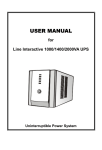
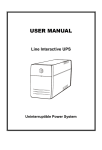
Uninterruptible Power Supply
28-2BLA1K0018
IEC
AC Input
INTERFACE
Circuit Breaker
AC Output
Modem/Phone Line
Surge Protection
Smart RS-232
Dimension
DxWxH
Net Weight
Operating
ENVIRONMENT Environment
Noise Level
PHYSICAL
Cooling Fan
Communication
Port
PROTECTION Full Protection
AUDIBLE
ALARM
NEMA
AC Input
AC Output
INDICATOR
Fault
Backup Mode
Low Battery
Overload
Fault
Backup Mode
AC Mode
TRANSFER
TIME
Modem/Phone Line
Surge Protection
Typical
16kg
13.8kg
14.2kg
0-40 C, 0-90% relative humidity
(non-condensing)
Less than 40dB
Support windows 95/98/NT/2000/XP,
Novell, and Linux
368.3mmx140.2mmx180.4mm
Red LED lighting
Sounding every 10 seconds
Sounding every second
Sounding every 0.5 seconds
Continuously Sounding
Discharge, overcharge, and overload
protection
The 1st green LED lighting, and the 2nd to 5th green
LEDs gradually lighting indicating load level
The 1st green LED flashing, and the 2nd to 5th green
LEDs gradually lighting indicating battery capacity
4-6 ms
Recharge Time 8 hours to 90% after complete discharge
Cooling Fan
Circuit Breaker
Communication
Port
BATTERY
Back Panel -OUTPUT
Power ON/OFF
Switch
AC Mode-Green Lighting
Backup Mode-Green Flashing
AC Mode-Load Level LEDs
Backup Mode-Battery Capacity LEDs
Fault LED
INPUT
CAPACITY
MODEL
Front Panel --
System Description
Line
Line
Line
Interactive Interactive Interactive
1000
1400
2000
VA/W
1000VA/600W 1400VA/840W 2000VA/1080W
115VAC / 220, 230, 240VAC
Voltage
90-140VAC / 158-290VAC
Voltage Range
115VAC / 220, 230, 240VAC
Voltage
Voltage
+/- 10%
Regulation
(Batt. Mode)
Frequency
50Hz or 60Hz
Frequency
+/- 1Hz
Regulation
(Batt. Mode)
Output
Modified Sinewave
Waveform
Battery Type & 12V/7Ah
12V/9Ah x 2pcs
x 2pcs
Number
Backup Time (at
2-PC load with 23 minutes 25 minutes 26 minutes
15" monitor)
Mains normal 1. Circuit breaker is
but green LEDs broken.
are on.
2. Power cord is loose.
Alarm buzzer
beeps
continuously
when AC
supply is
normal.
When power
1. Overload of the UPS.
failure, back-up
time is shorten. 2. Battery voltage is too
low.
3. Battery defect due to
high temperature
operation environment,
or improper operation
to battery.
Communication 1. Software is not
lost between
installed well.
UPS and
2. Cable is not properly
computer.
connected.
3. Power switch is not
pressed at least 5
seconds.
Overload of the UPS.
Symptom
Possible Cause
No LED display 1. Missing battery.
on the front
panel.
2. Battery defect.
1. Check the setting of
the software .
2. Check the RS-232
cable is firmly
connected to
COM1/COM2 of the
computer and
confirm the setting
again.
1. Reset the circuit
breaker..
2. Reconnect the power
cord properly.
1. Remove some
noncritical load.
2. Charge battery 8
hours or more.
3. Replace with the
same type of battery.
Remedy
1. Charge battery up to
8 hours.
2. Replace with the
same type of battery.
3. Press power switch
for at least 5
seconds.
Verify that the load
matches the UPS
capability specified in
the specs.
Trouble Shooting
Specification
Installation and Operation
Installing the UPS is as easy as following the steps
shown. Be aware of the Power Switch must be kept
in the ON position, otherwise, the UPS will be
disabled and your equipment will not be protected
during a power failure.
1
3
Charging
This unit is shipped from the factory with its
internal battery fully charged, however, some
charge may be lost during shipping and the
battery should be recharged prior to use. Plug
the unit into an appropriate power supply and
allow the UPS to charge fully by leaving it
plugged in for at least 8 hours.
5
Modem/Phoneline Connection
Plug incoming internet line into the In socket at
the back of the UPS. Use on more Internet line
cable and plug one end of the Internet line cable
to the Out socket at the back of the UPS. Plug
the other end of the modem input socket as
shown below.
Incoming
Internet line
Inspection
Remove the UPS from its package and inspect it
for damage that may have occurred during
shipping. If any damage is discovered, re-pack
the unit and return it to the place of purchase.
8 hours
4
2
Placement
Computer Connection
Connect one computer-related device into each of
the power receptacles supplied on the back of the
UPS.
6
Serial cable Connection
To allow for unattended system shutdown for your
operating system, connect the serial cable as per
diagram below.
Install the UPS unit in any protected environment
that provides adequate airflow around the unit, and
is free from excessive dust, corrosive fumes and
conductive contaminants. Do not operate your
UPS in an environment where the ambient
temperature or humidity is high. On the other hand,
place the UPS unit away from the monitor at least
20cm to avoid interference.
20 cm
7
Turn On/Off
This Series will be turned on automatically
at first plug-in. At this moment, press power
switch lightly to turn off the UPS. To turn on
the UPS again, just simply press power switch
again. Please DO NOT punch it for extended
life of the power switch.
10
Battery Replacement
Follow Chart 1 to Chart 3 to replace the battery.
Disconnecting all sources of supply before battery
replacement.
Free Software Download
-- Commander Pro -Commander Pro is a unique uninterruptible power supply
(UPS) control software that offers you unprecedented
convenience for the control of any UPS.
Remove the panel
Features:
Saves files before shutdown occurs
Scheduled system shutdown
Graphic display of UPS status
Warning notification via E-mail
User-friendly interface
Multi-language versions
Chart 1
Remove the battery cover
8
9
DC Start Function
DC Start Function enables UPS to be started up
when AC utility power is not available and battery
is fully charged. Just simply press the power
switch to turn on the UPS.
Green Power Function
Chart 2
After removing the battery cover, gently extract the battery by
disconnecting the two wires connecting it to the UPS. Be sure
replaced the same type of batteries and dispose of old battery
properly at an appropriate recycling facility.
Download Commander Pro from the internet is a simple
process:
1. Go to Website http://www.ups-software-download.com
This Series are equipped with Green Power
Function. If no load connects to the UPS, it will
automatically shut down in 5 minutes for energy
saving while power failure. The UPS will restart
while AC recovery.
2. Click Commander Pro Icon to enter software download
area.
3. Choose operating system you need for your PC and double
click to download software automatically.
4. Type in Serial No: 511C1-01220-0100-478DF2A to install
the software.
Chart 3