1
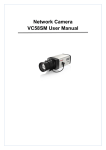
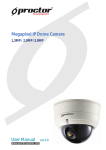
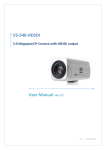
IP Network A/V Camera, “Cywatch IP camera” Operating Instructions CamTron Industrial Inc. Cywatch IP camera Operating Instructions (Ver 1.0_CT0808200) Cywatch IP camera Operating Instructions (Ver. 1.0) First of all, we would like to express our appreciation on your choosing our Cywatch IP Camera. Cywatch IP camera is a state of the art network A/V camera designed for demanding professional surveillance applications with the latest and most advanced H.264 codec. And Cywatch IP camera is specially optimized for video surveillance, two-way video communications and wireless video network, where very high channel densities, high performance, low latency and power efficiency are critical requirements. Cywatch IP camera features the sensor Input, relay output, RS485 port. These functions may be utilized to control various system integration solution as well as remote surveillance. Cywatch IP camera supports both Static IP and Dynamic IP for diverse IP connection as well. In summary, Cywatch IP camera provides multiple access/control options to the user. The examples of access/controls are as follows: ¾ To record Event in FTP server installed in remote place. ¾ To search / delete / down-load / replay the recorded video. ¾ To support PoE (optional) for easy and convenient installation. For more information or inquiry, please contact us to the followings; Home Page : www.camtron.co.kr e-mail : [email protected] Telephone : 82-2-402-5083 Fax : 82-2-402-5391 Address : 5th floor, Keum-ah B/D, 31-3, Karak-dong, Songpa-gu, Seoul, 138-801, Korea Notice : IP camera’s appearance, function and specification may be changed without prior notification. 1 CamTron Industrial Inc. Cywatch IP camera Operating Instructions (Ver. 1.0) IMPORTANT NOTES for Safety Precaution . Please be sure to read the following with carefulness, before installing the product, Make sure to turn off the power before installing Cywatch IP camera. Do not install under the direct sunlight or in dusty areas. Make sure to use the product within the temperature and humidity specified in the specification. Do not operate the product in presence of vibrations or strong magnetic fields. Do not put electrically conducting materials in the ventilation hole. Do not open the top cover of the product. It may cause a failure or electric shock on the components. To prevent from overheating, make sure to keep the distance at least 10cm from the ventilation hole. Check for proper voltage before connecting the power. 2 CamTron Industrial Inc. Cywatch IP camera Operating Instructions (Ver. 1.0) Table of Content 1 Introduction .......................................................................................................4 1.1 About Operating Instructions manual.................................................................... 4 1.2 Feature ............................................................................................................... 4 1.3 System Connections............................................................................................. 5 2 System Operation...............................................................................................7 2.1 Remote Video Monitoring ..................................................................................... 7 2.2 Initialization of IP Address.................................................................................... 8 3 Remote Configuration ........................................................................................9 3.1 Using Internet Explorer ........................................................................................ 9 3.2 IP camera Configuration .....................................................................................10 3.2.1 System Configuration .................................................................................10 3.2.2 Video Configuration ....................................................................................12 3.2.3 Audio Configuration....................................................................................15 3.2.4 Network Configuration................................................................................16 3.2.5 Serial Port Configuration .............................................................................19 3.2.6 Event Configuration....................................................................................21 3.2.7 Preset Configuration ...................................................................................24 3.2.8 Record Configuration (applied to VRND Series) ............................................25 3.2.9 User Configuration .....................................................................................29 3.2.10 Camera Configuration.................................................................................31 3 CamTron Industrial Inc. Cywatch IP camera Operating Instructions (Ver. 1.0) 1 Introduction 1.1 About Operating Instructions manual The Operation Instructions manual is to provide information on operation of the high quality IP Network Camera. In this guide, information on installation, operation, configuration of IP Network Camera is written as well as how to trouble shoot in case problems arise. 1.2 Feature Cywatch IP Camera is a network camera and a video and audio surveillance transmission system based on IP network through LAN, ADSL/VDSL, and Wireless LAN. Video - High-quality compression algorithm, H.264 - Compression in various resolution: CIF, Half-D1, D1 - Wide range of video transmission rate: 32kbps ~ 4Mbps - Various transmission mode: CBR, VBR - Motion detection Audio - Multi-transmission mode: Uni-direction (Cywatch -> Client PC or Decoder, Client PC or Decoder -> Cywatch IP camera), Bi-direction Network - Static IP and Dynamic IP(DHCP,) - One to one and one to many connection - Multicasting - Automatic transmit rate control according to network condition Serial Data - One serial ports (RS-485) - Data pass-through mode: Serial data communication between Cywatch IP camera – Decoder Sensor and Alarm - Connections to external sensor and alarm devices - Event Alarm User Interface - System status display utilizing OSD(On Screen Display) - System configuration using Internet Explorer 4 CamTron Industrial Inc. Cywatch IP camera Operating Instructions (Ver. 1.0) Reliability - Reliable embedded system - System recovery utilizing dual watch-dog functions 1.3 System Connections Cywatch IP cameras can be connected in either 1-to-1 fashion where one Cywatch IP camera is connected one decoder or 1-to-many fashion where one Cywatch IP camera connected to many PC and decoders. (Cywatch video server can work as a decoder system which takes the data from a video server or IP camera, decodes and outputs analog video.) Topology Generally, the Cywatch IP camera and the PC & decoder are connected in 1-to-1 mode or 1to-many connection is also supported. 1:1 Connection (Unidirection) Local Site Remote Center Cycam Decoder Local Site Remote Center Cycam PC Mostly used configuration is 1 to 1 connection. A Cywatch IP camera is installed at a site where video images can be transmitted and a PC or a decoder is installed at a center location to receive and view the video images on analog monitor. Audio and serial data are transferred in either direction. 1:N Connection (Unidirection) Local Site Cycam Remote Center PC or Decoder PC or Decoder PC or Decoder In this configuration, a site can be monitored from many remote center locations. Although up to 64 PCs or decoders can be connected to on Cywatch IP camera, in the real network environment, network bandwidth can limit the maximum connections. Functionally, the central monitoring system software can replace the decoder. 5 CamTron Industrial Inc. Cywatch IP camera Operating Instructions (Ver. 1.0) Multicast Mode Within the network that supports multicasting, a large number of decoders can be used to receive video effectively from a Cywatch IP camera using a single streaming of video and audio. Relaying Local Site Center 1 Center 2 Cycam Decoder Decoder In this arrangement, video and audio can be retransmitted from a center to another center. The arrangement is useful when the network bandwidth to the site is limited while there are more than one center wanting to monitor the site. Central Monitoring System Local Site Remote Center Cycam Cymanager Local Site Remote Center Cycam Decoder Cymanager Cymanager is a Windows based remote monitoring program to access multiple Cywatch IP camera for real-time monitoring or control of the encoders and connected cameras. Please refer to Cymanager User Manual for more information on Cymanager. 6 CamTron Industrial Inc. Cywatch IP camera Operating Instructions (Ver. 1.0) 2 System Operation 2.1 Remote Video Monitoring There are two ways to view the video once connections are made between local the site and center system. In order for a proper operation, an IP address must be set accordingly and please refer to ‘Cyexplorer User’s Guide’ or ‘Remote Configuration in Chapter 3’ for a further details. Default ID : admin Password : 1234 Video Monitoring with Decoder System Once the IP address of Cywatch IP camera is set in the remote IP address section of the decoder, the decoder system will connect to the Cywatch IP camera and start receiving the video images. Normally, a monitor connected to the decoder will display video images. Video Monitoring using Internet Explorer If a system’s IP address is entered on the Internet Explorer, the system will ask for confirmation to install Active-X Control. Once authorized, the Internet Explorer will start to display video images from IP camera as shown below. http://192.168.10.100 7 CamTron Industrial Inc. Cywatch IP camera Operating Instructions (Ver. 1.0) 2.2 Initialization of IP Address If a system’s IP address is lost, the system can be reset to a known IP address using the reset button in the back side of the system: c While system is in operation, press the reset button more than 5 seconds. d The system will reboot automatically e Once the system has been rebooted, IP address will be set to the following. - IP mode: Fixed IP - IP address: 192.168.10.100 - Subnet mask: 255.255.255.0 - Gateway : 192.168.10.1 - Base port : 2222 - Http port : 80 8 CamTron Industrial Inc. Cywatch IP camera Operating Instructions (Ver. 1.0) 3 Remote Configuration 3.1 Using Internet Explorer The IP camera can be configured using web browser. Type IP address of IP camera in the address input area of Internet Explorer, then a live viewing screen will be displayed. Press Setup button located in the upper right area of the monitoring screen, then the se page for server setup will be displayed. c Enter IP address d Press Setup button The configurations are grouped into 9 categories: System, Video, Audio, Network, Serial, Event, Preset, User and Camera. Any configuration changes are not applied until Apply is pressed. Leaving the page without pressing Apply button, changes in the page will be discarded. 9 CamTron Industrial Inc. Cywatch IP camera Operating Instructions (Ver. 1.0) 3.2 IP camera Configuration 3.2.1 System Configuration 10 CamTron Industrial Inc. Cywatch IP camera Operating Instructions (Ver. 1.0) Video Standard Video signal type: Select NTSC or PAL System ID System ID: Alphanumeric System ID to be transferred to remote software Language English, Korean, Japanese, Russian, Spanish, Portuguese and Chinese are supported in web-based configuration. The language can be selected at System tab. Firmware version Current firmware version Start Time Latest system boot date and time Current Time Current date & time: Enter a new date and time and press Set Current Time button to update date & time. Time Zone Time zone: Select time zone of where the system is installed. Depending on the time zone, Daylight Saving Time will work automatically. Automatically synchronize with NTP server Synchronize system time with an NTP server using NTP(network time protocol). Name of the NTP server should be registered on NTP server Name. Reboot Server Pressing Reboot Server button will cause the system to reboot. Do not press the Reboot button unless the server needs a reboot. Factory Reset Set all settings to the factory default values. System log and user registrations are also cleared. 11 CamTron Industrial Inc. Cywatch IP camera Operating Instructions (Ver. 1.0) 3.2.2 12 Video Configuration CamTron Industrial Inc. Cywatch IP camera Operating Instructions (Ver. 1.0) Preference Preference in video compression and transmission: With ‘Bitrate’ selected, the video compression will be effected by the ‘Bitrate’ value entered. With ‘Quality’ selected, the video compression will be effected by the quality of image selected. Therefore, ‘Bitrate’ and ‘Quality’ corresponds to CBR and VBR respectively. Resolution Selectable video compression resolution: NTSC: 720X480, 720x240, 352X480, 352X240 PAL: 720X576, 720X288, 352X576, 352X288 Frame rate Selectable video frame rate: Determine the maximum number of frames of video images to compress. The frame rate of actually transmitted video can be affected by the network bandwidth limitation. Quality Video image compression quality: The selection is possible with Preference is set to ‘Quality’. Bitrate Video bitrate: The value is applicable when Preference is set to ‘Bitrate’. I-Frame Interval I-frame interval: Possible values between 0 and 255. There will be no I-frames if 0 is selected. Use motion detection Use to enable or disable motion detection. Motion Detection Area Editing Configure regions for motion detection. Regions of arbitrary shape can be configured by the following steps. c Enable Edit item. d Select editing Mode. Set is for including cells to motion detection region and Erase is for excluding. e Select cells using the right button of the mouse. Multiple cells can be selected conveniently by press and dragging. f Press Apply Edited Area to save the editing. 13 CamTron Industrial Inc. Cywatch IP camera Operating Instructions (Ver. 1.0) Sensitivity A condition to trigger an event with motion detection. The value determines the sensitivity of the motion detection within a block: the smaller, the more sensitive. Information Display System ID and/or server time can be display over the video window in Internet Explorer. Each item can be turn on or off separately, and position also can be configure. These information are displayed after the video is decompressed. Burn-in OSD Inserts system ID and date/time in the compressed video. Separately System ID and Time can be turned On or Off in the video. Position specifies the position of such data. Brightness Controls input video brightness by selecting values between 0 and 100. Contrast Controls input video contrast by selecting values between 0 and 100. Hue Controls input video Hue by selecting values between 0 and 100. Saturation Controls input video saturation by selecting values between 0 and 100. 14 CamTron Industrial Inc. Cywatch IP camera Operating Instructions (Ver. 1.0) 3.2.3 Audio Configuration Mode Select audio operation mode. Mode Action Off No operation Tx-Only Rx-Only Transmit only Receive only Tx & Rx Transmit and Receive Input Gain Set audio input gain. 15 CamTron Industrial Inc. Cywatch IP camera Operating Instructions (Ver. 1.0) 3.2.4 16 Network Configuration CamTron Industrial Inc. Cywatch IP camera Operating Instructions (Ver. 1.0) IP Mode Three IP modes are supported. Depending on the selected mode, further configuration items come as follows. IP Mode Fixed IP DHCP Selection Local IP Local Gateway Local Subnet N/A Description Fixed IP address Gateway IP address Subnet mask ☞ Please ask an IP address information from ISP provider or network manager. DNS Set DNS server IP address. Base Port Network base port to be used for communication among systems. In case for the IP cameras and remote systems to be connected together, the port number must be identically set. HTTP Port HTTP port use for web-based connection RTSP port Audio and video streaming from server to client conforms to RFC standards. Streaming and direction Server -> Client Protocol - RTP(RFC1889) / RTSP(RFC2326) Remarks Video: H.264 - Audio and video - RTP over RTSP(TCP) Audio: G.711 u-law Client -> Server - Audio - Non standard* Additional remarks - Audio channel from client to server is not implemented yet, for standard way of delivering stream in such direction is not defined. The scheme can be discussed with client application developers and can be implemented easily if the scheme is determined. 17 - RTSP over HTTP tunneling will be supported soon. Multicast IP The multicast IP address selection range is between 224.0.1.0 and 238.255.255.255. The selection can be used only when media protocol is set to Multicast. The multicast address must be the same for the system to be connected using multicast protocol. CamTron Industrial Inc. Cywatch IP camera Operating Instructions (Ver. 1.0) DDNS Select the DDNS(Dynamic DNS) server to use. One of the two IP cameras can be selected. - TrueDNS : use TrueDNS service. Systems can be registered on the website for TrueDNS service: http://ns1.truecam.net. System will get a domain name of xxx.truecam.net style. Refer user guide document for True DNS service. - DynDNS : use DynDNS service. Refer www.dyndns.org for details. Flow Control Mode When several clients connect to an IP camera, bandwidths of networks clients may differ and some clients may not receive encoded stream fully. To handle such situation, three flow control modes which can be chosen according to users’ preference are provided. Mode Description Min The bitrate is automatically adjusted to a client with smallest network bandwidth. Max The bitrate automatically adjusted to a client with largest network bandwidth size. When set to this mode, a client with smaller bandwidth will not receive all frames of video. Adjust Off The bitrate is adjusted to most optimum rate by learning the network bandwidth. Flow control is off. Address Info Display network related information. IP Address The IP camera own IP address. This information is useful when the IP camera’s IP mode is set to DHCP. Domain Name In case the IP camera is registered with DDNS server, the registered domain name is displayed. MAC Address Display the MAC address of the IP camera. In case the IP camera is registered with DDNS server, the MAC address is used in DDNS registration. 18 CamTron Industrial Inc. Cywatch IP camera Operating Instructions (Ver. 1.0) 3.2.5 Serial Port Configuration In case for the user who use IP cameras or IP servers, there might be very seldom case to use this Serial port. 19 CamTron Industrial Inc. Cywatch IP camera Operating Instructions (Ver. 1.0) Serial Port Configuration There is one serial port, RS-485. The serial ports can be configured as follows. Mode Bitrate Data Bits Parity Stop Bit Selection 2400, 4800, 9600, 19200, 38400, 57600, 115200 bps 5, 6, 7, 8 bits NONE, EVEN, ODD bit 1, 2 bit Sensor Type There is one sensor input port on IP camera. The sensor port can be configured to the following. Function Operation OFF Not used NO (Normally Open) The port is normally open and activated when closed. NC (Normally Closed) The port is normally closed and activated when opened. The function of the sensor port is set based on the type of the sensor connected. PTZ Configuration PTZ Type Select the type of PTZ camera or receiver. PTZ ID Since it is possible to control multiple PTZ cameras or receivers over single control line, each camera or receiver will be assigned with unique ID. Enter PTZ ID of a camera or receiver for control. The ID value range can be between 0 and 255. PTZ Port Select the serial port used for PTZ camera control. Schedule table of sensor devices Sensor activity can be controlled using the schedule table. For each sensor port it is possible to turn on or off sensor activity for hourly unit of a week. The example below disables the sensor 1 during office hour (AM9:00 ~ PM6:00) from Monday to Friday. 20 CamTron Industrial Inc. Cywatch IP camera Operating Instructions (Ver. 1.0) 3.2.6 21 Event Configuration CamTron Industrial Inc. Cywatch IP camera Operating Instructions (Ver. 1.0) The Cywatch IP camera has one sensor port and one relay port. Actual numbers of sensor, replay ports may vary depending on models. When a decoder system instead of a PC client is connected to a Cywatch IP Camera, one system becomes a Local system and the other a Remote system (Generally a system which is being used by the user is called as Local system). Then, actions for events can be configured for events from remote system as well as for local system. For example, it is possible to turn on an alarm device in local(center) decoder system when a sensor device in remote(site) IP camera is triggered. Local section configures the actions for events from local(self) system, and configuration activates local devices and Remote sections configures the actions for events from remote(peer) system. For each event, E-mail notification and/or FTP upload can be checked. If the event occurs, the server sends an E-mail and/or uploads a video clip to the specified FTP server. The following table lists the possible actions for events. Action Alarm E-mail FTP Preset Description Triggers alarm(relay) port. Sends E-mail to the specified address. AVI file can be attached Upload AVI file to a specified FTP server On corresponding event, PTZ moves to the associated preset position. Once it moves to the position, it doesn’t come back to original position automatically. Sensor Configure the actions when the sensor is activated. Multiple actions can be set for a single event. On Video Loss Configure the actions when video input signal is lost. Multiple actions can be set for a single event. On Motion Configure the actions when motion is detected. Multiple actions can be set for a single event. On Disconnect Configure the actions when the link(connection) with peer system is disconnected. Multiple actions can be set for a single event. Alarm activation duration Set the duration of alarm activation in case of an event. If it is set to continuous, it will be in active state until an operator reset it manually. 22 CamTron Industrial Inc. Cywatch IP camera Operating Instructions (Ver. 1.0) E-mail Notification Specify the information to send E-mail as the action of an event. The address of mail(SMTP) server needs to be specified on Server Address field and Port specifies the port for SMTP operation (Port 25 is the default port in SMTP operation. If different port is configured in the SMTP server, this port needs to be changed accordingly). When the server requires authentication, ID, password and Sender Address(Sender E-mail Address) of an E-mail account need to be entered also. Destination address needs to be entered on Destination Address field. More than one address can be entered by delimiting comma(,) or semi-colon(;). Destination address can take up to 63 characters. Video clip of AVI file format at the moment of the event can be attached by setting Video Clip Attaching. FTP Upload Specify the information for uploading video file as the action of an event. The address of an FTP server to receive video files is specified on Server Address field, and Port specifies the port for FTP operation (Port 21 is the default port in FTP operation. If different port is configured in the FTP server, this port needs to be changed accordingly.). ID and password for accessing the FTP server also need to be specified. By setting Continuous Upload to On, it is possible to upload video clip periodically regardless of events. Upload Duration specifies the duration of one upload file, and Upload Interval specifies how often it should happen. Upload Interval doesn’t include the duration. If Upload Interval is 60 and Upload Duration is 20, it uploads a file for 20 seconds duration every 80 seconds. Event Recording Specify how a video clip is to be generated for E-mail sending or FTP uploading. Preevent Time specifies the duration of recording before an event happens. Postevent Time specifies the duration after the event is cleared. 23 CamTron Industrial Inc. Cywatch IP camera Operating Instructions (Ver. 1.0) 3.2.7 Preset Configuration d Preset Name c Move PTZ Camera to normal view e Press Set Button f Save This function is available for using Cywatch IP camera in order to control PTZ effectively through RS-485 port. Configure up to 15 preset positions. Preset function is not available on some PTZ receivers. Make sure to check if a PTZ receiver supports preset. Preset Configuration Set the PTZ Presets by following the next steps. c Move cameras to desired view using PTZ control buttons. d Enter Preset name. e Press Set button. f Once all the presets are set, press Save List button. Move to Preset Position Select a preset from the Preset and press Go To button, then, the camera will move to the selected preset position. 24 CamTron Industrial Inc. Cywatch IP camera Operating Instructions (Ver. 1.0) 3.2.8 Record Configuration (applied to VRND Series) Disk Information Be sure to restart the system after connecting a USB disk. During booting, the system reads status of disk and initializes it. Once the initialization of a disk is finished, the status of disk is shown on Record page of web-based setup. 25 CamTron Industrial Inc. Cywatch IP camera Operating Instructions (Ver. 1.0) (Figure 1) Check disk status via Record page The status of a disk can be checked from the Disk Manage menu of Cyexplorer as well. (Figure 2) Check disk status via Cyexplorer Refer to the chart for checking the status of disk. Disk status Description Disk error detected Error No disk Disk is not connected to the system. Searching Disk information Checking the status of disk. Refresh the page and wait until the status is changed. Mounting and Recovering Disk... Performing recovery process when disk damage is found. It takes from seconds to minutes for recovering. Disk format needed Disk is attached, but the type of the file system is unknown or damaged. Unknown disk type detected 26 CamTron Industrial Inc. Cywatch IP camera Operating Instructions (Ver. 1.0) USB Disk available - (format is recommanded) Disk is available, recommended. USB Disk available Available to be used for recording Disk formatting – Start Disk is being formatted. System should not be turned off during formatting. Disk formatting – Progressing…… but formatting is Disk formatting – Writing inode tables 63/619 Disk formatting – Creating journal…… Disk formatting – Writing Superblocks…… Disk format done, please wait for reboot. Disk removed or in abnormal state Disk is detached during operation or there is damage on the file system. If it happens while disk is connected, it is recommended to format the disk. General - It can be configured whether recording function will be used or not. - The action on disk full situation can be configured also. Recording stops automatically when Overwrite is Off and there are less than 100MB free space in the disk. If Overwrite is On, the oldest data is deleted first on disk full situation. Free space of 300MB is maintained without recording data on it for normal operation. - Max File Size is the menu for limitting the size of AVI file. If it is set a small size, file is created in small size and but numbers of file will be increased. If the recording time is over 10 minutes, new file will be created even though file size is smaller than size of file set in Max File Size. Event Type - Three recording modes are supported in Cywatch server: Full-time, Event, Disconnect. In case of Event recording, event types can be selected among several events. Selected event type is used for configuring the schedule table. Up to 4 event types can be configured and each event type can be a combination of sensor, video loss and motion event. - Pre / Post Event Time specifies the duration of recording before and after an event happens and they are applied to 4 event types commonly. 27 CamTron Industrial Inc. Cywatch IP camera Operating Instructions (Ver. 1.0) Schedule Table - Actual recording mode is determined by Schedule Table, where recording mode configured by day(of a week) and time. - Each of recording mode configures the recording operation as follows: • Record off : No recording • Continuous : Records continuously • Disconnect : Data is recorded when the system loses the connection to its client(Decoder, CMS/NVR) etc. When one of its multiple clients system is disconnected, this doesn’t happen. • Event Type : Records when an event configured in Event Type setting happens. Checking the status of recording Recording status can be shown on the main view page. Recording status can be also shown in Cyexplorer. When data is being recorded, Record column displays ON sign. 28 CamTron Industrial Inc. Cywatch IP camera Operating Instructions (Ver. 1.0) 3.2.9 User Configuration User can be registered and privilege level of a user can be specified. User configuration is allowed only to admin user. Max 16 users can be registered and each user can have one of four privileges. Privilege Admin Manager User Guest Allowed Operations All operations All operations except for user configuration Live viewing and PTZ control Live viewing only Remarks User id = admin Add User Page for adding a user comes on pressing Add button. User ID and password need to be entered and privilege level need to be selected. User ID and password consist of alphanumeric string of max 15 characters. 29 CamTron Industrial Inc. Cywatch IP camera Operating Instructions (Ver. 1.0) Delete User A user is deleted by pressing Delete button. Change Password Pressing Modify Password button after selecting a user shows a page for changing password. In case changing admin password, old password is checked. Modify Privilege Level Pressing Modify Privilege button after selecting a user shows a page for changing the privilege. It is not allowed to change the privilege level of admin user. Login Policy Skip Login is provided for convenient access to the server when authentication is not required. When Skip Login is set to Enable, login step is skipped. The privilege level after login in this way is determined by the setting of Privilege Level After Login Skipped. 30 CamTron Industrial Inc. Cywatch IP camera Operating Instructions (Ver. 1.0) 3.2.10 Camera Configuration Settings for analog part of the camera can be configured. Camera-specific menu is displayed using OSD on video display, and this menu can be operated with 5 buttons on the page. 31 CamTron Industrial Inc.