1
Applications
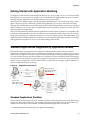
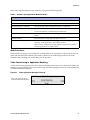
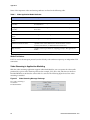
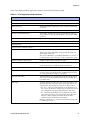
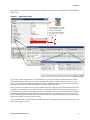
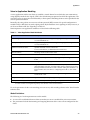
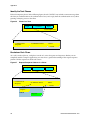
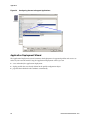
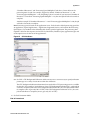
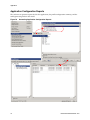
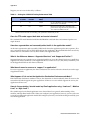
Figure 61
Open Application Deployment Wizard
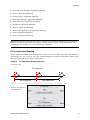
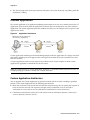
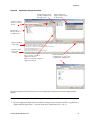
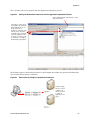
2. Select the node(s) in the left treeview to which you wish to deploy a profile or application.
Note: Remember to assign profiles to LAN nodes in your network also.
3. Select the profile or application tier in the right treeview.
4. Click the “>>” button to assign node(s) to the selected profile or application.
5. Check the consistency of the configuration, after you have assigned all nodes to the appropriate
profiles, by pressing the Check Consistency button.
6. Correct any configuration errors identified during the consistency check.
7. Press the Fix Warnings button to automatically correct warning conditions.
8. Click Apply to apply the deployment to the network model, when you are satisfied with your
configuration.
9. Click OK to leave the Application Deployment wizard.
End of Procedure 8
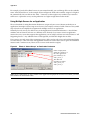
Servers are unique from workstations in many ways. Not only do they support a variety of services, they
can also be made to model a wide variety of servers in your operational network. For example, if you have
a dual processor system, you may want to increase the number of CPU resources in the server attributes.
See the following procedure for more information.
Procedure 9
Configuring Specific Server Attributes
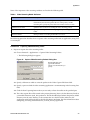
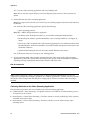
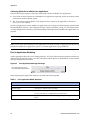
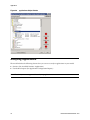
1. Right-click on the server node and Edit Attributes…
2. Set the Server Address attribute with the unique TPAL name.
3. Set CPU attributes.
3.1. Set CPU > CPU Resources Parameters.
62
Riverbed Modeler/Release 18.0