1
Investor User Guide
Welcome to WebConnect! FundEX is pleased to introduce our new secure portal for our investors that will
provide online access to your portfolio holdings, investment balances, asset allocations and account activity.
WebConnect also provides you with the ability to retrieve and view your quarterly account statements online.
New industry rules require mutual fund dealers like FundEX to issue mutual fund statements quarterly beginning
March 31st, 2012, previously we were only required to issue statements annually. Electronic statements, instead
of paper will help reduce costs and environmental impact by providing statements and notifications online. You
will be able to access and retrieve statements anywhere, anytime.
The purpose of this guide is to help you navigate through WebConnect. The portal is optimized for use on a
variety of different browsers and devices.
Home Page
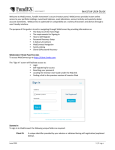
To login into FundEX WebConnect go to https://client.fundex.com. On the Home Page you will be able to:
1.
2.
3.
4.
5.
Sign into FundEX WebConnect
Register yourself for access to WebConnect (if it has not already been supplied by your advisor)
Reset your password
Find a copy of this manual under the Help link
Find a link to the previous version of the Investor web site
Signing In
Signing in to WebConnect requires you to enter two unique fields:
Client ID: This is your unique identifier that has been provided to you by your advisor or during the selfregistration process (explained later in this guide).
Password: The secure password chosen by you (or temporarily assigned to you by your advisor).
NOTE: If you currently have access to the existing FundEX Investor website you can continue to use that login id
and password for WebConnect.
Your advisor can provide you with your Client ID and a temporary password by contacting them directly.
Alternatively, you may also use the self-registration section. Begin by clicking the “Register” button on the home
page.
Begin by entering an Invitation Code. Click on the link below the Invitation Code box to find the current code.
Next, enter in one of your Fund Company Account Numbers. The fund company account number can be found
starting on the second page of your official FundEX statement under the column called "Fund Co. Account No."
You may have more than one fund company account, but any of them will work for WebConnect registration.
Additionally, the fund company account number(s) are also available directly on Fund Company account
statements. Please enter the account number with no spaces, special characters or dashes; please also note the
fund company account number is not your Client Number, Client ID or SIN.
Next, enter the last three digits of your Social Insurance Number and your Date of Birth.
Click the “Continue to Step 2” button once complete. The system will then validate the details against the FundEX
trading system and provide verification and allow you to setup your own password.
Once complete, you will be presented with you Client ID, which is your WebConnect login.
NOTE: You must contact your advisor’s office to get setup for corporate accounts.
New Password Page
If you are using WebConnect for the first time and were provided with a temporary password from your advisor,
you will need to complete a password reset.
Password Recovery Setup
Upon successful initial sign in, you will be asked to provide information that will assist you in resetting your
password (if/when required). Completing this page will allow to you use the “Forgot your password” function on
the home page. You can always update this information in your Preferences area (under My Profile) within
WebConnect.
E-Delivery Enrolment Setup
Upon logging into WebConnect, you will be presented with a campaign page for e-delivery enrolment.
Upon making your selection, you will either be presented with the edelivery enrollment screens, or continue onto
WebConnect. You can always change your choice for edelivery in your Preferences section within WebConnect.
WebConnect Navigation
Home and Account Details will contain information about your account at FundEX.
The My Profile section contains your contact information on file with FundEX Investments Inc. It is also where
your Preferences are kept for things like E-Delivery enrolment, Password Recovery and changing your password.
The My Alerts tab will display any new notifications (for instance, when a new statement is posted).
The Documents section will contain any statements that have been generated for you to view.
Password Reset
In the event you forget your password, please click on the “Forgot your password” on the home page.
You will then be asked to enter your Client ID and an email message will be sent to your address on file. Within
that email message will be a secure link that will bring you back to WebConnect where you must answer your
security question successfully in order to reset your password.