1
The Beer Store On-line Ordering System User Guide
Accessing the Site:
Once you have received your User Name and password, go to:
http://www.bdl.ca/TBSLogin.htm
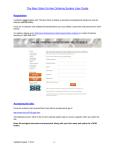
The following screen, which is the on-line ordering system sign on screen, appears when you select the
link.
Enter your assigned username and password, along with your first name and click on the LOGIN
button.
PLEASE DO NOT HESITATE TO CALL IF YOU HAVE ANY CONCERNS OR QUESTIONS
1-888-948-2337 (PRESS 7 THEN 6) FOR ASSISTANCE.
NOTE: A message may come up regarding an upcoming holiday or event. If so, please review and click
Proceed.
Click “Continue” to place a regular delivery order.
Your Account Info
-1-
The Beer Store On-line Ordering System User Guide
The Product Catalogue Page
If this is the first time accessing the web order system, the product catalogue will be empty.
Please select Add New Items to Personal Catalogue, this will bring you to the Full Product Catalogue.
Here you can build a catalogue that will suite your business needs.
On the Product Catalogue page the customer can:
1. View a subset of the product catalogue by using the Search Filter.
2. Add New Items to Personal Catalogue.
3. Add products to a pending order.
4. View Pending Order
1. Product Catalogue Search Filter
3. Add Products to a Pending Order
2. Add New Items to Personal Catalogue
4. View Pending Order
Going forward, the Personal Product Catalogue is displayed. The catalogue is grouped by package type
and size, and within each group products are sorted alphabetically across and down two columns.
Tab’s explained:
Personal Catalogue: Shows products selected from Full Catalogue that are specific to your
establishments ordering needs
Quick Order Entry: Option to enter items by brewery codes
Product Returns: If necessary, enter items that are overstock or damaged
View Pending Order: View items ordered and returned on the pending order
Pending Order List: shows previously started pending orders
View Saved Orders: View orders that have been saved but not yet submit for delivery
-2-
The Beer Store On-line Ordering System User Guide
The Full Product Catalogue Page
The Full Product Catalogue will show all of the current product listings that are offered by TBS in your
area. Please select the products by clicking the empty box, a checkmark will appear. Once completed,
click Update Personal Catalogue. These products will show every time you log into the On-line Ordering
System.
NOTE: You can add/remove products on the Personal Catalogue as frequently as needed. To remove,
unclick the checkmark and click Update Personal Catalogue.
On the Full Product Catalogue page the customer can:
1. Review product list and check off items so they will show in the Personal Catalogue
2. Click Update Personal Catalogue
1. Example of item selection
2. Add New Items to Personal Catalogue
Add Products to a Pending Order
The Personal Catalogue page is the key page for building your on-line order. The next section describes
the Order Process in more detail.
The Order Process
The Pending Order
A Pending Order is an order that is being built by the customer and is classified as pending until the
customer submits the order to TBS. To build a pending order the customer places quantity values
next to items in the product catalogue and clicks on the “Add to Pending Order” button that appears in
various locations on the screen.
Items that have been added to the Pending Order appear in the Product Catalogue highlighted in
BLUE to assist the customer in quickly identifying what products have already been added to the
order.
-3-
The Beer Store On-line Ordering System User Guide
To select items to be ordered:
1. Type quantity in each item field they would like to order
2. Once items are selected, select Add to Pending Order
1. Type Quantity in Box
2. Add to Pending Order
Quick Order Entry: Option to enter items by brewery codes
NOTE: You must click on the “Add to Pending Order” button to add product to your order. If the
customer leaves the Product Catalogue page after entering quantity values without first clicking this
button the quantities you entered are lost. In this event however, a warning message is provided to
the customer. This requirement holds true for any area of the Product Catalogue in which the
customer is working.
-4-
The Beer Store On-line Ordering System User Guide
Product Return Page
If you need to report a Full Good return or overstock item, please select Product Returns. On this
screen please:
1. Indicate the product that will be returned, and select the return reason
2. Add to Pending Order once the returns have entered
1.
2.
NOTE: If a case product is selected to be returned, you must send the whole case back. Example: 2
bottles were broken out of a case of 24 bottles that were delivered. Please put aside the whole 24 pack
and note this return when placing the next online order. Otherwise the drivers will not be able to return the
product for credit.
NOTE: A restocking fee will be applied to the order if a keg is returned as a Restock item. This fee will be
applied after the order is verified. When kegs are returned due to an issue with the product a 75% credit
will be applied.
View Pending Order
At any time during the build of an order the customer may proceed to the View Pending Order page to get
a quick summary of products added to the order as well as a running total of the dollar value of the order.
To access this page click on the “View Pending Order” button that appears on the Product Catalogue
page.
On the View Pending Order page the customer may:
1.
2.
3.
4.
5.
6.
Update Quantities on items already added to the Pending Order
Remove Individual Line Items from the Pending Order
Delete the Pending Order
Return to the Product Catalogue to Continue Shopping
Total Cost before taxes and fees
Verify the Pending Order
-5-
The Beer Store On-line Ordering System User Guide
1. Update Quantities
2. Remove Items
3. Delete the Pending Order
4.Continue Shopping 5. Total Cost before taxes and fees
6. Save Order 7. Verify the Pending Order
To update the quantity on a Pending Order, change the quantity value in the Qty Ordered box and click
on the “Verify Order” button. The screen is refreshed and running order value is updated accordingly.
To remove line items, click on the “Remove” link on that line item.
Click on the “Continue Shopping” button to return to the Product Catalogue and add more items to the
Pending Order.
Click on the “Delete Order” button to delete the current Pending Order. A warning message will appear to
confirm that this is the action that is intended.
-6-
The Beer Store On-line Ordering System User Guide
Verify Order
The Verify Order process takes the customer’s Pending Order and verifies whether or not the product
quantities added are available in inventory, commits the matching available inventory to the order,
and reports any items that are either fully or partially out of stock. It will also show Sub Total, Fuel
Surcharge, Invoice Total, and Deposit.
On the Verify Order page the customer may
1. Enter a P.O number if required
2. Verify Delivery Date
3. Enter Empty Returns - Please enter full quantity of empty cases of bottles, including
liquor and wine and kegs.
4. Review Red Message – notes out of stock items or other errors
5. Delete the Order – cancels all work that has been done in creating the order.
6. Modify the Order – returns the customer to the Product Catalogue for further changes.
7. Save Order – the customer has the ability to easily recall this order the next time they log
on to place a beer order.
8. Submit the Order – sends the finished order to TBS for processing
1. P.O #
2. Delivery Date
3. Empty Returns
4. Inventory Message
Equivalent 24 including ODR’s (* ODR: Ontario Deposit Return)
-7-
The Beer Store On-line Ordering System User Guide
5. Delete Order
6. Modify Order
7. Save Order
8. Submit Order
Order Minimums
NOTE: For 1 delivery a week the minimum of $750 or 2 Kegs or 6 Cylinders must be ordered. If these
minimums are not met a delivery day fee will be applied.
For 2 delivery days a week, each order needs to meet the minimum of $1500 but must equal $3500 or
more between the two orders. (Example: Mondays order cost $1800.00; Thursday’s order must be at
least $1700.00 equaling $3500 to avoid a secondary day fee)
Submit Order
Click on the “Submit Order” button to send the finished order to TBS for processing. Once this step is
done the order is assigned an order number and cannot be altered through the On-Line Ordering system.
If a change is required after the submission of an order, please contact 1-888-948-2337 for assistance.
The Submit Order page appears as follows. THIS PAGE IS YOUR ON-LINE ORDER CONFIRMATION –
the button at the bottom of the page allow you to PRINT a copy of the confirmation page. A confirmation
email will automatically be sent to the email account that was registered.
Your Account Address Information Here
-8-
The Beer Store On-line Ordering System User Guide
The order is now complete. To end the session, click on the LOGOUT button at the top of the Submit
Order Page and close the browser window.
Self Pickup Orders
Customers may place Self Pickup Orders at their shipping warehouse via the web. The Self Pickup
option appears on the first page after log in.
The customer is required to check the Self Pickup Order check box, chose the warehouse to pickup
their order, click on the Pickup Date button to select a date from the calendar, then select the pickup
time. Once this information is completed, please hit Continue.
-9-
The Beer Store On-line Ordering System User Guide
1.
2.
Verify Pickup Date, Time and Warehouse and Order.
Hit Continue
Your Account Info
Please follow previous steps to add product to a Pending Order from the Product Catalogue. Then View
Pending Order.
- 10 -
The Beer Store On-line Ordering System User Guide
Save Order Functionality
For convenience the customer may click on the "Save Order" button after they have entered product
quantities on the Product Catalogue and clicked "Add to Pending Order". The “Save Order” button
appears on both the “View Pending Order” screen and on the “Verify Order” screen.
By saving & naming the order, the customer has the ability to easily recall this order the next time the
account is logged in to place a beer order. This will save time, in that the customer does not have to reenter quantities for all products, they can simply make modifications to the saved order and then verify
and submit it.
To Save an Order:
1. Select products from the Product Catalogue and click the "add to pending order" button.
2. Click on the "View Pending Order" button to display details of the current order.
3. On the top of the page you will see the "Save Order" button. When this button is clicked, the
following screen appears:
- 11 -
The Beer Store On-line Ordering System User Guide
4. The customer must enter a description of the order you are saving - enter a name for the order
(eg. regular weekly order or date, etc.), then click the "Continue" button.
Note: The user may save as many order templates as they wish. The name (description) of the Saved
Order does not have to be unique – each instance is listed with the name and the date on which the
Saved Order is created.
To View a Saved Order:
A listing of any saved orders you may have on file is available to the user by clicking on the “View Saved
Orders” button. The following screen appears:
From the View Saved Order screen the user may:
1. Add the Saved Order to a Pending Order
2. Remove the Order from the Saved Order list
3. Show the details of the saved order
- 12 -
The Beer Store On-line Ordering System User Guide
1
2
3
Important Notes:
1. If the customer has added a saved order to a pending order and there are duplicate items
between the two, the quantities are totaled - the saved order does not replace the existing
quantities entered on the pending order. The same thing would apply if they have added a saved
order to the pending order twice - it would double the quantities.
2. An instance of a Saved Order template cannot be modified – to change a Saved Order a new
Saved Order template must be created.
Using the Search Filter
The Search Filter offers three drop down fields –Brewer, Package Type and Package Size – from
which the customer can select values for displaying a subset of the entire product catalogue. For
example, to display only 59litre Kegs currently in the product catalogue:
1.
2.
3.
4.
1
Select Brewer
Select Bottles/Cans/Kegs from the Package Type drop down box
Select Package Size drop down box
Click on the Search button
2
3
4
- 13 -
The Beer Store On-line Ordering System User Guide
APPENDIX
Appendix A – Error messages and Troubleshooting
Error messages will either appear in RED near the top of the current web page, or if they require a user
response they will appear as a pop up box in the middle of the screen. Most error messages require
some sort of action by the user to correct the issue.
Informational messages appear in red or black type and typically require no action – they are there simply
to provide the customer with extra information through the order process. All messages are worded such
that their meaning is clear.
A list of common error messages and the action required on those messages is listed below.
Message / (Action Required)
•
Please enter your first name in the "Ordered by field." (on the Login page you are required to enter
your first name in the designated field)
•
Valid User Id and password must be entered. (the User Id and/or password supplied are incorrect)
•
Item XX (product description) not added – must order in a multiple of N. (The quantity added for Item
XX does not match the product’s order multiple. Change the quantity accordingly. To view the
product’s order multiple you may view product details from the Product Catalogue).
•
Minimum Order Requirement Not Met. If you confirm this order, a delivery charge of $NN will be
added to your total invoice unless you increase the volume purchased. (On the Verify Order page the
Minimum Requirement is displayed. To avoid the service charge increase your volume to meet this
requirement)
•
You do not have any pending orders. (If you click on the Pending Orders List tab and you have no
pending orders in the system this error message is displayed).
•
You have not added any products to your order. (If you try to View a Pending Order when no
quantities have been added to a pending order this message is displayed. Go to the Product
Catalogue, enter quantities next to items and click “Add to Pending Order”)
•
NN of item XX (item description) is unavailable at this time and was NOT reserved. (There is a stock
out on the item ordered. Select a substitute from the Product Catalogue).
•
Please re-verify your order, for the allotted time to complete the order has been passed. (Because
verifying your order commits inventory, the customer is given 20 minutes to complete the order before
the committed inventory is released back to the available inventory pool. Click on the “Verify Order”
button to re-verify the order)
Troubleshooting
If you encounter any situations that you are unable to resolve please contact TBS Customer Service at 1888-948-2337 or via e-mail at [email protected]
- 14 -
The Beer Store On-line Ordering System User Guide
Appendix B – Frequently Asked Questions (FAQs)
Frequently asked questions will be updated as customers provide feedback on this new system.
Q: Are there any situations that I should not be using On-Line Ordering?
A: Do not place an order using the Internet for any of the scenarios below. Please contact the
Order Desk
1. Off Delivery day or Emergency Orders
2. Late Orders
3. Modifications to Submitted Orders
4. Cancellations of Submitted Orders
All orders must be placed on the assigned order day by the designated cut off time in
order to ensure regular scheduled delivery.
Q: Is the system available 24 hours a day, 7 days a week?
A: The TBS website is available to customer’s 24 hours a day 7 days a week however there are
times that the On-Line Ordering Application is not available. System maintenance and update
routines that require customers be locked out occur at the following intervals:
Saturday 6pm – Sunday 11am
Q: What if my computer crashes in the middle of placing an order?
A: If you have added items to a Pending Order and your system crashes, the Pending Order is
saved and may be retrieved by clicking on the “Pending Order List” tab on the Product Catalogue
page. If you have added quantities to Product Catalogue items but have not added them to a
Pending Order and your system crashes, then the work you have done is lost.
Q: I do ordering for multiple premises. Can I place orders for all of them under a single user
account?
A: If you are a customer with multiple locations or licenses within the establishment you must
register each license separately and log in to the system to place individual orders for each
individual license accounts. If you are not sure if this scenario applies to you please contact TBS
Customer Service.
Q: What security measures have been built into the system?
A: Only customers with a valid liquor license are allowed to register and use the system. All
registered users receive a user id and a password to access the system. Users are responsible
for keeping their system access account information confidential. If a customer suspects
someone is abusing their account information, contact TBS Customer Service immediately.
The web site also uses SSL (Secure Sockets Layer) certificate technology to ensure that
transmissions across the Internet are encrypted.
- 15 -
The Beer Store On-line Ordering System User Guide
Appendix C: Additional Scenario’s & Errors:
Multiple Delivery Days: Fees may apply
Multiple Drop Locations:
Your Account Info
- 16 -
The Beer Store On-line Ordering System User Guide
Fees: Any fees that are normally applied to accounts will be applied normally when an order is
placed online.
Example: Time Restriction Fee and/or, Specialized Vehicle Fee and/or, Above Grade Acceptance
Area Fee and/or Excess Distance Fee
Error:
Account is on Hold: In most cases, this is because there is an outstanding balance on the
account. Please contact the TBS Order Desk for details, you may be advised to make payment at
The Beer Store. Please retain a copy of your receipt. If your payment has been made, but your
account is still prompting the below error message, please contact the TBS Order Desk.
- 17 -
The Beer Store On-line Ordering System User Guide
Inactive Account: Please contact the TBS Order Desk at 1-888-948-2337 for details.
- 18 -