1
Troubleshooting your Wireless Connection
Troubleshooting wireless network issues is a step-by-step process that assists you identifying the root cause of
the problem. The Help Desk agent, should you contact the Help Desk, will follow this process. The root cause may
be identified as an issue that can be quickly resolved by you or one that requires more in depth support from a
computer technician.
1.
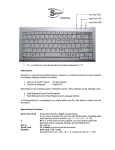
Is your wireless indicator light on? The indicator on your corporate laptop can be located above the
F4 key.
If the icon is not lit, touch the
icon with your fingertip to activate it. When it is activated it will
turn a bright blue color
If you touch the icon and it does not light up, the wireless functionality is deactivated (within the BIOS)
and an incident ticket should be opened by calling the Help Desk.
NOTE: Wireless functionality is not available on the corporate laptops while a network cable is plugged
into the computer or the docking station.
2.
Do you see an active ‘wireless icon’? The icon if visible will be located in your system tray at the
bottom right-hand corner of your monitor screen.
•
If the icon is not displayed or if the icon is shown with a red X, return to step 1, if you are
unable to turn on the icon report the issue to the Help Desk as a wireless network card /driver
issue.
SCREEN-SHOT:
Take a screenshot to illustrate that you see no
icon or have the icon with the red X through it.
Attach the screenshot to your Help Desk
incident ticket. (Ref: footnote)
Screen-shot : Press and hold the function key (fn) and then press the ‘Print Screen’ key (prt sc). Then right-click and
select ‘paste’ into a word document.
2009/08/18
1
Troubleshooting your Wireless Connection
•
If the wireless icon is displayed, double-click on the icon to view the available wireless
networks.
o
o
o
Can you see your network?
Is it identified as secure or unsecured?
How good is the signal strength of your wireless network?
NOTE: If your wireless network signal is low (3 bars or less) you’ll need to move closer to your
wireless router, or relocate your wireless router closer to where you are located.
SCREEN-SHOT: Take a screenshot to show what networks are available to you and there status.
Attach the screenshot to your Help Desk incident ticket. (Ref: footnote)
3.
Connect to an unsecured wireless network by double-clicking on an available unsecured network within
range of your computer.
Click here to access the job aid on Connecting to a wireless network
Screen-shot : Press and hold the function key (fn) and then press the ‘Print Screen’ key (prt sc). Then right-click and
select ‘paste’ into a word document.
2009/08/18
2
Troubleshooting your Wireless Connection
4.
If unable to connect to a wireless network, connect directly to your router or modem if you are
not using a router.
•
Once connected, verify that can you access either of the following web sites by typing in the addresses
into Microsoft Explorer address bar:
o
o
•
www.google.ca
www.canadapost.ca
Using the job aid ‘Locating your IP and DNS addresses’ capture your specific web address information
when connected to your router.
SCREEN-SHOT: Take a screenshot to show what of the window indicating your Network addressing
information such as IP and DNS addresses. These are invaluable to the Help Desk in resolving your
wireless issues. (Ref: footnote)
Screen-shot : Press and hold the function key (fn) and then press the ‘Print Screen’ key (prt sc). Then right-click and
select ‘paste’ into a word document.
2009/08/18
3
Troubleshooting your Wireless Connection
This screenshot illustrates what the user can expect to see while using wireless access.
•
If you are not able to connect to these web sites while connected to your router, unplug your network
cable from your router and plug it directly into your ISP provided (Rogers, Shaw, Bell, TELUS etc…)
modem and retest connectivity to both websites.
SCREEN-SHOT: Take a screenshot to show what of the window indicating your Network addressing
information such as IP and DNS addresses. These are invaluable to the Help Desk in resolving your
wireless issues. (Ref: footnote)
NOTE: If you follow these steps and your issue is not resolved please contact the help desk for further
assistance (1.877.411.8585).
When talking to the Help Desk, be sure to keep the discussion to wireless network connectivity. Do not
include VPN access into your discussion with the Help Desk as it is not related to wireless network issues.
Screen-shot : Press and hold the function key (fn) and then press the ‘Print Screen’ key (prt sc). Then right-click and
select ‘paste’ into a word document.
2009/08/18
4