1
Tips & Techniques - Troubleshooting Tips
Compiled By Our Editors
http://www.tigerdirect.com/
GENERAL TROUBLESHOOTING
Symptom: The system's fan is whining loudly.
Solution: A loud fan can be the result of a number of minor problems. The
common cause is dirt. A dirty fan, clogged with dust, is highly inefficient and
works harder to handle its cooling duties. As the fan struggles to cool the system,
it produces the whirring sound. A quick cleaning should do the trick. If the fan is
new and you're still hearing a loud whirring, your problem may be "ambient heat."
You need to operate your PC in a cool environment. Many PCs get louder as
they get hotter, with the fans spinning faster to keep the system cool. Be certain
your PC is clean and cool and you'll run trouble-free.
Symptom: Your PC spontaneously reboots.
Solution: A long-standing mystery solved! If rebooting occurs in a PC that you've
just built, try re-seating your CPU's heat sink. Make sure you're using the proper
thermal gel and spread it evenly between the heat sink and the processor. If
inadequate amounts of gel have been applied or low-quality gel has been used,
the system will reboot as the CPU heats up---and builds in the uneven "pockets"
created by the uneven gel. Also: check to see if you've removed the protective
sticker on the bottom of the heat sink (don't laugh---it happens!). And by all
means, make sure your motherboard supports the CPU you're installing. If these
steps check out and you're still experiencing spontaneous reboots, your problem
may be one of the following: Overclocking: We do not recommend overclocking.
Memory Timing: The fix? Go into your BIOS and set your memory on "Auto" or at
a more conservative setting and see if the reboot problem goes away. Oudated
BIOS: Make sure you have the latest BIOS for your board. You can determine if
your CPU is supported by browsing the BIOS updates of the motherboard's
manufacturer. If you're running a Pentium 4 Extreme Edition and notice that it's
only supported with the latest BIOS updates, you may have located the problem!
Inadequate Power: If you've made significant component upgrades---with the
exception of the power supply---your power supply may be overstressed or failing
due to heat or age. Finally, if you've migrated your OS and other files from
machine to machine to machine, it may be time for a clean install.
Symptom: Your Optical Drive (CD or DVD) Runs Slower and Slower....
Solution: Again, the villain may be dirt, since optical drives rarely "slow down" on
their own. Optical drives either work---or they don't, so a mechanical problem is
ruled out. What most likely has happened is that your dive has accumulated a
layer of dirt or dust. Here's the fix: You'll need a can of "spray air" (available
everywhere). Eject the disc tray and spray into the drive with short bursts---and
be sure to spray at an angle so the dust will be expelled out of the drive. Do not
spray continuously or turn the spray can upside down (doing so could introduce
moisture into the drive. Repeat this process a few times, then try test the drive.
Symptom: I have four pieces of RAM installed and I'm pretty sure that at least
one is bad. What's the best way to test RAM for errors?
Solution: Since you have four pieces of RAM, you can install just one DIMM in
your motherboard at a time and run the machine until it crashes. This isn't a
completely reliable way to test RAM, though. As an alternative, download
Memtest86 (www.memtest86.com) and create a bootable CD. Memtest86 does a
fair job. It runs several test patterns through the RAM. If a piece of RAM passes
these tests, swap it with another DIMM and continue your tests. Even better than
Memtest86 is Ultra-X's RAM Stress Test Pro 2, which is a self-booting diagnostic
plug-in card. This card uses a comprehensive set of test patterns to assess your
memory, and we've found that it finds bad pieces of RAM that other testers miss.
Keep in mind that it may not actually be a stick of RAM that's bad. The problem
may in fact be a bad DIMM slot. If all four pieces of RAM pass the test, you may
have to rerun them in each individual slot on your motherboard. Finally, your
motherboard's BIOS usually sets RAM timing by reading the SPD setting on the
module. If the SPDs are set too aggressively (we've seen this), it may cause
problems. You should consider going into the BIOS and manually tweaking
settings such as your CAS latency to a more conservative setting.
Symptom: Sometimes when I play games for a long time, my computer just
randomly crashes to the desktop.
Solution: Random crashes in games can be the result of a few different
problems. Typically, it's a heat issue, a driver issue, or a problem with the game.
The first thing you should do is check for a patch for any of your games that are
crashing. It seems like common sense, but frequently we receive complaints from
people trying to run games that have been patched three or four times. Once
you've updated your games, you need to update your videocard and chipset
drivers. Get you videocard driver from the company that manufactured your
card's chipset, either ATI or nVidia. You should also check for newer drivers for
your motherboard's chipset whenever you update your videocard drivers.
Outdated motherboard chipset drivers are one of the main causes of general
system instability. If you've updated all your hardware, but are still having
problems, you may have a heat issue. Open your case and look at your AGP
card. Is there another card right below it? If there is, you should consider moving
that card to another slot. A card directly below a high-end videocard can disrupt
airflow enough to cause overheating issues with today's top-of-the-line
videocards. If freeing the neighboring slot doesn't alleviate your problem, try
adding a fan that fits into one of your PCI slots and exhausts hot air from the
bottom of your PC.
Symptom: My new Athlon XP system is telling me that my brand-new Athlon XP
3200+ is only any Athlon 2200+!
Solution: It sounds like your motherboard's bus speed is set incorrectly. You see,
you probably bought and Athlon XP 3200+ that runs on a 400MHz bus (which is
actually a double-pumped 200Mhz bus). For the motherboard to recognize the
CPU as a 3200+, the CPU has to run at 2.2GHz, or 2,200MHz. The CPU reaches
that speed only if the motherboard is set to an 11 multiplier and with a 200MHz
bus. So, 11x200=2200. If your motherboard's frontside bus is set to run at
166MHz, the CPU would boot at 1833MHz. It's no coincidence that this is the
same speed at an Athlon XP 2200+. To correct this, reboot your machine and go
into the BIOS by hitting DEL or F2 during boot. Look for the section that lets you
change the bus speed. Hopefully we're right and it's set for 166MHz. Increase it
to 400MHz, save the settings, reboot and you should have a 3200+.
Symptom: My optical drive has suddenly slowed to a crawl reading discs, and it
refuses to read some discs.
Solution: Optical drives usually don't expire gradually; most simply stop working
without so much as a death rattle. It's much more likely you drive's lens has
accumulated a layer of dust.
Get yourself a can of compressed air at the local geek emporium, and eject the
disc tray. Spray into the drive with quick, short bursts at an angle (so the dust is
more likely to be expelled from the drive). Do not spray continuously or with the
can upside down, because that could introduce moisture into the drive. Give the
dust a minute to settle, and spray the innards again.
Symptom: I just bought a new PC, and now my PocketPC refuses to connect via
the USB port.
Solution: This is a common issue. You'll have to buy a new PocketPC. Just
kidding. This problem occurs if you plug your PocketPC in before installing
ActiveSync. Check the Device Manager by right-clicking My Computer, selecting
Properties, clicking the Hardware tab, and then selecting Device Manager. If you
see an Unknown Device entry, delete it by right-clicking it and selecting Uninstall.
Restart you PC, install your PocketPCs drivers from the manufacturer's disc, and
plug it in again.
PC AUDIO AND MP3S
Symptom: I'm only getting sound out of one speaker.
Solution: This usually happens when the mini-jack coming out of your speakers
us not fully plugged into the soundcard input slot. Reversed polarity of a speaker
can cause some of the weirdness as well, so make sure the positive terminal on
the actual speaker is connected to the positive terminal on the subwoofer (or
wherever the speakers connect to the amplifier), and vice versa for the negative
terminals. One final possibility: Pet owners should routinely check speaker cables
for teeth marks and replace the cables when Mr. Bigglesworth eats through the
outer layer.
Symptom: The remote control for my PC speakers suddenly stopped working the
other day. I installed new batteries but it still won't work. Is it dead?
Solution: Probably not. It sounds more like a sleeping remote. To wake it up,
simply remove the batteries and press every button on the remote in a sequential
order. Then just replace the batteries and your remote should work again.
Symptom: Sometimes I'll rip a worn CD, only to find later that some tracks have
skips in them.
Solution: This is a common problem, and can be easily fixed. Go to
www.exactaudiocopy.de (don't worry-the site is in English). We've brayed about
Exact Audio Copy before, and here's why: When Exact Audio Copy rips audio it
double-checks that data for accuracy, and if it detects any discrepancies between
the original and the rip, it will extract the data again and again until it has
determined that the result precisely matches what's on the disc. If the error
correction is unable to compensate for a flaw in the disc and the data is
irretrievable, Exact Audio Copy will let you know, sparing you from unpleasant
surprises later. Oh, and did we mention Exact Audio Copy is free? Life is good.
Symptom: My Creative Labs Jukebox Zen Xtra keeps crashing. Is it broken?
Solution: If a single bit in an MP3 file is out of place or errant for any reason, it
can make many MP3 players lock up or crash. You'll know this is the case if your
player crashes on the same track every time. If so, you'll have to remove or reencode the track. If an errant track is not the problem-you'll know this is the case
because it won't crash on the same song/s-you may be able to rehabilitate your
player be reformatting the drive. You'll find instructions at the Creative Labs web
site. Go to Support, click Portable Audio, and select "Troubleshooting the Nomad
Jukebox 3 as a Standalone Unit" (also known as Solution ID #7392).
Reformatting will delete the contents of your player, of course, so make sure you
have all your music backed up before you go for it.
Symptom: I can burn audio CDs and listen to them on my PC, but my portable
CD player and car stereo can't recognize them.
Solution: Commercial CDs are literally stamped from extruded masters, creating
pits and lands that CD players have been designed to read. Burned CD,
however, create darkened areas that mimic the pits and lands of commercial
CDs. As you've noticed, not all players-especially older ones-can deal with these
kinds of discs. But all is not lost. Your best bet is to burn at a slower speed, 4x or
below. This creates slightly more prominent differences between the burned and
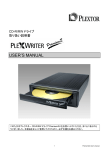
non-burned areas. If you have a Plextor burner, though, you have an even better
option. The bundled Plex Tools includes VariRec, which allows you to subtly alter
the burning strength of your optical drives laser. By experimenting with various
discs and burning strengths, you will almost certainly find the right combination
for your CD player. VariRec is supported by both Nero and Easy CD Creator.
We've used it to make audio CDs playable on otherwise uncooperative boom
boxes.
PC BUILDING TROUBLESHOOTING
Symptom: I just built a new machine and am experiencing totally random
crashes. What are the possible culprits?
Solution: Random crashes are always hard to diagnose, so let's cover all the
bases. The first area to check is your drivers. Make sure you have the latest
drivers for all your hardware, especially the motherboard chipset drivers. You
should also make sure you've downloaded all Windows Updates. Next, consider
your power supply. If you're running a midsize 300-watt PSU, and upgraded to a
late model Pentium 4 CPU or Athlon FX, or are just running several hard drives
and PCI add-in cards, you should upgrade your power supply to a 400 watt or
thereabouts model. Inadequate power to your components can cause the entire
system to lock up at worst, or just cause certain components to malfunction or
stop working. The final consideration is cooling. Ideally, you should have a
decent size fan in the lower front of your case sucking in cool air from the ouside,
and a large exhaust fan above your AGP card pull air out of the case.
Symptom: I'm building a new PC and have the motherboard mounted inside the
case. When I push the AGP card all the way down in the slot, the end of the
metal tab on the slot cover hits the bottom of the case, preventing me from
inserting the AGP edge connector all the way.
Solution: Even though every ATX motherboard and ATX case should be exactly
the same dimensions, there are still small variances that can create problems
when transplanting your hardware into a new environment. It's fairly common for
the videocard to not quite fit, and when this happens the solution is to simply
bend the end of the metal slot cover away from the board ever so slightly. This
will afford it the extra millimeter or so of clearance the card needs to fit all the
way down into the slot. But be careful!
WIRELESS (WiFi) NETWORKING TROUBLESHOOTING
Symptom: My wireless laptop will not connect to my wireless router. It can't even
see it!
Solution: Usually Wi-Fi connection problems are the result of configuration errors,
incompatible firmware, or interference with another router. It's easy to fix
firmware issues-all you need to do is download the latest firmware for your
wireless router manufacturer's web site. If you've installed the firmware update
and still can't connect, your next step is to temporarily disable WEP or WPA. If
you can connect to the router when security is disabled, check all your WEP
settings. You need to use exactly the same key on your router and any machines
that connect to it wirelessly. Also make sure the Authentication Type on each of
the PCs matches the setting on the router. Troubleshooting interference issues is
more complex. First, you should move your router off of the default channel. Most
routers shipped today are set at channel 6 be default, and the sheer traffic can
create a lot of interference. You should also uncheck the field that says,
"Automatically connect to non-preferred networks"-there is no advantage to the
feature and it can cause your computer to behave erratically if you're in the
proximity of the other networks. If you're still having problems connecting, there
may be a hardware problem on your laptop. Check Device Manager and make
sure there isn't an exclamation point beside your Wi-Fi card. You should also try
connection to another router that you know works properly. Finally, try connecting
to your network using the same settings, but a different brand of Wi-Fi card.
If all else fails, contact your router manufacturer's tech support line. You may
actually have a faulty router.
Symptom: My broadband connection feels like it's downloading really slow.
Solution: Sadly, there isn't much you can do to improve your broadband
connection's performance without spending more money to upgrade your existing
service. Sure, there are a whole lot of products out there that claim to "improve
your broadband speed" but we don't know of anything that actually works.
If your performance is significantly slower than the advertised claims of your
provider, you should complain to your ISP. For services advertised as full-speed,
we expect a minimum of 50kB/s download speeds and prefer to see our speeds
top out over 100kBs. If you are paying for a high-speed broadband connection,
but are seeing less than 50kB/s downloads, you should switch ISPs!
Symptom: I can't see the other computers on my home network from my laptop.
What can I do to make it work right?
Solution: First, you need to make sure that each computer you want to connect to
belongs to the same workgroup. Open the Start Menu and right-click My
Computer. Go to Properties, then Computer Name. If your workgroup name
doesn't match, you can change it by clicking the Change button. Some versions
of Windows only show the computers that actually have shared folders or
printers, so make sure you have at least one folder shared on every computer
you're trying to connect to. The next step is to disable your firewall. By default,
most firewalls block the ports used by Windows networking, keeping even
legitimate users-like you-from connecting to your machine. If all your machines
use the same workgroup and your firewalls are disabled, and you're using a
wireless router, your problem could be the router. If your wired machines can all
see each other, but a wired machine can't see a wireless machine, it's almost
certainly the router's fault. Barring a firmware update that fixes the problem,
there's no easy way top connect your machines if this is the case. Check with
your router manufacturer for a newer version of the firmware. If that doesn't work,
you may need to get newer hardware. Here's one last tip: You can try to connect
to your computer's specific IP address instead of its name. To find the IP
address, go to the Network Connections control panel, right-click your network
card, and select Status. The IP address is on the Support tab. Once you have the
IP, you can go back to your other computer and put //IP.address.here/ into
Explorer. If you have shared folders on the PC you're trying to connect to, they
should pop up immediately.
HARD DRIVE TROUBLESHOOTING
Symptom: I just got a new Serial ATA hard drive, but when I try to load the image
of my current drive onto it, the drive-imaging software doesn't recognize my new
hard drive.
Solution: This is a problem that has vexed us as well, and it comes down to the
fact that most drive-imaging software programs don't recognize Serial ATA
controllers and therefore won't let you image the drives connected to it. We've
tested practically every imaging program on the market in the Lab, and the only
one that successfully moved an image to a SATA drive and made it bootable was
Symantec's (formerly Powerquest) Drive Image 2002.
Symptom: I just plugged in a brand-new hard drive but it's not showing up in
Windows XP.
Solution: All brand-new hard drives are sold unformatted and thus don't show up
in Windows until they've gone through the formatting process. To get up and
running, connect the drive, boot your PC, and at the Windows desktop right-click
the My Computer icon and select Manage. Click Disk Management in the lefthand tree, and every drive connected to your system will show up. Simply rightclick your new drive and select New Partition. Then follow the steps to get your
drive up and running.
Symptom: My system crashed, and when I rebooted, my RAID array was no
longer working properly.
Solution: RAID arrays can stop functioning for several reasons, but it's usually a
case of a cable coming loose or something in the BIOS being reset. Serial ATA
cables easily come out of their drives, so check them first. If everything is
connected properly, you should also check to make sure that the ports your array
is plugged into are set to "RAID" rather then "IDE." Because these ports often
double as either standard IDE ports or RAID ports, they must be set in the BIOS
to one or the other. Be sure to check here first if your array suddenly disappears.
WINDOWS XP TROUBLESHOOTING
Symptom: My computer is acting odd. Loads of windows open all the time, and
I'm getting a bunch of popup windows that don't look like Internet Explorer
windows.
Solution: Your problem is most likely caused be incoming Messenger service
messages. In a networked corporate environment, Messenger is used to send
time sensitive messages about server outages, and software updates, but there's
really no reason to leave Messenger running at home. To disable it, go to Start,
Control Panel, Administrative Tools, and then Services. Scroll down to
Messenger, right-click it, and select Properties. Change the Setup Type to
Disabled and then press OK.
Note that this Messenger service is different from Windows Messenger. You can
disable this service and still receive instant messages!
Symptom: A couple of days ago, my computer began behaving very oddly. The
disk runs a lot, even when I'm not using the computer, and my browser home
page is reset to a site I've never been to before.
Solution: This sounds like a classic case of spyware infection. There are two
apps we recommend for combating spyware: Spybot Search & Destroy and AdAware. You can download Spybot from www.safer-networking.org and get AdAware from www.lavasoft.de. Both applications scan your hard drive for potential
spyware and will hep you reomove it if detected. We recommend using both
apps, because sometimes one application will detect a new spyware program
that the other won't. If one of the applications detects spyware on your PC, it will
either automatically remove it, or give you instructions that allow you to remove it.
Symptom: My e-mail frequently stops working-it often stalls when receiving and
sending. And no matter how many times I change the e-mail settings, it reverts to
"localhost."
Solution: There's an outside change the problem could be a virus, but the most
likely culprit is your antivirus program or your spam filtering program. These apps
work by situating themselves between your mail program and your e-mail server,
then taking a look at every piece of mail you receive. But if one of these
programs crashes or needs input from you, it will hold up the e-mail download
and your mail program will think the connection has died. If this happens, just
restart your antivirus program and spam filtering program and try downloading
messages again.
Symptom: I keep losing menu options in Microsoft Word.
Solution: Our bet is that you really like to use em-dashes. The default keyboard
shortcut for an em-dash is Ctrl+Alt+the numpad Dash, but people often
mistakenly press Ctrl+Alt+ the Dash on the primary keyboard, which is the
default keyboard shortcut for "Remove item from the menu." After you call up that
shortcut, your cursor will change to bold minus sign and the next menu or
shortcut you click will disappear from Word. The solution? Don't use so many
em-dashes! Alternately, you can remap the em-dash shortcut to something a little
more convenient. Go to Tools, Customize, Commands, and then click the
Keyboard button. Then, under Categories, scroll down to Common Symbols and
click Em-dash in the right pane. Change the hotkey to whatever you'd like. We
like Ctrl+M. To get back the menu items that you've lost, go to Tools, Customize,
Commands, and drag the elusive commands back into place.
Symptom: I keep accidentally e-mailing my friend at her old address because the
program created a shortcut for me.
Solution: This is an easy fix. When you're typing the name into your To: field,
scroll up and down until you get to the one you want to delete. When it's
highlighted press the Delete key and it will be gone forever!
Symptom: I get a ton of spam every day.
Solution: There are a couple of really good, free anti-spam utilities available
today-SpamPal (www.spampal.org) and Popfile (popfile.sourceforge.net). They
use slightly different approaches, but each can reduce your spam intake by up to
99 percent. SpamPal analyzes every e-mail you receive and compares the path it
took across the Internet with the servers and IP addresses of known spammers.
It's very effective right out of the box, but if you frequently receive e-mail from
countries where spam is known to originate, such as China, Russia, and Taiwan,
or from webmail services like Yahoo, which are frequently abused by spammers,
you may see a lot of false positives.
On the other hand, Popfile uses a technique called Bayesian filtering to
determine which letters are spam based on the content of your e-mails. Every
time you mark a message as spam, the contents of the message are added to
the database. This is highly effective once the filters are fully trained, but it can
take several weeks of flagging each incoming message as spam before you start
seeing greater than 90 percent accuracy.
http://www.tigerdirect.com/