1
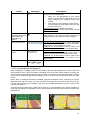
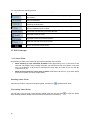
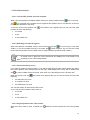
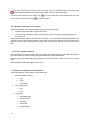
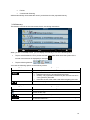
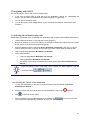
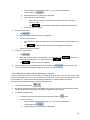
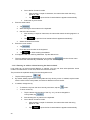
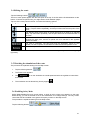
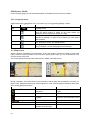
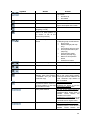
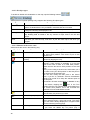
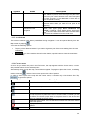
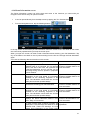
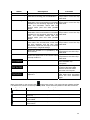
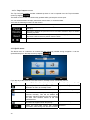
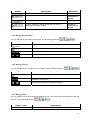
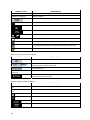
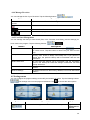
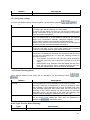
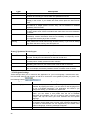
2 Getting started with XSG2 The XSG2 is optimized for in-vehicle use. You can use it easily by tapping the screen buttons and the map with your fingertips. The XSG2 contains complete maps North America. The XSG2 can plan routes throughout the whole installed map set; you do not need to change maps or switch to a poorly detailed general map to navigate between map segments or countries. Tasks Using a stylus Double tapping the screen Tapping and holding the screen Gestures (drag&drop) 8 Instructions You do not need a stylus to use XSG2. Tap the buttons and the map with your fingertips. You do not need to tap the screen twice for any action. With buttons and controls, a single tap is enough. You do not need this to access the basic navigation functions. Tap and keep pressing the following buttons to reach extra functions: Tap and hold on the Map screen: you can set the minimum and maximum zoom level of Smart Zoom. Tap and hold any of the buttons on the Map screen: you can set or reset the zoom value of the button (2D map). Tap and hold any of the buttons on the Map screen: you can set or reset the tilt and zoom values of the button (3D map). Tap and hold appears. Tap and hold any of the , , , , , and buttons on the Map screen: you can rotate, tilt or scale the map continuously. on keyboard screens: you can delete several Tap and hold characters quickly. Tap and hold Tap and hold the buttons in the Quick menu to open screens related with the function of the button from the Manage menu or the Settings menu. on list and menu screens: the Navigation menu or in long lists: you can scroll pages continuously. You do not need gestures to access the basic navigation features. You need to drag and drop the screen only in cases like: Moving the handle on a slider. Moving the map: grab the map, and move it in the desired direction. Shortcut to open the Map screen: slide your finger from the bottom right corner to the bottom left corner on any screen. Shortcut to open the Navigation menu: slide your finger from the top left corner to the bottom left corner on any screen.