1
NITF for ArcGIS
User's Guide
NITF for ArcGIS User's Guide
June 2011 Edition
Copyright © ITT Visual Information Solutions
All Rights Reserved
Legal
The IDL®, IDL Advanced Math and Stats™, ENVI®, ENVI Zoom™, ENVI® EX, and ENVI for ArcGIS® Server software and the
accompanying documentation are governed under the terms of a license agreement. Use of the software and documentation is governed by the
terms of the end user license agreement which accompanies the software or as entered into in writing between ITT VIS and the end user
(License Agreement). Any reproduction or redistribution of the software not in accordance with the License Agreement is expressly prohibited
by law, and may result in civil and criminal penalties.
Limitation of Warranty
THE SOFTWARE IS WARRANTED, IF AT ALL, ONLY ACCORDING TO THE TERMS OF THE LICENSE AGREEMENT.
EXCEPT AS WARRANTED IN THE LICENSE AGREEMENT, ITT VIS DISCLAIMS ALL WARRANTIES AND CONDITIONS
WITH REGARD TO THE SOFTWARE, INCLUDING ALL WARRANTIES AND CONDITIONS OF MERCHANTABILITY,
WHETHER EXPRESS, IMPLIED, FITNESS FOR A PARTICULAR PURPOSE, TITLE AND NON-INFRINGEMENT.
Export Control Information
The software and its associated documentation are subject to the controls of U.S. Export Regulations and may be subject to export/import
regulations of the final destination of use. The recipient is responsible for ensuring compliance to all applicable export/import control laws and
regulations.
Acknowledgments
ITT, the Engineered Blocks Symbol, and Engineered for Life are registered trademarks of ITT Manufacturing Enterprise, Inc., All rights
reserved.
ENVI® and IDL® are registered trademarks of ITT Corporation. All rights reserved.
ESRI®, ArcGIS®, ArcView®, and ArcInfo® are registered trademarks of ESRI.
Portions of this Software and/or documentation include intellectual property of ESRI® and are used herein by permission. Copyright © 2010
Environmental Systems Research Institute, Inc. All Rights Reserved.
PowerPoint® and Windows® are registered trademarks of Microsoft Corporation in the United States and/or other countries.
Macintosh® is a registered trademark of Apple Inc., registered in the U.S. and other countries.
UNIX® is a registered trademark of The Open Group.
Adobe Illustrator® and Adobe PDF® Print Engine are either registered trademarks or trademarks of Adobe Systems Incorporated in the United
States and/or other countries.
Numerical Recipes™ is a trademark of Numerical Recipes Software. Numerical Recipes routines are used by permission.
GRG2™ is a trademark of Windward Technologies, Inc. The GRG2 software for nonlinear optimization is used by permission.
NCSA Hierarchical Data Format (HDF) Software Library and Utilities. Copyright © 1988-2001, The Board of Trustees of the University of
Illinois. All rights reserved.
NCSA HDF5 (Hierarchical Data Format 5) Software Library and Utilities. Copyright © 1998-2002, by the Board of Trustees of the University
of Illinois. All rights reserved.
CDF Library. Copyright © 2002, National Space Science Data Center, NASA/Goddard Space Flight Center.
NetCDF Library. Copyright © 1993-1999, University Corporation for Atmospheric Research/Unidata.
HDF EOS Library. Copyright © 1996, Hughes and Applied Research Corporation.
SMACC. Copyright © 2000-2004, Spectral Sciences, Inc. and ITT Visual Information Solutions. All rights reserved.
This software is based in part on the work of the Independent JPEG Group.
Portions of this software are copyrighted by DataDirect Technologies, © 1991-2003.
BandMax®. Copyright © 2003, The Galileo Group Inc.
Portions of this software that incorporate MrSID functionality are provided under a license from LizardTech, Inc. and are copyright (c) 19952008 Celartem, Inc., doing business as LizardTech. All rights reserved. MrSID is protected by United States Patent No. 5,710,835. Foreign
patents pending. Some of the MrSID technology was developed through a project at the Los Alamos National Laboratory (LANL) funded by the
U.S. Government managed under contract by the Regents of the University of California (University). The U.S. Government and the university
have reserved rights in the Technology, including the following: (a) the U.S. Government has a non-exclusive, nontransferable, irrevocable,
paid-up license to practice or have practiced throughout the world, for or on behalf of the United States, inventions covered by the University's
Patent Rights, and has other rights under 35 U.S.C 200-212 and applicable implementing regulations and under the U.S Department of Energy
(DOE) Assignment and Confirmatory License through which the DOE's rights in the Technology were assigned to the University; (b) Under 35
U.S.C 203, the DOE has the right to require LizardTech to grant a non-exclusive, partially exclusive or exclusive license under U.S Patent No.
5,710,835 in any field of use to a responsible applicant(s) upon terms reasonable under the circumstances, if LizardTech does not adequately
attempt to commercialize the MrSID Technology. See 37 CFR 401.6; (c) The University makes no warranty nor does the University have any
obligation to furnish any know-how, technical assistance, or technical data in connection with MrSID software. For further information about
these provisions, contact LizardTech, 821 Second Ave., Suite 1800, Seattle, WA 98104.
Portions of this software were developed using Unisearch’s Kakadu software, for which ITT has a commercial license. Kakadu Software.
Copyright © 2001. The University of New South Wales, UNSW, Sydney NSW 2052, Australia, and Unisearch Ltd, Australia.
This product includes software developed by the Apache Software Foundation (www.apache.org/).
MODTRAN is licensed from the United States of America under U.S. Patent No. 5,315,513 and U.S. Patent No. 5,884,226.
QUAC and FLAASH are licensed from Spectral Sciences, Inc. under U.S. Patent No. 6,909,815 and U.S. Patent No. 7,046,859 B2.
Portions of this software are copyrighted by Merge Technologies Incorporated.
Support Vector Machine (SVM) is based on the LIBSVM library written by Chih-Chung Chang and Chih-Jen Lin
(www.csie.ntu.edu.tw/~cjlin/libsvm), adapted by ITT Visual Information Solutions for remote sensing image supervised classification purposes.
IDL Wavelet Toolkit Copyright © 2002, Christopher Torrence.
Portions of this software may have been developed using Visual Numerics, Inc software. Copyright 1970 - 2006 by Visual Numerics, Inc. All
Rights Reserved. Visual Numerics' software is confidential information which is proprietary to and a trade secret of Visual Numerics, Inc. Use,
duplication or disclosure is subject to the terms of an appropriate license agreement.
Other trademarks and registered trademarks are the property of the respective trademark holders.
Contents
Chapter 1: Introduction
About NITF for ArcGIS
The NITF/NSIF Format
Data Extension Segments and Tagged Record Extensions
NITF Options
Chapter 2: Working with NITF for ArcGIS
Display Levels
NITF Map Information
Displaying NITF Images
Chapter 3: Working with NITF Metadata
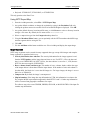
6
7
8
15
20
22
23
25
27
30
Viewing NITF Metadata
Editing NITF Metadata
31
33
Chapter 4: Saving Files
36
Saving NITF Files
Saving Files to NITF
Supported Data Types for NITF Export
NITF Compression Types
Index
NITF for ArcGIS User's Guide
37
39
45
48
50
4
Chapter 1: Introduction
In this chapter you will find:
About NITF for ArcGIS
The NITF/NSIF Format
Data Extension Segments and Tagged Record Extensions
NITF Options
NITF for ArcGIS User's Guide
7
8
15
20
6
Chapter 1: Introduction
About NITF for ArcGIS
About NITF for ArcGIS
The National Imagery Transmission Format (NITF) standard is a raster format defined by the NITF
Standards Technical Board. The Joint Interoperability Test Command (JITC) certifies systems
implementing the NITF format for compliance with the standard. NITF for ArcGIS® provides JITCcompliant support for the NITF file format and is required for compliant NITF support in ArcGIS. NITF
for ArcGIS 1.3 was tested by the JITC and has been recommended for full compliance registration to
complexity level 7 for NITF 2.1 and complexity level 6 for NITF 2.0 (the highest for each format).
Contact the JITC (http://jitc.fhu.disa.mil/) for detailed information about the NITF certification program,
including functional read/write breakdown and testing anomalies.
NITF for ArcGIS provides the ability to read NITF data within the ArcGIS environment and create data
products with ArcGIS Desktop that comply with the latest NITF specifications.
NITF File Support
NITF is a complex imagery and image exploitation information format capable of containing a wide
variety of image and non-image information. Currently, there are three different versions of the NITF
specification: NITF 1.1, NITF 2.0, and NITF 2.1. Each is similar to the others in many ways, but each
also has its own characteristics.
NITF for ArcGIS provides the ability to read NITF 2.0, NITF 2.1, NSIF 1.0 and legacy NITF 1.1 files,
and write NITF 2.0, NITF 2.1, and NSIF 1.0 datasets.
The NITF format is used extensively in the United States. The multinational members of the North
Atlantic Treaty Organization (NATO) use the NATO Secondary Image Format (NSIF). The NSIF 1.0
format is identical to the NITF 2.1 format, with the exception of the version name in the file header. In
place of NITF02.10, this field contains NSIF01.00.
General information about the NITF format, and specific information about the NITF 2.1 format, also
applies to the NSIF format.
7
NITF for ArcGIS User's Guide
The NITF/NSIF Format
Chapter 1: Introduction
The NITF/NSIF Format
A valid NITF dataset provides a main header identifying the file as a NITF dataset and describing the
contents of the file. The header is usually followed by one or more data segments. Each data segment
consists of a segment subheader identifying the type and properties of the data, followed by the data
itself. See "NITF Segments" on page 8 for more information on data segments.
Main Header
A NITF dataset may contain any or all types of segments available for that version, but every NITF
dataset must contain a main header. The main header describes the entire file, including origination
information, security information, file version and size, and the number and type of all data segments
contained in the NITF dataset.
Data Segments
Data segments can be any of the following types:
l
"Security Segments" on page 10
l
"Image Segments" on page 11
l
"Graphic/Symbol Segments" on page 12
l
"Label Segments" on page 13
l
"Annotation Segments" on page 13
l
"Text Segments" on page 14
l
"Data Extension Segments" on page 15
References
For more detailed information about the NITF/NSIF format and its components, see the technical
specifications on the Reference Library for NITFS Users web site.
NITF Segments
While NITF datasets without graphical data are supported, most datasets contain one or more
displayable segments. Displayable segments are image, graphic/symbol, or label segments that contain
graphical information and text for display. These segments contain instructions about how the graphical
data they contain should be displayed relative to any other displayable segments, resulting in a composite
display encompassing all graphical information in the dataset.
NITF for ArcGIS User's Guide
8
Chapter 1: Introduction
The NITF/NSIF Format
Multiple Displayable Segments
The NITF format supports multiple image, graphical, and displayable text elements. A NITF dataset can
contain all displayable segments (image, graphic/symbol, and label), making it possible for raw image
information and additional exploitation material to co-exist nondestructively within the dataset. Each
displayable segment contained in the NITF dataset contains information controlling the location of the
display element in the composite. Each segment also contains a display level that determines which
elements should be displayed on top of others, obscuring the lower-level displayable elements from view
without corrupting the hidden portion of those lower-level displayable elements. For more information,
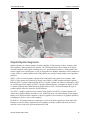
see "Display Levels" on page 23. Below is an example of a NITF 2.1 dataset with multiple displayable
segments.
In the previous image, a close-up image is positioned on top of the main image, obscuring part of the
image. However, because the inset image is contained in an image segment separate from the main
image, it can be moved, hidden, or deleted without destroying information contained in the main image
underneath it. Likewise, the CGM graphics (text and graphical annotations) can be hidden or displayed
without affecting the underlying image.
NITF Segment Types
NITF segments can be any of the following types:
9
NITF for ArcGIS User's Guide
The NITF/NSIF Format
l
Security Segments
l
Image Segments
l
Graphic/Symbol Segments
l
Label Segments
l
Annotation Segments
l
Text Segments
l
Data Extension Segments
Chapter 1: Introduction
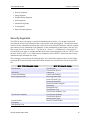
Security Segments
The NITF format was designed to contain information deemed sensitive, so it includes header data
describing the status of any information that is not available to the general public. The main file header
contains security information describing the security level of the entire NITF dataset, and each segment
also contains security information in its subheader, as the confidentiality of data within a file may vary.
The security level of the entire file (T = Top Secret, S = Secret, C = Confidential, R = Restricted, U =
Unclassified) is the same as or higher than that of the most restricted segment in the file. NITF 2.0 uses
the same fields as NITF 1.1 to contain security information, while NITF 2.1 deprecated some security
information fields and added new fields.
These changes are described in the following table. For a detailed description of these security fields,
consult the NITF specifications to determine which metadata are relevant to the version of your NITF
file.
NITF 1.1/2.0 Security Fields
Classification
Codewords
Control and Handling
Releasing Instructions
Classification Authority
Control Number
Downgrade
Downgrading Event
NITF for ArcGIS User's Guide
NITF 2.1 Security Fields
Classification
Classification System
Codewords
Control and Handling
Releasing Instructions
Declassification Type
Declassification Date
Declassification Exemption
Downgrade
Downgrade Date
Classification Text
Classification Authority Type
Classification Authority
Classification Reason
Security Source Date
Security Control Number
10
Chapter 1: Introduction
The NITF/NSIF Format
When converting between NITF formats, the security fields will be mapped in accordance to Appendix
G of the Implementation Practices Of The National Imagery Transmission Format Standard (IPON),
Coordination Draft Version 0.3A, 14 Jan 2005.
Image Segments
Image segments contain raster data, typically image data, intended for display or analysis. Image
segments in a NITF file contain displayable image information. Each image segment contains a single
image consisting of one or more bands of data (NITF 2.0 allows one, three, or four bands of data in an
image, and NITF 2.1 allows up to 999 bands). All bands within an image segment must have the same
data type, dimensions, storage order, and map information, although these characteristics can vary
across different image segments.
Each image segment may contain specific display instructions, including color lookup tables for singleband images and default display bands for multi-band images. Images can be stored in integer data types
in NITF 2.0 and in integer and real data types in NITF 2.1. Images can also be compressed using a
variety of algorithms including JPEG DCT, Vector Quantization, Bi-level, JPEG 2000 NPJE (NITF 2.1
only), and JPEG 2000 EPJE (NITF 2.1 only). Images can be broken into blocks, providing an orderly set
of subimages (or subarrays). Additional information describing the collection, intended use, wavelengths,
and comments can also be stored with the image.
Image Masks
Mask information stored in image segments identifies pixels that are invalid or not intended to be
displayed, and should therefore not be displayed.
Images that are rotated or have gaps can also contain a mask indicating which portions of the image
should not be used for display or analysis. Two types of image masks are used in NITF files:
l
l
Blocked image masks are used to mask entire blocks of image data.
Transparent pixel masks are used for masking individual pixels or groups of pixels within an
image block.
When an image segment containing masked blocks or pixels is displayed, pixels from images or graphics
underneath the image segment show through and are displayed even though they would ordinarily be
obscured. If a transparent pixel occurs with nothing displayed under it, or if for any other reason there is
no display information for a pixel, the background color specified in the main file header is displayed.
In the image below, the textual, symbol, and graphical annotations are CGM graphics.
11
NITF for ArcGIS User's Guide
The NITF/NSIF Format
Chapter 1: Introduction
Graphic/Symbol Segments
Symbol segments can contain Computer Graphics Metafile (CGM), bitmap, or object elements, while
label segments contain graphical text elements. The CGM format allows direct control of all display
elements contained in the graphic including color, size, and orientation of objects. CGM graphics can
contain complex lines and polygons, as well as displayable text. Multiple annotations can be combined in
a single CGM, so symbol segments with CGM graphics may actually contain multiple sets of graphical
primitives.
NITF 2.1 files can contain graphic segments with CGM graphic and graphical text elements, while
NITF 2.0 files contain two segment types for the same purpose: symbol segments and label segments.
Both the NITF 2.0 symbol segment and the NITF 2.1 graphic segment can contain CGM graphics. NITF
for ArcGIS supports the display of NITF 2.1 graphic segments but does not support the display of NITF
2.0 symbol segments that contain bitmaps or graphic objects. NITF 2.0 files that contain this type of
symbol segment will not be opened in ArcGIS software.
The NITF 2.1 graphic segment can only contain CGM graphics, but NITF 2.0 symbol segments can
contain other graphical display elements as well. Symbol segments can contain bitmaps (color-mapped
bitmaps to be displayed on the composite) or objects (graphics from a limited set of graphical primitives,
including lines, arrows, circles, and rectangles).
For NITF 2.1, the bitmap and object symbol types as well as the label segment have been deprecated.
Bitmaps are stored in image segments instead of symbols, and object symbols and labels have been
removed in favor of the more general and powerful CGM.
NITF for ArcGIS User's Guide
12
Chapter 1: Introduction
The NITF/NSIF Format
Label Segments
Label segments, available only in NITF 2.0, contain displayable text intended to be drawn with the NITF
display. In addition to this text, a label segment includes display instructions such as font, color, size,
and a background color to display behind the text.
There are many required CGM elements to draw the data contained in a NITF 2.0 label segment.
Element details are described in MIL-STD-2301A.
Note: NITF for ArcGIS converts NITF 2.0 label segments to Computer Graphics Metafile (CGM) data for
display. Conversion will closely match the input label segment metadata.
Annotation Segments
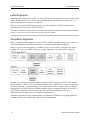
NITF 2.0 symbol and label segments, as well as NITF 2.1/NSIF 1.0 graphics segments, are collectively
referred to as annotation segments in the software, as illustrated in the following diagram.
Image, text, and extension segments are available in every version of NITF, while label and symbol
segments can occur only in NITF 2.0 datasets. Graphic segments occur only in NITF 2.1 datasets.
Because of the similarity between the symbol segments and label segments in NITF 2.0 files, and the
graphic segments in NITF 2.1 files, the software combines these segments into a single conceptual type
(annotation segments). Annotation segments can contain symbol, label, or graphic segments, and they
might include text, ellipses, polylines, bitmaps, and other objects. Annotation segments do not exist in
any NITF file, and they are not mentioned in the NITF specification documents. They are a
simplification used to reduce the overall number of segment types.
Annotation segments and image segments both carry information intended to be displayed graphically,
and both are referred to as displayable segments in the documentation.
13
NITF for ArcGIS User's Guide
The NITF/NSIF Format
Chapter 1: Introduction
Annotation Objects
Because CGM graphics are capable of displaying multiple graphical elements, each annotation segment
must be capable of storing multiple displayable features. In the software, these displayable features are
referred to as annotation objects. Each annotation segment contains one or more annotation objects.
NITF 2.0 and 2.1 annotation segments can contain multiple CGM annotation objects; each NITF 2.0
annotation segment can only contain one non-CGM label, bitmap, or object symbol annotation object.
The type of object determines which fields will be filled in the annotation object.
Text Segments
Text segments contained in a NITF dataset consist of textual information that is not intended for
graphical display. This information may be textual notes explaining target information, or the text
segment may be used for passing US Message Text Format (USMTF) and text notes to other users.
NITF for ArcGIS User's Guide
14
Chapter 1: Introduction
Data Extension Segments and Tagged Record Extensions
Data Extension Segments and Tagged Record
Extensions
Two types of extension segments, data and reserved, provide storage within the file structure for
additional information that cannot be contained in the file or segment header. Data extension segments
are used as necessary for storing Tagged Record Extensions (TREs), and the reserved extension
segment is reserved for future expansion of the NITF format.
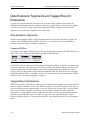
Data Extension Segments
Data Extension Segments (DESes) contain data that cannot be stored in the other NITF segments. An
example is the NCDRD Attitude Data DES, CSATTA. A list of unclassified, registered DESes is
available at http://jitc.fhu.disa.mil/nitf/tag_reg/des.htm.
Supported DESes
The software only supports NITF Commercial Dataset Requirements Document (NCDRD) DESes. You
cannot edit, create, or delete NCDRD DESes through the Metadata Editor.
Name
CSATTA
CSSHPA
Filename
CSATTA_DES.xml
CSSHPA_DES.xml
Long Name
Attitude Data
Shapefile
If a NITF file contains valid supported Data Extension Segments (DESes), the DESes are automatically
saved in the output file. When opening a NITF image, the DES user-defined subheader will not be read
if the input data format does not mirror the format in the accompanying XML definition file. When
writing a NITF file that contains a DES with no corresponding XML file, the software passes through
this unknown DES in NITF 2.1 and NSIF 1.0 files only. The software does not support unknown DESes
in NITF 2.0 files. See "Preserving DESes" on page 41.
Tagged Record Extensions
TREs may be present in NITF files to contain types of information that cannot be stored in the NITF file
header or segment subheaders. One or more TREs that apply to the entire NITF dataset can be present
in the file header, and each segment (image or text) can also have one or more TREs associated with it.
In some cases, TREs are applied to the data in a file or segment to enhance the utility of the data.
Unless there is a large amount of data in a TRE, the TRE data is stored in the main header or segment
subheader to which the TRE applies. For TREs too large to fit in the segment TRE area, a Data
Extension Segment (DES) is created at the end of the file, and a pointer to this DES is stored within the
header.
15
NITF for ArcGIS User's Guide
Data Extension Segments and Tagged Record Extensions
Chapter 1: Introduction
TREs come in two forms: Registered Extensions (REs) and Controlled Extensions (CEs). The NITF
Standard Technical Board (NTB) maintains a registry of known CEs and REs: the main difference
between them is that both the TRE name and TRE layout of CEs are controlled by the NTB, whereas
only the TRE names of REs are registered with the NTB to prevent different users from using the same
TRE name. Therefore, CEs can be interpreted based on the published information contained in the NTB
repository, whereas REs require specific knowledge of the TRE contents available to the creator of the
TRE that may not be available to the data consumer.
An example of a TRE is the RPC00B (Rapid Positioning Capability) TRE that can be associated with an
image segment in a NITF dataset. This TRE provides coefficients that can be used to orthorectify the
associated image segment. Other Controlled Extension TREs specify processing history, information
about specific targets in an image, collection information, and other types of metadata.
The JITC repository of Controlled Extension and Registered Extension TREs can be viewed online at
http://jitc.fhu.disa.mil/nitf/tag_reg/tagroup.htm.
Supported TREs
There are two levels of TRE support in NITF for ArcGIS:
l
l
Unsupported TREs: TREs for which no definition is available, or the definition does not match
the physical layout of the TRE. Only the raw data of TREs of this type can be viewed.
Supported TREs: TREs that match a valid TRE definition. The data in these TREs can be read
and written. The data in these TREs can be viewed with the appropriate header information in the
NITF Metadata Viewer (see "Viewing NITF Metadata" on page 31). These TREs may be parsed
into their specific components, and the value associated with each field in the TRE is displayed in
the NITF Metadata Viewer. To view the information contained in this type of TRE, open the TRE
container. Each field in the TRE is displayed as a single entry.
The data in these TREs can be written into file, image, and text segments of new NITF files.
When saving to NITF, you can view these TREs in the NITF Metadata Viewer (see "Editing
NITF Metadata" on page 33). Although the supported TREs for writing data can be displayed in
the editor, only PIA TREs can be added, edited, or removed from their associated file header,
image, annotation, or text segment.
Each TRE supported by the software references an XML definition file. Definition files for a partial list
of the NTB-registered CEs are installed with the software. Support for TREs can be added by creating
TRE definitions for the desired TREs.
When opening a NITF image, the software does not parse the TRE fields if there is no corresponding
XML definition file. When writing a NITF file that contains a TRE with no corresponding XML file, the
software passes through this unknown TRE.
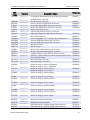
The following table describes TREs that the software currently supports for reading and writing data.
The Reference column provides links to the following NITF specification documents:
l
l
BPJ2K01: BIIF Profile for JPEG 2000
http://www.gwg.nga.mil/ntb/baseline/docs/bpj2k01/index.html
DIGEST: The Digital Geographic Information Exchange Standard (DIGEST) Part 2, Annex D:
IMAGE INTERCHANGE FORMAT (IIF) ENCAPSULATION SPECIFICATION
http://www.gwg.nga.mil/ntb/baseline/docs/digest/index.html
NITF for ArcGIS User's Guide
16
Chapter 1: Introduction
l
l
l
l
l
ENGRDA: Engineering Data (ENGRD) Support Data Extension (SDE) Version 1.0
http://www.gwg.nga.mil/ntb/baseline/docs/stdi-0002_v3/App%20N.doc
RSM: Replacement Sensor Model Tagged Record Extensions Specification for NITF 2.1
http://www.gwg.nga.mil/ntb/coordinationitems/RSM__NITF_TRE's_delivery_July_23_04.pdf
STDI0001: National Support Data Extensions (SDE) for NITF, Version 1.3
http://www.gwg.nga.mil/ntb/baseline/docs/stdi0001/index.html
STDI0002: The Compendium of Controlled Extensions for NITF version 2.1
http://www.gwg.nga.mil/ntb/baseline/docs/stdi0002/index.html
STDI0006: National Transmission Format (NITF) Version 2.1 Commercial Dataset Requirements
Document (NCDRD)
http://www.gwg.nga.mil/ntb/baseline/docs/stdi0006/index.html
TRE
Name
ACCHZB
ACCPOB
ACCVTB
Filename
ACCHZB.xml
ACCPOB.xml
ACCVTB.xml
ACFTA
ACFTB
AIMIDA
AIMIDB
BANDSA
BANDSB
BCKGDA
BLOCKA
BNDPLB
CMETAA
CSCRNA
CSDIDA
CSCCGA
CSEPHA
CSEXRA
CSPROA
CSSFAA
ENGRDA
ACFTA.xml
EXOPTA
EXPLTA
EXPLTB
GEOLOB
EXOPTA.xml
17
Data Extension Segments and Tagged Record Extensions
ACFTB.xml
AIMIDA.xml
AIMIDB.xml
BANDSA.xml
BANDSB.xml
BCKGDA.xml
BLOCKA.xml
BNDPLB.xml
CMETAA.xml
CSCRNA.xml
CSDIDA.xml
CSCCGA.xml
CSEPHA.xml
CSEXRA.xml
CSPROA.xml
CSSFAA.xml
ENGRDA.xml
EXPLTA.xml
EXPLTB.xml
GEOLOB.xml
Reference
Descriptive Name
Horizontal Accuracy Extension
Positional Accuracy Extension
Vertical Accuracy Extension
DIGEST
DIGEST
DIGEST
Aircraft Information Version A
Aircraft Information Version B
Additional Image Identification Version A
Additional Image Identification Version B
Multispectral/ Hyperspectral Band Parameters
Extended Multispectral/Hyperspectral Band Parameters
Background Data
Image Block Information
Bounding Polygon
Complex Metadata Tagged Record Extension Version A
Corner Footprint
Dataset Identification
Cloud Cover Grid
Ephemeris Data
Exploitation Reference Data
Processing Information
Sensor Field Alignment Data
Engineering Data. To view this TRE, rename
ENGRDA.xml_hold to ENGRDA.xml in the bin folder of
your software distribution.
Exploitation Usability Optical Information
Exploitation Related Information Version A
Exploitation Related Information Version B
Local Geographic (lat/long) Coordinate System Extension
STDI0002
STDI0002
STDI0002
STDI0002
STDI0002
STDI0002
STDI0002
STDI0002
DIGEST
STDI0002
STDI0006
STDI0006
STDI0006
STDI0006
STDI0006
STDI0006
STDI0006
ENGRDA
STDI0002
STDI0002
STDI0002
DIGEST
NITF for ArcGIS User's Guide
Data Extension Segments and Tagged Record Extensions
TRE
Name
GEOPSB
Filename
GEOPSB.xml
Chapter 1: Introduction
Descriptive Name
Reference
GRDPSB
HISTOA
ICHIPA
ICHIPB
GRDPSB.xml
ICHIPB.xml
Geographical Positioning for geo-referencing parameters
including datum, ellipsoids
Grid Positioning Version B
Softcopy History Tagged Record Extension
Image Chip Support Data Extension Version A
Image Chip Support Data Extension Version B
IMASDA
IMRFCA
IMASDA.xml
IMRFCA.xml
Segment Image Support Data
Segment Image Rational Function Coefficients
IOMAPA
J2KLRA
MAPLOB
MENSRA
MENSRB
MPDSRA
MSTGTA
MTIRPA
MTIRPB
NBLOCA
OFFSET
IOMAPA.xml
STDI0002
BPJ2K01
STDI0002
STDI0002
STDI0002
STDI0002
STDI0002
STDI0002
STDI0002
STDI0002
STDI0002
PATCHA
PATCHB
PIAEQA
** *
PIAEVA
** *
PIAIMB
**
PIAIMC *
PIAPEA
**
PIAPEB *
PIAPRC
**
PIAPRD *
PIATGA
**
PIATGB
*
PRJPSB
REGPTB
RPC00A
RPC00B
PATCHA.xml
Input/Output Mapping Tagged Record Extension
JPEG 2000 Parameters
Local Cartographic (x/y) Coordinate System Extension
Airborne SAR Mensuration Data Version A
Airborne SAR Mensuration Data Version B
Mensuration Data
Mission Target
Moving Target Information Report Version A
Moving Target Information Report Version B
(Number of Bytes) Image Block or Frame is Offset.
(NITF 2.1) Offset of the first pixel of an image from the first
pixel of the full image.
Patch Information Version A
Patch Information Version B
Profile for Imagery Archives Equipment
Profile for Imagery Access Equipment
Profile for Imagery Archives Event
Profile for Imagery Access Event
Profile for Imagery Archives Image
Profile for Imagery Access Image
Profile for Imagery Archives Person
STDI0002
STDI0002
Profile for Imagery Access Person
Profile for Imagery Archives Product
STDI0002
STDI0002
PIATGA.xml
Profile for Imagery Access Product
Profile for Imagery Archives Target
STDI0002
STDI0002
PIATGB.xml
Profile for Imagery Access Target
STDI0002
PRJPSB.xml
Projection Parameters Extension
Registration Points Extension
Rapid Positioning Capability Support Data Extension
Rapid Positioning Capability Support Data Extension
DIGEST
DIGEST
STDI0001
STDI0002
HISTOA.xml
ICHIPA.xml
J2KLRA.xml
MAPLOB.xml
MENSRA.xml
MENSRB.xml
MPDSRA.xml
MSTGTA.xml
MTIRPA.xml
MTIRPB.xml
NBLOCA.xml
OFFSET.xml
PATCHB.xml
PIAEQA.xml
PIAEVA.xml
PIAIMB.xml
PIAIMC.xml
PIAPEA.xml
PIAPEB.xml
PIAPRC.xml
PIAPRD.xml
REGPTB.xml
RPC00A.xml
RPC00B.xml
NITF for ArcGIS User's Guide
DIGEST
DIGEST
STDI0002
DIGEST
STDI0002
STDI0002
STDI0002
STDI0002
STDI0002
STDI0002
18
Chapter 1: Introduction
TRE
Name
RSMIDA
RSMPIA
RSMPCA
RSMDCA
RSMAPA
RSMECA
RSMGIA
RSMGGA
SECTGA
SENSRA
STDIDC
STREOB
USE00A
Filename
RSMIDA.xml
RSMPIA.xml
RSMPCA.xml
RSMDCA.xml
RSMAPA.xml
RSMECA.xml
RSMGIA.xml
RSMGGA.xml
SECTGA.xml
SENSRA.xml
STDIDC.xml
STREOB.xml
USE00A.xml
Data Extension Segments and Tagged Record Extensions
Reference
Descriptive Name
RSM Identification
RSM Polynomial Identification
RSM Polynomial Coefficients
RSM Direct Error Covariance
RSM Adjustable Parameters
RSM Error Covariance
RSM Ground-to-image Grid identification
RSM Ground-to-image Grid
Secondary Target Information
EO-IR Sensor Parameters
Standard ID Extension
Stereo Information
Exploitation Usability Extension
RSM
RSM
RSM
RSM
RSM
RSM
RSM
RSM
STDI0002
STDI0002
STDI0002
STDI0002
STDI0002
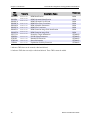
* Indicates TREs that can be created, edited and deleted.
** Indicates TREs that can only be edited and deleted. These TREs cannot be added.
19
NITF for ArcGIS User's Guide
NITF Options
Chapter 1: Introduction
NITF Options
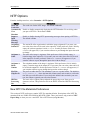
From the ArcMap menu bar, select Customize > NITF Options.
Option
NITF File
Cache Size
Automatically
View
Metadata
Suppress
Input
Warning
Messages
Originating
Station ID
Originator’s
Name
Originator’s
Phone
Number
File Title
Chip Prefix
HISTOA
Processing
Site
Description
The cache size for the NITF image. The default is 256 MB.
Enable or disable automatically displaying the NITF Metadata Viewer dialog when
you open a NITF file. The default is False.
Enable or disable showing NITF input warning messages when opening a NITF file.
The default is True.
The station ID of the organization in which the image originated. If you enter your
own value, that value will be used in the output file. If this preference field is initially
empty, the software populates it with ArcNITF. Set this preference field to NO
CHANGE (all uppercase) if you want the software to pass through the input value with
no change.
The name of the image’s originator. If this preference field is initially empty, it
remains empty in the output file. If you enter your own value, that value will be used
in the output file. Set this preference field to NO CHANGE (all uppercase) if you
want the software to pass through the input value with no change.
The telephone number of the image’s originator. If this preference field is initially
empty, it remains empty in the output file. If you enter your own value, that value will
be used in the output file. Set this preference field to NO CHANGE (all uppercase) if
you want the software to pass through the input value with no change.
The prefix to add to the File Title metadata if you save a spatial subset. The default is
Chip_hhmmss_of_, where the hour (hh), minute (mm), and second (ss) reflect the
time that you create the subset. If you remove this default value and enter your own
text, the software appends your text to the filename.
The name of the company who performed the processing event. Enter up to 10
characters of text. This preference fills in the PSITE field of the HISTOA Processing
Site.
New NITF File Metadata Preferences
This section of NITF preferences contains NITF file metadata defaults. Descriptions of the NITF file
metadata fields are in MIL-STD-2500B or MIL-STD-2500A. These preferences only pertain to NITF
Export Map, or when you save a non-NITF file to NITF format (using Save As).
NITF for ArcGIS User's Guide
20
Chapter 1: Introduction
NITF Options
New PIA TRE Metadata Preferences
This section of NITF preferences contains PIA TRE file metadata defaults. Descriptions of the PIA
TRE metadata fields are in STDI-0002. These preferences only pertain to creating new PIA TREs, as
described in "Editing NITF Metadata" on page 33.
21
NITF for ArcGIS User's Guide
Chapter 2: Working with NITF for ArcGIS
In this chapter you will find:
Display Levels
NITF Map Information
Displaying NITF Images
23
25
27
NITF for ArcGIS User's Guide
22
Chapter 2: Working with NITF for ArcGIS
Display Levels
Display Levels
Each displayable segment in a NITF dataset is assigned a display level that determines the order of
display. Segments with higher display levels are displayed over those with lower display levels.
The following image shows these levels and their corresponding displayable segments.
This image illustrates the content of a composite NITF file. In this example, three annotation segments
are displayed on top of a base image segment, another image segment is displayed as an inset, and the
composite of these elements is displayed on a gray background.
The image below shows the composite of the three annotation segments, the two image segments, and
the gray background. While the annotations obscure portions of the underlying image in the composite
image, each annotation exists as a separate segment that can be displayed or hidden without affecting
the underlying image.
23
NITF for ArcGIS User's Guide
Display Levels
Chapter 2: Working with NITF for ArcGIS
Wavelength Information
Wavelength information can be stored in several different ways in a NITF image segment. The
BANDSB TRE contains the most information, followed by the BANDSA TRE, and the band
subcategory settings contain the least information. The software will attempt to read wavelength
information from a NITF file from each of those locations, in order, until wavelength information is
found. If no information is present in any of these locations, the file is opened without wavelength
information.
NITF for ArcGIS User's Guide
24
Chapter 2: Working with NITF for ArcGIS
NITF Map Information
NITF Map Information
Map information in a NITF file can come from multiple sources, which are found in rapid positioning
capability (RPC) TREs, DIGEST GeoSDE TREs, or in the IGEOLO image header field. See "Order
and Precedence for Reading NITF Map Information" on page 26 for the order in which the software
reads this map information for NITF files. The following sections describe these types of map
information.
RPC00A and RPC00B
If the RPC00A or RPC00B TRE exists, the RPC model is used to emulate a projection by default.
If the Image Chip Support Data Extension Version B TRE (ICHIPB) is also present, information from
this TRE is used to specify the offsets for the resulting map information. These offsets are needed to
ensure the map information is consistent with the original positioning data.
DIGEST GeoSDE TREs
The software uses Digital Geographic Information Exchange Standard (DIGEST) GeoSDE TREs to
improve georeferencing accuracy in NITF images. The software can use the Geo Positioning
Information Extension (GEOPSB) and Projection Parameters Extension (PRJPSB) TREs stored in the
file header, and the Local Geographic (lat/long) Coordinate System Extension (GEOLOB) and Local
Cartographic Coordinate System (MAPLOB) TREs stored in the image segment subheader. Only these
GeoSDEs are supported.
A complete, valid GeoSDE TRE set requires a GEOPSB TRE in the file header. This TRE defines the
basic coordinate system information including ellipsoid, datum, units, and whether the coordinate system
is geographic or cartographic (projected). If the GEOPSB TRE specifies a cartographic coordinate
system, it must also be accompanied in the file header by the PRJSPB TRE, which specifies the
associated projection and defines the projection parameters, if required.
In addition, only one of the following TREs must be present in the image segment to which the map
information applies: GEOLOB, MAPLOB, GRDPSB, or REGPTB. Because GRDPSB and REGPTB
TREs are not supported, image segments containing these TREs must obtain map information from
another source. The GEOLOB TRE is provided if the GEOPSB TRE specifies a geographic projection,
and the MAPLOB TRE specifies a cartographic projection. Both TREs store the coordinate location of
the upper-left corner of the image and the (x, y) pixel size.
NITF images containing projection codes are not supported. The software cannot use the MAPLOB
TRE to find map information. Unrecognized datum codes default to WGS-84.
When packing NITF files, you cannot create, edit, or delete the DIGEST GeoSDE TREs. If the NITF
file contains valid GEOLOB or GEOPSB TREs, they are preserved if you save the file to a NITFformatted file. If you are exporting the scene, the ICHIPB TRE is added.
25
NITF for ArcGIS User's Guide
NITF Map Information
Chapter 2: Working with NITF for ArcGIS
ICORDS and IGEOLO
The software uses the image coordinate representation (ICORDS) and image geolocation (IGEOLO)
header field in the image subheader to calculate map information for an image.
These image subheader fields contain values relative to how map information is displayed:
l
l
ICORDS: A character representing the coordinate system of the image. The character can
specify either UTM or Geographic coordinates, or may specify that no corner coordinates are
present.
IGEOLO: The coordinates for each of the four corner points. If the corner points are rectified, the
upper-left corner position and the pixel size are calculated and standard map information is
generated for the image. Otherwise, the four corner points are used to calculate a polynomial
warp used to individually calculate the coordinate location for each pixel.
Order and Precedence for Reading NITF Map Information
If a NITF file contains multiple sources of map information, the order and precedence for reading the
coordinate system is as follows.
1. RPC information: the software attempts to use RPC map information for the file.
2. MAPLOB, PRJPSB, and GEOPSB TREs: Map information (if available) will be imported from
these TREs, and tie point and pixel sizes will be created in the specified projection. If the
projection is not supported, this information is considered invalid and the next georeferencing
method is attempted.
3. GEOLOB and GEOPSB TREs: If available, tie point and pixel size will be imported from these
TREs in a geographic coordinate system.
4. IGEOLO field in the NITF image subheader: the software parses this subheader field; if it finds
valid coordinates, it determines if they are rectified. If so, tie point and pixel size are computed
for the image. Otherwise, an affine map transformation is used to determine georeferencing for
the image.
NITF for ArcGIS User's Guide
26
Chapter 2: Working with NITF for ArcGIS
Displaying NITF Images
Displaying NITF Images
NITF files appear in the ArcMap Table of Contents as a group layer. Each NITF segment appears in
that group as a separate layer. For NITF files with multiple image segments, they appear as subfolders
under the NITF file. For NITF files with multiple image segments, the name of each image segment
begins with the highest level of security found in the file, followed by the word Image, followed by the
number of the image segment (Image #1 for example). The image segment name is then followed by
the band names, which include the word Band and the index number (except in the case of a singleband image). An example is Band_1.
Displaying Images Using NITF for ArcGIS
Following are some rules for displaying images using NITF for ArcGIS:
l
l
l
l
l
The software does not display map information for files that contain multiple segments.
The software does not display map information for files that contain one or more annotation
(graphic) segments.
The software reads and displays data in NITF 2.1 graphics segments, including CGM graphics.
The software does not read or display vector shapefiles stored in the CSSHPA Data Extension
Segment (DES).
l
The software does not read NITF files that contain no image segments.
l
The software does not currently support the M8 image compression format.
l
l
l
l
27
The software reads NITF 2.0 label segments, but it is unable to display 2.0 files that contain
symbol segments that have bitmaps or graphic objects.
The software reads and displays files that contain a segment marked "no display." If the
Suppress Input Warning Messages NITF option is set to False, a message will display to notify
you that a "no display" image is being opened.
If a NITF file contains one or more image segments marked for display and one or more marked
"no display," the "no display" image segments are ignored and therefore not shown in the ArcMap
Table of Contents.
If an image does not display correctly in ArcMap, it is recommended that you apply a stretch in
ArcMap to improve the visual contrast (see the ArcMap help for more information).
The segment with the highest display level is displayed at the top of the stack of layers in the
ArcMap Table of Contents and the segment with the lowest display level is displayed at the
bottom of that stack of layers.
NITF for ArcGIS User's Guide
Displaying NITF Images
Chapter 2: Working with NITF for ArcGIS
Special Cases
The contents of the image representation (IREP) and band representation (IREPBAND) fields in the
image subheader affect how NITF images display. The IREP values that occur most frequently are
MONO (monochrome), RGB (three-band true color), RGB\LUT (single-band image with color palette),
MULTI (multi-band imagery), and NODISPLY (image not intended for display). The IREPBAND
values used in this process are R (Red), G (Green), B (Blue), M (Mono), and LU (Look-Up Table). The
image contains one IREP value for the image segment, and one IREPBAND value for each band in the
dataset.
l
l
l
l
l
Images with the IREP value RGB\LUT will be displayed in true color by default, and the image
will be decomposed into red, green, and blue bands.
Multiple-band images with three bands identified as R, G, and B are displayed as RGB
composites, and the three bands will be represented as red, green, and blue bands.
If no RGB values are found in the image, and there is a band marked LU, this band will be
displayed with the lookup table applied.
If the image contains a band with the value M, it is displayed as a grayscale image.
If a NITF file contains a lookup table and mask, the software ignores the lookup table and uses
the mask.
NITF for ArcGIS User's Guide
28
Chapter 3: Working with NITF Metadata
In this chapter you will find:
Viewing NITF Metadata
Editing NITF Metadata
31
33
NITF for ArcGIS User's Guide
30
Chapter 3: Working with NITF Metadata
Viewing NITF Metadata
Viewing NITF Metadata
The NITF Metadata Viewer allows you to view the metadata in the header and subheaders of a NITF
file and optionally save the metadata to an ASCII file. You can also view the contents of TREs, DESes,
annotation segments, and text segments in the file. To view the metadata of a NITF file, perform the
following steps:
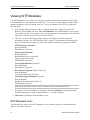
1. In the ArcMap Table of Contents or the ArcCatalog Catalog Tree, right-click on the NITF
filename, point to NITF, and select View NITF Metadata. The NITF Metadata Viewer appears.
The number and type of items shown vary according to the dataset being displayed. The metadata
displayed in each item vary per different versions of NITF.
2. Click the + next to the file header, image segment, text segment, or DES to expand the
information available. See "NITF Metadata Icons" on page 31 for information on identifying the
types of metadata that may appear in a particular container. Metadata are grouped as follows:
NITF File Header Metadata
Security Metadata
TRE Metadata (if present)
Image Segment Metadata
Security Metadata
Band Metadata (one for each band)
Image Comments (if present)
TRE Metadata (if present)
Text Segment Metadata (if present)
Security Metadata
TRE Metadata (if present)
Data Extension Segments (DESes, if present)
Security Metadata
User-defined Subheader (if present)
Annotation Segment Metadata (if present)
Security Metadata
Annotation Object Metadata (if present)
TRE Metadata (if present)
Note: Header and segment fields are described in MIL-STD-2500C and MIL-STD-2500A.
3. To optionally save the metadata to an ASCII file, click Save Metadata. The Output Metadata
Filename dialog appears. Enter an output filename (.txt) and click Save.
4. Click Close to dismiss the NITF Metadata Viewer.
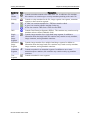
NITF Metadata Icons
The following icons appear in the NITF Metadata Viewer to identify the types of metadata that may
appear in a particular container:
31
NITF for ArcGIS User's Guide
Viewing NITF Metadata
Container
File
Header
Security
TRE
DES
Singleband
Image
Segment
Multi-band
Image
Segment
Annotation
Segment
Text
Segment
Icon
Chapter 3: Working with NITF Metadata
Description
Contains metadata common to the entire NITF file. In addition to file metadata,
this container can contain tags or security metadata pertaining to the entire file.
Contains security metadata for the file, image segment, text segment, annotation
segment, or data extension segment.
A white icon contains metadata for a TRE that cannot be edited.
A green icon contains editable metadata for the tag.
A blue icon contains TREs from a TRE Overflow DES.
Contains Data Extension Segments (DESes). This container may contain security
metadata and user-defined subheader fields.
Contains image metadata for a single-band image segment. In addition to
information about the image band, this container may contain security metadata,
image comments, and tag metadata containers.
Contains image metadata for a multiple-band image segment. In addition to
information about the image bands, this container may contain security metadata,
image comments, and tag metadata containers.
Contains metadata for an annotation segment. In addition to one or more
annotation object containers, this container may contain security tag metadata
containers.
Contains metadata for a text segment.
NITF for ArcGIS User's Guide
32
Chapter 3: Working with NITF Metadata
Editing NITF Metadata
Editing NITF Metadata
Header and segment fields are described in MIL-STD-2500C and MIL-STD-2500A.
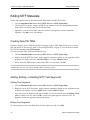
1. Click the Metadata Editor button during NITF Save As or NITF Export Map.
2. Click the NITF file header, image segment, or text segment to view the corresponding metadata
fields. Black text indicates that you can edit that field.
3. Optionally, create new PIA TREs; add, edit, or delete text segments; or delete annotation
segments. Click OK to save your changes.
Creating New PIA TREs
Profile for Imagery Access TREs and Profile for Imagery Archive TREs (both of which you can create,
edit, and delete) are discussed in detail in "Preserving PIA TREs" on page 43. You can also set default
PIA TRE file metadata using NITF Options.
To create new PIA TREs, perform the following steps:
1. Click the Metadata Editor button during NITF Save As or NITF Export Map.
2. Right click on the NITF file header, image segment, annotation segment, or text segment to which
to add the PIA TREs, and select Add <PIA TRE> or click the Add PIAs button.
3. Select which PIA TREs and how many of the TREs you want, then click OK.
Note: The PIAPRD TRE is the only PIA TRE that you can attach to a file header, and you can only add one
PIAPRD TRE. You can only add one PIAIMC TRE to an image segment.
Adding, Editing, or Deleting NITF Text Segments
Adding Text Segments
1. Click the Metadata Editor button during NITF Save As or NITF Export Map.
2. Right click on the NITF file header, image segment, annotation segment, or text segment to which
to add the text segment, and select Add Text or click the Add Text button.
3. Type your text in the field provided, and click OK. You can alternatively click the Import ASCII
button to import a text file, and click OK. A new text segment appears in the tree view. The
properties for that text segment automatically display.
Editing Text Segments
To edit existing text, click in the Text field, click the right arrow, and select Edit.
33
NITF for ArcGIS User's Guide
Editing NITF Metadata
Chapter 3: Working with NITF Metadata
Deleting Text Segments
1. Click the Metadata Editor button during NITF Save As or NITF Export Map.
2. Right click on the text segment you wish to delete, and select Delete Text or click the Delete
Text button.
Deleting NITF Annotation Segments
1. Click the Metadata Editor button during NITF Save As or NITF Export Map.
2. Right click on the annotation segment you wish to delete, and select Delete Annotation or click
the Delete Annotation button.
NITF for ArcGIS User's Guide
34
Chapter 4: Saving Files
In this chapter you will find:
Saving NITF Files
Saving Files to NITF
Supported Data Types for NITF Export
NITF Compression Types
NITF for ArcGIS User's Guide
37
39
45
48
36
Chapter 4: Saving Files
Saving NITF Files
Saving NITF Files
There are a number of ways to save NITF files:
l
l
l
Create a screen capture of all layers in the display using NITF Export Map.
Create a new file from an existing NITF dataset using NITF Save As. You can also use this to
create a subset of a NITF image or to edit NITF metadata.
Create a new file from an existing raster dataset using NITF Save As.
The options listed above differ in the metadata that the software passes through or fills in by default. See
"Saving Files to NITF" on page 39 and "NITF Export Map" on page 37 for more information on these
differences.
The software attempts to determine a reasonable set of default values for all of the file parameters
before a file is exported; however, you have the ability to edit these values before creating an output file.
Many of the default values, such as the image size and data type, are determined by the data being
exported. The NITF Metadata Editor shows the information that you can edit in a NITF file.
Main Header
You must check the set of parameters to be added to the NITF header fields to ensure internal
consistency with the requirements set forth in the NITF specification before you can write a NITF
dataset. This validation is performed automatically before any new NITF dataset is created. If the
validation fails, an error message is generated that indicates the source of the failure, including the name
of the field causing the error and a short description of the error. In most cases, you will have the
opportunity to correct any errors before continuing.
NITF Export Map
This topic describes using the NITF Export Map option to create a screen capture of all layers in the
display. All segments, vectors, annotations, and display properties are burned into the image and the
software creates 8-bit, three-band output at the resolution you specify. Single-band images are output to
three bands. To save an existing dataset as a new NITF file, see "Saving Files to NITF" on page 39.
The software can create new NITF datasets in NITF 2.0, NITF 2.1 and NSIF 1.0 format from existing
raster data. In addition, some of the information written to the file, such as origination information and
security settings, will be the same for all files you create. For these settings, you can use NITF Options
to populate these fields by default. It is highly recommended that you customize these settings prior to
creating any new NITF datasets.
When you create a new file from an existing dataset using NITF Export Map, the software generates
all new header settings. The file date and time are set to the current date and time.
The input raster dataset must have one of the following coordinate systems:
37
l
Geographic: NAD27, NAD83, or WGS-84
l
Geographic with rational polynomial coefficients (RPCs): NAD27, NAD83, or WGS-84
NITF for ArcGIS User's Guide
Saving NITF Files
l
Chapter 4: Saving Files
Projected: UTM/NAD27, UTM/NAD83, or UTM/WGS-84
This only pertains to the Data View.
Using NITF Export Map
1. From the ArcMap menu bar, select File > NITF Export Map.
2. Accept the default resolution, or change the resolution by typing in the Resolution field or by
clicking the up/down arrows next to this field. Pixel width and height are displayed. Click OK.
3. Accept the default directory location and file name, or click Browse to select a directory location
and type a file name. By default, the file name will be untitled.ntf.
4. Select a compression type from the Compression drop-down list.
5. Using the Metadata Editor button, you can optionally edit the NITF metadata and add PIA tags
and text segments before saving the file.
6. Click OK.
7. Use the Add Data toolbar button to add the new file to ArcMap and display the output image.
Image Segments
NITF image segments can be created from any supported data type except 64-bit integer and complex.
Image segments are populated in this way:
l
l
l
l
Security information, date and time: The security information for the image segment is read
from the NITF Options, and the image date and time are set. For NITF 2.1 files, the date and
time is set to UNKNOWN; for NITF 2.0 files, the date and time is set to Jan. 1, 1970 (because
NITF 2.0 does not recognize UNKNOWN).
Rows, columns, bands, and data type: The number of rows, columns, bands, and the data type
of the output dataset is determined from the input dataset. If the number of rows and columns is
less than 4096, the block size is set to the full image size. For larger images, the image is set to a
block size of 1024x1024.
Compression: By default, the image is uncompressed.
Map information: If the image has map information in UTM, this information is written to the
file using the MGRS representation supported in both NITF 2.0 and 2.1. Other map information
will be converted into geographic coordinates for export.
The software may also create GEOPSB, PRJPSB, GEOLOB, or MAPLOB TREs if the input file
contains map information.
NITF for ArcGIS User's Guide
38
Chapter 4: Saving Files
Saving Files to NITF
Saving Files to NITF
This topic describes using the NITF Save As option to save an existing NITF or raster dataset to a new
NITF file. To save a screen capture of all layers in the Image window, see "NITF Export Map" on page
37.
When you create a new NITF file from an existing dataset, the header settings from the source dataset
are saved to the new file, except for the following values: l
l
l
l
The file date and time are set to the current date and time.
The number of file copies is incremented (unless it is currently set to 0), and this copy number is
set to the number of copies.
For existing NITF files, any image segment with a compression setting not supported for output is
set to uncompressed by default.
For existing NITF files, the output version will be the same as the input version. For all other file
types, the version number is set using NITF Options.
Image segments cannot contain masks used to alter image values for display, when you create NITF
output.
The input raster dataset must have one of the following coordinate systems:
l
Geographic: NAD27, NAD83, or WGS-84
l
Geographic with rational polynomial coefficients (RPCs): NAD27, NAD83, or WGS-84
l
Projected: UTM/NAD27, UTM/NAD83, or UTM/WGS-84
This only pertains to the Data View.
Saving a Raster File to NITF
Use NITF Save As to create new NITF datasets in NITF 2.0, NITF 2.1 and NSIF 1.0 format from
existing raster data. Some of the information written to the file, such as origination information and
security settings, will be the same for all files you create. For these settings, use NITF Options to
populate these fields by default. It is highly recommended that you customize these settings prior to
creating any new NITF datasets.
Using NITF Save As
1. From the ArcMap Table of Contents or ArcCatalog Catalog Tree, right click on the NITF
filename, point to NITF, and select NITF Save As.
2. Optionally, expand the file name (in a file with one or more image segments) and select an
individual segment to save. If a NITF file contains one or more image segments marked for
display and one or more marked "no display," the "no display" image segments are not shown in
this dialog. However, when you save this file using the Save As option, the "no display" image
segments are passed through with the NITF file.
3. Perform optional spatial subsetting, then click OK.
39
NITF for ArcGIS User's Guide
Saving Files to NITF
Chapter 4: Saving Files
4. Accept the default directory location and file name, or click Browse to select a directory location
and type a file name. By default, the file name will be untitled.ntf.
5. Select a compression type from the Compression drop-down list. This option will be unavailable
for files with multiple image segments. In this case, the compression type is passed through from
the existing file.
6. Using the Metadata Editor button, you can optionally edit the NITF metadata and add PIA tags
and text segments before saving the file. See "Editing NITF Metadata" on page 33 and Creating
New PIA TREs for more information.
7. Click OK.
8. You can add the new file to ArcMap using the Add Data toolbar button.
Image Segments
NITF image segments can be created from any supported data type except 64-bit integer and complex.
Image segments are populated in this way:
l
l
l
l
Security information, date and time: The security information for the image segment is read
from the NITF Options, and the image date and time are set. For NITF 2.1 files, the date and
time is set to UNKNOWN; for NITF 2.0 files, the date and time is set to Jan. 1, 1970 (because
NITF 2.0 does not recognize UNKNOWN).
Rows, columns, bands, and data type: The number of rows, columns, bands, and the data type
of the output dataset is determined from the input dataset. If the number of rows and columns is
less than 4096, the block size is set to the full image size. For larger images, the image is set to a
block size of 1024x1024.
Compression: By default, the image is uncompressed.
Map information: If the image has map information in UTM, this information is written to the
file using the MGRS representation supported in both NITF 2.0 and 2.1. Other map information
will be converted into geographic coordinates for export.
The software supports creation of the RPC00B TRE when exporting to any NITF file containing
RPC information. The RPC00B TRE is automatically created when this information is available,
and the ICHIPB TRE is created if needed. These TREs will be stored in the image segment of the
new NITF file. The ICHIPB TRE is required if a spatial subset of the input image is selected or
the input image is a subset of a larger product.
The software may also create GEOPSB, PRJPSB, GEOLOB, or MAPLOB TREs if the input file
contains map information.
l
Image and band representation: For single-band images, the image representation field is set to
MONO and the band representation is set to M, while three-band byte images have RGB as the
image representation, with the band representations set to R,G, and B. For any other band count,
the image representation will be set to MULTI and, if a set of default bands is specified for this
file, these bands will have their representations set to R, G, and B to indicate that these bands
should be displayed by default. See the table below for more information.
Type of Image
Single-band image
Three-band byte image
NITF for ArcGIS User's Guide
Image (Representation)
MONO
RGB
Band (Representation)
M
R,G,B
40
Chapter 4: Saving Files
Type of Image
Other image
l
Saving Files to NITF
Image (Representation)
MULTI
Band (Representation)
R,G,B (if specified)
Wavelength information: If wavelength information is not available for the file, or if only one
band is being exported, the image category is set to VIS, and the band subcategory is left blank. If
wavelength information is available, the software will attempt to convert the wavelength into
nanometers, then write that information into the band subcategory. In this case, the image
category is set based upon the number of input bands: HS is used for files with more than 200
bands, and MS is used for files with 2-200 bands. All other fields are left blank. The BANDSB
TRE is automatically created and populated with all available information when the input file
contains wavelength information.
Saving a NITF File to NITF
When saving an existing NITF file to NITF using the NITF Save As option, metadata that is contained
in the original dataset will be passed through to the new NITF file.
NITF 2.1 images can be saved in NSIF Preferred JPEG 2000 Encoding (NPJE) format with numerically
lossless and visually lossless compression settings. NITF 2.1 images can also be saved in Exploitation
Preferred JPEG 2000 Encoding (EPJE) format with visually lossless and numerically lossless settings.
The software passes through or fills in by default some metadata. For more information, see the
following topics:
l
"Preserving DESes" on page 41
l
"Preserving Annotation Segments" on page 41
l
"Preserving Text Segments" on page 1
l
"Preserving TREs" on page 42"Preserving PIA TREs" on page 43
l
"Preserving PIA TREs" on page 43
Preserving DESes
When you save an existing NITF file to NITF format, supported DES segments are preserved in the new
file. The software currently only supports NITF Commercial Dataset Requirements Document
(NCDRD) DESes. See "Data Extension Segments" on page 15 for a list of supported DESes. You
cannot edit, create, or delete NCDRD DESes through the NITF Metadata Editor. When writing a NITF
file that contains a DES with no corresponding XML file, the software passes through this unknown
DES.
Preserving Annotation Segments
When you save an existing NITF file to NITF format, the software preserves CGM annotation segments.
You cannot alter any data or metadata associated with the annotation segment, however you can edit the
following fields in the NITF Metadata Editor: Annotation ID, Annotation Name, and Annotation Security
Fields.
41
NITF for ArcGIS User's Guide
Saving Files to NITF
Chapter 4: Saving Files
You cannot add annotation segments when creating a new NITF file from a non-NITF file. You can
delete annotation segments from a NITF file when saving.
If you subset a NITF image file containing annotation segments, the following rules apply:
l
l
l
l
l
If an annotation segment is attached to the file (level 0) and you subset the file, the annotation
location does not change. The annotation will be in the same location in the input and output file
but may not be in the same relative location to other objects in the file.
If an image segment is entirely or partially inside the subset and has one or more annotation
segments attached to it, the annotation segments are saved. In the output file, the annotation
segments are in the same relative location to the image they are attached to as they are in the
input file.
If an image segment is outside the subset and has one or more annotation segments attached to it,
the image and annotation segments are discarded. Any segments attached to the discarded
annotation segment are also dropped.
If you subset a file and the annotation segment location is to the left of the subset, the annotation
segment is discarded because negative common coordinate system (CCS) location values are not
allowed in NITF files.
Annotation segment graphics are not subsetted; they pass through unchanged.
Preserving Text Segments
When you save a NITF file to a new NITF file, text segments and associated TREs are preserved
(included) in the new file. In NITF 2.1, text segments are attached to either the file or an image segment
of a NITF image file by using an attachment level field, TXTALVL. The attachment level is the display
level of an image or graphic segment to which the text segment is attached; a value of 0 indicates the
attachment is to the file header. Per the NITF Specification, NITF 2.0 text segments do not have
attachment levels.
Preserving TREs
When you save a NITF file to a new NITF file, supported TREs associated with any exportable
segments are preserved in the new file (see: "Tagged Record Extensions" on page 15). A warning
message is provided if any TRE is not supported.
If you select a spatial subset of an input dataset for output, the ICHIPB TRE is used to maintain the
relationship of the output image data to the source image data and to ensure the validity of any other
TRE. The ICHIPB TRE contains the size and position of the subset and is written in the image segment.
A new ICHIPB TRE is added to the list of TREs when you export an image segment with a TRE with
any spatial subset other than the entire image. If the ICHIPB TRE already exists, it is modified for the
new (smaller) subset of the initial subset to still contain the correct parameters from the original source
image, not the initial subset.
NITF for ArcGIS User's Guide
42
Chapter 4: Saving Files
Saving Files to NITF
If a NITF image segment contains HISTOA TREs and NEVENTS is not equal to the maximum value of
99 in the last HISTOA TRE, the software automatically updates this TRE upon output. If NEVENTS is
equal to 99 in the last HISTOA TRE, the software creates a new HISTOA TRE. The software does not
create a new HISTOA TRE if the input NITF image segment does not contain a HISTOA TRE.
Preserving PIA TREs
Profile for Imagery Access and Profile for Imagery Archive (PIA) TREs are used to hold information
required by the Standards Profile for Imagery Access (SPIA). A variety of government agencies require
these TREs in NITF image products. When you save a NITF file to a new NITF file, the PIA TREs
associated with the file header and any image, symbol, label, or text segments are preserved in the new
file.
There are 10 unique PIA TREs; newer PIA TREs are labeled Profile for Imagery Access, and older PIA
TREs are labeled Profile for Imagery Archive.
You can edit, delete, and save both sets of PIA TREs in NITF files, but you can only create the Profile
for Imagery Access TREs shown in the following table. You can create the TREs with user-defined
default values using NITF Options, and you can save (pack) these to an output NITF file. The software
updates PIAPRC and PIAPRD TREs with the current date and time when you create NITF output.
PIA
TRE
PIAPRD
File
Profile for Imagery Access Product
PIAIMC
Image
Information about products derived from a source image
Profile for Imagery Access Image
PIATGB
Image, Symbol,
Label, or Text
PIAPEB
PIAEVA
PIAEQA
Header Location
Image, Symbol,
Label, or Text
Image, Symbol,
Label, or Text
Image, Symbol,
Label, or Text
Description
Additional image information
Profile for Imagery Access Target
Descriptive data about targets in a segment. One TRE per target
Profile for Imagery Access Person
Descriptive data about people in a segment. One TRE per
identified person
Profile for Imagery Access Event
Descriptive data about events in a segment. One TRE per
identified event
Profile for Imagery Access Equipment
Descriptive data about equipment in a segment. One TRE per
identified piece of equipment
The table below lists Profile for Imagery Archive TREs from an output NITF file that you can edit or
delete, but not create.
43
NITF for ArcGIS User's Guide
Saving Files to NITF
Chapter 4: Saving Files
PIA
TRE
PIAPRC
File
Profile for Imagery Archive Product
PIAIMB
Image
Information about products derived from a source image
Profile for Imagery Archive Image
PIATGA
PIAPEA
PIAEVA
PIAEQA
Header Location
Image, Symbol,
Label, or Text
Image, Symbol,
Label, or Text
Image, Symbol,
Label, or Text
Image, Symbol,
Label, or Text
Description
Additional image information
Profile for Imagery Archive Target
Descriptive data about targets in a segment. One TRE per target
Profile for Imagery Archive Person
Descriptive data about people in a segment. One TRE per
identified person
Profile for Imagery Archive Event
Descriptive data about events in a segment. One TRE per
identified event
Profile for Imagery Archive Equipment
Descriptive data about equipment in a segment. One TRE per
identified piece of equipment
For detailed information on these TREs, see the NITFS Technical Board document STDI-0002.
NITF for ArcGIS User's Guide
44
Chapter 4: Saving Files
Supported Data Types for NITF Export
Supported Data Types for NITF Export
Supported data types and other criteria for export are described in the following table.
Compression Type
None
NITF 2.0
# of Bands: 1, 3, or 4
NITF 2.1
# of Bands: 1-999
Data Types:
Data Types:
l
8-bit unsigned integer
l
8-bit unsigned integer
l
16-bit unsigned integer
l
16-bit unsigned integer
l
16-bit signed integer
l
32-bit unsigned integer
l
32-bit signed integer
l
floating-point
JPEG DCT
# of Bands: 1 or 3
double precision
# of Bands: 1 or 3
JPEG 2000 NPJE
Data Types: Byte
Not available
Data Types: Byte
# of Bands: 1-999
l
Data Types:
l
8-bit unsigned integer
l
16-bit unsigned integer
l
16-bit signed integer
l
32-bit unsigned integer
l
32-bit signed integer
l
32-bit floating point
complex
# of Bands: 1-999
l
JPEG 2000 EPJE
Not available
Data Types:
45
l
8-bit unsigned integer
l
16-bit unsigned integer
l
16-bit signed integer
l
32-bit unsigned integer
l
32-bit signed integer
l
32-bit floating point
l
complex
NITF for ArcGIS User's Guide
Supported Data Types for NITF Export
Chapter 4: Saving Files
You can edit all security and origination information contained in the file, along with image settings
controlling how the image is written (including image blocking settings) using NITF Options. Many of
these settings have no required values, some have only a short list of acceptable values, and others are
dependent on the values present in other fields.
NPJE
You can save NITF 2.1 images in NPJE (NSIF Preferred JPEG 2000 Encoding) with numerically
lossless and visually lossless settings.
If you choose JPEG 2000 NPJE compression, the software creates a J2KLRA TRE and removes the
existing J2KLRA TRE, if present. If you save a file containing a J2KLRA TRE to an uncompressed file,
the software removes the J2KLRA TRE.
EPJE
You can save NITF 2.1 images in Exploitation Preferred JPEG 2000 Encoding (EJPE) format with
visually lossless and numerically lossless settings. When saving from a NITF file with an existing
J2KLRA TRE, a new J2KLRA TRE is created because the image is being recompressed. NITF EPJE
files display faster than NPJE files and EPJE is a required output format for IEC workstations.
The software cannot create an EPJE file without creating a temporary file. It uses the default temporary
directory specified in NITF Options.
Transcoding
If you are saving a single C8 image segment without subsetting it, two additional options appear in the
Compression drop-down list in the Save As dialog:
l
Transcode NPJE to EPJE
l
Transcode EPJE to NPJE
If you select one of these transcoding options, the image codestream is reordered to match the profile as
closely as possible, and the codestream is neither decompressed nor recompressed.
The following changes may occur in the codestream, depending on the input profile of the codestream
and the output option selected:
l
Progression order (LRCP vs. RLCP)
l
Segmentation and ordering of tile-parts
l
PLT and TLM marker segments
The following do not change:
l
Tile size
l
Code-block size
l
Quality
l
Number of decomposition levels
l
Wavelet transform
l
Number of guard bits
NITF for ArcGIS User's Guide
46
Chapter 4: Saving Files
Supported Data Types for NITF Export
If the image segment contains a J2KLRA or HISTOA TRE, these are updated with the appropriate
information.
Note: Transcoding is not available for image segments that are embedded JPEG 2000 files.
47
NITF for ArcGIS User's Guide
NITF Compression Types
Chapter 4: Saving Files
NITF Compression Types
The types of compression available (if any) are determined by the data type and the NITF output version
selected, as indicated in the table below. Higher compression rates result in smaller files with lower
quality.
The following table shows the available compression types.
NITF Output Version
All versions
Data Type
1- or 3-Band Byte
NITF 2.1 and NSIF 1.0 (NPJE,
EPJE)
Any Integer data
type
Floating Point,
Double
NITF for ArcGIS User's Guide
Compression Types
JPEG DCT (High compression)
JPEG DCT (Medium compression)
JPEG DCT (Low compression)
JPEG 2000 NPJE (Visually Lossless)
JPEG 2000 NPJE (Numerically
Lossless)
JPEG 2000 EPJE (Visually Lossless)
JPEG 2000 EPJE (Numerically
Lossless)
None
48
Index
A
annotation segments
deleting
objects
preserving
13
34
14
41
compression types
48
computer graphic metafile (CGM)
12
2
D
data extension segments (DESes)
preserving
15
41
data segments
8
DIGEST TRE
25
display levels
annotation segments
image segments
23
13
11
E
48
exporting maps
37
G
GEOLOB TRE
25
GEOPSB TRE
25
graphic segments
12
I
ICORDS and IGEOLO fields
26
image segments
chipping
saving
11
38
40
IREP and IREPBAND fields
28
J
7
L
label segments
13
M
main header
8
map information
exporting maps
reading
saving files
25
38
26
40
MAPLOB TRE
25
NITF for ArcGIS User's Guide
metadata
creating PIA TREs
editing
icons
text segments
viewing
33
33
31
33
31
N
NITF
7
48
O
options
20
P
PIA TREs
creating
preserving
33
43
preferences
20
R
RPC00A and RPC00B TREs
25
RPCs
25
rules for displaying images
27
S
EPJE compression
JITC
11
NPJE compression
C
copyrights
masks
saving files
checking main header
compression types
exporting maps
NITF Save As
NITF to NITF
preserving annotation segments
preserving DESes
preserving PIA TREs
preserving text segments
preserving TREs
raster to NITF
supported data types
37
48
37
39
41
41
41
43
42
42
39
45
security segments
10
segments
8
specifications
8
symbol segments
12
T
tagged record extensions (TREs)
GeoSDE
PIA
preserving PIA TREs
preserving TREs
RPC00A
RPC00B
15
25
33
43
42
25
25
50
Index
text segments
adding, editing, deleting
preserving
14
33
42
transcoding
46
U
US message text format (USMTF)
14
W
wavelength information
displaying
saving
51
24
41
NITF for ArcGIS User's Guide