1
一華半導體股份有限公司
MOSDESIGN SEMICONDUCTOR CORP.
M1355 program user manual
Introduction
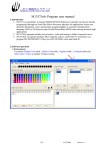
1. Led Bar is design for M1355 LED bar pattern edit program.
2. It can generate 805X machine code. Customers can program 805X by himself.
3. It contain <Led Net>, <Color mask> and <Action> to define operation.
Environment
1. Led net window: Show LED bar shape and other information.
2. Led bar editor: Command list of edit LED property. It can create, delete, copy, rotate and
other edits property command of the LED net.
3. Color Mask: Every mask contains 20 color groups. User can define several color groups to
define animation.
4. Action: It is define action command and use color.
Version 1.1
1/19
11/28/2008
一華半導體股份有限公司
MOSDESIGN SEMICONDUCTOR CORP.
How to define LED net
Add LED bar
1. Click <Add LED bar> button.
2. Click first point of LED bar on LED net window.
3. Click end point of LED bar on LED net window.
Single select LED bar
1. Move mouse to LED bar first or end point. It will high light show select now.
2. Click if it is you want to select.
Version 1.1
1/19
11/28/2008
一華半導體股份有限公司
MOSDESIGN SEMICONDUCTOR CORP.
Cancel select
1. Click <None> button.
2. Click point on LED net window where it have not any LED bar.
Multiple select
1. Click <Add select> button.
2. Click first or end point of the LED bar.
Version 1.1
1/19
11/28/2008
一華半導體股份有限公司
MOSDESIGN SEMICONDUCTOR CORP.
Rectangle select
1. Click <None> button.
2. Mouse left key down and hold at first point.
3. Move mouse then release mouse key.
Move LED bar
1. Do select LED bar operation.
2. Click <Move Select> button.
3. Mouse left key down and hold at first point.
4. Move mouse then release mouse key.
Version 1.1
1/19
11/28/2008
一華半導體股份有限公司
MOSDESIGN SEMICONDUCTOR CORP.
Version 1.1
1/19
11/28/2008
一華半導體股份有限公司
MOSDESIGN SEMICONDUCTOR CORP.
Delete LED bar
1. Do select LED bar operation.
2. Click <Delete Select> button.
Copy select
1. Do select LED bar operation.
2. Click <Copy select> button.
3. Do move select operation.
Version 1.1
1/19
11/28/2008
一華半導體股份有限公司
MOSDESIGN SEMICONDUCTOR CORP.
Copy and rotate
1. Do copy LED bar operation.
2. Click <Select zero point> button.
3. Click zero point.
4. Click <Set Rotate angle> button.
5. Input angle value.
6. Click <Rotate select> button.
Version 1.1
1/19
11/28/2008
一華半導體股份有限公司
MOSDESIGN SEMICONDUCTOR CORP.
Now you can use those command to make LED bar shape like below.
When you finish LED bar position define. You must define LED bar ID first.
Click <Show ID> button.
Version 1.1
1/19
11/28/2008
一華半導體股份有限公司
MOSDESIGN SEMICONDUCTOR CORP.
ID must be from 0 and continuity.
1. Click <Set Start address> button.
2. Input start address to zero.
3. Click <Set ID> button.
4. Click LED bar one by one.
Version 1.1
1/19
11/28/2008
一華半導體股份有限公司
MOSDESIGN SEMICONDUCTOR CORP.
When you finish ID defining. It looks like below maybe.
When you finish ID defining.
You can not change ID value. Color mask get LED bar position depend on LED bar's ID value.
Led bar address look like LED bar ID.
But it can change value any time. The address cans the same ID value. LED bar's address is
connectivity of the LED bar's sequence. It is also must from 0 and continuity.
Now, define LED bar's address.
Click <Show address> button. It will show LED bar's address value.
1. Input start address to zero.
2. Click <Set address> button.
3. Click LED bar one by one.
Next ID is the next ID value when run <rotate> action command.
1. Click <Show next ID> button.
2. Click <Set next> button.
3. Click LED bar's sequence show as below.
Version 1.1
1/19
11/28/2008
一華半導體股份有限公司
MOSDESIGN SEMICONDUCTOR CORP.
4. Click <Set address> button again.
5. Click LED bar's sequence show as below.
Version 1.1
1/19
11/28/2008
一華半導體股份有限公司
MOSDESIGN SEMICONDUCTOR CORP.
Maximum rotating count is count per cycle. For this example maximum rotating count is 12.
1. Click <Set Max Rotate Count> button.
2. Input max rotate count value.
Led count is LED number of LED bar. It is from 1 to 254.
1. Click <Show LED count> button to show LED count on the screen.
2. Click <Set LED count default> button to set up LED count default value.
3. Click <Set LED count> button.
4. Click LED bar you want to change LED count value use default value.
Choose <File | Save> to save to file.
Version 1.1
1/19
11/28/2008
一華半導體股份有限公司
MOSDESIGN SEMICONDUCTOR CORP.
Color mask depend on LED bar's ID value. It contains 20 color values defining to compress data
size.
Now I show you how to define firework.
Choose <File | Open> Demo1\wheel.bar file.
Now let we make an example for color mask.
1. Click <Color mask> change to mask define page.
2. Click <Show Group Color> button.
3. Add <Color mask> table one item.
4. Give the mask name is <Firework>.
5. Click <Add> button of the color group table.
6. Click color group item.
7. Click LED bar you want to add to color group.
Version 1.1
1/19
11/28/2008
一華半導體股份有限公司
MOSDESIGN SEMICONDUCTOR CORP.
You can click other item to define your mask pattern.
You can delete LED bar from color mask.
1. Click item of LED bar ID.
2. Click <Delete> button.
Version 1.1
1/19
11/28/2008
一華半導體股份有限公司
MOSDESIGN SEMICONDUCTOR CORP.
If LED bar has not defining in Color mask. It uses item 0's color.
When you finish mask defining. It look like <wheel. Mask> file.
Click <Open> button and choose wheel. Mask file.
You can click color group item. LED bar will high light when this group number contains ID
number of it.
You must save to file when you finish your defining.
Click <Save> button to save data to *.mask file.
Version 1.1
1/19
11/28/2008
一華半導體股份有限公司
MOSDESIGN SEMICONDUCTOR CORP.
Now we combine LED bar and color mask to define action.
Choose <File | Open> to open <Demo1\wheel.bar>.
1. Change to color mask page.
2. Click <Open> button and load <Demo1\wheel.Mask>.
3. Click color item 0.
4. Change to color mask page.
5. Click <Add> button of command table to add one item of the action. You will see Mask
name is <sparkler>.
6. Click <Group Color only> button.
7. Click item 0 of the command table.
8. Click <Add> button of color table to add one item.
Version 1.1
1/19
11/28/2008
一華半導體股份有限公司
MOSDESIGN SEMICONDUCTOR CORP.
9. Now, when you click data field, LED bar will high light if mask group has it ID.
10. Click speed button.
11. Click item 3 L16 of default color table.
12. Click G1 of color table.
13. Click <Copy> button of color table.
14. Click <Item 1, G2> of the color table.
15. Click <Copy> button of color table.
16. Click <Item 1, G3> of the color table.
17. Click <Copy> button of color table.
18. Click <Item 1, G4> of the color table.
19. Click <Copy> button of color table.
20. Click <Item 1, G5> of the color table.
21. Click <Copy> button of color table.
22. Click <Item 1, G6> of the color table.
23. Click <Copy> button of color table.
Version 1.1
1/19
11/28/2008
一華半導體股份有限公司
MOSDESIGN SEMICONDUCTOR CORP.
24. Click <Item 1, G7> of the color table.
25. Click <Copy> button of color table.
26. Click <Item 1, G8> of the color table.
27. Click <Copy> button of color table.
28. Click <Item 1, G9> of the color table.
29. Click <Copy> button of color table.
30. Click <Item 1, G10> of the color table.
31. Click <item 0, L1> of default color table.
32. Click <Copy> button of color table.
33. Click <Item 1, G1> of the color table.
34. Click <Copy> button of color table.
35. Click <Item 1, G2> of the color table.
36. Click <Copy> button of color table.
37. Click <Item 1, G3> of the color table.
38. Click <Copy> button of color table.
39. Click <Item 1, G4> of the color table.
40. Click <Copy> button of color table.
41. Click <Item 1, G5> of the color table.
42. Click <Copy> button of color table.
43. Click <Item 1, G6> of the color table.
44. Click <Copy> button of color table.
45. Click <Item 1, G7> of the color table.
46. Click <Copy> button of color table.
47. Click <Item 1, G8> of the color table.
48. Click <Copy> button of color table.
49. Click <Item 1, G9> of the color table.
50. Click <Add> button of color table.
51. Click <Command> data field of command table to flash value.
52. Click <Interval> data field of command table to 128ms.
53. Click <Play> button to see the animation.
54. Click <Save> button to save data to *.act file.
Version 1.1
1/19
11/28/2008
一華半導體股份有限公司
MOSDESIGN SEMICONDUCTOR CORP.
How to generate 805X HEX code
1. Choose <File | Open> then select <Demo1\wheel.bar>.
2. Change to <Color mask> page.
3. Click <Open> button load <Demo1\wheel.mask> file.
4. Change to <Action> page.
5. Click <Open> button load <Demo1\wheel.act> file.
6. Choose <Tools | 8051 code out> . It will generate 8051 HEX code file.
Controller Application circuit
Version 1.1
1/19
11/28/2008