1
Pololu Wixel User's Guide
© 2001–2010 Pololu Corporation
3. Getting Started
3.a. Installing Windows Drivers and Software
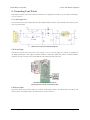
Before you connect a Wixel to a computer running Microsoft Windows, you should install the drivers:
1. Download
the
Wixel
Windows Drivers
(12007k zip)
and
Software [http://www.pololu.com/file/download/
wixel_windows_110322.zip?file_id=0J448]
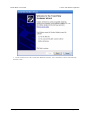
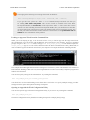
2. Open the ZIP archive and run setup.exe. The installer will guide you through the steps required to install
the Wixel Configuration Utility, the Wixel command-line utility (WixelCmd), and the Wixel drivers on your
computer. If the installer fails when run directly from the ZIP file, extract the contents of the ZIP file to a
temporary directory on your computer, right click setup.exe, and select “Run as Administrator”.
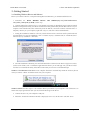
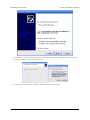
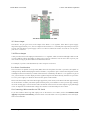
3. During the installation, Windows will warn you that the drivers have not been tested by Microsoft and
recommend that you stop the installation. Click “Continue Anyway” (Windows XP) or “Install this driver
software anyway” (Windows 7 and Vista).
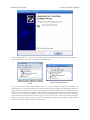
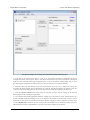
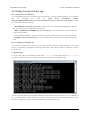
4. After the installation is finished, your start menu should have a shortcut to the Wixel Configuration Utility
(in the Pololu folder). This is a Windows application that allows you to load apps onto your Wixel. There
will also be a command-line utility called WixelCmd which you can run at a Command Prompt.
Windows 7 and Windows Vista users: Your computer should now automatically install the necessary drivers
when you connect a Wixel. No further action from you is required.
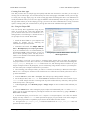
Windows XP users: Follow steps 5–9 for each new Wixel you connect to your computer. You will also have to
follow these steps again the first time you run an actual Wixel app on the Wixel.
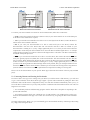
5. Connect the device to your computer’s USB port.
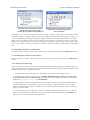
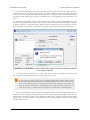
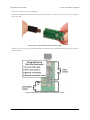
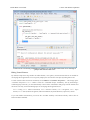
6. When the “Found New Hardware Wizard” is displayed, select “No, not this time” and click “Next”.
3. Getting Started
Page 9 of 49