1
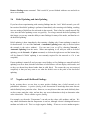
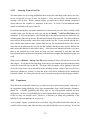
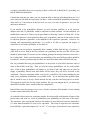
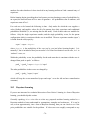
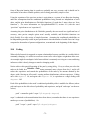
on the place in the network window where you want the node to appear, and it will be added
there, with the cursor returning to normal. Instead of the tool button, you can use the appropriate
command from the Modify menu, or its shortcut key equivalent (F9 - F11).
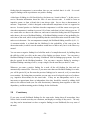
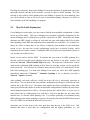
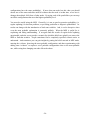
To add a series of nodes, double-click on the button for the type of nodes you wish to add, or
double-press one of the keys F9 - F11 (i.e. press it twice in quick succession). The cursor will
change to the shape of the node as before, but now it will be darkened indicating that a number of
nodes may be added without pressing the node button each time. To exit this node adding mode,
click again on the node adding button, or press the node adding Fx key again, or click on the
pointer button (or click on a different node adding button or press a different node adding key).
When a node is first added it will be selected (i.e. drawn with inverted color). Whenever a node
is selected you can press the <Enter> key to bring up a dialog box for setting node
characteristics, and when the dialog box first comes up, its field for setting the node’s name is
selected for changing. This makes it possible to quickly add a node with a certain name. Just
click the appropriately shaped cursor where you want the node to be, press the <Enter> key, type
the name, and then press the <Enter> key again. There is no need to think about the dialog box
or wait for it to be fully drawn. Using the dialog box to change other node characteristics is
described in chapter 4.
3.3
Adding Links
To add a link from one node to another, first click on the link tool bar button (it is the one with
the arrow pointing down, not the up-facing pointer), do a Modify → Add Link command, or
press F12. When you next move the cursor to the active window, it will change to a link shape
indicating that it is ready to add a link. Click on the node that you wish to be the parent, and then
click on the child node. Alternately, you can click down on the parent, and while holding the
mouse button down, move to the child and then release it. The link will appear. A later section
will explain how you can change the shape of a link.
To add a series of links, double-click on the link button, or double-press the F12 button. The
cursor will change to a link shape as before, but now it will stay that way as you add multiple
links. To exit this link adding mode, click again on the link adding button, or press the F12 key
again, or click on the pointer button (or click on a node adding button or press a node adding
key).
- 28 -