1
ed
he
1
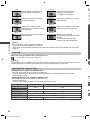
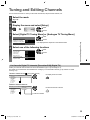
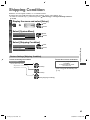
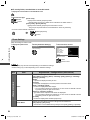
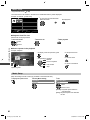
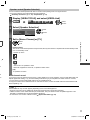
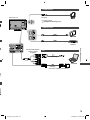
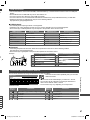
Display [VIERA TOOLS] and select [VIERA Link]
select
access
VIERA Link
2
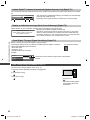
Select [Speaker Selection]
Pause Live TV
Direct TV Rec
VIERA Link Control
Speaker Selection
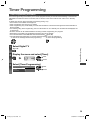
3
select
VIERA Link Menu
Start
Start
Recorder
Home Cinema
access
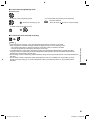
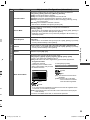
Set to [Home Cinema] or [TV]
select
store
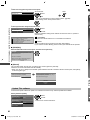
[Home Cinema]:
The sound is from theatre speakers. Player theatre, Blu-ray Disc theatre or Amplifier will be automatically turned
on if it is in Standby mode.
● Volume up / down
● Mute
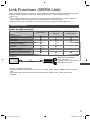
Link Functions (VIERA Link)
to
Speaker control [Speaker Selection]
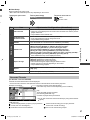
You can control the theatre speaker with this TV remote control pointing at the TV’s signal receiver.
● If you cannot operate, check the settings and the equipment.
“Summary of features” (p. 71, 72), “Preparations” (p. 73)
● The sound of TV speakers is mute.
● When the equipment is turned off, TV speakers will be active.
[TV]:
TV speakers are active.
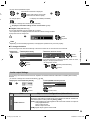
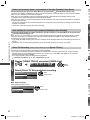
Multi-channel sound
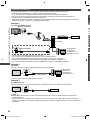
If you want to enjoy the multi-channel sound (e.g. Dolby Digital 5.1ch) via an Amplifier, connect it with HDMI cable and
Optical digital audio cable (p. 72), and then select [Home Cinema]. If your Amplifier has “HDAVI Control 5” function,
you only need to connect it with HDMI cable to the TV’s HDMI2 terminal.
To enjoy the sound from the DIGA Recorder in multi-channel sound, connect an HDMI cable from the DIGA Recorder
to the Amplifier (p. 72).
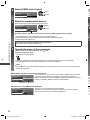
Note
● These functions may not work properly depending on the connected equipment.
● Image or sound may not be available for the first few seconds when input mode is switched.
● “HDAVI Control 5” is the newest standard (as of December, 2011) for HDAVI Control compatible equipment. This
standard is compatible with conventional HDAVI equipment.
● To confirm this TV’s version of HDAVI Control [System Information] (p. 34)
77
th-l32_42_47e5a.indb 77
3/20/2012 12:25:22 PM