1
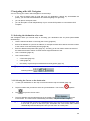
2.1.1 Using keyboards
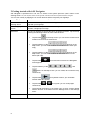
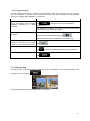
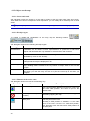
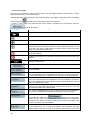
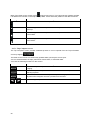
You only need to enter letters or numbers in ASL Navigator when you cannot avoid it. You can type
with your fingertips on the full-screen keyboards and you can switch between various keyboard
layouts, for example ABC, QWERTY, or numerical.
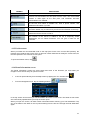
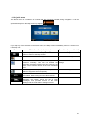
Task
Details
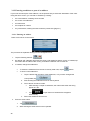
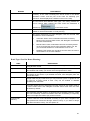
Switching to another keyboard
layout, for example from an English
Tap
, and select from the list of available
QWERTY keyboard to a Greek
keyboard types.
keyboard
ASL Navigator remembers your last keyboard choice and offers
it the next time you need to enter data.
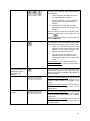
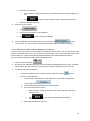
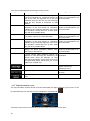
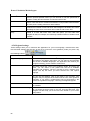
Correcting your entry on the
keyboard
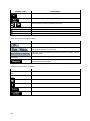
Remove the unneeded character(s): tap
.
Tap and hold the button to delete the entire input string.
Entering a space, for example
between a first name and a family
name or in multi-word street names Tap
.
Entering symbols
Tap
to switch to a keyboard offering symbol characters.
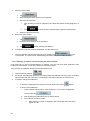
Finalising the keyboard entry
Tap
.
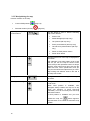
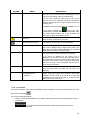
2.2 Using the map
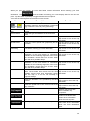
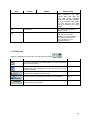
The map screen is the most frequently used screen of ASL Navigator. It can be accessed from the
Navigation menu by tapping
.
For further information about the map screen, see page 39.
11