1
INSTALLING YOUR UPS SYSTEM
UNPACKING
The box should contain the following:
®
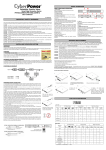
(1) UPS unit x 1; (2) User manual x 1; (3) Phone line x 1; (4) PowerPanel Business Edition software CD x 1; (5)
USB A+B type cable x 1; (6) Rack mount Brackets x 2; (7) Emergency Power-Off Cable (gray) x 1; (8) Serial
Interface Cable (DB-9) x 1; (9) Power Cord x 5
AUTOMATIC VOLTAGE REGULATOR(AVR)
The PR750ELCDRT1U/ PR1000ELCDRT1U can stabilise utility power
inconsistances. The utility power may be damaging to important data and
hardware, but Automatic Voltage Regulation helps the computer not experience
dangerous voltage levels. The Automatic Voltage Regulator regulates low or
high voltages to keep equipment working at safe AC power levels,
(220/230/240V), without switching to battery mode. Your equipment can operate
normally even during power problems, such as, shout brownouts and blackouts.
The unit’s powerful sealed lead-acid batteries will provide power only if the
incoming voltage drops below 150V or increases above 300V.
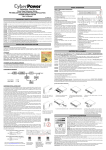
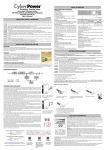
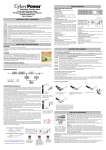
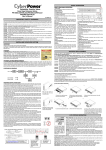
SYSTEM BLOCK DIAGRAM
HARDWARE INSTALLATION GUIDE
1. Battery charge loss may occur during shipping and storage. For the first time the UPS is used, it is strongly
recommended to charge batteries for at least four hours in order to ensure maximum capacity. To do so, simply
plug the unit into an AC outlet.
2. When you use the included software, connect either the serial or the USB cable between the computer and
the corresponding port on the UPS. Note: If the USB port is used, the serial port will be disabled. They cannot
®
be used simultaneously. The computer with the PowerPanel Business Edition S/W connects to the USB port
or to the serial port on the UPS. It can control the operating schedule, battery test, outlet, etc. and get
®
information on the UPS status. However, other computers with PowerPanel Business Edition S/W can only
get UPS status information via a LAN connection.
3. With the UPS unit off and unplugged, connect your computer, monitor, and any externally powered data
storage device, (Hard drive, Tape drive, etc.) onto the outlets. DO NOT plug a laser printer, copier, space
heater, vacuum cleaner, paper shredder or other large electrical device into the UPS. The power demands of
these devices will overload and possibly damage the unit.
4. To protect a fax, telephone, modem line or network cable, connect the telephone or network cable from the
wall jack outlet to the jack marked “IN” on the UPS. Then, connect a telephone or network cable from the jack
marked “OUT” on the UPS to the modem, computer, telephone, fax machine, or network device.
2