1
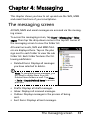
Adjust Bluetooth settings
You can create and adjust Bluetooth connections, accessibility
settings and service settings to get the most out of the smartphone’s Bluetooth functions.
Bluetooth connections
You can use Bluetooth to exchange information between your
smartphone and other mobile devices.
For all Bluetooth settings, tap Settings > Connections tab >
Bluetooth. Here you can adjust Bluetooth profiles, status,
accessibility, and services settings. You can also view version
information.
Create new Bluetooth connections
The simplest way to set up and configure a new Bluetooth
connection is through the Bluetooth Manager.
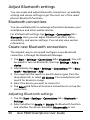
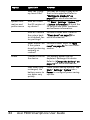
1. Tap Start > Settings > Connections tab > Bluetooth. You will
be asked to turn on Bluetooth, then tap Settings > Add a
device.
2. Alternatively tap Start > Settings > Connections tab > Bluetooth > My Devices > Add.
3. You may limit the search to specific device types from the
drop-down list, or select All devices. Your smartphone will
search for devices in range.
4. Select the device you want to connect to.
5. Tap Select and follow all onscreen instructions to set up the
connection.
Adjusting Bluetooth settings
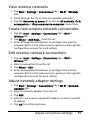
1. Tap the Start > Settings > Connections tab > Bluetooth >
Settings.
2. Select whether to Enable or Disable the Bluetooth function
and whether the device should be Discoverable or not.
56
Acer F900 Smartphone User Guide