1
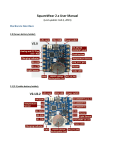
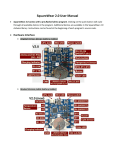
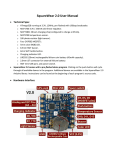
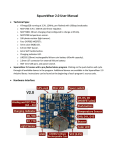
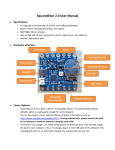
o Analog Input Pins: SquareWear 2.x has 4 available analog input pins o Internally Assigns Pins (not available for general-purpose use) o D2 / D7: USB D- / D+ (only applies to 2.0/2.1/2.2/Mini; available for general use on 2.3) D4: push-button (also used to enter bootloader on 2.0/2.1/2.2/Mini) D8 / D12 / D13: red / green / blue channel of the RGB LED D9: buzzer (set this pin LOW if not using buzzer). A0 / A1: light / temperature sensor Breadboard Pins (only available on 2.3): SquareWear 2.3 has the following breadboard pins: o A2 (also digital D16) A3 (also digital D17) A4 (also digital D18 and I2C SDA pin) A5 (also digital D19 and I2C SCL pin) Analog pins are typically used to read analog signals, such as sensor values. They can also function as digital I/O pins. VBAT, GND, D7, D11, VCC, D2, D5, A6, A7, SDA, SCL, GND, VCC Sewing and Touch Sensing: SquareWear has large pin holes, allowing you to stitch conductive threads through them and attach the board to textile or fabric. You can also solder wires directly to the pin pads, or solder sew-on snaps to allow quick attachment to / detachment from textile. The large pins are also suitable for touch sensing. Please refer to the touch sensing demos in SquareWear software library. It generally helps increase the touch sensitivity by: 1) moistening fingers; 2) holding the VCC or GND pins. Programming SquareWear 2.x o SquareWear 2.0/2.1/2.2/Mini: (USBasp bootloader) 1. Installation: The recommended installation is to use one of the following pre-configured Arduino installation files: Mac: http://rayshobby.net/software/arduino-1.0.5-squarewear-macos.zip o If you encounter error Arduino.app is damaged and can’t be opened, try this work-around. Win: http://rayshobby.net/software/arduino-1.0.5-squarewear-windows.zip o Unless you have installed USBasp driver before, you will need to install the Zadig driver. Download the driver and during installation, choose to install libusb-win32 driver. Linux 32: http://rayshobby.net/software/arduino-1.0.5-squarewear-linux32.zip Linux 64: http://rayshobby.net/software/arduino-1.0.5-squarewear-linux64.zip After installation, run Arduino 1.0.5 from the installed folder. Then select menu Tools->Boards->SquareWear 2.0. There are many provided example programs in File->Examples->SquareWear2->… 2. Enter Bootloader on 2.0/2.1/2.2/Mini (IMPORTANT! PLEASE READ!!): To upload a program, first enter bootloader. To do so, plug in a mini-USB cable to the USB port. First turn off SquareWear (i.e. turn power switch away from USB). Then press the pushbutton while turning on the power switch, and release the pushbutton within 1-2 seconds after the switch is on. At this point, the normal application will stop running, and the controller will present itself as an USBasp programmer to the host computer.