1
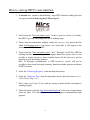
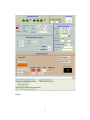
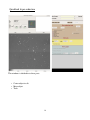
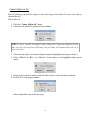
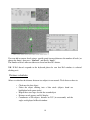
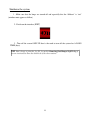
How to start up NICS’s user interface 1. In wsastro first, second or third desktop, open NICS interface clicking the icon (or type on terminal /home/tng/fasti/./Observing.tcl): 2. Verify, from the "Nics instrument status", in the Acquisition window (see below), that NICS’s pressure and temperature are in working range . 3. Verify, from the information window (under the exposure setup panel) that the whole initialisation process (see below) was successfull: it will appear in the window says "NICS status... OK!" 4. Verify, from the "Nics instrument status", that " Telescope" in ON. If is OFF the tracking interface is down: is posible to acquire dome flats anyway, but it is not possible to acquire mosaic or other scientific frames. In the letter case, ask the operator to start the tracking interface. Note: If Telescope (comunication) is OFF Acquisition window will not be possible to show actual telescope telemetry, derotator encoder position end dewar of NICS position. 5. Select the “Observing Program” from the dropdown menu. 6. Select the “Exposure Type” from the dropdown menu: choose between science, calib, flatsky, lamp, test,...... 7. Take a short single frame (3 sec.) with any settings to check that the instrument is working properly. 8. Check the archive logbook (http://alexandria/logbook/) if the new acquired image shows up there. If it doesn’t, please contact the support astronomer/telescope operator. 2