1
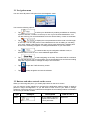
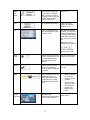
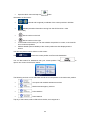
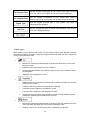
This button opens the list of your Favourite Find / Favourite (page
44)
destinations.
This button opens the History list. You can select one Find / History (page
46)
of your previous destinations.
My Route / Edit Route
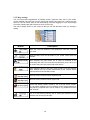
This button opens the route editing function.
More / Settings /
Route Settings (page
72)
This button opens the route related settings.
More / Settings / Map
Settings (page 76)
This button opens the map related settings.
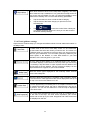
This button opens a special screen with information Tap the Current
Street field on the
about the current position and a button to search for
nearby emergency or roadside assistance. For Map screen
details, see the next chapter.
This button cancels the route and stops navigation. My Route / Cancel
The button is replaced with the next one if waypoints Route (page 53)
are given.
This button skips the next waypoint from the route.
n/a
This button opens a 2D map scaled and positioned to My Route / Overview
(page 49)
show the entire route.
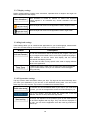
This button opens the Visual Guidance settings More / Settings /
Visual Guidance
screen.
(page 77)
This button opens the Traffic Summary screen.
This button lets you
recommended route.
bypass
21
parts
of
Tap the Traffic icon in
the Navigation menu
or on the Map screen
the My Route /
Avoidances