1
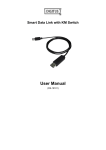
Smart Data Link with KM Switch User Manual (DS-16101) Table of Contents Introduction ……………………………………………….…....3 Specifications ……………………………………………….….3 Hardware Installation ……………………………………...…..4 AP Installation of Smart Data Link with KM Switch …….......5 The Icon Status ……………………………………………...…10 Remote Control Function with a Single Keyboard and Mouse ………………………………………………..…………10 The Application of Smart Data Link with KM Switch …….…11 Remark ………………………………………………………….12 2 Smart Data Link with KM Switch Introduction The Smart Data Link with KM Switch lets you access multiple computers and associated monitors by sharing a single keyboard and mouse to switch between two computers. This product has the Data Link function allowing you to copy files on desktop between two computers. And it is easy for you to cut texts and paste them between computers. The PIP mode is the value added to this device. Features ◆ ◆ ◆ ◆ ◆ ◆ ◆ ◆ Picture in Picture (PIP) function. KM function allows user to control computers and associated display monitors. File transfer between two computers. Cut and Paste text between two computers. Performs Data Transfer between two computers. Data Link function conforms high speed USB specification. No CD software driver to install is needed. Switch Mode: 1. Mouse movement. 2. Application icon. ◆ No extra power is required. ◆ Windows XP, Vista and *7 (Home and Professional edition) compatible. Specifications Function Specification Item Number DS-16101 PC Port 2 Cable Length 2m Operating Voltage USB power (DC 5V) Power Consumption 85mA Operating System Windows XP / Vista / *7 Weight 45g Dimension (L x W x H) 40 x 15 x 10 (mm) * The specification is subject to change without further notice. Package Contents 1 x Smart Data Link with KM Switch 1 x User Manual 3 Hardware Installation PC 1 PC 2 OR PC 1 PC 2 Device LED status (if applicable): Blinking: Connected to computers. Lighted: Data transferring or functions activity. * Please connect the device’s “R” connector to PC2 and “L” connector to PC1. 4 AP Installation of Smart Data Link with KM Switch Windows: A. XP 1. AUTO PLAY: Turn on your computers and connect the KM Switch with your two computers (when prompted to restart your computer, click Yes to restart your system for the configuration changes). The icon appears to indicate the ready status. to leave, you can double-click KMDS icon from MY If you click Exit COMPUTER to activate. If you unplug during the use, please plug-in again to activate KM Switch device (ref. Remark 4). 2. AP PLAY: Please connect the KM Switch with your two computers (when prompted to restart your computer, click Yes to restart your system for the configuration changes). Please double click My Computer and right-click on KMDS and Open. Please double-click to install by following the installation procedures. 5 2.1 When the Welcome screen appears, click Next. 2.2 Create a desktop icon. 2.3 Click Install to start the installation. 6 2.4 When the following screen appears, click Finish. 2.5 When the icon appears on desktop and a small icon appears from taskbar, the installation is completed. 2.6 Please double click from desktop to activate KMDS if needed. (*After installation is completed, the AP is in your computer. The KMDS can be automatically activated when you turn on your computers every time. **If you Exit the function, you can click KMDS from the desktop to activate ***If you unplug during the use, please plug-in again to activate KM Switch device “ref. Remark 4”). 7 B. Vista / Win 7 1. AUTO PLAY: Turn on your computers and connect the KM Switch with your two computers (when prompted to restart your computer, click Yes to restart your system for the configuration changes). Please click Run KMDS.exe to activate for both computers. The icon If you click Exit appears from taskbar to indicate the ready status. to leave, you can click KMDS from COMPUTER to activate again. If you unplug during the use, please plug-in again and click Run KMDS.exe to activate KM Switch device (ref. Remark 4). 2. AP PLAY: Please connect the KM Switch with your two computers (when prompted to restart your computer, click Yes to restart your system for the configuration changes). Click COMPUTER to pop-up the screen to find the AP files: 1)KMDS and 2)RAM Disk. Please right-click on KMDS and Open. 8 2.1 Please double-click to install KMDS by following the installation procedures. When the icon appears on desktop and a small icon appears from taskbar, the installation is completed. 2.2 Please double click from desktop to activate KMDS if needed. (*After installation is completed, the AP is in your computer. The KMDS can be automatically activated when you turn on your computers every time. **If you Exit the function, you can click KMDS from the desktop to activate ***If you unplug during the use, please plug-in again to activate KM Switch device “ref. Remark 4”). 9 C. The Icon Status: 1. KM Switch function selected: 2. KVM PIP function selected: 3. Data transfer: (left-click on icon to pop-up or close) and pop-up window 4. The KM Switch device on computers is off-line: 5. The KM Switch device on computers is on-line: 6. The function display window: (*Click Exit to leave the function.) Remote Control Function with a Single Keyboard and Mouse When you start your computers every time, you can use the Remote Control function to type password for the computer that is without the keyboard and mouse connected. And, you can use this valuable function to activate KMDS of the computer if you click Exit to leave or unplug KM Switch device. 1. Please connect the KM Switch with your two computers and then turn on both computers. Click taskbar icon * If you can not find the icon and KM Switch icon to switch. from taskbar, please click KMDS from COMPUTER or MY COMPUTER to activate. (During the process the screen appears. This is to let you switch back to original computer to avoid any unforeseen circumstances). 10 2. Now, you can type your password to start the computer. Please click KMDS from COMPUTER or MY COMPUTER to activate if needed. 3. Afterward the icon appears from taskbar to indicate the switch status. 4. Please follow the AP installation procedures to select AP PLAY if needed. The Application of Smart Data Link with KM Switch A. This device lets you access two computers and associated monitors by sharing a single keyboard and mouse. It is easy to move the cursor by a mouse sliding to control between two computers. B. The Picture in Picture (PIP) mode is the value added to this device and is suitable for a single display monitor. C. This product also combines the Data-Link function allowing you to copy files on desktop between two computers under KVM PIP mode or KM Switch mode. 11 D. It is easy for you to cut and paste texts within KVM PIP mode or KM Switch mode. Remark: 1. The file transfer and cut & paste text function: We recommend you to use the same operating language between two computers to avoid error code happened. 2. The file transfer function: Only support desktop file transfer. Please note, the same file name will be overwritten without further notice. 3. The Picture in Picture (PIP) mode: It is not suitable for media watching in inset window. Please do not change the screen resolution of computers during the KVM PIP mode. 4. We recommend you not to unplug KM Switch device while the current data transfer is in progress or KMDS is functional. Please always click “Exit” to close the program; otherwise, this can cause the unforeseen loss of data or temporary 5. 6. 7. 8. 9. inactive. We recommend you to have the PC authority be “ADMINISTRATORS” not “USERS” or “GUEST”. If any unforeseen circumstances occur during the use, you must click Exit to leave function then unplug & plug both connectors of KM device and click KMDS icon to activate. Please note, we do not recommend users to use this device with OS Windows (64bit) due to slow data transfer speed. This device cannot support daisy-chainable to connect more computers. This device cannot be used for the controller of BIOS. 12