1
How To...
3. Click OK.
The indicated number of labels are printed.
To print multiple labels from a text file
1. Choose Smart Paste from File from the Edit menu.
The Open dialog box appears.
2. Navigate to and select the text or CSV file that contains the data, and then click Open.
A dialog box appears showing how many labels will be printed.
3. Click OK.
The indicated number of labels are printed.
Print Quickly from Anywhere (Windows)
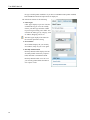
DYMO Label now includes QuickPrint which is located in the notification area of your
desktop. Now you can drag or paste addresses from any program or web page into
QuickPrint and print a label without opening the DYMO Label program.
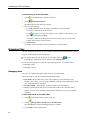
To use QuickPrint
1. Double-click
in the notification area on the desktop.
DYMO QuickPrint starts.
2. Drag, paste, or type the text you want to print on your label.
3. Click Print.
From QuickPrint, you can choose to:
n
Change the label layout.
n
Choose a different label printer.
Print Quickly from Anywhere (Mac)
DYMO Label now includes a QuickPrint widget which you can use to quickly print a label
without opening the DYMO Label program.
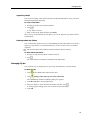
To use the QuickPrint widget
1. Press F12 to display the installed widgets.
2. In the DYMO QuickPrint widget, enter or paste the text you want to print on your
label.
3. Click
.
From the QuickPrint widget, you can click
following:
n
Change the label layout.
n
Choose a different label printer.
in the bottom-right corner to do the
Print a Large Mailing List Continuously
The LabelWriter Twin Turbo printer can automatically switch from one label roll to the
other when you need to print more labels than are left on a roll. For example, suppose you
28