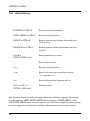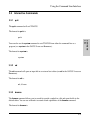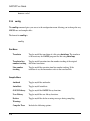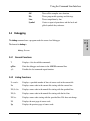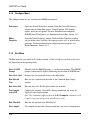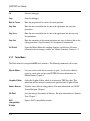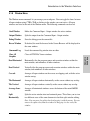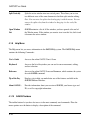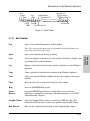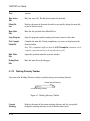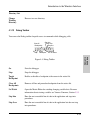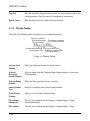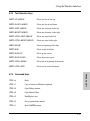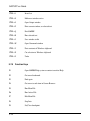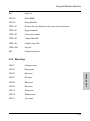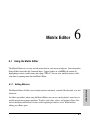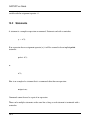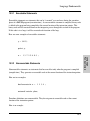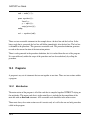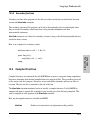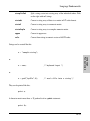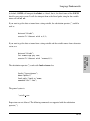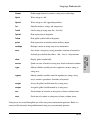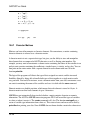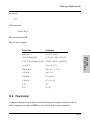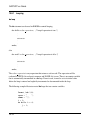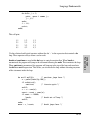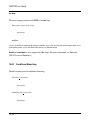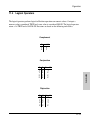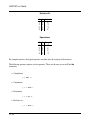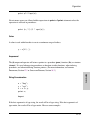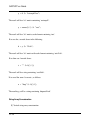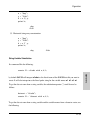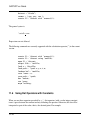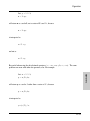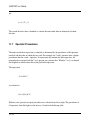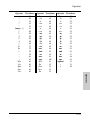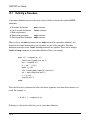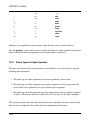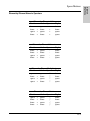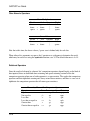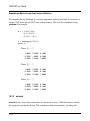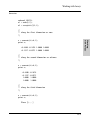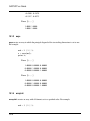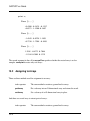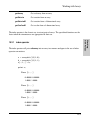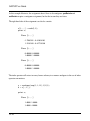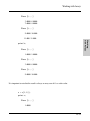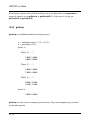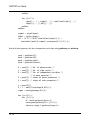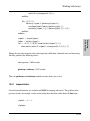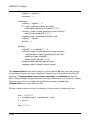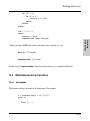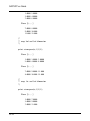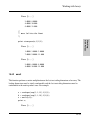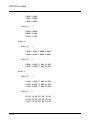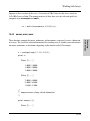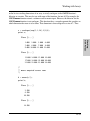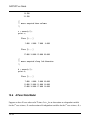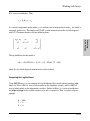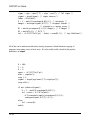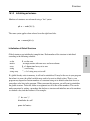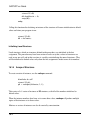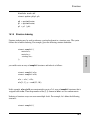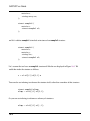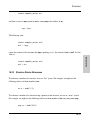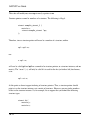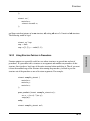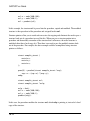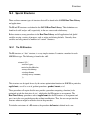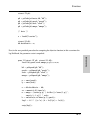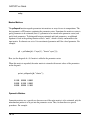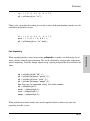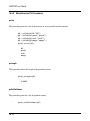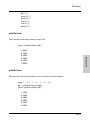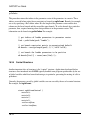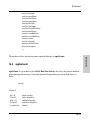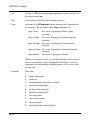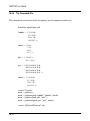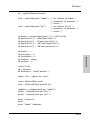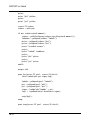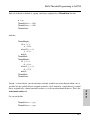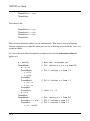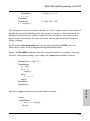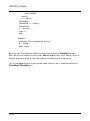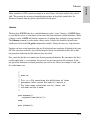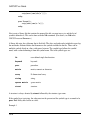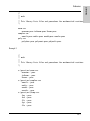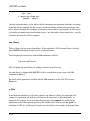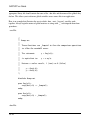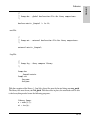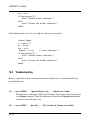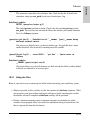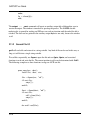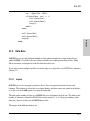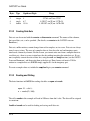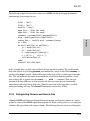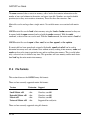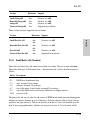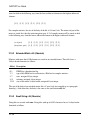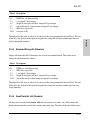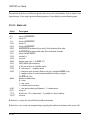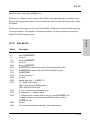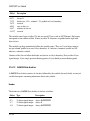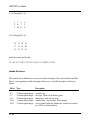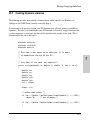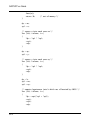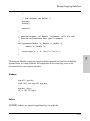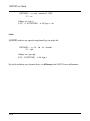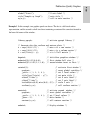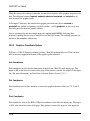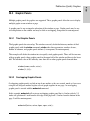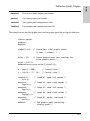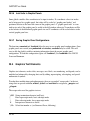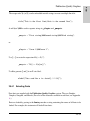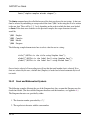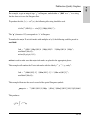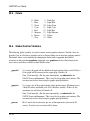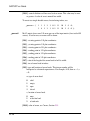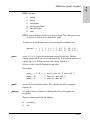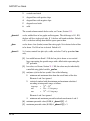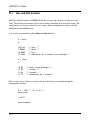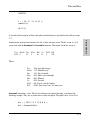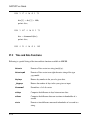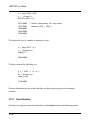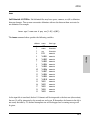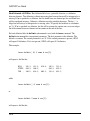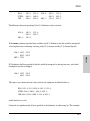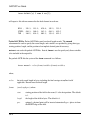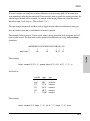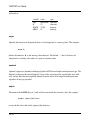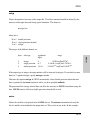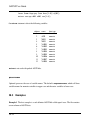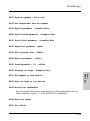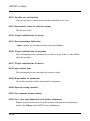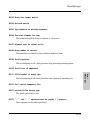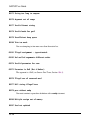
1
TM GAUSS User Guide Aptech Systems, Inc. — Mathematical and Statistical System Information in this document is subject to change without notice and does not represent a commitment on the part of Aptech Systems, Inc. The software described in this document is furnished under a license agreement or nondisclosure agreement. The software may be used or copied only in accordance with the terms of the agreement. The purchaser may make one copy of the software for backup purposes. No part of this manual may be reproduced or transmitted in any form or by any means, electronic or mechanical, including photocopying and recording, for any purpose other than the purchaser’s personal use without the written permission of Aptech Systems, Inc. c Copyright Aptech Systems, Inc. Black Diamond WA 1984-2009 All Rights Reserved Worldwide. SuperLU. c Copyright 2003, The Regents of the University of California, through Lawrence Berkeley National Laboratory (subject to receipt of any required approvals from U.S. Dept. of Energy). All Rights Reserved. See GAUSS Software Product License for additional terms and conditions. TAUCS Version 2.0, November 29, 2001. c Copyright 2001, 2002, 2003 by Sivan Toledo, Tel-Aviv University, [email protected]. All Rights Reserved. See GAUSS Software License for additional terms and conditions. Econotron Software, Inc. beta, polygamma, zeta, gammacplx, lngammacplx, erfcplx, erfccplx, psi, gradcp, hesscp Functions: c Copyright 2009 by Econotron Software, Inc. All Rights Reserved Worldwide. GAUSS, GAUSS Engine and GAUSS Light are trademarks of Aptech Systems, Inc. GEM is a trademark of Digital Research, Inc. Lotus is a trademark of Lotus Development Corp. HP LaserJet and HP-GL are trademarks of Hewlett-Packard Corp. PostScript is a trademark of Adobe Systems Inc. IBM is a trademark of International Business Machines Corporation Hercules is a trademark of Hercules Computer Technology, Inc. GraphiC is a trademark of Scientific Endeavors Corporation Tektronix is a trademark of Tektronix, Inc. Windows is a registered trademark of Microsoft Corporation. Other trademarks are the property of their respective owners. Part Number: 006903 Version 10 Documentation Revision: 968 October 15, 2009 Contents Contents 1 Introduction 1.1 Product Overview . . . . . . . . . . . . . . . . . . . . . . . . . . . . . . . . . 1-1 1.2 Documentation Conventions . . . . . . . . . . . . . . . . . . . . . . . . . . . 1-2 2.1 Installation Under UNIX/Linux . . . . . . . . . . . . . . . . . . . . . . . . . . . 2-1 2.2 Installation Under Windows . . . . . . . . . . . . . . . . . . . . . . . . . . . . 2-2 2.2.1 Machine Requirements . . . . . . . . . . . . . . . . . . . . . . . . . 2-2 2.2.2 Installation from Download . . . . . . . . . . . . . . . . . . . . . . . 2-2 2.2.3 Installation from CD . . . . . . . . . . . . . . . . . . . . . . . . . . . 2-2 2 Getting Started 3 Using the Command Line Interface 3.1 Viewing Graphics . . . . . . . . . . . . . . . . . . . . . . . . . . . . . . . . . 3.2 Command Line History and Command Line Editing . . . . . . . . . . . . . . . 3-2 3.2.1 Movement . . . . . . . . . . . . . . . . . . . . . . . . . . . . . . . . 3-2 3.2.2 Editing . . . . . . . . . . . . . . . . . . . . . . . . . . . . . . . . . . 3-3 3.2.3 History Retrieval . . . . . . . . . . . . . . . . . . . . . . . . . . . . . 3-4 Interactive Commands . . . . . . . . . . . . . . . . . . . . . . . . . . . . . . . 3-5 3.3.1 quit . . . . . . . . . . . . . . . . . . . . . . . . . . . . . . . . . . . . 3-5 3.3.2 ed . . . . . . . . . . . . . . . . . . . . . . . . . . . . . . . . . . . . . 3-5 3.3.3 browse . . . . . . . . . . . . . . . . . . . . . . . . . . . . . . . . . . 3-5 3.3.4 config . . . . . . . . . . . . . . . . . . . . . . . . . . . . . . . . . . . 3-6 Debugging . . . . . . . . . . . . . . . . . . . . . . . . . . . . . . . . . . . . . 3-7 3.4.1 General Functions . . . . . . . . . . . . . . . . . . . . . . . . . . . . 3-7 3.4.2 Listing Functions . . . . . . . . . . . . . . . . . . . . . . . . . . . . . 3-7 3.4.3 Execution Functions . . . . . . . . . . . . . . . . . . . . . . . . . . . 3-8 3.4.4 View Commands . . . . . . . . . . . . . . . . . . . . . . . . . . . . . 3-9 3.4.5 Breakpoint Commands . . . . . . . . . . . . . . . . . . . . . . . . . 3-9 3.3 3.4 3-2 v GAUSS User Guide 4 Introduction to the Windows Interface 4.1 GAUSS Menus . . . . . . . . . . . . . . . . . . . . . . . . . . . . . . . . . . . 4-1 4.1.1 File Menu . . . . . . . . . . . . . . . . . . . . . . . . . . . . . . . . 4-1 4.1.2 Edit Menu . . . . . . . . . . . . . . . . . . . . . . . . . . . . . . . . 4-4 4.1.3 View Menu . . . . . . . . . . . . . . . . . . . . . . . . . . . . . . . . 4-5 4.1.4 Configure Menu . . . . . . . . . . . . . . . . . . . . . . . . . . . . . 4-6 4.1.5 Run Menu . . . . . . . . . . . . . . . . . . . . . . . . . . . . . . . . 4-6 4.1.6 Debug Menu . . . . . . . . . . . . . . . . . . . . . . . . . . . . . . . 4-7 4.1.7 Tools Menu . . . . . . . . . . . . . . . . . . . . . . . . . . . . . . . . 4-8 4.1.8 Window Menu . . . . . . . . . . . . . . . . . . . . . . . . . . . . . . 4-9 4.1.9 Help Menu . . . . . . . . . . . . . . . . . . . . . . . . . . . . . . . . 4-10 4.1.10 GAUSS Toolbars . . . . . . . . . . . . . . . . . . . . . . . . . . . . . 4-10 4.1.11 Main Toolbar . . . . . . . . . . . . . . . . . . . . . . . . . . . . . . . 4-11 4.1.12 Working Directory Toolbar . . . . . . . . . . . . . . . . . . . . . . . . 4-12 4.1.13 Debug Toolbar . . . . . . . . . . . . . . . . . . . . . . . . . . . . . . 4-13 4.1.14 Window Toolbar . . . . . . . . . . . . . . . . . . . . . . . . . . . . . 4-14 4.1.15 Status Bar . . . . . . . . . . . . . . . . . . . . . . . . . . . . . . . . 4-15 4.1.16 GAUSS Status . . . . . . . . . . . . . . . . . . . . . . . . . . . . . . 4-15 5 Using the Windows Interface 5.1 5.2 vi Using the GAUSS Edit Windows . . . . . . . . . . . . . . . . . . . . . . . . . 5-1 5.1.1 Editing Programs . . . . . . . . . . . . . . . . . . . . . . . . . . . . 5-2 5.1.2 Using Bookmarks . . . . . . . . . . . . . . . . . . . . . . . . . . . . 5-2 5.1.3 Changing the Editor Properties . . . . . . . . . . . . . . . . . . . . . 5-2 5.1.4 Using Keystroke Macros . . . . . . . . . . . . . . . . . . . . . . . . . 5-2 5.1.5 Using Margin Functions . . . . . . . . . . . . . . . . . . . . . . . . . 5-3 5.1.6 Editing with Split Views . . . . . . . . . . . . . . . . . . . . . . . . . 5-3 5.1.7 Finding and Replacing Text . . . . . . . . . . . . . . . . . . . . . . . 5-3 5.1.8 Running Selected Text . . . . . . . . . . . . . . . . . . . . . . . . . . 5-4 Using The Command Input - Output Window . . . . . . . . . . . . . . . . . . . 5-4 5.2.1 5-4 Running Commands . . . . . . . . . . . . . . . . . . . . . . . . . . . Contents 5.2.2 Running Programs in Files . . . . . . . . . . . . . . . . . . . . . . . 5-5 Using Source View . . . . . . . . . . . . . . . . . . . . . . . . . . . . . . . . . 5-5 5.3.1 Source Tab . . . . . . . . . . . . . . . . . . . . . . . . . . . . . . . . 5-6 5.3.2 Symbols Tab . . . . . . . . . . . . . . . . . . . . . . . . . . . . . . . 5-6 5.4 Using the Error Output Window . . . . . . . . . . . . . . . . . . . . . . . . . . 5-7 5.5 Using The Debugger . . . . . . . . . . . . . . . . . . . . . . . . . . . . . . . . 5-7 5.5.1 Starting and Stopping the Debugger . . . . . . . . . . . . . . . . . . 5-7 5.5.2 Using Breakpoints . . . . . . . . . . . . . . . . . . . . . . . . . . . . 5-8 5.5.3 Setting and Clearing Breakpoints . . . . . . . . . . . . . . . . . . . . 5-8 5.5.4 Stepping Through a Program . . . . . . . . . . . . . . . . . . . . . . 5-9 5.5.5 Viewing and Editing Variables . . . . . . . . . . . . . . . . . . . . . . 5-9 5.3 5.6 5.7 Customizing GAUSS . . . . . . . . . . . . . . . . . . . . . . . . . . . . . . . 5-10 5.6.1 Preferences Dialog Box . . . . . . . . . . . . . . . . . . . . . . . . . 5-10 5.6.2 Editor Properties . . . . . . . . . . . . . . . . . . . . . . . . . . . . . 5-14 Using GAUSS Keyboard Assignments . . . . . . . . . . . . . . . . . . . . . . 5-15 5.7.1 Cursor Movement Keys . . . . . . . . . . . . . . . . . . . . . . . . . 5-15 5.7.2 Edit Keys . . . . . . . . . . . . . . . . . . . . . . . . . . . . . . . . . 5-16 5.7.3 Text Selection Keys . . . . . . . . . . . . . . . . . . . . . . . . . . . 5-17 5.7.4 Command Keys . . . . . . . . . . . . . . . . . . . . . . . . . . . . . 5-17 5.7.5 Function Keys . . . . . . . . . . . . . . . . . . . . . . . . . . . . . . 5-18 5.7.6 Menu Keys . . . . . . . . . . . . . . . . . . . . . . . . . . . . . . . . 5-19 6 Matrix Editor 6.1 Using the Matrix Editor . . . . . . . . . . . . . . . . . . . . . . . . . . . . . . 6-1 6.1.1 Editing Matrices . . . . . . . . . . . . . . . . . . . . . . . . . . . . . 6-1 6.1.2 Viewing Variables . . . . . . . . . . . . . . . . . . . . . . . . . . . . 6-3 6.1.3 Matrix Editor Menu Bar . . . . . . . . . . . . . . . . . . . . . . . . . 6-3 7 Library Tool 7.1 Using the Library Tool . . . . . . . . . . . . . . . . . . . . . . . . . . . . . . . 7-1 7.1.1 7-1 Managing Libraries . . . . . . . . . . . . . . . . . . . . . . . . . . . vii GAUSS User Guide 7.1.2 7.1.3 Managing the Library Index . . . . . . . . . . . . . . . . . . . . . . . Managing Library Files . . . . . . . . . . . . . . . . . . . . . . . . . 7-1 7-3 8 GAUSS Source Browser 8.1 8.2 Using the Source Browser in TGAUSS . . . . . . Using the Source Browser in GAUSS . . . . . . . 8.2.1 Opening Files From the Source Browser 8.2.2 Source Browser Keyboard Controls . . . . . . . . . . . . . . . . . . . . . . . . . . . . . . . . . . . . . . . . . . . . . . . . . . . . . . . . . . . . . . . . . . . 8-1 8-2 8-4 8-4 9 GAUSS Help 9.1 9.2 9.3 9.4 9.5 9.6 Help Menu . . . . . . . Context-Sensitive Help SHIFT+F1 Support . . . CTRL+F1 Support . . . ToolTips . . . . . . . . Other Help . . . . . . . . . . . . . . . . . . . . . . . . . . . . . . . . . . . . . . . . . . . . . . . . . . . . . . . . . . . . . . . . . . . . . . . . . . . . . . . . . . . . . . . . . . . . . . . . . . . . . . . . . . . . . . . . . . . . . . . . . . . . . . . . . . . . . . . . . . . . . . . . . . . . . . . . . . . . . . . . . . . . . . . . . . . . . . . . . . . . . . . . . . . 9-1 9-1 9-2 9-2 9-3 9-3 10.1 Expressions . . . . . . . . . . . . . 10.2 Statements . . . . . . . . . . . . . . 10.2.1 Executable Statements . . 10.2.2 Nonexecutable Statements 10.3 Programs . . . . . . . . . . . . . . . 10.3.1 Main Section . . . . . . . . 10.3.2 Secondary Sections . . . . 10.4 Compiler Directives . . . . . . . . . 10.5 Procedures . . . . . . . . . . . . . . 10.6 Data Types . . . . . . . . . . . . . . 10.6.1 Constants . . . . . . . . . 10.6.2 Matrices . . . . . . . . . . 10.6.3 Sparse Matrices . . . . . . . . . . . . . . . . . . . . . . . . . . . . . . . . . . . . . . . . . . . . . . . . . . . . . . . . . . . . . . . . . . . . . . . . . . . . . . . . . . . . . . . . . . . . . . . . . . . . . . . . . . . . . . . . . . . . . . . . . . . . . . . . . . . . . . . . . . . . . . . . . . . . . . . . . . . . . . . . . . . . . . . . . . . . . . . . . . . . . . . . . . . . . . . . . . . . . . . . . . . . . . . . . . . . . . . . . . . . . . . . . . . . . . . . . . . . . . . . . . . . . . . . . . . . . . . . . . . . . . . . . . . . . . . . . . . . . . . . . . . . . . . . . . . . . . . . . . . . . . . . . 10-1 10-2 10-3 10-3 10-4 10-4 10-5 10-5 10-8 10-9 10-9 10-11 10-18 10 Language Fundamentals viii Contents 10.6.4 N-dimensional Arrays . . . . . . . . . . . . . . . . . . . . . . . . . . 10-19 10.6.5 Strings . . . . . . . . . . . . . . . . . . . . . . . . . . . . . . . . . . 10-20 10.6.6 String Arrays . . . . . . . . . . . . . . . . . . . . . . . . . . . . . . . 10-24 10.6.7 Character Matrices . . . . . . . . . . . . . . . . . . . . . . . . . . . 10-26 10.6.8 Date and Time Formats . . . . . . . . . . . . . . . . . . . . . . . . . 10-27 10.6.9 Special Data Types . . . . . . . . . . . . . . . . . . . . . . . . . . . 10-28 10.7 Operator Precedence . . . . . . . . . . . . . . . . . . . . . . . . . . . . . . . 10-30 10.8 Flow Control . . . . . . . . . . . . . . . . . . . . . . . . . . . . . . . . . . . . 10-31 10.8.1 Looping . . . . . . . . . . . . . . . . . . . . . . . . . . . . . . . . . 10-32 10.8.2 Conditional Branching . . . . . . . . . . . . . . . . . . . . . . . . . . 10-34 10.8.3 Unconditional Branching . . . . . . . . . . . . . . . . . . . . . . . . 10-35 10.9 Functions . . . . . . . . . . . . . . . . . . . . . . . . . . . . . . . . . . . . . . 10-37 10.10 Rules of Syntax . . . . . . . . . . . . . . . . . . . . . . . . . . . . . . . . . . 10-37 10.10.1 Statements . . . . . . . . . . . . . . . . . . . . . . . . . . . . . . . . 10-37 10.10.2 Case . . . . . . . . . . . . . . . . . . . . . . . . . . . . . . . . . . . 10-38 10.10.3 Comments . . . . . . . . . . . . . . . . . . . . . . . . . . . . . . . . 10-38 10.10.4 Extraneous Spaces . . . . . . . . . . . . . . . . . . . . . . . . . . . 10-38 10.10.5 Symbol Names . . . . . . . . . . . . . . . . . . . . . . . . . . . . . 10-39 10.10.6 Labels . . . . . . . . . . . . . . . . . . . . . . . . . . . . . . . . . . 10-39 10.10.7 Assignment Statements . . . . . . . . . . . . . . . . . . . . . . . . . 10-39 10.10.8 Function Arguments . . . . . . . . . . . . . . . . . . . . . . . . . . . 10-40 10.10.9 Indexing Matrices . . . . . . . . . . . . . . . . . . . . . . . . . . . . 10-40 10.10.10 Arrays of Matrices and Strings . . . . . . . . . . . . . . . . . . . . . 10-41 10.10.11 Arrays of Procedures . . . . . . . . . . . . . . . . . . . . . . . . . . 10-42 11 Operators 11.1 Element-by-Element Operators . . . . . . . . . . . . . . . . . . . . . . . . . . 11-1 11.2 Matrix Operators . . . . . . . . . . . . . . . . . . . . . . . . . . . . . . . . . . 11-4 11.2.1 Numeric Operators . . . . . . . . . . . . . . . . . . . . . . . . . . . 11-4 11.2.2 Other Matrix Operators . . . . . . . . . . . . . . . . . . . . . . . . . 11-8 11.3 Relational Operators . . . . . . . . . . . . . . . . . . . . . . . . . . . . . . . . 11-9 11.4 Logical Operators . . . . . . . . . . . . . . . . . . . . . . . . . . . . . . . . . 11-13 ix GAUSS User Guide 11.5 Other Operators . . . . . . . . . . . . . . . . . . . . . . . . . . . . . . . . . . 11-15 11.6 Using Dot Operators with Constants . . . . . . . . . . . . . . . . . . . . . . . 11-20 11.7 Operator Precedence . . . . . . . . . . . . . . . . . . . . . . . . . . . . . . . 11-22 12 Procedures and Keywords 12.1 Defining a Procedure . . . . . . . . . . . . . . . . . . . . . . . . . . . . . . . 12-2 12.1.1 Procedure Declaration . . . . . . . . . . . . . . . . . . . . . . . . . . 12-3 12.1.2 Local Variable Declarations . . . . . . . . . . . . . . . . . . . . . . . 12-3 12.1.3 Body of Procedure . . . . . . . . . . . . . . . . . . . . . . . . . . . . 12-4 12.1.4 Returning from the Procedure . . . . . . . . . . . . . . . . . . . . . . 12-5 12.1.5 End of Procedure Definition . . . . . . . . . . . . . . . . . . . . . . . 12-5 12.2 Calling a Procedure . . . . . . . . . . . . . . . . . . . . . . . . . . . . . . . . 12-6 12.3 Keywords . . . . . . . . . . . . . . . . . . . . . . . . . . . . . . . . . . . . . . 12-7 12.3.1 Defining a Keyword . . . . . . . . . . . . . . . . . . . . . . . . . . . 12-7 12.3.2 Calling a Keyword . . . . . . . . . . . . . . . . . . . . . . . . . . . . 12-8 12.4 Passing Procedures to Procedures . . . . . . . . . . . . . . . . . . . . . . . . 12-9 12.5 Indexing Procedures . . . . . . . . . . . . . . . . . . . . . . . . . . . . . . . . 12-10 12.6 Multiple Returns from Procedures . . . . . . . . . . . . . . . . . . . . . . . . 12-11 12.7 Saving Compiled Procedures . . . . . . . . . . . . . . . . . . . . . . . . . . . 12-13 13 Sparse Matrices 13.1 Defining Sparse Matrices . . . . . . . . . . . . . . . . . . . . . . . . . . . . . 13-1 13.2 Creating and Using Sparse Matrices . . . . . . . . . . . . . . . . . . . . . . . 13-2 13.3 Sparse Support in Matrix Functions and Operators . . . . . . . . . . . . . . . 13.3.1 Return Types for Dyadic Operators . . . . . . . . . . . . . . . . . . . 13-3 13-4 14 N-Dimensional Arrays 14.1 Bracketed Indexing . . . . . . . . . . . . . . . . . . . . . . . . . . . . . . . . 14-3 14.2 E×E Conformability . . . . . . . . . . . . . . . . . . . . . . . . . . . . . . . . 14-5 14.3 Glossary of Terms . . . . . . . . . . . . . . . . . . . . . . . . . . . . . . . . . 14-5 x Contents 15 Working with Arrays 15.1 Initializing Arrays . . . . . . . . . . . . . . . . . . . . . . . . . . . . . . . . . . 15-1 15.1.1 areshape . . . . . . . . . . . . . . . . . . . . . . . . . . . . . . . . . 15-2 15.1.2 aconcat . . . . . . . . . . . . . . . . . . . . . . . . . . . . . . . . . . 15-4 15.1.3 aeye . . . . . . . . . . . . . . . . . . . . . . . . . . . . . . . . . . . 15-6 15.1.4 arrayinit . . . . . . . . . . . . . . . . . . . . . . . . . . . . . . . . . . 15-6 15.1.5 arrayalloc . . . . . . . . . . . . . . . . . . . . . . . . . . . . . . . . . 15-7 15.2 Assigning to Arrays . . . . . . . . . . . . . . . . . . . . . . . . . . . . . . . . 15-8 15.2.1 index operator . . . . . . . . . . . . . . . . . . . . . . . . . . . . . . 15-9 15.2.2 getArray . . . . . . . . . . . . . . . . . . . . . . . . . . . . . . . . . 15-12 15.2.3 getMatrix . . . . . . . . . . . . . . . . . . . . . . . . . . . . . . . . . 15-13 15.2.4 getMatrix4D . . . . . . . . . . . . . . . . . . . . . . . . . . . . . . . 15-13 15.2.5 getScalar3D, getScalar4D . . . . . . . . . . . . . . . . . . . . . . . . 15-14 15.2.6 putArray . . . . . . . . . . . . . . . . . . . . . . . . . . . . . . . . . 15-15 15.2.7 setArray . . . . . . . . . . . . . . . . . . . . . . . . . . . . . . . . . 15-16 15.3 Looping with Arrays . . . . . . . . . . . . . . . . . . . . . . . . . . . . . . . . 15-17 15.3.1 loopnextindex . . . . . . . . . . . . . . . . . . . . . . . . . . . . . . 15-19 15.4 Miscellaneous Array Functions . . . . . . . . . . . . . . . . . . . . . . . . . . 15-21 15.4.1 atranspose . . . . . . . . . . . . . . . . . . . . . . . . . . . . . . . . 15-21 15.4.2 amult . . . . . . . . . . . . . . . . . . . . . . . . . . . . . . . . . . . 15-23 15.4.3 amean, amin, amax . . . . . . . . . . . . . . . . . . . . . . . . . . . 15-25 15.4.4 getDims . . . . . . . . . . . . . . . . . . . . . . . . . . . . . . . . . 15-27 15.4.5 getOrders . . . . . . . . . . . . . . . . . . . . . . . . . . . . . . . . 15-27 15.4.6 arraytomat . . . . . . . . . . . . . . . . . . . . . . . . . . . . . . . . 15-28 15.4.7 mattoarray . . . . . . . . . . . . . . . . . . . . . . . . . . . . . . . . 15-28 15.5 Using Arrays with GAUSS functions . . . . . . . . . . . . . . . . . . . . . . . 15-28 15.6 A Panel Data Model . . . . . . . . . . . . . . . . . . . . . . . . . . . . . . . . 15-32 15.7 Appendix . . . . . . . . . . . . . . . . . . . . . . . . . . . . . . . . . . . . . . 15-35 16 Structures 16.1 Basic Structures . . . . . . . . . . . . . . . . . . . . . . . . . . . . . . . . . . 16-1 xi GAUSS User Guide 16.1.1 Structure Definition . . . . . . . . . . . . . . . . . . . . . . . . . . . 16-1 16.1.2 Declaring an Instance . . . . . . . . . . . . . . . . . . . . . . . . . . 16-2 16.1.3 Initializing an Instance . . . . . . . . . . . . . . . . . . . . . . . . . . 16-3 16.1.4 Arrays of Structures . . . . . . . . . . . . . . . . . . . . . . . . . . . 16-4 16.1.5 Structure Indexing . . . . . . . . . . . . . . . . . . . . . . . . . . . . 16-5 16.1.6 Saving an Instance to the Disk . . . . . . . . . . . . . . . . . . . . . 16-8 16.1.7 Loading an Instance from the Disk . . . . . . . . . . . . . . . . . . . 16-9 16.1.8 Passing Structures to Procedures . . . . . . . . . . . . . . . . . . . 16-9 16.2 Structure Pointers . . . . . . . . . . . . . . . . . . . . . . . . . . . . . . . . . 16-10 16.2.1 Creating and Assigning Structure Pointers . . . . . . . . . . . . . . . 16-10 16.2.2 Structure Pointer References . . . . . . . . . . . . . . . . . . . . . . 16-11 16.2.3 Using Structure Pointers in Procedures . . . . . . . . . . . . . . . . 16-13 16.3 Special Structures . . . . . . . . . . . . . . . . . . . . . . . . . . . . . . . . . 16-15 16.3.1 The DS Structure . . . . . . . . . . . . . . . . . . . . . . . . . . . . 16-15 16.3.2 The PV Structure . . . . . . . . . . . . . . . . . . . . . . . . . . . . 16-16 16.3.3 Miscellaneous PV Procedures . . . . . . . . . . . . . . . . . . . . . 16-20 16.3.4 Control Structures . . . . . . . . . . . . . . . . . . . . . . . . . . . . 16-22 16.4 sqpSolvemt . . . . . . . . . . . . . . . . . . . . . . . . . . . . . . . . . . . . . 16-23 16.4.1 Input Arguments . . . . . . . . . . . . . . . . . . . . . . . . . . . . . 16-24 16.4.2 Output Argument . . . . . . . . . . . . . . . . . . . . . . . . . . . . 16-27 16.4.3 Example . . . . . . . . . . . . . . . . . . . . . . . . . . . . . . . . . 16-29 16.4.4 The Command File . . . . . . . . . . . . . . . . . . . . . . . . . . . 16-30 17 Run-Time Library Structures 17.1 The PV Parameter Structure . . . . . . . . . . . . . . . . . . . . . . . . . . . 17-1 17.2 Fast Pack Functions . . . . . . . . . . . . . . . . . . . . . . . . . . . . . . . . 17-6 17.3 The DS Data Structure 17-7 . . . . . . . . . . . . . . . . . . . . . . . . . . . . . . 18 Multi-Threaded Programming in GAUSS 18.1 The Functions . . . . . . . . . . . . . . . . . . . . . . . . . . . . . . . . . . . 18-1 18.2 GAUSS Threading Concepts . . . . . . . . . . . . . . . . . . . . . . . . . . . 18-3 xii Contents 18.3 Coding With Threads . . . . . . . . . . . . . . . . . . . . . . . . . . . . . . . 18.4 Coding Restrictions . . . . . . . . . . . . . . . . . . . . . . . . . . . . . . . . 18-4 18-6 19 Libraries 19.1 Autoloader . . . . . . . . . . . . . . . 19.1.1 Forward References . . . . . 19.1.2 The Autoloader Search Path 19.2 Global Declaration Files . . . . . . . . 19.3 Troubleshooting . . . . . . . . . . . . 19.3.1 Using .dec Files . . . . . . . . . . . . . . . . . . . . . . . . . . . . . . . . . . . . . . . . . . . . . . . . . . . . . . . . . . . . . . . . . . . . . . . . . . . . . . . . . . . . . . . . . . . . . . . . . . . . . . . . . . . . . . . . . . . . . . . . . . . . . . . . . . . . . . . . . . . 19-1 19-2 19-3 19-9 19-12 19-13 . . . . . . . . . . . . . . . . . . . . . . . . . . . . . . . . . . . . . . . . . . . . . . . . . . . . . . . . . . . . . . . . . . . . . . . . . . . . . . . . . . . . . . . . 20-2 20-2 20-2 20-3 21.1 ASCII Files . . . . . . . . . . . . . . . . . . . . . . . 21.1.1 Matrix Data . . . . . . . . . . . . . . . . . . 21.1.2 General File I/O . . . . . . . . . . . . . . . 21.2 Data Sets . . . . . . . . . . . . . . . . . . . . . . . . 21.2.1 Layout . . . . . . . . . . . . . . . . . . . . 21.2.2 Creating Data Sets . . . . . . . . . . . . . 21.2.3 Reading and Writing . . . . . . . . . . . . . 21.2.4 Distinguishing Character and Numeric Data 21.3 GAUSS Data Archives . . . . . . . . . . . . . . . . . 21.3.1 Creating and Writing Variables to GDA’s . . 21.3.2 Reading Variables from GDA’s . . . . . . . 21.3.3 Updating Variables in GDA’s . . . . . . . . 21.4 Matrix Files . . . . . . . . . . . . . . . . . . . . . . . . . . . . . . . . . . . . . . . . . . . . . . . . . . . . . . . . . . . . . . . . . . . . . . . . . . . . . . . . . . . . . . . . . . . . . . . . . . . . . . . . . . . . . . . . . . . . . . . . . . . . . . . . . . . . . . . . . . . . . . . . . . . . . . . . . . . . . . . . . . . . . . . . . . . . . . . . . . . . . . . . . . . . . . . . . . . . . . . . . . . . . 21-3 21-3 21-6 21-7 21-7 21-8 21-8 21-9 21-11 21-11 21-12 21-13 21-13 20 Compiler 20.1 Compiling Programs . . . . . . 20.1.1 Compiling a File . . . 20.2 Saving the Current Workspace 20.3 Debugging . . . . . . . . . . . . . . . . . . . . . . . . . . . 21 File I/O xiii GAUSS User Guide 21.5 File Formats . . . . . . . . . . . . . . . . . 21.5.1 Small Matrix v89 (Obsolete) . . . . 21.5.2 Extended Matrix v89 (Obsolete) . 21.5.3 Small String v89 (Obsolete) . . . . 21.5.4 Extended String v89 (Obsolete) . . 21.5.5 Small Data Set v89 (Obsolete) . . 21.5.6 Extended Data Set v89 (Obsolete) 21.5.7 Matrix v92 (Obsolete) . . . . . . . 21.5.8 String v92 (Obsolete) . . . . . . . 21.5.9 Data Set v92 (Obsolete) . . . . . . 21.5.10 Matrix v96 . . . . . . . . . . . . . 21.5.11 Data Set v96 . . . . . . . . . . . . 21.5.12 GAUSS Data Archive . . . . . . . . . . . . . . . . . . . . . . . . . . . . . . . . . . . . . . . . . . . . . . . . . . . . . . . . . . . . . . . . . . . . . . . . . . . . . . . . . . . . . . . . . . . . . . . . . . . . . . . . . . . . . . . . . . . . . . . . . . . . . . . . . . . . . . . . . . . . . . . . . . . . . . . . . . . . . . . . . . . . . . . . . . . . . . . . . . . . . . . . . . . . . . . . . . . . . . . . . . . . . . . . . . . . . . . . . . . . . . . . . . . . . . . . . . . . . . . . . . . . . . . . . . . . . . 21-14 21-15 21-16 21-16 21-17 21-17 21-19 21-20 21-20 21-21 21-22 21-23 21-24 22.1 Writing FLI Functions . . . . . . . . . . . . . . . . . . . . . . . . . . . . . . . 22.2 Creating Dynamic Libraries . . . . . . . . . . . . . . . . . . . . . . . . . . . . 22-2 22-3 22 Foreign Language Interface 23 Data Transformations 23.1 Data Loop Statements . . . . 23.2 Using Other Statements . . . 23.3 Debugging Data Loops . . . 23.3.1 Translation Phase . 23.3.2 Compilation Phase 23.3.3 Execution Phase . . 23.4 Reserved Variables . . . . . . . . . . . . . . . . . . . . . . . . . . . . . . . . . . . . . . . . . . . . . . . . . . . . . . . . . . . . . . . . . . . . . . . . . . . . . . . . . . . . . . . . . . . . . . . . . . . . . . . . . . . . . . . . . . . . . . . . . . . . . . . . . . . . . . . . . . . . . . . . . . . . . . . . . . . . . . . . . . . . . . . . . . . . . . . . . . . . . . . . . . . . . . . . . . 23-2 23-3 23-3 23-3 23-3 23-4 23-4 24.1 Using the GAUSS Profiler . . . . . . . . . . . . . . . . . . . . . . . . . . . . . 24.1.1 Collection . . . . . . . . . . . . . . . . . . . . . . . . . . . . . . . . 24.1.2 Analysis . . . . . . . . . . . . . . . . . . . . . . . . . . . . . . . . . 24-1 24-1 24-2 24 The GAUSS Profiler xiv Contents 25 Publication Quality Graphics 25.1 General Design . . . . . . . . . . . . . . . . . . . . . . . . . . . . . . . . . . 25.2 Using Publication Quality Graphics . . . . . . . . . . . . . . . . . . . . . . . 25-1 25-2 25.2.1 Getting Started . . . . . . . . . . . . . . . . . . . . . . . . . . . . . . 25-2 25.2.2 Graphics Coordinate System . . . . . . . . . . . . . . . . . . . . . . 25-6 25.3 Graphic Panels . . . . . . . . . . . . . . . . . . . . . . . . . . . . . . . . . . . 25-7 25.3.1 Tiled Graphic Panels . . . . . . . . . . . . . . . . . . . . . . . . . . 25-7 25.3.2 Overlapping Graphic Panels . . . . . . . . . . . . . . . . . . . . . . 25-7 25.3.3 Nontransparent Graphic Panels . . . . . . . . . . . . . . . . . . . . . 25-8 25.3.4 Transparent Graphic Panels . . . . . . . . . . . . . . . . . . . . . . . 25-8 25.3.5 Using Graphic Panel Functions . . . . . . . . . . . . . . . . . . . . . 25-8 25.3.6 Inch Units in Graphic Panels . . . . . . . . . . . . . . . . . . . . . . 25-10 25.3.7 Saving Graphic Panel Configurations . . . . . . . . . . . . . . . . . . 25-10 25.4 Graphics Text Elements . . . . . . . . . . . . . . . . . . . . . . . . . . . . . . 25-10 25.4.1 Selecting Fonts . . . . . . . . . . . . . . . . . . . . . . . . . . . . . 25-11 25.4.2 Greek and Mathematical Symbols . . . . . . . . . . . . . . . . . . . 25-12 25.5 Colors . . . . . . . . . . . . . . . . . . . . . . . . . . . . . . . . . . . . . . . 25-14 25.6 Global Control Variables . . . . . . . . . . . . . . . . . . . . . . . . . . . . . . 25-14 26 Graphics Editor 26.1 Introduction to the Graphics Editor . . . . . . . . . . . . . . . . . . . . . . . . 26.1.1 26-1 Overview . . . . . . . . . . . . . . . . . . . . . . . . . . . . . . . . . 26-1 26.2 Graphics Editor Workspace . . . . . . . . . . . . . . . . . . . . . . . . . . . . 26-2 26.2.1 Toolbar . . . . . . . . . . . . . . . . . . . . . . . . . . . . . . . . . . 26-2 26.2.2 Status Bar . . . . . . . . . . . . . . . . . . . . . . . . . . . . . . . . 26-3 26.2.3 File menu commands . . . . . . . . . . . . . . . . . . . . . . . . . . 26-4 26.2.4 Edit menu commands . . . . . . . . . . . . . . . . . . . . . . . . . . 26-5 26.2.5 View menu commands . . . . . . . . . . . . . . . . . . . . . . . . . 26-5 26.2.6 Draw menu commands . . . . . . . . . . . . . . . . . . . . . . . . . 26-6 26.2.7 Export menu commands . . . . . . . . . . . . . . . . . . . . . . . . 26-7 26.2.8 Help menu commands 26-7 . . . . . . . . . . . . . . . . . . . . . . . . . xv GAUSS User Guide 26.2.9 Object Action Context Menu . . . . . . . . . . . . . . . . . . . . . . 26-7 26.2.10 Page Context Menu . . . . . . . . . . . . . . . . . . . . . . . . . . . 26-8 26.2.11 Setting the Page/View Properties . . . . . . . . . . . . . . . . . . . . 26-9 26.2.12 Setting the Pen/Fill Properties . . . . . . . . . . . . . . . . . . . . . 26-10 26.2.13 Graphical Objects . . . . . . . . . . . . . . . . . . . . . . . . . . . . 26-11 26.2.14 Modifying the Graphical Objects . . . . . . . . . . . . . . . . . . . . 26-14 26.3 File Management . . . . . . . . . . . . . . . . . . . . . . . . . . . . . . . . . 26-16 26.3.1 Exporting Files . . . . . . . . . . . . . . . . . . . . . . . . . . . . . . 26-16 27 Time and Date 27.1 Time and Date Formats . . . . . . . . . . . . . . . . . . . . . . . . . . . . . . 27-2 27.2 Time and Date Functions . . . . . . . . . . . . . . . . . . . . . . . . . . . . . 27-4 27.2.1 Timed Iterations . . . . . . . . . . . . . . . . . . . . . . . . . . . . . 27-6 28.1 Command Summary . . . . . . . . . . . . . . . . . . . . . . . . . . . . . . . . 28-1 28.2 Commands . . . . . . . . . . . . . . . . . . . . . . . . . . . . . . . . . . . . . 28-3 28.3 Examples . . . . . . . . . . . . . . . . . . . . . . . . . . . . . . . . . . . . . . 28-12 28.4 Error Messages . . . . . . . . . . . . . . . . . . . . . . . . . . . . . . . . . . 28-15 28 ATOG 29 Error Messages 30 Maximizing Performance 30.1 Library System . . . . . . . . . . . . . . . . . . . . . . . . . . . . . . . . . . . 30-1 30.2 Loops . . . . . . . . . . . . . . . . . . . . . . . . . . . . . . . . . . . . . . . . 30-2 30.3 Memory Usage . . . . . . . . . . . . . . . . . . . . . . . . . . . . . . . . . . . 30-3 xvi 30.3.1 Hard Disk Maintenance . . . . . . . . . . . . . . . . . . . . . . . . . 30-4 30.3.2 CPU Cache . . . . . . . . . . . . . . . . . . . . . . . . . . . . . . . 30-4 Contents A Fonts A.1 A.2 A.3 A.4 Simplex . Simgrma Microb . Complex . . . . . . . . . . . . . . . . . . . . . . . . . . . . . . . . . . . . . . . . . . . . . . . . . . . . . . . . . . . . . . . . . . . . . . . . . . . . . . . . . . . . . . . . . . . . . . . . . . . . . . . . . . . . . . . . . . . . . . . . . . . . . . . . . . . . . . . . . . . . . . . . . . . . . . . . A-2 A-3 A-4 A-5 Reading and Setting the Tolerance . . . . . . . . . . . . . . . . . . . . . . . . Determining Singularity . . . . . . . . . . . . . . . . . . . . . . . . . . . . . . C-2 C-2 B Reserved Words Appendix C Singularity Tolerance Appendix C.1 C.2 31 Command Reference Introduction 31.1 31.2 31.3 31.4 Documentation Conventions . . . . . Command Components . . . . . . . . Using This Manual . . . . . . . . . . . Global Control Variables . . . . . . . . 31.4.1 Changing the Default Values 31.4.2 The Procedure gausset . . . . . . . . . . . . . . . . . . . . . . . . . . . . . . . . . . . . . . . . . . . . . . . . . . . . . . . . . . . . . . . . . . . . . . . . . . . . . . . . . . . . . . . . . . . . . . . . . . . . . . . . . . . . . . . . . . . . . . . . . . . . . . . . . . . . . . . 31-2 31-3 31-4 31-5 31-5 31-6 . . . . . . . . . . . . . . . . . . . . . . . . . . . . . . . . . . . . . . . . . . . . . . . . . . . . . . . . . . . . . . . . . . . . . . . . . . . . . . . . . . . . . . . . . . . . . . . . . . . . . . . . . . . . . . . . . . . . . . . . . . . . . . . . . . . . . . . . . . . . . . . . . . . . . . . . . . . . . . . . . . . . . . . . . . . . . . . . . . . . . . . . . . . . . . . . . . . . . . 32-1 32-21 32-23 32-27 32-28 32-30 32-32 32-40 32-41 32 Commands by Category 32.1 32.2 32.3 32.4 32.5 32.6 32.7 32.8 32.9 Mathematical Functions . . . . Finance Functions . . . . . . . Matrix Manipulation . . . . . . Sparse Matrix Handling . . . . N-Dimensional Array Handling Structures . . . . . . . . . . . Data Handling (I/0) . . . . . . . Compiler Control . . . . . . . . Multi-Threading . . . . . . . . . . . . . . . . . . . . . . . . . . . . . . . . . . . . . . . . . . . . xvii GAUSS User Guide 32.10 Program Control . . . . . . . . . . . 32.11 OS Functions and File Management 32.12 Workspace Management . . . . . . 32.13 Error Handling and Debugging . . . 32.14 String Handling . . . . . . . . . . . . 32.15 Time and Date Functions . . . . . . 32.16 Console I/O . . . . . . . . . . . . . 32.17 Output Functions . . . . . . . . . . . 32.18 Graphics . . . . . . . . . . . . . . . 33 Command Reference D Obsolete Commands E Colors Index xviii . . . . . . . . . . . . . . . . . . . . . . . . . . . . . . . . . . . . . . . . . . . . . . . . . . . . . . . . . . . . . . . . . . . . . . . . . . . . . . . . . . . . . . . . . . . . . . . . . . . . . . . . . . . . . . . . . . . . . . . . . . . . . . . . . . . . . . . . . . . . . . . . . . . . . . . . . . . . . . . . . . . . . . . . . . . . . . . . . . . . . . . . . . . . . . . . . . . . . . . . . . . . . . . 32-42 32-47 32-48 32-49 32-49 32-52 32-54 32-54 32-56 List of Figures List of Figures 4.1 4.2 4.3 4.4 4.5 4.6 6.1 7.1 8.1 16.1 26.1 26.2 26.3 GAUSS Graphical User Interface Main Toolbar . . . . . . . . . . . Working Directory Toolbar . . . Debug Toolbar . . . . . . . . . . Window Toolbar . . . . . . . . . Status Bar . . . . . . . . . . . . Matrix Editor . . . . . . . . . . . Library Tool . . . . . . . . . . . Source Browser . . . . . . . . . Structure tree for e1 . . . . . . . Graphics Editor Workspace . . . Graphics Editor Toolbar . . . . . Graphics Editor Status Bar . . . . . . . . . . . . . . . . . . . . . . . . . . . . . . . . . . . . . . . . . . . . . . . . . . . . . . . . . . . . . . . . . . . . . . . . . . . . . . . . . . . . . . . . . . . . . . . . . . . . . . . . . . . . . . . . . . . . . . . . . . . . . . . . . . . . . . . . . . . . . . . . . . . . . . . . . . . . . . . . . . . . . . . . . . . . . . . . . . . . . . . . . . . . . . . . . . . . . . . . . . . . . . . . . . . . . . . . . . . . . . . . . . . . . . . . . . . . . . . . . . . . . . . . . . . . . . . . . . . . . . . . . . . . . . . . . . . . . . . . . . . . . . . . . . . . . . . . . . . . . . . . . . . . . . . . . . . 4-2 4-11 4-12 4-13 4-14 4-15 6-2 7-2 8-3 16-7 26-2 26-3 26-3 xix Introduction Introduction 1.1 1 Product Overview TM GAUSS is a complete analysis environment suitable for performing quick calculations, complex analysis of millions of data points, or anything in between. Whether you are new to computerized analysis or a seasoned programmer, the GAUSS family of products combine to offer you an easy to learn environment that is powerful and versatile enough for virtually any numerical task. Since its introduction in 1984, GAUSS has been the standard for serious number crunching and complex modeling of large-scale data. Worldwide acceptance and use in government, industry, and the academic community is a firm testament to its power and versatility. The GAUSS System can be described several ways: It is an exceptionally efficient number cruncher, a comprehensive programming language, and an interactive analysis environment. GAUSS may be the only numerical tool you will ever need. 1-1 GAUSS User Guide 1.2 Documentation Conventions The following table describes how text formatting is used to identify GAUSS programming elements: 1-2 Text Style Use Example regular text narrative “... text formatting is used ...” bold text emphasis “...not supported under UNIX.” italic text variables “... If vnames is a string or has fewer elements than x has columns, it will be ...” monospace code example if scalerr(cm); cm = inv(x); endif; monospace filename, path, etc. “...is located in the examples subdirectory...” monospace bold reference to a GAUSS command or other programming element within a narrative paragraph “...as explained under create...” S C reference to section of the manual “...see O P, Section 11.7...” 2.1 2 Installation Under UNIX/Linux 1. Make a directory to install GAUSS in. 2. cd to that directory. 3. Gunzip the .gz file if there is one. 4. Untar the .tar file. 5. Run the executable script ginstall. 6. Put the installation directory in the executable path. 7. Put the installation directory in the shared library search path. 8. Install the license. (To receive a license and license installation instructions, email [email protected].) For last-minute information, see README.term. 2-1 Getting Started Getting Started GAUSS User Guide 2.2 2.2.1 Installation Under Windows Machine Requirements • A Pentium or AMD computer or equivalent. • Operating System and Memory (RAM) requirements: – Windows NT4.0, SP6 IE4.0, 32 MB minimum 256 MB recommended. – Windows 2000, 64 MB minimum, 256 MB recommended. – Windows XP, 128 MB minimum, 256 MB recommended. • Minimum of 100 MB free hard disk space, more may be needed depending on the size of matrices and the complexity of the program. • Monthly defragmenting is recommended. 2.2.2 Installation from Download For download instructions, email [email protected]. 2.2.3 Installation from CD Insert the GAUSS compact disc into the CD-ROM drive, and setup should start automatically. If setup does not start automatically, click Start, then click Run. Type D:\setup.exe in the dialog box (where D is the drive letter of the CD-ROM drive). You can use this procedure for the initial installation of GAUSS, and for additions or modifications to GAUSS components. To receive a license and license installation instructions, email [email protected]. 2-2 Using the Command Line Interface TGAUSS is the command line version of GAUSS. The executable file, tgauss is located in the GAUSS installation directory. The format for using TGAUSS is: tgauss flag(s) program program... -b Execute file in batch mode and then exit. You can execute multiple files by separating file names with spaces. -l logfile Set the name of the batch mode log file when using the -b argument. The default is tmp/gauss.log###, where ### is the process ID. -e expression Execute a GAUSS expression. This command is not logged when GAUSS is in batch mode. -o Suppress the sign-on banner (output only). -T Turn the dataloop translator on. -t Turn the dataloop translator off. 3-1 Command Line 3 GAUSS User Guide 3.1 Viewing Graphics GAUSS generates .tkf files for graphical output. The default output for graphics is graphic.tkf. On Windows, you can use vwr.exe to view the graphics file; on UNIX/Linux/Mac, you can use vwrmp. Two functions are available to convert .tkf files to PostScript for printing and viewing with external viewers: the tkf2ps function will convert .tkf files to PostScript (.ps) files, and the tkf2eps function will convert .tkf files to encapsulated PostScript (.eps) files. For example, to convert the file graphic.tkf to a postscript file named graphic.ps use: ret = tkf2ps(‘‘filename.tkf ’’, ‘‘filename.ps’’) If the function is successful it returns 0. 3.2 Command Line History and Command Line Editing When you run a command at the TGAUSS prompt, it is added to your command line history, which is stored in a file called .gauss_prompt_history in your $(HOME) directory on UNIX/Linux or in your $(HOMEDRIVE)\$(HOMEPATH) directory on Windows. A separate history for commands entered in the command line debugger is stored in a file called .gauss_debug_prompt_history in the same directory. By default, the last 500 commands executed at the TGAUSS and debugger command lines are stored in these files. You can change this number by changing prompt_hist_num in your gauss.cfg file. The following keystrokes are supported for movement and editing at the command line and for retrieving the command line history: 3.2.1 Movement LEFT ARROW or CTRL+B 3-2 Moves cursor left one character Using the Command Line Interface Moves cursor right one character HOME or CTRL+A Moves cursor to beginning of line END or CTRL+E Moves cursor to end of line ALT+LEFT ARROW or CTRL+LEFT ARROW Moves cursor left one word ALT+RIGHT ARROW or CTRL+RIGHT ARROW Moves cursor right one word Command Line 3.2.2 RIGHT ARROW or CTRL+F Editing DELETE OR CTRL+D Deletes character at cursor BACKSPACE or CTRL+H Deletes character left of cursor CTRL+U Cuts all characters left of cursor CTRL+K Cuts all characters right of cursor, including cursor CTRL+X Cuts whole line ESC (Win only) Deletes whole line CTRL+V Pastes text from buffer to left of cursor CTRL+T Transposes character at cursor and character left of cursor 3-3 GAUSS User Guide 3.2.3 History Retrieval UP ARROW or CTRL+P Retrieves previous line in history DOWN ARROW or CTRL+P Retrieves next line in history PAGE UP or CTRL+W Retrieves previous line in history that matches text to left of cursor PAGE DOWN or CTRL+S Retrieves next line in history that matches text to left of cursor ALT+H or OPTION+H (MAC only) Prints prompt history to screen !! Runs last line in history !num Runs the num line in history !-num Runs the line num before current line in history; !-1 is equivalent to !! !text Runs last line in history beginning with text ALT+/ or ALT+? or OPTION+/ (MAC only) Prints help screen Note that some of these keystrokes are mapped differently on different computers. For example, on some computers, SHIFT+RIGHT ARROW behaves the same as RIGHT ARROW, while ALT+RIGHT ARROW moves the cursor right one word. Therefore, multiple keystroke mappings have been supported to maximize the availability of these commands on any given machine. 3-4 Using the Command Line Interface 3.3 3.3.1 Interactive Commands quit The quit command will exit TGAUSS. The format for quit is: quit Command Line You can also use the system command to exit TGAUSS from either the command line or a program (see system in the GAUSS L R). The format for system is: system 3.3.2 ed The ed command will open an input file in an external text editor (see ed in the GAUSS L R). The format for ed is: ed filename 3.3.3 browse The browse command allows you to search for specific symbols in a file and open the file in the default editor. You can use wildcards to extend search capabilities of the browse command. The format for browse is: 3-5 GAUSS User Guide browse symbol 3.3.4 config The config command gives you access to the configuration menu allowing you to change the way GAUSS runs and compiles files. The format for config is: config Run Menu Translator Toggles on/off the translation of a file using dataloop. The translator is not necessary for GAUSS program files not using dataloop. Translator line number tracking Toggles on/off execution time line number tracking of the original file before translation. Line number tracking Toggles on/off the execution time line number tracking. If the translator is on, the line numbers refer to the translated file. Compile Menu 3-6 Autoload Toggles on/off the autoloader. Autodelete Toggles on/off autodelete. GAUSS Library Toggles on/off the GAUSS library functions. User Library Toggles on/off the user library functions. Declare Warnings Toggles on/off the declare warning messages during compiling. Compiler Trace Includes the following options: Using the Command Line Interface Off File Line Symbol 3.4 Turns off the compiler trace function. Traces program file openings and closings. Traces compilation by line. Creates a report of procedures and the local and global symbols they reference. Debugging Command Line The debug command runs a program under the source level debugger. The format for debug is: debug filename 3.4.1 General Functions ? Displays a list of available commands. q/Esc Exits the debugger and returns to the GAUSS command line. +/- Disables the last command repeat function. 3.4.2 Listing Functions l number Displays a specified number of lines of source code in the current file. lc Displays source code in the current file starting with the current line. ll file line Displays source code in the named file starting with the specified line. ll file Displays source code in the named file starting with the first line. ll line Displays source code starting with the specified line. File does not change. ll Displays the next page of source code. lp Displays the previous page of source code. 3-7 GAUSS User Guide 3.4.3 Execution Functions s number Executes the specified number of lines, stepping into procedures. n number Executes the specified number of lines, stepping over procedures. x number Executes code from the beginning of the program to the specified line count, or until a breakpoint is hit. g [[args]] Executes from the current line to the end of the program, stopping at breakpoints. The optional arguments specify other stopping points. The syntax for each optional argument is: filename line period The debugger will stop every period times it reaches the specified line in the named file. filename line The debugger will stop when it reaches the specified line in the named file. filename ,, period The debugger will stop every period times it reaches any line in the named file. line period The debugger will stop every period times it reaches the specified line in the current file. filename The debugger will stop at every line in the named file. line The debugger will stop when it reaches the specified line in the current file. procedure period The debugger will stop every period times it reaches the first line in a called procedure. procedure The debugger will stop every time it reaches the first line in a called procedure. j [[args]] Executes code to a specified line, procedure, or period in the file without stopping at breakpoints. The optional arguments are the same as g, listed above. jx number Executes code to the execution count specified (number) without stopping at breakpoints. o Executes the remainder of the current procedure (or to a breakpoint) and stops at the next line in the calling procedure. 3-8 Using the Command Line Interface 3.4.4 View Commands v [[vars]] Searches for (a local variable, then a global variable) and displays the value of a specified variable. v$ [[vars]] Searches for (a local variable, then a global variable) and displays the specified character matrix. The display properties of matrices and string arrays can be set using the following commands. Specifies the number of rows to be shown. c Specifies the number of columns to be shown. num,num Specifies the indices of the upper left corner of the block to be shown. w Specifies the width of the columns to be shown. p Specifies the precision shown. f Specifies the format of the numbers as decimal, scientific, or auto format. q Quits the matrix viewer. 3.4.5 Command Line r Breakpoint Commands lb Shows all the breakpoints currently defined. b [[args]] Sets a breakpoint in the code. The syntax for each optional argument is: filename line period The debugger will stop every period times it reaches the specified line in the named file. filename line The debugger will stop when it reaches the specified line in the named file. filename ,, period The debugger will stop every period times it reaches any line in the named file. 3-9 GAUSS User Guide d [[args]] 3-10 line period The debugger will stop every period times it reaches the specified line in the current file. filename The debugger will stop at every line in the named file. line The debugger will stop when it reaches the specified line in the current file. procedure period The debugger will stop every period times it reaches the first line in a called procedure. procedure The debugger will stop every time it reaches the first line in a called procedure. Removes a previously specified breakpoint. The optional arguments are the same arguments as b, listed above. Introduction to the Windows Interface 4 4.1 GAUSS Menus You can view the commands on a menu by either clicking the menu name or pressing ALT+n, where n is the underlined letter in the menu name. For example, to display the File menu, you can either click File or press ALT+F. 4.1.1 File Menu The File menu lets you access the file, printer setup, and exit commands. Some of these actions can also be executed from the toolbar. The File menu contains the following commands: 4-1 Windows GUI Intro The GAUSS graphical user interface is a multiple document interface. The interface consists of the Menu Bar, the Toolbar, edit windows, the Command Input-Output window, and the Status bar (see Figure 4.1). GAUSS User Guide Menu Bar Command Input - Output Window Toolbar Source View Status Bar Figure 4.1: GAUSS Graphical User Interface 4-2 Introduction to the Windows Interface New Opens a new, untitled document in an Edit window. Note: New, unsaved documents are not automatically backed up until you save them, giving them a file name. Opens an existing file for viewing or editing. Reload Updates the active file. Save Saves your changes to the file in the active window. If the file is untitled, you are prompted for a path and filename. Save As Saves your changes to the file in the active window using a new or different path or file name. Close Closes the document in the active window. You are prompted to save the file if it has been modified since you last saved it. Close All Closes all open files. You are prompted to save any file that has been modified since you last saved it. Run Program Runs a GAUSS program file. Insert File Opens an existing text file and copies the contents into the active document. This is similar to pasting text from the Windows clipboard. Print Prints the active file or selected text from the active window. Print Setup Specifies the printer you want to use. Other printer options, such as page orientation and paper tray, are also accessed with this command. Properties Displays information about the active file. Change Working Directory Changes the directory where GAUSS looks for the files it uses for normal operation. This command does not affect the Open or Save As paths. Clear Working Directory List Clears the working directory list. Exit Closes all open files and exits GAUSS. You are prompted to save any file that has been modified since it was last saved. Recent Files GAUSS maintains a list of the ten most recent files you opened, at the end of the File menu. If the file you want to open is on this list, click it and GAUSS opens it in an Edit window. 4-3 Windows GUI Intro Open GAUSS User Guide 4.1.2 Edit Menu The Edit menu lets you access the set of editing commands. Some of these actions can also be executed from the toolbar. The Edit menu contains the following commands: Undo Restores your last changes in the active window. Redo Restores changes in the active window that you removed using the Undo Edit command. Cut Removes selected text from the active window and places it on the Windows clipboard. Copy Copies selected text from the active window to the Windows clipboard. Paste Copies text from the Windows clipboard to the active window at the cursor position. Select All Selects all text in the active window. Clear All Clears all text in the active window Find Finds the specified text in the active window. The search starts at the cursor position and continues to the end of the text in the active window. The search can be case sensitive or case insensitive. You may also limit the search to regular expressions. Find Again Resumes the search for the next occurrence of the text you specified in the previous Find action. Subsequent searches for the same text can also be performed by pressing F3. Replace Locates the specified text in the active window and replaces it with the text you entered in the “Replace with” field in the Search dialog box. The search starts at the cursor position and continues to the end of the text in the active window. The search can be case sensitive or case insensitive, and the replacement can be unique or global. Insert Time/Date Inserts the current time and date at the cursor position. GAUSS uses the time and date that appears in the Microsoft Windows Date/Time Properties window. 4-4 Introduction to the Windows Interface Go To Line Moves the cursor to the specified line number. Go To Next Bookmark Moves to the next bookmark in the program. Toggle Bookmark Sets or clears existing bookmarks from the program. Edit Bookmarks Opens the Edit Bookmarks window. From the Edit Bookmarks window you can add, remove, or go to any set bookmark in a program. Record Macro Places a series of keystrokes into memory so that they can be called at a later date. For more information about recording macros see U K M, Section 5.1.4. Clear Macros Clears macros from memory. 4.1.3 View Menu Main Toolbar Toggles the Main toolbar on or off. For more information about the Main toolbar, see M T, Section 4.1.11. Status Bar The Status Bar is located along the bottom of the GAUSS window. For more information about the status bar, see S B, Section 4.1.15. Working Directory Toggles the Working Directory toolbar on or off. For more information about the working directory toolbar, see W D T, Section 4.1.12. Debug Toolbar Toggles the Debug toolbar on or off. For more information about the Debug toolbar, see D T, Section 4.1.13. Window Toolbar Toggles the Window toolbar on or off. For more information about the Window toolbar, see W T, Section 4.1.14. Error Output Opens or closes the Error Output window. Source View Displays or undisplays the Source/Symbols window. 4-5 Windows GUI Intro The View menu lets you toggle the Main Toolbar, the Status Bar, the Working Directory Toolbar, and the Debug Toolbar on or off. GAUSS User Guide 4.1.4 Configure Menu The Configure menu lets you customize the GAUSS environment. Preferences Opens the General Preferences window. From the General Preferences window you can define Run options, Compile options, DOS window options, and Autosave options. For more information on configuring GAUSS General Preferences, see P D B, Section 5.6.1. Editor Properties Opens the Editor Properties window. From the Editor Properties window you can define colors and fonts, the language syntax, tabs, or general editor properties. For more information on configuring editor properties, see E P, Section 5.6.2. 4.1.5 Run Menu The Run menu lets you run the code you have entered, a block of code you selected, or the active file, depending on the operating mode. Insert GAUSS Prompt Manually adds the GAUSS prompt (>>) at the cursor position. The GAUSS prompt is automatically displayed following the execution of GAUSS code. Insert Last Cmd Re-enters the last command written to the Input buffer. Run Selected Text Runs any text selected from the editor or the Command Input-Output window. Run Active File Runs the active file. The file then becomes the main file. Test Compile Active File Compiles the currently selected file. During compilation, any errors are displayed in the Output window. Note: This command is different than the GAUSS compile command, which compiles a program and saves the pseudocode as a file. Run Main File Runs the file specified in the Main File list. Test Compile Test compiles the main file. During compilation, any errors are displayed in 4-6 Introduction to the Windows Interface Main File the Output window. Note: This command is different than the GAUSS compile command, which compiles a program and saves the pseudocode as a file. Edit Main File Opens the specified main file in an edit window. Stop Program Stops the program currently running and returns control to the editor. Build GCG File from Main Creates GAUSS pseudocode file that can be run over and over with no compile time. Set Main File Makes the active file the main file. Clear Main File List Removes all entries in the Main File list on the Main toolbar. Translate Dataloop Cmds Toggles translate dataloop command on and off. For more information see D T, Chapter 23. Windows GUI Intro 4.1.6 Debug Menu The Debug menu lets you access the commands used to debug your active file or main file. The Debug menu contains the following Commands: Debug Main File Runs the main file in the debugger. Debug Active File Runs the active file in the debugger. Set/Clear Breakpoint Enables or disables a breakpoint at the cursor in the active file. Edit Breakpoints Opens a list of all breakpoints in your program. The breakpoints are listed by line number. Any procedure breakpoints are also listed. Clear All Breakpoints Removes all line and procedure breakpoints from the active file. 4-7 GAUSS User Guide Go Starts the debugger. Stop Stops the debugger. Run to Cursor Runs the program until it reaches the cursor position. Step Into Runs the next executable line of code in the application and steps into procedures. Step Over Runs the next executable line of code in the application but does not step into procedures. Step Out Runs the remainder of the current procedure and stops at the next line in the calling procedure. Step Out returns if a breakpoint is encountered. Set Watch Opens the Matrix Editor for watching changing variable data. For more information about viewing variables see V V, Section 5.5.5. 4.1.7 Tools Menu The Tools menu lets you open GAUSS tools windows. The following commands can be used: Matrix Editor Lets you create or edit data in a matrix (or grid). A cell can be edited by typing in a new value and pressing ENTER. For more information see M E, Chapter 6. Graphics Editor Opens the Graphics Editor, which is an interactive TKF file editor. This menu item will be inactive if you have not purchased the Graphics Editor. Source Browser Searches source files for string patterns. For more information see GAUSS S B, Chapter 8. Lib Tool Lets you manage the contents of libraries. For more information see L T, Chapter 7. DOS Compatibility Window Opens a DOS Compatibility window. 4-8 Introduction to the Windows Interface 4.1.8 Window Menu The Window menu commands let you manage your workspace. You can toggle the focus between all open windows using CTRL+TAB, or clicking in the window you want active. All open windows are listed at the end of the Window menu. The following commands can be used: Makes the Command Input - Output window the active window. Output Window Splits the output from the Command Input - Output window. Debug Window Starts the debugger on the current file. Re-use Window If checked, the next file browsed in the Source Browser will be displayed in the same window. Command Log Loads the command log window into an editor. Close All Graphics Closes all TKF File Viewer windows. Dual Horizontal Horizontally tiles the program source and execution windows within the main window, and minimizes all other windows. Dual Vertical Vertically tiles the program source and execution windows within the main window, and minimizes all other windows. Cascade Arranges all open windows on the screen, overlapping each, with the active window on top. Tile Horizontal Arranges all open windows horizontally on the screen without any overlap. Tile Vertical Arranges all open windows vertically on the screen without any overlap. Arrange Icons Arranges all minimized windows across the bottom of the main GAUSS window. Split Horizontally Splits the active window into two horizontal panes. This allows you to view two different areas of the same document to facilitate split-window editing. Windows GUI Intro Cmd Window Note: You can move the splitter bar by dragging it with the mouse. You can remove the splitter bar from the window by dragging it to the end of the window. 4-9 GAUSS User Guide Split Vertically Splits the active window into two vertical panes. This allows you to view two different areas of the same document to facilitate split-window editing. Note: You can move the splitter bar by dragging it with the mouse. You can remove the splitter bar from the window by dragging it to the end of the window. Open Window List 4.1.9 GAUSS maintains a list of all the windows you have opened at the end of the Window menu. If the window you want to view is on this list, click it and it becomes the active window. Help Menu The Help menu lets you access information in the GAUSS Help system. The GAUSS Help menu contains the following Commands: User’s Guide Accesses the online GAUSS U’ G. Keyboard Accesses the list of keystrokes you can use for cursor movement, editing, and text selection. Reference Accesses the online GAUSS L R, which contains the syntax for each GAUSS command. Tip of the Day Displays a tip to help you make better use of the features available in the GAUSS Windows Interface. About GAUSS... Provides information about your version of GAUSS, your license type and ID, as well as copyright information. 4.1.10 GAUSS Toolbars The toolbar buttons let you have fast access to the most commonly used commands. Place the mouse pointer over the button to display a description of the command. 4-10 Introduction to the Windows Interface New Open Save Print Help Graphics Editor Run Active File Run Main File Stop Program Debug Main File Source Main File List Test Compile Main File Cut Copy Browser Edit Main File Paste Run Selected Text Figure 4.2: Main Toolbar 4.1.11 Main Toolbar New Opens a new, untitled document in an Edit window. Note: New, unsaved documents are not automatically backed up until you save them, giving them a file name. Opens an existing file for viewing or editing. Save Saves your changes to the file in the active window. If the file is untitled, you are prompted for a path and filename. Cut Removes selected text from the active window and places it on the Windows clipboard. Copy Copies selected text from the active window to the Windows clipboard. Paste Copies text from the Windows clipboard to the active window at the cursor position. Print Prints the active file or selected text from the active window. Help Accesses the GAUSS help system. Source Browser Opens the GAUSS Source Browser, which allows you to search for symbols in a specified file or directory. For more information, see GAUSS S B, Chapter 8. Graphics Editor Opens the Graphics Editor, which is an interactive TKF file editor. This menu item will be inactive if you have not purchased the Graphics Editor. Run Selected Runs any text selected from the editor or the Command Input-Output 4-11 Windows GUI Intro Open GAUSS User Guide Text window. Run Active File Runs the active file. The file then becomes the main file. Main File List Displays the name of the main file and lets you quickly change the main file to one of the files listed. Run Main File Runs the file specified in the Main File list. Stop Program Stops the program currently running and returns control to the editor. Test Compile Main File Compiles the main file. During compilation, any errors are displayed in the Output window. Note: This command is different than the GAUSS compile command, which compiles a program and saves the pseudocode as a file. Edit Main File Opens the specified main file in an edit window. Debug Main File Runs the main file in the debugger. 4.1.12 Working Directory Toolbar You can use the Working Directory toolbar to quickly change your working directory. Change Working Directory Current Working Directory Figure 4.3: Working Directory Toolbar Current Working 4-12 Displays the name of the current working directory and lets you quickly change the working directory to one of the directories listed. Introduction to the Windows Interface Directory List Change Working Directory 4.1.13 Browses to a new directory. Debug Toolbar You can use the Debug toolbar for quick access to commands while debugging a file. Clear All Breakpoints Step Into Step Over Step Out Go Toggle Set Watch Stop Breakpoint Run to Cursor Windows GUI Intro Figure 4.4: Debug Toolbar Go Starts the debugger. Stop Stops the debugger. Toggle Breakpoint Enables or disables a breakpoint at the cursor in the active file. Clear All Breakpoints Removes all line and procedure breakpoints from the active file. Set Watch Opens the Matrix Editor for watching changing variable data. For more information about viewing variables see V V, Section 5.5.5. Step Into Runs the next executable line of code in the application and steps into procedures. Step Over Runs the next executable line of code in the application but does not step into procedures. 4-13 GAUSS User Guide Step Out Runs the remainder of the current procedure and stops at the next line in the calling procedure. Step Out returns if a breakpoint is encountered. Run to Cursor Runs the program until it reaches the cursor position. 4.1.14 Window Toolbar You can use the Window toolbar for quick access to window commands. Activate Cmd Window Activate/Deactivate Output Window Tile Windows Horizontally Tile Windows Vertically Error Output Window Activate Debug Window Source/Symbol View Src Browser replaces window with new file contents Figure 4.5: Window Toolbar Activate Cmd Window Makes the Command window the active window. Activate/ Deactivate Output Window Splits the output from the Command Input-Output window, or deactivates Output window. Activate Debug Window Makes the Debug window the active window. Source/Symbol View Displays or undisplays the Source/Symbol window. Error Output Window Opens or closes the Error Output window. Tile windows horizontally Tiles the active window and the Output or Command Input - Output window horizontally. Tile windows Tiles the active window and the Output or Command Input - Output 4-14 Introduction to the Windows Interface vertically window vertically. Src Browser replaces window with new file contents If selected, the next file browsed in the Source Browser will be displayed in the same window. 4.1.15 Status Bar The status bar is located along the bottom of the GAUSS window. The status of the windows and processes are shown on the status bar. 4.1.16 GAUSS Status Dataloop GAUSS Status Cursor Location CAP OVR NUM Figure 4.6: Status Bar Cursor Location The line number and column number where the cursor is located appear on the status bar for the active window. When a block of text is selected, the values indicate the first position of the selected text. DATALOOP DATALOOP appears on the status bar to indicate the Dataloop Tranlator is turned on. OVR OVR appears on the status bar when typing replaces the existing text with text you enter. When OVR does not appear on the status bar, typing inserts 4-15 Windows GUI Intro The first section of the status bar shows the current GAUSS status. From time to time you are alerted to the task GAUSS is performing by new messages appearing in the status bar. GAUSS User Guide text without deleting the existing text. Press the INSERT key to toggle between the two conditions. CAP CAP appears on the status bar to indicate the Caps Lock key has been pressed and all text you enter will appear in upper case. NUM NUM appears on the status bar to indicate the Num Lock key has been pressed and the keypad numbers are active. 4-16 Using the Windows Interface 5 5.1 Using the GAUSS Edit Windows The GAUSS edit windows provide syntax color coding and auto-formatting as well as easy access to the Matrix Editor and Library Tool, and include an integrated context-sensitive help system accessible through the F1 key. The edit windows provide standard text editing features like drag and drop text editing, and find and replace. The editor also lets you set bookmarks, define keystroke macros, find and replace using regular expressions, and run selected text from the editor. 5-1 Windows GUI The GAUSS graphical user interface is a multiple document interface. The interface consists of edit windows and the Command Input - Output window. Integrated into GAUSS is a full debugger with breakpoints and watch variables. The GAUSS graphical user interface also incorporates the Matrix Editor (see Chapter 6), Library Tool (see Chapter 7), and GAUSS Source Browser (see Chapter 8), as well as a context-sensitive HTML Help system (see Chapter 9). GAUSS User Guide 5.1.1 Editing Programs To begin editing, open an edit window by browsing to the source file, or by typing edit and the filename in the Command Input - Output window. If more than one file is open, the last file opened or run becomes the active window. 5.1.2 Using Bookmarks Bookmarks are efficient placeholders used to identify particular sections or lines of code. To add or remove bookmarks, place the cursor in the line you want to bookmark and then press CTRL+F2, or click Toggle Bookmark on the Edit menu. You can jump to the next bookmark by pressing F2, or go to the previous bookmark by pressing SHIFT+F2. To edit a list of all currently defined bookmarks, click Edit Bookmarks on the Edit menu. The Edit Bookmarks window allows you to add, remove, name or select the bookmark to which you wish to jump. 5.1.3 Changing the Editor Properties You can customize the formatting of your code and text by changing font colors, fonts, adding line indentations, and adding line numbering to your programs. To access these properties, on the Configure menu click Editor Properties, or right-click on an edit window and click Properties on the context menu.For more information about the Editor Properties see E P, Section 5.6.2. 5.1.4 Using Keystroke Macros GAUSS will save up to 10 separate keystroke macros. To record a keystroke macro, press CTRL+SHIFT+R, or click Record Macro on the Edit menu. When you start recording the macro, a stop button will appear in the GAUSS window. 5-2 Using the Windows Interface You create a macro by clicking Record Macro and pressing the keystrokes you want recorded. Once you have completed recording the macro, you can stop recording with the stop button. Once you have finished recording the macro, you can select one of ten macro names for it. Use the following guidelines when creating and using your macro: • Only keystrokes in the active window are recorded, not keystrokes in a dialog box. • Only keystrokes are recorded, not mouse movements. Macros are not saved when you close GAUSS. If your macro is lengthy, consider creating a separate file and copying the information from the file into the active window, rather than using a macro to enter the information. 5.1.5 Using Margin Functions The margin of the edit window can be used to show currently set bookmarks, currently set breakpoints, and line numbers. You can also select an entire line of text with a single click in the Selection Margin. You can turn on or off the margin in the Misc tab of the Editor Properties dialog box. Editing with Split Views Using split views, you can edit two parts of the same program in the same buffer. To open split views, click Split Horizontally or Split Vertically on the Window menu. 5.1.7 Finding and Replacing Text Along with a standard find and replace function, you can use the edit window to find and replace regular expressions. To find regular expressions, open the Find dialog box and select the checkbox for regular expressions. 5-3 Windows GUI 5.1.6 GAUSS User Guide 5.1.8 Running Selected Text There are three ways you can run selected text. First, highlight the text you want to run, then either press CTRL+R, drag and drop the selected text into the Command Input - Output window, or click “Run Selected Text” on the Run menu. 5.2 Using The Command Input - Output Window The Command Input - Output window lets you input interactive commands and view the results. The Command Input - Output window can be split into two separate windows, one for input and one for output, by clicking Output Window on the Window menu. Output will be written at the insertion point in the Command Input - Output window or the Output window, when it is a separate window. GAUSS commands cannot be executed from this window. From the Command Input - Output window, you can run saved programs. You can view or edit the data of any variable in the active workspace with the Matrix Editor. You can also open files for editing or to debug. The GAUSS Command Input - Output window has many of the same features that the GAUSS text editor has. You can cut and paste text. You can search the buffer of the Command Input - Output window. You can also save the contents of the Command Input - Output window to a text file. 5.2.1 Running Commands The GAUSS interface allows you to run programs that consist of single commands or blocks of commands executed interactively, as well as large-scale programs that may consist of commands in one or more files. The file that is run to execute the command is the main file (the file name displayed in the Main File list). When you run commands interactively, the actual code being processed is called the “active block.” The active block is all code between the GAUSS prompt (>>) and the end of the current line. Thus, the active block can be one or more lines of code. 5-4 Using the Windows Interface Interactive commands can be entered at the “>>” prompt in the Command Input - Output window or selected using the mouse and clicking the Run Selected Text button on the Main toolbar. A block of code can be executed by selecting the block with the mouse and then running that block using the Run Selected Text function. Note: The GAUSS prompt (>>) at the beginning of the selected text is ignored. You can enter multi-line commands into the Command Input - Output window by pressing CTRL+ENTER at the end of each line. At the end of the final line in a multi-line command, press ENTER. The Command Input - Output window will automatically place a semicolon at the end of a single-line command before it is interpreted. For multi-line commands, you must enter a semicolon at the end of each line. You can also run multi-line commands by pasting the text of a file at the GAUSS prompt, or selecting multiple lines of code from the Command Input - Output window and pressing CTRL+R. You can repeat any of the last 20 lines entered into the command buffer by pressing CTRL+L to cycle through the last command buffer. 5.2.2 Running Programs in Files You can execute the file displayed in the Main File list (the main file) by clicking Run Main file on the Run menu, or by clicking the Run Main File button on the Main toolbar. 5.3 Using Source View Source View is a dockable dialog bar with two tabs that provide easy access to source files and symbols associated with your current GAUSS workspace. 5-5 Windows GUI You can execute the active file by clicking Run Active File on the Run menu, or by clicking the Run Currently Active File button on the Main toolbar. GAUSS User Guide 5.3.1 Source Tab The Source tab is a tree view that displays a list of active libraries and the source files they contain. Under each source file is a list of the symbols and procedures which they define. By using the right mouse button, you can search for symbols, open source files or view source file properties. Opening a Source File To open a source file, double click the file name or right click the file and click Edit. Finding Commands in Source Files To search the source files right click any file name in the source tab and click Find. In the Find dialog enter a keyword and click OK. 5.3.2 Symbols Tab The Symbols tab contains a tree view of the GAUSS workspace global symbols organized by symbol type: Matrices, Arrays, Strings, String Arrays, and Structures. Editing or Viewing a Symbol To edit or view a symbol, double-clicking on it or right-clicking and selecting Edit from the menu. Finding Symbols in Source Files To search the source files right click any file name in the source tab and click Find. In the Find dialog enter a keyword and click OK. 5-6 Using the Windows Interface 5.4 Using the Error Output Window The Error Output window allows errors messages to be output to a separate window, instead of the GAUSS Input - Output window. When an error occurrs, you can open to program of source file directly from the Error Output window. To open the program or source file, press F4 or double click the error message. The file will open at the line the error occurred. 5.5 Using The Debugger The debugger greatly simplifies program development. With all of the features of a dedicated debugging system, the debugger can help you to quickly identify and solve logic errors at run-time. The debugger is integrated into the multiple document interface of GAUSS; it uses the interface tools, such as the edit windows, the Matrix Editor, and the Command Input - Output window for debugging. So while using the debugger, you still have all the features of the edit windows and Matrix Editor, along with GAUSS’s suite of debugging tools. You use the debugger to watch the program code as it runs. Prior to running the debugger, breakpoints and watch variables can be set to stop the program at points you set and provide additional data as the code is run. Windows GUI 5.5.1 Starting and Stopping the Debugger You can start the debugger by clicking Go on the Debug menu or the Debug toolbar. When starting the debugger, you can choose to debug the active file or to debug the main file of a program. If you are debugging a single file and already have the file open, you can use the menu or toolbar to start the debugger on the file, or simply type debug and the filename in the Command Input - Output window. When you start the debugger, the debugger automatically highlights the first line of code to be run. Any breakpoints are shown in the left margin of the window. 5-7 GAUSS User Guide You can stop the debugger at any time by clicking Stop on the Debug menu or the Debug toolbar. 5.5.2 Using Breakpoints Breakpoints stop code execution where you have inserted them. Breakpoints are normally set prior to running the debugger, but can also be set or cleared during debugging by clicking the Set/Clear Breakpoint command on the Debug menu. The debugger supports two types of breakpoints: procedure breakpoints and line number breakpoints. Procedure breakpoints pause execution when the specified procedure or function is reached. Line number breakpoints pause execution when the specified line is reached. In either case, the break occurs before any of the GAUSS code for the procedure or line is executed. The debugger also allows you to specify a certain cycle of execution for a line number or procedure where you want the execution to be paused. The cycle count is for the occurrence of the line number or procedure, not the number of times a line is to be skipped. 5.5.3 Setting and Clearing Breakpoints You can set or clear a line breakpoint in the highlighted line of code by clicking Set/Clear Breakpoint on the Debug menu or by pressing the F9 key. To set breakpoints in any part of the file not currently being executed, just click the line where you want the breakpoint to be, then click Toggle Breakpoint. To clear breakpoints in the file, click a line of code that has a breakpoint set and then click Set/Clear Breakpoint. You can also clear all breakpoints from the active file by clicking Clear All Breakpoints. Using the Breakpoint Editor to Set and Clear Breakpoints The Breakpoint Editor allows you to set or clear both line and procedure breakpoints. It also lets you specify cycles of execution for breakpoints. With the Breakpoint Editor, you can set or clear breakpoints in any program currently in your working directory. 5-8 Using the Windows Interface 5.5.4 Stepping Through a Program GAUSS’s debugger includes the ability to step into, step out of, and step over code during debugging. Use Step Into to execute the line of code currently highlighted by the debugger. Use Step Out to execute to the end of the current function without pause and return to the calling function. Use Step Over to execute the line of code currently highlighted by the debugger without entering the functions that are called. 5.5.5 Viewing and Editing Variables GAUSS allows you to view and edit the values of variables during debugging. Viewing Variable Values During Debugging The floatover variable window is only intended to give a quick view of the data, so it may not show all data held by the variable. If the variable data is incomplete, the floatover variable window will display an arrow to show that there is more data. If you need to view more data, open the Matrix Editor by highlighting the variable name and pressing CTRL+E. Editing Variable Values During Debugging The debugger integrates the Matrix Editor to edit values of loaded variables, or to use as a watch window to view the changing values of variables as you step through a program. 5-9 Windows GUI Once the debugger is started, the editor window uses floatover variable windows for viewing variable data. Floatover variable windows give a quick view of the value a variable currently holds by simply moving your mouse over the variable name in the edit window. GAUSS User Guide To edit a variable value, highlight the variable in the edit window, or the Command Input - Output window and then open the Matrix Editor. You can use the menu or toolbar to start the Matrix Editor, or simply type CTRL+E. Making a Watch Window You can make the Matrix Editor a Watch window, allowing you to watch the changing value of a variable as the lines of the program are executed. You can activate the Watch window by clicking Set Watch on the Debug menu, or by highlighting a variable name in the debugger window and pressing CTRL+E. You use a Watch window to see how variables change in value during debugging. Watch variables can be specified prior to running the debugger or during a debugging session. The debugger searches for a watch variable using the following order: 1. A local variable within a currently active procedure. 2. A global variable. A watch variable can be the name of a matrix, a scalar, a string array, or a string. For a matrix or a string array, the first element is displayed. If a matrix element is clicked, the Matrix Editor is loaded with the matrix. The matrix elements can be changed during the debugging session. 5.6 5.6.1 Customizing GAUSS Preferences Dialog Box The Preferences dialog box lets you specify how GAUSS operates. To open the Preferences dialog box, click Preferences... on the Configure menu. The changes you make in the Preferences dialog box remain set between sessions. 5-10 Using the Windows Interface Run Options Dataloop Translator Specifies whether or not GAUSS will translate data loops into procedures. Translate Line Number Tracking Specifies whether or not GAUSS will preserve the line numbers of data loops after being translated to procedures. Line Number Tracking Specifies whether or not GAUSS will preserve line numbers of a file being compiled for the interpreter. Sound at End of Job Determines whether or not a sound is played at the end of the execution of GAUSS code. The sound can be selected using the Select button and played using the Test button. The default is OFF. Compile Options The Compile tab contains options that let you control how GAUSS compiles a program before it is run. Specifies whether the autoloader will automatically resolve references in your code. If Autoload is off, you must define all symbols used in your program. Autodelete Use Autodelete in conjunction with Autoload to control the handling of references to unknown symbols. GAUSS Library Specifies whether the autoloader will use the standard GAUSS library in compiling your code. User Library Specifies whether the autoloader will use the User Libraries in compiling your code. Declare Specifies whether the GAUSS compiler will display declare warnings 5-11 Windows GUI Autoload GAUSS User Guide Warnings in the Command Input - Output window. For more information on declare warnings see U . F, Section 19.3.1. Compiler Trace Specifies whether you would like to trace the file compilation by file opening and closing, specific lines, or whether you would like to trace by local and global symbols. Cmd Window The Cmd Window tab contains options that let you control how the GAUSS Command Window operates. Action on Enter Specifies whether pressing ENTER executes the current whole line always or only when the cursor is at the end of a line. Also, specifies whether placing a semi-colon at the end of a line causes GAUSS to enter multi-line mode. Performance Specifies whether or not output is buffered, and sets the buffer size in kilobytes. Cmd Prompt Specifies whether new GAUSS prompts are inserted at the current cursor location, appended to the text in the Command window, or relocated on the line following the cursor. Output Specifies whether output from a GAUSS program is inserted at the current cursor location, appended to the text in the Command window, or written over the text following the cursor. DOS Compatibility The DOS Compatibility tab lets you control the appearance of the DOS Compatibility window. 5-12 Change Font Specifies what font the DOS Compatibility window will use. Tab size Specifies the tab size in a DOS Compatibility window Using the Windows Interface Stay on top of GAUSS Specifies whether the DOS Compatibility window will stay on top of GAUSS. File The File tab contains options that let you control how GAUSS auto-saves your work. Save file on Execute Specifies whether open files will automatically be saved when a file is run. If the file you are running is loaded, it will be saved prior to execution, regardless of how it is executed (Run file, command line, main file, or active file). All open editor files, including the active file, are saved before execution. Note: New, unsaved documents are not automatically backed up until you save them, giving them a file name. After you save the new file, it will be automatically backed up with all other open files. Autosave Specifies whether you want GAUSS to automatically save your files at a set interval of time. Edit Window Properties Specifies the initial window size of opened files. Misc Windows GUI The Misc tab contains several general options to control GAUSS. Show Tip of the Day at startup Turns on/off the Tip of the Day at startup. Keep Help Window On Top of GAUSS Specifies whether the Help window always stays on top of GAUSS when opened. Set Initial Window Position Specifies initial position of the Help window. Graphics Editor License If you have purchased the Graphics Editor, this is where you will enter or change the Graphics Editor license key. 5-13 GAUSS User Guide 5.6.2 Editor Properties You can customize the formatting of your code and text by changing font colors, fonts, adding line indentations, and adding line numbering to your programs. To access these properties, on the Configure menu click Editor Properties. Color/Font Color Specifies the way syntax coloring works in the editor. Font Specifies what font the edit window will use. Language/Tabs Auto Indentation Style Specifies how the autoindenter will indent your code. Tabs Specifies how many spaces a tab has. Language Specifies what syntax the GAUSS editor will recognize for syntax coloring. Fixup Text Case While Typing Language Keywords Specifies whether the editor will automatically change the case of GAUSS keywords when they use the wrong case. Smooth Scrolling Enables or disables smooth scrolling when the window is scrolled up/down by one line or left/right by one character. Show Left Margin Enables or disables the editor’s margin. The margin is used for showing breakpoints, bookmarks, or line numbers. Line Tooltips on Scroll Shows the first line number on screen as a tooltip as you scroll up and down the file. Misc 5-14 Using the Windows Interface Enables or disables drag and drop functionality. Allow Column Selection Lets you select and manipulate columns of text. Confine Caret to Text Tells the GAUSS editor to interpret carets as text only rather than as substitution symbols or text. Color Syntax Highlighting Toggles on or off color syntax highlighting. Show Horizontal Scrollbar Toggles on or off the horizontal scrollbar. Show Vertical Scrollbar Toggles on or off the vertical scrollbar. Allow Vertical Splitting Toggles on or off the ability to split editor panes vertically. Allow Horizontal Splitting Toggles on or off the ability to split editor panes horizontally. Line Numbering Specifies the style and starting digit for line numbering. Max Undoable Actions Sets the number of actions that you can undo. 5.7 5.7.1 Windows GUI Allow Drag and Drop Using GAUSS Keyboard Assignments Cursor Movement Keys UP ARROW Up one line DOWN ARROW Down one line LEFT ARROW Left one character 5-15 GAUSS User Guide RIGHT ARROW Right one character CTRL+LEFT ARROW Left one word CTRL+RIGHT ARROW Right one word HOME Beginning of line END End of line PAGE UP Next screen up PAGE DOWN Next screen down CTRL+PAGE UP Scroll window right CTRL+PAGE DOWN Scroll window left CTRL+HOME Beginning of document CTRL+END End of document 5.7.2 Edit Keys BACKSPACE Delete character to left of cursor, or delete selected text DEL Delete character to right of cursor, or delete selected text CTRL+INS or CTRL+C Copy selected text to Windows clipboard SHIFT+DEL or CTRL+X Delete selected text and place it onto Windows clipboard SHIFT+INS or CTRL+V Paste text from Windows clipboard at the cursor position CTRL+Z Undo last editing action 5-16 Using the Windows Interface 5.7.3 Text Selection Keys SHIFT+UP ARROW Select one line of text up SHIFT+DOWN ARROW Select one line of text down SHIFT+LEFT ARROW Select one character to the left SHIFT+RIGHT ARROW Select one character to the right SHIFT+CTRL+LEFT ARROW Select one word to the left SHIFT+CTRL+RIGHT ARROW Select one word to the right SHIFT+HOME Select to beginning of the line SHIFT+END Select to end of the line SHIFT+PAGE UP Select up one screen SHIFT+PAGE DOWN Select down one screen SHIFT+CTRL+HOME Select text to beginning of document SHIFT+CTRL+END Select text to end of document Command Keys CTRL+A Redo CTRL+C Copy selection to Windows clipboard CTRL+D Open Debug window CTRL+E Open Matrix Editor CTRL+F Find/Replace text CTRL+G Go to specified line number CTRL+I Insert GAUSS prompt Windows GUI 5.7.4 5-17 GAUSS User Guide CTRL+L Insert last CTRL+N Make next window active CTRL+O Open Output window CTRL+P Print current window, or selected text CTRL+Q Exit GAUSS CTRL+R Run selected text CTRL+S Save window to file CTRL+W Open Command window CTRL+V Paste contents of Windows clipboard CTRL+X Cut selection to Windows clipboard CTRL+Z Undo 5.7.5 Function Keys F1 Open GAUSS Help system or context-sensitive Help F2 Go to next bookmark F3 Find again F4 Go to next search item in Source Browser F5 Run Main File F6 Run Active File F7 Edit Main File F8 Step Into F9 Set/Clear breakpoint 5-18 Using the Windows Interface F10 Step Over ALT+F4 Exit GAUSS ALT+F5 Debug Main File CTRL+F1 Searches the active libraries for the source code of a function. CTRL+F2 Toggle bookmark CTRL+F4 Close active window CTRL+F5 Compile Main File CTRL+F6 Compile Active File CTRL+F10 Step Out ESC Unmark marked text 5.7.6 Menu Keys Configure menu ALT+D Debug menu ALT+E Edit menu ALT+F File menu ALT+H Help menu ALT+R Run menu ALT+T Tools menu ALT+W Window menu ALT+V View menu Windows GUI ALT+C 5-19 Matrix Editor 6.1 6 Using the Matrix Editor The Matrix Editor lets you view and edit matrix data in your current workspace. You can open the Matrix Editor from either the Command Input - Output window or a GAUSS edit window by highlighting a matrix variable name and typing CTRL+E. You can view multiple matrices at the same time by opening more than one Matrix Editor. 6.1.1 Editing Matrices Just like a spreadsheet, when using the Matrix Editor, you can use your keyboard’s arrow keys to quickly move between matrix positions. To edit a scalar value, select a cell and press Enter. You can use the Home and End keys to move to the beginning or end of a scalar. When finished editing, press Enter again. 6-1 Matrix Editor The Matrix Editor will allow you to format matrices in decimal, scientific, Hexadecimal, or as text characters. GAUSS User Guide Figure 6.1: Matrix Editor 6-2 Matrix Editor 6.1.2 Viewing Variables All variables are treated as matrices in GAUSS. A scalar is simply a 1×1 matrix. A vector is a (N×1) or (1×N) matrix. So you can use the Matrix Editor to view and monitor the value of any variable. You can update the value of a variable at any time by using the Reload function. When using the Matrix Editor to view, edit or monitor smaller matrices, you can minimize space it occupies on the screen by selecting Minimal View from the View menu. By using the Auto-reload function, GAUSS will automatically update the values of variables in the Matrix Editor. Using Auto-reload you can create a watch window. Setting Watch Variables Watch Variables allow you to see how variables change in value while debugging a program. A watch variable can be the name of a matrix, a scalar, an array, a string array, or a string. The debugger searches for a watch variable in the following order: • a local variable within a currently active procedure • a global variable 6.1.3 Matrix Editor Menu Bar Matrix Menu Load Clears any existing grid and loads any named matrix from the GAUSS workspace to the grid. Reload Reloads the existing matrix with the name shown on the Title bar. 6-3 Matrix Editor The Matrix menu lets you control the data of the Matrix in the Matrix Editor as an entire set. GAUSS User Guide Auto-Reload Automatically updates the data shown in the Matrix Editor, creating a watch window. Save Saves the grid as a matrix in the GAUSS workspace. If a matrix of the same name already exists in the workspace, it is overwritten. Format Menu The Format menu lets you control the way the data is presented in the Matrix Editor. Decimal Display selected elements as decimal numbers. Scientific Display selected elements using scientific notation. Hexadecimal Display selected elements as hexadecimal numbers. Character Display selected elements as character data. Precision... Specify precision of selected elements. Edit Menu The Edit menu gives you tools to control the data in the Matrix Editor. 6-4 Clear All Clears the grid of all values but keep the row and column order. Preferences Sets several matrix options, including the number of digits to the right of the decimal point, cell height and width, and whether pressing the Enter key moves the cursor down or over one cell. These options, along with screen position and window state, are saved between sessions. Matrix Editor View Menu The View menu lets you control the Matrix Editor window. The View menu also lets you control your view of imaginary numbers. Dimension Specifies which two-dimensional subarray of an N-dimensional array to display by indexing the N-2 leading dimensions of the array. Real Parts Specifies that you want the real parts of imaginary numbers to be displayed in the Matrix Editor. Imaginary Parts Specifies that you want the imaginary parts of numbers to be displayed in the Matrix Editor. Minimal View Minimizes the amount of screen space occupied by the Matrix Editor. This is especially useful for creating watch windows for single variables. Stay on Top Forces the Matrix Editor window to remain visible on the screen even when the interface focus has shifted to another window. Matrix Editor 6-5 Library Tool Library Tool 7.1 7 Using the Library Tool The Library Tool lets you quickly manage your libraries. You can add and remove libraries and you can add and remove files within the libraries. 7.1.1 Managing Libraries Using the New Library button, you can create a new library for organizing your code. You can remove a library by selecting the Delete Library button. 7.1.2 Managing the Library Index To add absolute path names to the library index, use the Add Paths button. To only use file names for searching libraries, use the Strip Paths button. Use Rebuild to recompile all the files used in the library, and rebuild the library index file. Use the Revert to Original button to revert to the configuration the library was in when the Library Tool was opened. 7-1 GAUSS User Guide Figure 7.1: Library Tool 7-2 7.1.3 Managing Library Files You can add files to a library with the Add button. You can remove files from a library with the Remove button. After changing source files referred to in a library, select the files in the file list and update the library index with the Update button. To remove multiple files from a library, select the files in the file selection window, and use the Clear Selection button. For more information about libraries, see L, Chapter 19. 7-3 Library Tool Library Tool 8 The GAUSS Source Browser lets users quickly find, view, and if necessary, modify source code. Both the TGAUSS and GAUSS Source Browsers can be used to search for external symbols in active libraries. The GAUSS Source Browser can also be used to search for symbols in any directory or source file. 8.1 Using the Source Browser in TGAUSS To start the Source Browser in TGAUSS, type BROWSE followed by a symbol name. When the Source Browser is active, the prompt displays Browse:. GAUSS searches through all active libraries for the file in which the symbol is defined. If found, the file containing the source code is opened in the default editor. Wildcard (*) searches can also be used. When using wildcard searches, each symbol that the string matches will be displayed on-screen in a numbered list. To select a specific command to view in the default editor, select the number from the list. The Source Browser will remain active until you type CTRL-C to return to the GAUSS prompt. 8-1 Source Browser GAUSS Source Browser GAUSS User Guide 8.2 Using the Source Browser in GAUSS To open the Source Browser in GAUSS, from the Tools menu select Source Browser. Using the Source Browser you can search a file for a specified symbol or search across all the source files in a directory. Using a comma separated list of files and directories in the Look in: list, you can search multiple locations in a single search. When searching for symbols, you can use wildcards (*) to further modify the scope of the search. Note: The Source Browser does not search recursively through sub-folders. To search sub-folders during a search, add the sub-folder names to the Look in: list. Once the search is complete, the Source Browser lists where the specified symbol was found. The Filename column of the Results List shows the file in which the symbol was found. The Line column shows the line number where symbol was found and the Line Description column shows the text of the line where the symbol was found. Search locations typed into the Look in: text box will persist between Source Browser sessions. Pattern: Defines search pattern. Look in: Limits the scope of the search to specific files or directories. Using a comma separated list, searches multiple files and directories in a single search. Match Case Makes search case-sensitive. Match whole word Limits search to entire words. Stay on top Keeps the Source Browser on top even when another window is active. F4 Opens New Window Sets F4 to open new window. Browse Lets you limit the scope of the search to specific files or directories. Search Initiates search. Results List Lists occurrences of selected symbol in specified files or directories. 8-2 GAUSS Source Browser Source Browser Figure 8.1: Source Browser 8-3 GAUSS User Guide Status Lists how many occurrences there were, and how many files the symbol occurred in. Close Closes the Source Browser. 8.2.1 Opening Files From the Source Browser Double-click the file name to open a file in its own editor window. When opened, the cursor is placed at the beginning of the line selected in the Results List. By double-clicking different files in the Source Browser, you can open each file in its own separate editor window. Use the F4 key to quickly view or edit the next file in the Results List using the active editor window. Using the F4 key opens the file in the active editor window and places the cursor at the beginning of the line in which the symbol was found. The F4 key uses the active editor window to display the source file; it will not open an editor window to display files. You can use the F4 key from either the Source Browser or from the active editor window to move to the next occurrence of the symbol shown in the Results List. Use SHIFT+F4 to quickly view or edit the previous file in the Results List using the active editor window. Using the F4 key opens the file in the active editor window and places the cursor at the beginning of the line in which the symbol was found. 8.2.2 Source Browser Keyboard Controls UP ARROW Moves to the previous occurrence in the Results List. DOWN ARROW Moves to the next occurrence in the Results List. HOME Moves to the first occurrence in the Results List. END Moves to the last occurrence in the Results List. F4 Shows the next occurrence in the active editor window. SHIFT+F4 Shows the previous occurrence in the active editor window. TAB Moves to next field. ENTER Starts Search. 8-4 GAUSS Help Help Menu From the Help menu, you can directly access the online U G, Keyboard Assignments list, and L R. Pressing F1 also accesses the Help system, displaying either the I to the U G or, if an object has focus and help can be directly accessed, help for that object. 9.2 Context-Sensitive Help GAUSS integrates a context-sensitive Help system to help you use the GAUSS environment and the GAUSS language. Context-sensitive means that Help for the object with focus is displayed without navigating through the Help system. For example, to display Help on a keyword in the GAUSS language in a GAUSS edit window or the Command Input - Output window, place the insertion point on the keyword and press F1. Several areas of the GAUSS interface are context-sensitive, including: 9-1 Help 9.1 9 GAUSS User Guide • GAUSS windows • Toolbar buttons • GAUSS menus • The GAUSS language For intrinsic commands and functions, the GAUSS L R for the command is displayed. For other external procedures in active libraries, a window displays a source code file, allowing you to scroll to the desired symbol. 9.3 SHIFT+F1 Support If you press SHIFT+F1 or click on the Help toolbar button (an arrow with a question mark), the pointer changes to a Help pointer (arrow + ?). Click on an object to display the Help system or, if available, context-sensitive Help for that object. 9.4 CTRL+F1 Support You can search through all active libraries for any global symbol by placing the cursor on the symbol name and pressing CTRL+F1. GAUSS searches through all active libraries for the file that the symbol is defined in. If found, the file containing the source code is opened in an edit window. If the file contains the code string “**> symbol name” (without quotes) at the beginning of a line of commented code, the cursor will be placed at the beginning of that line. If the string is not found in the file, the cursor will be placed at the beginning of the file. To properly implement this functionality in your own source code, place **> symbol name at the beginning of a line in a comment block. 9-2 GAUSS Help 9.5 ToolTips A ToolTip is a small label that is displayed when the mouse pointer is held over a GAUSS button. The ToolTip will give a brief description of the button’s function. 9.6 Other Help The Gaussians mail list is an e-mail list providing users of GAUSS an easy way to reach other GAUSS users. Gaussians provides a forum for information exchange, tips and experiences using GAUSS. For more information about the Gaussians mail list, see the Resource Library page at http://www.aptech.com. You can also e-mail [email protected] when you have current Premier Support. 9-3 Help GAUSS includes full online versions of the GAUSS L R and GAUSS U G in PDF format. These manuals are available for download; contact Aptech Systems for download instructions. Language Fundamentals 10 How can GAUSS be so fast if it is an interpreter? Two reasons. First, GAUSS has a fast interpreter, and the binary compiled code is compact and efficient. Second, and most significantly, GAUSS is a matrix language. It is designed to tackle problems that can be solved in terms of matrix or vector equations. Much of the time lost in interpreting the pseudocode is made up in the matrix or vector operations. This chapter will enable you to understand the distinction between “compile time” and “execution time”, two very different stages in the life of a GAUSS program. 10.1 Expressions An expression is a matrix, string, constant, function reference, procedure reference, or any combination of these joined by operators. An expression returns a result that can be assigned to a 10-1 Language Fundamentals GAUSS is a compiled language. GAUSS is also an interpreter. A compiled language, because GAUSS scans the entire program once and translates it into a binary code before it starts to execute the program. An interpreter, because the binary code is not the native code of the CPU. When GAUSS executes the binary pseudocode it must “interpret” each instruction for the computer. GAUSS User Guide variable with the assignment operator ‘=’. 10.2 Statements A statement is a complete expression or command. Statements end with a semicolon. y = x*3; If an expression has no assignment operator (=), it will be assumed to be an implicit print statement: print x*3; or x*3; Here is an example of a statement that is a command rather than an expression: output on; Commands cannot be used as a part of an expression. There can be multiple statements on the same line as long as each statement is terminated with a semicolon. 10-2 Language Fundamentals 10.2.1 Executable Statements Executable statements are statements that can be “executed” over and over during the execution phase of a GAUSS program (execution time). As an executable statement is compiled, binary code is added to the program being compiled at the current location of the instruction pointer. This binary code will be executed whenever the interpreter passes through this section of the program. If this code is in a loop, it will be executed each iteration of the loop. Here are some examples of executable statements: y = 34.25; print y; x = Nonexecutable Statements Nonexecutable statements are statements that have an effect only when the program is compiled (compile time). They generate no executable code at the current location of the instruction pointer. Here are two examples: declare matrix x = 1 2 3 4 ; external matrix ybar; Procedure definitions are nonexecutable. They do not generate executable code at the current location of the instruction pointer. Here is an example: 10-3 Language Fundamentals 10.2.2 1 3 7 2 9 4 0 3 ; GAUSS User Guide zed = rndn(3,3); proc sqrtinv(x); local y; y = sqrt(x); retp(y+inv(x)); endp; zsi = sqrtinv(zed); There are two executable statements in the example above: the first line and the last line. In the binary code that is generated, the last line will follow immediately after the first line. The last line is the call to the procedure. This generates executable code. The procedure definition generates no code at the current location of the instruction pointer. There is code generated in the procedure definition, but it is isolated from the rest of the program. It is executable only within the scope of the procedure and can be reached only by calling the procedure. 10.3 Programs A program is any set of statements that are run together at one time. There are two sections within a program. 10.3.1 Main Section The main section of the program is all of the code that is compiled together WITHOUT relying on the autoloader. This means code that is in the main file or is included in the compilation of the main file with an #include statement. ALL executable code should be in the main section. There must always be a main section even if it consists only of a call to the one and only procedure called in the program. 10-4 Language Fundamentals 10.3.2 Secondary Sections Secondary sections of the program are files that are neither run directly nor included in the main section with #include statements. The secondary sections of the program can be left to the autoloader to locate and compile when they are needed. Secondary sections must have only procedure definitions and other nonexecutable statements. #include statements are allowed in secondary sections as long as the file being included does not violate the above criteria. Here is an example of a secondary section: declare matrix tol = 1.0e-15; 10.4 Language Fundamentals proc feq(a,b); retp(abs(a-b) <= tol); endp; Compiler Directives Compiler directives are commands that tell GAUSS how to process a program during compilation. Directives determine what the final compiled form of a program will be. They can affect part or all of the source code for a program. Directives are not executable statements and have no effect at run-time. They do not take a semicolon at the end of the line. The #include statement mentioned earlier is actually a compiler directive. It tells GAUSS to compile code from a separate file as though it were actually part of the file being compiled. This code is compiled in at the position of the #include statement. Here are the compiler directives available in GAUSS: #define Define a case-insensitive text-replacement or flag variable. 10-5 GAUSS User Guide #definecs Define a case-sensitive text-replacement or flag variable. #undef Undefine a text-replacement or flag variable. #ifdef Compile code block if a variable has been #define’d. #ifndef Compile code block if a variable has not been #define’d. #iflight Compile code block if running GAUSS Light. #ifdos Compile code block if running DOS. #ifos2win Compile code block if running OS/2 or Windows. #ifunix Compile code block if running UNIX. #else Else clause for #if-#else-#endif code block. #endif End of #if-#else-#endif code block. #include Include code from another file in program. #lineson Compile program with line number and file name records. #linesoff Compile program without line number and file name records. #srcfile Insert source file name record at this point (currently used when doing data loop translation). #srcline Insert source file line number record at this point (currently used when doing data loop translation). The #define statement can be used to define abstract constants. For example, you could define the default graphics page size as: #define hpage #define vpage 10-6 9.0 6.855 Language Fundamentals and then write your program using hpage and vpage. GAUSS will replace them with 9.0 and 6.855 when it compiles the program. This makes a program much more readable. The #ifdef–#else–#endif directives allow you to conditionally compile sections of a program, depending on whether a particular flag variable has been #define’d. For example: #ifdef log_10 y = log(x); #else y = ln(x); #endif This allows the same program to calculate answers using different base logarithms, depending on whether or not the program has a #define log_10 statement at the top. With #lineson, #linesoff, #srcline, and #srcfile you can include line number and file name records in your compiled code, so that run-time errors will be easier to track down. #srcline and #srcfile are currently used by GAUSS when doing data loop translation. For more information on line number tracking, see D, Section 20.3 and see D D L, Section 23.3. See also #lineson in the GAUSS L R. The syntax for #srcfile and #srcline is different than for the other directives that take arguments. Typically, directives do not take arguments in parentheses; that is, they look like keywords: #define red 4 #srcfile and #srcline, however, do take their arguments in parentheses (like procedures): 10-7 Language Fundamentals #undef allows you to undefine text-replacement or flag variables so they no longer affect a program, or so you can #define them again with a different value for a different section of the program. If you use #definecs to define a case-sensitive variable, you must use the right case when #undef’ing it. GAUSS User Guide #srcline(12) This allows you to place #srcline statements in the middle of GAUSS commands, so that line numbers are reported precisely as you want them. For example: #srcline(1) #srcline(2) #srcline(3) #srcline(4) print "Here is a multi-line " "sentence--if it contains a run-time error, " "you will know exactly " "which part of the sentence has the problem."; The argument supplied to #srcfile does not need quotes: #srcfile(/gauss/test.e) 10.5 Procedures A procedure allows you to define a new function which you can then use as if it were an intrinsic function. It is called in the same way as an intrinsic function. y = myproc(a,b,c); Procedures are isolated from the rest of your program and cannot be entered except by calling them. Some or all of the variables inside a procedure can be local variables . local variables exist only when the procedure is actually executing and then disappear. Local variables cannot get mixed up with other variables of the same name in your main program or in other procedures. For details on defining and calling procedures, see P K, chapter 12. 10-8 Language Fundamentals 10.6 Data Types There are four basic data types in GAUSS, matrices, N-dimensional arrays, strings and string arrays. It is not necessary to declare the type of a variable, but it is good programming practice to respect the types of variables whenever possible. The data type and size can change in the course of a program. The declare statement, used for compile-time initialization, enforces type checking. Short strings of up to 8 bytes can be entered into elements of matrices, to form character matrices (For details, see C M, Section 10.6.7). 10.6.1 Constants The following constant types are supported: Language Fundamentals Decimal Decimal constants can be either integer or floating point values: 1.34e-10 1.34e123 -1.34e+10 -1.34d-10 1.34d10 10-9 GAUSS User Guide 1.34d+10 123.456789345 Up to 18 consecutive digits before and after the decimal point(depending on the platform) are significant, but the final result will be rounded to double precision if necessary. The range is the same as for matrices (For details, see M, Section 10.6.2. String String constants are enclosed in quotation marks: “This is a string.” Hexadecimal Integer Hexadecimal integer constants are prefixed with 0x: 0x0ab53def2 Hexadecimal Floating Point Hexadecimal floating point constants are prefixed with 0v. This allows you to input a double precision value exactly as you want using 16 hexadecimal digits. The highest order byte is to the left: 0vfff8000000000000 10-10 Language Fundamentals 10.6.2 Matrices Matrices are 2-dimensional arrays of double precision numbers. All matrices are implicitly complex, although if it consists only of zeros, the imaginary part may take up no space. Matrices are stored in row major order. A 2×3 real matrix will be stored in the following way from the lowest addressed element to the highest addressed element: [1, 1] [1, 2] [1, 3] [2, 1] [2, 2] [2, 3] A 2×3 complex matrix will be stored in the following way from the lowest addressed element to the highest addressed element: (real part) [1, 1] [1, 2] [1, 3] [2, 1] [2, 2] [2, 3] (imaginary part) [1, 1] [1, 2] [1, 3] [2, 1] [2, 2] [2, 3] All elements of a GAUSS matrix are stored in double precision floating point format, and each takes up 8 bytes of memory. This is the IEEE 754 format: Bytes Data Type Significant Digits Range 8 floating point 15–16 4.19x10−307 ≤ |X| ≤ 1.67x10+308 Matrices with only one element (1×1 matrices) are referred to as scalars, and matrices with only one row or column (1×N or N×1 matrices) are referred to as vectors. Any matrix or vector can be indexed with two indices. Vectors can be indexed with one index. Scalars can be indexed with one or two indices also, because scalars, vectors, and matrices are the same data type to GAUSS The majority of functions and operators in GAUSS take matrices as arguments. The following functions and operators are used for defining, saving, and loading matrices: 10-11 Language Fundamentals Conversion between complex and real matrices occurs automatically and is transparent to the user in most cases. Functions are provided to provide explicit control when necessary. GAUSS User Guide [ ] Indexing matrices. = Assignment operator. | Vertical concatenation. ∼ Horizontal concatenation. con Numeric input from keyboard. cons Character input from keyboard. declare Compile-time matrix or string initialization. let Matrix definition statement. load Load matrix (same as loadm). readr Read from a GAUSS matrix or data set file. save Save matrices, procedures and strings to disk. saved Convert a matrix to a GAUSS data set. stof Convert string to matrix. submat Extract a submatrix. writer Write data to a GAUSS data set. Following are some examples of matrix definition statements. An assignment statement followed by data enclosed in braces is an implicit let statement. Only constants are allowed in let statements; operators are illegal. When braces are used in let statements, commas are used to separate rows. The statement let x = or 10-12 1 2 3, 4 5 6, 7 8 9 ; Language Fundamentals x = 1 2 3, 4 5 6, 7 8 9 ; will result in 1 2 3 x= 4 5 6 7 8 9 The statement let x[3,3] = 1 2 3 4 5 6 7 8 9; will result in Language Fundamentals 1 2 3 x= 4 5 6 7 8 9 The statement let x[3,3] = 1; will result in 1 1 1 x= 1 1 1 1 1 1 The statement let x[3,3]; 10-13 GAUSS User Guide will result in 0 0 0 x= 0 0 0 0 0 0 The statement let x = 1 2 3 4 5 6 7 8 9; will result in 1 2 3 4 x= 5 6 7 8 9 Complex constants can be entered in a let statement. In the following example, the + or - is not a mathematical operator, but connects the two parts of a complex number. There should be no spaces between the + or - and the parts of the number. If a number has both real and imaginary parts, the trailing ‘i’ is not necessary. If a number has no real part, you can indicate that it is imaginary by appending the ‘i’. The statement let x[2,2] = 1+2i 3-4 5 6i; will result in x= 10-14 1 + 2i 3 − 4i 5 0 + 6i Language Fundamentals Complex constants can also be used with the declare, con and stof statements. An “empty matrix” is a matrix that contains no data. Empty matrices are created with the let statement and braces: x = {}; Empty matrices are supported by several functions, including rows and cols and the concatenation (∼,|) operators. x = {}; hsec0 = hsec; do until hsec-hsec0 > 6000; x = x ˜ data_in(hsec-hsec0); endo; The ∼ is the horizontal concatenation operator and the | is the vertical concatenation operator. The statement y = 1∼2|3∼4; will be evaluated as y = (1 ∼ 2) | (3 ∼ 4); and will result in a 2×2 matrix because horizontal concatenation has precedence over vertical concatenation: 1 2 3 4 10-15 Language Fundamentals You can test whether a matrix is empty by entering rows(x), cols(x) and scalerr(x). If the matrix is empty rows and cols will return a 0, and scalerr will return 65535. GAUSS User Guide The statement y = 1+1∼2*2|3-2∼6/2; will be evaluated as y = ((1 + 1) ∼ (2 ∗ 2)) | ((3 − 2) ∼ (6/2)); and will result in a 2×2 matrix because the arithmetic operators have precedence over concatenation: 2 4 1 3 For more information, see O P, Section 11.7. The let command is used to initialize matrices with constant values: let x[2,2] = 1 2 3 4; Unlike the concatenation operators, it cannot be used to define matrices in terms of expressions such as y = x1-x2∼x2|x3*3∼x4; The statement y = x[1:3,5:8]; 10-16 Language Fundamentals will put the intersection of the first three rows and the fifth through eighth columns of x into the matrix y. The statement y = x[1 3 1,5 5 9]; will create a 3×3 matrix y with the intersection of the specified rows and columns pulled from x (in the indicated order). The following code let r = 1 3 1; let c = 5 5 9; y = x[r,c]; Language Fundamentals will have the same effect as the previous example, but is more general. The statement y[2,4] = 3; will set the 2,4 element of the existing matrix y to 3. This statement is illegal if y does not have at least 2 rows and 4 columns. The statement x = con(3,2); will cause the following prompt to be printed in the window: - (1,1) 10-17 GAUSS User Guide indicating that the user should enter the [1,1] element of the matrix. Entering a number and then pressing ENTER will cause a prompt for the next element of the matrix to appear. Pressing ? will display a help screen, and pressing x will exit. The statement load x[] = b:mydata.asc will load data contained in an ASCII file into an N×1 vector x. (Use rows(x) to find out how many numbers were loaded, and use reshape(x,N,K) to reshape it to an N×K matrix). The statement load x; will load the matrix x.fmt from disk (using the current load path) into the matrix x in memory. The statement open d1 = dat1; x = readr(d1,100); will read the first 100 rows of the GAUSS data set dat1.dat. 10.6.3 Sparse Matrices Many GAUSS operators and commands support the sparse matrix data type. You may use any of the following commands to create a sparse matrix: 10-18 denseToSp Converts a dense matrix to a sparse matrix. denseToSpRE Converts a dense matrix to a sparse matrix, using a relative epsilon. Language Fundamentals packedToSp Creates a sparse matrix from a packed matrix of non-zero values and row and column indices. spCreate Creates a sparse matrix from vectors of non-zero values, row indices, and column indices. spEye Creates a sparse identity matrix. spOnes Generates a sparse matrix containing only ones and zeros spZeros Creates a sparse matrix containing no non-zero values. See S M, Chapter 13, for more information. 10.6.4 N-dimensional Arrays aconcat Concatenate conformable matrices and arrays in a user-specified dimension. aeye Create an N-dimensional array in which the planes described by the two trailing dimensions of the array are equal to the identity. areshape Reshape a scalar, matrix, or array into an array of user-specified size. arrayalloc Create an N-dimensional array with unspecified contents. arrayinit Create an N-dimensional array with a specified fill value. mattoarray Convert a matrix to a type array. See N-D A, Chapter 14, for a more detailed explanation. 10-19 Language Fundamentals Many GAUSS commands support arrays of N dimensions. The following commands may be used to create and manipulate an N-dimensional array: GAUSS User Guide 10.6.5 Strings Strings can be used to store the names of files to be opened, messages to be printed, entire files, or whatever else you might need. Any byte value is legal in a string from 0–255. The buffer where a string is stored always contains a terminating byte of ASCII 0. This allows passing strings as arguments to C functions through the Foreign Language Interface. Here is a partial list of the functions for manipulating strings: 10-20 $+ Combine two strings into one long string. ˆ Interpret following name as a variable, not a literal. chrs Convert vector of ASCII codes to character string. dttostr Convert a matrix containing dates in DT scalar format to a string array. ftocv Character representation of numbers in N×K matrix. ftos Character representation of numbers in 1×1 matrix. ftostrC Convert a matrix to a string array using a C language format specification. getf Load ASCII or binary file into string. indcv Find index of element in character vector. lower Convert to lowercase. stof Convert string to floating point. strindx Find index of a string within a second string. strlen Length of a string. strsect Extract substring of string. strsplit Split an N×1 string vector into an N×K string array of the individual tokens. Language Fundamentals strsplitPad Split a string vector into a string array of the individual tokens. Pads on the right with null strings. strtodt Convert a string array of dates to a matrix in DT scalar format. strtof Convert a string array to a numeric matrix. strtofcplx Convert a string array to a complex numeric matrix. upper Convert to uppercase. vals Convert from string to numeric vector of ASCII codes. Strings can be created like this: x = "example string"; Language Fundamentals or x = cons; /* keyboard input */ x = getf("myfile",0); /* read a file into a string */ or They can be printed like this: print x; A character matrix must have a ‘$’ prefixed to it in a print statement: print $x; 10-21 GAUSS User Guide A string can be saved to disk with the save command in a file with a .fst extension and then loaded with the load command: save x; loads x; or loads x=x.fst; The backslash is used as the escape character inside double quotes to enter special characters: "\b" "\e" "\f" "\g" "\l" "\r" "\t" "\\" "\###" backspace (ASCII 8) escape (ASCII 27) formfeed (ASCII 12) beep (ASCII 7) line feed (ASCII 10) carriage return (ASCII 13) tab (ASCII 9) a backslash the ASCII character whose decimal value is “###”. When entering DOS pathnames in double quotes, two backslashes must be used to insert one backslash: st = "c:\\gauss\\myprog.prg"; An important use of strings and character elements of matrices is with the substitution operator (ˆ). In the command create f1 = olsdat with x,4,2; 10-22 Language Fundamentals by default, GAUSS will interpret the olsdat as a literal; that is, the literal name of the GAUSS data file you want to create. It will also interpret the x as the literal prefix string for the variable names: x1 x2 x3 x4. If you want to get the data set name from a string variable, the substitution operator (ˆ) could be used as: dataset="olsdat"; create f1=ˆdataset with x,4,2; If you want to get the data set name from a string variable and the variable names from a character vector, use Language Fundamentals dataset="olsdat"; let vnames=age pay sex; create f1=ˆdataset with ˆvnames,0,2; The substitution operator (ˆ) works with load and save also: lpath="/gauss/procs"; name="mydata"; load path=ˆlpath x=ˆname; command="dir *.fmt"; The general syntax is: ˆvariable name Expressions are not allowed. The following commands are supported with the substitution operator (ˆ): 10-23 GAUSS User Guide create f1=ˆdataset with ˆvnames,0,2; create f1=ˆdataset using ˆcmdfile; open f1=ˆdataset; output file=ˆoutfile; load x=ˆdatafile; load path=ˆlpath x,y,z,t,w; loadexe buf=ˆexefile; save ˆname=x; save path=ˆspath; dos ˆcmdstr; run ˆprog; msym ˆmstring; 10.6.6 String Arrays String arrays are N×K matrices of strings. Here is a partial list of the functions for manipulating string arrays: $| Vertical string array concatenation operator. $∼ Horizontal string array concatenation operator. [ ] Extract subarrays or individual strings from their corresponding array, or assign their values. 10-24 0 Transpose operator. .0 Bookkeeping transpose operator. declare Initialize variables at compile time. delete Delete specified global symbols. fgetsa Read multiple lines of text from a file. fgetsat Reads multiple lines of text from a file, discarding newlines. Language Fundamentals format Define output format for matrices, string arrays, and strings. fputs Write strings to a file. fputst Write strings to a file, appending newlines. let Initialize matrices, strings, and string arrays. loads Load a string or string array file (.fst file). lprint Print expressions to the printer. lshow Print global symbol table to the printer. print Print expressions on window and/or auxiliary output. reshape Reshape a matrix or string array to new dimensions. save Save matrix, string array, string, procedure, function or keyword to disk and gives the disk file either a .fmt, .fst or .fcg extension. Display global symbol table. sortcc Quick-sort rows of matrix or string array based on character column. type Indicate whether variable passed as argument is matrix, string, or string array. typecv Indicate whether variables named in argument are strings, string arrays, matrices, procedures, functions or keywords. varget Access the global variable named by a string array. varput Assign the global variable named by a string array. vec Stack columns of a matrix or string array to form a column vector. vecr Stack rows of a matrix or string array to form a column vector. String arrays are created through the use of the string array concatenation operators. Below is a contrast of the horizontal string and horizontal string array concatenation operators. 10-25 Language Fundamentals show GAUSS User Guide x = "age"; y = "pay"; n = "sex"; s = x $+ y $+ n; sa = x $∼ y $∼ n; s = agepaysex sa = age 10.6.7 pay sex Character Matrices Matrices can have either numeric or character elements. For convenience, a matrix containing character elements is referred to as a character matrix. A character matrix is not a separate data type, but gives you the ability to store and manipulate data elements that are composed of ASCII characters as well as floating point numbers. For example, you may want to concatenate a column vector containing the names of the variables in an analysis onto a matrix containing the coefficients, standard errors, t-statistic, and p-value. You can then print out the entire matrix with a separate format for each column with one call to the function printfm. The logic of the programs will dictate the type of data assigned to a matrix, and the increased flexibility allowed by being able to bundle both types of data together in a single matrix can be very powerful. You could, for instance, create a moment matrix from your data, concatenate a new row onto it containing the names of the variables and save it to disk with the save command. Numeric matrices are double precision, which means that each element is stored in 8 bytes. A character matrix can thus have elements of up to 8 characters. GAUSS does not automatically keep track of whether a matrix contains character or numeric information. The ASCII to GAUSS conversion program ATOG will record the types of variables in a data set when it creates it. The create command will, also. The function vartypef gets a vector of variable type information from a data set. This vector of ones and zeros can be used by printfm when printing your data. Since GAUSS does not know whether a matrix has character or 10-26 Language Fundamentals numeric information, it is up to you to specify which type of data it contains when printing the contents of the matrix. (For details, see print and printfm in the GAUSS L R.) Most functions that take a string argument will take an element of a character matrix also, interpreting it as a string of up to 8 characters. 10.6.8 Date and Time Formats DT Scalar Format The DT scalar format is a double precision representation of the date and time. In the DT scalar format, the number 20010421183207 Language Fundamentals represents 18:32:07 or 6:32:07 PM on April 21, 2001. DTV Vector Format The DTV vector is a 1×8 vector. The format for the DTV vector is: [1] [2] [3] [4] [5] [6] [7] [8] Year Month, 1-12 Day of month, 1-31 Hour of day, 0-23 Minute of hour, 0-59 Second of minute, 0-59 Day of week, 0-6 where 0 is Sunday Day since beginning of year, 0-365 UTC Scalar Format The UTC scalar format is the number of seconds since January 1, 1970, Greenwich Mean Time. 10-27 GAUSS User Guide 10.6.9 Special Data Types The IEEE floating point format has many encodings that have special meaning. The print command will print them accurately so that you can tell if your calculation is producing meaningful results. NaN There are many floating point encodings which do not correspond to a real number. These encodings are referred to as NaN’s. NaN stands for Not A Number. Certain numerical errors will cause the math coprocessor to create a NaN called an “indefinite”. This will be printed as a -NaN when using the print command. These values are created by the following operations: • +∞ plus −∞ • +∞ minus +∞ • −∞ minus −∞ • 0∗∞ • ∞/∞ • 0/0 • Operations where one or both operands is a NaN • Trigonometric functions involving ∞ INF When the math coprocessor overflows, the result will be a properly signed infinity. Subsequent calculations will not deal well with an infinity; it usually signals an error in your program. The result of an operation involving an infinity is most often a NaN. 10-28 Language Fundamentals DEN, UNN When some math coprocessors underflow, they may do so gradually by shifting the significand of the number as necessary to keep the exponent in range. The result of this is a denormal (DEN). When denormals are used in calculations, they are usually handled automatically in an appropriate way. The result will either be an unnormal (UNN), which like the denormal represents a number very close to zero, or a normal, depending on how significant the effect of the denormal was in the calculation. In some cases the result will be a NaN. Following are some procedures for dealing with these values. These procedures are not defined in the Run-Time Library. If you want to use them, you will need to define them yourself. The procedure isindef will return 1 (true) if the matrix passed to it contains any NaN’s that are the indefinite mentioned earlier. The GAUSS missing value code as well as GAUSS scalar error codes are NaN’s, but this procedure tests only for indefinite: Be sure to call gausset before calling isindef. gausset will initialize the value of the global __INDEFn to a platform-specific encoding. The procedure normal will return a matrix with all denormals and unnormals set to zero. proc normal(x); retp(x .* (abs(x) .> 4.19e-307)); endp; The procedure isinf, will return 1 (true) if the matrix passed to it contains any infinities: proc isinf(x); local plus,minus; plus = __INFp; 10-29 Language Fundamentals proc isindef(x); retp(not x $/= __INDEFn); endp; GAUSS User Guide minus = __INFn; retp(not x /= plus or not x /= minus); endp; Be sure to call gausset before calling isinf. gausset will initialize the values of the globals __INFn and __INFp to platform specific encodings. 10.7 Operator Precedence The order in which an expression is evaluated is determined by the precedence of the operators involved and the order in which they are used. For example, the * and / operators have a higher precedence than the + and - operators. In expressions that contain these operators, the operand pairs associated with the * or / operator are evaluated first. Whether * or / is evaluated first depends on which comes first in the particular expression. For a listing of the precedence of all operators, see O P, Section 11.7. The expression -5+3/4+6*3 is evaluated as (−5) + (3/4) + (6 ∗ 3) Within a term, operators of equal precedence are evaluated from left to right. The term 2ˆ3ˆ7 10-30 Language Fundamentals is evaluated (23 )7 In the expression f1(x)*f2(y) f1 is evaluated before f2. Here are some examples: Evaluation a+b*c+d (a + (b ∗ c)) + d -2+4-6*inv(8)/9 ((−2) + 4) − ((6 ∗ inv(8))/9) 3.14ˆ5*6/(2+sqrt(3)/4) ((3.145 ) ∗ 6)/(2 + (sqrt(3)/4)) -a+b*cˆ2 (−a) + (b ∗ (c2 )) a+b-c+d-e (((a + b) − c) + d) − e aˆbˆc*d ((ab )c ) ∗ d a*b/d*c ((a ∗ b)/d) ∗ c aˆb+c*d (ab ) + (c ∗ d) 2ˆ4! 2(4!) 2*3! 2 ∗ (3!) Language Fundamentals 10.8 Expression Flow Control A computer language needs facilities for decision making and looping to control the order in which computations are done. GAUSS has several kinds of flow control statements. 10-31 GAUSS User Guide 10.8.1 Looping do loop The do statement can be used in GAUSS to control looping. do while scalar expression; /* loop if expression is true */ . . statements . . endo; also do until scalar expression; /* loop if expression is false */ . . statements . . endo; The scalar expression is any expression that returns a scalar result. The expression will be evaluated as TRUE if its real part is nonzero and FALSE if it is zero. There is no counter variable that is automatically incremented in a do loop. If one is used, it must be set to its initial value before the loop is entered and explicitly incremented or decremented inside the loop. The following example illustrates nested do loops that use counter variables. format /rdn 1,0; space = " "; comma = ","; i = 1; do while i <= 4; j = 1; 10-32 Language Fundamentals do while j <= 3; print space i comma j;; j = j+1; endo; i = i+1; print; endo; This will print: 1, 1 2, 1 3, 1 4, 1 1, 2 2, 2 3, 2 4, 2 1, 3 2, 3 3, 3 4, 3 Use the relational and logical operators without the dot ‘.’ in the expression that controls a do loop. These operators always return a scalar result. do until eof(fp); /* continue jumps here */ x = packr(readr(fp,100)); if scalmiss(x); continue; /* iterate again */ endif; s = s + sumc(x); count = count + rows(x); if count >= 10000; break; /* break out of loop */ endif; endo; mean = s / count; /* break jumps here */ 10-33 Language Fundamentals break and continue are used within do loops to control execution flow. When break is encountered, the program will jump to the statement following the endo. This terminates the loop. When continue is encountered, the program will jump up to the top of the loop and reevaluate the while or until expression. This allows you to reiterate the loop without executing any more of the statements inside the loop: GAUSS User Guide for loop The fastest looping construct in GAUSS is the for loop: for counter (start, stop, step); . . statements . . endfor; counter is the literal name of the counter variable. start, stop and step are scalar expressions. start is the initial value, stop is the final value and step is the increment. break and continue are also supported by for loops. (For more information, see for in the GAUSS L R.) 10.8.2 Conditional Branching The if statement controls conditional branching: if scalar expression; . . statements . . elseif scalar expression; . . statements . . 10-34 Language Fundamentals else; . . statements . . endif; The scalar expression is any expression that returns a scalar result. The expression will be evaluated as TRUE if its real part is nonzero and FALSE if it is zero. GAUSS will test the expression after the if statement. If it is TRUE, then the first list of statements is executed. If it is FALSE, then GAUSS will move to the expression after the first elseif statement, if there is one, and test it. It will keep testing expressions and will execute the first list of statements that corresponds to a TRUE expression. If no expression is TRUE, then the list of statements following the else statement is executed. After the appropriate list of statements is executed, the program will go to the statement following the endif and continue on. if statements can be nested. One endif is required per if clause. If an else statement is used, there may be only one per if clause. There may be as many elseif’s as are required. There need not be any elseif’s or any else statement within an if clause. 10.8.3 Unconditional Branching The goto and gosub statements control unconditional branching. The target of both a goto and a gosub is a label. goto A goto is an unconditional jump to a label with no return: 10-35 Language Fundamentals Use the relational and logical operators without the dot ‘.’ in the expression that controls an if or elseif statement. These operators always return a scalar result. GAUSS User Guide label: . . goto label; Parameters can be passed with a goto. The number of parameters is limited by available stack space. This is helpful for common exit routines: . . goto errout("Matrix singular"); . . goto errout("File not found"); . . errout: pop errmsg; errorlog errmsg; end; gosub With a gosub, the address of the gosub statement is remembered and when a return statement is encountered, the program will resume executing at the statement following the gosub. Parameters can be passed with a gosub in the same way as a goto. With a gosub it is also possible to return parameters with the return statement. Subroutines are not isolated from the rest of your program and the variables referred to between the label and the return statement can be accessed from other places in your program. Since a subroutine is only an address marked by a label, there can be subroutines inside of procedures. The variables used in these subroutines are the same variables that are known inside the procedure. They will not be unique to the subroutine, but they may be locals that are unique to 10-36 Language Fundamentals the procedure that the subroutine is in. (For details, see gosub in the GAUSS L R.) 10.9 Functions Single line functions that return one item can be defined with the fn statement. fn area(r) = pi * r * r; These functions can be called in the same way as intrinsic functions. The above function could be used in the following program sequence. 10.10 Language Fundamentals diameter = 3; radius = 3 / 2; a = area(radius); Rules of Syntax This section lists the general rules of syntax for GAUSS programs. 10.10.1 Statements A GAUSS program consists of a series of statements. A statement is a complete expression or command. Statements in GAUSS end with a semicolon with one exception: from the GAUSS command line, the final semicolon in an interactive program is implicit if it is not explicitly given: (gauss) x=5; z=rndn(3,3); y=x+z 10-37 GAUSS User Guide Column position is not significant. Blank lines are allowed. Inside a statement and outside of double quotes, the carriage return/line feed at the end of a physical line will be converted to a space character as the program is compiled. A statement containing a quoted string can be continued across several lines with a backslash as follows. s = "This is one really long string that would be "\ "difficult to assign in just a single line."; 10.10.2 Case GAUSS does not distinguish between uppercase and lowercase except inside double quotes. 10.10.3 Comments // This comments out all text between the ’//’ and the end of // the line /* This kind of comment can be nested */ @ We consider this kind of comment to be obsolete, but it is supported for backwards compatibility @ 10.10.4 Extraneous Spaces Extraneous spaces are significant in print and lprint statements where the space is a delimiter between expressions: print x y z; 10-38 Language Fundamentals In print and lprint statements, spaces can be used in expressions that are in parentheses: print (x * y) (x + y); 10.10.5 Symbol Names The names of matrices, strings, procedures, and functions can be up to 32 characters long. The characters must be alphanumeric or an underscore. The first character must be alphabetic or an underscore. 10.10.6 Labels here: The reference to a label does not use a colon: goto here; 10.10.7 Assignment Statements The assignment operator is the equal sign ‘=’: y = x + z; Multiple assignments must be enclosed in braces ‘{ }’: 10-39 Language Fundamentals A label is used as the target of a goto or a gosub. The rules for naming labels are the same as for matrices, strings, procedures, and functions. A label is followed immediately by a colon: GAUSS User Guide mant,pow = base10(x); The comparison operator (equal to) is two equal signs ‘= =’: if x =\,= y; print "x is equal to y"; endif; 10.10.8 Function Arguments The arguments to functions are enclosed in parentheses ‘( )’: y = sqrt(x); 10.10.9 Indexing Matrices Brackets ‘[ ]’ are used to index matrices: x = { 1 3 3 8 6 2 7 7 9 1 3, 5, 4, 5, 8 }; y = x[3,3]; z = x[1 2:4,1 3]; Vectors can be indexed with either one or two indices: v = 1 2 3 4 5 6 7 8 9 ; k = v[3]; j = v[1,6:9]; 10-40 Language Fundamentals x[2,3] returns the element in the second row and the third column of x. x[1 3 5,4 7] returns the submatrix that is the intersection of rows 1, 3, and 5 and columns 4 and 7. x[.,3] returns the third column of x. x[3:5,.] returns the submatrix containing the third through the fifth rows of x. The indexing operator will take vector arguments for submatrix extraction or submatrix assignments: y = x[rv,cv]; y[rv,cv] = x; 10.10.10 Arrays of Matrices and Strings It is possible to index sets of matrices or strings using the varget function. In this example, a set of matrix names is assigned to mvec. The name y is indexed from mvec and passed to varget which will return the global matrix y. The returned matrix is inverted and assigned to g: mvec = { x y z a }; i = 2; g = inv(varget(mvec[i])); 10-41 Language Fundamentals rv and cv can be any expressions returning vectors or matrices. The elements of rv will be used as the row indices and the elements of cv will be used as the column indices. If rv is a scalar 0, all rows will be used; if cv is a scalar 0, all columns will be used. If a vector is used in an index expression, it is illegal to use the space operator or the colon operator on the same side of the comma as the vector. GAUSS User Guide The following procedure can be used to index the matrices in mvec more directly: proc imvec(i); retp(varget(mvec[i])); endp; Then imvec(i) will equal the matrix whose name is in the ith element of mvec. In the example above, the procedure imvec() was written so that it always operates on the vector mvec. The following procedure makes it possible to pass in the vector of names being used: proc get(array,i); retp(varget(array[i])); endp; Then get(mvec,3) will return the 3rd matrix listed in mvec. proc put(x,array,i); retp(varput(x,array[i])); endp; And put(x,mvec,3) will assign x to the 3rd matrix listed in mvec and return a 1 if successful or a 0 if it fails. 10.10.11 Arrays of Procedures It is also possible to index procedures. The ampersand operator (&) is used to return a pointer to a procedure. Assume that f1, f2, and f3 are procedures that take a single argument. The following code defines a procedure fi that will return the value of the ith procedure, evaluated at x. 10-42 Language Fundamentals nms = &f1 | &f2 | &f3; proc fi(x,i); local f; f = nms[i]; local f:proc; retp( f(x) ); endp; fi(x,2) will return f2(x). The ampersand is used to return the pointers to the procedures. nms is a numeric vector that contains a set of pointers. The local statement is used twice. The first tells the compiler that f is a local matrix. The ith pointer, which is just a number, is assigned to f. Then the second local statement tells the compiler to treat f as a procedure from this point on; thus the subsequent statement f(x) is interpreted as a procedure call. Language Fundamentals 10-43 Operators 11.1 11 Element-by-Element Operators Element-by-element operators share common rules of conformability. Some functions that have two arguments also operate according to the same rules. matrix op matrix matrix scalar op op scalar matrix matrix vector op op vector matrix vector op vector 11-1 Operators Element-by-element operators handle those situations in which matrices are not conformable according to standard rules of matrix algebra. When a matrix is said to be E×E conformable, it refers to this element-by-element conformability . The following cases are supported: GAUSS User Guide In a typical expression involving an element-by-element operator z = x + y; conformability is defined as follows: • If x and y are the same size, the operations are carried out corresponding element by corresponding element: 1 3 2 x= 4 5 1 3 7 4 2 4 3 y= 3 1 4 6 1 2 3 7 5 z= 7 6 5 9 8 6 • If x is a matrix and y is a scalar, or vice versa, then the scalar is operated on with respect to every element in the matrix. For example, x + 2 will add 2 to every element of x: 1 3 2 x= 4 5 1 3 7 4 y= 2 3 5 4 z= 6 7 3 5 9 6 11-2 Operators • If x is an N×1 column vector and y is an N×K matrix, or vice versa, the vector is swept “across” the matrix: vector matrix 1 −→ 2 4 3 4 −→ 3 1 4 3 −→ 6 1 2 result 3 5 4 7 5 8 9 4 5 • If x is an 1×K column vector and y is an N×K matrix, or vice versa, then the vector is swept “down” the matrix: vector result 4 3 ↓ ↓ ↓ 2 4 3 3 1 4 6 1 2 4 8 6 5 5 7 8 5 5 Operators matrix 2 • When one argument is a row vector and the other is a column vector, the result of an element-by-element operation will be the “table” of the two: 11-3 GAUSS User Guide row vector column vector 2 4 3 1 3 5 7 6 4 2 4 6 5 3 5 7 9 8 6 If x and y are such that none of these conditions apply, the matrices are not conformable to these operations and an error message will be generated. 11.2 Matrix Operators The following operators work on matrices. Some assume numeric data and others will work on either character or numeric data. 11.2.1 Numeric Operators For details on how matrix conformability is defined for element-by-element operators, see E--E O, Section 11.1. + Addition y = x + z; Performs element-by-element addition. − Subtraction or negation y = x - z; y = -k; 11-4 Operators Performs element-by-element subtraction or the negation of all elements, depending on context. * Matrix multiplication or multiplication y = x * z; When z has the same number of rows as x has columns, this will perform matrix multiplication (inner product). If x or z are scalar, this performs standard element-by-element multiplication. / Division or linear equation solution x = b / A; If A and b are scalars, this performs standard division. If one of the operands is a matrix and the other is scalar, the result is a matrix the same size with the results of the divisions between the scalar and the corresponding elements of the matrix. Use ./ for element-by-element division of matrices. If b and A are conformable, this operator solves the linear matrix equation Ax = b • If A is a square matrix and has the same number of rows as b, this statement will solve the system of linear equations using an LU decomposition. • If A is rectangular with the same number of rows as b, this statement will produce the least squares solutions by forming the normal equations and using the Cholesky decomposition to get the solution: x= A0 b A0 A If trap 2 is set, missing values will be handled with pairwise deletion. % Modulo division 11-5 Operators Linear equation solution is performed in the following cases: GAUSS User Guide y = x %z; For integers, this returns the integer value that is the remainder of the integer division of x by z. If x or z is noninteger, it will first be rounded to the nearest integer. This is an element-by-element operator. ! Factorial y = x!; Computes the factorial of every element in the matrix x. Nonintegers are rounded to the nearest integer before the factorial operator is applied. This will not work with complex matrices. If x is complex, a fatal error will be generated. .* Element-by-element multiplication y = x .* z; If x is a column vector, and z is a row vector (or vice versa), the “outer product” or “table” of the two will be computed. (For comformability rules, see E--E O, Section 11.1.) ./ Element-by-element division y = x ./ z; ˆ Element-by-element exponentiation y = xˆz; If x is negative, z must be an integer. .ˆ Same as ˆ .*. Kronecker (tensor) product 11-6 Operators y = x .*. z; This results in a matrix in which every element in x has been multiplied (scalar multiplication) by the matrix z. For example: x = { 1 2, 3 4 }; z = { 4 5 6, 7 8 9 }; y = x .*. z; x= 1 2 3 4 z= 4 5 6 7 8 9 4 5 6 8 10 12 7 8 9 14 16 18 y= 12 15 18 16 20 24 21 24 27 28 32 36 Operators ∗0@*∼ Horizontal direct product z = x *∼ y; x= 1 2 3 4 y= 5 6 7 8 z= 5 6 10 12 21 24 28 32 The input matrices x and y must have the same number of rows. The result will have cols(x) * cols(y) columns. 11-7 GAUSS User Guide 11.2.2 0 Other Matrix Operators Transpose operator y = x0 ; The columns of y will contain the same values as the rows of x and the rows of y will contain the same values as the columns of x. For complex matrices this computes the complex conjugate transpose. If an operand immediately follows the transpose operator, the 0 will be interpreted as 0 *. Thus y = x0 x is equivalent to y = x0 *x. .0 Bookkeeping transpose operator y = x.0 ; This is provided primarily as a matrix handling tool for complex matrices. For all matrices, the columns of y will contain the same values as the rows of x and the rows of y will contain the same values as the columns of x. The complex conjugate transpose is NOT computed when you use .0 . If an operand immediately follows the bookkeeping transpose operator, the .0 will be interpreted as .0 *. Thus y = x.0 x is equivalent to y = x.0 *x. | Vertical concatenation z = x|y; x= 1 2 3 3 4 5 y= 7 8 9 1 2 3 z= 3 4 5 7 8 9 11-8 Operators ∼ Horizontal concatenation z = x∼y; 11.3 x= 1 2 3 4 y= 5 6 7 8 z= 1 2 5 6 3 4 7 8 Relational Operators For details on how matrix conformability is defined for element-by-element operators, see E--E O, Section 11.1 Each of these operators has two equivalent representations. Either can be used (for example, < or lt), depending only upon preference. The alphabetic form should be surrounded by spaces. The equality comparison operators (<=, = =, >=, /=) and their dot equivalents can be used to test for missing values and the NaN that is created by floating point exceptions. Less than and greater than comparisons are not meaningful with missings or NaN’s, but equal and not equal are valid. These operators are sign-insensitive for missings, NaN’s, and zeros. The string ‘$’ versions of these operators can also be used to test missings, NaN’s and zeros. Because they do a strict byte-to-byte comparison, they are sensitive to the sign bit. Missings, NaN’s, and zeros can all have the sign bit set to 0 or 1, depending on how they were generated and have been used in a program. 11-9 Operators A third form of these operators has a ‘$’ and is used for comparisons between character data and for comparisons between strings or string arrays. The comparisons are done byte by byte starting with the lowest addressed byte of the elements being compared. GAUSS User Guide If the relational operator is NOT preceded by a dot ‘.’, then the result is always a scalar 1 or 0, based upon a comparison of all elements of x and y. All comparisons must be true for the relational operator to return TRUE. By this definition, then if x /= y; is interpreted as: “if every element of x is not equal to the corresponding element of y”. To check if two matrices are not identical, use if not x = = y; For complex matrices, the = =, /=, .= = and ./= operators compare both the real and imaginary parts of the matrices; all other relational operators compare only the real parts. • Less than z = x < y; z = x lt y; z = x $< y; • Less than or equal to z = x <= y; z = x le y; z = x $<= y; • Equal to z = x = = y; 11-10 Operators z = x eq y; z = x $= = y; • Not equal z = x /= y; z = x ne y; z = x $/= y; • Greater than or equal to z = x >= y; z = x ge y; z = x $>= y; • Greater than z = x > y; z = x gt y; If the relational operator IS preceded by a dot ‘.’, then the result will be a matrix of 1’s and 0’s, based upon an element-by-element comparison of x and y. • Element-by-element less than z = x .< y; z = x .lt y; z = x .$< y; 11-11 Operators z = x $> y; GAUSS User Guide • Element-by-element less than or equal to z = x .<= y; z = x .le y; z = x .$<= y; • Element-by-element equal to z = x .= = y; z = x .eq y; z = x .$= = y; • Element-by-element not equal to z = x ./= y; z = x .ne y; z = x .$/= y; • Element-by-element greater than or equal to z = x .>= y; z = x .ge y; z = x .$>= y; • Element-by-element greater than z = x .> y; z = x .gt y; z = x .$> y; 11-12 Operators 11.4 Logical Operators The logical operators perform logical or Boolean operations on numeric values. On input a nonzero value is considered TRUE and a zero value is considered FALSE. The logical operators return a 1 if TRUE and a 0 if FALSE. Decisions are based on the following truth tables: Complement not X F T X T F Conjunction Y T F T F X and Y T F F F Operators X T T F F Disjunction X T T F F Y T F T F X or Y T T T F 11-13 GAUSS User Guide Exclusive Or X T T F F Y T F T F X xor Y F T T F Equivalence X T T F F Y T F T F X eqv Y T F F T For complex matrices, the logical operators consider only the real part of the matrices. The following operators require scalar arguments. These are the ones to use in if and do statements: • Complement z = not x; • Conjunction z = x and y; • Disjunction z = x or y; • Exclusive or z = x xor y; 11-14 Operators • Equivalence z = x eqv y; If the logical operator is preceded by a dot ‘.’, the result will be a matrix of 1’s and 0’s based upon an element-by-element logical comparison of x and y: • Element-by-element logical complement z = .not x; • Element-by-element conjunction z = x .and y; • Element-by-element disjunction z = x .or y; • Element-by-element exclusive or z = x .xor y; • Element-by-element equivalence Operators z = x .eqv y; 11.5 Other Operators Assignment Operator Assignments are done with one equal sign: y = 3; 11-15 GAUSS User Guide Comma Commas are used to delimit lists: clear x,y,z; to separate row indices from column indices within brackets: y = x[3,5]; and to separate arguments of functions within parentheses: y = momentd(x,d); Period Dots are used in brackets to signify “all rows” or “all columns”: y = x[.,5]; Space Spaces are used inside of index brackets to separate indices: y = x[1 3 5,3 5 9]; No extraneous spaces are allowed immediately before or after the comma, or immediately after the left bracket or before the right bracket. Spaces are also used in print and lprint statements to separate the separate expressions to be printed: 11-16 Operators print x/2 2*sqrt(x); No extraneous spaces are allowed within expressions in print or lprint statements unless the expression is enclosed in parentheses: print (x / 2) (2 * sqrt(x)); Colon A colon is used within brackets to create a continuous range of indices: y = x[1:5,.]; Ampersand The (&) ampersand operator will return a pointer to a procedure (proc), function (fn), or structure (struct). It is used when passing procedures or functions to other functions, when indexing procedures, and when initializing structure pointers. (For more information, see I P, Section 12.5 or S P, Section 16.2.) Operators String Concatenation x = "dog"; y = "cat"; z = x $+ y; print z; dogcat If the first argument is of type string, the result will be of type string. If the first argument is of type matrix, the result will be of type matrix. Here are some examples: 11-17 GAUSS User Guide y = 0 $+ "caterpillar"; The result will be a 1×1 matrix containing ‘caterpil’. y = zeros(3,1) $+ "cat"; The result will be a 3×1 matrix, each element containing ‘cat’. If we use the y created above in the following: k = y $+ "fish"; The result will be a 3×1 matrix with each element containing ‘catfish’. If we then use k created above: t = "" $+ k[1,1]; The result will be a string containing ‘catfish’. If we used the same k to create z as follows: z = "dog" $+ k[1,1]; The resulting z will be a string containing ‘dogcatfish’. String Array Concatenation $| Vertical string array concatenation 11-18 Operators x = "dog"; y = "fish"; k = x $| y; print k; dog fish $∼ Horizontal string array concatenation x = "dog"; y = "fish"; k = x $˜ y; print k; dog fish String Variable Substitution In a command like the following: create f1 = olsdat with x,4,2; To get the data set name from a string variable, the substitution operator (ˆ) could be used as follows: dataset = "olsdat"; create f1 = ˆdataset with x,4,2; To get the data set name from a string variable and the variable names from a character vector, use the following: 11-19 Operators by default GAUSS will interpret olsdat as the literal name of the GAUSS data file you want to create. It will also interpret x as the literal prefix string for the variable names x1 x2 x3 x4. GAUSS User Guide dataset = "olsdat"; vnames = { age, pay, sex }; create f1 = ˆdataset with ˆvnames,0,2; The general syntax is: ˆvariable name Expressions are not allowed. The following commands are currently supported with the substitution operator (ˆ) in the current version. create f1 = ˆdataset with ˆvnames,0,2; create f1 = ˆdataset using ˆcmdfile; open f1 = ˆdataset; output file = ˆoutfile; load x = ˆdatafile; load path = ˆlpath x,y,z,t,w; loadexe buf = ˆexefile; save ˆname = x; save path = ˆspath; dos ˆcmdstr; run ˆprog; msym ˆmstring; 11.6 Using Dot Operators with Constants When you use those operators preceded by a ‘.’ (dot operators) with a scalar integer constant, insert a space between the constant and any following dot operator. Otherwise, the dot will be interpreted as part of the scalar; that is, the decimal point. For example: 11-20 Operators let y = 1 2 3; x = 2.<y; will return x as a scalar 0, not a vector of 0’s and 1’s, because x = 2.<y; is interpreted as x = 2. < y; and not as x = 2 .< y; Be careful when using the dot relational operators (.<, .<=, .= =, ./=, .>, .>=). The same problem can occur with other dot operators, also. For example: Operators let x = 1 1 1; y = x./2./x; will return y as a scalar .5 rather than a vector of .5’s, because y = x./2./x; is interpreted as y = (x ./ 2.) / x; 11-21 GAUSS User Guide not y = (x ./ 2) ./ x; The second division, then, is handled as a matrix division rather than an element-by-element division. 11.7 Operator Precedence The order in which an expression is evaluated is determined by the precedence of the operators involved and the order in which they are used. For example, the * and / operators have a higher precedence than the + and − operators. In expressions that contain the above operators, the operand pairs associated with the * or / operator are evaluated first. Whether * or / is evaluated first depends on which comes first in the particular expression. The expression -5+3/4+6*3 is evaluated as (-5)+(3/4)+(6*3) Within a term, operators of equal precedence are evaluated from left to right. The precedence of all operators, from the highest to the lowest, is listed in the following table: 11-22 Operators Operator .0 0 ! .ˆ ˆ (unary -) * *∼ .* .*. ./ / % $+ + ∼ | .$/= .$< .$<= .$= = .$> Precedence 90 90 89 85 85 83 80 80 80 80 80 80 75 70 70 70 68 67 65 65 65 65 65 Operator .$>= ./= .< .<= .= = .> .>= .eq .ge .gt .le .lt .ne .not .and .or .xor .eqv $/= $< $<= $= = $> Precedence 65 65 65 65 65 65 65 65 65 65 65 65 65 64 63 62 61 60 55 55 55 55 55 Operator $>= /= < <= == > >= eq ge gt le lt ne not and or xor eqv (space) : = Precedence 55 55 55 55 55 55 55 55 55 55 55 55 55 49 48 47 46 45 35 35 10 Operators 11-23 Procedures and Keywords 12 Procedures are multiple-line, recursive functions that can have either local or global variables. Procedures allow a large computing task to be written as a collection of smaller tasks. These smaller tasks are easier to work with and keep the details of their operation from the other parts of the program that do not need to know them. This makes programs easier to understand and easier to maintain. A procedure in GAUSS is basically a user-defined function that can be used as if it were an intrinsic part of the language. A procedure can be as small and simple or as large and complicated as necessary to perform a particular task. Procedures allow you to build on your previous work and on the work of others rather than starting over again and again to perform related tasks. All labels and subroutines inside a procedure are local to that procedure and will not be confused with labels of the same name in other procedures. 12-1 Procedures Any intrinsic command or function may be used in a procedure, as well as any user-defined function or other procedure. Procedures can refer to any global variable; that is, any variable in the global symbol table that can be shown with the show command. It is also possible to declare local variables within a procedure. These variables are known only inside the procedure they are defined in and cannot be accessed from other procedures or from the main level program code. GAUSS User Guide 12.1 Defining a Procedure A procedure definition consists of five parts, four of which are denoted by explicit GAUSS commands: 1. 2. 3. 4. 5. Procedure declaration Local variable declaration Body of procedure Return from procedure End of procedure definition proc statement local statement retp statement endp statement There is always one proc statement and one endp statement in a procedure definition. Any statements that come between these two statements are part of the procedure. Procedure definitions cannot be nested. local and retp statements are optional. There can be multiple local and retp statements in a procedure definition. Here is an example: proc (3) = regress(x, y); local xxi,b,ymxb,sse,sd,t; xxi = invpd(x’x); b = xxi * (x’y); ymxb = y-xb; sse = ymxb’ymxb/(rows(x)-cols(x)); sd = sqrt(diag(sse*xxi)); t = b./sd; retp(b,sd,t); endp; This could be used as a function that takes two matrix arguments and returns three matrices as a result. For example: is: { b,sd,t } = regress(x,y); Following is a discussion of the five parts of a procedure definition. 12-2 Procedures and Keywords 12.1.1 Procedure Declaration The proc statement is the procedure declaration statement. The format is: proc [[(rets) =]] name([[arg1,arg2,...argN]]); rets Optional constant, number of values returned by the procedure. Acceptable values here are 0-1023; the default is 1. name Name of the procedure, up to 32 alphanumeric characters or an underscore, beginning with an alpha or an underscore. arg# Names that will be used inside the procedure for the arguments that are passed to the procedure when it is called. There can be 0-1023 arguments. These names will be known only in the procedure being defined. Other procedures can use the same names, but they will be separate entities. 12.1.2 Local Variable Declarations The local statement is used to declare local variables. Local variables are variables known only to the procedure being defined. The names used in the argument list of the proc statement are always local. The format of the local statement is: local x,y,f :proc,g:fn,z,h:keyword; Variables that are global to the system (that is, variables listed in the global symbol table that can be shown with the show command) can be accessed by any procedure without any redundant declaration inside the procedure. If you want to create variables known only to the procedure 12-3 Procedures Local variables can be matrices or strings. If :proc, :fn, or :keyword follows the variable name in the local statement, the compiler will treat the symbol as if it were a procedure, function, or keyword respectively. This allows passing procedures, functions, and keywords to other procedures. (For more information, see P P P, Section 12.4. GAUSS User Guide being defined, the names of these local variables must be listed in a local statement. Once a variable name is encountered in a local statement, further references to that name inside the procedure will be to the local rather than to a global having the same name. (See clearg, varget, and varput in the GAUSS L R for ways of accessing globals from within procedures that have locals with the same name.) The local statement does not initialize (set to a value) the local variables. If they are not passed in as parameters, they must be assigned some value before they are accessed or the program will terminate with a Variable not initialized error message. All local and global variables are dynamically allocated and sized automatically during execution. Local variables, including those that were passed as parameters, can change in size during the execution of the procedure. Local variables exist only when the procedure is executing and then disappear. Local variables cannot be listed with the show command. The maximum number of locals is limited by stack space and the size of workspace memory. The limiting factor applies to the total number of active local symbols at any one time during execution. If cat has 10 locals and it calls dog which has 20 locals, there are 30 active locals whenever cat is called. There can be multiple local statements in a procedure. They will affect only the code in the procedure that follows. Therefore, for example, it is possible to refer to a global x in a procedure and follow that with a local statement that declares a local x. All subsequent references to x would be to the local x. (This is not good programming practice, but it demonstrates the principle that the local statement affects only the code that is physically below it in the procedure definition.) Another example is a symbol that is declared as a local and then declared as a local procedure or function later in the same procedure definition. This allows doing arithmetic on local function pointers before calling them. (For more information, see I P, Section 12.5. 12.1.3 Body of Procedure The body of the procedure can have any GAUSS statements necessary to perform the task the procedure is being written for. Other user-defined functions and other procedures can be referenced as well as any global matrices and strings. 12-4 Procedures and Keywords GAUSS procedures are recursive, so the procedure can call itself as long as there is logic in the procedure to prevent an infinite recursion. The process would otherwise terminate with either an Insufficient workspace memory message or a Procedure calls too deep message, depending on the space necessary to store the locals for each separate invocation of the procedure. 12.1.4 Returning from the Procedure The return from the procedure is accomplished with the retp statement: retp; retp(expression1,expression2,. . .,expressionN); The retp statement can have multiple arguments. The number of items returned must coincide with the number of rets in the proc statement. If the procedure was defined with no items returned, the retp statement is optional. The endp statement that ends the procedure will generate an implicit retp with no objects returned. If the procedure returns one or more objects, there must be an explicit retp statement. There can be multiple retp statements in a procedure, and they can be anywhere inside the body of the procedure. 12.1.5 End of Procedure Definition The endp statement marks the end of the procedure definition: An implicit retp statement that returns nothing is always generated here so it is impossible to run off the end of a procedure without returning. If the procedure was defined to return one or more objects, executing this implicit return will result in a Wrong number of returns error message and the program will terminate. 12-5 Procedures endp; GAUSS User Guide 12.2 Calling a Procedure Procedures are called like this: dog(i,j,k); /* no returns */ y = cat(i,j,k); /* one return */ { x,y,z } = bat(i,j,k); /* multiple returns */ call bat(i,j,k); /* ignore any returns */ Procedures are called in the same way that intrinsic functions are called. The procedure name is followed by a list of arguments in parentheses. The arguments must be separated by commas. If there is to be no return value, use proc (0) = dog(x,y,z); when defining the procedure and use dog(ak,4,3); or call dog(ak,4,3); when calling it. The arguments passed to procedures can be complicated expressions involving calls to other functions and procedures. This calling mechanism is completely general. For example, 12-6 Procedures and Keywords y = dog(cat(3*x,bird(x,y))-2,2,1); is legal. 12.3 Keywords A keyword, like a procedure, is a subroutine that can be called interactively or from within a GAUSS program. A keyword differs from a procedure in that a keyword accepts exactly one string argument, and returns nothing. Keywords can perform many tasks not as easily accomplished with procedures. 12.3.1 Defining a Keyword A keyword definition is much like a procedure definition. Keywords always are defined with 0 returns and 1 argument. The beginning of a keyword definition is the keyword statement: keyword name(strarg); Name of the keyword, up to 32 alphanumeric characters or an underscore, beginning with an alpha or an underscore. strarg Name that will be used inside of the keyword for the argument that is passed to the keyword when it is called. There is always one argument. The name is known only in the keyword being defined. Other keywords can use the same name, but they will be separate entities. This will always be a string. If the keyword is called with no characters following the name of the keyword, this will be a null string. The rest of the keyword definition is the same as a procedure definition. (For more information, see D P, Section 12.1. Keywords always return nothing. Any retp statements, if used, should be empty. For example: 12-7 Procedures name GAUSS User Guide keyword add(s); local tok, sum; if s $=\,= ""; print "The argument is a null string"; retp; endif; print "The argument is: ’" s "’"; sum = 0; do until s $=\,= ""; { tok, s } = token(s); sum = sum + stof(tok); endo; format /rd 1,2; print "The sum is: " sum; endp; The keyword defined above will print the string argument passed to it. The argument will be printed enclosed in single quotes. 12.3.2 Calling a Keyword When a keyword is called, every character up to the end of the statement, excluding the leading spaces, is passed to the keyword as one string argument. For example, if you type add 1 2 3 4 5; the keyword will respond The sum is: 12-8 15.00 Procedures and Keywords Here is another example: add; the keyword will respond The argument is a null string 12.4 Passing Procedures to Procedures Procedures and functions can be passed to procedures in the following way: proc max(x,y); /* procedure to return maximum */ if x>y; retp(x); else; retp(y); endif; endp; fn lgsqrt(x) = ln(sqrt(x)); Procedures proc min(x,y); /* procedure to return minimum */ if x<y; retp(x); else; retp(y); endif; endp; /* function to return :: log of square root */ 12-9 GAUSS User Guide proc myproc(&f1,&f2,x,y); local f1:proc, f2:fn, z; z = f1(x,y); retp(f2(z)); endp; The procedure myproc takes four arguments. The first is a procedure f1 that has two arguments. The second is a function f2 that has one argument. It also has two other arguments that must be matrices or scalars. In the local statement, f1 is declared to be a procedure and f2 is declared to be a function. They can be used inside the procedure in the usual way. f1 will be interpreted as a procedure inside myproc, and f2 will be interpreted as a function. The call to myproc is made as follows: k = myproc(&max,&lgsqrt,5,7); /* log of square root of 7 */ k = myproc(&min,&lgsqrt,5,7); /* log of square root of 5 */ The ampersand (&) in front of the function or procedure name in the call to myproc causes a pointer to the function or procedure to be passed. No argument list should follow the name when it is preceded by the ampersand. Inside myproc, the symbol that is declared as a procedure in the local statement is assumed to contain a pointer to a procedure. It can be called exactly like a procedure is called. It cannot be save’d but it can be passed on to another procedure. If it is to be passed on to another procedure, use the ampersand in the same way. 12.5 Indexing Procedures This example assumes there are a set of procedures named f1-f5 that are already defined. A 1×5 vector procvec is defined by horizontally concatenating pointers to these procedures. A new procedure, g(x,i) is then defined to return the value of the ith procedure evaluated at x: procvec = &f1 ˜ &f2 ˜ &f3 ˜ &f4 ˜ &f5; 12-10 Procedures and Keywords proc g(x,i); local f; f = procvec[i]; local f:proc; retp( f(x) ); endp; The local statement is used twice. The first time, f is declared to be a local matrix. After f has been set equal to the ith pointer, f is declared to be a procedure and is called as a procedure in the retp statement. 12.6 Multiple Returns from Procedures Procedures can return multiple items, up to 1023. The procedure is defined like this example of a complex inverse: proc (2) = cminv(xr,xi); /* (2) specifies number of :: return values */ local ixy, zr, zi; ixy = inv(xr)*xi; zr = inv(xr+xi*ixy); /* real part of inverse. */ zi = -ixy*zr; /* imaginary part of inverse. */ retp(zr,zi); /* return: real part, imaginary part */ endp; Procedures It can then be called like this: { zr,zi } = cminv(xr,xi); To make the assignment, the list of targets must be enclosed in braces. 12-11 GAUSS User Guide Also, a procedure that returns more than one argument can be used as input to another procedure or function that takes more than one argument: proc (2) = cminv(xr,xi); local ixy, zr, zi; ixy = inv(xr)*xi; zr = inv(xr+xi*ixy); zi = -ixy*zr; retp(zr,zi); endp; /* real part of inverse. */ /* imaginary part of inverse. */ proc (2) = cmmult(xr,xi,yr,yi); local zr,zi; zr = xr*yr-xi*yi; zi = xr*yi+xi*yr; retp(zr,zi); endp; { zr,zi } = cminv( cmmult(xr,xi,yr,yi) ); The two returned matrices from cmmult() are passed directly to cminv() in the statement above. This is equivalent to the following statements: { tr,ti } = cmmult(xr,xi,yr,yi); { zr,zi } = cminv(tr,ti); This is completely general so the following program is legal: proc (2) = cmcplx(x); local r,c; r = rows(x); c = cols(x); retp(x,zeros(r,c)); endp; 12-12 Procedures and Keywords proc (2) = cminv(xr,xi); local ixy, zr, zi; ixy = inv(xr)*xi; zr = inv(xr+xi*ixy); zi = -ixy*zr; retp(zr,zi); endp; /* real part of inverse. */ /* imaginary part of inverse. */ proc (2) = cmmult(xr,xi,yr,yi); local zr,zi; zr = xr*yr-xi*yi; zi = xr*yi+xi*yr; retp(zr,zi); endp; { xr,xi } = cmcplx(rndn(3,3)); { yr,yi } = cmcplx(rndn(3,3)); { zr,zi } = cmmult( cminv(xr,xi),cminv(yr,yi) ); { qr,qi } = cmmult( yr,yi,cminv(yr,yi) ); { wr,wi } = cmmult(yr,yi,cminv(cmmult(cminv(xr,xi),yr,yi))); 12.7 Saving Compiled Procedures If a procedure contains no global references, that is, if it does not reference any global matrices or strings and it does not call any user-defined functions or procedures, it can be saved to disk in compiled form in a .fcg file with the save command, and loaded later with the loadp command 12-13 Procedures When a file containing a procedure definition is run, the procedure is compiled and is then resident in memory. The procedure can be called as if it were an intrinsic function. If the new command is executed or you quit GAUSS and exit to the operating system, the compiled image of the procedure disappears and the file containing the procedure definition will have to be compiled again. GAUSS User Guide whenever it is needed. This will usually be faster than recompiling. For example: save path = c:\gauss\cp proc1,proc2,proc3; loadp path = c:\gauss\cp proc1,proc2,proc3; The name of the file will be the same as the name of the procedure, with a .fcg extension. (For details, see loadp and save in the GAUSS L R.) All compiled procedures should be saved in the same subdirectory, so there is no question where they are located when it is necessary to reload them. The loadp path can be set in your startup file to reflect this. Then, to load in procedures, use loadp proc1,proc2,proc3; Procedures that are saved in .fcg files will NOT be automatically loaded. It is necessary to explicitly load them with loadp. This feature should be used only when the time necessary for the autoloader to compile the source is too great. Also, unless these procedures have been compiled with #lineson, debugging will be more complicated. 12-14 Sparse Matrices Sparse Matrices 13 The sparse matrix data type stores only the non-zero values of a 2-dimensional sparse matrix, which makes working with sparse matrices faster and more efficient. 13.1 Defining Sparse Matrices The sparse matrix data type is strongly typed in GAUSS, which means that a variable must be defined as a sparse matrix variable before it may be used as such. Once a variable has been defined as a sparse matrix, it may not be used as another data type. Similarly, once a variable has been used as a matrix, array, or other non-sparse data type, it may not be redefined as a sparse matrix. To define a global sparse matrix, you may use either the declare or the let command: declare sparse matrix sm1; let sparse matrix sm1; 13-1 GAUSS User Guide or the following implicit let statement: sparse matrix sm1; declare may be used to define multiple sparse matrices in a single statement: declare sparse matrix sm1, sm2, sm3; To define a local sparse matrix inside of a procedure, use an implicit let statement: sparse matrix lsm1; As neither let nor declare support the initialization of a sparse matrix at this time, you must initialize a sparse matrix with an assignment after defining it. 13.2 Creating and Using Sparse Matrices Several new functions have been added to allow you to create and manipulate sparse matrices. These functions are: denseToSp Converts a dense matrix to a sparse matrix. denseToSpRE Converts a dense matrix to a sparse matrix, using a relative epsilon. packedToSp Creates a sparse matrix from a packed matrix of non-zero values and row and column indices. spBiconjGradSol Solves the system of linear equations Ax=b using the biconjugate gradient method. spConjGradSol 13-2 Solves the system of linear equations Ax=b for symmetric matrices using the conjugate gradient method. spCreate Creates a sparse matrix from vectors of non-zero values, row indices, and column indices. spDenseSubmat Returns a dense submatrix of sparse matrix. spDiagRvMat Inserts submatrices along the diagonal of a sparse matrix. spEye Creates a sparse identity matrix. spGetNZE Returns the non-zero values in a sparse matrix, as well as their corresponding row and column indices. spLDL Computes the LDL decomposition of a symmetric sparse matrix A. spLU Computes the LU decomposition of a sparse matrix A with partial pivoting. spNumNZE Returns the number of non-zero elements in a sparse matrix. spOnes Generates a sparse matrix containing only ones and zeros spSubmat Returns a sparse submatrix of sparse matrix. spToDense Converts a sparse matrix to a dense matrix. spTrTDense Multiplies a sparse matrix transposed by a dense matrix. spTScalar Multiplies a sparse matrix by a scalar. spZeros Creates a sparse matrix containing no non-zero values. See C R, Chapter 33, for detailed information on each command. 13.3 Sparse Support in Matrix Functions and Operators Support for the sparse matrix data type has also been added to many matrix functions and operators. The following is a complete list of the matrix functions and operators that currently support the new sparse matrix type: 13-3 Sparse Matrices Sparse Matrices GAUSS User Guide 0 ∼ | * .* + / ./ /= ./= == .= = > .> >= .>= < .< <= .<= abs cols maxc minc print rows scalerr show type Indexing is also supported for sparse matrices, using the same syntax as matrix indexing. Note that printing a sparse matrix results in a table of the non-zero values contained in the sparse matrix, followed by their corresponding row and column indices, respectively. 13.3.1 Return Types for Dyadic Operators The types of the returns for the dyadic operators were decided on a case-by-case basis, using the following general principles: 1. The return type for dyadic operations on two dense arguments is always dense. 2. The return type for dyadic operations on two sparse arguments is always sparse unless the result is likely to be significantly less sparse than the sparse arguments. 3. The return type for dyadic operations on a dense argument and a sparse argument (regardless of order) is dense unless the return is likely to be at least as sparse as the sparse argument. These general principles have led to the following decisions regarding return types (note that only the cases that are displayed in these tables have been implemented at this point): 13-4 Element-by-Element Numeric Operators Element-by-Element Addition Result = Left Operator Right dense = sparse + dense dense = dense + dense sparse = sparse + sparse dense = dense + sparse Element-by-Element Subtraction Result = Left Operator Right dense = sparse dense dense = dense dense sparse = sparse sparse dense = dense sparse Element-by-Element Multiplication Result = Left Operator Right sparse = sparse .* dense dense = dense .* dense sparse = sparse .* sparse sparse = dense .* sparse Element-by-Element Division Result = Left Operator Right sparse = sparse ./ dense dense = dense ./ dense dense = sparse ./ sparse dense = dense ./ sparse 13-5 Sparse Matrices Sparse Matrices GAUSS User Guide Other Numeric Operators Result dense dense sparse Matrix Multiplication = Left Operator = sparse * = dense * = sparse * Right dense dense sparse Result dense dense Linear Solve Left Operator dense / dense / Right dense sparse = = = Note that at this time, the dense = dense / sparse case is defined only for real data. When either of its arguments are sparse, the / operator uses a tolerance to determine the result, which may be read or set using the sysstate function, case 39. The default tolerance is 1e-14. Relational Operators Since the results of element-by-element ’dot’ comparison operators depend largely on the kind of data inputted, there are both both dense-returning and sparse-returning versions of the dot comparison operators when one or both arguments is a sparse matrix. The regular dot comparison operators and their alphabetic counterparts always return dense matrices, and there is a new set of alphabetic dot comparison operators that all return sparse matrices: Element-by-Element Dot Comparison Operators Operation Dense-Returning Sparse-Returning Equal to .= = .eq .speq Not equal to ./= .ne .spne Less than .< .lt .splt Less than or equal to .<= .le .sple Greater than .> .gt .spgt Greater than or equal to .>= .ge .spge 13-6 Since the element-by-element ’non-dot’ comparison operators (= =, /=, <, <=, >, >=) and their alphabetic counterparts (eq, ne, lt, le, gt, ge) all return scalars, there are no sparse-returning versions of them. Other Matrix Operators Result dense sparse Horizontal Concatenation = Left Operator Right = dense ∼ dense = sparse ∼ sparse Result dense sparse Vertical Concatenation = Left Operator Right = dense | dense = sparse | sparse 13-7 Sparse Matrices Sparse Matrices 14 In GAUSS, internally, matrices and arrays are separate data types. Matrices, which are 2-dimensional objects, are stored in memory in row major order. Therefore, a 3×2 matrix is stored as follows: [1, 1] [1, 2] [2, 1] [2, 2] [3, 1] [3, 2] The slowest moving dimension in memory is indexed on the right, and the fastest moving dimension is indexed on the left. This is true of N-dimensional arrays as well. A 4×3×2 array is stored in the following way: [1, 1, 1] [2, 1, 1] [3, 1, 1] [4, 1, 1] [1, 1, 2] [2, 1, 2] [3, 1, 2] [4, 1, 2] [1, 2, 1] [2, 2, 1] [3, 2, 1] [4, 2, 1] [1, 2, 2] [2, 2, 2] [3, 2, 2] [4, 2, 2] [1, 3, 1] [2, 3, 1] [3, 3, 1] [4, 3, 1] [1, 3, 2] [2, 3, 2] [3, 3, 2] [4, 3, 2] A complex N-dimensional array is stored in memory in the same way. Like complex matrices, complex arrays are stored with the entire real part first, followed by the entire imaginary part. 14-1 Arrays N-Dimensional Arrays GAUSS User Guide Every N-dimensional array has a corresponding N×1 vector of orders that contains the sizes of each dimension of the array. This is stored with the array and can be accessed with getorders. The first element of the vector of orders corresponds to the slowest moving dimension, and the last element corresponds to the fastest moving dimension (refer to the sectionnameGlossary of Terms at the end of the chapter for clear definitions of these terms). The vector of orders for a 6×5×4×3×2 array, which has 5 dimensions, is the following 5×1 vector: 6 5 4 3 2 Two terms that are important in working with N-dimensional arrays are “dimension index” and “dimension number.” A dimension index specifies a dimension based on indexing the vector of orders. It is a scalar, 1-to-N, where 1 corresponds to the dimension indicated by the first element of the vector of orders of the array (the slowest moving dimension) and N corresponds to the dimension indicated by the last element of the vector of orders (the fastest moving dimension). A dimension number specifies dimensions by numbering them in the same order that one would add dimensions to an array. In other words, the dimensions of an N-dimensional array are numbered such that the fastest moving dimension has a dimension number of 1, and the slowest moving dimension has a dimension number of N. A 6×5×4×3×2 array has 5 dimensions, so the first element of the vector of orders (in this case, 6) refers to the size of dimension number 5. Since the index of this element in the vector of orders is 1, the dimension index of the corresponding dimension (dimension number 5) is also 1. You will find references to both dimension index and dimension number in the documentation for the functions that manipulate arrays. There are a number of functions that have been designed to manipulate arrays. These functions allow you to manipulate a subarray within the array by passing in a locator vector to index any subarray that comprises a contiguous block of memory within the larger block. A vector of indices of an N-dimensional array is a [1-to-N]×1 vector of base 1 indices into the array, where the first element corresponds to the first element in a vector of orders. An N×1 vector of indices locates the 14-2 N-Dimensional Arrays scalar whose position is indicated by the indices. For a 4×3×2 array x, the 3×1 vector of indices: Arrays 3 2 1 indexes the [3,2,1] element of x. A 2×1 vector of indices for this 3-dimensional example, references the 1-dimensional array whose starting location is given by the indices. Because the elements of the vector of indices are always in the same order (the first element of the vector of indices corresponds to the slowest moving dimension of the array, the second element to the second slowest moving dimension, and so on), each unique vector of indices locates a unique subarray. In general, an [N-K]×1 vector of indices locates a K-dimensional subarray that begins at the position indicated by the indices. The sizes of the dimensions of the K-dimensional subarray correspond to the last K elements of the vector of orders of the N-dimensional array. For a 6×5×4×3×2 array y, the 2×1 vector of indices: 2 5 locates the 4×3×2 subarray in y that begins at [2,5,1,1,1] and ends at [2,5,4,3,2]. 14.1 Bracketed Indexing Brackets ‘[ ]’ can be used to index N-dimensional arrays in virtually the same way that they are used to index matrices. Bracketed indexing is slower than the convenience array functions, such as getarray and setarray; however, it can be used to index non-contiguous elements. In order to index an N-dimensional array with brackets, there must be N indices located within the brackets, where the first index corresponds to the slowest moving dimension of the array and the last index corresponds to the fastest moving dimension. 14-3 GAUSS User Guide For a 2×3×4 array x, such that [1,1,1] through [1,3,4] = 1 2 3 4 5 6 7 8 9 10 11 12 [2,1,1] through [2,3,4] = 13 14 15 16 17 18 19 20 21 22 23 24 x[1,2,3] returns a 1×1×1 array containing the [1,2,3] element of x: 7 x[.,3,2] returns a 2×1×1 array containing 10 22 x[2,.,1 4] returns a 1×3×2 array containing 13 16 17 20 21 24 14-4 N-Dimensional Arrays x[.,2,1:3] returns a 2×1×3 array containing 5 6 7 Arrays 17 18 19 14.2 E×E Conformability The following describes rules for E×E conformability of arrays for operators and functions with two or more arguments. • Any N-dimensional array is conformable to a scalar. • An array is conformable to a matrix only if the array has fewer than 3 dimensions, and the array and matrix follow the standard rules of E×E conformability. • Two arrays are E×E conformable if they comply with one of the following requirements: – The two arrays have the same number of dimensions, and each dimension has the same size. – The two arrays have the same number of dimensions, and each of the N-2 slowest moving dimensions has the same size. In this case, the 2 fastest moving dimensions of the arrays must follow the E×E comformability rules that apply to matrices. – Both of the arrays have fewer than 3 dimensions, and they follow the E×E conformability rules that apply to matrices. 14.3 Glossary of Terms dimensions The number of dimensions of an object. vector of orders N×1 vector of the sizes of the dimensions of an object, where N is the number of dimensions, and the first element corresponds to the slowest moving dimension. 14-5 GAUSS User Guide vector of indices [1-to-N]×1 vector of indices into an array, where the first element corresponds to the first element in a vector of orders. dimension number Scalar [1-to-N], where 1 corresponds to the fastest moving dimension and N to the slowest moving dimension. dimension index Scalar [1-to-N], where 1 corresponds to the first element of the vector of orders or vector of indices. locator [1-to-N]×1 vector of indices into an array used by array functions to locate a contiguous block of the array. 14-6 Working with Arrays Initializing Arrays The use of N-dimensional arrays in GAUSS is an additional tool for reducing development time and increasing execution speed of programs. There are multiple ways of handling N-dimensional arrays and using them to solve problems, and these ways sometimes have implications for a trade-off between speed of execution and development time. We will try to make this clear in this chapter. The term “arrays” specifically refers to N-dimensional arrays and must not be confused with matrices. Matrices and arrays are distinct types even if in fact they contain identical information. Functions for conversion from one to the other are described below. There are five basic ways of creating an array depending on how the contents are specified: areshape Create array from specified matrix . aconcat Create array from matrices and arrays. aeye Create array of identity matrices. 15-1 Working with Arrays 15.1 15 GAUSS User Guide arrayinit Allocate array filled with specified scalar value. arrayalloc Allocate array with no specified contents. 15.1.1 areshape areshape is a method for creating an array with specified contents. arrayinit creates an array filled with a selected scalar value: areshape will do the same, but with a matrix. For example, given a matrix, areshape will create an array containing multiple copies of that matrix: x = reshape(seqa(1,1,4),2,2); ord = 3 | 2 | 2; a = areshape(x,ord); print a; Plane [1,.,.] 1.0000 2.0000 3.0000 4.0000 Plane [2,.,.] 1.0000 2.0000 3.0000 4.0000 Plane [3,.,.] 1.0000 2.0000 3.0000 4.0000 Reading Data from the Disk into an Array areshape is a fast way to re-dimension a matrix or array already in memory. For example, suppose we have a GAUSS data set containing panel data and that it’s small enough to be read in all at once: 15-2 Working with Arrays panel = areshape(loadd("panel"),5|100|10); mn = amean(panel,2); /* 5x1x10 array of means */ /*of each panel */ mm = moment(panel,0); /* 5x10x10 array of moments */ /* of each panel */ /* ** vc is a 5x10x10 array of ** covariance matrices */ vc = mm / 100 - amult(atranspose(mn,1|3|2),mn); Inserting Random Numbers into Arrays A random array of any dimension or size can be quickly created using areshape. Thus, for a 10×10×5×3 array: ord = { 10, 10, 5, 3 }; y = areshape(rndu(prodc(ord),1),ord); The quick and dirty method above uses the linear congruential generator, which is fast but doesn’t have the properties required for serious Monte Carlo work. For series simulation you will need to use the KM generator: sd0 = 345678; ord = { 10, 10, 5, 3 }; { z,sd0 } = rndKMu(prodc(ord),1,sd0); y = areshape(z,ord); 15-3 Working with Arrays panel is a 5×100×10 array, and in this context is 5 panels of 100 cases measured on 10 variables. GAUSS User Guide Expanding a Matrix into an Array Vector of Matrices For computing the log-likelihood of a variance components model of panel data, it is necessary to expand a T×T matrix into an NT×T array of these matrices. This is easily accomplished using areshape. For example: m = { 1.0 0.3 0.2, 0.3 1.0 0.1, 0.2 0.1 1.0 }; r = areshape(m,3|3|3); print r; Plane [1,.,.] 1.0000 0.3000 0.2000 0.3000 1.0000 0.1000 0.2000 0.1000 1.0000 Plane [2,.,.] 1.0000 0.3000 0.2000 0.3000 1.0000 0.1000 0.2000 0.1000 1.0000 Plane [3,.,.] 1.0000 0.3000 0.2000 15.1.2 0.3000 1.0000 0.1000 0.2000 0.1000 1.0000 aconcat aconcat creates arrays from conformable sets of matrices or arrays. With this function, contents are completely specified by the user. This example tries three concatenations, one along each 15-4 Working with Arrays dimension: rndseed 345678; x1 = rndn(2,2); x2 = arrayinit(2|2,1); /* ** along the first dimension or rows */ Working with Arrays a = aconcat(x1,x2,1); print a; -0.4300 -0.2878 1.0000 1.0000 -0.1327 -0.0573 1.0000 1.0000 /* ** along the second dimension or columns */ a = aconcat(x1,x2,2); print a; -0.4300 -0.2878 -0.1327 -0.0573 1.0000 1.0000 1.0000 1.0000 /* ** along the third dimension */ a = aconcat(x1,x2,3); print a; Plane [1,.,.] 15-5 GAUSS User Guide -0.4300 -0.2878 -0.1327 -0.0573 Plane [2,.,.] 1.0000 1.0000 1.0000 1.0000 15.1.3 aeye aeye creates an array in which the principal diagonal of the two trailing dimensions is set to one. For example: ord = 2 | 3 | 3; a = aeye(ord); print a; Plane [1,.,.] 1.00000 0.00000 0.00000 0.00000 1.00000 0.00000 0.00000 0.00000 1.00000 Plane [2,.,.] 1.00000 0.00000 0.00000 0.00000 1.00000 0.00000 0.00000 0.00000 1.00000 15.1.4 arrayinit arrayinit creates an array with all elements set to a specified value. For example: ord = 3 | 2 | 3; 15-6 Working with Arrays a = arrayinit(ord,1); print a; Plane [1,.,.] 1.0000 1.0000 1.0000 1.0000 1.0000 1.0000 Plane [2,.,.] Working with Arrays 1.0000 1.0000 1.0000 1.0000 1.0000 1.0000 Plane [3,.,.] 1.0000 1.0000 1.0000 1.0000 1.0000 1.0000 15.1.5 arrayalloc arrayalloc creates an array with specified number and size of dimensions without setting elements to any values. This requires a vector specifying the order of the array. The length of the vector determines the number of dimensions, and each element determines the size of the corresponding dimensions. The array will then have to be filled using any of several methods described later in this chapter. For example, to allocate a 2×2×3 array: rndseed 345678; ord = 3 | 2 | 2; a = arrayalloc(ord,0); for i(1,ord[1],1); a[i,.,.] = rndn(2,3); endfor; 15-7 GAUSS User Guide print a; Plane [1,.,.] -0.4300 -0.2878 -0.1327 -0.0573 -1.2900 0.2467 Plane [2,.,.] -1.4249 -0.0796 1.2693 -0.7530 -1.7906 -0.6103 Plane [3,.,.] 1.2586 -0.4773 0.7044 -1.2544 0.5002 0.3559 The second argument in the call to arrayalloc specifies whether the created array is real or complex. arrayinit creates only real arrays. 15.2 Assigning to Arrays There are three methods used for assignment to an array: index operator The same method as matrices, generalized to arrays. putArray Put a subarray into an N-dimensional array and returns the result. setArray Set a subarray of an N-dimensional array in place. And there are several ways to extract parts of arrays: index operator 15-8 The same method as matrices, generalized to arrays. Working with Arrays getArray Get a subarray from an array. getMatrix Get a matrix from an array. getMatrix4D Get a matrix from a 4-dimensional array. getScalar4D Get a scalar from a 4-dimensional array. The index operator is the slowest way to extract parts of arrays. The specialized functions are the fastest when the circumstances are appropriate for their use. index operator The index operator will put a subarray into an array in a manner analogous to the use of index operators on matrices: a = arrayinit(3|2|2,0); b = arrayinit(3|1|2,1); a[.,2,.] = b; print a; Plane [1,.,.] 0.00000 0.00000 1.0000 1.0000 Plane [2,.,.] 0.00000 0.00000 1.0000 1.0000 Plane [3,.,.] 0.00000 0.00000 1.0000 1.0000 15-9 Working with Arrays 15.2.1 GAUSS User Guide As this example illustrates, the assignment doesn’t have to be contiguous. putMatrix and setMatrix require a contiguous assignment, but for that reason they are faster. The right hand side of the assignment can also be a matrix: a[1,.,.] = rndn(2,2); print a; Plane [1,.,.] -1.7906502 -0.61038103 1.2586160 -0.47736360 Plane [2,.,.] 0.00000 0.00000 1.00000 1.00000 Plane [3,.,.] 0.00000 0.00000 1.00000 1.00000 The index operator will extract an array from a subarray in a manner analogous to the use of index operators on matrices: a = areshape(seqa(1,1,12),3|2|2); b = a[.,1,.]; print a; Plane [1,.,.] 1.0000 2.0000 3.0000 4.0000 15-10 Working with Arrays Plane [2,.,.] 5.0000 6.0000 7.0000 8.0000 Plane [3,.,.] 9.0000 10.000 11.000 12.000 Working with Arrays print b; Plane [1,.,.] 1.0000 2.0000 Plane [2,.,.] 5.0000 6.0000 Plane [3,.,.] 9.0000 10.000 It is important to note that the result is always an array even if it’s a scalar value: c = a[1,1,1]; print c; Plane [1,.,.] 1.0000 15-11 GAUSS User Guide If you require a matrix result, and if the result has one or two dimensions, use arraytomat to convert to a matrix, or use getMatrix, or getMatrix4D. Or, if the result is a scalar, use getScalar3D or getScalar4D. 15.2.2 getArray getArray is an additional method for extracting arrays: a = areshape(seqa(1,1,12),3|2|2); b = getarray(a,2|1); print a; Plane [1,.,.] 1.0000 2.0000 3.0000 4.0000 Plane [2,.,.] 5.0000 6.0000 7.0000 8.0000 Plane [3,.,.] 9.0000 10.000 11.000 12.000 print b; 5.0000 6.0000 getArray can only extract a contiguous part of an array. To get non-contiguous parts you must use the index operator. 15-12 Working with Arrays 15.2.3 getMatrix If the result is one or two dimensions, getMatrix returns a portion of an array converted to a matrix. getMatrix is about 20 percent faster than the index operator: a = areshape(seqa(1,1,12),3|2|2); b = getMatrix(a,2); print b; 15.2.4 Working with Arrays 5.0000 6.0000 7.0000 8.0000 getMatrix4D This is a specialized version of getMatrix for 4-dimensional arrays. It behaves just like getMatrix but is dramatically faster for that type of array. The following illustrates the difference in timing: a = arrayinit(100|100|10|10,1); t0 = date; for i(1,100,1); for j(1,100,1); b = a[i,j,.,.]; endfor; endfor; t1 = date; e1 = ethsec(t0,t1); print e1; print; t2=date; for i(1,100,1); 15-13 GAUSS User Guide for j(1,100,1); b = getMatrix4d(a,i,j); endfor; endfor; t3 = date; e2 = ethsec(t2,t3); print e2; print; print ftostrC(100*((e1-e2)/e1), "percent difference - %6.2lf%%"); 13.000000 5.0000000 percent difference - 61.54% 15.2.5 getScalar3D, getScalar4D These are specialized versions of getMatrix for retrieving scalar elements of 3-dimensional and 4-dimensional arrays, respectively. They behave just like getMatrix, with scalar results, but are much faster. For example: a = arrayinit(100|10|10,1); t0 = date; for i(1,100,1); for j(1,10,1); for k(1,10,1); b = a[i,j,k]; endfor; endfor; endfor; 15-14 Working with Arrays t1 = date; e1 = ethsec(t0,t1); print e1; print; t2=date; Working with Arrays for i(1,100,1); for j(1,10,1); for k(1,10,1); b = getscalar3d(a,i,j,k); endfor; endfor; endfor; t3 = date; e2 = ethsec(t2,t3); print e2; print; print ftostrC(100*((e1-e2)/e1), "percent difference - %6.2lf%%"); 7.0000000 2.0000000 percent difference - 71.43% 15.2.6 putArray putArray enters a subarray, matrix, or scalar into an N-dimensional array and returns the result in an array. This function is much faster than the index operator, but it requires the part of the array being assigned to be contiguous: a = arrayinit(3|2|2,3); b = putarray(a,2,eye(2)); 15-15 GAUSS User Guide print b; Plane [1,.,.] 3.0000 3.0000 3.0000 3.0000 Plane [2,.,.] 1.0000 0.00000 0.00000 1.0000 Plane [3,.,.] 3.0000 3.0000 3.0000 3.0000 15.2.7 setArray setArray enters a subarray, matrix, or scalar into an N-dimensional array in place: a = arrayinit(3|2|2,3); setarray a,2,eye(2); print b; Plane [1,.,.] 3.0000 3.0000 3.0000 3.0000 Plane [2,.,.] 1.0000 0.0000 0.0000 1.0000 15-16 Working with Arrays Plane [3,.,.] 3.0000 3.0000 3.0000 3.0000 15.3 Looping with Arrays yord xord gord aord = = = = getOrders(Y); getOrders(X); getOrders(phi); getOrders(theta); N = yord[1]; /* L = yord[3]; /* K = xord[3]; /* /* P = gord[1]; /* Q = aord[1]; /* No. of observations */ No. of time series */ No. of independent variables */ in mean equation */ order of garch parameters */ order of arch parameters */ r = maxc(P|Q); E = Y - amult(X,areshape(B,N|K|L)); sigma = areshape(omega,N|L|L); for i(r+1,N,1); for j(1,Q,1); W = amult(theta[j,.,.], atranspose(E[i-j,.,.],1|3|2)); sigma[i,.,.] = sigma[i,.,.] + amult(W,atranspose(W,1|3|2)); 15-17 Working with Arrays When working with arrays, for loops and do loops may be used in the usual way. In the following, let Y be an N×1×L array of L time series, X an N×1×K array of K independent variables, B a K×L matrix of regression coefficients, phi a P×L×L array of garch coefficients, theta a Q×L×L array of arch coefficients, and omega a L×L symmetric matrix of constants. The log-likelihood for a multivariate garch BEKK model can be computed using the index operator: GAUSS User Guide endfor; for j(1,P,1); sigma[i,.,.] = sigma[i,.,.] + amult(amult(phi[j,.,.], sigma[i-j,.,.]),phi[j,.,.]); endfor; endfor; sigmai = invpd(sigma); lndet = ln(det(sigma)); lnl = -0.5*( L*(N-R)*asum(ln(det(sigmai)),1) + asum(amult(amult(E,sigmai),atranspose(E,1|3|2)),3); Instead of index operators, the above computation can be done using getArray and setArray: yord xord gord aord = = = = getOrders(Y); getOrders(X); getOrders(phi); getOrders(theta); N = yord[1]; /* L = yord[3]; /* K = xord[3]; /* /* P = gord[1]; /* Q = aord[1]; /* No. of observations */ No. of time series */ No. of independent variables */ in mean equation */ order of garch parameters */ order of arch parameters */ r = maxc(P|Q); E = Y - amult(X,areshape(B,N|K|L)); sigma = areshape(omega,N|L|L); for i(r+1,N,1); for j(1,Q,1); W = amult(getArray(theta,j), atranspose(getArray(E,i-j),2|1)); setarray sigma,i,getArray(sigma,i)+ 15-18 Working with Arrays amult(W,atranspose(W,2|1)); endfor; for j(1,P,1); setarray sigma,i,getArray(sigma,i)+ areshape(amult(amult(getArray(phi,j), getArray(sigma,i-j)),getArray(phi,j)),3|3); endfor; endfor; Working with Arrays sigmai = invpd(sigma); lndet = ln(det(sigma)); lnl = -0.5*( L*(N-R)*asum(ln(det(sigmai)),1)+ asum(amult(amult(E,sigmai),atranspose(E,1|3|2)),3) Putting the two code fragments above into loops that called them a hundred times and measuring the time, produced the following results: index operator: 2.604 seconds getArray, setArray: 1.092 seconds Thus, the getArray and setArray methods are more than twice as fast. 15.3.1 loopnextindex Several keyword functions are available in GAUSS for looping with arrays. The problem in the previous section, for example, can be written using these functions rather than with for loops: sigind = r + 1; sigloop: 15-19 GAUSS User Guide sig0ind = sigind[1]; thetaind = 1; thetaloop: sig0ind = sig0ind - 1; W = amult(getArray(theta,thetaind), atranspose(getArray(E,sig0ind),2|1)); setarray sigma,sigind,getArray(sigma,sigind)+ amult(W,atranspose(W,2|1)); loopnextindex thetaloop,thetaind,aord; sig0ind = sigind; phiind = 1; philoop: sig0ind[1] = sig0ind[1] - 1; setarray sigma,sigind,getArray(sigma,sigind)+ areshape(amult(amult(getArray(phi,phiind), getArray(sigma,sig0ind)), getArray(phi,phiind)),3|3); loopnextindex philoop,phiind,gord; loopnextindex sigloop,sigind,sigord; The loopnextindex function in this example isn’t faster than the for loop used in the previous section primarily because the code is looping only through the first dimension in each loop. The advantages of loopnextindex, previousindex, nextindex, and walkindex are when the code is looping through the higher dimensions of a highly dimensioned array. In this case, looping through an array can be very complicated and difficult to manage using for loops. loopnextindex can be faster and more useful. The next example compares two ways of extracting a subarray from a 5-dimensional array: ord = 3|3|3|3|3; a = areshape(seqa(1,1,prodc(ord)),ord); b = eye(3); for i(1,3,1); 15-20 Working with Arrays for j(1,3,1); for k(1,3,1); setarray a,i|j|k,b; endfor; endfor; endfor; ind = { 1,1,1 }; loopi: setarray a,ind,b; loopnextindex loopi,ind,ord; Working with Arrays Calling each loop 10,000 times and measuring the time each takes, we get for loop: 1.171 seconds loopnextindex: .321 seconds In other words, loopnextindex is about four times faster, a very significant difference. 15.4 15.4.1 Miscellaneous Array Functions atranspose This function changes the order of the dimensions. For example: a = areshape(seqa(1,1,12),2|3|2); print a; Plane [1,.,.] 15-21 GAUSS User Guide 1.0000 2.0000 3.0000 4.0000 5.0000 6.0000 Plane [2,.,.] 7.0000 8.0000 9.0000 10.000 11.000 12.000 /* ** swap 2nd and 3rd dimension */ print atranspose(a,1|3|2); Plane [1,.,.] 1.0000 3.0000 5.0000 2.0000 4.0000 6.0000 Plane [2,.,.] 7.0000 9.0000 11.000 8.0000 10.000 12.000 /* ** swap 1st and 3rd dimension */ print atranspose(a,3|2|1); Plane [1,.,.] 1.0000 7.0000 3.0000 9.0000 5.0000 11.000 15-22 Working with Arrays Plane [2,.,.] 2.0000 8.0000 4.0000 10.000 6.0000 12.000 /* ** move 3rd into the front */ Working with Arrays print atranspose(a,3|1|2); Plane [1,.,.] 1.0000 3.0000 5.0000 7.0000 9.0000 11.000 Plane [2,.,.] 2.0000 4.0000 6.0000 8.0000 10.000 12.000 15.4.2 amult This function performs a matrix multiplication on the last two trailing dimensions of an array. The leading dimensions must be strictly conformable, and the last two trailing dimensions must be conformable in the matrix product sense. For example: a = areshape(seqa(1,1,12),2|3|2); b = areshape(seqa(1,1,16),2|2|4); c = amult(a,b); print a; Plane [1,.,.] 15-23 GAUSS User Guide 1.0000 2.0000 3.0000 4.0000 5.0000 6.0000 Plane [2,.,.] 7.0000 8.0000 9.0000 10.000 11.000 12.000 print b; Plane [1,.,.] 1.0000 2.0000 3.0000 4.0000 5.0000 6.0000 7.0000 8.0000 Plane [2,.,.] 9.0000 10.000 11.000 12.000 13.000 14.000 15.000 16.000 print c; Plane [1,.,.] 11.000 14.000 17.000 20.000 23.000 30.000 37.000 44.000 35.000 46.000 57.000 68.000 Plane [2,.,.] 167.00 182.00 197.00 212.00 211.00 230.00 249.00 268.00 255.00 278.00 301.00 324.00 15-24 Working with Arrays Suppose we have a matrix of data sets, a 2×2 matrix of 100×5 data sets that we’ve stored in a 2×2×100×5 array called x. The moment matrices of these data sets can easily and quickly be computed using atranspose and amult: vc = amult(atranspose(x,1|2|4|3),x); 15.4.3 amean, amin, amax a = areshape(seqa(1,1,12),2|3|2); print a; Plane [1,.,.] 1.0000 2.0000 3.0000 4.0000 5.0000 6.0000 Plane [2,.,.] 7.0000 8.0000 9.0000 10.000 11.000 12.000 /* ** compute means along third dimension */ print amean(a,3); Plane [1,.,.] 15-25 Working with Arrays These functions compute the means, minimums, and maximums, respectively, across a dimension of an array. The size of the selected dimension of the resulting array is shrunk to one and contains the means, minimums, or maximums depending on the function called. For example: GAUSS User Guide 4.0000 5.0000 6.0000 7.0000 8.0000 9.0000 /* ** print means along the second dimension, i.e., ** down the columns */ print amean(a,2); Plane [1,.,.] 3.0000 4.0000 Plane [2,.,.] 9.0000 10.000 /* ** print the minimums down the columns */ print amin(a,2); Plane [1,.,.] 1.0000 2.0000 Plane [2,.,.] 7.0000 8.0000 /* ** print the maximums along the third dimension */ 15-26 Working with Arrays print amax(a,3); Plane [1,.,.] 7.0000 8.0000 9.0000 10.000 11.000 12.000 getDims Working with Arrays 15.4.4 This function returns the number of dimensions of an array: a = arrayinit(4|4|5|2,0); print getdims(a); 4.00 15.4.5 getOrders This function returns the sizes of each dimension of an array. The length of the vector returned by getOrders is the dimension of the array: a = arrayinit(4|4|5|2,0); print getOrders(a); 4.00 4.00 5.00 2.00 15-27 GAUSS User Guide 15.4.6 arraytomat This function converts an array with two or fewer dimensions to a matrix: a = arrayinit(2|2,0); b = arraytomat(a); type(a); 21.000 type(b); 6.0000 15.4.7 mattoarray This function converts a matrix to an array: b = rndn(2,2); a = mattoarray(b); type(b); 6.0000 type(a); 21.000 15.5 Using Arrays with GAUSS functions Many of the GAUSS functions have been re-designed to work with arrays. There are two general approaches to this implementation. There are exceptions, however, and you are urged to refer to the documention if you are not sure how a particular GAUSS function handles array input. 15-28 Working with Arrays In the first approach, the function returns an element-by-element result that is strictly conformable to the input. For example, cdfnc returns an array of identical size and shape to the input array: a = areshape(seqa(-2,.5,12),2|3|2); b = cdfnc(a); print b; Plane [1,.,.] Working with Arrays 0.9772 0.9331 0.8413 0.6914 0.5000 0.3085 Plane [2,.,.] 0.1586 0.0668 0.0227 0.0062 0.0013 0.0002 In the second approach, which applies generally to GAUSS matrix functions, the function operates on the matrix defined by the last two trailing dimensions of the array. Thus, given a 5×10×3 array, moment returns a 5×3×3 array of five moment matrices computed from the five 10×3 matrices in the input array. Only the last two trailing dimensions matter; i.e., given a 2×3×4×5×10×6 array, moment returns a 2×3×4×5×6×6 array of moment matrices. For example, in the following the result is a 2×3 array of 3×1 vectors of singular values of a 2×3 array of 6×3 matrices: a = areshape(seqa(1,1,108),2|3|6|3); b=svds(a); print b; 15-29 GAUSS User Guide Plane [1,1,.,.] 45.894532 1.6407053 1.2063156e-015 Plane [1,2,.,.] 118.72909 0.63421188 5.8652600e-015 Plane [1,3,.,.] 194.29063 0.38756064 1.7162751e-014 Plane [2,1,.,.] 270.30524 0.27857175 1.9012118e-014 Plane [2,2,.,.] 346.47504 0.21732995 1.4501098e-014 Plane [2,3,.,.] 422.71618 0.17813229 1.6612287e-014 It might be tempting to conclude from this example that, in general, a GAUSS function’s behavior 15-30 Working with Arrays on the last two trailing dimensions of an array is strictly analogous to the GAUSS function’s behavior on a matrix. This may be true with some of the functions, but not all. For example, the GAUSS meanc function returns a column result for matrix input. However, the behavior for the GAUSS amean function is not analogous. This function takes a second argument that specifies on which dimension the mean is to be taken. That dimension is then collapsed to a size of 1. Thus: a = areshape(seqa(1,1,24),2|3|4); print a; Plane [1,.,.] Working with Arrays 1.000 2.000 3.000 4.000 5.000 6.000 7.000 8.000 9.000 10.000 11.000 12.000 Plane [2,.,.] 13.000 14.000 15.000 16.000 17.000 18.000 19.000 20.000 21.000 22.000 23.000 24.000 /* ** means computed across rows */ b = amean(a,1); print b; Plane [1,.,.] 2.500 6.500 10.500 Plane [2,.,.] 14.500 15-31 GAUSS User Guide 18.500 22.500 /* ** means computed down columns */ c = amean(a,2); print c; Plane [1,.,.] 5.000 6.000 7.000 8.000 Plane [2,.,.] 17.000 18.000 19.000 20.000 /* ** means computed along 3rd dimension */ d = amean(a,3); print d; Plane [1,.,.] 7.000 8.000 9.000 10.000 11.000 12.000 13.000 14.000 15.000 16.000 17.000 18.000 15.6 A Panel Data Model Suppose we have N cases observed at T times. Let yit be an observation on a dependent variable for the ith case at time t, Xit an observation of k independent variables for the ith case at time t, B, a 15-32 Working with Arrays K×1 vector of coefficients. Then yit = Xit B + µi + it is a variance components model where µi is a random error term uncorrelated with it , but which is correlated within cases. This implies an NT×NT residual moment matrix that is block diagonal with N T×T moment matrices with the following form: Working with Arrays 2 σ2 ... σ2µ σµ + σ2 2 2 2 σµ σµ + σ . . . σ2µ .. .. .. .. . . . . σ2µ σ2µ . . . σ2µ + σ2 The log-likelihood for this model is lnL = −0.5(NT ln(2π) − ln | Ω | + (Y − XB)0Ω−1 (Y − XB)) where Ω is the block-diagonal moment matrix of the residuals. Computing the Log-likelihood Using GAUSS arrays, we can compute the log-likelihood of this model without resorting to do loops. Let Y be a 100×3×1 array of observations on the dependent variable, and X a 100×3×5 array of observations on the independent variables. Further let B be a 5×1 vector of coefficients, and sigu and sige be the residual variances of µ and respectively. Then, in explicit steps we compute N = 100; T = 3; K = 5; 15-33 GAUSS User Guide sigma = sigu * ones(T,T) + sige * eye(T); /* TxT sigma */ sigmai = invpd(sigma); /* sigma inverse */ lndet = N*ln(detl); E = Y - amult(X,areshape(B,N|K|1)); /* residuals */ Omegai = areshape(sigmai,N|T|T); /* diagonal blocks */ /* stacked in a vector array */ R1 = amult(atranspose(E,1|3|2),Omegai); /* E’Omegai */ R2 = amult(R1,E); /* R1*E */ lnL = -0.5*(N*T*ln(2*pi) - lndet + asum(R2,3)); /* log-likelhood */ All of this can be made more efficient by nesting statements, which eliminates copying of temporary intervening arrays to local arrays. It is also useful to add a check for the positive definiteness of sigma: N = 100; T = 3; K = 5; const = -0.5*N*T*ln(2*pi); oldt = trapchk(1); trap 1,1; sigmai = invpd(sigu*ones(T,T)+sige*eye(T)); trap oldt,1; if not scalmiss(sigmai); E = Y - amult(X,areshape(B,N|K|1)); lnl = const + 0.5*N*ln(detl)0.5*asum(amult(amult(atranspose(E,1|3|2), areshape(sigmai,N|T|T)),E),3); else; lnl = error(0); endif; 15-34 Working with Arrays 15.7 Appendix This is an incomplete list of special functions for working with arrays. Many GAUSS functions have been modified to handle arrays and are not listed here. For example, cdfnc computes the complement of the Normal cdf for each element of an array just as it would for a matrix. See the documentation for these GAUSS functions for information about their behavior with arrays. Concatenate conformable matrices and arrays in a user-specified dimension. aeye Create an array of identity matrices. amax Compute the maximum elements across a dimension of an array. amean Compute the mean along one dimension of an array. amin Compute the minimum elements across a dimension of an array. amult Perform a matrix multiplication on the last two trailing dimensions of an array. areshape Reshape a scalar, matrix, or array into an array of user-specified size. arrayalloc Create an N-dimensional array with unspecified contents. arrayinit Create an N-dimensional array with a specified fill value. arraytomat Change an array to type matrix. asum Compute the sum across one dimension of an array. atranspose Transpose an N-dimensional array. getarray Get a contiguous subarray from an N-dimensional array. getdims Get the number of dimensions in an array. getmatrix Get a contiguous matrix from an N-dimensional array. getmatrix4D Get a contiguous matrix from a 4-dimensional array. getorders Get the vector of orders corresponding to an array. 15-35 Working with Arrays aconcat GAUSS User Guide 15-36 getscalar3D Get a scalar from a 3-dimensional array. getscalar4D Get a scalar form a 4-dimensional array. loopnextindex Increment an index vector to the next logical index and jump to the specified label if the index did not wrap to the beginning. mattoarray Change a matrix to a type array. nextindex Return the index of the next element or subarray in an array. previousindex Return the index of the previous element or subarray in an array. putarray Put a contiguous subarray into an N-dimensional array and return the resulting array. setarray Set a contiguous subarray of an N-dimensional array. walkindex Walk the index of an array forward or backward through a specified dimension. Structures 16.1.1 Structures 16.1 16 Basic Structures Structure Definition The syntax for a structure definition is struct A { /* list of members */ }; The list of members can include scalars, arrays, matrices, strings, and string arrays, as well as other structures. As a type, scalars are unique to structures and don’t otherwise exist. For example, the following defines a structure containing the possible contents: struct generic_example { scalar x; matrix y; 16-1 GAUSS User Guide string s1; string array s2 struct other_example t; }; A useful convention is to put the structure definition into a file with a .sdf extension. Then, for any command file or source code file that requires this definition, put #include filename.sdf For example: #include example.sdf These statements create structure definitions that persist until the workspace is cleared. They do not create structures, only structure-type definitions. The next section describes how to create an instance of a structure. 16.1.2 Declaring an Instance To use a structure, it is necessary to declare an instance. The syntax for this is struct structure type structure name; For example: #include example.sdf struct generic_example p0; 16-2 Structures 16.1.3 Initializing an Instance Members of structures are referenced using a “dot” syntax: p0.x = rndn(20,3); The same syntax applies when referred to on the right-hand side: mn = meanc(p0.x); Initialization of Global Structures scalar matrix array string string array Structures Global structures are initialized at compile time. Each member of the structure is initialized according to the following schedule: 0, a scalar zero , an empty matrix with zero rows and zero columns 0, a 1-dimensional array set to zero ””, a null string ””, a 1×1 string array set to null If a global already exists in memory, it will not be reinitialized. It may be the case in your program that when it is rerun, the global variables may need to be reset to default values. That is, your program may depend on certain members of a structure being set to default values that are set to some other value later in the program. When you rerun this program, you will want to reinitialize the global structure. To do this, make an assignment to at least one of the members. This can be made convenient by writing a procedure that declares a structure and initializes one of its members to a default value, and then returns it. For example: /* ds.src */ #include ds.sdf proc dsCreate; 16-3 GAUSS User Guide struct DS d0; d0.dataMatrix = 0; retp(d0); endp; Calling this function after declaring an instance of the structure will ensure initialization to default values each time your program is run: struct DS d0; d0 = dsCreate; Initializing Local Structures Local structures, which are structures defined inside procedures, are initialized at the first assignment. The procedure may have been written in such a way that a subset of structures are used an any one call, and in that case time is saved by not initializing the unused structures. They will be initialized to default values only when the first assignment is made to one of its members. 16.1.4 Arrays of Structures To create a matrix of instances, use the reshape command: #include ds.sdf struct DS p0; p0 = reshape(dsCreate,5,1); This creates a 5×1 vector of instances of DS structures, with all of the members initialized to default values. When the instance members have been set to some other values, reshape will produce multiple copies of that instance set to those values. Matrices or vectors of instances can also be created by concatenation: 16-4 Structures #include trade.sdf struct option p0,p1,p2; p0 = optionCreate; p1 = optionCreate; p2 = p1 | p0; 16.1.5 Structure Indexing Structure indexing may be used to reference a particular element in a structure array. The syntax follows that of matrix indexing. For example, given the following structure definition: Structures struct example1 { matrix x; matrix y; string str; }; you could create an array of example1 structures and index it as follows: struct example1 e1a; struct example1 e1b; e1a = e1a | e1b; e1a[2,1].y = rndn(25,10); In this example, e1a and e1b are concatenated to create a 2×1 array of example1 structures that is assigned back to e1a. Then the y member of the [2,1] element of e1a is set to a random matrix. Indexing of structure arrays can occur on multiple levels. For example, let’s define the following structures: struct example3 { 16-5 GAUSS User Guide matrix w; string array sa; }; struct example2 { matrix z; struct example3 e3; }; and let’s redefine example1 to include an instance of an example2 structure: struct example1 { matrix x; matrix y; string str; struct example2 e2; }; Let’s assume that we have an example1 structure e1 like the one displayed in Figure 16.1. We could then index the structure as follows: r = e1.e2[3,1].e3[2,1].w You can also use indexing to reference the structure itself, rather than a member of that structure: struct example3 e3tmp; e3tmp = e1.e2[3,1].e3[2,1]; Or you can use indexing to reference a subarray of structures: e3tmp = e1.e2[3,1].e3[.,1]; 16-6 Structures e1 matrix x matrix y string str struct example2 e2 e2 is a 3x1 array matrix z struct example3 e3 matrix z struct example3 e3 e3 is a 2x1 array e3 is a 1x1 array e3 is a 3x1 array matrix w string aray sa matrix w string aray sa matrix w string aray sa matrix w string aray sa matrix w string aray sa Structures matrix z struct example3 e3 matrix w string aray sa Figure 16.1: Structure tree for e1 16-7 GAUSS User Guide In this case, e3tmp would be an array of 3×1 example3 structures, since the [3,1] member of e1.e2 contains a 3×1 array of example3 structures. It is important to remember, however, that when indexing a structure array on multiple levels, only the final index may resolve to an array of structures. For example: e3tmp = e1.e2[.,1].e3[2,1]; would be invalid, since e1.e2[.,1] resolves to a 3×1 array of example2 structures. 16.1.6 Saving an Instance to the Disk Instances and vectors or matrices of instances of structures can be saved in a file on the disk, and later loaded from the file onto the disk. The syntax for saving an instance to the disk is ret = savestruct(instance,filename); The file on the disk will have an .fsr extension. For example: #include ds.sdf struct DS p0; p0 = reshape(dsCreate,2,1); retc = saveStruct(p2,"p2"); This saves the vector of instances in a file called p2.fsr. retc will be zero if the save was successful; otherwise, nonzero. 16-8 Structures 16.1.7 Loading an Instance from the Disk The syntax for loading a file containing an instance or matrix of instances is instance, retc = loadstruct(file name,structure name); For example: #include trade.sdf; struct DS p3; { p3, retc } = loadstruct("p2","ds"); 16.1.8 Passing Structures to Procedures struct rectangle { matrix ulx; matrix uly; matrix lrx; matrix lry; }; proc area(struct rectangle rect); retp((rect.lrx - rect.ulx).*(rect.uly - rect.lry)); endp; Local structures are defined using a struct statement inside the procedure definition: 16-9 Structures Structures or members of structures can be passed to procedures. When a structure is passed as an argument to a procedure, it is passed by value. The structure becomes a local copy of the structure that was passed. The data in the structure is not duplicated unless the local copy of the structure has a new value assigned to one of its members. Structure arguments must be declared in the procedure definition: GAUSS User Guide proc center(struct rectangle rect); struct rectangle cent; cent.lrx = (rect.lrx - rect.ulx) / 2; cent.ulx = -cent.lrx; cent.uly = (rect.uly - rect.lry) / 2; cent.lry = -cent.uly; retp(cent); endp; 16.2 Structure Pointers A structure pointer is a separate data type that contains the address of a structure and is used to reference that structure. 16.2.1 Creating and Assigning Structure Pointers Given the following structure type definition: struct example_struct { matrix x; matrix y; }; a pointer to an example_struct structure can be created with the following syntax: struct example_struct *esp; However, at this point, esp is not yet pointing at anything. It has only been defined to be the kind of pointer that points at example_struct structures. To set it to point at a particular structure instance, we must first create the structure instance: 16-10 Structures struct example_struct es; and then we can set esp to point at es by setting esp to the address of es: esp = &es; The following code: struct example_struct es2; es2 = *esp; copies the contents of the structure that esp is pointing at (i.e., the contents of es) to es2. It is the same as Structures struct example_struct es2; es2 = es; 16.2.2 Structure Pointer References To reference a member of a structure, we use a “dot” syntax. For example, we might use the following code to set the x member of es. es.x = rndn(3,3); To reference a member of a structure using a pointer to that structure, we use an “arrow” syntax. For example, we might use the following code to set the x member of es using the pointer esp: esp->x = rndn(10,5); 16-11 GAUSS User Guide This code will modify es, since esp is merely a pointer to es. Structure pointers cannot be members of a structure. The following is illegal: struct example_struct_2 { matrix z; struct example_struct *ep; }; Therefore, since a structure pointer will never be a member of a structure, neither sp1->sp2->x; nor s.sp1->x; will ever be valid (sp1 and sp2 are assumed to be structure pointers, s a structure instance, and x a matrix). The “arrow” (->) will only be valid if it is used for the first (or furthest left) dereference, as in: sp1->st.x; At this point we do not support indexing of structure pointers. Thus, a structure pointer should point at a scalar structure instance, not a matrix of structures. However, you may index members of that scalar structure instance. So, for example, let us suppose that you defined the following structure types: struct sb { matrix y; matrix z; 16-12 Structures }; struct sa { matrix x; struct structb s; }; and then created an instance of an sa structure, a0, setting a0.s to a 3×2 matrix of sb structures. The following would be legal: struct sa *sap sap = &a0; sap->s[3,1].y = rndn(3,3); 16.2.3 Using Structure Pointers in Procedures struct example_struct { matrix x; matrix y; matrix z; }; proc product(struct example_struct es); es.z = (es.x).*(es.y); retp(es); endp; struct example_struct es1; 16-13 Structures Structure pointers are especially useful in cases where structures are passed into and out of procedures. If a procedure takes a structure as an argument and modifies any members of that structure, then it makes a local copy of the entire structure before modifying it. Thus if you want to have the modified copy of the structure after running the procedure, you need to pass the structure out of the procedure as one of its return arguments. For example: GAUSS User Guide es1.x = rndn(1000,100); es1.y = rndn(1000,1); es1 = product(es1); In this example, the structure es1 is passed into the procedure, copied and modified. The modified structure is then passed out of the procedure and assigned back to es1. Structure pointers allow you to avoid such excessive data copying and eliminate the need to pass a structure back out of a procedure in cases like this. When you pass a structure pointer into a procedure and then modify a member of the structure that it references, the actual structure is modified rather than a local copy of it. Thus there is no need to pass the modifed structure back out of the procedure. For example, the above example could be accomplished using structure pointers as follows: struct example_struct { matrix x; matrix y; matrix z; }; proc(0) = product(struct example_struct *esp); esp->z = (esp->x).*(esp->y); endp; struct example_struct es1; struct example_struct *es1p; es1p = &es1; es1.x = rndn(1000,100); es1.y = rndn(1000,1); product(es1p); In this case, the procedure modifies the structure es1, which es1p is pointing at, instead of a local copy of the structure. 16-14 Structures 16.3 Special Structures There are three common types of structures that will be found in the GAUSS Run-Time Library and applications. The DS and PV structures are defined in the GAUSS Run-Time Library. Their definitions are found in ds.sdf and pv.sdf, respectively, in the src source code subdirectory. Before structures, many procedures in the Run-Time Library and all applications had global variables serving a variety of purposes, such as setting and altering defaults. Currently, these variables are being entered as members of “control” structures. 16.3.1 The DS Structure The DS structure, or “data” structure, is a very simple structure. It contains a member for each GAUSS data type. The following is found in ds.sdf: Structures struct DS { scalar type; matrix dataMatrix; array dataArray; string dname; string array vnames; }; This structure was designed for use by the various optimization functions in GAUSS, in particular, sqpSolvemt, as well as a set of gradient procedures, gradmt, hessmt, et al. These procedures all require that the user provide a procedure computing a function (to be optimized or take the derivative of, etc.), which takes the DS structure as an argument. The Run-Time Library procedures such as sqpSolvemt take the DS structure as an argument and pass it on to the user-provided procedure without modification. Thus, the user can put into that structure whatever might be needed as data in the procedure. To initialize an instance of a DS structure, the procedure dsCreate is defined in ds.src: 16-15 GAUSS User Guide #include ds.sdf struct DS d0; d0 = dsCreate; 16.3.2 The PV Structure The PV structure, or parameter vector structure, is used by various optimization, modelling, and gradient procedures, in particular sqpSolvemt, for handling the parameter vector. The GAUSS Run-Time Library contains special functions that work with this structure. They are prefixed by “pv” and defined in pv.src. These functions store matrices and arrays with parameters in the structure, and retrieve various kinds of information about the parameters and parameter vector from it. “Packing” into a PV Structure The various procedures in the Run-Time Library and applications for optimization, modelling, derivatives, etc., all require a parameter vector. Parameters in complex models, however, often come in matrices of various types, and it has been the responsibility of the programmer to generate the parameter vector from the matrices and vice versa. The PV procedures make this problem much more convenient to solve. The typical situation involves two parts: first, “packing” the parameters into the PV structure, which is then passed to the Run-Time Library procedure or application; and second, “unpacking” the PV structure in the user-provided procedure for use in computing the objective function. For example, to pack parameters into a PV structure: #include sqpsolvemt.sdf /* starting values */ b0 = 1; /* constant in mean equation */ garch = { .1, .1 }; /* garch parameters */ arch = { .1, .1 }; /* arch parameters */ omega = .1; /* constant in variance equation */ 16-16 Structures struct PV p0; p0 p0 p0 p0 = = = = pvPack(pvCreate,b0,"b0"); pvPack(p0,garch,"garch"); pvPack(p0,arch,"arch"); pvPack(p0,omega,"omega"); /* data */ z = loadd("tseries"); struct DS d0; d0.dataMatrix = z; Next, in the user-provided procedure for computing the objective function, in this case minus the log-likelihood, the parameter vector is unpacked: Structures proc ll(struct PV p0, struct DS d0); local b0,garch,arch,omega,p,q,h,u,vc,w; b0 = pvUnpack(p0,"b0"); garch = pvUnpack(p0,"garch"); arch = pvUnpack(p0,"arch"); omega = pvUnpack(p0,"omega"); p = rows(garch); q = rows(arch); u = d0.dataMatrix - b0; vc = moment(u,0)/rows(u); w = omega + (zeros(q,q) | shiftr((u.*ones(1,q))’, seqa(q-1,-1,q))) * arch; h = recserar(w,vc*ones(p,1),garch); logl = -0.5 * ((u.*u)./h + ln(2*pi) + ln(h)); retp(logl); 16-17 GAUSS User Guide endp; Masked Matrices The pvUnpack function unpacks parameters into matrices or arrays for use in computations. The first argument is a PV structure containing the parameter vector. Sometimes the matrix or vector is partly parameters to be estimated (that is, a parameter to be entered in the parameter vector) and partly fixed parameters. To distinguish between estimated and fixed parameters, an additional argument is used in the packing function called a “mask”, which is strictly conformable to the input matrix. Its elements are set to 1 for an estimated parameter and 0 for a fixed parameter. For example: p0 = pvPackm(p0,.1*eye(3),"theta",eye(3)); Here just the diagonal of a 3×3 matrix is added to the parameter vector. When this matrix is unpacked, the entire matrix is returned with current values of the parameters on the diagonal: print pvUnpack(p0,"theta"); 0.1000 0.0000 0.0000 0.0000 0.1000 0.0000 0.0000 0.0000 0.1000 Symmetric Matrices Symmetric matrices are a special case because even if the entire matrix is to be estimated, only the nonredundant portion is to be put into the parameter vector. Thus, for them there are special procedures. For example: 16-18 Structures vc = { 1 .6 .4, .6 1 .2, .4 .2 1 }; p0 = pvPacks(p0,vc,"vc"); There is also a procedure for masking in case only a subset of the nonredundant elements are to be included in the parameter vector: vc = { 1 .6 .4, .6 1 .2, .4 .2 1 }; mask = { 1 1 0, 1 1 0, 0 0 1 }; p0 = pvPacksm(p0,vc,"vc",mask); Fast Unpacking p0 = pvPacki(p0,b0,"b0",1); p0 = pvPacki(p0,garch,"garch",2); p0 = pvPacki(p0,arch,"arch",3); p0 = pvPacki(p0,omega,"omega",4); Now they may be unpacked using the index number: b0 = pvUnpack(p0,1); garch = pvUnpack(p0,2); arch = pvUnpack(p0,3); omega = pvUnpack(p0,4); When packed with an index number, they may be unpacked either by index or by name, but unpacking by index is faster. 16-19 Structures When unpacking matrices using a matrix name, pvUnpack has to make a search through a list of names, which is relatively time-consuming. This can be alleviated by using an index rather than a name in unpacking. To do this, though, requires using a special pack procedure that establishes the index: GAUSS User Guide 16.3.3 Miscellaneous PV Procedures pvList This procedure generates a list of the matrices or arrays packed into the structure: p0 = pvPack(p0,b0,"b0"); p0 = pvPack(p0,garch,"garch"); p0 = pvPack(p0,arch,"arch"); p0 = pvPack(p0,omega,"omega"); print pvList(p0); b0 garch arch omega pvLength This procedure returns the length of the parameter vector: print pvLength(p0); 6.0000 pvGetParNames This procedure generates a list of parameter names: print pvGetParNames(p0); 16-20 Structures b0[1,1] garch[1,1] garch[2,1] arch[1,1] arch[2,1] omega[1,1] pvGetParVector This procedure returns the parameter vector itself: print pvGetParVector(p0); Structures 1.0000 0.1000 0.1000 0.1000 0.1000 1.0000 pvPutParVector This procedure replaces the parameter vector with the one in the argument: newp = { 1.5, .2, .2, .3, .3, .8 }; p0 = pvPutParVector(newp); print pvGetParVector(p0); 1.5000 0.2000 0.2000 0.3000 0.3000 0.8000 16-21 GAUSS User Guide pvGetIndex This procedure returns the indices in the parameter vector of the parameters in a matrix. These indices are useful when setting linear constraints or bounds in sqpSolvemt. Bounds, for example, are set by specifying a K×2 matrix where K is the length of the parameter vector and the first column are the lower bounds and the second the upper bounds. To set the bounds for a particular parameter, then, requires knowing where that parameter is in the parameter vector. This information can be found using pvGetIndex. For example: // get indices of lambda parameters in parameter vector lind = pvGetIndex(par0,"lambda"); // set bounds constraint matrix to unconstrained default c0.bounds = ones(pvLength(par0),1).*(-1e250˜1e250); // set bounds for lambda parameters to be positive c0.bounds[lind,1] = zeros(rows(lind),1); 16.3.4 Control Structures Another important class of structures is the “control” structure. Applications developed before structures were introduced into GAUSS typically handled some program specifications by the use of global variables which had some disadvantages, in particular, preventing the nesting of calls to procedures. Currently, the purposes served by global variables are now served by the use of a control structure. For example, for sqpSolvemt: struct sqpSolvemtControl { matrix A; matrix B; matrix C; matrix D; scalar eqProc; scalar ineqProc; 16-22 Structures matrix scalar scalar scalar scalar scalar scalar scalar scalar scalar scalar scalar scalar matrix }; bounds; gradProc; hessProc; maxIters; dirTol; CovType; feasibleTest; maxTries; randRadius; trustRadius; seed; output; printIters; weights; The members of this structure determine optional behaviors of sqpSolvemt. Structures 16.4 sqpSolvemt sqpSolvemt is a procedure in the GAUSS Run-Time Library that solves the general nonlinear programming problem using a Sequential Quadratic Programming descent method, that is, it solves min f (θ) subject to Aθ = B Cθ>=D H(θ) = 0 G(θ)>=0 θlb <=θ<=θub linear equality linear inequality nonlinear equality nonlinear inequality bounds 16-23 GAUSS User Guide The linear and bounds constraints are redundant with respect to the nonlinear constraints, but are treated separately for computational convenience. The call to sqpSolvemt has four input arguments and one output argument: out = SQPsolveMT(&fct,P,D,C); 16.4.1 Input Arguments The first input argument is a pointer to the objective function to be minimized. The procedure computing this objective function has two arguments: a PV structure containing the start values, and a DS structure containing data, if any. For example: proc fct(struct PV p0, struct DS d0); local y, x, b0, b, e, s; y = d0[1].dataMatrix; x = d0[2].dataMatrix; b0 = pvUnpack(p0,"constant"); b = pvUnpack(p0,"coefficients"); e = y - b0 - x * b; s = sqrt(e’e/rows(e)); retp(-pdfn(e/s); endp; Note that this procedure returns a vector rather than a scalar. When the objective function is a properly defined log-likelihood, returning a vector of minus log-probabilities permits the calculation of a QML covariance matrix of the parameters. The remaining input arguments are structures: P a PV structure containing starting values of the parameters D a DS structure containing data, if any 16-24 Structures an sqpSolvemtControl structure C The DS structure is optional. sqpSolvemt passes this argument on to the user-provided procedure that &fct is pointing to without modification. If there is no data, a default structure can be passed to it. sqpSolvemtControl Structure A default sqpSolvemtControl structure can be passed in the fourth argument for an unconstrained problem. The members of this structure are as follows: M×K matrix, linear equality constraint coecients: Aθ = B, where p is a vector of the parameters. B M×1 vector, linear equality constraint constants: Aθ = B, where p is a vector of the parameters. C M×K matrix, linear inequality constraint coefficients: Cθ = D, where p is a vector of the parameters. D M×1 vector, linear inequality constraint constants: Cθ = D, where p is a vector of the parameters. eqProc scalar, pointer to a procedure that computes the nonlinear equality constraints. When such a procedure has been provided, it has two input arguments, instances of PV and DS structures, and one output argument, a vector of computed inequality constraints. Default = .; i.e., no inequality procedure. IneqProc scalar, pointer to a procedure that computes the nonlinear inequality constraints. When such a procedure has been provided, it has two input arguments, instances of PV and DS structures, and one output argument, a vector of computed inequality constraints. Default = .; i.e., no inequality procedure. 16-25 Structures A GAUSS User Guide Bounds 1×2 or K×2 matrix, bounds on parameters. If 1×2 all parameters have same bounds. Default = -1e256 1e256 . GradProc scalar, pointer to a procedure that computes the gradient of the function with respect to the parameters. When such a procedure has been provided, it has two input arguments, instances of PV and DS structures, and one output argument, the derivatives. If the function procedure returns a scalar, the gradient procedure returns a 1×K row vector of derivatives. If function procedure turns an N×1 vector, the gradient procedure returns an N×K matrix of derivatives. This procedure may compute a subset of the derivatives. sqpSolvemt will compute numerical derivatives for all those elements set to missing values in the return vector or matrix. Default = .; i.e., no gradient procedure has been provided. HessProc scalar, pointer to a procedure that computes the Hessian; i.e., the matrix of second order partial derivatives of the function with respect to the parameters. When such a procedure has been provided, it has two input arguments, instances of PV and DS structures, and one output argument, a vector of computed inequality constraints. Default = .; i.e., no Hessian procedure has been provided. Whether the objective function procedure returns a scalar or vector, the Hessian procedure must return a K×K matrix. Elements set to missing values will be computed numerically by sqpSolvemt. MaxIters scalar, maximum number of iterations. Default = 1e+5. MaxTries scalar, maximum number of attemps in random search. Default = 100. DirTol scalar, convergence tolerance for gradient of estimated coefficients. Default = 1e-5. When this criterion has been satisifed, sqpSolvemt exits the iterations. CovType scalar, if 2, QML covariance matrix, else if 0, no covariance matrix is computed, else ML covariance matrix is computed. For a QML covariance matrix, the objective function procedure must return an N×1 vector of minus log-probabilities. 16-26 Structures scalar, if nonzero, parameters are tested for feasibility before computing function in line search. If function is defined outside inequality boundaries, then this test can be turned off. Default = 1. randRadius scalar, if zero, no random search is attempted. If nonzero, it is the radius of the random search. Default = .001. seed scalar, if nonzero, seeds random number generator for random search, otherwise time in seconds from midnight is used. trustRadius scalar, radius of the trust region. If scalar missing, trust region not applied. The trust sets a maximum amount of the direction at each iteration. Default = .001. output scalar, if nonzero, results are printed. Default = 0. PrintIters scalar, if nonzero, prints iteration information. Default = 0. weights vector, weights for objective function returning a vector. Default = 1. 16.4.2 Structures FeasibleTest Output Argument The single output argument is an sqpSolvemtOut structure. Its definition is: struct SQPsolveMTOut { struct PV par; scalar fct; struct SQPsolveMTLagrange lagr; scalar retcode; matrix moment; matrix hessian; matrix xproduct; }; The members of this structure are: 16-27 GAUSS User Guide par instance of a PV structure containing the parameter estimates are placed in the matrix member par. fct scalar, function evaluated at final parameter estimates. lagr an instance of an SQPLagrange structure containing the Lagrangeans for the constraints. For an instance named lagr, the members are: lagr.lineq M×1 vector, Lagrangeans of linear equality constraints lagr.nlineq N×1 vector, Lagrangeans of nonlinear equality constraints lagr.linineq P×1 vector, Lagrangeans of linear inequality constraints lagr.nlinineq Q×1 vector, Lagrangeans of nonlinear inequality constraints lagr.bounds K×2 matrix, Lagrangeans of bounds Whenever a constraint is active, its associated Lagrangean will be nonzero. For any constraint that is inactive throughout the iterations as well as at convergence, the corresponding Lagrangean matrix will be set to a scalar missing value. retcode 16-28 return code: 0 normal convergence 1 forced exit 2 maximum number of iterations exceeded 3 function calculation failed 4 gradient calculation failed 5 Hessian calculation failed 6 line search failed 7 error with constraints 8 function complex 9 feasible direction couldn’t be found Structures 16.4.3 Example Define Y = Λη + θ where Λ is a K×L matrix of loadings, η an L×1 vector of unobserved “latent” variables, and θ a K×1 vector of unobserved errors. Then Σ = ΛΦΛ0Ψ The log-likelihood of the ith observation is logP(i) = − 12 [Kln(2π) + ln | π | +Y(i)ΣY(i)0] Not all elements of Λ, Φ, and Ψ can be estimated. At least one element of each column of Λ must be fixed to 1, and Ψ is usually a diagonal matrix. Constraints To ensure a well-defined log-likelihood, constraints on the parameters are required to guarantee positive definite covariance matrices. To do this, a procedure is written that returns the eigenvalues of Σ and Φ minus a small number. sqpSolvemt then finds parameters such that these eigenvalues are greater than or equal to that small number. 16-29 Structures where Φ is the L×L covariance matrix of the latent variables, and Ψ is the K×K covariance matrix of the errors. GAUSS User Guide 16.4.4 The Command File This command file can be found in the file sqpfact.e in the examples subdirectory: #include sqpsolvemt.sdf lambda = { 1.0 0.5 0.0 0.0 lmask = { 0 1 0 0 0.0, 0.0, 1.0, 0.5 }; 0, 0, 0, 1 }; phi = { 1.0 0.3, 0.3 1.0 }; psi = { 0.6 0.0 0.0 0.0 0.0 0.6 0.0 0.0 0.0 0.0 0.6 0.0 tmask = { 1 0 0 0 0 1 0 0 0, 0, 0, 1 }; struct par0 = par0 = par0 = par0 = 0 0 1 0 0.0, 0.0, 0.0, 0.6 }; PV par0; pvCreate; pvPackm(par0,lambda,"lambda",lmask); pvPacks(par0,phi,"phi"); pvPacksm(par0,psi,"psi",tmask); struct SQPsolveMTControl c0; 16-30 Structures c0 = sqpSolveMTcontrolCreate; lind = pvGetIndex(par0,"lambda"); /* /* /* tind = pvGetIndex(par0,"psi"); /* /* /* get indices of lambda */ parameters in parameter */ vector */ get indices of psi */ parameters in parameter */ vector */ c0.bounds = ones(pvLength(par0),1).*(-1e250˜1e250); c0.bounds[lind,1] = zeros(rows(lind),1); c0.bounds[lind,2] = 10*ones(rows(lind),1); c0.bounds[tind,1] = .001*ones(rows(tind),1); c0.bounds[tind,2] = 100*ones(rows(tind),1); Structures c0.output = 1; c0.printIters = 1; c0.trustRadius = 1; c0.ineqProc = &ineq; c0.covType = 1; struct DS d0; d0 = dsCreate; d0.dataMatrix = loadd("maxfact"); output file = sqpfact.out reset; struct SQPsolveMTOut out0; out0 = SQPsolveMT(&lpr,par0,d0,c0); lambdahat = pvUnpack(out0.par,"lambda"); phihat = pvUnpack(out0.par,"phi"); psihat = pvUnpack(out0.par,"psi"); print "estimates"; print; print "lambda" lambdahat; 16-31 GAUSS User Guide print; print "phi" phihat; print; print "psi" psihat; struct PV stderr; stderr = out0.par; if not scalmiss(out0.moment); stderr = pvPutParVector(stderr,sqrt(diag(out0.moment))); lambdase = pvUnpack(stderr,"lambda"); phise = pvUnpack(stderr,"phi"); psise = pvUnpack(stderr,"psi"); print "standard errors"; print; print "lambda" lambdase; print; print "phi" phise; print; print "psi" psise; endif; output off; proc lpr(struct PV par1, struct DS data1); local lambda,phi,psi,sigma,logl; lambda = pvUnpack(par1,"lambda"); phi = pvUnpack(par1,"phi"); psi = pvUnpack(par1,"psi"); sigma = lambda*phi*lambda’ + psi; logl = -lnpdfmvn(data1.dataMatrix,sigma); retp(logl); endp; proc ineq(struct PV par1, struct DS data1); 16-32 Structures local lambda,phi,psi,sigma,e; lambda = pvUnpack(par1,"lambda"); phi = pvUnpack(par1,"phi"); psi = pvUnpack(par1,"psi"); sigma = lambda*phi*lambda’ + psi; e = eigh(sigma) - .001; /* eigenvalues of sigma */ e = e | eigh(phi) - .001; /* eigenvalues of phi */ retp(e); endp; Structures 16-33 Run-Time Library Structures 17 Two structures are used by several GAUSS Run-Time Library functions for handling parameter vectors and data: the PV parameter structure and the DS data structure. 17.1 The PV Parameter Structure Suppose you are optimizing a function containing a K×L matrix of coefficients. The optimization function requires a parameter vector but your function uses a K×L matrix. Your needs and the needs of the optimization function can be both satisfied by an instance of the structure of type PV. For example: struct PV p1; p1 = pvCreate; 17-1 RTL Structures The members of an instance of structure of type PV are all “private,” that is, not accessible directly to the user. It is designed to handle parameter vectors for threadsafe optimization functions. Entering and receiving parameter vectors, and accessing properties of this vector, are accomplished using special functions. GAUSS User Guide x = zeros(4,3); /* on input contains start values, */ /* on exit contains estimates */ p1 = pvPack(p1,x,"coefficients"); The pvCreate function initializes p1 to default values. pvPack enters the 4×3 matrix stored row-wise as a 12×1 parameter vector for the optimization function. The optimization program will pass the instance of the structure of type PV to your objective function. By calling pvUnpack your 4×3 coefficient matrix is retrieved from the parameter vector. For example, in your procedure you have x = pvUnpack(p1,"coefficients"); and now x is a 4×3 matrix of coefficients for your use in calculating the object function. Suppose that your objective function has parameters to be estimated in a covariance matrix. The covariance matrix is a symmetric matrix where only the lower left portion contains unique values for estimation. To handle this, use pvPacks. For example: struct PV p1; p1 = pvCreate; cov = { 1 .1 .1, .1 1 .1, .1 .1 1 }; p1 = pvPacks(p1,cov,"covariance"); Only the lower left portion of cov will be stored in the parameter vector. When the covariance matrix is unpacked, the parameters in the parameter vector will be entered into both the lower and upper portions of the matrix. There may be cases where only a portion of a matrix being used to compute the objective function are parameters to be estimated. In this case use pvPackm with a “mask” matrix that contains ones where parameters are to be estimated and zeros otherwise. For example, 17-2 Run-Time Library Structures struct PV p1; p1 = pvCreate; cov = { 1 .5 .5, 1 }; mask = { 0 1, 1 0 }; p1 = pvPacksm(p1,cov,"correlation",mask); Here only the one element in the lower left of cov is stored in the parameter vector. Suppose the optimization program sends a trial value for that parameter of, say, .45. When the matrix is unpacked in your procedure it will contain the fixed values associated with the zeros in the mask as well as the trial value in that part of the matrix associated with the ones. Thus, print unpack(p1,"correlation"); 1.0000 .4500 .4500 1.0000 struct PV p1; p1 = pvCreate; m = { 0 .5 1, .5 0 .3 }; mask = { 0 1 1 0 1, 0}; p1 = pvPackm(p1,m,"coefficients",mask); 17-3 RTL Structures A mask may also be used with general matrices to store a portion of a matrix in the parameter vector. GAUSS User Guide A PV instance can, of course, hold parameters from all these types of matrices: symmetric, masked symmetric, rectangular, and masked rectangular. For example: lambda = { 1.0 0.5 0.0 0.0 lmask = { 0 1 0 0 phi = { 1.0 0.3 struct par0 = par0 = par0 = par0 = 1 0 0 0 0, 0, 0, 1 }; 0.3, 1.0 }; theta = { 0.6 0.0 0.0 0.0 tmask = { 0.0, 0.0, 1.0, 0.5 }; 0.0 0.6 0.0 0.0 0.0 0.0 0.6 0.0 0.0, 0.0, 0.0, 0.6 }; 0 1 0 0 0 0 1 0 0, 0, 0, 1 }; PV par0; pvCreate; pvPackm(par0,lambda,"lambda",lmask); pvPacks(par0,phi,"phi"); pvPacksm(par0,theta,"theta",tmask); It isn’t necessary to know where in the parameter vector the parameters are located in order to use them in your procedure calculating the objective function. Thus: lambda = pvUnpack(par1,"lambda"); 17-4 Run-Time Library Structures phi = pvUnpack(par1,"phi"); theta = pvUnpack(par1,"theta"); sigma = lambda*phi*lambda’ + theta; Additional functions are available to retrieve information on the properties of the parameter vector. pvGetParVector and pvPutParVector get and put parameter vector from and into the PV instance, pvGetParNames retrieves names for the elements of the parameter vector, pvList returns the list of matrix names in the PV instance, pvLength the length of the parameter vector. struct PV p1; p1 = pvCreate; cov = { 1 .5 .5, 1 }; mask = { 0 1, 1 0 }; p1 = pvPacksm(p1,cov,"correlation",mask); print pvGetParVector(p1); .5000 RTL Structures p1 = pvPutParVector(p1,.8); print pvGetParVector(p1); .8000 print pvUnpack(p1,"correlation"); 1.0000 .8000 .8000 1.0000 print pvGetParNames(p1); correlation[2,1] 17-5 GAUSS User Guide print pvLength(p1); 1.0000 Also, pvTest tests an instance to make sure it is properly constructed. pvCreate generates an initialized instance, and pvGetIndex returns the indices of the parameters of an input matrix in the parameter vector. This last function is most useful when constructing linear constraint indices for the optimization programs. 17.2 Fast Pack Functions Unpacking matrices using matrix names is slow because it requires a string search through a string array of names. A set of special packing functions are provided that avoid the search altogether. These functions use a “table” of indices that you specify to find the matrix in the PV instance. For example: struct PV p1; p1 = pvCreate(2); y = rndn(4,1); x = rndn(4,4); p1 = pvPacki(p1,y,"Y",1); p1 = pvPacki(p1,x,"X",2); print pvUnpack(p1,1); .3422 .0407 .5611 .0953 print pvUnpack(p1,"Y"); 17-6 Run-Time Library Structures .3422 .0407 .5611 .0953 The call to pvPacki puts an entry in the table associating the matrix in its second argument with the index 1. As indicated above the matrix can be unpacked either by index or by name. Unpacking by index, however, is much faster than by name. Note that the matrix can be unpacked using either the index or the matrix name. There are index versions of all four of the packing functions, pvPacki, pvPackmi, pvPacksi, and pvPacksmi. 17.3 The DS Data Structure An instance of the DS data structure contains the following members: d0.dataMatrix d0.dataArray d0.type d0.dname d0.vnames RTL Structures struct DS d0; M×K matrix, data N-dimensional array, data scalar string string array The definition and use of the elements of d0 are determined by the particular application and are mostly up to the user. A typical use might use a vector of structures. For example, suppose the objective function requires a vector of observations on a dependent variable as well as on K independent variables. Then: 17-7 GAUSS User Guide struct DS d0; d0 = dsCreate; y = rndn(20,1); x = rndn(20,5); d0 = reshape(d0,2,1); d0[1].dataMatrix = y; d0[2].dataMatrix = X; The d0 instance would be passed to the optimization program which then passes it to your procedure computing the objective function. For example: proc lpr(struct PV p1, struct DS d1); local u; u = d0[1].dataMatrix - d0[2].dataMatrix * pvUnpack(p1,"beta"); retp(u’u); endp; A particular application may require setting other members of the DS instance for particular purposes, but in general you may use them for your own purposes. For example, d0.dname could be set to a GAUSS dataset name from which you read the data in the objective function procedure, or d0.vnames could be set to the variable names of the columns of the data stored in d0.dataMatrix, or d0.type could be an indicator variable for the elements of a vector of DS instances. The following are complete examples of the use of the PV and DS structures. The first example fits a set of data to the Micherlitz model. It illustrates packing and unpacking by index. #include sqpsolvemt.sdf struct DS Y; Y = dsCreate; Y.dataMatrix = 3.183| 17-8 Run-Time Library Structures 3.059| 2.871| 2.622| 2.541| 2.184| 2.110| 2.075| 2.018| 1.903| 1.770| 1.762| 1.550; struct DS X; X = dsCreate; X.dataMatrix = seqa(1,1,13); struct DS Z; Z = reshape(Z,2,1); Z[1] = Y; Z[2] = X; c1.bounds = 0˜100; RTL Structures struct SQPsolveMTControl c1; c1 = sqpSolveMTcontrolCreate; /* initializes */ /* default values */ /* constrains parameters */ /* to be positive */ c1.CovType = 1; c1.output = 1; c1.printIters = 0; c1.gradProc = &grad; struct PV par1; par1 = pvCreate(1); 17-9 GAUSS User Guide start = { 2, 4, 2 }; par1 = pvPacki(par1,start,"Parameters",1); struct SQPsolveMTout out1; out1 = SQPsolveMT(&Micherlitz,par1,Z,c1); estimates = pvGetParVector(out1.par); print " parameter estimates "; print estimates; print; print " standard errors "; print sqrt(diag(out1.moment)); proc Micherlitz(struct PV par1,struct DS Z); local p0,e,s2; p0 = pvUnpack(par1,1); e = Z[1].dataMatrix - p0[1] - p0[2]*exp(-p0[3] *Z[2].dataMatrix); s2 = moment(e,0)/(rows(e)-1); retp( (2/rows(e))*(e.*e/s2 + ln(2*pi*s2))); endp; proc grad(struct PV par1, struct DS Z); local p0,e,e1,e2,e3,w,g,s2; p0 = pvUnpack(par1,1); w = exp(-p0[3]*Z[2].dataMatrix); e = z[1].dataMatrix - p0[1] - p0[2] * w; s2 = moment(e,0) / rows(e); e1 = - ones(rows(e),1); e2 = -w; e3 = p0[2]*Z[2].dataMatrix.*w; w = (1 - e.*e / s2) / rows(e); g = e.*e1 + w*(e’e1); g = g ˜ (e.*e2 + w*(e’e2)); g = g ˜ (e.*e3 + w*(e’e3)); 17-10 Run-Time Library Structures retp(4*g/(rows(e)*s2)); endp; This example estimates parameters of a “confirmatory factor analysis” model. \#include sqpsolvemt.sdf lambda = { 1.0 0.5 0.0 0.0 lmask = { 0 1 0 0 phi = { 1.0 0.3 0.0 0.6 0.0 0.0 0.0 0.0 0.6 0.0 0.0, 0.0, 0.0, 0.6 }; 0 1 0 0 0 0 1 0 0, 0, 0, 1 }; RTL Structures 1 0 0 0 0, 0, 0, 1 }; 0.3, 1.0 }; theta = { 0.6 0.0 0.0 0.0 tmask = { 0.0, 0.0, 1.0, 0.5 }; struct PV par0; par0 = pvCreate; par0 = pvPackm(par0,lambda,"lambda",lmask); par0 = pvPacks(par0,phi,"phi"); par0 = pvPacksm(par0,theta,"theta",tmask); 17-11 GAUSS User Guide struct SQPsolveMTControl c0; c0 = sqpSolveMTcontrolCreate; lind = pvGetIndex(par0,"lambda"); /* get indices of */ /* lambda parameters */ /* in parameter vector */ tind = pvGetIndex(par0,"theta"); /* get indices of */ /* theta parameters */ /* in parameter vector */ c0.bounds = ones(pvLength(par0),1).*(-1e250˜1e250); c0.bounds[lind,1] = zeros(rows(lind),1); c0.bounds[lind,2] = 10*ones(rows(lind),1); c0.bounds[tind,1] = .001*ones(rows(tind),1); c0.bounds[tind,2] = 100*ones(rows(tind),1); c0.ineqProc = &ineq; c0.covType = 1; struct DS d0; d0 = dsCreate; d0.dataMatrix = loadd("maxfact"); struct SQPsolveMTOut out0; out0 = SQPsolveMT(&lpr,par0,d0,c0); lambdahat = pvUnpack(out0.par,"lambda"); phihat = pvUnpack(out0.par,"phi"); thetahat = pvUnpack(out0.par,"theta"); print "estimates"; print; print "lambda" lambdahat; print; 17-12 Run-Time Library Structures print "phi" phihat; print; print "theta" thetahat; struct PV stderr; stderr = out0.par; if not scalmiss(out0.moment); stderr = pvPutParVector(stderr,sqrt(diag(out0.moment))); lambdase = pvUnpack(stderr,"lambda"); phise = pvUnpack(stderr,"phi"); thetase = pvUnpack(stderr,"theta"); print "standard errors"; print; print "lambda" lambdase; print; print "phi" phise; print; print "theta" thetase; endif; RTL Structures proc lpr(struct PV par1, struct DS data1); local lambda,phi,theta,sigma,logl; lambda = pvUnpack(par1,"lambda"); phi = pvUnpack(par1,"phi"); theta = pvUnpack(par1,"theta"); sigma = lambda*phi*lambda’ + theta; logl = -lnpdfmvn(data1.dataMatrix,sigma); retp(logl); endp; 17-13 GAUSS User Guide proc ineq(struct PV par1, struct DS data1); local lambda,phi,theta,sigma,e; lambda = pvUnpack(par1,"lambda"); phi = pvUnpack(par1,"phi"); theta = pvUnpack(par1,"theta"); sigma = lambda*phi*lambda’ + theta; e = eigh(sigma) - .001; /* eigenvalues of sigma */ e = e | eigh(phi) - .001; /* eigenvalues of phi */ retp(e); endp; 17-14 Multi-Threaded Programming in GAUSS 18 The term thread comes from the phrase “thread of execution”—simply, it denotes a section of code that you want to execute. A single-threaded program has only one thread of execution, i.e., the program itself. A multi-threaded program is one that can have multiple threads—sections of code—executing simultaneously. Since these threads are part of the same program, they share the same workspace, and see and operate on the same symbols. Threads allow you to take full advantage of the hardware processing resources available on hyper-threaded, multi-core, and multi-processor systems, executing independent calculations simultaneously, combining and using the results of their work when done. 18.1 The Functions Threads GAUSS includes four keywords for multi-threading your programs: ThreadStat Marks a single statement to be executed as a thread. ThreadBegin Marks the beginning of a block of code to be executed as a thread. 18-1 GAUSS User Guide ThreadEnd Marks the end of a block of code to be executed as a thread. ThreadJoin Completes the definition of a set of threads, waits until they are done. ThreadStat defines a single statement to be executed as a thread: ThreadStat n = m’m; ThreadBegin and ThreadEnd define a multi-line block of code to be executed as a thread: ThreadBegin; y = x’x; z = y’y; ThreadEnd; Together these define sets of threads to be executed concurrently: ThreadStat n = m’m; ThreadBegin; y = x’x; z = y’y; ThreadEnd; ThreadBegin; q = r’r; r = q’q; ThreadEnd; ThreadStat p = o’o; // Thread 1 // Thread 2 // Thread 3 // Thread 4 Finally, ThreadJoin completes the definition of a set of threads. It waits for the threads in a set to finish and rejoin the creating (the parent) thread, which can then continue, making use of their individual calculations: 18-2 Multi-Threaded Programming in GAUSS ThreadBegin; y = x’x; z = y’y; ThreadEnd; ThreadBegin; q = r’r; r = q’q; ThreadEnd; ThreadStat n = m’m; ThreadStat p = o’o; ThreadJoin; b = z + r + n’p; 18.2 // Thread 1 // Thread 2 // // // // Thread 3 Thread 4 waits for Threads 1-4 to finish Using the results GAUSS Threading Concepts This is really the one and only thing you need to know about threads: threads are separate sections of the same program, executing simultaneously, operating on the same data. In fact, it’s so fundamental it’s worth saying again: threads are separate sections of code in a program, running at the same time, using the same workspace, referencing and operating on the same symbols. This raises basic issues of workflow and data integrity. How do you manage the creation and execution of threads, and make use of the work they do? And how do you maintain data integrity? (You do not want two threads assigning to the same symbol at the same time.) To handle thread workflow, GAUSS employs a split-and-join approach. At various points in your program (as many as you like), you define a set of threads that will be created and run as a group. When created, the threads in the set execute simultaneously, each doing useful work. The parent thread waits for the created threads to complete, then continues, the results of their work now available for further use. 18-3 Threads To maintain data integrity, we introduce the writer-must-isolate (informally, the any-thread-can-read-unless-some-thread-writes) programming rule. That is to say, symbols that are read from but not assigned to can be referenced by as many threads in a set as you like. Symbols that are assigned to, however, must be wholly owned by a single thread. No other thread in the set can reference that symbol. They cannot assign to it, nor can they read from it. They cannot refer to it at all. GAUSS User Guide Note: the writer-must-isolate rule only applies to the threads within a given set (including any child thread sets they may create). It does not apply between thread sets that have no chance of running simultaneously. For threads defined in the main code, the writer-must-isolate rule applies to the global symbols. For threads defined in procedures or keywords, it applies to the global symbols, local symbols, and the procedure/keyword arguments. 18.3 Coding With Threads There are two main points to coding with threads. One—you can define threads anywhere. You can define them in the main code, you can define them in proc’s and keyword’s, and yes, you can define them inside other threads. Two—you can call proc’s and keyword’s from threads. This is what really ties everything together. You can call a proc from a thread, and that proc can create threads, and any of those threads can call proc’s, and any of those proc’s can create threads, and ... you get the picture. So—you can do things like this: q = chol(b); ThreadBegin; x = q + m; ThreadBegin; y = x’x; z = q’m; ThreadEnd; ThreadBegin; a = b + x; c = a + m; ThreadEnd; ThreadJoin; q = m’c; ThreadEnd; 18-4 Multi-Threaded Programming in GAUSS ThreadBegin; ThreadStat r = m’m; ThreadStat s = m + inv(b); ThreadJoin; t = r’s; ThreadEnd; ThreadJoin; x = r+s+q+z-t; More importantly, you can do things like this: proc bef(x); local y,t; ThreadStat y = nof(x); ThreadStat t = dof(x’x); ThreadJoin; t = t+y; retp(t); endp; proc abr(m); local x,y,z,a,b; Threads a = m’m; ThreadStat x = inv(m); ThreadStat y = bef(m); ThreadStat z = dne(a); ThreadJoin; b = chut(x,y,z,a); retp(inv(b)); endp; s = rndn(500,500); 18-5 GAUSS User Guide ThreadStat t = abr(s); ThreadStat q = abr(sˆ2); ThreadStat r = che(s); ThreadJoin; w = del(t,q,r); print w[1:10,1:10]; This means you can multi-thread anything you want, and call it from anywhere. You can multi-thread all the proc’s and keyword’s in your libraries, and call them freely anywhere in your multi-threaded programs. 18.4 Coding Restrictions A few points on coding restrictions. First, you can’t interlace thread definition statements and regular statements. You can’t do this: ThreadStat a = b’b; n = q; ThreadStat c = d’d; ThreadJoin; Or this: if k == 1; ThreadStat a elseif k == 2; ThreadStat a endif; if j == 1; ThreadStat d elseif j == 2; ThreadStat d endif; ThreadJoin; 18-6 = b’b; = c’c; = e’e; = f’f; Multi-Threaded Programming in GAUSS Each set of threads is defined as a group, and always completed by a ThreadJoin, like this: n = q; ThreadStat a = b’b; ThreadStat c = d’d; ThreadJoin; And this: ThreadBegin; if k == 1; a = b’b; elseif k == 2; a = c’c; endif; ThreadEnd; ThreadBegin; if j == 1; d = e’e; elseif j == 2; d = f’f; endif; ThreadEnd; ThreadJoin; So, you can do this: ThreadStat x = y’y; ThreadStat z = y+y; 18-7 Threads Second—as stated above, you can reference read-only symbols in as many threads within a set as you like, but any symbols that are assigned to must be wholly owned by a single thread. A symbol that is assigned to by a thread cannot be written or read by any other thread in that set. This is the writer-must-isolate rule. GAUSS User Guide ThreadStat a = b-y; ThreadJoin; You cannot do this: ThreadStat x = y’y; Threadstat z = x’x; ThreadStat a = b-y; ThreadJoin; This is because the threads within a set run simultaneously. Thus, there is no way of knowing when an assignment to a symbol has taken place, no way of knowing in one thread the “state” of a symbol in another. Let’s revisit the nested thread example for a minute and see how the writer-must-isolate rule applies to it: q = chol(b); ThreadBegin; x = q + m; ThreadBegin; y = x’x; z = q’m; ThreadEnd; ThreadBegin; a = b + x; c = a + m; ThreadEnd; ThreadJoin; q = m’c; ThreadEnd; ThreadBegin; ThreadStat r = m’m; ThreadStat s = m + inv(b); 18-8 // main code, no threads yet // Th1: isolates x,y,z,a,c,q from Th2 // Th1.1: isolates y,z from 1.2 // Th1.2: isolates a,c from 1.1 // Joins 1.1, 1.2 // Th2: isolates r,s,t from Th1 // Th2.1: isolates r from 2.2 // Th2.2: isolates s from 2.1 Multi-Threaded Programming in GAUSS ThreadJoin; t = r’s; ThreadEnd; ThreadJoin; x = r+s+q+z-t; // Joins 2.1, 2.1 // Joins Th1, Th2 The main point here is that any symbols a thread or its children assign to must be isolated from all the other threads (and their children) of the same nesting level in that set. On the other hand, the children of a thread can freely read/write symbols that are read/written by their parent, because there is no risk of simultaneity; they must only isolate written symbols from their siblings and siblings’ offspring. If you break the writer-must-isolate rule, your program (and probably GAUSS) will crash. Worse, until it crashes, it will be happily producing indeterminate results. Finally—the ThreadEnd command is what tells a thread to terminate, so you mustn’t write code that keeps a thread from reaching it. For example, don’t retp from the middle of a thread: ThreadStat m = imt( 9 ); ThreadBegin; x = q[1]; if x = 1; retp(z); else; r = z + 2; endif; ThreadEnd; ThreadJoin; Threads And don’t use goto to jump into or out of the middle of a thread: retry: ThreadBegin; { err, x } = fna(q); if err; 18-9 GAUSS User Guide goto badidea; endif; x = fnb(x); ThreadEnd; ThreadStat y = fnb(y); ThreadJoin; z = fnc(x,y); save z; end; badidea: errorlog "Error computing fna(q)"; q = fnd(q); goto retry; Basically, don’t do anything that will keep a thread from reaching its ThreadEnd command. That’s the only way it knows its work is done. end and stop are okay to call, though—they will bring the program to an end as usual, and terminate all running threads in the process. (You can use goto and labels to jump around within a thread—that is, within the confines of a ThreadBegin/ThreadEnd pair.) 18-10 Libraries Libraries 19 The GAUSS library system allows for the creation and maintenance of modular programs. The user can create “libraries” of frequently used functions that the GAUSS system will automatically find and compile whenever they are referenced in a program. 19.1 Autoloader The autoloader resolves references to procedures, keywords, matrices, and strings that are not defined in the program from which they are referenced. The autoloader automatically locates and compiles the files containing the symbol definitions that are not resolved during the compilation of the main file. The search path used by the autoloader is first the current directory, and then the paths listed in the src_path configuration variable in the order they appear. src_path can be defined in the GAUSS configuration file. 19-1 GAUSS User Guide 19.1.1 Forward References When the compiler encounters a symbol that has not previously been defined, that is called a “forward reference”. GAUSS handles forward references in two ways, depending on whether they are “left-hand side” or “right-hand side” references. Left-Hand Side A left-hand side reference is usually a reference to a symbol on the left-hand side of the equal sign in an expression. x = 5; Left-hand side references, since they are assignments, are assumed to be matrices. In the statement above, x is assumed to be a matrix and the code is compiled accordingly. If, at execution time, the expression actually returns a string, the assignment is made and the type of the symbol x is forced to string. Some commands are implicit left-hand side assignments. There is an implicit left-hand side reference to x in each statement below: clear x; load x; open x = myfile; Right-Hand Side A right-hand side reference is usually a reference to a symbol on the right-hand side of the equal sign in an expression such as: 19-2 z = 6; y = z + dog; print y; In the program above, since dog is not previously known to the compiler, the autoloader will search for it in the active libraries. If it is found, the file containing it will be compiled. If it is not found in a library, the autoload/autodelete state will determine how it is handled. 19.1.2 The Autoloader Search Path If the autoloader is OFF, no forward references are allowed. Every procedure, matrix, and string referenced by your program must be defined before it is referenced. An external statement can be used above the first reference to a symbol, but the definition of the symbol must be in the main file or in one of the files that are #include’d. No global symbols are deleted automatically. If the autoloader is ON, GAUSS searches for unresolved symbol references during compilation using a specific search path as outlined below. If the autoloader is OFF, an Undefined symbol error message will result for right-hand side references to unknown symbols. When autoload is ON, the autodelete state controls the handling of references to unknown symbols. The following search path will be followed to locate any symbols not previously defined: Autodelete ON 1. user library 2. user-specified libraries. 3. gauss library 4. current directory, then src_path for files with a .g extension. Forward references are allowed and .g files need not be in a library. If there are symbols that cannot be found in any of the places listed above, an Undefined symbol error message will be 19-3 Libraries Libraries GAUSS User Guide generated and all uninitialized variables and all procedures with global references will be deleted from the global symbol table. This autodeletion process is transparent to the user, since the symbols are automatically located by the autoloader the next time the program is run. This process results in more compile time, which may or may not be significant, depending on the speed of the computer and the size of the program. Autodelete OFF 1. user library 2. user-specified libraries. 3. gauss library All .g files must be listed in a library. Forward references to symbols that are not listed in an active library are not allowed. For example: x = rndn(10,10); y = sym(x); /* Forward reference to sym */ proc sym(x); retp(x+x’); endp; Use an external statement for anything referenced above its definition if autodelete is OFF: external proc sym; x = rndn(10,10); y = sym(x); proc sym(x); retp(x+x’); endp; 19-4 When autodelete is OFF, symbols not found in an active library will not be added to the symbol table. This prevents the creation of uninitialized procedures in the global symbol table. No deletion of symbols from the global symbol table will take place. Libraries The first place GAUSS looks for a symbol definition is in the “active” libraries. A GAUSS library is a text file that serves as a dictionary to the source files that contain the symbol definitions. When a library is active, GAUSS will look in it whenever it is looking for a symbol it is trying to resolve. The library statement is used to make a library active. Library files should be located in the subdirectory listed in the lib_path configuration variable. Library files have an .lcg extension. Suppose you have several procedures that are all related and you want them all defined in the same file. You can create such a file, and, with the help of a library, the autoloader will be able to find the procedures defined in that file whenever they are called. First, create the file that is to contain your desired procedure definitions. By convention, this file is usually named with a .src extension, but you may use any name and any file extension. In this file, put all the definitions of related procedures you wish to use. Here is an example of such a file. It is called norm.src: /* ** ** ** ** ** ** */ norm.src This is a file containing the definitions of three procedures which return the norm of a matrix x. The three norms calculated are the 1-norm, the inf-norm and the E-norm. proc onenorm(x); retp(maxc(sumc(abs(x)))); endp; proc infnorm(x); 19-5 Libraries Libraries GAUSS User Guide retp(maxc(sumc(abs(x’)))); endp; proc Enorm(x); retp(sumc(sumc(x.*x))); endp; Next, create a library file that contains the name of the file you want access to, and the list of symbols defined in it. This can be done with the lib command. (For details, see lib in the GAUSS L R.) A library file entry has a filename that is flush left. The drive and path can be included to speed up the autoloader. Indented below the filename are the symbols included in the file. There can be multiple symbols listed on a line, with spaces between. The symbol type follows the symbol name, with a colon delimiting it from the symbol name. The valid symbol types are: fn user-defined single line function. keyword keyword. proc procedure. matrix matrix, numeric or character. array N-dimensional array. string string. sparse matrix sparse matrix. struct structure. A structure is always denoted by struct followed by the structure type name. If the symbol type is missing, the colon must not be present and the symbol type is assumed to be proc. Both library files below are valid: Example 1 19-6 /* ** math ** ** This library lists files and procedures for mathematical routines. */ norm.src onenorm:proc infnorm:proc Enorm:proc complex.src cmmult:proc cmdiv:proc cmadd:proc cmsoln:proc poly.src polychar:proc polyroot:proc polymult:proc Example 2 /* ** math ** ** This library lists files and procedures for mathematical routines. */ c:\gauss\src\norm.src onenorm : proc infnorm : proc Enorm : proc c:\gauss\src\complex.src cmmult : proc cmdiv : proc cmadd : proc cmsoln : proc c:\gauss\src\fcomp.src feq : proc fne : proc flt : proc fgt : proc fle : proc 19-7 Libraries Libraries GAUSS User Guide fge : proc c:\gauss\src\fcomp.dec _fcmptol : matrix Once the autoloader finds, via the library, the file containing your procedure definition, everything in that file will be compiled. For this reason, you should combine related procedures in the same file in order to minimize the compiling of procedures not needed by your program. In other words, you should not combine unrelated functions in one .src file because if one function in a .src file is needed, the whole file will be compiled. user Library This is a library for user-created procedures. If the autoloader is ON, the user library is the first place GAUSS looks when trying to resolve symbol references. You can update the user library with the lib command as follows: lib user myfile.src This will update the user library by adding a reference to myfile.src. No user library is shipped with GAUSS. It will be created the first time you use the lib command to update it. For details on the parameters available with the lib command, see the GAUSS L R. .g Files If autoload and autodelete are ON and a symbol is not found in a library, the autoloader will assume it is a procedure and look for a file that has the same name as the symbol and a .g extension. For example, if you have defined a procedure called square, you could put the definition in a file called square.g in one of the subdirectories listed in your src_path. If autodelete is OFF, the .g file must be listed in an active library; for example, in the user library. 19-8 19.2 Global Declaration Files If your application makes use of several global variables, create a file containing declare statements. Use files with the extension .dec to assign default values to global matrices and strings with declare statements and to declare global N-dimensional arrays, sparse matrices, and structures, which will be initialized as follows: Variable Type N-dimensional array sparse matrix structure Initializes To 1-dimensional array of 1 containing 0 empty sparse matrix 1×1 structure containing empty and/or zeroed out members In order to declare structures in a .dec file, you must #include the file(s) containing the definitions of the types of structures that you wish to declare at the top of your .dec file. For example, if you have the following structure type definition in a file called mystruct.sdf: struct mystruct { matrix m; array a; scalar scal; string array sa; }; You could declare an instance of that structure type, called ms, in a .dec file as follows: #include mystruct.sdf declare struct mystruct ms; See declare in the C R, Chapter 33, for more information. A file with a .ext extension containing the same symbols in external statements can also be created and #include’d at the top of any file that references these global variables. An 19-9 Libraries Libraries GAUSS User Guide appropriate library file should contain the name of the .dec files and the names of the globals they declare. This allows you to reference global variables across source files in an application. Here is an example that illustrates the way in which .dec, .ext, .lcg and .src files work together. Always begin the names of global matrices or strings with ‘_’ to distinguish them from procedures. .src File: /* ** fcomp.src ** ** These functions use _fcmptol to fuzz the comparison operations ** to allow for roundoff error. ** ** The statement: y = feq(a,b); ** ** is equivalent to: y = a eq b; ** ** Returns a scalar result, 1 (true) or 0 (false) ** ** y = feq(a,b); ** y = fne(a,b); */ #include fcomp.ext proc feq(a,b); retp(abs(a-b) <= _fcmptol); endp; proc fne(a,b); retp(abs(a-b) > _fcmptol); endp; .dec File: 19-10 /* ** fcomp.dec - global declaration file for fuzzy comparisons. */ declare matrix _fcmptol != 1e-14; .ext File: /* ** fcomp.ext - external declaration file for fuzzy comparisons. */ external matrix _fcmptol; .lcg File: /* ** fcomp.lcg - fuzzy compare library */ fcomp.dec _fcmptol:matrix fcomp.src feq:proc fne:proc With the exception of the library (.lcg) files, these files must be located along your src_path. The library files must be on your lib_path. With these files in place, the autoloader will be able to find everything needed to run the following programs: library fcomp; x = rndn(3,3); xi = inv(x); 19-11 Libraries Libraries GAUSS User Guide xix = xi*x; if feq(xix,eye(3)); print "Inverse within tolerance."; else; print "Inverse not within tolerance."; endif; If the default tolerance of 1e-14 is too tight, the tolerance can be relaxed: library fcomp; x = rndn(3,3); xi = inv(x); xix = xi*x; _fcmptol = 1e-12; /* reset tolerance */ if feq(xix,eye(3)); print "Inverse within tolerance."; else; print "Inverse not within tolerance."; endif; 19.3 Troubleshooting Below is a partial list of errors you may encounter in using the library system, followed by the most probable cause. (4) : error G0290 : ’/gauss/lib/prt.lcg’ : Library not found The autoloader is looking for a library file called prt.lcg, because it has been activated in a library statement. Check the subdirectory listed in your lib_path configuration variable for a file called prt.lcg. (0) : 19-12 error G0292 : ’prt.dec’ : File listed in library not found The autoloader cannot find a file called prt.dec. Check for this file. It should exist somewhere along your src_path, if you have it listed in prt.lcg. Undefined symbols: PRTVEC /gauss/src/tstprt.g(2) The symbol prtvec could not be found. Check if the file containing prtvec is in the src_path. You may have not activated the library that contains your symbol definition. Do so in a library statement. /gauss/src/prt.dec(3) : Redefinition of ’__vnames’ (proc)__vnames being declared external matrix You are trying to illegally force a symbol to another type. You probably have a name conflict that needs to be resolved by renaming one of the symbols. /gauss/lib/prt.lcg(5) : library error G0301 : ’prt.dec’ : Syntax error in Undefined symbols: __VNAMES /gauss/src/prt.src(6) Check your library to see that all filenames are flush left and that all the symbols defined in that file are indented by at least one space. 19.3.1 Using .dec Files Below is some advice you are encouraged to follow when constructing your own library system: • Whenever possible, declare variables in a file that contains only declare statements. When your program is run again without clearing the workspace, the file containing the variable declarations will not be compiled and declare warnings will be prevented. • Provide a function containing regular assignment statements to reinitialize the global variables in your program if they ever need to be reinitialized during or between runs. Put this in a separate file from the declarations: 19-13 Libraries Libraries GAUSS User Guide proc (0) = _vname _con = _row = _title endp; globset; = "X"; 1; 0; = ""; • Never declare any global in more than one file. • To avoid meaningless redefinition errors and declare warnings, never declare a global more than once in any one file. Redefinition error messages and declare warnings are meant to help you prevent name conflicts, and will be useless to you if your code generates them normally. By following these guidelines, any declare warnings and redefinition errors you get will be meaningful. By knowing that such warnings and errors are significant, you will be able to debug your programs more efficiently. 19-14 20 GAUSS allows you to compile your large, frequently used programs to a file that can be run over and over with no compile time. The compiled image is usually smaller than the uncompiled source. GAUSS is not a native code compiler; rather, it compiles to a form of pseudocode. The file will have a .gcg extension. The compile command will compile an entire program to a compiled file. An attempt to edit a compiled file will cause the source code to be loaded into the editor if it is available to the system. The run command assumes a compiled file if no extension is given, and that a file with a .gcg extension is in the src_path. A saveall command is available to save the current contents of memory in a compiled file for instant recall later. The use command will instantly load a compiled program or set of procedures at the beginning of an ASCII program before compiling the rest of the ASCII program file. Since the compiled files are encoded binary files, the compiler is useful for developers who do not want to distribute their source code. 20-1 Compiler Compiler GAUSS User Guide 20.1 Compiling Programs Programs are compiled with the compile command. 20.1.1 Compiling a File Source code program files that can be run with the run command can be compiled to .gcg files with the compile command: compile qxy.e; All procedures, global matrices, arrays, strings and string arrays, and the main program segment will be saved in the compiled file. The compiled file can be run later using the run command. Any libraries used in the program must be present and active during the compile, but not when the program is run. If the program uses the dlibrary command, the .dll files must be present when the program is run and the dlibrary path must be set to the correct subdirectory. This will be handled automatically in your configuration file. If the program is run on a different computer than it was compiled on, the .dll files must be present in the correct location. sysstate (case 24) can be used to set the dlibrary path at run-time. 20.2 Saving the Current Workspace The simplest way to create a compiled file containing a set of frequently used procedures is to use saveall and an external statement: library pgraph; external proc xy,logx,logy,loglog,hist; saveall pgraph; Just list the procedures you will be using in an external statement and follow it with a saveall statement. It is not necessary to list procedures that you do not explicitly call, but are called from 20-2 Compiler another procedure, because the autoloader will automatically find them before the saveall command is executed. Nor is it necessary to list every procedure you will be calling, unless the source will not be available when the compiled file is use’d. 20.3 Debugging If you are using compiled code in a development situation in which debugging is important, compile the file with line number records. After the development is over, you can recompile without line number records if the maximum possible execution speed is important. If you want to guarantee that all procedures contain line number records, put a new statement at the top of your program and turn line number tracking on. 20-3 Compiler Remember, the list of active libraries is NOT saved in the compiled file, so you may still need a library statement in a program that is use’ing a compiled file. File I/O The following is a partial list of the I/O commands in the GAUSS programming language: close Close a file. closeall Close all open files. colsf Number of columns in a file. create Create GAUSS data set. eof Test for end of file. fcheckerr Check error status of a file. fclearerr Check error status of a file and clear error flag. fflush Flush a file’s output buffer. fgets Read a line of text from a file. fgetsa Read multiple lines of text from a file. 21-1 File I/O 21 GAUSS User Guide fgetsat Read multiple lines of text from a file, discarding newlines. fgetst Read a line of text from a file, discarding newline. fileinfo Return names and information of files matching a specification. files Return a directory listing as a character matrix. filesa Return a list of files matching a specification. fopen Open a file. fputs Write strings to a file. fputst Write strings to a file, appending newlines. fseek Reposition file pointer. fstrerror Get explanation of last file I/O error. ftell Get position of file pointer. getf Load a file into a string. getname Get variable names from data set. iscplxf Return whether a data set is real or complex. load Load matrix file or small ASCII file (same as loadm). loadd Load a small GAUSS data set into a matrix. loadm Load matrix file or small ASCII file. loads Load string file. open Open a GAUSS data set. output Control printing to an auxiliary output file or device. readr Read a specified number of rows from a file. rowsf Number of rows in file. save Save matrices, strings, procedures. 21-2 File I/O saved Save a matrix in a GAUSS data set. seekr Reset read/write pointer in a data set. sortd Sort a data set. typef Return type of data set (bytes per element). writer Write data to a data set. 21.1 ASCII Files 21.1.1 Matrix Data Reading Files containing numeric data that are delimited with spaces or commas and are small enough to fit into a single matrix or string can be read with load. Larger ASCII data files can be converted to GAUSS data sets with the ATOG utility program (see ATOG, Chapter 28). ATOG can convert packed ASCII files as well as delimited files. For small delimited data files, the load statement can be used to load the data directly into a GAUSS matrix. The resulting GAUSS matrix must be no larger than the limit for a single matrix. For example, load x[] = dat1.asc; will load the data in the file dat1.asc into an N×1 matrix x. This method is preferred because rows(x) can be used to determine how many elements were actually loaded, and the matrix can be reshape’d to the desired form: 21-3 File I/O GAUSS has facilities for reading and writing ASCII files. Since most software can also read and write ASCII files, this provides one method of sharing data between GAUSS and many other kinds of programs. GAUSS User Guide load x[] = dat1.asc; if rows(x) eq 500; x = reshape(x,100,5); else; errorlog "Read Error"; end; endif; For quick interactive loading without error checking, use load x[100,5] = dat1.asc; This will load the data into a 100×5 matrix. If there are more or fewer than 500 numbers in the data set, the matrix will automatically be reshaped to 100×5. Writing To write data to an ASCII file the print or printfm command is used to print to the auxiliary output. The resulting files are standard ASCII files and can be edited with GAUSS’s editor or another text editor. The output and outwidth commands are used to control the auxiliary output. The print or printfm command is used to control what is sent to the output file. The window can be turned on and off using screen. When printing a large amount of data to the auxiliary output, the window can be turned off using the command screen off; This will make the process much faster, especially if the auxiliary output is a disk file. It is easy to forget to turn the window on again. Use the end statement to terminate your programs; end will automatically perform screen on and output off. The following commands can be used to control printing to the auxiliary output: 21-4 File I/O format Specify format for printing a matrix. output Open, close, rename auxiliary output file or device. outwidth Set auxiliary output width. printfm Formatted matrix print. print Print matrix or string. screen Turn printing to the window on and off. File I/O This example illustrates printing a matrix to a file: format /rd 8,2; outwidth 132; output file = myfile.asc reset; screen off; print x; output off; screen on; The numbers in the matrix x will be printed with a field width of 8 spaces per number, and with 2 places beyond the decimal point. The resulting file will be an ASCII data file. It will have 132 column lines maximum. A more extended example follows. This program will write the contents of the GAUSS file mydata.dat into an ASCII file called mydata.asc. If there is an existing file by the name of mydata.asc, it will be overwritten: output file = mydata.asc reset; screen off; format /rd 1,8; open fp = mydata; do until eof(fp); print readr(fp,200);; 21-5 GAUSS User Guide endo; fp = close(fp); end; The output ... reset command will create an auxiliary output file called mydata.asc to receive the output. The window is turned off to speed up the process. The GAUSS data file mydata.dat is opened for reading and 200 rows are read per iteration until the end of the file is reached. The data read are printed to the auxiliary output mydata.asc only, because the window is off. 21.1.2 General File I/O getf will read a file and return it in a string variable. Any kind of file can be read in this way as long as it will fit into a single string variable. To read files sequentially, use fopen to open the file and use fgets, fputs, and associated functions to read and write the file. The current position in a file can be determined with ftell. The following example uses these functions to copy an ASCII text file: proc copy(src, dest); local fin, fout, str; fin = fopen(src, "rb"); if not fin; retp(1); endif; fout = fopen(dest, "wb"); if not fin; call close(fin); retp(2); endif; do until eof(fin); 21-6 File I/O str = fgets(fin, 1024); if fputs(fout, str) /= 1; call close(fin); call close(fout); retp(3); endif; endo; 21.2 File I/O call close(fin); call close(fout); retp(0); endp; Data Sets GAUSS data sets are the preferred method of storing data contained in a single matrix for use within GAUSS. Use of these data sets allows extremely fast reading and writing of data. Many library functions are designed to read data from these data sets. If you want to store multiple variables of various types in a single file, see GAUSS D A, Section 21.3. 21.2.1 Layout GAUSS data sets are arranged as matrices; that is, they are organized in terms of rows and columns. The columns in a data file are assigned names, and these names are stored in the header, or, in the case of the v89 format, in a separate header file. The limit on the number of rows in a GAUSS data set is determined by disk size. The limit on the number of columns is limited by RAM. Data can be stored in 2, 4, or 8 bytes per number, rather than just 8 bytes as in the case of GAUSS matrix files. The ranges of the different formats are: 21-7 GAUSS User Guide Bytes Type Significant Digits 2 4 8 integer single double 4 6-7 15-16 21.2.2 Range -32768 <= X <= 32767 8.43E-37 <= |X| <= 3.37E+38 4.19E-307 <= |X| <= 1.67E+308 Creating Data Sets Data sets can be created with the create or datacreate command. The names of the columns, the type of data, etc., can be specified. (For details, see create in the GAUSS L R.) Data sets, unlike matrices, cannot change from real to complex, or vice-versa. Data sets are always stored a row at a time. The rows of a complex data set, then, have the real and imaginary parts interleaved, element by element. For this reason, you cannot write rows from a complex matrix to a real data set—there is no way to interleave the data without rewriting the entire data set. If you must, explicitly convert the rows of data first, using the real and imag functions (see the GAUSS L R), and then write them to the data set. Rows from a real matrix CAN be written to a complex data set; GAUSS simply supplies 0’s for the imaginary part. To create a complex data set, include the complex flag in your create command. 21.2.3 Reading and Writing The basic functions in GAUSS for reading data files are open and readr: open f1 = dat1; x = readr(f1,100); The call to readr in this example will read in 100 rows from dat1.dat. The data will be assigned to a matrix x. loadd and saved can be used for loading and saving small data sets. 21-8 File I/O The following example illustrates the creation of a GAUSS data file by merging (horizontally concatenating) two existing data sets: File I/O file1 = "dat1"; file2 = "dat2"; outfile = "daty"; open fin1 = ˆfile1 for read; open fin2 = ˆfile2 for read; varnames = getname(file1)|getname(file2); otyp = maxc(typef(fin1)|typef(fin2)); create fout = ˆoutfile with ˆvarnames,0,otyp; nr = 400; do until eof(fin1) or eof(fin2); y1 = readr(fin1,nr); y2 = readr(fin2,nr); r = maxc(rows(y1)|rows(y2)); y = y1[1:r,.] ˜ y2[1:r,.]; call writer(fout,y); endo; closeall fin1,fin2,fout; In this example, data sets dat1.dat and dat2.dat are opened for reading. The variable names from each data set are read using getname, and combined in a single vector called varnames. A variable called otyp is created, which will be equal to the larger of the two data types of the input files. This will insure that the output is not rounded to less precision than the input files. A new data set daty.dat is created using the create ... with ... command. Then, on every iteration of the loop, 400 rows are read in from each of the two input data sets, horizontally concatenated, and written out to daty.dat. When the end of one of the input files is reached, reading and writing will stop. The closeall command is used to close all files. 21.2.4 Distinguishing Character and Numeric Data Although GAUSS itself does not distinguish between numeric and character columns in a matrix or data set, some of the GAUSS Application programs do. When creating a data set, it is important to indicate the type of data in the various columns. The following discusses two ways of doing this. 21-9 GAUSS User Guide Using Type Vectors The v89 data set format distinguished between character and numeric data in data sets by the case of the variable names associated with the columns. The v96 data set format, however, stores this type information separately, resulting in a much cleaner and more robust method of tracking variable types, and greater freedom in the naming of data set variables. When you create a data set, you can supply a vector indicating the type of data in each column of the data set. For example: data = { M 32 21500, F 27 36000, F 28 19500, M 25 32000 }; vnames = { "Sex" "Age" "Pay" }; vtypes = { 0 1 1 }; create f = mydata with ˆvnames, 3, 8, vtypes; call writer(f,data); f = close(f); To retrieve the type vector, use vartypef. open f = mydata for read; vn = getnamef(f); vt = vartypef(f); print vn’; print vt’; Sex 0 Age 1 Pay 1 The call to getnamef in this example returns a string array rather than a character vector, so you can print it without the ‘$’ prefix. 21-10 File I/O Using the Uppercase/Lowercase Convention (v89 Data Sets) Historically, some GAUSS Application programs recognized an “uppercase/lowercase” convention: if the variable name was uppercase, the variable was assumed to be numeric, and if it was lowercase, the variable was assumed to be character. However, this is now obsolete; use vartypef and v96 data sets to be compatible with future versions. GAUSS Data Archives The GAUSS Data Archive (GDA) is extremely powerful and flexible, giving you much greater control over how you store your data. There is no limitation on the number of variables that can be stored in a GDA, and the only size limitation is the amount of available disk space. Moreover, GDA’s are designed to hold whatever type of data you want to store in them. You may write matrices, arrays, strings, string arrays, sparse matrices, and structures to a GDA, and the GDA will keep track of the type, size and location of each of the variables contained in it. Since GAUSS now supports reading and writing to GDA’s that were created on other platforms, GDA’s provide a simple solution to the problem of sharing data across platforms. See Section 21.5.12 for information on the layout of a GDA. 21.3.1 Creating and Writing Variables to GDA’s To create a GAUSS Data Archive, call gdaCreate, which creates a GDA containing only header information. It is recommended that file names passed into gdaCreate have a .gda extension; however, gdaCreate will not force an extension. To write variables to the GDA, you must call gdaWrite. A single call to gdaWrite writes only one variable to the GDA. Writing multiple variables requires multiple calls to gdaWrite. For example, the following code: ret = gdaCreate("myfile.gda",1); 21-11 File I/O 21.3 GAUSS User Guide ret = gdaWrite("myfile.gda",rndn(100,50),"x1"); ret = gdaWrite("myfile.gda","This is a string","str1"); ret = gdaWrite("myfile.gda",394,"x2"); produces a GDA containing the following variables: Index Name Type Size 1 2 3 x1 str1 x2 matrix string matrix 100 × 50 16 chars 1×1 21.3.2 Reading Variables from GDA’s The following table details the commands that you may use to read various types of variables from a GAUSS Data Archive: Variable Type matrix array string string array sparse matrix structure Read Command(s) gdaRead gdaReadByIndex gdaReadSparse gdaReadStruct gdaRead, gdaReadSparse, and gdaReadStruct take a variable name and return the variable data. gdaReadByIndex returns the variable data for a specified variable index. For example, to get the variable x1 out of myfile.gda, you could call: y = gdaRead("myfile.gda","x1"); or y = gdaReadByIndex("myfile.gda",1); 21-12 File I/O If you want to read only a part of a matrix, array, string, or string array from a GDA, call gdaReadSome. Sparse matrices and structures may not be read in parts. 21.3.3 Updating Variables in GDA’s To overwrite an entire variable in a GDA, you may call gdaUpdate or gdaUpdateAndPack. If the new variable is not the same size as the variable that it is replacing, gdaUpdate will leave empty bytes in the file, while gdaUpdateAndPack will pack the file (from the location of the variable that is being replaced to the end of the file) to remove those empty bytes. On the other hand, gdaUpdateAndPack uses disk space efficiently, but it may be slow for large files (especially if the variable to be updated is one of the first variables in the file). If speed and disk space are both concerns and you are going to update several variables, it will be most efficient to use gdaUpdate to update the variables and then call gdaPack once at the end to pack the file. The syntax is the same for both gdaUpdate and gdaUpdateAndPack: ret = gdaUpdate("myfile.gda",rndn(1000,100),"x1"); ret = gdaUpdateAndPack("myfile.gda",rndn(1000,100),"x1"); To overwrite part of a variable in a GDA, call gdaWriteSome. 21.4 Matrix Files GAUSS matrix files are files created by the save command. 21-13 File I/O gdaUpdate is usually faster, since it does not move data in the file unnecessarily. However, calling gdaUpdate several times for one file may result in a file with a large number of empty bytes. GAUSS User Guide The save command takes a matrix in memory, adds a header that contains information on the number of rows and columns in the matrix, and stores it on disk. Numbers are stored in double precision just as they are in matrices in memory. These files have the extension .fmt. Matrix files can be no larger than a single matrix. No variable names are associated with matrix files. GAUSS matrix files can be load’ed into memory using the load or loadm command or they can be opened with the open command and read with the readr command. With the readr command, a subset of the rows can be read. With the load command, the entire matrix is load’ed. GAUSS matrix files can be open’ed for read, but not for append, or for update. If a matrix file has been opened and assigned a file handle, rowsf and colsf can be used to determine how many rows and columns it has without actually reading it into memory. seekr and readr can be used to jump to particular rows and to read them into memory. This is useful when only a subset of rows is needed at any time. This procedure will save memory and be much faster than load’ing the entire matrix into memory. 21.5 File Formats This section discusses the GAUSS binary file formats. There are four currently supported matrix file formats: Version Extension Support Small Matrix v89 Extended Matrix v89 Matrix v92 Universal Matrix v96 .fmt .fmt .fmt .fmt Obsolete, use v96. Obsolete, use v96. Obsolete, use v96. Supported for read/write. There are four currently supported string file formats: 21-14 File I/O Version Extension Support Small String v89 Extended String v89 String v92 Universal String v96 .fst .fst .fst .fst Obsolete, use v96. Obsolete, use v96. Obsolete, use v96. Supported for read/write. There are four currently supported data set formats: Extension Support Small Data Set v89 .dat, .dht .dat, .dht .dat .dat Obsolete, use v96. Extended Data Set v89 Data Set v92 Universal Data Set v96 21.5.1 File I/O Version Obsolete, use v96. Obsolete, use v96. Supported for read/write. Small Matrix v89 (Obsolete) Matrix files are binary files, and cannot be read with a text editor. They are created with save. Matrix files with up to 8190 elements have a .fmt extension and a 16-byte header formatted as follows: Offset Description 0-1 2-3 4-5 6-7 8-9 10-15 DDDD hex, identification flag rows, unsigned 2-byte integer columns, unsigned 2-byte integer size of file minus 16-byte header, unsigned 2-byte integer type of file, 0086 hex for real matrices, 8086 hex for complex matrices reserved, all 0’s The body of the file starts at offset 16 and consists of IEEE format double precision floating point numbers or character elements of up to 8 characters. Character elements take up 8 bytes and are padded on the right with zeros. The size of the body of the file is 8*rows*cols rounded up to the next 16-byte paragraph boundary. Numbers are stored row by row. A 2×3 real matrix will be 21-15 GAUSS User Guide stored on disk in the following way, from the lowest addressed element to the highest addressed element: [1, 1] [1, 2] [1, 3] [2, 1] [2, 2] [2, 3] For complex matrices, the size of the body of the file is 16*rows*cols. The entire real part of the matrix is stored first, then the entire imaginary part. A 2×3 complex matrix will be stored on disk in the following way, from the lowest addressed element to the highest addressed element: (real part) [1, 1] [1, 2] [1, 3] [2, 1] [2, 2] [2, 3] (imaginary part) [1, 1] [1, 2] [1, 3] [2, 1] [2, 2] [2, 3] 21.5.2 Extended Matrix v89 (Obsolete) Matrices with more than 8190 elements are saved in an extended format. These files have a 16-byte header formatted as follows: Offset Description 0-1 2-3 4-7 8-11 12-15 EEDD hex, identification flag type of file, 0086 hex for real matrices, 8086 hex for complex matrices rows, unsigned 4-byte integer columns, unsigned 4-byte integer size of file minus 16-byte header, unsigned 4-byte integer The size of the body of an extended matrix file is 8*rows*cols (not rounded up to a paragraph boundary). Aside from this, the body is the same as the small matrix v89 file. 21.5.3 Small String v89 (Obsolete) String files are created with save. String files with up to 65519 characters have a 16-byte header formatted as follows: 21-16 File I/O Offset Description 0-1 2-3 4-5 6-7 8-9 10-15 DFDF hex, identification flag 1, unsigned 2-byte integer length of string plus null byte, unsigned 2-byte integer size of file minus 16-byte header, unsigned 2-byte integer 001D hex, type of file reserved, all 0’s 21.5.4 Extended String v89 (Obsolete) Strings with more than 65519 characters are saved in an extended format. These files have a 16-byte header formatted as follows: Offset Description 0-1 2-3 4-7 8-11 12-15 EEDF hex, identification flag 001D hex, type of file 1, unsigned 4-byte integer length of string plus null byte, unsigned 4-byte integer size of file minus 16-byte header, unsigned 4-byte integer The body of the file starts at offset 16. It consists of the string terminated with a null byte. The size of the file is the 16-byte header plus the length of the string and null byte rounded up to the next 8-byte boundary. 21.5.5 Small Data Set v89 (Obsolete) All data sets are created with create. v89 data sets consist of two files; one .dht contains the header information; the second (.dat) contains the binary data. The data will be one of three types: 21-17 File I/O The body of the file starts at offset 16. It consists of the string terminated with a null byte. The size of the file is the 16-byte header plus the length of the string and null byte rounded up to the next 16-byte paragraph boundary. GAUSS User Guide 8-byte IEEE floating point 4-byte IEEE floating point 2-byte signed binary integer, twos complement Numbers are stored row by row. The .dht file is used in conjunction with the .dat file as a descriptor file and as a place to store names for the columns in the .dat file. Data sets with up to 8175 columns have a .dht file formatted as follows: Offset Description 0-1 2-5 6-7 8-9 10-11 12-13 14-17 18-21 22-23 24-127 DADA hex, identification flag reserved, all 0’s columns, unsigned 2-byte integer row size in bytes, unsigned 2-byte integer header size in bytes, unsigned 2-byte integer data type in .dat file (2 4 8), unsigned 2-byte integer reserved, all 0’s reserved, all 0’s control flags, unsigned 2-byte integer reserved, all 0’s Column names begin at offset 128 and are stored 8 bytes each in ASCII format. Names with less than 8 characters are padded on the right with bytes of 0. The number of rows in the .dat file is calculated in GAUSS using the file size, columns, and data type. This means that users can modify the .dat file by adding or deleting rows with other software without updating the header information. Names for the columns should be lowercase for character data, to be able to distinguish them from numeric data with vartype. GAUSS currently examines only the 4’s bit of the control flags. This bit is set to 0 for real data sets, 1 for complex data sets. All other bits are 0. Data sets are always stored a row at a time. A real data set with 2 rows and 3 columns will be stored on disk in the following way, from the lowest addressed element to the highest addressed 21-18 File I/O element: [1, 1] [1, 2] [1, 3] [2, 1] [2, 2] [2, 3] The rows of a complex data set are stored with the real and imaginary parts interleaved, element by element. A 2×3 complex data set, then, will be stored on disk in the following way, from the lowest addressed element to the highest addressed element: File I/O [1, 1]r [1, 1]i [1, 2]r [1, 2]i [1, 3]r [1, 3]i [2, 1]r [2, 1]i [2, 2]r [2, 2]i [2, 3]r [2, 3]i 21.5.6 Extended Data Set v89 (Obsolete) Data sets with more than 8175 columns are saved in an extended format that cannot be read by the 16-bit version. These files have a .dht descriptor file formatted as follows: Offset Description 0-1 2-3 4-7 8-11 12-15 16-19 20-23 24-27 28-29 30-127 EEDA hex, identification flag data type in .dat file (2 4 8), unsigned 2-byte integer reserved, all 0’s columns, unsigned 4-byte integer row size in bytes, unsigned 4-byte integer header size in bytes, unsigned 4-byte integer reserved, all 0’s reserved, all 0’s control flags, unsigned 2-byte integer reserved, all 0’s Aside from the differences in the descriptor file and the number of columns allowed in the data file, extended data sets conform to the v89 data set description specified above. 21-19 GAUSS User Guide 21.5.7 Matrix v92 (Obsolete) Offset Description 0-3 4-7 8-11 12-15 16-19 20-23 24-27 always 0 always 0xEECDCDCD reserved reserved reserved 0 - real matrix, 1 - complex matrix number of dimensions 0 - scalar 1 - row vector 2 - column vector, matrix header size, 128 + number of dimensions * 4, padded to 8-byte boundary reserved 28-31 32-127 If the data is a scalar, the data will directly follow the header. If the data is a row vector, an unsigned integer equaling the number of columns in the vector will precede the data, along with 4 padding bytes. If the data is a column vector or a matrix, there will be two unsigned integers preceding the data. The first will represent the number of rows in the matrix and the second will represent the number of columns. The data area always begins on an even 8-byte boundary. Numbers are stored in double precision (8 bytes per element, 16 if complex). For complex matrices, all of the real parts are stored first, followed by all the imaginary parts. 21.5.8 String v92 (Obsolete) Offset Description 0-3 4-7 always 0 always 0xEECFCFCF 21-20 File I/O Offset Description 8-11 12-15 16-19 20-23 24-27 28-127 reserved reserved reserved size of string in units of 8 bytes length of string plus null terminator in bytes reserved 21.5.9 Data Set v92 (Obsolete) Offset Description 0-3 4-7 8-11 12-15 16-19 20-23 24-27 28-31 32-35 36-39 40-127 always 0 always 0xEECACACA reserved reserved reserved rows in data set columns in data set 0 - real data set, 1 - complex data set type of data in data set, 2, 4, or 8 header size in bytes is 128 + columns * 9 reserved The variable names begin at offset 128 and are stored 8 bytes each in ASCII format. Each name corresponds to one column of data. Names less than 8 characters are padded on the right with bytes of zero. The variable type flags immediately follow the variable names. They are 1-byte binary integers, one per column, padded to an even 8-byte boundary. A 1 indicates a numeric variable and a 0 indicates a character variable. 21-21 File I/O The size of the data area is always divisible by 8, and is padded with nulls if the length of the string is not evenly divisible by 8. If the length of the string is evenly divisible by 8, the data area will be the length of the string plus 8. The data area follows immediately after the 128-byte header. GAUSS User Guide The contents of the data set follow the header and start on an 8-byte boundary. Data is either 2-byte signed integer, 4-byte single precision floating point or 8-byte double precision floating point. 21.5.10 Matrix v96 Offset Description 0-3 4-7 8-11 12-15 16-19 20-23 24-27 28-31 32-35 36-39 40-43 44-47 48-51 52-55 56-59 always 0xFFFFFFFF always 0 always 0xFFFFFFFF always 0 always 0xFFFFFFFF 0xFFFFFFFF for forward byte order, 0 for backward byte order 0xFFFFFFFF for forward bit order, 0 for backward bit order always 0xABCDEF01 currently 1 reserved floating point type, 1 for IEEE 754 1008 (double precision data) 8, the size in bytes of a double matrix 0 - real matrix, 1 - complex matrix 1 - imaginary part of matrix follows real part (standard GAUSS style) 2 - imaginary part of each element immediately follows real part (FORTRAN style) number of dimensions 0 - scalar 1 - row vector 2 - column vector or matrix 1 - row major ordering of elements, 2 - column major always 0 header size, 128 + dimensions * 4, padded to 8-byte boundary reserved 60-63 64-67 68-71 72-75 76-127 If the data is a scalar, the data will directly follow the header. If the data is a row vector, an unsigned integer equaling the number of columns in the vector will 21-22 File I/O precede the data, along with 4 padding bytes. If the data is a column vector or a matrix, there will be two unsigned integers preceding the data. The first will represent the number of rows in the matrix and the second will represent the number of columns. The data area always begins on an even 8-byte boundary. Numbers are stored in double precision (8 bytes per element, 16 if complex). For complex matrices, all of the real parts are stored first, followed by all the imaginary parts. Data Set v96 Offset Description 0-3 4-7 8-11 12-15 16-19 20-23 24-27 28-31 32-35 36-39 40-43 44-47 always 0xFFFFFFFF always 0 always 0xFFFFFFFF always 0 always 0xFFFFFFFF 0xFFFFFFFF for forward byte order, 0 for backward byte order 0xFFFFFFFF for forward bit order, 0 for backward bit order 0xABCDEF02 version, currently 1 reserved floating point type, 1 for IEEE 754 12 - signed 2-byte integer 1004 - single precision floating point 1008 - double precision float 2, 4, or 8, the size of an element in bytes 0 - real matrix, 1 - complex matrix 1 - imaginary part of matrix follows real part (standard GAUSS style) 2 - imaginary part of each element immediately follows real part (FORTRAN style) always 2 1 for row major ordering of elements, 2 for column major 48-51 52-55 56-59 60-63 64-67 File I/O 21.5.11 21-23 GAUSS User Guide Offset Description 68-71 72-75 76-79 80-83 84-87 88-127 always 0 header size, 128 + columns * 33, padded to 8-byte boundary reserved rows in data set columns in data set reserved The variable names begin at offset 128 and are stored 32 bytes each in ASCII format. Each name corresponds to one column of data. Names less than 32 characters are padded on the right with bytes of zero. The variable type flags immediately follow the variable names. They are 1-byte binary integers, one per column, padded to an even 8-byte boundary. A 1 indicates a numeric variable and a 0 indicates a character variable. Contents of the data set follow the header and start on an 8-byte boundary. Data is either 2-byte signed integer, 4-byte single precision floating point or 8-byte double precision floating point. 21.5.12 GAUSS Data Archive A GAUSS Data Archive consists of a header, followed by the variable data and, finally, an array of variable descriptors containing information about each variable. Header The header for a GAUSS Data Archive is laid out as follows: Offset Type Description 0-3 4-7 8-11 32-bit unsigned integer 32-bit unsigned integer 32-bit unsigned integer always 0xFFFFFFFF always 0 always 0xFFFFFFFF 21-24 File I/O Type Description 12-15 16-19 20-23 32-bit unsigned integer 32-bit unsigned integer 32-bit unsigned integer 24-27 28-31 32-35 36-39 40-43 44-55 56-63 64-67 68-95 96-103 32-bit unsigned integer 32-bit unsigned integer 32-bit unsigned integer 32-bit unsigned integer 32-bit unsigned integer 32-bit unsigned integers 64-bit unsigned integer 32-bit unsigned integer 32-bit unsigned integers 64-bit unsigned integer 104-127 64-bit unsigned integers always 0 always 0xFFFFFFFF 0xFFFFFFFF for forward byte order, 0 for backward byte order always 0 always 0xABCDEF08 version, currently 1 reserved floating point type, 1 for IEEE 754 reserved number of variables header size, 128 reserved offset of variable descriptor table from end of header reserved File I/O Offset Variable Data After the header comes the variable data. Matrices are laid out in row-major order, and strings are written with a null-terminating byte. For string arrays, an array of rows×columns struct satable’s is written out first, followed by the string array data in row-major order with each element null terminated. A struct satable consists of two members: Member Type Description off len size_t size_t offset of element data from beginning of string array data length of element data, including null-terminating byte On a 32-bit machine, a size_t is 4 bytes. On a 64-bit machine, it is 8 bytes. Arrays are written with the orders (sizes) of each dimension followed by the array data. For example, the following 2×3×4 array: 21-25 GAUSS User Guide [1,1,1] through [1,3,4] = 1 2 3 4 5 6 7 8 9 10 11 12 [2,1,1] through [2,3,4] = 13 14 15 16 17 18 19 20 21 22 23 24 would be written out like this: 1 2 3 4 5 6 7 8 9 10 11 12 13 14 15 16 17 18 19 20 21 22 23 24 Variable Structures The variable data is followed by an array of variable descriptors. For each variable in the GDA, there is a corresponding variable descriptor in this array. A variable descriptor is laid out as follows: Offset Type Description 0-3 4-7 8-11 12-15 16-19 32-bit unsigned integer 32-bit unsigned integer 32-bit unsigned integer 32-bit unsigned integer 32-bit unsigned integer variable type data type, 10 for 8 byte floating point dimensions, used only for arrays complex flag, 1 for real data, 0 for complex size of pointer, indicates whether the variable was written on a 32-bit or 64-bit platform 21-26 File I/O Offset Type Description 20-23 32-bit unsigned integer 24-31 32-39 64-bit unsigned integer 64-bit unsigned integer 40-47 48-55 56-63 64-143 64-bit unsigned integer 64-bit unsigned integer 64-bit unsigned integer string huge flag, indicates whether the variable is larger than INT MAX rows for matrices and string arrays columns for matrices and string arrays, length for strings, including null-terminating byte index of the variable in the GDA offset of variable data from end of header length of variable data in bytes name of variable, null-terminated File I/O The variable type (bytes 0-3) may be any of the following: 20 30 40 50 array matrix string string array The size of pointer element (bytes 16-19) is the size of a pointer on the machine on which the variable was written to the GDA. It will be set to 4 on 32-bit machines and 8 on 64-bit machines. This element is used only for string array variables. If a GDA containing string arrays is created on a 32-bit machine and then read on a 64-bit machine, or vice versa, then the size of pointer element indicates how the members of the struct satable’s must be converted in order to be read on the current machine. The huge flag (bytes 20-23) is set to 1 if the variable size is greater than INT MAX, which is defined as 2147483647. A variable for which the huge flag is set to 1 may not be read into GAUSS on a 32-bit machine. The variable index element (bytes 40-47) contains the index of the variable in the GDA. Although the variable data is not necessarily ordered by index (see gdaUpdate), the variable descriptors are. Therefore, the indices are always in ascending order. 21-27 Foreign Language Interface 22 FLI The Foreign Language Interface (FLI) allows users to create functions written in C, FORTRAN, or other languages, and call them from a GAUSS program. The functions are placed in dynamic libraries (DLLs, also known as shared libraries or shared objects) and linked in at run-time as needed. The FLI functions are: dlibrary Link and unlink dynamic libraries at run-time. dllcall Call functions located in dynamic libraries. GAUSS recognizes a default dynamic library directory, a directory where it will look for your dynamic-link libraries when you call dlibrary. You can specify the default directory in gauss.cfg by setting dlib_path. As it is shipped, gauss.cfg specifies $(GAUSSDIR)/dlib as the default directory. 22-1 GAUSS User Guide 22.1 Writing FLI Functions Your FLI functions should be written to the following specifications: 1. Take 0 or more pointers to doubles as arguments. This does not mean you cannot pass strings to an FLI function. Just recast the double pointer to a char pointer inside the function. 2. Take those arguments either in a list or a vector. 3. Return an integer. In C syntax, then, your functions would take one of the following forms: 1. int func(void); 2. int func(double *arg1 [[,double *arg2,. . .]]); 3. int func(double *arg[]); Functions can be written to take a list of up to 100 arguments, or a vector (in C terms, a 1-dimensional array) of up to 1000 arguments. This does not affect how the function is called from GAUSS; the dllcall statement will always appear to pass the arguments in a list. That is, the dllcall statement will always look as follows: dllcall func(a,b,c,d[[,e...]]); For details on calling your function, passing arguments to it, getting data back, and what the return value means, see dllcall in the GAUSS L R. 22-2 Foreign Language Interface 22.2 Creating Dynamic Libraries The following describes how to build a dynamic library called hyp.dll (on Windows) or libhyp.so (on UNIX/Linux) from the source file hyp.c. As mentioned in the previous section, your FLI functions may take only pointers to doubles as arguments. Therefore, you should define your FLI functions to be merely wrapper functions that cast their arguments as necessary and then call the functions that actually do the work. This is demonstrated in the source file hyp.c: #include <stdio.h> #include <stdlib.h> #include <math.h> FLI /* This code is not meant to be efficient. It is meant ** to demonstrate the use of the FLI. */ /* this does all the work, not exported */ static int hypo(double *x, double *y, double *h, int r, int c) { double *wx; double *wy; double *dp; double *sp1; double *sp2; int i, elems; elems = r*c; /* malloc work arrays */ if ((wx = (double *)malloc(elems*sizeof(double))) =\,= NULL) return 30; /* out of memory */ if ((wy = (double *)malloc(elems*sizeof(double))) =\,= NULL) { 22-3 GAUSS User Guide free(wx); return 30; /* out of memory */ } dp = wx; sp1 = x; /* square x into work area wx */ for (i=0; i<elems; i++) { *dp = *sp1 * *sp1; ++sp1; ++dp; } dp = wy; sp2 = y; /* square y into work area wy */ for (i=0; i<elems; i++) { *dp = *sp2 * *sp2; ++sp2; ++dp; } dp = h; sp1 = wx; sp2 = wy; /* compute hypotenuse into h which was allocated by GAUSS */ for (i=0; i<elems; i++) { *dp = sqrt(*sp1 + *sp2); ++sp1; ++sp2; ++dp; 22-4 Foreign Language Interface } /* free whatever you malloc */ free(wx); free(wy); return 0; } /* exported wrapper, all double * arguments, calls the real ** function with whatever data types it expects */ int hypotenuse(double *x, double *y, double *h, double *r, double *c) { return hypo( x, y, h, (int)*r, (int)*c ); } FLI The following Makefiles contain the compile and link commands you would use to build the dynamic library on various platforms. For explanations of the various flags used, see the documentation for your compiler and linker. Windows hyp.dll: hyp.obj link /dll /out:hyp.dll hyp.obj hyp.obj: hyp.c cl -c -MD -GX hyp.c Solaris $(CCOPTS) indicates any optional compilation flags you might add. 22-5 GAUSS User Guide CCOPTIONS = -g -xsb -xarch=v9 -KPIC CC = cc libhyp.so: hyp.c $(CC) -G $(CCOPTIONS) -o $@ hyp.c -lm Linux $(CCOPTS) indicates any optional compilation flags you might add. CCOPTIONS = -g -O2 -lm -lc -shared CC = gcc libhyp.so: hyp.cpp $(CC) $(CCOPTIONS) -o $@ hyp.c For details on linking your dynamic library, see dlibrary in the GAUSS L R. 22-6 Data Transformations 23 GAUSS allows expressions that directly reference variables (columns) of a data set. This is done within the context of a data loop: Data Loop dataloop infile outfile; drop wagefac wqlec shordelt foobly; csed = ln(sqrt(csed)); select csed > 0.35 and married $=\,= "y"; make chfac = hcfac + wcfac; keep csed chfac stid recsum voom; endata; GAUSS translates the data loop into a procedure that performs the required operations, and then calls the procedure automatically at the location (in your program) of the data loop. It does this by translating your main program file into a temporary file and then executing the temporary file. A data loop may be placed only in the main program file. Data loops in files that are #include’d or autoloaded are not recognized. 23-1 GAUSS User Guide 23.1 Data Loop Statements A data loop begins with a dataloop statement and ends with an endata statement. Inside a data loop, the following statements are supported: code Create variable based on a set of logical expressions. delete Delete rows (observations) based on a logical expression. drop Specify variables NOT to be written to data set. extern Allow access to matrices and strings in memory. keep Specify variables to be written to output data set. lag Lag variables a number of periods. listwise Control deletion of missing values. make Create new variable. outtyp Specify output file precision. recode Change variable based on a set of logical expressions. select Select rows (observations) based on a logical expression. vector Create new variable from a scalar returning expression. In any expression inside a data loop, all text symbols not immediately followed by a left parenthesis ‘(’ are assumed to be data set variable (column) names. Text symbols followed by a left parenthesis are assumed to be procedure names. Any symbol listed in an extern statement is assumed to be a matrix or string already in memory. 23-2 Data Transformations 23.2 Using Other Statements All program statements in the main file and not inside a data loop are passed through to the temporary file without modification. Program statements within a data loop that are preceded by a ‘#’ are passed through to the temporary file without modification. The user familiar with the code generated in the temporary file can use this to do out-of-the-ordinary operations inside the data loop. 23.3 Debugging Data Loops The translator that processes data loops can be turned on and off. When the translator is on, there are three distinct phases in running a program: Translation Translation of main program file to temporary file. Compilation Compilation of temporary file. Execution Execution of compiled code. 23.3.1 Translation Phase Depending upon the status of line number tracking, error messages encountered in this phase will be printed with the file name and line numbers corresponding to the main file. 23.3.2 Compilation Phase In the compilation phase, the temporary file is compiled. Depending upon the status of line number tracking, error messages encountered in this phase will be printed with the file name and 23-3 Data Loop In the translation phase, the main program file is translated into a temporary file. Each data loop is translated into a procedure and a call to this procedure is placed in the temporary file at the same location as the original data loop. The data loop itself is commented out in the temporary file. All the data loop procedures are placed at the end of the temporary file. GAUSS User Guide line numbers corresponding to both the main file and the temporary file. 23.3.3 Execution Phase In the execution phase, the compiled program is executed. Depending on the status of line number tracking, error messages will include line number references from both the main file and the temporary file. 23.4 Reserved Variables The following local variables are created by the translator and used in the produced code: x_cv x_drop x_fpin x_fpout x_i x_in x_iptr x_keep x_lval x_lvar x_n x_name x_ncol x_nlag x_nrow x_ntrim x_out x_outtyp x_plag x_ptrim x_shft x_tname x_vname x_x These variables are reserved, and should not be used within a dataloop... endata section. 23-4 The GAUSS Profiler 24 GAUSS now includes a profiler, which enables you to determine exactly how much time your programs are spending on each line and in each called procedure, thereby providing you with the information you need to increase the efficiency of your programs. The GAUSS Profiler and tcollect are both run from a command prompt window, not at a GAUSS prompt. 24.1 Using the GAUSS Profiler There are two steps to using the GAUSS Profiler: collection and analysis. Profiler 24.1.1 Collection To collect profiling information, you must run your GAUSS program in tcollect, an executable shipped with GAUSS that is identical to tgauss except that it generates a file containing profiling information each time it is run: 24-1 GAUSS User Guide tcollect -b myfile.e The output displayed by tcollect includes the name of the output file containing the profiling information. tcollect output files have a gaussprof prefix and a .gco extension. Note that running tcollect on long programs may generate a very large .gco output file. Thus you may want to delete the .gco files on your machine regularly. 24.1.2 Analysis To analyze the information stored in the tcollect output file, you must run the gaussprof executable, which is also shipped with GAUSS, on that file. gaussprof produces an organized report, displaying the time usage by procedure and by line. Assuming that running myfile.e in tcollect produced an output file called gaussprof_001.gco, you could analyze the results in that file as follows: gaussprof gaussprof_001.gco The syntax for gaussprof is: gaussprof [flags] profile data file ... where [flags] may be any of the following: -p profile procedure calls -l profile line numbers -h suppress headers -sp order procedure call sort order where order contains one or more of the folllowing: 24-2 The GAUSS Profiler e exclusive time t total time c number of times called p procedure name a ascending order d descending order (default) Columns are sorted all ascending or all descending. -sl order line number sort order where order contains one or more of the folllowing: t time spent on line c number of times line was executed f file name l line number a ascending order d descending order (default) Columns are sorted all ascending or all descending. The default, with no flags, is: -pl -sp dep -sl dtf. Profiler 24-3 PQG Publication Quality Graphics 25 GAUSS Publication Quality Graphics (PQG) is a set of routines built on the graphics functions in GraphiC by Scientific Endeavors Corporation. The main graphics routines include xy, xyz, surface, polar and log plots, as well as histograms, bar, and box graphs. Users can enhance their graphs by adding legends, changing fonts, and adding extra lines, arrows, symbols and messages. The user can create a single full size graph, inset a smaller graph into a larger one, tile a window with several equally sized graphs or place several overlapping graphs in the window. Graphic panel size and location are all completely under the user’s control. 25.1 General Design GAUSS PQG consists of a set of main graphing procedures and several additional procedures and global variables for customizing the output. All of the actual output to the window happens during the call to these main routines: 25-1 GAUSS User Guide bar Bar graphs. box Box plots. contour Contour plots. draw Draw graphs using only global variables. hist Histogram. histp Percentage histogram. histf Histogram from a vector of frequencies. loglog Log scaling on both axes. logx Log scaling on X axis. logy Log scaling on Y axis. polar Polar plots. surface 3-D surface with hidden line removal. xy Cartesian graph. xyz 3-D Cartesian graph. 25.2 25.2.1 Using Publication Quality Graphics Getting Started There are four basic parts to a graphics program. These elements should be in any program that uses graphics routines. The four parts are the header, data setup, graphics format setup, and graphics call. 25-2 Header In order to use the graphics procedures, the pgraph library must be activated. This is done in the library statement at the top of your program or command file. The next line in your program will typically be a command to reset the graphics global variables to their default state. For example: library mylib, pgraph; graphset; Data Setup The data to be graphed must be in matrices. For example: x = seqa(1,1,50); y = sin(x); Graphics Format Setup Most of the graphics elements contain defaults that allow the user to generate a plot without modification. These defaults, however, may be overridden by the user through the use of global variables and graphics procedures. Some of the elements that may be configured by the user are axes numbering, labeling, cropping, scaling, line and symbol sizes and types, legends, and colors. Calling Graphics Routines The graphics routines take as input the user data and global variables that have previously been set. It is in these routines where the graphics file is created and displayed. Following are three PQG examples. The first two programs are different versions of the same graph. The variables that begin with _p are the global control variables used by the graphics 25-3 PQG Publication Quality Graphics GAUSS User Guide routines. (For a detailed description of these variables, see G C V, Section 25.6. Example 1 The routine being called here is a simple XY plot. The entire window will be used. Four sets of data will be plotted with the line and symbol attributes automatically selected. This graph will include a legend, title, and a time/date stamp (time stamp is on by default): library pgraph; graphset; x = seqa(.1,.1,100); y = sin(x); y = y ˜ y*.8 ˜ y*.6 ˜ y*.4; _plegctl = 1; title("Example xy Graph"); xy(x,y); /* activate PGRAPH library */ /* reset global variables */ /* generate data */ /* /* /* /* 4 curves plotted against x */ legend on */ Main title */ Call to main routine */ Example 2 Here is the same graph with more of the graphics format controlled by the user. The first two data sets will be plotted using symbols at data points only (observed data); the data points in the second two sets will be connected with lines (predicted results): library pgraph; graphset; x = seqa(.1,.1,100); y = sin(x); y = y ˜ y*.8 ˜ y*.6 ˜ y*.4; _pdate = ""; _plctrl = { 1, 1, 0, 0 }; _pltype = { 1, 2, 6, 6 }; _pstype = { 1, 2, 0, 0 }; _plegctl= { 2, 3, 1.7, 4.5 }; _plegstr= "Sin wave 1.\0"\ "Sin wave .8\0"\ "Sin wave .6\0"\ "Sin wave .4"; ylabel("Amplitude"); 25-4 /* activate PGRAPH library */ /* reset global variables */ /* generate data */ /* /* /* /* /* /* /* 4 curves plotted against x */ date is not printed */ 2 curves w/symbols, 2 without */ dashed, dotted, solid lines */ symbol types circles, squares */ legend size and locations */ 4 lines legend text */ /* Y axis label */ xlabel("X Axis"); title("Example xy Graph"); xy(x,y); /* X axis label */ /* main title */ /* call to main routine */ Example 3 In this example, two graphics panels are drawn. The first is a full-sized surface representation, and the second is a half-sized inset containing a contour of the same data located in the lower left corner of the window: library pgraph; /* activate pgraph library */ /* Generate data for surface and contour plots */ x = seqa(-10,0.1,71)’; /* note x is a row vector */ y = seqa(-10,0.1,71); /* note y is a column vector */ z = cos(5*sin(x) - y); /* z is a 71x71 matrix */ begwind; makewind(9,6.855,0,0,0); makewind(9/2,6.855/2,1,1,0); /* initialize graphics windows */ /* first window full size */ /* second window inset to first */ setwind(1); graphset; _pzclr = { 1, 2, 3, 4 }; title("cos(5*sin(x) - y)"); xlabel("X Axis"); ylabel("Y Axis"); scale3d(miss(0,0),miss(0,0),-5|5); surface(x,y,z); /* /* /* /* /* /* /* /* activate first window */ reset global variables */ set Z level colors */ set main title */ set X axis label */ set Y axis label */ scale Z axis */ call surface routine */ nextwind; graphset; _pzclr = { 1, 2, 3, 4 }; _pbox = 15; contour(x,y,z); /* /* /* /* /* activate second window. */ reset global variables */ set Z level colors */ white border */ call contour routine */ endwind; /* Display windows */ 25-5 PQG Publication Quality Graphics GAUSS User Guide While the structure has changed somewhat, the four basic elements of the graphics program are all here. The additional routines begwind, endwind, makewind, nextwind, and setwind are all used to control the graphic panels. As Example 3 illustrates, the code between graphic panel functions (that is, setwind or nextwind) may include assignments to global variables, a call to graphset, or may set up new data to be passed to the main graphics routines. You are encouraged to run the example programs supplied with GAUSS. Analyzing these programs is perhaps the best way to learn how to use the PQG system. The example programs are located on the examples subdirectory. 25.2.2 Graphics Coordinate System PQG uses a 4190×3120 pixel resolution grid on a 9.0×6.855-inch printable area. There are three units of measure supported with most of the graphics global elements: Inch Coordinates Inch coordinates are based on the dimensions of the full-size 9.0×6.855-inch output page. The origin is (0,0) at the lower left corner of the page. If the picture is rotated, the origin is at the upper left. (For more information, see I U G P, Section 25.3.5.) Plot Coordinates Plot coordinates refer to the coordinate system of the graph in the units of the user’s X, Y and Z axes. Pixel Coordinates Pixel coordinates refer to the 4096×3120 pixel coordinates of the full-size output page. The origin is (0,0) at the lower left corner of the page. If the picture is rotated, the origin is at the upper left. 25-6 25.3 Graphic Panels Multiple graphic panels for graphics are supported. These graphic panels allow the user to display multiple graphs on one window or page. A graphic panel is any rectangular subsection of the window or page. Graphc panels may be any size and position on the window and may be tiled or overlapping, transparent or nontransparent. 25.3.1 Tiled Graphic Panels Tiled graphic panels do not overlap. The window can easily be divided into any number of tiled graphic panels with the window command. window takes three parameters: number of rows, number of columns, and graphic panel attribute (1=transparent, 0=nontransparent). This example will divide the window into six equally sized graphic panels. There will be two rows of three graphic panels–three graphic panels in the upper half of the window and three in the lower half. The attribute value of 0 is arbitrary since there are no other graphic panels beneath them. window(nrows,ncols,attr); window(2,3,0); 25.3.2 Overlapping Graphic Panels Overlapping graphic panels are laid on top of one another as they are created, much as if you were using the cut and paste method to place several graphs together on one page. An overlapping graphic panel is created with the makewind command. In this example, makewind will create an overlapping graphic panel that is 4 inches wide by 2.5 inches tall, positioned 1 inch from the left edge of the page and 1.5 inches from the bottom of the page. It will be nontransparent: makewind(hsize,vsize,hpos,vpos,attr); 25-7 PQG Publication Quality Graphics GAUSS User Guide window(2,3,0); makewind(4,2.5,1,1.5,0); 25.3.3 Nontransparent Graphic Panels A nontransparent graphic panel is one that is blanked before graphics information is written to it. Therefore, information in any previously drawn graphic panels that lie under it will not be visible. 25.3.4 Transparent Graphic Panels A transparent graphic panel is one that is not blanked, allowing the graphic panel beneath it to “show through”. Lines, symbols, arrows, error bars, and other graphics objects may extend from one graphic panel to the next by using transparent graphic panels. First, create the desired graphic panel configuration. Then create a full-window, transparent graphic panel using the makewind or window command. Set the appropriate global variables to position the desired object on the transparent graphic panel. Use the draw procedure to draw it. This graphic panel will act as a transparent “overlay” on top of the other graphic panels. Transparent graphic panels can be used to add text or to superimpose one graphic panel on top of another. 25.3.5 Using Graphic Panel Functions The following is a summary of the graphic panel functions: begwind Graphic panel initialization procedure. endwind End graphic panel manipulations, display graphs. window Partition window into tiled graphic panels. makewind Create graphic panel with specified size and position. setwind Set to specified graphic panel number. 25-8 nextwind Set to next available graphic panel number. getwind Get current graphic panel number. savewind Save graphic panel configuration to a file. loadwind Load graphic panel configuration from a file. This example creates four tiled graphic panels and one graphic panel that overlaps the other four: library pgraph; graphset; begwind; window(2,2,0); /* Create four tiled graphic panels (2 rows, 2 columns) */ xsize = 9/2; /* Create graphic panel that overlaps the tiled graphic panels */ ysize = 6.855/2; makewind(xsize,ysize,xsize/2,ysize/2,0); x = seqa(1,1,1000); y = (sin(x) + 1) * 10.; setwind(1); xy(x,y); nextwind; logx(x,y); nextwind; logy(x,y); nextwind; loglog(x,y); nextwind; bar(x,y); endwind; /* Create X data */ /* Create Y data */ /* Graph #1, upper left corner */ /* Graph #2, upper right corner */ /* Graph #3, lower left corner */ /* Graph #4, lower right corner */ /* Graph #5, center, overlayed */ /* End graphic panel processing, display graph */ 25-9 PQG Publication Quality Graphics GAUSS User Guide 25.3.6 Inch Units in Graphic Panels Some global variables allow coordinates to be input in inches. If a coordinate value is in inches and is being used in a graphic panel, that value will be scaled to “graphic panel inches” and positioned relative to the lower left corner of the graphic panel. A “graphic panel inch” is a true inch in size only if the graphic panel is scaled to the full window, otherwise X coordinates will be scaled relative to the horizontal graphic panel size and Y coordinates will be scaled relative to the vertical graphic panel size. 25.3.7 Saving Graphic Panel Configurations The functions savewind and loadwind allow the user to save graphic panel configurations. Once graphic panels are created (using makewind and window), savewind may be called. This will save to disk the global variables containing information about the current graphic panel configuration. To load this configuration again, call loadwind. (See loadwind in the GAUSS L R. 25.4 Graphics Text Elements Graphics text elements, such as titles, messages, axes labels, axes numbering, and legends, can be modified and enhanced by changing fonts and by adding superscripting, subscripting, and special mathematical symbols. To make these modifications and enhancements, the user can embed “escape codes” in the text strings that are passed to title, xlabel, ylabel and asclabel or assigned to _pmsgstr and _plegstr. The escape codes used for graphics text are: \000 [ ] @ \20n 25-10 String termination character (null byte). Enter superscript mode, leave subscript mode. Enter subscript mode, leave superscript mode. Interpret next character as literal. Select font number n. (see S F, following). The escape code \L (or \l) can be embedded into title strings to create a multiple line title: title("This is the first line\lthis is the second line"); A null byte \000 is used to separate strings in _plegstr and _pmsgstr: _pmsgstr = "First string\000Second string\000Third string"; or _plegstr = "Curve 1\000Curve 2"; Use [..] to create the expression M(t) = E(etx ): _pmsgstr = "M(t) = E(e[tx])"; Use @ to generate [ and ] in an X axis label: xlabel("Data used for x is: data@[.,1 2 3@]"); 25.4.1 Selecting Fonts Four fonts are supplied with the Publication Quality Graphics system. They are Simplex, Complex, Simgrma, and Microb. (For a list of the characters available in each font, see Appendix A.) Fonts are loaded by passing to the fonts procedure a string containing the names of all fonts to be loaded. For example, this statement will load all four fonts: 25-11 PQG Publication Quality Graphics GAUSS User Guide fonts("simplex complex microb simgrma"); The fonts command must be called before any of the fonts can be used in text strings. A font can then be selected by embedding an escape code of the form “\20n” in the string that is to be written in the new font. The n will be 1, 2, 3 or 4, depending on the order in which the fonts were loaded in fonts. If the fonts were loaded as in the previous example, the escape characters for each would be: \201 \202 \203 \204 Simplex Complex Microb Simgrma The following example demonstrates how to select a font for use in a string: title("\201This is the title using Simplex font"); xlabel("\202This is the label for X using Complex font"); ylabel("\203This is the label for Y using Microb font"); Once a font is selected, all succeeding text will use that font until another font is selected. If no fonts are selected by the user, a default font (Simplex) is loaded and selected automatically for all text work. 25.4.2 Greek and Mathematical Symbols The following examples illustrate the use of the Simgrma font; they assume that Simgrma was the fourth font loaded. (For the available Simgrma characters and their numbers, see Appendix A.) The Simgrma characters are specified by either: 1. The character number, preceeded by a “\”. 2. The regular text character with the same number. 25-12 R For example, to get an integral sign “ ” in Simgrma, embed either a “\044” or a “,” in a string that has been set to use the Simgrma font. To produce the title f (x) = sin2 (πx), the following title string should be used: title("\201f(x) = sin[2](\204p\201x)"); The “p” (character 112) corresponds to “π” in Simgrma. To number the major X axis tick marks with multiples of π/4, the following could be passed to asclabel: lab = "\2010 \204p\201/4 \204p\201/2 asclabel(lab,0); xtics(0,pi,pi/4,1); 3\204p\201/4 \204p"; xtics is used to make sure that major tick marks are placed in the appropriate places. This example will number the X axis tick marks with the labels µ−2 , µ−1 , 1, µ, and µ2 : lab = "\204m\201[-2] \204m\201[-1] 1 \204m m\201[2]"; asclabel(lab,0); This example illustrates the use of several of the special Simgrma symbols: _pmsgstr = "\2041\2011/2\204p ,\201e[-\204m[\2012]\201/2]d\204m"; This produces: √ 1/2π Z e−µ /2 dµ 2 25-13 PQG Publication Quality Graphics GAUSS User Guide 25.5 Colors 0 1 2 3 4 5 6 7 25.6 Black Blue Green Cyan Red Magenta Brown Grey 8 9 10 11 12 13 14 15 Dark Grey Light Blue Light Green Light Cyan Light Red Light Magenta Yellow White Global Control Variables The following global variables are used to control various graphics elements. Default values are provided. Any or all of these variables can be set before calling one of the main graphing routines. The default values can be modified by changing the declarations in pgraph.dec and the statements in the procedure graphset in pgraph.src. graphset can be called whenever the user wants to reset these variables to their default values. _pageshf 2×1 vector, the graph will be shifted to the right and up if this is not 0. If this is 0, the graph will be centered on the output page. Default is 0. Note: Used internally. (For the same functionality, see makewind in the GAUSS L R.) This is used by the graphic panel routines. The user must not set this when using the graphic panel procedures. _pagesiz 2×1 vector, size of the graph in inches on the printer output. Maximum size is 9.0×6.855 inches (unrotated) or 6.855×9.0 inches (rotated). If this is 0, the maximum size will be used. Default is 0. Note: Used internally. (For the same functionality, see makewind in the GAUSS L R). This is used by the graphic panel routines. The user must not set this when using the graphic panel procedures. _parrow 25-14 M×11 matrix, draws one arrow per row of the input matrix (for total of M arrows). If scalar zero, no arrows will be drawn. [M,1] x starting point. [M,2] y starting point. [M,3] x ending point. [M,4] y ending point. [M,5] ratio of the length of the arrow head to half its width. [M,6] size of arrow head in inches. [M,7] type and location of arrow heads. This integer number will be interpreted as a decimal expansion mn, for example: if 10, then m = 1, n = 0. m, type of arrow head: 0 1 2 3 solid empty open closed n, location of arrow head: 0 1 2 none at the final end at both ends [M,8] color of arrow, see C, Section 25.5. [M,9] coordinate units for location: 1 2 3 x,y starting and ending locations in plot coordinates x,y starting and ending locations in inches x,y starting and ending locations in pixels [M,10] line type: 1 2 3 4 5 6 dashed dotted short dashes closely spaced dots dots and dashes solid 25-15 PQG Publication Quality Graphics GAUSS User Guide [M,11] controls thickness of lines used to draw arrow. This value may be zero or greater. A value of zero is normal line width. To create two single-headed arrows, located using inches, use _parrow = { _parrow3 1 3 1 4 2 2 2 2 3 3 0.2 0.2 11 11 10 10 2 2 6 6 0, 0 }; M×12 matrix, draws one 3-D arrow per row of the input matrix (for a total of M arrows). If scalar zero, no arrows will be drawn. [M,1] x starting point in 3-D plot coordinates. [M,2] y starting point in 3-D plot coordinates. [M,3] z starting point in 3-D plot coordinates. [M,4] x ending point in 3-D plot coordinates. [M,5] y ending point in 3-D plot coordinates. [M,6] z ending point in 3-D plot coordinates. [M,7] ratio of the length of the arrow head to half its width. [M,8] size of arrow head in inches. [M,9] type and location of arrow heads. This integer number will be interpreted as a decimal expansion mn. For example: if 10, then m = 1, n = 0. m, type of arrow head: 0 1 2 3 solid empty open closed n, location of arrow head: 0 1 2 none at the final end at both ends [M,10] color of arrow, see C, Section 25.5. 25-16 [M,11] line type: 1 2 3 4 5 6 dashed dotted short dashes closely spaced dots dots and dashes solid [M,12] controls thickness of lines used to draw arrow. This value may be zero or greater. A value of zero is normal line width. To create two single-headed arrows, located using plot coordinates, use _parrow3 = { _paxes 1 3 1 4 1 5 2 2 2 2 2 2 3 3 0.2 0.2 11 11 10 10 6 6 0, 0 }; scalar, 2×1, or 3×1 vector for independent control for each axis. The first element controls the X axis, the second controls the Y axis, and the third (if set) controls the Z axis. If 0 the axis will not be drawn. Default is 1. If this is a scalar, it will be expanded to that value. For example: _paxes = { 1, 0 }; /* turn X axis on, Y axis off */ _paxes = 0; /* turn all axes off */ _paxes = 1; /* turn all axes on */ _paxht scalar, size of axes labels in inches. If 0, a default size will be computed. Default is 0. _pbartyp 1×2 or K×2 matrix. Controls bar shading and colors in bar graphs and histograms. The first column controls the bar shading: 0 no shading 1 dots 25-17 PQG Publication Quality Graphics GAUSS User Guide 2 vertical cross-hatch 3 diagonal lines with positive slope 4 diagonal lines with negative slope 5 diagonal cross-hatch 6 solid The second column controls the bar color, see C, Section 25.5. _pbarwid scalar, width of bars in bar graphs and histograms. The valid range is 0-1. If 0, the bars will be a single pixel wide. If 1, the bars will touch each other. Default is 0.5, so the bars take up about half the space open to them. _pbox scalar, draws a box (border) around the entire graph. Set to desired color of box to be drawn. Use 0 if no box is desired. Default is 0. _pboxctl 5×1 vector, controls box plot style, width, and color. Used by procedure box only. [1] box width between 0 and 1. If 0, the box plot is drawn as two vertical lines representing the quartile ranges with a filled circle representing the 50th percentile. [2] box color, see C, Section 25.5. If 0, the colors may be individually controlled using global variable _pcolor. [3] min/max style for the box symbol. One of the following: 1 2 3 25-18 minimum and maximum taken from the actual limits of the data. Elements 4 and 5 are ignored. statistical standard with the minimum and maximum calculated according to interquartile range as follows: intqrange = 75th − 25th min = 25th − 1.5 intqrange max = 75th + 1.5 intqrange Elements 4 and 5 are ignored. minimum and maximum percentiles taken from elements 4 and 5. [4] minimum percentile value (0-100) if _pboxctl[3] = 3. [5] maximum percentile value (0-100) if _pboxctl[3] = 3. _pboxlim 5×M output matrix containing computed percentile results from procedure box. M corresponds to each column of input y data. [1,M] minimum whisker limit according to _pboxctl[3]. [2,M] 25th percentile (bottom of box). [3,M] 50th percentile (median). [4,M] 75th percentile (top of box). [5,M] maximum whisker limit according to _pboxctl[3]. _pcolor scalar or K×1 vector, colors for main curves in xy, xyz and log graphs. To use a single color set for all curves set this to a scalar color value. If 0, use default colors. Default is 0. The default colors come from a global vector called _pcsel. This vector can be changed by editing pgraph.dec to change the default colors, see C, Section 25.5 (_pcsel is not documented elsewhere). _pcrop scalar or 1×5 vector, allows plot cropping for different graphic elements to be individually controlled. Valid values are 0 (disabled) or 1 (enabled). If cropping is enabled, any graphical data sent outside the axes area will not be drawn. If this is a scalar, it is expanded to a 1×5 vector using the given value for all elements. All cropping is enabled by default. [1] crop main curves/symbols. [2] crop lines generated using _pline. [3] crop arrows generated using _parrow. [4] crop circles/arcs generated using _pline. [5] crop symbols generated using _psym. This example will crop main curves, and lines and circles drawn by _pline. _pcrop = { 1 1 0 1 0 }; _pcross scalar. If 1, the axes will intersect at the (0,0) X-Y location if it is visible. Default is 0, meaning the axes will be at the lowest end of the X-Y coordinates. 25-19 PQG Publication Quality Graphics GAUSS User Guide _pdate date string. If this contains characters, the date will be appended and printed. The default is set as follows (the first character is a font selection escape code): _pdate = "\201GAUSS "; If this is set to a null string, no date will be printed. (For more information on using fonts within strings, see G T E, Section 25.4. _perrbar M×9 matrix, draws one error bar per row of the input matrix. If scalar 0, no error bars will be drawn. Location values are in plot coordinates. [M,1] x location. [M,2] left end of error bar. [M,3] right end of error bar. [M,4] y location. [M,5] bottom of error bar. [M,6] top of error bar. [M,7] line type: 1 2 3 4 5 6 dashed dotted short dashes closely spaced dots dots and dashes solid [M,8] color, see C, Section 25.5. [M,9] line thickness.. This value may be 0 or greater. A value of 0 is normal line width. To create one error bar using solid lines, use _perrbar = { 1 _pframe 25-20 0 2 2 1 3 6 2 0 }; 2×1 vector, controls frame around axes area. On 3-D plots this is a cube surrounding the 3-D workspace. [1] 1 0 frame on frame off [2] 1 0 tick marks on frame no tick marks The default is a frame with tick marks. _pgrid 2×1 vector to control grid. [1] grid through tick marks: 0 1 2 3 [2] no grid dotted grid fine dotted grid solid grid grid subdivisions between major tick marks: 0 1 2 no subdivisions dotted lines at subdivisions tick marks only at subdivisions The default is no grid and tick marks at subdivisions. _plctrl scalar or K×1 vector to control whether lines and/or symbols will be displayed for the main curves. This also controls the frequency of symbols on main curves. The number of rows (K) is equal to the number of individual curves to be plotted in the graph. Default is 0. 0 draw line only. >0 draw line and symbols every _plctrl points. <0 draw symbols only every _plctrl points. −1 all of the data points will be plotted with no connecting lines. This example draws a line for the first curve, draws a line and plots a symbol every 10 data points for the second curve, and plots symbols only every 5 data points for the third curve: _plctrl = { 0, 10, -5 }; 25-21 PQG Publication Quality Graphics GAUSS User Guide _plegctl scalar or 1×4 vector, legend control variable. If scalar 0, no legend is drawn (default). If nonzero scalar, create legend in the default location in the lower right of the page. If 1×4 vector, set as follows: [1] legend position coordinate units: 1 2 3 coordinates are in plot coordinates coordinates are in inches coordinates are in pixel [2] legend text font size, where 1 <= size <= 9. Default is 5. [3] x coordinate of lower left corner of legend box. [4] y coordinate of lower left corner of legend box. This example puts a legend in the lower right corner: _plegctl = 1; This example creates a smaller legend and positions it 2.5 inches from the left and 1 inch from the bottom. _plegctl = { 2 3 2.5 1 }; _plegstr string, legend entry text. Text for multiple curves is separated by a null byte (“\000”). For example: _plegstr = "Curve 1\000Curve 2\000Curve 3"; _plev M×1 vector, user-defined contour levels for contour. Default is 0. (See contour in the GAUSS L R.) _pline M×9 matrix, to draw lines, circles, or radii. Each row controls one item to be drawn. If this is a scalar zero, nothing will be drawn. Default is 0. [M,1] item type and coordinate system: 25-22 1 2 3 4 5 6 7 line in plot coordinates line in inch coordinates line in pixel coordinates circle in plot coordinates circle in inch coordinates radius in plot coordinates radius in inch coordinates [M,2] line type: 1 2 3 4 5 6 dashed dotted short dashes closely spaced dots dots and dashes solid [M,3-7] coordinates and dimensions: if item type is line (1<=_pline[M,1]<=3): [M,3] [M,4] [M,5] [M,6] [M,7] x starting point. y starting point. x ending point. y ending point. 0 if this is a continuation of a curve, 1 if this begins a new curve. if item type is circle (_pline[M,1] = 4 or _pline[M,1] = 5): [M,3] [M,4] [M,5] [M,6] [M,7] x center of circle. y center of circle. radius. starting point of arc in radians. ending point of arc in radians. if item type is radius (_pline[M,1] = 6 or _pline[M,1] = 7): [M,3] x center of circle. [M,4] y center of circle. [M,5] beginning point of radius, 0 is the center of the circle. 25-23 PQG Publication Quality Graphics GAUSS User Guide [M,6] ending point of radius. [M,7] angle in radians. [M,8] color, see C, Section 25.5. [M,9] controls line thickness. This value may be zero or greater. A value of zero is normal line width. _pline3d M×9 matrix. Allows extra lines to be added to an xyz or surface graph in 3-D plot coordinates. [M,1] x starting point. [M,2] y starting point. [M,3] z starting point. [M,4] x ending point. [M,5] y ending point. [M,6] z ending point. [M,7] color. [M,8] line type: 1 2 3 4 5 6 dashed dotted short dashes closely spaced dots dots and dashes solid [M,9] line thickness, 0 = normal width. [M,10] hidden line flag, 1 = obscured by surface, 0 = not obscured. _plotshf 2×1 vector, distance of plot from lower left corner of output page in inches. [1] x distance. [2] y distance. If scalar 0, there will be no shift. Default is 0. Note: Used internally. (For the same functionality, see axmargin in the GAUSS L R.) This is used by the graphic panel routines. The user must not set this when using the graphic panel procedures. 25-24 _plotsiz 2×1 vector, size of the axes area in inches. If scalar 0, the maximum size will be used. Note: Used internally. (For the same functionality, see axmargin in the GAUSS L R.) This is used by the graphic panel routines. The user must not set this when using the graphic panel procedures. _pltype scalar or K×1 vector, line type for the main curves. If this is a nonzero scalar, all lines will be this type. If scalar 0, line types will be default styles. Default is 0. 1 dashed 2 dotted 3 short dashes 4 closely spaced dots 5 dots and dashes 6 solid The default line types come from a global vector called _plsel. This vector can be changed by editing pgraph.dec to change the default line types (_plsel is not documented elsewhere.) _plwidth scalar or K×1 vector, line thickness for main curves. This value may be zero or greater. A value of zero is normal (single pixel) line width. Default is 0. _pmcolor 9×1 vector, color values to use for plot, see C, Section 25.5. [1] axes. [2] axes numbers. [3] X axis label. [4] Y axis label. [5] Z axis label. [6] title. [7] box. [8] date. [9] background. 25-25 PQG Publication Quality Graphics GAUSS User Guide If this is scalar, it will be expanded to a 9×1 vector. _pmsgctl L×7 matrix of control information for printing the strings contained in _pmsgstr. [L,1] horizontal location of lower left corner of string. [L,2] vertical location of lower left corner of string. [L,3] character height in inches. [L,4] angle in degrees to print string. This may be -180 to 180 relative to the positive X axis. [L,5] location coordinate system. 1 2 location of string in plot coordinates location of string in inches [L,6] color. [L,7] font thickness, may be 0 or greater. If 0 use normal line width. _pmsgstr string, contains a set of messages to be printed on the plot. Each message is separated from the next by a null byte (\000). The number of messages must correspond to the number of rows in the _pmsgctl control matrix. This can be created as follows: _pmsgstr = "Message one.\000Message two."; _pnotify _pnum scalar, controls window output during the creation of the graph. Default is 1. 0 no activity to the window while writing .tkf file 1 display progress as fonts are loaded, and .tkf file is being generated scalar, 2×1 or 3×1 vector for independent control for axes numbering. The first element controls the X axis numbers, the second controls the Y axis numbers, and the third (if set) controls the Z axis numbers. Default is 1. If this value is scalar, it will be expanded to a vector. 25-26 0 no axes numbers displayed 1 axes numbers displayed, vertically oriented on axis 2 axes numbers displayed, horizontally oriented on axis For example: _pnum = { 0, 2 }; /* no X axis numbers, */ /* horizontal on Y axis */ _pnumht scalar, size of axes numbers in inches. If 0, a size of .13 will be used. Default is 0. _protate scalar. If 0, no rotation, if 1, plot will be rotated 90 degrees. Default is 0. _pscreen scalar. If 1, display graph in window, if 0, do not display graph in window. Default is 1. _psilent scalar. If 0, a beep will sound when the graph is finished drawing to the window. Default is 1 (no beep). _pstype scalar or K×1 vector, controls symbol used at data points. To use a single symbol type for all points, set this to one of the following scalar values: 1 2 3 4 5 6 7 circle square triangle plus diamond inverted triangle star 8 9 10 11 12 13 14 solid circle solid square solid triangle solid plus solid diamond solid inverted triangle solid star If this is a vector, each line will have a different symbol. Symbols will repeat if there are more lines than symbol types. Default is 0 (no symbols are shown). _psurf 2×1 vector, controls 3-D surface characteristics. [1] if 1, show hidden lines. Default is 0. [2] color for base, see C, Section 25.5. The base is an outline of the X-Y plane with a line connecting each corner to the surface. If 0, no base is drawn. Default is 7. 25-27 PQG Publication Quality Graphics GAUSS User Guide _psym M×7 matrix, M extra symbols will be plotted. [M,1] x location. [M,2] y location. [M,3] symbol type, see _pstype earlier. [M,4] symbol height. If this is 0, a default height of 5.0 will be used. [M,5] symbol color, see C, Section 25.5. [M,6] type of coordinates: 1 2 plot coordinates inch coordinates [M,7] line thickness. A value of zero is normal line width. _psym3d M×7 matrix for plotting extra symbols on a 3-D (surface or xyz) graph. [M,1] x location in plot coordinates. [M,2] y location in plot coordinates. [M,3] z location in plot coordinates. [M,4] symbol type, see _pstype earlier. [M,5] symbol height. If this is 0, a default height of 5.0 will be used. [M,6] symbol color, see C, Section 25.5. [M,7] line thickness. A value of 0 is normal line width. Use _psym for plotting extra symbols in inch coordinates. _psymsiz scalar or K×1 vector, symbol size for the symbols on the main curves. This is NOT related to _psym. If 0, a default size of 5.0 is used. _ptek string, name of Tektronix format graphics file. This must have a .tkf extension. If this is set to a null string, the graphics file will be suppressed. The default is graphic.tkf. _pticout scalar. If 1, tick marks point outward on graphs. Default is 0. _ptitlht scalar, the height of the title characters in inches. If this is 0, a default height of approx. 0.13 inch will be used. 25-28 _pversno string, the graphics version number. _pxpmax scalar, the maximum number of places to the right of the decimal point for the X axis numbers. Default is 12. _pxsci scalar, the threshold in digits above which the data for the X axis will be scaled and a power of 10 scaling factor displayed. Default is 4. _pypmax scalar, the maximum number of places to the right of the decimal point for the Y axis numbers. Default is 12. _pysci scalar, the threshold in digits above which the data for the Y axis will be scaled and a power of 10 scaling factor displayed. Default is 4. _pzclr scalar, row vector, or K×2 matrix, Z level color control for procedures surface and contour. (See surface in the GAUSS L R.) _pzoom 1×3 row vector, magnifies the graphics display for zooming in on detailed areas of the graph. If scalar 0, no magnification is performed. Default is 0. [1] magnification value. 1 is normal size. [2] horizontal center of zoomed plot (0-100). [3] vertical center of zoomed plot (0-100). To see the upper left quarter of the screen magnified 2 times use: _pzoom = { 2 25 75 }; _pzpmax scalar, the maximum number of places to the right of the decimal point for the Z axis numbers. Default is 3. _pzsci scalar, the threshold in digits above which the data for the Z axis will be scaled and a power of 10 scaling factor displayed. Default is 4. 25-29 PQG Publication Quality Graphics 26.1 26 Introduction to the Graphics Editor The GAUSS graphics editor is a utility for composing pages containing GAUSS graphics files. Its primary purpose is to provide the user with a toolbox for creating and annotating graphs created by GAUSS using all of the fonts available on your Windows system. It is not meant to be a full-featured publishing tool but rather a supplemental utility for dynamically importing and easily arranging multiple graphics files on a single page. 26.1.1 Overview The graphics editor allows the user to interactively create any number of graphical objects for composing documents. It is launched by selecting Tools from the GAUSS menu bar, then Graphics Editor, or by clicking on the Graphics Editor icon on the GAUSS toolbar. Once the document has been created, it may be saved for later modification. All of the objects and their respective properties contained in the document are preserved. The document may also be exported to other formats. 26-1 Graphics Editor Graphics Editor GAUSS User Guide 26.2 Graphics Editor Workspace The graphics editor workspace is a window allowing access to a single page with tools for composing the document. The page is defined by user-defined properties such as page orientation and margin settings. It provides a dialog bar for user-selection of the current pen and brush properties. Zoom capability is provided for detailed accuracy and accomodating a wide-variety of computer display resolutions. Menu Bar Toolbar Pen/Fill Properties Status Bar Figure 26.1: Graphics Editor Workspace 26.2.1 Toolbar The toolbar is displayed across the top of the application window, below the menu bar. The toolbar provides quick mouse access to many tools used in the graphics editor. 26-2 Graphics Editor To hide or display the toolbar, choose Toolbar from the View menu (ALT, V, T). Print Print Preview Graphics Editor New Open Save Select New Graph Ellipse Window Text Cut Help Line Copy Zoom Arrow Paste Rectangle Figure 26.2: Graphics Editor Toolbar 26.2.2 Status Bar The status bar is displayed at the bottom of the graphics editor window. To display or hide the status bar, use the Status Bar command in the View menu. The left area of the status bar describes actions of menu items as you use the arrow keys to navigate through menus. This area similarly shows messages that describe the actions of toolbar buttons as you depress them, before releasing them. If after viewing the description of the toolbar command you wish not to execute the command, then release the mouse button while the pointer is off the toolbar button. In addition, the status bar provides short hints while using the graphical interface such as defining, sizing, and moving objects. Status Bar NUM X/Y Mouse Position CAPS SCRL Figure 26.3: Graphics Editor Status Bar Indicator Description The remaining status bar panes indicate the following: 26-3 GAUSS User Guide The x/y mouse position on the page (in units specified in the View Properties menu). CAPS indicates the CAPS LOCK key is latched down. NUM indicates the NUM LOCK key is latched down. SCRL indicates the SCROLL LOCK key is latched down. 26.2.3 File menu commands The File menu offers the following commands: New Opens a new, untitled document (CTRL+N). Open Opens an existing document in a new window (CTRL+O). Import Imports a file of another format. Currently only the GAUSS graphics format .tkf is supported. Save Saves the active document to its current name and directory. When you save a document for the first time, the graphics editor displays the Save As dialog box so you can name your document (CTRL+S). If you want to change the name and directory of an existing document before saving it, choose the Save As command. Save As Saves and names the active document. The graphics editor displays the Save As dialog box so you can name your document. Print Prints a document. This command presents a Print dialog box where you may specify the ranges of pages to be printed, the number of copies, the destination printer, and other printer setup options (CTRL+P). Print Preview Displays the active document as it would appear when printed. When you choose this command, the main window will be replaced with a print preview window in which one or two pages will be displayed in their printed format. The print preview toolbar offers you the option to view either one or two pages at a time, move back and forth through the document, zoom in and out of pages, and initiate a print job. 26-4 Graphics Editor Allows you to select a printer and printer connection. This command presents a Print Setup dialog box where you specify the printer and its connection. Exit Ends the graphics editor session. The graphics editor prompts you to save documents with unsaved changes (ALT+F4). 26.2.4 Edit menu commands The Edit menu offers the following commands: Undo Reverses the last editing action, if possible (CTRL+Z or ALT+BACKSPACE). The name of the command changes depending on what the last action was. The Undo command changes to Can’t Undo on the menu if the last action cannot be reversed. Cut Removes the currently selected data from the document and put it on the clipboard (CTRL+X). This command is unavailable if there is no data currently selected. Cutting data to the clipboard replaces the contents previously stored there. Copy Copies currently selected data onto the clipboard (CTRL+C). This command is unavailable if there is no data currently selected. Copying data to the clipboard replaces the contents previously stored there. Paste Inserts a copy of the clipboard contents at the insertion point (CTRL+V). This command is unavailable if the clipboard is empty. 26.2.5 View menu commands The View menu offers the following commands: Toolbar Displays and hides the Toolbar, which includes buttons for some of the most common commands such as File Open. A check mark appears next to the 26-5 Graphics Editor Print Setup GAUSS User Guide menu item when the Toolbar is displayed. See T, Section ??, for help on using the toolbar. Status Bar Displays and hides the Status Bar, which describes the action to be executed by the selected menu or depressed toolbar button and keyboard latch state. A check mark appears next to the menu item when the Status Bar is displayed. See S B, Section ??, for help on using the status bar. Properties Allows you to change user-defined page/view settings. See S P/V P, Section 26.2.11, for more information. Zoom Allows you to change user-defined zoom control. See U Z F, Section 26.2.11, for more information. 26.2.6 Draw menu commands The Draw menu offers the following commands; see G O, Section 26.2.13, for more detailed information on each. Select Puts the editor into object selection state. TKF Graphics Opens a GAUSS graphics window. Window Line Draws a line. Arrow Draws an arrow. Rectangle Draws a rectangle. Ellipse Draws an ellipse. Text Allows you to enter text. 26-6 Graphics Editor 26.2.7 Export menu commands The Export menu offers the following commands; see F M, Section 26.3, for more detailed information on each. Writes an Encapsulated Postscript file. JPEG Image Writes a JPEG compressed image file. Windows Metafile Writes a Windows Enhanced Metafile. 26.2.8 Graphics Editor Encapsulated Postscript Help menu commands The Help menu offers the following commands, which provide you assistance with this application: Help Topics Displays the opening screen of Help. From the opening screen, you can jump to step-by-step instructions for using the graphics editor and various types of reference information. Once you open Help, you can click the Contents button whenever you want to return to the opening screen. About Displays the copyright notice and version number of this application. 26.2.9 Object Action Context Menu Once an object has been selected, its action context menu may be displayed by right-clicking inside the object. The following actions may be selected from this menu: Refresh Redraws the object. 26-7 GAUSS User Guide Cut Removes the currently selected data from the document and put it on the clipboard. This command is unavailable if there is no data currently selected. Cutting data to the clipboard replaces the contents previously stored there. Copy Copies currently selected data onto the clipboard. This command is unavailable if there is no data currently selected. Delete Deletes currently selected data. This command is unavailable if there is no data currently selected. Z-Order Changes the objects position in the z-order of the document’s list. The z-order allows the user to control in what order the object is drawn on the page. To change, select the Z-Order menu item from the action context menu and select one of the following: Move to Top - Moves the object to the top of the list. Move to Bottom - Moves the object to the bottom of the list. Edit Allows you to modify the object. This menu item currently applies to text objects only. Deselect De-selects the object. Properties Opens the object’s property dialog. 26.2.10 Page Context Menu The Page Context menu is displayed by pressing the right mouse button when no object is selected. The following actions may be selected from this menu: Paste Copies an object from the clipboard to the page if one is available. Retain Aspect Check or uncheck the aspect ratio state. When checked, this forces the object to retain its aspect ratio while sizing it. Ratio See M G O, Section 26.2.14, for more information. 26-8 Graphics Editor 26.2.11 Setting the Page/View Properties The following describes how to set various page and view properties, including how to set the page orientation and margins, use the zoom feature, and set the color options. Graphics Editor Setting the Page Orientation and Margins Page Orientation The document page orientation of landscape or portrait is set from the Properties dialog under the View menu. Measure Units Allows all coordinates and measurements to be in inches or centimeters. Reference Margin A reference margin indicating the document’s current orientation and margin settings is also available. This is useful for customizing your page to be compatible with the printer currently in use. Because printer margins vary from one printer to another, it is useful to be able to set your page to the margins that most accurately match your printer. The reference margin settings are available in the Properties dialog under the View menu. Reset Colors Pushing this button will reset the available colors to the initial IBM 16-color scheme. Each color may be set to a custom color; see P/F P, Section 26.2.12 for more information. Using the Zoom Feature To set the zoom, click the zoom drop-down control on the toolbar or select Zoom in the View menu. Setting the Color Options You may reset the colors to the original IBM 16-color scheme by pressing the Reset Colors to Initial button. 26-9 GAUSS User Guide 26.2.12 Setting the Pen/Fill Properties All drawing is done with a currently selected pen and brush. The current pen has a width attribute and color attribute. The current brush (for painting object backgrounds) has a color attribute. Setting the Pen Color Left-click in one of the color boxes in the dialog bar to set the current color. The dialog bar is located to the left of the drawing area. The color is immediately displayed in the sample box at the top of the color box area. Double-clicking in the color box will allow you you to customize that particular color. Setting the Pen Width Left-click in one of the width boxes in the dialog bar shown below the color boxes. Setting the Fill (brush) Color Right-click in one of the color boxes in the dialog bar to set the current fill color. The dialog bar is located to the left of the drawing area. The fill color is immediately displayed in the sample box at the top of the color box area. Transparent Fill To set a transparent fill color, right-click in the sample box at the top of the color boxes. This will cause the drawing object to have no fill associated with it and allow objects beneath it to show through. Customizing the Color Double-clicking in the color box will allow you to customize that particular color. 26-10 Graphics Editor 26.2.13 Graphical Objects The graphics editor allows the user to interactively create any number of the following graphical objects for composing your document: Graphics Editor Creating a TKF Graphics window A TKF Graphics Window is a window object containing a GAUSS-generated graphics file. To create a TKF graphics window, select the Graphics Window menu item from the Draw menu or press the Create TKF window icon on the toobar. A properties dialog is presented which allows the selection of a GAUSS-generated TKF graphics file. There are two ways to do this. If one or more graphics files are currently being displayed in GAUSS, those filenames will appear in the Active Graphs drop-down control and may be selected. Otherwise, pressing the Browse button will present a common open file dialog for selecting the file. The graphics window border and fill colors may be set using their respective Color buttons. Once the file has been selected and the user presses OK, the graphics window is created in a default size located at the top-left corner of the page. At this time, the window object may be modified. Creating a Text Object To create a text object, select the Text menu item from the Draw menu or press the Draw text button on the toolbar. Next, position the mouse where you want the top-left corner of your text then press and hold the left mouse button. (You may also move the object by pressing and holding the right mouse button while keeping the left button depressed). Drag the mouse to the bottom-left corner and let up on the mouse button. 26-11 GAUSS User Guide The text region will be redrawn in the current background fill color and contain a text cursor inside. At this point you may enter your text at the cursor using the last selected text font. If the text requires more lines than the current bounding box allows, the box will be resized as needed. To save your text when you have finished typing, press the OK icon on the text toolbar indicated by a green check mark or press the SHIFT+ENTER key. Clicking the mouse button outside the text window will also save the text and complete the operation. The box will be redrawn with the proper font background, border color and margin settings. To cancel out of the text and lose changes, press the Cancel icon on the text toolbar indicated by a red X or press the ESCAPE key. Note: The text object may be rotated at any angle from the Object Properties menu. Creating a Line To create a line, select the Line menu item from the Draw menu or press the Draw line button on the toolbar. This puts the editor into the draw line state indicated by a crosshair cursor. Next, position the mouse where you want the first end point of the line then press and hold the left mouse button. (You may also move the line by pressing and holding the right mouse button while keeping the left button depressed). Drag the mouse to the location for the second end point and release the mouse button. Note: Pressing the CTRL key while defining a line or arrow forces the line to be vertical or horizontal. The line will be redrawn in the current pen color. At any time after the above process you may modify the line object. 26-12 Graphics Editor Creating an Arrow Defining the endpoints are identical to the steps for defining a line above. However, the arrow head size and shape may be set using the additional arrow style controls in the dialog bar. Once the second endpoint is defined, the arrow will be redrawn in the current pen color. At any time after the above process you may modify the arrow object. Arrow Styles There are a combination of two styles of arrows: Open/Closed, and Single/Double-headed arrows. A closed arrow is one whose arrowhead is filled in with the current pen color. An open one has no fill. A single-headed arrow is a line with an arrowhead on one end. A double-headed arrow has an arrowhead at both ends. Creating a Rectangle To create a rectangle object, select the Rectangle menu item from the Draw menu or press the Draw rectangle button on the toolbar. This puts the editor into the draw rectangle state indicated by a crosshair cursor. Next, position the mouse where you want the top-left corner then press and hold the left mouse button. (You may also move the object by pressing and holding the right mouse button while keeping the left button depressed). Drag the mouse to the bottom-left corner and release the mouse button. The rectangle will be redrawn in the current background fill and border color. 26-13 Graphics Editor To create an arrow, select the Arrow menu item from the Draw menu or press the Draw arrow button on the toolbar. This puts the editor into the draw arrow state indicated by a crosshair cursor. Arrow style controls for defining the arrow appear on the dialog bar to the left of the drawing area. GAUSS User Guide At any time after the above process you may modify the rectangle object. Creating an Ellipse Note: a circle is first created when defining an ellipse. After the circle has been defined it may be dynamically reshaped into an ellipse of the desired size using the mouse. To create the circle, select the Ellipse menu item from the Draw menu or press the Draw ellipse button on the toolbar. This puts the editor into the draw ellipse state indicated by a crosshair cursor. Next, position the mouse where you want the center of the circle then press and hold the left mouse button. (You may also move the object by pressing and holding the right mouse button while keeping the left button depressed). Drag the mouse to the desired radius and release the mouse button. The circle will be redrawn in the current background fill and border color. At any time after the above process you may modify the circle to any other elliptical size and shape. 26.2.14 Modifying the Graphical Objects First, ensure you are in selection mode by pressing the Select toolbar button or choosing the Select item in the Draw menu. Selection mode is indicated with an arrow cursor. Next, select the object you want to modify by left-clicking anywhere inside or on the object. It will then become highlighted. Once selected, it may be sized, moved, or modified with one of the actions listed in the object’s action context menu. 26-14 Graphics Editor Aspect Ratio You can force an object’s aspect ratio to be retained while sizing it by checking this menu item from the Page Context menu. If the object is being sized by a corner point, this feature is ignored, eliminating the need for the user to check/uncheck the aspect ratio menu item needlessly. The aspect ratio feature has no effect for lines and arrows. Object Properties The properties dialog box allows you to modify various attributes of the object depending on its type. See G O, Section 26.2.13, for more information about object properties. Sizing an Object First select the object. Next, click and hold the left mouse button in one of the object’s highlight points. Depending on the type of object, the new size is defined by how you move the mouse. Lifting the mouse button sets the new size and causes it to be redrawn. If the object is a TKF graphics window, text object, rectangle, or ellipse, then the aspect ratio may be retained depending on the selection state of the aspect ratio menu item state when grabbing one of the four sides. Grabbing the corner of an object allows you to size it in any direction ignoring the state of the aspect ratio menu. 26-15 Graphics Editor When this is checked, all the sides of the object are sized by the same amount as the side being moved, eliminating the need to resize all sides independently. GAUSS User Guide If the object is a line or arrow, then it may be moved during the sizing operation by pressing and holding the right mouse button while still depressing the left mouse button. Note: A rotated text object may not be sized. It may only be sized in a non-rotated state. Moving an Object First select the object. Next, click and hold the left mouse button somewhere inside the object. Drag the object to the new location and lift the mouse button. The object is then redrawn in the new location. If the object is a line or arrow, then it may also be moved during the sizing operation. 26.3 File Management The graphics editor stores the document as a list of vector-based graphical objects. These are binary files and cannot be edited by hand. It uses a default extension of .pge. See the F for available file operations. You may export your document to other formats for inclusion in web pages, word-processors, and publishing applications. 26.3.1 Exporting Files The Export menu enables you to easily export graphic files to some of the most frequently used graphic formats. 26-16 Graphics Editor Writing an Encapsulated Postscript Image To write an Encapsulated Postscript file, select the Encapsulated Postscript menu item from the Export menu. This displays the entire file dialog. Enter or browse to the desired output filename. The default extension is .eps. Convert lines to Black Check this item if you want to convert all colors in the image to black. Scale Factor Enter a scale factor if necessary. By default, the graphics editor uses a very high internal resolution for the best possible quality. However, some applications are unable to correctly scale the data when importing. This may be worked around by scaling the data during the export stage. Minimum line width Enter the minimum line width value if you want to darken the lines in the exported file. Note About Fonts Although the fonts you select for your text box may appear fine in the graphics editor, it is possible the target application importing it may not interpret them correctly. Every application has its own EPS interpreter, and the availability of your font depends on it. If you are having problems of this type, try using the Enhanced Metafile format conversion. This format has no such font limitations. Writing a JPEG Image A JPEG image file is a widely used bitmap format for inclusion in web pages due to its compression characteristics. To write a JPEG file, select the JPEG Image File menu item from the Export menu. Note: Because JPEG is a bitmap format, the image written to the file is exactly as seen on the display. Thus you may be requried to zoom out on some lower-resolution displays to obtain an image of the entire document. 26-17 Graphics Editor Filename GAUSS User Guide Writing a TIFF Image A TIFF (Tag Image File Format) image file is an older but widely used bitmap format. To write a TIFF file, select the TIFF Image File menu item from the Export menu. Note: Because TIFF is a bitmap format, the image written to the file is exactly as seen on the display. Thus you may be required to zoom out on some lower-resolution displays to obtain an image of the entire document. Windows Metafile An enhanced metafile is a vector-based file and is considered the best method for export/import on the Microsoft Windows platform. To create a Windows Enhanced Metafile, select the Windows Metafile menu item from the Export menu. Autoscale Checking this option forces the translated to automatically scale the Enhanced Metafile. This is the best setting for most applications for importing. However, some applications require a more precise format. If the importing application has trouble, uncheck this option. 26-18 Time and Date GAUSS offers a comprehensive set of time and date functions. These functions afford the user the ability to return the current time and date, to carry out most related calculations and format the results for output. GAUSS also allows the user to perform timed iterations. In the year 1 AD the calendar in general use was the Julian calendar. The Gregorian calendar that we use today was not invented until the late 1500’s. This new calendar changed the method of calculating leap years on century marks. With the Julian system simply every fourth year was a leap year. The Gregorian system made every fourth year a leap year with the exception of century marks which are only leap years if divisible by 400. The British adoption of this calendar, which the GAUSS date functions are based on, did not happen until the year 1752. In that year eleven days were removed; September 2, 1752 was followed by September 14, 1752. dtvnormal and utctodtv are accurate back to 1 AD. The rest of the GAUSS date functions assume a normal Gregorian system regardless of year. Thus, they will not account for the days taken out in September of 1752, nor will they account for all century marks being leap years before the adoption of the Gregorian system in 1752. The time is given by your operating system, daylight savings time is not automatically accounted for by GAUSS in calculations. 27-1 Time and Date 27 GAUSS User Guide 27.1 Time and Date Formats The Time and Date formats in GAUSS fall into one of two major categories, matrix/vector and string. The matrix/vector formats can be used for either calculations or if desired for output. The string formats are, however, mostly for use as ouput. Some manipulation of strings is possible with the use of the stof function. A 4×1 vector is returned by both the date and time functions. d = date; d; 1997.00 5.00000 29.0000 56.4700 /* /* /* /* Year */ Month */ Day */ Hundredths of a second since midnight */ t = time; t; 10.00 17.00 33.00 13.81 /* /* /* /* Hours since midnight */ Minutes */ Seconds */ Hundredths of a second */ These vectors can be written to a string of the desired form by passing them through the corresponding function. d = { 1997, 5, 29, 56.47 }; datestr(d); 5/29/97 datestrymd(d); 27-2 Time and Date 19970529 t = { 10, 17, 33, 13.81 }; timestr(t); 10:17:33 A list and brief description of these, and other related functions is provided in the table in section 27.2. Year Month Day Hour Min S ec DoW DiY 1955 4 21 4 16 0 4 110 Where: Year Month Day Hour Min Sec DoW DiY Year, four digit integer. 1-12, Month in year. 1-31, Day of month. 0-23, Hours since midnight. 0-59, Minutes. 0-59, Seconds. 0-6, Day of week, 0=Sunday. 0-365, Days since Jan 1 of current year. dtvnormal normalizes a date. The last two elements are ignored for input, as shown in the following example. They are set to the correct values on output. The input can be 1×8 or N×8. dtv = { 1954 3 17 4 16 0 0 0 }; dtv = dtvnormal(dtv); 27-3 Time and Date Another major matrix/vector format is the dtv, or date and time vector. The dtv vector is a 1×8 vector used with the dtvnormal and utctodtv functions. The format for the dtv vector is: GAUSS User Guide 1954 3 17 4 16 0 3 75 dtv[3] = dtv[3] + 400; print dtv; 1954 3 417 4 16 0 3 75 dtv = dtvnormal(dtv); print dtv; 1955 4 21 4 16 0 4 110 27.2 Time and Date Functions Following is a partial listing of the time and date functions available in GAUSS. 27-4 datestr Formats a Date vector to a string (mo/dy/yr). datestrymd Formats a Date vector to an eight character string of the type yyyymmdd. dayinyr Returns day number in the year of a given date. _daypryr Returns the number of days in the years given as input. dtvnormal Normalizes a 1×8 dtv vector. etdays Computes the difference in days between two dates. ethsec Computes the difference between two times in hundredths of a second. etstr Formats a time difference measured in hundreths of a second to a string. Time and Date _isleap Returns a vector of ones and zeros, 1 if leap year 0 if not. timestr Formats a Time vector to a string hr:mn:sc. timeutc Universal time coordinate, number of seconds since January 1, 1970 Greenwich Mean Time. utctodtv Converts a scalar, number of seconds since, or before, Jan 1 1970 Greenwich mean time, to a dtv vector. Time and Date Below is an example of two ways to calculate a time difference. d1 = { 1996, 12, 19, 82 }; d2 = { 1997, 4, 28, 4248879.3 }; dif = ethsec(d1,d2); ds = etstr(dif); di f = 1.1274488e + 09 ds = 130days 11hours 48minutes 7.97seconds If only the number of days is needed use etdays. d1 = { 1996, 12, 19, 82 }; d2 = { 1997, 4, 28, 4248879.3 }; dif = etdays(d1,d2); di f = 130.00000 The last element of d1 is optional when used as an input for etdays. _isleap returns a matrix of ones and zeros, ones when the corresponding year is a leap year. 27-5 GAUSS User Guide x = seqa(1970,1,20); y = _isleap(x); delif(x,abs(y-1)); 1972.0000 1976.0000 1980.0000 1984.0000 1988.0000 /* Vector containing all leap years between 1970 - 1989 */ To calculate the days of a number of consecutive years: x = seqa(1983,1,3); y = _daypryr(x); sumc(y); 1096.0000 To add a portion of the following year: g = { 1986, 2, 23, 0 }; dy = dayinyr(g); sumc(y)+dy; 1150.0000 For more information on any of these functions see their respective pages in the command reference. 27.2.1 Timed Iterations Iterations of a program can be timed with the use of the hsec function in the following manner. 27-6 Time and Date et = hsec; /* Start timer */ /* Segment of code to be timed */ et = (hsec-et)/100; /* Stop timer, convert to seconds */ In the case of a program running from one day into the next you would need to replace the hsec function with the date function. The ethsec function should be used to compute the time difference; a straight subtraction as in the previous example will not give the desired result. Time and Date dstart = date; /* Start timer */ /* Segment of code to be timed */ dend = date; /* Stop timer */ dif = ethsec(dstart,dend)/100; /* Convert time difference to seconds */ 27-7 ATOG 28 The syntax is: atog cmdfile where cmdfile is the name of the command file. If no extension is given, .cmd will be assumed. If no command file is specified, a command summary will be displayed. 28.1 Command Summary The following commands are supported in ATOG: 28-1 ATOG ATOG is a stand-alone conversion utility that converts ASCII files into GAUSS data sets. ATOG can convert delimited and packed ASCII files into GAUSS data sets. ATOG can be run from a batch file or the command line; it is not run from a GAUSS prompt but rather from a command prompt window. GAUSS User Guide append Append data to an existing file. complex Treat data as complex variables. input The name of the ASCII input file. invar Input file variables (column names). msym Specify missing value character. nocheck Don’t check data type or record length. output The name of the GAUSS data set to be created. outtyp Output data type. outvar List of variables to be included in output file. preservecase Preserve case of variable names in output file. The principle commands for converting an ASCII file that is delimited with spaces or commas are given in the following example: input agex.asc; output agex; invar $ race # age pay $ sex region; outvar region age sex pay; outtyp d; In this example, a delimited ASCII file agex.asc is converted to a double precision GAUSS data file agex.dat. The input file has five variables. The file will be interpreted as having five columns: column 1 2 3 4 5 28-2 name race AGE PAY sex region data type character numeric numeric character character ATOG The output file will have four columns since the first column of the input file (race) is not included in the output variables. The columns of the output file are: column 1 2 3 4 name region AGE sex PAY data type character numeric character numeric The variable names are saved in the file header. Unless preservecase has been specified, the names of character variables will be saved in lowercase, and the names of numeric variables will be saved in uppercase. The $ in the invar statement specifies that the variables that follow are character type. The # specifies numeric. If $ and # are not used in an invar statement, the default is numeric. Comments in command files must be enclosed between ‘@’ characters. ATOG 28.2 Commands A detailed explanation of each command follows. append Instructs ATOG to append the converted data to an existing data set: append; No assumptions are made regarding the format of the existing file. Make certain that the number, order, and type of data converted match the existing file. ATOG creates v96 format data files, so will only append to v96 format data files. 28-3 GAUSS User Guide complex Instructs ATOG to convert the ASCII file into a complex GAUSS data set: complex; Complex GAUSS data sets are stored by rows, with the real and imaginary parts interleaved, element by element. ATOG assumes the same structure for the ASCII input file, and will thus read TWO numbers out for EACH variable specified. complex cannot be used with packed ASCII files. input Specifies the file name of the ASCII file to be converted. The full path name can be used in the file specification. For example, the command: input data.raw; will expect an ASCII data file in the current working directory. The command: input /research/data/myfile.asc; specifies a file to be located in the /research/data subdirectory. 28-4 ATOG invar Soft Delimited ASCII Files Soft delimited files may have spaces, commas, or cr/lf as delimiters between elements. Two or more consecutive delimiters with no data between them are treated as one delimiter. For example: invar age $ name sex # pay var[1:10] x[005]; The invar command above specifies the following variables: name AGE name sex PAY VAR01 VAR02 VAR03 VAR04 VAR05 VAR06 VAR07 VAR08 VAR09 VAR10 X001 X002 X003 X004 X005 data type numeric character character numeric numeric numeric numeric numeric numeric numeric numeric numeric numeric numeric numeric numeric numeric numeric numeric ATOG column 1 2 3 4 5 6 7 8 9 10 11 12 13 14 15 16 17 18 19 As the input file is translated, the first 19 elements will be interpreted as the first row (observation), the next 19 will be interpreted as the second row, and so on. If the number of elements in the file is not evenly divisible by 19, the final incomplete row will be dropped and a warning message will be given. 28-5 GAUSS User Guide Hard Delimited ASCII Files Hard delimited files have a printable character as a delimiter between elements. Two delimiters without intervening data between them will be interpreted as a missing. If \n is specified as a delimiter, the file should have one element per line and blank lines will be considered missings. Otherwise, delimiters must be printable characters. The dot ‘.’ is illegal and will always be interpreted as a missing value. To specify the backslash as a delimiter, use \\. If \r is specified as a delimiter, the file will be assumed to contain one case or record per line with commas between elements and no comma at the end of the line. For hard delimited files the delimit subcommand is used with the invar command. The delimit subcommand has two optional parameters. The first parameter is the delimiter. The default is a comma. The second parameter is an ‘N’. If the second parameter is present, ATOG will expect N delimiters. If it is not present, ATOG will expect N-1 delimiters. This example: invar delimit(, N) $ name # var[5]; will expect a file like this: BILL , STEVE, TOM , 222.3, 624.3, 244.2, 123.2, 340.3, 834.3, 456.4, , 602.3, 345.2, 624.3, 333.4, while invar delimit(,) $ name # var[5]; or invar delimit $ name # var[5]; will expect a file like this: 28-6 533.2, 639.5, 822.5, ATOG BILL , STEVE, TOM , 222.3, 624.3, 244.2, 123.2, 340.3, 834.3, 456.4, , 602.3, 345.2, 624.3, 333.4, 533.2, 639.5, 822.5 The difference between specifying N or N-1 delimiters can be seen here: 456.4, , 602.3, 345.2, 624.3, 333.4, 533.2, 639.5, If the invar statement specified three variables and N-1 delimiters, this file would be interpreted as having three rows containing a missing in the [2,1] element and the [3,3] element like this: ATOG 456.4 345.2 533.2 . 624.3 639.5 602.3 333.4 . If N delimiters had been specified, this file would be interpreted as having two rows, and a final incomplete row that is dropped: 456.4 345.2 533.2 . 624.3 639.5 The spaces were shown only for clarity and are not significant in delimited files so: BILL,222.3,123.2,456.4,345.2,533.2, STEVE,624.3,340.3,,624.3,639.5, TOM,244.2,834.3,602.3,333.4,822.5 would work just as well. Linefeeds are significant only if \n is specified as the delimiter, or when using \r. This example: 28-7 GAUSS User Guide invar delimit(\r) $ name # var[5]; will expect a file with no comma after the final element in each row: BILL , STEVE, TOM , 222.3, 624.3, 244.2, 123.2, 340.3, 834.3, 456.4, 245.3, 602.3, 345.2, 624.3, 333.4, 533.2 639.5 822.5 Packed ASCII Files Packed ASCII files must have fixed length records. The record subcommand is used to specify the record length, and variables are specified by giving their type, starting position, length, and the position of an implicit decimal point if necessary. outvar is not used with packed ASCII files. Instead, invar is used to specify only those variables to be included in the output file. For packed ASCII files the syntax of the invar command is as follows: invar record = reclen (format) variables (format) variables; where, reclen the total record length in bytes, including the final carriage return/line feed if applicable. Records must be fixed length. format (start,length.prec) where: 28-8 start starting position of the field in the record, 1 is the first position. The default is 1. length the length of the field in bytes. The default is 8. prec optional; a decimal point will be inserted automatically prec places in from the RIGHT edge of the field. ATOG If several variables are listed after a format definition, each succeeding field will be assumed to start immediately after the preceding field. If an asterisk is used to specify the starting position, the current logical default will be assumed. An asterisk in the length position will select the current default for both length and prec. This is illegal: (3,8.*). The type change characters $ and # are used to toggle between character and numeric data type. Any data in the record that is not defined in a format is ignored. The examples below assume a 32-byte record with a carriage return/line feed occupying the last 2 bytes of each record. The data below can be interpreted in different ways using different invar statements: ABCDEFGHIJ12345678901234567890<CR><LF> | | | | | | position 1 10 20 30 31 32 ATOG This example: invar record=32 $(1,3) group dept #(11,4.2) x[3] (*,5) y; will result in: variable group dept X1 X2 X3 Y value ABC DEF 12.34 56.78 90.12 34567 type character character numeric numeric numeric numeric This example: invar record=32 $ dept (*,2) id # (*,5) wage (*,2) area 28-9 GAUSS User Guide will result in: variable dept id WAGE AREA value ABCDEFGH IJ 12345 67 type character character numeric numeric msym Specifies the character in the input file that is to be interpreted as a missing value. This example: msym &; defines the character ‘&’ as the missing value character. The default ‘.’ (dot) will always be interpreted as a missing value unless it is part of a numeric value. nocheck Optional; suppresses automatic checking of packed ASCII record length and output data type. The default is to increase the record length by 2 bytes if the second record in a packed file starts with cr/lf, and any files that have explicitly defined character data will be output in double precision regardless of the type specified. output The name of the GAUSS data set. A file will be created with the extension .dat. For example: output /gauss/dat/test; creates the file test.dat on the /gauss/dat directory. 28-10 ATOG outtyp Selects the numerical accuracy of the output file. Use of this command should be dictated by the accuracy of the input data and storage space limitations. The format is: outtyp fmt; where fmt is: D or 8 F or 4 I or 2 double precision single precision (default) integer The ranges of the different formats are: data type significant digits 2 4 8 integer single precision double precision 4 6–7 15–16 range ATOG bytes −32768<=X<=32767 8.43x10−37 <=|X|<=3.37x10+38 4.19x10−307 <=|X|<=1.67x10+308 If the output type is integer, the input numbers will be truncated to integers. If your data has more than 6 or 7 significant digits, specify outtyp as double. Character data require outtyp d. ATOG automatically selects double precision when character data is specified in the invar statement, unless you have specified nocheck. The precision of the storage selected does not affect the accuracy of GAUSS calculations using the data. GAUSS converts all data to double precision when the file is read. outvar Selects the variables to be placed in the GAUSS data set. The outvar command needs only the list of variables to be included in the output data set. They can be in any order. In this example: 28-11 GAUSS User Guide invar $name #age pay $sex #var[1:10] x[005]; outvar sex age x001 x003 var[1:8]; the outvar statement selects the following variables: column 1 2 3 4 5 6 7 8 9 10 11 12 name sex AGE X001 X003 VAR01 VAR02 VAR03 VAR04 VAR05 VAR06 VAR07 VAR08 data type character numeric numeric numeric numeric numeric numeric numeric numeric numeric numeric numeric outvar is not used with packed ASCII files. preservecase Optional; preserves the case of variable names. The default is nopreservcase, which will force variable names for numeric variables to upper case and character variables to lower case. 28.3 Examples Example 1 The first example is a soft delimited ASCII file called agex1.asc. The file contains seven columns of ASCII data: 28-12 ATOG Jan 167.3 822.4 6.34E06 yes 84.3 100.4 Feb 165.8 987.3 5.63E06 no 22.4 65.6 Mar 165.3 842.3 7.34E06 yes 65.4 78.3 The ATOG command file is agex1.cmd: input /gauss/agex1.asc; output agex1; invar $month #temp pres vol $true var[02]; outvar month true temp pres vol; The output data set will contain the following information: month Jan Feb Mar char true yes no yes char TEMP 167.3 165.8 165.3 numeric PRES 822.4 987.3 842.3 numeric VOL 6.34e+6 5.63e+6 7.34e+6 numeric ATOG name case 1 case 2 case 3 type The data set is double precision since character data is explicitly specified. Example 2 The second example is a packed ASCII file xlod.asc The file contains 32-character records: AEGDRFCSTy02345678960631567890<CR><LF> EDJTAJPSTn12395863998064839561<CR><LF> GWDNADMSTy19827845659725234451<CR><LF> | | | | | | position 1 10 20 30 31 32 The ATOG command file is xlod.cmd: 28-13 GAUSS User Guide input /gauss/dat/xlod.asc; output xlod2; invar record=32 $(1,3) client[2] zone (*,1) reg #(20,5) zip; The output data set will contain the following information: name case 1 case 2 case 3 type client1 AEG EDJ GWD char client2 DRF TAJ NAD char zone CST PST MST char reg y n y char ZIP 60631 98064 59725 numeric The data set is double precision since character data is explicitly specified. Example 3 The third example is a hard delimited ASCII file called cplx.asc. The file contains six columns of ASCII data: 456.4, 345.2, -257.6, 624.3, 602.3, -333.4, 533.2, -345.5, 524.5, 935.3, 639.5, 826.5, 331.4, 376.4, 342.1, 816.7, -452.6, -690.8 The ATOG command file is cplx.cmd: input /gauss/cplx.asc; output cplx; invar delimit #cvar[3]; complex; The output data set will contain the following information: name case 1 case 2 case 3 type 28-14 cvar1 456.4 + 345.2i -257.6 + 624.3i 602.3 - 333.4i numeric cvar2 533.2 - 345.5i 639.5 + 826.5i 342.1 + 816.7i numeric cvar3 524.5 + 935.3i 331.4 + 376.4i -452.6 - 690.8i numeric ATOG The data set defaults to single precision, since no character data is present, and no outtyp command is specified. 28.4 Error Messages atog - Can’t find input file The ASCII input file could not be opened. atog - Can’t open output file The output file could not be opened. atog - Can’t open temporary file Notify Aptech Systems. ATOG atog - Can’t read temporary file Notify Aptech Systems. atog - Character data in output file Setting output file to double precision The output file contains character data. The type was set to double precision automatically. atog - Character data longer than 8 bytes were truncated The input file contained character elements longer than 8 bytes. The conversion continued and the character elements were truncated to 8 bytes. atog - Disk Full The output disk is full. The output file is incomplete. atog - Found character data in numeric field 28-15 GAUSS User Guide This is a warning that character data was found in a variable that was specified as numeric. The conversion will continue. atog - Illegal command An unrecognizable command was found in a command file. atog - Internal error Notify Aptech Systems. atog - Invalid delimiter The delimiter following the backslash is not supported. atog - Invalid output type Output type must be I, F, or D. atog - Missing value symbol not found No missing value was specified in an msym statement. atog - No Input file No ASCII input file was specified. The input command may be missing. atog - No input variables No input variable names were specified. The invar statement may be missing. atog - No output file No output file was specified. The output command may be missing. atog - output type d required for character data Character data in output file will be lost Output file contains character data and is not double precision. 28-16 ATOG atog - Open comment The command file has a comment that is not closed. Comments must be enclosed in @’s: @ comment @ atog - Out of memory Notify Aptech Systems. atog - read error A read error has occurred while converting a packed ASCII file. atog - Record length must be 1-16384 bytes The record subcommand has an out of range record length. ATOG atog - Statement too long Command file statements must be less than 16384 bytes. atog - Syntax error at: There is unrecognizable syntax in a command file. atog - Too many input variables More input variables were specified than available memory permitted. atog - Too many output variables More output variables were specified than available memory permitted. atog - Too many variables More variables were specified than available memory permitted. atog - Undefined variable 28-17 GAUSS User Guide A variable requested in an outvar statement was not listed in an invar statement. atog WARNING: missing ‘)’ at: The parentheses in the delimit subcommand were not closed. atog WARNING: some records begin with cr/lf A packed ASCII file has some records that begin with a carriage return/linefeed. The record length may be wrong. atog - complex illegal for packed ASCII file. A complex command was encountered following an invar command with record specified. atog - Cannot read packed ASCII. (complex specified) An invar command with record specified was encountered following a complex command. 28-18 Error Messages 29 The following is a list of error messages intrinsic to the GAUSS programming language. Error messages generated by library functions are not included here. G0002 File too large Input file too large. getf Input file too large. Error Messages load G0003 Indexing a matrix as a vector A single index can be used only on vectors. Vectors have only one row or only one column. G0004 Compiler stack overflow - too complex An expression is too complex. Break it into smaller pieces. Notify Aptech Systems. 29-1 GAUSS User Guide G0005 File is already compiled G0006 Statement too long Statement longer than 4000 characters. G0007 End of file encountered G0008 Syntax error Compiler Unrecognizable or incorrect syntax. Semicolon missing on previous statement. create Unrecognizable statement in command file, or numvar or outvar statement error. G0009 Compiler pass out of memory Compiler pass has run out of memory. Notify Aptech Systems. G0010 Can’t open output file G0011 Compiled file must have correct extension GAUSS requires a .gcg extension. G0012 Invalid drive specifier G0013 Invalid filename G0014 File not found G0015 Directory full G0016 Too many #include’s #include’d files are nested too deep. 29-2 Error Messages G0017 WARNING: local outside of procedure A local statement has been found outside a procedure definition. The local statement will be ignored. G0018 Read error in program file G0019 Can’t edit .gcg file G0020 Not implemented yet Command not supported in this implementation. G0021 use must be at the beginning of a program G0022 User keyword cannot be used in expression G0023 Illegal attempt to redefine symbol to an index variable G0024 Invalid use of ->, probably should be . Error Messages G0025 Undefined symbol A symbol has been referenced that has not been given a definition. G0026 Too many symbols The global symbol table is full. (To set the limit, see new in the GAUSS L R.) G0027 Invalid directory G0028 Can’t open configuration file GAUSS cannot find the configuration file. 29-3 GAUSS User Guide G0029 Missing left parenthesis G0030 Insufficient workspace memory The space used to store and manipulate matrices and strings is not large enough for the operations attempted. (To make the main program space smaller and reclaim enough space to continue, see new in the GAUSS L R.) G0031 Execution stack too deep - expression too complex An expression is too complex. Break it into smaller pieces. Notify Aptech Systems. G0032 fn function too large G0033 Missing right index bracket G0034 Missing arguments G0035 Argument too large G0036 Matrices are not conformable For a description of the function or operator being used and conformability rules, see M O, Section 11.2, or the GAUSS L R. G0037 Result too large The size of the result of an expression is greater than the limit for a single matrix. G0038 Not all the eigenvalues can be computed G0039 Matrix must be square to invert G0040 Not all the singular values can be computed 29-4 Error Messages G0041 Argument must be scalar A matrix argument was passed to a function that requires a scalar. G0042 Matrix must be square to compute determinant G0043 Not implemented for complex matrices G0044 Matrix must be real G0045 Attempt to write complex data to real data set Data sets, unlike matrices, cannot change from real to complex after they are created. Use create complex to create a complex data set. G0046 Columns don’t match The matrices must have the same number of columns. G0047 Rows don’t match The matrices must have the same number of rows. G0048 Matrix singular Error Messages The matrix is singular using the current tolerance. G0049 Target matrix not complex G0050 Out of memory for program The main program area is full. (To increase the main program space, see new in the GAUSS L R.) G0051 Program too large The main program area is full. (To increase the main program space, see new in the GAUSS L R.) 29-5 GAUSS User Guide G0052 No square root - negative element G0053 Illegal index An illegal value has been passed in as a matrix index. G0054 Index overflow An illegal value has been passed in as a matrix index. G0055 retp outside of procedure A retp statement has been encountered outside a procedure definition. G0056 Too many active locals The execution stack is full. There are too many local variables active. Restructure your program. Notify Aptech Systems. G0057 Procedure stack overflow - expression too complex The execution stack is full. There are too many nested levels of procedure calls. Restructure your program. Notify Aptech Systems. G0058 Index out of range You have referenced a matrix element that is out of bounds for the matrix being referenced. G0059 exec command string too long G0060 Nonscalar index G0061 Cholesky downdate failed G0062 Zero pivot encountered crout 29-6 The Crout algorithm has encountered a diagonal element equal to 0. Use croutp instead. Error Messages G0063 Operator missing An expression contains two consecutive operands with no intervening operator. G0064 Operand missing An expression contains two consecutive operators with no intervening operand. G0065 Division by zero! G0066 Must be recompiled under current version You are attempting to use compiled code from a previous version of GAUSS. Recompile the source code under the current version. G0068 Program compiled under GAUSS-386 real version G0069 Program compiled under GAUSS-386i complex version G0070 Procedure calls too deep You may have a runaway recursive procedure. You are using an argument of the wrong data type (e.g., inputting a matrix when a string is called for). G0072 Too many files open The limit on simultaneously open files is 10. G0073 Redefinition of declare An attempt has been made to initialize a variable that is already initialized. This is an error when declare := is used. declare != or declare ?= may be a better choice for your application. 29-7 Error Messages G0071 Type mismatch GAUSS User Guide declare An attempt has been made to redefine a string as a matrix or procedure, or vice versa. delete the symbol and try again. If this happens in the context of a single program, you have a programming error. If this is a conflict between different programs, use a new statement before running the second program. let A string is being forced to type matrix. Use an external matrix symbol; statement before the let statement. G0074 Can’t run program compiled under GAUSS Light G0075 gscroll input vector the wrong size G0076 Call Aptech Systems Technical Support G0077 New size cannot be zero You cannot reshape a matrix to a size of zero. G0078 vargetl outside of procedure G0079 varputl outside of procedure G0080 File handle must be an integer G0081 Error renaming file G0082 Error reading file G0083 Error creating temporary file G0084 Too many locals A procedure has too many local variables. 29-8 Error Messages G0085 Invalid file type You cannot use this kind of file in this way. G0086 Error deleting file G0087 Couldn’t open The auxiliary output file could not be opened. Check the file name and make sure there is room on the disk. G0088 Not enough memory to convert the whole string G0089 WARNING: duplicate definition of local G0090 Label undefined Label referenced has no definition. G0091 Symbol too long Symbols can be no longer than 32 characters. G0092 Open comment Error Messages A comment was never closed. G0093 Locate off screen G0094 Argument out of range G0095 Seed out of range G0096 Error parsing string parse encountered a token that was too long. 29-9 GAUSS User Guide G0097 String not closed A string must have double quotes at both ends. G0098 Invalid character for imaginary part of complex number G0099 Illegal redefinition of user keyword G0100 Internal E R R O R ### Notify Aptech Systems. G0101 Argument cannot be zero The argument to ln or log cannot be zero. G0102 Subroutine calls too deep Too many levels of gosub. Restructure your program. G0103 return without gosub You have encountered a subroutine without executing a gosub. G0104 Argument must be positive G0105 Bad expression or missing arguments Check the expression in question, or you forgot an argument. G0106 Factorial overflow G0107 Nesting too deep Break the expression into smaller statements. G0108 Missing left bracket [ 29-10 Error Messages G0109 Not enough data items You omitted data in a let statement. G0110 Found ) expected ] G0111 Found ] expected ) G0112 Matrix multiplication overflow G0113 Unclosed ( G0114 Unclosed [ G0115 Illegal redefinition of function You are attempting to turn a function into a matrix or string. If this is a name conflict, delete the function. G0116 sysstate: invalid case G0117 Invalid argument Error Messages G0118 Argument must be integer File handles must be integral. G0120 Illegal type for save G0121 Matrix not positive definite The matrix is either not positive definite, or singular using the current tolerance. G0122 Bad file handle The file handle does not refer to an open file or is not in the valid range for file handles. 29-11 GAUSS User Guide G0123 File handle not open The file handle does not refer to an open file. G0124 readr call too large You are attempting to read too much in one call. G0125 Read past end of file You have already reached the end of the file. G0126 Error closing file G0127 File not open for write G0128 File already open G0129 File not open for read G0130 No output variables specified G0131 Can’t create file, too many variables G0132 Can’t write, disk probably full G0133 Function too long G0134 Can’t seekr in this type of file G0135 Can’t seek to negative row G0136 Too many arguments or misplaced assignment operator You have an assignment operator (=) where you want a comparison operator (= =), or you have too many arguments. 29-12 Error Messages G0137 Negative argument - erf or erfc G0138 User keyword must have one argument G0139 Negative parameter - Incomplete Beta G0140 Invalid second parameter - Incomplete Beta G0141 Invalid third parameter - Incomplete Beta G0142 Nonpositive parameter - gamma G0143 NaN or missing value - cdfchic G0144 Negative parameter - cdfchic G0145 Second parameter < 1.0 - cdfchic G0146 Parameter too large - Incomplete Beta Error Messages G0147 Bad argument to trig function G0148 Angle too large to trig function G0149 Matrices not conformable For a description of the function or operator being used and conformability rules, see M O, Section 11.2, or the GAUSS L R. G0150 Matrix not square G0151 Sort failure 29-13 GAUSS User Guide G0152 Variable not initialized You have referenced a variable that has not been initialized to any value. G0153 Unsuccessful close on auxiliary output The disk may be full. G0154 Illegal redefinition of string G0155 Nested procedure definition A proc statement was encountered inside a procedure definition. G0156 Illegal redefinition of procedure You are attempting to turn a procedure into a matrix or string. If this is a name conflict, delete the procedure. G0157 Illegal redefinition of matrix G0158 endp without proc You are attempting to end a procedure that you never started. G0159 Wrong number of parameters You called a procedure with the wrong number of arguments. G0160 Expected string variable G0161 User keywords return nothing G0162 Can’t save proc/keyword/fn with global references Remove the global references or leave this in source code form for the autoloader to handle. (See library in the GAUSS L R.) 29-14 Error Messages G0163 Wrong size format matrix G0164 Bad mask matrix G0165 Type mismatch or missing arguments G0166 Character element too long The maximum length for character elements is 8 characters. G0167 Argument must be column vector G0168 Wrong number of returns The procedure was defined to return a different number of items. G0169 Invalid pointer You are attempting to call a local procedure using an invalid procedure pointer. G0170 Invalid use of ampersand Error Messages G0171 Called symbol is wrong type You are attempting to call a local procedure using a pointer to something else. G0172 Can’t resize temporary file G0173 varindx failed during open The global symbol table is full. G0174 ‘‘.’’ and ‘‘ ’’ operators must be inside [ ] brackets These operators are for indexing matrices. 29-15 GAUSS User Guide G0175 String too long to compare G0176 Argument out of range G0177 Invalid format string G0178 Invalid mode for getf G0179 Insufficient heap space G0180 Trim too much You are attempting to trim more rows than the matrix has. G0181 Illegal assignment - type mismatch G0182 2nd and 3rd arguments different order G0274 Invalid parameter for conv G0275 Parameter is NaN (Not A Number) The argument is a NaN (see S D T, Section 10.6.9). G0276 Illegal use of reserved word G0277 Null string illegal here G0278 proc without endp You must terminate a procedure definition with an endp statement. G0286 Multiple assign out of memory G0287 Seed not updated 29-16 Error Messages The seed argument to rndns and rndus must be a simple local or global variable reference. It cannot be an expression or constant. These functions are obsolete, please use rndlcn and rndlcu G0288 Found break not in do loop G0289 Found continue not in do loop G0290 Library not found The specified library cannot be found on the lib_path path. Make sure installation was correct. G0291 Compiler pass out of memory Notify Aptech Systems. G0292 File listed in library not found A file listed in a library could not be opened. G0293 Procedure has no definition The procedure was not initialized. Define it. Error Messages G0294 Error opening temporary file One of the temporary files could not be opened. The directory may be full. G0295 Error writing temporary file One of the temporary files could not be written to. The disk may be full. G0296 Can’t raise negative number to nonintegral power G0300 File handle must be a scalar G0301 Syntax error in library 29-17 GAUSS User Guide G0302 File has been truncated or corrupted getname File header cannot be read. load Cannot read input file, or file header cannot be read. open File size does not match header specifications, or file header cannot be read. G0317 Can’t open temp file G0336 Disk full G0339 Can’t debug compiled program G0341 File too big G0347 Can’t allocate that many globals G0351 Warning: Not reinitializing : declare ?= The symbol is already initialized. It will be left as is. G0352 Warning: Reinitializing : declare != The symbol is already initialized. It will be reset. G0355 Wrong size line matrix G0360 Write error G0364 Paging error G0365 Unsupported executable file type 29-18 Error Messages G0368 Unable to allocate translation space G0369 Unable to allocate buffer G0370 Syntax Error in code statement G0371 Syntax Error in recode statement G0372 Token verify error Notify Aptech Systems. G0373 Procedure definition not allowed A procedure name appears on the left side of an assignment operator. G0374 Invalid make statement G0375 make Variable is a Number G0376 make Variable is Procedure Error Messages G0377 Cannot make Existing Variable G0378 Cannot make External Variable G0379 Cannot make String Constant G0380 Invalid vector statement G0381 vector Variable is a Number G0382 vector Variable is Procedure 29-19 GAUSS User Guide G0383 Cannot vector Existing Variable G0384 Cannot vector External Variable G0385 Cannot vector String Constant G0386 Invalid extern statement G0387 Cannot extern number G0388 Procedures always external A procedure name has been declared in an extern statement. This is a warning only. G0389 extern variable already local A variable declared in an extern statement has already been assigned local status. G0390 String constant cannot be external G0391 Invalid code statement G0392 code Variable is a Number G0393 code Variable is Procedure G0394 Cannot code Existing Variable G0395 Cannot code External Variable G0396 Cannot code String Constant G0397 Invalid recode statement 29-20 Error Messages G0398 recode Variable is a Number G0399 recode Variable is Procedure G0400 Cannot recode External Variable G0401 Cannot recode String Constant G0402 Invalid keep statement G0403 Invalid drop statement G0404 Cannot define Number G0405 Cannot define String G0406 Invalid select statement G0407 Invalid delete statement G0409 outtyp already defaulted to 8 Character data has been found in the output data set before an outtyp 2 or outtyp 4 statement. This is a warning only. G0410 outtyp must equal 2, 4, or 8 G0411 outtyp override...precision set to 8 Character data has been found in the output data set after an outtyp 2 or outtyp 4 statement. This is a warning only. 29-21 Error Messages G0408 Invalid outtyp statement GAUSS User Guide G0412 default not allowed in recode statement default allowed only in code statement. G0413 Missing file name in dataloop statement G0414 Invalid listwise statement G0415 Invalid lag statement G0416 lag variable is a number G0417 lag variable is a procedure G0418 Cannot lag External Variable G0419 Cannot lag String Constant G0421 Command not supported in Run-Time Module G0428 Cannot use debug command inside program G0429 Invalid number of subdiagonals G0431 Error closing dynamic library G0432 Error opening dynamic library G0433 Cannot find DLL function G0434 Error opening default dynamic library G0435 Invalid mode 29-22 Error Messages G0436 Matrix is empty G0437 loadexe not supported; use dlibrary instead G0438 callexe not supported; use dllcall instead G0439 File has wrong bit order G0440 File has wrong byte order G0441 Type vector malloc failed G0442 No type vector in gfblock G0445 Illegal left-hand side reference in procedure G0446 Argument is the wrong size G0447 vfor called with illegal loop level Error Messages G0454 Failure opening printer for output G0456 Failure buffering output for printer G0457 Cannot take log of a negative number G0458 Attempt to index proc/fn/keyword as a matrix G0459 Missing right brace G0460 Unexpected end of statement 29-23 GAUSS User Guide G0461 Too many data items G0462 Negative trim value G0463 Failure generating graph G0465 Redefinition of structure, number of elements G0466 Redefinition of structure, type mismatch G0467 Redefinition of structure, unrecognized member G0468 Structure definition inside procedure definition G0469 Cannot create translator temp file G0470 Symbol not found G0472 Invalid name G0473 String not terminated with null byte G0477 FOR loops nested too deep G0486 Character argument too long G0487 License expired G0490 License manager initialization error G0491 License manager error 29-24 Error Messages G0492 Licensing failure G0497 Missing right parenthesis G0500 Cannot create temporary filename G0503 Cannot assign matrix to scalar member G0504 Invalid structure member G0505 Invalid structure redefinition G0506 Structure assignment mismatch G0507 Undefined structure G0508 Structure argument mismatch G0509 Too many structure members Error Messages G0510 Duplicate name for structure member G0514 Not supported for structures G0515 Too many values in locator G0516 Too many dimensions in result G0517 Too many dimensions in argument G0518 Not implemented for complex 29-25 GAUSS User Guide G0519 Illegal dereference of structure array G0520 Arguments not conformable G0521 Argument must be real G0522 Illegal indexing of dereferenced structure G0523 Numeric argument must be integer G0524 Found comma, expecting index G0525 Argument contains NaNs G0526 Argument must be compact format G0529 Array orders must be >= 1 G0531 Two trailing dimensions of argument must be the same size G0532 Both dimensions of argument must be the same size G0533 1-dimensional argument must contain only 1 element G0534 Cannot create file G0538 Zero illegal in for loop increment G0541 Illegal assignment to FOR loop counter G0542 Object too large for 32-bit version 29-26 Error Messages G0543 Array has too many dimensions for matrix assign G0547 Array not conformable for indexing G0548 Array not conformable for boolean operation G0549 Global structure pointer cannot point to local structure G0550 Invalid use of * G0551 Feature not authorized G0553 Path too long Error Messages 29-27 Maximizing Performance 30 These hints will help you maximize the performance of your new GAUSS System. 30.1 Library System Some temporary files are created during the autoloading process. If you have a tmp_path configuration variable or a tmp environment string that defines a path on a RAM disk, the temporary files will be placed on the RAM disk. For example: tmp_path takes precedence over the tmp environment variable. A disk cache will also help, as well as having your frequently used files in the first path in the src_path. 30-1 Performance set tmp=f:\tmp GAUSS User Guide You can optimize your library .lcg files by putting the correct drive and path on each file name listed in the library. The lib command will do this for you. Use the compile command to precompile your large frequently used programs. This will completely eliminate compile time when the programs are rerun. 30.2 Loops The use of the built-in matrix operators and functions rather than do loops will ensure that you are utilizing the potential of GAUSS. Here is an example: Given the vector x with 8000 normal random numbers, x = rndn(8000,1); you could get a count of the elements with an absolute value greater than 1 with a do loop, like this: c = 0; i = 1; do while i <= rows(x); if abs(x[i]) > 1; c = c+1; endif; i = i+1; endo; print c; Or, you could use: 30-2 Maximizing Performance c = sumc(abs(x) .> 1); print c; The do loop takes over 40 times longer. 30.3 Memory Usage Computers today can have large amounts of RAM. This doesn’t mean that large data sets should be read entirely into memory. Many GAUSS procedures and applications are written to allow for data sets to be read in sections rather than all at once. Even if you have enough RAM to store the data set completely, you should consider taking advantage of this feature. The speed-ups using this feature can be significant. For example, ols is called using a data set stored in a matrix versus stored on the disk in a GAUSS data set. The computer is a 2.8 Megahertz computer with Windows XP. y = rndn(250000,1); x = rndn(250000,100); xlbl = 0$+"X"+ftocv(seqa(1,1,100),1,0); lbl = "Y" | xlbl; call saved(y˜x,"test",lbl); Performance __output = 0; t0 = date; call ols("",y,x); t1 = date; t2 = date; call ols("test","Y",xlbl); t3 = date; print ethsec(t2,t3)/100 " seconds; print; print ethsec(t0,t1)/100 " seconds"; 25.750000 seconds 9.6720000 seconds 30-3 GAUSS User Guide This represents more than a 50% speedup by leaving the data on the disk. maxvec,maxbytes maxvec is a GAUSS procedure that returns the value of the global variable __maxvec that determines the amount of data to be read in at a time from a GAUSS data set. This value can be modified for a particular run by setting __maxvec in your command file to some other value. The value returned by a call to maxvec can be permanently modified by editing system.dec and changing the value of __maxvec. The value returned when running GAUSS Light is always 8192. maxbytes is a GAUSS procedure that returns the value of a scalar global __maxbytes that sets the amount of available RAM. This value can be modified for a particular run by setting __maxbytes in your command file to some other value. The value returned by a call to maxbytes can be permanently modified by editing system.dec and changing the value of __maxbytes. If you wish to force GAUSS procedures and applications to read a GAUSS data set in its entirety, set __maxvec and __maxbytes to very large values. 30.3.1 Hard Disk Maintenance The hard disk used for the swap file should be optimized occasionally with a disk optimizer. Use a disk maintenance program to ensure that the disk media is in good shape. 30.3.2 CPU Cache There is a line for cache size in the gauss.cfg file. Set it to the size of the CPU data cache for your computer. This affects the choice of algorithms used for matrix multiply functions. This will not change the results you get, but it can radically affect performance for large matrices. 30-4 Fonts Fonts A There are four fonts available in the Publication Quality Graphics System: Simplex Simgrma Microb complex standard sans serif font Simplex greek, math bold and boxy standard font with serif The following tables show the characters available in each font and their ASCII values. (For details on selecting fonts for your graph, see S F, Section 25.4.1. A-1 GAUSS User Guide A.1 A-2 Simplex A.2 Simgrma A-3 Fonts Fonts GAUSS User Guide A.3 A-4 Microb A.4 Complex A-5 Fonts Fonts B The following words are used for GAUSS functions. You cannot use these names for variables or procedures in your programs: A abs acf aconcat acos aeye amax amean AmericanBinomCall AmericanBinomCall_Greeks AmericanBinomCall_ImpVol AmericanBinomPut AmericanBinomPut_Greeks AmericanBinomPut_ImpVol AmericanBSCall AmericanBSCall_Greeks AmericanBSCall_ImpVol AmericanBSPut AmericanBSPut_Greeks AmericanBSPut_ImpVol amin amult and annualTradingDays arccos arcsin arctan B-1 Reserved Words Reserved Words Appendix GAUSS User Guide arctan2 areshape arrayalloc arrayindex arrayinit arraytomat asclabel asin asum atan atan2 atranspose axmargin balance band bandchol bandcholsol bandltsol bandrv bandsolpd bar base10 begwind besselj bessely box boxcox break calcbox call callexe cdfbeta cdfbvn cdfbvn2 cdfbvn2e cdfchic cdfchii cdfchinc cdffc cdffnc cdfgam cdfmvn cdfn cdfn2 cdfnc cdfni cdftc cdftci cdftnc cdftvn cdir ceil cfft cffti changedir chdir B C B-2 Reserved Words Appendix cons continue contour conv convertsatostr convertstrtosa coreleft corrm corrms corrvc corrx corrxs cos cosh counts countwts create crossprd crout croutp csrcol csrlin csrtype cumprodc cumsumc curve cvtos cvtosa datacreate datacreatecomplex datalist dataload dataopen datasave date datestr Reserved Words checkinterrupt chol choldn cholsol cholup chrs cint clear clearg close closeall cls cmsplit cmsplit2 code color cols colsf combinate combinated comlog commandeerm commandeersa compile complex con cond conformed conj D B-3 GAUSS User Guide datestring datestrymd dayinyr dayOfWeek debug declare delete deletefile delif denseSubmat design det detl dfft dffti dfree diag diagrv digamma disable dlibrary dllcall do dos doswincloseall doswinopen dotfeq dotfeqmt dotfge dotfgemt dotfgt dotfgtmt dotfle dotflemt dotflt dotfltmt dotfne dotfnemt draw dsCreate dstat dstatmt dstatmtControlCreate dtdate dtday dttime dttodtv dttostr dttoutc dtvnormal dtvtodt dtvtoutc dummy dummybr dummydn ed edit editm eig eigcg eigcg2 eigch eigch2 eigh eighv E B-4 Reserved Words Appendix erfc error errorlog etdays ethsec etstr EuropeanBinomCall EuropeanBinomCall_Greeks EuropeanBinomCall_ImpVol EuropeanBinomPut EuropeanBinomPut_Greeks EuropeanBinomPut_ImpVol EuropeanBSCall EuropeanBSCall_Greeks EuropeanBSCall_ImpVol EuropeanBSPut EuropeanBSPut_Greeks EuropeanBSPut_ImpVol exctsmpl exec execbg exp expr external eye fcheckerr fclearerr feq feqmt fflush fft ffti fftm fftmi fftn fge fgemt fgets fgetsa fgetsat fgetst Reserved Words eigrg eigrg2 eigrs eigrs2 eigv elapsedTradingDays else elseif enable end endfor endif endo endp endwind envget eof eq eqSolve eqSolvemt eqSolvemtControlCreate eqSolvemtOutCreate eqSolveSet eqv erf F B-5 GAUSS User Guide fgt fgtmt fileinfo files filesa fix fle flemt floor flt fltmt fmod fn fne fnemt font fontload fonts fontunload fontunloadall fopen for format formatcv formatnv fputs fputst fseek fstrerror ftell ftocv ftos ftostrc gamma gammaii gausset gdaappend gdacreate gdadstat gdadstatmat gdagetindex gdagetname gdagetnames gdagetorders gdagettype gdagettypes gdagetvarinfo gdaiscplx gdapack gdaread gdareadbyindex gdareadsome gdareportvarinfo gdaupdate gdaupdateandpack gdawrite gdawritesome gdtfastcat ge getarray getdims getf getmatrix getmatrix4d getname G B-6 Reserved Words Appendix gosub goto gradMT gradMTm gradp graph graphgpg graphinit graphprt graphset graphsev3 gt hardcopy hasimag header headermt hess hessMT hessMTg hessMTgw hessMTm hessMTmw hessMTw hessp hist histf histp hsec if imag indcv indexcat indices indices2 indicesf indicesfn indnv indsav int intgrat2 intgrat3 inthp intHP1 intHP2 Reserved Words getnamef getNextTradingDay getNextWeekDay getnr getnrmt getorders getpath getPreviousTradingDay getPreviousWeekDay getscalar3d getscalar4d getwind H I B-7 GAUSS User Guide intHP3 intHP4 inthpControlCreate intquad1 intquad2 intquad3 intrleav intrleavsa intrsect intrsectsa intsimp inv invpd invswp iscplx iscplxf isinfnanmiss ismiss isSparse key keyav keymatchmc keyw keyword lag lag1 lagn lapeighb lapeighi lapeighvb lapeighvi lapgeig lapgeigh lapgeighv lapgeigv lapgschur lapgsvdcst lapgsvds lapgsvdst lapsvdcusv lapsvds lapsvdusv le let lib library license_id line linsolve ln lncdfbvn lncdfbvn2 lncdfmvn lncdfn lncdfn2 lncdfnc K L B-8 Reserved Words Appendix loess loessmt loessmtControlCreate log loglog logx logy loopnextindex lower lowmat lowmat1 lpos lprint lpwidth lshow lt ltrisol lu lusol machEpsilon makevars makewind margin matalloc matinit matrix mattoarray maxbytes maxc maxindc maxvec mbesselei mbesselei0 mbesselei1 mbesseli mbesseli0 mbesseli1 meanc median mergeby mergebysa mergevar minc minindc miss missex missrv Reserved Words lnfact lngamma lnpdfmvn lnpdfmvt lnpdfn lnpdft load loadarray loadd loadexe loadf loadk loadm loadp loads loadstruct loadwind local locate M B-9 GAUSS User Guide moment momentd movingave movingaveExpwgt movingaveWgt msym nametype ndpchk ndpclex ndpcntrl ne new nextindex nextn nextnevn nextwind not null null1 numCombinations oldfft oldffti ols olsmt olsmtControlCreate olsqr olsqr2 olsqrmt ones open openpqg optn optnevn or orth output outwidth pacf packr parse pause pdfn pi pinv pinvmt plot plotsym N O P B-10 Reserved Words Appendix putarray putf pvCreate pvgetindex pvgetparnames pvgetparvector pvLength pvList pvnumoffsets pvoffsets pvPack pvPacki pvPackm pvPackmi pvPacks pvPacksi pvPacksm pvPacksmi pvputparvector pvtest pvunpack QNewton QNewtonmt QNewtonmtControlCreate QNewtonmtOutCreate qnewtonset QProg QProgmt qprogMTInCreate qqr qqre qqrep qr qre qrep qrsol qrtsol qtyr qtyre qtyrep quantile quantiled quantilem quantilemd qyr Reserved Words polar polychar polyeval polyint polymake polymat polymroot polymult polyroot pop pqgwin prcsn previousindex princomp print printdos printfm printfmt proc prodc push Q B-11 GAUSS User Guide qyre qyrep rank rankindx readr real recode recserar recsercp recserrc register_off register_on register_reset register_show renamefile replay rerun reshape retp return rev rfft rffti rfftip rfftn rfftnp rfftp rndbeta rndcon rndgam rndi rndKMbeta rndKMgam rndkmi rndkmn rndKMnb rndKMp rndkmu rndKMvm rndLCbeta rndLCgam rndlci rndlcn rndLCnb rndLCp rndlcu rndLCvm rndmod rndmult rndn rndnb rndns rndp rndseed rndu rndus rndvm rotater round rows rowsf rref run R B-12 Reserved Words Appendix S sinh sleep solpd sortc sortcc sortd sorthc sorthcc sortind sortindc sortindmc sortmc sortr sortrc sparseCols sparseEye sparseFD sparseFP sparseHConcat sparseNZE sparseOnes sparseRows sparseScale sparseSet sparseSolve sparseSubmat sparseTD sparseTranspose sparseTrTD sparseTscalar sparseVConcat spline spline1D spline2D sqpmt_feasible Reserved Words satocv satostrC save saveall saved savestruct savewind scale scale3d scalerr scalinfnanmiss scalmiss schtoc schur screen scroll searchsourcepath seekr selif seqa seqm setarray setcnvrt setdif setdifsa setvars setvmode setvwrmode setwind shell shiftr show showpqg sin singleindex B-13 GAUSS User Guide sqpmt_meritFunct sqpSolve SQPsolveMT sqpSolveMTcontrolCreate sqpSolveMTlagrangeCreate sqpSolveMToutCreate sqpSolveset sqrt stdc stocv stof stop strcombine strindx string strlen strput strrindx strsect strsplit strsplitpad strtodt strtodtd strtof strtofcplx strtriml strtrimr strtrunc strtruncl strtruncpad strtruncr struct submat subscat substute subvec sumc sumr surface svd svd1 svd2 svdcusv svds svdusv sysstate system tab tan tanh tempname ThreadBegin ThreadEnd ThreadJoin ThreadStat time timedt timestr timeutc title tkf2eps tkf2ps tkf2ps_margin tocart todaydt T B-14 Reserved Words Appendix trim trimr trunc type typecv typef union unionsa uniqindmc uniqindx uniqindxsa unique uniquemc uniquesa until upmat upmat1 upper use utctodt utctodtv utrisol vals varget vargetl varmall varmares varput varputl vartype vartypef vcm vcms vcx vcxs vec vech vecr vfor vget view viewxyz vlist vnamecv volume vput vread vtypecv Reserved Words toeplitz token topolar trace trap trapchk trigamma U V B-15 GAUSS User Guide W wait waitc walkindex while winclear wincleararea winclearttylog winclose wincloseall winconvertpqg window wingetactive wingetattributes wingetcolorcells wingetcursor winmove winopenpqg winopentext winopentty winpan winprint winprintpqg winrefresh winrefresharea winresize winsetactive winsetbackground winsetcolor winsetcolorcells winsetcolormap winsetcursor winsetforeground winsetrefresh winsettextwrap winwrite winzoompqg writer x_indcv xlabel xor xpnd xtics xy xyz ylabel ytics X Y B-16 Reserved Words Appendix Z zeros zlabel ztics Reserved Words B-17 Singularity Tolerance Appendix The tolerance used to determine whether or not a matrix is singular can be changed. The default value is 1.0e-14 for both the LU and the Cholesky decompositions. The tolerance for each decomposition can be changed separately. The following operators are affected by a change in the tolerance: Crout LU Decomposition crout(x) croutp(x) inv(x) det(x) y/x when neither x nor y is scalar and x is square. Cholesky Decomposition chol(x) invpd(x) solpd(y,x) y/x when neither x nor y is scalar and x is not square. C-1 Singularity C GAUSS User Guide C.1 Reading and Setting the Tolerance The tolerance value may be read or set using the sysstate function, cases 13 and 14. C.2 Determining Singularity There is no perfect tolerance for determining singularity. The default is 1.0e-14. You can adjust this as necessary. A numerically better method of determining singularity is to use cond to determine the condition number of the matrix. If the equation 1 / cond(x) + 1 eq 1 is true, then the matrix is usually considered singular to machine precision. (See LINPACK for a detailed discussion on the relationship between the matrix condition and the number of significant figures of accuracy to be expected in the result.) C-2 Index Index 0 , 11-8 .0 , 11-8 ∼ , 11-9 | , 11-8 , . : ; (comma) , 11-16 (dot) , 11-16 (colon) , 11-17 (semicolon) , 10-2 # , 23-3, 33-120, 33-121, 33-527, 33-694, 33-929 $ , 33-120, 33-121, 33-527, 33-694, 33-929 ∼ , 11-19 $| , 11-18 $+ , 11-17 = , 10-2, 10-12, 10-39 = , 11-15 / = , 11-11 ./= , 11-12 = = , 10-40, 11-10 .= = , 11-12 > , 11-11 . > , 11-12 >= , 11-11 . >= , 11-12 < , 11-10 . < , 11-11 <= , 11-10 . <= , 11-12 Index ! , 11-6 ∗ , 11-5 *∼ , 11-7 .* , 11-6 .*. , 11-6 + , 11-4 − , 11-4 / , 11-5 ./ , 11-6 % , 11-5 ˆ , 11-6, 11-19 .ˆ , 11-6 & , 11-17, 12-10 __altnam, 33-241 __output, 33-241, 33-516, 33-820 __title, 33-241 __Tol, 33-241 _eqs_IterInfo, 33-241 _eqs_JacobianProc, 33-241 _eqs_MaxIters, 33-241 _eqs_StepTol, 33-241 _eqs_TypicalF, 33-241 _eqs_TypicalX, 33-241 _loess_Degree, 33-516 Index-1 Index _loess_NumEval, 33-516 _loess_Span, 33-516 _loess_WgtType, 33-516 _sqp_A, 33-817 _sqp_B, 33-817 _sqp_Bounds, 33-818 _sqp_C, 33-818 _sqp_D, 33-818 _sqp_DirTol, 33-819 _sqp_EqProc, 33-817 _sqp_FeasibleTest, 33-819 _sqp_GradProc, 33-818 _sqp_HessProc, 33-819 _sqp_IneqProc, 33-818 _sqp_MaxIters, 33-819 _sqp_ParNames, 33-819 _sqp_PrintIters, 33-819 _sqp_RandRadius, 33-820 A abs, 33-1 absolute value, 33-1 acf, 33-2 aconcat, 15-4, 33-3 additive sequence, 33-768 aeye, 15-6, 33-5 algebra, linear, 32-5 amax, 15-25, 33-6 amean, 15-25, 33-8 AmericanBinomCall, 33-10 AmericanBinomCall_Greeks, 33-11 AmericanBinomCall_ImpVol, 33-13 AmericanBinomPut, 33-14 AmericanBinomPut_Greeks, 33-15 AmericanBinomPut_ImpVol, 33-17 AmericanBSCall, 33-18 AmericanBSCall_Greeks, 33-19 Index-2 AmericanBSCall_ImpVol, 33-20 AmericanBSPut, 33-21 AmericanBSPut_Greeks, 33-22 AmericanBSPut_ImpVol, 33-23 amin, 15-25, 33-24 ampersand, 11-17 amult, 15-23, 33-26 and, 11-13, 11-14 .and, 11-15 annualTradingDays, 33-28 append, ATOG command, 28-3 arccos, 33-29 arcsin, 33-30 areshape, 15-2, 33-31 arguments, 10-40, 12-3, 12-7 array indexing, 14-3 arrayalloc, 15-7, 33-32 arrayindex, 33-33 arrayinit, 15-6, 33-34 arrays, 14-1, 15-1, 32-28 arrays of structures, 16-4 arraytomat, 15-28, 33-35 arrows, 25-14, 25-16 ASCII files, 28-1 ASCII files, packed, 28-8 ASCII files, reading, 21-3 ASCII files, writing, 21-4 asciiload, 33-36 asclabel, 33-37 assigning to arrays, 15-8 assignment operator, 10-2, 10-39, 11-15 astd, 33-38 astds, 33-40 asum, 33-42 atan, 33-44 atan2, 33-45 atog, 21-3 Index ATOG, 28-1 atranspose, 15-21, 33-46 autoloader, 10-4, 10-5, 19-1, 33-490 auxiliary output, 21-4, 33-584 auxiliary output, width, 33-587 axes, 25-17, 25-19 axes numbering, 25-26 axes, reversed, 33-951, 33-954 axmargin, 33-48 B C call, 33-67 calling a procedure, 12-6 caret, 11-6, 11-19 Cartesian coordinates, 33-952 case, 10-38, 33-522, 33-913 cdfbeta, 33-68 cdfbvn, 33-70 cdfbvn2, 33-72 cdfbvn2e, 33-74 cdfchic, 33-75 cdfchii, 33-77 cdfchinc, 33-78 cdffc, 33-79 cdffnc, 33-81 cdfgam, 33-82 cdfm.src, 33-85, 33-86, 33-88, 33-89, 33-91, 33-93 cdfmvn, 33-84 cdfmvn2e, 33-87 cdfmvnce, 33-84 cdfmvne, 33-85 cdfmvt2e, 33-92 cdfmvtce, 33-88 cdfmvte, 33-90 cdfn, 33-94 cdfn2, 33-96 cdfnc, 33-94 cdfni, 33-97 cdftc, 33-98 cdftci, 33-99 Index-3 Index backslash, 10-22 balance, 33-50 band, 33-51 bandchol, 33-52 bandcholsol, 33-53 bandltsol, 33-55 bandrv, 33-56 bandsolpd, 33-58 bar shading, 25-17 bar width, 25-18 bar, 33-58 base10, 33-60 batch mode, 3-1 begwind, 33-61 besselj, 33-61 bessely, 33-62 beta function, 33-68 beta, 33-63 binary file, loading, 33-362 binary files, 21-15 bivariate Normal, 33-70 blank lines, 10-38 bookmarks, 5-2 Boolean operators, 11-13 box, 25-18 box, 33-64 boxcox, 33-65 branching, 32-43 break, 33-66 Breakpoints, 5-8 browse, 3-5 Index cdftnc, 33-100 cdftvn, 33-101 cdir, 33-103 ceil, 33-104 ChangeDir, 33-105 characteristic polynomial, 33-597 chdir, 33-105 chi-square, 33-75 chi-square, noncentral, 33-78 chiBarSquare, 33-106 chol, 33-107 choldn, 33-109 Cholesky decomposition, 0-1, 11-5, 33-108, 33-784 cholsol, 33-110 cholup, 33-111 chrs, 33-112 circles, 25-22 clear, 33-113 clearg, 33-113 close, 33-114 closeall, 33-116 cls, 33-117 code (dataloop), 33-120 code, 33-118 coefficient of determination, 33-564, 33-570 coefficients, 33-564, 33-570 coefficients, standardized, 33-564, 33-570 colon, 10-39 color, 25-19, 25-25 Colors, 0-1 colors, 0-1 cols, 33-121 colsf, 33-122 columns in a matrix, 33-121 combinate, 33-123 combinated, 33-124 Index-4 comlog, 33-125 comma, 11-16 command, 10-2 Command Input - Output Window, 5-4 command line, 3-1 command line editing, 3-2 command line history, 3-2 comments, 10-38 comparison functions, 33-279, 33-281 comparison operator, 10-40 compilation phase, 23-3 compile, 20-1 compile options, 5-11 compile time, 10-1 compile, 33-126 compiled language, 10-1 compiler, 20-1 compiler directives, 32-40 compiling, 32-46 compiling files, 20-2 compiling programs, 20-2 complex constants, 10-14, 33-177, 33-484, 33-835 complex modulus, 33-1 complex, 28-4, 33-128 con, 33-129 concatenation, matrix, 11-8, 11-9 concatenation, string, 11-17 cond, 33-131 condition number, 33-131 conditional branching, 10-34 config, 3-6 conformability, 11-1 conj, 33-132 cons, 33-133 ConScore, 33-133 constants, complex, 10-14, 33-177, 33-484, Index cumsumc, 33-159 cumulative distribution function, 33-68 cumulative products, 33-158 cumulative sums, 33-159 cursor, 33-157, 33-515 curve, 33-160 cvtos, 33-161 D data coding, 32-37 data handling, 32-32 data loop, 23-1 data sets, 21-7, 32-35 data transformations, 23-1, 33-118, 33-184 data, writing, 33-938 datacreate, 33-162 datacreatecomplex, 33-164 datalist, 33-166 dataload, 33-167 dataloop translator, 3-6 dataloop, 33-167 dataopen, 33-168 datasave, 33-170 date, 25-20, 33-171 date, 27-2, 33-171 datestr, 33-171 datestring, 33-172 datestrymd, 33-173 dayinyr, 33-173 dayofweek, 33-174 debug, 33-175 Debugger, 5-7 debugging, 3-7, 20-3, 32-49, 33-492 declare, 33-175 delete (dataloop), 33-182 delete, 33-181 DeleteFile, 33-183 Index-5 Index 33-835 continue, 33-137 contour levels, 25-22 contour, 33-138 control flow, 10-31 control structures, 16-22 conv, 33-139 conversion, character to ASCII value, 33-918 conversion, float to ASCII, 33-317, 33-318 conversion, string to floating point, 33-834 convertsatostr, 33-140 convertstrtosa, 33-140 convolution, 33-139 coordinates, 25-6 correlation matrix, 33-141, 33-142, 33-564, 33-570 corrm, 33-141 corrms, 33-142 corrvc, 33-141 corrx, 33-141 corrxs, 33-142 cos, 33-142 cosh, 33-143 cosine, inverse, 33-29 counts, 33-144 countwts, 33-146 create, 33-147 cropping, 25-19 cross-product, 33-153, 33-550 crossprd, 33-153 Crout decomposition, 33-154, 33-155 Crout LU decomposition, 0-1 crout, 33-154 croutp, 33-155 csrcol, 33-157 csrlin, 33-157 cumprodc, 33-158 Index deletion, 33-212, 33-214, 33-550, 33-591 delif, 33-184 delimited, 28-1 delimited files, 21-3 delimited, hard, 28-6 delimited, soft, 28-5 denseToSp, 33-185 denseToSpRE, 33-186 denToZero, 33-187 derivatives, 33-385 derivatives, second partial, 33-406 descriptive statistics, 33-211, 33-213 design matrix, 33-188 design, 33-188 det, 33-189 determinant, 33-189 detl, 33-190 dfft, 33-191 dffti, 33-192 diag, 33-192 diagonal, 33-192 diagrv, 33-193 differentiation, 32-3 digamma, 33-194 dimension index, 14-2 dimension number, 14-2 directory, 33-103 division, 11-5 dlibrary, 22-1, 33-195 dllcall, 22-1, 33-196 do loop, 10-32 do until, 33-198 do while, 33-198 dos, 33-201 doswin, 33-203 DOSWinCloseall, 33-203 DOSWinOpen, 33-204 Index-6 dot relational operator, 11-11, 11-21 dotmtfeq, 33-206 dotmtfeqmt, 33-207 dotfge, 33-206 dotfgemt, 33-207 dotfgt, 33-206 dotfgtmt, 33-207 dotfle, 33-206 dotflemt, 33-207 dotflt, 33-206 dotfltmt, 33-207 dotfne, 33-206 dotfnemt, 33-207 draw, 33-209 drop (dataloop), 33-210 DS structure, 16-15, 17-7 dsCreate, 33-211 dstat, 33-211 dstatmt, 33-213 dstatmtControlCreate, 33-215 dtdate, 33-216 dtday, 33-217 dttime, 33-217 dttodtv, 33-218 dttostr, 33-219 dttoutc, 33-221 dtv vector, 27-3 dtvnormal, 27-3, 33-222 dtvtodt, 33-223 dtvtoutc, 33-224 dummy variables, 33-225 dummy, 33-225 dummybr, 33-226 dummydn, 33-228 Durbin-Watson statistic, 33-563, 33-568 dynamic libraries, 22-3 Index E Index-7 Index E×E conformable, 11-1 ed, 33-229 edit windows, 5-1 edit, 33-230 editing matrices, 6-1 editor, 33-230 editor properties, 5-2 editor, alternate, 33-230 Editor, Matrix, 6-1 eig, 33-231 eigenvalues, 32-9, 33-231 eigenvalues and eigenvectors, 33-234 eigh, 33-232 eighv, 33-233 eigv, 33-234 elapsedTradingDays, 33-236 element-by-element conformability, 11-1, 14-5 element-by-element operators, 11-1 else, 33-412 elseif, 33-412 empty matrix, 10-15, 33-122, 33-485, 33-506, 33-746, 33-759 end of file, 33-240 end, 33-236 endp, 12-2, 12-5, 33-237 endwind, 33-238 envget, 33-239 environment, search, 33-239 eof, 33-240 eq, 11-10 .eq, 11-12 eqSolve, 33-241 eqSolvemt, 33-245 eqSolvemtControlCreate, 33-249 eqSolvemtOutCreate, 33-249 eqSolveSet, 33-250 eqv, 11-14, 11-15 .eqv, 11-15 erf, 33-250 erfc, 33-250 erfccplx, 33-251 erfcplx, 33-251 error bar, 25-20 error code, 33-252, 33-758 error function, 33-250 error handling, 32-49 error messages, 29-1, 33-253, 33-254, 33-492 Error Output Window, 5-7 error trapping, 33-897 error, 33-252 errorlog, 33-253 errorlogat, 33-254 escape character, 10-22 etdays, 33-254 ethsec, 33-255 etstr, 27-5, 33-256 EuropeanBinomCall, 33-257 EuropeanBinomCall_Greeks, 33-258 EuropeanBinomCall_ImpVol, 33-259 EuropeanBinomPut, 33-261 EuropeanBinomPut_Greeks, 33-262 EuropeanBinomPut_ImpVol, 33-263 EuropeanBSCall, 33-264 EuropeanBSCall_Greeks, 33-265 EuropeanBSCall_ImpVol, 33-267 EuropeanBSPut, 33-268 EuropeanBSPut_Greeks, 33-269 EuropeanBSPut_ImpVol, 33-270 exctsmpl, 33-271 exec, 33-272 Index execbg, 33-273 executable code, 10-4 executable statement, 10-3 execution phase, 23-4 execution time, 10-1 exp, 33-274 exponential function, 33-274 exponentiation, 11-6 export files, graphics editor, 26-16 expression, 10-1 expression, evaluation order, 10-30 expression, scalar, 10-32 extern (dataloop), 33-275 external, 33-276 extraneous spaces, 10-38 eye, 33-277 F F distribution, 33-79, 33-81 factorial, 11-6 FALSE, 10-32 fcheckerr, 33-278 fclearerr, 33-279 feq, 33-279 feqmt, 33-281 fflush, 33-283 fft, 33-283 fft, 33-283 ffti, 33-284 fftm, 33-285 fftmi, 33-288 fftn, 33-290 fge, 33-279 fgemt, 33-281 fgets, 33-292 fgetsa, 33-293 fgetsat, 33-293 Index-8 fgetst, 33-294 fgt, 33-279 fgtmt, 33-281 file formats, 21-14 file handle, 33-150, 33-578 file management, graphics editor, 26-16 fileinfo, 33-295 files, 21-3 files, binary, 21-15 files, matrix, 21-13 files, string, 21-16 filesa, 33-296 finance functions, 32-21 fle, 33-279 flemt, 33-281 floor, 33-297 flow control, 10-31 flt, 33-279 fltmt, 33-281 fmod, 33-298 fn, 33-299 fne, 33-279 fnemt, 33-281 fonts, 0-1, 33-300 fonts, 33-299 fopen, 33-300 for, 33-302 Foreign Language Interface, 22-1 format, 33-304 formatcv, 33-311 formatnv, 33-312 forward reference, 19-2 Fourier transform, 33-283 Fourier transform, discrete, 33-191, 33-192 fourier transforms, 32-10 fputs, 33-313 fputst, 33-314 Index fseek, 33-314 fstrerror, 33-316 ftell, 33-317 ftocv, 33-317 ftos, 33-318 ftostrC, 33-322 function, 10-37, 33-458, 33-620 functions, 32-45 fuzzy conditional functions, 32-12 G Index-9 Index gamma function, 33-323 gamma, 33-323 gamma, incomplete, 33-82 gamma, log, 33-500 gammacplx, 33-324 gammaii, 33-325 GAUSS Data Archives, 21-11, 21-24, 32-33 GAUSS Source Browser, 8-1 Gauss-Legendre quadrature, 33-439 gausset, 31-6, 33-325 gdaAppend, 33-326 gdaCreate, 33-327 gdaDStat, 33-328 gdaDStatMat, 33-330 gdaGetIndex, 33-333 gdaGetName, 33-334 gdaGetNames, 33-335 gdaGetOrders, 33-335 gdaGetType, 33-336 gdaGetTypes, 33-337 gdaGetVarInfo, 33-338 gdaIsCplx, 33-340 gdaLoad, 33-340 gdaPack, 33-343 gdaRead, 33-344 gdaReadByIndex, 33-345 gdaReadSome, 33-346 gdaReadSparse, 33-347 gdaReadStruct, 33-348 gdaReportVarInfo, 33-349 gdaSave, 33-351 gdaUpdate, 33-353 gdaUpdateAndPack, 33-354 gdaVars, 33-355 gdaWrite, 33-356 gdaWrite32, 33-357 gdaWriteSome, 33-358 ge, 11-11 .ge, 11-12 generalized inverse, 33-450, 33-595, 33-596 getarray, 33-361 getArray, 15-12 getdims, 33-361 getDims, 15-27 getf, 33-362 getmatrix, 33-363 getMatrix, 15-13 getmatrix4D, 33-364 getMatrix4D, 15-13 getname, 33-365 getnamef, 33-366 getNextTradingDay, 33-367 getNextWeekDay, 33-368 getnr, 33-368 getnrmt, 33-369 getOrders, 15-27 getorders, 33-370 getpath, 33-371 getPreviousTradingDay, 33-371 getPreviousWeekDay, 33-372 getRow, 33-372 getScalar3D, 15-14 getscalar3D, 33-373 Index getScalar4D, 15-14 getscalar4D, 33-374 getTrRow, 33-375 getwind, 33-375 global control variables, 31-5 global variable, 12-3 Goertzel algorithm, 33-191 gosub, 33-376 goto, 33-379 gradcplx, 33-385 gradient, 33-385 gradMT, 33-380 gradMTm, 33-381 gradMTT, 33-382 gradMTTm, 33-384 gradp, 33-385 graphic panels, 25-7 graphic panels, nontransparent, 25-8 graphic panels, overlapping, 25-7 graphic panels, tiled, 25-7 graphic panels, transparent, 25-8 graphical objects, graphics editor, 26-11 graphics editor, 26-1 graphics, publication quality, 25-1 graphprt, 33-386 graphset, 33-389 grid, 25-21 grid subdivisions, 25-21 gt, 11-11 .gt, 11-12 H hard delimited, 28-6 hasimag, 33-389 hat operator, 11-6, 11-19 header, 33-391 headermt, 33-391 Index-10 help, 9-1 help facility, 33-492 hermitian matrix, 33-233 hess, 33-392 hesscplx, 33-406 Hessian, 33-406 hessMT, 33-394 hessMTg, 33-395 hessMTgw, 33-396 hessMTm, 33-397 hessMTmw, 33-399 hessMTT, 33-400 hessMTTg, 33-401 hessMTTgw, 33-402 hessMTTm, 33-404 hessMTw, 33-405 hessp, 33-406 hidden lines, 25-27 hist, 33-408 histf, 33-409 histogram, 33-408, 33-409 histp, 33-410 horizontal direct product, 11-7 hsec, 33-411 hyperbolic cosine, 33-143 hyperbolic sine, 33-782 hyperbolic tangent, 33-883 I if, 33-412 imag, 33-413 imaginary matrix, 33-413 inch coordinates, 25-6 #include, 33-414 incomplete beta function, 33-68 incomplete gamma function, 33-82 indcv, 33-415 Index intquad2, 33-441 intquad3, 33-442 intrinsic function, 10-8 intrleav, 33-444 intrleavsa, 33-445 intrsect, 33-446 intrsectsa, 33-447 intsimp, 33-447 inv, 33-448 invar, ATOG command, 28-5 inverse cosine, 33-29 inverse sine, 33-30 inverse, generalized, 33-450, 33-595, 33-596 inverse, matrix, 33-448 inverse, sweep, 33-450 invpd, 33-448 invswp, 33-450 iscplx, 33-451 iscplxf, 33-452 isden, 33-452 isinfnanmiss, 33-453 ismiss, 33-453 J Jacobian, 33-385 K keep (dataloop), 33-454 key, 33-455 keyav, 33-457 keyboard input, 33-133 keyboard, reading, 33-455 keys, command, 5-17 keys, edit, 5-16 keys, function, 5-18 keys, menu, 5-19 Index-11 Index indefinite, 10-28 index variables, 33-577 indexcat, 33-416 indexing matrices, 10-40, 11-16 indexing procedures, 11-17 indexing, array, 14-3 indexing, structure, 16-5 indices, 33-418 indices2, 33-419 indicesf, 33-420 indicesfn, 33-421 indnv, 33-422 indsav, 33-423 infinity, 10-28 initialize, 12-4 initializing arrays, 15-1 inner product, 11-5 input, ATOG command, 28-4 input, console, 33-129 input, keyboard, 33-129 installation, 2-1 installation, UNIX/Linux, 2-1 installation, Windows, 2-2 instruction pointer, 10-3 integration, 32-3, 32-4, 33-428, 33-431, 33-433, 33-436, 33-439, 33-447 interactive commands, 3-5 interpreter, 10-1 intersection, 33-446 intgrat2, 33-424 intgrat3, 33-426 inthp1, 33-428 inthp2, 33-430 inthp3, 33-433 inthp4, 33-436 inthpControlCreate, 33-439 intquad1, 33-439 Index keys, movement, 5-15 keys, text selection, 5-17 keystroke macros, 5-2 keyw, 33-457 keyword, 12-1, 12-7 keyword procedure, 33-458 keyword, 33-458 keywords, 32-45 Kronecker, 11-6 L label, 10-35, 10-39, 12-1, 33-376, 33-379 lag (dataloop), 33-459 lag1, 33-460 lagn, 33-460 lambda, 33-78 lapeighb, 33-461 lapeighi, 33-462 lapeigvb, 33-463 lapeigvi, 33-465 lapgeig, 33-466 lapgeigh, 33-467 lapgeighv, 33-468 lapgeigv, 33-469 lapgschur, 33-478 lapgsvdcst, 33-470 lapgsvds, 33-473 lapgsvdst, 33-475 lapsvdcusv, 33-479 lapsvds, 33-481 lapsvdusv, 33-482 le, 11-10 .le, 11-12 least squares, 11-5 least squares regression, 33-562, 33-566 left-hand side, 19-2 legend, 25-22 Index-12 let, 33-483 lib, 33-488 libraries, 19-1, 32-46 libraries, active, 33-490 Library Tool, 7-1 library, 33-489 line numbers, 33-492 line thickness, 25-16, 25-20, 25-25 line type, 25-25 linear algebra, 32-5 linear equation, 33-784 linear equation solution, 11-5 lines, 25-21, 25-22, 25-24 #linesoff, 33-492 #lineson, 33-492 linsolve, 33-493 listwise (dataloop), 33-494 listwise deletion, 33-212, 33-214, 33-550, 33-591 literal, 10-23, 11-19 ln, 33-494 lncdfbvn, 33-495 lncdfbvn2, 33-496 lncdfmvn, 33-498 lncdfn, 33-498 lncdfn.src, 33-84, 33-97 lncdfn2, 33-499 lncdfnc, 33-500 lnfact, 33-500 lngammacplx, 33-501 lnpdfmvn, 33-502 lnpdfmvt, 33-503 lnpdfn, 33-503 lnpdft, 33-504 load, 33-505 loadarray, 33-510 loadd, 33-512 Index lusol, 33-526 M machEpsilon, 33-526 machine epsilon, 33-94, 33-875, 33-880 machine requirements, 2-2 macros, 5-2 magnification, 25-29 make (dataloop), 33-527 makevars, 33-527 makewind, 33-529 margin, 33-530 matalloc, 33-531 matinit, 33-532 matrices, indexing, 10-40 matrix conformability, 11-1 Matrix Editor, 6-1 matrix files, 21-13 matrix manipulation, 32-23 matrix, creation, 33-483 matrix, empty, 10-15, 33-122, 33-485, 33-506, 33-746, 33-759 matrix, ones, 33-575 matrix, zeros, 33-954 mattoarray, 15-28, 33-532 maxbytes, 33-537 maxc, 33-533 maximizing performance, 30-1 maximum element, 33-533 maximum element index, 33-534 maxindc, 33-534 maxv, 33-535 mbesseli, 33-538 mean, 33-541 meanc, 33-541 median, 33-541 memory, 33-182 Index-13 Index loadf, 33-505 loadk, 33-505 loadm, 33-505 loadp, 33-505 loads, 33-505 loadstruct, 33-513 loadwind, 33-513 local variable declaration, 12-3 local variables, 10-8, 12-3, 33-514 local, 12-2, 33-514 locate, 33-515 loess, 33-515 loessmt, 33-516 loessmtControlCreate, 33-517 log coordinates, 33-519 log factorial, 33-500 log gamma, 33-500 log, 33-518 log, base 10, 33-518 log, natural, 33-494 logging commands, 33-125 logical operators, 11-13 loglog, 33-519 logx, 33-519 logy, 33-520 looping, 10-32, 32-43, 33-198 looping with arrays, 15-17 loopnextindex, 15-19, 33-521 lower triangular matrix, 33-523 lower, 33-522 lowmat, 33-523 lowmat1, 33-523 lt, 11-10 .lt, 11-11 ltrisol, 33-524 LU decomposition, 11-5, 33-525 lu, 33-525 Index memory, clear all, 33-555 menus, 4-1 menus, graphics editor, 26-4 mergeby, 33-542 mergevar, 33-543 merging, 32-39 minc, 33-544 minimum element, 33-544 minimum element index, 33-545 minindc, 33-545 minv, 33-549 miss, 33-546 missex, 33-548 missing character, 33-555 missing values, 11-5, 33-212, 33-213, 33-453, 33-546, 33-548, 33-554, 33-591, 33-761 missrv, 33-546 modulo division, 11-5 moment matrix, 33-550, 33-564, 33-569 moment, 33-550 momentd, 33-551 Moore-Penrose pseudo-inverse, 33-595, 33-596 movingave, 33-553 movingaveExpwgt, 33-553 movingaveWgt, 33-554 msym, 33-554 msym, ATOG command, 28-10 multi-threading, 18-1, 32-41 multiplication, 11-5 multiplicative sequence, 33-768 N N-dimensional arrays, 14-1, 15-1, 32-28 NaN, 10-28 NaN, testing for, 10-29, 11-9 Index-14 ne, 11-11 .ne, 11-12 new, 33-555 nextindex, 33-556 nextn, 33-557 nextnevn, 33-557 nextwind, 33-558 nocheck, 28-10 Normal distribution, 33-84, 33-85, 33-87, 33-88, 33-90, 33-92, 33-94, 33-96, 33-495, 33-498, 33-499, 33-500 Normal distribution, bivariate, 33-70 not, 11-13, 11-14 .not, 11-15 null space, 33-559 null, 33-559 null1, 33-560 numCombinations, 33-561 O obsolete commands, 0-1 ols, 33-562 olsmt, 33-566 olsmtControlCreate, 33-572 olsqr, 33-572 olsqr2, 33-573 olsqrmt, 33-574 ones, 33-575 open, 33-576 operators, 10-1, 11-4 operators, element-by-element, 11-1 optimization, 32-17 optn, 33-581 optnevn, 33-581 or, 11-13, 11-14 .or, 11-15 orth, 33-583 Index orthogonal complement, 33-560 orthonormal, 33-559, 33-583 outer product, 11-6 output, 21-4 output functions, 32-54 output, 33-584 output, ATOG command, 28-10 outtyp (dataloop), 33-587 outtyp, ATOG command, 28-11 outvar, ATOG command, 28-11 outwidth, 33-587 P Index-15 Index pacf, 33-588 packed ASCII, 28-1, 28-8 packedToSp, 33-589 packr, 33-591 _pageshf, 25-14 _pagesiz, 25-14 pairwise deletion, 11-5, 33-212, 33-214, 33-550 panel data, 15-32 _parrow, 25-14 _parrow3, 25-16 parse, 33-592 pause, 33-593 _paxes, 25-17 _paxht, 25-17 _pbartyp, 25-17 _pbarwid, 25-18 _pbox, 25-18 _pboxlim, 25-19 _pcolor, 25-19 _pcrop, 25-19 _pcross, 25-19 _pdate, 25-20 pdfn, 33-593 _perrbar, 25-20 _pframe, 25-20 _pgrid, 25-21 pi, 33-594 pinv, 33-595 pinvmt, 33-596 pixel coordinates, 25-6 _plctrl, 25-21 _plegctl, 25-22 _plegstr, 25-22 _plev, 25-22 _pline, 25-22 _pline3d, 25-24 plot coordinates, 25-6 _plotshf, 25-24 _plotsiz, 25-25 _pltype, 25-25 _plwidth, 25-25 _pmcolor, 25-25 _pmsgctl, 25-26 _pmsgstr, 25-26 _pnotify, 25-26 _pnum, 25-26 _pnumht, 25-27 pointer, 11-17, 12-10, 12-11, 33-514 pointer, instruction, 10-3 pointers, structure, 16-10 polar, 33-597 polychar, 33-597 polyeval, 33-598 polygamma, 33-599 polyint, 33-600 polymake, 33-601 polymat, 33-602 polymroot, 33-602 polymult, 33-604 polynomial, 33-601 Index polynomial interpolation, 33-600 polynomial operations, 32-10 polynomial regression, 33-602 polynomial, characteristic, 33-597 polynomial, evaluation, 33-598 polynomial, roots, 33-605 polyroot, 33-605 pop, 33-605 pqgwin, 33-606 precedence, 10-30 precision control, 32-21 predicted values, 33-573 preferences, 5-10 preservecase, 28-12 previousindex, 33-607 princomp, 33-608 print, 33-609 printdos, 33-615 printfm, 33-616 printfmt, 33-619 probability density function, Normal, 33-593 proc, 12-2, 33-620 procedure, 12-1, 33-514, 33-620 procedure, definitions, 10-3, 12-2 procedures, 32-45 procedures, indexing, 12-10 procedures, multiple returns, 12-11 procedures, passing to other procedures, 12-9 prodc, 33-621 products, 33-622 Profiler, 24-1 program, 10-4 program control, 32-42 program space, 33-778 program, run, 33-748 properties, editor, 5-2 _protate, 25-27 Index-16 _pscreen, 25-27 pseudo-inverse, 33-595, 33-596 psi, 33-622 _psilent, 25-27 _pstype, 25-27 _psurf, 25-27 _psym, 25-28 _psym3d, 25-28 _psymsiz, 25-28 _ptek, 25-28 _pticout, 25-28 _ptitlht, 25-28 Publication Quality Graphics, 25-1, 32-56 putArray, 15-15 putarray, 33-623 putf, 33-624 putvals, 33-625 PV structure, 16-16, 17-1 pvCreate, 33-627 _pversno, 25-29 pvGetIndex, 33-627 pvGetParNames, 33-628 pvGetParVector, 33-629 pvLength, 33-630 pvList, 33-630 pvPack, 33-631 pvPacki, 33-632 pvPackm, 33-633 pvPackmi, 33-634 pvPacks, 33-636 pvPacksi, 33-637 pvPacksm, 33-638 pvPacksmi, 33-640 pvPutParVector, 33-642 pvTest, 33-644 pvUnpack, 33-644 _pxpmax, 25-29 Index _pxsci, 25-29 _pypmax, 25-29 _pysci, 25-29 _pzclr, 25-29 _pzoom, 25-29 _pzpmax, 25-29 _pzsci, 25-29 Q radii, 25-22 random numbers, 32-11 rank of a matrix, 33-688 rank, 33-688 rankindx, 33-689 readr, 33-690 real, 33-691 recode (dataloop), 33-694 recode, 33-692 recserar, 33-695 recsercp, 33-697 recserrc, 33-698 recursion, 12-5 reduced row echelon form, 33-747 regression, 33-562, 33-566 relational operator, dot, 11-11, 11-21 relational operators, 11-9 relative error, 33-94, 33-99 rerun, 33-699 reserved words, 0-1 reshape, 33-700 residuals, 33-563, 33-568, 33-573 retp, 12-2, 12-5, 33-701 return, 33-702 rev, 33-702 rfft, 33-703 rffti, 33-704 rfftip, 33-705 rfftn, 33-706 rfftnp, 33-707 rfftp, 33-709 right-hand side, 19-2 rndbeta, 33-710 rndcon, 33-711 rndgam, 33-713 Index-17 Index QNewton, 33-645 QNewtonmt, 33-648 QNewtonmtControlCreate, 33-652 QNewtonmtOutCreate, 33-653 QNewtonSet, 33-653 QProg, 33-654 QProgmt, 33-655 QProgmtInCreate, 33-658 qqr, 33-658 qqre, 33-660 qqrep, 33-663 QR decomposition, 33-572, 33-574 qr, 33-665 qre, 33-666 qrep, 33-669 qrsol, 33-671 qrtsol, 33-672 qtyr, 33-672 qtyre, 33-675 qtyrep, 33-678 quadrature, 33-439 quantile, 33-680 quantiled, 33-681 qyr, 33-683 qyre, 33-684 qyrep, 33-686 R Index rndi, 33-714 rndKMbeta, 33-715 rndKMgam, 33-716 rndKMi, 33-718 rndKMn, 33-719 rndKMnb, 33-721 rndKMp, 33-722 rndKMu, 33-723 rndKMvm, 33-725 rndLCbeta, 33-726 rndLCgam, 33-727 rndLCi, 33-729 rndLCn, 33-731 rndLCnb, 33-733 rndLCp, 33-735 rndLCu, 33-736 rndLCvm, 33-738 rndmult, 33-711 rndn, 33-740 rndnb, 33-741 rndp, 33-742 rndseed, 33-711 rndu, 33-742 rndvm, 33-744 rotater, 33-744 round down, 33-297 round up, 33-104 round, 33-745 rows, 33-746 rowsf, 33-747 rref, 33-747 rules of syntax, 10-37 run options, 5-11 run, 33-748 Run-Time Library structures, 17-1 running commands, 5-4 running programs, 5-5 Index-18 S satostrC, 33-750 save, 33-751 saveall, 33-753 saved, 33-754 savestruct, 33-755 savewind, 33-756 saving the workspace, 20-2 scalar error code, 33-252, 33-758 scalar expression, 10-32 scale, 33-756 scale3d, 33-757 scalerr, 33-758 scalinfnanmiss, 33-760 scaling, 33-756, 33-757 scalmiss, 33-761 schtoc, 33-762 schur, 33-763 scientific functions, 32-1 screen, 33-764 searchsourcepath, 33-765 secondary section, 10-5 seekr, 33-766 select (dataloop), 33-767 selif, 33-767 semicolon, 10-2 seqa, 33-768 seqm, 33-768 sequence function, 33-768 sequence functions, 32-20 series functions, 32-20 set difference function, 33-771 setArray, 15-16 setarray, 33-770 setdif, 33-771 setdifsa, 33-772 Index spBiconjGradSol, 33-792 spChol, 33-794 spConjGradSol, 33-795 spCreate, 33-797 spDenseSubmat, 33-798 spDiagRvMat, 33-799 spEye, 33-801 spGetNZE, 33-802 spLDL, 33-804 spline, 33-803 spLU, 33-805 spNumNZE, 33-807 spOnes, 33-808 SpreadsheetReadM, 33-809 SpreadsheetReadSA, 33-810 spreadsheets, 32-32 SpreadsheetWrite, 33-810 spScale, 33-811 spSubmat, 33-812 spToDense, 33-813 spTrTDense, 33-814 spTScalar, 33-815 spZeros, 33-816 sqpSolve, 33-817 sqpSolvemt, 16-23 sqpSolveMT, 33-821 sqpSolvemtControl structure, 16-25 sqpSolveMTControlCreate, 33-829 sqpSolveMTlagrangeCreate, 33-829 sqpSolveMToutCreate, 33-830 sqpSolveSet, 33-830 sqrt, 33-831 square root, 33-831 src_path, 19-1 standard deviation, 33-38, 33-40, 33-213, 33-214, 33-832, 33-833 standard deviation of residual, 33-564, Index-19 Index setvars, 33-773 setvwrmode, 33-774 setwind, 33-774 shell, 33-775 shiftr, 33-776 show, 33-777 Simpson’s method, 33-447 sin, 33-780 sine, inverse, 33-30 singleindex, 33-781 singular value decomposition, 33-861, 33-862, 33-863, 33-865 singular values, 33-860, 33-864 singularity tolerance, 0-1 sinh, 33-782 sleep, 33-783 soft delimited, 28-5 solpd, 33-784 sort data file, 33-787 sort index, 33-789 sort, heap sort, 33-788 sort, multiple columns, 33-790 sort, quicksort, 33-786 sortc, 33-786 sortcc, 33-786 sortd, 33-787 sorthc, 33-788 sorthcc, 33-788 sortind, 33-789 sortindc, 33-789 sorting, 32-39 sortmc, 33-790 sortr, sortrc, 33-791 Source Browser, 8-1 spaces, 11-16 spaces, extraneous, 10-38, 11-16, 11-17 sparse matrices, 32-27 Index 33-570 standard errors, 33-564, 33-570 statement, 10-2, 10-37 statement, executable, 10-3 statement, nonexecutable, 10-3 statistical distributions, 32-18 statistical functions, 32-14 statistics, descriptive, 33-211, 33-213 status bar, 4-15 status bar, graphics editor, 26-3 stdc, 33-832 stdsc, 33-833 Stirling’s formula, 33-501 stocv, 33-834 stof, 33-834 stop, 33-835 strcombine, 33-835 strindx, 33-836 string array concatenation, 11-18 string arrays, 10-24, 10-25 string concatenation, 11-17 string files, 21-16 string handling, 32-49 string index, 33-836, 33-839 string length, 33-837 string, long, 10-38 string, substring, 33-840 strings, graphics, 25-26 strlen, 33-837 strput, 33-838 strrindx, 33-839 strsect, 33-840 strsplit, 33-841 strsplitPad, 33-842 strtodt, 33-843 strtof, 33-845 strtofcplx, 33-845 Index-20 strtriml, 33-846 strtrimr, 33-846 strtrunc, 33-847 strtruncl, 33-847 strtruncpad, 33-848 strtruncr, 33-848 structure definition, 16-1 structure indexing, 16-5 structure instance, 16-2 structure pointers, 16-10 structure, DS, 16-15, 17-7 structure, PV, 16-16, 17-1 structures, 16-1, 32-30 structures, arrays of, 16-4 structures, control, 16-22 submat, 33-849 submatrix, 33-849 subroutine, 10-36, 33-376 subroutines, 32-44 subsample, 33-271 subscat, 33-850 substitution, 11-19 substring, 33-840 substute, 33-851 subvec, 33-853 sum, 33-854 sumc, 33-854 sumr, 33-856 surface, 33-858 svd, 33-860 svd1, 33-861 svd2, 33-862 svdcusv, 33-863 svds, 33-864 svdusv, 33-865 sweep inverse, 33-450 symbol names, 10-39 Index symbol table, 33-777 symbol table type, 33-903 symbols, allocate maximum number, 33-556 syntax, 10-37 sysstate, 33-866 system, 33-881 T Index t distribution, Student’s, 33-98 tab, 33-881 table, 11-6 tan, 33-882 tanh, 33-883 tempname, 33-884 tensor, 11-6 text files, 32-32 TGAUSS, 3-1 thickness, line, 25-16, 25-20, 25-25 ThreadBegin, 33-885 ThreadEnd, 33-885 ThreadJoin, 33-886 threads, 18-1, 32-41 ThreadStat, 33-887 tick marks, 25-28 tilde, 11-9 time and date functions, 32-52 time, 27-2, 33-887 time, elapsed, 33-254 timed iterations, 27-6 timedt, 33-888 timestr, 33-888 timeutc, 33-889 timing functions, 33-411 title, 33-890 tkf2eps, 33-890 tkf2ps, 33-891 tocart, 33-892 todaydt, 33-892 Toeplitz matrix, 33-893 toeplitz, 33-893 token, 33-894 toolbar, graphics editor, 26-2 toolbars, 4-10 topolar, 33-895 trace program execution, 33-895 trace, 33-895 translation phase, 23-3 transpose, 11-8 transpose, bookkeeping, 11-8 trap flag, 33-897, 33-899 trap state, 33-759 trap, 33-897 trapchk, 33-899 triangular matrix, lower, 33-523 triangular matrix, upper, 33-912 trigamma, 33-901 trimr, 33-901 trivariate Normal, 33-101 troubleshooting, libraries, 19-12 TRUE, 10-32, 11-10 trunc, 33-902 truncating, 33-902 type, 33-903 typecv, 33-904 typef, 33-905 U unconditional branching, 10-35 underdetermined, 33-564, 33-569 union, 33-906 unionsa, 33-907 uniqindx, 33-908 uniqindxsa, 33-909 unique, 33-910 Index-21 Index uniquesa, 33-911 until, 33-198 upmat, 33-912 upmat1, 33-912 upper triangular matrix, 33-912 upper, 33-913 use, 33-913 user-defined function, 33-458, 33-620 utctodt, 33-915 utctodtv, 33-916 utrisol, 33-917 V vals, 33-918 varget, 33-919 vargetl, 33-920 variable names, 33-365, 33-366 variance, 33-212, 33-214 variance-covariance matrix, 33-564, 33-570, 33-926 varindxi, 33-577 varmall, 33-921 varmares, 33-922 varput, 33-922 varputl, 33-924 vartypef, 33-925 vcm, 33-926 vcms, 33-926 vcx, 33-926 vcxs, 33-926 vec, vecr, 33-927 vech, 33-928 vector (dataloop), 33-929 vectors, 10-40 vget, 33-930 view, 33-930 viewing graphics, 3-2 Index-22 viewing variables, 6-3 viewxyz, 33-931 vlist, 33-932 vnamecv, 33-932 volume, 33-933 vput, 33-933 vread, 33-934 vtypecv, 33-935 W wait, 33-935 waitc, 33-935 walkindex, 33-936 watch variables, 6-3 watch window, 5-10 weighted count, 33-146 while, 33-198 window, 21-4 window, 33-937 window, clear, 33-118 workbox, 33-931, 33-933 workspace, 33-182, 33-778 writer, 33-938 X xlabel, 33-939 xlsGetSheetCount, 33-940 xlsGetSheetSize, 33-941 xlsGetSheetTypes, 33-941 xlsMakeRange, 33-942 xlsReadM, 33-943 xlsReadSA, 33-944 xlsWrite, 33-946 xlsWriteM, 33-947 xlsWriteSA, 33-948 xor, 11-14 Index .xor, 11-15 xpnd, 33-950 xtics, 33-951 xy, 33-952 xyz, 33-952 Y ylabel, 33-953 ytics, 33-953 Z zeros, 33-954 zeta, 33-955 zlabel, 33-955 zooming graphs, 25-29 ztics, 33-956 Index Index-23