1
Chapter 5 - Security
PowerLogic ION8600 User Guide
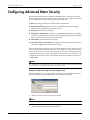
Configuring advanced security using ION Setup
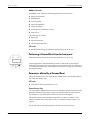
If you are using ION Setup software follow the instructions below.
1.
Launch ION Setup with Supervisor access. 2.
Connect to the meter you want to configure with Advanced security.
3.
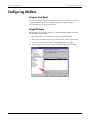
Once connected, double‐click the Setup Assistant in the right‐hand column of the Network Viewer.
4.
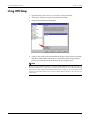
Select the Security heading in the left‐hand column of the Setup Assistant. Click the Advanced Setup tab.
5.
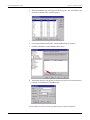
Click the SOP1 Enable Advanced Security listing. Click Edit.
6.
Select the Enabled setting. You will be prompted with a warning screen. Click Yes.
Configuring advanced users with ION Setup
1.
Click the Advanced Users tab in the Security setup screen.
2.
Click the Add User button. ION Setup automatically adds a new user. 3.
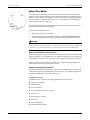
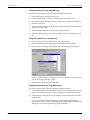
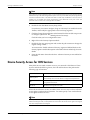
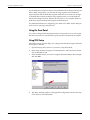
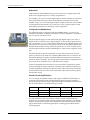
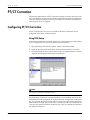
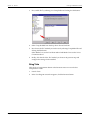
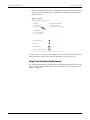
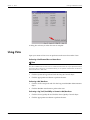
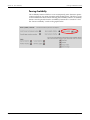
Select the new user listing and click Edit. The following dialog box appears:
Use the available settings to configure access levels for the new user. Passwords can also be changed from this screen.
4.
Click Send to send the changes to the meter. Configuring advanced security using ION Enterprise
If you are using Designer software follow the instructions below.
Page 64
1.
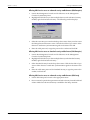
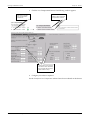
Launch Designer software with Supervisor access. From the File menu choose Open... and select the meter you want to configure with Advanced security.
2.
If the toolbox is not displayed, choose Options from the main menu and select Show Toolbox.
3.
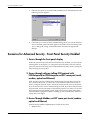
If you do not want to allow front panel programming using the Standard security meter password then double‐click on the Display Options module and change the Front Panel Programming register to disallow.
© 2007 Schneider Electric. All rights reserved.