1
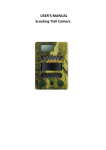
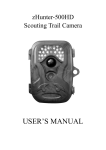
USER’S MANUAL
Scouting Trail Camera
Contents
1.
Whole View and Details of Camera.......................................................................................- 1 Front View of Camera............................................................................................................. - 1 Camera Screen Display (Test Mode Main Interface).............................................................. - 2 -
2.
Camera Menu List Introduction.............................................................................................- 3 -
3.
Quick Start.............................................................................................................................. - 4 Power On Camera................................................................................................................... - 4 Manual Photographing/ Video Recording..............................................................................- 4 Enter Menu for Setup Functions............................................................................................ - 4 Power Off Camera...................................................................................................................- 4 Camera Operation Flow Chart................................................................................................ - 5 -
4.
Detail Setups...........................................................................................................................- 6 Camera Modes (Default Settings)...........................................................................................- 6 Photo Settings (Default Settings)............................................................................................- 7 Video Settings(Default Settings).............................................................................................- 8 Camera Settings (Default Settings).........................................................................................- 9 Software Upgrade................................................................................................................. - 11 USB Connection.................................................................................................................... - 12 -
5.
MicroSD Card Selection & Battery Life Test Report............................................................- 13 MicroSD Card Selection........................................................................................................ - 13 Battery Life Test Report for Reference..................................................................................- 13 -
6.
Specification......................................................................................................................... - 14 -
7.
Warranty...............................................................................................................................- 16 -
1. Whole View and Details of Camera
Front View of Camera
Light Sensor
day/night
LCD Screen
Indicator Light
13 IR LEDs
13 IR LEDs
PIR Sensor
Lens
Power/Navigation Button
Menu/OK Button
USB Port/ DC in
SIM Card Slot
Invalid Currently
MicroSD Card Slot
Screw Slot
Battery Slot
-1-
Camera Screen Display (Test Mode Main Interface)
Photo Mode Interface
Photographing
hour/min/sec
Photo Resolution
Multi Shot Number
0001: recorded file number of photos & video clips
9998: estimated available file number based on left memory space in memory card
Video Recording
Video Mode Interface
Video FPS
Video Resolution
Year/month/date
Battery Left Volume
Photo + Video Mode Interface
Note: camera support camera, video, camera + video three different working modes;
screen display will be different based on different working mode.
-2-
2. Camera Menu List Introduction
1) First Navigation Menu
Camera ID
Photo
Video
Photo+Video
Settings
Back to
Delete
Previous Page
2) Second Navigation Menu: Settings:
Photo
Video
Timer
Time Lapse
Delay
Stamp
GPRS ON/OFF
PIR Sensitivity
Camera Sound
Back to
Reset
Password
Date/Time
SD Cycle
Previous Page
3) Third Navigation Menu
Photo Settings
Photo Size Multi Shot
Video Settings
Video
Video
Video
Frequency Video
Resolution
Length
Frame
Sound
-3-
3. Quick Start
1. Open back cover to insert MicroSD Card and batteries;
Power On Camera
2. Press and hold Power/Navigation button
for 3 sec; camera will enter PIR Auto Working
mode after indicator flashes 5 times;
3. Press Menu/OK button
once to wake up camera LCD screen to enter TEST Mode;
Manual Photographing/ Video Recording
4. Test Mode Main Interface, press Power/Navigation button
again to shoot photos,
videos, or photo + video based on camera settings; stop video recording by pressing again
Power/Navigation button
Enter Menu for Setup Functions
5. Test Mode Main Interface, press Menu/OK button
to enter settings menu; now
button
is always for navigation; button
is always for OK to save/confirm needed
setup;
6. Press and hold button
for 3 seconds to return Test Mode Main Interface (Camera Modes
Menu) after all settings are done;
7. Test Mode Main Interface, press and hold button
for 3 seconds to enter PIR Auto
Working Mode; (indicator LED will flash 5 times, Screen will be off.)
Power Off Camera
8. Press and hold button
for 5 seconds to turn off camera.
-4-
Camera Operation Flow Chart
Press and hold Power / Navigation button
ON/OFF Camera
(PIR Auto, TEST, OFF)
3 sec; camera will enter PIR Auto Working mode
TEST Mode
In PIR Auto Working Mode, press Menu / OK
button
once to wake up camera LCD screen
to enter TEST Mode;
Power Off
Functions
Setup
for
PIR Auto
Working Mode
after indicator flashes 5 times;
Press and hold Power / Navigation button
for 5 seconds to turn off camera.
Configuration
In TEST Mode, press Menu/OK button
to
enter settings menu; now button
is always
for navigation; button
is always for OK to
save/confirm needed setup;
Return to First
Navigation Menu
Press and hold button
for 3 seconds to
return back to First Navigation Menu after all
settings are done
Enter PIR Auto Working
Mode from Test Mode
In First Navigation Menu, press and hold button
for 3 seconds to enter PIR Auto Working Mode;
1. Set Camera, or Video, or Camera + Video
First Navigation Menu
, press Menu / OK button ; camera is in camera mode;
, press Menu / OK button ; camera is in video mode;
, press Menu/OK button
; camera is in Cam+Video mode
Manual Recording
2. After configuration above, press and hold button
for 3
seconds to return back to TEST Mode main interface; then press
Power/Navigation button
; camera now is recording photo/
video/ photo + video;
3. Press Power/Navigation button
again to stop video
recording;
Note:
1) To ensure camera functions well; plz adjust camera to be with correct time;
2) Plz don’t turn on Time Lapse
and Delay
at the same time;
3) Camera can be turned off by pressing and holding button
any time.
-5-
4. Detail Setups
Camera Modes (Default Settings)
Camera ID
OFF
Photo
2MP
Video
VGA (640*480)
Photo+Video
OFF
Settings
Delete
Back to Previous Page
If wanted setting icon is not showing on camera LCD screen, press
repeatedly until
it appears.
a. Set up
1) Press
to enter configuration page, press
to choose
ON; press
again to enter configuration page;
2) Press
to choose wanted digit/alphabet, press
to
confirm and move to the next;
3) Press
again to confirm combination to exit.
Camera ID
b. How does this work?
Selected 4 digits/ alphabets will show on the photo stamp.
Such function can help user to identify photos are from where
and which camera.
a. Set up
Press
to enter Photo mode; icon OK appears at right bottom
of interface
b. Take a Photo
Press and hold button
for 3 seconds to return back to TEST
Photo
Mode
main interface;
then press
to take a photo
a. Set up
Press
to enter Video mode; icon OK appears at right bottom
Video
-6-
of interface
b. Start Recording
Press and hold button
for 3 seconds to return back to TEST
Mode main interface;
then press
to take a video
clip; press
again to stop recording.
a. Set up
Press
to enter Photo + Video mode; icon OK appears at right
bottom of interface
Photo + Video
b. Start Recording; Photo(s) First, then Recording Video
Press and hold button
for 3 seconds to return back to TEST
Mode main interface;
then press
to start
recording; press
again to stop recording.
Press
to enter camera detail settings.
Settings
Delete
Set up
1) Press
to enter configuration page, press
to choose
to delete One or All recorded file(s), or Format SD card;
2) Press
choose Yes/ No, press
again to confirm
deletion/ Format.
Note: 1) Menu will stay in Yes/No interface in deleting One file; plz
press “No” to get back to previous interface.
This is designed to enable user to delete several files together
without pressing more buttons. 2) If all files are deleted, camera will
get back to TEST Mode Main Interface automatically.
Press to get back to TEST Mode main interface
Photo Settings (Default Settings)
Image Size
2M
Multi-shot
1P
If wanted setting icon is not showing on camera LCD screen, press
repeatedly until
it appears.
Set up
Press
to enter configuration page, press
to
choose desired Photo Size; press
to confirm
Image Size
-7-
Multi-shot
setting.
(8MP/5MP/2MP:
3264x2448,
2560x1920,
1920x1080)
Set up
Press
to enter configuration page, press
to
choose desired Photo Burst number; press
to
confirm setting.
(Support 1~7 photos per burst/ trigger.)
Video Settings(Default Settings)
Video Size
VGA
Video Length
5s
Video Frame
30FPS
Frequency
50Hz
Audio Recording
ON
If wanted setting icon is not showing on camera LCD screen, press
repeatedly until
it appears.
Set up
Press
to enter configuration page, press
to choose
desired Video Size, press
to confirm setting.
Video Size
(720P/VGA/CIF: 1280x720/640x480/320x240)
Set up
Press
to enter configuration page, press
to choose
desired Video Length per Burst/ Trigger; press
to confirm
Video Length
setting.
(Support 5~60 seconds)
Set up
Press
to enter configuration page, press
to choose
desired Video Frame; press
to confirm setting.
Video Frame
(Optional 15FPS and 30FPS)
Set up
Press
to enter configuration page, press
to choose
desired Frequency based on local Country Frequency; press
Frequency
to confirm setting.
(Optional 50HZ and 60HZ)
-8-
Audio Recording
Set up
Press
to enter configuration page, press
to choose to turn
ON/ OFF audio recording in video; press
to confirm setting.
Select “ON”, audio available in video clips.
Camera Settings (Default Settings)
Timer
OFF
Time Lapse
OFF
Delay
OFF
Stamp
ON
SD Cycle Recording
OFF
Camera Sound
ON
PIR Sensitivity
High
Time/Date
GPRS Switch
OFF
Camera Password
OFF
Reset
NO
If wanted setting icon is not showing on camera LCD screen, press
repeatedly until
it appears.
a. Set up
1) Press
to enter configuration page, press
to
choose ON; press
again to set timer;
2) Press
to choose wanted number, press
to
confirm and move to next number;
3) Press
again after Start time and End Time is set
Timer
to Exit.
b. How does this work?
Camera will only work during pre-set Start Time and End
Time.
-9-
Time Lapse
Delay
Stamp
SD Cycle Recording
Camera Sound
PIR Sensitivity
a. Set up
1) Press
to enter configuration page, press
to
choose ON; press
again to set Time Lapse;
2) Press
to choose wanted number, press
to
confirm and move to next number;
3) Press
again after all numbers are selected to Exit.
b. How does this work?
Camera will take photos/ videos automatically upon the
interval user set.
a. Set up
1) Press
to enter configuration page, press
to
choose ON; press
again to set Delay;
2) Press
to choose wanted number, press
to
confirm and move to next number;
3) Press
again after all numbers are selected to Exit.
b. How does this work?
Camera will take photos/ videos based on the pre-set time
interval upon motion. This option prevents from taking too
many photos or videos.
a. Set up
Press
to enter configuration page, press
to choose
ON/OFF; press
to confirm setting.
b. How does this work?
Left battery volume, Moon phase, Temperature, Date/Time,
and pre-set Camera ID will be displayed on every photo.
a. Set up
Press
to enter configuration page, press
to choose
ON/OFF; press
to confirm setting.
b. How does this work?
Select “ON”, camera will continue to record photos/videos by
deleting earliest photos or video clips recorded in SD card.
a. Set up
Press
to enter configuration page, press
to choose
ON/OFF; press
to confirm setting.
b. How does this work?
Select “OFF” to turn off camera speaker.
a. Set up
Press
to enter configuration page, press
to choose
High/Middle/Low; press
to confirm setting.
b. How does this work?
High/ Middle/ Low;
Higher sensitivity is 1) more sensitive to movements by
smaller subjects; 2) longer detection distance; 3) easier for
sensor to detect difference between body heat and outdoor
- 10 -
Time/Date
Camera Password
Reset
temperature; 4) easier to trigger camera to record. In high
temperature environment, body heat of subjects and
environment temperature is hard to tell by camera, suggest to
set High.
a. Set up
1) Press
to enter configuration page;
2) Press
to choose, press
to confirm wanted
number and move to next number;
3) Press
again to Exit after all numbers are selected.
b. How does this work?
Date/Time; Date: “month/ date/ year”; Time: “hour/minute”
Note: Plz adjust Time/Date when you turn on camera to
ensure camera to function well as expected.
a. Set up
1) Press
to enter configuration page, press
to
choose ON; press
again to set Password;
2) Press
to choose wanted digit, press
to
confirm and move to next number;
3) Press
again to confirm.
b. How does this work?
Enable password protection for your camera; support totally 6
digits long password access.
a. Set up
Press
to enter configuration page, press
to choose
YES/NO; press
to confirm setting.
b. How does this work?
Choose YES to reset camera settings back to factory default
settings.
Software Upgrade
1. Copy the upgrade software files (3 files) into MicroSD Card;
Note: Suggest to use 1 or 2 GB SD card to do the upgrade.
2. Insert MicroSD Card into camera;
3. Insert batteries/ or plug in USB power cable;
4. Press and hold Power/Navigation button
, camera speaker emits one Beep
Sound;
5. Release button
when you see red indicator led flashes;
6. Then press and hold Menu/OK button
;
Note: red indicator LED stops flashing but keeps lighting up;
7. Release button
after you see until ISP interface shows up in screen
- 11 -
8. Upgrade succeeds when red indicator led is off;
9. Plug out batteries/or power cable;
10. Insert batteries/ or power cable; turn on camera. Done.
Note: Don’t cut off power supply during software upgrade; otherwise, camera will
not be able to be turned on again unless software upgrade via PC.
USB Connection
When camera is connected via USB, press and hold button
, camera speaker
emits one Beep Sound, and red indicator LED lights up; then interface below appears.
Press
to choose DC in, or PC connection; press
to confirm choosing.
a. DC in for Power Supply
Camera enters Test Mode Main Interface.
b. PC Connection to Read MicroSD Card
Camera screen shows interface as below. Now you can read MicroSD Card
contents via PC.
By pressing
to Exit.
again, camera will be turned into a PC camera; press
Plug out power cable to turn off camera and restart.
- 12 -
again
5. MicroSD Card Selection & Battery Life Test Report
MicroSD Card Selection
A memory card is required to operate the camera. When the camera is "ON"
and no memory card is inserted, screen displays "No SD Card". Micro SD Card slot of
camera supports up 32 GB memory card. Before inserting or removing the memory
card, the camera must be powered OFF. Failing to do so may cause loss of or damage
the pictures already recorded in the memory card. Following data shows an
approximate quantity of photos which can be recorded by the camera depending on
the memory card capacity.
Chart below will show you the approximate capacity of different size SD cards.
Pls check to see which size card can fit your needs best.
SD
Size
1GB
2 GB
4 GB
8 GB
16 GB
32 GB
Capacity
Photo (pictures)
2 MP
1645
3195
6197
12401
23786
50146
5 MP
653
1244
2356
4453
7957
14241
8 MP
421
796
1488
2873
4864
8092
Video (hours)
720P HD
00:09:50 00:18:41 00:35:15 01:06:51
02:11:18 04:20:54
640x480
00:21:31 00:41:58 01:22:13 02:47:27
05:29:13 13:01:16
320x160
00:50:45 01:44:18 03:21:04 06:37:45
13:22:58 27:00:20
Battery Life Test Report for Reference
Test Condition: LCD screen off. Mode: “Power On” _PIR intelligent automatically monitoring
4AA Alkaline Batteries
Photos shot per day
Working time
Video clips shot per day
Working time
IR LEDs On
2MP
100 photos
26 days
320× 240
10 sec
10 clips
47 days
5MP
100 photos
24 days
640× 480
10 sec
10 clips
44 days
8MP
100 photos
21 days
1280× 720
10 sec
10 clips
41 days
IR LEDs Off
2MP
100 photos
51 days
320× 240
10 sec
10 clips
185 days
5MP
100 photos
48 days
640× 480
10 sec
10 clips
170 days
8MP
100 photos
46 days
1280× 720
10 sec
10 clips
161 days
- 13 -
Model
Recording
Video Format
Video Resolution
Video Frame Rate
Video Length
Still Image Format
Still Image Resolution
Shooting Numbers
Photo Stamp
Record Delay
Night Vision
Night Vision Distance
No. of Infra-Red LEDs
General
Image Sensor
Lens
Effective IR Flash
Infrared Cut Filter
White Balance
Day/Night Mode
Minimum Illumination
Effective PIR Angle
PIR Sensitivity
Audio Recording
Operation Power
Battery Type
2.8C
.avi
720P (1280*720)
D1 (640*480)
CIF (320*240)
15 / 30 FPS; programmable
5-60sec. programmable
JPEG
2MP (1920x1080)
5MP (2560x1920)
8MP(3264x2448)
1~7 photos/trigger(programmable)
Battery left volume
moon phase
temperature
Date & time
camera ID—4 digits/ alphabets combination
(Programmable by User)
1second~23h 59min 59sec
8~10m, 30 feet
26pcs
1.3 Mega Pixels Color CMOS
F=3.0; FOV=49°; Auto IR-Cut-Remove
8 meters
Yes
Automatic
Color during day / B&W at night
0 Lux (IR on)
100°
High / Normal / Low 3 levels
Yes
6~12V DC (1~2A)
4 AA
6. Specification
- 14 -
Auto Power Off
Interface
Memory Type and Size
Display
Language
Sensor Type
Sensor Range
Sensor Trigger Speed
Power Consumption
Enter PIR Auto Mode in 1min without any operations
USB; Micro SD card slot
Micro SD Card, up to 32G
1.0 inch B/W Screen
English
PIR (Passive Infrared)
12~15m; 50 feet
0.8-1 sec
150mA
(+1380mA: 940nm IR LEDs on)
(+1080mA: 850nm IR LEDs on)
Yes
4 months (4 AA batteries)
(-20 ~ 60) °C
5%-90%
IP54
100.4*70.44*51.32mm
171.2 g
CE, FCC, RoHs
Low Battery Alert
Stand-by Time
Operating Temperature
Operation Humidity
Waterproof spec
Dimensions
Weight
Certification
Functions
Photo+Video
Yes
Yes
Time Lapse
Timer
Yes
Time Lapse Delay
Yes
Yes, 6 digits
Password Protection
SD Card Cycle Recording
Yes
Auto Power Off in Test Mode
Yes
Yes
Water/WeatherProof
Specifications are subject to change without prior notice
- 15 -
7. Warranty
With great pride and full confidence in our products, we always keep our words
which are given to our customers as specified warranty terms and service below.
Based on a strict QC system, we initially offer all our customers one year long time
limited warranty, come along with selectable chargeable renewal policy of warranty
as one, two, three, or four years.
Our products are warranted against defects in materials and workmanship for a
period of one year from the date of original purchase. If a defect exists, we will, at
our option and to extent permitted by law will (1) repair the product at no charge
using new or refurbished parts; (2) exchange the product with a functionally
equivalent product that is new or refurbished. Provided the product is returned
freight charge paid.
This warranty excludes damage resulting from abuse, accident, modifications or
other causes that are not defects in materials and workmanship, or by someone
other than our authorized technicians. This warranty only covers failures due to
defects in materials or workmanship under normal usage.
To obtain warranty service, please contact us to determine the nature of problem
before return the product under this warranty (with a written description of the
problem and print samples) for repairing or exchanging.
- 16 -