1
UPLOADING DATA - A STEP BY STEP GUIDE
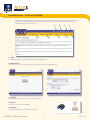
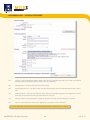
If you select Off Site you then have the choice of entering the address manually or if you are going to the employer’s
address entered in step E1c click the “use employer address” on the right of the screen which will then insert the
employer’s address entered above.
Tip – you can save time by entering the postcode and clicking “look up” and then choosing the relevant address
from the list.
G1e)
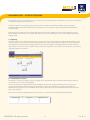
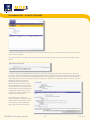
You then select the title of the course you are pre-registering from the drop down list. Please ensure you
select the correct course title. If you are unsure you can click the “view course combination matrix” on the
right of the screen which provides a breakdown of each course title and the modules used to make up the
course.
Tip - you will need flash player installed to view the combination matrix, this can be downloaded free at http://
get.adobe.com/flashplayer. If the screen does not load and you have flash player, right click on the blank area
and click play.
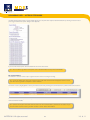
When you have selected the course from the drop down list the page will refresh and go blank for a short time, this is
normal. When the page has refreshed you will see a short description of the course content.
Tip – use this to help you check you have selected the correct course.
G1f)
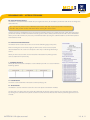
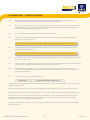
Enter the start date of the course.
Tip - This can be entered without the formatting. For example 100909, the system will format the date
automatically to 10/09/2009
G1g)
Enter the start time
Tip – This is in 24 hour clock, you do not need to enter the formatting. For example 700, the system
will format the time automatically to 07:00
G1h)
Enter the end date of the course; please make sure you adhere to the course duration and start/end time
requirements if splitting the course into 3.5hr parts.
Tip - This can be entered without the formatting. For example 100909, the system will format the date
automatically to 10/09/2009
G1i)
Enter the end time; please make sure you adhere to the course duration and start/end time requirements if
splitting the course into 3.5hr parts.
Tip – This is in 24 hour clock, you do not need to enter the formatting. For example 2300, the system
will format the time automatically to 23:00
© RTITB 2011. All rights reserved.
10
V 3 . 6 . 11