Transcript
Room Utilisation Live Reporting
User Guide
Please use this link https://cu.dilax.com/enumeris
Login using your details (to request login credentials please email [email protected]).
The Dashboard:
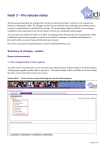
Live Data - The Occupancy Overview - you can select sites and run report of live data.
Utilisation Reports – provides frequency, occupancy and utilisation data using HESA
definitions. Full utilisation reporting is only available for rooms using the Micad Room
Booking System.
Usage Reports - provides occupancy, capacity and booking detail information using 4
elements.
Suggested Report:
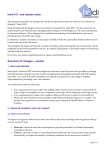
1. Select Cambridge Report from the Dashboard. Work through the tabs:
2. Select Date – choose your date
range using one of the options
3. Select Time – if you need a specific
time enter this into ‘select anytime’
4. Select Buildings/Room – select
individual room if required at room
level.
5. Select Report Type - Utilisation or
Usage.
6. When you are happy with your selection click Create Preview at the bottom of the page.
This will now download the report into Excel. This may take a few moments.
7. When asked if you want to open or save the report Click Open.
8. In Excel, at the top of the screen you will see this message click Enable Editing – the content
of the report will now load.
9. You now have your report which you can save locally or delete. If you return to Enumeris
your report criteria will still be in place if you wish to run further reports.
Version 1 – 03/10/2014
Business Improvement Group
University of Cambridge
![[ SOMMAIRE ] - iBrarian.net](http://vs1.manualzilla.com/store/data/006424989_1-026edc6590d546930faf03bba6d8d786-150x150.png)