1
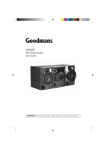
XB9CDG
Karaoke System
User Guide
IMPORTANT: Please read all instructions carefully before use and keep for future reference
Introduction
Thank you for choosing this Karaoke System. Now you and your
friends can sing along to all your favourite songs.
Safety is important
Use of any electrical equipment should be undertaken with care. Please read the
safety section on page 15 before using your Karaoke System. This appliance is
for household use only.
CD+G disc, also known as CD+
Graphics are audio discs which contain
backing tracks and lyrics. These are
specifically designed for Karaoke
Systems which are designed to display
on-screen lyrics.
Key features
Karaoke with CD+G discs
You and your friends can sing along to all your favourite songs using CD+G discs. The
Karaoke System can be connected to a TV to display on-screen lyrics. Your voice and
the backing tracks will be played through either the built in speaker or a connected
Sound System/TV.
2
What’s in the box?
If any of the above items are missing or damaged, please contact the
customer support team.
Contents
01 Your Karaoke System ................4
06 Care and Maintenance ............13
02 Getting Started..........................7
07 Specification ...........................14
03 Daily Use ...................................8
08 Warnings .................................15
04 CD+G Playback ........................9
09 Electrical Information ...............17
05 Troubleshooting .......................11
10 Guarantee ...............................18
3
01
Your Karaoke System
Front view
CD PLAYER
NEXT
Button
PROG
Button
REPEAT
Button
PLAY/PAUSE
Button
LED Display
PREV
Button
STOP
Button
SPEAKER
SPEAKER
POWER Dial
MIC VOLUME Dial
AVC Dial
ECHO Dial
MIC 1 Socket
MASTER VOLUME
Dial
4
MIC 2 Socket
Your Karaoke System
01
Rear view
CARRY HANDLE
SPEAKER
SPEAKER
POWER
Socket
AUDIO OUT
Sockets
VIDEO OUT
Socket
BATTERY
COMPARTMENT
5
01
Your Karaoke System
Powering the Karaoke System using batteries
The Karaoke System can be powered using mains power, or alternatively
using eight ‘C’ type batteries.
Insert eight batteries (not supplied) into the Battery Compartment at the
bottom of the Karaoke System, observing the polarity markings on the base
of the Battery Compartment.
DON’T FORGET! When replacing the batteries make sure that you
use the same size and type.
6
Getting started
1
02
Connecting to external devices
The Karaoke System can be connected to either a TV or a Stereo Sound
System using RCA Cables.
To connect the Karaoke System to a TV only:
• Connect RCA cables into the back of the Karaoke System and the back
of the TV, using the SCART adaptor if necessary.
• Select the correct AV source on your TV.
To connect the Karaoke System to a TV and Stereo Sound System:
• Use the Yellow RCA Cable to connect the TV and Karaoke System.
• Use the Red and White RCA Cable to connect the Stereo Sound
System and Karaoke System.
2
Setting up the Karaoke System
Plug the Microphone Jack into the MIC 1 Socket on the front of the
Karaoke System.
Connect the Karaoke System to your TV using the Supplied RCA Cables, as
described above.
Turn your TV On and select the AV source.
Connect the Power Cable to the Power Socket on the rear of the Karaoke
System.
Insert the Power Cable Plug into the wall socket and switch the socket On.
Load a CD+G disc into the CD Player.
Turn the POWER Dial to ON or ON+LED to switch the Karaoke System on
(ON+LED activates flashing coloured LEDs on the casing of the Karaoke
System).
7
03
Daily use
Switching ON
To switch the Karaoke System on,
turn the POWER dial to ON or
ON+LED.
To switch the Karaoke System off,
turn the POWER dial to OFF.
Using the microphone
Up to two Microphones can be used
with the Karaoke System.
DON’T FORGET! Only one
microphone is supplied with the
Karaoke System.
Insert the Microphone Jack into the
MIC 1 or MIC 2 socket on the front
of the Karaoke System.
Slide the Microphone Power Switch
to the ON position. The microphone
is now On and ready to use.
Adjusting the master volume
To increase the master volume,
rotate the MASTER VOLUME DIAL
on the front of the Karaoke System
clockwise.
To decrease the master volume,
rotate the MASTER VOLUME DIAL
on the front of the Karaoke System
anticlockwise.
Adjusting the microphone
volume
To increase the Microphone volume,
rotate the MIC VOLUME DIAL
on the front of the Karaoke System
clockwise.
To decrease the Microphone volume,
rotate the MIC VOLUME DIAL
on the front of the Karaoke System
anticlockwise.
8
Adjusting the echo effect
An echo effect can be added to your
voice while you sing. The amount of
echo can be adjusted using the ECHO
DIAL.
To increase the echo, rotate the
ECHO DIAL on the front of the
Karaoke System clockwise.
To decrease the echo, rotate the
ECHO DIAL on the front of the
Karaoke System anticlockwise.
Mixing the Backing Track and
Vocals
The bias or mix between the backing
track and your vocals can be adjusted
using the Auto Volume Control (AVC).
When the AVC is applied, the volume
of the backing track is reduced while
you sing. When you stop singing, the
volume of the backing track returns to
normal. The amount the backing track
is reduced depends on how much AVC
is applied.
To increase the amount of AVC,
rotate the AVC DIAL on the front of
the Karaoke System clockwise.
To decrease the amount of AVC,
rotate the AVC DIAL on the front of
the Karaoke System anticlockwise.
CD+G playback
Playing CD+G discs
Loading discs
Turn the POWER dial to to ON or
ON+LED to switch the Karaoke
System on.
Lift the lid of the Disc Tray to open.
Insert the CD+G Disc into the CD
Compartment with the label facing
up.
Close the Disc Tray.
When closed, the Karaoke System
starts to spin the disc.
The LED display will show the total
number of tracks on the CD+G.
Playback
Press the f/ II button to begin
playback. The backing track
will begin to play and the lyrics
will appear on the TV screen if
connected.
Press the f/ II button again to
pause playback. The Play/Pause
indicator will flash on the LED
display.
Press the ffI button to skip to the
next track.
DON’T FORGET! If you are on the
last track of the disc, the Karaoke
System will return to the first track.
Press the e
I e button to skip to the
previous track.
Press the button to stop playback.
9
04
Repeat play
You can repeat a single track or all the
tracks on the CD+G disc.
Repeating a single track
To repeat a single track, press the
REPEAT button once. The Repeat
indicator on the LED display will
begin to flash.
The track will be played continuously
until the
button is pressed.
To cancel the repeat function, press
the REPEAT button continuously
until the Repeat Indicator on the LED
display is no longer lit.
Repeating the entire CD
To repeat all tracks, press the
REPEAT button twice. The Repeat
indicator on the LED display will be
lit.
The entire disc will be played
continuously until the
button is
pressed.
To cancel the repeat function, press
the REPEAT button continuously
until the Repeat Indicator on the LED
display is no longer lit.
Programming tracks
You can programme the Karaoke
System to play up to a total of 16
tracks in any desired order. You can
also programme the same track to
play several times within a programme
sequence.
Press the
playback.
button to stop
9
04
CD+G playback
Press the PROG button. The Prog
indicator will begin to flash and the
number 1 will momentarily appear
on the LED Display. This indicates
that you can programme the first
track.
Select the first track using the ffI
and e
I e buttons.
Press the f/ II button on the
Karaoke System. The number 2 will
momentarily appear on the LED
Display. This indicates that you can
programme the second track.
Select the second track using the
ffI and e
I e buttons.
Repeat steps 4 and 5 until all the
tracks have been programmed.
Press the PROG button to begin
playback. The backing track
will begin to play and the lyrics
will appear on the TV screen if
connected.
DON’T FORGET! Playback will
stop after all the programmed
tracks have been played.
To replay the programmed tracks,
press the PROG button followed by
the f/ II button.
To cancel the programmed sequence
from the memory, press the
button during playback.
10
Audio CD playback
Compatible disc types
The Karaoke System supports playback
of following types of CD:
• CD+G compact Disc
• 8cm/12cm Compact Disc
Audio Discs
• 12cm Compact Disc
Recordable Discs
• 12cm Compact Disc
Re-Writable Discs
Playback
Press the f/ II button to begin
playback. The first track will begin to
play.
Press the f/ II button again to
pause playback. The Play/Pause
indicator will flash on the LED
Display.
Press the ffI button to skip to the
next track.
DON’T FORGET! If you are on the
last track of the disc, the Karaoke
System will return to the first track.
Press the e
I e button to skip to the
previous track.
Press and hold the ffI button to
fast forward within the current track.
Press and hold the e
I e button to
fast rewind within the current track.
Press the button to stop playback.
Troubleshooting
05
General
Problem
Possible Cause
What to do
No Power
1. The plug is not plugged 1. Ensure the plug is plugged
into the wall socket.
into the wall socket.
2. The wall socket is not 2. Turn on the power at the wall
turned on.
socket.
No sound is heard
The volume is on the
minimum setting.
Increase the master volume.
There is no sound
1. The CD+G disc is
from the Karaoke
inserted incorrectly.
System when
2. The master volume
playing CD+G discs
is on the minimum
setting.
1. Insert the CD+G disc
correctly. See page 9 for
more information.
2. Increase the master volume.
There is no sound
when singing into
the Microphone
1. The Microphone is
not connected to the
Karaoke System.
2. The Microphone is not
switched On.
3. The Microphone
Volume is on the
minimum setting.
1. Connect the Microphone to
the Karaoke System. See
page 8 for more information.
2. Switch on the Microphone.
3. Increase the Microphone
Volume.
The words do not
appear on the TV
when the CD is
playing
1. The wrong AV source 1. Select the correct AV source
is selected.
on the TV.
2. The CD playing is not a 2. Replace the CD with a CD+G
CD+G disc.
disc.
The CD
compartment lid
will not open
The carrying handle is
not fully down, which
is stopping the lid from
opening.
Put the carrying handle fully
down.
11
05
Troubleshooting
CD
12
Problem
Possible Cause
What to do
The CD does not
play
1. The CD is incorrectly
loaded.
2. The CD is an
unsupported format.
3. The CD is paused.
4. The CD is dirty or
scratched.
1. Ensure the CD is correctly
loaded into the CD Tray. See
page 9 for more information.
2. Check the format of the CD
is supported. See page 10 for
more information.
3. Press the f/ II button to
continue playback of the CD.
4. Make sure the CD is not dirty
or scratched. If it is dirty,
clean the CD with a soft
cloth.
CD Sound Skips
1. The CD is dirty.
2. The CD is warped or
scratched.
1. Clean the CD with a soft
cloth.
2. The CD should be replaced.
Care and Maintenance
06
Handling Discs
To remove a disc from its storage case, press down on the centre of the case and lift
the disc out.
Hold the disc by the edges, to avoid touching the recorded side of the disc.
Fingerprints and dust should be carefully wiped from the disc’s surface with a soft
cloth. CDs have no grooves to collect dust and microscopic debris so gently wiping
with a soft cloth should remove most particles.
Wipe in a straight line from the inside to the outside of the disc. Small dust particles
and light stains should have no effect on reproduction quality.
Never use chemicals such as record sprays, antistatic sprays, benzine, or thinners to
clean the discs. These chemicals can irreparably damage the disc’s surface.
Discs should be returned to their cases after use. This avoids serious scratches that
could cause the laser pickup to skip.
Do not expose discs to direct sunlight, high humidity, or high temperatures for
extended periods. Exposure to high temperatures can warp the disc.
Do not stick paper or write anything with a ball point pen on the label side of the disc.
13
07
Specifications
Model Number
XB9CDG
Power Supply
230V AC 50Hz
8 x LR14 C Type 1.5V batteries
14
Power Consumption:
Standby
Operating
Nominal Use
0.22W
7~9W
21W
Frequency Response
100 - 10,000 Hz (+/- 3db)
Power Output
2W x 2 (10% THD)
Speaker
3” 4 ohms
Microphone
60 dB 600 ohms impedance
with 6.3mm dynamic microphone
Unit Dimensions
215 (D) x 220 (W) x 165 (H) mm
Unit Weight
1.45 kgs
Warnings
WEEE
This appliance is labelled in
accordance with European
Directive 2002/96/EG
concerning used electrical and
electronic appliances (Waste Electrical
and Electronic Equipment - WEEE).
The guideline determines the framework
for the return and recycling of used
appliances.
Sound levels
Your hearing is very important to you
and to us, so please take care when
using this Karaoke System. It is strongly
recommended that you follow the listed
guidelines in order to prevent possible
damage or loss of hearing.
Establish a safe sound level
Over time your hearing will adapt to
continuous loud sounds and will give
the impression that the volume has in
fact been reduced. What seems normal
to you may in fact be harmful. To guard
against this before your hearing
adapts, set the volume to a low level.
Slowly increase the level until you
can hear comfortably and clearly
and without distortion. Damage to
your hearing is accumulative and is
irreversible. Any ringing or discomfort
in the ears indicates that the volume is
too loud.
Once you have established a
comfortable listening level, do not
increase the sound level.
08
WARNING! THIS
PRODUCT UTILISES
A CLASS 1 LASER.
USE OF CONTROLS,
ADJUSTMENTS
OR PROCEDURES NOT LISTED IN
THIS USER GUIDE MAY RESULT
IN HAZARDOUS RADIATION
EXPOSURE.
General safety
This Karaoke System has been designed
and manufactured to meet European
safety standards, but like any electrical
equipment, care must be taken if you
are to obtain the best results and safety
is to be assured.
Do read these operating instructions
before you attempt to use the Karaoke
System.
Do ensure that all electrical connections
(including the mains plug, extension
leads and interconnections between
pieces of equipment) are properly made
in accordance with the manufacturer’s
instructions.
Switch off and remove the mains
plug when making or changing any
connections.
Do consult your dealer if you are ever in
doubt about the installation, operation
or safety of your Karaoke System.
Don’t remove any fixed covers as this
may expose you to dangerous voltages.
15
08
Warnings
Don’t continue to operate the Karaoke
System if you are ever in doubt about
it working normally, or if it is damaged
in any way. Switch it off withdraw the
plug from the mains and consult your
dealer.
Don’t leave the Karaoke System
switched On when it is unattended
for long periods of time, unless it is
specifically stated that it is designed for
unattended operation or has a standby
mode.
Make sure that other people in your
household are conversant with the
Karaoke System.
Don’t obstruct the ventilation vents on
the Karaoke System, for example with
curtains or soft furnishings.
Don’t allow electrical equipment to be
exposed to rain or moisture.
Store the Karaoke System in a clean,
dry environment.
Do not use any cleaning solutions on
the Karaoke System.
16
09
Electrical information
The mains lead supplied with this Karaoke System is fitted with a BS1363/A 13 amp
plug. If it is not suitable for your supply sockets it must be removed and replaced
with an appropriate plug.
If the plug becomes damaged and/or needs to be replaced please follow the wiring
instructions below. The plug removed must be disposed of immediately. It must not
be plugged into a supply socket as this will be an electrical hazard.
If the fuse needs to be replaced it must be of the same rating and ASTA approved to
BS1362. If the plug is changed, a fuse of the appropriate rating must be fitted in the
plug, adapter or at the distribution board. If the fuse in a moulded plug is replaced,
the fuse cover must be refitted before the appliance can be used.
Wiring instructions
The supply cable will be either 2-core or 3-core. Follow the appropriate wiring
instructions given below. In both cases ensure that the outer sheath of the cable is
firmly held by the cable clamp.
2- Core plug
WARNING: Do not connect either wire
to the earth terminal.
This symbol indicates that this 2-core appliance
is Class II and does not require an earth
connection.
3- Core plug
WARNING: This appliance must be earthed.
The wire coloured green and yellow must be
connected to the terminal marked with the letter E, or
by the earth symbol , or coloured green or green
and yellow.
The wire coloured blue must be connected to the
terminal marked with the letter N or coloured black.
The wire coloured blue must be connected to the
terminal marked with the letter N or coloured black.
The wire coloured brown must be connected to the
terminal marked with the letter L or coloured red.
The wire coloured brown must be connected to the
terminal marked with the letter L or coloured red.
17
10
Guarantee
The Karaoke System is guaranteed for twelve months from the date of original
purchase. If any defect should occur due to faulty materials or workmanship, contact
Goodmans via the website (www.goodmans.co.uk). Have your receipt of purchase
on hand.
The guarantee is subject to the following provisions:
• It is only valid within the boundaries of the country of purchase.
• The product must be correctly installed and operated in accordance with the
instructions contained in this User Guide.
• The Karaoke System must be used solely for domestic purposes.
• The guarantee will be rendered invalid if the Karaoke System is re-sold or has been
damaged by inexpert repair.
• The manufacturer disclaims any liability for incidental or consequential damages.
• The guarantee is in addition to, and does not diminish, your statutory or legal
rights.
18
19
www.goodmans.co.uk
DCS-JUN13-XB9CDG