Transcript
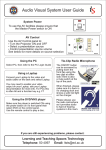
Audio Visual System User Guide
System Power
To use the AV facilities please ensure that
the Master Power switch is ON
Master Power
AV Control
Use the AV Control Touchpanel to:
• Turn the Projectors ON and OFF
• Select a presentation source
• Preview a presentation source
• Control presentation source
and microphone volume
• Control lighting levels
See below for more details on source selection
Using the PC & Smart Podium
Using a Laptop
Select PC, then refer to the PC Login Guide
Connect your Laptop to the video and audio
cable on the desk and select Laptop.
The Smart Podium can be used as a digital
writing surface on the PC. For a more indepth demo session please contact your
AV support below.
You may need to enable your video
output on your Laptop, see your Laptop
documentation for more info.
Using the Blu-Ray player
Using the Document Camera
Make sure the player is switched ON using
the power button on it’s front panel then
select Blu-Ray. The use the Blu-Ray remote
control to play a disc.
Tie-Clip Radio Microphone
The ON/OFF button can be accessed by
pulling down the front
flap using the two clips
at either side. There
is also a mute switch
at the top of the pack.
Select Doc Cam. It should then turn on.
Use the controls on the Doc Cam itself
to control it
Handheld Radio Microphone
To turn ON/OFF press and hold the
button on the bottom of the microphone
When finished, please
make sure it is back in
it’s charging dock.
Still having difficulty?
Telephone: 650 4097
Email: [email protected]