1
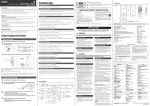
Programming The functionality of the MWS1A-IP is controlled by a number of parameters which can be changed or programmed by any of the following devices: UHS5 Infrared Handset. See below for programmable functions. UN-LCDHS Infrared Handset (with LCD). See user guide for full programming details. For most basic programming operations the UHS5 handset can be used and the following procedures are based on using this device. Point the handset at the Sensor and send the required programming commands to the unit as shown below. Valid commands will be indicated by a red LED flash. See page 1 for details of other LED responses. Note: other functions on the UHS5 which are not shown below are not applicable to this product. Number of Shift key presses Parameter Name Default Value 0 SHIFT 1 1 SHIFT 2 SHIFT 1 2 SHIFT 2 SHIFT 1 3 SHIFT 2 SHIFT 1 UHS5 Handset Graphics Description SHIFT 2 Button Activation On / Raise On Turn lights on. Off / Lower Off Turn lights off. Walk test Off On Off When set to On this causes a red LED to flash on the sensor when it detects movement. Use this feature to check for adequate sensitivity levels. Time Out (Time adjustment) 10 mins 1, 10 & 20 minutes 5, 15 & 30 minutes Once the detector is turned on, this value sets how long the lights will stay on once movement has ceased. Lux on level 9 (Switch level on) 2, 5 & 7 4, 6 & 9 Lux level setting to prevent the luminaires being switched on if the ambient light level is sufficient (adjustable between 1 and 9). The luminaires will always be switched on at level 9. Lux off level 9 (Switch level off) 2, 5 & 7 4, 6 & 9 Lux level setting to switch the luminaires off during occupancy if the ambient light level goes above the setting (adjustable between 1 and 9). Level 9 will always keep the lights on. This setting can be used for “window row switching”. Sensitivity 1, 5 & 9 3, 6 & 8 Sensitivity level for detecting movement. 1 = low sensitivity 9 = high sensitivity Defaults Shift 9 D Returns the unit to the default settings. Use this button to select the settings in red and blue signified by the ‘Shift 1’ and ‘Shift 2’ LEDs 3