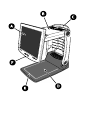
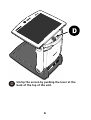
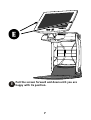
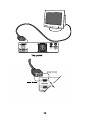
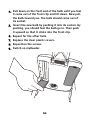
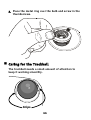
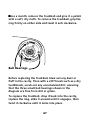
1
myReader User Guide Copyright © 2005 by HumanWare Limited, Christchurch, New Zealand. All rights reserved. No part of this publication may be reproduced or distributed in any form or by any means, or stored in a database or retrieval system, without the prior written permission of HumanWare Limited. Every effort has been made to ensure that the information contained in this publication is correct at the time of issue. Neither HumanWare Limited, nor its agents, assume any responsibility for errors or omissions. Nor is any liability assumed for damages resulting from the use of the information contained herein. 1 Expo Place, P.O. Box 3044 Christchurch, New Zealand www.humanware.com P/N MY080 V2.0 This product complies with the requirements of EMC Directive 89/336/EEC. European Union Authorised Representative: HumanWare Europe 3 Blotts Barn Business Centre Brooks Road, Raunds Northamptonshire NN9 6NS United Kingdom Phone +44 1933 626 000 Fax +44 1933 626 204 Email [email protected] Corporate Headquarters USA Europe HumanWare Limited 1 Expo Place, P.O. Box 3044 Christchurch, New Zealand Phone: +64 3 384 4555 Fax: +64 3 384 4933 e-mail: [email protected] Web: www.humanware.com 175 Mason Circle Concord, CA 94520, USA Phone: (800) 722 3393 (925) 680 7100 Fax: (925) 681 4630 e-mail: [email protected] 3 Blotts Barn Business Centre Brooks Road, Raunds Northamptonshire NN9 6NS United Kingdom Phone: 01933 626000 Fax: 01933 626204 e-mail: [email protected] Bredaseweg 108a 4914 NS Oosterhout The Netherlands Phone: 31 162 437 910 Fax: 31 162 437 904 e-mail: [email protected] Sjouddev. 8, 35246 Växjö Sweden Australia Asia Phone: 46 470 764 490 Fax: 46 470 711 088 e-mail: [email protected] Suite 2, 7-11 Railway Street P O Box 944, Baulkham Hills NSW 2153, Australia Phone: (02) 9686 2600 Fax: (02) 9686 2855 e-mail: [email protected] Important Safety Instructions 1. Follow all warnings, cautions, and instructions marked on the product. 2. The power supply cord is a disconnect device for pluggable equipment. The socket-outlet should be installed near the equipment, and be easily accessible. 3. This product is equipped with a 3-wire grounding type plug as a safety feature. This plug has a third (grounding) pin and can only be plugged into a grounding-type power outlet. If necessary, contact an electrician to replace your power outlet with a grounding-type power outlet. 4. This product should be operated from the type of power indicated on the marking label. If you are not sure of the type of power available, consult your dealer or local power company. 5. Refer all servicing of this product to qualified service personnel. Do not attempt to service it yourself, as opening or removing covers may expose you to dangerous voltage points or other risks. i Susceptibility to Interference. There may be temporary degradation of the image when the myReader is subjected to a strong radiofrequency field, electro-static discharge or transient electrical noise. An electro-static discharge (caused by static electricity) may cause the screen to go blank. If this happens, switch the unit off and on again. FCC Warning. This equipment generates and uses radio frequency energy and if not installed and used properly, in accordance with the manufacturer's instruction, may cause interference to radio and television reception. It has been type tested and found to comply with the limits for a Class B digital device in accordance with Subpart B of Part 15 of FCC Rules and Regulations, which are designed to provide reasonable protection against such interference in a residential installation. However, there is no guarantee that interference will not occur in a particular installation. If this equipment does cause interference to radio or television reception, which can be determined by turning the equipment off and on, the user is encouraged to try to correct the interference by one or more of the following measures: 1. Reorient the receiving antenna. 2. Relocate the equipment with respect to the receiver. 3. Move the equipment away from the receiver. ii 4. Plug the equipment into a different outlet so that the equipment and receiver are on different branch circuits. If necessary, the user should consult the dealer or an experienced radio/television technician for additional suggestions. The user may find the booklet prepared by the Federal Communication Commission helpful: "How to Identify and Resolve Radio-TV Interference Problems". This booklet is available from the U.S. Government Printing Office, Washington, DC 20402. Stock No. 004-000-00345-4. Shielded cables and certified Class B peripherals must be used on this product. Using unshielded cables or uncertified peripherals may result in this unit not complying with FCC Rules Part 15. Changes or modifications not expressly approved by the manufacturer could void the user's authority to operate this equipment. Notice for Canada. This Class B digital apparatus meets all requirements of the Canadian Interference-Causing Equipment regulations. iii Acknowledgements The myReader software includes portions of the "be" and "le" code by Motoi Iwata and Koichi Kise, distributed under the following license: The authors of this software are Motoi Iwata and Koichi Kise. Copyright (c) 1998, 1999 Motoi Iwata and Koichi Kise. Permission to use, copy, modify, and distribute this software for any purpose without fee is hereby granted, provided that this entire notice is included in all copies of any software which is or includes a copy or modification of this software and in all copies of the supporting documentation for such software. THIS SOFTWARE IS BEING PROVIDED "AS IS", WITHOUT ANY EXPRESS OR IMPLIED WARRANTY. The myReader software includes portions of the "sweep2" code by Steven Fortune, distributed under the following license: The author of this software is Steven Fortune. Copyright (c) 1994 by AT&T Bell Laboratories. Permission to use, copy, modify, and distribute this software for any purpose without fee is hereby granted, provided that this entire notice is included in all copies of any software which is or includes a copy or modification of this software and in all copies of the supporting documentation for such software. THIS SOFTWARE IS BEING PROVIDED "AS IS", WITHOUT ANY EXPRESS OR IMPLIED WARRANTY. IN PARTICULAR, NEITHER THE AUTHORS NOR AT&T MAKE ANY REPRESENTATION OR WARRANTY OF ANY KIND CONCERNING THE MERCHANTABILITY OF THIS SOFTWARE OR ITS FITNESS FOR ANY PARTICULAR PURPOSE. The myReader software includes portions of the "hull" program by Ken Clarkson, distributed under the following license: Ken Clarkson wrote this. Copyright (c) 1996 by AT&T. Permission to use, copy, modify, and distribute this software for any purpose without fee is hereby granted, provided that this entire notice is included in all copies of any software which is or includes a copy or modification of this software and in all copies of the supporting documentation for such software. THIS SOFTWARE IS BEING PROVIDED "AS IS", WITHOUT ANY EXPRESS OR IMPLIED WARRANTY. IN PARTICULAR, NEITHER THE AUTHORS NOR AT&T MAKE ANY REPRESENTATION OR WARRANTY OF ANY KIND CONCERNING THE MERCHANTABILITY OF THIS SOFTWARE OR ITS FITNESS FOR ANY PARTICULAR PURPOSE. The myReader software is based in part on the work of the Independent JPEG Group. The myReader software includes zlib, by Jean-loup Gailly and Mark Adler. The myReader software includes parts of eCos, the Embedded Configurable Operating System. eCos is released under a modified version of the GNU General Public License (GPL) that permits it to be used as a component of closed-source systems. eCos can be obtained from http://ecos.sourceware.org/. Alternatively, if you would like a copy of the eCos source code included in the myReader software, contact HumanWare Ltd. iv Contents Introducing myReader .................................................... 1 What's in the Box ......................................................2 Setting up myReader ......................................................3 Unfolding myReader ..................................................4 Plugging In myReader................................................9 Folding up myReader ............................................... 10 Setting up myReader with an External Screen ............... 11 Connecting to a VGA Monitor ................................... 13 Using myReader with a PC ....................................... 14 Connecting myReader to an External Camera .......... 16 Handling myReader ................................................. 17 Caring for myReader ................................................ 17 myReader Carry Bag ................................................ 18 Switching on myReader ................................................ 19 Capturing an Image....................................................... 21 Lighting ...................................................................24 Autofocus ................................................................ 25 Straightening a Page ............................................... 25 Flattening Reading Material ....................................26 Rotating an Image ................................................... 27 Clearing the Current Image ...................................... 27 v Controls and Settings....................................................29 Control Panel ...........................................................29 Screen Colors ........................................................... 33 Language Setting..................................................... 37 Sounds.....................................................................38 Menus......................................................................38 Clearing Changes .....................................................42 Using myReader............................................................43 Reading Mode ..........................................................43 Viewing Mode .......................................................... 52 Live Mode ................................................................59 Maintenance .................................................................63 Changing Bulbs ........................................................63 Caring for the Trackball ...........................................66 Troubleshooting............................................................69 Version Information...................................................... 73 Returning for Service.................................................... 75 Index ............................................................................ 77 vi • Introducing myReader See diagram on facing page A Screen B Head C Handle D Platter E Guideline F On/Off Switch 1 J What's in the Box This user guide myReader unit myReader control panel Quick Start Guide Power cable Two plastic sheets VGA video cable for connecting myReader to a computer. Footswitch for use when myReader is connected to a computer or an external camera. 2 • Setting up myReader 1. First of all, decide where you are going to set up myReader. The space should be flat and steady so that the whole base is in contact with the level surface, and clear of any loose items. A table or desktop is ideal. Don't set it up on a folding table or other unsteady piece of furniture. 2. Uniform lighting is important to get the best performance out of myReader. Avoid locations where direct sunlight or shadows can fall on myReader’s platter. Don’t shine a desk lamp onto the platter. 3. Check that there is a wall socket near enough to plug myReader in. If not, you will need to get an extension cord ready as well. 4. Take myReader out of its box. 5. Now position myReader where you want to use it, with the handle facing the front. 3 J Unfolding myReader Warning: keep your hands away from all moving parts while unfolding myReader. A Pressing the release button at the right hand side of the base hinge, raise the unit by the handle. Release the button and keep lifting until it locks with a click. 4 B Press, and hold in, the next hinge release button at the top of the right-hand side. C Push the front of the screen gently to release it, then pull it out, release the button and raise the unit until you hear it click. 5 D Unclip the screen by pushing the lever at the back of the top of the unit. 6 E Pull the screen forward and down until you are happy with its position. 7 8 J Plugging In myReader See diagram on facing page A Connect the control panel to the connector labeled "Control Panel" on the back of myReader’s base. Put the flat of the control panel’s connector to the bottom. You cannot operate myReader without its control panel. B Connect the power cable to the connector labeled “Input Power”on the back of myReader’s base . Put the flat of the power cable’s connector to the top. 9 J Folding up myReader Warning: keep your hands away from all moving parts while folding up myReader. Fold up myReader in the reverse order of unfolding it: 1. Push the screen up and back until it is flat against the top of the unit, and the clip clicks into place. 2. With your left hand supporting the front, push the top button to release the hinge, and gently lower the top until it clicks into place. 3. Holding the handle with your left hand, press the button to release the base hinge, and gently lower to the base until it clicks into place. For safety reasons, myReader switches its lights off when it is folded up. To turn on the lights again, switch myReader off then on using the ON/OFF button at the bottom of the screen. 10 • Setting up myReader with an External Screen If you have purchased myReader without the built in LCD screen, you will need to use an external screen. However, even if you have the built-in screen, you can choose to use an external screen instead. myReader will work with a VGA computer monitor. 11 12 J Connecting to a VGA Monitor To connect to an external VGA monitor: (see diagram on facing page) 2. 1. Set up the monitor near myReader. 2. Make sure the monitor's power cable is plugged into the monitor. 3. Plug the other end of the monitor's power cable into a wall socket. 4. Plug the other cable attached to the monitor into the "VGA Out" socket on the back of myReader. 5. Switch the monitor on. The visual output of myReader will now go to the separate monitor. 13 J Using myReader with a PC If you connect myReader to a PC, you can use the same screen to view what is on myReader's platter and on the PC, either by switching from one to the other, or with a split-screen display. To connect myReader to a computer: 1. Connect the computer’s VGA video output to the connector labeled “Computer In” on the back of myReader’s head with the VGA video cable that came with myReader. When myReader is switched on it automatically checks for the presence of a PC. 2. Connect the footswitch that came with myReader to the connector labeled “Footswitch” on the back of myReader’s base. Each press of the footswitch moves the display on screen to: myReader's platter the PC screen a split-screen display showing both. an external camera, if one is connected - refer to page 16. 14 PC Compatibility PC operation will only work if your PC operates in one of the compatible video graphic modes listed below: 640 x 480 at 75 Hertz 800 x 600 at 75 Hertz 1024 x 768 at 75 Hertz. If you change your PC's video mode, allow at least five seconds for myReader to detect and adapt to the new mode. 15 J Connecting myReader to an External Camera You can connect an external video camera, such as a blackboard camera, to myReader. Plug the camera's video cable into the socket labeled "Video In" on the rear panel of myReader. When myReader is switched on it automatically checks for the presence of an external camera signal. Connect the footswitch that came with myReader to the connector labeled “Footswitch” on the back of myReader’s base. By using the footswitch, you can cycle between the external and internal cameras. This is useful, for example, if you are using a blackboard camera and also writing notes, or following a text book. If a PC is also connected, it is included in the display cycle - refer to page 14. The socket labeled “Remote Camera In” on the rear panel of myReader, is provided for future expansion. 16 J Handling myReader myReader is robust and sturdy in construction, but there are some basic rules to follow to keep your unit in top working condition. Never place any objects on the top of myReader, whether it is set up or folded down, no matter how light they are. When folded, always rest myReader flat and with the base down. Do not leave it standing on its end. Keep it away from extremes of heat or cold, and water or liquids, including steam. Ensure that the cables and leads are not trapped underneath the unit and are not bent or pinned down except by proper cable fittings. Avoid touching the surface of the LCD screen. If necessary, give it a dust with a soft cotton cloth from time to time. J Caring for myReader To keep myReader clean, wipe it down gently with a clean lint-free cloth. Do not use cleaning products of any kind, or wet cloths. There are separate instructions on caring for the track ball - refer to page 66. When it is not in use, you may wish to fold myReader down. 17 J myReader Carry Bag A carry bag is available as an optional extra for myReader. If you are interested in buying a myReader carry bag, contact your myReader dealer. The design of the carry bag is like that of a bag for a laptop computer but it has wheels and an extendable handle like an airline bag. To use the carry bag, fold up myReader and place it in the bag. The bag has two Velcro straps that should be used to hold myReader in place. The control panel and power cable should be placed in one of the bag’s pockets. The pockets also provide room for papers and other personal items. Please note that the carry bag does not provide sufficient protection to allow myReader to be carried on an aircraft. If you want to carry myReader on an aircraft, use the original packaging and seek advice from your airline. 18 • Switching on myReader Once myReader is plugged in, you can switch it on. The ON/OFF button is on the frame at the bottom of the screen: If your myReader doesn’t have a built-in screen, you will find the ON/OFF button at the center of the front of the head. 3. 1. Press the button until it clicks. This will turn the whole unit on. 2. On the screen you will see the message: "Starting Up" 3. After a few seconds, this will be replaced by: "Place page and press START" 4. When you see this, myReader is ready to start work. The “Starting Up” screen also displays the myReader’s serial number and software version. 19 • Capturing an Image Instead of simply magnifying the text of what you want to read, myReader captures an image or snapshot of the item on its platter. It then works with the image to make it easier for you to read. Because myReader captures the full page as a snapshot it is important that the page is held still and your fingers do not obscure the text. If you are reading something that won’t stay flat by itself, use the clear plastic sheet provided (this is the larger of the two plastic sheets). Place it over the page before pressing START. Position the document so that it is pushed against the ridge at the back of the platter. Check that the document is within the white lines on the platter. Any part of the document that is outside the white lines will be cut off. Reposition the document and press START to recapture it if necessary. Reading Mode and Viewing Mode both use captured images. 21 22 To capture an image: (see diagram on facing page) A B C Switch myReader on. Place the item on the platter. Press START. After a short delay, it will be displayed and you can start reading. 23 J Lighting Like a camera, myReader is affected by ambient lighting. myReader works best when light sources are even and uniform. Make sure that there is no direct sunlight or shadow falling on myReader’s platter. After capturing an image of a document, look at the text on the screen. If the characters are broken up, or filled in at a corner or along one side of the screen, this indicates that the lighting pattern is either uneven, or has changed. However, myReader can learn a new lighting pattern, so the first thing to try if this happens, is to capture the page again. Capture the page another two or three times if necessary. If this doesn’t solve the problem, the lighting pattern must be out of myReader’s range and will need changing. If myReader is next to a window, try closing the curtains. If there is a strong light above myReader, try switching it off or dimming it. If necessary, move myReader to another position away from the light. When changing the lighting pattern or moving myReader, don’t forget to capture the page several times to that myReader can learn the new lighting pattern. 24 J Autofocus myReader has Autofocus, which means that it does all the focusing for you. J Straightening a Page You don't need to place the item perfectly straight on the platter. myReader automatically straightens the image of the document for you. As long as it is no more than about 10 degrees crooked, myReader will automatically correct this when it processes the text. Too Crooked? If a document is too crooked for myReader to straighten, there will be one long beep and the message: “Straighten page and press START again” will display on the screen. Simply straighten it a little and try again. 25 J Flattening Reading Material With books the pages usually curve into the spine. To help flatten the book, use the clear plastic sheet provided (the larger of the two plastic sheets). Place it over the page before pressing START. To avoid covering the text with your fingers, you can place the clear plastic sheet over one of the pages and hold the other half of the book at a slight angle. The plastic sheet is also useful for flattening magazines and newspapers, or single pages that have been folded or crumpled, or are curling up at the edges. When using the plastic sheet, be careful to avoid reflections from room lights. When an image is captured, reflections from the room lights will show up as a light or dark patch on the screen. Alternatively, reflections from the room lights might cause the whole image to be lighter or darker than normal. If this happens, turn off or dim the room lights. If necessary, move myReader to another position away from the lights. 26 J Rotating an Image You don't need to put the item on the platter the right way up. myReader can rotate the page on screen. This is very useful for viewing items that fit best on the platter sideways, for example, pages printed in "Landscape" orientation, where the page is printed with the longest edge to the top. myReader rotates the image clockwise by 90 degrees at a time. To rotate an image, simply press and hold down START. myReader will capture and display a new image. If you keep holding down START for two seconds, the image will rotate by 90 degrees. If you keep holding down START, the image will keep rotating every two seconds. J Clearing the Current Image You may wish to immediately clear a captured document from the display when you are finished. To do this, clear the platter and press START. myReader is set to clear its display after a period of inactivity. The default time is the maximum 30 minutes. To reduce this time, go to the Advanced menu and change the setting. 27 • Controls and Settings J Control Panel The control panel makes it easy and comfortable to operate myReader. You can place the control panel on a table, on your lap or hold it in your hands. Some of the eight controls have more than one function, but they are named for the function most commonly used. Starting from the bottom right button and moving clockwise, these are the controls and their functions: 29 NEXT Button Pressing the NEXT button will take you to the next screen, line, or word, depending on which mode you are in. Its other functions: In the menus, NEXT will take you to the next menu level and cycle you through the available options. In Viewing Mode, hold NEXT down for two seconds to set and clear the right margin. In Live Mode, press NEXT to freeze the display, or to cancel freeze. READ/VIEW Button Use this button to switch between Reading and Viewing Modes. Its other functions: In Viewing Mode, hold READ/VIEW down for two seconds to set and clear the left margin. In Live Mode, press READ/VIEW to freeze focus. 30 START Button START captures and then displays an image of whatever is on the platter. Its other functions: When capturing an image, hold START down for two seconds to rotate the image by 90º clockwise. In the menus, START can be used to exit the menu system. SIZE Knob Increase the size of the image or text by turning the knob clockwise. To decrease, turn anti-clockwise. LIVE Button This turns Live Mode on and off. Its other functions: Hold LIVE down for two seconds to enter the main menu. In a menu, LIVE will take you back to the previous level, and at the main menu, will exit. 31 PICTURE Knob The PICTURE knob controls the color settings on the screen. It has eight settings. The first three are fixed, the last five can be changed in the menus. These are: full color white on black (negative) black on white (positive) yellow on blue blue on yellow yellow on black cyan on black black on cyan To change the color setting, turn the PICTURE knob. You will feel it click from setting to setting, and the color changes will show on the screen. SPEED DIAL Use this to start, stop, and control the speed of automatic reading. Roll down to read forward and roll up to go backwards. In a menu, use it to move up and down the menu items. 32 TRACKBALL The image on the screen responds to the movement of the trackball. Use it to manually scroll the text on the screen in Reading and Viewing Mode. In a menu, use the trackball to move up and down the menu items. You can adjust the amount of trackball sensitivity in the menu. This controls the amount of movement on the display for a given amount of Trackball movement, a bit like the gears on a bicycle. The higher the setting, the more movement on the display. J Screen Colors Because users have individual color and contrast preferences, myReader offers a wide range of color options. These include full color, high contrast black and white, and user colors. These are controlled by turning the PICTURE knob - refer to page 32. Full Color Setting The full color setting displays the colors as they are on the original page or item. It is useful for looking at color pictures, and in Live Mode for doing manual operations. 33 High Contrast Settings High contrast is ideal for reading text, as the maximum contrast between the text and the background makes it easier to read. The PICTURE knob has seven high contrast settings black on white (positive), white on black (negative), and five user color settings. User Color Settings User color settings are also high contrast. They allow you to select combinations of foreground and background colors instead of black and white. The colors available are black, white, red, magenta, yellow, cyan, green and blue. How to Set User Colors The five most popular user color settings are available by turning the PICTURE knob. If you prefer other combinations, you can change any or all of them. 34 Changing User Color Combinations User color combinations are changed in the menus. You can change one or both colors. The text is always the foreground color. To change any of the user color combinations, follow these steps: 1. Enter the menu by pressing LIVE for two seconds. 2. Select Display> then User Colors>. 3. Turn the PICTURE knob until the menu and screen displays the user color combination you wish to change. 4. The options are Foreground, Background, or Default. Foreground will be highlighted. 5. Highlight the option you wish to change first, and cycle through the colors available by pressing NEXT until your preferred color appears on the screen. 6. If you wish to change the other option, repeat step 5. If you change your mind and wish to return to the original color combination, highlight Default and press NEXT. 7. Leave the menus by pressing LIVE. Note: As you cycle through the colors, you will be prevented from setting the foreground and background to the same color. For example, if the text is black and you are cycling the background colors, black will not be offered. 35 Adjusting Brightness and Contrast Brightness and contrast can be adjusted in the Preferences menu, off the Main menu. They each have a sliding scale, adjusted by rolling the trackball left or right. You can also use the Brightness buttons on the front of the monitor to make small changes to the brightness. 36 J Language Setting myReader has 11 language settings: English (U.K.) English (U.S.) Danish Dutch French German Italian Norwegian Portuguese Spanish Swedish You can change the language of the menus, screen messages, and prompts to any of these settings. 1. Open the Menu by pressing LIVE for two seconds. 2. Roll the speed dial down until you highlight the Languages Option. 3. Press NEXT repeatedly to cycle through the languages to the one you want. 4. Press LIVE to save your language choice and return to where you were before. 37 J Sounds myReader uses a range of different sounds to help you to know what is going on. The sounds are based on beeps, using a range of tones and intervals to ensure that each sound is unique. You can change the volume of these sounds in the Main Menu. The factory setting is "Soft", but you can also choose from "Loud" or "Mute". J Menus myReader has a simple menu system for handling settings and preferences. There are two types of menu items: Items that have another level of menu beyond them end with >. For example, Preferences>. Items that include the selections available such as Volume Off (Soft/Loud), or Brightness which has a sliding scale. The current selection is highlighted so you can see where you are in the menu. As you move around, the highlighting moves too, so it is always clear what you are selecting. 38 Navigating the Menus Below is a list of menu commands and how to operate them. Open the Main menu. Press LIVE for two seconds. Move up and down the menu items. Roll the speed dial or trackball up and down. Go to the next menu level (on a menu item that has a > directly after it). Press NEXT. Cycle through available settings offered in a menu item. Press NEXT. Set a slider level in a menu item. Roll the trackball to the right or left. Move back to the previous menu level. Press LIVE. Exit the menu system. Press LIVE at the main menu, or Press START at any time, or Do nothing for 2 minutes. 39 Where there is a range of available settings for a menu item, the one that is showing when you exit will be saved, as in the example below. In the Main Menu, there is the item Volume. Its default setting is "Soft". Press NEXT and it will change to "Loud". To select "Loud", simply exit by pressing either LIVE or START. Menu Options A list of the menu items by menu. Main Menu Display See Display Menu. Preferences See Preferences Menu. Advanced See Advanced Menu. Layout Control the text layout used in Reading Mode. Each time you press NEXT, the layout will cycle between Column/Row, Column, Row and Word. The default is Column/Row. Volume Volume of sounds. Use NEXT to cycle through Soft, Loud, and Mute. The default is Soft. 40 Language Change the language of all the screen messages and menu items. The default is U.S. English. Display Menu Brightness Adjust the brightness on the sliding scale. Contrast Adjust the contrast on the sliding scale. Mode Display Turn on or off the message that appears at the top of the screen when you change display mode. The default is On. Marker Display Turn on or off the format markers that appear in Reading Mode. The default is On. User Colors Set your own combinations of foreground and background colors. Preferences Menu Trackball Adjust the sensitivity of the trackball on a scale of 1 to 5. The default is 3. 41 Advanced Menu Clear Display Set the number of seconds of inactivity before the screen clears. Version Info Check the software versions for customer support. Factory Defaults Return the whole unit to the factory default settings. J Clearing Changes If you have made changes to settings available in the menus and wish to change them back, you can do so from the Factory Defaults menu option in the Advanced Menu. Highlight this menu item, which has "Restore Now" or "Cancel" as its options. Select "Restore Now" and press NEXT. 42 • Using myReader J Reading Mode Reading mode is designed for reading text based documents. Instead of simply magnifying the document, myReader rearranges the text on the screen. Reading Mode changes the layout of the page and removes any pictures so that you can read more quickly and more comfortably. As all of the lines on the page follow on from each other, you don't have to waste effort searching for the start of the new line. Reading Mode is good for reading documents with straightforward layouts like books, letters and some newspapers and magazines. Some documents cannot be read in Reading Mode. These include documents with poor quality printing, with a lot of pictures, with complicated layouts or with text that wraps around the curves of pictures. If myReader detects that the page can’t be read in Reading mode, it will display the message “Reading mode not available for this page”. You will be able to read the page in Viewing Mode. 43 myReader doesn't always detect that the page cannot be read in Reading Mode. If you go to Reading Mode but find that some text is jumbled or missing, change to Viewing Mode. Reading in Reading Mode To begin reading, follow these steps: 1. Place a document on the platter and press START. The message "Please Wait…" will appear on the screen. After a pause, the document will be displayed in Viewing Mode. 2. To read the document in Column layout, press READ/VIEW. 3. To read the document in Row layout, press READ/VIEW again. 4. To go back to Viewing Mode, press READ/VIEW again. 5. If necessary, adjust the size with the SIZE knob, and the color with the PICTURE knob. 6. To start reading, roll either the trackball or the speed dial toward you. For more detail on moving the text, see the next page. When you have finished reading, place the next document on the platter and press START. 44 Moving Around the Text You have three ways to move around the text: Automatic Reading using the Speed dial: roll the speed dial towards you, and the text will start to scroll (move across the screen) automatically. To make it go faster, roll the dial towards you again. To slow down, or stop, roll the dial away from you. Manual Reading using the Trackball: you can control the scrolling manually using the trackball. The Trackball can also be used to momentarily override automatic scrolling. When you release the Trackball, the automatic scrolling will resume. Manual Reading using the NEXT button: each time you press the NEXT button, the next screenful of text will be displayed. This is useful if you find it uncomfortable to read moving text . Text Layouts There are three styles of text layouts available in Reading Mode. Each layout presents the text in a different way and by trying them out, you will find the one that works for you. 45 Column Column layout displays all of the text on the page in a single column wrapped to fit the screen, like a teleprompter. The text moves up the display as you read it. 46 Row Row layout displays the text in a single continuous row. This mode is good for users who need higher magnifications. 47 Word Word layout displays one word at a time in the center of the screen. 48 Choosing a Text Layout Column and Row modes are available by default when you press the READ/VIEW button. However, you can change this so that only one mode is available. This can be Column, Row or Word mode. To change layouts, follow these steps: 4. 1. Press and hold down LIVE until a menu displays on the screen. 2. In the main menu, highlight the Layout option. 3. To select a layout, press NEXT until the layout that you wish to choose is named. 4. Press LIVE to save the change and return to the document. 49 Format Markers To make it easy for you to see when you are at the beginning or end of a page, Reading Mode has beginning of page, and end of page, markers. Shows the beginning of the page. Shows the end of the page. Your document may contain an image, for example, a photo or diagram. In Reading Mode, the image will be replaced with an image marker as shown below. If you see an image marker and want to view the picture, press READ/VIEW to change to Viewing Mode. After viewing the picture, press READ/VIEW again to change back to Reading Mode and resume reading. If you don't wish to see these markers, you can turn them off in the Display Menu option, Marker Display. 50 Page Location Indicator Viewing Mode and Reading Mode can be used as an effective combination for reading. At low magnifications in Viewing Mode, a location indicator displays as a small rectangular frame in the foreground color. The location indicator frames the part of the page that is currently being displayed in Reading Mode. It indicates where on the page and how far through the page you are. By moving the location indicator, you can select a new part of the page to read. To use this feature, follow these steps: 1. While reading using Reading Mode, press READ/VIEW to change to Viewing Mode. 2. Reduce the size of the page by turning the SIZE knob anticlockwise until the whole page is visible. The position of the location indicator shows which part of the page you were looking at in Reading Mode. 3. To move the location indicator to a new part of the page to read, use the trackball. 4. To change back to Reading Mode and continue reading, press READ/VIEW. 51 J Viewing Mode Viewing Mode displays the page in its original layout. It is designed for viewing pictures, photos, diagrams, and documents with layouts that are important to their meaning, such as tables and spreadsheets. Use Viewing Mode to read pages with complicated layouts that don’t suit Reading Mode. Margins and automatic reading make Viewing Mode a powerful way to read. You can also use Viewing Mode to select which part of the page to go to when you switch to Reading Mode. Using Viewing Mode To simply see a picture, place your photo, diagram or other item on the platter and press START. To read using Viewing Mode, follow these easy steps: 1. Place a document on the platter and press START. 2. After a pause, the document will be displayed in Viewing Mode. If necessary, adjust the size with the SIZE knob and the color with the PICTURE knob. 3. Locate the text you wish to read by moving the image around using the trackball. 4. If necessary, set margins to one or both sides of the column or section of text you wish to read - refer to page 56. 5. To read manually, use the Trackball. 52 Automatic Reading in Viewing Mode With Automatic reading in Viewing Mode, the page moves across the screen to the end of the line then quickly goes back to the beginning of the next line, and so on. The beginning and end points are defined either by the edges of the document image, or by the margins you set. 1. For automatic reading, roll the speed dial towards you. To make the text scroll faster, roll the dial towards you again. To slow down, or stop, roll the dial away from you. 2. To read the next column or section, clear the margins, locate the next piece of text, and reset the margins around it. To find out how refer to page 56. 3. When you have finished reading, place the next document on the platter and press START. 53 Tips for Reading At the end of each line, the page is quickly scrolled back to the beginning of the line and then up a line. The amount of vertical movement is fixed, and from time to time you may have to adjust the screen using the trackball to center the line you are reading. On short lines, for example, in a list or the last line of a paragraph, you can cut short the scrolling by pressing NEXT. This will jump quickly to the beginning of the next line. And of course, margins are useful. These are discussed in the next section. 54 Viewing Pictures Pictures are best viewed in Viewing Mode. To view a picture, capture it in the usual way and change the Picture Knob to the full color setting. With pictures in offset-printed material like magazines, brochures and fliers, you might notice a colored pattern of crosshatching. This is called “moiré” and is due to the fact that these pictures are made up of a series of dots. You can get rid of the crosshatching by using the smaller of the two plastic sheets that are provided with myReader. This plastic sheet is labeled “Picture Hold Down Sheet. This Way Up.” Place the sheet over the page, the correct way up, and recapture the page. You will now be able to view the picture without the crosshatching. When using the plastic sheet, be careful to avoid reflections from room lights. When an image is captured, reflections from the room lights will show up as a light or dark patch on the screen. Alternatively, reflections from the room lights might cause the whole image to be lighter or darker than normal. If this happens, turn off or dim the room lights. If necessary, move myReader to another position away from the lights. 55 Margins You can apply margins to a document in Viewing Mode. Margins define the left and right edges of the text you wish to read. Once margins are set, the automatic movement will stop when at the right-hand margin, and scroll back to the left-hand margin. Margins are particularly useful for cutting off white space down the sides of a page, or reading documents set out in columns or sections. Setting Margins Follow these steps to set the margins: 1. Use the trackball, and if necessary adjust the text size. Align the place where you want to set the left margin with the left side of the screen. 2. Hold down READ/VIEW for 2 seconds. When you hear one short and one long beep and/or see a thick line appear on the edge of the screen, release READ/VIEW. The left margin is now set. 3. Repeat with the right side, holding down NEXT for 2 seconds to set the right margin. Once the margins are set, you cannot read the text outside the margins until they are cleared. 56 Clearing Margins To clear the left margin, hold down READ/VIEW for two seconds. To clear the right margin, hold down NEXT for two seconds. Margins are automatically cleared if you capture a new page. 57 J Live Mode When myReader is in Live Mode, it shows a live image of what is on, or above, the platter. This is very useful for reading labels on curved surfaces, such as bottles, for writing checks, and other manual activities. The viewing area in Live Mode is just forward of the center of the platter. Switching to Live Mode To activate Live Mode simply press the LIVE button. To switch back, press LIVE again. Functions Available in Live Mode In Live mode you can: adjust the SIZE and PICTURE controls, or press START at any time and capture an image of what is on the platter for viewing or reading. 59 Frozen Image You can freeze a live image by pressing and holding down NEXT. If you release NEXT within two seconds, the image reverts to Live but if you hold down NEXT for two seconds or longer, the image stays frozen. To return to LIVE, press NEXT again. You can also change the colors and size of the frozen image. TIP When you change to Live Mode an additional lamp will automatically switch on. This lamp is only needed in Live Mode and will automatically switch off when you exit Live Mode. A quick way to tell if you are in Live Mode, is by seeing whether the lamp is on or not. 60 Manual Focus in Live Mode In Live Mode, you can change from autofocus to manual focus. Manual focus is useful for viewing three dimensional objects, and for activities such as writing where autofocus might try to focus on your hand or on the pen rather than on the paper. Manual focus is also useful for low contrast material on which it is difficult for myReader to focus. If the display drifts in and out of focus, change to Manual focus. To turn off autofocus, press READ/VIEW. Adjust the focus manually using the speed dial. The focus is reset to automatic when you press READ/VIEW again or when you exit LIVE mode. Viewing Pictures in Live Mode Pictures are best viewed in Viewing Mode but can also be viewed in Live Mode. With pictures in offset-printed material like magazines, brochures and fliers, you might see a colored pattern of crosshatching on the screen. For instruction on how to get rid of crosshatching refer to page 55. This method works in Live Mode as well as Viewing Mode. 61 • Maintenance J Changing Bulbs Fluorescent Tubes After some time the fluorescent light bulbs on your myReader may stop working or start to flicker. This means that they need to be changed. It is best to change both bulbs at the same time. Purchase 2 new Philips “PL-S 11W/840C/2P” fluorescent tubes. These double tube light bulbs should be available at most electrical stores or from your myReader dealer. Warning: While myReader is operating, the bulbs will be hot. Before touching the bulbs, turn off myReader and allow time for the bulbs to cool. Follow these steps to replace the tubes: 1. Turn off myReader and allow time for the bulbs to cool. 2. Tilt the screen up and back out of the way. 3. The bulbs are under the clear plastic covers on the left and right undersides of myReader’s head. To remove each cover, push the release clip at the front until it releases. See diagram next page. 63 4. Pull down on the front end of the bulb until you feel it come out of the front clip and tilt down. Now pull the bulb toward you. The bulb should come out of its socket. 5. Insert the new bulb by pushing it into its socket. By pushing, you should feel the bulb go in. Then push it upward so that it clicks into the front clip. 6. Repeat for the other bulb. 7. Replace the clear plastic covers. 8. Reposition the screen. 9. Switch on myReader. 64 Halogen Bulbs The halogen bulb is located at the center back of the underside of myReader’s head. It only lights up when myReader is in Live Mode, so if you suspect that the bulb is no longer working, change to Live Mode to check. Purchase a new Osram “Decostar, 35mm, 12V, 35W, 38º” halogen bulb. These bulbs should be available at most electrical stores or from your myReader dealer. Warning: While myReader is operating, the bulb will be hot. Before touching it, turn off myReader and allow time for the bulb to cool. Follow these steps to replace the bulb: Turn off myReader and allow time for the bulb to cool. 1. The halogen bulb is more easily replaced when myReader is folded up. For instructions on how to fold it up refer to page 10. 2. Unscrew the thumbscrew at each side of the bulb. This will release the metal ring that fits around the bulb. The thumbscrews will not come completely loose but will still be held by the metal ring. Place the thumbscrews and metal ring in a safe place. See diagram facing page. 3. Pull the old bulb out of its socket. 4. Carefully insert the new bulb into its socket, making sure that the bulb's two pins line up with the two holes in the socket. 65 5. Place the metal ring over the bulb and screw in the thumbscrews. J Caring for the Trackball The trackball needs a small amount of attention to keep it working smoothly. Grips 66 Once a month, remove the trackball and give it a polish with a soft, dry cloth. To remove the trackball, grip the ring firmly on either side and twist it anti clockwise. Ball Bearings Before replacing the trackball, blow out any dust or fluff in the cavity. Then with a stiff brush such as a dry toothbrush, scrub out any accumulated dirt, ensuring that the three small ball bearings shown in the diagram are free from dirt or grime. To replace the trackball, drop it back into the cavity, replace the ring, slide it around until it engages, then twist it clockwise until it locks into place. 67 • Troubleshooting If there is no picture Check: the power cable is plugged in correctly myReader is fully unfolded the power is switched on at the wall socket myReader’s fluorescent lamps are on. If an external display is being used, check: its power cable is plugged in correctly the display is switched on the video cable connecting myReader to the display is plugged in properly at both ends. Ensure that the brightness and contrast controls on the display are turned up. Turn the size control fully anticlockwise. If the Live image is dark, unclear, or fuzzy Check that both fluorescent lamps and the halogen lamp are fully alight. 69 If the Captured image is dark, unclear or fuzzy Check that both fluorescent lamps are fully alight. The document may have been moving when being captured. Try capturing it again. If some text in the Captured image is broken up or filled in The lighting pattern might have changed or be outside myReader’s range. For information on how to solve this problem refer to page 24. If you see a colored pattern of crosshatching on the screen This is called “moiré” and is due to the fact that pictures in many types of material are made up of a series of dots. For instructions on how to get rid of crosshatching refer to page 55. If a plastic hold down sheet is being used and light or dark patches are visible on the screen or the whole image is lighter or darker than usual Turn off or dim the room lights. If necessary, move myReader to another position away from the lights. 70 If the controls do not respond Check that the control panel is properly plugged in at the back. If the Trackball does not run smoothly or skips and jumps The Trackball needs cleaning. For instructions on how to clean the trackball refer to page 66. If text is jumbled or missing in Reading Mode Check that the document is within the white lines. Any part of the document that is outside the white lines will not be displayed in Reading Mode. If necessary, move the document so that it is within the white lines and press START to re-capture it. Some documents cannot be read in Reading Mode. Change to Viewing Mode to read them. If menus and prompts are in the wrong language You can change the language of the menus and prompts For instructions on how to do this refer to page 37. 71 If there is no computer display Check: the video cable between the computer and myReader is properly plugged in at both ends. the computer is set to a compatible video mode. If myReader scrolls across two columns instead of one when using automatic reading in Viewing Mode In Viewing Mode, myReader doesn’t know what the content of the page is. To read a single column at a time, set margins around the column. For instructions on how to set margins refer to page 56. If the halogen light goes off but later comes on again. This may or may not be a faulty light. It may be caused by the fan failing, as there is a safety mechanism that will turn off the light if myReader starts to overheat. To check if the fan is operating, turn on myReader and put your hand in front of the circular grille on the top back panel. You should feel a gentle flow of air coming from it. If you don't feel this, switch off myReader and contact your distributor. 72 • Version Information If you have a problem with myReader, and call for technical support, you may be asked for your unit’s serial number and version number. You can get this information from the start up screen. When you first switch on myReader, a screen is displayed with the message “Starting Up”. At the bottom of this screen are a copyright message, your unit’s serial number and its system version number. 73 • Returning for Service If you have a problem with your myReader, call your service agent and discuss the fault. Be near your myReader when you ring. If the problem cannot be fixed by phone, send the myReader to the service agent with a letter detailing the problem. To avoid damage in transit, use the original packaging. Make sure your insurance policy covers the myReader before you send it. 75 Contrast • 36 • Index high contrast • 34 Control panel • 29 A E Auto Focus External screen • 11 F turning off • 61 B Brightness • 36 Fluorescent bulbs changing • 63 Bulbs - changing • 63 Folding • 10 Buttons and knobs • 29 Footswitch • 14 C Format markers • 50 Freezing Live Mode • 60 Camera • 16 H Capturing an image • 21 Halogen Bulbs - changing • 65 Care • 17 Changes I clearing • 42 Image Capture • 21 Colors K Setting • 33 Keys • 29 User • 33 L Column Layout • 46 Languages Setting • 37 Connecting to a PC or Camera • 16 Lighting • 24 77 LIVE button • 31 Automatic in Viewing Mode • 53 Live Mode • 59 Magazines, newspapers and brochures • 52 M Margins • 55, 56 margins • 55, 56 setting • 56 Text Layout • 45 unsetting • 57 Rotating an image • 27 Markers • 50 Row Layout • 47 Menus • 38 S how to navigate • 39 Setting up • 3 options • 40 SIZE knob • 31 N Sounds - turning off • 38 NEXT button • 30 SPEED DIAL • 32 O START button • 31 ON and OFF • 19 Straightening a page • 25 P PC • 14 Switching ON and OFF • 19 PICTURE knob • 32 T R Text Layout • 48 READ/VIEW button • 30 Reading 78 Column • 46 How to change • 49 Row • 47 Word • 48 Word Layout • 48 TRACKBALL • 33 caring for • 66 U Unfolding myReader • 4 User colors • 34 changing • 35 setting • 34 Using Margins • 55, 56 V Viewing 3D objects • 59 79