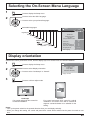
1
Set up for Portrait
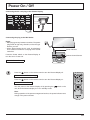
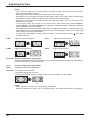
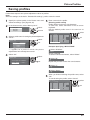
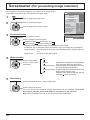
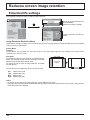
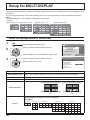
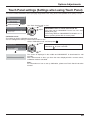
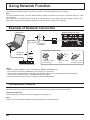
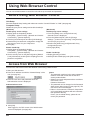
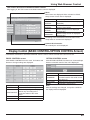
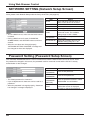
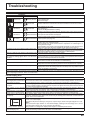
Divide an input image into 3 parts, and display one of them to a plasma display which is set vertically. The image will be enlarged
3 times and rotated 90-degree.
(Example)
Notes:
• When using the Portrait function with displays set vertically, “Display orientation” in Setup menu has to be set to “Portrait”
(see page 43).
• Turn up the power switch for the upward direction when you set Display vertically.
• During Portrait display, the 3D images are displayed as 2D images.
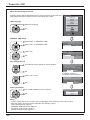
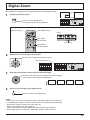
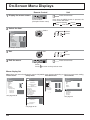
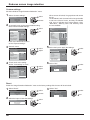
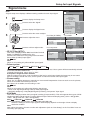
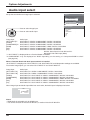
How to setup Portrait
1
Press to display the Setup menu.
Press to select the Portrait Setup.
2
Press to display the “Portrait Setup” menu.
Press to select the Portrait Setup.
3
Press to select “On” or “Off”.
Note:
If you set Portrait Setup to On, MULTI DISPLAY
Setup will be unavailable.
Press to select Seam hides video.
4
46
Press to select “Off” , “On”.
Setup
MULTI DISPLAY Setup
Portrait Setup
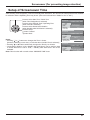
Set up TIMER
PRESENT TIME Setup
Network Setup
Display orientation
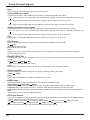
To show joints between displays.
Suitable for moving image display.
Suitable for still image display.
On
Off
Landscape
Portrait Setup
Portrait Setup
Seam hides video
Viewing Area
Location
AI-synchronization
Off
Off
16 : 9
1
Off
Portrait Setup
Portrait Setup
Seam hides video
Viewing Area
Location
AI-synchronization
To hide joints between displays.
2/2
Off
Off
16 : 9
1
Off